The Definitive Guide To
The Definitive Guide To
Introduction
By Sean Daily, Series Editor
Welcome to The Definitive Guide to Windows Server 2003 Terminal Services!
The book you are about to read represents an entirely new modality of book publishing and a major first in the publishing industry. The founding concept behind Realtimepublishers.com is the idea of providing readers with high-quality books about today’s most critical IT topics—at no cost to the reader. Although this may sound like a somewhat impossible feat to achieve, it is made possible through the vision and generosity of corporate sponsors such as triCerat, who agree to bear the book’s production expenses and host the book on its Web site for the benefit of its Web site visitors.
It should be pointed out that the free nature of these books does not in any way diminish their quality. Without reservation, I can tell you that this book is the equivalent of any similar printed book you might find at your local bookstore (with the notable exception that it won’t cost you $30 to $80). In addition to the free nature of the books, this publishing model provides other significant benefits. For example, the electronic nature of this eBook makes events such as chapter updates and additions, or the release of a new edition of the book possible to achieve in a far shorter timeframe than is possible with printed books. Because we publish our titles in “real-time”—that is, as chapters are written or revised by the author—you benefit from receiving the information immediately rather than having to wait months or years to receive a complete product.
Finally, I’d like to note that although it is true that the sponsor’s Web site is the exclusive online location of the book, this book is by no means a paid advertisement. Realtimepublishers is an independent publishing company and maintains, by written agreement with the sponsor, 100% editorial control over the content of our titles. However, by hosting this information, triCerat has set itself apart from its competitors by providing real value to its customers and transforming its site into a true technical resource library—not just a place to learn about its company and products. It is my opinion that this system of content delivery is not only of immeasurable value to readers, but represents the future of book publishing.
As series editor, it is my raison d’être to locate and work only with the industry’s leading authors and editors, and publish books that help IT personnel, IT managers, and users to do their
everyday jobs. To that end, I encourage and welcome your feedback on this or any other book in the Realtimepublishers.com series. If you would like to submit a comment, question, or
suggestion, please do so by sending an email to [email protected], leaving feedback on our Web site at www.realtimepublishers.com, or calling us at (707) 539-5280.
Thanks for reading, and enjoy!
Introduction... i
Chapter 1: Introduction to Windows Server 2003 Terminal Services...1
Server Roles ...1
File Server...3
Print Server ...3
Application Server ...3
Mail Server...4
Terminal Server ...4
Remote Access/VPN Server ...4
Domain Controller ...4
DNS Server ...5
DHCP Server ...5
Streaming Media Server ...5
WINS Server...5
Terminal Services Technology ...6
New Answers for Old Challenges...7
Remote Desktop...7
Compatibility Modes ...8
RDP 5.2 Protocol Enhancements...9
Remote Desktop Connection Client...10
Group Policy–Based Configuration...11
ADSI Access to User Parameters ...11
Session Directory...12
Terminal Services Licensing...12
Terminal Services Deployment Scenarios ...23
Desktop Replacement ...24
Remote Access...25
ASP ...26
Installing the Terminal Server Role...26
Configuring the Terminal Server Role ...30
Terminal Services Configuration Administrative Tool ...30
Permission Compatibility...31
Licensing...32
Restrict Each User to One Setting ...32
Group Policy–Based Configuration...37
Additional Configuration Settings ...39
Installing and Configuring the Remote Desktop Connection Client ...41
Remote Desktop Connection Client...41
Remote Desktop Web Connection...43
Remote Desktops Administrative Tool...44
Summary ...45
Chapter 3: Load Balancing and Session Directory...46
Terminal Server Hardware Configuration ...46
Hard Disk Configuration...47
Memory...50
Processor...51
The Bottom Line...53
Fault Tolerance ...53
Load Balancing ...55
Microsoft Network Load Balancing ...55
Configuring NLB ...56
Third-Party Load Balancers...62
Session Directory...62
Configuring Session Directory ...63
Terminal Server Access Requirements...68
Allow Log On Through Terminal Services ...68
Permissions on RDP ...69
RDP Access Levels...70
Allow Logon to Terminal Server...72
User Account Configuration...73
Home and Profile Directories ...75
Terminal Services Profile Path ...75
Terminal Services Home Directories...77
Configuring User Properties Through the Active Directory Service Interfaces...77
Group Policy Overrides of User Settings...79
Managing Terminal Servers in an AD Environment ...80
Active Directory Users and Computers ...81
Group Policy Management Console ...82
Configuring Terminal Servers with GPOs...83
UI Settings ...83
Restricted Groups...86
Standard Group Policy Processing Order ...86
Loopback Group Policy Processing Order ...88
Enabling Loopback ...90
Resultant Set of Policy...91
Managing User Sessions ...91
Terminal Services Manager ...92
Remote Control...94
Registry Mapping...104
INI File Mapping ...106
Install and Execute Modes ...106
Application Compatibility Scripts ...107
Examples of Terminal Services Application Installations...108
Simple Installation ...109
Custom Installation ...110
Application Compatibility Script Installation...114
Installing Undocumented Applications...115
A Real World Example...117
Terminal Services Compatibility Flags ...121
Installing Applications Through Group Policy...122
Create a Share ...122
Create Administrative Installations...122
Add the Packages to a GPO ...123
Filtering Applications ...124
Reboot the Terminal Servers ...126
Deploying Applications to End Users...127
Summary ...127
Chapter 6: Managing Security and Virus Protection ...128
Viruses, Worms, and Trojan Horses…Oh My! ...128
Internet Explorer Enhanced Security Configuration...129
Changes Made by Internet Explorer Enhanced Security Configuration...131
Managing Approved ActiveX Controls ...133
Implementing Windows Automatic Updates...134
Using SUS...137
Deploying Service Packs and Hotfixes...142
Using Group Policy to Deploy Service Packs ...142
Deploying Hotfixes...143
Using a ZAP File ...144
Example One: Anytown Little Theatre...147
Example Two: BigBusiness, Inc...148
Summary ...150
Appendix A: Terminal Services Clients ...151
Appendix B: Important URLs...152
Appendix C: Registry Changes...153
Appendix D: Script Reference...154
USRLOGON.CMD...154
TSSHUTDN Wrapper...156
Maintenance Reboot Script...158
Appendix E: Terminal Services Command Line Reference...160
Change Logon...160
Query Terminal Servers...160
Query Session ...161
Query User ...161
Query Process ...162
Logoff ...162
Message...163
Reset Session ...163
Shadow...164
Terminal Services Profile ...164
Terminal Server Shutdown ...165
Copyright Statement
© 2003 Realtimepublishers.com, Inc. All rights reserved. This site contains materials that have been created, developed, or commissioned by, and published with the permission of, Realtimepublishers.com, Inc. (the “Materials”) and this site and any such Materials are protected by international copyright and trademark laws.
THE MATERIALS ARE PROVIDED “AS IS” WITHOUT WARRANTY OF ANY KIND, EITHER EXPRESS OR IMPLIED, INCLUDING BUT NOT LIMITED TO, THE IMPLIED WARRANTIES OF MERCHANTABILITY, FITNESS FOR A PARTICULAR PURPOSE, TITLE AND NON-INFRINGEMENT. The Materials are subject to change without notice and do not represent a commitment on the part of Realtimepublishers.com, Inc or its web site sponsors. In no event shall Realtimepublishers.com, Inc. or its web site sponsors be held liable for technical or editorial errors or omissions contained in the Materials,
including without limitation, for any direct, indirect, incidental, special, exemplary or consequential damages whatsoever resulting from the use of any information contained in the Materials.
The Materials (including but not limited to the text, images, audio, and/or video) may not be copied, reproduced, republished, uploaded, posted, transmitted, or distributed in any way, in whole or in part, except that one copy may be downloaded for your personal, non-commercial use on a single computer. In connection with such use, you may not modify or obscure any copyright or other proprietary notice.
The Materials may contain trademarks, services marks and logos that are the property of third parties. You are not permitted to use these trademarks, services marks or logos without prior written consent of such third parties.
Realtimepublishers.com and the Realtimepublishers logo are registered in the US Patent & Trademark Office. All other product or service names are the property of their
respective owners.
Chapter 1: Introduction to Windows Server 2003 Terminal
Services
With the launch of Windows Server 2003 (WS2K3), Microsoft has continued to improve upon Terminal Services. At the launch event, Microsoft focused on the fact that this version of Windows is the most customer driven to date. Terminal Services’ new features clearly
demonstrate this focus—there are certainly several enhancements that I have been hoping for. In this book, I will introduce you to the new features and enhancements in WS2K3 Terminal Services. I will also discuss best practices for configuring and managing Terminal Services with an eye to the new techniques available to systems administrators in WS2K3. As we’ll explore, with Remote Desktop Protocol (RDP) 5.2, Active Directory Service Interfaces (ADSI) access to Terminal Services attributes of user objects, new Group Policy Object (GPO) controls, and Session Directory, we now have the ability to use native Terminal Services as an enterprise-class solution for providing users with Terminal Services–based desktops.
Server Roles
When you install WS2K3, most non-critical subsystems and services are disabled or not
A role is a server function (for example, mail server, domain controller). A single server can
perform more than one role if desired, enabling you to do more with less—the slogan for WS2K3. When an administrator logs on to a server, the Manage Your Server wizard offers to assist in adding new roles and managing currently installed roles.
When adding a new role, the Manage Your Server wizard enables services and performs any security changes required by the role. You can still add and remove services the old-fashioned way through the Add/Remove Windows Components and Services Control Panel applet, but I find that the Manage Your Server Wizard is very useful. (The useable wizard in WS2K3 is quite a change from the one in Windows 2000—Win2K; most of us disabled the Win2K Configure Your Server wizard at first boot.)
After you add a role, the Manage Your Server wizard provides easy access links to common tools and settings used for each role. Figure 1.2 shows the default roles available in WS2K3 Standard Edition.
File Server
Adding the file server role optimizes the server for network shares and file storage. After adding the file server role, you will be able to set disk space quotas for users, use the indexing service to search for files, and even search for documents in different formats and languages by using the Start menu’s Search tool or a new Web-based search interface. WS2K3 offers many new features to improve file serving:
• Shadow copy—Maintains byte-level backups of previous versions of documents to allow end users to undo changes made to documents stored on the server.
• Enhanced Distributed File System (DFS)—Lets you create a single logical namespace for multiple shares spanning servers across the enterprise. This functionality keeps your end users from having to memorize the server names for shares they frequently use. WS2K3’s DFS also provides a robust file replication service with topology choices not available in Win2K. In addition, WS2K3 servers can host more than one DFS root.
• Volume shadow copy service—Creates a point-in-time copy of the original data share. Backup programs can use this copy to make a share appear static while the actual documents are changing. In addition, you can move shadow copies to other servers for backup, testing, and data mining.
Print Server
Print servers are used to provide and manage access to printers. The print server role lets you manage printers through a Web browser, send print jobs to a printer’s URL using the Internet Printing Protocol (IPP), and connect to printers using Point and Print. Microsoft has made several enhancements to printing services in WS2K3:
• Print cluster support—Automatically replicates printer drivers to all servers in the cluster
• Active Directory (AD) enhancements—Lets administrators publish printers in AD so that users can search for printers based on location, color, and speed
• Security enhancements—Includes new Group Policies that let administrators prevent managed clients from connecting to untrusted print cues and prevent connections to the print spooler if the server is not providing print services
WS2K3’s application server role provides support for new Web services and the .NET platform, including enterprise Universal Description, Discovery, and Integration (UDDI) services as well as Simple Object Access Protocol (SOAP) and Web Services Description Language (WSDL). Application servers are often configured to include:
• Resource pooling
• Distributed transaction management
• Integrated security
• Failover and application health detection services
Mail Server
WS2K3 now offers a Post Office Protocol 3 (POP3) and Simple Mail Transfer Protocol (SMTP) server option. This option lets you manage basic email accounts for your users and enables users to send and retrieve mail from the server. Mail servers provide email transfer and retrieval services. User email can be stored on the server until retrieved by a POP3 client. To utilize the mail server role, you must have:
• An active Internet connection
• A registered email domain name
• A registered mail exchanger (MX) record for your email domain with your Internet Service provider (ISP)
Terminal Server
By installing the terminal server role, you enable users to connect to the server to run applications as if the applications were installed on users’ workstations. I will discuss the installation, configuration, and new features of the terminal server role throughout the book. Unlike Win2K, which immediately grants access to all users when Terminal Services is installed, WS2K3 restricts access by default to administrators only. You must add users or groups to the Remote Desktop Users group to enable access.
Remote Access/VPN Server
Remote access and virtual private network (VPN) servers provide an entry point into your network for remote users. By using the remote access/VPN server role, you can implement routing protocols for both LAN and WAN environments. This role supports both dial-up connections and VPN connections over the Internet.
Domain Controller
Domain controllers maintain the AD database. Domain controllers provide authentication
services for users and computers and control access to network resources. The domain controller role replaces the DCPROMO tool that Win2K provides. This role lets you add a domain
DNS Server
The Domain Name System (DNS) is the TCP/IP name resolution service that is used on the Internet. DNS lets computers resolve Fully Qualified Domain Names (FQDNs) to IP addresses. The implementation of DNS that WS2K3 includes is a Dynamic DNS (DDNS) service, which means that computers can self register into the DNS database. The WS2K3 implementation of DNS also offers integration with the Windows Internet Naming Service (WINS) server role to allow non-NetBIOS clients to resolve NetBIOS names via DNS.
DHCP Server
A Dynamic Host Configuration Protocol (DHCP) server will enable your TCP/IP-based clients to be automatically assigned an IP address when needed. The DHCP server can also provide additional network configuration information—DNS server IP addresses, WINS server addresses, and so on—to the clients. Having a server with the DHCP role installed greatly reduces the time required to set up and configure clients on your network.
Streaming Media Server
Streaming media servers provide Windows Media Services to network clients. Windows Media Services manages and delivers Windows Media content—streaming audio and video—over an intranet or the Internet.
WINS Server
WINS lets NetBIOS clients resolve computer names to IP addresses. Unlike DNS, which requires that the request include the FQDNs of the target system, WINS is designed to function within an intranet environment, so simple NetBIOS names can be resolved. The WINS database is dynamic, letting clients self-register their names upon receiving an IP address from the DHCP server.
Terminal Services Technology
So what is a terminal server? Windows was designed to be a single-user operating system (OS), meaning only one user could be interactively logged onto a system at a time. Terminal Services breaks that model by implementing a Session Manager layer between the system and user layers. The Session Manager responds to new session requests by creating a separate instance of the Win32 subsystem, WIN32K.SYS, for each session. The Session Manager then executes the client server runtime subsystem, CRSS.EXE, and the windows logon service,
WINLOGON.EXE, within the session. Figure 1.3 shows the processes that make up Terminal Services divided up between user mode and kernel mode and indicates whether they are per server or per session.
Figure 1.3: Services that create a multi-user environment.
This process allows multiple user sessions to run simultaneously on a Windows system. Session Manager acts like a maitre d’ in a restaurant, directing new patrons (clients) to their tables
(sessions), then directing the serving staff (applications, services, and resources) to the new table. Session Manager assigns each session a unique ID and address space so that resource and
network requests can be directed to the correct user.
Another very important component to Terminal Services is RDP. This presentation layer
protocol is what allows users to interact with sessions running on a remote server. Without RDP, each user would need to have a console directly connected to the server.
By using Terminal Services, you can install applications on a few servers in a datacenter rather than on hundreds of workstations. You can also take advantage of inexpensive and highly robust solid-state thin clients instead of managing the lifecycle of workstation hardware. If you have an environment that requires personal computers for your end users, you can still leverage terminal servers to centralize network traffic for specific high-bandwidth client/server applications. Many companies also use terminal servers for remote access. Doing so enables the organizations to lock down the majority of the network and allow remote connections to only a few servers. These servers can be easily maintained with the latest security patches, hotfixes, and virus protection.
New Answers for Old Challenges
If you manage terminal servers in your environment today, you already know many of the challenges that they pose—configuring user accounts, managing roaming profiles,
load-balancing servers, configuring protocol settings, and managing printing. With WS2K3, many of these tasks become much easier to deal with.
Remote Desktop
The first change you will notice in WS2K3 Terminal Services is the elimination of Remote Administration Mode. Under Win2K, this mode of Terminal Services is used to enable two remote sessions in addition to the console session for systems administration. This terminology causes a great deal of confusion for systems administrators because enabling Terminal Services does not necessarily make a server a “terminal server.” Also, Remote Administration Mode causes a server to register as a terminal server in WINS and thereby shows up in the Terminal Server Administration tool. This behavior makes finding your Win2K application terminal servers more difficult.
Figure 1.4: Enabling Remote Desktop.
Microsoft has added the ability to connect to and shadow the console session to WS2K3 Terminal Services. To connect to the console session, you can either use the Remote Desktop administration tool or launch the Remote Desktop Connection client with the /console switch. To shadow the console session, use the Terminal Server Administration tool just as you would to shadow any other RDP session.
To quickly shadow the console session of a server you are already connected to via RDP, open a command prompt and type
SHADOW 0
(that is a zero).
Compatibility Modes
RDP 5.2 Protocol Enhancements
Some of the biggest changes in WS2K3 Terminal Services from previous versions come in the enhancements made to RDP. The protocol now supports several new resource redirection abilities. You might be familiar with some of them if you have been using Windows XP’s Remote Desktop ability. These enhancements bring RDP up to par with Citrix’s ICA protocol in many ways.
You are now able to redirect client drives, audio output, clipboard, ports, time zone, and
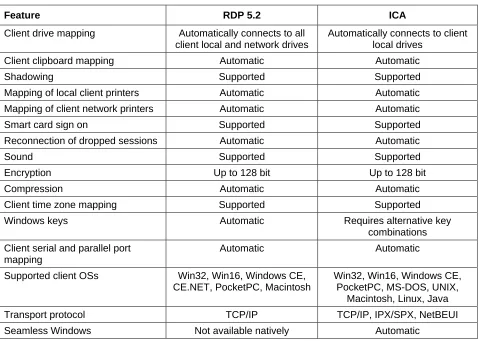
Windows keys (for example, ALT+TAB). RDP 5.2 even supports smart card authentication. All of these features can be enabled or disabled at the server by the administrator. RDP 5.2 adds support for greater color depth—up to 24-bit full color—and screen resolutions up to 1600 × 1200. Table 1.1 shows a comparison between RDP 5.2 and ICA.
Feature RDP 5.2 ICA
Client drive mapping Automatically connects to all client local and network drives
Automatically connects to client local drives
Client clipboard mapping Automatic Automatic
Shadowing Supported Supported
Mapping of local client printers Automatic Automatic Mapping of client network printers Automatic Automatic Smart card sign on Supported Supported Reconnection of dropped sessions Automatic Automatic
Sound Supported Supported
Encryption Up to 128 bit Up to 128 bit
Compression Automatic Automatic
Client time zone mapping Supported Supported Windows keys Automatic Requires alternative key
combinations Client serial and parallel port
mapping
Automatic Automatic
Supported client OSs Win32, Win16, Windows CE, CE.NET, PocketPC, Macintosh
Win32, Win16, Windows CE, PocketPC, MS-DOS, UNIX,
Remote Desktop Connection Client
Remote Desktop Connection is the new client for RDP 5.2. Remote Desktop Connection
supports all of the new features of RDP 5.2. It eliminates the Connection Manager interface and no longer stores connection definitions in the registry. Instead, Remote Desktop Connection supports RDP Files—text files containing connection parameters to connect to a terminal server or Windows XP Remote Desktop. With RDP Files, it is easy to distribute or centrally store common connections for your users.
Through the Remote Desktop Connection interface, which Figure 1.5 shows, you can control connection options—resource redirection, initial program, and window size. There is also a new option called Experience through which you can enable or disable features of the new Aqua interface in Windows XP and WS2K3—wallpaper, themes, and menu animation—to improve performance over low-bandwidth connections.
Group Policy–Based Configuration
Under WS2K3, you can now centrally configure and manage virtually all Terminal Services parameters via Group Policy. Figure 1.6 shows some of the settings available.
Figure 1.6: Group Policy settings for WS2K3 Terminal Services.
As you can see, Microsoft has provided the centralized control we’ve always wanted.
I’ll go over the available settings and recommended usage in Chapter 2.
ADSI Access to User Parameters
Under Win2K, the only Terminal Services parameter of a user object that was accessible from the command line was the Terminal Services Profile Path attribute; accessing this attribute required the TSPROF tool. WS2K3 exposes all Terminal Services attributes to ADSI. Using the Windows Script Host (WSH) and your preferred scripting language, you can now easily
objUser.MaxDisconnectionTime objUser.MaxConnectionTime objUser.MaxIdleTime objUser.BrokenConnectionAction objUser.ReconnectionAction Session Directory
When using WS2K3 Enterprise Edition for terminal servers in a load-balanced environment, you can use the new Session Directory service to provide a single point of entry into the terminal server farm. Session Directory not only acts as a load balancer—connecting users to the least loaded server, but also maintains a database of active sessions in the farm. This feature enables a disconnected user to resume an active session on the same server from which the user was disconnected.
When a user connects to the farm through the Session Directory server, Session Directory checks the list of active and disconnected sessions; if the username is found in the database, the
connection is directed to the server running the session. Session directory can be used with Microsoft’s load-balancing service or any third-party load balancer.
I will cover Session Directory in depth in Chapter 3.
Terminal Services Licensing
For a terminal server to continue accepting connections after the 120-day trial period, you must configure a Terminal Services Licensing server. WS2K3 adds new options and new layers of complexity to the Terminal Services licensing landscape. To connect to a WS2K3 terminal server, clients will need to be issued new WS2K3 license tokens. These new tokens can only be issued by a WS2K3 Terminal Services License server—Win2K license servers cannot issue these new tokens. Thus, even if your environment already contains a Win2K license server, you will be forced to either upgrade that server to WS2K3 or activate a separate WS2K3 license server.
Terminal Server Licensing Components
Terminal Services licensing consists of the Microsoft Clearinghouse, one or more WS2K3
Terminal Services Licensing servers, and one or more terminal servers. You access the Microsoft Clearinghouse to activate license servers and obtain license key packs to be installed on the Terminal Services Licensing server. The clearinghouse can be accessed directly over the Internet, through a Web page, or by telephone.
The terminal server is any WS2K3 edition with the terminal server role installed. When a client connects to the terminal server, the server first determines whether the client needs a license token. If so, the server contacts the licensing server and requests a token on the client’s behalf, then delivers the token to the client. The first time a client connects to a terminal server in per-device licensing mode, a temporary token is issued. Temporary licenses are stored on the Terminal Services Licensing server for 90 days. Only at the second connection (within 90 days) is the permanent CAL assigned to the device.
The term “permanent” is not really accurate here, as device tokens are set to expire after a random number of days (between 52 to 89 days). This configuration is designed to recapture CALs that have been issued to devices that are no longer in the environment or have had their OSs re-installed. This behavior was first implemented in Win2K Service Pack 3 (SP3).
License Types
A WS2K3 Terminal Services Licensing server can manage seven types of license tokens. In addition to supporting the CALs required for connecting to Win2K terminal servers, there are three new types of CALs specific to WS2K3 Terminal Services (the following list shows the three new types as well as the three types that have been supported since Win2K):
There are no built-in licenses for WS2K3 Terminal Services. You will need to purchase CALs for all devices or users connecting to these servers regardless of the client OS.
• WS2K3 Terminal Server Device CALs—WS2K3 terminal servers that are in Per Device licensing mode will request these licenses from the Terminal Services Licensing server.
• WS2K3 Terminal Server User CALs—WS2K3 terminal servers that are in Per User licensing mode will request these licenses.
• WS2K3 Terminal Server External Connector licenses—These licenses allow unlimited connections to a terminal server running WS2K3 by external users. These licenses are not yet available.
• Win2K Terminal Services CALs—Terminal servers running Win2K will request these licenses from the licensing server for clients running OSs other than Win2K Professional or Windows XP. You only need these licenses if you have terminal servers running Win2K.
Figure 1.7: License types available in the Terminal Server Licensing administration tool.
Installing Terminal Server Licensing
Unless you are working in a single server environment, Terminal Server Licensing should be installed on a separate server from Terminal Services. If you are in a domain environment, you will probably want to install the licensing service on a domain controller, as doing so makes the discovery process easier for the terminal servers.
If you are installing Terminal Server Licensing on a server in AD, you are presented with two options for the mode of the server: Domain/Workgroup and Enterprise. The mode selected determines how the licensing service advertises itself to the terminal servers. If you are in a workgroup or non-AD domain, the Enterprise option is not available.
I will explain the discovery process in the next section, but for now, you should understand that an Enterprise license server will be discoverable by terminal servers from any trusted domain but
only within the same AD site as the licensing server. Whereas, a Domain/Workgroup license
server will be discoverable only by terminal servers in the same workgroup or domain, but, depending on the type of domain, may be discoverable across site boundaries.
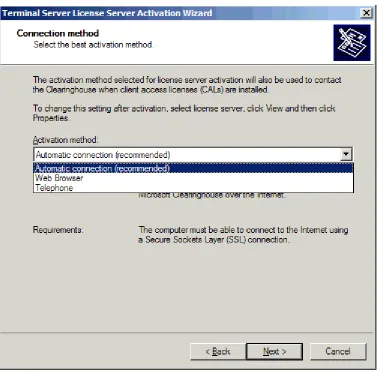
After you install Terminal Server Licensing, the license server must be activated by contacting the Microsoft Clearinghouse. Launch the Terminal Server Licensing administration tool from the Start menu, right-click the server, and click Activate Server. The Terminal Server License Server Activation Wizard will launch, offering you three options for contacting Microsoft. Figure 1.9 shows the options in the wizard:
• Automatic connection—This method is the easiest way to activate the licensing server. This method requires that the server running Terminal Server Licensing has Internet connectivity on port 443 (Secure Sockets Layer—SSL). Simply fill in the company and contact information, and click Activate.
• Web Browser—If the server running Terminal Server Licensing does not have Internet connectivity, you can still activate the server over the Web from another computer. To do so, from a Web browser, go to https://activate.microsoft.com, and fill in the company and contact information as well as the unique Terminal Server Licensing ID number that the activate server wizard provides. The Web site will respond with the activation code that you can then enter into the licensing service.
• Telephone—If you do not have Internet connectivity, you can contact the Microsoft Clearinghouse by telephone. Select your country/region in the activate server wizard, and the correct phone number will be displayed. Provide the customer service person your company name, contact information, and server ID code, and they will provide you with the activation code. Be sure to either activate the server while still on the phone with the customer service representative or be very careful to record the activation code
Figure 1.9: Activating a Terminal Services Licensing server.
After the license server is activated, it will immediately begin to issue temporary Win2K and WS2K3 terminal server tokens, which gives the administrator a 90-day period in which to install the appropriate permanent CALs on the license server so that it can issue permanent tokens.
If you are upgrading a Win2K server with Terminal Server Licensing installed to WS2K3, you might need to re-activate the licensing service. To do so, select Re-Activate Server from Advanced in the Actions menu in the Terminal Server Licensing administration tool.
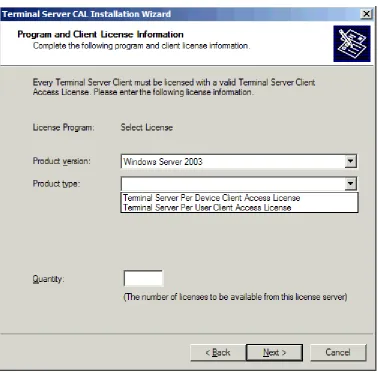
Figure 1.10: Adding licenses to a Terminal Services Licensing server.
License Server Discovery
Figure 1.11: Overriding license server discovery by specifying license servers in the registry.
If you don’t predefine license servers in the registry, the discovery process proceeds as follows: workgroup and non-AD domain–based terminal servers send a mailslot broadcast to locate license servers. Thus, only license servers in the same subnet will be discovered.
AD-based terminal servers first look for any license servers in Enterprise licensing mode. They do so by performing a Lightweight Directory Access Protocol (LDAP) query for the CN TS-Enterprise-License-Server, specifying their own site as the scope. The terminal server then contacts each domain controller within its site looking for a Domain license server. Finally, the terminal server will contact all remaining domain controllers within its domain.
Once the discovery process is complete, the terminal server caches all license servers that were discovered in the following registry keys:
HKEY_LOCAL_MACHINE\SOFTWARE\Microsoft\MSLicensing\Parameters\EnterpriseServe rMulti and
HKEY_LOCAL_MACHINE\SOFTWARE\Microsoft\MSLicensing\Parameters\DomainLicense ServerMulti.
License Assignment
Every time a client connects to a terminal server, the license server is contacted to either validate an existing license or issue a new license. The type of licenses that a terminal server will issue is determined by its licensing mode—Per Device or Per User. You can set the mode through either the Terminal Services Configuration administration tool or by Group Policy. The default is Per Device mode, unless you are upgrading Win2K terminal server that is in Internet Connector mode, in which case it will default to Per User mode.
In order to support both Per User and Per Device tokens, the terminal server must be in Per User mode.
The following steps walk you through the process taken by a terminal server at each client connection:
1. Regardless of the licensing mode, the terminal server will first query the client device to determine whether a device token has been written to the registry. If a token is present, the terminal server will contact the license server indicated in the token to validate the license. If the license is a temporary license, the license server will assign a permanent token at this time, which will be recorded in the client registry.
2. If the client device does not have a token, the next step is dependent on the licensing mode of the terminal server:
a. Per-User licensing mode—The terminal server requests credentials from the user and performs authentication. The terminal server will then query the license server to either validate that the user has a token assigned or request a license for the user. The token is stored on the license server.
b. Per-Device licensing mode—The terminal server will request a temporary token from the license server and write it to the client registry. After the user has been authenticated, the terminal server instructs the licensing server to mark the temporary token as validated. If the user does not authenticate, the token is immediately returned to the pool of available licenses.
License Server Administration
After your license servers are activated and have licenses installed, there is very little
administration to be done. However, there are a few utilities that you should familiarize yourself with in order to troubleshoot any licensing issues that may arise.
The Terminal Sever Licensing tool is the primary administration tool. Figure 1.12 shows the interface. This tool is used to activate a license server, install licenses, and view available and assigned license tokens. Through this interface you can view which users and devices have been assigned CAL tokens, the date that the token was assigned, and when it will expire.
Figure 1.12: The Terminal Server Licensing tool interface.
The WS2K3 resource kit contains a command-line interface to the Terminal Server Licensing tool—LSREPORT.EXE. With this tool, you can output a list of tokens assigned by a license server. This tool accepts parameters to limit the date range of licenses to include, include only temporary licenses, include the hardware ID of device tokens, and specify which license server or servers to query.
Another resource kit utility is the Client License Test Tool—TSCTST.EXE. This tool is used to query details about device tokens installed on a given client. The default output includes the name of the license server that issued the token, the scope, the name of the computer, the user that was authenticating when the token was issued, the license ID, and the date range for which the license is valid. When executed with the /A switch, the tool will also include the server certificate version, the licensed product version, the hardware ID, the client platform ID, and the company name in the output.
Figure 1.13: The License Server Viewer interface.
License Server Group Policy Settings
WS2K3 includes several Group Policy settings to control terminal server licensing. With these settings, it is easy to centrally configure license servers and maintain consistency in the
• License Server Security Group—By default, a license server will issue tokens to clients connecting to any terminal server. If you enable this setting, the license server will only respond to requests from terminal servers in the Terminal Services Computers local group. If the licensing server is a domain controller, this is a domain local group. Enabling this setting prevents rogue terminal servers from requesting licenses and lets you enforce separate license pools for groups of terminal servers in your environment. If you have more than one license server providing licenses for a single group of terminal servers, be sure to add the license servers to the group, as they can request licenses on behalf of the terminal servers.
• Prevent License Upgrade—As you know, a WS2K3 license server can distribute both Win2K terminal server device CALs and WS2K3 terminal server device CALs. If a Win2K terminal server requests a token, and the license server does not have any Win2K terminal server CALs available, it will automatically issue a WS2K3 Per-Device token (if there are any available). This behavior can be prevented by enabling this policy setting. With it enabled, the license server will only issue temporary tokens to clients connecting to Win2K terminal servers. If the client’s temporary token has expired, the connection will be refused.
The Terminal Services Computers group is empty be default; be sure to add servers to the group before enabling the policy setting to prevent refused connections.
Summary
In this chapter, I introduced you to the new role-based model in WS2K3. I also briefly covered the new features of Terminal Services. I will continue to address these enhancements throughout the book. Finally, I went into depth about Terminal Services licensing, as a thorough
understanding of licensing is required to maintain a terminal server infrastructure for more than 120 days.
Chapter 2: Installing and Configuring the Terminal Server
Role
This chapter will take you through the steps of adding the terminal server role to WS2K3. I’ll introduce you to the settings used to configure a terminal server via the administrative tools, Group Policy, and registry editor, and even give you a few system tweaks to help improve your server’s performance. Finally, I will give you an in-depth look at the Remote Desktop
Connection client, and the new version of the Terminal Server Advanced Client (TSAC)— Remote Desktop Web Connection. I’ll begin by exploring the most common reasons for deploying Terminal Services.
Terminal Services Deployment Scenarios
What are the biggest challenges you face managing a Windows desktop environment? Answer truthfully, and I’m sure these are among your top five:
• Software deployment
• Virus protection
• Software updates
By using Terminal Services, you can greatly reduce the difficulty of these tasks. WS2K3’s terminal server role can enable you to centralize software, decrease the number of Windows systems in the environment, and prevent exposure to viruses by centrally managing virus scanner updates and creating a single point of entry for remote access users.
There are three basic models for utilizing Terminal Services:
• Desktop replacement—Remove the Windows PC from the user’s desk, and replace the PC with a thin-client device.
• Remote access—Provide users in a remote location access to either a complete desktop environment or individual applications over either a WAN link or Remote Access Service (RAS) connection.
Desktop Replacement
At its most pervasive implementation, Terminal Services can allow an IT department to completely eliminate PCs from users’ desks. This model provides many benefits, including elimination of end-node support, rapid deployment of new or upgraded software, reduction in power consumption, and added security. Depending on your corporate IT architecture, desktop replacement can also reduce bandwidth requirements and eliminate the need for servers in remote offices:
• Elimination of end-node support—Without PCs on users’ desks, there is no longer any need to visit the workstation to configure the OS, install or repair software, assist a user in configuring applications, or replace a defective hard drive. A thin-client’s OS is burned into ROM, and applications are installed on the terminal servers. Help desk personnel can provide user assistance via remote control of the terminal server session, and users can replace a damaged device by simply plugging in a new one.
Most thin-client devices support auto-configuration via Dynamic Host Configuration Protocol (DHCP) and FTP. You add a URL to a DHCP extension, and when the client boots, the client downloads its configuration from the FTP URL. This setup enables even the least tech-savvy users to set up or replace thin clients.
• Rapid deployment of new or upgraded software—If you work in a large IT environment, you know how difficult and time consuming deploying software to your users can be. By using Terminal Services and thin clients, you simply install the new software on your servers, and overnight thousands of users will have access to it. There are even third-party utilities that will assist you in deploying software to all of your terminal servers at once.
• Reduction in power consumption—Thin-client devices have no moving parts and are completely solid-state, so they typically consume about 10 percent of the power that a normal Wintel PC consumes. With rising electricity costs, this reduced consumption can provide a major cost-savings to your company.
• Added security—If a standard PC is stolen, you risk losing important and sensitive data stored on its local hard disk, and you must pay to replace the computer. With the desktop replacement model, there is no data stored on the end-node device, and the cost of replacement is about half that of a normal PC.
There are many players in the thin-client device market (for example, Wyse Technologies’ Winterm and Neoware EON). These devices can use any embedded OS at their core (Windows CE,
embedded Linux, and so on).
• Limited adaptability to one-off applications—If you have a very small group of users who need an application, with the desktop replacement model, you’ll no longer have the freedom to install the application on only those users’ desktops. You’ll be forced to integrate the application into your Terminal Services infrastructure. Because of this limitation, the desktop replacement model is best suited to homogeneous computing environments.
• Reduction in user settings personalization—If your users are accustomed to personalizing their workstations with wallpaper and screen savers or have the ability to install their own software, you’ll have a small battle on your hands when they’re restricted from
performing some of these customizations.
• Increased initial deployment costs—If you already have a large user population and each user has a PC, the initial setup costs of purchasing the thin-client devices and the robust servers needed for terminal servers can seem a little overwhelming. However, in the long term, the reduction in TCO will more than make up for the initial investment. Opening a new office or call center is a perfect opportunity to implement the desktop replacement model.
Remote Access
If these drawbacks or your corporate culture eliminate desktop replacement as an option, the remote-access model may be a great alternative for you. Most big companies have a large population of remote or nomadic users—telecommuters, executives traveling to satellite offices, and so on. Although laptops provide the ability to work remotely, they don’t address the needs of limited-bandwidth connections or remote support. In addition, laptops can be nearly double the cost of a desktop, so your finance department may balk at the thought of providing a laptop for users who only occasionally need remote access to applications.
The remote-access model can provide these users with the ability to access individual applications or even a complete corporate desktop from the Internet (by using the Remote Desktop Web Connection, a Web-based version of the Remote Desktop Connection client) or from their home computers. In addition, the reduced bandwidth requirements of RDP provide improved performance when compared with running laptop-based applications over a slow link.
ASP
When looking at a large-scale deployment of a vertical application, there are many factors to consider:
• Deployment method (Sneakernet, Systems Management Server―SMS, IntelliMirror)
• Workstation system requirements (RAM, disk space, processing power)
• Support and back-out plan in case an installation goes awry
• Bandwidth requirements for client/server or database applications
If the application you are deploying doesn’t have complex OLE integration with other applications on the users’ desktops, the ASP model might be right for you. Terminal servers, especially when implemented with TSAC or a third-party application publishing product, can give you the ability to provide users the applications they need quickly and easily without touching their workstations. In this model, the application is installed on terminal servers, and users launch it via a client application on their desktops or by using a Web browser.
I’ll go into the details of the ASP model in Chapter 5.
Installing the Terminal Server Role
To start, click the Add or remove a role link to invoke the Configure Your Server wizard, which
Figure 2.2 shows. This wizard outlines the preliminary steps to adding a role. Confirm that you are prepared, and click Next.
Figure 2.2: Preliminary steps to installing a role.
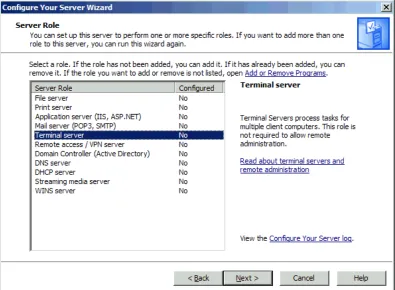
In the window that results from the scan (see Figure 2.4), you will select the terminal server role, then click Next.
Figure 2.4: The Configure Your Server wizard.
After warning you that adding this role will automatically reboot your server, the wizard will call the Add/Remove Windows Components Control Panel applet and add the required services. When complete, the system will reboot.
There is no option to postpone the reboot when adding a role via the Manage Your Server wizard.
Figure 2.5: A successful installation of the terminal server role.
Configuring the Terminal Server Role
As you can see in Figure 2.6, there are several steps you must take after installing Terminal Services. We explore terminal server licensing in Chapter 1; in this section, I’ll discuss how to configure a terminal server.
The reference materials available in the Plan your Terminal Server Deployment section of the checklist are very helpful, so read through them.
There are two main tools used to configure a terminal server: the Terminal Services Configuration tool and the Group Policy editor.
Terminal Services Configuration Administrative Tool
The main tool used to configure a terminal server is the Terminal Services Configuration administrative tool. With this tool, you can set the permission mode for the server, configure performance options, and configure RDP. You can launch Terminal Services Configuration in one of three ways:
• From the Start menu, under Administrative Tools
• Directly from the Configure Terminal Server wizard checklist
• From the Manage Your Server wizard
Under the Server Settings node, which Figure 2.7 shows, you will find six options.
Three of these choices—Delete temporary folders on exit, Use temporary folders per session,
and Active Desktop—you will most likely leave in the default settings. The following list
provides an explanation of these settings:
• Delete temporary folders on exit—Each user on a terminal server is given a temp directory. This folder is found in C:\Documents and Settings\<username>\local
settings\temp. If this setting is enabled, the temp folder is purged when the user logs off the server.
If you use roaming profiles for your users, and you enable the Delete cached copies of roaming profiles Group Policy setting (a common practice on terminal servers), the Delete temporary folders on exit setting becomes irrelevant as the entire profile directory
is deleted at logoff. However, it is a good idea to leave this setting enabled unless you have an application that requires that temp files are persistent across sessions, in which case, you will also need to disable the Group Policy setting as well.
• Use temporary folders per session—With this setting enabled, a new directory is created under the users temp folder for each session the user has on the server. These folders are named with a single digit (\temp\0, \temp\1, and so on). It is a good idea to leave this setting enabled to prevent multiple sessions from interacting.
• Active Desktop—Starting with Windows 98, we have had the ability to embed active content (Web pages, animations, news tickers, and so on) on the Windows desktop. To reduce the number of screen redraws being sent to the client from the terminal server, this setting is disabled by default.
The remaining three settings—Licensing, Permission Compatibility, and Restrict each user to one setting—require a little more consideration and understanding. These settings are dependent
on your environment and the applications you intend to install on the terminal server. Let’s begin by looking at permission compatibility.
Permission Compatibility
In Win2K, you were prompted to select a compatibility mode when installing Terminal Services. The options were Permissions compatible with Windows 2000 Users and Permissions
compatible with Terminal Server 4.0 users. In line with Microsoft’s new focus on security,
Licensing
The next setting to address is the licensing mode. This setting controls the type of licenses that the terminal server will request from the license server on behalf of the clients. In most cases, the default setting is Per Device, which means that you will need to install WS2K3 Terminal Server Per Device tokens on your license server. However, if you are upgrading a Win2K terminal server that has Internet Connector Licensing enabled, you’ll configure this setting to Per User licensing.
The mode you select is dependent on your environment. If your environment is one in which each user has multiple devices from which they will connect, Per User licensing may be easier to manage and may even save you some money; whereas, if your users share computers, Per
Device licensing may be a better option. Perhaps you manage a call center in which one
computer is shared by three users, one in each shift. Per Device licensing would mean you would only need one token to cover three users. If you set the server to Per User licensing, it will also validate and accept connections from devices that have already been issued a Per Device token.
Restrict Each User to One Setting
The last setting to be considered is Restrict each user to one session. Enabling this setting will
prevent users from establishing multiple sessions on the server, which will help conserve resources on the server by only allowing each user to take up the overhead of a single session and run all required applications within that session. Keep in mind that if you are going to be offering direct access to individual applications outside of a desktop environment, your users might need the ability to run more than one application at the same time.
Citrix MetaFrame supports session sharing. This functionality lets a user launch multiple published applications on the same server without establishing a separate session for each one.
By default, you will see only one RDP-Tcp connection. If you are using a multi-homed server, you can modify the default connection definition to apply only to one network interface, then create a separate connection definition for your other interfaces. Also, if you have installed Citrix MetaFrame, you will see one or more ICA connections here; it is advisable to use the Citrix Connection Configuration tool to modify settings for the ICA protocol.
By right-clicking the connection, you can disable it entirely, rename it, or access its properties. If you are familiar with the Win2K Terminal Services Configuration tool, the WS2K3 tool’s interface looks quite familiar, with the addition of the new features of RDP 5.2 and the new “secure by default” model.
The General tab of the RDP-Tcp properties (see Figure 2.9) lets you add a comment to the connection and to set the encryption level. WS2K3 offers new encryption options:
• Low—All data sent from the client to the server is protected by 56-bit encryption.
• Client Compatible (the default setting)—All data sent between the client and the server is protected by encryption based on the maximum key strength supported by the client.
• High—All data sent between the client and the server is protected by encryption based on the server’s maximum key strength. Clients that do not support this level of encryption cannot connect.
Be careful about setting credentials for automatic logon, as doing so will prevent you from logging on with an administrative account.
Figure 2.10 shows the Sessions and Environment tabs of the RDP connection. In these windows, you set timeouts and reconnection settings as well as an initial program to launch. By default, the settings on both of these tabs are inherited from the parameters set on the user account
connecting to the server. If you want to override the user account settings, do so here.
The Sessions tab contains timeouts for disconnected, idle, and active sessions. A disconnected session is one in which the user actively disconnects from the server by either closing the connection window without logging off or selecting Disconnect from the Start menu. An idle session is one in which the user has left the connection window open, but has not executed any mouse clicks or keystrokes in a given period of time. When a session loses its network
connection or reaches the idle timeout, you can specify whether to immediately end the session or to treat the session as disconnected.
The Environment tab lets you specify a specific program to launch when a client connects to the server. You must specify both the path and executable name. If you configure this setting, when any user, including an administrator, connects to the server, the specified program will run instead of a Windows Explorer desktop. Many administrators have made the mistake of thinking that this setting is like the Startup folder in the Start menu, automatically launching a program when the user logs onto the desktop. Such is not the case—configuring this setting replaces the
Explorer shell with the program specified.
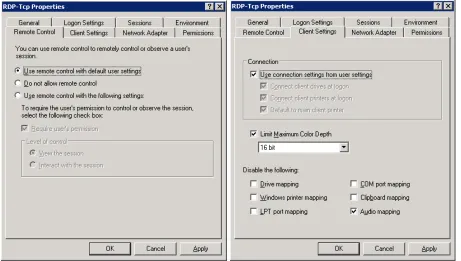
When an administrator wants to remotely connect to an existing user’s session to provide support, this action is called shadowing or remote control. On the Remote Control tab, you can
keep the default setting of inheriting shadowing settings from the user’s account attributes, or you can specify your own for this server. If you specify settings here, your options are to enable or disable the requirement for the user to give permission before being shadowed (via a popup window) and to control the level of interaction that the administrator can have with the user’s session—either view only or interact. If you select interact with the user’s session, the
administrator will be able to control the user’s mouse and enter keystrokes on behalf of the user. You also have the option to disable remote control altogether.
Before disabling the Require the user’s permission setting, be sure to confirm that you are not under a legal obligation to inform users when they are being shadowed. Many states and industries require this communication with users.
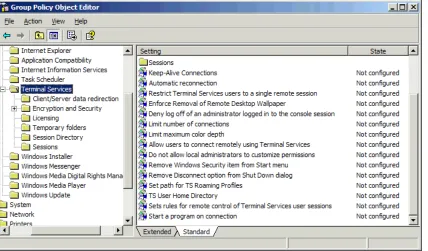
The Client Settings tab lets you override the client resource redirection settings specified in the Remote Desktop Connection client software. On this tab, you can enable or disable the
redirection of the following client resources:
• Drives
• Printers
• LPT ports
• COM ports
• Clipboard
• Audio
Figure 2.11: The Remote Control and Client Settings tabs of the RDP connection properties.
The Network Adapter and Permissions tabs are dedicated to more server-centric settings (see Figure 2.12). The Network Adapter tab lets you specify whether this set of connection settings applies to all network adapters or, in the case of a multi-homed server, a specific adapter. The Permissions tab is where you control who has the ability to connect to the server using RDP, and what level of rights they have when it comes to accessing virtual channels interacting with other sessions on the server. Figure 2.12 shows both of these tabs.
In addition to limiting the RDP connection to one network interface, the Network Adapter tab lets you set a limit on the total number of connections allowed on the specified interface or on the entire server if All network adapters configured with this protocol is selected. If you have
more than one network adapter in your server, and you select a specific adapter on this tab, you will be able to create a new connection in the main Terminal Services Configuration window and apply separate settings to it.
The Permissions tab is one in which major change has occurred since Win2K. Under Win2K, the default permissions allowed all users from any trusted domain to immediately connect to the server once Terminal Services was enabled. WS2K3 is secure by default and only allows administrators and members of the Remote Desktop Users group to connect. Keep in mind that the Remote Desktop Users group is empty by default, so in order for users to connect to your terminal server, you will need to add them to this group.
Figure 2.12: The Network Adapter and Permissions tabs of the RDP connection properties.
Group Policy–Based Configuration
WS2K3 has exposed a large number of settings to the Group Policy editor that were not available under Win2K. If your terminal servers are in an AD environment, you will definitely want to take advantage of Group Policies; but even in a workgroup or NT 4.0 domain environment, the terminal server settings are still available to you via the local machine policy. In this section, I’ll go over some of the settings available in the Group Policy editor.
In Chapter 4, I’ll cover some advanced techniques available in an AD environment.
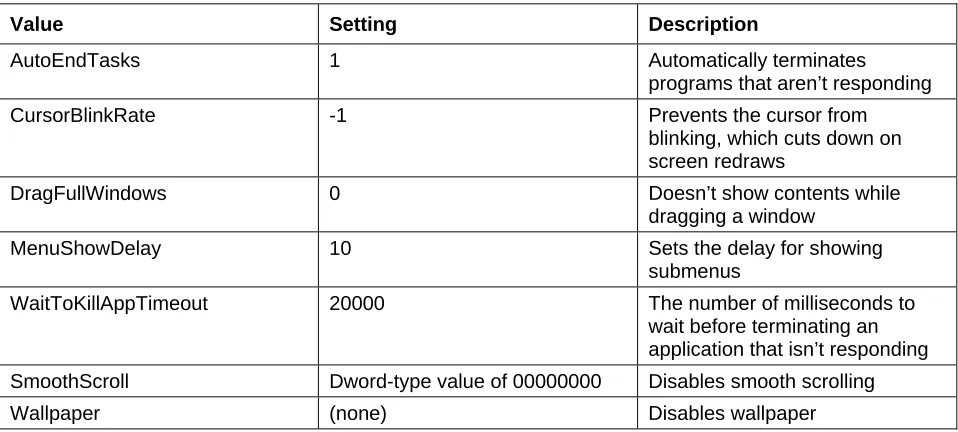
Figure 2.13: Terminal Services settings in the Group Policy Object Editor.
Settings are divided into categories: Encryption, Licensing, Sessions, and so on. You’ll notice that several settings are identical to those found in the Terminal Services Configuration tool. The reason is so you can centrally manage settings on your servers without having to configure each server manually. Some settings to take a close look at are:
• Set path for TS Roaming Profiles—This setting lets you specify a server and share in which to store terminal server user profiles. You can also specify a TS profile path on each user’s account. This setting not only lets you override the setting in the user account on a per server basis, but also enables you to specify a different terminal server profile server for groups of terminal servers. This ability is helpful if you have geographically dispersed server farms and users that roam between them.
• TS User Home Directory—This setting is similar to the previous setting except that this one specifies a server and share to create home directories for users logging on to the terminal server.
When configuring either of the previous settings, do not attempt to specify a per-user subdirectory. The server will automatically append %username% to the path.
The licensing node under Terminal Services is used to configure a terminal server license server by enforcing a license server security group or disabling license upgrades. A license server security group restricts the license server to only issuing tokens to servers that are members of the Terminal Services Computers security group. Disabling license upgrades prevents the license server from issuing WS2K3 terminal server tokens to clients connecting to a Win2K terminal server. By default, if the license server has no Win2K terminal server tokens available, it will issue WS2K3 tokens instead.
The Session Directory node is used to configure terminal servers that are members of a Session Directory cluster. Through this node, you can specify the name of the cluster and the Session Directory server and control the behavior when clients attempt to reconnect to an existing session on the cluster.
I will cover Session Directory in depth in Chapter 3.
In addition to these settings, there are a few more settings of interest to terminal server administrators. Under Computer Configuration, Administrative Templates, System, User Profiles, there is an option to Allow only local user profiles. This setting prevents a server from
downloading roaming user profiles, even if one is configured on the user’s account. This setting comes in handy if you have a terminal server at a separate site than your profile server and you do not want to establish a separate profile server for the site. By enabling this policy, when a user logs onto the server, a local profile is created and stored on the server.
The User Profiles node also holds the Delete cached copies of roaming profiles setting. This
setting instructs the server to purge the local copy of a profile when a user logs off (if the user has a roaming profile). This setting lets you save disk space on your terminal server and prevents old versions of profiles from merging with the network copy if a user hasn’t logged onto a particular terminal server in a while.
If you look under User Configuration, Administrative Templates, Windows Components, Terminal Services, you will see that the settings for remote control, environment, and session timeouts are available here in addition to the Computer Configuration node. This dual
accessibility allows you to configure these settings on a per-user basis if you choose.
• Idle RDP connections—By default, the server creates two idle RDP sessions to respond when a client opens a connection. These sessions are immediately replaced with a new idle session when a user connects, but to prevent the rare case when more than two connections are established at the exact same moment, you can increase the number of idle sessions. I recommend increasing it to five by setting the IdleWinStationPoolCount value of the HKEY_LOCAL_MACHINE\SYSTEM\CurrentControlSet\Control\Terminal Server subkey to 5.
• User overrides for desktop settings—These settings override the user’s preferences when logging on over RDP to optimize performance and reduce screen refreshes. To disable animation when resizing windows, set the MinAnimate value in the
HKEY_LOCAL_MACHINE\SYSTEM\CurrentControlSet\Control\Terminal
Server\WinStations\RDP-Tcp\UserOverride\Control Panel\Desktop\WindowMetrics subkey to 0. In addition, you can set the following values (defined in Table 2.1) of the HKEY_LOCAL_MACHINE\SYSTEM\CurrentControlSet\Control\Terminal
Server\WinStations\RDP-Tcp\UserOverride\Control Panel\Desktop subkey.
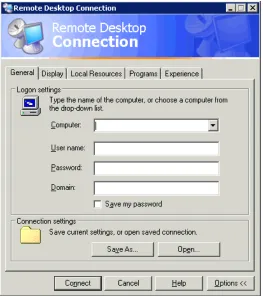
Value Setting Description
AutoEndTasks 1 Automatically terminates programs that aren’t responding CursorBlinkRate -1 Prevents the cursor from
blinking, which cuts down on screen redraws
DragFullWindows 0 Doesn’t show contents while dragging a window
MenuShowDelay 10 Sets the delay for showing submenus
WaitToKillAppTimeout 20000 The number of milliseconds to wait before terminating an application that isn’t responding SmoothScroll Dword-type value of 00000000 Disables smooth scrolling
Wallpaper (none) Disables wallpaper
Table 2.1: Registry values to set user override settings.
In addition to these registry changes, you should change the following settings to tune the overall server performance:
• Tune the event logs—In Event Viewer, adjust the properties of each log so that its maximum size is 1MB (or larger if you want an extended history), and set it to overwrite as needed. These settings can also be controlled in a domain Group Policy under
Computer Configuration, Security Settings.
• Examine the Run registry key—Under
HKEY_LOCAL_MACHINE\SOFTWARE\Microsoft\Windows\CurrentVersion\Run, there can be values pointing to executables to launch at the start of each session. Some applications (including certain virus scanners, network teaming, and load balancing utilities) add entries here to create system tray icons. Usually these icons only provide easy access to control panel or configuration utilities and do not really need to be run at all times. By removing these entries, you can reduce the overhead of having these applets run in every terminal server session. Be sure to check with the application vendor before removing.
Installing and Configuring the Remote Desktop Connection Client
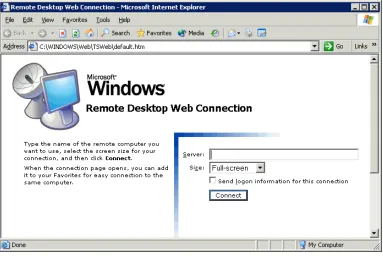
After you have installed and configured a terminal server, you will want to provide access to the server via a client interface. There are two versions of the Remote Desktop Connection client: the local version, available for Windows 32-bit OSs, Macintosh, and PocketPC; and the Remote Desktop Web Connection, an ActiveX control used to connect to a terminal server through an Internet Explorer (IE) window.Which client you use depends on your needs. If you want to maintain the configuration of terminal server connections on the clients (by distributing RDP files or letting users manually enter server names), the Remote Desktop Connection client is perfect. If, however, you want to centrally control the connection (server names, initial programs, experience options), the Remote Desktop Web Connection might be a better option.
Remote Desktop Connection Client
The Remote Desktop Connection client comes pre-installed on all WindowsXP computers, as this is the same client used for Windows XP’s Remote Desktop feature. If you want to install or deploy it on other OSs, you can download it from
http://www.microsoft.com/windowsserver2003/technologies/terminalservices/default.mspx. The client can be installed on the following OSs: Windows 95, Windows 98, Windows 98 Second Edition, Windows Me, Windows NT 4.0, Win2K, and Macintosh. You can also download the Terminal Services Client for PocketPC from
Figure 2.14: The Remote Desktop Connection client.
In the client’s interface you can set the following options:
• Name or IP address of the terminal server to connect to
• Username and password to use when connecting
• Screen size
• Color depth
• Sound, local drive, printer, and COM port mapping
• Behavior of Windows key combinations (interpreted by the client or by the server)
• An initial program to run in lieu of a desktop
• Experience options (enable or disable certain visual effects to improve performance over slow connections)
Once you set your options the way you like, you can save the configuration to an RDP file. This file is a text-based file that can be executed for easy connection to a specific server or
If you copy an RDP file with a saved password to another computer, the password will not be entered upon connection. This behavior is important to know if you intend to distribute RDP files with
credentials included.
If an administrator has configured any of the options in the Terminal Services Configuration tool and the Group Policy Object Editor that correlate to settings available in the client, the server settings override those requested by the client. Settings in Group Policy take precedence over both the Terminal Services Configuration tool and the client options.
You can also control the Remote Desktop Connection client via the command line. Listing 2.1 shows the syntax.