AT&T 555-640-111
March 1996
MERLIN LEGEND
®
Communications System
Releases 3.1 and 4.0
System
Notice
Every effort was made to ensure that the information in this book was complete and accurate at the time of printing. However, information is subject to change.
See Appendix A, “Customer Support Information,” for important information.
Your Responsibility for Your System’s Security
Toll fraud is the unauthorized use of your telecommunications system by an unauthorized party, for example, persons other than your company’s employees, agents, subcontractors, or persons working on your company’s behalf. Note that there may be a risk of toll fraud associated with your telecommunications system, and if toll fraud occurs, it can result in substantial additional charges for your telecommunications services.
You and your System Manager are responsible for the security of your system, such as programming and configuring your equipment to prevent unauthorized use. The System Manager is also responsible for reading all installation, instruction, and system administration documents provided with this product in order to fully understand the features that can introduce risk of toll fraud and the steps that can be taken to reduce that risk. AT&T does not warrant that this product is immune from or will prevent unauthorized use of common-carrier telecommunication services or facilities accessed through or connected to it. AT&T will not be responsible for any charges that result from such unauthorized use. For important information regarding your system and toll fraud, see Appendix A, “Customer Support Information.”
Federal Communications Commission Statement
This equipment has been tested and found to comply with the limits for a Class A digital device, pursuant to Part 15 of the FCC Rules. These limits are designed to provide reasonable protection against harmful interference when the equipment is operated in a commercial environment. This equipment generates, uses, and can radiate radio frequency energy and, if not installed and used in accordance with the instruction manual, may cause harmful interference to radio communications. Operation of this equipment in a residential area is likely to cause harmful interference, in which case the user will be required to correct the interference at his own expense. For further FCC information, see Appendix A, “Customer Support Information.”
Canadian Department of Communications (DOC) Interference Information
This digital apparatus does not exceed the Class A limits for radio noise emissions set out in the radio interference regulations of the Canadian Department of Communications.
Le Présent Appareil Numérique n’émet pas de bruits radioélectriques dépassant les limites applicables aux appareils numériques de la class A préscrites dans le reglement sur le brouillage radioélectrique édicté par le ministère des Communications du Canada.
Trademarks
5ESS, Accunet, Conversant, Definity, Megacom, MERLIN, MERLIN II, MERLIN LEGEND, Magic On Hold, MultiQuest, PARTNER, and Systimax are registered trademarks and 4ESS, AUDIX Voice Power, FAX Attendant System, HackerTracker, MERLIN MAIL, MERLIN PFC, 10, 10D, 10DP, 16DP, 20L, MLX-28D, PagePac, PagePal, PassageWay, Picasso, and PictureTel are trademarks of AT&T in the U.S. and other countries. NetPROTECT is a service mark of AT&T in the U.S. and other countries.
CLASS is a service mark of Bellcore.
IBM is a registered Trademark of International Business Machines Corportation. MS-DOS and Microsoft are registered trademarks of Microsoft Corp.
Ordering Information
Call: AT&T GBCS Publications Fulfillment Center
Voice 1 800 457-1235 International Voice 317 361-5353 Fax 1 800 457-1764 International Fax 317 361-5355 Write: AT&T GBCS Publications Fulfillment Center
P.O. Box 4100
Crawfordsville, IN 47933 Order: Document No. AT&T 555-640-111
Comcode: 107713729 Issue 1, March 1996
For more information about AT&T documents, refer to the section entitled, “Related Documents” in “About This Book.”
Support Telephone Number
In the continental U.S., AT&T provides a toll-free customer helpline 24 hours a day. Call the AT&T Helpline at
1 800 628-2888 or your AT&T authorized dealer if you need assistance when installing, programming, or using your system.Outside the continental U.S., contact your local AT&T authorized representative.
AT&T Corporate Security
Whether or not immediate support is required, all toll fraud incidents involving AT&T products or services should be reported to AT&T Corporate Security at 1 800 821-8235. In addition to recording the incident, AT&T Corporate Security is available for consultation on security issues, investigation support, referral to law enforcement agencies, and educational programs.
AT&T Fraud Intervention
If you suspect you are being victimized by toll fraud and you need technical support or assistance, call GBCS National Service Assistance Center at 1 800 628-2888.
Warranty
About this Book
n Intended Audience xvii
n How to Use This Book xvii
n Terms and Conventions Used xviii
n Security xx
n Related Documents xxi
n How to Comment on This Document xxii
1
Programming Basics
n Introduction to System Programming 1–1
n System Programming Console 1–4
n Programming Procedures 1–10
n Access to System Programming from the MLX-20
Console 1–39
n Idle States 1–42
n Product Enhancements 1–45
2
Programming with SPM
n System Requirements 2–2
n Installing the SPM Software 2–3
n Connecting the PC 2–9
n Accessing SPM 2–12
n Using SPM 2–16
n System Programming 2–42
Contents
3
Common Administrative Procedures
n Introduction 3–1
n Basic System Operating Conditions 3–4
n System Renumbering 3–12
n System Operator Positions 3–20
n Optional Operator Features 3–26
n QCC Optional Features 3–30
n Telephones 3–57
n Fax Machines 3–78
n Optional Telephone Features 3–83
n Optional Group Features 3–110
n Optional Group Calling Features 3–125
n System Features 3–147
n Night Service 3–190
n Labeling 3–201
n Print Reports 3–214
n Memory Card 3–222
4
Programming Procedures
n Introduction 4–1
n Basic System Operating Conditions 4–1
n System Renumbering 4–12
n System Operator Positions 4–22
n Lines and Trunks 4–24
n DS1 Facilities 4–68
n Tie Trunks 4–96
n DID Trunks 4–113
n PRI Facilities 4–130
n BRI Facilities 4–185
Programming Procedures, continued
n Optional Telephone Features 4–210
n Optional Operator Features 4–220
n QCC Optional Features 4–222
n Optional Group Features 4–231
n Optional Group Calling Features 4–237
n System Features 4–244
n Remote Access Features 4–261
n Automatic Route Selection 4–282
n Night Service 4–309
n Labeling 4–313
n Print Reports 4–317
n Data Features 4–321
n Integrated Administration 4–326
n Memory Card 4–329
5
Centralized Telephone Programming
n Introduction 5–1
n Access to Centralized Telephone Programming 5–2
n Program Extension 5–3
n Copy Extension 5–8
Contents
A
Customer Support Information
n Support Telephone Number A–1
n Federal Communications Commission (FCC)
Electromagnetic Interference Information A–1
n Canadian Department of Communications (DOC)
Interference Information A–2
n FCC Notification and Repair Information A–2
n Installation and Operational Procedures A–4
n DOC Notification and Repair Information A–5
n Renseignements sur la notification du ministére
des Communications du Canada et la réparation A–6
n Security of Your System: Preventing Toll Fraud A–9
n Toll Fraud Prevention A–10
n Other Security Hints A–16
n Limited Warranty and Limitation of Liability A–20
n Remote Administration and Maintenance A–21
B
Menu Heirarchy
C
LED Displays
n LED Status C–1
D
General Feature Use and Telephone Programming
n General Feature Use Information D–1
E
Button Diagrams
F
Sample Reports
G
General System Programming Sequence
n System Programming Sequence G–1
H
Programming Special Characters
n Single-Line Telephones H–1
n Analog Multiline Telephones H–2
n MLX Non-Display Telephones H–3
n MLX Display Telephones H–4
GL
Glossary
GL-1The exclamation point in an equilateral triangle is intended to alert the user to the presence of important operating and maintenance (servicing) instructions in the literature accompanying the product.
IMPORTANT SAFETY INSTRUCTIONS
When installing telephone equipment, always follow basic safety precautions to reduce the risk of fire, electrical shock, and injury to persons, including:
■ Read and understand all instructions.
■ Follow all warnings and instructions marked on or packed with the
product.
■ Never install telephone wiring during a lightning storm.
■ Never install a telephone jack in a wet location unless the jack is
specifically designed for wet locations.
■ Never touch uninsulated telephone wires or terminals unless the
telephone wiring has been disconnected at the network interface.
■ Use caution when installing or modifying telephone lines.
■ Use only AT&T-manufactured MERLIN LEGEND Communications System
circuit modules, carrier assemblies, and power units in the MERLIN LEGEND Communications System control unit.
■ Use only AT&T-recommended/approved MERLIN LEGEND
Communications System accessories.
■ If equipment connected to the analog extension modules (008, 408, 408
GS/LS) or to the MLX telephone modules (008 MLX, 408 GS/LS-MLX) is to be used for in-range out-of-building (IROB) applications, IROB protectors are required.
■ Do not install this product near water, for example, in a wet basement
location.
■ Do not overload wall outlets, as this can result in the risk of fire or
electrical shock.
■ The MERLIN LEGEND Communications System is equipped with a 3-wire
cord will be abused by persons walking on it.
■ Slots and openings in the module housings are provided for ventilation.
To protect this equipment from overheating, do not block these openings.
■ Never push objects of any kind into this product through module
openings or expansion slots, as they may touch dangerous voltage points or short out parts, which could result in a risk of fire or electrical shock. Never spill liquid of any kind on this product.
■ Unplug the product from the wall outlet before cleaning. Use a damp
cloth for cleaning. Do not use cleaners or aerosol cleaners.
■ Auxiliary equipment includes answering machines, alerts, modems, and
fax machines. To connect one of these devices, you must first have a Multi-Function Module (MFM).
■ Do not operate telephones if chemical gas leakage is suspected in the
area. Use telephones located in some other safe area to report the trouble.
!
WARNING:
■ For your personal safety, DO NOT install an MFM yourself.
■ ONLY an authorized technician or dealer representative shall install, set
options, or repair an MFM.
■ To eliminate the risk of personal injury due to electrical shock, DO NOT
attempt to install or remove an MFM from your MLX telephone. Opening or removing the module cover of your telephone may expose you to dangerous voltages.
About This Book
The power and versatility of the MERLIN LEGEND Communication System is due in part to its many options and features. These options and features have been recorded on system planning forms and initially programmed at the time of installation. Changes in use patterns, additional equipment, or a change in operating mode may necessitate additional system programming.
Intended Audience
This book is intended for system managers–people who plan, program, maintain, and manage the communication system. It is also intended for qualified support personnel who are responsible for installation and initial system programming.
How to Use This Book
This book contains all the programming procedures you need to enable your system to function at peak efficiency. Refer to the following documents for additional information:
■ Equipment and Operations Reference provides detailed information on
system hardware, telephones, and other equipment.
■ Feature Reference describes features in detail and any possible feature
interaction.
■ System Planning describes the System Planning Forms and how to use
documentation together with ordering information.
In the U.S.A. only, AT&T provides a toll-free customer Helpline (1 800 628-2888) 24 hours a day. Call the Helpline, or your AT&T representative, if you need assistance when installing, programming, or using your system.
Terms and Conventions Used
The terms described here are used in preference to other, equally acceptable terms for describing communications systems.
Lines, Trunks, and Facilities
Facility is a general term that designates a communications path between a telephone system and the telephone company central office. Technically a trunk connects a switch to a switch, for example the MERLIN LEGEND
Communications System to the central office. Technically, a line is a loop-start facility or a communications path that does not connect two switches, for example, an intercom line or a Centrex line. However, in actual usage, the terms line and trunk are often applied interchangeably. In this book, we use line/trunk and lines/trunks to refer to facilities in general. Specifically, we refer to digital facilities. We also use terms such as personal line, ground-start trunk, DID trunk, and so on. When you talk to your local telephone company central office, ask them what terms they use for the specific facilities they connect to your system.
Some older terms have been replaced with newer terms. The following list shows the old term on the left and the new term on the right.
trunk module line/trunk module
trunk jack line/trunk jack
station extension
station jack extension jack
analog data station modem data station
digital data station Terminal Adapter data station 7500B data station Terminal Adapter data station analog voice and analog data station analog voice and modem data digital voice and analog data station MLX voice and modem data analog data-only station modem data-only station
digital data-only station Terminal Adapter data-only station digital data-only station Terminal Adapter data-only station digital voice and digital data station MLX voice and Terminal Adapter
data station
Terms and Conventions Used
Typographical Conventions
Certain type fonts and styles act as visual cues to help you rapidly understand the information presented:
Example Purpose
It is very important that you follow these steps. You must attach the wristband before touching the connection.
Italics indicate emphasis.
The part of the headset that fits over one or both ears is called a headpiece.
Italics also set off special terms.
If you press the Feature button on an MLX display telephone, the display lists telephone features you can select. A programmed Auto Dial button gives you instant access to an inside or outside number.
The names of fixed-feature, factory-imprinted buttons appear in bold. The names of programmed buttons are printed as regular text.
Choose Ext Prog from the display screen.
Plain constant-width type indicates text that appears on the telephone display or PC screen.
To activate Call Waiting, dial *11. Constant-width type in italics indicates characters you dial at the telephone or type at the PC.
Product Safety Labels
Throughout these documents, hazardous situations are indicated by an exclamation point inside a triangle and the word caution or warning.
!
WARNING:
Warning indicates the presence of a hazard that could cause death or severe personal injury if the hazard is not avoided.
!
CAUTION:
Certain features of the system can be protected by passwords to prevent unauthorized users from abusing the system. You should assign passwords wherever you can and limit knowledge of such passwords to three or fewer people.
Nondisplaying authorization codes and telephone numbers provide another layer of security. For more information, see Appendix A, “Customer Support Information” following Maintenance and Troubleshooting.
Throughout this document, toll fraud security hazards are indicated by an exclamation point inside a triangle and the words Security Alert.
!
Security Alert:
Security Alert indicates the presence of toll fraud security hazard. Toll fraud is the unauthorized use of your telecommunications system by an unauthorized party (for example, persons other than your company’s employees, agents, subcontractors, or persons working on your
Related Documents
Related Documents
In addition to this book, the documents listed below are part of the
documentation set. Within the continental United States, these documents can be ordered from the AT&T GBCS Publications Fulfillment Center by calling 1 800 457-1235.
Document No. Title
System Documents 555-640-110 Feature Reference
555-640-112 System Planning
555-640-113 System Planning Forms
555-640-116 Pocket Reference
555-640-118 System Manager’s Guide
Telephone User Support
555-640-122 MLX-10D, MLX-10DP, MLX-16DP, MLX-28D, and
MLX-20LDisplay Telephones User’s Guide
555-630-150 MLX-10D Display Telephone Tray Cards (5 cards)
555-630-153 MLX-28D and MLX-20L Telephone Tray Cards (5 cards)
555-640-124 MLX-10 Nondisplay Telephone User’s Guide
555-630-151 MLX-10 Nondisplay Telephone Tray Cards (6 cards)
555-640-120 Analog Multiline Telephones User’s Guide
555-640-126 Single-Line Telephones User’s Guide
555-640-138 MDC 9000 and MDW 9000 Telephones User's Guide
System Operator Support
555-640-134 MLX Direct-Line Consoles Operator’s Guide
555-640-132 Analog Direct-Line Consoles Operator’s Guide
555-640-136 MLX Queued Call Console Operator’s Guide
Miscellaneous User Support 555-640-130 Calling Group Supervisor’s Guide
555-640-105 Data and Video Reference
Documentation for Qualified Technicians
555-640-140 Installation, Programming & Maintenance (IP&M) Binder [consists of Installation, System Programming & Maintenance (SPM), Maintenance & Troubleshooting
Toll Fraud Security
We welcome your comments, both good and bad. Please use the feedback form on the next page to let us know how we can continue to serve you. If the feedback form is missing, write directly to:
Documentation Manager AT&T
211 Mount Airy Road Room 2W226
Programming Basics
1
This chapter covers the information you need to know before you begin the programming procedures covered in Chapter 3, “Common Administrative Procedures” or Chapter 4 “Programming Procedures,” and includes the following:
■ An introduction to system programming basics
■ How to use the system programming console
■ How the programming screens and keys work
■ How to interpret and use the programming procedures
■ How to enter and exit system programming
■ What system components require idle states for programming
■ New programming features introduced in Release 2.0 and higher
Introduction to System Programming
The communications system offers easy-to-use, menu-driven software for system programming. After your system is installed, you use this software to
Planning Forms
Before you begin to program or modify your communications system, you should familiarize yourself with the system planning forms. Initially, system planning forms are used to plan your communications system and program your system during installation. After installation, they remain a source for all programming information on your communications system database. The information ranges from the system time and date to specific equipment configurations and feature programming.
Each planning form is either required or optional:
■ Required forms are necessary to program the system.
■ Optional forms are needed only if the system manager included the
features or options on the forms.
Before you begin to program or modify your system, review the Control Unit Diagram on system planning Form 1 to identify the module types installed in the system’s control unit. Use this information to program or modify lines and trunks and assign or reassign lines to telephones. Check the physical control unit to verify that the modules are placed in the slots identified on the diagram. Correct the diagram on Form 1 if there are any discrepancies.
Before you make any changes to your system, be sure to do the following:
■ Mark any system modifications or changes on the appropriate planning
form before the change is made. Keep your planning forms up to date.
■ Check the Feature Reference for possible feature interactions.
■ Program the system or the system component during the appropriate idle
Introduction to System Programming
Types of Programming
Listed below are the three types of programming available for the communications system.
■ System Programming. This type of programming enables the system
manager to program features that affect all or most system users, and requires one of the following:
An MLX-20Lä telephone connected to one of the first five jacks of the first MLX module in the control unit.
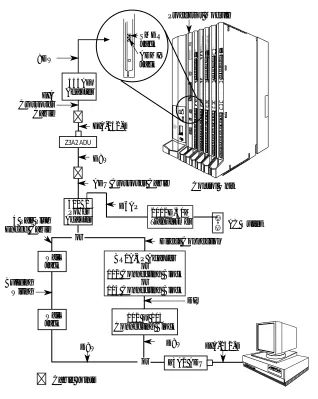
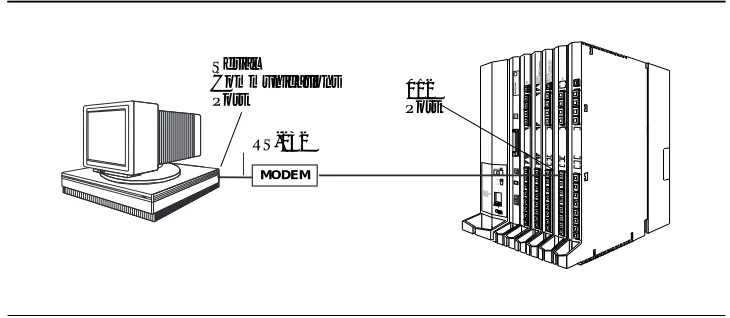
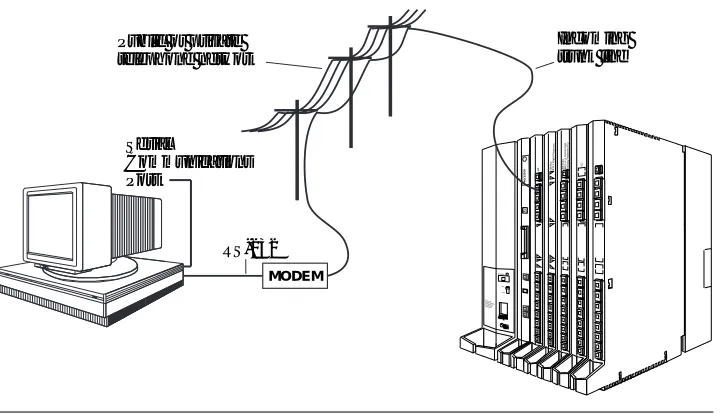
A PC with System Programming and Maintenance (SPM) software. SPM emulates a system programming console on your PC. The PC should be connected to the lower port (labeled ADMIN) on the processor module. A PC with a modem can perform system
programming remotely through the public network or by connecting to a tip/ring extension jack (012, 016 or 008 OPT module) on the
communications system. A built-in modem in the processor allows the PC and the communications system to communicate.
■ Extension Programming. This type of programming enables individual
telephone users and system operators (except for QCC operators) to change their telephone features to meet individual needs. For details about extension programming, see the appropriate user and operator guides.
■ Centralized Telephone Programming. This type of programming
enables the system manager to program any feature that can be programmed by individual telephone users or system operators. Some features can be programmed only in centralized telephone programming. Centralized telephone programming can be done on the programming console or on a PC with the SPM software. See Chapter 5, “Centralized Telephone Programming.”
NOTE:
System Programming Console
The system programming console is an MLX-20L telephone connected to the system programming jack. When you begin system programming on a new system for the first time, the console must be connected to the first jack on the first 008 MLX module or 408 GS/LS-MLX module (Release 2.0 and later versions). This jack is factory set as the system programming jack and as an operator position. When you program for the first time, you can change the system programming jack to any one of the first five jacks on the first 008 MLX module or 408 GS/LS-MLX module (Release 2.0 and later versions). This allows you to program without interfering with the operator’s call handling.
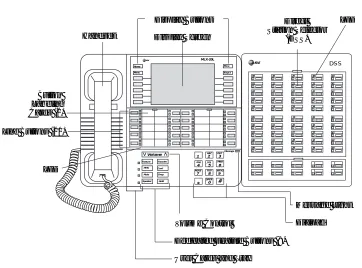
You can also have one or two Direct Station Selectors (DSSs) connected to the system programming console. Each DSS adds 50 extension buttons to the console, which facilitates assigning features to telephones.
An MLX-20L telephone with a DSS is shown in Figure 1–1.
DSS 08 09 30 31 32 33 34 35 36 39 38 37 40 41 42 43 44 46 20 21 22 23 24 25 26 29 28 27 10 11 12 13 14 15 16 19 18 17 00 01 02 03 04 06 07 05 45 47 49 48 Handset Message Light Dialpad
vVolume v
Feature HFAI Mute Speaker Transfer Conf Drop Hold ABC DEF GHI JKL MNO PQRS TUV WXYZ
OPER
1 2 3 4 5 6 7 8 9 0 # * Message MLX-20L Home Menu More Inspct Volume Control
Dedicated Feature Buttons (8) User Cards and Tray
System Programming Console
Console Components
Refer to Figure 1–1 for the location of the components described below.
MLX-20L Console Components
Desk Stand (not shown)
An adjustable stand on the console and the DSS, allows a 20- or 30- degree viewing angle.
Button Labeling Cards
Cards labeled with the number or feature assigned to each line button.
Contrast Control (not shown)
A sliding control at the top of the console, used to brighten or dim the display screen.
Fixed Feature Buttons
Eight fixed display buttons for most-used features.
Feature for viewing the Feature screen and selecting features. HFAI (Hands Free Answer on Intercom) for answering
voice-announced calls without the handset.
Mute for turning the speakerphone’s microphone on and off. Speaker for talking on a call through the speakerphone without lifting the handset.
Transfer for sending a call to another telephone. Conf for adding a line or extension to a conference call.
Drop for disconnecting an extension or line from a conference call.
Hold for putting a call on hold.
Dialpad Number pad for dialing telephone numbers. Direct Station
Selector
A device that adds extension buttons and other buttons to the console.
Display Buttons Four fixed display buttons and ten unlabeled buttons used to view the different screens and select names, features, and options from the display screen. See “Console Buttons.”
Display Screen Screen with a 7–line by 24–character display area that shows call information, features, prompts, date, and time.
Handset The hand-held part of the console you pick up, talk into, and listen from.
LEDs (Light-Emitting Diodes) The lights on the console that assist in checking feature status.
Line Buttons 20 buttons to make and receive calls; unlabeled buttons are programmable for one-step feature use.
Message Light A red light that signals a waiting message. User Cards
and Tray
DSS Components
Covers Removable plastic covers to protect the designation cards. The top cover protects the 50 DSS button labels. The lower cover fits over the fixed buttons.
DSS Designation Cards
Cards for labeling the extension or feature assigned to each button.
DSS Buttons 50 buttons used for one-touch dialing of co-workers’ extensions to make or transfer calls. DSS buttons are also used to page
co-workers over speakerphones, to park calls, and to handle outside calls.
Fixed Buttons Ten additional buttons, including Message Status, Direct Voice Mail and three Page buttons. The five remaining buttons on the first DSS are not used. If a second DSS is connected to the console, the 10 buttons at the bottom of the second DSS are not used.
Fixed Message Status button used with fixed Page buttons to see which telephones have Message Lights on.
Fixed Page Buttons are three buttons used to select the pages of extensions that the 50 DSS buttons represent.
LEDs (Light-Emitting Diodes) The lights that assist in checking feature status.
Console Buttons
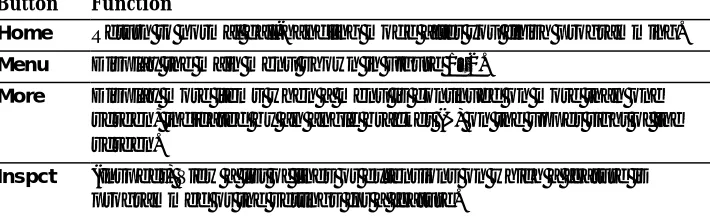
Use the 14 buttons located on either side of the console display area for system programming. These buttons are arranged in two columns of seven buttons, as shown in Figure 1–2.
Home
Menu
More
Inspct
MENU MODE: Select Feature
Press HOME to Exit
Directory
Messages
Posted Msg
Alarm Clock
Timer
Ext Program
System Programming Console
Figure 1–2. Display Buttons and Main Menu
Fixed Display Buttons
The top two buttons in each column have the same labels and functions regardless of the screen display. This type of button is called a fixed display
button. Table 1–1 describes the functions of the fixed display buttons.
Table 1–1. Fixed Display Buttons
Button Function
Home Return to normal call-handling mode after you finish programming. Menu Display the main menu shown in Figure 1–2.
More Display more items when a menu is continued on more than one screen, indicated by an angle bracket (>) on the upper right of the screen.
Inspct (Inspect) View a list of lines or extensions on which a feature is programmed or the settings for a feature.
Unlabeled Display Buttons
Use the five unlabeled display buttons on each side of the screen to select commands, options, or items on the screen. The functions of these buttons vary based on the option you select.
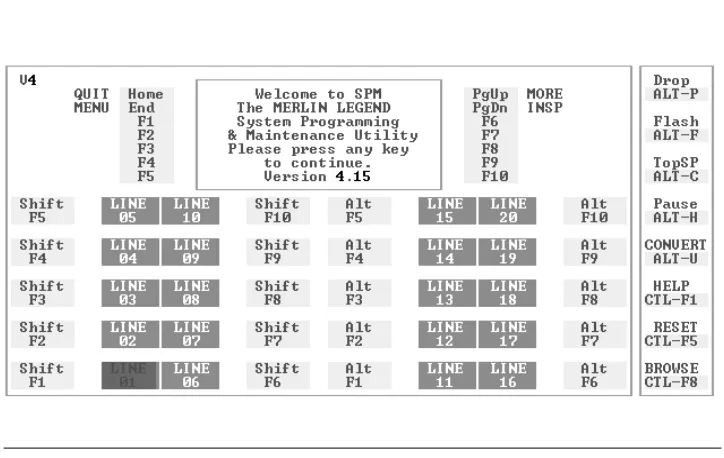
If you are using SPM for system programming, the simulated MLX-20L console screen on your PC screen shows the function keys that correspond to the console screen selections. This book shows function keys in a box: *. For example, to save an entry, you select Enter on the console or press 0 on your PC. See Chapter 2, “Programming with SPM,” for details about using function keys and additional information about SPM.
Console Overlay
Appendix E shows the button diagrams for the telephones used in the
communications system. Refer to this appendix when programming buttons for other telephones.
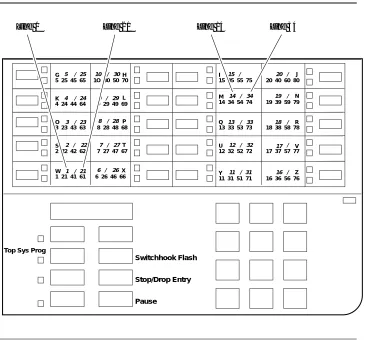
When entering labels or filenames, the letters A through F are displayed on the MLX-20L console screen. Additional letters can be entered by using line buttons 1 to 20 to represent letters G through Z. These letters are also displayed on the top line of the console overlay.
G 5 25 45 65
K 4 24 44 64
O 3 23 43 63
S 2 22 42 62
W 1 21 41 61
1O 30 50 70 H
9 29 49 69 L
8 28 48 68 P
7 27 47 67 T
6 26 46 66 X
I 15 35 55 75
M 14 34 54 74
Q 13 33 53 73
U 12 32 52 72
Y 11 31 51 71
20 40 60 80 J
19 39 59 79 N
18 38 58 78R
17 37 57 77V
16 36 56 76 Z
Top Sys Prog
Stop/Drop Entry
Pause
Switchhook Flash
5 / 25
4 / 24
3 / 23
2 / 22
1 / 21
10 / 30
9 / 29
8 / 28
7 / 27
6 / 26
15 20
14 / 34 19
13 / 33 18
12 / 32 17
11 / 31 16
/ / / / / / Line 21
Line 1 Line 14 Line 34
Figure 1–3. Console Overlay
System Programming Console
OutTrunk Dial: For a single line, go to Enter Trunks w/TouchTone l Single Line Procedure.
_
Lines 01-20 Entry Mode_
_
Lines 21-40For a block of lines, go to
_
Lines 41-60 uBlock Procedure.
_
Lines 61-80Exit .
Figure 1–4. Selecting a Block of Lines/Trunks
Console and DSS Lights
The red and green lights (LEDs) next to each of the 20 line buttons show the status of the line/trunk options. LEDs on the DSS show the status of features programmed on extensions. See Appendix C, “LED Displays,” for more information.
Console Lights
The green and red LEDs next to each button on the console will display the status of the line/trunk option that is being programmed. For example when you select Pools from the Lines Trunks menu, the red LED will be off if the selected line is not in a pool and on if the line is in a pool. Appendix C “LED Displays,” provides a table that shows the default LED status for line/trunk options.
DSS Lights
Programming Procedures
The programming procedures provide step-by-step instructions for
programming the communications system. This section details how to make the best use of the programming procedures.
Procedure Organization
The programming procedures in Chapter 3, “Common Administrative Procedures” and Chapter 4, “Programming Procedures,” are organized into logical groups. The programming procedures associated with a specific aspect of the system are grouped together under one heading. For example, to assign network services for PRI, you would go to the section titled “PRI” and then locate the network services procedure. For quick reference, see “System Programming Hierarchy” for a list of procedures, based on the menu hierarchy in Appendix B, that traces the menu path for a specific function.
Procedure Content
Each procedure begins with a general description of the feature, followed by a summary of programming information that includes the items listed below.
Programmable by Indicates who has permission to use the procedure. Mode Specifies which system mode supports the procedure:
Key, Hybrid/PBX, Behind Switch, or a combination. Idle condition Specifies the idle state required before the procedure can
be performed.
Planning form Indicates the planning forms that provide information for the procedure.
Factory setting Shows the default settings, if any, for equipment or features affected by the procedure.
Valid entries Specifies the characters, numbers, or values accepted during data entry.
Inspect Specifies whether or not the feature status can be verified using the Inspect feature.
Copy option Indicates whether or not the feature programmed with the procedure can be copied to another system component. Console Procedure Provides a summary of the procedure steps using the
system console.
Programming Procedures
Programming Screens
There are three types of system programming screens:
■ Information screens, to view what is currently programmed on the system.
■ Menu selection screens, to select options from a menu.
■ Data entry screens, to enter values or to identify a specific extension or
line/trunk you want to program.
Figure 1–5 shows a sample information screen. When you select SysProgram from the main menu screen (shown in Figure 1–2), the screen shown in Figure 1–5 appears with system setup information.
System Set-up Your system information appears in Review and Exit place of the x‘’s.
Size: xxxx Type: xxxx
Operator: xxxx xxxx xxxx xxxx xxxx xxxx
Exit
Figure 1–5. Information Screen
You cannot make changes on an information screen. Select Exit (5 on the PC) to continue to the next screen in the procedure.
Figure 1–6 shows a sample menu selection screen.
System Programming: > Screen title and More indicator (>) Make a Selection Prompt
System Extensions Options SysRenumber Options
A menu selection screen prompts you to select one of the available options. The screen title is the first line on all screens. The second line contains a system prompt or instruction. The remaining lines of text vary based on the selected option.
An angle bracket (>) appears in the upper right corner of menu selection screens that have additional option screens. Press More (or u on the PC) to see the additional screens. Continue to press More to move through the screens and return to the original screen.
Figure 1–7 shows a sample data entry screen.
Assign Lines/Trunks: Option Selected Enter extension Prompt
Data Entry Area
Backspace
Exit Enter
Figure 1–7. Data Entry Screen
A data entry screen prompts you to enter specific data or to make specific choices. Data to be entered will be displayed with ns in the text. When ns appear on the data entry screen they indicate data currently programmed for the
feature. An exception is the slot/port number which is displayed as sspp to distinguish the 2-digit slot number from the 2-digit port number.
Many screens show data entered on a previous screen, such as an extension or trunk number. Within the programming procedures, this type of variable
information is shown with x’’s.
When information to be entered varies in the number of digits required (for example, a telephone number that can range from 7- to 20-digits), the data may be displayed as an uppercase X or N.
Programming Procedures
Verifying Data Entry
You can use the Inspect feature to view the entries you save. An example of how to use the Inspect feature begins with Figure 1–8. The figure shows a data entry screen with the first (of two) required extension numbers needed to assign analog voice and data.
Data Voice/Data > Selected Option Enter voice/data pair Prompt
7108 Extension entered
Delete Backspace
Exit Enter
Figure 1–8. Inspect Example
After you enter and save 7108, the system automatically assigns the next sequential extension jack number. This extension jack pair does not appear on the data entry screen; however, if you press Inspct (d on the PC), the pair appears, as shown on the sample Inspect screen in Figure 1–9.
Voice/Data Pairs: >
7108 7109 Inspect data displayed
Exit
Figure 1–9. Sample Inspect Screen
Whenever you want to return to the previous screen, select Exit (5 on the PC).
Using the Programming Procedures
This section contains specific information about how to make the best use of the programming procedures. Make certain that you read and understand the information presented here before you begin any system programming procedures.
Format
The programming procedures are presented as numbered steps in the format shown below.
Console/Display Instructions Additional Information PC
1 The step instruction is shown here. Console Display
_
Press hereOn the PC, press the function key that
appears in the PC column. è * 2 Enter the B-channel group number (nn = 1 to 69).
Enter B-Channel Groups:x x = B-channel entered in Step 1 Enter the group number:
Dial or type [nn].
Û
The Gray Bar
The gray bar contains the step number and instructions. The gray bar may also contain symbols that direct you to a branch procedure. (see “Branching”).
Sometimes, the gray bar contains data entry information, which follows the step instruction and is shown in parentheses. You use the (nn = ) value in the gray bar to replace the variable [nn] in the instruction. For example, in sample Step 2 the parenthetical statement (nn = 1 to 69) indicates that 1 through 69 are acceptable entries for the group number that you dial or type.
Programming Procedures
Console/Display Instructions Header
In most cases, the screen shown in the console display area contains the results of the previous step. A step with no screen indicates that you should look at the preceding step. The console key that corresponds to the option you are to select is highlighted in black as shown in sample Step 1 above. The function key that corresponds to the highlighted console option is shown in the right column under the PC header.
When more than one but fewer than six options may be selected from the screen, each console key for each option is highlighted in gray as shown in sample Step 3 below. To prevent clutter, when six or more options may be selected, no highlighting is shown. See “Additional Information and PC Headers” for more information about how more than five options are presented.
Additional Information and PC Headers
The information displayed under the Additional Information header may contain notes, a value entered in a previous step, branching instructions, general information, or specific instructions.
Sample Step 2 shows a typical display of a value entered in a previous step. The
x corresponds to the x shown on the console screen. Variable screen information is always shown as xs or ns in italics.ı Variable input information is always
shown in brackets ([]), as xs or ns in italics.
In data entry steps, the area under the Additional Information header contains instructions that apply to both the console and the PC. In such cases, the PC column contains the symbol Û. When you see this symbol, follow the instructions under the Additional Information header, for example:
Dial or type [nn].
On the console you dial the entry, and on the PC you type the entry.
You also see the Û symbol when six or more options can be selected from a screen. Rather than highlighting all of the options and showing all of the PC keys, the Additional Information header contains instructions for both, for example:
Press the button or function key next to your selection.
Branching
Many of the procedures contain features for which there are multiple programming options, while other procedures show more than one way to program a particular feature. To accommodate both of these programming methods, the procedures use branching. Branching separates the options from the main procedure and places them in subprocedures (branch procedures).
The screen shown in sample Step 3 displays three menu selections for the Network Services feature. The procedure is broken into three branches (or branch procedures) to accommodate the three menu options.
Console Display/Instructions Additional Information PC
3 Specify a network service. ll uu nn Network Services: If you select AT&T TollAT&T Toll, go to
Make a selection l AT&T Toll Procedure. 1
_
AT&T Toll_
LocalIf you select LocalLocal, go to
_
Misc uLocal Procedure. 2
Exit If you select MiscMisc, go to
n Miscellaneous Procedure. 3 4 If necessary, continue with this step when you complete the branch procedure.
In the gray bar, the symbols (lun▲✚£✱) alert you to a step that contains branching. The number of symbols in the gray bar indicate the number of available options/branches at the step and make it easy to locate the branch procedure that you want. All branch procedures follow the main procedure from which they are branched.
The first branch procedure from sample Step 3 is shown below.
l
l
AT&T Toll Procedure
1 Specify a service.
B-Channel Group xx: xx = number entered in Step 5 Select one
MegacomWATS MULTIQUEST ACCUNET SDS LongDistnce SoftDefNetw
Megacom 800 Press the button or function key next to
Û
Exit Enter your selection.2 Save your entry.
Programming Procedures
Console Display/Instructions Additional Information PC
4 For additional toll services, go to Step 1; then continue with Step 5.
5 Return to Step 4 of the main procedure.
Each branch procedure is self-contained and begins with Step 1. Be sure to complete all of the steps in a branch procedure before you return to the main procedure.
The examples in the following text refer to Steps 1 through 5 of the l AT&T Toll Procedure (above), which is a branch of the Network Services procedure.
When you are to repeat a step within the branch procedure, you are instructed to
go to that step. For example, at Step 4 of the branch procedure you would go
back to Step 1 of the branch procedure and repeat branch Steps 1 through 4 for additional toll services. If you did not need to enter any other toll services, you would continue with Step 5 of the branch procedure.
When a branch step instructs you to return to the main procedure, the branch procedure is complete. At Step 5 of the branch procedure you would return to Step 4 of the Network Services procedure to continue. In some cases, you can select Exit (5 on the PC) to return to the menu where the branch began; these are noted in specific programming procedures. In cases where completing the branch procedure also completes the main procedure you will be instructed to select Exit (5 on the PC) one or more times to return to the system
programming menu.
Single or Block Items
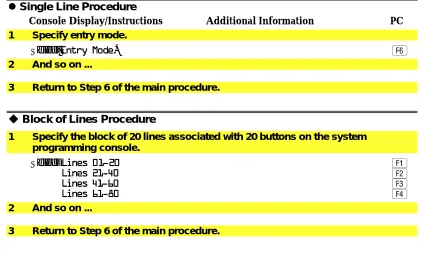
Branching is also used when you can select between programming a single item or a block of items, such as a single line or a block of lines, as shown in sample Step 5.
Console/Display Instructions Additional Information PC
5 Specify the line(s). ll uu B-Channel Group xx: xx = number entered in Step 2 Assign lines
_
Lines 01-20 Entry Mode_
To select a single line, go to
_
Lines 21-40 lSingle Line Procedure.
_
Lines 41-60_
Lines 61-80To select a block of lines, go to Exit u Block of Lines Procedure.
l
l
Single Line Procedure
Console Display/Instructions Additional Information PC
1 Specify entry mode.
Select Entry ModeEntry Mode. 6
2 And so on ...
3 Return to Step 6 of the main procedure.
u
u
Block of Lines Procedure
1 Specify the block of 20 lines associated with 20 buttons on the system programming console.
Select Lines 01-20Lines 01-20 1
Lines 21-40
Lines 21-40 2
Lines 41-60
Lines 41-60 3
Lines 61-80
Lines 61-80 4
2 And so on ...
3 Return to Step 6 of the main procedure.
Saving Entries and Moving Among Screens
At the bottom of each screen, there are one or more screen keys with functions that allow you to change your entry, save your entry, or return to a previous screen. Various combinations of these screen keys appear on each
programming screen. Figure 1–10 shows the QCC Priority screen with a typical display of screen keys.
QCC Priority x: x = QCC Priority entered in earlier Step Enter line/trunk number
xxx xxx = line/trunk number (801-880)
Delete 8
4 Backspace Next 9
5 Exit Enter 0
Figure 1–10. Screen Keys
Programming Procedures
Table 1–2. Screen Keys
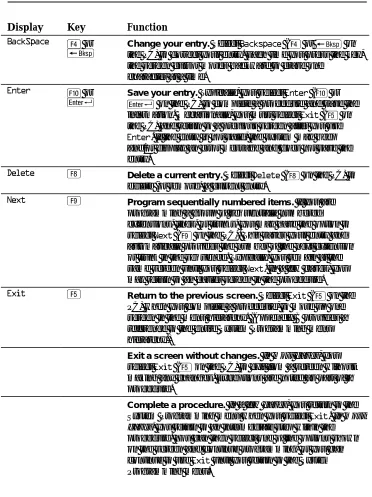
Display Key Function
BackSpace 4 or
B Change your entry.the PC) to correct your entry. Each time you press the key, Select Backspace (4 or B on the screen cursor moves backward to erase one
character at a time.
Enter 0 or
R Save your entry.R on the PC) to complete a procedure and save the Typically, you select Enter (0 or information. Occasionally, you must select Exit (5 on the PC) and return to a previous screen after you use
Enter. If the entry is not valid, the system may beep and/or display an error message and does not save the entry.
Delete 8 Delete a current entry. Select Delete (8 on the PC) to delete (or remove) a current entry.
Next 9 Program sequentially numbered items. If you are programming a group of sequentially numbered extensions, lines, or trunks, you may have the option to select Next (9 on the PC). This saves your entry and automatically provides the number of the next extension or trunk in the sequence. Typically, you remain at the same screen until you select Next. In a few cases, you may return to an earlier screen in the procedure.
Exit 5 Return to the previous screen. Select Exit (5 on the PC) when you complete a procedure, to move up one screen in the menu hierarchy. (Appendix B provides a reference to the entire System Programming menu hierarchy.)
Exit a screen without changes. In most cases, you select Exit (5on the PC) to exit from a screen without making any changes. Exceptions are noted as part of a procedure.
Using Enter
Pressing Enter to save your entry will have one of the following results:
■ The next screen in the procedure appears. See Steps 4 and 5 in the
sample procedure below.
■ The screen does not change and you can enter another extension or
line/trunk. In most of these cases, Delete is also an option. Enter is used to assign the extension to a group or to assign a feature to the extension.
Delete is used to remove the extension from a group or to remove the feature from the extension. See Steps 5 and 6 in the sample procedure below for an example of this type of screen.
■ The procedure is complete and you return to a previous screen.
Console Display/Instructions Additional Information PC
3 Specify the extension. BIS/HFAI Extensions: Enter extensions xxxx
Delete Backspace
Exit Enter SP: “Entering an Extension”
Û
4 Assign or remove BIS/HFAI capability.
Select EnterEnter or 0
Delete
Delete. 8
You may continue to assign or remove BIS/HFAI capability to additions extensions by repeating Steps 3 and 4.
5 Return to the System Programming menu.
Programming Procedures
Using Next
When you are programming a feature that can apply to a sequence of
extensions, lines/trunks or groups, the screen key Next appears on the console display. Next (9 on the PC) permits you to save your current entry and display the next number in the sequence. You can continue to press Next until you finish programming the entire sequence. When the last number in the sequence displays on the screen, press Enter (0 or R on the PC) to save the final entry and move to the next step of the procedure. Procedures that allow the use of Next will direct you to the correct screen to continue programming as shown in Step 6 in the example below below.
NOTE:
If you plan to take advantage of this key, remember to enter the lowest number
in the sequence at the first prompt.
Console Display/Instructions Additional Information PC
5 Specify whether the operator receives the alert.
QCC Operator xxxx: xxxx = operator entered in Step 1 Select one
_
InQue Alert Enable_
InQue Alert DisableNext Select InQue Alert EnableInQue Alert Enable or 1 Exit Enter InQue Alert DisableInQue Alert Disable. 2 6 Save your entry.
Select EnterEnter or 0
Next
Next 9
Use NextNext to program the next QCC position. Go to Step 5.The next QCC operator will be displayed on Line 1. After programming the last QCC operator position, select enter and go to Step 7.
7 Return to the System Programming menu.
System Programming Hierarchy
The following table shows all of the options that are available under each of the System Programming main menu options displayed on the system programming console. Following the option name is a brief description of the option and the page number where detailed instructions can be found.
Main menu options are shown in a separate box. First level options are bold, second level options are preceded by an asterisk (*). The remaining levels are shown with increasing amounts of indentation.
Description Page
System
Restart Restart the system (cold start) 4–2
SProg Port Extension used for system programming 3–4
Mode Sets the system mode. See Equipment 4–7
* Key and Operations
* Hybrid/PBX * BehindSwitch
Board Renum Renumber boards that have already been installed 4–5
MaintenBusy Enable Automatic Maintenance Busy 4–8
* Enable - Auto Busy
Tie Trunks - Enable - Disable
* Disable Disable Automatic Maintenance Busy
Date System date 3–8
Time System time 3–10
Back/Restore
* Backup Backup system programming to a memory card 3–225 * Restore Restore system programming from a memory card 4–335
* Auto Backup Automatic backup 3–228
- Off Turn off automatic backups
- Daily Daily backups of system programming - Weekly Weekly backups of system programming
Description Page
SysRenumber
Default Numbering Default extension numbering plans 4–14 * 2-Digit
Programming Procedures
Description Page
SysRenumber Continued
Single Single extension renumbering 3–14
* Lines Lines/Trunks
* Extensions Extensions
* Pools Pools (Hybrid/PBX only) * Group Page Paging Group
* GrpCalling Calling Group
* Adjuncts Adjuncts
* Park Park
* ARS DialOut Automatic Route Selection dial out (Hybrid/PBX only) * RemoteAccs Remote Access
* DSS Buttons Page buttons on the DSS * ListDirctNo Listed directory number
Block Block extension renumbering 3–17
* Lines * Extensions * Adjuncts
Description Page
Operator
Positions System operator positions 3–20
* Direct Line* Direct-Line Console (DLC) 3–23
* Queued Call* Queued Call Console (QCC) 3–21
Queued Call QCC optional features (Hybrid/PBX mode only) 3–30
* Hold Rtrn Hold Return 3–30
- Return to Queue - Remain on Hold
* HoldRelease Automatic hold or release 3–32
- Auto Hold - Auto Release
* Threshold Queue over threshold 3–34
* ElvatePrior Elevate priority 3–35
* InQue Alert* Calls-In-Queue Alert 3–37
Description Page Operator Continued
* Call Types QCC Operator to Receive Call Types 3–39
- Dial 0 Dial 0 Calls - Priority
- Operator
- Follow/Frwd Forward/Follow Me Calls - Unassign DID DID call to invalid destinations
- Priority - Operator*
- ListedNumber Calls to the Listed Directory Number - Priority
- Operator
- QCC Ext QCC Extension calls - Returning Returning calls
- Priority - Operator
- GrpCoverage Group Coverage calls - Priority
- Operator*
* Msg Center* Message center operation 3–46
* ExtndComplt Extended call completion 3–48
- Automatic Complete - Manual Complete
* Return Ring Return Ring 3–50
* QCC Backup Position Busy Backup 3–52
* Voice Annc Voice Announce for QCC 3–54
Hold Timer System wide hold timer for QCCs and DLCs 3–26
DLC Hold DLC Operator Automatic Hold 3–28
Programming Procedures
Description Page
LinesTrunks Lines/Trunks options
LS/GS/DS1 Loop-start, ground-start or DS1 options
* (DS1) DS1 options
- Type Type of DS1 facility 4–68
- T1
- GroundStart Ground-start emulation on selected channels - Loop Start Loop-start emulation on selected channels - TIE Tie Trunk emulation on selected channels
- TIE-PBX Tie-PBX transmit/receive loss parameter - Toll Toll transmit/receive loss parameter - S56 Switched 56 Data
- Unequipped Unused channels
- All Ground Ground-start emulation on all channels - All Loop Loopstart emulation on all channels - All TIE Tie Trunk emulation on all channels
- TIE-PBX Tie-PBX transmit/receive loss parameter - Toll Toll transmit/receive loss parameter - S56 Switched 56 Data
- All Unequip All channels unequipped
- DID DID emulation on selected channels - All DID DID emulation on all channels - S56 Data Switched 56 Data
- Direction - Intype - Outtype - AnsSupv - Disconnect - Inmode - Outmode
- All S56Data All Switched 56 Data - Direction
- Intype - Outtype - AnsSupv - Disconnect - Inmode - Outmode
- PRI Primary Rate Interface
- Frame Format Framing format for the 100D module 4–86
- D4 Compatible - Extended Super
Frame
-Suppression Type of zero code suppression 4–88
- AMI ZCS - B8ZS
Description Page LinesTrunks Continued
- Line Comp Line compensation
- ChannelUnit Type of equipment provided by local telephone 4–92 - Foreign
Exchange
company 4–94
- Special Access
* (4xx GS/LS) Line/Trunk type for 4xx GS/LS module - GroundStart
- Loop Start - All Ground - All Loop
* (8xx GS/LS) Line/Trunk type for 8xx GS/LS module - GroundStart
- LoopStart - All Ground - All Loop Tie Lines
* Direction Tie trunks direction 4–96
- Two Way - OutGoing - Incoming
* Intype Signaling type: incoming tie trunk. 4–98
- Wink - Delay - Immed - Auto
* Outtype Signaling type: outgoing tie trunk 4–98
- Wink - Delay - Immed - Auto
* E&M Signal Type of tie trunk signal 4–100
- Type 1S - Type 1C - Type 5
* Inmode Set incoming tie trunk to touch tone or rotary 4–102 * Outmode Set outgoing tie trunk to touch tone or rotary 4–102
* Dialtone Tie trunk dial tone 4–105
* AnsSupvr Tie trunk answer supervision time 4–108
Programming Procedures
Description Page
LinesTrunks Continued
TT/LS Disc
* OutMode Outmode Signaling for loop- or ground-start trunks 4–27
* LS Disconnect Disconnect signaling reliability 4–35
- Yes - No
DID DID Trunk Options
* Block 4–113
* Type DID trunk type 4–116
- Immed - Wink
* Disconnect DID trunk disconnect time 4–118
* ExpectDigit Expected digits 4–120
* DeleteDigit Delete Digits 4–122
* Add Digits Add digits 4–124
* Signaling Type of dialing signal 4–126
- Rotary - Touch Tone
* InvalDstn Directing outside calls on invalid extension 4–128 - Send To Backup
Extension - Return Fast Busy
PRI Primary Rate Interface (PRI) trunk options
* PhoneNumber Telephone number to each PRI channel 4–130
* B-ChannelGRP Assign B-channel groups. 4–133
- Lines Assign lines to B-channel groups
- Network Serv Network service 4–138
- AT&T Toll AT&T toll service - MegacomWATS
Description Page LinesTrunks Continued
- Local Local service - OUTWATS
- 56/64 Digit - VirtPrivNet - INWATS
- Misc Miscellaneous network service - Other
- CallByCall
- Copy Number Copy telephone number to send 4–141
- Copy PhnNum to NumToSend - Do Not Copy
Phone Number
- IncomingRtg Incoming Routing 4–144
- Routing by Dial Plan
- Route by Line Appearance
* NumberToSend Telephone number to send to the network 4–146 - Extension Only
- Base Number with Ext.
- Line Telephone Number
* Test TelNum Line/trunk test telephone number 4–149
* Protocol
- Timers Timers and counters 4–151
- T200 Timer - T203 Timer - N200Counter - N201Counter - K Counter - T303 Timer - T305 Timer - T308 Timer - T309 Timer - T310 Timer - T313 Timer - T316 Timer
Programming Procedures
Description Page
LinesTrunks Continued
*DialPlanRtg Dial Plan Routing 4–158
- Service Service
- AT&T Toll AT&T toll service - Megacom 800
- ACCUNET SDS - SoftDefNetw - MULTI QUEST - MegacomWATS - LongDistnce
- Local Local service - INWATS
- 56/64 Digit - VirtPrivNet - OUTWATS
- Misc Miscellaneous service - Other
- Any Service - No Service - Patterns - TotalDigits - DeleteDigit - Add Digits
* OutgoingTbl Outgoing tables
- NetwkSelect Network selection 4–168
- SpecialServ Special services 4–170
- Pattern - Operator - Local Operator - Presubscribed
Carrier - No Operator - Typeof
Description Page LinesTrunks Continued
- CBC Service Call by Call service 4–176
- Patterns - Voice Data
- Voice Only - Data Only - Voice/Data
- NetworkServ Network service - AT&T Toll AT&T toll service
- Megacom WATS
- ACCUNET SDS - SoftDefNetw - LongDistnce
- Local Local service - OUTWATS
- 56/64 Digit - VirtPrivNet
- Misc Miscellaneous service - Other
- No Service
- Delete Digit Number of digits to delete
Copy Copy options for lines/trunks 4–63
* Single * Block
Remote Access Remote Access options
* LinesTrunks Remote Access trunk assignment 4–261
- Dedicated - Shared - No Remote
* Non-TIE Non-Tie Lines: Remote Access options - BarrierCode Barrier code requirements
- Barrier Code Required - BarrierCode Not
Required
- Restriction Non-Tie trunk restriction - Unrestricted
Programming Procedures
Description Page
LinesTrunks Continued
- ARS Restrict Non-Tie trunk ARS Facility Restriction Level - Allow List Non-Tie trunk Allowed Lists assignment - DisallowLst Non-Tie trunk Disallowed Lists assignment * TIE Lines Tie lines: Remote Access options
- BarrierCode Barrier code requirements 4–267
- Barrier Code Required - BarrierCode Not
Required
- Restriction Tie trunk restriction - Unrestricted
- Outward Restrict - Toll Restrict
- ARS Restrict Tie and DID trunk ARS Facility Restriction Level - Allow List Tie and DID trunk Allowed Lists assignment - Disallow List Tie and DID trunk Disallowed Lists assignment
* BarrierCode Barrier code options 4–271
- SProg/Maint Not currently available - Code Info Barrier code information
- Code Length Barrier code length - Code Entry Barrier code assignment
- Restriction Remote Access with barrier code: restrictions - Unrestricted
- Outward Restrict - Toll Restrict
- ARS Restrict Remote Access with barrier code: ARS Restriction - Allow List Remote Access with barrier code: Allowed Lists - DisallowLst Remote Access with barrier code: Disallowed Lists
* AutoQueuing Automatic Callback on busy pools or extensions 4–263 - Enable
- Disable
Pools Trunk to Pools assignment 4–59
Toll Type Toll prefix (1 or 0) requirement 4–37
HoldDiscnct Hold disconnect interval 4–39
PrncipalUsr Principal user for personal line 4–42
QCC Prior QCC queue priority level 4–45
QCC Oper QCC operator to receive calls 4–48
Description Page LinesTrunks Continued
Clock Sync Clock Syncronization (100D or 800 CO-BRI modules) 4–55
* Primary Primary Clock
- Loop - Local
* Secondary Secondary Clock
- Loop - Local
* Tertiary Tertiary Clock
- Loop - Local
BRI Basic Rate Interface
* SPID/DN Service Profile Identifier (SPID) and Directory Number (DN) 4–185
* Timers BRI Timers 4–187
- T200 Timer - T203 Timer - T303 Timer - T305 Timer - T308 Timer
Programming Procedures
Description Page
Extensions
LinesTrunks Lines or trunks (buttons on a telephone) 3–57
Line Copy Copy outside line/trunk options 3–62
* Single * Block
Dial OutCd Pool dial-out code restrictions 3–86
Restriction Outward/toll restrictions 3–89
* Unrestricted * Outward Restrict * Toll Restrict
RestrctCopy Copy calling restrictions, Allowed Lists, and Disallowed 3–91
* Single Lists
* Block
Account Account code entry 3–97
BIS/HFAI Built in Speakerphone/Hands Free Answer on Intercom 3–74
Call PickUp Call pickup group 3–110
VoiceSign1 Assign voice pair to provide Voice Announce to Busy 3–76 Ext Status Extension status: hotel or Group Calling/CMS 3–161
Group Page Paging group members 3–112
Group Cover Coverage group members 3–110
Grp Calling Calling group members and options 3–125
* Hunt Type Hunt Type 3–125
- Circular - Linear
* Delay Announce Group Calling delay announcement 3–127
* GrpCoverage Group Coverage receiver 3–130
* Message Group Calling message waiting indicator 3–136
* Queue Alarm Group Calling Calls-In-Queue Alarm threshold 3–138 * Xtnl Alert Group Calling external alert for Calls-In-Queue Alarms 3–141
* Overflow Group Calling overflow and thresholds 3–132
- Number Based - Time Based
* Members Calling group members 3–119
* Line/Pool Group Calling line/trunk or pool assignment 3–121
* Group Type Group type 3–143
- Auto Login - Auto Logout - Integ VMI - Generic VMI
ARS Restrict Assign facility restriction level (Hybrid/PBX only) 3–94 Mic Disable Limit the use of speakerphone on an MLX telephone 3–98 Remote Frwd Allow or disallow call forwarding to outside number 3–103
Auth Code Authorization codes 3–100
Delay Frwd Delayed Call Forwarding 3–105
Description Page Options
Transfer Transfer options
* Return Time Transfer return time (number of rings) 3–148
* One Touch One Touch Transfer/One Touch Hold 3–150
- Transfer - Manual - Automatic - Hold
*Audible Transfer audible
- Music On Hold 3–152
- Ringback
* Type Type of transfer
- Voice Announce 3–154
- Ring
CampOn Camp-On return time 3–156
CallParkTrn Call Park return time 3–157
Delay Ring Number of rings for the Delay Ring interval 3–159
Callback Callback request number of rings 3–160
Ext Status Extension status mode 3–161
* Hotel * GrpCall/CMS
SMDR SMDR options
* Format SMDR format 3–163
- Basic SMDR - ISDN SMDR
* Call Length Minimum length of time before a call is recorded 3–166
* Call Report SMDR call report type 3–168
- In/Out Incoming and outgoing calls - Out Only Outgoing calls only
* New Page
* Auth Code 3–170
Inside Dial System dial tone 3–171
* Inside * Outside
Reminder Srv Time of day reminder service calls are canceled 3–172 Unassigned Extension number to receive redirected calls made 3–174 * QCC Queue to an unassigned extension
* Extension * Grp Calling
BehndSwitch Host system (Behind Switch mode) dial codes 3–177 * Transfer for Transfer, Conference or Drop
Programming Procedures
Description Page
Options Continued
Recall Timer Length of the timed flash sent when Recall is used 3–179 * 350 ms
* 450 ms * 650 ms * 1 sec
Rotary Dialed digits on rotary dial trunks 4–30
* Delay * No Delay
Cover Delay Number of rings before a call is sent to group coverage 3–117 Inter-Digit This option is not yet implemented. See “Interdigit Timers.” 3–181
Ringing Freq Ringing Frequency for 016 Module 4–431
SecDT Timer Second Dial Tone Timer 4–433
Description Page
Tables
Allow List Establish Allowed Lists 3–181
Allow To Assign an Allowed List to a given extension 3–183
Disallow Establish a Disallowed List 3–186
Disallow To Assign a Disallowed List to a given extension 3–188 ARS Program Features for Automatic Route Selection (ARS)
* ARS1+7Dial 1 + 7-Digit Dialing Requirements 4–282
- Within Area Code - Not Within
Area Code
* ARS Input Create/Change ARS Tables 4–284
- 6-Digit - Area Code - Exchange - 1+7
* Sub A Pools Subpattern A pool routing 4–290
* Sub A FRL Subpattern A Facility Restriction Level (FRL) 4–293
* SubA Absorb Subpattern A digit absorption 4–296
* Sub A Digit Subpattern A other digits 4–299
* Sub B Start Subpattern B start time * Sub B Stop Subpattern B stop time
* Sub B Pool Subpattern B pool routing 4–290
* Sub B FRL Subpattern B Facility Restriction Level (FRL) 4–293
* SubB Absorb Subpattern B digit absorption 4–296
* Sub B Digit Subpattern B other digits 4–299
* SpeclNumber N11 Special Numbers Table 4–301
Description Page Tables Continued
* Dial 0 Dial 0 Table 4–303
- ARS Pool - ARS FRL - ARS Digits
* Sub A Data Voice and/or data routing for Subpattern A 4–306 - Voice Only
- Data Only - Voice/Data
* Sub B Data Voice and/or data routing for Subpattern B 4–306 - Voice Only
- Data Only - Voice/Data