555-233-116
Comcode 108596420
Issue 1
April 2000
Enterprise Communication Server
Release 8.2
Printed in U.S.A.
Notice
Every effort was made to ensure that the information in this book was complete and accurate at the time of printing. However, information is subject to change.
Your Responsibility for Your System’s Security
Toll fraud is the unauthorized use of your telecommunications system by an unauthorized party, for example, persons other than your com-pany’s employees, agents, subcontractors, or persons working on your company’s behalf. Note that there may be a risk of toll fraud associated with your telecommunications system and, if toll fraud occurs, it can result in substantial additional charges for your telecommunications services.
You and your system manager are responsible for the security of your system, such as programming and configuring your equipment to pre-vent unauthorized use. The system manager is also responsible for reading all installation, instruction, and system administration docu-ments provided with this product in order to fully understand the fea-tures that can introduce risk of toll fraud and the steps that can be taken to reduce that risk. Lucent Technologies does not warrant that this product is immune from or will prevent unauthorized use of com-mon-carrier telecommunication services or facilities accessed through or connected to it. Lucent Technologies will not be responsible for any charges that result from such unauthorized use.
Lucent Technologies Fraud Intervention
If you suspect that you are being victimized by toll fraud and you need technical support or assistance, call Technical Service Center Toll Fraud Intervention Hotline at 1 800 643-2353 or contact your local Lucent representative.
Federal Communications Commission Statement
Part 15: Class A Statement. This equipment has been tested and
found to comply with the limits for a Class A digital device, pursuant to Part 15 of the FCC Rules. These limits are designed to provide reason-able protection against harmful interference when the equipment is operated in a commercial environment. This equipment generates, uses, and can radiate radio-frequency energy and, if not installed and used in accordance with the instructions, may cause harmful interfer-ence to radio communications. Operation of this equipment in a resi-dential area is likely to cause harmful interference, in which case the user will be required to correct the interference at his own expense.
Part 68: Network Registration Number. This equipment is registered
with the FCC in accordance with Part 68 of the FCC Rules. It is identi-fied by FCC registration number AS593M-13283-MF-E.
Part 68: Answer-Supervision Signaling. Allowing this equipment to
be operated in a manner that does not provide proper answer-supervi-sion signaling is in violation of Part 68 Rules. This equipment returns answer-supervision signals to the public switched network when:
• Answered by the called station • Answered by the attendant
• Routed to a recorded announcement that can be administered by the CPE user
exceptions are:
• A call is unanswered • A busy tone is received • A reorder tone is received
Canadian Department of Communications (DOC) Interference Information
This digital apparatus does not exceed the Class A limits for radio noise emissions set out in the radio interference regulations of the Canadian Department of Communications.
Le Présent Appareil Nomérique n’émet pas de bruits radioélectriques dépassant les limites applicables aux appareils numériques de la class A préscrites dans le reglement sur le brouillage radioélectrique édicté par le ministére des Communications du Canada.
Trademarks
See About This Document.
Ordering Information
Call: Lucent Technologies BCS Publications Center
Voice 1 800 457-1235 International Voice 317 322-6416 Fax 1 800 457-1764 International Fax 317 322-6699
Write: Lucent Technologies BCS Publications Center 2855 N. Franklin Road
Indianapolis, IN 46219
Order: Document No. 555-233-116 Comcode 108596420 Issue 1, April 2000
For additional documents, refer to the section in “About This Docu-ment” entitled “Related Resources.”
You can be placed on a standing order list for this and other documents you may need. Standing order will enable you to automatically receive updated versions of individual documents or document sets, billed to account information that you provide. For more information on stand-ing orders, or to be put on a list to receive future issues of this docu-ment, contact the Lucent Technologies Publications Center.
European Union Declaration of Conformity
The “CE” mark affixed to the DEFINITY® equipment described in this book indicates that the equipment conforms to the following Euro-pean Union (EU) Directives:
• Electromagnetic Compatibility (89/336/EEC) • Low Voltage (73/23/EEC)
• Telecommunications Terminal Equipment (TTE) i-CTR3 BRI and i-CTR4 PRI
For more information on standards compliance, contact your local dis-tributor.
Comments
To comment on this document, return the comment card at the front of the document.
Acknowledgment
Contents
iii
Contents
Contents iii
About This Book vii
■ Overview vii
■ Conventions Used in This Book xii
■ How to Comment on This Document xiii
■ Resources xiv
■ Antistatic Protection xv
■ Remove/Install Circuit Packs xvi
■ Security xvi
■ Trademarks xvi
■ Standards Compliance xvii
■ LASER Product xviii
■ Electromagnetic Compatibility Standards xviii
■ Federal Communications Commission Statement xx
1
909A/B Universal Coupler 12
Auxiliary Power Supplies 5■ Local, auxiliary power supply 5
■ Applications that require auxiliary power 6
■ Sources of auxiliary, local power 7
■ Required Safety Precautions 7
■ 1145B Power Supply 8
■ 1151A and 1151A2 Power Supplies 16
3
Voice and Data Terminals and Extenders 19■ 2-Wire DCP Endpoint 19
■ DEFINITY DCP Extender, Stand Alone 22
■ DEFINITY DCP Extender, Rack Mount 23
4
Data Modules and Asynchronous Data Units 25■ Understanding RS-232 communications 25
■ Installation Procedure 27
■ Obtain Required Equipment 27
■ Sett Hardware Options 27
■ Connect Data Modules 32
Contents
iv
■ Asynchronous Data Units (ADUs) 75
5
External Modems 77■ Hardware required when configuring modems 77
■ PARADYNE COMSPHERE 3715 78
■ PARADYNE COMSPHERE 3810 Plus and 3811 Plus 79
■ Setting Up the PARADYNE COMSPHERE 3910 79
■ Setting Up the U.S. Robotics Modem
for DEFINITY 87
■ Administering the DEFINITY for Modems 87
6
Printers 91■ Configuring the AT&T Model 572 91
■ Connecting the Printer 95
■ Okidata Model OP16N 95
7
DEFINITY LAN Gateway System 99■ Installing DEFINITY LAN Gateway in
a Single-Carrier Cabinet 99
■ Installing DEFINITY LAN Gateway in
a Multicarrier Cabinet 101
■ Connecting the Alarm Origination Cable 103
■ Connecting a PC 104
■ Installing a Printer 110
8
DCS Connections 1119
DS1/T1 CPE Loopback Jack 113■ Installing Loopback Jacks 113
■ Administering the Loopback Jack 115
■ Loopback Testing with a Smart Jack 115
■ Loopback Testing Without a Smart Jack 123
10
ISDN Converters and Adapters 129■ Converters for Single-Carrier Cabinets 129
■ Converters for Multicarrier Cabinets 131
11
Stratum 3 Clock 135Contents
v
12
Busy Tone Disconnect Equipment forNon-U.S. Installations 143
13
Call Detail Recording Option Settings 145■ Connecting CDR Equipment to DEFINITY 145
■ Using a Printer as the CDR Output Device 145
■ Using Other Equipment as the CDR Output Devices 147
■ Sources of Administration Information 147
14
DEFINITY INADS 14915
Malicious Call Trace 15916
Loudspeaker Paging, Music-on-Hold,and External Alerting Equipment 161
■ Loudspeaker Paging 161
■ Music-on-Hold, Dial Dictation, or
Recorded Announcement Access 164
■ External Ringing 166
■ Queue Warning Indicator 166
17
Paging and Announcement Equipment 167■ PagePac Plus Paging System 167
■ ESPA Radio Paging 170
18
Multimedia CommunicationsProducts: MMCX, MMCH, ESM 173
■ MASI for MMCX 173
■ Wideband Endpoints 175
■ Multimedia Call Handling (MMCH) 178
19
Property Management System 191■ Connecting the Property Management System 191
■ Connecting a Terminal and/or Journal Printer 192
A
Connector and Cable Pinout Charts 195Contents
Overview
vii
About This Book
This book provides procedures for installing equipment and software peripheral to the DEFINITY ECS and DEFINITY ONE, hereafter referred to as DEFINITY. Not all adjuncts and peripherals are addressed in this book. For those, we are supplying other resources for the information.
The information in this book is intended for use by
■ Lucent and channel partner trained field installation and maintenance
personnel
■ Technical Services Center (TSC) and Global Service Organization (GSO)
personnel
■ InterNetwork Systems (INS) engineers and technicians
■ Sales and Design Support Center (SDSC) personnel
■ Data Services Support Center (DSSC)
■ Sales associates
■ Lucent channel partners
Overview
Overview
viii
Table 1 provides a list of current adjuncts and which platforms support them. Table 2 provides a list of current adjuncts and peripherals and where installation information exists
Table 1. DEFINITY adjunct minimum vintages for Release 8
Adjunct
csi R6.1 - R8
DEF. ONE R1
si
V4, R6.2 - R8 r R5 - R8
AUDIX (R1V8.2 w/ Y2K Update)
Not compatible Not compatible Compatible Compatible
AUDIX (Voice Power 2.1.1)
Compatible Compatible Compatible V4 and later
Compatible R5 and later
BCMS View (R1, R2) Compatible Not Compatible
V4 and later R5 and later
Call Management System (CMS)
Compatible Yes if TCP/IP, else no.
Compatible Compatible
CallVisor ASAI LAN Gateway (over BRI)
Compatible Compatible Compatible Compatible
CallVisor ASAI LAN Gateway (PC)
R6.3.2 and later
Supported V4 and later R5 and later
Centralized Attendant Service (CAS—NT)
R1.0 Any version that can transfer the CDR file from DEF ONE. R1.0 R1.0 Centralized Attendant Service (CAS—Terminal) R2.08 Not Compatible R2.08 R2.08
Call Detail Recording Unit (CDRU-S, -SE)
R1.0 R1.0 R1.0 R1.0
CentreVu Agent R6.1 and later Supported for CMS that is TCP/IP capable.
R6.1 and later R6.1 and later
CentreVu Explorer R7 and later Supported for CMS R3V6 that is TCP/IP capable.
R5.1 and later R5.1 and later
CentreVu Supervisor (V5 B107 and later)
R7 and later Supported for CMS R3V6 that is TCP/IP capable.
R5.1 and later R5.1 and later
Overview
ix
Conversant R6.3.2 and later; some vintages, connectivity only Supported; some vintages, connectivity only V3.0.1: some vintages, connectivity only V3.0.1; some vintages, connectivity only
DEFINITY Proxy Agent R6.1 and later Not Supported V4 and later R5 and later
DEFINITY Wireless Personal Comm Mgr. (R1.2)
Compatible Supported R6.2 and later R6.2 and later
Hacker Tracker Module of CAS for Windows (2.0 and later) R2.2B (Supported via CAS) Supported via CAS R2.2B (Supported via CAS) R2.2B (Supported via CAS)
Internet Call Center R6.3 and later Supported R6.3 and later R6.3 and later
Internet Telephony Gateway (R1.2, R2.0)
R6.3 and later Supported R6.3 and later R6.3 and later
Intuity AUDIX Not Compatible
Not Supported Compatible Compatible
Intuity CAS R1.2 Not Supported R1.2 R1.2
Intuity Interchange Supported Supported Supported Supported
Message Manager (4.3 & later)
Supported Supported Supported Supported
Multipoint Control Unit (MCU)/CRS
R1.0 R1.0 R1.0 R1.0
OneMeeting / DEFINITY Anywhere
R6.3csi and later
Supported V4 in office only, R6.3 and later w/MAPD for remote
R6.3 and later w/MAPD for remote
PassageWay Direct Connect for DEFINITY
Supported Supported Supported Supported
Pollable Storage Unit (PSU)
R1.1 Not Supported R1.1 R1.1
Table 1. DEFINITY adjunct minimum vintages for Release 8
Adjunct
csi R6.1 - R8
DEF. ONE R1
si
V4, R6.2 - R8 r R5 - R8
Overview
x
Remote Port Security Device Key/Lock (4.0 and later)
Compatible Compatible Compatible Compatible
Telecommunications Management System (TMS)
R1.1 Not Supported R1.1 R1.1
Terranova ECS Station Administration (R6.0)
Compatible Supported. TCP/IP only
V4 and later R5 and later
Table 2. DEFINITY adjuncts and peripheral resource list
Adjunct/Peripheral Resource
909A/B Universal Coupler DEFINITY ECS Release 8 Adjuncts and Peripherals, Chapter 1
AUDIX AUDIX Installation
AUDIX Voice Power R2.1.1 Installation and Maintenance Guide
http://pubcat.lucent.com/iw/owa/pcat.prod_result
Auxiliary Power Supplies DEFINITY ECS Release 8 Adjuncts and Peripherals, Chapter 2
Basic Call Management System (BCMS) View
Basic Call Management System (BCMS) Operations
Busy Tone Disconnect Equipment for Non-U.S. Installations
DEFINITY ECS Release 8 Adjuncts and Peripherals, Chapter 12
Call Detail Recording (CDR) Option Settings
DEFINITY ECS Release 8 Adjuncts and Peripherals, Chapter 13
CallVisor ASAI LAN Gateway DEFINITY ECS CallVisor ASAI DEFINITY LAN Gateway over MAPD Installation, Administration, and Maintenance
CentreVu Agent CentreVu® Agent Installation and Administration
CentreVu Call Management System (CMS)
CentreVu® Call Management System Software Installation and Setup
CentreVu Explorer CentreVu® Explorer V1.2 User Guide
CentreVu Supervisor CentreVu® Supervisor Version 8—Installation and Getting Started
Conversant INTUITY CONVERSANT System Customer Assist Technical Operations
Continued on next page
Table 1. DEFINITY adjunct minimum vintages for Release 8
Adjunct
csi R6.1 - R8
DEF. ONE R1
si
V4, R6.2 - R8 r R5 - R8
Overview
xi
Data Modules and ADUs DEFINITY ECS Release 8 Adjuncts and Peripherals, Chapter 4
DCS Connections DEFINITY ECS Release 8 Adjuncts and Peripherals, Chapter 8
DEFINITY INADS DEFINITY ECS Release 8 Adjuncts and Peripherals, Chapter 14
DEFINITY LAN Gateway System
DEFINITY ECS Release 8 Adjuncts and Peripherals, Chapter 7
DEFINITY Wireless Personal Comm Mgr.
DEFINITY ECS Interface for the DEFINITY Wireless Business System Guide
DS1/T1 CPE Loopback Jack DEFINITY ECS Release 8 Adjuncts and Peripherals, Chapter 9
Expansion Services Module (ESM)
DEFINITY ECS Release 8 Adjuncts and Peripherals, Chapter 18
External Alerting Equipment DEFINITY ECS Release 8 Adjuncts and Peripherals, Chapter 16
Internet Call Center CentreVu Internet Solutions R3 Documentation CD-ROM Internet Call Center Solution Guide, R3
Internet Telephony Gateway Internet Telephony Server-Enterprise Hardware Installation Quick Reference
Intuity AUDIX Internet Messaging for the Intuity AUDIX Multimedia Messaging System, Release 1.1 Installation
Intuity Interchange INTUITY Interchange Release 5.2 System Supporting Documentation
ISDN Converters and Adapters
DEFINITY ECS Release 8 Adjuncts and Peripherals, Chapter 10
Loudspeaker Paging DEFINITY ECS Release 8 Adjuncts and Peripherals, Chapter 17
Malicious Call Trace DEFINITY ECS Release 8 Adjuncts and Peripherals, Chapter 15
Modems, external DEFINITY ECS Release 8 Adjuncts and Peripherals, Chapter 5
Multimedia Call ExchangeMMCX
DEFINITY ECS Release 8 Adjuncts and Peripherals, Chapter 18
Multimedia Call Handling (MMCH)
DEFINITY ECS Release 8 Adjuncts and Peripherals, Chapter 18
Multipoint Control Unit (MCU)/CRS
MultiPoint Conferencing Unit Release 5.0 Installation and Test
Music on Hold DEFINITY ECS Release 8 Adjuncts and Peripherals, Chapter 16
Paging and Announcement Equipment
DEFINITY ECS Release 8 Adjuncts and Peripherals, Chapter 17
Pollable Storage Unit (PSU) Pollable Storage Unit Installation
Printers DEFINITY ECS Release 8 Adjuncts and Peripherals, Chapter 6
Table 2. DEFINITY adjuncts and peripheral resource list — Continued
Adjunct/Peripheral Resource
Conventions Used in This Book
xii
Conventions Used in This Book
Typographic
■ Information you type at the access terminal is shown in the following
typeface: list system-parameters maintenance.
■ Variables are shown in the following typeface: number.
■ Field names and information displayed on the access terminal screen is
shown in the following typeface: login.
■ Keyboard keys are shown in the following typeface: Enter.
Systems and circuit packs
■ The word “system” is a general term encompassing Release 8 and
includes references to the DEFINITY Enterprise Communications Server models: Release 8r, Release 8si, Release 8csi, and Release 8c.
■ DEFINITY Enterprise Communications Server is abbreviated as DEFINITY
ECS.
■ Circuit pack codes (for example, TN780 or TN2182B) are shown with the
minimum acceptable alphabetic suffix (like the “B” in the code TN2182B).
Generally, an alphabetic suffix higher than that shown is also acceptable. However, not every vintage of either the minimum suffix or a higher suffix code is necessarily acceptable.
■ The term “ASAI” is synonymous with the newer CallVisor ASAI.
Property Management System DEFINITY ECS Release 8 Adjuncts and Peripherals, Chapter 19
Stratum 3 Clock DEFINITY ECS Release 8 Adjuncts and Peripherals, Chapter 11
Voice and Data Terminals DEFINITY ECS Release 8 Adjuncts and Peripherals, Chapter 3
Table 2. DEFINITY adjuncts and peripheral resource list — Continued
Adjunct/Peripheral Resource
How to Comment on This Document
xiii
Admonishments
Admonishments in this book have the following meanings:
!
CAUTION:
This sign is used to indicate possible harm to software, possible loss of data, or possible service interruptions.
!
WARNING:
This sign is used where there is possible harm to hardware or equipment.
!
DANGER:
This sign is used to indicate possible harm or injury to people.
Physical dimensions
■ All physical dimensions in this book are in English units (feet [ft]) followed
by metric (centimeter [cm]) in parenthesis.
■ Wire gauge measurements are in AWG followed by the diameter in
millimeters in parenthesis
How to Comment on This Document
Lucent Technologies welcomes your feedback. Your comments are of great value and help improve our documentation.
■ Please fill out the reader comment card at the front of this manual and
return it.
■ If the reader comment card is missing, FAX your comments to
1-303-538-1741 or to your Lucent Technologies representative, and mention this document’s name and number, DEFINITY Enterprise Communication Server Release 8 ATM Installation, Upgrade, and Administration, 555-233-124, Issue 1.
Resources
xiv
Resources
Related Books
The following books are useful for system-related information:
■ DEFINITY Enterprise Communications Server Release 8 Administration for
Network Connectivity
■ DEFINITY Enterprise Communications Server Release 8 System
Description
■ DEFINITY Enterprise Communications Server Release 8 Maintenance for
R8r
■ DEFINITY Enterprise Communications Server Release 8 Maintenance for
R8si
■ DEFINITY Enterprise Communications Server Release 8 Maintenance for
R8csi
■ AT&T Network and Data Connectivity Reference
■ DEFINITY Enterprise Communications Server Release 8 Installation and
Test for Multicarrier Cabinets
■ DEFINITY Enterprise Communications Server Release 8 Installation and
Test for Single-Carrier Cabinets
■ DEFINITY Enterprise Communications Server Release 8 Installation,
Upgrades, and Additions for Compact Modular Cabinets
■ DEFINITY Enterprise Communications Server Release 8 Administrator’s
Guide
■ DEFINITY Enterprise Communications Server Release 8 Upgrades and
Additions for R8si
■ DEFINITY Enterprise Communications Server Release 8 Upgrades and
Additions for R8r
How to Order Books
In addition to this book, other description, installation and test, maintenance, and administration books are available. A complete list of DEFINITY books can be found in the Business Communications System Publications Catalog.
Antistatic Protection
xv
Where To Call for Technical Support
Use the telephone numbers in Table 1 for the region in which the system is being installed.
Antistatic Protection
!
WARNING:
To minimize electrostatic discharge (ESD), always wear an authorized wrist ground strap when handling circuit packs or any components of a
DEFINITY System. Connect the strap to an approved ground such as an unpainted metal surface on the DEFINITY ECS switch.
Table 1. Technical support contact numbers
Telephone Number
DEFINITY Helpline (feature administration and system applications)
1-800-225-7585
Lucent Technologies Toll Fraud Intervention 1-800-643-2353
Lucent Technologies National Customer Care Center (ATM customers)
1-800-242-2121
Lucent Technologies Corporate Security 1-800-822-9009
Streamlined Implementation (for missing equipment) 1-800-772-5409
USA/Canada Technical Service Center (ATM technicians) 1-800-248-1234
NetCare® Professional Services (NPS) 1-800-237-0016
International Technical Assistance (ITAC) 1-303-804-3777
Lucent Technologies Centers of Excellence
Asia/Pacific Regional Support Center 65-872-8686
Western Europe/Middle East/South Africa 44-1252-77-4800
Central/Eastern Europe 361-345-4334
Central/Latin America Caribbean 1-303-804-3778
Australia 61-2-9352-9090
Remove/Install Circuit Packs
xvi
Remove/Install Circuit Packs
!
CAUTION:
The control circuit packs with white labels cannot be removed or installed when the power is on. The port circuit packs with gray labels (older version circuit packs had purple labels) can be removed or installed when the power is on.
Security
To ensure the greatest security possible, Lucent Technologies offers services that can reduce toll fraud liabilities. Contact your Lucent Technologies representative for more security information.
Login security is an attribute of the DEFINITY ECS software. Advise customers that their existing passwords expire 24 hours after the upgrade. Also explain that the new passwords must conform to strict requirements.
System administrators must keep network addresses confidential. A PPN or any endpoint masquerading as a PPN on the ATM network can seize that EPN and control it if that EPN is not already connected to its proper PPN.
Trademarks
This document contains references to the following Lucent Technologies trademarked products:
■ ACCUNET®
■ AUDIX®
■ Callmaster®
■ CallVisor®
■ CentreVu™
■ CONVERSANT®
■ DEFINITY®
■ DEFINITY ONE™
■ FORUM™
■ Intuity™
■ Intuity Lodging™
■ MEGACOM®
■ MULTIQUEST®
Standards Compliance
xvii
■ Quorum™
■ SYSTIMAX®
■ TRANSTALK™
■ VOICE POWER®
The following products are trademarked by their corresponding vendor:
■ 3Comm®, U.S. Robotics®, and Sportster® are registered trademarks of the
3Comm Corporation
■ Audichron® is a registered trademark of Audichron Company
■ LINX™ is a trademark of Illinois Tool Works, Inc.
■ Windows95/98/NT is a trademark of Microsoft Corporation
■ Music Mate® is a registered trademark of Harris Corporation
■ PagePac® is a registered trademark of Harris Corporation, Dracon
Division
■ Paradyne™and COMSPHERE™are trademarks of the Paradyne
Corporation
■ Shockwatch® is a registered trademark of Media Recovery, Incorporated
■ Styrofoam® is a registered trademark of Styrofoam Corporation
■ Tiltwatch® is a registered trademark of Media Recovery, Incorporated
■ Zone Mate® is a registered trademark of Harris Corporation
Standards Compliance
The equipment in this document complies with the following standards (as applicable):
■ ITU-T (Formerly CCITT)
■ ECMA
■ ETSI
■ IPNS
■ DPNSS
■ National ISDN-1
■ National ISDN-2
■ ISO-9000
■ ANSI
■ FCC Part 15 and Part 68
LASER Product
xviii
■ EN50081
■ EN50082
■ UNI 3.1
■ CISPR22
■ Australia AS3548 (AS/NZ3548)
■ Australia AS3260
■ IEC 825
■ IEC 950
■ UL1459
■ UL 1950
■ CSA C222 Number 225
■ TS001
■ ILMI 3.1
LASER Product
The DEFINITY ECS switch may contain a Class 1 LASER device (IEC 825 1993) if single-mode fiber optic cable is connected to a remote expansion port network (EPN). The laser device operates within the following parameters:
!
DANGER:
Use of controls or adjustments or performance of procedures other than those specified herein may result in hazardous radiation exposure.
Contact your Lucent Technologies representative for more information.
Electromagnetic Compatibility
Standards
This product complies with and conforms to the following EMC standards (as applicable):
■ Limits and Methods of Measurements of Radio Interference
Characteristics of Information Technology Equipment, EN55022 (CISPR22), 1993
■ EN50082-1, European Generic Immunity Standard
Power output Wavelength Mode field diameter
Electromagnetic Compatibility Standards
xix
■ FCC Part 15
■ Australia AS3548
NOTE:
The DEFINITY system conforms to Class A (industrial) equipment. Voice terminals meet Class B requirements.
■ Electrostatic Discharge (ESD) IEC 1000-4-2
■ Radiated radio frequency field IEC 1000-4-3
■ Electrical Fast Transient IEC 1000-4-4
■ Lightning effects IEC 1000-4-5
■ Conducted radio frequency IEC 1000-4-6
■ Mains frequency magnetic field IEC 1000-4-8
■ Low frequency mains disturbance IEC 1000-4-11
European Union Standards
Lucent Technologies Business Communications Systems declares that the DEFINITY equipment specified in this document bearing the “CE” mark conforms to the European Union Electromagnetic Compatibility Directives.
The “CE” (Conformité Europeénne) mark indicates conformance to the European Union Electromagnetic Compatibility Directive (89/336/EEC) Low Voltage Directive (73/23/EEC) and Telecommunication Terminal Equipment (TTE) Directive (91/263/EEC) and with i-CTR3 Basic Rate Interface (BRI) and i-CTR4 Primary Rate Interface (PRI) as applicable.
The “CE” mark is applied to the following products:
■ Global AC-powered Multicarrier Cabinet (MCC) with 25-Hz and 50-Hz ring
generator
■ DC-powered Multicarrier Cabinet (MCC) with 25-Hz ring generator
■ AC-powered Enhanced Single-Carrier Cabinet (ESCC) with 25-Hz ring
generator
■ AC-powered Compact Single-Carrier Cabinet (CSCC) with 25-Hz ring
generator
■ AC-powered Compact Modular Cabinet (CMC) with 25-Hz and 50-Hz ring
generator (for France)
Federal Communications Commission Statement
xx
Federal Communications Commission
Statement
Part 68: Statement
Part 68: Answer-Supervision Signaling. Allowing this equipment to be operated in a manner that does not provide proper answer-supervision signaling is in violation of Part 68 rules. This equipment returns answer-supervision signals to the public switched network when:
■ Answered by the called station
■ Answered by the attendant
■ Routed to a recorded announcement that can be administered by the CPE
user
This equipment returns answer-supervision signals on all domestic DID calls forwarded back to the public switched telephone network. Permissible exceptions are:
■ A call is unanswered
■ A busy tone is received
■ A reorder tone is received
Lucent Technologies attests that this registered equipment is capable of providing users access to interstate providers of operator services through the use of access codes. Modification of this equipment by call aggregators to block access dialing codes is a violation of the Telephone Operator Consumers Act of 1990.
This equipment complies with Part 68 of the FCC Rules. On the rear of this equipment is a label that contains, among other information, the FCC registration number and ringer equivalence number (REN) for this equipment. If requested, this information must be provided to the telephone company.
The REN is used to determine the quantity of devices which may be connected to the telephone line. Excessive RENs on the telephone line may result in devices not ringing in response to an incoming call. In most, but not all areas, the sum of RENs should not exceed 5.0. To be certain of the number of devices that may be connected to a line, as determined by the total RENs, contact the local telephone company.
NOTE:
Federal Communications Commission Statement
xxi
Means of connection
Connection of this equipment to the telephone network is shown in the following table.
If the terminal equipment (DEFINITY® System) causes harm to the telephone network, the telephone company will notify you in advance that temporary discontinuance of service may be required. But if advance notice is not practical, the telephone company will notify the customer as soon as possible. Also, you will be advised of your right to file a complaint with the FCC if you believe it is necessary.
The telephone company may make changes in its facilities, equipment,
operations or procedures that could affect the operation of the equipment. If this happens, the telephone company will provide advance notice in order for you to make necessary modifications to maintain uninterrupted service.
If trouble is experienced with this equipment, for repair or warranty information, please contact the Technical Service Center at 1-800-242-2121. If the equipment is causing harm to the telephone network, the telephone company may request that you disconnect the equipment until the problem is resolved.
It is recommended that Lucent Technologies-certified technicians perform the repairs.
The equipment cannot be used on public coin phone service provided by the telephone company. Connection to party line service is subject to state tariffs. Contact the state public utility commission, public service commission or corporation commission for information.
This equipment, if it uses a telephone receiver, is hearing-aid compatible.
Manufacturer’s
Port Identifier FIC Code
SOC/REN/
A.S. Code Network Jacks
Off/On Premises Station OL13C 9.0F RJ2GX,
RJ21X, RJ11C
DID trunk 02RV2-T 0.0B RJ2GX, RJ21X
CO trunk 02GS2 0.3A RJ21X
CO trunk 02LS2 3.0A RJ21X
Tie trunk TL31M 9.0F RJ2GX
1.544 digital Interface 04DU9-B,C 6.0F RJ48C, RJ48M
1.544 digital Interface 04DU9-BN,KN 6.0F RJ48C, RJ48M
2.048 digital Interface 04DU9-BN,KN 6.0F RJ48C, RJ48M
Federal Communications Commission Statement
909A/B Universal Coupler
1
1
1
909A/B Universal Coupler
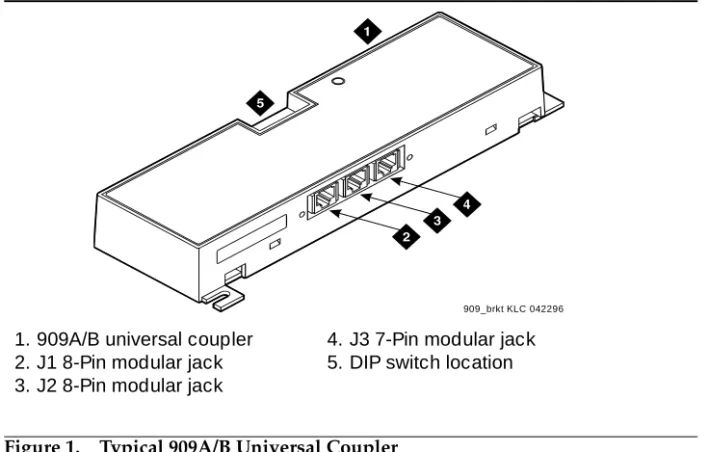
The 909A/B Universal Coupler is used with paging and music-on-hold equipment that is not approved for use with the public network.
NOTE:
If the music source is registered by the FCC (in the USA) or an equivalent body, the 909A/B is not required.
909A/B Universal Coupler
2
1
Figure 1. Typical 909A/B Universal Coupler
The 909A is the DC version of the coupler, and cabinet power supplies -48 VDC power. The 909B is the AC-powered version and power is supplied from a separate power supply (such as the KS-22911L2).
The DIP switches on the unit set:
■ Protection/Paging selection
—
For AUX trunk paging and malicious call trace, set to C2. Set the switch to C1 for all other applications.■ Output attenuation (-9 or -15 dBm)
—
Setting depends on output level of music source.■ Output impedance (8 ohms, 1.5 kΩ, and 50 kΩ)
—
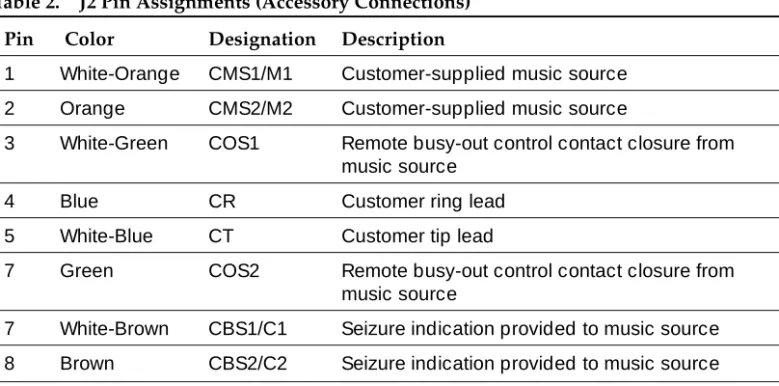
This switch only requires setting if the Protection/Paging switch is set to C2 and the coupler is supplying background music to a customer-supplied paging amplifier.The pinouts for J1, J2, and J3 are provided in Table 1, Table 2, and
Table 3. Refer to these tables when connecting music or paging equipment. 1. 909A/B universal coupler
2. J1 8-Pin modular jack 3. J2 8-Pin modular jack
4. J3 7-Pin modular jack 5. DIP switch location
909A/B Universal Coupler
3
1
Table 1. J1 Pin Assignments (System Connections)
Pin Color Designation Description
1 White-Orange — Not Used
2 Orange PG2/BZ2 Seizure control lead, connected to -48 VDC from
the system or from the 909A/B when the protection paging switch is set to C2, or to -48 VDC on the 909A/B when protection/paging switch is set to C1
3 White-Green PG1/BZ1 Seizure control lead, connected to SZ lead from
the AUX trunk when the protection/paging switch is set to C2, or to -48 VDC on the 909A/B when the protection/paging switch is set to C1
4 Blue R Ring lead
5 White-Blue T Tip lead
7 Green BSY2/BY2 Busy/busy-out lead, connected to S1 lead from
the AUX trunk
7 White-Brown BSY1/BY1 Busy/busy-out lead, connected to S lead from the
AUX trunk
8 Brown — Not Used
Table 2. J2 Pin Assignments (Accessory Connections)
Pin Color Designation Description
1 White-Orange CMS1/M1 Customer-supplied music source
2 Orange CMS2/M2 Customer-supplied music source
3 White-Green COS1 Remote busy-out control contact closure from
music source
4 Blue CR Customer ring lead
5 White-Blue CT Customer tip lead
7 Green COS2 Remote busy-out control contact closure from
music source
7 White-Brown CBS1/C1 Seizure indication provided to music source
909A/B Universal Coupler
4
1
!
CAUTION:
Damage to the 909A/B may occur if the cable is plugged into J3 before all cross-connects are completed.
Figure 2 shows the physical locations of the pins for J1, J2, and J3.
Figure 2. Typical Modular Jack Pinout
Table 3. J3 Pin Assignments (Power Connections)
Pin Color Designation Description
1, 3, 4, & 7 — — Not used
2 Black GRD -48 RET or ground lead from system or
from positive lead of power supply
5 Yellow -48 VDC -48 VDC from system or from negative
lead of power supply
1. J1 and J2 8-Pin modular jacks 2. J3 7-Pin modular jack
1 8 2 5
Auxiliary Power Supplies
5 Local, auxiliary power supply
2
2
Auxiliary Power Supplies
Nonessential features of the attendant console, such as the optional 27B1 selector console, and DCP terminals derive their power from an auxiliary power source. One console can connect to R8csi, and 3 consoles can connect to each cabinet stack or R8r. Each cabinet can derive auxiliary power from the system and through the auxiliary cable located in the trunk/auxiliary field. Auxiliary power for a primary attendant console should be provided through this cable so the console remains fully operational during short power outages.
Local, auxiliary power supply
Auxiliary Power Supplies
6 Applications that require auxiliary power
2
Applications that require auxiliary
power
Auxiliary power (local or bulk) is always required for the following:
■ Any 8520 terminal
■ Attendant console 302C1
■ PassageWay adapter interface
■ Any 7500-series terminal whether in passive bus, or point to point (one per BRI port)
■ Any 7500- or 8500-series terminal with an asynchronous data module
■ Any 8510 terminal in passive bus or with an asynchronous data module (unless the 8510 will not be used to support data or video)
■ Any 7400-series terminal with XM24 expansion module
■ Any 7400-series terminal with adjuncts 7407, 7434 or 7444
■ Any 8400-series terminal with adjuncts 8411 or 8434
The 1145B power supply is required for all installations outside the United States.
Table 4. 302C1 Attendant Console Cabling Distances
24 AWG Wire
(0.27 mm2)
27 AWG Wire
(0.14 mm2)
feet meters feet meters
With selector console:
Phantom-powered 800 244 500 152
Locally powered 5000 1524 3400 1037
Without selector console:
Phantom powered 1400 427 900 274
Auxiliary Power Supplies
7 Sources of auxiliary, local power
2
Sources of auxiliary, local power
An attendant console can derive auxiliary power from:
■ A bulk power supply, such as the 1145B
A console’s maximum distance from its 1145B auxiliary power source is 800 ft (244 m) for a 302A1 or 350 ft (107 m) for a 301B1 and 302C1.
■ 1151A1 or 1151A2 power supply
Required Safety Precautions
!
DANGER:
When operating power-supply equipment, you must follow basic safety precautions to reduce the risk of fire, electric shock and personal injury. Read and understand all instructions. Follow all warnings and instructions marked on the products. Follow all the installation instructions when mounting the product.
!
DANGER:
Never use a power unit with a power source other than that specified on the product labels.
Do not try to plug the 3-wire grounding plug into a nongrounding power outlet. This plug only fits into a grounding power outlet. This is a safety feature. If you are unable to insert the plug into the outlet, have an electrician replace the outlet. Do not defeat the safety purpose of the grounding plug.
Do not attach the power supply cord to building surfaces.
Do not overload power outlets.
Do not use this product near water. Do not let anything spill on or into the unit. Clean only with a dry rag.
Never push objects through openings in the case.
Do not try to disassemble the unit. Return it for repair. Opening or removing covers may expose you to dangerous voltages. Incorrect reassembly may cause electric shock when the products are subsequently used.
Auxiliary Power Supplies
8 1145B Power Supply
2
!
DANGER:
Never let the operating temperature of the unit exceed the recommended maximum.
Do not block or cover the ventilation openings in the case.
Do not let anything rest on the unit.
!
DANGER:
Do not attempt to recharge batteries. The power unit recharges the batteries itself. Any other recharging method may cause leaks of corrosive electrolyte or explosion. Discard discharged batteries as soon as possible. Discharged batteries are more likely to leak.
Do not store batteries in high temperature areas. Batteries stored in a cold
environment should be protected from condensation during storage and warming. Batteries should be stabilized at room temperature prior to use after cold storage. Do not install batteries if the manufacturing date on the label indicates that the batteries are more than 6 months old.
1145B Power Supply
The 1145B power supply powers ISDN/DCP, terminal equipment, adjuncts, and other customer-supplied external equipment. It supplies -48V, 200 W total and supports 32 outputs. You can install one ISDN terminal or DCP adjunct per output.
A manual switch on the distribution unit lets the user redirect reserve power to outputs 1 to 32 so that all outputs get battery reserve power.
An optional 1149 battery and 1146 distribution unit provides uninterruptible -48 VDC power.
!
DANGER:
Auxiliary Power Supplies
9 1145B Power Supply
2
Circuit protection
A thermistor current-limits the maximum output of each output to 12 W, but the average power per output cannot exceed 7.25 W (200/32 = 7.25). An LED indicates the status of the thermistor. When the LED is ON, there is a short on the power pair.
Mountings
The back-up battery mounts on a top plate. The power supply and distribution units mount on a bottom plate. The plates are normally wall-mounted.
Installing the Wall Mounting
See Figure 3
1. Locate one plate directly below the other with the raised letters right side up. Be sure that the AC power cord can reach the electrical outlet from the bottom plate. The power cord is about 7.5 ft (2 m) long.
NOTE:
Up to 4 power supplies can draw current from one 110- or 230-VAC, 20- or 15-A feeder. Use only unswitched receptacles that are not shared with other equipment.
2. Secure the wall mounting plates to a 3/4-in. (2-cm) plywood mounting board using the four 1/2-in. #10 wood screws supplied with the plates.
3. Snap the 1145B power supply onto the bottom wall-mounting plate (no tools are needed).
4. Connect an insulated 17-AWG #12 (1.2-mm) ground wire (or better) between the ground lug on the power-supply frame and an approved ground.
Auxiliary Power Supplies
10 1145B Power Supply
2
Figure 3. 1145B/1146 Mounting Arrangement
5. Write the Unit Number and connectivity information on the front label, next to the LEDs.
1. Wall mounting plate
2. Optional battery (1149B shown) 3. 1146 power distribution unit 4. 1145B power unit
5. Power cable
6. Unswitched outlet (120 VAC, 20 A or 230 VAC, 15 A)
7. Battery backup switch setting
pcdf1145 KLC 030100
1 2
3
4
6
1149 Battery
1145 Power Unit On Battery ReserveCharging Battery Output Power On
1146 P
o
w
e
r Distr
ib
ution Unit
5 1-32
1-8
Auxiliary Power Supplies
11 1145B Power Supply
2
Installing the 1146 Power Distribution Unit
1. Insert and securely tighten the two supplied #8-32 x 1/2-in. shoulder screws (they have an unthreaded section at the top) into the top holes designated for 1146 Power Distribution Unit on the bottom plate. Mount the unit on these two shoulder screws, using the key holes on the back of the unit.
2. Secure the unit by inserting the #8-32 x 1 in. screw through the bottom of the unit (just above the wire clips) into the plate and tighten.
3. Set the battery back-up switch option to the 1-32 (down) position to provide battery back-up to all outputs.
4. Connect the power distribution unit to the power supply with the power cable. Refer to the power supply’s right-side label to locate the output power connection.
Installing and Wiring the Battery
Two types of back-up batteries can be used:
To install the battery, proceed as follows.
1. Loosely insert two #10-32 x 1/2-in. shoulder screws in the battery-mounting holes at the top of the wall battery-mounting plate.
2. Place the keyhole slots in the battery bracket on these two screws. Make sure the label on the battery is visible.
The battery cord exits from the right side of the bracket.
3. Tighten the screws securely.
4. Plug the battery cord into the right rear receptacle on the power supply. The right-side label indicates the rear receptacle.
Installing the Expanded Power Distribution Unit
You can install a second power-distribution unit for additional 8400- and 8500-series terminals.
Table 5. Back-Up Batteries
Battery Rating
1148B 2.5 amp-hours
Auxiliary Power Supplies
12 1145B Power Supply
2
!
CAUTION:
Total power cannot exceed 200 W. Consult the chart below for permissible terminal installations.
Each expanded power distribution unit kit supplies the following items:
■ One power distribution unit
■ One T-cable
■ Two #8-32 x 1/2-in. shoulder screws
■ One #8-32 x 1 in. screw
■ One spacer bracket
Refer to Figure 4 while installing the power distribution unit:
1. Fasten the spacer bracket to the mounting plate with the #8-32 x 1/2-in. shoulder screws.
The spacer bracket is not shown in the figure. It is behind the top power distribution unit.
2. Slide the keyhole slots in the power distribution unit over the shoulder screws.
3. Insert the #8-32 x 1 in. screw through the distribution unit, through the spacer bracket, and into the plate. Tighten the screw.
The mounting hole is located just above the wire clip.
4. Set the battery back-up switch to the 1-32 (down) position.
5. Power-down the 1145B as described on the label on the side of the unit.
6. Remove the output power cable between the 1145B and the 1147B units. The cable will not be reused.
7. Connect the P1 connector end of the T-cable to the bottom power distribution unit.
Table 6. Permissible terminal installations (total power < 200 W)
Terminal mix Maximum numbers Notes
7500-series + 8500-series ISDN 24 + 24
7400-series + 8400-series DCP 24 + 24
8400-series DCP 74
7400-series DCP 74 Average power per
Auxiliary Power Supplies
13 1145B Power Supply
2
8. Connect the P2 connector to the top distribution unit.
9. Connect the P3 connector to the 1145B.
10. Power-up the 1145B as described on the label on the side of the unit.
Figure 4. Expanded Power Distribution Unit
1. Wall-mounting plate
2. Optional 1146 power distribution unit 3. T cable (H600-347-G7)
4. Standard 1146 power distribution unit 5. 1145B power unit
1145 Power Unit 1149 Battery
On Battery Reserve Charging Battery Output Power On
1 2 3 4 5 6 7 8 9 10 11 12 13 14 15 16 17 18 19 20 21 22 23 24 25 26 27 28 29 30 31 32 -48V -48V RTN RTN Unit No. Connected To: 1 2 3 4 5 6 7 8 9 10 11 12 13 14 15 16 17 18 19 20 21 22 23 24 25 26 27 28 29 30 31 32 -48V -48V RTN RTN Unit No. Connected To:
Auxiliary Power Supplies
14 1145B Power Supply
2
Powering Up and Testing AC and DC Power
When you power up the unit or interrupt power to a unit, the unit runs an AC or DC self test. LEDs on the front panel indicate the status of the power supply. The following table lists the LEDs.
1. Connect the AC power cord to the power supply, and route the cord to an appropriate AC outlet using the clips provided on the unit.
NOTE:
A maximum of four power supplies can be powered from one dedicated 110 VAC, 20-A feeder. Use only unswitched receptacles.
2. Start the AC test by plugging the cord into the outlet.
This powers up the power supply.
3. Check AC operation of the 1145B power supply by monitoring the LEDs:
PASS: GREEN and YELLOW are both lit.
FAIL: either GREEN or YELLOW LED is not lit.
4. If the AC test failed, test the AC outlet, power cord, and connections.
5. If the AC test failed, but power is available and the AC power cord and connections are good, replace the power unit.
6. Once the AC test passes, activate the DC battery-backup supply by disconnecting the AC plug.
7. Check DC (battery back-up) operation by monitoring the LEDs.
PASS: RED and GREEN are both lit.
FAIL: either RED or GREEN is not lit.
8. If the DC test fails, check the connections.
9. If the DC test fails but the connections are good, replace the batteries and retest.
10. If the DC test fails after you replace the batteries, replace the power supply.
11. Once the DC test passes, reconnect AC power to the power supply.
Table 7. Power-supply LEDs
LED Color Meaning
GREEN Power supply is providing power
YELLOW Battery is charging (after at most 20 hours, when the battery has reached full charge, the YELLOW LED should go out)
Auxiliary Power Supplies
15 1145B Power Supply
2
Wire the 1146 Power Distribution Unit
Wire endpoints to the 1146 while power from the 1145B is on.
1. Install cross-connect jumpers (the label shows polarity) to Pins 7 and 8 of the appropriate information outlet. Route the wires through the clip provided on the unit. If a red LED is on, see ‘‘Repairing Short Circuits and Resetting Red LEDs’’ on page 16. Figure 5 shows the connections. A red LED lights if the associated circuit is connected to shorted wiring or a shorted terminal.
Figure 5. Typical wiring to a terminal
2. Mark lead destinations, unit number, and connectivity information on the label next to each connector.
1. Power supply kit
2. 2.5, 5.0, or 8.0 A hour battery 3. 1146 power distribution unit 4. 1145B power supply 5. Circuits 1-17
6. Circuits 17-32 7. Port circuit
8. Main distribution frame 9. Modular cord
10. AC input 11. Ground wire
12. ISDN/ display system protocol terminal 13. Circuits 1-32
14. Pins 7 and 8 (display terminal power)
3
4 5
1
11
2
7 12
13 146
8
9 9
Auxiliary Power Supplies
16 1151A and 1151A2 Power Supplies
2
Replacing the Batteries
To maintain back-up protection and battery reliability:
1. Replace batteries every four years.
Storing the Batteries in Inactive Units
To prevent leakage when the power unit is not in use for several months or more:
1. Remove the batteries and store them separately.
Repairing Short Circuits and Resetting Red LEDs
A red LED next to any of the 32 power output connectors indicates a short circuit in the building wiring or the terminal equipment. To reset the LED:
1. Disconnect the terminal equipment from the wall jack.
2. If the LED goes off, the terminal equipment is faulty. Replace it.
3. If the LED is still lit, find and repair the short circuit in the building wiring.
4. Reconnect the terminal equipment to the wall jack, and re-test.
1151A and 1151A2 Power Supplies
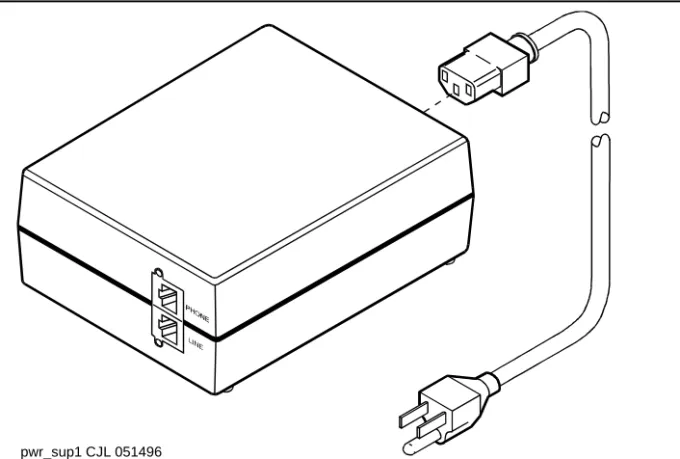
The 1151A is a standard (no battery backup) power supply unit. The 1151A2 is a battery backup version of the 1151A. Either power supply can support one telephone with or without an adjunct.
The 1151A and 1151A2 power supplies can supply local power to ISDN-T 7400-, 7500-, 8400-, and 8500-series voice terminals connected to a system, and to the DCP 7444 voice terminal or 302C attendant console that need auxiliary power for its display. The unit can supply power to adjunct equipment such as S201A and CS201A speakerphones, or a 500A headset adapter attached to any currently manufactured analog, DCP, or ISDN-T voice terminal equipped with an adjunct jack.
The power supply has the following specifications:
■ A single output of -48 VDC, 0.4 A
■ Either a 120 VAC 60-Hz power source (105 to 129 VAC) or a 220/230/240 VAC 50-Hz power source (198 to 274 VAC)
■ Automatic input voltage selection
■ Output capacity of19.2 W
Auxiliary Power Supplies
17 1151A and 1151A2 Power Supplies
2
■ Use of 2 modular jacks. PHONE jack pins 7 and 8 (- and +, respectively) provide power.
The PHONE and LINE jacks are 8-pin female nonkeyed 757-type jacks that can accept D4, D7, and D8 modular plug cables. Figure 6 shows a 1151A power supply. The 1151A2 looks similar.
!
DANGER:
When operating power-supply equipment, you must follow basic safety precautions to reduce the risk of fire, electric shock and personal injury. Read, understand, and follow all warnings and instructions. See ‘‘Required Safety Precautions’’ on page 7.
!
CAUTION:
Do not locate the unit within 7 in. (15.25 cm) of the floor.
!
CAUTION:
Use the power supply only with telecommunications equipment, indoors, and in a controlled environment.
Figure 6. Typical 1151A Power Supply
(
Front)Auxiliary Power Supplies
18 1151A and 1151A2 Power Supplies
2
Desk Mounting
1. Place the power supply on a flat surface such as a desk.
Wall Mounting
1. For wall-mounting, use the keyhole slots on the bottom of the chassis.
Standards compliance
The 1151A and 1151A2 power supplies comply with the UL Standard UL 1459, second edition.
Table 8. Standards compliance
Complies UL 1459
Certified CSA 22.2
Approved EN7950
Voice and Data Terminals and Extenders
19 2-Wire DCP Endpoint
3
3
Voice and Data Terminals and
Extenders
This chapter provides information on 2-wire voice and data terminals and DEFINITY digital communication protocol (DCP) extenders.
2-Wire DCP Endpoint
Wire the tip and ring connections of 2-wire DCP endpoints to a TN2224B digital line 2-wire circuit pack (or equivalent) similar to the 2-wire analog endpoints for a TN747B analog line circuit pack.
NOTE:
The TN2224B supports 2-wire DCP sets only (not 4-wire).
2-wire Voice Terminals
!
CAUTION:
Except for auxiliary power, if necessary, these should be the only connections to the modular wall jack. Do not bridge or parallel these telephones.
Voice and Data Terminals and Extenders
20 2-Wire DCP Endpoint
3
2-Wire Voice and Data Terminals
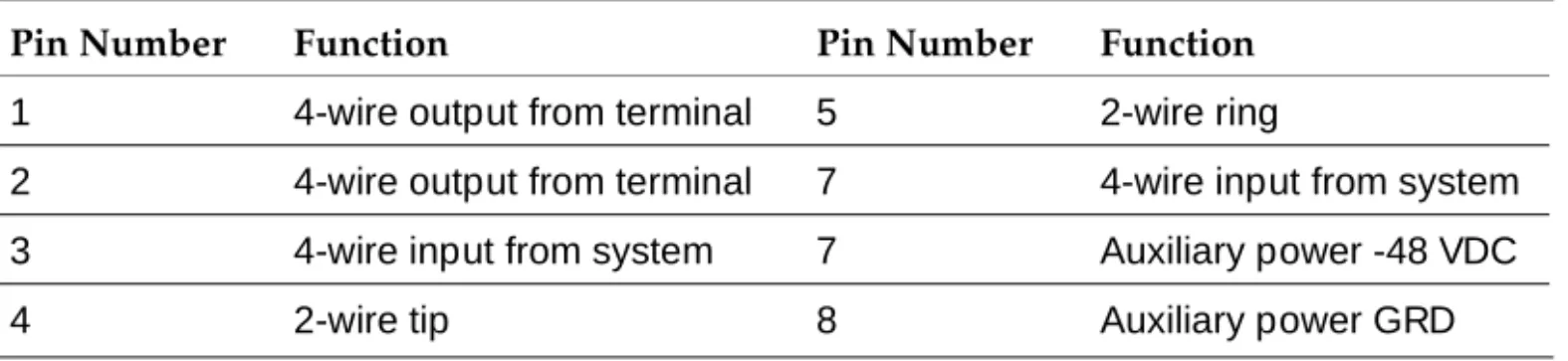
Table 10 provides the pin-out configuration for 2-wire voice and data terminals.
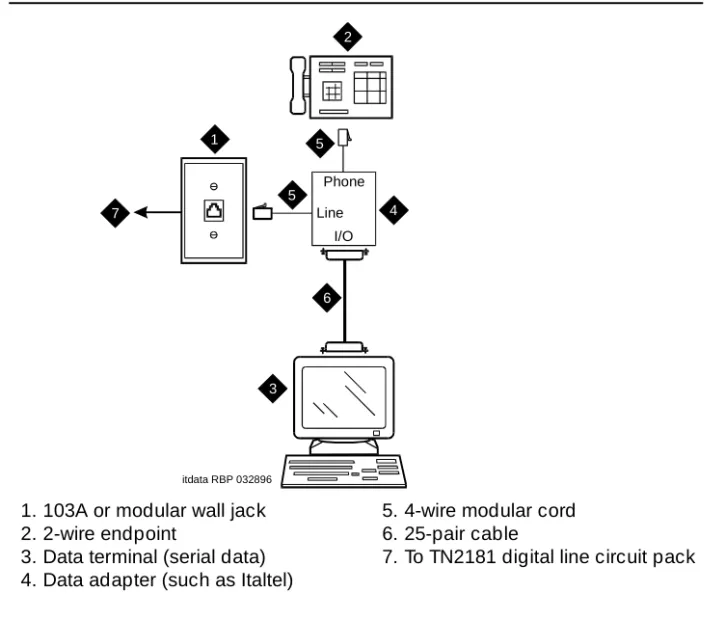
Figure 7 shows a workstation connecting to a data adapter. The line side of the adapter connects to the TN2181 digital line 2-wire circuit pack via the main distribution frame (MDF) (to the system cabinet).
Table 9. Pin-out for 2-wire Voice Terminals
Pin Number Function Pin Number Function
1 4-wire output from terminal 5 2-wire ring
2 4-wire output from terminal 7 4-wire input from system
3 4-wire input from system 7 Auxiliary power -48 VDC
4 2-wire tip 8 Auxiliary power GRD
Table 10. Pin-out for 2-wire Voice Terminals
Pin Number Function Pin Number Function
1 4-wire output from terminal 5 2-wire ring
2 4-wire output from terminal 7 4-wire input from system
3 4-wire input from system 7 Auxiliary power -48 VDC
Voice and Data Terminals and Extenders
21 2-Wire DCP Endpoint
3
Figure 7. Typical Connections to a 2-Wire DCP Workstation
Wire the circuit pack to the MDF with a 25-pair cable:
1. Wire to the data adapter per local standards.
2. Wire the data terminal and telephone as instructed in the document accompanying the data adapter.
1. 103A or modular wall jack 2. 2-wire endpoint
3. Data terminal (serial data) 4. Data adapter (such as Italtel)
5. 4-wire modular cord 6. 25-pair cable
7. To TN2181 digital line circuit pack
3 1
2
4
itdata RBP 032896 6 5
5
7 Line
Voice and Data Terminals and Extenders
22 DEFINITY DCP Extender, Stand Alone
3
DEFINITY DCP Extender, Stand Alone
The figure below shows a typical connection from a digital line 2-wire DCP circuit pack through two DCP extender devices. See Appendix A, ‘‘Connector and Cable Pinout Charts’’ for cabling information and pin assignments.
Figure 8. Typical DEFINITY DCP Extender Connections
1. System cabinet
2. TN2181 or TN2224B circuit pack 3. 25-pair cable
4. DEFINITY DCP extender 5. Main distribution frame (MDF)
6. Public switched telephone network (PSTN)
7. 103A or modular wall jack 8. Modular line cord
9. DCP telephone (Such as 8410D, 8405, or 8434)
10. Remote work location
cydfdcpe RPY 123097 1
2 3
4
4 5
5 6
7
8
Voice and Data Terminals and Extenders
23 DEFINITY DCP Extender, Rack Mount
3
DEFINITY DCP Extender, Rack Mount
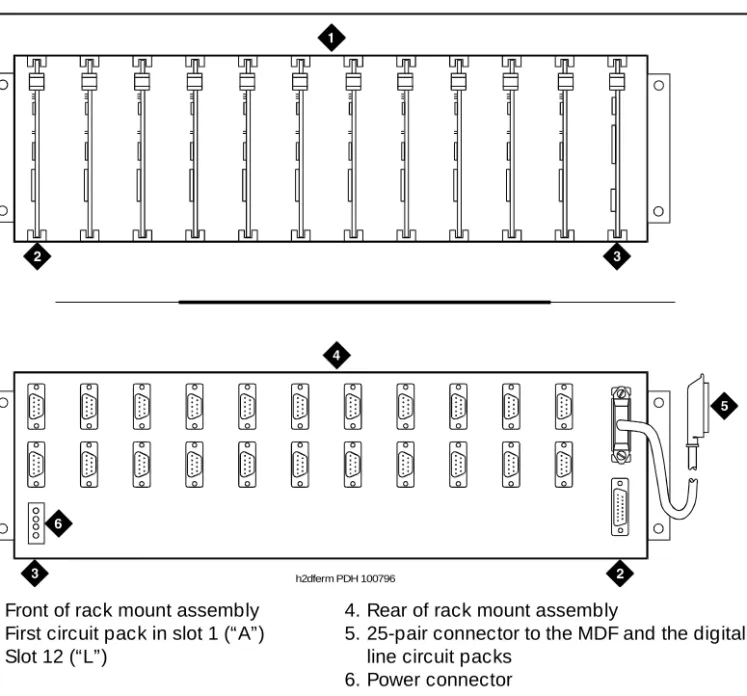
Figure 9 shows a typical rack mount (multi-mount) DCP extender. Connections from either a digital line 17-port wire DCP circuit pack or a digital line 24-port 2-wire DCP circuit pack, are made through two DCP extender devices. The stand alone extender installs at the work location. To install the stand-alone unit, refer to the installation instructions in ‘‘DEFINITY DCP Extender, Stand Alone’’ earlier in this chapter. Refer to Appendix A, Table 35, ‘‘DCP Extender 25-Pair Cable Pinout’’. The DEFINITY Extender Switch Module System Administrator’s Guide contains additional information.
Figure 9. Typical DEFINITY DCP Extender Connections
1. Front of rack mount assembly 2. First circuit pack in slot 1 (“A”) 3. Slot 12 (“L”)
4. Rear of rack mount assembly
5. 25-pair connector to the MDF and the digital line circuit packs
6. Power connector
Voice and Data Terminals and Extenders
24 DEFINITY DCP Extender, Rack Mount
Data Modules and Asynchronous Data Units
25 Understanding RS-232 communications
4
4
Data Modules and Asynchronous
Data Units
Data modules connect peripheral equipment to the DEFINITY ECS or DEFINITY ONE and convert between the RS-232 communications protocol used by peripherals and the DEFINITY Digital Communications Protocol (DCP). Possible peripherals include AUDIX adjunct equipment and terminals, serial printers, customer-supplied terminals and host computers, call detail-recording (CDR) devices, and pooled modems. The following data modules are described in this chapter, and Figure 10 shows typical data-module connections.
■ 7400A/B/C/D
■ 8400B
■ ExpressRoute 1000
■ Asynchronous data units (ADUs).
NOTE:
ISDN data modules, such as the 7500B, are not covered in this book. Refer to Integrated Services Digital Network (ISDN) 7500B Data Module User’s Manual, for detailed procedures. ISDN data modules connects DTE and DCE equipment to the ISDN network using an RS-232 or V.35 interface and an RS-377 automatic calling unit.
Understanding RS-232
communications
Data Modules and Asynchronous Data Units
26 Understanding RS-232 communications
4
The RS-232 communications protocol defines a communications link as a Data Communications Equipment (DCE) device and a Data Terminal Equipment (DTE) device connected by an RS-232 cable. The send and receive pins on DCE equipment (pins 2 and 3) are reversed on DTE equipment, so that the DCE transmit pin connects to the receive pin of the DTE and vice versa.
Generally, the term DCE is applied to devices that mediate between customer equipment and the carrier or network. Such devices include modems, data modules, and data units. DTE describes devices that provide a user interface for data communications, such as dumb terminals and PCs. When configured as DTE, data modules are used for asynchronous modem pooling. When configured as DCE, data modules are analogous to modems in that they link a device such as a terminal or PC (DTE) to DEFINITY.
To install a data module correctly, you identify the connected equipment as DCE or DTE and do one of the following:
■ Configure the modem for a DTE or DCE connection
■ Install a null-modem converter
Detailed instructions are provided in the sections for each modem type (below).
Figure 10. Typical Connections to a data module
1. 103A connector or modular wall jack 2. 400B2 adapter
3. Rear of data module (7400B Shown) 4. Host computer
5. Data module power supply 6. Electrical outlet
7. Display telephone 8. S101A speakerphone
9. Auxiliary power supply for telephone 10. D7AP cord
11. D8W cord
12. Line to display telephone (D8W cord) 13. Data cable (EIA/RS-232)
14. Data-module power cable 15. To MDF and system cabinet 16. Printer
Phone Power Port 1
Port 2
Line
Data Modules and Asynchronous Data Units
27 Installation Procedure
4
Installation Procedure
To install a typical data module, you perform the following tasks:
1. Obtain Required Equipment
2. Sett Hardware Options (must be completed before you administer or physically connect the data module)
3. Connect Data Modules
4. Administer the DEFINITY ECS for Data Modules (can be completed either before or after you physically connect the data module)
Obtain Required Equipment
To physically connect a data module to the system, you need the following parts.
■ 105C/D Isolating Data Interface (if connecting to a DC cabinet)
■ EIA-232-D (RS-232-C) cable with a male connector (for the data module) and the correct connector for the peripheral equipment
The cable connects the PC to the data module
■ Null-modem converter (optional)
■ V.35 cable with correct connectors (not required by all systems)
■ D8W telephone cord
The cord connects the data module’s LINE jack to the DEFINITY wall jack.
■ DCP telephone and D8W cord (optional)
The D8W cord connects the telephone to the data module’s PHONE jack.
■ Suitable auxiliary power supply if the optional telephone is installed (D7AP power cord and 400B2 adapter in the US, international power supply, such as the MSP-1, elsewhere).
You must have access to the administration console of the DEFINITY, either through a terminal and keyboard or through a PC.
A breakout box for 232 interfaces may prove helpful in some cases. The RS-232 breakout box helps you to identify the pin configuration of the RS-RS-232 interface on the equipment you are trying to connect.
Sett Hardware Options
Data Modules and Asynchronous Data Units
28 Sett Hardware Options
4
Setting 7400A Data-Module Hardware Options
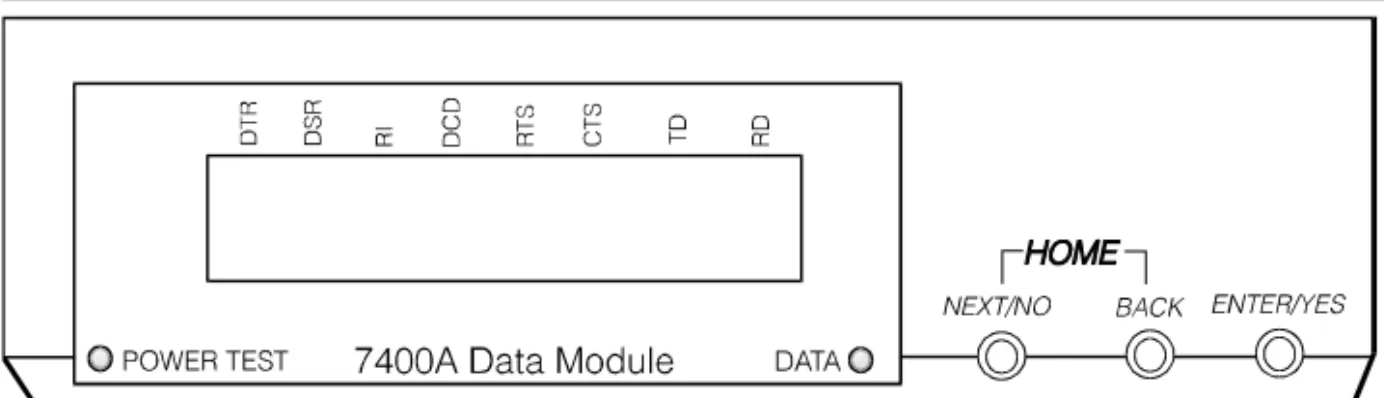
Most configuration options are controlled by commands entered on the front panel of the 7400A. But you have to make hardware changes when you want to set up the 7400A data-module for use in a modem pool or as a piece of data communications equipment. In a modem-pool, the data module operates as data-terminal equipment (DTE). In most other applications, it functions as data communications equipment (DCE). You have to set the correct operating mode for the data module before you can access the menus for the remaining configuration tasks.
To change the operating mode of the 7400A from DCE to DTE (or vice versa), you change the position of a small circuit board (the Electronic Industries Association connector board) inside the case. See Figure 11 and proceed as follows.
!
WARNING:
Electrostatic discharge can severely damage sensitive electronic circuits. Before handling any electronic hardware, be sure to wear a grounding wrist strap or other static-dissipating device. Do not touch exposed circuitry or semiconductor chips.
1. Unplug the data module from the power receptacle.
2. Remove the access panel on the top of the case by grasping the rear lip of the panel and pulling sharply upward.
Data Modules and Asynchronous Data Units
29 Sett Hardware Options
4
Figure 11. Data Module Mode Selector
4. Note the three letters engraved in the upper lefthand corner of the EIA connector board. Data modules ship from the factory with board inserted with “DCE” in the upper left corner.
5. Use the DCE position to connect to DTE equipment. Use the DTE position to connect to DCE equipment. To change the mode, remove the board by grasping it and pulling it gently upward. Flip the board around, left to right, and reinsert it in the socket so that the correct operating mode, DCE or DTE, appears in the upper lefthand corner.
6. Snap the top cover onto the unit.
Setting 7400B Data-Module Hardware Options
You configure the 7400B data module using DIP switches on the circuit card inside the case. Figure 12 shows the front and rear of a 7400B data module.
1. 7400A data module 2. EIA connector board (shown in DTE mode)
POWER TEST
NEXT/NO BACK ENTER/YES
7400A Data Module DATA
HOME
DTE
Data Modules and Asynchronous Data Units
30 Sett Hardware Options
4
To configure the 7400B data module, proceed as follows.
!
WARNING:
Electrostatic discharge can severely damage sensitive electronic circuits. Before handling any electronic hardware, be sure to wear a grounding wrist strap or other static-dissipating device. Do not touch exposed circuitry or semiconductor chips.
1. If you are not attaching a telephone to the data module, activating data metering, or enabling busyout on the local loop, you can use the factory default settings. The 7400B data module is already configured for your use. Stop now.
2. Otherwise, remove the access panel on the top of the case by grasping the rear lip of the panel and pulling sharply upward.
3. Locate the DIP switch block, a bank of tiny switches on the circuit board, in the center of the opening.
DIP switches 1, 5, and 8 control the attached telephone (if any), data metering, and loopback on local loop.
POWER TEST DATA METERING
7400B Data Mod ule
AA CD RD SD TR O H
CH ECK SPEED
DATA
PO RT 2
PO RT 1 PO WER
PHO NE LINE
7400b RBP 032596
Data Modules and Asynchronous Data Units
31 Sett Hardware Options
4
4. Set the switches for the combination of options that you need to enable, using the chart below as a guide.
No telephone attached, data metering OFF, busyout on local loop OFF (factory default settings)
O
N 1 2 3 4 5 6 7 8 9
DOWN DOWN DOWN DOWN DOWN DOWN DOWN DOWN DOWN
Telephone attached, data metering OFF, busyout on local loop OFF
O
N 1 2 3 4 5 6 7 8 9
UP
DOWN DOWN DOWN DOWN DOWN DOWN DOWN DOWN
No telephone attached, data metering ON, busyout on local loop OFF
O
N 1 2 3 4 5 6 7 8 9
UP
DOWN DOWN DOWN DOWN DOWN DOWN DOWN DOWN
No telephone attached, data metering OFF, busyout on local loop ON
O
N 1 2 3 4 5 6 7 8 9
UP
DOWN DOWN DOWN DOWN DOWN DOWN DOWN DOWN
No telephone attached, data metering ON, busyout on local loop ON
O
N 1 2 3 4 5 6 7 8 9
UP UP
Data Modules and Asynchronous Data Units
32 Connect Data Modules
4
5. Replace the cover on the data module.
Connect Data Modules
To connect a single data module, follow the procedure in following section. To connect multiple data modules, see Connecting Multiple Data Modules to the System.
Telephone attached, data metering ON, busyout on local loop OFF
O
N 1 2 3 4 5 6 7 8 9
UP UP
DOWN DOWN DOWN DOWN DOWN DOWN DOWN
Telephone attached, data metering OFF, busyout on local loop ON
O
N 1 2 3 4 5 6 7 8 9
<