www.lexmark.com
May 2003
Lexmark and Lexmark with diamond design are trademarks of Lexmark International, Inc., registered in the United States and/or other countries.
© 2003 Lexmark International, Inc. 740 West New Circle Road Lexington, Kentucky 40550
IMPLIED, INCLUDING, BUT NOT LIMITED TO, THE IMPLIED WARRANTIES OF MERCHANTABILITY OR FITNESS FOR A PARTICULAR PURPOSE. Some states do not allow disclaimer of express or implied warranties in certain transactions; therefore, this statement may not apply to you.
This publication could include technical inaccuracies or typographical errors. Changes are periodically made to the information herein; these changes will be incorporated in later editions. Improvements or changes in the products or the programs described may be made at any time. Comments about this publication may be addressed to Lexmark International, Inc., Department F95/032-2, 740 West New Circle Road, Lexington, Kentucky 40550, U.S.A. In the United Kingdom and Eire, send to Lexmark International Ltd., Marketing and Services Department, Westhorpe House, Westhorpe, Marlow Bucks SL7 3RQ. Lexmark may use or distribute any of the information you supply in any way it believes appropriate without incurring any obligation to you. You can purchase additional copies of publications related to this product by calling 1-800-553-9727. In the United Kingdom and Eire, call +44 (0)8704 440 044. In other countries, contact your point of purchase.
References in this publication to products, programs, or services do not imply that the manufacturer intends to make these available in all countries in which it operates. Any reference to a product, program, or service is not intended to state or imply that only that product, program, or service may be used. Any functionally equivalent product, program, or service that does not infringe any existing intellectual property right may be used instead. Evaluation and verification of operation in conjunction with other products, programs, or services, except those expressly designated by the manufacturer, are the user’s responsibility.
Lexmark, Lexmark with diamond design, MarkNet, MarkVision, and Optra are trademarks of Lexmark International, Inc., registered in the United States and/or other countries. ColorGrade, PerfectFinish, and PictureGrade are trademarks of Lexmark International, Inc. The following terms are trademarks or registered trademarks of other companies:
AppleTalk, EtherTalk, LocalTalk, and Macintosh are trademarks of Apple Computer, Inc., registered in the United States and other countries. PCL® is a registered trademark of the Hewlett-Packard Company. PCL 3, PCL 5, and PCL 6 are Hewlett-Packard Company’s designations of a set of printer commands (language) and functions included in its printer products. These printers are intended to be compatible with the PCL 3, PCL 5, and PCL 6 languages. This means these printers recognize PCL 3, PCL 5, and PCL 6 commands used in various application programs, and that the printer emulates the functions corresponding to the commands.
PostScript® is a registered trademark of Adobe Systems Incorporated. PostScript is Adobe Systems’ designation of a set of printer commands (language) and functions included in its software products. These printers are intended to be compatible with the PostScript language. This means these printers recognize PostScript commands used in various application programs, and that the printer emulates the functions corresponding to the commands.
Other trademarks are the property of their respective owners. Albertus The Monotype Corporation plc Antique Olive Monsieur Marcel OLIVE Apple-Chancery Apple Computer, Inc. Arial The Monotype Corporation plc Candid Agfa Corporation
CG Omega Product of Agfa Corporation
CG Times Based on Times New Roman under license from The Monotype Corporation plc, is a product of Agfa Corporation
Chicago Apple Computer, Inc.
Clarendon Linotype-Hell AG and/or its subsidiaries Eurostile Nebiolo
Geneva Apple Computer, Inc. GillSans The Monotype Corporation plc Helvetica Linotype-Hell AG and/or its subsidiaries Hoefler Jonathan Hoefler Type Foundry ITC Avant Garde Gothic International Typeface Corporation
ITC Bookman International Typeface Corporation ITC Lubalin Graph International Typeface Corporation ITC Mona Lisa International Typeface Corporation ITC Zapf Chancery International Typeface Corporation Joanna MT The Monotype Corporation plc Marigold Arthur Baker
Monaco Apple Computer, Inc.
Mona Lisa International Typeface Corporation New York Apple Computer, Inc.
Oxford Arthur Baker
Palatino Linotype-Hell AG and/or its subsidiaries Stempel Garamond Linotype-Hell AG and/or its subsidiaries Taffy Agfa Corporation
Times New Roman The Monotype Corporation plc TrueType Apple Computer, Inc.
Univers Linotype-Hell AG and/or its subsidiaries Wingdings Microsoft Corporation
© 1998, 2003 Lexmark International, Inc. All rights reserved.
UNITED STATES GOVERNMENT RIGHTS
This software and any accompanying documentation provided under this agreement are commercial computer software and documentation developed exclusively at private expense.
Contents
Introduction ...1-1
Overview... 1-1
Navigational Tips ... 1-4
Printing the File... 1-4
Bibliography... 1-5
PCL Emulation...2-1
Selecting PCL Emulation...2-1
Using SmartSwitch... 2-1
Using the Operator Panel or MarkVision Professional... 2-1
Using Your Software Program ...2-2
Page Formatting ... 2-3
Printable Areas... 2-3
Lexmark C912... 2-4
Lexmark E321 and E323... 2-5
Lexmark T630, T632, and T634... 2-6
Print Area Menu Item... 2-7
Font and Symbol Set Support for the Lexmark C912... 2-9
Forward and Backward Compatibility Modes for the Lexmark C912 ... 2-10
Selecting Symbol Sets for the Lexmark C912...2-14
Font and Symbol Set Support for the Lexmark E321 ... 2-30
Forward and Backward Compatibility Modes for the Lexmark E321 ... 2-31
Selecting Symbol Sets for Lexmark E321... 2-33
Font and Symbol Set Support for the Lexmark E323, T630, T632, and T634 . 2-38
Forward and Backward Compatibility Modes for the Lexmark E323, T630, T632, and
T634 ... 2-39
Selecting Symbol Sets for the Lexmark E323, T630, T632, and T634 ... 2-44
Command Structure ... 2-60
Control Codes ... 2-60
Commands... 2-60
PCL Emulation Commands ... 2-63
PCL Emulation Commands by Function ... 2-63
GL/2 Commands ... 2-85
Raster Image Graphics... 2-89
Raster Compression Mode ...2-89
Macros...2-96
Printer Job Language ...3-1
PJL Command Notation ... 3-1
Kernel Commands... 3-2
Job Separation Commands ... 3-4
Environment Commands and Variables ...3-7
Status Readback Commands... 3-54
Status Message Format ... 3-61
Information Messages... 3-61
Auto-Continuable Conditions ... 3-63
Attendance Conditions ... 3-67
Operator Intervention - Paper Handling ...3-72
Operator Intervention - Paper Jams... 3-75
Service Errors ... 3-80
Device Attendance Commands ... 3-80
Unique PJL Commands... 3-82
File Commands for Flash or Disk... 3-86
File and Device Protection Commands ... 3-93
Protecting a File or Device ... 3-93
Unlocking a Protected File or Device ... 3-95
Re-Locking a Protected File or Device... 3-96
Unlocking a Protected File or Device for the Current Job ... 3-97
Recovering Lost Passwords... 3-98
PostScript Emulation ...4-1
Selecting PostScript Emulation ... 4-1
Using SmartSwitch... 4-1
Using the Operator Panel or MarkVision Professional... 4-1
Using Your Software Program ...4-2
Page Formatting ... 4-3
Printable Areas... 4-3
Logical Page Size ...4-4
PostScript Emulation Fonts for the Lexmark C912... 4-7
PostScript Emulation Fonts for the Lexmark E323... 4-10
PostScript Emulation Fonts for the Lexmark T630, T632, and T634... 4-12
Supplemental Operators... 4-15
Command Format ...4-15
Paper Size Support ... 4-16
Paper Tray Support... 4-19
Envelope Size Support... 4-24
Envelope Tray Support ... 4-26
Supplemental Operator Summary... 4-28
Page Device Parameters...4-63
Interpreter Parameters ... 4-77
User Parameters ... 4-77
System Parameters... 4-80
Device Parameters... 4-86
Status and Error Messages ... 4-107
Tagged Binary Not Active ... 4-107
Tagged Binary Active ...4-107
Status Messages... 4-108
Unsolicited Messages ... 4-109
Switching Languages ...5-1
SmartSwitch ...5-1
Setting SmartSwitch for Different Interfaces ... 5-2
Printer Job Language ...5-2
Sniffing...5-3
Flash Memory and Disk ...6-1
Resource Data Collection (Download Target) ... 6-2
Storing Resources on Flash Memory or Disk... 6-3
Viewing the Contents of Flash Memory and Disk...6-3
Password Protection... 6-7
Rewriting the Flash Content ... 6-8
Accessing Files with PostScript Emulation... 6-9
File Naming Conventions ... 6-9
Device Search Order... 6-12
Performance ...6-13
Job Buffering ... 6-13
Creating a Partition ... 6-14
Enabling Job Buffering ... 6-14
Disabling Job Buffering ... 6-15
Recovering from a Power Loss ... 6-15
Printer Specifications ...7-1
Airflow Requirement... 7-1
Noise Emission Levels ... 7-1
Electrical Specifications ... 7-2
Power Requirements... 7-2
Physical Specifications... 7-3
Clearance Requirements ... 7-3
Environmental Conditions ... 7-4
Altitude Specifications ... 7-4
Atmospheric Pressure... 7-4
Power On to Ready State Time Period ...7-5
Time to Print the First Page ... 7-5
Printer Interfaces...8-1
Setting Up the Communications Port ... 8-2
Setting Up the Communications Port Using Windows 95/98/Me ... 8-2
Setting Up the Communications Port Using Windows NT 4.0 ... 8-3
Setting Up the Communications Port Using Windows 2000 ... 8-4
Setting Up the Communications Port Using Windows XP ...8-5
Deciding Which Interface to Use ... 8-6
Parallel Interface... 8-7
Standard Parallel Connector ... 8-8
Optional Parallel Connector ... 8-8
Parallel Connector Pin Assignments...8-8
Using the INIT* Signal to Initialize... 8-11
Computer-to-Printer Communications... 8-11
Printer-to-Computer Communication (Advanced Status)... 8-17
Parallel Mode 1 ... 8-18
Parallel Mode 2 ... 8-19
Signal Descriptions ... 8-19
Serial Interface ... 8-29
Using the RS-232C Serial Interface ... 8-29
Using the RS-422 Serial Interface... 8-39
Network Support... 8-45
Input Buffer ... 8-46
PCL Support ... A-1
PJL Support ... B-1
PostScript Support ... C-1
Index ... X-1
CHAPTER 1: Introduction
Overview
The following edition of the Technical Reference contains information about printer
commands and printer languages supported by the following Lexmark printers:
•
Lexmark™ C912
•
Lexmark E321
•
Lexmark E323
•
Lexmark T630
•
Lexmark T632
•
Lexmark T634
To determine which commands and languages your printer supports, see the
appendixes in the back of this document or refer to your printer user documentation.
If specific information about your printer is not included in this edition of the Technical
Reference, it may be available in another version. Visit the Lexmark Web site at
www.lexmark.com/publications for more information.
Printed documentation is also available for some Lexmark printers. Obtain the correct
part number from the following table and call 1-800-LEXMARK (1-800-539-6275) to
order a Technical Reference for your printer.
The Technical Reference is divided into the following:
Chapter 2: “PCL Emulation”
Shows how to select PCL emulation and discusses PCL emulation commands, GL/2
commands, and resident font and symbol set support.
Chapter 3: “Printer Job Language”
Contains detailed information about certain commands that cause the printer to enter
PCL emulation, PostScript emulation, and Personal Printer Data Stream (PPDS), and
many other types of commands.
Chapter 4: “PostScript Emulation”
Provides information about PostScript emulation and explains PostScript emulation
supplemental operators.
Chapter 5: “Switching Languages”
Describes ways to switch printer languages and explains when you may want to
choose one method over another.
Table 1-1: Technical Reference Documentation Available in Hard Copy
If you need a Technical Reference for the... Order Lexmark part number...
Optra™ K 11A4079 Optra E 69G8055 Optra N 11A9979 Optra S 43H5437 Optra SC 11C0905 Optra Color 40 11F0833 Optra Color 45 11F0833 Optra Color 1200 11F0833
Chapter 6: “Flash Memory and Disk”
Provides information about using the flash memory and hard disk. It describes how to
manage printer memory, store resources (such as fonts and macros), and manage
files.
Chapter 7: “Printer Specifications”
Lists printer specifications, including information about hardware and environmental
conditions.
Chapter 8: “Printer Interfaces”
Provides information on printer interfaces, including information about parallel and
serial interface, network support, and communication protocols.
See the tables in the three appendixes to determine if your printer supports a
particular PCL emulation, PJL, or PostScript emulation command. The appendixes
are:
Appendix A: “PCL Support”
Appendix B: “PJL Support”
Navigational Tips
If you are not familiar with PDF files, the following tips may help you find the
information you need.
•
To move forward and backward through this document:
– Select an option under View in the menu bar at the top of the page.
– Use the arrows in the toolbar at the top of the page, or the up arrow and
down arrow keys on the keyboard.
– Press the Page Up and Page Down keys on the keyboard.
– Use the scroll bar to the right of the page.
– Click the page number box on the status bar at the bottom of the page and
type the page you want.
•
To increase or decrease the magnification of the pages:
– Select the magnifying glass icon on the toolbar at the top of the page and
then draw a box around the area you want to view.
– Click the magnification box on the status bar and select an option from the
drop-down menu.
•
To jump directly to a particular section or key word in this document:
– Click one of the bookmarks in the overview window to the left of the page.
– Click a topic in the document’s table of contents.
– Select Tools from the menu bar and then choose Find or Search.
– Click the binoculars icon on the toolbar and then type a word in the text box.
– Click a cross-reference to a figure, page number, or heading in the
docu-ment itself.
Printing the File
Although this book was designed primarily for online viewing, you can print a hard
copy by clicking File on the toolbar, and then choosing Print. Make sure you’ve
selected the correct printer, range of pages, and number of copies before you click OK.
You should be aware that if you print this document on a color printer, the color you
see on the paper may not match the color you see on your computer monitor.
Bibliography
For detailed information about PCL emulation printer commands, PostScript
emulation printer commands and operators, and interfaces, refer to the following
documentation:
•
Hewlett-Packard DeskJet Printer Family Technical Reference, C2121-90101
•
Hewlett-Packard LaserJet 4 Typography and Graphics, Random House
Electronic Publishing
•
Hewlett-Packard PCL 5 Color Technical Reference Manual, 5961-0635
•
Hewlett-Packard PCL 5 Printer Language Technical Reference Manual,
5961-0509
•
Hewlett-Packard PostScript SIMM Technical Reference, I/O Device Operators
and Parameters, C2080-90921
•
Hewlett-Packard Printer Job Language Technical Reference Manual,
5961H0512
•
IBM Personal System/2 Hardware Interface Technical Reference, S68X-2330
•
Interface between Data Terminal Equipment and Data Communications
Equipment Employing Serial Binary Data Interchange, Electronic Industries
Association, publications EIA RS-232C and EIA\TIA-232-E
•
Network Printing Alliance Protocol, A Printer/Host Control Specification
Developed by the NPA, Level 1, Revision N
•
PostScript Language Reference Manual (Third Edition), Adobe Systems
Incorporated, Addison-Wesley Publishing
CHAPTER 2: PCL Emulation
When you select PCL emulation as the printer language, the printer supports the
Hewlett-Packard Company’s LaserJet Printer Command Language. This chapter
shows how to select PCL emulation and discusses PCL emulation commands, along
with resident PCL emulation font and symbol set support.
To determine which commands your printer supports, see Appendix A: “PCL Support”
on page A-1.
Selecting PCL Emulation
Using SmartSwitch
When SmartSwitch is enabled for both printer languages on an interface (for example,
Parallel, USB, Serial Option 1, or Network Option 1), the printer automatically switches
to the printer language being sent by your software program. The printer is shipped
with SmartSwitch enabled for both printer languages in all interfaces. The printer
examines all print jobs and switches dynamically between PostScript emulation and
PCL emulation.
Using the Operator Panel or MarkVision Professional
If
SmartSwitchis set to
Offfor both printer languages, you can select PCL emulation
from your printer operator panel or from MarkVision™ Professional. Refer to your
printer user documentation for information on changing menu settings.
Using Your Software Program
To select PCL emulation, use the Printer Job Language (PJL) Enter Language
Command. See “ENTER LANGUAGE Command” on page 3-3 for more information.
See “Printer Job Language” on page 3-1 for the syntax and use of PJL.
Warning:
When you change printer languages, you may lose some or all previously
downloaded resources, unless
Resource Saveis set to
Onor the resources
are stored in flash memory or on disk.
Page Formatting
The printable areas and logical pages for PCL emulation (both portrait and landscape
orientation) are illustrated below. See the Legend that follows for definitions of areas
A through I.
Printable Areas
Legend:
A Portrait physical page width and landscape physical page length
B Portrait physical page length and landscape physical page width
C Portrait logical page width
D Landscape logical page width
E Distance between the side edge of the physical page and the logical page in portrait
F Distance between the side edge of the physical page and the logical page in landscape
G Distance between the top and bottom edge of the physical page and logical page
H Distance between the left and right edge of the physical page and the printable area in portrait, or distance between the top and bottom edge of the physical page and printable area in landscape
I Distance between the top and bottom edge of the physical page and the printable area in portrait, or distance between the left and right edge of the physical page and the printable area in landscape
Note:
The tables beginning on page 2-4 list the page sizes and dimensions of each
area labeled on the preceding diagram for all paper and envelope sizes your
printer supports. If information about your printer is not included in the
following tables, see page 1-1 for information on how to get a Technical
Reference for your printer.
Lexmark C912
The following table lists page sizes and print area dimensions for all paper and
envelope sizes the Lexmark C912 printer supports. For more information about the
printable areas and logical pages for PCL emulation, see “Printable Areas” on
page 2-3.
Note:
The explanation of the printable area assumes the
Print Areamenu item is set
to
Normal. For more information about
Print Area, see page 2-7.
Table 2-1: Lexmark C912 Paper and Envelope Dimensions
Selection Paper/Envelope Dimensions Dimensions by Area (pels)1 Page Size
Parm2 Name mm inches A B C D E F G H I
Paper 13, 613 A5 148 x 210 5.83 x 8.27 3496 4960 3196 4720 142 118 0 100 100 12, 45, 612 JIS B5 Paper 182 x 257 7.2 x 10.1 4300 6070 4000 5830 150 120 0 100 100 26, 626 A4 (198 mm)3 210 x 297 8.3 x 11.7 4960 7014 4676 6778 142 118 0 80 80 26, 626 A4 (203 mm)3 210 x 297 8.3 x 11.7 4960 7014 4800 6778 80 118 0 80 80 46 JIS B4 257 x 364 10.1 x 14.3 6070 8600 5786 8364 142 118 0 100 100 27 A3 297 x 420 11.7 x 16.5 7014 9920 6730 9684 142 118 0 100 100 1, 601 Executive 184 x 267 7.25 x 10.5 4350 6300 4050 6060 150 120 0 100 100 2, 602 Letter 216 x 279 8.5 x 11 5100 6600 4800 6360 150 120 0 100 100 3, 603 Legal 216 x 356 8.5 x 14 5100 8400 4800 8160 150 120 0 100 100 4 or 10 Folio 216 x 330 8.5 x 13 5100 7800 4800 7560 150 120 0 100 100 6 or 11 11 x 17 (Ledger) 279 x 432 11 x 17 6600 10200 6300 9960 150 120 0 100 100 15 Statement 139.7 x 215.9 5.5 x 8.5 3300 5100 3000 4860 150 120 0 100 100 101 Universal 297 x 432 11.7 x 36 7200 21600 6730 9960 142 120 0 100 100 Envelope 90 DL 220 x 110 8.66 x 4.33 2598 5196 2314 4960 142 118 0 100 100 91 C5 229 x 162 9.02 x 6.38 3826 5408 3542 5172 142 118 0 100 100 994, 100 B5 Envelope 250 x 176 9.84 x 6.93 4156 5904 3872 5668 142 118 0 100 100 600 Other Envelope 229 x 356 9.02 x 14.0 7014 7014 6730 6778 142 118 0 100 100 80 7-3/4 Monarch 191 x 98 7.5 x 3.875 2326 4500 2024 4260 150 120 0 100 100 89 9 (Com 9) 225 x 98 8.875 x 3.875 2326 5324 2024 5084 150 120 0 100 100 81 10 (Com 10) 241 x 105 9.5 x 4.125 2474 5700 2174 5460 150 120 0 100 100
1 Pel dimensions are for 600 dpi.
2 Page Size Parameters are explained in Table 2-26 on page 2-65.
3 The width of the logical page for A4 paper can be changed from the printer operator panel or your software program. 4 Paper ID 99 is supported for backward compatibility with other Lexmark printers. Paper ID 99 has the same logical paper
Lexmark E321 and E323
The following table lists page sizes and print area dimensions for all paper and
envelope sizes the Lexmark E321 and E323 printer supports. For more information
about the printable areas and logical pages for PCL emulation, see “Printable Areas”
on page 2-3.
Note:
The explanation of the printable area assumes the
Print Areamenu item is set
to
Normal. For more information about
Print Area, see page 2-7.
Table 2-2: Lexmark E321 and E323 Paper and Envelope Dimensions
Selection Paper/Envelope Dimensions Dimensions by Area (pels)1 Page Size
Parm2 Name mm inches A B C D E F G H I
Paper 13, 613 A5 148 x 210 5.83 x 8.27 3496 4960 3196 4720 142 118 0 100 100 12, 45, 612 JIS B5 Paper 182 x 257 7.2 x 10.1 4300 6070 4000 5830 150 120 0 100 100 26, 626 A4 (198 mm)3 210 x 297 8.3 x 11.7 4960 7014 4676 6778 142 118 0 80 80 26, 626 A4 (203 mm)3 210 x 297 8.3 x 11.7 4960 7014 4800 6778 80 118 0 80 80 46 JIS B4 257 x 364 10.1 x 14.3 6070 8600 5786 8364 142 118 0 100 100 27 A3 297 x 420 11.7 x 16.5 7014 9920 6730 9684 142 118 0 100 100 1, 601 Executive 184 x 267 7.25 x 10.5 4350 6300 4050 6060 150 120 0 100 100 2, 602 Letter 216 x 279 8.5 x 11 5100 6600 4800 6360 150 120 0 100 100 3, 603 Legal 216 x 356 8.5 x 14 5100 8400 4800 8160 150 120 0 100 100 4 or 10 Folio 216 x 330 8.5 x 13 5100 7800 4800 7560 150 120 0 100 100 6 or 11 11 x 17 (Ledger) 279 x 432 11 x 17 6600 10200 6300 9960 150 120 0 100 100 15 Statement 139.7 x 215.9 5.5 x 8.5 3300 5100 3000 4860 150 120 0 100 100 101 Universal 216 x 356 8.5 x 14 5100 8500 4800 8160 150 120 0 100 100 Envelope 90 DL 220 x 110 8.66 x 4.33 2598 5196 2314 4960 142 118 0 100 100 91 C5 229 x 162 9.02 x 6.38 3826 5408 3542 5172 142 118 0 100 100 994, 100 B5 Envelope 250 x 176 9.84 x 6.93 4156 5904 3872 5668 142 118 0 100 100 600 Other Envelope 229 x 356 9.02 x 14.0 5100 8400 4800 8160 150 120 0 100 100 80 7-3/4 Monarch 191 x 98 7.5 x 3.875 2326 4500 2024 4260 150 120 0 100 100 89 9 (Com 9) 225 x 98 8.875 x 3.875 2326 5324 2024 5084 150 120 0 100 100 81 10 (Com 10) 241 x 105 9.5 x 4.125 2474 5700 2174 5460 150 120 0 100 100
1 Pel dimensions are for 600 dpi.
2 Page Size Parameters are explained in Table 2-26 on page 2-65.
3 The width of the logical page for A4 paper can be changed from the printer operator panel or your software program. 4 Paper ID 99 is supported for backward compatibility with other Lexmark printers. Paper ID 99 has the same logical paper
Lexmark T630, T632, and T634
The following table lists page sizes and print area dimensions for all paper and
envelope sizes the Lexmark T family of printers supports. For more information about
the printable areas and logical pages for PCL emulation, see “Printable Areas” on
page 2-3.
Note:
The explanation of the printable area assumes the
Print Areamenu item is set
to
Normal. For more information about
Print Area, see page 2-7.
Table 2-3: Lexmark T Family Paper and Envelope Dimensions
Selection
Paper/
Envelope Dimensions Dimensions by Area (pels)1 Page Size
Parm2 Name mm inches A B C D E F G H I
Paper 13, 613 A5 148 x 210 5.83 x 8.27 3496 4960 3196 4720 142 118 0 100 100 12, 45, 612 JIS B5 Paper 182 x 257 7.2 x 10.1 4300 6070 4000 5830 150 120 0 100 100 26, 626 A4 (198 mm) 198 x 297 7.8 x 11.7 4960 7014 4676 6778 142 118 0 80 80 26, 626 A4 (203 mm) 203 x 297 8.0 x 11.7 4960 7014 4800 6778 80 118 0 80 80 1, 601 Executive 184 x 267 7.25 x 10.5 4350 6300 4050 6060 150 120 0 100 100 2, 602 Letter 216 x 279 8.5 x 11 5100 6600 4800 6360 150 120 0 100 100 3, 603 Legal 216 x 356 8.5 x 14 5100 8400 4800 8160 150 120 0 100 100 4 or 10 Folio 216 x 330 8.5 x 13 5100 7800 4800 7560 150 120 0 100 100 15 Statement 139.7 x 215.9 5.5 x 8.5 3300 5100 3000 4860 150 120 0 100 100 101 Universal3 216 x 356 8.5 x 14 5100 8500 4800 8260 150 120 0 100 100 Envelope 90 DL 220 x 110 8.66 x 4.33 2598 5196 2314 4960 142 118 0 100 100 91 C5 229 x 162 9.02 x 6.38 3826 5408 3542 5172 142 118 0 100 100 994, 100 B5 Envelope 250 x 176 9.84 x 6.93 4156 5904 3872 5668 142 118 0 100 100 600 Other Envelope 229 x 356 9.02 x 14 5412 8400 4800 8160 150 120 0 100 100 80 7-3/4 Monarch 191 x 98 7.5 x 3.875 2326 4500 2024 4260 150 120 0 100 100 89 9 (Com 9) 225 x 98 8.875 x 3.875 2326 5324 2024 5084 150 120 0 100 100 81 10 (Com 10) 241 x 105 9.5 x 4.125 2474 5700 2174 5460 150 120 0 100 100
1 Pel dimensions are for 600 dpi.
2 Page Size Parameters are explained in Table 2-26 on page 2-65.
3 Universal size A and B dimensions can be defined. Then, other dimensions (C - I) are derived from A and B.
4 Paper ID 99 is supported for backward compatibility with other Lexmark printers. Paper ID 99 has the same logical paper
Print Area Menu Item
The printable area is the area on a sheet of paper within which a pel can be printed.
Logical page is a conceptual entity that defines the area in which margins (top, bottom,
left, right) may be set and the area in which the PCL cursor may be positioned.
The physical page border is the actual physical boundaries of a page.
The
Print Areamenu item is available from the printer operator panel or through
MarkVision Professional. For some printers, Print Area supports three values: Normal,
Whole Page, and Fit to Page. Refer to your printer user documentation for more
information.
The Normal setting, which is the factory default, means the printable area includes the
entire page except the narrow border around the edge of the page. This is the
nonprintable area. The printer measures margin settings relative to the logical page.
For a more detailed explanation of the Normal setting, see “Printable Areas” on
page 2-3.
PCL Logical Page Area Physical Page Border PCL Printable Area Legend:Only Portrait Orientation shown for all settings Normal setting Whole Page setting
The Whole Page setting only affects pages printed when using PCL emulation. If
Whole Page is selected, the PCL language sets the logical page area equal to the
physical page dimensions. Since the logical page dimensions and the physical page
dimensions are the same, in theory, the cursor may be positioned anywhere on the
page. However, the PCL language clips the image to the printable area. So, the Whole
Page setting is useful for printing scanned images that extend from edge to edge of a
page.
Some printers offer the Fit to Page setting. When Fit to Page is selected, PCL
emulation or PostScript emulation formats a page using a printable area equal to the
physical page, which is from one edge of the page to the other edge of the page. If you
use this setting, no clipping occurs. In Fit to Page, the PCL emulation logical page
dimensions are equal to the physical page dimensions, as in the Whole Page setting.
The printer holds this formatted image in memory, but when the page prints, the image
is compressed a small amount in both horizontal and vertical directions, and then
centered on the physical page for letter-size paper only. This process creates a small
margin around the image. This artificial margin prevents printing from one edge to the
other, since doing so could contaminate the printer and cause printing problems.
The following illustrations show an image held in memory for printing from one edge
to the other and how the image would actually print based on the Fit to Page setting.
Notice that a small border appears at the edges of the printed page, and the image is
slightly compressed.
Formatted Image with Fit to Page Printed Image with Fit to Page Physical
Page Edge
Font and Symbol Set Support for the Lexmark C912
Your printer has 86 resident fonts in PCL emulation, including 84 scalable fonts and
two bitmapped fonts.
Several parameters are used to select a font from the data stream. These include
symbol set, spacing, point or pitch, style, weight, and typeface number. For scalable
fonts, you can vary the size of a font by specifying pitch or point size. For bitmapped
fonts, you must choose the pitch or point size listed on the font sample pages. You can
print the font sample pages using a PJL command (see “LPRINTPCLFONTS” on
page 3-83), from the printer operator panel, or through MarkVision Professional. Refer
to your printer user documentation for more information.
A symbol set defines which characters are available for a font and the code point for
each of these characters. Your printer supports 83 resident symbol sets. The tables
beginning on page 2-14 show the symbol sets available for each font in
PCL emulation. Not all fonts support all symbol sets.
You can select a font as the PCL emulation default from the printer operator panel or
through MarkVision Professional. Refer to your printer user documentation for more
information.
The fonts are divided into two major groups. The first 47 fonts (R0 to R46) shown on
the font sample pages are the standard PCL emulation fonts. The 39 remaining fonts
(R47 to R85) are called Type 1 fonts and were originally defined for PostScript
emulation, but now also work in the PCL emulation. For a list of the 47 standard PCL
emulation fonts, see Table 2-4 on page 2-10. For a list of the 39 Type 1 fonts, see
Table 2-5 on page 2-12. Both tables list the forward and backward compatibility font
selection commands. For more information on forward and backward compatibility,
see page 2-10. For more information on selecting symbol sets, see page 2-14.
For compatibility purposes, you can disable Type 1 fonts with the Printer Job
Language (PJL) LTYPE1FONTS command. The factory default for these fonts is
Enabled. See LTYPE1FONTS on page 3-47 for more information.
You can also select fonts using PJL commands. The selection parameter is the
number portion from the font identifier shown on the font sample pages, such as 0 or
76 from font identifiers R0 or R76. Use the PJL values shown in the tables beginning
on page 2-14 to select a symbol set. If a symbol set does not have a PJL value, use
the symbol set ID to select the symbol set. A font selection can be either temporary or
set as the default.
Use the following PJL commands to select fonts: FONTSOURCE, FONTNUMBER,
PITCH, PTSIZE, SYMSET, SET, DEFAULT. See “Table 3-5: Common Variables for
PCL Emulation” on page 3-48 for more information about these commands.
Forward and Backward Compatibility Modes for the Lexmark C912
Your PCL emulation has forward and backward compatibility modes. The forward
compatibility mode is used to emulate the fonts in the Hewlett-Packard Company’s
LaserJet 4050. The backward compatibility mode is used for compatibility with the
Hewlett-Packard Company’s LaserJet 5 and the Lexmark family of printers.
Standard PCL Emulation Fonts
The following table lists the font selection commands for forward and backward
compatibility mode for each of the 47 standard PCL emulation fonts. Since the font
selection commands for the forward and backward compatibility modes are identical,
they are listed together in the table.
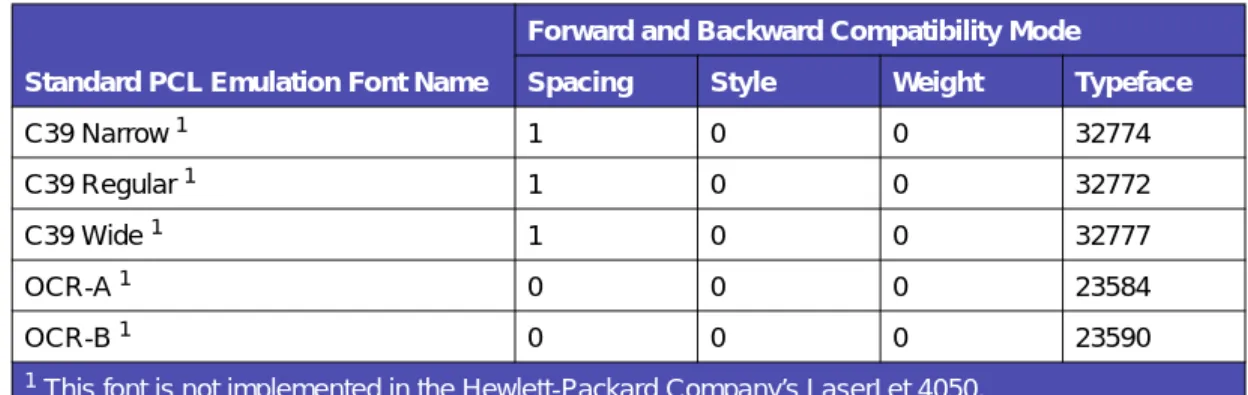
Table 2-4: Forward and Backward Compatibility Font Selection Commands
Standard PCL Emulation Font Name
Forward and Backward Compatibility Mode
Spacing Style Weight Typeface
Courier 0 0 0 4099
Courier Italic 0 1 0 4099
Courier Bold 0 0 3 4099
Courier Bold Italic 0 1 3 4099
CG Times 1 0 0 4101
CG Times Italic 1 1 0 4101
CG Times Bold 1 0 3 4101
CG Times Bold Italic 1 1 3 4101
Univers Medium 1 0 0 4148
Univers Medium Italic 1 1 0 4148
Univers Bold 1 0 3 4148
Univers Bold Italic 1 1 3 4148
Times New Roman 1 0 0 16901
Times New Roman Italic 1 1 0 16901
Times New Roman Bold 1 0 3 16901
Times New Roman BoldItalic 1 1 3 16901
Arial 1 0 0 16602
Arial Italic 1 1 0 16602
Arial Bold 1 0 3 16602
Arial Bold Italic 1 1 3 16602
Letter Gothic 0 0 0 4102
Letter Gothic Italic 0 1 0 4102
Letter Gothic Bold 0 0 3 4102
Univers Condensed Medium 1 4 0 4148 Univers Condensed Medium Italic 1 5 0 4148 Univers Condensed Bold 1 4 3 4148 Univers Condensed Bold Italic 1 5 3 4148
Garamond Antiqua 1 0 0 4197
Garamond Kursiv 1 1 0 4197
Garamond Halbfett 1 0 3 4197
Garamond Kursiv Halbfett 1 1 3 4197
CG Omega 1 0 0 4113
CG Omega Italic 1 1 0 4113
CG Omega Bold 1 0 3 4113
CG Omega Bold Italic 1 1 3 4113
Antique Olive 1 0 0 4168
Antique Olive Italic 1 1 0 4168
Antique Olive Bold 1 0 3 4168
Albertus Medium 1 0 1 4362
Albertus Extra Bold 1 0 4 4362
Clarendon Condensed Bold 1 4 3 4140
Marigold 1 0 0 4297 Coronet 1 1 0 4116 Line Printer 16 0 0 0 0 POSTNET Barcode1 1 0 0 0 Wingdings 1 0 0 31402 Symbol 1 0 0 16686
Table 2-4: Forward and Backward Compatibility Font Selection
Standard PCL Emulation Font Name
Forward and Backward Compatibility Mode
Spacing Style Weight Typeface
Type 1 Fonts
Thirty of the Type 1 fonts have different font selection parameters in the forward and
backward compatibility modes and 9 of the fonts work only in the forward compatibility
mode. With the appropriate printer driver installed and selected, your software
program selects these fonts.
The following table shows the font selection commands for forward and backward
compatibility modes and indicates the font group for each font. All Type 1 fonts are
supported by both the Hewlett-Packard Company’s LaserJet 4050 and the
Lexmark family of printers unless otherwise noted.
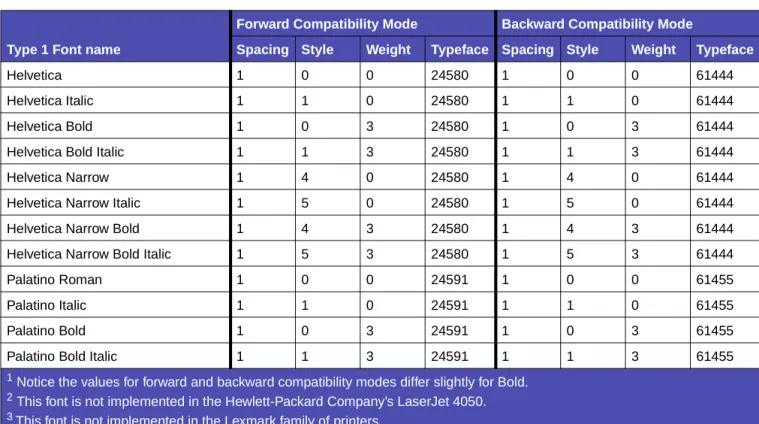
Table 2-5: Forward and Backward Compatibility Font Selection Commands
Type 1 Font name
Forward Compatibility Mode Backward Compatibility Mode
Spacing Style Weight Typeface Spacing Style Weight Typeface
Helvetica 1 0 0 24580 1 0 0 61444
Helvetica Italic 1 1 0 24580 1 1 0 61444
Helvetica Bold 1 0 3 24580 1 0 3 61444
Helvetica Bold Italic 1 1 3 24580 1 1 3 61444
Helvetica Narrow 1 4 0 24580 1 4 0 61444
Helvetica Narrow Italic 1 5 0 24580 1 5 0 61444 Helvetica Narrow Bold 1 4 3 24580 1 4 3 61444 Helvetica Narrow Bold Italic 1 5 3 24580 1 5 3 61444
Palatino Roman 1 0 0 24591 1 0 0 61455
Palatino Italic 1 1 0 24591 1 1 0 61455
Palatino Bold 1 0 3 24591 1 0 3 61455
Palatino Bold Italic 1 1 3 24591 1 1 3 61455 ITC Bookman Light 1 0 -3 24623 1 0 -3 61487 ITC Bookman Light Italic 1 1 -3 24623 1 1 -3 61487
ITC Bookman Demi 1 0 2 24623 1 0 2 61487
ITC Bookman Demi Italic 1 1 2 24623 1 1 2 61487 ITC Avant Garde Book 1 0 0 24607 1 0 0 61471 ITC Avant Garde Book Oblique 1 1 0 24607 1 1 0 61471 ITC Avant Garde Demi1 1 0 2 24607 1 0 3 61471 ITC Avant Garde Demi Oblique1 1 1 2 24607 1 1 3 61471 Century Schoolbook Roman 1 0 0 24703 1 0 0 61463
1 Notice the values for forward and backward compatibility modes differ slightly for Bold. 2 This font is not implemented in the Hewlett-Packard Company’s LaserJet 4050. 3 This font is not implemented in the Lexmark family of printers.
Your Lexmark printer defaults to the forward compatibility mode to enable a
Hewlett-Packard Company’s driver to select the forward compatibility fonts. The
Lexmark PCL driver uses the backward compatibility mode and temporarily switches
the printer to this mode. The PCL (PJL) commands to switch the default compatibility
modes are:
Forward
ESC%-12345X@PJL DEFAULT LPARM:PCL LFONTCOMPATIBILITY=PCL6@PJL RESET
ESC%-12345X
Backward
ESC%-12345X@PJL DEFAULT LPARM:PCL LFONTCOMPATIBILITY=PCL5@PJL RESET
ESC%-12345X
Century Schoolbook Italic 1 1 0 24703 1 1 0 61463 Century Schoolbook Bold 1 0 3 24703 1 0 3 61463 Century Schoolbook Bold Italic 1 1 3 24703 1 1 3 61463 ITC Zapf Chancery Medium Italic 1 1 0 45099 1 1 0 61483
CourierPS3 0 0 0 24579
CourierPS Oblique3 0 1 0 24579 CourierPS Bold3 0 0 3 24579 CourierPS Bold Oblique3 0 1 3 24579
Times Roman3 1 0 0 25093
Times Italic3 1 1 0 25093
Times Bold3 1 0 3 25093
Times Bold Italic3 1 1 3 25093
Helvetica Light2 1 0 -3 24580 1 0 -3 61444 Helvetica Light Oblique2 1 1 -3 24580 1 1 -3 61444
Helvetica Black2 1 0 5 24580 1 0 5 61444
Helvetica Black Oblique2 1 1 5 24580 1 1 5 61444
SymbolPS3 1 0 0 45358
ITC Zapf Dingbats 1 0 0 45101 0 0 61485
Table 2-5: Forward and Backward Compatibility Font Selection Commands (Continued)
Type 1 Font name
Forward Compatibility Mode Backward Compatibility Mode
Spacing Style Weight Typeface Spacing Style Weight Typeface
1 Notice the values for forward and backward compatibility modes differ slightly for Bold. 2 This font is not implemented in the Hewlett-Packard Company’s LaserJet 4050. 3 This font is not implemented in the Lexmark family of printers.
Selecting Symbol Sets for the Lexmark C912
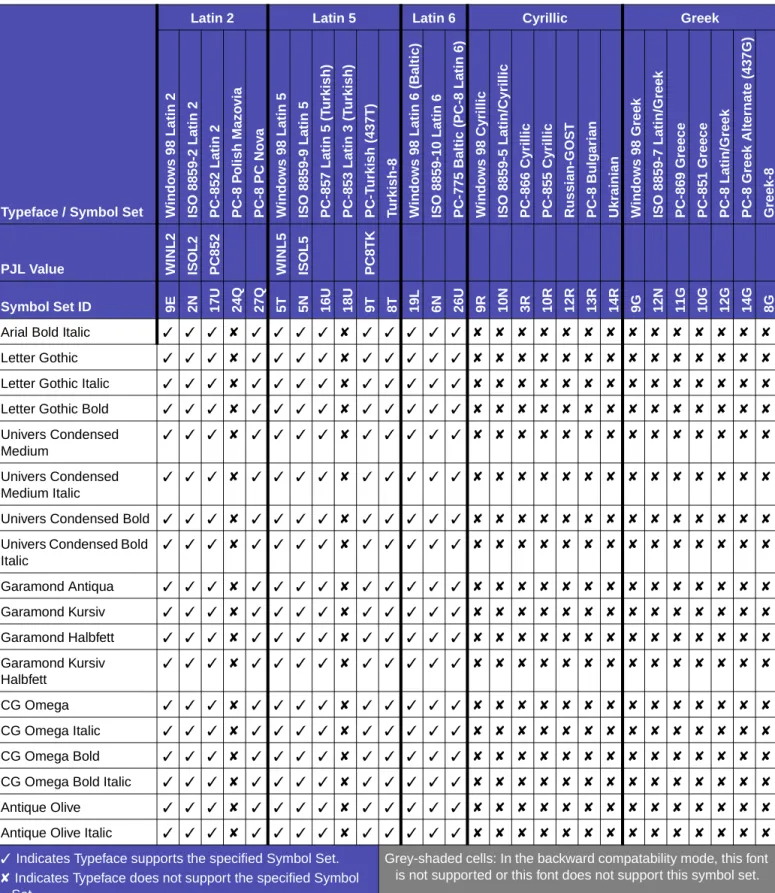
To determine if a font or typeface supports a symbol set, see the complete listing of
PCL emulation fonts and symbol sets in the following tables: “Table 2-6: PCL
Emulation Symbol Sets - Latin 1” on page 2-14, “Table 2-7: PCL Emulation Symbol
Sets - Latin 2, Latin 5, Latin 6, Cyrillic, Greek” on page 2-20, and “Table 2-8: PCL
Emulation Symbol Sets - Specials” on page 2-25.
Table 2-6: PCL Emulation Symbol Sets - Latin 1
Latin 1
Typeface / Symbol Set Le
gal Win d o w s 3.0 Latin 1 W ind ow s 9 8 La ti n 1 ISO 88 59 -1 La tin 1 (EC M A -94) ISO 88 59 -15 Latin 9 PC-8, Code P a ge 43 7 PC-8 D a nis h /Norw e gi an (4 37N) PC-85 0 M u lti lingu al PC-85 8 M u lti lingu al Eu ro PC-86 0 P o rt uga l P C -8 61 I c e lan d P C -8 63 C a n a d ia n Fr en ch PC-86 5 Nor d ic PC -10 04 OS/ 2 ABICOM P B ra z il /P or tu ga l ABICOM P Inte rna tion a l Rom a n-8 Rom a n-9 Rom a n Ex tens ion PS T e x t MC T e x t De s k T o p V e ntu ra Int e rnati onal Ve n tu ra U S PJL Value LE G A L WI N 3 0 WI N L 1 IS O L 1 IS O L 9 PC8 PC8 D N PC8 5 0 PC8 5 8 R O MAN8 PST EXT DESKT O P VNINT L VNUS
Symbol Set ID 1U 9U 19U 0N 9N 10U 11U 12U 13U 20U 21U 23U 25U 9J 13P 14P 8U 4U 0E 10J 12J 7J 13J 14J
Courier ✓ ✓ ✓ ✓ ✓ ✓ ✓ ✓ ✓ ✓ ✓ ✓ ✓ ✓ ✓ ✓ ✓ ✓ ✓ ✓ ✓ ✓ ✓ ✓
Courier Italic ✓ ✓ ✓ ✓ ✓ ✓ ✓ ✓ ✓ ✓ ✓ ✓ ✓ ✓ ✓ ✓ ✓ ✓ ✓ ✓ ✓ ✓ ✓ ✓
Courier Bold ✓ ✓ ✓ ✓ ✓ ✓ ✓ ✓ ✓ ✓ ✓ ✓ ✓ ✓ ✓ ✓ ✓ ✓ ✓ ✓ ✓ ✓ ✓ ✓
Courier Bold Italic ✓ ✓ ✓ ✓ ✓ ✓ ✓ ✓ ✓ ✓ ✓ ✓ ✓ ✓ ✓ ✓ ✓ ✓ ✓ ✓ ✓ ✓ ✓ ✓
CG Times ✓ ✓ ✓ ✓ ✓ ✓ ✓ ✓ ✓ ✓ ✓ ✓ ✓ ✓ ✓ ✓ ✓ ✓ ✓ ✓ ✓ ✓ ✓ ✓
CG Times Italic ✓ ✓ ✓ ✓ ✓ ✓ ✓ ✓ ✓ ✓ ✓ ✓ ✓ ✓ ✓ ✓ ✓ ✓ ✓ ✓ ✓ ✓ ✓ ✓
CG Times Bold ✓ ✓ ✓ ✓ ✓ ✓ ✓ ✓ ✓ ✓ ✓ ✓ ✓ ✓ ✓ ✓ ✓ ✓ ✓ ✓ ✓ ✓ ✓ ✓
CG Times Bold Italic ✓ ✓ ✓ ✓ ✓ ✓ ✓ ✓ ✓ ✓ ✓ ✓ ✓ ✓ ✓ ✓ ✓ ✓ ✓ ✓ ✓ ✓ ✓ ✓
Univers Medium ✓ ✓ ✓ ✓ ✓ ✓ ✓ ✓ ✓ ✓ ✓ ✓ ✓ ✓ ✓ ✓ ✓ ✓ ✓ ✓ ✓ ✓ ✓ ✓
Univers Medium Italic ✓ ✓ ✓ ✓ ✓ ✓ ✓ ✓ ✓ ✓ ✓ ✓ ✓ ✓ ✓ ✓ ✓ ✓ ✓ ✓ ✓ ✓ ✓ ✓
Univers Bold ✓ ✓ ✓ ✓ ✓ ✓ ✓ ✓ ✓ ✓ ✓ ✓ ✓ ✓ ✓ ✓ ✓ ✓ ✓ ✓ ✓ ✓ ✓ ✓
Univers Bold Italic ✓ ✓ ✓ ✓ ✓ ✓ ✓ ✓ ✓ ✓ ✓ ✓ ✓ ✓ ✓ ✓ ✓ ✓ ✓ ✓ ✓ ✓ ✓ ✓
✓ Indicates Typeface supports the specified Symbol Set. ✘ Indicates Typeface does not support the specified
Symbol Set.
Grey-shaded cells: In the backward compatability mode, this font is not supported or this font does not support this symbol set.
Times New Roman ✓ ✓ ✓ ✓ ✓ ✓ ✓ ✓ ✓ ✓ ✓ ✓ ✓ ✓ ✓ ✓ ✓ ✓ ✓ ✓ ✓ ✓ ✓ ✓
Times New Roman Italic ✓ ✓ ✓ ✓ ✓ ✓ ✓ ✓ ✓ ✓ ✓ ✓ ✓ ✓ ✓ ✓ ✓ ✓ ✓ ✓ ✓ ✓ ✓ ✓
Times New Roman Bold ✓ ✓ ✓ ✓ ✓ ✓ ✓ ✓ ✓ ✓ ✓ ✓ ✓ ✓ ✓ ✓ ✓ ✓ ✓ ✓ ✓ ✓ ✓ ✓
Times New Roman Bold Italic ✓ ✓ ✓ ✓ ✓ ✓ ✓ ✓ ✓ ✓ ✓ ✓ ✓ ✓ ✓ ✓ ✓ ✓ ✓ ✓ ✓ ✓ ✓ ✓
Arial ✓ ✓ ✓ ✓ ✓ ✓ ✓ ✓ ✓ ✓ ✓ ✓ ✓ ✓ ✓ ✓ ✓ ✓ ✓ ✓ ✓ ✓ ✓ ✓
Arial Italic ✓ ✓ ✓ ✓ ✓ ✓ ✓ ✓ ✓ ✓ ✓ ✓ ✓ ✓ ✓ ✓ ✓ ✓ ✓ ✓ ✓ ✓ ✓ ✓
Arial Bold ✓ ✓ ✓ ✓ ✓ ✓ ✓ ✓ ✓ ✓ ✓ ✓ ✓ ✓ ✓ ✓ ✓ ✓ ✓ ✓ ✓ ✓ ✓ ✓
Arial Bold Italic ✓ ✓ ✓ ✓ ✓ ✓ ✓ ✓ ✓ ✓ ✓ ✓ ✓ ✓ ✓ ✓ ✓ ✓ ✓ ✓ ✓ ✓ ✓ ✓
Letter Gothic ✓ ✓ ✓ ✓ ✓ ✓ ✓ ✓ ✓ ✓ ✓ ✓ ✓ ✓ ✓ ✓ ✓ ✓ ✓ ✓ ✓ ✓ ✓ ✓
Letter Gothic Italic ✓ ✓ ✓ ✓ ✓ ✓ ✓ ✓ ✓ ✓ ✓ ✓ ✓ ✓ ✓ ✓ ✓ ✓ ✓ ✓ ✓ ✓ ✓ ✓
Letter Gothic Bold ✓ ✓ ✓ ✓ ✓ ✓ ✓ ✓ ✓ ✓ ✓ ✓ ✓ ✓ ✓ ✓ ✓ ✓ ✓ ✓ ✓ ✓ ✓ ✓
Univers Condensed Medium ✓ ✓ ✓ ✓ ✓ ✓ ✓ ✓ ✓ ✓ ✓ ✓ ✓ ✓ ✓ ✓ ✓ ✓ ✓ ✓ ✓ ✓ ✓ ✓
Univers Condensed Medium Italic
✓ ✓ ✓ ✓ ✓ ✓ ✓ ✓ ✓ ✓ ✓ ✓ ✓ ✓ ✓ ✓ ✓ ✓ ✓ ✓ ✓ ✓ ✓ ✓
Univers Condensed Bold ✓ ✓ ✓ ✓ ✓ ✓ ✓ ✓ ✓ ✓ ✓ ✓ ✓ ✓ ✓ ✓ ✓ ✓ ✓ ✓ ✓ ✓ ✓ ✓
Univers Condensed Bold Italic
✓ ✓ ✓ ✓ ✓ ✓ ✓ ✓ ✓ ✓ ✓ ✓ ✓ ✓ ✓ ✓ ✓ ✓ ✓ ✓ ✓ ✓ ✓ ✓
Garamond Antiqua ✓ ✓ ✓ ✓ ✓ ✓ ✓ ✓ ✓ ✓ ✓ ✓ ✓ ✓ ✓ ✓ ✓ ✓ ✓ ✓ ✓ ✓ ✓ ✓
Garamond Kursiv ✓ ✓ ✓ ✓ ✓ ✓ ✓ ✓ ✓ ✓ ✓ ✓ ✓ ✓ ✓ ✓ ✓ ✓ ✓ ✓ ✓ ✓ ✓ ✓
Garamond Halbfett ✓ ✓ ✓ ✓ ✓ ✓ ✓ ✓ ✓ ✓ ✓ ✓ ✓ ✓ ✓ ✓ ✓ ✓ ✓ ✓ ✓ ✓ ✓ ✓
Table 2-6: PCL Emulation Symbol Sets (Continued) - Latin 1
Latin 1
Typeface / Symbol Set Lega
l W in dow s 3. 0 La ti n 1 Wind o w s 9 8 La tin 1 ISO 885 9-1 Lati n 1 (EC M A -9 4 ) ISO 885 9-1 5 La tin 9 PC-8, Co de P a g e 437 PC-8 Dan ish/ N orw e gia n (43 7 N) PC-850 M u ltili ngua l PC-858 M u ltili ngua l Eur o PC -860 P o rt ugal PC -861 Ice lan d PC-863 Cana dia n Fren c h PC -865 N o rd ic PC -100 4 O S /2 AB IC O M P Braz il/P o rtug a l A B IC O M P I n te rn a tio n a l Rom a n-8 Rom a n-9 Roma n Exte nsi o n PS T e xt MC T e xt D esk T o p V e ntura Inte rn ation a l V e ntura US PJL Value LEG A L WIN3 0 WINL 1 ISO L 1 ISO L 9 PC8 PC8DN PC85 0 PC85 8 R O MAN8 PSTEXT DESKT O P VNINTL VNUS Symbol Set ID 1U 9U 19 U 0N 9N 10 U 11 U 12 U 13 U 20 U 21 U 23 U 25 U 9J 13 P 14 P 8U 4U 0E 10 J 12 J 7J 13 J 14 J
✓ Indicates Typeface supports the specified Symbol Set. ✘ Indicates Typeface does not support the specified
Symbol Set.
Grey-shaded cells: In the backward compatability mode, this font is not supported or this font does not support this symbol set.
Garamond Kursiv Halbfett ✓ ✓ ✓ ✓ ✓ ✓ ✓ ✓ ✓ ✓ ✓ ✓ ✓ ✓ ✓ ✓ ✓ ✓ ✓ ✓ ✓ ✓ ✓ ✓
CG Omega ✓ ✓ ✓ ✓ ✓ ✓ ✓ ✓ ✓ ✓ ✓ ✓ ✓ ✓ ✓ ✓ ✓ ✓ ✓ ✓ ✓ ✓ ✓ ✓
CG Omega Italic ✓ ✓ ✓ ✓ ✓ ✓ ✓ ✓ ✓ ✓ ✓ ✓ ✓ ✓ ✓ ✓ ✓ ✓ ✓ ✓ ✓ ✓ ✓ ✓
CG Omega Bold ✓ ✓ ✓ ✓ ✓ ✓ ✓ ✓ ✓ ✓ ✓ ✓ ✓ ✓ ✓ ✓ ✓ ✓ ✓ ✓ ✓ ✓ ✓ ✓
CG Omega Bold Italic ✓ ✓ ✓ ✓ ✓ ✓ ✓ ✓ ✓ ✓ ✓ ✓ ✓ ✓ ✓ ✓ ✓ ✓ ✓ ✓ ✓ ✓ ✓ ✓
Antique Olive ✓ ✓ ✓ ✓ ✓ ✓ ✓ ✓ ✓ ✓ ✓ ✓ ✓ ✓ ✓ ✓ ✓ ✓ ✓ ✓ ✓ ✓ ✓ ✓
Antique Olive Italic ✓ ✓ ✓ ✓ ✓ ✓ ✓ ✓ ✓ ✓ ✓ ✓ ✓ ✓ ✓ ✓ ✓ ✓ ✓ ✓ ✓ ✓ ✓ ✓
Antique Olive Bold ✓ ✓ ✓ ✓ ✓ ✓ ✓ ✓ ✓ ✓ ✓ ✓ ✓ ✓ ✓ ✓ ✓ ✓ ✓ ✓ ✓ ✓ ✓ ✓
Albertus Medium ✓ ✓ ✓ ✓ ✓ ✓ ✓ ✓ ✓ ✓ ✓ ✓ ✓ ✓ ✓ ✓ ✓ ✓ ✓ ✓ ✓ ✓ ✓ ✓
Albertus Extra Bold ✓ ✓ ✓ ✓ ✓ ✓ ✓ ✓ ✓ ✓ ✓ ✓ ✓ ✓ ✓ ✓ ✓ ✓ ✓ ✓ ✓ ✓ ✓ ✓
Clarendon Condensed Bold ✓ ✓ ✓ ✓ ✓ ✓ ✓ ✓ ✓ ✓ ✓ ✓ ✓ ✓ ✓ ✓ ✓ ✓ ✓ ✓ ✓ ✓ ✓ ✓
Marigold ✓ ✓ ✓ ✓ ✓ ✓ ✓ ✓ ✓ ✓ ✓ ✓ ✓ ✓ ✓ ✓ ✓ ✓ ✓ ✓ ✓ ✓ ✓ ✓
Coronet ✓ ✓ ✓ ✓ ✓ ✓ ✓ ✓ ✓ ✓ ✓ ✓ ✓ ✓ ✓ ✓ ✓ ✓ ✓ ✓ ✓ ✓ ✓ ✓
Helvetica ✓ ✓ ✓ ✓ ✓ ✓ ✓ ✓ ✓ ✓ ✓ ✓ ✓ ✓ ✓ ✓ ✓ ✓ ✓ ✓ ✓ ✓ ✓ ✓
Helvetica Italic ✓ ✓ ✓ ✓ ✓ ✓ ✓ ✓ ✓ ✓ ✓ ✓ ✓ ✓ ✓ ✓ ✓ ✓ ✓ ✓ ✓ ✓ ✓ ✓
Helvetica Bold ✓ ✓ ✓ ✓ ✓ ✓ ✓ ✓ ✓ ✓ ✓ ✓ ✓ ✓ ✓ ✓ ✓ ✓ ✓ ✓ ✓ ✓ ✓ ✓
Helvetica Bold Italic ✓ ✓ ✓ ✓ ✓ ✓ ✓ ✓ ✓ ✓ ✓ ✓ ✓ ✓ ✓ ✓ ✓ ✓ ✓ ✓ ✓ ✓ ✓ ✓
Helvetica Narrow ✓ ✓ ✓ ✓ ✓ ✓ ✓ ✓ ✓ ✓ ✓ ✓ ✓ ✓ ✓ ✓ ✓ ✓ ✓ ✓ ✓ ✓ ✓ ✓
Helvetica Narrow Italic ✓ ✓ ✓ ✓ ✓ ✓ ✓ ✓ ✓ ✓ ✓ ✓ ✓ ✓ ✓ ✓ ✓ ✓ ✓ ✓ ✓ ✓ ✓ ✓
Table 2-6: PCL Emulation Symbol Sets (Continued) - Latin 1
Latin 1
Typeface / Symbol Set Lega
l W in dow s 3. 0 La ti n 1 Wind o w s 9 8 La tin 1 ISO 885 9-1 Lati n 1 (EC M A -9 4 ) ISO 885 9-1 5 La tin 9 PC-8, Co de P a g e 437 PC-8 Dan ish/ N orw e gia n (43 7 N) PC-850 M u ltili ngua l PC-858 M u ltili ngua l Eur o PC -860 P o rt ugal PC -861 Ice lan d PC-863 Cana dia n Fren c h PC -865 N o rd ic PC -100 4 O S /2 AB IC O M P Braz il/P o rtug a l A B IC O M P I n te rn a tio n a l Rom a n-8 Rom a n-9 Roma n Exte nsi o n PS T e xt MC T e xt D esk T o p V e ntura Inte rn ation a l V e ntura US PJL Value LEG A L WIN3 0 WINL 1 ISO L 1 ISO L 9 PC8 PC8DN PC85 0 PC85 8 R O MAN8 PSTEXT DESKT O P VNINTL VNUS Symbol Set ID 1U 9U 19 U 0N 9N 10 U 11 U 12 U 13 U 20 U 21 U 23 U 25 U 9J 13 P 14 P 8U 4U 0E 10 J 12 J 7J 13 J 14 J
✓ Indicates Typeface supports the specified Symbol Set. ✘ Indicates Typeface does not support the specified
Symbol Set.
Grey-shaded cells: In the backward compatability mode, this font is not supported or this font does not support this symbol set.
Helvetica Narrow Bold ✓ ✓ ✓ ✓ ✓ ✓ ✓ ✓ ✓ ✓ ✓ ✓ ✓ ✓ ✓ ✓ ✓ ✓ ✓ ✓ ✓ ✓ ✓ ✓
Helvetica Narrow Bold Italic ✓ ✓ ✓ ✓ ✓ ✓ ✓ ✓ ✓ ✓ ✓ ✓ ✓ ✓ ✓ ✓ ✓ ✓ ✓ ✓ ✓ ✓ ✓ ✓
Palatino Roman ✓ ✓ ✓ ✓ ✓ ✓ ✓ ✓ ✓ ✓ ✓ ✓ ✓ ✓ ✓ ✓ ✓ ✓ ✓ ✓ ✓ ✓ ✓ ✓
Palatino Italic ✓ ✓ ✓ ✓ ✓ ✓ ✓ ✓ ✓ ✓ ✓ ✓ ✓ ✓ ✓ ✓ ✓ ✓ ✓ ✓ ✓ ✓ ✓ ✓
Palatino Bold ✓ ✓ ✓ ✓ ✓ ✓ ✓ ✓ ✓ ✓ ✓ ✓ ✓ ✓ ✓ ✓ ✓ ✓ ✓ ✓ ✓ ✓ ✓ ✓
Palatino Bold Italic ✓ ✓ ✓ ✓ ✓ ✓ ✓ ✓ ✓ ✓ ✓ ✓ ✓ ✓ ✓ ✓ ✓ ✓ ✓ ✓ ✓ ✓ ✓ ✓
ITC Bookman Light ✓ ✓ ✓ ✓ ✓ ✓ ✓ ✓ ✓ ✓ ✓ ✓ ✓ ✓ ✓ ✓ ✓ ✓ ✓ ✓ ✓ ✓ ✓ ✓
ITC Bookman Light Italic ✓ ✓ ✓ ✓ ✓ ✓ ✓ ✓ ✓ ✓ ✓ ✓ ✓ ✓ ✓ ✓ ✓ ✓ ✓ ✓ ✓ ✓ ✓ ✓
ITC Bookman Demi ✓ ✓ ✓ ✓ ✓ ✓ ✓ ✓ ✓ ✓ ✓ ✓ ✓ ✓ ✓ ✓ ✓ ✓ ✓ ✓ ✓ ✓ ✓ ✓
ITC Bookman Demi Italic ✓ ✓ ✓ ✓ ✓ ✓ ✓ ✓ ✓ ✓ ✓ ✓ ✓ ✓ ✓ ✓ ✓ ✓ ✓ ✓ ✓ ✓ ✓ ✓
ITC Avant Garde Book ✓ ✓ ✓ ✓ ✓ ✓ ✓ ✓ ✓ ✓ ✓ ✓ ✓ ✓ ✓ ✓ ✓ ✓ ✓ ✓ ✓ ✓ ✓ ✓
ITC Avant Garde Book Oblique
✓ ✓ ✓ ✓ ✓ ✓ ✓ ✓ ✓ ✓ ✓ ✓ ✓ ✓ ✓ ✓ ✓ ✓ ✓ ✓ ✓ ✓ ✓ ✓
ITC Avant Garde Demi ✓ ✓ ✓ ✓ ✓ ✓ ✓ ✓ ✓ ✓ ✓ ✓ ✓ ✓ ✓ ✓ ✓ ✓ ✓ ✓ ✓ ✓ ✓ ✓
ITC Avant Garde Demi Oblique
✓ ✓ ✓ ✓ ✓ ✓ ✓ ✓ ✓ ✓ ✓ ✓ ✓ ✓ ✓ ✓ ✓ ✓ ✓ ✓ ✓ ✓ ✓ ✓
Century Schoolbook Roman ✓ ✓ ✓ ✓ ✓ ✓ ✓ ✓ ✓ ✓ ✓ ✓ ✓ ✓ ✓ ✓ ✓ ✓ ✓ ✓ ✓ ✓ ✓ ✓
Century Schoolbook Italic ✓ ✓ ✓ ✓ ✓ ✓ ✓ ✓ ✓ ✓ ✓ ✓ ✓ ✓ ✓ ✓ ✓ ✓ ✓ ✓ ✓ ✓ ✓ ✓
Century Schoolbook Bold ✓ ✓ ✓ ✓ ✓ ✓ ✓ ✓ ✓ ✓ ✓ ✓ ✓ ✓ ✓ ✓ ✓ ✓ ✓ ✓ ✓ ✓ ✓ ✓
Table 2-6: PCL Emulation Symbol Sets (Continued) - Latin 1
Latin 1
Typeface / Symbol Set Lega
l W in dow s 3. 0 La ti n 1 Wind o w s 9 8 La tin 1 ISO 885 9-1 Lati n 1 (EC M A -9 4 ) ISO 885 9-1 5 La tin 9 PC-8, Co de P a g e 437 PC-8 Dan ish/ N orw e gia n (43 7 N) PC-850 M u ltili ngua l PC-858 M u ltili ngua l Eur o PC -860 P o rt ugal PC -861 Ice lan d PC-863 Cana dia n Fren c h PC -865 N o rd ic PC -100 4 O S /2 AB IC O M P Braz il/P o rtug a l A B IC O M P I n te rn a tio n a l Rom a n-8 Rom a n-9 Roma n Exte nsi o n PS T e xt MC T e xt D esk T o p V e ntura Inte rn ation a l V e ntura US PJL Value LEG A L WIN3 0 WINL 1 ISO L 1 ISO L 9 PC8 PC8DN PC85 0 PC85 8 R O MAN8 PSTEXT DESKT O P VNINTL VNUS Symbol Set ID 1U 9U 19 U 0N 9N 10 U 11 U 12 U 13 U 20 U 21 U 23 U 25 U 9J 13 P 14 P 8U 4U 0E 10 J 12 J 7J 13 J 14 J
✓ Indicates Typeface supports the specified Symbol Set. ✘ Indicates Typeface does not support the specified
Symbol Set.
Grey-shaded cells: In the backward compatability mode, this font is not supported or this font does not support this symbol set.
Century Schoolbook Bold Italic
✓ ✓ ✓ ✓ ✓ ✓ ✓ ✓ ✓ ✓ ✓ ✓ ✓ ✓ ✓ ✓ ✓ ✓ ✓ ✓ ✓ ✓ ✓ ✓
ITC Zapf Chancery Medium Italic
✓ ✓ ✓ ✓ ✓ ✓ ✓ ✓ ✓ ✓ ✓ ✓ ✓ ✓ ✓ ✓ ✓ ✓ ✓ ✓ ✓ ✓ ✓ ✓
CourierPS ✓ ✓ ✓ ✓ ✓ ✓ ✓ ✓ ✓ ✓ ✓ ✓ ✓ ✓ ✓ ✓ ✓ ✓ ✓ ✓ ✓ ✓ ✓ ✓
CourierPS Oblique ✓ ✓ ✓ ✓ ✓ ✓ ✓ ✓ ✓ ✓ ✓ ✓ ✓ ✓ ✓ ✓ ✓ ✓ ✓ ✓ ✓ ✓ ✓ ✓
CourierPS Bold ✓ ✓ ✓ ✓ ✓ ✓ ✓ ✓ ✓ ✓ ✓ ✓ ✓ ✓ ✓ ✓ ✓ ✓ ✓ ✓ ✓ ✓ ✓ ✓
CourierPS Bold Oblique ✓ ✓ ✓ ✓ ✓ ✓ ✓ ✓ ✓ ✓ ✓ ✓ ✓ ✓ ✓ ✓ ✓ ✓ ✓ ✓ ✓ ✓ ✓ ✓
Times Roman ✓ ✓ ✓ ✓ ✓ ✓ ✓ ✓ ✓ ✓ ✓ ✓ ✓ ✓ ✓ ✓ ✓ ✓ ✓ ✓ ✓ ✓ ✓ ✓
Times Italic ✓ ✓ ✓ ✓ ✓ ✓ ✓ ✓ ✓ ✓ ✓ ✓ ✓ ✓ ✓ ✓ ✓ ✓ ✓ ✓ ✓ ✓ ✓ ✓
Times Bold ✓ ✓ ✓ ✓ ✓ ✓ ✓ ✓ ✓ ✓ ✓ ✓ ✓ ✓ ✓ ✓ ✓ ✓ ✓ ✓ ✓ ✓ ✓ ✓
Times Bold Italic ✓ ✓ ✓ ✓ ✓ ✓ ✓ ✓ ✓ ✓ ✓ ✓ ✓ ✓ ✓ ✓ ✓ ✓ ✓ ✓ ✓ ✓ ✓ ✓
Helvetica Light ✘ ✓ ✓ ✓ ✓ ✓ ✘ ✓ ✓ ✓ ✘ ✓ ✓ ✓ ✓ ✓ ✓ ✓ ✓ ✓ ✓ ✘ ✓ ✓
Helvetica Light Oblique ✘ ✓ ✓ ✓ ✓ ✓ ✘ ✓ ✓ ✓ ✘ ✓ ✓ ✓ ✓ ✓ ✓ ✓ ✓ ✓ ✓ ✘ ✓ ✓
Helvetica Black ✘ ✓ ✓ ✓ ✓ ✓ ✘ ✓ ✓ ✓ ✘ ✓ ✓ ✓ ✓ ✓ ✓ ✓ ✓ ✓ ✓ ✘ ✓ ✓
Helvetica Black Oblique ✘ ✓ ✓ ✓ ✓ ✓ ✘ ✓ ✓ ✓ ✘ ✓ ✓ ✓ ✓ ✓ ✓ ✓ ✓ ✓ ✓ ✘ ✓ ✓
Line Printer 16 ✓ ✓ ✓ ✓ ✓ ✓ ✓ ✓ ✓ ✓ ✓ ✓ ✓ ✓ ✓ ✓ ✓ ✓ ✓ ✓ ✓ ✓ ✓ ✓
POSTNET Barcode ✘ ✘ ✘ ✘ ✘ ✘ ✘ ✘ ✘ ✘ ✘ ✘ ✘ ✘ ✘ ✘ ✘ ✘ ✘ ✘ ✘ ✘ ✘ ✘
Wingdings ✘ ✘ ✘ ✘ ✘ ✘ ✘ ✘ ✘ ✘ ✘ ✘ ✘ ✘ ✘ ✘ ✘ ✘ ✘ ✘ ✘ ✘ ✘ ✘
Symbol ✘ ✘ ✘ ✘ ✘ ✘ ✘ ✘ ✘ ✘ ✘ ✘ ✘ ✘ ✘ ✘ ✘ ✘ ✘ ✘ ✘ ✘ ✘ ✘
Table 2-6: PCL Emulation Symbol Sets (Continued) - Latin 1
Latin 1
Typeface / Symbol Set Lega
l W in dow s 3. 0 La ti n 1 Wind o w s 9 8 La tin 1 ISO 885 9-1 Lati n 1 (EC M A -9 4 ) ISO 885 9-1 5 La tin 9 PC-8, Co de P a g e 437 PC-8 Dan ish/ N orw e gia n (43 7 N) PC-850 M u ltili ngua l PC-858 M u ltili ngua l Eur o PC -860 P o rt ugal PC -861 Ice lan d PC-863 Cana dia n Fren c h PC -865 N o rd ic PC -100 4 O S /2 AB IC O M P Braz il/P o rtug a l A B IC O M P I n te rn a tio n a l Rom a n-8 Rom a n-9 Roma n Exte nsi o n PS T e xt MC T e xt D esk T o p V e ntura Inte rn ation a l V e ntura US PJL Value LEG A L WIN3 0 WINL 1 ISO L 1 ISO L 9 PC8 PC8DN PC85 0 PC85 8 R O MAN8 PSTEXT DESKT O P VNINTL VNUS Symbol Set ID 1U 9U 19 U 0N 9N 10 U 11 U 12 U 13 U 20 U 21 U 23 U 25 U 9J 13 P 14 P 8U 4U 0E 10 J 12 J 7J 13 J 14 J
✓ Indicates Typeface supports the specified Symbol Set. ✘ Indicates Typeface does not support the specified
Symbol Set.
Grey-shaded cells: In the backward compatability mode, this font is not supported or this font does not support this symbol set.
PCL
2-19
✘✘✘✘✘✘✘✘✘✘✘✘✘✘✘✘✘✘✘✘✘✘✘✘ ✘✘✘✘✘✘✘✘✘✘✘✘✘✘✘✘✘✘✘✘✘✘✘✘Em
ul
ati
on Symbol
Set
s
(C
onti
n
ued)
Lat
in
1
Lati n 1 l Set Legal Windows 3.0 Latin 1 Windows 98 Latin 1ISO 8859-1 Latin 1 (ECMA-94) ISO 8859-15 Latin 9 PC-8, Code Page 437 PC-8 Danish/Norwegian (437N) PC-850 Multilingual PC-858 Multilingual Euro PC-860 Portugal PC-861 Iceland PC-863 Canadian French PC-865 Nordic PC-1004 OS/2 ABICOMP Brazil/Portugal ABICOMP International Roman-8 Roman-9 Roman Extension PS Text MC Text Desk Top Ventura International Ventura US LEGAL WIN30 WINL1 ISOL1 ISOL9 PC8 PC8DN PC850 PC858 ROMAN8 PSTEXT DESKTOP VNINTL VNUS 1U 9U 19U 0N 9N 10U 11U 12U 13U 20U 21U 23U 25U 9J 13P 14P 8U 4U 0E 10J 12J 7J 13J 14J fa c e sup por ts t he spe c ifie d Sy mb ol Set. fa ce doe s not sup p o rt th e s pec ifi e d G re y -s had ed ce lls: In the b a c k w a rd c o m pata b ility mo de , th is fo nt is no t su pp or ted or this f ont doe s not sup p o rt th is sy mb ol se t.