RescueNet FireRMS
SQL Utilities Guide
© 2011 by ZOLL Data Systems. All rights reserved.
RescueNet is a registered trademark of ZOLL Data Systems. RescueNet CommCAD, RescueNet Dispatch, RescueNet DispatchPro, RescueNet Billing, RescueNet TabletPCR, RescueNet Nomad, RescueNet Crew Scheduler, RescueNet Resource Planner, NetTransit.com, RescueNet Web Viewer, RescueNet WebPCR, and RescueNet Code Review are trademarks of ZOLL Data Systems.
ZOLL is a registered trademark of ZOLL Medical Corporation. M Series, E Series, AED Plus, and AED Pro are trademarks of ZOLL Medical Corporation.
iii
Preface
Introduction ... v
Documentation Set ... v
About This Guide ...vi
Book Conventions ...vii
Typographical Conventions ...vii
Information Highlighting and Cross-References ...vii
Organization ...viii
Chapter 1: SQL Utilities Overview
1-1
Overview... 1-1
SQL Utilities Tabs... 1-2
Licensing Options for FireRMS Mobile With Add-on Products ... 1-3
Chapter 2: Creating, Licensing, Updating, Backing Up/Restoring Databases
And Running Scheduled Tasks
2-1
Overview... 2-1
Creating New Databases... 2-2
Licensing Databases ... 2-3
Updating Databases ... 2-4
Database Maintenance Options... 2-5
Verifying the Database’s Version Number ... 2-5
Viewing Scripts Used For Troubleshooting ... 2-6
Archiving Databases ... 2-6
Manage/Archive DB tab ... 2-7
Archive tab ... 2-7
Purge tab... 2-8
Starting/Stopping Scheduled Tasks ... 2-8
Chapter 3: Managing Databases
3-1
Overview... 3-1
Setting An Administrator Password ... 3-2
Viewing Databases On Other Servers ... 3-2
Running External Scripts ... 3-2
Deleting a Roster... 3-3
Viewing Database Data and Statistics... 3-3
Encrypting/Decrypting Patient Data ... 3-4
Chapter 4: Converting Data
4-1
Overview ... 4-1
Exporting/Importing Data ... 4-2
Chapter 5: Creating Audit Databases
5-1
Overview ... 5-1
Creating An Audit Database Containing a History of Changes... 5-2
Viewing, Filtering, and Saving Audit Data... 5-4
Creating Options for Per Field Auditing ... 5-6
Chapter 6: Scheduling and Running a Stored Procedure
6-1
Overview ... 6-1
Creating, Running and Updating a Stored Procedure ... 6-1
Chapter 7: Choosing Your Mobile Settings, Adding Subscribers, And Updating
Subscriber Properties
7-1
Overview ... 7-1
Server Licenses... 7-3
Creating a Distributor... 7-3
Publishing Your Databases ... 7-5
Adding Mobile Subscribers... 7-6
Updating the Login for Each Subscriber’s Device... 7-8
Changing the Time Interval At Which the Merge Sync Agent Runs... 7-9
Reviewing the Sync History of Actions... 7-10
Running a Bi-Directional Ping Test ... 7-11
Chapter 8: Importing/Exporting User Defined Data
8-1
Overview ... 8-1
Creating Files Containing User Defined Tabs To Be Exported... 8-2
Exporting User Defined Data... 8-3
Importing User Defined Data... 8-6
v
Preface
Welcome to FireRMS™. The FireRMS SQL Utilities Guide describes how to use FireRMS SQL Utilities.
Introduction
FireRMS is an advanced Fire Department Records Management System (RMS) application. It is a National Fire Information Council (NFIRS) 5.0-compliant Incident Reporting software program that was specifically developed to reduce report completion time for front-line officers and enhance data security.
Using the SQL Utilities software, you can create, backup, update, and restore databases. You can run scripts and view database objects. You can also create an audit database and then backup or remove the data. You can create a scheduled job to move records from the scheduled table to the active table. You can export/import user defined data, such as Department Codes and Dynamic Properties. If you are using the FireRMS Mobile product, you will setup your FireRMS mobile devices using the Mobile utility. You will specify a Distributor, which is a server that manages the flow of data between the Publisher and the Subscribers, you will Publish all databases, and enter all Subscribers used to collect data.
Documentation Set
The documentation set for the FireRMS software consists of the following:
FireRMS Administrator Guide
Contains a product overview, and describes the hierarchy of data access. Lists the
configuration tasks the Administrator must complete before user’s can view/enter data and describes the FireRMS system settings.
FireRMS User Guide
Describes the FireRMS desktop and how to filter data. Contains step-by-step procedures for reporting Incidents, using the Daybook, the Daily Roster, Other Entries, printing reports, and creating Incident or Occupancy queries. Also, describes how to use the following modules: Training, Occupancies, Hydrants, Vehicles & Equipment, Personnel, and Scheduling and Tracking.
FireRMS Supplies and Inventory Guide
Describes how to configure and use the FireRMS Supplies and Inventory add-on
application. The FireRMS Supplies and Inventory application enables you to store your fire equipment and supplies inventory in a database.
FireRMS Maintenance & Work Orders Online Help
Describes how to configure and use the FireRMS M&WO add-on application. The M&WO application enables you to schedule, track, test, and manage department equipment and apparatus.
Online Help
The client and the server applications contain online Help files that describe the user interface.
RescueNet FireRMS NEMSIS User Guide
Describes how you can collect EMS and demographics data required by the National EMS Information System (NEMSIS).
About This Guide
This Utilities Guide is written for administrators of FireRMS who carry out the following tasks:
Backup and restore databases
Run scripts to correct problems with the FireRMS software
Import/Export data
Set up NEMSIS reporting
Create an audit database which contains a history of database changes
Automatically run a stored procedure to move scheduled jobs to active jobs
Export/Import User Defined data
Book Conventions vii
Book Conventions
This section describes:
Typographical conventions
Information highlighting and cross-references
Typographical Conventions
This guide contains the following typographical conventions:
Information Highlighting and Cross-References
This guide contains the following information highlighting and cross-references:
Cross-references indicate the location of additional information regarding the chosen topic. References may include headings on specific pages, entire chapters, or other guides.
When viewing the documentation online using Adobe® Acrobat®, click the cross-reference to display the referenced section.
Appearance
Description
italics Terms first defined, and emphasis.
bold regular Descriptions of user interface elements such as buttons, tabs, icons, folders,
directories, filenames, window text, etc. All displayed case-sensitive.
Note: Identifies important points, hints, special circumstances, or alternative methods.
Caution: Cautions the user regarding actions that may result in important system changes, operational issues, security issues, overwriting data, or data loss.
Warning: Warns the user regarding actions that may result in physical damage to the system, actions that may be hazardous to the user, or actions that will disrupt
Organization
The FireRMS SQL Utilities User’s Guide is organized as follows:
Chapter 1: SQL Utilities Overview
Provides an overview of the SQL Utilities used by the System Administrator to manage your FireRMS databases, run scripts, create scheduled jobs, and configure mobile devices.
Chapter 2: Creating, Licensing, Updating, Backing Up/Restoring Databases And Running Scheduled Tasks
Describes how to perform the basic database tasks of creating, licensing, updating, backing up, and restoring FireRMS databases and starting/stopping scheduled tasks.
Chapter 3: Managing Databases
Describes how to perform more advanced management tasks such as moving databases to another server, running scripts, deleting a Roster, and viewing database objects.
Chapter 4: Converting Data
Describes how to export/import FireRMS data.
Chapter 5: Creating Audit Databases
Describes how to create an audit database for each FireRMS database. Users can enable or disable auditing. Data in the audit database can be backed up or removed.
Chapter 6: Scheduling and Running a Stored Procedure
Describes how to create a scheduled job that will move records from the scheduled table to the active table. Activities appear on the To Do list of the assignees.
Chapter 7: Choosing Your Mobile Settings and Entering Subscribers
Describes how to setup your mobile devices; create a Distributor, publish databases, add subscribers, and update each subscriber’s properties.
Chapter 8: Importing/Exporting User Defined Data
Describes how to export User Defined Tabs, Dynamic Properties, Department Codes, and EMS protocols. This user defined data can then be imported into another database, ensuring consistency between departments.
Appendix A: Quick Reference
Lists quick reference questions for all major procedures in alphabetical order.
Appendix B: Contacting ZOLL
1-1
1
1Chapter 1:
SQL Utilities Overview
Overview
The FireRMS SQL Utilities software contains tools for a System Administrator to manage the FireRMS and FireRMS Mobile applications. Using these tools, you can:
Run scripts to correct problems with the FireRMS software
Import/Export data
Delete the Daily Roster
Automatically run jobs, e.g. database backup
Create an audit database which contains a history of database changes
Automatically run a stored procedure to move scheduled jobs to active jobs
Choose settings for your FireRMS Mobile devices and add subscribers
SQL Utilities Tabs
The following main tabs are displayed when you run the SQL Utilities application:
Create/Update - This is the main SQL utilities tab from which you will select your
databases. This tab also contains settings you can use to create a new database, update a database, restore a backed up database, view databases on different servers, verify a database is current, view a list of scripts used for troubleshooting, and start/stop the SQL Agent used to run scheduled tasks.
Maintain - Contains settings enabling you to enter an Administrator password, license a
database, backup a database, move a database to a different SQL server, run external scripts, delete a Roster, and view database objects containing data and statistics.
Convert - Contains settings enabling you to export/import data, and convert data from
FireRMS 3.7 to FireRMS 5.0.
Data Warehouse - Currently unavailable.
Audit Management - Contains settings enabling you to create an audit database for each
FireRMS database and then enable or disable auditing, or perform data backup or deletion of old data. An audit database contains a history of changes, e.g. insertions, deletions, or
Overview 1-3
updates, made to the data. A separate program, SQL Audit Log, included with FireRMS enables a System Administrator to search and view audit data, or save the data to a comma delimited, Excel, or XML file. The Administrator can search for data using multiple filter options to narrow the specific data to be analyzed.
Schedule Process - Contains settings enabling you to run a SQL stored procedure that will
move the records in your database from the schedule table to the activities table. The activities will appear in each assignee’s To Do list.
Mobile - Contains settings necessary when using a FireRMS Mobile device. Mobile
devices include Tablet PCs and laptop computers. From this tab, you will specify a Distributor, which is a server that manages the flow of data between the Publisher and the Subscribers, you will Publish all databases for which data is entered, and enter all
Subscribers used to collect data. You can also choose from the following optional settings: enter a unique login for each subscriber, increase the time interval of the merge sync agent up to 20 minutes, view a sync history of the last 100 actions, and run a bi-directional ping test from one location.
UD Share - Contains settings that enable you to export user defines tabs, Department
Codes, EMS Protocol, or Dynamic Properties from your database. This user defined data can then be imported into another database. This ensures consistency between departments; users in each department can enter or access the same data, e.g. codes, protocols, tabs, and properties.
NEMSIS – Contains options to select and import Regional or State Codes and Rule
schemes for NEMSIS EMS Reporting. Many States now require that EMS data be reported using the NEMSIS format. Refer to the NEMSIS Administrator’s Guide for FireRMS for more information on NEMSIS availability, set up and usage.
Archive – Contains options to Archive or Purge Incident, Roster, Training and Other
Entries Data. Archiving data creates a Read Only copy of the selected records which can then be reviewed or printed without the concern of inadvertent updates to completed records. Purging data from your live database will reduce SQL overhead and speed up application usage.
Licensing Options for FireRMS Mobile With Add-on
Products
The publisher form includes a section for mobile licensing. Administrators who have purchased licenses can enter the count and license key numbers for any of the following programs:
Mobile License: Enter the full number of mobile licenses.
EKG: Enter the full number of EKG Licenses for the Medtronics Physio-Control EKG interface. Note: You do not need to purchase or setup licenses if you are using the ZOLL RescueNet Review EKG interface.
Dashboard: Enter the full number of licenses for the FireRMS Mobile Dashboard.
Mobile IFC: Enter the full number of licenses for Mobile Lookup access to your local IFC Codes. Note: IFC Codes must be licensed on the server before they may be licensed for Mobile Users as shown in the screenshot.
Mobile Apex Nexus: Enter the number of licenses for the Apex Nexus Fire Drawing program.
Mobile Apex Viewer: Enter the number of licenses for the Apex Drawing Viewer program.
After entering all licenses, use the Subscriptions tab to select specific mobiles who will have use of each license.
2-1
2
2Chapter 2:
Creating, Licensing, Updating,
Backing Up/Restoring Databases
And Running Scheduled Tasks
Overview
The Create/Update tab is the main tab in SQL Utilities. You must always select your databases from this tab. This chapter describes how to:
Create a new database
License a database
Update databases
Verify a database is current
View scripts available for troubleshooting
Start/Stop SQL Agent
Re-index tables to improve performance
Update UDTabs after adding or removing fields
Your Database(s)
Contains a list of all of the FireRMS databases for the SQL Server to which SQL Utilities is currently attached. Each database is listed by Name and Version number.
Creating New Databases
In addition to the databases you create to store your FireRMS data, you may want to create additional databases to use for testing or training purposes. You may also create additional databases if your department contains multiple agencies.
To create a new database:
1. Run SQL Utilities.
2. Do one of the following:
If no databases were previously created, you are prompted to create a database.
a) Click OK. A message displays when the database is created.
b) Click OK. The application closes and you must re-start SQL Utilities.
On the Create/Update tab, click the Create button. The Create Database dialog displays.
a) In the Database Name text box, type the name of the database. Use only
Licensing Databases 2-3
to separate words in the name. Do not include any punctuation, special characters or spaces in the database name.
b) Press the Enter key.
c) Click OK. A database creation successful message displays.
d) Click OK. The application closes.
e) Re-start SQL Utilities. The name of your database is displayed in the Your Databases list.
You must license your database after you create it.
Licensing Databases
After creating a database, the database must be licensed before you can use it. Also, whenever you update your software, you must perform this licensing procedure.
To license your database:
1. Run SQL Utilities.
2. On the Create/Update tab, select the database you want to license.
Note: Verify that the Use SQL Server defaults for file location, size, and name check box is selected (checked). If not, select it so that a check mark appears in the box. You can clear the defaults check box to use custom settings for the database. In general, we recommend that you accept the SQL Server defaults.
3. Click the Maintain tab. The Customer Key is randomly generated. Obtain an Upgrade Code from FireRMS Technical Support.
4. Enter the Upgrade Code.
5. Press the Tab key.
6. Click Validate. A message displays indicating you license has been changed.
7. Click OK. Your database is licensed.
Updating Databases
You must update your databases when you install an updated version of the FireRMS software. To update your databases:
1. Run SQL Utilities.
2. On the Create/Update tab, select the databases you wish to update and click Lock
Database.
3. Click the Update button. A series of messages appear in the upper right corner of the desktop, and a status bar runs during the update.
Updating Databases 2-5 4. When the update finishes, click OK on the message that is displayed. You do not have to
manually clear the Lock Database check box to unlock the database; all databases are automatically unlocked when you quit SQL Utilities.
Database Maintenance Options
Starting with FireRMS 4.4 or later, you can re-index database tables that are fragmented.
Re-indexing the tables also allows the database to run faster. Re-indexing can take several minutes depending on the size of the database, and the existing amount of fragmentation.
ZOLL recommends re-indexing the tables during the upgrade of the FireRMS database. The updates typically occur twice a year when new releases of FireRMS become available.
To re-index tables function: On the SQL Utils Create/Update tab, select the checkbox to run the this function. This option is available when the database is locked and an upgrade is being performed.
You can also re-index tables without locking the database. Highlight the desired database on the
Create/Update tab, then go to the Maintain tab and use the button labeled Re-Index Tables to run
the routine without locking or updating the database selected.
Verifying the Database’s Version Number
You can verify your databases are current with the most recent installation of FireRMS by verifying the Script Database Version number and the database version both match.
To verify that a database is current:
1. Run SQL Utilities.
2. On the Create/Update tab, verify the database version matches the Script Database Version number on this tab. This version number indicates the latest update script.
If the database version matches the Script Database Version number, the database is current with the most recent installation of FireRMS. If the database version is less than the Script Database Version, then the database is not current with the most recent installation of FireRMS. If the database is not current, you must run the update procedure.
For information on running the Update procedure, see “Updating Databases” on page 2-4.
Viewing Scripts Used For Troubleshooting
You can view the list of scripts that you can run to troubleshoot problems. To view the list of scripts:
1. On the Create/Update tab, click the Browse Scripts button. The Browse scripts dialog is displayed. If you run these scripts, they will modify your SQL database. The Briefdesc
field describes the purpose of the script.
2. Double-click on the Memo column. The script text is displayed in the next screen. The actual script that is being applied to your database is displayed.
3. Press the Escape key on your keyboard twice to exit the Browse scripts sequence.
Archiving Databases
You can remove old incident, roster, training and other entries and records data and store in the Archive Database. The Archive and Purge options are available in FireRMS through a new option tab in SQL Utils.
Data stored in the Archive Database is set to read only. You can review and print the data at any time, but you cannot update it.
To review the data in the Archive Database, change the ODBC connection for RMS5SQL_DSN from the Production Database to the Archive Database and then launch the FireRMS program. FireRMS displays all your archived records and the records are read only.
To set up and use the archive option:
1. Launch SQL Utilities.
2. Highlight the FireRMS database that you wish to modify on the Create/Update tab in SQL Utils.
Note: The Script Database Version is based on the sqlscrpt7.dbf script located in c:\firerms5sql. If you have installed more than one version of FireRMS, e.g. a beta version, SQL Utilities will reference the sqlscrpt7 number from the FireRMS program folder in which SQL Utilities was started. Once you update a database to the latest sql update script, it cannot be undone. If you launched SQL Utilities from a beta installation folder, you must not update those databases currently in use for actual data storage.
Archiving Databases 2-7 3. Select the Archive tab. Three sub-tabs are used to perform distinct steps for the Archive or Purge processes: Manage/Archive DB, Archive and Purge. Each process is explained in the sections below.
Manage/Archive DB tab
The Manage/Archive DB tab enables you to set up the archive database and schedule updates to it.
1. Launch SQL Utilities.
2. Select the Archive tab.
3. In the Archive Data Directory Path, enter the default SQL server path, or change it to another path or directory in the network. You do not need to add the database name at the path. The database creates the name using the same name as the selected FireRMS database with an underscore Archive (_Archive) added to the end.
4. Select any one of the options on the Archive Scheduler tab to define how often you want to push current records to the archive database.
5. When you enable the Archive database for the first time, you can enable the scheduler and select the Radio Button to run the job once.
The Create the Schedule Job and push the Run Now button creates a copy of all current records to the Archive Database. Once the job is run the first time, you may choose to set up a scheduled job to run Daily, Weekly or Monthly. Each time the job runs, all current records from the Production Database are copied to the Archive Database.
This ensures your current User Logons, Codes and other data are always available in both Databases.
6. Save your changes and exit the screen.
Archive tab
The Archive tab allows you to select how many years of incident, training and other entries records you to keep in the Production Database. A setting of zero does not archive any records. Any incident, training or other entries data older than the number of years entered are archived. Rosters are archived with Incident records using the time frame selected for Incidents and ensures that rosters and incidents in the Archive database are always synchronized.
All other records, including Personnel, Occupancies, V&E and Code Sets are copied to the Archive Database, but also remain in the production database regardless of the age of the records.
The default selection for retaining data in the Production Database is two years; the current year and the year before. The archive process runs from January to December of any given year.
Purge tab
You can choose to delete or purge incident, roster, training, and other records that are older than a certain date by entering a month value in the Purge Tab's Month box. ZOLL recommends that you create a permanent backup of production and archive databases before running the purge process to ensure that data can be restored, if necessary.
The Purge Tab allows you to select a record type and then enter a date. Records older than the date entered are permanently removed from the Production Database when you press the Purge Button. The purged data is removed from archive database when the archive option is run again.
Starting/Stopping Scheduled Tasks
SQL Agent allows you to stop and start SQL Services from within SQL Utilities. SQL Server users can accomplish all the tasks in this area using the SQL Service Manager. You can run SQL Agent manually or set it to run automatically. SQL Agent is used to run scheduled tasks, such as backup, and is required for the Notification API.
To manually start or stop SQL Agent:
1. On the Create/Update tab, click the Start SQL Agent button. The message SQL Agent is Running displays.
2. Click the Stop SQL Agent button to stop the SQL Agent. The message SQL Agent is Stopped displays.
To set SQL Agent to run automatically:
1. Click the Auto Start with OS check box. Windows will start SQL Agent automatically when the server is started. If you no longer want to start SQL Agent automatically, clear this check box. This feature is primarily intended for MSDE users who cannot change this setting in the SQL Service Manager.
3-1
3
3Chapter 3:
Managing Databases
Overview
The Maintain tab on the SQL Utilities desktop enables you to:
Set an Administrator password
Move databases to another SQL server
Viewing databases on other servers
Run external scripts
Delete a Roster
Setting An Administrator Password
The Administrator login is defaulted to SA and the password is blank. You can use this feature to enter a password. Because the Administrator login and password control access to all FireRMS databases, we strongly advise you to leave your password blank.
Viewing Databases On Other Servers
You can change to a different SQL server to view the databases on that server. To change to a different server:
1. Click the Change Server button on the Create/Update tab.
2. Click SQL Login button in the Connect dialog. If Step 3 does not apply, proceed with Step
4.
3. Click the DSN button. DSN replaces Server in the Connect dialog.
4. Click OK in the Connect dialog to exit.
Running External Scripts
You may need to run external scripts to solve problems with your database.
To run a script:
1. On the Create/Update tab, click the database against which you want to run a script.
2. Click the Lock Database check box.
3. Click the Maintain tab.
Note: When you run SQL Utilities, we assume the server is local, the login is SA and the password is blank. When SQL Utilities opens, if it does not find the local SQL server, or if the password for SA is not blank, the Changer Server (“Connect”) screen displays. If this occurs, you must proceed with Steps 2-4, above, to change the server.
Note: Prior to running any external script, always back up and archive your database. Also, you must ensure that no clients are accessing the database.
Deleting a Roster 3-3 4. Click the Execute External Script button.
5. In the Windows Open dialog, navigate to and click on the script name that you want to execute. The script name will vary, but will have the extension *.sql.
6. Click Choose to run the script. A message is displayed while the script is run. When the script process has completed, the following message displays: “External script executed.” Click OK and close SQL Utilities.
Deleting a Roster
Once a Daily Roster is created in FireRMS you cannot delete it from the application. If you experience problems with your Roster, you can delete it from within SQL Utilities. You can then recreate a Daily Roster from within FireRMS.
To delete the Daily Roster:
1. On the Create/Update tab, select a database and check the Lock Database box.
2. Click the Maintain tab.
3. Click the Delete A Roster button. The Delete a Roster dialog is displayed.
4. Enter the Shift date.
5. Click one of the following radio buttons: Equal To (the Shift Date), Greater Than or Equal To (the Shift date and afterward), or Less Than or Equal To (before the Shift date).
6. Check OK. A message displays indicating the roster has been deleted.
Viewing Database Data and Statistics
You can view objects that contain data and statistics in your database tables. To view database objects:
1. On the Create/Update tab, select the database of objects you wish to view and check the
Lock Database box.
2. Click the Maintain tab and click the View/Maintain Objects button. The View/Maintain Objects dialog is displayed.
3. Use the drop-down box on the top left side of the View/Maintain Objects dialog to select Tables, View, or Stored Procedures.
4. Click the Read Only check box.
5. Click Browse to display the tables. Similarly, you can click Properties, Privileges, Statistics, Primary Key or Foreign Key to read information about the tables.
6. Click Truncate. A message is displayed that prompts you to erase all information in the table. Do not use this button if you do not want to erase your table information.
7. Click Nulls if you want to use the SQL Interface. If you proceed with this selection, another message is displayed that prompts you to remove or keep all Null values in the tables’ fields.
Encrypting/Decrypting Patient Data
You have the ability to encrypt current patient information and information you add in the future. The data that is encrypted includes the patient name, DOB, and social security number. Only users given access using security objects can encrypt the information or view the encrypted information. To give users the ability to view encrypted data, you must set the security object Tools,
Administration, View, Encrypted to 3.
For information about defining access rights, see “Creating Security Groups and Defining Access Rights” in the FireRMS Administrators Guide.
If data has already been encrypted, you can use this feature to decrypt the patient data. To enable/disable HIPPA encryption:
1. On the Create/Update tab, select the database you wish to encrypt and check the Lock Database box.
2. Click the Maintain tab and click the Enable HIPAA Encryption checkbox to enable it.
3. A prompt displays asking you to confirm your selection.
4. Once you have confirmed your selection, it takes several minutes to complete the encryption process.
5. To clear the encryption, click on the checkbox again to remove the checkmark. You are prompted to confirm the selection and the encryption method is removed.
4-1
4
4Chapter 4:
Converting Data
Overview
On the Convert tab, you can export/import FireRMS data to/from the following formats:
Excel
Visual FoxPro
Exporting/Importing Data
You can export data to or import data from Excel, ASCII text, or a FoxPro database. To export data:
1. On the Create/Update tab, select a database and click the Lock Database check box.
2. Click the Convert tab and select a destination database. The example instructions that follow assume you have locked the database in the Create/Update tab and have selected a database in the Convert tab. In this example, we are downsizing to an Excel Workbook.
3. In the Convert tab, click the combo box to choose the downsize format (Excel, ASCII text file, or FoxPro database) for your database.
4. Click the Downsize button. The Downsize dialog is displayed.
5. Click 1. Select Group(s) and click the With Data check box. Notice that the groups each have a check next to them in the Select column. If you prefer, you can check the Include
Reference Workbook checkbox.
6. Click 2. Execute to downsize the data. A progress bar is displayed during downsizing and as it proceeds, the checked boxes in the Select column become unchecked.
7. When it is finished, click Close.
To import data from Excel, ASCII text file, or FoxPro Database:
1. Locate your target and selected Excel, ASCII, or Visual FoxPro from the drop down box on
the Convert tab.
2. Click the Upsize button. A warning is displayed.
3. Click OK. The Upsize dialog is displayed.
4. Click Preserve Keys on the left side of the dialog to clear the check marks and check only those groups that you want to upsize (in the load column).
5. Click 2. Execute to import the data. The upsize procedure takes the contents of the Excel WorkBook, deletes the SQL tables, and replaces them with the contents of the Excel WorkBook. A progress bar is displayed.
5-1
5
5Chapter 5:
Creating Audit Databases
Overview
Using the Audit Tracking utility, a System Administrator can create an audit database for each FireRMS database and then enable or disable auditing, or perform data backup or deletion of old data. An audit database contains a history of changes, e.g. insertions, deletions, or updates, made to the data. A separate program, SQL Audit Log, included with FireRMS enables a System
Administrator to search and view audit data, or save the data to a comma delimited, Excel, or XML file. When using SQL Audit Log, the Administrator can search for data using multiple filter options to narrow the specific data to be analyzed.
Specify the Location of the Audit Database
Choose a location to which you want to save the archive records and the history, and enable Audit Tracking
Run the separate SQL Audit Log program to filter specific data that the Administrator wants to analyze
Creating An Audit Database Containing a
History of Changes
This utility enables you to keep track of all changes made to your databases. You can also backup data or delete data you no longer need.
To run Audit Tracking:
1. Double-click the SQL Utilities icon.
2. Click the Audit Management tab and enter the path of the audit database. You must enter a server path for the database file and a server path for the log file. You should create the audit database on a drive that is separate from the FireRMS database to avoid performance issues. The path you type in the text box for both the database and log files must be a directory path on the server, not the client’s machine mapped drive path.
3. After entering valid paths for both the database and log file, click the Create Audit
Database button to create the database. The text _AUDIT is appended to the database name
to create the audit database name. For example, FireRMS_AUDIT would be the audit database name for a database named FireRMS. After creating the Audit database, File Management fields replace the Create Audit Database fields on the Audit Management tab.
Creating An Audit Database Containing a History of Changes 5-3 4. Enter the File Management parameters described below.
Enable Auditing - Select this checkbox to turn on auditing. The audit database is
constantly updated when there is an insert, update, or delete in a table. The controls on the File Management container will only be enabled when you enable auditing. Deselect the
Enable Auditing checkbox to disable auditing.
Archived Records - You can backup records by selecting Save to File or you can select
Remove Only to delete audit records without backing them up. When selecting Save to
File, you must enter a directory path in the text box at the top of the screen and an Archive
File Name beneath it.
History to Archive - Choose Change History if you want to backup or remove the audit
history data, or Login History if you want to backup or remove the list of logged in users. Change History is a list of data that has been modified by an insert, delete, or update command. Login History is a list of users who have logged into FireRMS. When you select
the Change History radio button, audit history records are removed and optionally saved to
a file. When you select the Login History radio button, login user’s records are removed and optionally saved to a file.
Months to Keep - Indicate the number of months you want to save the data. Older data is archived or deleted, depending on your selection. We recommend you archive or delete old data to improve system performance.
Archive - Click this button to archive records to a file.
Retrieve from file - Click this button to retrieve archived records that were saved to a file.
Before retrieving data the Database Administrator (DBA) is required to backup the audit database. You should not run the retrieval process multiple times. The retrieval process copies the data from the backup and appends it to the audit database. If you run it multiple times, the data will be duplicated.
Clear Current Users Table - Click this button to empty data from the Audit database’s
Current_Users table.
Reset & Update Audit Stored Procedure - Click this button to re-run audit specific stored
procedures in the event of updates, or to reset permissions.
5. Close SQL Utilities or refer to the next section to use the SQL Audit Log Viewer.
Viewing, Filtering, and Saving Audit Data
The SQL Audit Log Viewer enables you to search and view audit data, or save the data to a comma delimited, Excel, or XML file. You can use multiple filter options to narrow the specific data you are searching for.
To run SQL Audit Log Viewer:
1. Double click the SQL Audit Log Viewer icon on your desktop.
2. Select the filter options below to indicate the audit data you wish to analyze. The Audit Log Viewer displays data for the current ODBC FireRMS database.
Filters
Table - Lists all FireRMS tables. When you select a table, the Columns filter is loaded with
all the columns of the currently selected table. You can then search on a column in the specified table.
User Name - Lists all users who have logged into FireRMS since audit was enabled or last
backup occurred.
Host Machine - Name of the computer any audit event trigger was produced from.
Viewing, Filtering, and Saving Audit Data 5-5
Columns - Lists the columns for the table selected in the table filter. (The column filter is
only enabled when you select a table.) You can select multiple columns to generate broad searches. You must select at least one column to generate a search.
Date Time Range
Occurred after - Displays any audit record produced after the specified date/time.
Occurred before - Displays any audit record produced before the specified date/time.
Log entry limit
Total Log Entries - Displays a total count of all audit records.
Max entries to return - Displays the recent top specified amount of records.
Event
Insert - Displays audit records created by an insert trigger.
Update - Displays audit records created by an update trigger.
Delete - Displays audit records created by a delete trigger.
Result Grid - Displays the data that meets the filter criteria at the bottom of the screen. You can double-click any of the column headings to sort the columns. The sorted data is reflected in an export.
Export Options
Fields to export - Lists all the fields you can select from for export.
Export Formats - Notepad, Excel, or XML. Click the Notepad icon to enter a filename with a .TXT extension and path location. Click the Excel icon to save the file to Excel and display it. Click the XML icon to enter a filename with an .XML extension and path location.
Search Incidents - You can click this button to search all results to a specified incident.
After selecting an incident, click the Find Matching Audit Entry button to limit the result grid to display records associated with the specified incident. Click the Clear Incident
button to remove the incident from the search filter.
Display Current History/Audit Trail for current table/column - Displays a separate
screen that identifies each change on a specific field. The Audit History Trail screen displays changes made to a field one at a time with navigation buttons allowing you to navigate through each change. Additionally you can open multiple instances of the Audit History Trail screen, and display before and after snapshots of data.
Creating Options for Per Field Auditing
FireRMS 4.4 or later allows you to select certain fields for auditing. This enables a more streamlined review of records.
To enable the per field auditing option:
1. Start the FireRMS application.
2. Go to Tools>Administration> Settings and select the Audit by Field option in the dialog box titled More Settings. When this is enabled, the application tracks changes made in specific fields.
3. You can now choose one of two methods to select which fields you want to audit:
4. In FireRMS, go to Tools>Administration> Settings and select Initiate Design Mode in
the Dynamic Property Changes dialog box.
Open an incident (or other module) and right click on any field.
You will see a checkbox labeled Audit Field on the Properties sheet for each field accessible using the design mode. Select the fields that you want to audit.
Note that some fields in FireRMS may not be available for access using the Design Mode. For example, any field with an NFIRS Rule associated with it cannot be accessed via Design Mode. You cannot access multi-select code lists and some date/time fields using the Design Mode. After selecting the desired fields for auditing via design mode, the
Administrator must use SQL Utils to lock the database, access the Audit Management tab in SQL Utilities and press the new ‘Update Audit Fields’ button now available on that tab.
5. You can also use the button labeled Audit by Field in the Audit Management tab of the SQL Utils application. Pressing this button displays a list of all tables and a list of fields in FireRMS. The Administrator can select all desired fields by clicking on the checkboxes next to each desired field name.
6-1
6
6Chapter 6:
Scheduling and Running a Stored
Procedure
Overview
Using this utility you can create and automatically run a stored procedure to move records from the FireRMS schedule table to the activities table. The activities will appear in each person’s To Do
list. You can also update your settings or cancel the stored procedure.
Creating, Running and Updating a Stored
Procedure
You can choose settings to run the SQL stored procedure that will move the records in your database from the schedule table to the activities table. The activities will appear in each assignee’s To Do list. You can also change the settings on this tab that you previously selected.
To create or update settings for a scheduled job:
1. Double-click the SQL Utilities icon.
3. Select the Enable checkbox to enable the scheduled job. When enabled, the job will run on the periodic time schedule you define. When disabled, this job will no longer process.
Creating, Running and Updating a Stored Procedure 6-3 4. Select the following:
Occurs Radio Buttons - Daily, Weekly, Monthly, Once.
Daily - Indicate how often, in days, this occurs in the Every scroll box and indicate how
often to add this to the task list in the Add to tasklist scroll box.
Weekly - Indicate how often this occurs in the Every scroll box and specify the days of the
week. Also, indicate how often to add this to the task list in the Add to task list scroll box.
Monthly - Indicate the day of the month this occurs in the Every scroll box and indicate
how often to add this to the task list in the Add to task list scroll box.
Once - The job is scheduled once on the specified date and time. Indicate how often to add this to the task list in the Add to task list scroll box.
Active Start Date - Date on which the job is first run.
Active Run Time - Time on active start date to begin running the job. You must enter the
time in 24-hour format.
Add to task list - Indicates that you want any activities scheduled x days in the future,
added to the activities list. If you select 5 days, when the process runs all scheduled activities for five days into the future will display on the activities list. For example, if the process runs on June 10, all activities scheduled for June 11 to June 15 will display on the To Do list.
5. Click Create Schedule Job to run the procedure. After you click the Create Schedule Job
button to run the procedure, the button’s label changes to Update Schedule Job. You click
Update Schedule Job when you make any changes to the settings.
6. After you create a job, the Run Now Button button becomes enabled. You can click this button to execute the job immediately. The job will continue to be executed at the time period selected, (e.g. Daily, Weekly, Monthly) while enabled.
7-1
7
7Chapter 7:
Choosing Your Mobile Settings,
Adding Subscribers, And
Updating Subscriber Properties
Overview
This chapter describes the procedures the System Administrator must complete by using SQL Utilities before users can collect field data using their FireRMS mobile devices. Mobile devices include tablets and laptops. Verify you have a SQL server license and a ZOLL license. You must register your ZOLL license before you can access the Mobile tab.
After installing the FireRMS Mobile software on each mobile device, using SQL Utilities, you will:
Select a Database
Create a Distributor
Publish the Database
Add Mobile Subscribers
Set Subscriber Properties
For information about installing FireRMS Mobile software, see Chapter 2 in the FireRMS Administrator’s Guide.
A Distributor is a server that manages the flow of data between the Publisher and the Subscribers. When you create a Distributor, the server on which your database is located, becomes the
Distributor. Only one Distributor is needed for all published databases. You must separately publish each database that your Subscribers will update. Subscribers are a group of servers, e.g. Mobile devices, whose databases will receive the data from the Distributor. The Distributor replicates the data in the Publisher database and dispenses it to each subscribers’ mobile device.
Note: Mobile subscribers must all be on the same domain as the server that is being enabled as the Distributor. Also, Administrative settings cannot be made from a mobile device, only from a FireRMS client connected to the network.
Creating a Distributor 7-3
Server Licenses
You can purchase two types of SQL server licenses; a Processor license or CAL (User) licenses. If you have a Processor license, also known as the standard SQL license, you can attach as many mobile devices as you want. If you only have a few mobile subscribers, it is probably more economical for you to purchase a CAL license for each of your department’s mobile users. See the
http://www.microsoft.com/sql/howtobuy/default.asp Web site to determine which SQL license is best for your department.
Creating a Distributor
The Distributor is a server that manages the data replication process. Only one Distributor exists for all published databases. The Distributor contains a system database that stores snapshots and transactions that will be sent to the subscribers. The Distributor replicates the data in the Publisher and sends it to the mobile devices. You only have to create a Distributor once. You can delete a Distributor if you no longer use mobile devices.
Publisher, Distributor, and Subscribers
Note: You must create the Distributor when the database is not being used; the database should not be updated while you are performing this procedure.
To set up the Distributor:
1. Run SQL Utilities.
2. On the Create/Update tab, select a database that will be updated using a mobile device, and click the Mobile tab. On the Distributor tab, the Data Directory Path and Working Directory Path are both pre-filled with default paths. The Working Directory Path is a shared directory on the server that is accessible to all mobile users. You can use the default path or enter a your own Working Directory Path.
3. Click the Create Distributor button. A message is displayed when the server on which your database is located has been successfully enabled as a Distributor.
Publishing Your Databases 7-5
Publishing Your Databases
You must publish each database that users will be updating on the mobile devices. When you publish a database, a snapshot of that database is generated and stored on the Distributor. The Distributor will send the data to the Subscribers you specify.
To publish databases:
1. Click the Publisher tab.
2. Click the Enable as Publisher button. A message displays, stating that the database has successfully been published and a snapshot is being created. You can click Disable the
Publisher if you are no longer using mobile devices.
3. Click OK. The Snapshot agent runs.
4. After the snapshot agent is completed, the following text is displayed next to Snapshot
Agent Comment: Current Date Current Time: A snapshot of xxx articles was generated,
where xxx is the number of articles generated.
6. Select another database on the Create/Update tab and repeat these steps to publish additional databases or proceed to the next section to add subscribers.
Adding Mobile Subscribers
Subscribers are the mobile devices that will be used to collect FireRMS data by users who are away from the fire station. You will enter a server name (mobile device computer name) for each subscriber. The database name on the mobile device must match the Publisher’s database name; you enter the database name when you install the FireRMS Mobile software on the mobile device.
1. If you have already been validated to enter subscribers, proceed with Step 3. If you are entering subscribers for the first time or you are increasing the number of licenses you want to use, do the following:
a) In the Number of Licenses text box, enter the number of licenses, e.g. subscriptions you are entering and click the elliptical button to the right of the text box. (You can enter a maximum of 900 licenses.) A 3-digit Customer Key value is displayed.
b) Call ZOLL Customer Support and give them this 3-digit key. A Customer Support person will give you a 9-digit value.
c) Enter this value in the Upgrade Code text box and click Validate. If you are
successfully validated, the customer key is erased and you can proceed with Step 3. If an error displays, the customer key is also erased, but you must re-enter a license value and again click the elliptical button to regenerate a new customer key.
Note: In the future, you may need to generate a new shapshot for the following reasons: The existing snapshot is old and you are adding a new subscriber
You deleted a subscriber and you want to re-add them The database is corrupt
You are updating the database and you changed the schema
The mobile unit is disconnected from the Publisher server for 14 days or longer
Note: If you need to update a database snapshot on a mobile device you previously entered as a subscriber, re-add or reinitialize that subscriber, using the steps below.
Adding Mobile Subscribers 7-7 2. Enter a Subscriber Server; the server on which the subscriber’s published database resides,
e.g. Fire5000.
3. Click the Add As Subscriber button. If you are updating a subscriber, click Reinitialize. To update all subscribers, click the Reinitialize All check box.
4. Click OK when a dialog box displays. The snapshot is applied to the server. Repeat Steps 2 through 4 for each subscriber. You can enter subscribers consecutively; you don’t have to wait until SQL Utilities has completed entering each subscriber to enter additional
subscribers. Each subscriber has its own database server. Each Subscriber Server is listed in the drop-down list box.
When you have completed entering subscribers, use the checkboxes to add additional licensing as required for the Add On applications you have purchased for each mobile.
Use the following options to:
Add Subscriber/Delete Subscriber: Use these buttons to add or delete mobile subscribers.
Export Mobile List: Exports the list of mobile subscribers and the licensing for each to an Excel spreadsheet.
Activate/Deactivate all Mobile Units: Units may be activated or deactivated by using the checkbox next to each subscriber in the list, or use these buttons to quickly activate or deactivate all the mobiles. Anytime the Publisher database is locked for maintenance or upgrades, the Administrator may also choose to Deactivate the mobile units to prevent users from logging on while the Publisher system is offline for an upgrade or backup/restore operation. If a user is logged onto FireRMS on the mobile, a warning message will display informing him the Mobile client has been deactivated and he should log out of the FireRMS client. Deactivating mobile clients ensures that those clients are not trying to create new records or update existing records during the time when the publisher database is offline, or locked for maintenance.
Reinitialize Codes: When new codes have been added on the publisher, use this button to push the new codes out to all mobiles.
Reinitialize Mobiles: When new User Defined tabs are added to the publisher, or other major changes are made that required generating a new snapshot, reinitializing the mobiles pushes that new snapshot out to the units without needing to drop and re-add them. Mobiles should be deactivated when they are being reinitialized.
For information about setting Mobile Preferences, see Chapter 6 in the FireRMS Administrator’s Guide.
Updating the Login for Each Subscriber’s Device
Administrators may periodically change the SQL Server password to ensure security. When you create a subscriber, you enter the login and password for the SQL Server on that computer. If that logon or password changes on the mobile device, you must enter the new information in SQL Utils in order to resynchronize the SQL Subscriber with the mobile device.
To update each subscribers SQL Server password:
1. On the Subscriptions tab, select a Subscriber Server from the drop-down list box.
Changing the Time Interval At Which the Merge Sync Agent Runs 7-9 3. Enter a login with a maximum of nineteen alphanumeric characters in the SQL Server
Authenticationlogin text box.
4. Enter the updated password with a maximum of nineteen characters in the SQL Server
Authentication password text box. This is the SQL server password used on the mobile
device.
5. Click on Update Authentication.
Changing the Time Interval At Which the Merge
Sync Agent Runs
By default the merge sych agent synchronizes data every minute when you are connected to the network. To improve performance on your server, you can set the agent to run to every 20 minutes. Accepts values from 1 to 20 minutes.
To change the interval at which the agents runs:
2. Click the Subscription Properties tab.
3. In the Synchronize every text box, enter the number of minutes at which you want the agent to synchronize the data. You can enter/select 1 to 20 minutes.
4. Click Update Subscriber.
5. On very busy networks, you may also choose to run merge/replication updates during specific times. Enter those times in the Job Active Times fields and merge/replication to ensure that the process runs only during those specific time frames.
Reviewing the Sync History of Actions
You can view a history grid containing the last 100 sync actions and details of the steps taken for each action.
To review the sync history of actions:
1. On the Subscriptions tab, select a Subscriber Server from the drop-down list box.
2. Click the Subscription Properties tab. The Subscriber History Details display in the drop-down list box.
3. Double-click an action in the list box to display a Subscriber History Details dialog containing details of the steps taken for the action.
Running a Bi-Directional Ping Test 7-11 4. Click X in the upper-right corner to close the dialog.
Running a Bi-Directional Ping Test
If you are having problems with connectivity to your server, you can perform a bi-directional ping test from one location. You can run a test of the publisher pinging the subscriber and the subscriber pinging the publisher. Ping statistics are displayed in dialog boxes. Refer to Microsoft Windows Help for more information about Ping.
To run a bi-directional ping test:
1. On the Subscriptions tab, select a Subscriber Server from the drop-down list box.
2. Click the Subscription Properties tab.
3. Click on the Publisher Pinging Subscriber button to run a test of the publisher pinging the subscriber.
4. Click on the Subscriber Pinging Publisher button to run a test of the subscriber pinging the publisher. Dialogs display with ping statistics.
8-1
8
8Chapter 8:
Importing/Exporting User
Defined Data
Overview
The User Defined (UD) Share tab on the SQL Utilities desktop contains selections that enable you to export/import the following type of FireRMS data out of/into a FireRMS database:
User Defined Tabs
Department Codes
Dynamic Properties
EMS Protocols
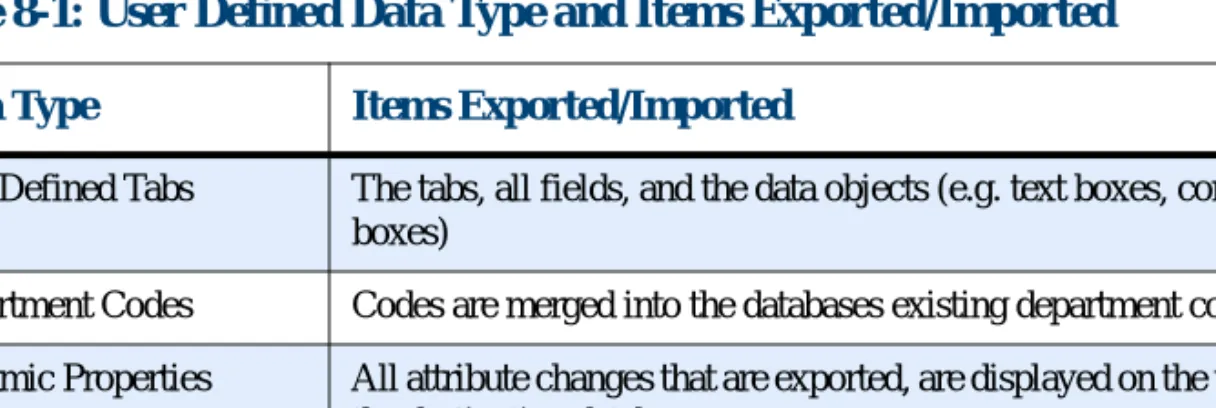
The ability to export/import different types of data enables other FireRMS departments to create the same formatted file type. When a user exports/imports the data type in the table below, the items listed are exported/imported.
The files of the data type you export are saved in .XML format.
Table 8-1: User Defined Data Type and Items Exported/Imported
Data Type
Items Exported/Imported
User Defined Tabs The tabs, all fields, and the data objects (e.g. text boxes, combo boxes)
Department Codes Codes are merged into the databases existing department codes Dynamic Properties All attribute changes that are exported, are displayed on the tabs of
the destination database EMS Protocols Protocols and their events
Creating Files Containing User Defined Tabs To
Be Exported
Using the Create/Modify Export tab, you can create file names and then select the user defined or “custom” tabs you wanted included in this file. The list of tabs you can choose from includes all tabs you previously created in the database for the Incident, Occupancies, or Advanced EMS modules. After selecting the name of a file you created containing user defined tabs, you can export the file to an .XML file. The exported file can be imported into another FireRMS database. Once imported into the databases of other FireRMS agencies, all departments can enter or access the same type of data. This ensures consistency among the departments.
To create files containing user defined tabs:
1. Run SQL Utilities.
2. On the Create/Update tab, select and lock the database containing the user defined data you want to export.
3. Click the UDShare tab.
4. On the UD Share tab, enter the name of the file in the ExportName text box that will contain the user defined tabs.
Create/Modify Export Tab
User Defined Tabs
Exporting User Defined Data 8-3 5. Enter a description of the contents of the file in the ExportDescription text box. The list
box on the left side of the tab displays the name of all user defined tabs in your database that were previously created.
6. Select the name of a user defined tab you want to include in the file and click the Add
button. The tab name is displayed in the list box to the right. Repeat this step for each tab you want to add to the file.
7. OPTIONAL: You can eliminate the tabs you do not want included by selecting a tab name
and clicking the Remove button.
8. Click the Save button to save the file. For information about exporting the user defined tabs
see “Exporting User Defined Data.”
After creating files that include user defined tabs, you can select the file name and modify the tabs included. You can delete tabs included in the file, or add new tabs that were created after this file was created.
Exporting User Defined Data
You use the selections on the Export tab to export the user defined data you want imported into another FireRMS database. This user defined data includes:
Files containing user defined tabs
Create/Modify Export Tab With User Defined Tabs
List of User Defined Tabs To Be Exported File Name For List of User Defined Tabs
Department Codes
Dynamic Properties
EMS Protocols To export user defined data:
1. On the UD Share tab, click the Export tab.
2. In the SelectExport drop-down box, select the data you want to export; Department Codes, Dynamic Properties, EMS Protocols, or the file name that contains your user defined tabs.
Export Tab Data Type To Be Exported .XML Name of Data Type
Exporting User Defined Data 8-5 3. In the Save As File text box, enter the name of the file to which you want to save the data
type, or click the Browse button to navigate to an existing file name.
4. Click the Create Export File button. A message displays on the screen indicating the .XML file has been created. Click OK. For information about importing user defined data into a database, see “Importing User Defined Data.”
Export Tab With Drop-down Selections
List of Data Type
Importing User Defined Data
After a file is exported, an Administrator in another FireRMS department can import this .XML file into their database. This user defined data includes:
Files containing user defined tabs
Department Codes
Dynamic Properties
EMS Protocols
The grid displayed in the screen below, is only enabled when you import user defined tabs. It is disabled when you import any other user defined data type.
To import user defined data:
1. On the Create/Update tab, select and lock the database into which you want to import the user defined data.
2. On the UD Share tab, click the Import tab.
Note: Before importing user defined data, we advise you to backup your database.
Import Tab Name of File To Be Imported Click To Load Selected File If File Contains User Defined Tabs, Tab Names Are Displayed
Importing User Defined Data 8-7 3. In the Select File text box, enter the name of the .XML file containing the data that you
want to import into your database, or click the Browse button to navigate to the file you want to import.
4. Click the Load from file button. If you are importing user defined tabs, the name of each tab is displayed in the grid. If you are importing another file type, a verification is displayed on the screen when the data is loaded.
5. You can select the check boxes in the Import column to indicate the tabs you wish to import.
6. OPTIONAL: You can rename the Tab Name and Tab Caption before you import the tabs.
You may want to rename a tab if you have a tab with the same name in the database you are importing into. You can also use an existing tab as a “template” for another tab. You can export the tab, rename it, import it into the same database and create additional objects
7. Click the Import button below the grid. The label on the button reflects the type of data you are importing. For example, if you are importing user defined tabs, the label on the button is
Import User Defined Tabs. If you are importing Department Codes, the label is Import
Department Codes. After the file is imported, a message displays indicating the import
was successful.
Import Tab With Data
Click To Import .XML File List of User Defined Tabs