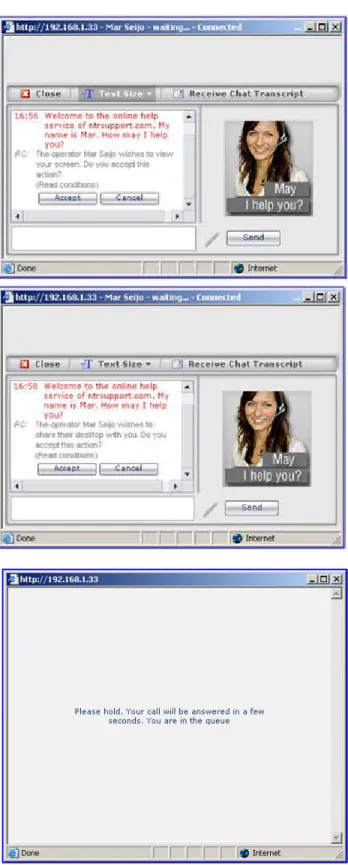
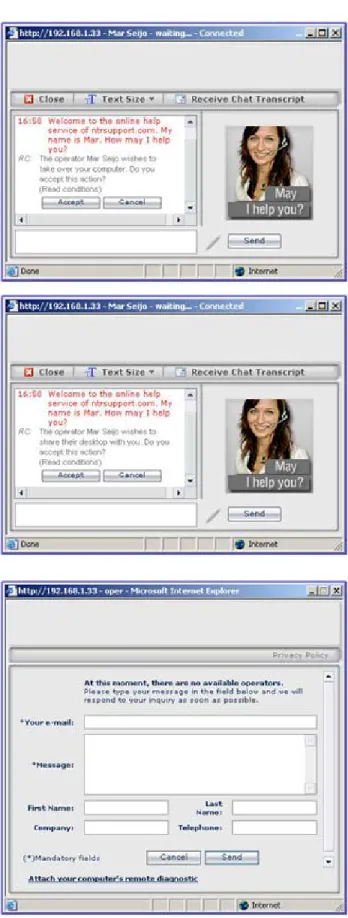
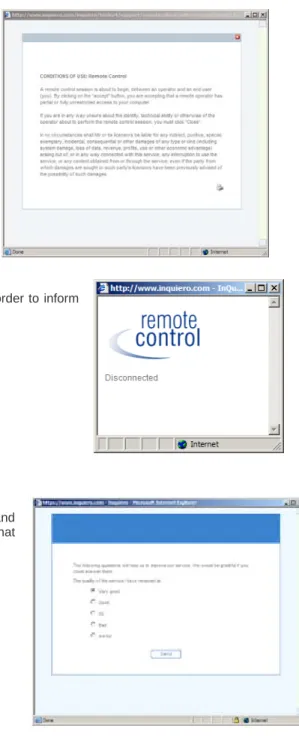
Administrator & Operator
Manuals
N-supportPro - Administrator & Operator Manuals
Table of Contents
1. Introducing N-supportPro
... 5
Product Overview 5 How N-supportPro works 6 N-supportPro Roles 7 System Requirements 8
2. Quick Start
... 10
3. N-supportPro Administrator
... 13
3.1 N-supportPro Administrator options: 14 Information & Statistics ... 15
Configure System Messages ... 25
General Options ... 26 Customizing N-supportPro ... 30 Integration ... 33 Configure Administrators ... 33 Configure Operators ... 34 Configure Categories ... 37 Mail Configuration ... 38 Configure Surveys ... 40 Configure HelpDesk ... 42 Configure Security ... 46 Help ... 47 Send Suggestions ... 47 Integration Toolkit ... 47 Logout ... 47
3.2 Operators and Categories 48 Creating Operators ... 48
Categories (Groups of Operators) ... 49
Assigning Operators to Categories ... 49
3.3 Service Integration 50 Appearance Customization ... 51
Open Parameters ... 54
Call Re-routing ... 55
Surveys ... 56
N-supportPro Remote Control Mode Integration ... 56
HelpDesk Integration ... 57
CustomerSession Interfaces ... 59
Digital Signature ... 62
4. N-supportPro Operator
... 64
4.1 Basic Operator concepts 64 N-supportPro Operator Definition ... 64
N-supportPro Operator types ... 64
Connect as Operator: ... 65
Account blocking: ... 65
Operator features ... 65
4.2 Operator Console Tools 66 Modify Profile ... 68
Offline Messages ... 68
Site Activity ... 69
Conversations ... 70
Session Assignment ... 71
Working with HelpDesk ... 72
4.3 Conversation Tools 78 Pre-recorded Answers ... 78
Send / Receive File ... 79
User Block ... 79
Co-surfing ... 80
Remote Control ... 81
Transferring Calls to other operators ... 87
Conversation Notes ... 87
Video Conversation ... 88
Voice over IP ... 89
HelpDesk (during a conversation) ... 89
Remote Diagnostic ... 90
5. N-supportPro Customer
... 92
6. Direct Application Support (DSA)
... 95
7. Appendix
... 98
I - Comments about the application 98 II – FAQs 99How do I…? 100
III - Plug-in Installation 102
IV - Security 103
V - Rijndael Algorithm 104 VI – Glossary of N-supportPro terms 105 VIII – Examples of Text customization 107 IX. Remote Control with Firefox 111
1. Introducing N-supportPro
™
Product Overview
N-supportPro™ is an online Customer Support platform. It does not require any previous installation or configuration in the computers of the service’s customers, Operators or administrators.
The application is used via the web and can be accessed by any user with an Internet browser and Internet connection. The use of the HTTP protocol allows N-supportPro to be independent of the operating system, and to be integrated in any platform.
The communication between Operators and users is always encrypted, including when it is stored in the database—being decrypted in the moment when it is requested. Only the system administrator can see the conversations maintained by its Operators.
N-supportPro is aimed at two main types of Support:
• Technical support, provided remotely and instantly.
• Online support to users of a website.
In the first case, the tools offered for technical support are based on Remote Control functionality. It offers several function modes that can be selected depending on the user’s needs (Demonstrator mode to show the computer to the customer, Total Control to allow interaction with the customer’s computer, etc.). The function is complemented by others such functions as file transfer.
For online support, N-supportPro offers also powerful tools which give a high degree of interaction between customers and users. Features such as Co-Surfing and Pro-activity bring a new perspective to online support, differentiating it from static systems in which the Operator is just passively waiting. N-supportPro allows the Operator to take the first step in helping website visitors when they are in trouble in real time.
The N-supportPro modular architecture enables the download of powerful tools such as video or voice over IP in real-time, humanizing and enriching the quality of the online support experience.
How
After a str more deta usual way visitor clic Operator c When the the N-sup establishe the N-sup The visito software i Operator. used by t has press selected. customer, much mo window if The Oper without fo be transfe In order to CONTRO confirmati kind of pr transparen The intera Operator a DSA (Dire Directly im supported automatic applicationN-suppo
raightforward ail in chapter y to start an N cks on a we can also initiauser clicks th pportPro Ope ed is complet portPro serve or does not n order to sta Depending the N-support
sed, the app Additional the webpag ore can be previously co
rator can inst rcing the cust erred without d
o give techni
L module, ac on, the Opera revious config
ntly.
active signatu
and the e-ma
ect Support fo mplemented i d. If the user ally started. n.
ortPro w
integration p 3–Administra N-supportPro eb support b ate the convehe button, new erator’s PC. ely private an er, recorded a
t need to d art the conver
on the inte tPro button w propriate Op information ge being visit shown in t onfigured. antly send m tomer to dow downloading. ical support o ctivating a sm
ator can remo guration on t ure, by enteri il sender. or Application in the custom needs help, This support
works
process, whic ator Manual, conversation utton or on rsation with o w browser wi Using these nd safe. The and routed to download an rsation with th egration mod which the use perator will b n about th ted, login, an the Operator multimedia co wnload any so The Operato or to share d all plug-in (le otely take con the customer ng a code in ns) is another mer’s comput with a simp can be add ch is briefly d the system is between the a desktop a one of the webndows are op windows, a full conversa the receiver. ny he de er be he nd r’s ntent to the c oftware. Image or can also att
desktops, the ss than 200 K ntrol of the cu r’s or Operato n e-mails, est r component ter, a button ple click, a no ed to the ap described in c s ready to att e customer an application su bsite visitors. pened in both multimedia c ation is transm Figure 1.2-1. N customer from es, sound, we tend several c e Operator ca KB). In a few ustomer’s mac or’s sides. N ablishes a di which can be can be add ormal N-supp pplication with chapter 2–Qu tend to custo nd Operator o upport button h the visitor’s chat is establ mitted in enc N-supportPro con m their conve eb pages, an customers co an also launc seconds, and chine. All is d -supportPro d rect connecti e integrated i ed to the ap portPro conve hout the nee
uick Start and omers. The m occurs when t n. However, computer and ished. The c crypted form, nversation flow. ersation wind d other files c oncurrently. ch the REMO d after custom done without a does everyth ion between n N-supportP pplications to ersation can ed to modify d in most that the d in chat via dow can OTE mer any hing the Pro. be be the
N-supportPro Roles
N-supportPro has three different user profiles, with different permissions and responsibilities. The profiles are matched to the corresponding roles that are typical in an online customer support service.
N-supportPro Administrator
The Administrator is responsible for controlling and configuring the N-supportPro service, setting up the system and administering the Operators. The main functions of the Administrator profile are: service account creation, Operator account creation and maintenance, and, in short, all the operations related to maintaining and controlling the service.
N-supportPro Operators
Operators are in charge of attending the online requests from the web site users or from the application users. (In the case of the applications, they are defined by the Administrator. For more information on this point, see chapter 6– DSA – (Direct Support for applications).
The connected Operator uses a powerful console as a work tool. This console allows Operators to remain waiting for customers to contact them. In addition the console offers a range of pro-active tools, allowing Operators to establish the first contact with the website visitors rather than waiting for them to ask for help.
Operators detect an incoming call by a sound signal on their computers. At the same time, a communication window is opened in the Operator console. Using this window, Operators can maintain a chat conversation, or alternatively a voice or video conversation, with the customer. The console also offers many tools to make the Operator’s task easier. Operators can send customers text, images, and sounds. They can also take notes about the current conversation, transfer the call to another Operator, and use predefined answers.
All the conversations between Customers and Operators are encrypted and registered in the database. This allows the Administrator to review those conversations later if needed.
Customers (N-supportPro Users)
They are the website visitors or the application users (application in which N-supportPro has been integrated). As will be discussed later, in order for the service to be integrated into the web page, a short HTML code needs to be pasted in the source code of the webpage. Once this has been done, the customer will see the service button. This button will indicate whether there are available Operators online at that moment in order to solve their requests.
When customers press the Online Assistance button, a communication window is opened. If the button shows the online status, a conversation with the Operator can be established. If the button shows the offline status, a message can be sent to the Operator. This message will be answered by the Operator via e-mail. In the following sections of this manual, we will see the features available for each type of N-supportPro users: Administrators, Operators and Customers.
System Requirements
Administrators & Operators
Clients
Microsoft Windows
• Windows 95, 98, 2000, NT, Me, 2003, XP, or Vista
• 128 MB RAM
• Internet Explorer 5.5 (or later), Netscape 6 (or later), Firefox 1.0, Opera 8.0
Mac
• Mac OS X 10.3.9 or later • PowerPC or Intel architecture • Firefox 1.0 (or later), Camino
1.0 (or later), Netscape 6 (or later) Connection: 256 Kbps Microsoft Windows • Windows 95, 98, 2000, NT, Me, 2003, XP, or Vista • 128 MB RAM
• Internet Explorer 5.5 (or later), Netscape 6 (or later), Firefox 1.0 (or later), Opera 9.0 (or later).
Mac
• Mac OS X 10.3.9 or later • PowerPC or Intel architecture
• Firefox 1.0 (or later), Safari 1.0 or later, Camino 1.0 (or later), Netscape 6 (or later), Opera 9.0 (or later).
Linux:
• Any Linux distribution of Kernel 2.4 or 2.6, for example, Ubuntu, SUSE, Fedora, Debian, or Mandriva. • Firefox 1.0 (or
later), Konqueror, Netscape 6 (or later), Opera 9.0 (or later), Epiphany.
Connection: 256 Kbps
Mobile Users
• Pocket PC 2003
• Windows Mobile 5 Pocket PC Edition 256 Kbytes of disk space
2. Quick Start
This section explains the steps to be taken in performing a basic N-supportPro integration, allowing the quick setup of the online support service. The following steps must be followed:
1) Administrator account registration (and creation of at least one operator).
2) N-supportPro button integration. This can be done by copying the integration code available in the option Integration from the Administrator Console. See the section: Basic Integration Code for more information on how to do this.
3) Operator connection. The Operator must be enabled and online in order to attend to customer calls. For more information, see the section on the Operator Console
NOTE: We recommend you read chapter3–Administrator Manual, which describes in detail all of the ways in which to take advantage of the features of N-supportPro.
Basic Service Integration
In order to integrate N-supportPro into a site, paste a standard piece of HTML code into the pages from which support is to be given. N-supportPro is not an intrusive service and can be integrated into any platform as it is OS independent.
Once the integration code has been included, the communication button will appear in the webpage, indicating whether there are Operators connected at that time. When an Operator is connected, the online button is shown, allowing the customer to start a conversation. If no Operators are connected, the customer can send a message via e-mail.
Note that the service is completely dependent on this integration and therefore, on the communication button. If you wish to pro-actively follow up the customers navigating your website, all pages that you want to ‘audit’ will have to include the integration code within the <body> of the page. If not, when the customer visits other pages the trace may be lost.
Basic Integration Code:
The basic integration code can be obtained from the Integration section in the Administration console. Just copy and paste the text from the text box on screen into the desired pages. This code will allow you to use the basic service, without customization of any kind. For information, see chapter 3–Administrator Manual.
The code obtained on this page will already be customized for the Administrator’s account and language. The code is as follows:
<script language="JavaScript"
src="http://www.ntrsupport.com/inquiero/web/an/ann4.asp?login=LOGIN&lang=LANG"> </script>
Where:
LOGIN Unique identifier of the administrator’s account. Use either the numerical or the encrypted ID. This information can be found in:
General Options – General Information: Customer ID.
The number marked in red is the customer identification number code and the text between parentheses is the encrypted customer ID. Both can be used in the integration.
LANG Language in which the administrator wishes to display the service button. It can take the following values:
“br” = Portugués (Brasil) “ca” = Catalan “ch” = Czech “es” = Spanish “en” = UK English “fi” = Finish “fr” = French “ge” = German “it” = Italian “jp” = Japanese “nl” = Dutch “pl” = Polish “pr” = Portuguese “ru” = Russian “sv” = Swedish “st” = Estonian “us” = US English
The following examples show the code for administrator 111 in US English. The first example has the unencrypted login, whilst the second has it encrypted:
<script language="JavaScript"
src="http://www.ntrsupport.com/inquiero/web/an/ann4.asp?login=111&lang=us"> </script>
<script language="JavaScript"
src="http://www.ntrsupport.com/inquiero/web/an/ann4.asp?login=h6E5559&lang=us"> </script>
From this point, it is possible to add parameters to, for example, customize the appearance of the chat window, route calls according to their category, or add references to calls in order to improve call control.
For more information on N-supportPro customization and the use of open parameters, see
Service Integration in the N-supportPro Administrator Manual.
You can also find a summary of some of the most common questions that people have when integrating N-supportPro in Appendix II of this manual.
N-supportPro
3. N-supportPro Administrator
The Administrator console gives Administrators full control over the service, and allows them to configure the different parameters in order to ensure that the service is defined to best suit the company’s needs. It also gives access to useful data and statistics about the service itself. The N-supportPro Administrator never interacts with their customers. They can access the service and carry out the necessary maintenance from the web without having to download or install additional software.
The Administrators console is accessed by entering the Administrator user ID and password in N-supportPro web login screen, http://www.n-able.com/nsupportpro/.
Once the Administrator is connected, a menu is displayed on the left-hand side of the screen. The Administration Options are described in detail in the following pages.
3.1 N-supportPro Administrator options:
Once the Administrator has logged in, the screen will display an options menu on the left divided into different areas:
• Information & Statistics: Statistics and other useful data about the system. Operator connections, Conversations held, Survey results, etc.
• Configure System notifications: allows e-mail alerts to be configured so that they are sent automatically in specific circumstances.
• General Options: Administrator data configuration.
• Customize Aspects: Customize the feel and look of the service, to match the corporative image of your company.
• Integration: Access to the source code examples to integrate N-supportPro in your web page.
• Configure Administrators: Create new site administrators (this feature is only available to the site's first administrator).
• Configure Operators: Create and maintain site Operators. • Configure Categories: Create and maintain Operator groups. • Mail Configuration: Configure and maintain site mail.
• Configure Surveys: Create pre- and post-conversation surveys, as well as consult the results stored.
• Configure HelpDesk: Manage incidents; the incident status can be consulted, registering clients, departments, etc. Organize the incoming incidents.
• Configure Installable RC: Configure the computers that can be accessed remotely and organize them in groups.
• Configure Security: Define various security parameters, such as the restricted IP addresses, valid IP address connection, activate interfaces, etc.
• Help:Useful information about the N-supportPro service, including the latest version of the N-supportPro User Manual.
• Suggestions: Send comments and ideas to the N-supportPro team to enhance the N-supportPro product.
• Integration Toolkit: Optional feature for accessing the libraries kit used to integrate N-supportPro with other software applications. For more info please contact N-supportPro Sales Department.
• News: View the list of news articles and specify which operators can see them.
• Log out: Finish the session and disconnect to prevent unauthorized use by other people with access to the computer.
IMPORTANT NOTE: for security reasons the Refresh, Back and Forward options have been disabled.
Information & Statistics
You can view statistics and information about many aspects of your N-supportPro account including operators, conversations, and surveys. You can also view live statistics that are updated at frequent intervals.
Control Panel
The control panel allows you to view the current status of all operators of your N-supportPro account. You can view a summary of all activity on a daily, weekly, and monthly basis. You can also disconnect an operator directly.
Availability
The Availability table displays the current status of operators and indicates if they are available to attend calls. Operators that are not enabled appear in the table, but are dimmed. You can filter the list of operators to view just one availability status, for example, only operators that are online. You can also filter the list to view only enabled operators. The following table describes the status indicators used to specify availability.
Symbol Colour Description
Green The operator is online and available to attend calls.
Orange The operator is online and attending the maximum number of calls. Red The operator is offline.
- The operator is not logged in, but is enabled. [none] The operator is not logged in and is not enabled.
Users on Site
The Users on Site table indicates how many users are currently visiting webpages on which you have added N-supportPro functionality.
Daily Summary
The Daily Summary table displays a summary of operator conversations for the current day, including offline messages received by the system and a forecast of calls based on the number of conversations in the last four weeks.
Current Week
The Current Week table displays a summary of chat conversations attended by operators for the current calendar week.
Monthly Summary
The Monthly Summary table displays a summary of chat conversations attended by operators for the current month.
Activity Statistics
You can view statistics related to all support activity of your operators. You can choose to view statistics for the current day or you can select a date range for the statistics. You can also print statistics directly from N-supportPro or export statistics to several formats including XML, comma separated values (CSV), and Microsoft Excel. You can refresh the statistics at any time to get the most up-to-date information.
You can view the following statistical reports: • General activity statistics
• Statistics by reference • Operator activities • Offline message statistics • Activity statistics To view statistics
Choose Information and Statistics > Activity Statistics. All statistical reports are displayed automatically.
General Activity Statistics
General activity statistics show the number of chat sessions and offline messages in a specified period of time.
Statistics by Reference
The statistics by reference report shows the number of times a reference1 and reference2 parameter were used in operator chat sessions.
Operator Statistics
The operator statistics report shows the number of chat sessions that each operator worked on. You can choose to show extra columns in this report to view more detailed information such as the number of chats per hour, the average chat time, and the total chat time. You can also use this report to view more detailed information about a specific operator.
To show or hide table columns
1. In the Operator Statistics table, choose Set Columns. A list of the available columns and a list of the currently selected columns appears.
2. To show another column, select an available column and click the Move To Right (>>) button.
3. Choose OK to save your settings. Offline Message Statistics
The offline message statistics report shows the total number of offline messages sent to each operator.
Activity Statistics
The activity statistics report shows statistics related to the number of graphical buttons displayed on your website and the number of buttons clicked by customers.
Printing and Exporting Statistics
You can print statistics directly from N-supportPro or you can export statistics to another format such as XML, Microsoft Excel, or comma separated values (CSV) in order to work with the data in another program.
To print statistics
Click Print in the table header of the report you want to print. To export statistics
1. Choose Information and Statistics > Activity Statistics. All statistical reports are displayed automatically.
2. Click any of the following export formats:
• XML
• Comma separated values (CSV) • Microsoft Excel
3. Save the file to a folder on your computer. Comparing Statistics for Multiple Operators
As well as viewing statistics for a single operator, you can compare statistics between one operator and another operator, a group of operators, or all operators. If you compare statistics between an operator and a group of operators, the figure displayed for the group of operators represents the average of all operators in the group.
You can view the following statistical reports when comparing operators: • Number of chat sessions
• Offline messages • Usage by operator
To compare operator statistics
1. Choose Information and Statistics > Activity Statistics.
2. In the Operator Statistics table, click the View Operator Statistics button of the operator you want to see.
3. Select another operator from the list of operators. 4. Select a start and end date for the comparison. 5. Choose Send.
Live Statistics
Shows important data and graphs relating to the N-supportPro account. With a single look the administrator can check that everything is ok or identify possible issues.
Data and graphs can be refreshed by clicking on the Refresh button under each graph. The information shown is detailed below:
a) Operators
Shows current status of the site operators: Disconnected, connected online, connected offline, busy (with one chat or more), or available.
b) Customers
Shows the actions performed by the customers on the site: chat, cosurfing or remote-control sessions.
It also shows customers in the waiting queue (if queues have been activated)
c) Site Activity
Shows the number of online buttons displayed at this moment.
d) Concurrent calls
Shows the number of operators with max concurrent-hits during the last hour and during the last 24 hours.
e) Chats and offline messages per hour
Shows the total number of chats and offline messages produced every hour for the last 24 hours, giving a global vision of the site status and call- volume evolution.
f) Hourly average of Offline messages and chats in a specified period
Averages graph over one hour periods. Allows user to know at what time the biggest number of incoming calls and chats occur. The average is calculated for the dates selected in the graph.
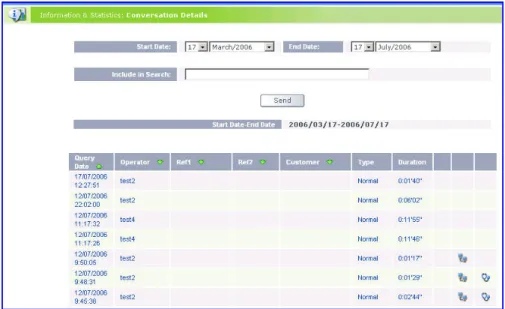
Conversation Details:
Displays a complete list of the Operators’ daily conversations.
It stores conversations for approximately 6 months. It is possible to select the date or date range in which the conversations have taken place.
A report of the conversations can be generated by using the Report Generation option.
The time and Operator name are shown, and if during the conversation a remote control session took place or a remote
diagnostic was performed, an icon appears on the right.
Figure 3.1.1-7. Information & Statistics: Conversation Details Survey Results
Shows the answers for the selected survey for the selected period of time. The list of answers is grouped by question and displayed in descending order. Answers can be grouped by Operator.
HelpDesk Information
Shows a daily, weekly and monthly summary of the HelpDesk incidents grouped by priority and status.
HelpDesk Statistics
While the previous option shows individual incidents, this option displays statistical parameters which can be used to track the performance of the HelpDesk service.
The Administrator can select a range of dates, and apply filters to the search, limiting it to a specific Customer, Operator, User and/or Incidents of a specific priority.
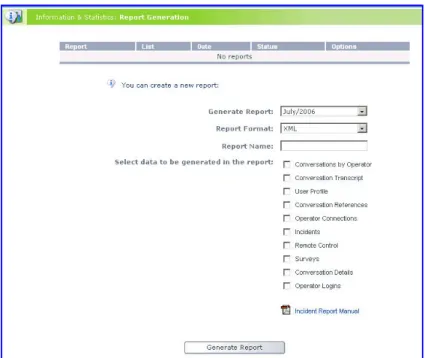
Report Generation
Creates a file of data chosen by the Administrator. Each consultation is stored in a file that the Administrator can open and save. The files are generated in the background and are guaranteed to be stored within 12 hours. The file can be generated in XML format, or in plain text format, separated by semicolons.
When the Administrator generates a report, it will appear in the available report list, shown as Pending in the Status column. The report can be cancelled by using the Erase option that will appear in the Options column. When the report has been generated, the Status will change to Processed and the Options column will show Save.
Figure 3.1.1-9. Report Generation Panel. Incident Report: Generates a report in plain text or XML format showing all the incidents that have been created during the month selected.
Remote Control Report: Generates a report in plain text or XML format showing all the remote control sessions that have been established during the selected period.
Security events: Shows a log of all the security events (for example blocked accounts, overwritten sessions and defined positions) that have occurred.
Remote Controls
Shows the remote control connections made, sorted by day. Selecting a particular day, it shows the list of remote controls made that day, together with the corresponding details (for example duration and possible connection errors).
Remote Control Log
Remote control supports the generation of a text file (log) that records all events that occur during a session. This allows you to audit an operator's behaviour and review any problems that may have occurred during the session.
IMPORTANT: Activation of this feature must be requested by e-mail at [email protected] or by calling Support at 1-866-302-4689 (US/CAN), +800 6225 3000 (International).
To see the log of a specific remote-control session you need to select the Information and Statistics
/ Remote Controls option from the administrator menu, select the date on which the remote control
took place, and click on the RC Log link that corresponds to the remote control that you're interested in. This link will appear within a table of all of the remote controls that took place on the selected date.
If the operator left notes during a remote control session that was started with the session assignment tool, they also appear in the table of remote control sessions. To edit the notes, click the View Conversation link to view the conversation details, edit the notes, and click Save.
The following events are registered in the log:
Level 1 (Mouse control): Mouse clicks and movements are monitored (the information returned is the position in which it occurred (in pixels)). Events:
- button 1 pressed - button 1 released - button 1 double clicked - button 2 pressed - button 2 released - button 2 double clicked - button 3 (central) pressed - button 3 (central) released - button 3 (central) double clicked - Scroll wheel up
- Scroll wheel down
Level 2 (Window control): The opening and closing of windows (of both new programs and programs that are already open) is monitored. Events:
- Window opened - Window focused - Window closed
Level 3 (Desktop control): Desktop changes (changes of resolution) are monitored. A change of resolution is accompanied by the application of a new resolution. Changes are desktop are only monitored in cases of multiple desktops. Events:
- Change of resolution - Change of desktop - Change of workstation
Level 4 (Process control): The computer's active processes are monitored, including their creation and destruction. Each process normally has a PID (process ID) and its own name (if possible). Events:
- Process creation - Process destruction
Concurrent Operator Audit
Shows a list of all of the times in which the maximum concurrency of operators has been reached. This allows the administrator to know if it is necessary to increase the maximum number of concurrent operators.
Configure System Messages
N-supportPro allows you to receive automatic system messages when a certain condition is met, such as a low rating in a support satisfaction survey, a support session exceeding a certain duration, or an operator exceeding a maximum logged in time. Messages are sent every day at 03:00.
You can choose to receive the following messages: • Operator’s time logged
• Duration of support session • Duration of remote-control session • Post-survey score
• Content of the remote control log
• Duration of support session by operator and date To configure system messages
1. Choose Configure System Messages > System Messages.
2. Select the messages you want to receive and enter the conditions for the messages. 3. To save your settings, choose Save.
To view system messages
General Options
General DataThis option displays the Administrator account data, and allows it to be changed at any time. Administrator Profile
This option shows the Administrator login details and allows the password to be changed.
Application Configuration
This option shows a window in which several options can be configured. Offline Messages Reception mode:
This option sets up the mode in which offline messages will be received. There are four possible options: o Do not forward Message,
o Forward to the Administrator, o Forward to the Operator, and o Forward to All.
If the selected option implies a forward to the Operator, the Operator (whether they have been selected by the ACD or specified in the button definition) must have an account configured, as, if they don’t, the system will not be able to forward them the messages.
- Waiting Queue: This enables waiting queues to be defined. When activated, if users cannot be assigned to any Operator they will be queued. The maximum waiting time is 300 seconds (5 minutes). When the maximum time is reached, the customer is asked to either stay in the queue or leave an offline message.
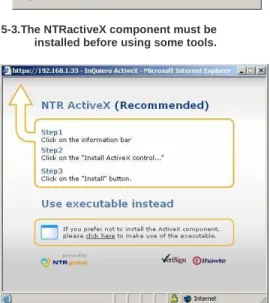
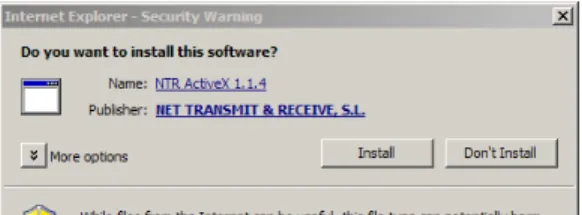
- Use ActiveX: You can configure that the users should download an ActiveX (by marking the checkbox Use ActiveX) when they are about to use the remote control, video or voice over IP modules. If the checkbox is not marked, an .exe will directly appear to the users. Note: If can also be configured for Operators (See section Configure Operators – Operator list – Configure data).
- Privacy Policy: enables the selection of whether the privacy policy should be shown in full, as a URL, or as a document. The text should be customized from the option
customizing user texts.
If the "Activate the Privacy Policy on the chat window." box is checked, a "Privacy Policy" link will appear in the lower part of the chat window. Administrators can configure the type of privacy policy to use (for example, default text, customized text, or a URL linking to a privacy policy page).
- Configure text to display at the Title Bar of the Customer’s chat window: The administrator can now customise the message that appears in the Customer Console title bar by using the option “Display the following text instead of the operator name”.
- Direct mail format: offers the choice of sending emails in HTML or plain text.
- Force operators to use a secure connection: In the application's configuration menu is an option that allows you to force operators to make an SSL connection even if they are not accessing the page through the https protocol (for example http://www.n-able.com/nsupportpro/) and haven't checked the "Enable extra security (SSL)" checkbox.
- E-mail server configuration: Instead of using the default mail servers to send notification e-mails to your customers, for example, the transcript of a chat, you can use your own SMTP e-mail server. You need to supply the e-mail server address, as well as a valid user name and password.
DSA Configuration
If the Site Administrator has the DSA tool (Direct Support for Applications1) enabled, the DSA configuration
options can be set in this section. This window also includes a link to download the DSA tool. This tool enables the inclusion of a help button in the Administrator’s
applications. Once installed and executed, DSA will add a help button next to the buttons on the title bar in the application chosen by the administrator.
To choose an application, just enter the window name and indicate to which Operator or Category the calls sent from that application should be rerouted. The entire name of the application window does not need to be entered since a search will made for all names that match the entered text. For example, to search for an application window called “Text processor”, you could just enter “Text” in the Application Name
box.
From then on, when a user with DSA installed-and-running clicks on the help button, a conversation will be established between the user and the Operator assigned by the Administrator.
Downloads
Here you can download other applications associated with N-supportPro. These include DSA, the executable file of the NTRglobal console and the NTR plug-in installer.
NTRglobal console
This is an executable file for the N-supportPro operator console. It allows the operators to automatically login without entering a username and password.
If one computer is being use by several people, they can share an N-supportPro operator, using the same username and password.
How it works
The N-supportPro administrator downloads the exe file from the menu on the left of the screen (using the General Options / Downloads option). They can then send the file by e-mail to their operators and the operators can install it on their own computers. From then on, they can login simply by clicking on the icon on their desktop, or can set the file to be launched automatically every time that the computer is started.
Pending Payments
Shows all pending payments for this N-supportPro account.
Customizing N-supportPro
To provide a better user experience for your customers, you can customize several aspects of the user chat window. Customization allows you to change logos, colors, and the layout of the chat window.
Changing the Banner
The banner is a rectangular area of the chat window that can contain your company logo or any other graphic you want to use. It is typically placed at the top of the window, but can also be moved to the bottom by creating a skin. If you do not specify a banner, the name of the website is displayed in its place. Your banner must have the following specifications.
Dimensions: 468 x 60 pixels File format: GIF
Changing the Logo
The logo is a graphic that appears on the right-hand side of the chat conversation. You can keep the default N-supportPro logo or use your company logo instead. Your logo must have the following specifications.
Dimensions: 122 x 132 pixels File format: GIF
Customizing Buttons
N-supportPro allows you to use your own set of website “buttons” to indicate to users of your website whether support is available (online) or unavailable (offline). A button is generally a small graphic that is placed on the support-related pages of your website. You must have both an “available” and “unavailable” button to use this feature correctly on your website.
To add a set of customized buttons, enter a name for the set of buttons. You must also enter a valid URL for the online and offline buttons. The URL must be accessible to any user on the Internet. When you are finished, choose Save.
Once you have created a set of customized buttons, you must include the “name” parameter in the HTML integration code on your website. If you want to use more than one language on your website, you must add a set of customized buttons for each different language.
Changing User Messages
User messages are predefined messages displayed automatically to the user when certain events occur in the system. For example, when a user starts a chat with an operator, the “welcome message” is displayed in the user’s conversation pane. Similarly, when a remote control session is started by the operator, the “remote control session start message” is displayed to the user. You can change these default user messages to better suit your support service or to adhere to your corporate communications policy.
You can change the following default user messages. • Subject of portal access e-mail
• Text of portal access e-mail • Link text of portal access e-mail • Welcome message
• Demo mode remote control session start message
• Desktop sharing mode remote control session start message • Remote control session initiation message in administrator mode • Session transferred
• Text for privacy policy link • Privacy policy
• Subject of the conversation delivery e-mail • Body of the conversation delivery message • Goodbye message
• Remote control session end message • Remote control session start message • Remote control terms of use
• Offline window text
• Pre-conversation survey initial text • Proactive conversation message text • Message in queue
• Surveys initial text
To further customize user messages, you can use one or several constants in the message. The constants that can be used in each message are displayed below the message when you select it.
A description of each constant is given in the following table.
Constant Description
<$OPERATOR$> Displays the operator’s name, if entered by the operator. If the operator did not enter a name when logging in, the operator’s ID is displayed. <$MODE$> Displays the remote control mode used by the operator.
<$TERM$> Displays a “See Conditions” link. <$DATE$> Displays the date of the conversation. <$START$> Displays the start time of the conversation. <$END$> Displays the end time of the conversation.
Working with Skins
In N-supportPro, a skin is a combination of graphical images, text and background colors, and layout that can be applied to a chat window to customize its look and feel.
To create a skin, go to Customize Skins and click the New button. Enter a name for the skin and rearrange the layout of the chat window to suit your needs. When you are finished, choose Save.
To change text and background colors, go to Customize Skins and choose Change Text Style in the Options column of the skin you want to change. Select the type of text style you want to use. If you want to use the default style, choose Use default. If you want to use an external style sheet, choose Use external css, and enter a valid URL of the style sheet and the class names for each kind of text. If you want to define text styles manually, choose Define styles
manually, and select the font, color, and background color you want to use.
To use a skin, select the Default Skin checkbox of the skin you want to use for the chat window of your website. To stop using a skin, unselect the checkbox. You can only use one skin at a time.
To change the layout of a skin, choose Modify in the Options column of the skin you want to change.
To change the banner or logo of a skin, choose either Customize Banner or Customize Logo in the Options column of the skin you want to change.
Integration
This section provides different integration codes available for each type of web page programming language.
HTML, XML, SSL, and Flash.
• HTML: HTML code necessary to integrate the N-supportPro service
• XML: Code needed to integrate the N-supportPro service using XML.
• SSL: Code needed to integrate the N-supportPro service using SSL
• FLASH: HTML code necessary and the steps to follow in order to integrate the N-supportPro service into HTML pages containing flash objects.
• Interactive signature: HTML code needed to integrate the N-supportPro service into e-mail signatures.
• RC: HTML code to start a remote control session by clicking the Assistance button.
• N-supportPro + HelpDesk: HTML code needed to integrate the Incident management module into the N-supportPro service.
Configure Administrators
This option allows you to create additional site administrators.
• Create An Administrator: Specify the login, password and language that are necessary to define a new administrator.
•Administrator List: Show the list of the site's secondary administrators, which is a list of all of the site's administrators minus its primary (first-created) administrator.
By placing the mouse cursor over the title of the "Options" column, you will see the "Configure data" floating menu option, and by clicking on this you can edit the login, password and language of the secondary administrators.
It is possible to restrict the options available when creating a new Administrator.
Configure Operators
Operator List: This option displays a list of available Operators. The list can be sorted by Operator name (ascending or descending order). The following options can be executed for each Operator:
Hover the cursor over the icon in the Options column, and a floating menu will appear with the following options:
Configure Data: This option allows you to modify Operator information. The Administrator cannot change the user ID of their Operators. However, all other data (such as password or concurrent calls) can be modified using this option. An Operator can be configured as being temporarily inactive (meaning that they are not allowed to make a connection, and will not receive offline messages).
Also this point can be configured so that Operators automatically download the ActiveX (marking the checkbox Use ActiveX) when using the remote control, video or voice over IP modules. If not marked, Operators will be shown an .exe file. Note: the Administrator can apply this to users (See section General Options – Application Configuration).
Various remote control modes can be defined for Operators. An Operator can carry out pre-authorized file transfer, transferring files during remote control without additional authorization from the customer if the checkbox File Transfer controlled by Operator is marked and the customer authorizes file transfer at the start of the remote control session.
Configure Categories: This option shows the categories to which Operators are or can be assigned. To assign a category, select an Operator and then indicate the necessary group and priority.
Conversation List: Displays a list with the Operator’s daily conversations. A range of days can be selected.
Click each item to see more details and the full conversation.
Statistics: Daily Operator Activity Statistics. Shows, for example, the Operator’s connection and disconnection times, conversations held and messages sent).
Create New Operator: Add a new Operator, if the maximum number of allowed Operators for the contract has not been reached.
o Login: Unique identifier for the Operator.
o Password: Password for the Operator.
o Confirm Password: Repeat the password for security purposes.
o Contact E-mail: E-mail that can be used to contact the Operator.
o Language: Choose from the languages available in N-supportPro.
o Maximum No. Concurrent Calls: The maximum number of customers that an operator can attend to simultaneously.
Note: An operator can exceed the maximum number of concurrent calls if they take a call manually from the call queue.
o Type: Indicates whether the Operator is for Technical Support or Web Care.
o HelpDesk: Gives the Operator access to the HelpDesk module.
o Video: Gives the Operator access to use video conference.
o Use ActiveX: When this checkbox is selected, the Operator will first try to download the ActiveX control for those special functions that require it, such as remote control. If the box is unchecked, this step will be skipped and N-supportPro will directly try to download the executable version of the ActiveX library. Uncheck this box only if the Operator is having problems with ActiveX controls, i.e. due to a restrictive firewall or other security programs blocking ActiveX.
o Expiration Date: Specifies the date the operator account expires. The system automatically disables the account and denies access to the operator. This is useful if you want to provide temporary access to an operator.
o Maximum calls in the queue: Specifies the maximum number of calls that can be placed in the operator’s call queue.
If the operator is already attending the maximum number of concurrent calls and chooses to take a call manually from the call queue, they can exceed the “maximum number of concurrent calls” setting.
o Photo Configuration: Upload a photo of the Operator. This photo will appear in the customer’s chat screen when talking to the Operator.
Frequent Answers: This option allows you to store answers to frequently-asked questions.
Configure Categories
Operators can be assigned to different categories according to their knowledge. This allows for a better service, as incoming calls can be assigned a category, and then only Operators assigned to that category will attend that call. Each category has a relative weight or priority. Higher priorities will take precedence in qualifying a call and in the process assigning them to a specific Operator.
Categories List:
Displays a list of the site categories. Allows various options for each category:
Modify:
Changes category data:
category name, description of which calls
to address to that
category, and the category’s relative weight.
Delete:
Deletes the category.
Operators assigned: Displays the Operators assigned to the group. From this point, both
categories and/or
Operators can be modified by clicking on them.
• Create New Category:Allows create new categories. The information required is identical to that described in Modify category.
• Operators by Category: Sorted list of categories and assigned Operators. Here the Operators can be assigned to one or more categories, each one with its own categories. An Operator will only receive incoming calls from categories to which the Operator belongs. Operators with higher priority will receive calls from that category before Operators with lower priority. This can be used for example to add technical support Operators to the sales category with a very low priority, which means that they will only receive sales calls when all the sales Operators (with higher priorities in that category) are busy. It can be sorted by category name and priority.
Mail Configuration
The service administrator has POP3 mail accounts at their disposal. When a new account is created, the Administrator will automatically have a new mail folder with the name of the account. Mail stored in the server will be downloaded into that folder. The Administrator can assign folders of their POP3 accounts to the Operators so that they are the ones who answer mails.
This is an ideal option for sites that have various assistance accounts, since N-supportPro gives complete support without having to exit the application.
Mail Accounts: This option displays the list of the
Administrator’s POP3 accounts and allows access to the Add/Modify Accounts window.
To add a POP3 account you need the following data: account name, user name in the mail server, password, and e-mail address to be downloaded, incoming and outgoing mail servers, read only.
Note: You should configure POP3 accounts in write mode. If done in read mode, the process will be slow, and there is no guarantee that the incoming mails that have been deleted will not reappear. Likewise, the service administrator should periodically clean the in-tray, out-tray, and sent tray to speed up the query of pending mails by the Operators.
Mail Accounts:
Each Administrator will have, by default, four different mail folders. All the Operators will have access to these folders:
Inbox: Fixed folder. This is the parent folder that contains the Administrator’s different in-trays.
Site: Fixed folder. It will bear the name of the administrator’s site. Child folder of Inbox. It contains the Offline messages sent by the users when the Operators are disconnected. The Administrator can see all the messages received by the Operators, but each Operator will only have access to those messages to which they are assigned.
Sent: Fixed folder. Contains the messages sent by the Operators. Works just like Inbox, in other words, the Administrator will have total access, but Operators can only see messages they have sent themselves. The messages contained are not just answers to Offline messages, it stores all Operator messages.
Deleted: Fixed folder. Stores the messages deleted by the Operators. It should be noted that the Operators cannot definitively delete messages; only the service administrator will be able to totally delete messages.
In addition to these fixed folders, each POP3 mail account will have its own in-tray, stored in the Inbox. These folders contain all the received mails and can be assigned to one or more Operators since they are the ones who respond to the messages.
This mail system acts like a web mail manager, although the Administrator will not be able to answer mails, as they will be answered by Operators. This way, mail lists are totally controlled.
Configure Surveys
This area allows the Administrator to define and edit surveys that will be presented to customers before or after the conversation with the Operator (depending on the survey type) in order to obtain information on customer requirements. These surveys will help you to learn about your customers, and are a powerful
tool in improving your service.
Survey Management:
Shows the surveys defined and allows surveys to be added, modified or removed.
To define a survey, indicate the name of the survey (which will later be used in the script) and survey type (PRE will present the survey before the conversation with the Operator and POST will present the survey after the conversation). Furthermore, if the survey is PRE, indicate whether it is to be displayed if Operators are available, not available or both.
Once the survey has been added, it will appear in the defined survey list and questions can be configured. To configure questions, click on the Questions option of the desired survey. Enter the text of the question (Text field). Depending on the type of survey, various types of questions can be added:
Text: Available in PRE and POST
surveys. A text field is generated in which the customer can enter a reply to the question asked.
Multiple Choice:Available in PRE and POST surveys. A list is generated where the customer can select the appropriate option. To add the various options once the question has been saved, select See Answers. On this page the options displayed to the customer can be added, modified or erased
Decision: Only available on PRE surveys. Allows the call to be assigned to a specific Operator or category. Only one decision question is allowed.
For the survey to be presented to end customers, the integration code must include the SUR parameter (if the survey is post-conversation) and/or SURPRE if the survey is carried out before the conversation with the Operator.
The results list is grouped by question and in descending order.
For more information on the option, see Information and Statistics – Survey Results.
Administrators may set determined post-survey fields as mandatory, ensuring a higher response rate and thus gathering more feedback. For this
same reason, there are no default answers to multiple choice questions.
The survey window allows a full view of the questionnaire, thus avoiding the need to scroll up/down. Exporting post-survey results: There is an interface to export survey results with the Integration Toolkit.
owner = owner ID
type = ID for the type of report (according to the exportqueries table) date = date in YYYYMMDD format
OwnerPassword = owner’s IntegrationToolkit password SecurityType = encrypted password (1 yes, 0 = no)
OutputFormat= (1 = XML , 2=CSV), optional (if not entered, XML) DEBUG = ( 0=no, 1=yes) if activated, it also shows the
string of parameters utilized by NTRIDTS to generate the report.
If there is an error (XML or CSV), it will be returned in XML (header with the parameters, etc.)
Example:
http://NSUPPORTPROSERVER/Inquiero/Interfaces/Integra tionToolkit/Reports/getReport.asp?owner=1001461&type=4 &DEBUG=0&date=20060501&OwnerPassword=jorgeit&Se curityType=0&outputformat=1
Configure HelpDesk
HelpDesk is a powerful and very useful tool aimed to help Operators give a better customer support. The N-supportPro Administrator can configure the HelpDesk system with the following options of the Administration console:
Customers
Allows the registration of a new customer in the HelpDesk system. Please, note that customers must be registered in HelpDesk before they can be associated with incidents.
Incident list configuration
Allows the administrator to select the fields to include in the incident lists. Customer Import
Allows the importing of customer information from an external file to the HelpDesk system, and includes an example of the registry format required and the country codes list.
Operator permissions
Allows the setting of which operators can manage each customer’s incidents. Department
Manage departments assigned to each customer registered in HelpDesk. Create a department to which a customer is assigned. To create a department first you must assign it to an existing customer, registered in the previous step. A department may be a sub-department of another (which would be the parent department) e.g. payroll could be a sub-department of Finance. Users
Create, modify the data of, or delete any helpdesk user. Incident Types
Manage incident categories that can be used for incident sorting. Find Incidents
This option allows the incident management (search, delete, modification, and also displaying notes and conversations of every incident.
By clicking on the "Print list" button, you will open up a new window in whose upper part you will see three options: "Print", "Close" and "Excel". The "Excel" option allows you to export the incident list as an Excel spreadsheet.
Add HelpDesk Fields
The aim is to allow the Administrator to add additional fields which can be used in Incidents. The fields can be one of three different types: Text - allowing the Operator to enter text, Drop down list - select one option from a list, or Linked drop down list. Example: we can add two types for Branch No. and OS. The Branch No. is Text, allowing the Operator to enter text or a number of the branch (office of a bank) to be associated with the incident.
While OS is a Drop down list, allowing the Administrator to define Values. By clicking the option Values, the Admin can define the values to be used in the drop down list, in this case the types of Operating System.
The option Linked Drop Down list allows the Administrator to link the field to another Drop down field.
Where Dynamic Fields are used
When the operator creates an incident, these fields appear in the Registration form. Similarly, any fields defined in this way can be used to search for Incidents in the option Incident Search.
E-mail Customization
Customize the automatic e-mails received by users, informing them that incidents have been opened, closed or modified.
Configuration
Allows the selection of the profiles for e-mail HelpDesk notifications. The body of the e-mail contains important info about each event.
Setting Up Customer Timesheets
HelpDesk in N-supportPro allows you to track customer support incidents and view a report of the incidents in a customer timesheet. A customer timesheet shows the number of help desk incidents that have been assigned to a customer or user, including information about the duration of chat sessions and remote control sessions, the start and end time of conversations, and the operators who have worked on the incident. You can use this information to bill your customers.
Incidents are grouped in a hierarchical manner in the following order: Customer > User > Incident > Conversation. You can assign multiple users to each customer. You can also assign multiple incidents to a user and add multiple conversations to an incident.
To set up HelpDesk, you must: • Create customers
• Add users and assign them to customers • Give portal access to users
If you want to view your customer timesheets at customer level or if your customers have more than one user, you can set up a list of customers in N-supportPro. When you have set up a list of customers, you can assign users to each customer.
To add a customer
1. Choose Configure HelpDesk > Customers.
2. Enter details for the customer. All fields marked with an asterisk are mandatory. 3. To save the customer details, click Add.
You can also import a list of customers from a comma separated values (CSV) text file. Each value in the text file must be separated by a semicolon. Data in the text file must be in the following order: • Customer Name • Tax ID • Address • E-mail • Telephone • Fax • Country • Contact Name • Customer Code • Postal Code • City To import customers
1. Choose Configure HelpDesk > Customer Import. 2. Enter the location of the CSV text file.
3. Click Send. Adding Users
To view incidents in a customer timesheet, you must create a user for each customer. You can then assign incidents to a user and view a timesheet that shows the number and duration of incidents and chats.
To add a user
1. Choose Configure HelpDesk > Users. 2. Click Add.
3. Enter details for the user. All fields marked with an asterisk are mandatory. You can assign both a department and a customer to a user.
4. To save the user details, click Add.
Note: When operators create an incident, they can also add a new user and assign the user to a customer if the customer already exists. See the operator guide for more information. Giving Portal Access to Users
To view a report of help desk incidents assigned to customers or users, you must give portal access to each user you want to appear in the report. If a user does not have portal access, the incidents assigned to the user will not appear in the report. When you give portal access to a user, the system automatically sends an e-mail to the user with instructions for accessing the portal.
To give portal access to a user
1. Choose Configure HelpDesk > Users.
2. Select the Customer portal checkbox for each user you want to appear in customer timesheet reports.
An e-mail is automatically sent to the user’s e-mail address with instructions to access the customer portal.
Working with Customer Timesheets
Customer timesheets allow you to track the amount of time you have spent working with customers or users in N-supportPro. You can view reports showing the total time spent per customer as well as more detailed information by drilling down through the report hierarchy. You start by selecting a customer and drilling down to the user level. When you are at the user level, you can view the incidents opened by the user; each incident shows the total time spent by the operator handling the incident. You can also view the individual conversations for each incident. To work with the data from the customer timesheet report in another application, you can export the report to several different formats including XML, Microsoft Excel, and a comma separated values (CSV) text file. You can also print the report directly from N-supportPro. If you only need to print or export a selection of data from the report, you can select and deselect specific customers, users, incidents, or conversations.
To export a timesheet
1. Choose Configure HelpDesk > Customer Timesheet.
2. Select the customers or users you want to view in the exported timesheet. 3. Select an export format. You can export to any of the following formats:
• XML
• CSV
• Microsoft Excel
4. Save the file to a folder on your computer.
If you are working with a large number of customers, you can search for a particular customer or user. You can also enter a date range in which to search for records, for example, if you only want to view incidents for the month of January.
To search for customers or users
2. Select a customer or a user. 3. Select a start date.
To search within a range of dates, select an end date. 4. Click Search.
Configure Security
This area defines security measures for IPs, account unblocking, and interface activation in N-supportPro.
Valid IP:Define individual IP addresses and/or ranges of IP addresses from which an Operator and Administrator can connect. There are no default values, meaning that connection to any IP address is allowed.
Restricted IP:Define individual IP addresses and/or ranges of IPs of customers restricted from the N-supportPro service.
Valid MAC addresses: Define a series of valid MAC addresses from which the Operator can connect. This prevents the Operator from connecting from different computers since each computer has a unique MAC address. None are defined by default, which means that the Operator can connect from any computer. However if a MAC address is defined in this field, connection is not allowed from any other computer.
Unblock accounts: Unblock
Operator accounts which have been blocked after 3 failed logins.
Interface Activation: Activate or deactivate the use of the N-supportPro Interfaces. For more information, see the section on Integration.
- Configure Password Policy: Allows you to define your own password policies for the different N-supportPro profiles in terms of maximum and minimum number of characters, minimum number of uppercase, lowercase, special and numeric characters, whether it must be different from the username, whether it must not be in the dictionary, whether it should expire after the first login, whether the account should be blocked automatically after "n" months of inactivity, …
Help
The option Help gives the first steps to carry out when starting to use N-supportPro and the Video and HelpDesk tools. It contains the following sections:
o How to start: Shows the basic steps to take in order to start using the service quickly and easily.
o Manuals: Shows a list of the manuals which can be downloaded from the web.
Send Suggestions
This option allows the Administrator to send suggestions for improvement, new options etc. to the N-supportPro development team.
Integration Toolkit
This option gives you access to a set of libraries that allow you to integrate N-supportPro into other applications. This functionality must be purchased separately.
Logout
This option disconnects the Administrator from the service. You can also disconnect by closing the window.
3.2 Operators and Categories
Creating Operators
As the volume of concurrent users and site queries grows, N-supportPro allows you to add Operators to the service. The information required to create an Operator is as follows:
Login:
Unique Operator identification. There cannot be two Operators with the same login. Password:
Operators must enter a password in order to connect. Concurrent Calls:
Maximum number of conversations that an Operator can handle at one time. If the Operator is already handling their maximum number of calls, they will not receive any more. Tools:
List of special tools assigned to the Operator. Port:
Port which has been assigned to the Operator for remote control use (N-supportPro Remote Control).
The diagram on the left shows a list of Operators in a site. As we can see, the Operators have areas and all of them have a maximum reasonable number of concurrent calls.
List of Operators Marketing (2 calls) Reception (2 calls) Sales Operator (3 calls)