Industrial i Aeronàutica de Terrassa UNIVERSITAT POLITÈCNICA DE CATALUNYA
Titulació:
Enginyeria Aeronàutica
Alumne:Alejandro Roger Ull
Títol PFC:STUDY OF MESH DEFORMATION FEATURES OF AN OPEN SOURCE
CFD PACKAGE AND APPLICATION TO A GEAR PUMP SIMULATION
Tutor del PFC:
Roberto Castilla López, David del Campo Sud.
Convocatòria de lliurament del PFC:Juny 2012
License: This work is available under the terms of the Creative Commons Attribution – NonCommercial – ShareAlike 3.0 Unported License (CC BY-NC-SA 3.0). For more information please visit: http://creativecommons.org/licenses/by-nc-sa/3.0/
Alejandro Roger Ull ETSEIAT 2012
Keywords: Computational Fluid Dynamics, Dynamic Mesh, Gear Pump Simulation, OpenFOAM.
Summary: A study of the mesh deformation capabilities of an open source Computational Fluid Dynamics (CFD) package is presented in this document. First, previous works on the matter are explained, and an introduction to dynamic meshes and a description of OpenFOAM, the chosen CFD package, are presented. Second, the steps needed to perform the two-dimensional simulation of an oil gear pump are developed in detail. Those steps include meshing the geometry, moving the mesh and finally solving the flow. The final part of this study includes the results and some conclusions, and possible future and derived works are listed. At the end of the document the budget of the study, environmental concerns and the bibliography and references are presented.
Table of Contents
1 Purpose...11 2 Justification...13 3 Scope...15 4 Introduction...17 4.1 Previous Works...174.1.1 Analysis of External Gear Pumps...17
4.1.2 Initial Study of Mesh Deformation with OpenFOAM...19
4.2 Dynamic Mesh...19
4.3 OpenFOAM Description...21
4.3.1 Usage...21
4.3.2 Coding...22
4.3.3 Parallel Execution...23
4.3.4 Dynamic Mesh Implementation...23
5 Development...25
5.1 Initial Case Setup...25
5.2 Obtaining the Geometry...26
5.3 Generating an STL File...28 5.4 Meshing...32 5.4.1 blockMesh...33 5.4.2 snappyHexMesh...35 5.4.3 decomposePar...38 5.4.4 extrudeMesh...40 5.4.5 runMesh...42
5.4.6 Improving the Meshing Procedure...44
5.5 Moving the Mesh...52
5.5.1 Creating a New Case Directory...52
5.5.2 Setting Up the Boundary Conditions...53
5.5.3 Creating a User-Defined Boundary Condition...59
5.5.4 Defining the Parameters of the Simulation...63
Alejandro Roger Ull ETSEIAT 2012
5.5.6 runMove...68
5.5.7 Testing the Limits of the Mesh...69
5.6 Performing a Complete Gearing Cycle...71
5.6.1 runAllMesh...72
5.6.2 runAllMove...75
5.6.3 runPimple & runAllPimple...77
6 Results and Conclusions...85
6.1 Results of This Study...85
6.2 Conclusions and Other Considerations...87
6.3 Future Work...89 7 Budget...91 7.1 Work Hours...91 7.2 Hardware Infrastructure...91 7.3 Software Licenses...92 7.4 Total...92 8 Environmental Effects...93 9 References...95 – 6 –
List of Figures
Figure 4.1: Working principle of the external gear pump...17
Figure 4.2: Oil gear pump studied by David del Campo Sud in [1]...18
Figure 4.3: File system of the cavity tutorial...21
Figure 5.1: Geometry of the gear pump...26
Figure 5.2: File system of the gearFluent case...26
Figure 5.3: Selection of patches in ParaView...27
Figure 5.4: STL file displayed in ParaView...32
Figure 5.5: File system of the points2stl case...32
Figure 5.6: File system of the gearSnappy case...33
Figure 5.7: Broken mesh due to a low refinement (left) and correct mesh (right)...37
Figure 5.8: File system of the gearExtrude case...40
Figure 5.9: The mesh boundary is badly messed after the extrusion...44
Figure 5.10: Detail of the mesh...44
Figure 5.11: The mesh improves greatly when using flattenMesh...46
Figure 5.12: Detail of the mesh...46
Figure 5.13: Errors on some faces that are out of place...47
Figure 5.14: File system of the gearSnappy and gearExtrude cases...49
Figure 5.15: Mesh correctly generated with the final runMesh script...50
Figure 5.16: Mesh correctly generated. Detail of the gear meshing zone...51
Figure 5.17: Mesh correctly generated. Detail of the casing zone...51
Figure 5.18: File system of the gearMove case...52
Figure 5.19: Files required to create a user-defined boundary condition...60
Figure 5.20: Modified cavity case for testing the user-defined boundary condition...63
Figure 5.21: Deformation of the initial mesh with moveMesh...71
Figure 5.22: Meshes generated with runAllMesh...75
Figure 5.23: The difference in pressure rapidly builds up...78
Figure 5.24: High speed flow at the gearing zone...79
Figure 5.25: Results for t = 0.3 s before (right) and after (left) the interpolation...81
Figure 5.26: Results for t = 0.6 s before the interpolation...82
Alejandro Roger Ull ETSEIAT 2012 Figure 5.28: Deformed (right) and regenerated (left) meshes for t = 0.3 s...83
List of Tables
Table 5.1: Base units for SI and USCS, adapted from [3]...54
Table 5.2: Examples of wildcards allowed in regular expressions...67
Table 5.3: Results of the checkMesh tool for the deformed meshes...71
Table 5.4: Parameters for the dynamic meshes...72
Table 7.1: Detailed budget for the work hours...91
Table 7.2: Detailed budget for the hardware infrastructure...91
Table 7.3: Detailed budget for the software licenses...92
1
PURPOSE
The purpose of this study is to gather, acquire and generate knowledge about the capabilities of an open source Computational Fluid Dynamics (CFD) package, named OpenFOAM, regarding dynamic mesh handling.
The study is focused around the application of these dynamic mesh features to develop a two-dimensional simulation of an oil gear pump.
2
JUSTIFICATION
The complex problems that engineers face nowadays in the field of fluid dynamics are studied and solved by means of CFD. The more complex the geometry, its movement, or the flow are, the more computational power is needed to perform an adequate simulation, not only in terms of accuracy, but in terms of time too.
This computational power is usually deployed in terms of parallel processing. Problems are decomposed in parts that are calculated by separate processors, which keep communicating between them during the calculations. Then, once the solution is obtained, all parts of it are merged again.
However, commercial CFD software licenses are very expensive and, in order to run the software on multiple processors at the same time, one must acquire a license for each processor in which the simulation is going to run. Additionally, licenses must be renewed on a yearly basis, which may render the costs even more prohibitive.
On the other hand, some open source alternatives exist. Open source software is completely free of charge, and it can be run on as many processors as the user needs. In addition to that, the user can examine and modify the source code, if needed. In comparison, commercial software acts as a black box, one can’t be certain of what is being calculated.
But open source software has its cons too. It sometimes lacks the amount of documentation and professional support that commercial software has, or it is offered as a separate product for a certain price. However, a helpful community has formed around it. The users are many times required to experiment with the software and ask other users about any problems they might face, and they are encouraged to share their experiences with others so that the global community knowledge is constantly growing.
This study fits into this philosophy, as its main target is to generate a knowledge, a know-how, that others may be able to exploit in a future work. As such, this work is developed so that other users can easily follow the steps here presented for their own works.
3
SCOPE
The scope of this study comprises:
✔ Research of the mesh deformation features in OpenFOAM.
✔ Development of a meshing procedure for the gear pump simulation.
✔ Development of a mesh deformation case suitable for the gear pump simulation. ✔ Performing the gear pump simulation in parallel. The purpose of the simulation
is to verify that the dynamic mesh is working correctly, the focus is not on the analysis of the flow variables.
The following requirements MUST be met:
✔ The study must be done exclusively with open source software. This ranges from the meshing tools and CFD package to the operative system and the text processor.
4
INTRODUCTION
4.1 Previous Works
The study presented in this document originated as a continuation of two other works by David del Campo Sud [1] and by José Plácido Parra Viol [2].
4.1.1 Analysis of External Gear Pumps
The main work this study is derived from is the PhD thesis by David del Campo Sud [1] in which an analysis of external gear pumps is presented. External gear pumps are one of the most common types of pumps for hydraulic fluid power applications.
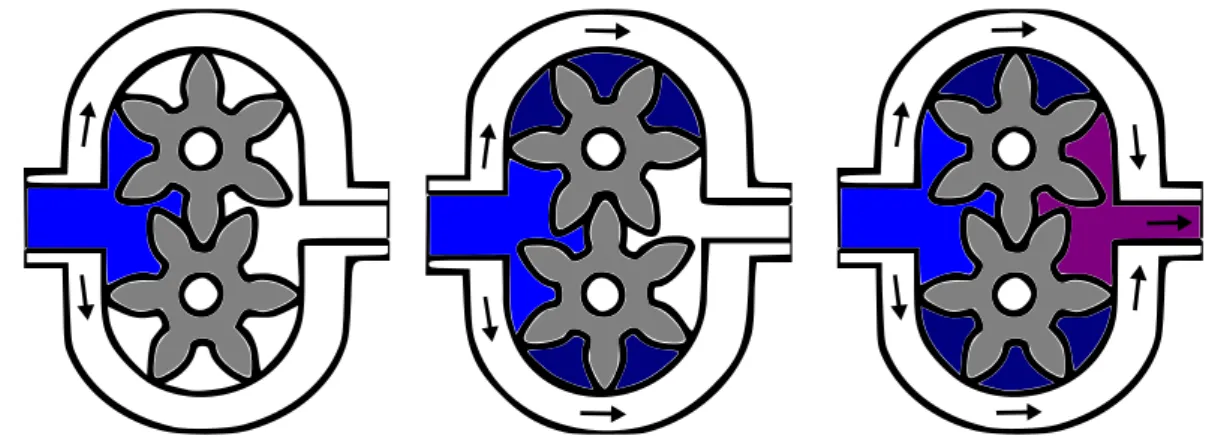
This kind of pump uses two identical gears rotating against each other. One gear is driven by an engine, and it in turn drives the other gear. The model used for this study has an involute teeth profile, the most commonly used in gears because of their unique properties and advantages. Each gear is supported by a shaft with bearings on both of its sides. The working mechanism can be divided in the following three steps:
1. As the gears come out of mesh, they create expanding volume on the inlet side of the pump. Oil flows into the cavity and is trapped by the teeth as they rotate. 2. Oil travels around the interior of the casing in the pockets between the teeth and
the casing.
3. Finally, the meshing of the gears reduces the volume, increases the pressure and forces oil through the outlet port.
Alejandro Roger Ull ETSEIAT 2012 The main purpose of the thesis by David del Campo Sud is to analyze the effect different forms of the suction chamber on cavitation, and the effect of cavitation on the volumetric efficiency. To pursue this target both experimental and numerical analysis were performed.
Figure 4.2: Oil gear pump studied by David del Campo Sud in [1].
The flow in the gear pump is inherently three-dimensional, because of the inlet and outlet pipes being circular, the free space in between the gears and the sides of the casing, and rings on the casing to seal the low pressure and high pressure sides for example. But performing a three-dimensional simulation would have been very difficult and taken too long, specially if all of these complexities of the gear pump had been simulated, so two-dimensional simulations were performed, with many simplifications. Although realistic values of the volumetric efficiency cannot be obtained this way, it is possible to compare the effect of cavitation between several two-dimensional simulations, and expect a similar behavior for the real pump.
Simulations included turbulence modeling, cavitation modeling and a contact point simulation between both gears that exists in the real pumps but can’t be included in the mesh. These simulations were done with ANSYS Fluent. Because of the licensing requirements simulations had to be performed in serial, which made compulsory all the simplifications that were carried out. If a simulation was to include some or most of the complex effects presented, parallel simulation should be implemented, since the time required to perform the simulations would dramatically increase.
It is because of this that the need to switch to open source software surged, with which the ability to perform parallel simulations comes with no licensing costs.
4.1.2 Initial Study of Mesh Deformation with OpenFOAM
The first study for porting the work done by David del Campo Sud in [1] was started by José Plácido Parra Viol in [2] in his final project. In short, in that study the dynamic mesh solver is studied, a first implementation of the boundary conditions for rotating objects is developed, and it is tested with a simple geometry, like the one depicted in Figure 5.20 in this work.
Although the step forward done in that study was important, and some results of that work are used here, the geometry used by José Plácido Parra Viol was so basic that it could be easily meshed. It is because of this that most of the development presented in the next section of this work is focused towards being able to run the simulation with an arbitrary geometry, in this case the gear pump previously mentioned.
4.2 Dynamic Mesh
The handling of dynamic meshes is required in many simulations in which the domain changes over time. This change can either be prescribed, such as with the gear pump, where the gears rotate driven by an engine; or it can be dependent on the solution of the flow, such as with aeroelasticiy simulations or any other kind of simulation where a structure interacts with the fluid.
In the case of prescribed motion, like the one that is under study in this work, since the movement is known beforehand, a sequence of meshes can be generated, so that they are able to easily accommodate the motion of the boundaries. In between those generated meshes the mesh can be deformed according to the prescribed boundary movement. It is when the deformation of the mesh is excessive that the deformed mesh can be replaced with a new generated one.
But the motion is prescribed at the boundaries, not at the entire mesh. The motion of each point and cell in the mesh needs to be calculated so that the mesh adapts softly to the domain changes. Automatic mesh motion must determine the position of those points based on the prescribed motion of the boundary [6].
Alejandro Roger Ull ETSEIAT 2012 This is in fact a whole additional problem, that is added to the problem of solving the flow. That is, boundary conditions for a property (the movement of the points) are defined for a closed domain in which the solution for that property is to be found. Thus the need for a mesh motion equation that has to be solved to find that solution for the movement.
But this equation does not describe a real physical movement, it can be somehow arbitrarily chosen so that it fits the purpose of the dynamic mesh handling adequately. Initial studies trended to considerate the mesh like a solid, for which the deformation was calculated with the finite volume method. Or also the so called spring analogy, which considered the connection between each pair of points as a spring or a one-dimensional bar with a known, prescribed stiffness.
But these methods didn’t worked as expected. For the finite volume method the solution of the mesh motion was being obtained in the center of the cells, so the motion of the points had to be interpolated, reducing the quality of the solution. As for the spring analogy, although initially this method yields a linear set of equations, its bad behavior forced the introduction of non-linearities that made the solution of the movement of the mesh too computationally expensive to be used, sometimes even more complex than that of the flow itself [2].
Nowadays, the use of a finite element method based on solving the Laplacian equation for the velocity of the mesh points, ∇⋅(k∇u)=0, either with a constant or variable diffusivity k, is very extended. The added diffusivity acts as a control for the mesh deformation and quality.
Additionally, it must be noted that the fluid equations that are going to be used to solve the flow must be written for time-changing domains, instead of a stationary one, for the conservation laws to be fulfilled.
Also, if mesh deformation is large or for some special uses, it could be interesting to apply topological changes. These consist on changing the mesh with little or no deformation, by making a part of the mesh move with respect to another one, for instance, or by removing or adding a boundary, for example to simulate the opening and closing of a valve inside a pipe. These methods are not under study in this work, but they must be considered if these changes are adequate for the problem to be solved.
4.3 OpenFOAM Description
OpenFOAM (the name stands for Open Field Operation and Manipulation) is a free, open source CFD software package. It has a large user base across most areas of engineering and science, as OpenFOAM has an extensive range of features to solve anything from complex fluid flows involving chemical reactions, turbulence and heat transfer, to solid dynamics, electromagnetics and finances [4].
Its solvers range from incompressible and compressible flows, multiphase flows, combustion, buoyancy-driven flows, heat transfer, particle methods and also solid dynamics and electromagnetics, while providing an extended library functionality with turbulence models, transport and rheology models, thermophysical models, lagrangian particle tracking, and chemical reaction kinetics directly available from its source.
4.3.1 Usage
The pre-processing is done in OpenFOAM by editing the directories and text files that conform a case, as it can be seen in the next section where this study is developed. For instance, for the unfamiliarized reader, the well-known cavity tutorial, the first tutorial in the OpenFOAM user guide [3], presents the following file structure:
cavity 0 p U constant polyMesh blockMeshDict transportProperties system controlDict fvSchemes fvSolution
Figure 4.3: File system of the cavity tutorial.
The 0 directory represents the first time directory and stores the boundary conditions. Next time steps are saved in subsequent directories, such as 1, 0.03, or 5e-05.
Alejandro Roger Ull ETSEIAT 2012 Inside the constant directory the properties of the problem that is going to be solved are included, such as the mesh, the properties of the fluid, and other things if required.
The system directory contains all the controls of the simulation. Time steps, write precision, etc. are determined in the controlDict file, whereas inside the fvSchemes file the finite volume discretization schemes are determined for each time derivative, gradient, divergence, laplacian, etc. In the fvSolution file the user can select the solver that will calculate each variable. More dictionary files are required if certain OpenFOAM tools are used.
Solvers and other OpenFOAM tools are run directly from the command-line interface, also known as CLI or terminal. Post-processing can be done with the help of an included program called ParaView.
OpenFOAM also counts with some tools to create meshes, from the basic blockMesh to the more complex snappyHexMesh, and includes many tools for importing meshes created with other software packages. Since it is heavily used in this document, should the reader need it, the snappyHexMesh guide in section 5.4 of [3] can be consulted in case of doubt.
4.3.2 Coding
But with no doubt the most important feature of OpenFOAM is the fact that it is open-sourced. While OpenFOAM can be used as a standard simulation package, it offers much more because it is designed to be a flexible, programmable environment for simulation. Equations can be coded in a way much similar to that of its mathematical notation. Take for instance the equation:
∂ρU
∂t +∇⋅ρU U−∇⋅μ ∇U=−∇ p
In an OpenFOAM solver it can be represented by the code: solve ( fvm::ddt(rho, U) + fvm::div(phi, U) - fvm::laplacian(mu, U) == - fvc::grad(p) ); – 22 –
It is because of this that OpenFOAM counts with some advantages with respect to proprietary software, among which the following can be specially remarked:
• Users have total freedom to create their own solvers and libraries, which is typically done by modifying an existing one.
• The solution algorithms are fully transparent, they can be viewed and checked by the user, encouraging better understanding of the physics and equations involved in the problem.
4.3.3 Parallel Execution
Also, OpenFOAM makes running cases in parallel easy. This permits solving more complex problems in less time. Almost everything in OpenFOAM can be run in parallel, and since OpenFOAM is free, compared to the per-processor licenses of commercial software, parallel simulations are much more affordable.
In order to solve a case in parallel the domain is decomposed and each part is allocated to a separate processor. OpenFOAM ships with the OpenMPI library to manage the communications between processors and run parallel applications. OpenFOAM is reported to scale well up to at least 1000 CPUs [4].
For further reference about how OpenFOAM works, the OpenFOAM User Guide [3] and the OpenFOAM Features Guide [4] can be consulted.
4.3.4 Dynamic Mesh Implementation
The most logical implementation of the dynamic mesh in OpenFOAM in order to solve the flow in the gear pump is that suggested by José Plácido Parra Viol in [2]. In short description, the strategy is to generate multiple meshes for multiple positions of the gears during one gearing cycle, so that once the mesh has deformed excessively because of the rotation of the gears, a new mesh can be used.
Then the solver has to be run for multiple gearing cycles to ensure a certain level of convergence, during which the same meshes can be reused multiple times, once per cycle simulated. This implementation is developed in the next section.
5
DEVELOPMENT
5.1 Initial Case Setup
The study presented in this document is focused towards a particular problem, although the developed procedure and its conclusions are of interest for any similar dynamic mesh problem that is going to be solved in OpenFOAM.
In order to start the study, a work directory must be created. In OpenFOAM this is typically accomplished by copying the files of an existing case to a new folder. The existing case must be similar to the one in consideration, this way only a few files need changes to work properly.
A good choice is to look among the tutorials provided with OpenFOAM for a case with similar conditions. Tutorials are sorted by field (incompressible, compressible, electromagnetics, financial, heat transfer, etc.), then by solver. Choosing the solver is an important step in the early beginnings of the work, although it can be changed later. For the gear pump simulation an incompressible solver capable of handling a dynamic mesh is required. The choice is pimpleDyMFoam, a modified pimpleFoam that handles dynamic meshes. It can do both laminar or turbulent simulations of transient incompressible flow.
The OpenFOAM tutorials are located in the following directory: /opt/openfoamXYZ/tutorials/incompressible/pimpleDyMFoam
Where XYZ represents the OpenFOAM version. The version of OpenFOAM used in this work is 2.1.0. Inside this directory one finds several tutorials. Two of them, movingCone and wingMotion. are of interest. The former simulates the known, imposed movement of an object across one axis, a movement similar to the one that is under study. The latter simulates the movement of a two-dimensional airfoil caused by the aerodynamic forces, its mesh being created with snappyHexMesh. A similar process will be implemented to mesh the complex geometry this study faces.
Since both tutorials are of interest but none fulfill the scope of the study, the best option is to manually create the new directories, copying the file system and the files from one tutorial or the other as needed. Thus, a directory is created on the desktop, called gearMain, inside of which all the other files will be placed.
Alejandro Roger Ull ETSEIAT 2012 5.2 Obtaining the Geometry
The geometry for the gear pump was provided in the form of a Gambit MSH file. Gambit is a preprocesing and meshing program in the commercial software Fluent. Since, as required on section 3, all the software used in this study must be open source, the mesh in this file will not be used.
Figure 5.1: Geometry of the gear pump.
The idea is to extract a list of points for the gear and the case of the pump from the file and discard the mesh. In order to do that, the complete mesh must be converted to the OpenFOAM format first, by using the fluentMeshToFoam command. This command needs a case directory to be created in order to work, so one is created inside the gearMain folder, named gearFluent, with the following structure:
gearMain gearFluent 0 constant system controlDict fvSchemes fvSolution fluentMesh.msh
Figure 5.2: File system of the gearFluent case.
The controlDict , fvSchemes and fvSolution files can be copied directly from the wingMotion/wingMotion_snappyHexMesh tutorial. The user can adjust the write options from the controlDict file (writeFormat, writePrecission and writeCompression) as needed, but the default ones should be enough.
Once this case folder is all set the mesh can be converted by opening a terminal, setting gearFluent as the working directory and entering the following command:
fluentMeshToFoam fluentMesh.msh
The mesh will be written inside the /constant/polyMesh directory. Once the mesh has been converted it can be opened in ParaView by typing paraFoam. Before clicking Apply in the Object Inspector, the patches related to the casing should be selected, and the internal mesh deselected as shown in Figure 5.3.
Figure 5.3: Selection of patches in ParaView.
After clicking Apply the data can be exported by going to File, Save Data, and selecting Points as the field association. The points of each case patch are saved in CSV files that can be imported to any spreadsheet program, such as LibreOffice Calc. Each point is written twice, once for a negative z coordinate, and once for a positive z. This can be easily filtered by sorting the rows by the last column, then eliminating the half of the rows with negative z.
Once this has been done, the points of all the CSV files can be merged on a single file, and then copied to a text file, so that all the points of the gear casing are now in a single list, each point in a line, with its x and y coordinates separated with a tab.
Alejandro Roger Ull ETSEIAT 2012 This process must be repeated for one of the gears. In this case it is convenient to rotate the points slightly so that a tooth of the gear is pointing directly upwards. This way a single list of points will be valid for both gears, since the number of teeth is odd, and by translating one upwards with respect to the other both will mesh perfectly.
The lower gear is centered on the coordinates origin, so this one will be the reference gear. Again the points are extracted and filtered just as with the casing. To obtain the angle that the points must be rotated, the geometry is inspected in ParaView. One can obtain the coordinates of the center point of the uppermost tooth, and then calculate the angle that the point must be rotated to reach the x = 0 plane.
Once all this work is done, the list of points for the casing and for the gear centered at x,y = 0,0 has been obtained.
5.3 Generating an STL File
Before being able to mesh the geometry an STL file must be generated. This is because the geometry will be meshed by using snappyHexMesh, which takes an STL file as the input. STL files are standardized files that can be handled by many software packages. Inside an STL file multiple solids can be represented as a list of triangles that conform their surfaces. STL files can be written in ASCII or binary format. The ASCII format looks like this:
solid name0 facet normal n1 n2 n3 outer loop vertex x1 y1 z1 vertex x2 y2 z2 vertex x3 y3 z3 endloop endfacet facet normal ... ... endsolid name0 solid name1 ...
Such a file can be written easily by hand if the geometry is simple enough, or with the help of a small program if it is more complex. Many CAD softwares can export to this file type too. In this case the most useful option is to write a program to read the point list for the casing and the gear, then apply any desired transformation to the geometry, such as a rotation to the gears, and finally write the geometry as an STL file.
This way it will be easy to automatically generate the geometry for any position of the gears. Therefore, a short program, named points2stl.cpp, is written in C++ and then compiled using the GNU Compiler Collection. To compile the program just enter into the terminal:
g++ points2stl.cpp -o points2stl And to run it:
./points2stl
The program requires several files to be present in its directory. A solids file must be provided, for example as follows:
3 -1 11
gear0 1913 0 0 0 gear1 1913 0 45.123 0 case 1870 0 0 0
The first line indicates the number of solids below, then the minimum z value, and the maximum z value for the STL file. Next, a line for each solid indicates the name, the number of points, the translation in the x direction, the translation in the y direction, and the rotation angle, in rad. Note how the gear1 solid is displaced towards the y direction. This is because the same list of points is being used for both gears.
For each solid, another file with the name of the solid (in the example: gear0, gear1 and case) must be present in the same directory. This file must contain the points of the solid as they were extracted in the previous section:
-2.6841909571 23.5344354143 -2.7402671858 23.4064052141 1.9790048057 24.8983171305 2.0492641836 24.7775481 ...
The points that were extracted in the previous section were not sorted consecutively. Thus, the C++ program has to sort them during runtime. To do that, the program starts with the first point and, to get the next one, it searches for the nearest point that hasn’t been already selected. The program keeps going by taking one pair of points at a time. Each of these pair of points is placed at the maxZ plane and a copy is placed at the minZ plane. Finally the rectangle formed by these four vertices is split into two triangles and written to the output STL file. For the last point, an exception is made so that it connects with the first point and the STL surface is closed.
Alejandro Roger Ull ETSEIAT 2012 The C++ source code of the points2stl program is shown below, but it is also included in the media that comes with this work.
1 2 3 4 5 6 7 8 9 10 11 12 13 14 15 16 17 18 19 20 21 22 23 24 25 26 27 28 29 30 31 32 33 34 35 36 37 38 39 40 41 42 43 44 45 46 47 48 49 50 51 52 53 54 55 56 #include<fstream> #include<cmath> using namespace std;
bool isPastPoint(int point, int pastPoint[], int n) {
int i;
for (i=0;i<n;i++) if (point == pastPoint[i]) return 1; return 0;
}
int getNextPoint(int curPoint, int pastPoint[], int n, int nPoints, double point[][2])
{
int i, nextPoint;
double x1, y1, x2, y2, distance2, minDistance2;
//Special case for the last point to meet the first point: if (n==nPoints) return pastPoint[0];
x1 = point[curPoint][1]; y1 = point[curPoint][2]; nextPoint = -1; minDistance2 = 1.e10;
for (i=0; i<nPoints; i++) {
x2 = point[i][1]; y2 = point[i][2];
distance2 = (x2-x1)*(x2-x1)+(y2-y1)*(y2-y1);
if (distance2 < minDistance2 and not isPastPoint(i,pastPoint,n)) { minDistance2 = distance2; nextPoint = i; } } return nextPoint; } int main() {
int nSolids, nPoints, i, s; int curPoint, nextPoint;
double x, y, r, angle, dx, dy, dAngle, z0, z1; char solidName[20]; ifstream solidsFile; ofstream outputFile; solidsFile.open("./solids");
outputFile.open("./triSurface.stl", ios::out | ios::trunc); solidsFile>>nSolids>>z0>>z1;
57 58 59 60 61 62 63 64 65 66 67 68 69 70 71 72 73 74 75 76 77 78 79 80 81 82 83 84 85 86 87 88 89 90 91 92 93 94 95 96 97 98 99 100 101 102 103 104 105 106 107 108 109 110 111 112 113 114 115 116 for (s=0; s<nSolids; s++) { solidsFile>>solidName>>nPoints>>dx>>dy>>dAngle; ifstream pointsFile; pointsFile.open(solidName); int pastPoint[nPoints]; double point[nPoints][2];
for (i=0; i<nPoints; i++) {pointsFile>>point[i][1]>>point[i][2];} pointsFile.close();
for (i=0; i<nPoints; i++) {
x = point[i][1]; y = point[i][2]; r = sqrt(x*x + y*y);
angle = atan2(y,x) + dAngle; point[i][1] = r * cos(angle) + dx; point[i][2] = r * sin(angle) + dy; } outputFile<<"solid "<<solidName<<"\n"; curPoint = 0; nextPoint = 0; i = 0; while (i<nPoints) { curPoint = nextPoint; pastPoint[i] = curPoint; i++;
nextPoint = getNextPoint(curPoint, pastPoint, i, nPoints, point); x = point[curPoint][1]; y = point[curPoint][2]; dx = point[nextPoint][1]; dy = point[nextPoint][2];
outputFile<<" facet normal "<<(y-dy)<<" "<<(dx-x)<<" 0.0\n"; outputFile<<" outer loop\n";
outputFile<<" vertex "<< x<<" "<< y<<" "<<z0<<"\n"; outputFile<<" vertex "<<dx<<" "<<dy<<" "<<z0<<"\n"; outputFile<<" vertex "<<dx<<" "<<dy<<" "<<z1<<"\n"; outputFile<<" endloop\n endfacet\n";
outputFile<<" facet normal "<<(y-dy)<<" "<<(dx-x)<<" 0.0\n"; outputFile<<" outer loop\n";
outputFile<<" vertex "<< x<<" "<< y<<" "<<z0<<"\n"; outputFile<<" vertex "<< x<<" "<< y<<" "<<z1<<"\n"; outputFile<<" vertex "<<dx<<" "<<dy<<" "<<z1<<"\n"; outputFile<<" endloop\n endfacet\n";
} outputFile<<"endsolid "<<solidName<<"\n"; } solidsFile.close(); outputFile.close(); return 0; }
Alejandro Roger Ull ETSEIAT 2012 The resulting STL file can be loaded directly into ParaView (File, Open). Note how each solid is colored differently. Having different solids is the key in order to apply different boundary conditions to each one.
Figure 5.4: STL file displayed in ParaView.
The file system of the case is depicted in Figure 5.5, where both the input and output files are shown, as well as both the C++ source and the executable binary program:
gearMain gearFluent points2stl case gear0 gear1 solids points2stl.cpp points2stl triSurface.stl
Figure 5.5: File system of the points2stl case.
5.4 Meshing
Meshing is probably the trickiest part of the whole study. As has been stated previously, since the geometry is quite complex, snappyHexMesh is required. The meshing procedure will be quite similar as that of the wingMotion tutorial. The same file system is adopted, as depicted in Figure 5.6, and the required files can be copied from the wingMotion_snappyHexMesh directory, and then modified as shown here.
gearMain gearFluent points2stl gearSnappy 0 constant polyMesh blockMeshDict triSurface triSurface.stl system controlDict fvSchemes decomposeParDict fvSolution snappyHexMeshDict
Figure 5.6: File system of the gearSnappy case.
5.4.1 blockMesh
Meshing with snappyHexMesh requires several actions to be performed. The first one is to create a background mesh using blockMesh. The background mesh must be one-cell thick in order to perform a two-dimensional simulation, with empty patches at its front and back boundaries. The blockMeshDict file must be edited to create a mesh of the approximate size of the STL geometry, which can be checked from ParaView.
The vertices and blocks description are as follows: convertToMeters 1; vertices ( //Front (-86 -30 0) //0 ( 86 -30 0) //1 ( 86 75 0) //2 (-86 75 0) //3 //Back (-86 -30 2) //4 ( 86 -30 2) //5 ( 86 75 2) //6 (-86 75 2) //7 );
Alejandro Roger Ull ETSEIAT 2012 blocks
(
hex (0 1 2 3 4 5 6 7) (200 120 1) simpleGrading (1 1 1) );
Note that the dimensions of the block (and the STL file) are in millimeters. To work in meters the whole mesh will have to be scaled at the end of the meshing process. This is not strictly needed; OpenFOAM does not care about units, just dimensions. Thus it is irrelevant if you work using the Imperial System, the Metric System, or any other system (such as using millimeters for longitudes).
However one must take care, because all the input and output variables must share the same units. So, to avoid any trouble this may cause, during the meshing process longitudes will be in millimeters, but after that the Metric System will take over and the mesh will be scaled to comply with it.
Next, no curved edges should appear in the block: edges
( );
The rest of the blockMeshDict file defines the different boundaries: boundary ( fixedWall { type wall; faces ( (0 1 5 4) //bottom (2 3 7 6) //top ); } inletPatch { type patch; faces ( (3 0 4 7) ); } outletPatch { type patch; faces ( (1 2 6 5) ); } – 34 –
frontEmpty { type empty; faces ( (3 2 1 0) ); } backEmpty { type empty; faces ( (4 5 6 7) ); } );
Finally, no pair of patches needs to be merged. mergePatchPairs
( );
5.4.2 snappyHexMesh
Once the background mesh is created (by using the blockMesh command), it is time for snappyHexMesh to refine the mesh and adapt it to the geometry that was just created in STL format. The first entries of the snappyHexMeshDict file indicate the steps that will be performed when snappyHexMesh runs. The layer addition process is not of interest for this work, so let’s start with activating the castellated mesh and the snap processes first.
castellatedMesh true; snap true; addLayers false;
It will be seen further ahead that it is not a good idea to perform the snapping at this point but let’s leave this as it is for now.
The next entry defines the file from which the geometry will be loaded, as well as any refinement boxes the user may wish to define. The triSurface.stl file is loaded from the ./constant/triSurface/ directory, and it is the file that was generated with the points2stl C++ program.
At this point no refinement boxes will be used, but the entry is left in the file, commented out, so that adding one box can be done quickly should the user want to.
Alejandro Roger Ull ETSEIAT 2012 geometry { triSurface.stl { type triSurfaceMesh; name gear; } //refinementBox //{ // type searchableBox; // min (-30. -30. 0.); // max ( 30. 75. 10.); //} };
Next in the file are the controls for the castellatedMesh. The first controls set limits to the process in terms of number of cells. The values can be adjusted at user discretion, the ones presented here worked reasonably well:
castellatedMeshControls { maxLocalCells 700000; maxGlobalCells 1400000; minRefinementCells 10; maxLoadUnbalance 0.10; nCellsBetweenLevels 3;
Next, the explicit feature edge refinement is a feature (forgive the repetition) recently added to OpenFOAM, that allows a better discretization on certain edges the domain may have, which previously experienced some distortion. Since the mesh under study is two-dimensional no edge should have this problem, and this feature is commented out:
features ( //{ // file "someLine.eMesh"; // level 2; //} );
After a score of tests the levels of refinement presented here were selected as the best choice in terms of quality and time. Too much refinement implies a much higher meshing time, which would be prohibitive if one recalls that multiple meshes are going to be made.
On the other hand, too low levels would split the mesh at points where the teeth and the case are so close that the mesh after those points would be marked as unreachable and removed from the rest of the mesh, as seen on Figure 5.7.
Figure 5.7: Broken mesh due to a low refinement (left) and correct mesh (right).
Again the refinement regions entry is commented out, since no refinement boxes are being used. If refinement boxes are being used, the user must uncomment these too.
refinementSurfaces { gear { level (3 5); } } resolveFeatureAngle 30; refinementRegions { //refinementBox //{ // mode inside; // levels ((1E15 2)); //} }
Finally the last castellatedMesh controls are listed. The locationInMesh is selected so that it is not in a face of any cell, but inside a cell. Any part of the mesh that cannot be reached from this point after refinement is eliminated. As it has been said, if the refinement is not high enough, the part of the mesh behind the teeth will be deleted.
locationInMesh (-85.91 15.01 0.0000000005); allowFreeStandingZoneFaces true;
}
Next the snapping controls are left more or less at the default values: snapControls { nSmoothPatch 3; tolerance 4.0; nSolveIter 3; nRelaxIter 5; //nFeatureSnapIter 10; }
Alejandro Roger Ull ETSEIAT 2012 Since the layer addition process was deactivated at the beginning of the file, those controls are of no interest. The mesh quality controls are left at default values too, so the snappyHexMeshDict file is ready.
However, several problems arise when trying to perform the snappyHexMesh run. First, all programs in OpenFOAM are three-dimensional, and snappyHexMesh is not an exception. Because of this, snappyHexMesh refines the mesh through the z direction, obliterating the one-cell thickness that was selected with blockMesh.
This is a huge drawback, because to perform a two-dimensional simulation in OpenFOAM the mesh must have this one-cell thickness and empty front and back patches. By adding cells through the z direction, snappyHexMesh renders the mesh useless. Also, the process of snapping takes much longer than expected, which is a problem if multiple meshes are to be generated at different positions of the gears.
The following steps are needed to solve these problems. First, parallel execution of snappyHexMesh is developed in order to cut down meshing times. Next the mesh is made two-dimensional again with help of the extrudeMesh tool.
5.4.3 decomposePar
The parallel processing is performed by splitting the domain into multiple sub-cases folders, then the solver (or the meshing program in this case) runs all cases at once, keeping them in communication. In OpenFOAM this can be done automatically by means of the decomposePar tool. As with most OpenFOAM applications, the decomposePar tool requires its own decomposeParDict file.
Given that the computer in which the meshing is being executed has an eight-core Intel i7 processing unit, six of those cores are utilized to perform the parallel meshing. The decomposing method is hierarchical, a simple method that divides the domain in equal parts in the number and order specified for each direction.
numberOfSubdomains 6; method hierarchical; hierarchicalCoeffs { n (3 2 1); delta 0.001; order xyz; } – 38 –
The domain can now be decomposed by running the decomposePar command after running the blockMesh command. Six folders are created, named processor0 to processor5, inside the gearSnappy directory. Inside each of those folders a sixth of the background mesh is set for refinement. It is recommended to run the following command just after decomposing the domain, before the snappyHexMesh process:
foamJob -s -p renumberMesh -overwrite Then the snapping is run by entering the command:
foamJob -s -p snappyHexMesh -overwrite
The foamJob command allows the execution of OpenFOAM applications with some special options, and parallel processing is one of them. This command stores all command-line output to a log file. The -s option forces this output to be displayed in the Terminal too. The -p option executes the application in parallel. The -overwrite option forces renumberMesh and snappyHexMesh to overwrite the background mesh with the renumbered or refined mesh, instead of storing it in a new time directory.
The renumberMesh tool reorders the numbering of the points in each processor directory in order to make it more efficient.
During the snappyHexMesh process the load of each processor is balanced after each step, if needed, in order to even the load of all of them up to a certain margin specified in the maxLoadUnbalance entry in the snappyHexMeshDict file.
Once the meshing process is over the mesh can be reconstructed by using the following command:
reconstructParMesh -mergeTol 1e-6 -constant
The -mergeTol option can be adjusted as needed, while the -constant option indicates to the reconstructParMesh tool that the mesh is stored in the ./constant/polyMesh directory, and works in conjunction with the -overwrite option of snappyHexMesh. In case the -overwrite option was not used, the option -time N (where N is the time directory in which the mesh was stored), or the option -latestTime if the mesh is stored in the last directory, can be used.
After the mesh has been reconstructed the processor0 to processor5 folders can be deleted and the mesh is ready for the next step.
Alejandro Roger Ull ETSEIAT 2012 5.4.4 extrudeMesh
As it has been said, snappyHexMesh refines the mesh in all directions, including the z direction. This makes the mesh unusable as a two-dimensional mesh. But there is a tool called extrudeMesh that can generate a mesh by extruding a patch of another mesh. It is used in the wingMotion tutorial, and as it can be seen, it requires a separate case directory in order to work.
gearMain gearFluent points2stl gearSnappy gearExtrude 0 constant system controlDict fvSchemes createPatchDict fvSolution extrudeMeshDict
Figure 5.8: File system of the gearExtrude case.
The extrudeMeshDict file contains all the information needed in order to perform the extrusion. constructFrom patch; sourceCase "../gearSnappy"; sourcePatches (frontEmpty); exposedPatchName backEmpty; flipNormals false; extrudeModel linearNormal; nLayers 1; expansionRatio 1.0; linearNormalCoeffs { thickness 1.0; } mergeFaces false;
The constructFrom entry indicates that a patch from a mesh is going to be used as the base for the extrusion. The source case is set to the gearSnappy directory, which is located in the same directory as gearExtrude. The frontEmpty patch is selected as the
source patch, and the patch that is going to be created in front of it is called backEmpty. The extrusion is chosen to be linear, as the target is to obtain a two-dimensional mesh. This tool can generate also spherical or cylindrical extrusions. The number of cells the mesh must have is one, as indicated by the nLayers entry. The expansionRatio and the thickness have no special influence on the two-dimensional mesh, and the mergeFaces entry is interesting only for 360° cylindrical extrusions.
As a side note, it is interesting to know that the extrudeMesh tool can also extrude a two-dimensional surface mesh stored in a surface file such as an STL. In such a case the first lines of the extrudeMeshDict file should read like this:
constructFrom surface;
surface "./constant/triSurface/mesh.stl"; flipNormals false;
...
This is interesting because the user may like to create the two-dimensional mesh using another meshing software, such as Salome, instead of using snappyHexMesh, and then the mesh could be exported as an STL file from that software and easily imported into OpenFOAM using extrudeMesh.
In this case it should be noted that the definition of the vertices of all triangles in the STL file must follow the right-hand rule to determine the normal to the surface and the direction of the extrusion.
Back to the topic, a createPatchDict file is also added, its main interest being renaming the patches created by the extrudeMesh tool, and, most important, removing the fixedWall patches that were defined on top and bottom of the background blockMesh, and that are not used after the snappyHexMesh process takes place.
pointSync false; patches ( { name gear0; patchInfo { type wall; } constructFrom patches; patches (gear_gear0); }
Alejandro Roger Ull ETSEIAT 2012 { name gear1; patchInfo { type wall; } constructFrom patches; patches (gear_gear1); } { name case; patchInfo { type wall; } constructFrom patches; patches (gear_case); } );
The names of the patches could be different from those created by snappyHexMesh, but there is no need to do so anyway. Only the gear_ part of the name is removed from those patches. So the only important effect of running createPatch is removing the unused patches, fixedWall in this case, from the mesh.
5.4.5 runMesh
After all the steps to generate a mesh from the STL file created in section 5.3 have been defined, a small bash script called runMesh is written in order to automate the execution of all the applications. It is placed inside the gearMain directory. Initially it looks like this:
#!/bin/bash
. /opt/openfoam210/etc/bashrc #snappyHexMesh
cd gearSnappy
rm -rf log processor* constant/polyMesh/*
cp constant/blockMeshDictCopy constant/polyMesh/blockMeshDict blockMesh
decomposePar
foamJob -s -p renumberMesh -overwrite foamJob -s -p snappyHexMesh -overwrite reconstructParMesh -mergeTol 1e-6 -constant
rm -rf processor* #extrudeMesh cd ../gearExtrude rm -rf constant/polyMesh/* extrudeMesh createPatch -overwrite #scale to mm transformPoints -scale "(0.001 0.001 0.001)"
Bash is just a scripting language that can automate the commands that are going to be introduced in the Terminal. Each line in the bash script is a command that is entered into the Terminal as if the user did so manually, and once that command ends the next one is entered.
Several commands have been added to complete the procedure. The first command, . /opt/openfoam210/etc/bashrc, is the same that must be included in the user’s ~/.bashrc file during installation of OpenFOAM in order to be able to use OpenFOAM commands. This ensures that when launching the bash script OpenFOAM commands will be available.
Next, the working directory changes to gearSnappy, and the files inside the constant/polyMesh directory are removed, as well as any processor* folder that could have been left at a previous run. After this, a copy of the blockMeshDict file that is saved as constant/blockMeshDictCopy is moved into the constant/polyMesh directory, and then blockMesh is run. This is done to ensure that a clean mesh is being used as the background mesh for snappyHexMesh.
After running blockMesh the mesh is decomposed, renumbered in parallel, and then snappyHexMesh runs in parallel too. After the mesh is reconstructed the processor folders are removed again.
Finally, the working directory is changed to extrudeMesh, where again the constant/polyMesh directory is cleaned, and the extrudeMesh and createPatch commands are run. As it was said in section 5.4.1 the mesh is scaled at the end of the complete meshing process, as to be dimensioned according to the Metric System.
Once the runMesh script finishes running, a two-dimensional mesh is obtained inside the gearExtrude/constant/polyMesh directory.
Alejandro Roger Ull ETSEIAT 2012 5.4.6 Improving the Meshing Procedure
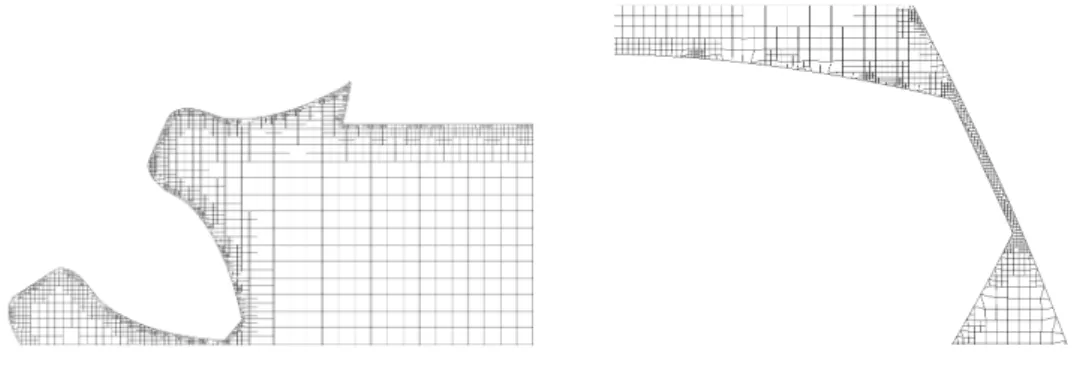
But the first obtained results are far from being optimal. As can be seen on Figure 5.9 and Figure 5.10 the borders of the mesh are badly distorted, like a serrated knife’s edge. Obviously such a mesh is completely unusable. Figures show the frontEmpty patch.
Figure 5.9: The mesh boundary is badly messed after the extrusion.
Figure 5.10: Detail of the mesh.
And the checkMesh output doesn’t make things look any better: [...]
Checking topology...
Boundary definition OK. Cell to face addressing OK. Point usage OK.
Upper triangular ordering OK. Face vertices OK.
*Number of regions: 5
The mesh has multiple regions which are not connected by any face. <<Writing region information to "0/cellToRegion"
[...]
Checking geometry...
Overall domain bounding box (-0.0863136 -0.0277598 -0.001) (0.0861261 0.0729118 0.000417316)
Mesh (non-empty, non-wedge) directions (0 0 0) Mesh (non-empty) directions (0 0 0)
***Number of edges not aligned with or perpendicular to non-empty directions: 316150
<<Writing 169410 points on non-aligned edges to set nonAlignedEdges Boundary openness (-4.57826e-18 4.36446e-17 3.31683e-14) OK. Max cell openness = 1.27921e-15 OK.
Max aspect ratio = 0 OK.
Minumum face area = 2.94395e-11. Maximum face area = 8.75e-07. Face area magnitudes OK.
Min volume = 1.33031e-13. Max volume = 7.525e-10. Total volume = 4.74499e-06. Cell volumes OK.
Mesh non-orthogonality Max: 178.291 average: 37.6479 *Number of severely non-orthogonal faces: 24111. ***Number of non-orthogonality errors: 2581.
<<Writing 26692 non-orthogonal faces to set nonOrthoFaces ***Error in face pyramids: 18804 faces are incorrectly oriented.
<<Writing 17013 faces with incorrect orientation to set wrongOrientedFaces ***Max skewness = 6312.24, 1787 highly skew faces detected which may impair the quality of the results
<<Writing 1787 skew faces to set skewFaces Coupled point location match (average 0) OK. Failed 4 mesh checks.
End
Several thoughts arise from these results. First, the extrudeMesh is probably encountering that the frontEmpty patch is not flat, that is, the points do not share the same z coordinate. Fortunately, there is a command, called flattenMesh, that does exactly as its name indicates. By running this command, all the points in each empty patch of a mesh are moved to the same z coordinate, in order to make the patch flat. Figure 5.11 and Figure 5.12 show how, by adding the flattenMesh command to the runMesh script, just after the mesh reconstruction takes place, the result is greatly improved, at least visually.
Alejandro Roger Ull ETSEIAT 2012
Figure 5.11: The mesh improves greatly when using flattenMesh.
Figure 5.12: Detail of the mesh.
However, by running the checkMesh command again one finds that the mesh continues to have great problems:
[...]
Checking topology...
Boundary definition OK. Cell to face addressing OK. Point usage OK.
Upper triangular ordering OK. Face vertices OK.
*Number of regions: 5
The mesh has multiple regions which are not connected by any face. <<Writing region information to "0/cellToRegion"
[...]
Checking geometry...
Overall domain bounding box (-0.086 -0.0268349 -0.001) (0.086 0.0719577 0.001)
Mesh (non-empty, non-wedge) directions (0 0 0) Mesh (non-empty) directions (0 0 0)
***Number of edges not aligned with or perpendicular to non-empty directions: 256716
<<Writing 167262 points on non-aligned edges to set nonAlignedEdges Boundary openness (-1.31351e-17 4.59727e-17 -9.04726e-15) OK.
***Open cells found, max cell openness: 0.000920221, number of open cells 5 <<Writing 5 non closed cells to set nonClosedCells
***Zero or negative face area detected. Minimum area: 0 <<Writing 5 zero area faces to set zeroAreaFaces
Min volume = 1.66667e-300. Max volume = 0.7525. Total volume = 4084.85. Cell volumes OK.
Mesh non-orthogonality Max: 89.031 average: 9.34645 *Number of severely non-orthogonal faces: 8.
Non-orthogonality check OK.
<<Writing 8 non-orthogonal faces to set nonOrthoFaces
***Error in face pyramids: 11 faces are incorrectly oriented.
<<Writing 11 faces with incorrect orientation to set wrongOrientedFaces ***Max skewness = 38.6145, 21 highly skew faces detected which may impair the quality of the results
<<Writing 21 skew faces to set skewFaces Coupled point location match (average 0) OK. Failed 5 mesh checks.
End
Also, a few faces are found out of place after a closer visual inspection of the mesh:
Figure 5.13: Errors on some faces that are out of place.
These errors require thinking about how snappyHexMesh works, in order to find what causes them. As it was said in section 5.4.2, the snappyHexMesh process consists of three main steps, to be remembered: castellatedMesh, snap, and addLayers.
The last process, addLayers, is not being used in this work. The first one, castellatedMesh, consists of multiple refinement iterations. In rough words, starting with the background mesh created with blockMesh, snappyHexMesh checks which cells are in contact with the STL surface of reference. Those cells are refined, that is, since all cells are hexahedra, refined cells are split in eight smaller hexahedra. Logically this process of splitting cells is not able to change the orientation of edges or faces, so the castellatedMesh step can’t be the cause of the problems the mesh is having.
Alejandro Roger Ull ETSEIAT 2012 Then the only left cause for these problems is the snap process. Supposedly, during this step the points and faces are moved and aligned with the STL surface. But since, as it has been said, OpenFOAM in general and snappyHexMesh in particular work with three-dimensional domains, while the mesh that one wants to obtain in this case is two-dimensional. And since after the castellatedMesh step the mesh has multiple cells in the z direction, the snap process modifies the orientation of faces and cells in this direction, and badly deteriorates the mesh for the later two-dimensional extrusion.
It is because of this that a new strategy is developed. Until now the wingMotion tutorial has been closely followed, using first the castellateMesh and snap processes, and then extruding the two-dimensional, desired mesh. But now this order will be modified.
First, only the castellateMesh step of snappyHexMesh will be run, avoiding potential misalignment problems. Next, the mesh will be flattened just in case; since no snap is performed up to this point the flattenMesh step may be useless, but it is better to prevent than to heal. After this the mesh can be extruded and finally snappyHexMesh is run again, this time with snap only.
The file system is arranged as shown in Figure 5.14. This strategy implies having an additional snappyHexMeshDict file, as well as a copy of the triSurface.stl file, inside the gearExtrude directory. The decomposeParDict file is needed by snappyHexMesh, although for the second time snappyHexMesh runs, after extrudeMesh, the domain will not be decomposed, as after the mesh is made two-dimensional the snap process should run quick enough.
The gearSnappy/system/snappyHexMeshDict file reads at the top lines: castellatedMesh true;
snap false; addLayers false;
While the one at gearExtrude/system/snappyHexMeshDict reads: castellatedMesh false;
snap true; addLayers false;
This way the snap won’t take place until the mesh has been extruded.
gearMain gearFluent points2stl gearSnappy 0 constant blockMeshDictCopy polyMesh blockMeshDict triSurface triSurface.stl system controlDict fvSchemes decomposeParDict fvSolution snappyHexMeshDict gearExtrude 0 constant triSurface triSurface.stl system controlDict decomposeParDict createPatchDict fvSchemes extrudeMeshDict fvSolution snappyHexMeshDict runMesh
Figure 5.14: File system of the gearSnappy and gearExtrude cases.
Apart from these changes, the patches must now keep the same name between the two snappyHexMesh runs. Therefore, the createPatch run is moved to after the second snappyHexMesh run, in order to rename the gear patches and, most important, remove the unused fixedWall patch.
The backup copy of the blockMeshDict file, blockMeshDictCopy is shown in Figure 5.14 too.
Alejandro Roger Ull ETSEIAT 2012 The runMesh script is adapted to the new meshing strategy. The code is finally:
#!/bin/bash
. /opt/openfoam210/etc/bashrc # clean folders
cd gearSnappy
rm -rf log processor* constant/polyMesh/*
cp constant/blockMeshDictCopy constant/polyMesh/blockMeshDict # blockMesh background mesh
blockMesh
# snappyHexMesh 3D castellateMesh decomposePar
foamJob -s -p renumberMesh -overwrite foamJob -s -p snappyHexMesh -overwrite reconstructParMesh -mergeTol 1e-6 -constant flattenMesh rm -rf log processor* # extrudeMesh 2D extrude cd ../gearExtrude rm -rf constant/polyMesh/* extrudeMesh # snappyHexMesh 2D snap snappyHexMesh -overwrite createPatch -overwrite # scale to mm transformPoints -scale "(0.001 0.001 0.001)"
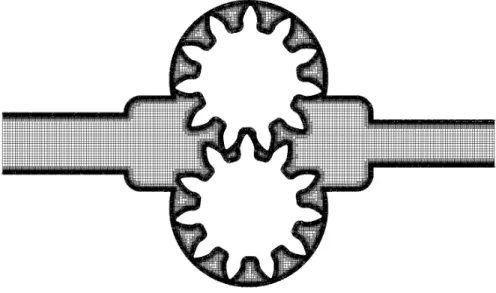
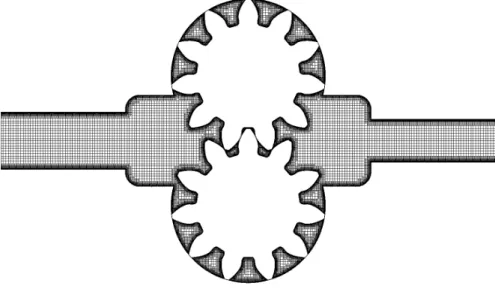
Figure 5.15: Mesh correctly generated with the final runMesh script.
Figure 5.16: Mesh correctly generated. Detail of the gear meshing zone.
Figure 5.17: Mesh correctly generated. Detail of the casing zone.
Visual inspection yields positive results, with no out-of-place faces showing. Also, after running the script the checkMesh utility is run again, with much better results: [...]
***Max skewness = 4.05358, 1 highly skew faces detected which may impair the quality of the results
<<Writing 1 skew faces to set skewFaces Failed 1 mesh checks.
Alejandro Roger Ull ETSEIAT 2012
5.5 Moving the Mesh
Once a mesh has been generated it is time to start moving it. The target is to check how much the gears can rotate, and how much deformation the mesh can withstand, before the deformation becomes too much and a new mesh is needed to take over.
First of all a new case directory is created. Secondly the boundary conditions for pressure and velocity, as well as the movement of the mesh, are introduced into the case. Next a new boundary condition for the rotating motion of the gears is developed. After that the different parameters of the case are determined. And finally a bash script is written to run the moving of the mesh.
5.5.1 Creating a New Case Directory
The kind of movement required is somehow similar to the one in the movingCone tutorial, where an horizontal displacement of a surface is imposed.
gearMain gearFluent points2stl gearSnappy gearExtrude gearMove 0 p U pointMotionU constant polyMesh transportProperties dynamicMeshDict turbulenceProperties system controlDict fvSchemes timeDict fvSolution decomposeParDict runMesh runMove
Figure 5.18: File system of the gearMove case.
In the case of the gears the displacement is also imposed, but it being a rotation and not a translation will enforce changes in most files concerning the dynamic mesh. Nevertheless the movingCone tutorial is similar enough, and the file system of the gearMove case is based on it, as shown in Figure 5.18.
5.5.2 Setting Up the Boundary Conditions
The boundary conditions of an OpenFOAM case are defined inside the first time directory, 0 in this case. Inside the 0 directory there is a file for each field considered, where boundary conditions are defined in a per-patch basis, that is, each patch may have a different boundary condition. The same is true in reverse order: for two surfaces to have different boundary conditions they must be defined as separate patches.
Boundary conditions for the pressure p and the velocity U are chosen among the ones available in OpenFOAM. First, the pressure file p is shown here by sections. The header reads: FoamFile { version 2.0; format ascii; class volScalarField; object p; }
In the class entry it is indicated that the pressure is a volumetric scalar field. This will have some importance regarding the boundary file for the motion of the gears.
dimensions [0 2 -2 0 0 0 0]; internalField uniform 0;
Dimensions are specified as powers of the fundamental dimensions. As it was mentioned previously, OpenFOAM does not use any units inherently. Operations must be performed using consistent units of measurement; in particular, addition, subtraction and equality are only physically meaningful for properties of the same dimensional units. As a safeguard against implementing a meaningless operation, OpenFOAM attaches dimensions to field data and physical properties and performs dimension checking on any tensor operation [3]. As long as dimensions agree the user can choose any set of units. Table 5.1 shows the order in which dimensions are defined, as well as typical working units.
Alejandro Roger Ull ETSEIAT 2012 Number Dimension SI units USCS units
1 Mass kilogram kg pound-mass lbm
2 Length meter m foot ft
3 Time second s second s
4 Temperature Kelvin K degree Rankine °R 5 Quantity kilogram-mole kgmol pound-mole lbmol
6 Current Ampere A Ampere A
7 Luminous intensity Candela cd Candela cd
Table 5.1: Base units for SI and USCS, adapted from [3].
It must be noted then that the pressure is specified as having dimensions of length squared over time squared. This is because the pressure with which OpenFOAM works in incompressible solvers is divided by the density of the fluid, in order to make the solution independent of the value of the density. To recover the pressure field in pressure dimensions one must multiply the obtained pressure by the density. As a side note, Table 5.1 is a small glance at the different problems that OpenFOAM can handle.
The value for the initial pressure inside the domain is specified in the internalField entry as 0. Pressures are measured in a relative way; negative pressures may appear, they are only referenced to this pressure origin.
Next the different boundaries are defined. Each patch gets a specific boundary type and other entries that may be required for that boundary type to work, such as value.
boundaryField { gear0 { type zeroGradient; } gear1 { type zeroGradient; } case { type zeroGradient; } inletPatch { type fixedValue; value uniform 0; } – 54 –
outletPatch { type zeroGradient; } frontEmpty { type empty; } backEmpty { type empty; } }
It can be seen how pressure is fixed to a specific reference value at the inlet, and set to having no gradient in the direction normal to the boundary for the rest of the patches. The frontEmpty and backEmpty patches are special in the way that they are defined as empty for the simulation to be two-dimensional.
Similarly, for the velocity boundary conditions the header of the U file reads: FoamFile { version 2.0; format ascii; class volVectorField; object U; }
Here the velocity field is defined as being a vector field, naturally. Dimensions are specified as expected.
dimensions [0 1 -1 0 0 0 0]; internalField uniform (0 0 0);
For the gears a suitable boundary condition has to be found. To do so one option is to modify the U file from the movingCone tutorial by using an invented boundary condition, such as invented, and then trying to run it. Knowing how OpenFOAM handles these kind of errors proves useful in these situations: if a keyword is incorrectly used OpenFOAM displays all the possible values.
In this case, by trying to run the modified tutorial one gets the following list of valid boundary conditions:
--> FOAM FATAL IO ERROR:
![Figure 4.2: Oil gear pump studied by David del Campo Sud in [1].](https://thumb-us.123doks.com/thumbv2/123dok_us/1305885.2674774/18.892.306.606.262.561/figure-oil-gear-pump-studied-david-campo-sud.webp)