FortiOS™ Handbook - Security Profiles
VERSION 5.2.4FORTINET DOCUMENT LIBRARY http://docs.fortinet.com FORTINET VIDEO GUIDE http://video.fortinet.com FORTINET BLOG https://blog.fortinet.com CUSTOMER SERVICE & SUPPORT https://support.fortinet.com http://cookbook.fortinet.com/how-to-work-with-fortinet-support/ FORTIGATE COOKBOOK http://cookbook.fortinet.com FORTINET TRAINING SERVICES http://www.fortinet.com/training FORTIGUARD CENTER http://www.fortiguard.com
END USER LICENSE AGREEMENT
http://www.fortinet.com/doc/legal/EULA.pdf
FEEDBACK
Email: [email protected]
February-08-16
FortiOS™ Handbook - Security Profiles
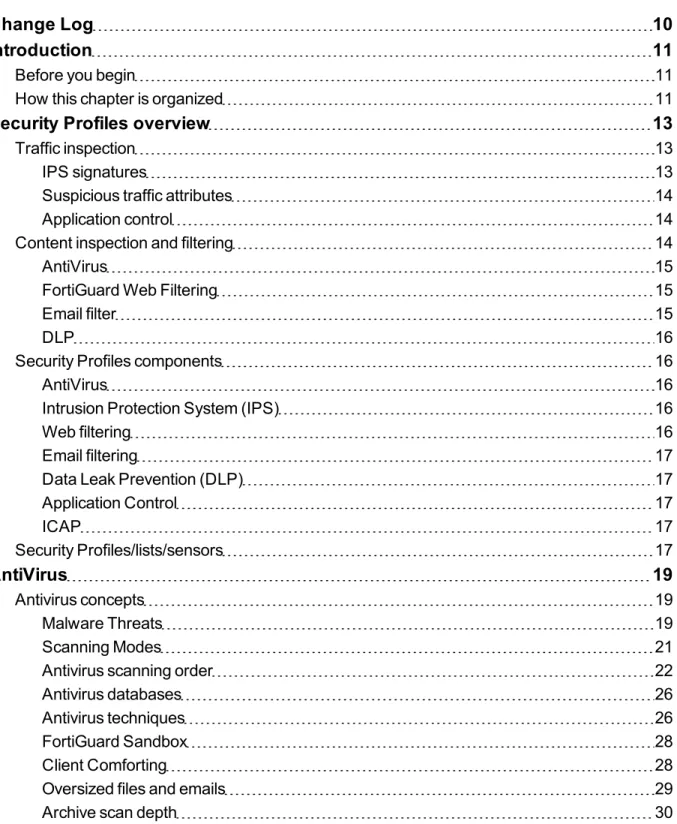
TABLE OF CONTENTS
Change Log
10
Introduction
11
Before you begin
11
How this chapter is organized
11
Security Profiles overview
13
Traffic inspection
13
IPS signatures
13
Suspicious traffic attributes
14
Application control
14
Content inspection and filtering
14
AntiVirus
15
FortiGuard Web Filtering
15
Email filter
15
DLP
16
Security Profiles components
16
AntiVirus
16
Intrusion Protection System (IPS)
16
Web filtering
16
Email filtering
17
Data Leak Prevention (DLP)
17
Application Control
17
ICAP
17
Security Profiles/lists/sensors
17
AntiVirus
19
Antivirus concepts
19
Malware Threats
19
Scanning Modes
21
Antivirus scanning order
22
Antivirus databases
26
Antivirus techniques
26
Scan buffer size
30
Windows file sharing (CIFS)
31
Enabling AntiVirus scanning
32
Testing your antivirus configuration
34
Example Scenarios
34
Configuring simple default antivirus profile
34
Setting up a basic proxy-based Antivirus profile for email traffic
36
Adding the profile to a policy
37
Block files larger than 8 MB
38
Web filter
40
Web filter concepts
40
Different ways of controlling access
42
Order of web filtering
42
Inspection Modes
42
Proxy
42
Flow-based
42
DNS
43
FortiGuard Web Filtering Service
43
FortiGuard Web Filter and your FortiGate unit
44
FortiGuard Web Filter usage quotas
46
Overriding FortiGuard website categorization
47
The different methods of override
47
Using Alternate Categories
47
Using Alternate Profiles
49
SafeSearch
52
Search Keywords
53
YouTube Education Filter
53
Enabling YouTube Education Filter in CLI
53
Static URL Filter
54
URL Filter actions
55
Status
56
Configuring a URL filter
57
Referer URL
58
Web content filter
59
General configuration steps
59
Creating a web filter content list
59
Configuring a web content filter list
60
How content is evaluated
60
Enabling the web content filter and setting the content threshold
61
Advanced web filter configurations
61
Block HTTP redirects by rating
62
Block Invalid URLs
62
Cookie filter
62
Provide Details for Blocked HTTP 4xx and 5xx Errors
62
HTTP POST action
62
Java applet filter
63
Rate Images by URL
63
Rate URLs by Domain and IP Address
63
Web resume download block
64
Restrict Google account usage to specific domains
64
Block non-English character URLs
64
Configuring Web Filter Profiles
65
Enabling FortiGuard Web Filter
65
General configuration steps
66
Configuring FortiGuard Web Filter settings
66
To configure the FortiGuard Web Filter categories
67
Configuring FortiGuard Category Quotas
67
Configure Allowed Blocked Overrides
68
Configure Search Engine Section
68
Configure Static URL Filter
68
Configure Rating Options
69
Configure Proxy Options
69
Web filtering example
70
School district
70
Application control
74
Application control concepts
74
Application Control Actions
75
Allow
75
Monitor
75
Block
75
Reset
75
Traffic Shaping
75
View Signatures
76
Application considerations
76
IM applications
76
Skype
76
SPDY
77
Working with other FortiOS components
77
WAN Optimization
77
Application control monitor
78
Enable application control
79
General configuration steps
79
Creating an application sensor
79
Adding applications to an application sensor
79
Creating a New Custom Application Signature
81
Enabling application traffic shaping
81
Messages in response to blocked applications
81
Application control examples
81
Blocking all instant messaging
82
Allowing only software updates
82
Intrusion protection
84
IPS concepts
84
Anomaly-based defense
84
Signature-based defense
84
Enable IPS scanning
87
General configuration steps
87
Creating an IPS sensor
87
Adding an IPS filter to a sensor
88
Updating predefined IPS signatures
91
Viewing and searching predefined IPS signatures
91
IPS processing in an HA cluster
92
Active-passive
92
Active-active
92
Configure IPS options
92
Hardware Acceleration
92
Extended IPS Database.
93
Configuring the IPS engine algorithm
93
Configuring the IPS engine-count
93
Configuring fail-open
93
Configuring the session count accuracy
94
Configuring IPS intelligence
94
Configuring the IPS buffer size
94
Configuring protocol decoders
94
Configuring security processing modules
95
IPS signature rate count threshold
95
Enable IPS packet logging
96
IPS examples
96
Configuring basic IPS protection
96
Using IPS to protect your web server
98
IPS Sensor
103
Custom Application & IPS Signatures
104
Creating a custom IPS signature
104
Custom signature syntax and keywords
104
Custom signature keywords
105
Information keywords
105
Session keywords
106
Content keywords
106
IP header keywords
110
TCP header keywords
112
UDP header keywords
113
ICMP keywords
114
Other keywords
114
Creating a custom signature to block access to example.com
116
Creating a custom signature to block the SMTP “vrfy” command
118
Creating a custom signature to block files according to the file's hash value
119
Email filter
121
Email filter concepts
121
Email filter techniques
121
Black white list
121
Banned word check
122
DNS-based Blackhole List (DNSBL)
124
FortiGuard-Antispam Service.
124
Trusted IP Addresses
124
MIME header
125
HELO DNS lookup
125
Return email DNS check
125
Order of spam filtering
125
Order of SMTP and SMTPS spam filtering
125
Order of IMAP, POP3, IMAPS and POP3S spam filtering
126
Spam actions
126
Discard
126
Pass
126
Tag
126
Email traffic types to inspect
126
Configuring an Email Filters
127
Spam detection by protocol
127
FortiGuard Spam Filtering
128
Local Spam Filtering
128
Data leak prevention
131
Data leak prevention concepts
131
DLP sensor
131
DLP filter
131
DLP Filter Actions
132
Preconfigured sensors
132
DLP document fingerprinting
133
Fingerprinting
133
File size
135
DLP filtering by specific file types
135
Watermarking
135
Regular expression
137
Encrypted
137
Examining specific services
137
DLP archiving
137
Enable data leak prevention
138
General configuration steps
138
Creating/editing a DLP sensor
139
Adding filters to a DLP sensor
139
DLP examples
141
Blocking content with credit card numbers
141
Blocking emails larger than 15 MB and logging emails from 5 MB to 15 MB
142
Selective blocking based on a finger print
143
ICAP
147
The Protocol
147
Offloading using ICAP
148
Configuration Settings
148
Servers
148
Profiles
149
Example ICAP sequence
149
Example Scenario
150
Other Security Profiles considerations
152
Security Profiles and Virtual domains (VDOMs)
153
Conserve mode
153
The AV proxy
153
Conserve mode trigger mechanisms
153
Entering and exiting conserve mode
154
Conserve mode effects
154
Configuring the av-failopen command
155
Conserve mode and session removal
155
Exceptions
158
Configuring packet logging options
158
Change Log
Change Log
Date Change Description
2015-10-22 New sectionCreating a custom signature to block files according to the file's hash value on page 119.
2015-06-05 Updates throughout.
Introduction Before you begin
Introduction
Welcome and thank you for selecting Fortinet products for your network protection.
The following chapter describes the Security Profile features available on your FortiGate unit, including antivirus, intrusion prevention system (IPS), web filtering, email filtering, data leak prevention, (DLP) and application control. The guide includes step-by-step instructions showing how to configure each feature. Example scenarios are included, with suggested configurations.
Examples include scenarios using web filtering to protect users from inappropriate content, using IPS to protect web servers from attack, and using antivirus scanning to protect your network against viruses and malicious file attachments.
This section contains the following topics:
l Before you begin
l How this chapter is organized
Before you begin
Before you begin using this guide, take a moment to note the following:
Administrators are assumed to be super_admin administrators unless otherwise specified. Some restrictions will apply to other administrators.
Firewall policies limit access, and, while this and other similar features are a vital part of securing your network, they are not covered in this guide.
If your FortiGate unit supports SSL acceleration, it also supports SSL content scanning and inspection for HTTPS, IMAPS, POP3S, and SMTPS traffic.
How this chapter is organized
This FortiOS Handbook chapter contains the following sections:
Security Profiles overview describes Security Profiles components and their relation to firewall policies, as well as SSL content scanning and inspection. We recommend starting with this section to become familiar with the different features in your FortiGate unit.
Client Reputation explains how to track client behavior and report on activities that you determine are risky or otherwise noteworthy.
AntiVirus explains how the FortiGate unit scans files for viruses and describes how to configure the antivirus options.
Email filter explains how the FortiGate unit filters email, describes how to configure the filtering options and the action to take with email detected as spam.
How this chapter is organized Introduction
Intrusion protection explains basic Intrusion Protection System (IPS) concepts and how to configure IPS options; includes guidance and a detailed table for creating custom signatures as well as several examples.
Web filter and FortiGuard Web Filter The first of these sections describes basic web filtering concepts, the order in which the FortiGate unit performs web filtering, and configuration. The second section describes enhanced features of the subscription-based FortiGuard Web Filtering service and explains how to configure them. We recommend reading both sections if you are using FortiGuard Web Filtering because settings you configure in one feature may affect the other.
Data leak prevention describes the DLP features that allow you to prevent sensitive data from leaving your network and explains how to configure the DLP rules, compound rules, and sensors.
Application control describes how your FortiGate unit can detect and take action against network traffic based on the application generating the traffic.
Security Profiles overview Traffic inspection
Security Profiles overview
Ranging from the FortiGate®-30 series for small businesses to the FortiGate-5000 series for large enterprises, service providers and carriers, the FortiGate line combines a number of security features to protect your network from threats. As a whole, these features, when included in a single Fortinet security appliance, are referred to as Security Profiles. The Security Profiles features your FortiGate model includes are:
l AntiVirus
l Intrusion Prevention System (IPS) l Web filtering
l E-mail filtering, including protection against spam and grayware l Data Leak Prevention (DLP)
l Application Control l ICAP
Firewall policies limit access, and while this and similar features are a vital part of securing your network, they are not covered in this document.
The following topics are included in this section:
l Traffic inspection
l Content inspection and filtering l Security Profiles components l Security Profiles/lists/sensors
Traffic inspection
When the FortiGate unit examines network traffic one packet at a time for IPS signatures, it is performing traffic analysis. This is unlike content analysis where the traffic is buffered until files, email messages, web pages, and other files are assembled and examined as a whole.
DoS policies use traffic analysis by keeping track of the type and quantity of packets, as well as their source and destination addresses.
Application control uses traffic analysis to determine which application generated the packet.
Although traffic inspection doesn’t involve taking packets and assembling files they are carrying, the packets themselves can be split into fragments as they pass from network to network. These fragments are reassembled by the FortiGate unit before examination.
No two networks are the same and few recommendations apply to all networks. This topic offers suggestions on how you can use the FortiGate unit to help secure your network against content threats.
IPS signatures
Content inspection and filtering Security Profiles overview
vulnerability. IPS may also detect when infected systems communicate with servers to receive instructions.
IPS recommendations
l Enable IPS scanning at the network edge for all services.
l Use FortiClient endpoint IPS scanning for protection against threats that get into your network.
l Subscribe to FortiGuard IPS Updates and configure your FortiGate unit to receive push updates. This will ensure
you receive new IPS signatures as soon as they are available.
l Your FortiGate unit includes IPS signatures written to protect specific software titles from DoS attacks. Enable the
signatures for the software you have installed and set the signature action toBlock.
l You can view these signatures by going toSecurity Profiles > Intrusion Protectionand selecting the[View IPS Signatures]link.
l Because it is critical to guard against attacks on services that you make available to the public, configure IPS
signatures to block matching signatures. For example, if you have a web server, configure the action of web server signatures toBlock.
Suspicious traffic attributes
Network traffic itself can be used as an attack vector or a means to probe a network before an attack. For example, SYN and FIN flags should never appear together in the same TCP packet. The SYN flag is used to initiate a TCP session while the FIN flag indicates the end of data transmission at the end of a TCP session.
The FortiGate unit has IPS signatures that recognize abnormal and suspicious traffic attributes. The SYN/FIN combination is one of the suspicious flag combinations detected in TCP traffic by theTCP.BAD.FLAGS
signature.
The signatures that are created specifically to examine traffic options and settings, begin with the name of the traffic type they are associated with. For example, signatures created to examine TCP traffic have signature names starting with TCP.
Application control
While applications can often be blocked by the ports they use, application control allows convenient management of all supported applications, including those that do not use set ports.
Application control recommendations
l Some applications behave in an unusual manner in regards to application control. For more information, see
"Application considerations".
l By default, application control allows the applications not specified in the application control list. For high security
networks, you may want to change this behavior so that only the explicitly allowed applications are permitted.
Content inspection and filtering
When the FortiGate unit buffers the packets containing files, email messages, web pages, and other similar files for reassembly before examining them, it is performing content inspection. Traffic inspectionTraff, on the other hand, is accomplished by the FortiGate unit examining individual packets of network traffic as they are received.
Security Profiles overview Content inspection and filtering
No two networks are the same and few recommendations apply to all networks. This topic offers suggestions on how you can use the FortiGate unit to help secure your network against content threats. Be sure to understand the effects of the changes before using the suggestions.
AntiVirus
The FortiGate antivirus scanner can detect viruses and other malicious payloads used to infect machines. The FortiGate unit performs deep content inspection. To prevent attempts to disguise viruseAns, the antivirus scanner will reassemble fragmented files and uncompress content that has been compressed. Patented Compact Pattern Recognition Language (CPRL) allows further inspection for common patterns, increasing detection rates of virus variations in the future.
AntiVirus recommendations
l Enable antivirus scanning at the network edge for all services.
l Use FortiClient endpoint antivirus scanning for protection against threats that get into your network.
l Subscribe to FortiGuard AntiVirus Updates and configure your FortiGate unit to receive push updates. This will
ensure you receive new antivirus signatures as soon as they are available.
l Enable the Extended Virus Database if your FortiGate unit supports it.
l Examine antivirus logs periodically. Take particular notice of repeated detections. For example, repeated virus
detection in SMTP traffic could indicate a system on your network is infected and is attempting to contact other systems to spread the infection using a mass mailer.
l Thebuiltin-patternsfile filter list contains nearly 20 file patterns. Many of the represented files can be executed or
opened with a double-click. If any of these file patterns are not received as a part of your normal traffic, blocking them may help protect your network. This also saves resources since files blocked in this way do not need to be scanned for viruses.
l To conserve system resources, avoid scanning email messages twice. Scan messages as they enter and leave your
network or when clients send and retrieve them, rather than both.
FortiGuard Web Filtering
The web is the most popular part of the Internet and, as a consequence, virtually every computer connected to the Internet is able to communicate using port 80, HTTP. Botnet communications take advantage of this open port and use it to communicate with infected computers. FortiGuard Web Filtering can help stop infections from malware sites and help prevent communication if an infection occurs.
FortiGuard Web Filtering recommendations
l Enable FortiGuard Web Filtering at the network edge.
l Install the FortiClient application and use FortiGuard Web Filtering on any systems that bypass your FortiGate unit. l Block categories such as Pornography, Malware, Spyware, and Phishing. These categories are more likely to be
dangerous.
l In the email filter profile, enableIP Address CheckinFortiGuard Email Filtering. Many IP addresses used in
spam messages lead to malicious sites; checking them will protect your users and your network.
Email filter
Security Profiles components Security Profiles overview
the potential danger.
Email filter recommendations
l Enable email filtering at the network edge for all types of email traffic.
l Use FortiClient endpoint scanning for protection against threats that get into your network. l Subscribe to the FortiGuard AntiSpam Service.
DLP
Most security features on the FortiGate unit are designed to keep unwanted traffic out of your network while DLP can help you keep sensitive information from leaving your network. For example, credit card numbers and social security numbers can be detected by DLP sensors.
DLP recommendations
l Rules related to HTTP posts can be created, but if the requirement is to block all HTTP posts, a better solution is to
use application control or theHTTP POST Actionoption in the web filter profile.
l While DLP can detect sensitive data, it is more efficient to block unnecessary communication channels than to use
DLP to examine it. If you don’t use instant messaging or peer-to-peer communication in your organization, for example, use application control to block them entirely.
Security Profiles components
AntiVirus
Your FortiGate unit stores a virus signature database that can identify more than 15,000 individual viruses. FortiGate models that support additional virus databases are able to identify hundreds of thousands of viruses. With a FortiGuard AntiVirus subscription, the signature databases are updated whenever a new threat is discovered.
AntiVirus also includes file filtering. When you specify files by type or by file name, the FortiGate unit will stop the matching files from reaching your users.
FortiGate units with a hard drive or configured to use a FortiAnalyzer unit can store infected and blocked files for that you can examine later.
Intrusion Protection System (IPS)
The FortiGate Intrusion Protection System (IPS) protects your network against hacking and other attempts to exploit vulnerabilities of your systems. More than 3,000 signatures are able to detect exploits against various operating systems, host types, protocols, and applications. These exploits can be stopped before they reach your internal network.
You can also write custom signatures, tailored to your network.
Web filtering
Security Profiles overview Security Profiles/lists/sensors
FortiGuard Web Filtering is a subscription service that allows you to limit access to web sites. More than 60 million web sites and two billion web pages are rated by category. You can choose to allow or block each of the 77 categories.
URL filtering can block your network users from access to URLs that you specify.
Web content filtering can restrict access to web pages based on words and phrases appearing on the web page itself. You can build lists of words and phrases, each with a score. When a web content list is selected in a web filter profile, you can specify a threshold. If a user attempts to load a web page and the score of the words on the page exceeds the threshold, the web page is blocked.
Email filtering
FortiGuard AntiSpam is a subscription service that includes an IP address black list, a URL black list, and an email checksum database. These resources are updated whenever new spam messages are received, so you do not need to maintain any lists or databases to ensure accurate spam detection.
You can use your own IP address lists and email address lists to allow or deny addresses, based on your own needs and circumstances.
Data Leak Prevention (DLP)
Data leak prevention allows you to define the format of sensitive data. The FortiGate unit can then monitor network traffic and stop sensitive information from leaving your network. Rules for U.S. social security numbers, Canadian social insurance numbers, as well as Visa, Mastercard, and American Express card numbers are included.
Application Control
Although you can block the use of some applications by blocking the ports they use for communications, many applications do not use standard ports to communicate. Application control can detect the network traffic of more than 1000 applications, improving your control over application communication.
ICAP
This module allows for the offloading of certain processes to a separate server so that your FortiGate firewall can optimize its resources and maintain the best level of performance possible.
Security Profiles/lists/sensors
A profile is a group of settings that you can apply to one or more firewall policies. Each Security Profile feature is enabled and configured in a profile, list, or sensor. These are then selected in a security policy and the settings apply to all traffic matching the policy. For example, if you create an antivirus profile that enables antivirus scanning of HTTP traffic, and select the antivirus profile in the security policy that allows your users to access the World Wide Web, all of their web browsing traffic will be scanned for viruses.
Because you can use profiles in more than one security policy, you can configure one profile for the traffic types handled by a set of firewall policies requiring identical protection levels and types, rather than repeatedly
Security Profiles/lists/sensors Security Profiles overview
For example, while traffic between trusted and untrusted networks might need strict protection, traffic between trusted internal addresses might need moderate protection. To provide the different levels of protection, you might configure two separate sets of profiles: one for traffic between trusted networks, and one for traffic between trusted and untrusted networks.
The Security Profiles include:
l Antivirus profile l IPS sensor l Web filter profile l Email filter profile
l Data Leak Prevention profile l Application Control list l VoIP profile
Although they’re called profiles, sensors, and lists, they’re functionally equivalent. Each is used to configure how the feature works.
AntiVirus Antivirus concepts
AntiVirus
This section describes how to configure the antivirus options. From an antivirus profile you can configure the FortiGate unit to apply antivirus protection to HTTP, FTP, IMAP, POP3, SMTP, and NNTP sessions. If your FortiGate unit supports SSL content scanning and inspection, you can also configure antivirus protection for HTTPS, IMAPS, POP3S, SMTPS, and FTPS sessions.
In many cases you can just customize the default antivirus profile and apply it to the security policy that accepts the traffic to be virus scanned. You can also create custom antivirus profiles if want to apply different types of virus protection to different traffic.
The following topics are included in this section:
l Antivirus concepts
l Enabling AntiVirus scanning l Testing your antivirus configuration l Example Scenarios
Antivirus concepts
The word “antivirus” refers to a group of features that are designed to prevent unwanted and potentially malicious files from entering your network. These features all work in different ways, which include checking for a file size, name, or type, or for the presence of a virus or grayware signature.
The antivirus scanning routines your FortiGate unit uses are designed to share access to the network traffic. This way, each individual feature does not have to examine the network traffic as a separate operation, and the overhead is reduced significantly. For example, if you enable file filtering and virus scanning, the resources used to complete these tasks are only slightly greater than enabling virus scanning alone. Two features do not require twice the resources.
Antivirus scanning examines files for viruses, worms, trojans, and other malware. The antivirus scan engine has a database of virus signatures it uses to identify infections. If the scanner finds a signature in a file, it determines that the file is infected and takes the appropriate action.
Malware Threats
Viruses
Viruses are self replicating code that install copies of themselves into other programs, data files for boot sectors of storage devices. Virus can often carry a “payload” which performs some undesirable function. These functions can include but are not limited to:
Antivirus concepts AntiVirus
l Accessing private information l Corrupting data
l Digital defacement or vandalism l Spamming contact lists
Worms
A worm is a piece of standalone computer code that replicates itself in order to spread to other computers. It normally uses a computer network to spread itself, using security vulnerabilities on the target computer or
network to propagate. Unlike a virus, it does not attach itself to an existing file. Even is there is no payload, worms consume resources such as bandwidth and storage space just through their act of replication.
Trojan horses
A Trojan horse, or Trojan is malware that is defined by its delivery method. Through the use of social engineering, or some other method, the code is installed on a system by a valid user of the system and like the original Trojan horse there is something more than advertised within the software. Trojans, unlike worms or viruses are generally non-self-replicating. The most common payload of a Trojan is the setting up of a “backdoor” control mechanism to the system that it is installed on.
Ransomware
Ransomware is a type of malware that, as the name implies, hold the system ransom until payment of some kind is made. It does this by restricting access to the legitimate owner of the system either by encrypting files or locking the system. Usually, a message of some kind is displayed with the demands. Upon payment a utility or key is sent to the user to unlock the system.
Scareware
Scareware comes in two main flavours; the first tries to convince the user that his computer is invected with some non-existent malware, scaring the user into purchasing the author’s virus removal utility. The utility is
nonfunctional or some additional form of malware.
The second form tries to convince the user that the computer has been or is being used for an illegal act such as being part of a bot net or storing child pornography. Again, the objective is to scare the user into paying to cure something that is not really there.
Spyware
Spyware is used by its authors to collect information about the user and its computer without the users knowledge. The end result can be as benign as being better able to target adds, to as criminal as key loggers designed to record account ids and passwords of bank accounts and forward them off to the authors.
Adware
Adware is not malware per se. It is merely any software that produces advertisements in order to generate revenue for its author. While a lot of people find this inconvenient or irritating it is not malware. As such it is not blocked by the antivirus software for being malware. This doesn’t mean that software that has adware built into it will not be block if it does have malware in it.
AntiVirus Antivirus concepts
Botnets
A botnet is a network of Internet connected computers that have been covertly usurped to forward transmissions to other computers on the Internet on behalf of a “master”. These transmission can be merely annoying such as spam or they can critically impact a target as when used to launch a Distributed Denial of Service attack.
Any such computer is referred to as a zombie - in effect, a computer "robot" or "bot" that serves the wishes of some master spam or virus originator. Most computers compromised in this way are home-based.
According to a report from Russian-based Kaspersky Labs, botnets -- not spam, viruses, or worms -- currently pose the biggest threat to the Internet. A report from Symantec came to a similar conclusion.
Phishing
Phishing is a social engineering technique that is used to obtain sensitive and confidential information by masquerading as a communication from a trusted entity such as a well known institution, company or website. Usually, the malware is not in the communication itself but in the links within the communication.
Grayware
Grayware programs are unsolicited software programs installed on computers, often without the user’s consent or knowledge. Grayware programs are generally considered an annoyance, but they can also cause system
performance problems or be used for malicious purposes.
Scanning Modes
FortiOS has two different mode of scanning for malware. The reasons for the different modes are performance and granularity. In just about everything relating to security there is a constant balancing act going on. As you increase the level of security and comprehensiveness, there is by necessity a decrease in either convenience or performance, sometimes both. The increase in processing to scan for more threats requires more resources; resources that are a finite supply on the hardware. Granularity can sometimes be used to mitigate performance impact by scanning for a smaller subset of traffic but this is only recommended when that smaller subset of traffic is the only traffic going through the firewall.
If the the traffic on the device is slight then the impact on the performance will hardly be noticeable, but it the unit is working close to capacity in terms of traffic and there are a lot of files coming through then there might be a noticeable decline in the performance.
While both modes offer significant security, Proxy-based is weighted towards being more thorough and easily configurable, while Flow-based is designed to optimize performance.
Proxy
The most thorough scan requires that the FortiGate unit have the whole file for the scanning procedure. To achieve this, the antivirus proxy buffers the file as it arrives. Once the transmission is complete, the virus scanner examines the file. If no infection is present, it is sent to the destination. If an infection is present, a replacement message is set to the destination.
During the buffering and scanning procedure, the client must wait. With a default configuration, the file is
released to the client only after it is scanned. You can enable client comforting in the Proxy Options profile to feed the client a trickle of data to prevent them from thinking the transfer is stalled, and possibly cancelling the
Antivirus concepts AntiVirus
Buffering the entire file allows the FortiGate unit to eliminate the danger of missing an infection due to fragmentation because the file is reassembled before examination. Archives can also be expanded and the contents scanned, even if archives are nested.
Since the FortiGate unit has a limited amount of memory, files larger than a certain size do not fit within the memory buffer. The default buffer size is 10 MB. You can use the uncompsizelimit CLI command to adjust the size of this memory buffer.
Files larger than the buffer are passed to the destination without scanning. You can use theOversize File/Email
setting to block files larger than the antivirus buffer if allowing files that are too large to be scanned is an unacceptable security risk.
Flow-based
If your FortiGate unit supports flow-based antivirus scanning, you can select it instead of proxy-based antivirus scanning. The way flow-based antivirus works changed significantly starting with firmware version 5.2. In fact, the new method of flow-based antivirus inspection is sometimes called "deep flow" inspection to differentiate it from the older method.
As packets of a file come into the FortiGate unit, a copy of the packet is cached locally before the packet is allowed to pass through to the recipient. When the last packet of the file arrives, it is also cached but put on hold. Now the entire cached file is delivered to the Antivirus engine for a full scanning, just as it would be if using the proxy-based method, using what ever antivirus database has been configured.
If the file is determined to be infected with malware, the last packet will be dropped and the session is reset. Without all of the packets the file cannot be built by the recipient. When download a file through an HTTP connection (or HTTPS is SSL scanning is enabled), the flow-based feature remembers the last virus result so any subsequent attempts to download the same file will be welcomed by an appropriate blocked message directly, without engaging in the effort of downloading the file.
By using the same engine as the proxy-based method the detection rate is the same for both methods. In terms of performance from the end user’s stand point, the performance of the download will be a lot faster until the last packet and then there will be a slight delay for the scan, but after the determination is made only one packet has to be sent from the firewall to the recipient so the overall speed is faster than the proxy based method.
An additional advantage of the flow-based method is that the scanning process does not change the packets as they pass through the FortiGate unit, while proxy-based scanning can change packet details such as sequence numbers. The changes made by proxy-based scanning do not affect most networks.
Antivirus scanning order
The antivirus scanning function includes various modules and engines that perform separate tasks.
Proxy-based antivirus scanning order
The following figure illustrates the antivirus scanning order when using proxy-based scanning. The first check for oversized files/email is to determine whether the file exceeds the configured size threshold. The
uncompsizelimitcheck is to determine if the file can be buffered for file type and antivirus scanning. If the file is too large for the buffer, it is allowed to pass without being scanned. For more information, see theconfig antivirus servicecommand. The antivirus scan includes scanning for viruses, as well as for grayware and heuristics if they are enabled.
AntiVirus Antivirus concepts
File filtering includes file pattern and file type scans which are applied at different stages in the antivirus process.
Antivirus scanning order when using the normal, extended, or extreme database
Antivirus concepts AntiVirus
message, and delete or quarantine the file. The unit will not perform virus scan, grayware, heuristics, and file type scans because the previous checks have already determined that the file is a threat and have dealt with it.
Flow-based antivirus scanning order
The following figure illustrates the antivirus scanning order when using flow-based scanning (i.e. the flow-based database). The antivirus scan takes place before any other antivirus-related scan. If file filter is not enabled, the file is not buffered. The antivirus scan includes scanning for viruses, as well as for grayware and heuristics if they are enabled.
Antivirus concepts AntiVirus
Antivirus databases
The antivirus scanning engine relies on a database of virus signatures to detail the unique attributes of each infection. The antivirus scan searches for these signatures, and when one is discovered, the FortiGate unit determines the file is infected and takes action.
All FortiGate units have the normal antivirus signature database but some models have additional databases you can select for use. Which you choose depends on your network and security needs.
Normal Includes viruses currently spreading as determined by the FortiGuard Global Security Research Team. These viruses are the greatest threat. The Normal database is the default selection and it is available on every FortiGate unit.
Extended
Includes the normal database in addition to recent viruses that are no-longer active. These viruses may have been spreading within the last year but have since nearly or completely disappeared.
Extreme Includes the extended database in addition to a large collection of ‘zoo’ viruses. These are viruses that have not spread in a long time and are largely dormant today. Some zoo viruses may rely on operating systems and hardware that are no longer widely used.
If your FortiGate unit supports extended, extreme, or flow-based virus database definitions, you can select the virus database most suited to your needs.
If you require the most comprehensive antivirus protection, enable the extended virus database. The additional coverage comes at a cost, however, because the extra processing requires additional resources.
To change the antivirus database
Use the CLI to run the following commands: config antivirus settings
set default-db extended end
Antivirus techniques
The first three antivirus features work in sequence to efficiently scan incoming files and offer your network optimum antivirus protection. The first two features have specific functions, the third, heuristics, protects against new, or previously unknown virus threats.
To ensure that your system is providing the most protection available, all virus definitions and signatures are updated regularly through the FortiGuard antivirus services.
The Botnet protection looks for links to malware rather than malware itself.
Virus scan
If the file passes the file pattern scan, the FortiGate unit applies a virus scan to it. The virus definitions are kept up-to-date through the FortiGuard Distribution Network (FDN).
AntiVirus Antivirus concepts
Grayware protection
If the file passes the virus scan, it can be checked for grayware.
Grayware scanning is an optional function and must be enabled in the CLI if it is to be scanned for along with other malware. Grayware cannot be scanned for on its own. While done as a separate step, antivirus scanning must be enabled as well.
To enable grayware detection enter the following in the CLI:
config antivirus settings set grayware enable end
To disable grayware detection enter the following in the CLI:
config antivirus settings set grayware disable end
Grayware signatures are kept up to date in the same manner as the antivirus definitions.
Heuristics
After an incoming file has passed the grayware scan, it is subjected to the heuristics scan. The FortiGate heuristic antivirus engine, if enabled, performs tests on the file to detect virus-like behavior or known virus indicators. In this way, heuristic scanning may detect new viruses, but may also produce some false positive results. You configure heuristics from the CLI.
To set heuristics, enter the following in the CLI:
config antivirus heuristic
set mode {pass |block |disable} end
l “block” enables heuristics and any files determined to be malware are blocked from entering the network. l “pass” enables heuristics but any files determined to be malware are still allowed to pass through to the recipient. l “disable” turns off heuristics.
FortiGuard Antivirus
The FortiGuard Antivirus services are included in the regular FortiGuard subscription and include automatic updates of antivirus engines and definitions as well as a DNS black list (DNSBL) through the FortiGuard Distribution Network (FDN).
Current information about your subscription and version numbers can be found atSystem > Config >
FortiGuard.This page will also allow the configuration of connections to the FortiGuard Center and how often to check for updates to the antivirus files.
Botnet protection
Protection from having your system being controlled by a botnet is achieved by detecting and blocking connection attempts to known botnets. This feature also includes connections to known phishing sites. The antivirus
database includes a constantly updated database of known command and control (C&C) sites that Botnet clients attempt to connect to, as well as a database of phishing URLs.
Antivirus concepts AntiVirus
The Botnet protection feature is available for both proxy and flow-based antivirus profiles.
Quarantine / Source IP ban
Starting in FortiOS 5.2, the quarantine, as a place where traffic content was held in storage where it couldn’t interact with the network or system was removed, but the term quarantine was kept to describe keeping selected source IPs from interacting with the network and protected systems. This source IP ban is kept in the kernel rather than in any specific application engine and can be queried by APIs. The features that can use the APIs to access and use the banned source IP addresses are antivirus, DLP, DoS and IPS. Both IPv4 and IPv6 version are included in this feature.
To configure the antivirus profile to add the source IP address of an infected file to the quarantine or list of banned source IP addresses edit the Antivirus profile, in the CLI. as follows:
config antivirus profile edit <name of profile>
config nac-quar
set infected quar-src-ip set expiry 5m
end
If thequar-src-ipaction is used, the additional variable of expiry time will become available. This variable determines for how long the source IP adddress will be blocked. In the CLI the option is calledexpiryand the duration is in the format<###d##h##m>. The maximum days value is 364. The maximum hour value is 23 and the maximum minute value is 59. The default is 5 minutes.
FortiGuard Sandbox
Not every piece of malware has a signature yet. This is especially true of new malware and new variations on existing malware. FortiOS can upload suspicious files to FortiGuard Sandbox where the file will be executed and the resulting behavior analyzed for risk. If the file exhibits risky behavior or is found to contain a virus, a new virus signature is created and added to the FortiGuard antivirus signature database. The next time your FortiGate unit updates its antivirus database it will have the new signature.
A file is considered suspicious if it does not contain a known virus and if it has some suspicious characteristics. The suspicious characteristics can change depending on the current threat climate and other factors. Fortinet optimizes how files are uploaded as required.
To configure an Antivirus profile to enable the use of the FortiGuard Sandbox check the checkbox next toSend Files to FortiGuard Sandbox for Inspection (Requires FortiCloud account).
Sending files to the FortiGuard Sandbox does not block files that it uploads. Instead they are used to improve how quickly new threats can be discovered and signatures created for them and added to the FortiGuard antivirus database.
The Advanced Threat Protection dashboard widget shows the number of files that your FortiGate unit has uploaded or submitted to FortiGuard Sandbox.
Client Comforting
When proxy-based antivirus scanning is enabled, the FortiGate unit buffers files as they are downloaded. Once the entire file is captured, the FortiGate unit scans it. If no infection is found, the file is sent along to the client. The client initiates the file transfer and nothing happens until the FortiGate finds the file clean, and releases it.
AntiVirus Antivirus concepts
Users can be impatient, and if the file is large or the download slow, they may cancel the download, not realizing that the transfer is in progress.
The client comforting feature solves this problem by allowing a trickle of data to flow to the client so they can see the file is being transferred. The default client comforting transfer rate sends one byte of data to the client every ten seconds. This slow transfer continues while the FortiGate unit buffers the file and scans it. If the file is infection-free, it is released and the client will receive the remainder of the transfer at full speed. If the file is infected, the FortiGate unit caches the URL and drops the connection. The client does not receive any notification of what happened because the download to the client had already started. Instead, the download stops and the user is left with a partially downloaded file.
If the user tries to download the same file again within a short period of time, the cached URL is matched and the download is blocked. The client receives the Infection cache message replacement message as a notification that the download has been blocked. The number of URLs in the cache is limited by the size of the cache.
Client comforting can send unscanned and therefore potentially infected content to the client. You should only enable client comforting if you are prepared to accept this risk. Keeping the client comforting interval high and the amount low will reduce the amount of potentially infected data that is downloaded.
Client comforting is available for HTTP and FTP traffic. If your FortiGate unit supports SSL content scanning and inspection, you can also configure client comforting for HTTPS and FTPS traffic.
Enable and configure client comforting
1. Go toPolicy & Objects> Policy > Proxy Options.
2. Select a Proxy Options profile and chooseEdit, or selectCreate Newto make a new one.
3. Scroll down to theCommon Optionssection and check the box next toComfort Clients. This will set the option on all of the applicable protocols. The ability to set this feature on a protocol by protocol basis exists in the CLI
4. SelectOK or Applyto save the changes.
5. Select this Proxy Options profile in any security policy for it to take effect on all traffic handled by the policy. The default values for Interval and Amount are 10 and 1, respectively. This means that when client comforting takes effect, 1 byte of the file is sent to the client every 10 seconds. You can change these values to vary the amount and frequency of the data transferred by client comforting.
Oversized files and emails
Downloaded files can range from a few Kilobytes to multiple Gigabytes. The problem lies in that a FortiGate doesn’t have the memory to allow for a large number of people downloading large files. Image the memory required for a team of developers to all download the latest Linux OS distribution at once, in addition to the normal requirements of the firewall. Everything would come to a grinding halt the FortiGate tried to store each of those Gibabyte+ files in memory. To give you some piece of mind, the chances of malware being in a large file like those is much smaller than in a smaller single Megabyte file, so the threat is somewhat limited, but you will probably want to use your computers antivirus software to scan those large files after they have been
downloaded.
Therefore a threshold must be set to prevent the resources of the system from becoming overloaded. By default the threshold is 10 MB. Any files larger than the threshold will not be scanned for malware. With a maximum file size threshold in place, it must now be determined what is to be done with the files that are larger than threshold.
Antivirus concepts AntiVirus
There are only 2 choices; either the file is passed through without being scanned for malware or the file is blocked. The default action for oversized files is to pass them through.
If you wish to block the downloading of files over the threshold, this can be set within the Proxy Option profile found atPolicy & Objects > Policy > Proxy Options, underCommon Options.
Check Block Oversized File/Email
This will reveal an additional option, Threshold (MB). The threshold of the files is set based upon the protocol being used to transfer the file. In the CLI and configuration file, the threshold variable is found in each of the protocol sections within the profile. Changing the value in this field will change theoversize-limit value for all of the protocols.
If you wish to change the oversize-limit value on all of the protocols covered in a Proxy Option profile you have two options.
1. You can go into the CLI and change the value manually within each of the protocol sections.
2. You can use the GUI to temporarily block oversized files, and when configuring it change the threshold to the new value that you want. Apply this setting. Then go back to the profile and turn off the block setting. If you now go into the CLI you will find that the configuration file has retained the new oversize-limit value.
The settings can be found in the CLI by going to:
config firewall profile-protocol-options edit <the name of the profile>
Archive scan depth
The antivirus scanner will open archives and scan the files inside. Archives within other archives, or nested archives, are also scanned to a default depth of twelve nestings. You can adjust the number of nested archives to which the FortiGate unit will scan with the uncompressed-nest-limit CLI command. Further, the limit is configured separately for each traffic type.
Configuring archive scan depth
For example, this CLI command sets the archive scan depth for SMTP traffic to 5. That is, archives within archives will be scanned five levels deep.
config firewall profile-protocol-options
edit “default” config http
set uncompressed-nest-limit 5 end
You can set the nesting limit from 2 to 100.
Scan buffer size
When checking files for viruses, there is a maximum file size that can be buffered. Files larger than this size are passed without scanning. The default size for all FortiGate models is 10 megabytes.
Archived files are extracted and email attachments are decoded before the FortiGate unit determines if they can fit in the scan buffer. For example, a 7 megabyte ZIP file containing a 12 megabyte EXE file will be passed without scanning with the default buffer size. Although the archive would fit within the buffer, the uncompressed file size will not.
AntiVirus Antivirus concepts
Configuring the uncompression buffer
In this example, theuncompressed-oversize-limitCLI command is used to change the scan buffer size to 20 megabytes for files found in HTTP traffic:
config firewall profile-protocol-options edit “default”
config http
set uncompressed-oversize-limit 20 end
The maximum buffer size varies by model. Enterset uncompressed-oversize-limit ?to display the buffer size range for your FortiGate unit.
Windows file sharing (CIFS)
FortiOS supports virus scanning of Windows file sharing traffic. This includes CIFS, SMB, and SAMBA traffic. This feature is applied by enabling SMB scanning in an antivirus profile and then adding this profile to a security policy that accepts CIFS traffic. CIFS virus scanning is available only through flow-based antivirus scanning.
FortiOS flow-based virus scanning can detect the same number of viruses in CIFS/SMB/SAMBA traffic as it can for all supported content protocols.
Note the following about CFIS/SMB/SAMBA virus scanning:
l Some newer version of SAMBA clients and SMB2 can spread one file across multiple sessions, preventing some
viruses from being detected if this occurs.
l Enabling CIFS/SMB/SAMBA virus scanning can affect FortiGate performance. l SMB2 is a new version of SMB that was first partially implemented in Windows Vista.
l Currently SMB2 is supported by Windows Vista or later, and partly supported by Samba 3.5 and fully support by
Samba 3.6.
l The latest version of SMB2.2 will be introduced with Windows 8. l Most clients still use SMB as default setting.
Configuring CIFS/SMB/SAMBA virus scanning
Use the following command to enable CIFS/SMB/SAMBA virus scanning in an antivirus profile:
config antivirus profile edit <smb-profile>
config smb
set options scan end
Then add this antivirus profile to a security policy that accepts the traffic to be virus scanned. In the security policy the service can be set to ANY, SAMBA, or SMB.
config firewall policy edit 0
set service ANY ...
set utm-status enable
set av-profile <smb-profile> end
Enabling AntiVirus scanning AntiVirus
Enabling AntiVirus scanning
Antivirus scanning is configured in an antivirus profile, but it is enabled in a firewall policy. Once the use of an antivirus profile is enabled and selected in one or more firewall policies, all the traffic controlled by those firewall policies will be scanned according to the settings in that profile.
In the Feature section found by going toSystem > Config > Features,you can enable or disable 2 aspects of the Antivirus Profile.
1. Antivirus will determine if the option to use Antivirus profiles is available.
2. Multiple Security Profiles will determine if you can configure any Antivirus profiles beyond the default profile. TheFeaturesection can sometimes be misunderstood as to its actual effect. The enabling or disabling of a feature in this section refers to its visibility within the GUI, not whether or not the feature’s functionality will work. If you were to disable the Antivirus Profile feature it would disappear from the GUI but not the CLI and
configuration file. Since the functionality of the FortiGate unit is based on the contents of the config file any profile referred to by the policy in the configuration will be acted upon. The Feature section is primarily for keeping the GUI clean and uncluttered by features that are not being used by the administrators.
As the use of antivirus these days is practically a minimum standard for security protection the question left to decide is whether or not you wish to use multiple profiles in your configuration.
Antivirus profiles
FromSecurity Profiles > Antivirusyou can edit existing profiles or create and configure new antivirus profiles that can then be applied to firewall policies. A profile is specific configuration information that defines how the traffic within a firewall policy is examined and what action may be taken based on the examination.
You can create multiple antivirus profiles for different antivirus scanning requirements. For example, you create an antivirus profile that specifies only virus scanning for POP3 which you then apply to the out-going firewall policy that is designed for users getting their email from the mail server. You can also choose specific protocols, such as HTTP, that will be scanned and if blocked, archived by the unit. This option is available only in the CLI.
Whether the mode of the antivirus detection is proxy-based or flow-based is also set within the profile.
Enable Antivirus steps - GUI based
1. Go toSecurity Profiles > AntiVirus.
2. Choose whether you want to edit an exiting profile or create a new one.
l The default profile will be the one displayed by default.
l If you are going to edit an existing profile, selecting it can be done by either using the drop down menu in the
upper right hand corner of the window or by selecting the List icon (the furthest right of the 3 icons in the upper right of the window, if resembles a page with some lines on it), and then selecting the profile you want to edit from the list.
l If you need to create a new profile you can either select the Create New icon (a plus sign within a circle) or
select the List icon and then select the Create New link in the upper left of the window that appears.
3. If you are creating a new profile, write a name for it in the Name field.
4. Add or edit the Comments fields to more clearly describe the function.
5. Select the Inspection Mode.
6. For the Detect Viruses field, select either Block to prevent infected files from passing throughout the FortiGate or Monitor to allow infected files to pass through the FortiGate but to record instances of infection.
AntiVirus Enabling AntiVirus scanning
7. If you have a FortiCloud account, you can selectSend Files to FortiGuard Sandbox for Inspection (Requires FortiCloud account)
l You can select whether to send All Filesto the Sandbox orSuspicious Files Only. 8. If you wish to use the Botnet feature, you can select Detect Connections to Botnet C&C Servers
l Just like with the viruses, you can select whether to Block or Monitor the files that contain botnet or phishing
connections.
9. SelectOKorApply.
10. Add the Antivirus profile to a firewall security policy.
Enable Antivirus steps - CLI based
You need to configure the scan option for each type of traffic you want scanned.
1. Configure the Antivirus profile config antivirus profile
edit "default"
set comment "scan and delete virus" set replacemsg-group ''
set scan-botnet-connections block set ftgd-analytics suspicious config http
set options scan end
config ftp
set options scan end
config imap
set options scan end
config pop3
set options scan end
config smtp
set options scan end
config nntp
set options scan end
config smb
set options scan end
end
2. Add the Antivirus profile to the Fortigate firewall security policy. When using the CLI, you will need to know the policy ID number.
config firewall policy edit <policy ID number>
set av-profile default
set profile-protocol-options default end
Testing your antivirus configuration AntiVirus
Testing your antivirus configuration
You have configured your FortiGate unit to stop viruses, but you’d like to confirm your settings are correct. Even if you have a real virus, it would be dangerous to use for this purpose. An incorrect configuration will allow the virus to infect your network.
To solve this problem, the European Institute of Computer Anti-virus Research has developed a test file that allows you to test your antivirus configuration. The EICAR test file is not a virus. It can not infect computers, nor can it spread or cause any damage. It’s a very small file that contains a sequence of characters. Your FortiGate unit recognizes the EICAR test file as a virus so you can safely test your FortiGate unit antivirus configuration.
Go to http://www.fortiguard.com/antivirus/eicartest.html to download the test file (eicar.com) or the test file in a ZIP archive (eicar.zip).
If the antivirus profile applied to the security policy that allows you access to the Web is configured to scan HTTP traffic for viruses, any attempt to download the test file will be blocked. This indicates that you are protected.
Example Scenarios
The following examples provide a sample antivirus configuration scenarios.
Configuring simple default antivirus profile
The Antivirus function is so straight forward and widely used that many users just create one default profile and use that on all of the applicable firewall policies. If performance is not a real concern and the unit’s resources are not being stretched, it is perfectly reasonable to create one profile that covers the range of uses found in your environment. This example is one possible default configuration.
Context:
l This is an edited default profile and will be used on all security policies l It will need to scan for malware on all available protocols.
l Malware, botnets, and grayware should be blocked l The inspection method should be flow-based l A current FortiCloud account is available
Creating the profile - GUI
1. In the following fields, enter the indicated values or selections:
Name default
Comments Scans all traffic from Internet for malware
Inspection Mode Flow-based
AntiVirus Example Scenarios
Send Files to FortiGuard Sandbox for Inspection
checked
• Suspicious Files Only checked
Detect Connections to Botnet C&C Servers
checked
• Block checked
2. Check the appropriate protocols:
Protocol Virus Scan and Block
HTTP checked SMTP checked POP3 checked IMAP checked MAPI checked FTP checked NNTP checked 3. SelectApply.
4. Enable grayware scanning
config antivirus settings set grayware enable end
Creating the profile - CLI
1. Enter the CLI by one of the following methods:
l SSH through a terminal emulator l CLI Console widget
l FortiExplorer’s CLI mode 2. Enter the following commands:
config antivirus profile edit default
set comment "scan and delete virus" set inspection-mode flow-based set scan-botnet-connections block set ftgd-analytics suspicious config http
set options scan end
Example Scenarios AntiVirus
config imap
set options scan end
config pop3
set options scan end
config smtp
set options scan end
config nntp
set options scan end
config smb
set options scan end
end
3. Enable grayware scanning
config antivirus settings set grayware enable end
Setting up a basic proxy-based Antivirus profile for email traffic
Small offices, whether they are small companies, home offices, or satellite offices, often have very simple needs. This example details how to enable antivirus protection on a FortiGate unit located in a satellite office.
Context:
l The satellite office does not have an internal email server. To send and retrieve email, the employees connect to an
external mail server.
l There is a specific firewall security profile that handles the email traffic from the Internet to the mail server. The only
traffic on this policy will be POP3 and IMAP and SMTP
l The company policy is to block viruses and connections to botnets.
l The FortiGate unit is a small model and the Internet bandwidth is limited so the policy is to not submit files to the
FortiGuard Sandbox.
Creating the profile - GUI
1. In the following fields, enter the indicated values or selections:
Name email-av
Comments Scans email traffic from Internet for malware
Inspection Mode Proxy
Detect Virus Block
Send Files to FortiGuard Sandbox for Inspection
checked
AntiVirus Example Scenarios
Detect Connections to Botnet C&C Servers
checked
• Block checked
2. Check the appropriate protocols:
Protocol Virus Scan and Block
HTTP checked SMTP checked POP3 checked IMAP checked MAPI checked FTP checked NNTP checked 3. SelectApply.
Creating the profile - CLI
1. Enter the CLI by one of the following methods:
l SSH through a terminal emulator l CLI Console widget
l FortiExplorer’s CLI mode 2. Enter the following commands:
Config antivirus profile edit "email-av"
set comment "Scans email traffic from Internet for malware" set inspection-mode proxy
config imap
set options scan end
config pop3
set options scan end
config smtp
set options scan end
end
Adding the profile to a policy
In this scenario the following assumptions will be made: