How to Use Rohde & Schwarz
Instruments in MATLAB
®
Application Note
Products:
|
Rohde & Schwarz
Instrument Drivers
This application note outlines different
approaches for remote-controlling Rohde
& Schwarz instruments out of MathWorks
MATLAB
®. For this purpose the Rohde &
Schwarz VXIplug&play instrument drivers
are used.
Ap
pl
ic
at
io
n
N
ot
e
Ju
er
ge
n
En
ge
lb
re
ch
t
16
-M
ar
-1
2-1M
A1
71
_5
Table of Contents
1
Preface ... 3
1.1 Related documents ...3
1.2 Required Software...4
2
Using the Instrument Control Toolbox... 6
2.1 Installing VXIplug&play Instrument Drivers ...6
2.2 Installing MATLAB Instrument Drivers ...7
2.3 Instrument Driver Editor ...8
2.4 Test & Measurement Tool...8
2.5 Using an Installed MATLAB Instrument Driver ...9
2.6 Application Example for the 32-bitrssmuInstrument Driver ...12
2.7 Application Example for the 32-bitrsspecanInstrument Driver ...14
2.8 Known Problems ...15
3
Using MATLAB's Interface for External Libraries ... 17
3.1 calllib: An interface to Generic Libraries ...17
3.2 Installing VXIplug&play Instrument Drivers ...17
3.3 Loading and Acquiring Information about Libraries ...17
3.4 Calling Library Functions ...18
3.5 General Rules for Passing Arguments to Libraries...19
3.6 Application Example using the 32-bitrssmuInstrument Driver ...19
3.7 Application Example using the 64-bitrssmuInstrument Driver ...21
3.8 Application Example using the 32-bitrsspecanInstrument Driver ...23
3.9 Application Example using the 64-bitrsspecanInstrument Driver ...26
3.10 Known Problems ...28
1 Preface
This application note presents methods for integrating Rohde & Schwarz test and measurement (T&M) instruments into The MathWorks MATLAB®applications. This allows you to remote-control Rohde & Schwarz instruments for T&M applications from MATLAB®.
For demonstration purposes the Rohde & Schwarz VXIplug&play spectrum analyzer instrument driver and the VXIplug&play instrument driver for Rohde & Schwarz vector signal generators are used in this application note. The presented procedure is applicable to most Rohde & Schwarz VXIplug&play instrument drivers.
To illustrate the usage of instrument drivers in MATLAB®two approaches are outlined. The first part of this application note describes the MATLAB®Instrument Control Toolbox as a high-level approach with tool support. Besides this, a low-level approach using the MATLAB®external interfacecalllibis explained in the second part of this
application note.
Microsoft®and Windows®are U.S. registered trademarks of the Microsoft Corporation.
National Instruments®, LabVIEW®, LabWindows/CVI®are U.S. registered trademarks of National Instruments.
MATLAB®is a registered trademark of The MathWorks, Inc.
R&S®is a registered trademark of Rohde & Schwarz GmbH & Co. KG.
1.1 Related documents
The following application note discusses remote-control instrument drivers and their usage:
1MA153: Development Hints and Best Practices for Using Instrument Drivers The aim of this paper is to provide information regarding Rohde & Schwarz instrument drivers. This paper shall help application engineers, as well as software developers to easily get an understanding of advanced techniques to develop test and measurement (T&M) applications by utilizing Rohde & Schwarz instrument drivers. Furthermore the used nomenclature used for Rohde & Schwarz instrument drivers will be explained.
Simplify software development for measurement applications
This applications card provides information on advantages of using instrument drivers in general.
The following application notes also discuss remote control of Rohde & Schwarz instruments from MATLAB®based on the SCPI1command level. This approach implies manual string formatting and data parsing of the SCPI command and its responses:
1EF46 Using MATLAB for Remote Control and Data Capture with R&S Spectrum and Network Analyzers
This application note describes how instruments can be controlled directly from MATLAB®scripts and how measurement data can be imported into MATLAB®.
1EF51: Using R&S Signal, Spectrum and Network Analyzers with MATLAB This application note describes how to use the Rohde & Schwarz signal, spectrum and network analyzers within the MathWorks MATLAB programming environment. A collection of m-files is presented which provides functions like sending standard SCPI commands and receiving binary data. All interfaces to the instrument (GPIB and LAN) are supported.
1GP60: R&S MATLAB®Toolkit for Signal Generators and Power Sensors The R&S MATLAB®Toolkit for signal generators and power sensors provides routines for remote-controlling these instruments. Additional MATLAB®scripts turn
I/Q vectors into the Rohde & Schwarz waveform generator file format for use with an ARB. This application note describes the installation and use of the R&S MATLAB®Toolkit on Microsoft Windows and Linux based systems.
1GP69: R&S®NRP-Z Power Sensor Programming Guide
The R&S®NRP-Z power sensors from Rohde & Schwarz represent the latest in power measurement technology. They offer all the functionality of conventional power meters, and more, within the small housing of a power sensor. This application note serves as a coding guide for situations in which the R&S®NRP-Z power sensors are to be used in custom test and measurement software.
1.2 Required Software
To follow the configuration steps described in this application note the following software is needed for the 32-bit application examples:
MATLAB®2009b or later
Windows®XP/VISTA/7 32-bit operating system, >2Gbyte RAM VISA I/O library (e.g. National Instruments VISA Version 4.x) Rohde & Schwarz VXIplug&play instrument driver
To follow the 64-bit examples the following software is needed MATLAB®2010b or later
Windows®VISTA/7 64-bit operating system
VISA I/O library (e.g. National Instruments VISA Version 5.x)
1Standard Commands for Programmable Instruments (SCPI) is a command set for
remote-controlling T&M instruments. Further information is available at http://www.ivifoundation.org/scpi/default.aspx.
Microsoft®Visual C++®2005 SP1 V8.0 Professional Edition or Microsoft®Visual C++®2008 SP1 V9.0 Professional Edition or later
For further information refer to the MATLABloadlibrarydocumentation Rohde & Schwarz VXIplug&play instrument driver with 64-bit support
2 Using the Instrument Control Toolbox
The MATLAB Instrument Control Toolbox extends MATLAB®to remote-control test or measurement equipment via GPIB (IEEE 488.2), TCP/IP (VXI-11, …), etc. This makes it possible to transfer data, e.g. writing instrument settings or transferring generated I/Q waveform files from the instrument to the PC via various interfaces.
The Instrument Control Toolbox of 32-bit MATLAB®versions offers tools for generating MATLAB®code out of the 32-bit VXIplug&play instrument driver. Furthermore wizards can be used to create MATLAB®source code very easily.
The Instrument Control Toolbox supports IVI and VXIplug&play instrument drivers. This application note focuses on the latter case. To utilize VXIplug&play instrument drivers, the instrument control toolbox generates a MATLAB®instrument driver file2out of the VXIplug&play instrument driver’s DLL. This step is described in section 2.2. Prerequisites
The MATLAB®commandinstrhwinfoenables you to verify a proper recognition of your installed VISA library. Using'visa'as supported interface, as highlighted below, is mandatory. Your command window output should look like this:
>> instrhwinfo ans =
MATLABVersion: '7.9 (R2009b)'
SupportedInterfaces: {'gpib' 'serial' 'tcpip' 'udp' 'visa'} SupportedDrivers: {'matlab' 'ivi' 'vxipnp'}
ToolboxName: 'Instrument Control Toolbox' ToolboxVersion: '2.9 (R2009b)'
Further information can be gathered by querying your VISA details:
>> instrhwinfo('visa') ans =
InstalledAdaptors: {'ni'}
JarFileVersion: 'Version 2.9.0'
2.1 Installing VXIplug&play Instrument Drivers
Having an installed VXIplug&play instrument driver on the host PC is a prerequisite before installing the MATLAB®instrument driver by creating an MATLAB®instrument driver file (extension: .mdd).
Rohde & Schwarz VXIplug&play instrument drivers and installation manuals are available in the Drivers download area on the Rohde & Schwarz website: http://www.rohde-schwarz.com/drivers.
After installing your specific VXIplug&play instrument driver, thetmtoolgives you a possibility to verify the installation (see section 2.3). The installation can also be verified via the commandinstrhwinfo('vxipnp', 'INSTRUMENT_DRIVER'), where INSTRUMENT_DRIVERis the driver name. For example, a successfully installed rsspecaninstrument driver can look like this:
>> instrhwinfo('vxipnp', 'rsspecan') ans =
Manufacturer: 'Rohde & Schwarz GmbH' Model: 'Rohde&Schwarz Spectrum Analyzer' DriverVersion: '1.0'
DriverDllName: 'C:\VXIPNP\WINNT\bin\rsspecan_32.dll'
2.2 Installing MATLAB Instrument Drivers
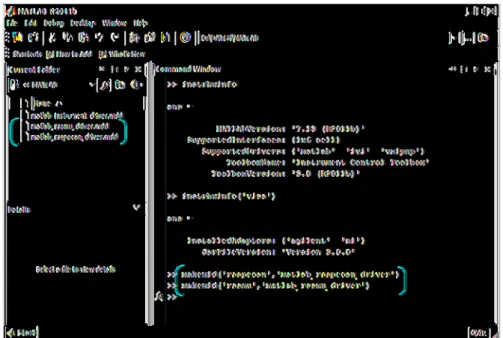
The commandmakemid('driver', 'filename')creates a MATLAB®instrument driver from the instrument driver’s DLL description3, where 'driver' is the original VXIplug&play driver name identified byinstrhwinfoor the Test & Measurement Tool (see section 2.1). For example, the RsSpecAn instrument driver can be imported using the following command:
>> makemid('rsspecan', 'matlab_rsspecan_driver')
In the current working directory, the MATLAB®instrument driver file (extension: .mdd) will be created from the specified VXIplug&play instrument driver.
Figure 1: Creating a MATLAB®instrument driver from a VXIplug&play instrument driver. The result of this process is highlighted.
3The Instrument Control Toolbox uses the API information of the VXIplug&play
Please do not uninstall your instrument driver after this step. The instrument driver is accessed by MATLAB®when communicating with your connected instrument.
2.3 Instrument Driver Editor
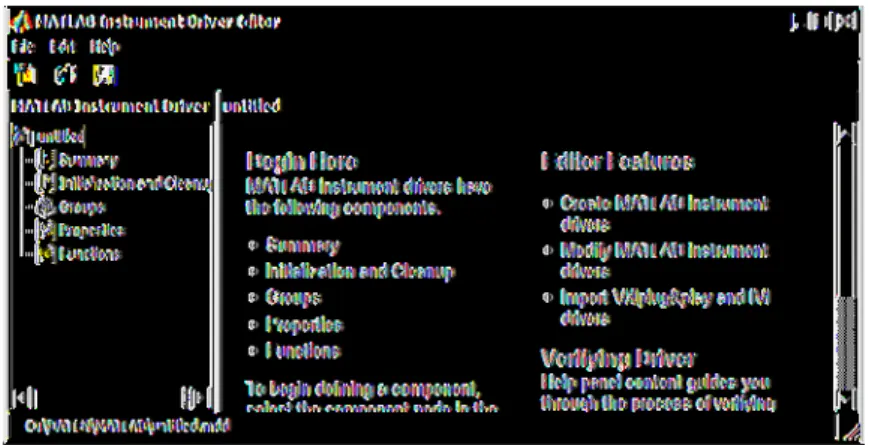
By opening the created MATLAB®instrument driver, the Instrument Driver Editor (midedit) opens up as shown in the figure below. The following command opens the Instrument Driver Editor:
>> midedit
Figure 2: MATLAB Instrument Driver Editor startup window.
This editor allows you to customize and modify your generated MATLAB®instrument driver. The Instrument Driver Editor is not discussed in this application note. For further information about this tool, please consult the MATLAB®Instrument Control Toolbox documentation.
2.4 Test & Measurement Tool
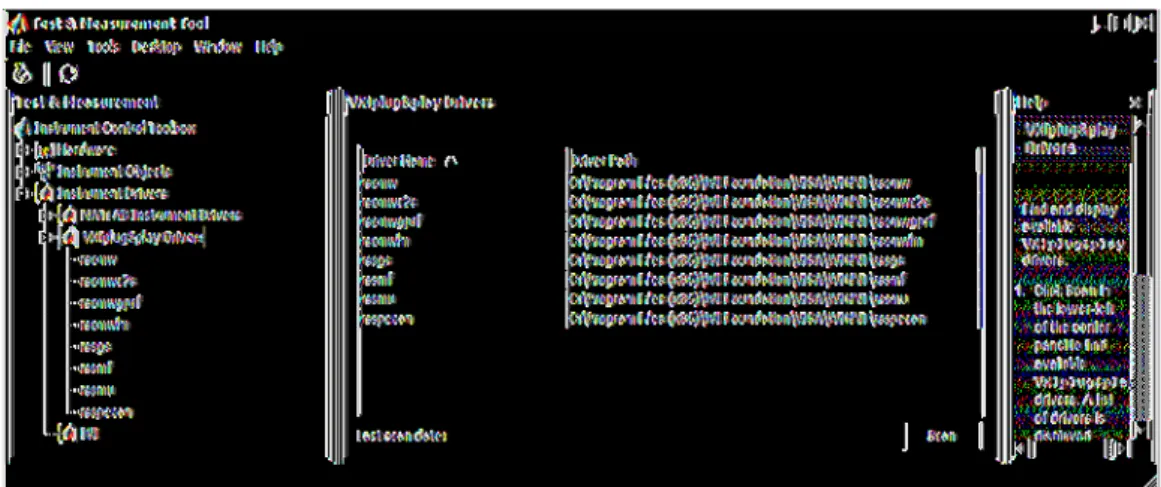
The MATLAB®Test & Measurement Tool (tmtool) allows you to explore installed
MATLAB®instrument drivers and connected test or measurement equipment. This is shown below. For example browsing thersspecanVXIplug&play instrument driver is pictured.
The Test & Measurement Tool is started with following command:
Figure 3: Installed VXIplug&play instrument drivers shown in the MATLAB®Test & Measurement Tool.
A MATLAB®driver can be created from these VXIplug&play drivers as described in section 2.2. Also the VXIplug&play driver help information is accessible using the Test & Measurement Tool, as shown in the figure below:
Figure 4: Detailed description of API functions of the VXIplug&play instrument driver.
2.5 Using an Installed MATLAB Instrument Driver
This section describes how to generate MATLAB®code for remote-controlling aRohde & Schwarz T&M instrument. This is done by using the MATLAB®Test &
Measurement Tool (tmtool).
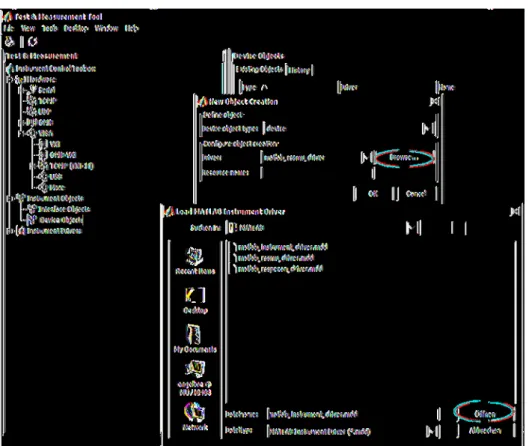
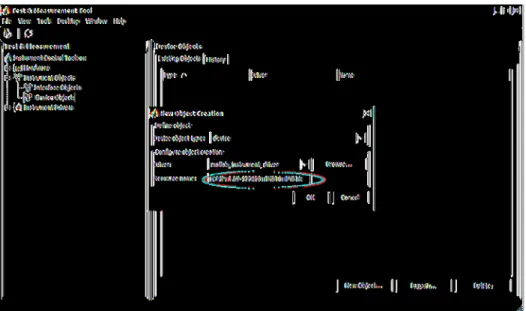
First create aDevice Objectinstance to make the generated MATLAB®instrument driver accessible. After selectingDevice ObjectsasInstrument Objecton the left side of the window, click the buttonNew Object. This step is highlighted in the figure below.
Figure 5: The first step is to click “New Object”.
The previously generated MATLAB®instrument driver file (extension: .mdd) file has to be selected asDriver. This file was generated in section 2.2.
Figure 6: Next, select the previously generated MATLAB®instrument driver file (extension: .mdd). After configuring a valid VISA resource identifier4asResource namea new device object can be created by pressing theOKbutton.
4Further information about the VISA software can be found in1MA153: Development
Figure 7: Entering a valid VISA resource identifier in theResource namefield in order to create a new device object.
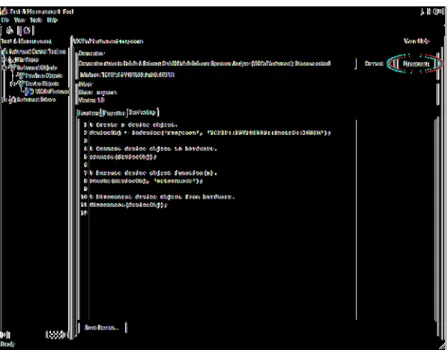
After completing these steps, your MATLAB®application is ready to establish a connection to your Rohde & Schwarz instrument. When this is done, the instrument’s functionality can be accessed via the MATLAB®instrument driver in theFunctionstab. ThePropertiestab enables you to use the attributes of the instrument driver.
Figure 8: TheFunctionstab allows you to select the functionality of the MATLAB®instrument driver. Please keep in mind that themakemidtool removes the prefix of VXIplug&play function names. Furthermore all capital letters of the VXIplug&play function name are
lowercased as well, for examplersspecan_ConfigureAcquisition(…)will be converted toconfigureacquisiton.
Figure 9: Disconnecting the session after remotely setting up the instrument.
Every method previously executed in theFunctionstab is written in a log window (Session Logtab). The resulting session log is intended to be utilized as a template for starting with the VXIplug&play instrument drivers in your MATLAB®application.
2.6 Application Example for the 32-bit
rssmu
Instrument
Driver
%% Rohde & Schwarz GmbH & Co. KG
% MATLAB Instrument Control Toolbox example for Vector Signal Generator % R&S SMU200A or R&S SMBV100A (etc) instrument driver (rssmu)
%
% Purpose: Test of Instrument Control Toolbox for rssmu VXIplug&play instrument % driver
% The example configures 3GPP on a Vector Signal Generator % Author: Juergen Engelbrecht, [email protected]
%% cleanup possible open connections
instrreset; try
%% open driver session % create a device object.
deviceObj = icdevice('rssmu.mdd',
'TCPIP::rssmu200a100803::instr0::INSTR');
% connect device object to hardware.
connect(deviceObj)
% reset instrument
devicereset(deviceObj); catch ME
%% cleanup driver session % delete object
delete(deviceObj);
error('Connection to instrument failed') end
try
%% simple settings % switch rf off instr_rf = 0;
groupObj = get(deviceObj, 'RFSignalandAnalogMod'); groupObj = groupObj(1);
invoke(groupObj, 'setallrfoutputsstate', instr_rf); % set total power to 0dB
groupObj = get(deviceObj, 'BasebandSignal3GPPFDD'); groupObj = groupObj(1);
invoke(groupObj, 'w3gppadjusttotalpowerto0db', instr_path); % read power back
instr_w3gpp_power = -1;
groupObj = get(deviceObj, 'BasebandSignal3GPPFDD'); groupObj = groupObj(1);
[instr_w3gpp_power] = invoke(groupObj, 'getw3gpptotalpower', instr_path); % switch 3GPP on
instr_path = 1; instr_3gppState = 1;
groupObj = get(deviceObj, 'BasebandSignal3GPPFDD'); groupObj = groupObj(1);
invoke(groupObj, 'setw3gppfddstate', instr_path, instr_3gppState); % switch rf on
instr_outputstate = 1;
groupObj = get(deviceObj, 'RFSignalandAnalogMod'); groupObj = groupObj(1);
invoke(groupObj, 'setoutputstate', instr_path, instr_outputstate); %finished
catch ME
%% evaluate error errLen = 1024; errCode = -1;
errMsg = zeros(errLen, 1); %query instrument for errors
groupObj = get(deviceObj, 'Utility'); groupObj = groupObj(1);
[errCode, errMsg] = invoke(groupObj, 'errorquery'); % disconnect device object from hardware
disconnect(deviceObj); % delete object delete(deviceObj);
error('Exception: %s\nInstrument Error: %d: %s\n', ME.message, errCode, char(errMsg));
end
%% cleanup driver session
% disconnect device object from hardware disconnect(deviceObj);
% delete object delete(deviceObj); %cleanup workspace clear all;
2.7 Application Example for the 32-bit
rsspecan
Instrument Driver
%% Rohde & Schwarz GmbH & Co. KG
% MATLAB Instrument Control Toolbox example for R&S Specturm % Analyzer Instrument Driver (rsspecan)
%
% Purpose: Test for rsspecan VXIplug&play instrument % The driver configures a read trace measurement example
% Author: Juergen Engelbrecht, [email protected] %% cleanup possible open connections
instrreset; try
%% open driver session % create a device object.
deviceObj = icdevice('rsspecan.mdd', 'TCPIP::FSV-123123::instr0::INSTR'); % connect device object to hardware. connect(deviceObj)
% reset instrument devicereset(deviceObj); catch MException
%% cleanup driver session % delete object
delete(deviceObj);
error('Connection to instrument failed') end
try
%% example for using attributes % configure center frequency instr_cfrequency = 2e9;
% this decimal value is taken from the rsspecan.h file
instr_attr = 1000000+150000+9; %'RSSPECAN_ATTR_FREQUENCY_CENTER'; %attribute
instr_repcap = 'Win0'; %repeated capability
groupObj = get(deviceObj, 'ConfigurationSetGetCheckAttributeSetAttribute'); groupObj = groupObj(1);
invoke(groupObj, 'setattributevireal64', instr_repcap, instr_attr, instr_cfrequency);
%% simple settings
% set instrument to single sweep instr_window = 1;
instr_sweepModeCont = 0; instr_numOfSweeps = 1;
groupObj = get(deviceObj, 'Configuration'); groupObj = groupObj(1);
invoke(groupObj, 'configureacquisition', instr_window, instr_sweepModeCont, instr_numOfSweeps);
% configure sweep points instr_sweepPoints = 501;
groupObj = get(deviceObj, 'Configuration'); groupObj = groupObj(1);
invoke(groupObj, 'configuresweeppoints', instr_window, instr_sweepPoints); % configure RF parameters
instr_freqCenter = 1.1e9; instr_freqSpan = 1e6;
groupObj = get(deviceObj, 'Configuration'); groupObj = groupObj(1);
invoke(groupObj, 'configurefrequencycenterspan', instr_window, instr_freqCenter, instr_freqSpan);
%% read trace data
instr_trace = 1;
instr_timeoutMs = 15000;
instr_arrayLen = instr_sweepPoints; instr_arrayActualLen = -1;
instr_amplitude = zeros(instr_arrayLen, 1); groupObj = get(deviceObj, 'Measurement'); groupObj = groupObj(1);
[instr_arrayActualLen, instr_amplitude] = invoke(groupObj, 'readytrace', instr_window, instr_trace, instr_timeoutMs, instr_arrayLen,
instr_amplitude); %do something
plot(instr_amplitude) %finished
catch ME
%% evaluate error errLen = 1024; errCode = -1;
errMsg = zeros(errLen, 1);
groupObj = get(deviceObj, 'Utility'); groupObj = groupObj(1);
[errCode, errMsg] = invoke(groupObj, 'errorquery'); % disconnect device object from hardware
disconnect(deviceObj); % delete object delete(deviceObj);
error('Exception: %s\nInstrument Error: %d: %s\n', ME.message, errCode, char(errMsg));
end
%% cleanup driver session
% disconnect device object from hardware. disconnect(deviceObj);
% delete object delete(deviceObj); %cleanup workspace clear all;
2.8 Known Problems
Conversion of the MATLAB 2009b Instrument Control Toolbox for Rohde & Schwarz attribute-based instrument drivers is not working correctly in some cases.
Please install the following patches for MATLAB®:
ivicDriverPropertyNameFix.zip
RSIVICAttributsBasedDriverFix.zip
ivicDriverArgumentFix.zip
Installation procedure: >> cd(matlabroot)
>> unzip('c:/tmp/ivicDriverPropertyNameFix.zip')
>> unzip('c:/tmp/RSIVICAttributsBasedDriverFix.zip') >> unzip('c:/tmp/ivicDriverArgumentFix.zip')
>> rehash path
>> rehash toolboxcache
Uninstallation procedure:
Delete all folders in the following directory:
3 Using MATLAB's Interface for External
Libraries
The basic MATLAB®package supports an interface for using 32-bit and 64-bit external libraries. This functionality is calledcalllibinterface.
Rohde & Schwarz VXIplug&play instrument drivers come with a dynamic linked library (DLL). As a result, the remote-control drivers can be used directly without utilizing the Instrument Control Toolbox. This approach is described in the following.
3.1 calllib: An interface to Generic Libraries
Thecalllibinterface makes it easy to access already existing dynamic linked libraries. MATLAB®supports this feature for 32-bit and 64-bit libraries on Windows operating systems.
3.2 Installing VXIplug&play Instrument Drivers
Having an installed VXIplug&play instrument driver on the host PC is a prerequisite before remote controlling any instrument from MATLAB®by using instrument driver.
Rohde & Schwarz VXIplug&play instrument drivers and installation manuals are available in the Drivers download area on the Rohde & Schwarz website: http://www.rohde-schwarz.com/drivers/.
3.3 Loading and Acquiring Information about Libraries
Generally any library needs to be loaded into MATLAB®before it is used. It is important to propagate the path where the libraries are accessible to MATLAB®as shown below. The example below shows how to load a 32-bit VXIplug&play instrument driver library.%% add library path
% check VXIPNPPATH environment variable on a 32-bit system addpath 'c:\Program Files\IVI Foundation\VISA\WinNT\Include'; addpath 'c:\Program Files\IVI Foundation\VISA\WinNT\Bin';
Note that the crucial part of these paths is stored in the environment variable
VXIPNPPATHon your operating system. On a 64-bit operating system the variable
The library is loaded using following sequence: %% load library of R&S 32-bit instrument driver vxipnpLib ='rsspecan_32';
vxipnpLibDll ='rsspecan_32.dll';
vxipnpHeader = 'rsspecan.h';
if ~libisloaded (vxipnpLib)
loadlibrary(vxinpnLibDll, vxipnpHeader);
end
In this example, the rsspecan instrument driver is used. The variablesvxipnpLiband
vxipnpLibDllcan be reassigned to refer any other Rohde & Schwarz VXIplug&play instrument driver library. After this step, the referred library is ready to be used in MATLAB®.
Acquiring information about the libraries
The following functions are available for acquiring more information about the library and its application programming interface (API):
>> libfunctions(vxipnpLib, '-full'); >> libfunctionsview(vxipnpLib);
The most important information is that about the signatures of the library function calls. This information makes it easy to gain an understanding of necessary function
parameter types.
3.4 Calling Library Functions
Calling functions from libraries is a critical task, because MATLAB®has a different data representation than the ANSI C programming language.
A trace from a Rohde & Schwarz spectrum analyzer can be captured by using the following MATLAB®example code snippet:
%% read trace
instr_sweepPoints = 501; % amout of sweep points instr_trace = 1; % trace window
instr_timeoutMs = 15000; % measurement timeout instr_arrayLen = instr_sweepPoints;
% max amount of meas. values instr_arrayActualLen = -1; % actual amount of meas. values instr_amplitude = zeros(instr_arrayLen,1);
% meas. values [err, instr_arrayActualLen, instr_amplitude] = calllib(vxipnpLib,
'rsspecan_ReadYTrace', instr_session, instr_window,
instr_trace, instr_timeoutMs, instr_arrayLen, instr_arrayActualLen, instr_amplitude);
For more detailed examples of library calling conventions, see section 0 and 3.7, or refer to the MATLAB®calllibdocumentation.
Cleaning before exiting the application
This is done using the following MATLAB®code:
%% clean up before exit unloadlibrary(vxipnpLib); clear all;
3.5 General Rules for Passing Arguments to Libraries
Because data representation differs from the ANSI C representation for passing arguments, some steps have to be performed before calling a library function, e.g. creating a pointer to a variable storing array of characters. Please refer to the provided MATLAB®documentation for "Calling Functions in Shared Libraries" and the examples given following sections.3.6 Application Example using the 32-bit
rssmu
Instrument Driver
%% Rohde & Schwarz GmbH & Co. KG
% MATLAB calllib example for Signal Generator R&S SMU200A and R&S % SMBV100A instrument driver (rssmu)
%
% Purpose: Test of loadlibrary/calllib for rssmu VXIplug&play instrument % driver
% The example configures 3GPP on a Vector Signal Generator % Author: Juergen Engelbrecht, [email protected] %% setup up the mex compiler before the first run
%mex -setup
%% add library path
% check VXIPNPPATH environment variable on your system
% for the correct path or call instrhwinfo('vxipnp', 'rssmu') for DriverDllName addpath 'c:\Program Files\IVI Foundation\VISA\WinNT\Include';
addpath 'c:\Program Files\IVI Foundation\VISA\WinNT\Bin'; %% load library of R&S driver
vxipnpLib = 'rssmu_32'; vxinpnLibDll = 'rssmu_32.dll'; vxipnpHeader = 'rssmu.h'; if ~libisloaded (vxipnpLib)
loadlibrary(vxinpnLibDll, vxipnpHeader); end
%You can use these functions to get information on the functions available in a library that you have loaded:
%libfunctions(vxipnpLib); %libfunctionsview(vxipnpLib); %% open VISA session
instr_session = -1;
instr_resource = 'TCPIP::rssmu200a123123::INSTR';
instr_presource = libpointer( 'int8Ptr', [int8( instr_resource ) 0] ); instr_idQuery = 1;
instr_reset = 1;
[err, p8, instr_session] = calllib(vxipnpLib, 'rssmu_init', instr_presource, instr_idQuery, instr_reset, instr_session );
if ( err )
error ('Connection to instrument failed') end
while (true)
%% simple settings % switch rf off instr_rf = 0;
[err] = calllib(vxipnpLib, 'rssmu_SetAllRFOutputsState', instr_session, instr_rf);
if ( err ) break end
% switch 3GPP on instr_path = 1; instr_3gppState = 1;
[err] = calllib(vxipnpLib, 'rssmu_SetW3GPPFDDState', instr_session, instr_path, instr_3gppState);
if ( err ) break end
% set total power to 0dB
[err] = calllib(vxipnpLib, 'rssmu_W3GPPAdjustTotalPowerto0dB', instr_session, instr_path);
if ( err ) break end
% read power back instr_power = -1;
[err, instr_power] = calllib(vxipnpLib, 'rssmu_GetW3GPPTotalPower', instr_session, instr_path, instr_power);
if ( err ) break end
% switch rf on instr_rf = 1;
[err] = calllib(vxipnpLib, 'rssmu_SetOutputState', instr_session, instr_path, instr_rf);
if ( err ) break end
% cleanup
[err] = calllib(vxipnpLib, 'rssmu_close', instr_session); if ( err )
break end break end
%% evaluate error
if ( err )
errCode = err; errLen = 1024;
errMsg = zeros(errLen,1); disp( '*** Error occured' );
if ( instr_session ~= 0 )
[errCode, errMsg] = calllib( vxipnpLib, 'rssmu_error_message', instr_session, errCode, errMsg );
errString = sprintf('%s', char(errMsg)); disp( errString );
errMsg = '';
[DummyErr, errCode, errMsg] = calllib( vxipnpLib, 'rssmu_error_query', instr_session, errCode, errMsg );
errString = sprintf('%s', char(errMsg)); disp( errString );
% ... and we must make sure to disconnect from the device ! calllib( vxipnpLib, 'rssmu_close', instr_session );
end end
%% clean up
unloadlibrary(vxipnpLib); clear all
3.7 Application Example using the 64-bit
rssmu
Instrument Driver
Please refer to section 1.2 for software prerequisites before executing the following MATLAB source code.
Due to a not supported calling convention of MATLAB, the following workaround has to be installed to successfully load the 64-bit VXIplug&play instrument driver library. Please create a fileworkaround_rssmu.hfor therssmu64-bit application example with the following content:
#undef _LDSUPPORT #define __fastcall #include "rssmu.h"
This file has to be copied to the VXIplug&play include directory. This is typically stored in the following environment variable:VXIPNPPATH64(e.g.c:\Program Files\IVI Foundation\VISA\Win64\Include).
Example source code for MATLAB 2010b
%% Rohde & Schwarz GmbH & Co. KG
% MATLAB calllib example for Vector Signal Generator
% R&S SMU200A or R&S SMBV100A (etc) instrument driver (rssmu) %
% Purpose: Test of loadlibrary/calllib for rssmu 64-bit VXIplug&play instrument % driver
% The example configures 3GPP on a Vector Signal Generator % Author: Juergen Engelbrecht, [email protected] %% setup up the mex compiler before the first run
%mex -setup
% check VXIPNPPATH64 environment variable on your system % for the correct path to the installation directory p1= 'c:\Program Files\IVI Foundation\VISA\Win64\Include'; p2= 'c:\Program Files\IVI Foundation\VISA\Win64\Bin'; addpath(p1);
addpath(p2);
%% load library of R&S driver vxipnpLib = 'rssmu_64'; vxinpnLibDll = 'rssmu_64.dll'; vxipnpHeader = 'workaround_rssmu.h'; if ~libisloaded (vxipnpLib)
[notfound,warnings]=loadlibrary(vxinpnLibDll, vxipnpHeader, ... 'includepath', p1, ...
'includepath', p2, ... 'addheader', 'rssmu.h'); end
%You can use these functions to get information on the functions available in a library that you have loaded:
%libfunctions(vxipnpLib, '-full'); %libfunctionsview(vxipnpLib); %% open VISA session
instr_session = -1;
instr_resource = 'TCPIP::rssmu200a123123::INSTR';
instr_presource = libpointer( 'int8Ptr', [int8( instr_resource ) 0] ); instr_idQuery = 1;
instr_reset = 1;
[err, p8, instr_session] = calllib(vxipnpLib, 'rssmu_init', instr_presource, instr_idQuery, instr_reset, instr_session );
if ( err )
error ('Connection to instrument failed') end
while (true)
%% simple settings % switch rf off instr_rf = 0;
[err] = calllib(vxipnpLib, 'rssmu_SetAllRFOutputsState', instr_session, instr_rf);
if ( err ) break end
% switch 3GPP on instr_path = 1; instr_3gppState = 1;
[err] = calllib(vxipnpLib, 'rssmu_SetW3GPPFDDState', instr_session, instr_path, instr_3gppState);
if ( err ) break end
% set total power to 0dB
[err] = calllib(vxipnpLib, 'rssmu_W3GPPAdjustTotalPowerto0dB', instr_session, instr_path);
if ( err ) break end
% read power back instr_power = -1;
[err, instr_power] = calllib(vxipnpLib, 'rssmu_GetW3GPPTotalPower', instr_session, instr_path, instr_power);
if ( err ) break end
% switch rf on instr_rf = 1;
[err] = calllib(vxipnpLib, 'rssmu_SetOutputState', instr_session, instr_path, instr_rf);
if ( err ) break end
% cleanup
[err] = calllib(vxipnpLib, 'rssmu_close', instr_session); if ( err )
break end break end
%% evaluate error
if ( err )
errCode = err; errLen = 1024;
errMsg = zeros(errLen,1); disp( '*** Error occured' );
% In the case that a session got created we evaluate the error further
if ( instr_session ~= 0 )
[errCode, errMsg] = calllib( vxipnpLib, 'rssmu_error_message', instr_session, errCode, errMsg );
errString = sprintf('%s', char(errMsg)); disp( errString );
errMsg = '';
[DummyErr, errCode, errMsg] = calllib( vxipnpLib, 'rssmu_error_query', instr_session, errCode, errMsg );
errString = sprintf('%s', char(errMsg)); disp( errString );
% ... and we must make sure to disconnect from the device ! calllib( vxipnpLib, 'rssmu_close', instr_session );
end end
%% clean up
unloadlibrary(vxipnpLib); clear all
3.8 Application Example using the 32-bit
rsspecan
Instrument Driver
%% Rohde & Schwarz GmbH & Co. KG
% MATLAB calllib example for R&S Specturm Analyzer Instrument Driver % (RsSpecAn)
% Purpose: Test of loadlibrary/calllib for rsspecan VXIplug&play instrument % driver doing simple read trace measurement.
% Author: Juergen Engelbrecht, [email protected] %% add library path
% check VXIPNPPATH environment variable on your system addpath 'c:\Program Files\IVI Foundation\VISA\WinNT\Include'; addpath 'c:\Program Files\IVI Foundation\VISA\WinNT\Bin';
%% load library of R&S driver vxipnpLib = 'rsspecan_32'; vxinpnLibDll = 'rsspecan_32.dll'; vxipnpHeader = 'rsspecan.h'; if ~libisloaded (vxipnpLib)
loadlibrary(vxinpnLibDll, vxipnpHeader); end
%You can use these functions to get information on the functions available in a library that you have loaded:
%libfunctions(vxipnpLib, '-full'); %libfunctionsview(vxipnpLib); %% open VISA session
instr_session = -1;
instr_resource = 'TCPIP::FSV-123123::INSTR';
instr_presource = libpointer( 'int8Ptr', [int8( instr_resource ) 0] ); instr_idQuery = 1;
instr_reset = 1; %% set up connection
[err, p8, instr_session] = calllib(vxipnpLib, 'rsspecan_init', instr_presource, instr_idQuery, instr_reset, instr_session );
if ( err )
error ('Connection to instrument failed') end
while (true)
%% simple settings
% set instrument to single sweep instr_window = 1;
instr_sweepModeCont = 0; instr_numOfSweeps = 1;
[err] = calllib(vxipnpLib, 'rsspecan_ConfigureAcquisition', instr_session, instr_window, instr_sweepModeCont, instr_numOfSweeps);
if ( err ) break end
%% example for using attributes
% refer to application note 1MA170 for further details % configure resolution bandwidth
instr_rbwfreq = 3e3;
% this decimal value is taken from the rsspecan.h file instr_attr = 1000000+150000+24;
%'RSSPECAN_ATTR_RESOLUTION_BANDWIDTH'; %attribute
instr_repcap = 'Win0'; %repeated capability instr_prepcap = libpointer( 'int8Ptr', [int8( instr_repcap ) 0] );
[err] = calllib(vxipnpLib, 'rsspecan_SetAttributeViReal64', instr_session, instr_prepcap, instr_attr, instr_rbwfreq);
if ( err ) break end
% configure sweep points instr_window = 1; instr_sweepPoints = 501;
[err] = calllib(vxipnpLib, 'rsspecan_ConfigureSweepPoints', instr_session, instr_window, instr_sweepPoints);
if ( err ) break end
% configure RF parameters instr_freqCenter = 1.1e9; instr_freqSpan = 1e6;
[err] = calllib(vxipnpLib, 'rsspecan_ConfigureFrequencyCenterSpan', instr_session, instr_window, instr_freqCenter, instr_freqSpan); if ( err )
break end
%% read trace
instr_trace = 1;
instr_timeoutMs = 15000;
instr_arrayLen = instr_sweepPoints; instr_arrayActualLen = -1;
instr_amplitude = zeros(instr_arrayLen,1);
[err, instr_arrayActualLen, instr_amplitude] = calllib(vxipnpLib, 'rsspecan_ReadYTrace', instr_session, instr_window, instr_trace,
instr_timeoutMs, instr_arrayLen, instr_arrayActualLen, instr_amplitude); if ( err )
break end
%do something
plot(instr_amplitude) %% cleanup
[err] = calllib(vxipnpLib, 'rsspecan_close', instr_session); if ( err )
break end
%exit loop
break end
%% evaluate error
if ( err )
errCode = err; errLen = 1024;
errMsg = zeros(errLen,1); disp( '*** Error occured' );
% In the case that a session got created we evaluate the error further
if ( instr_session ~= 0 )
[errCode, errMsg] = calllib( vxipnpLib, 'rsspecan_error_message', instr_session, err, errMsg );
errString = sprintf('%s', char(errMsg)); disp( errString );
errMsg = '';
[DummyErr, errCode, errMsg] = calllib( vxipnpLib,
'rsspecan_error_query', instr_session, errCode, errMsg ); errString = sprintf('%d: %s', errCode, char(errMsg)); disp( errString );
% ... and we must make sure to disconnect from this device ! calllib( vxipnpLib, 'rsspecan_close', instr_session ); end
end
%% clean up
unloadlibrary(vxipnpLib); clear all
3.9 Application Example using the 64-bit
rsspecan
Instrument Driver
Please refer to section 1.2 for software prerequisites before executing the following MATLAB source code.
Due to a not supported calling convention of MATLAB, the following workaround has to be installed to successfully load the 64-bit VXIplug&play instrument driver library. Please create a fileworkaround_rsspecan.hfor thersspecan64-bit application example with the following content:
#undef _LDSUPPORT #define __fastcall #include "rsspecan.h"
The file has to be copied to the VXIplug&play include directory. This is typically stored in following environment variable:VXIPNPPATH64(e.g.c:\Program Files\IVI
Foundation\VISA\Win64\Include). %% Rohde & Schwarz GmbH & Co. KG
% MATLAB calllib example for R&S Specturm Analyzer Instrument Driver % (RsSpecAn)
% Purpose: Test of loadlibrary/calllib for rsspecan VXIplug&play instrument % driver doing simple read trace measurement.
% Author: Juergen Engelbrecht, [email protected] %% add library path
% check VXIPNPPATH64 environment variable on your system p1= 'c:\Program Files\IVI Foundation\VISA\Win64\Include'; p2= 'c:\Program Files\IVI Foundation\VISA\Win64\Bin'; addpath(p1);
addpath(p2);
%% load library of 64-bit R&S instrument driver vxipnpLib = 'rsspecan_64';
vxinpnLibDll = 'rsspecan_64.dll'; vxipnpHeader = 'workaround_rsspecan.h'; if ~libisloaded (vxipnpLib)
[notfound,warnings]=loadlibrary(vxinpnLibDll, vxipnpHeader, ... 'includepath', p1, ...
'includepath', p2, ... 'addheader', 'rsspecan.h'); end
%You can use these functions to get information on the functions available in a library that you have loaded:
%libfunctions(vxipnpLib, '-full'); %libfunctionsview(vxipnpLib); %% open VISA session
instr_session = -1;
instr_resource = 'TCPIP::FSV-123123::INSTR';
instr_presource = libpointer( 'int8Ptr', [int8( instr_resource ) 0] ); instr_idQuery = 1;
instr_reset = 1; %% set up connection err = 0;
[err, p8, instr_session] = calllib(vxipnpLib, 'rsspecan_init', instr_presource, instr_idQuery, instr_reset, instr_session );
if ( err )
error ('Connection to instrument failed') end
while (true)
%% simple settings
% set instrument to single sweep instr_window = 1;
instr_sweepModeCont = 0; instr_numOfSweeps = 1;
[err] = calllib(vxipnpLib, 'rsspecan_ConfigureAcquisition', instr_session, instr_window, instr_sweepModeCont, instr_numOfSweeps);
if ( err ) break end
% configure sweep points instr_window = 1; instr_sweepPoints = 501;
[err] = calllib(vxipnpLib, 'rsspecan_ConfigureSweepPoints', instr_session, instr_window, instr_sweepPoints);
if ( err ) break end
% configure RF parameters instr_freqCenter = 1.1e9; instr_freqSpan = 1e6;
[err] = calllib(vxipnpLib, 'rsspecan_ConfigureFrequencyCenterSpan', instr_session, instr_window, instr_freqCenter, instr_freqSpan); if ( err )
break end
%% read trace
instr_trace = 1;
instr_timeoutMs = 15000;
instr_arrayLen = instr_sweepPoints; instr_arrayActualLen = -1;
instr_amplitude = zeros(instr_arrayLen,1);
[err, instr_arrayActualLen, instr_amplitude] = calllib(vxipnpLib, 'rsspecan_ReadYTrace', instr_session, instr_window, instr_trace,
instr_timeoutMs, instr_arrayLen, instr_arrayActualLen, instr_amplitude); if ( err )
break end
%do something
plot(instr_amplitude) %% cleanup
[err] = calllib(vxipnpLib, 'rsspecan_close', instr_session); if ( err )
break end
%exit loop
break end
%% evaluate error
if ( err )
errCode = err; errLen = 1024;
errMsg = zeros(errLen,1); disp( '*** Error occured' );
% In the case that a session got created we evaluate the error further
if ( instr_session ~= 0 )
[errCode, errMsg] = calllib( vxipnpLib, 'rsspecan_error_message', instr_session, err, errMsg );
errString = sprintf('%s', char(errMsg)); disp( errString );
errMsg = '';
[DummyErr, errCode, errMsg] = calllib( vxipnpLib,
'rsspecan_error_query', instr_session, errCode, errMsg ); errString = sprintf('%d: %s', errCode, char(errMsg));
disp( errString );
% ... and we must make sure to disconnect from this device ! calllib( vxipnpLib, 'rsspecan_close', instr_session ); end
end
%% clean up
unloadlibrary(vxipnpLib); clear all
3.10 Known Problems
"A 'Selected' compiler was not found. You may need to runmex -setup"
To successfully load a library using theloadlibraryfunctionality the default compiler needs to be set up in MATLAB. The supported compilers of the currently available releases are listed here:
http://www.mathworks.de/support/compilers/current_release/win32.html
and here:
http://www.mathworks.de/support/compilers/current_release/win64.html.
In this application note the Microsoft® Visual C++® 2008 SP1 V9.0 Professional Edition compiler was used. Especially on MATLAB 64-bit installations a non-MATLAB® compiler needs to be set configured manually.
4 References
MathWorks Documentation: Instrument Control Toolbox
http://www.mathworks.com/access/helpdesk/help/toolbox/instrument/
Retrieved: Aug 11 2010
MathWorks Documentation: Shared Libraries (calllib)
http://www.mathworks.com/access/helpdesk/help/techdoc/ref/calllib.html
group of companies specializing in electronics. It is a leading supplier of solutions in the fields of test and measurement, broadcasting,
radiomonitoring and radiolocation, as well as secure communications. Established more than 75 years ago, Rohde & Schwarz has a global presence and a dedicated service network in over 70 countries. Company headquarters are in Munich, Germany.
Environmental commitment
Energy-efficient products Continuous improvement in environmental sustainability ISO 14001-certified environmental management system
Regional contact
USA & Canada
USA: 1-888-TEST-RSA (1-888-837-8772) from outside USA: +1 410 910 7800
East Asia +65 65 13 04 88
Rest of the World +49 89 4129 123 45
This application note and the supplied programs may only be used subject to the conditions of use set forth in the download area of the Rohde & Schwarz website.
R&S® is a registered trademark of Rohde & Schwarz GmbH & Co. KG. Trade names are trademarks of the owners.
Rohde & Schwarz GmbH & Co. KG