HP LaserJet P2015 Series
HP LaserJet P2015 Series
Copyright information
© 2006 Copyright Hewlett-Packard Development Company, L.P.
Reproduction, adaptation or translation without prior written permission is prohibited, except as allowed under the copyright laws. Part number: CB366-90951
Edition 1, 09/2006
The information contained herein is subject to change without notice.
The only warranties for HP products and services are set forth in the express warranty statements accompanying such products and services. Nothing herein should be construed as constituting an additional warranty. HP shall not be liable for technical or editorial errors or omissions contained herein.
Trademark credits
Microsoft® and Windows® are
U.S. registered trademarks of Microsoft Corporation.
PostScript® is a registered trademark of
Adobe Systems Incorporated.
Energy Star® and the Energy Star mark® are
US registered marks of the United States Environmental Protection Agency.
Table of contents
1 Product information
Product features ... 2
HP LaserJet P2015 printer ... 2
HP LaserJet P2015d printer ... 2
HP LaserJet P2015n printer ... 3
HP LaserJet P2015dn printer ... 3
HP LaserJet P2015x printer ... 3
Identify product parts ... 4
2 Control panel 3 Product software Supported operating systems ... 10
Printer connections ... 11
USB connections ... 11
Network connections ... 11
Connect the printer to the network ... 11
Install the printer software for the network printer ... 12
Software for Windows ... 13
Windows printer drivers ... 13
Windows driver types ... 13
Install the Windows printer software ... 13
To install printer software for Windows XP (64-bit) and Windows Server 2003 ... 13
To install printer software for Windows 98 (driver only), Me (driver only), 2000, and XP (32–bit) ... 13
Configure the Windows printer driver ... 13
HP ToolboxFX ... 14
Embedded Web server ... 14
Software for Macintosh ... 15
Macintosh printer drivers ... 15
Install the Macintosh printer driver ... 15
Configure the Macintosh printer driver ... 15
PostScript Printer Description files (PPDs) ... 16
4 Supported paper and other media Optimize print quality for media types ... 18
Guidelines for using media ... 19
HP media ... 19
Media to avoid ... 19
Media that can damage the printer ... 19
Paper ... 20
Labels ... 20
Label construction ... 20
Transparencies ... 20
Envelopes ... 20
Envelope construction ... 20
Envelopes with double-side seams ... 21
Envelopes with adhesive strips or flaps ... 21
Envelope storage ... 21
Card stock and heavy media ... 21
Card stock construction ... 22
Card stock guidelines ... 22
Letterhead and preprinted forms ... 22
5 Print tasks Load media ... 24
Tray 1 ... 24
Tray 2 and optional tray 3 ... 24
Straight-through output path ... 25
Manual feed ... 25
Print-quality settings ... 26
Print on special media ... 27
Print on an envelope ... 27
Print on transparencies or labels ... 28
Print on letterhead and preprinted forms ... 29
Print on custom-size media and card stock ... 30
Print on both sides of the page (duplex) ... 32
Manual two-sided printing ... 32
Manual two-sided printing using the top output bin ... 32
Manual two-sided printing using the straight-through output door ... 35
Automatic two-sided printing ... 38
Print multiple pages on a single sheet of paper (N-up printing) ... 40
Print booklets ... 41
Print watermarks ... 42
Cancel a print job ... 43
6 Managing and maintenance Printer information pages ... 46
Help ... 49
Device settings ... 50
Device information ... 50
Paper handling ... 51
Print quality ... 51
Paper types ... 51
System setup ... 52
Service ... 52
Print settings ... 52
Printing ... 52
PCL 5e ... 52
PCL 6 ... 52
PostScript ... 53
Network settings ... 53
Embedded Web server ... 54
Open the embedded Web server ... 54
Status tab ... 55
Settings tab ... 55
Networking tab ... 55
Links ... 56
Replace the print cartridge ... 57
Redistribute toner ... 59
Clean the printer ... 60
Clean the print-cartridge area ... 60
Clean the printer media path ... 61
Clean the pickup roller (tray 1) ... 63
Clean the pickup roller (tray 2) ... 66
EconoMode ... 72
7 Problem solving Finding the solution ... 74
Step 1: Is the printer set up correctly? ... 74
Step 2: Is the Ready light on? ... 74
Step 3: Can you print a demo page? ... 74
Step 4: Is the print quality acceptable? ... 75
Step 5: Is the printer communicating with the computer? ... 75
Step 6: Does the printed page look like you expected? ... 75
Contact HP support ... 75
Status-light patterns ... 76
Common Macintosh problems ... 83
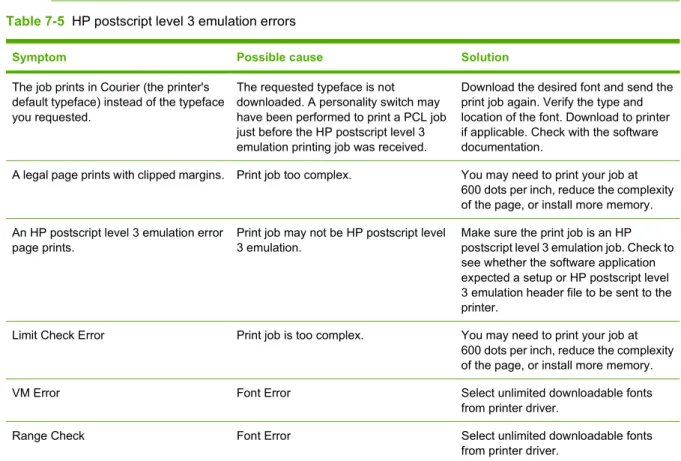
HP postscript level 3 emulation errors ... 86
Media problem solving ... 87
Printed page is different than what appeared on screen ... 89
Garbled, incorrect, or incomplete text ... 89
Missing graphics or text, or blank pages ... 89
Page format is different than on another HP LaserJet printer ... 90
Graphics quality ... 90
Printer software problems ... 91
Improve print quality ... 92
Light print or faded ... 92
Toner specks ... 92
Dropouts ... 92
Vertical lines ... 93
Gray background ... 93
Toner smear ... 93
Loose toner ... 94
Vertical repetitive defects ... 94
Misformed characters ... 94
Page skew ... 95
Curl or wave ... 95
Wrinkles or creases ... 95
Toner scatter outline ... 96
Clearing jams ... 97
Print-cartridge area ... 97
Input trays ... 99
Output bin ... 102
Straight-through output path ... 103
Automatic two-sided printing path ... 104
Network setup problem solving ... 109
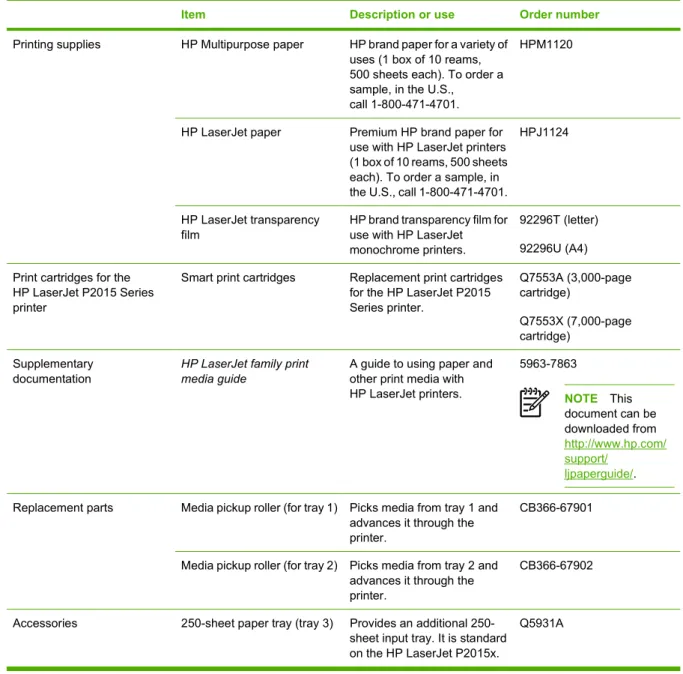
Appendix A Accessory/Consumable addendum Order supplies and accessories ... 112
10/100 networking print servers ... 113
HP print cartridges ... 114
HP policy on non-HP print cartridges ... 114
Storing print cartridges ... 114
Print cartridge life expectancy ... 114
Saving toner ... 114
DIMMs (memory or font) ... 115
Install a memory DIMM ... 115
Test the DIMM installation ... 117
Remove a DIMM ... 117
Appendix B Service and support Hardware service ... 122
Extended warranty ... 122
Guidelines for repacking the printer ... 123
How to contact HP ... 123
Appendix C Printer specifications Environmental specifications ... 126
FCC compliance ... 132
Declaration of Conformity statements ... 133
Regulatory statements ... 134
Laser safety statement ... 134
Canadian DOC regulations ... 134
Korean EMI statement ... 134
Laser statement for Finland ... 135
Environmental product stewardship program ... 136
Protecting the environment ... 136
Ozone production ... 136
Power consumption ... 136
Toner consumption ... 136
Paper use ... 136
Plastics ... 136
HP LaserJet printing supplies ... 136
HP printing supplies returns and recycling program information ... 137
Paper ... 137
Material restrictions ... 137
Disposal of Waste Equipment by Users in Private Household in the European Union ... 137
Material safety data sheet ... 138
For more information ... 138
Appendix E Warranty and licensing Hewlett-Packard limited warranty statement ... 140
Hewlett-Packard software license agreement ... 141
Limited warranty for print cartridge life ... 142
Index ... 143
1
Product information
This chapter provides information on the following topics:
● Product features
● Identify product parts
Product features
The following are the standard configurations for the HP LaserJet P2015 Series printers.
HP LaserJet P2015 printer
● 27 ppm (Letter-size), 26 ppm (A4–size)
● First page out in as few as 8.5 seconds
● ProRes 1200 (provides fine-line detail at 1200 x 1200 dpi)
● 600 dpi (provides 600 x 600 dpi output with Resolution Enhancement Technology (REt) for improved text)
● 50-sheet multipurpose tray (tray 1)
● 250-sheet enclosed input tray (tray 2)
● Optional additional 250-sheet input tray (tray 3)
● EconoMode
● Print watermarks, booklets, multiple pages per sheet (N-up), and first page on different media than the rest of the document
● 32 MB RAM
● Memory can be upgraded to 288 MB
● 3,000-page or 7,000-page print cartridge
● PCL 6, PCL 5e, and HP postscript level 3 emulation (printer automatically determines and switches to the appropriate language)
● Compatible with USB 2.0 specifications
● Supported by Windows® 98 (printer driver only), Me (printer driver only), 2000, Server 2003 (printer driver only), XP 32-bit, XP 64-bit (printer driver only)
● Supported by Macintosh OS X V10.2.8, V10.3.9, V10.4.3
● On/off switch
● HP ToolboxFX (provides printer status information, troubleshooting information, and printer configuration information)
● Embedded Web server (EWS) with internal pages that are localized in 16 languages
HP LaserJet P2015n printer
The HP LaserJet P2015n printer includes all of the features of the HP LaserJet P2015 plus an HP internal network port.
HP LaserJet P2015dn printer
The HP LaserJet P2015dn printer includes all of the features of the HP LaserJet P2015d plus an HP internal network port.
HP LaserJet P2015x printer
The HP LaserJet P2015x printer includes all of the features of the HP LaserJet P2015dn plus an additional 250-sheet input tray (tray 3).
Identify product parts
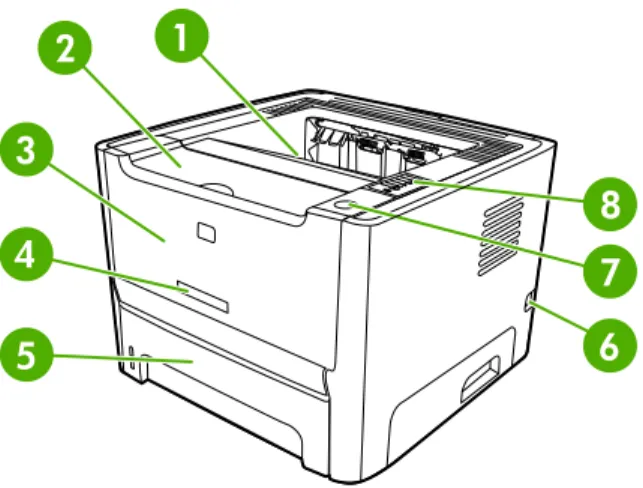
The following illustrations identify the components of the HP LaserJet P2015 Series printers. The HP LaserJet P2015dn model is shown.
Figure 1-1 HP LaserJet P2015dn, front view
1 Output bin 2 Print-cartridge door
3 Tray 1 (50–sheet multipurpose tray) 4 Model number
5 Tray 2 (250-sheet enclosed input tray) 6 On/off switch
7 Print-cartridge-door button 8 Control panel
3 Automatic two-sided-printing media-size selector (duplex models only) 4 HP internal network port (network-ready models only)
5 USB port
6 Rear automatic two-sided path door (duplex models only) 7 Jam-clearing levers
8 Serial number
2
Control panel
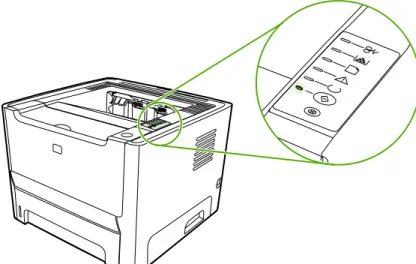
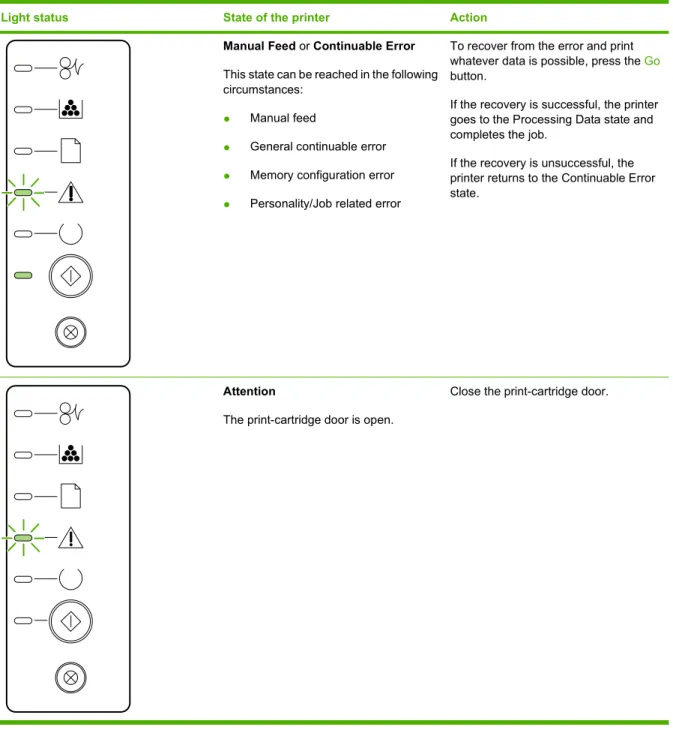
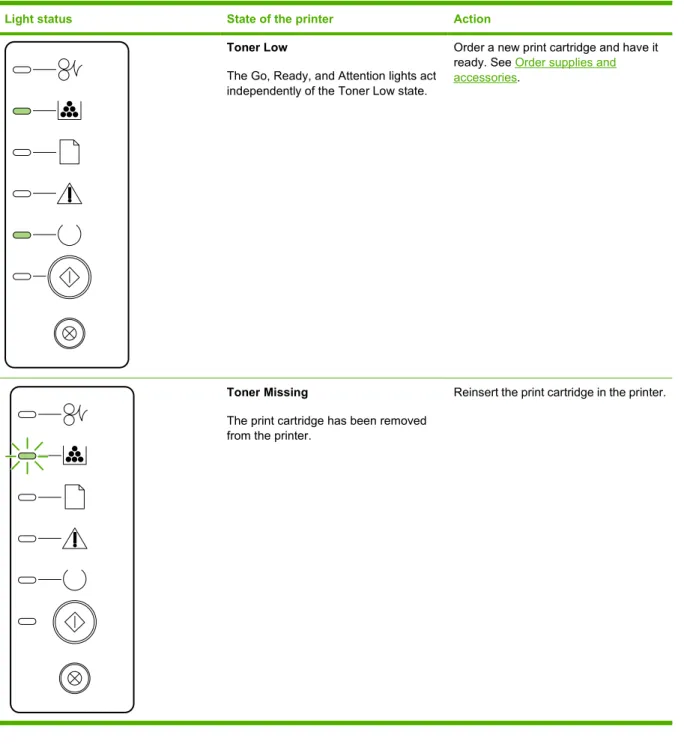
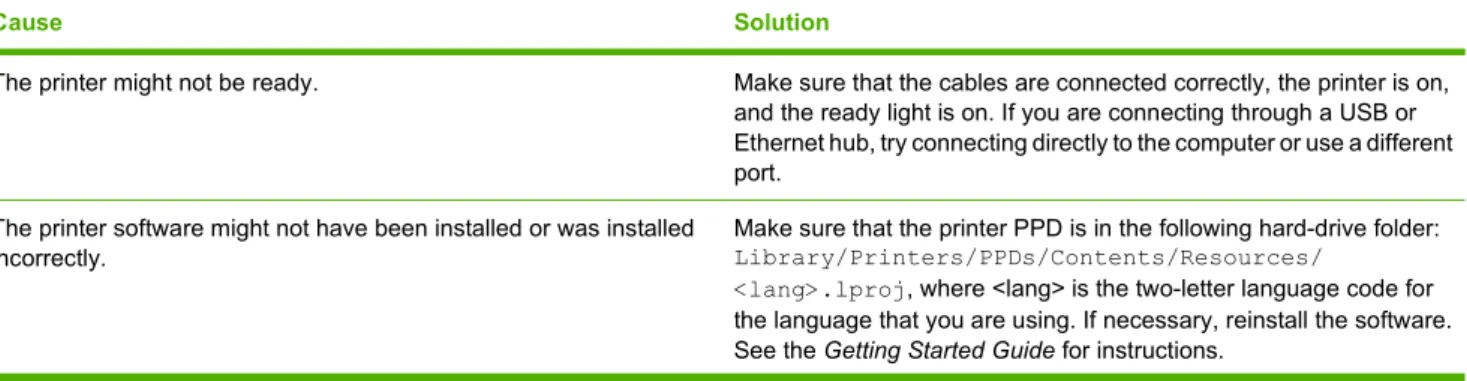
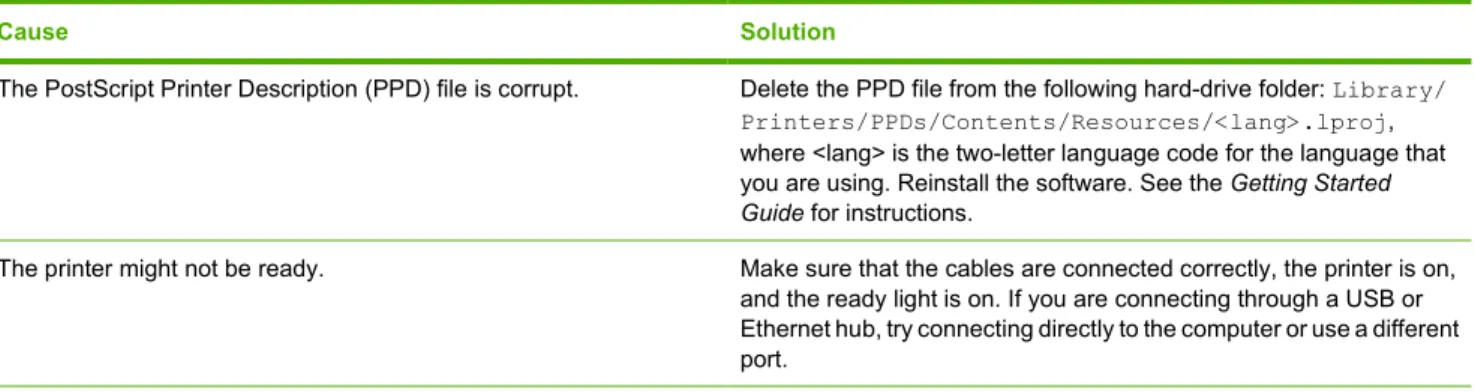
The printer control panel is comprised of six lights and two buttons. The lights produce patterns that identify the printer status.
1 Jam light: Indicates that there is a jam in the printer.
2 Toner light: When the print cartridge is low, the Toner light illuminates. When the print cartridge is out of the printer, the Toner light blinks.
3 Paper out light: Indicates that the printer is out of paper.
4 Attention light: Indicates that the print cartridge door is open or other errors exist. 5 Ready light: Indicates that the printer is ready to print.
6 Go button and light.
7 Cancel button: To cancel the print job that is currently printing, press the Cancel button.
NOTE See Status-light patterns for a description of the light patterns.
3
Product software
For easy printer setup and access to the full range of printer features, HP strongly recommends that you install the software that is provided with the printer.
The following sections describe the software that is provided with the HP LaserJet P2015 Series printers:
● Supported operating systems
● Printer connections
● Software for Windows
● Software for Macintosh
Supported operating systems
The printer comes with software for the following operating systems:
● Windows 98 (printer driver only)
● Windows Me (printer driver only)
● Windows 2000
● Windows Server 2003 (printer driver only)
For more information about upgrading from Windows 2000 Server to Windows Server 2003; using Windows Server 2003 Point and Print; or using Windows Server 2003 Terminal Services and Printing, go to http://www.microsoft.com/.
● Windows XP (32-bit)
● Windows XP (64-bit) (printer driver only)
Printer connections
This section shows you how to connect the printer to your computer or network by a USB or network connection.
USB connections
All HP LaserJet P2015 Series printers support USB connections.
1. Insert the software installation CD into the computer CD-ROM drive.
2. If the installation program does not start automatically, browse the CD contents and run the SETUP.EXE file.
3. Follow the on-screen instructions.
Network connections
The HP LaserJet P2015n, HP LaserJet P2015dn, and HP LaserJet P2015x printers can connect to networks through the HP internal networking port. External network print servers are available for the HP LaserJet P2015 and HP LaserJet P2015d printers. The following table identifies what is required to add networking to any HP LaserJet P2015 Series printer.
Table 3-1 Networking options
HP LaserJet model 10/100Base-TX P2015 and P2015d HP Jetdirect 175x
HP Jetdirect en3700 P2015n, P2015dn, P2015x Included
To order the print server, see 10/100 networking print servers.
Connect the printer to the network
To connect a networking-equipped HP LaserJet P2015 Series printer to your network, you need the following items:
● Functional wired network
● CAT-5 Ethernet cable
To connect the printer to your network, perform the following steps:
1. Connect the CAT-5 Ethernet cable to an available port on the Ethernet hub or router.
2. Connect the Ethernet cable to the Ethernet port on the back of the printer.
3. Verify that one of the network lights (10 or 100) is illuminated on the network port located on the back of the printer.
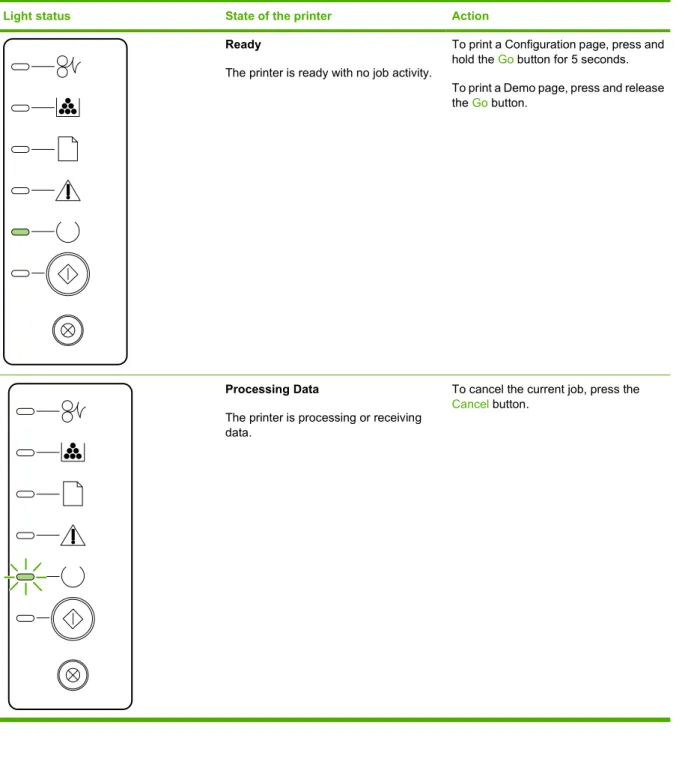
4. Print a Network Configuration page: When the printer is in the Ready state, press and hold the
Go button for 5 seconds. The Network Configuration page automatically prints with the Configuration page.
NOTE To resolve network connection problems, see Network setup problem solving.
Install the printer software for the network printer
To use the printer on the network, install the printer software on a computer that is connected to the network. See Software for Windows or Software for Macintosh for information about installing the printer software.
Software for Windows
The following sections describe the Windows software that is available for the HP LaserJet P2015 Series printers.
Windows printer drivers
A printer driver is the software that provides access to printer features and provides the means for the computer to print to the printer.
Windows driver types
Three Windows printer drivers are available: PCL 5e, PCL 6, and HP postscript level 3 emulation. Choose a printer driver based on the way you use the printer.
● Use the HP postscript level 3 emulation printer driver for HP postscript level 3 emulation. Certain printer features are not available in this printer driver.
The printer automatically switches between HP postscript level 3 emulation and PCL printer languages depending on the driver that you have selected.
Install the Windows printer software
The following sections provide instructions for installing the printer driver on Windows operating systems.
To install printer software for Windows XP (64-bit) and Windows Server 2003
See the operating system documentation for instructions on installing a printer driver.
To install printer software for Windows 98 (driver only), Me (driver only), 2000, and XP (32–bit)
Insert the software CD that came with the printer into the computer CD-ROM drive. Follow the on-screen installation instructions.
NOTE If the Welcome screen does not open, click Start on the Windows task bar, click Run, type Z:\setup (where Z is your CD drive letter), and click OK.
Configure the Windows printer driver
Use one of the following methods to open the Windows printer driver from your computer:
ENWW Software for Windows 13
● Use the PCL 5e printer driver for faster printer performance and a quick first page out with 600 dpi print quality.
● Use the PCL 6 printer driver for enhanced print quality. The PCL 6 driver allows you to take advantage of HP’s proprietary ProRes 1200 and FastRes 1200 technologies. Printer performance and first page out may be slower with this driver.
Operating system To change the settings for all print jobs until the software program is closed
To change the print job default settings (for example, turn on Print on Both Sides by default)
To change the configuration settings (for example, add a tray or enable/disable Manual Duplexing)
Windows 98, Me, 2000, XP (32–bit and 64–bit), and Server 2003
1. On the File menu in the software program, click
Print.
2. Select the name of the printer, and then click
Properties or
Preferences. The steps can vary; this procedure is most common.
1. Click Start, click Settings, and then click Printers or
Printers and Faxes. 2. Right-click the printer icon,
and then select Printing Preferences.
1. Click Start, click Settings, and then click Printers or
Printers and Faxes. 2. Right-click the printer icon,
and then select
Properties.
3. Click the Device Settings
tab.
HP ToolboxFX
HP ToolboxFX is software that you can use to complete the following tasks:
● Check the printer status.
● Configure the printer settings.
● View troubleshooting information.
● View online documentation.
See HP ToolboxFX for more information.
Embedded Web server
You can use the embedded Web server to configure the printer, view status information, and obtain problem-solving information.
Software for Macintosh
The following sections describe the Macintosh software that is available for the HP LaserJet P2015 Series printers.
Macintosh printer drivers
A printer driver is the software component that provides access to printer features and provides the means for the computer to communicate with the printer.
Install the Macintosh printer driver
This section explains how to install the printing system software for Macintosh OS X V10.2.8, V10.3.9 and V10.4.3.
NOTE USB queues are created automatically when the printer is attached to the computer. However, the queue will use a generic PPD if the installer has not been run before the USB cable is connected. To change the queue PPD, open the Print Center or Printer Setup Utility, select the correct printer queue, and then click Show Info to open the Printer Info dialog box. In the pop-up menu, select Printer Model, and then, in the pop-up menu in which Generic is selected, select the correct PPD for the printer.
Use the following procedure to install the Macintosh printer driver:
1. Insert the printer CD into the CD-ROM drive and run the installer.
2. Double-click the CD icon on the desktop
3. Double-click the Installer icon.
4. Follow the instructions on the computer screen.
5. Print a test page or a page from any software program to make sure that the printer software is correctly installed.
If installation fails, reinstall the software. If this fails, see the Late-Breaking Information section of the Install Notes. The Install Notes are located on the printer CD or at the support Web site (see How to contact HP for the Web address).
Configure the Macintosh printer driver
Use one of the following methods to open the Macintosh printer driver from your computer:
Operating System To change the settings for all print jobs until the software program is closed
To change the print job default settings (for example, turn on Print on Both Sides by default)
To change the configuration settings (for example, add a tray or enable/disable Manual Duplexing)
Macintosh OS X V10 .2.8, V10.3.9, and V10.4.3
1. On the File menu, click
Print.
2. Change the settings that you want on the various pop-up menus.
1. On the File menu, click
Print.
2. Change the settings that you want on the various pop-up menus. 3. On the Presets pop-up
menu, click Save as and type a name for the preset.
1. Open Printer Setup Utility
by selecting the hard drive, clicking Applications, clicking Utilities, then double-clicking Printer Setup Utility. 2. Click the print queue.
Operating System To change the settings for all print jobs until the software program is closed
To change the print job default settings (for example, turn on Print on Both Sides by default)
To change the configuration settings (for example, add a tray or enable/disable Manual Duplexing)
These settings are saved in the
Presets menu. To use the new settings, you must select the saved preset option every time you open a program and print.
3. On the Printers menu, click Show Info. 4. Click the Installable
Options menu.
PostScript Printer Description files (PPDs)
PPDs, in combination with the HP postscript level 3 emulation driver, access the printer features and allow the computer to communicate with the printer. An installation program for the PPDs is provided on the HP LaserJet P2015 Series printer CD.
4
Supported paper and other media
The HP LaserJet P2015 Series printer can use a variety of paper and other print media in accordance with the guidelines in this user guide. Media that does not meet these guidelines might cause the following problems:
● Poor print quality
● Increased jams
● Premature wear on the printer, requiring repair
For best results, use only HP brand paper and print media. Hewlett-Packard Company cannot
recommend the use of other brands. Because they are not HP products, HP cannot influence or control their quality.
It is possible for media to meet all of the guidelines in this user guide and still not produce satisfactory results. This might be the result of improper handling, unacceptable temperature and humidity levels, or other variables over which Hewlett-Packard has no control.
Before you purchase a large quantity of media, test the media and make sure that it meets the
requirements specified in this user guide and in HP LaserJet printer family media guide. The guidelines can be downloaded from http://www.hp.com/support/ljpaperguide/, or see Order supplies and
accessories for more information about ordering the guidelines.
CAUTION Using media that does not meet Hewlett-Packard's specifications might cause problems for the printer, requiring repair. This repair is not covered by the Hewlett-Packard warranty or service agreements.
Optimize print quality for media types
The HP LaserJet P2015 Series printers provide a number of print modes that allow the unit to adapt to various media. You can change the print modes on the Paper tab in the printer driver, in
HP ToolboxFX, or in the embedded Web server.
NOTE When using the CARDSTOCK, ENVELOPE, LABEL, and ROUGH modes, the printer pauses between pages and the number of pages per minute decreases.
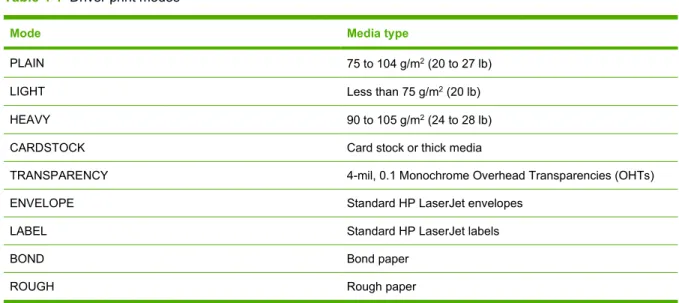
Table 4-1 Driver print modes
Mode Media type
PLAIN 75 to 104 g/m2 (20 to 27 lb)
LIGHT Less than 75 g/m2 (20 lb)
HEAVY 90 to 105 g/m2 (24 to 28 lb)
CARDSTOCK Card stock or thick media
TRANSPARENCY 4-mil, 0.1 Monochrome Overhead Transparencies (OHTs)
ENVELOPE Standard HP LaserJet envelopes
LABEL Standard HP LaserJet labels
BOND Bond paper
Guidelines for using media
You can print on a variety of media, such as paper (including up to 100% recycled-fiber-content paper), envelopes, labels, transparencies, and custom-size media. The following are the supported media sizes:
● Minimum: 76 by 127 mm (3 x 5 inches)
● Maximum: 216 by 356 mm (8.5 x 14 inches)
Properties such as weight, grain, and moisture content are important factors that affect printer
performance and quality. To achieve the best possible print quality, only use high-quality media that is designed for laser printers.
NOTE Always test a sample of the media before you purchase large quantities.
HP media
HP recommends a variety of media. See the HP LaserJet Printer Family Print Media Guide
(http://www.hp.com/support/ljpaperguide/) for a full list.
Media to avoid
Media outside the printer specifications will cause a loss of print quality and increase the occurrence of jams.
● Do not use paper that is too rough.
● Do not use paper with cutouts or perforations other than standard 3-hole punched paper.
● Do not use multi-part or multi-page forms.
● Do not use paper with a watermark if you are printing solid patterns.
Media that can damage the printer
Avoid media that can damage the printer.
● Do not use media with staples attached.
● Do not use transparencies designed for inkjet printers or other low temperature printers. Use only transparencies that are specified for use with HP LaserJet printers.
● Do not use photo paper intended for inkjet printers.
● Do not use paper that is embossed or coated and is not designed for the temperatures of the printer's image fuser. Select media that can tolerate temperatures of 200° C (392° F) for 0.1 second. HP produces a selection of media that is designed for the HP LaserJet P2015 Series printers.
● Do not use letterhead paper with low temperature dyes or thermography. Preprinted forms or letterhead must use inks that can tolerate temperatures of 200° C (392° F) for 0.1 second.
● Do not use any media that produces hazardous emissions, or that melts, offsets, or discolors when exposed to 200° C (392° F) for 0.1 second.
To order HP LaserJet printing supplies, go to http://www.hp.com/go/ljsupplies/ in the U.S. or to
http://www.hp.com/ghp/buyonline.html/ worldwide.
Paper
For best results, use conventional 75 g/m2 (20 lb) paper. Make sure that the paper is of good quality
and free of cuts, nicks, tears, spots, loose particles, dust, wrinkles, voids, and curled or bent edges.
Labels
Print labels from tray 1 using the straight-through output path. See Print on transparencies or labels
and Straight-through output path for more information.
CAUTION Do not feed a sheet of labels through the printer more than once. The adhesive degrades and might damage the printer.
Label construction
When selecting labels, consider the quality of the following components:
● Adhesives: The adhesive material should be stable at 200° C (392° F), the printer's maximum temperature.
● Arrangement: Only use labels with no exposed backing between them. Labels can peel off sheets that have spaces between the labels, causing serious jams.
● Curl: Prior to printing, labels must lie flat with no more than 13 mm (0.5 in.) of curl in any direction.
● Condition: Do not use labels with wrinkles, bubbles, or other indications of separation.
Transparencies
Transparencies must be able to withstand 200° C (392° F), the printer's maximum temperature.
Envelopes
Print envelopes from tray 1 using the straight-through paper path. See Print on an envelope and Straight-through output path for more information.
Envelope construction
Envelope construction is critical. Envelope fold lines can vary considerably, not only between
manufacturers but also within a box from the same manufacturer. When selecting envelopes, consider the following components:
● Weight: The weight of the envelope paper should not exceed 90 g/m2 (24 lb), or jamming might
result.
Envelopes with double-side seams
An envelope with double-side-seam construction has vertical seams at both ends of the envelope rather than diagonal seams. This style might be more likely to wrinkle. Make sure that the seam extends all the way to the corner of the envelope as shown in the following illustration:
1 acceptable envelope construction 2 unacceptable envelope construction
Envelopes with adhesive strips or flaps
Envelopes with a peel-off adhesive strip or with more than one flap that folds over to seal must use adhesives compatible with the heat and pressure in the printer: 200° C (392° F). The extra flaps and strips might cause wrinkling, creasing, or jams.
Envelope storage
Proper storage of envelopes contributes to good print quality. You should store envelopes flat. If air is trapped in an envelope, creating an air bubble, the envelope might wrinkle during printing.
Card stock and heavy media
You can print many types of card stock from the paper input tray, including index cards and postcards. Some card stock performs better than others because its construction is better suited for feeding through a laser printer.
For optimum printer performance, do not use paper heavier than 157 g/m2 (42 lb). Paper that is too
heavy might cause misfeeds, stacking problems, paper jams, poor toner fusing, poor print quality, or excessive mechanical wear.
NOTE You might be able to print on heavier paper if you do not fill the input tray to capacity and if you use paper with a smoothness rating of 100-180 Sheffield.
Card stock construction
● Smoothness: 135-157 g/m2 (36-42 lb) card stock should have a smoothness rating of
100-180 Sheffield. 60-135 g/m2 (16-36 lb) card stock should have a smoothness rating of
100-250 Sheffield.
● Construction: Card stock should lie flat with less than 5 mm (0.2 in.) of curl.
● Condition: Make sure that the card stock is not wrinkled, nicked, or otherwise damaged.
● Sizes: Only use card stock within the following size ranges:
● Minimum: 76 x 127 mm (3 x 5 in.)
● Maximum: 216 x 356 mm (8.5 x 14.0 in.)
Card stock guidelines
Set margins at least 2 mm (0.08 in.) away from the edges.
Letterhead and preprinted forms
Many manufacturers now offer premium paper advertised as laser-compatible or laser-guaranteed. Some of the rougher surface finishes, such as cockle, laid, or linen, might require the special fuser modes that are available on some printer models in order to achieve adequate toner adhesion.
NOTE Some page-to-page variation is normal when printing with laser printers. This variation cannot be observed when printing on plain paper. However, this variation is obvious when printing on preprinted forms because the lines and boxes are already placed on the page.
To avoid problems when using preprinted forms, embossed paper, and letterhead, observe the following guidelines:
● Avoid using low-temperature inks (the kind used with some types of thermography).
● Use preprinted forms and letterhead paper that have been printed by offset lithography or engraving.
● Use forms that have been created with heat-resistant inks that will not melt, vaporize, or release undesirable emissions when heated to 200° C (392° F) for 0.1 second. Typically, oxidation-set or oil-based inks meet this requirement.
● When the form is preprinted, be careful not to change the moisture content of the paper, and do not use materials that change the paper's electrical or handling properties. Seal the forms in moisture-proof wrap to prevent moisture changes during storage.
5
Print tasks
This chapter provides information on the following topics:
● Load media
● Print-quality settings
● Print on special media
● Print on both sides of the page (duplex)
● Print multiple pages on a single sheet of paper (N-up printing)
● Print booklets
● Print watermarks
● Cancel a print job
Load media
The following sections describe how to load media into the different input trays.
CAUTION If you try to print on media that is wrinkled, folded, or damaged in any way, a jam might occur. See Clearing jams for more information.
Tray 1
Tray 1 is accessed from the front of the printer. The printer prints from tray 1 before attempting to print from other trays.
Tray 1 holds up to fifty sheets of 75 g/m2 (20 lb) media or ten envelopes, ten transparencies, or ten
cards. You can use tray 1 to print the first page on media different from the remainder of the document. Media guides ensure that the media is correctly fed into the printer and that the print is not skewed (crooked on the media). When loading media, adjust the media guides to match the width of the media that you are using.
Media guides ensure that the media feeds correctly into the printer and that the print is not skewed. Tray 2 has side and rear media guides. When loading media, adjust the media guides to match the length and width of the media that you are using.
NOTE When you add new media, make sure that you remove all of the media from the input tray and straighten the stack of new media. This reduces jams by preventing multiple sheets of media from feeding through the printer at one time.
Straight-through output path
Use the straight-through output path when printing envelopes, transparencies, heavy media, or any media that tends to curl when printed. If you open the straight-through output door before printing media from tray 1, tray 2, or optional tray 3, the media exits the printer through the straight-through output path.
NOTE Printed media does not stack when you use the straight-through output path. The media drops to the surface below unless you remove each sheet as it exits the printer.
Manual feed
You can use manual feed when printing mixed media. For example, you can use manual feed to print an envelope, then a letter, then an envelope, and so on. Load envelopes in tray 1 and load letterhead into tray 2.
To print using manual feed, open the printer Properties or Printer Setup, and then select Manual Feed (tray 1) from the Source Tray drop-down list. See Configure the Windows printer driver or Configure the Macintosh printer driver for instructions. After you have enabled manual feed, press the Go button to print.
Print-quality settings
Print-quality settings affect print resolution and toner usage. Use the following procedure to change print-quality settings:
1. Open the printer Properties (or Printing Preferences in Windows 2000 and XP). See Configure the Windows printer driver or Configure the Macintosh printer driver for instructions.
2. On the Paper/Quality tab or the Finishing tab (the Paper Type/Quality tab for some Mac drivers), select the print quality setting you want to use. The following options are available:
● 1200 dpi: This setting uses ProRes 1200 to provide fine-line detail at 1200 x 1200 dpi.
● 1200 dpi effective output quality: This setting provides 1200 dpi effective output quality using FastRes 1200.
● 600 dpi: This setting provides 600 x 600 dpi output with Resolution Enhancement technology (REt) for improved text.
● EconoMode: Text is printed using less toner. This setting is useful when you are printing drafts. You can turn on this option independently of other print-quality settings. See
EconoMode for more information.
NOTE Not all printer features are available in all drivers or operating systems. See the printer Properties (driver) online Help for information about availability of features for that driver.
Print on special media
The following sections explain how to print on a variety of media.
Print on an envelope
Only use envelopes that are recommended for laser printers. See Guidelines for using media for more information.
1. Open the straight-through output door.
2. Open tray 1 and adjust the media guides to the width of the envelope.
3. Place the envelope with the side to be printed facing up and the top edge along the left media guide.
NOTE If the envelope has a flap on the short edge, feed that edge into the printer first.
4. Open the printer Properties (or Printing Preferences in Windows 2000 and XP). See Configure the Windows printer driver or Configure the Macintosh printer driver for instructions.
5. On the Paper/Quality tab or the Paper tab (the Paper Type/Quality tab for some Mac drivers), choose the correct media type.
NOTE Not all printer features are available in all drivers or operating systems. See the printer Properties (driver) online Help for information about availability of features for that driver.
6. Print the document.
To print using manual feed, see Manual feed.
Print on transparencies or labels
Use transparencies and labels that are recommended for use in laser printers. See Guidelines for using media for more information.
CAUTION Be sure to set the correct media type in the printer settings as instructed below. The printer adjusts the fuser temperature according to the media type setting. When printing on special media such as transparencies or labels, this adjustment prevents the fuser from damaging the media as it passes through the printer.
CAUTION Inspect the media to make sure that it is not wrinkled or curled and that it does not have any torn edges or missing labels.
4. Open the printer Properties (or Printing Preferences in Windows 2000 and XP). See Configure the Windows printer driver or Configure the Macintosh printer driver for instructions.
5. On the Paper/Quality tab or the Paper tab (the Paper Type/Quality tab for some Mac drivers), choose the correct media type.
NOTE Not all printer features are available in all drivers or operating systems. See the printer Properties (driver) online Help for information about availability of features for that drivers.
6. Print the document. Remove the media from the back of the printer as it prints to prevent it from sticking together, and place the printed pages on a flat surface.
Print on letterhead and preprinted forms
For media specifications, see Guidelines for using media.1. Open tray 1 and adjust the media guides to the width of the media.
2. Feed the media with the top forward and the side to be printed on facing up.
3. Open the printer Properties (or Printing Preferences in Windows 2000 and XP). See Configure the Windows printer driver or Configure the Macintosh printer driver for instructions.
4. On the Paper/Quality tab or the Paper tab (the Paper Type/Quality tab for some Mac drivers), choose the correct media type.
NOTE Not all printer features are available in all drivers or operating systems. See the printer Properties (driver) online Help for information about availability of features for that drivers.
5. Print the document.
To print using manual feed, see Manual feed.
NOTE To print a single-page cover letter on letterhead, followed by a multiple-page document, load the letterhead face-up in tray 1, and load the paper for the other pages in tray 2. The printer automatically prints from tray 1 first.
Print on custom-size media and card stock
For media specifications, see Guidelines for using media.CAUTION Make sure that the sheets are not stuck together before you load them.
2. Open tray 1 and adjust the media guides to the width of the media.
3. Load media in tray 1 with the narrow side forward and the side to be printed on facing up.
4. Open the printer Properties (or Printing Preferences in Windows 2000 and XP). See Configure the Windows printer driver or Configure the Macintosh printer driver for instructions.
5. On the Paper/Quality tab or the Paper tab (the Paper Type/Quality tab for some Mac drivers), select the custom size option. Specify the dimensions of the custom-size media.
NOTE Not all printer features are available in all drivers or operating systems. See the printer Properties (driver) online Help for information about availability of features for that driver.
6. Print the document.
To print using manual feed, see Manual feed.
Print on both sides of the page (duplex)
The section explains the manual and automatic methods of printing on both sides of the paper.
Manual two-sided printing
To manually print on both sides of the paper, you must run the paper through the printer twice. You can print using either these options:
● Top output bin (for lightweight paper)
● Straight-through output door (for heavy media or media that curls)
NOTE Manual two-sided printing can cause the printer to become dirty, reducing print quality. See Clean the printer for instructions if the printer becomes dirty.
Manual two-sided printing using the top output bin
The following sections provide instructions for the different operating systems.
Windows
1. Close the straight-through output door.
2. From the Windows desktop, click Start, Settings, and then Printers (or Printers and Faxes for some Windows versions).
3. Right-click on the HP LaserJet P2015 Series printer and select Properties.
5. In the Installable Options section, select Not Installed from the Duplex Unit (for 2–Sided Printing) drop-down list.
6. Click OK.
7. Open the Print dialog in the software program from which you are printing. In most programs this is done by clicking File and then Print.
8. Select the HP LaserJet P2015 Series printer.
9. Click Properties or Preferences. The exact option name depends on the software program from which you are printing.
10. Click the Finishing tab.
11. Click to clear the Correct Order for Straight Paper Path check box.
12. Click the Print On Both Sides check box.
13. Click OK.
14. Print side one of the document using tray 1.
15. After side one has printed, remove the remaining paper from tray 1 and set it aside until after you finish the manual two-sided print job.
16. Gather the printed pages, and straighten the stack.
i nv e n t
Mac OS X
1. Close the straight-through output door.
2. If Manual Duplex does not appear as a printer option, perform the following steps:
a. Verify that HP Manual Duplex&Booklet (Classic) was selected when the software driver was installed with the Custom Install option.
b. Do a File-Print, select Plug-In Preferences, and click the right-facing arrow. The right-facing arrow changes to a down-facing arrow, and the HP Manual Duplex&Booklet feature displays.
c. Select Print Time Filters, select HP Manual Duplex&Booklet, and click Save Settings.
d. Select Manual Duplex, and select Print on Both Sides.
3. Print the document.
4. After side one has printed, remove the remaining paper from tray 1 and set it aside until after you finish the manual two-sided print job.
5. Gather the printed pages, and straighten the stack.
6. Return the stack to tray 1 with the printed side down and the top edge toward the printer.
7. Press the Go button on the control panel to print side two.
Manual two-sided printing using the straight-through output door
The following sections provide instructions for the different operating systems.Windows
1. Open the straight-through output door.
2. Open the printer Properties (or Printing Preferences in Windows 2000 and XP). See Configure the Windows printer driver for instructions.
3. On the Finishing tab, select the Correct Order for Straight Paper Path check box.
NOTE Not all printer features are available in all drivers or operating systems. See the printer Properties (driver) online Help for information about availability of features for that driver.
4. On the Finishing tab, select the Print On Both Sides (Manually) check box.
5. Click OK.
6. Print side one of the document from tray 1.
7. Gather the printed pages, and straighten the stack.
8. Return the stack to tray 1 with the printed side facing down and the top edge toward the printer.
Mac OS X
1. Open the straight-through output door.
2. If Manual Duplex does not appear as a printer option, perform the following steps:
a. Verify that HP Manual Duplex&Booklet (Classic) was selected when the software driver was installed with the Custom Install option.
b. Do a File-Print, select Plug-In Preferences, and click the right-facing arrow. The right-facing arrow changes to a down-facing arrow, and the HP Manual Duplex&Booklet feature displays.
c. Select Print Time Filters, select HP Manual Duplex&Booklet, and click Save Settings.
d. Select Manual Duplex, and select Print on Both Sides.
e. Select Alternate output bin is open (straight through paper path).
3. Print side one of the document from tray 1.
4. Gather the printed pages, and straighten the stack.
5. Return the stack to tray 2 with the printed side down and the top edge toward the printer.
6. Press the Go button to print side two.
Automatic two-sided printing
Automatic two-sided printing is available for the HP LaserJet P2015d, HP LaserJet P2015dn, and HP LaserJet P2015x printers.
Automatic two-sided printing is supported for the following media sizes:
● A4
● Letter
● Legal
The following sections provide instructions for the different operating systems.
Windows
1. Close the straight-through output door.
2. Open the printer Properties (or Printing Preferences in Windows 2000 and XP). See Configure the Windows printer driver for instructions.
3. On the Finishing tab, click to clear the Correct Order for Straight Paper Path check box.
4. Select the Print On Both Sides check box.
5. Click OK.
6. Print the document.
d. Click Apply Changes.
e. Close the menu.
Print multiple pages on a single sheet of paper (N-up
printing)
Use N-Up printing to place multiple document pages on a single printed page.
1. Open the printer Properties (or Printing Preferences in Windows 2000 and XP). See Configure the Windows printer driver or Configure the Macintosh printer driver for instructions.
2. On the Finishing tab (the Layout tab for some Mac drivers), select the desired number of pages per sheet.
NOTE Not all printer features are available in all drivers or operating systems. See the printer Properties (driver) online Help for information about availability of features for that driver.
3. If desired, use the check box for page borders and the pull-down menu to specify the order of pages printed on the sheet.
Print booklets
You can print booklets on letter, legal, or A4 paper.
NOTE This feature is not available for all Macintosh OS X versions .
1. Load paper in tray 1.
2. Close the straight-through output door.
3. Open the printer Properties (or Printing Preferences in Windows 2000 and XP). See Configure the Windows printer driver for instructions.
4. On the Finishing tab (the Paper Type/Quality tab for some Mac drivers), click to clear the Correct Order for Straight Paper Path check box.
5. Select the Print On Both Sides check box.
6. Select Left Edge Binding or Right Edge Binding from the Booklet Layout drop-down list.
7. Set the number of pages per sheet to 2.
8. Click OK.
9. Print the document.
10. Fold and staple the pages.
Print watermarks
You can use the watermark option to print text "underneath" (in the background) of an existing document. For example, you might want to have large gray letters reading Draft or Confidential printed diagonally across the first page or all of the pages of a document.
1. Open the printer Properties (or Printing Preferences in Windows 2000 and XP). See Configure the Windows printer driver or Configure the Macintosh printer driver for instructions.
2. On the Effects tab (the Watermark/Overlay tab for some Mac drivers), select the watermark you want to use.
NOTE Not all printer features are available in all drivers or operating systems. See the printer Properties (driver) online Help for information about availability of features for that driver.
Cancel a print job
You can cancel a print job from the following locations:
● Printer control panel: To cancel the print job, press and release the Cancel button on the printer control panel.
● Software application: Typically, a dialog box appears briefly on your screen, allowing you to cancel the print job.
● Windows print queue: If a print job is waiting in a print queue (computer memory) or print spooler, delete the job there. To go to the Printer screen in Windows 98, Me, 2000, or XP, click Start,
Settings, and Printers. Double-click the HP LaserJet P2015 icon to open the window, select your print job, and click Delete.
● Desktop print queue (Mac OS): For Mac OS X, open Print Center (or Printer Setup Utility
in V10.3.9), double-click the printer name, select the print job, and click Delete.
● HP ToolboxFX: Open HP ToolboxFX, browse to the Device Status page, and click Cancel Job. See HP ToolboxFX for more information.
● Embedded Web server: Open the printer's embedded Web server page, and click Cancel Job. See Embedded Web server for more information.
If the status lights on the control panel continue to blink after you cancel a print job, the computer is still sending the job to the printer. Either delete the job from the print queue or wait until the computer finishes sending data. The printer will return to the Ready state.
6
Managing and maintenance
This chapter provides information on the following topics:
● Printer information pages
● HP ToolboxFX
● Embedded Web server
● Replace the print cartridge
● Redistribute toner
● Clean the printer
● Clean the pickup roller (tray 1)
● Clean the pickup roller (tray 2)
● EconoMode
Printer information pages
You can print the following information pages.Demo page
The Demo page contains examples of text and graphics. To print the Demo page, press the Go button when the printer Ready light is on and no other jobs are printing.
Configuration page
The Configuration page lists current settings and properties of the printer. It also contains a status log report. You can print a Configuration page from the following locations:
● Printer control panel. Press the Go button for five seconds when the printer Ready light is on and no other jobs are printing.
● Embedded Web server
● HP ToolboxFX
NOTE You can also get the information contained in the Event log and the Configuration page through the HP ToolboxFX without printing the pages. See HP ToolboxFX for more information.
Supplies Status page
The Supplies Status page automatically prints when you print a Configuration page from the control panel. The Supplies Status page provides the following information:
● The estimated percentage of toner remaining in the print cartridge
● The number of pages and print jobs that have been processed
● Ordering and recycling information
Network Configuration page
NOTE The Network Configuration page is only available on printers with an HP internal network port.
The Network Configuration page automatically prints when you print a Configuration page from the control panel. The Network Configuration page provides the following information about the printer network configuration:
HP ToolboxFX
HP ToolboxFX is software that you can use to complete the following tasks:
● Check the printer status.
● Configure the printer settings.
● View troubleshooting information.
● View online documentation.
You can view HP ToolboxFX when the printer is directly connected to your computer or when it is connected to the network. You must perform a typical software installation to install HP ToolboxFX.
NOTE HP ToolboxFX is not supported for Windows 98 SE, Windows Me, Windows Server 2003, or Macintosh operating systems.
NOTE You do not need Internet access to open and use HP ToolboxFX.
To view HP ToolboxFX
Open HP ToolboxFX in one of these ways:
● In the Windows system tray or on your desktop, double-click the HP ToolboxFX icon.
● On the Windows Start menu, click Programs (or All Programs in Windows XP), click HP, click
HP LaserJet 2015 Series, and then click HP ToolboxFX. The HP ToolboxFX software contains the following sections:
● Status
● Alerts
● Help
● Device settings
● Print settings
● Network settings
Status
The HP ToolboxFX Status folder contains links to the following main pages:
● Device Status. View printer status information. This page indicates printer conditions such as a jam or an empty tray. After you correct a problem with the printer, click Refresh to update the printer status.
● Supplies Status. View detailed supplies status such as the estimated percentage of toner remaining in the print cartridge and the number of pages that have been printed with the current print cartridge. This page also has links to order supplies and to find recycling information.
● Device Configuration. View a detailed description of the current printer configuration, including the amount of memory installed and whether optional trays are installed.
● Network Configuration. View a detailed description of the current network configuration, including the IP address and network status.
● Print Info Pages. Print the Configuration page and various other information pages that are available for the printer, such as the Supplies Status page and the Demo page.
● Event Log. View a four-column table where printer events and error codes are logged for your reference. The number in the Page Count column specifies the total number of pages that the printer had printed when the error occurred. The Event log also contains a brief description of the error.
Alerts
The HP ToolboxFX Alerts folder contains links to the following main pages:
● Set up Status Alerts. Set up HP ToolboxFX to send you pop-up alerts for certain events, such as low toner levels.
● Set up E-mail Alerts. Set up HP ToolboxFX to send you e-mail alert messages for certain events, such as low toner levels.
Set up status alerts
HP ToolboxFX can open pop-up alerts on your computer when certain events occur. Events that trigger alerts include jams, low levels of toner in HP print cartridges, non-HP print cartridge in use, empty input trays, and error messages.
Alerts only appear when the printer is printing from the computer on which you set up the alerts.
NOTE You must click Apply to save your changes.
Set up e-mail alerts
Use HP ToolboxFX to configure up to two e-mail addresses to receive alerts when certain events occur. You can specify different events for each e-mail address. Enter the information for the e-mail server that will send out the e-mail alert messages for the printer.
NOTE You must click Apply to save your changes.
Help
The HP ToolboxFX Help folder contains links to the following main pages:
● Troubleshooting. Print troubleshooting pages and clean the printer.
● How Do I? View the How Do I? Help for help with specific tasks.
● Animated demonstrations
● User Guide. View information about the printer usage, warranty, specifications, and support. The user guide is available in both HTML and PDF formats.
● Readme. View important information about the printer that is not available in the user guide.
Device settings
The HP ToolboxFX Device Settings folder contains links to the following main pages:
● Device Information. View information about the printer, such as the printer description and a contact person.
● Paper Handling. Change the printer paper-handling settings, such as default paper size and default paper type.
● Print Quality. Change the printer print-quality settings.
● Paper types. Change the printer mode settings for a each media type, such as letterhead, prepunched, or glossy paper.
● System Setup. Change the printer system settings, such as printer language and jam recovery.
● Service. Gain access to various procedures required to maintain the printer.
Device information
The information that you type in these fields appears on the Configuration page. See Configuration page.
Paper handling
Use the HP ToolboxFX paper-handling options to configure your default settings. Three options are available for handling print jobs when the product is out of media:
● Select Wait For Paper To Be Loaded.
● Select Cancel from the Paper out action drop-down list to cancel the print job.
● Select override from the Paper out time drop-down list to send the print job to another paper tray. The Paper out time field specifies how long the printer waits before acting on your selections. You can specify from 0 to 3600 seconds.
NOTE You must click Apply to save your changes.
Print quality
Use the HP ToolboxFX print-quality options to improve the appearance of your print jobs.
● Resolution. Select 600 resolution for quality print jobs and Fast Res 1200 for higher-quality print jobs. Select ProRes 1200 for the highest-quality print job (printing time increases).
● REt. Activate REt to improve print quality.
● Print density. For increased print density, select a higher number. For decreased print density, select a lower number.
● EconoMode. EconoMode is a feature that allows the printer to use less toner per page. Selecting this option may extend the life of the print cartridge and reduce your cost per page. However, it will also reduce print quality. The printed image is lighter, but it is adequate for printing drafts or proofs. HP does not recommend full-time use of EconoMode. See EconoMode for more information.
NOTE You must click Apply to save your changes.
Paper types
Use these HP ToolboxFX Paper types options to configure print modes that correspond to the various media types. When you select RESTORE MODES, all of the modes are reset to the factory settings.
NOTE You must click Apply to save your changes.
System setup
Use the HP ToolboxFX system settings options to configure miscellaneous print settings.
NOTE You must click Apply to save your changes.
Service
During the printing process, paper, toner, and dust particles can accumulate inside the printer. Over time, this buildup can cause print-quality problems such as toner specks or smearing. HP ToolboxFX provides an easy method for cleaning the paper path. For more information, see Clean the printer media path.
Print settings
The HP ToolboxFX Print Settings tab contains links to the following main pages:
● Printing. Change the default print settings, such as number of copies and paper orientation.
● PCL 5e. View and change the PCL 5e settings.
● PCL 6. View and change the PCL 6 settings.
● Postscript. View and change the HP postscript level 3 emulation settings.
Printing
Use the HP ToolboxFX printing settings options to configure the settings for all print functions.
NOTE You must click Apply to save your changes.
PCL 5e
Use the PCL 5e options to configure the settings when you are using the PCL 5e print personality.
NOTE You must click Apply to save your changes.
PCL 6
Use the PCL 6 printer driver to take full advantage of all printer features. Unless complete backward compatibility with previous PCL drivers or older printers is necessary, the PCL 6 driver is recommended.
PostScript
Use the PostScript option when you are using the HP postscript level 3 emulation print personality. When the Print PostScript Errors option is turned on, the HP postscript level 3 emulation error page automatically prints when HP postscript level 3 emulation errors occur.
NOTE You must click Apply to save your changes.
Network settings
The network administrator can use the HP ToolboxFX Network Settings folder to control the network-related settings for the printer when it is connected to a TCP/IP-based network.
The following options are available:
● IP Configuration
● Advanced
● SNMP
● Network Summary
Embedded Web server
The embedded Web server allows you to view printer and network status and to manage printing functions from your computer instead of from the printer control panel. Below are examples of what you can do using the embedded Web server:
● View printer status information
● View and print internal pages
● Determine the remaining life on all supplies and order new ones
● Set the size and type of media loaded in each tray
● View and change tray configurations
● View and change the printer default configuration settings
● View and change network configuration
The embedded Web server provides the same functions as the Advanced Printer Settings section of the HP ToolboxFX. The main differences between using the embedded Web server and using the HP ToolboxFX are the following:
● You do not need to install any software on the computer. You only need to use one of these supported Web browsers:
● Internet Explorer 6.0 (and later)
● Netscape Navigator 7.0 (and later)
● Firefox 1.0 (and later)
● Mozilla 1.6 (and later)
● Opera 7.0 (and later)
● Safari 1.2 (and later)
● Konqueror 3.2 (and later)
● The embedded Web server is available in sixteen languages.
● The embedded Web server does not provide e-mail or status alerts.
The embedded Web server works when the printer is connected to an TCP/IP-based network. The embedded Web server does not support IPX-based printer connections.
NOTE You do not have to have Internet access to open and use the embedded Web server. However, if you click a link on any of the pages, you must have Internet access in order to go to
Hint After you open the URL, bookmark it so that you can return to it quickly in the future.
The embedded Web server has three tabs that contain settings and information about the printer: the
Status tab, the Settings tab, and the Networking tab.
Status tab
The Status pages group consists of the following pages.
● Device Status. This page displays the status of the printer and HP supplies.
● Device Configuration. This page shows the information found on the printer Configuration page.
● Supplies Status. This page shows the status of HP supplies and provides supplies part numbers. To order new supplies, click Order Supplies in the upper-right part of the window.
● Event log. This page shows a list of all printer events and errors.
● Print Info Pages. This page has links that allow you to print the various information pages that reside within the memory of the printer.
● Network Summary. This page shows the information found on the printer Network Summary page.
Settings tab
This tab allows you to configure the printer from your computer. If this printer is networked, always consult with the printer administrator before changing settings on this tab.
The Settings tab contains the following pages:
● Device Information. View and change basic information about the printer.
● Paper Handling. View and change the settings for the printer's input tray.
● Printing. View and change the default printer job settings.
● PCL 5e. View and change the PCL font information.
● Postscript. View and change the settings for HP postscript level 3 emulation errors.
● Print Quality. View and change the print-quality settings.
● Paper Types. View and change the print modes for various media types.
● System Setup. View and change system information.
● Service. Initiate the cleaning mode.
Networking tab
This tab allows the network administrator to control network-related settings for the printer when it is connected to an IP-based network.
Links
Links are located in the upper-right part of the Status pages. You must have Internet access in order to use any of these links. If you use a dial-up connection and did not connect when you first opened the embedded Web server, you must connect before you can visit these Web sites. Connecting might require that you close the embedded Web server and reopen it.
● Order Supplies. Click this link to connect to the Sure Supply Web site and order genuine HP supplies from HP or a reseller of your choice.
● Product Support. Connects to the support site for the HP LaserJet P2015 Series printer. You can search for help regarding general topics.