Document created by: Hannah Corah
Quick Guide: Excel
Macros for formatting
Board of Examiners
Documentation
Last Updated: May 2014 Page 2 of 9
COPYRIGHTS
The University of Bradford retains copyright for this material, which may not be reproduced without prior written permission
SAINT screen shot(s) reprinted by permission from Tribal Technology Limited
Business Objects screen shot(s) reprinted by permission from Business Objects UK
Microsoft [Excel] screen shot(s) reprinted by permission from Microsoft Corporation. Microsoft is a registered trademark and Windows is a trademark of Microsoft Corporation
The SAINT team welcomes feedback on its documentation. Please email any comments on the content of this document to [email protected]
For other SAINT documentation please see:
Last Updated: May 2014 Page 3 of 9
Contents
1. Formatting Board of Examiners documentation using Excel Macros ... 4
1.1 Run and save the Board of Examiners Report ... 4
1.2 Open the saved report in Excel ... 5
1.3 Open the Macro Picker tool ... 6
1.4 Run the Macro ... 7
Last Updated: May 2014 Page 4 of 9
1. Formatting Board of Examiners documentation using
Excel Macros
The web-based Board of Examiners reports should be saved as a HTML file, imported into Excel and have the relevant macro run. This will make the report print correctly and be manageable to use.
This document will use the Undergraduate Award report as an example.
1.1 Run and save the Board of Examiners Report
Run the required report in Internet Explorer – see document ‘Progression and Award, Part 2’ on the SITS website for further guidance.
When the report has loaded, check that that the student/module data is all correct – if there are any error’s e.g. missing students then please contact the SITS team for advice.
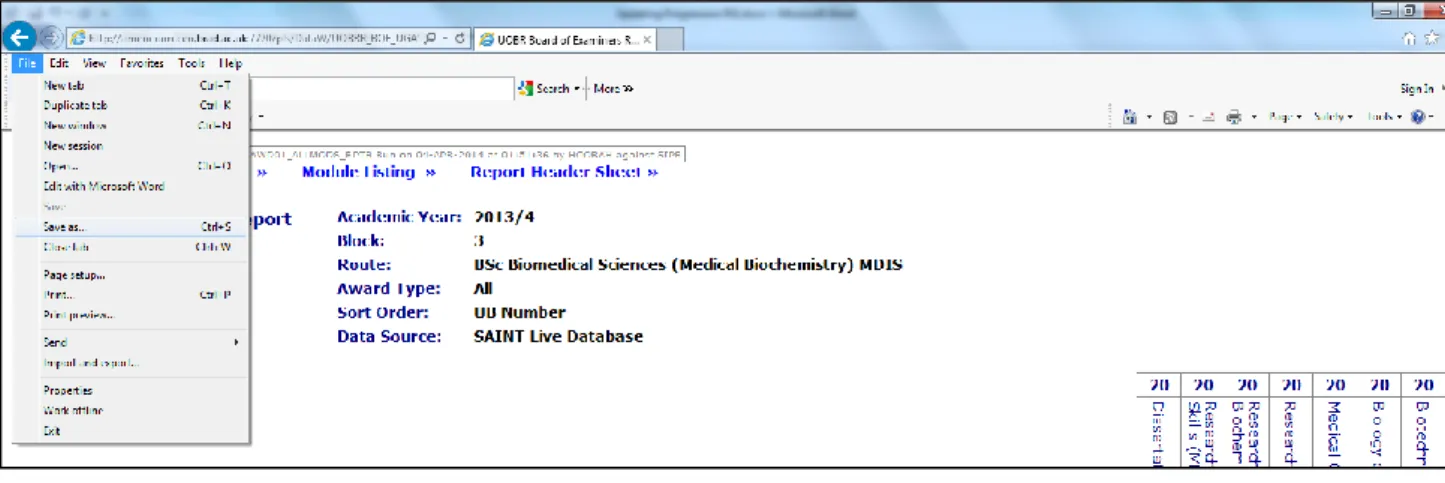
Once you are satisfied that the report is correct, go to the ‘file’ menu on the internet browser window and select ‘Save As’ [Figure 1.1a]
Figure 1.1a – Opening ‘Save As’ from a web-based report
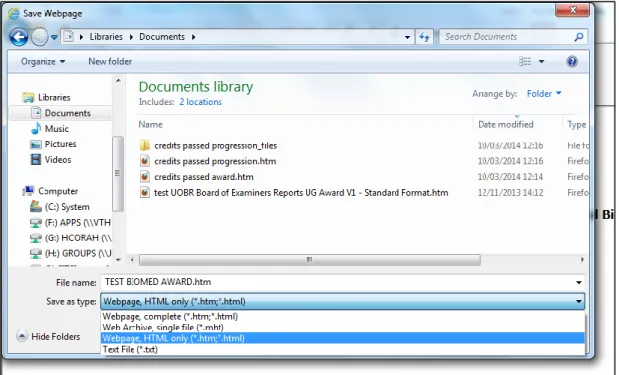
The ‘Save Webpage’ dialogue box will open, choose a location to save the file and name it. The filename must have a .htm extension. From the ‘Save As Type’ drop down menu select ‘Webpage HTML only’ then click ‘Save’ [Figure 1.1b].
Last Updated: May 2014 Page 5 of 9
Figure 1.1b – For this example the report is saved to the documents folder named TEST
BIOMED AWARD.htm as a Webpage.
1.2 Open the saved report in Excel
Open the Excel Macro formatting file, making sure it is the latest version. Enable editing and content – the 2 security warnings that can show as yellow bands at the top of the screen [Figures 1.2a/b]. Note: These may not always come up.
Figure 1.2a – Enable editing in Excel Figure 1.2b – Enable content in Excel
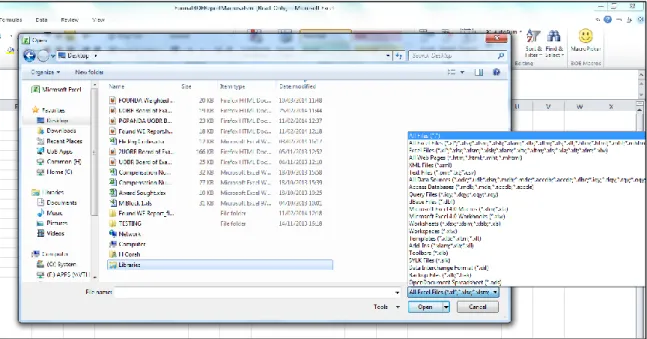
Open the saved webpage report in Excel using the ‘file’ menu followed by ‘open’. You will need to change the file type on the dialogue box to ‘all files’ to locate it, as the report is saved as html [Figure 1.2c].
Last Updated: May 2014 Page 6 of 9
Figure 1.2c Open the saved webpage report in Excel, remembering to use the ‘All File
Types’ selection.
1.3 Open the Macro Picker tool
Next open the Macro Picker selection box by pressing keys: Ctrl + Shift + M. The picker will open with 2 options as default [Figure 1.3a]. Clicking ‘More Macros’ will load more options a section at a time – the ‘More Macros’ button will become non selectable once the full list is loaded [Figure 1.3b].
Figure 1.3a – Default Macro Picker
Options
Figure 1.3b – Full list of Macro Picker
Options
Select the Macro appropriate for your report by clicking on it followed by the ‘Select’ button [Figure 1.3c].
Last Updated: May 2014 Page 7 of 9
Figure 1.3c For this example ‘Format Undergraduate Award Report’
has been selected
1.4 Run the Macro
Run the macro, this will re-format the file.
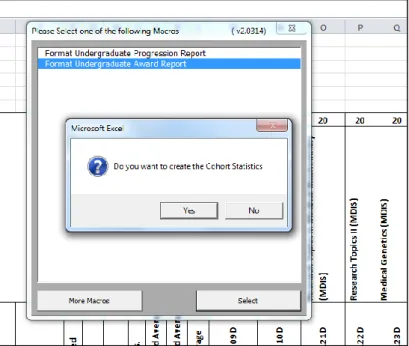
Note: For the Undergraduate Progression and Undergraduate Award reports prior to finishing a prompt will ask if Cohort Statistics are to be added to the report [Figure 1.4a/b]. Select Yes/No as appropriate. Cohort statistics give median marks and standard deviation of marks for each module based on the number of students taking it.
Figure 1.4a Prompt to run Cohort Statistics; UG Progression/UG Award Reports only
Last Updated: May 2014 Page 8 of 9
Once the Macro has finished running; save the document as an Excel file [Figure 1.4c]. Use the ‘Save as Type’ drop down menu to change the extension to ‘Excel Workbook .xlsx’. Rename the file if appropriate and choose the save location.
Figure 1.4c – Saving the report as an Excel File
You report is now complete; section 1.5 below will illustrate the stages of macro formatting.
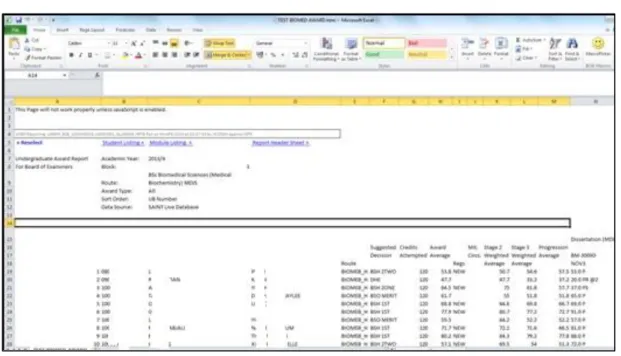
1.5 Example Macro Formatting Screenshots
Last Updated: May 2014 Page 9 of 9
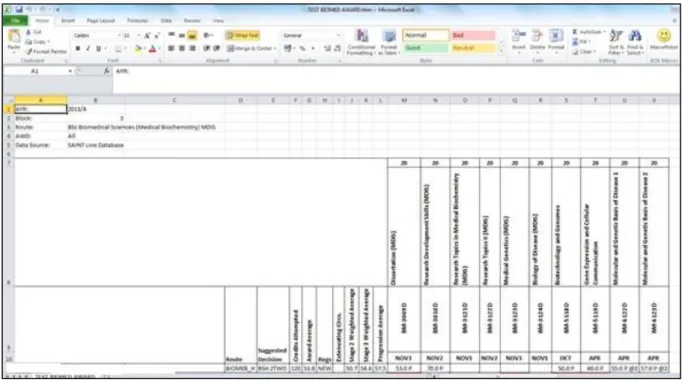
Figure 1.5b - Report after Macro formatting