SmartNode 4960 Series
Multi-Port T1/E1/PRI VoIP
Enterprise Session Border Router
User Manual
Sales Office: +1 (301) 975-1000 Technical Support: +1 (301) 975-1007 E-mail: [email protected] WWW: www.patton.com Part Number: 07MSN4960-GS, Rev. G Revised: February 7, 2012 Start Installation
Patton Electronics Company, Inc. 7622 Rickenbacker Drive Gaithersburg, MD 20879 USA Tel: +1 (301) 975-1000 Fax: +1 (301) 869-9293 Support: +1 (301) 975-1007 Web: www.patton.com E-mail: [email protected] Trademark Statement
The terms SmartNode and SmartWare are trademarks of Patton Electronics Company. All other trademarks presented in this document are the property of their respective owners.
Copyright © 2012, Patton Electronics Company. All rights reserved. The information in this document is subject to change without notice. Patton Elec-tronics assumes no liability for errors that may appear in this document.
Important Information
To use virtual private network (VPN) and/or AES/DES/3DES encryption capabilities with the SmartNode 4960, you may need to purchase additional licenses, hardware, software, network connection, and/or service. Contact [email protected] or +1 (301) 975-1000 for assistance.
Warranty Information
The software described in this document is furnished under a license and may be used or copied only in accordance with the terms of such license. For information about the license, see Appendix F, "End user license agreement" on page 67 or go to www.patton.com.
Patton Electronics warrants all SmartNode router components to be free from defects, and will—at our option—repair or replace the product should it fail within one year from the first date of the shipment.
This warranty is limited to defects in workmanship or materials, and does not cover customer damage, abuse or unauthorized modification. If the product fails to perform as warranted, your sole recourse shall be repair or replacement as described above. Under no condition shall Patton Electronics be liable for any damages incurred by the use of this product. These damages include, but are not limited to, the following: lost profits, lost savings and incidental or consequential damages arising from the use of or inability to use this product. Patton Electronics specifically disclaims all other warran-ties, expressed or implied, and the installation or use of this product shall be deemed an acceptance of these terms by the user.
3
Summary Table of Contents
1 General information... 14
2 Applications overview... 21
3 SmartNode installation... 24
4 Initial configuration... 29
5 G.SHDSL Basic Configuration... 38
6 Contacting Patton for assistance... 43
A Compliance information ... 46
B Specifications ... 50
C Cabling ... 57
D Port pin-outs ... 62
E SmartNode 4960 factory configuration ... 65
4
Table of Contents
Summary Table of Contents ... 3
Table of Contents ... 4
List of Figures ... 7
List of Tables ... 8
About this guide ... 9
Audience... 9
Structure... 9
Precautions... 10
Safety when working with electricity ...11
General observations ...12
Typographical conventions used in this document... 12
General conventions ...12
1 General information... 14
SmartNode 4960 overview...15
SN4960 model codes ...16
SN4961 model codes ...16
SmartNode 4960 rear panel...17
SmartNode 4960 front panel...19
2 Applications overview... 21
Introduction...22
Application—Edge intelligence of enterprise communication...22
Application—Multi-service ISDN Internet telephony IAD...23
3 SmartNode installation... 24
Planning the installation...25
Site log ...25 Network information ...25 Network Diagram ...25 IP related information ...25 Software tools ...26 AC Power Mains ...26
Location and mounting requirements ...26
Installing the gateway router...26
Placing the SmartNode ...26
Installing cables ...26
Connecting the PRI ...27
Connecting the 10/100/1000Base-T Ethernet LAN and WAN cables ...27
Installing the DSL WAN cable ...27
Connecting the power supply ...28
5
SmartNode 4960 User Manual Table of Contents
Introduction...30
1. Connecting the SmartNode to your laptop PC...30
2. Configuring the desired IP address...31
Factory-default IP settings ...31
Login ...31
Changing the WAN IP address ...31
3. Connecting the SmartNode to the network...32
4. Loading the configuration (optional)...33
Bootloader...34
Start Bootloader ...34
Start-up with factory configuration ...34
Load a new application image (SmartWare) via TFTP ...34
Load a new application image (SmartWare) via the serial link ...36
Additional information...37 5 G.SHDSL Basic Configuration... 38 Introduction...39 Line Setup...39 Configuring PPPoE...39 Configuration Summary...40
Setting up permanent virtual circuits (PVC)...41
Using PVC channels in bridged Ethernet mode ...41
Using PVC channels with PPPoE ...41
Diagnostics ...42
Troubleshooting DSL Connections...42
6 Contacting Patton for assistance... 43
Introduction...44
Contact information...44
Patton support headquarters in the USA ...44
Alternate Patton support for Europe, Middle East, and Africa (EMEA) ...44
Warranty Service and Returned Merchandise Authorizations (RMAs)...44
Warranty coverage ...44
Out-of-warranty service ...45
Returns for credit ...45
Return for credit policy ...45
RMA numbers ...45 Shipping instructions ...45 A Compliance information ... 46 Compliance...47 EMC ...47 Safety ...47 PSTN Regulatory ...47
Radio and TV Interference...47
6
SmartNode 4960 User Manual Table of Contents
Industry Canada Notice...48
CE Declaration of Conformity...49
Authorized European Representative...49
B Specifications ... 50
Voice connectivity...51
Data connectivity...51
Voice processing (signalling dependent)...51
Fax and modem support...51
Voice signalling...52
Voice routing—session router...52
IP services...52
Management...53
System...53
Physical...53
G.SHDSL Daughter Card (if applicable)...54
Identification of the SmartNode devices via SNMP...55
C Cabling ... 57 Introduction...58 Console...58 Ethernet...59 E1 PRI...60 T1 PRI...61 D Port pin-outs ... 62 Introduction...63 Console port...63 Ethernet...63 PRI port...64 G.SHDSL port...64
E SmartNode 4960 factory configuration ... 65
Introduction...66
F End user license agreement ... 67
End User License Agreement...68
1. Definitions ...68 2. Title ...68 3. Term ...68 4. Grant of License ...68 5. Warranty ...68 6. Termination ...69 7. Other licenses ...69
7
List of Figures
1 SmartNode 4960 . . . 15
2 SN4960 rear panel . . . 17
3 SmartNode 4960 front panel . . . 19
4 Edge intelligence of enterprise communication application . . . 22
5 Internet telephony IAD application . . . 23
6 Power connector location on rear panel . . . 28
7 Connecting the SmartNode to your laptop PC . . . 30
8 Connecting the SmartNode to the network . . . 32
9 Configuring the G.SHDSL card for PPPoE . . . 39
10 Connecting a serial terminal . . . 58
11 Typical Ethernet straight-through cable diagram for 10/100Base-T . . . 59
12 Typical Ethernet straight-through cable diagram for 1000Base-T . . . 59
13 Connecting an E1 PRI port to an NT1 . . . 60
14 E1 PRI port crossover cable . . . 60
15 Connecting a T1 PRI port to an NT device . . . 61
16 T1 PRI crossover cable . . . 61
8
List of Tables
1 General conventions . . . 12
2 SmartNode 4960 PRI Ports and Voice Channels . . . 16
3 SmartNode 4960 models with integrated G.SHDSL interface . . . 16
4 Rear panel ports . . . 18
5 SN4960 Front and Rear panel LEDs . . . 20
6 Sample site log entries . . . 25
7 Factory default IP address and network mask configuration . . . 31
8 PVC Commands . . . 41
9 PVC channels in bridged Ethernet mode . . . 41
10 PVC channels in PPPoE mode . . . 41
11 Diagnostics commans . . . 42
12 G.SHDSL Daughter Card Specifications . . . 54
13 SmartNode Models and their Unique sysObjectID . . . 55
14 RJ45 socket 10/100Base-T . . . 63
15 RJ45 socket 1000Base-T . . . 64
16 RJ-45 socket . . . 64
9
About this guide
This guide describes the SmartNode 4960 hardware, installation and basic configuration. For detailed software configuration information refer to the SmartWare Software Configuration Guide and the available Configura-tion Notes.
Audience
This guide is intended for the following users: • Operators
• Installers
• Maintenance technicians
Structure
This guide contains the following chapters and appendices:
• Chapter 1 on page 14 provides information about router features and capabilities • Chapter 2 on page 21 contains an overview describing router operation and applications • Chapter 3 on page 24 provides hardware installation procedures
• Chapter 4 on page 29 provides quick-start procedures for configuring the SmartNode router • Chapter 5 on page 38 provides information on G.SHDSL basic configuration
• Chapter 6 on page 43 contains information on contacting Patton technical support for assistance • Appendix A on page 46 contains compliance information for the router
• Appendix B on page 50 contains specifications for the routers • Appendix C on page 57 provides cable recommendations • Appendix D on page 62 describes the router’s ports and pin-outs
• Appendix E on page 65 lists the factory configuration settings for SmartNode 4960
• Appendix F on page 67 provides license information that describes acceptable usage of the software pro-vided with the SmartNode 4960
10 SmartNode 4960 User Manual
Precautions
Notes, cautions, and warnings, which have the following meanings, are used throughout this guide to help you become aware of potential problems. Warnings are intended to prevent safety hazards that could result in per-sonal injury. Cautionsare intended to prevent situations that could result in property damage or
impaired functioning.
Note A note presents additional information or interesting sidelights. The alert symbol and IMPORTANT heading calls attention to important information.
The alert symbol and CAUTION heading indicate a potential haz-ard. Strictly follow the instructions to avoid property damage.
The shock hazard symbol and CAUTION heading indicate a potential electric shock hazard. Strictly follow the instructions to avoid property damage caused by electric shock.
The alert symbol and WARNING heading indicate a potential safety hazard. Strictly follow the warning instructions to avoid personal injury.
The shock hazard symbol and WARNING heading indicate a potential electric shock hazard. Strictly follow the warning instructions to avoid injury caused by electric shock. IMPORTANT CAUTION CAUTION WARNING WARNING
11 SmartNode 4960 User Manual
Safety when working with electricity
• Do not open the device when the power cord is connected. For systems without a power switch and without an external power adapter, line volt-ages are present within the device when the power cord is connected. • For devices with an external power adapter, the power adapter shall be a
listed Limited Power Source The mains outlet that is utilized to power the device shall be within 10 feet (3 meters) of the device, shall be easily accessible, and protected by a circuit breaker in compliance with local regu-latory requirements.
• For AC powered devices, ensure that the power cable used meets all appli-cable standards for the country in which it is to be installed.
• For AC powered devices which have 3 conductor power plugs (L1, L2 & GND or Hot, Neutral & Safety/Protective Ground), the wall outlet (or socket) must have an earth ground.
• For DC powered devices, ensure that the interconnecting cables are rated for proper voltage, current, anticipated temperature, flammability, and mechanical serviceability.
• WAN, LAN & PSTN ports (connections) may have hazardous voltages present regardless of whether the device is powered ON or OFF. PSTN relates to interfaces such as telephone lines, FXS, FXO, DSL, xDSL, T1, E1, ISDN, Voice, etc. These are known as “hazardous network voltages” and to avoid electric shock use caution when working near these ports. When disconnecting cables for these ports, detach the far end connection first. • Do not work on the device or connect or disconnect cables during periods of
lightning activity
This device contains no user serviceable parts. This device can only be repaired by qualified service personnel.
In accordance with the requirements of council directive 2002/ 96/EC on Waste of Electrical and Electronic Equipment (WEEE), ensure that at end-of-life you separate this product from other waste and scrap and deliver to the WEEE collection system in your country for recycling.
WARNING
12 SmartNode 4960 User Manual
General observations
• Clean the case with a soft slightly moist anti-static cloth • Place the unit on a flat surface and ensure free air circulation • Avoid exposing the unit to direct sunlight and other heat sources • Protect the unit from moisture, vapors, and corrosive liquids
Typographical conventions used in this document
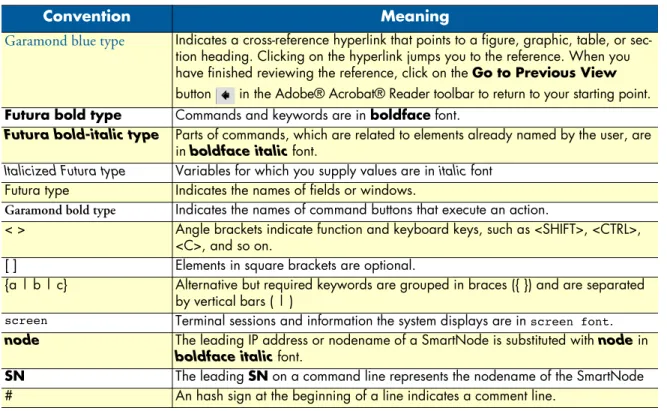
This section describes the typographical conventions and terms used in this guide.General conventions
The procedures described in this manual use the following text conventions:
Always follow ESD prevention procedures when removing and replacing cards.
Wear an ESD-preventive wrist strap, ensuring that it makes good skin contact. Connect the clip to an unpainted surface of the chassis frame to safely channel unwanted ESD voltages to ground.
To properly guard against ESD damage and shocks, the wrist strap and cord must operate effectively. If no wrist strap is avail-able, ground yourself by touching the metal part of the chassis.
Table 1. General conventions
Convention Meaning
Garamond blue type Indicates a cross-reference hyperlink that points to a figure, graphic, table, or sec-tion heading. Clicking on the hyperlink jumps you to the reference. When you have finished reviewing the reference, click on the Go to Previous View button in the Adobe® Acrobat® Reader toolbar to return to your starting point. Futura bold type Commands and keywords are in boldface font.
Futura bold-italic type Parts of commands, which are related to elements already named by the user, are in boldface italic font.
Italicized Futura type Variables for which you supply values are in italic font
Futura type Indicates the names of fields or windows.
Garamond bold type Indicates the names of command buttons that execute an action.
< > Angle brackets indicate function and keyboard keys, such as <SHIFT>, <CTRL>,
<C>, and so on.
[ ] Elements in square brackets are optional.
{a | b | c} Alternative but required keywords are grouped in braces ({ }) and are separated
by vertical bars ( | )
screen Terminal sessions and information the system displays are in screen font.
node The leading IP address or nodename of a SmartNode is substituted with node in
boldface italic font.
SN The leading SN on a command line represents the nodename of the SmartNode
# An hash sign at the beginning of a line indicates a comment line.
14
Chapter 1
General information
Chapter contents
SmartNode 4960 overview...15
SN4960 model codes ...16
SN4961 models ...16
SmartNode 4960 rear panel...17
SmartNode 4960 overview 15
SmartNode 4960 User Manual 1 • General information
SmartNode 4960 overview
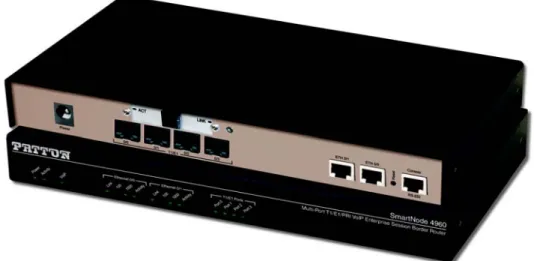
The SmartNode 4960 T1/E1 PRI VoIP Router (see figure 1) combines a Session Border Controller, Universal SIP Trunking, IP routing, VPN/Security, and Quality of Service with high-quality Voice over IP (VoIP) deliv-ered on 1 to 4 Primary Rate Interfaces (PRI T1/E1). The SN4960 enables transcoding between two networks to optimize bandwidth utilization. This combination paves the way for enterprises’ migration to unified com-munications by integrating legacy telephone systems with PSTN and VoIP networks.
Figure 1. SmartNode 4960
The SmartNode 4960 Gateway-Router performs the following major functions:
• Up to 120 VoIP Calls—Up to 120 simultaneous voice or T.38 fax calls with one to four T1/E1/PRI ports and dual Gigabit Ethernet ports. Use any CODEC or fax on any port, any time.
• Enterprise Session Border Router with Transcoding—Enables up to 64 transcoding sessions between codecs
• Universal SIP and T.38 Support—Softswitch-certified signaling support between all T1 RBS CAS, ISDN PRI, Q.SIG, SIP and H.323.
• Secure Toll-Quality VoIP—Patton’s DownStreamQoS™ and Voice-over-VPN with adaptive traffic management and shaping for maximum voice quality and secure voice communication.
• IP Routing—RIP v1/v2, VRRP, policy-based routing, and loopback interface
• Transparent Telephony Features—Complex number manipulation and mapping for seamless integration with existing infrastructures, CLIP, CLIR, hold, transfer and much more.
• Management & Provisioning—Web-based management, SNMP, Command Line Interface. Automated provisioning for easy large-scale deployments.
• Optional High Precision Clock—Delivers DECT PBX interoperability with reliable fax performance. • G.SHDSL.bis Broadband Access—Complete Access Router with integrated G.SHDSL.bis WAN
inter-face delivers symmetrical throughput up to 11.4 Mbps over four wires or up to 5.7 Mbps over two wires. Supports ATM QoS with multiple PVCs and outstanding DSLAM interoperability.
SmartNode 4960 overview 16
SmartNode 4960 User Manual 1 • General information
SN4960 model codes
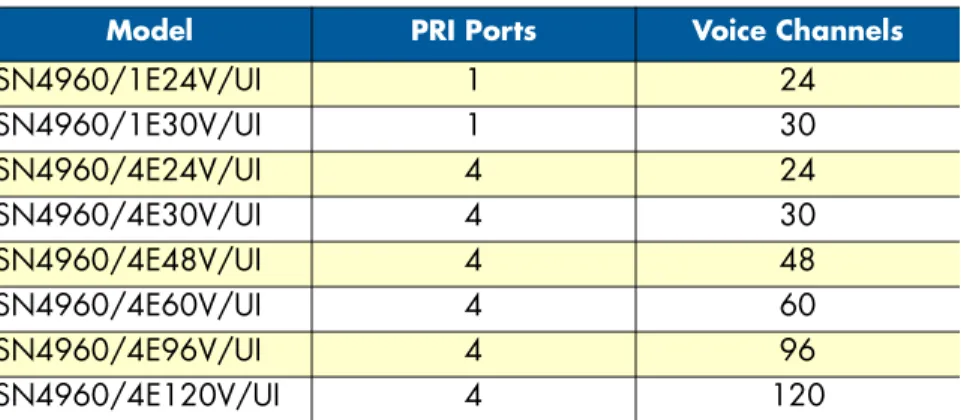
The SmartNode 4960 series consists of several models. They differ in the number of PRI ports and voice chan-nels supported. All models come equipped with two 10/100/1000Base-T Ethernet ports. The SmartNode 4960 PRI ports and voice channels are listed in table 2. The SmartNode 4960 G.SHDSL models are listed in table 3.
SN4961 model codes
The high precision SmartNode 4961 models have a Stratum III clock. The Stratum III clock provides a clock source of < 5 ppm. For PBXs that used to rely on PSTN for accurate clock source, the SmartNode 4961 can provide a PSTN-equivalent high precision clock. The popular DECT PBX needs such high precision clocks.
Note For high precision clock models, replace SN4960 with SN4961in the model code.
Table 2. SmartNode 4960 PRI Ports and Voice Channels
Model PRI Ports Voice Channels
SN4960/1E24V/UI 1 24 SN4960/1E30V/UI 1 30 SN4960/4E24V/UI 4 24 SN4960/4E30V/UI 4 30 SN4960/4E48V/UI 4 48 SN4960/4E60V/UI 4 60 SN4960/4E96V/UI 4 96 SN4960/4E120V/UI 4 120
Table 3. SmartNode 4960 models with integrated G.SHDSL interface
Model PRI Ports Voice Channels
SN4960/1E24V2GS/UI 1 24 SN4960/1E30V2GS/UI 1 30 SN4960/4E24V2GS/UI 4 24 SN4960/4E30V2GS/UI 4 30 SN4960/4E48V2GS/UI 4 48 SN4960/4E60V2GS/UI 4 60 SN4960/4E96V2GS/UI 4 96 SN4960/4E120V2GS/UI 4 120
SmartNode 4960 rear panel 17
SmartNode 4960 User Manual 1 • General information
SmartNode 4960 rear panel
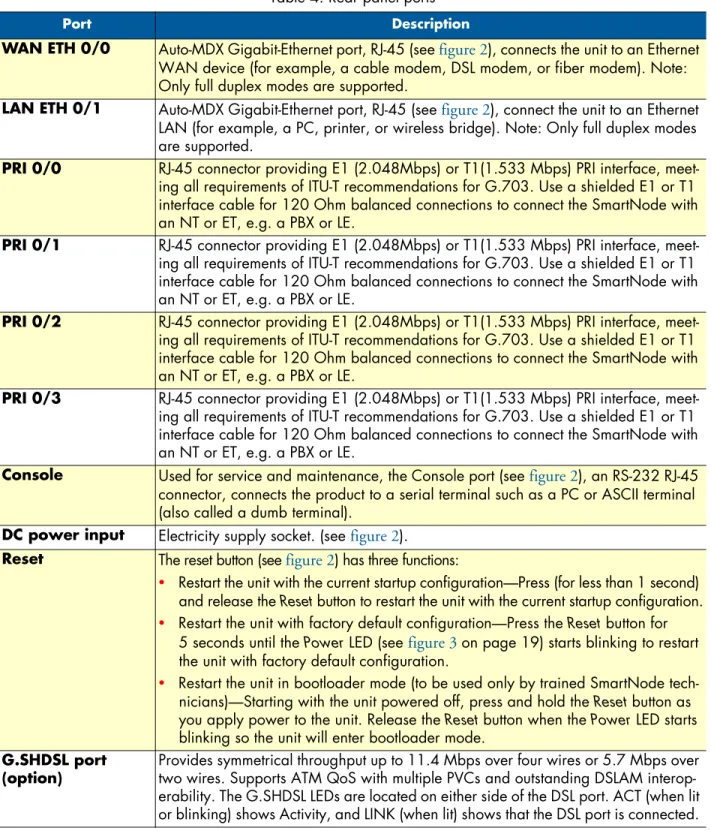
The SmartNode 4960 rear panel ports are described in table 4.
Figure 2. SN4960 rear panel Power T1/E1 PRI ports 0/3–0/0 SN4960/30V SN4960/120V ETH 0/0
10/100/1000Base-T port buttonRESET Console RS-232 port ETH 0/1 10/100/1000Base-T port RS-232 Console ETH 0/0 ETH 0/1 Reset 0/0 0/1 0/2 0/3 T1/E1 RS-232 Console ETH 0/0 ETH 0/1 Reset 0/0 T1/E1 T1/E1 PRI port 0/0 RS-232 Console ETH 0/0 ETH 0/1 Reset 0/0 0/1 0/2 0/3 T1 /E1
SmartNode 4960 rear panel 18
SmartNode 4960 User Manual 1 • General information
Table 4. Rear panel ports
Port Description
WAN ETH 0/0 Auto-MDX Gigabit-Ethernet port, RJ-45 (see figure 2), connects the unit to an Ethernet WAN device (for example, a cable modem, DSL modem, or fiber modem). Note: Only full duplex modes are supported.
LAN ETH 0/1 Auto-MDX Gigabit-Ethernet port, RJ-45 (see figure 2), connect the unit to an Ethernet LAN (for example, a PC, printer, or wireless bridge). Note: Only full duplex modes are supported.
PRI 0/0 RJ-45 connector providing E1 (2.048Mbps) or T1(1.533 Mbps) PRI interface, meet-ing all requirements of ITU-T recommendations for G.703. Use a shielded E1 or T1 interface cable for 120 Ohm balanced connections to connect the SmartNode with an NT or ET, e.g. a PBX or LE.
PRI 0/1 RJ-45 connector providing E1 (2.048Mbps) or T1(1.533 Mbps) PRI interface, meet-ing all requirements of ITU-T recommendations for G.703. Use a shielded E1 or T1 interface cable for 120 Ohm balanced connections to connect the SmartNode with an NT or ET, e.g. a PBX or LE.
PRI 0/2 RJ-45 connector providing E1 (2.048Mbps) or T1(1.533 Mbps) PRI interface, meet-ing all requirements of ITU-T recommendations for G.703. Use a shielded E1 or T1 interface cable for 120 Ohm balanced connections to connect the SmartNode with an NT or ET, e.g. a PBX or LE.
PRI 0/3 RJ-45 connector providing E1 (2.048Mbps) or T1(1.533 Mbps) PRI interface, meet-ing all requirements of ITU-T recommendations for G.703. Use a shielded E1 or T1 interface cable for 120 Ohm balanced connections to connect the SmartNode with an NT or ET, e.g. a PBX or LE.
Console Used for service and maintenance, the Console port (see figure 2), an RS-232 RJ-45 connector, connects the product to a serial terminal such as a PC or ASCII terminal (also called a dumb terminal).
DC power input Electricity supply socket. (see figure 2).
Reset The reset button (see figure 2) has three functions:
• Restart the unit with the current startup configuration—Press (for less than 1 second) and release the Reset button to restart the unit with the current startup configuration. • Restart the unit with factory default configuration—Press the Reset button for
5 seconds until the Power LED (see figure 3 on page 19) starts blinking to restart the unit with factory default configuration.
• Restart the unit in bootloader mode (to be used only by trained SmartNode tech-nicians)—Starting with the unit powered off, press and hold the Reset button as you apply power to the unit. Release the Reset button when the Power LED starts blinking so the unit will enter bootloader mode.
G.SHDSL port (option)
Provides symmetrical throughput up to 11.4 Mbps over four wires or 5.7 Mbps over two wires. Supports ATM QoS with multiple PVCs and outstanding DSLAM interop-erability. The G.SHDSL LEDs are located on either side of the DSL port. ACT (when lit or blinking) shows Activity, and LINK (when lit) shows that the DSL port is connected.
SmartNode 4960 front panel 19
SmartNode 4960 User Manual 1 • General information
SmartNode 4960 front panel
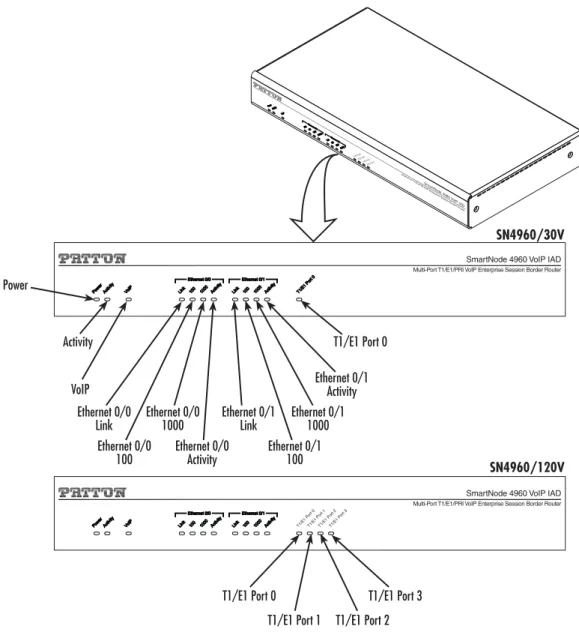
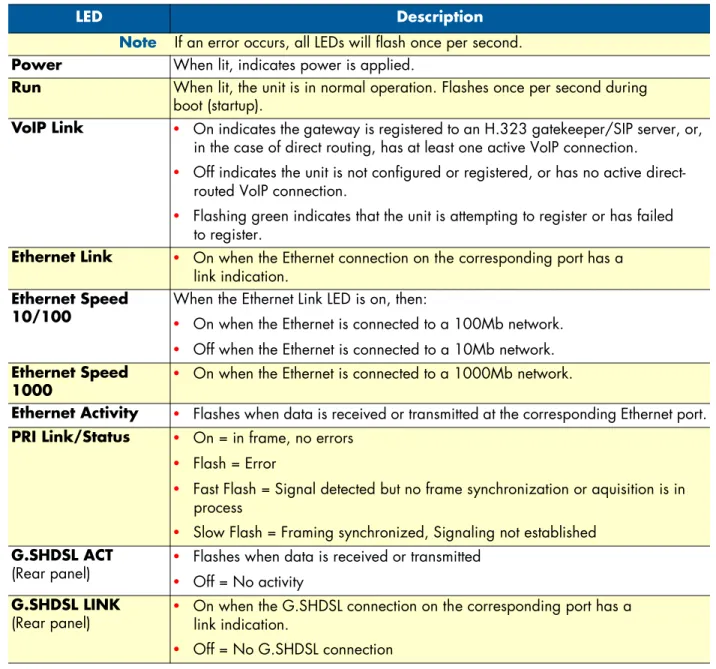
Figure 3 shows SmartNode 4960 front panel LEDs, the LED definitions are listed in table 5.
Figure 3. SmartNode 4960 front panel Power Activity VoIP Ethernet 0/0 Link Ethernet 0/0 100 SN4960/30V SN4960/120V
T1/E1 Port 1T1/E1 Port 2T1/E1 Port 3 T1/E1 Port 0 Ethernet 0/0 1000 Ethernet 0/0 Activity Ethernet 0/1 Link Ethernet 0/1 100 Ethernet 0/1 1000 Ethernet 0/1 Activity T1/E1 Port 0 T1/E1 Port 0
T1/E1 Port 1 T1/E1 Port 2 T1/E1 Port 3
T1/E1 Port 1 T1/E1 Port 2
T1/E1 Port 3 T1/E1 Port 0
SmartNode 4960 VoIP IAD
Multi-Port T1/E1/PRI VoIP Enterprise Session Border Router
SmartNode 4960 VoIP IAD
SmartNode 4960 front panel 20
SmartNode 4960 User Manual 1 • General information
Table 5. SN4960 Front and Rear panel LEDs
LED Description
Note If an error occurs, all LEDs will flash once per second.
Power When lit, indicates power is applied.
Run When lit, the unit is in normal operation. Flashes once per second during boot (startup).
VoIP Link • On indicates the gateway is registered to an H.323 gatekeeper/SIP server, or, in the case of direct routing, has at least one active VoIP connection.
• Off indicates the unit is not configured or registered, or has no active direct-routed VoIP connection.
• Flashing green indicates that the unit is attempting to register or has failed to register.
Ethernet Link • On when the Ethernet connection on the corresponding port has a link indication.
Ethernet Speed 10/100
When the Ethernet Link LED is on, then:
• On when the Ethernet is connected to a 100Mb network. • Off when the Ethernet is connected to a 10Mb network.
Ethernet Speed 1000 •
On when the Ethernet is connected to a 1000Mb network.
Ethernet Activity • Flashes when data is received or transmitted at the corresponding Ethernet port.
PRI Link/Status • On = in frame, no errors • Flash = Error
• Fast Flash = Signal detected but no frame synchronization or aquisition is in process
• Slow Flash = Framing synchronized, Signaling not established
G.SHDSL ACT
(Rear panel) •
Flashes when data is received or transmitted • Off = No activity
G.SHDSL LINK
(Rear panel)
• On when the G.SHDSL connection on the corresponding port has a link indication.
21
Chapter 2
Applications overview
Chapter contents
Introduction...22 Application—Edge intelligence of enterprise communication...22 Application—Multi-service ISDN Internet telephony IAD...23
Introduction 22
SmartNode 4960 User Manual 2 • Applications overview
Introduction
Patton’s SmartNode VoIP Media Gateway Routers deliver the features you need for advanced multiservice voice and data network applications. They combine high quality voice-over-IP with powerful quality of service routing functions to build professional and reliable VoIP and data networks. This chapter describes typical applications for which this SmartNode is uniquely suited.
Note Detailed configuration information for SmartNode applications can be found online at www.patton.com/smartnode.
Application—Edge intelligence of enterprise communication
Enterprises are excited about voice over IP and convergence for the following reasons:• Bypassing the PSTN. Using Internet telephony service providers (ITSPs) instead of incumbent carriers dra-matically reduces telephony costs
• IP PBXs, with their full suite of features and ease of integration into existing IT environments are very appealing
• Convergence lowers technology ownership costs and enables enterprises to deploy new integrated applications
However, there are several concerns about migrating the whole telephony infrastructure to VoIP: • Loss of voice quality
• Unknown reliability
• Lack of experience/expertise in voice over IP
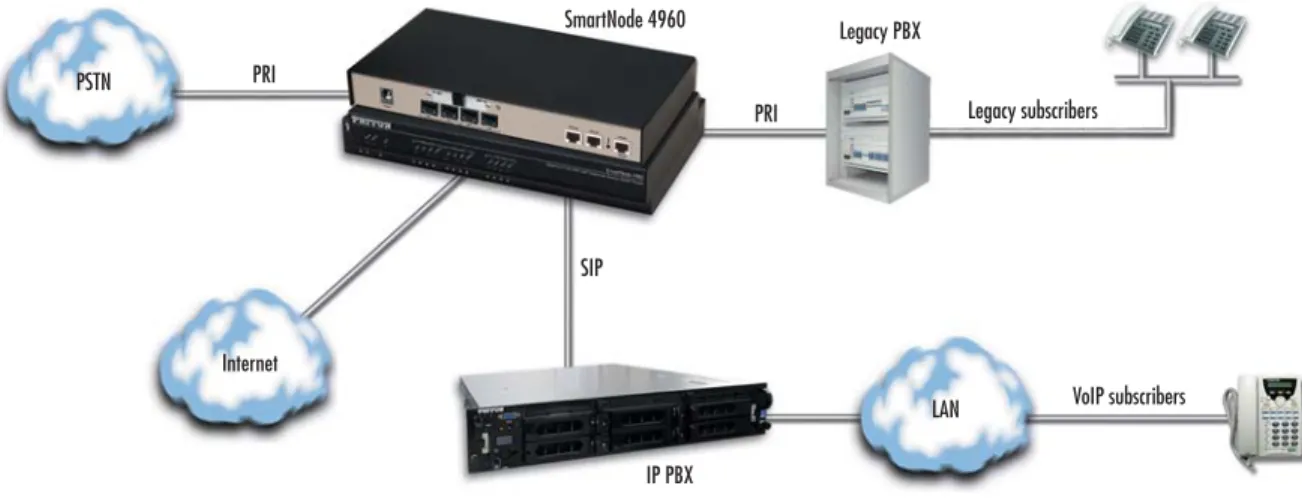
Patton’s SmartNode series of VoIP gateways address these concerns enabling enterprises to safely migrate to VoIP. SmartNodes enable system administrators to gradually introduce VoIP, using it as the edge communica-tion device for all worlds, connecting PSTN, legacy PBX, ITSPs and an IP PBX.
Figure 4. Edge intelligence of enterprise communication application
Legacy PBX PRI SIP Legacy subscribers Internet PSTN
LAN VoIP subscribers SmartNode 4960
PRI
Application—Multi-service ISDN Internet telephony IAD 23
SmartNode 4960 User Manual 2 • Applications overview
How it works:
1. Connect the SmartNode to the PSTN and legacy PBX, and configure the call router to pass all calls from the PBX to the PSTN and vice versa. This first step will not affect any uses in the enterprise
2. Choose your ITSPs, and configure as many on the SmartNode as you need. Use the intelligent call router in the SmartNode to decide which call is forwarded to which ITSP, and which calls should go to the PSTN. This may be based upon least-cost routing criteria, or for example, on calling party number. The latter is ideal if you want to test calls to an ITSP before enabling it for all users within the enterprise.
3. Voice over IP can be switched off instantly on one single box (the SmartNode) to revert the system back to as it was before.
4. Build up an IP PBX system that uses the SmartNode as PSTN gateway. For all calls from this IP PBX, you can direct them to the PSTN or to ITSPs. Numbering plan adaptations are handled through regular expression matching by the SmartNode. No need to change anything on the PBXs.
5. Once the IP PBX is ready, you can choose on incoming calls from the PSTN, for each extension whether this extension is to be directed to the IP PBX or on the legacy PBX.
Application—Multi-service ISDN Internet telephony IAD
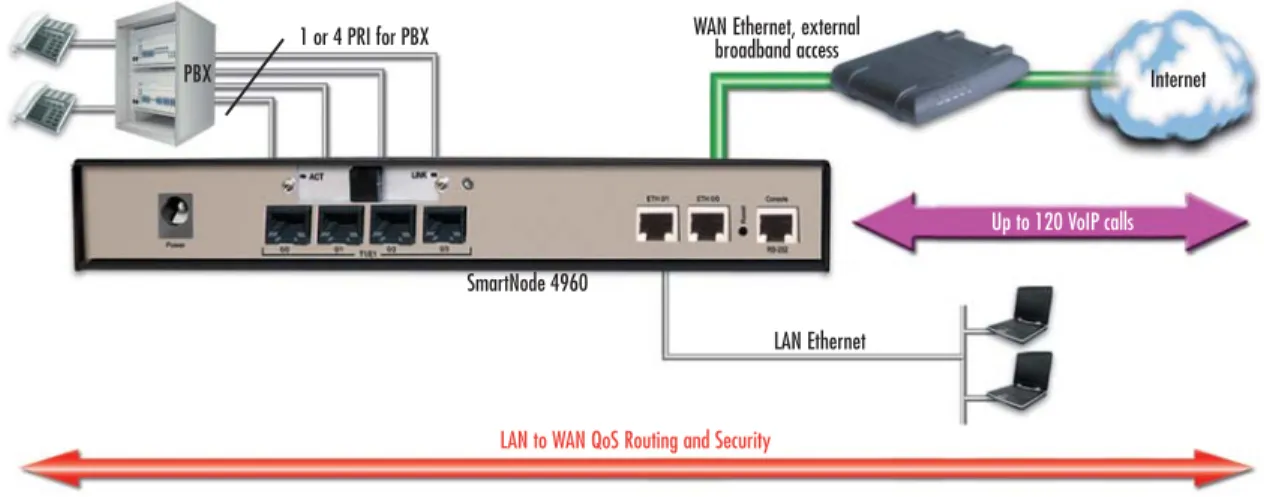
The SmartNode 4960 Series can be used to make and receive calls to and from the public ISDN network and Internet Telephony services on any ISDN Terminal (Phone or PBX) (see figure 5). Using individually config-urable routing tables, an outbound call can be directed to the local PSTN connection or to an Internet tele-phony service provider (ISTP). Inbound calls from the Internet and the PSTN can ring the same phone.
Figure 5. Internet telephony IAD application
Broadband network connectivity integrates with any fixed IP, DHCP or PPPoE service. An integrated Gigabit Ethernet LAN port, with advanced routing features such as NAT, Firewall/ACL, DynDNS as well as optional IPSec VPN, fulfills the requirements of demanding network users.
Quality of Service (QoS) features complete the offering with advanced voice prioritization and traffic manage-ment. Patton’s patent-pending DownStreamQoS™ ensures voice without interruptions even over best-effort Internet connections.
LAN Ethernet PBX
WAN Ethernet, external broadband access
Up to 120 VoIP calls
LAN to WAN QoS Routing and Security
1 or 4 PRI for PBX
Internet
24
Chapter 3
SmartNode installation
Chapter contents
Planning the installation...25 Site log ...25 Network information ...25 Network Diagram ...25 IP related information ...25 Software tools ...26 AC Power Mains ...26 Location and mounting requirements ...26 Installing the gateway router...26 Placing the SmartNode ...26 Installing cables ...26 Connecting the PRI ...27 Connecting the 10/100/1000Base-T Ethernet LAN and WAN cables ...27 Installing the DSL WAN cable... 27 Connecting the power supply ...28
Planning the installation 25
SmartNode 4960 User Manual 3 • SmartNode installation
Planning the installation
Before installing the gateway router device, the following tasks should be completed:
• Create a network diagram (see section “Network information” on page 25)
• Gather IP related information (see section “IP related information” on page 25 for more information)
• Install the hardware and software needed to configure the SmartNode. (See section “Software tools” on
page 26)
• Verify power source reliability (see section “Power source” on page 26).
After you have finished preparing for gateway router installation, go to section “Installing the gateway router” on page 26 to install the device.
Site log
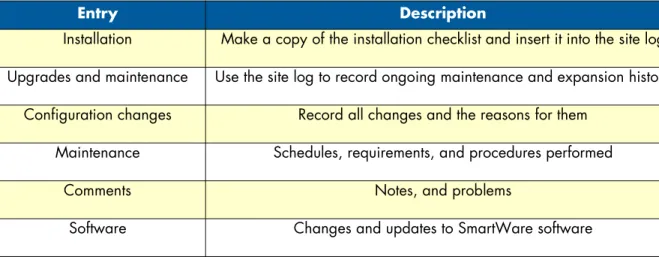
Patton recommends that you maintain a site log to record all actions relevant to the system, if you do not already keep such a log. Site log entries should include information such as listed in table 6.
Network information
Network connection considerations that you should take into account for planning are provided for several types of network interfaces are described in the following sections.
Network Diagram
Draw a network overview diagram that displays all neighboring IP nodes, connected elements and telephony components.
IP related information
Before you can set up the basic IP connectivity for your SmartNode 4960 you should have the following infor-mation:
• IP addresses used for Ethernet LAN and WAN ports • Subnet mask used for Ethernet LAN and WAN ports
Table 6. Sample site log entries
Entry Description
Installation Make a copy of the installation checklist and insert it into the site log Upgrades and maintenance Use the site log to record ongoing maintenance and expansion history
Configuration changes Record all changes and the reasons for them Maintenance Schedules, requirements, and procedures performed
Comments Notes, and problems
Installing the gateway router 26
SmartNode 4960 User Manual 3 • SmartNode installation
• IP addresses of central H.323 gatekeeper (if used)
• IP addresses and/or URL of SIP servers or Internet telephony services (if used) • Login and password for PPPoE Access
• Login and password for SIP or H.323 based telephony services
• IP addresses of central TFTP server used for configuration upload and download (optional)
Software tools
You will need a PC (or equivalent) with Windows Telnet or a program such as Tera Term Pro Web to config-ure the software on your SmartNode router.
AC Power Mains
If you suspect that your AC power is not reliable, for example if room lights flicker often or there is machinery with large motors nearby, have a qualified professional test the power. Patton recommends that you include an uninterruptible power supply (UPS) in the installation to ensure that VoIP service is not impaired if the power fails. Refer to “Connecting the power supply” on page 28.
Location and mounting requirements
The SmartNode router is intended to be placed on a desktop or similar sturdy, flat surface that offers easy access to the cables. Allow sufficient space at the rear of the chassis for cable connections. Additionally, you should consider the need to access the unit for future upgrades and maintenance.
Note Under the rack mount option, the chassis can be equipped with rack mount ears that allow for use in a 19” rack.
Installing the gateway router
SmartNode hardware installation consists of the following:
• Placing the device at the desired installation location (see section “Placing the SmartNode” on page 26) • Connecting the interface and power cables (see section “Installing cables”)
When you finish installing the SmartNode, go to chapter 4, “Initial configuration” on page 29.
Placing the SmartNode
Place the unit on a desktop or similar sturdy, flat surface that offers easy access to the cables. The unit should be installed in a dry environment with sufficient space to allow air circulation for cooling.
Note For proper ventilation, leave at least 2 inches (5 cm) to the left, right, front, and rear of the unit.
Installing cables
Do not work on the system or connect or disconnect cables during periods of lightning activity.
Installing the gateway router 27
SmartNode 4960 User Manual 3 • SmartNode installation
Connect the cables in the following order:
1. Connect the T1/E1 cables to the PRI T1/E1 ports (see Appendix C on page 57 and Appendix D on page 62).
2. Connect the 10/100/1000Base-T Ethernet LAN and WAN (see section “Connecting the 10/100/1000Base-T Ethernet LAN and WAN cables” on page 27)
3. Connect the power mains cable (see section “Connecting the power supply” on page 28) Connecting the PRI
The SmartNode comes with one or four PRI ports. These ports are usually connected to a PBX or switch (local exchange (LE) ). Each PRI T1/E1 port is a RJ-48C receptacle. In most cases, a straight-through RJ-45 can be used to connect the PRI. Each port can be configured as NT (clock master) or TE (clock slave).
For details on the PRI port pin-out and ISDN cables, refer to Appendix C, “Cabling” on page 43 and Appen-dix D, “port pin-outs” on page 47.
Connecting the 10/100/1000Base-T Ethernet LAN and WAN cables
The SmartNode 4960 has automatic MDX (auto-crossover) detection and configuration on all Ethernet ports. Any of the ports can be connected to a host or hub/switch with a straight-through or cross-over wired cable.
1. Connect to the subscriber port of the broadband access modem (DSL, cable, WLL) to ETH 0/0.
Note The SmartNode Ethernet ports operate in Full Duplex mode only. Do not connect to Half Duplex ports. For best results, use auto-negotiation. Auto negotiation is mandatory when using 1000BaseT (Gigabit) Ethernet.
2. Connect port ETH 0/1 to your LAN.
Installing the DSL WAN cable. The SmartNode Model 4960 comes with an option for a G.SHDSL WAN interface. Use a straight-through RJ-11 cable to connect the G.SHDSL port.
For details on the Ethernet port pinout and cables, refer to Appendix C, “Cabling” on page 57 and Appendix D, “Port pin-outs” on page 62.
The interconnecting cables shall be acceptable for external use and shall be rated for the proper application with respect to volt-age, current, anticipated temperature, flammability, and mechanical serviceability.
Installing the gateway router 28
SmartNode 4960 User Manual 3 • SmartNode installation
Connecting the power supply
1. Insert the barrel type connector end of the AC power cord into the external power supply connector (see figure 6).
2. Insert the female end of the power cord into the internal power supply connector.
Figure 6. Power connector location on rear panel
3. Verify that the AC power cord included with your router is compatible with local standards. If it is not, refer to chapter 5, “Contacting Patton for assistance” on page 32 to find out how to replace it with a com-patible power cord.
4. Connect the male end of the power cord to an appropriate power outlet.
5. Verify that the green Power LED is lit (see figure 6).
• Do not connect power to the AC Mains at this time.
• The external power adapter shall be a listed Limited Power Source.
• The 4960 external power supply automatically adjusts to accept an input voltage from 100 to 240 VAC (50/60 Hz). Verify that the proper voltage is present before plugging the power cord into the receptacle. Failure to do so could result in equipment damage. CAUTION WARNING RS-232 Console Reset 3 2 1 0 T1/E1 Power T1/E1 Ports 0-3 Console RS-232 port ETH 0 10/100/1000Base-T port ETH 1 10/100/1000Base-T port RESET button 12V, 1.25A – + 1 0 ETH
29
Chapter 4
Initial configuration
Chapter contents
Introduction...30 1. Connecting the SmartNode to your laptop PC...30 2. Configuring the desired IP address...31 Factory-default IP settings ...31 Login ...31 Changing the WAN IP address ...31 3. Connecting the SmartNode to the network...32 4. Loading the configuration (optional)...33 Bootloader...34 Start Bootloader ...34 Start-up with factory configuration ...34 Load a new application image (SmartWare) via TFTP ...34 Load a new application image (SmartWare) via the serial link ...36 Additional information...37
Introduction 30
SmartNode 4960 User Manual 4 • Initial configuration
Introduction
This chapter leads you through the basic steps to set up a new SmartNode and to download a configuration. Setting up a new SmartNode consists of the following main steps:
Note If you haven’t already installed the SmartNode, refer to chapter 3, “SmartNode installation” on page 24.
• Connecting the SmartNode to your laptop PC • Configuring the desired IP address
• Connecting the SmartNode to the network • Loading the configuration (optional)
1. Connecting the SmartNode to your laptop PC
First the SmartNode must be connected to the mains power supply with the power cable. Wait until the Power LED stops blinking and stays lit constantly. Now the SmartNode is ready.
The SmartNode 4960 Series is equipped with Auto-MDX Ethernet ports, so you can use straight-through cables for host or hub/switch connections (see figure 7).
Figure 7. Connecting the SmartNode to your laptop PC
The SmartNode comes with a built-in DHCP server to simplify configuration. Therefore, to automatically configure the PC for IP connectivity to the SmartNode, the laptop PC must be configured for DHCP. The SmartNode will provide the PC with an IP address. You can check the connection to the SmartNode by exe-cuting the ping command from the PC command window as follows:
ping 192.168.1.1
The interconnecting cables shall be acceptable for external use and shall be rated for the proper application with respect to volt-age, current, anticipated temperature, flammability, and mechanical serviceability.
CAUTION
LAN (connect to ETH 0/1) Laptop PC Ethernet RS-232 Console ETH 0/0 ETH 0/1 Reset 0/0 0/1 0/2 0/3 T1/E1
2. Configuring the desired IP address 31
SmartNode 4960 User Manual 4 • Initial configuration
2. Configuring the desired IP address
Factory-default IP settingsThe factory default configuration for the Ethernet interface IP addresses and network masks are listed in table 7. Both Ethernet interfaces are activated upon power-up. LAN interface ETH 0/1 (LAN) provides a default DHCP server, the WAN interface uses DHCP client to automatically assign the IP address and network mask.
If these addresses match with those of your network, go to section “3. Connecting the SmartNode to the net-work” on page 32. Otherwise, refer to the following sections to change the addresses and network masks.
Note For configuring the IP address of the integrated WAN interface
(G.SHDSL), please refer to Chapter 5, “G.SHDSL Basic Configuration” on page 38.
Login
To access the SmartNode, start the Telnet application. Type the default IP address for the router into the address field: 192.168.1.1. Accessing your SmartNode via a Telnet session displays the login screen. Type the factory default login: administrator and leave the password empty. Press the Enter key after the password prompt.
login:administrator
password: <Enter> 192.168.1.1>
After you have successfully logged in you are in the operator execution mode, indicated by > as command line prompt. With the commands enable and configure you enter the configuration mode.
192.168.1.1>enable
192.168.1.1#configure
192.168.1.1(cfg)#
Changing the WAN IP address
Select the context IP mode to configure an IP interface.
192.168.1.1(cfg)#context ip router
192.168.1.1(ctx-ip)[router]#
Table 7. Factory default IP address and network mask configuration
IP Address Network Mask
WAN interface Ethernet 0 (ETH 0/0) DHCP DHCP
LAN interface Ethernet 1 (ETH 0/1) 192.168.1.1 255.255.255.0
3. Connecting the SmartNode to the network 32
SmartNode 4960 User Manual 4 • Initial configuration
Now you can set your IP address and network mask for the interface ETH 0/0 (WAN). Within this example a network 172.16.1.0/24 address is assumed. The IP address in this example is set to 172.16.1.99 (you should set this the IP address given to you by your network provider).
192.168.1.1(ctx-ip)[router]#interface WAN
192.168.1.1(if-ip)[WAN]#ipaddress 172.16.1.99 255.255.255.0 2002-10-29T00:09:40 : LOGINFO : Link down on interface WAN. 2002-10-29T00:09:40 : LOGINFO : Link up on interface WAN. 172.16.1.99(if-ip)[WAN]#
Copy this modified configuration to your new start-up configuration. This will store your changes in non-vol-atile memory. Upon the next start-up the system will initialize itself using the modified configuration.
172.16.1.99(if-ip)[WAN]#copy running-config startup-config
172.16.1.99(if-ip)[WAN]#
The SmartNode can now be connected to your network.
3. Connecting the SmartNode to the network
In general, the SmartNode will connect to the network via the WAN (ETH 0/0) port. This enables the Smart-Node to offer routing services to the PC hosts on LAN (ETH 0/1) port. The SmartNode 4960 Series is equipped with Auto-MDX Ethernet ports, so you can use straight-through or crossover cables for host or hub/ switch connections (see figure 8).
Figure 8. Connecting the SmartNode to the network
The interconnecting cables shall be acceptable for external use and shall be rated for the proper application with respect to volt-age, current, anticipated temperature, flammability, and mechanical serviceability.
CAUTION
Straight-through wired or crossover cable LAN (ETH 0/1) LAN WAN (ETH 0/0) Network RS-232 Console ETH 0/0 ETH 0/1 Reset 0/0 0/1 0/2 0/3 T1/E1
4. Loading the configuration (optional) 33
SmartNode 4960 User Manual 4 • Initial configuration
You can check the connection with the ping command from the SmartNode to another host on the network.
172.16.1.99(if-ip)[WAN]#ping <IP Address of the host>
Note If the WAN address is not set to DHCP, to ping a device outside your local LAN you must first configure the default gateway. (For information on con-figuring the default gateway, refer to section “Set IP addresses” in Appendix C, “Command Summary” of the SmartNode Series SmartWare Software Con-figuration Guide.)
4. Loading the configuration (optional)
Patton provides a collection of configuration templates on the support page at www.patton.com/smart-node—one of which may be similar enough to your application that you can use it to speed up configuring the SmartNode. Simply download the configuration note that matches your application to your PC. Adapt the configuration as described in the configuration note to your network (remember to modify the IP address) and copy the modified configuration to a TFTP server. The SmartNode can now load its configuration from this server.
Note If your application is unique and not covered by any of Patton’s configura-tion templates, you can manually configure the SmartNode instead of load-ing a configuration file template. In that case, refer to the SmartNode Series SmartWare Software Configuration Guide for information on configuring the SmartNode device.
In this example we assume the TFTP server on the host with the IP address 172.16.1.11 and the configuration named SN.cfg in the root directory of the TFTP server.
172.16.1.99(if-ip)[WAN]#copy tftp://172.16.1.11/SN.cfg startup-config
Download...100%
172.16.1.99(if-ip)[WAN]#
After the SmartNode has been rebooted the new startup configuration will be activated.
172.16.1.99(if-ip)[WAN]#reload
Running configuration has been changed.
Do you want to copy the 'running-config' to the 'startup-config'? Press 'yes' to store, 'no' to drop changes : no
Press 'yes' to restart, 'no' to cancel : yes
The system is going down
When you issue the reload command, the SmartNode will ask if you want to copy the running configuration to the startup con-figuration. Since you just downloaded a configuration file to the startup configuration you must answer this question with NO. Otherwise, the downloaded configuration will be overwritten and lost!
Bootloader 34
SmartNode 4960 User Manual 4 • Initial configuration
Bootloader
The bootloader ensures that basic operations, network access, and downloads are possible in case of interrupted or corrupted application image downloads. It offers console access to the Bootloader and the capability for downloading application images (e.g. SmartWare) via the serial link of the console.
Start Bootloader
To start the Bootloader, power on the SmartNode while pressing the reset button. Open a Telnet session to the SmartNode via one of the Ethernet interfaces, or open a CLI session via the console port (if available on the SmartNode). The login display will appear. Using the credentials admin / patton , log in to the SmartNode. The following prompt will be displayed:
RedBoot>
Type help to display an overview of the available commands.
Start-up with factory configuration
Load a new application image (SmartWare) via TFTP
The following procedure downloads the application image (SmartWare) for the mainboard. See the note below on how to download the respective CLI description file.
Step Command Purpose
1 RedBoot> fis load Copies the SmartWare application image from the persistent memory (flash:) to the volatile memory (RAM) from where it will be executed.
2 RedBoot> go -s factory-config Starts the SmartWare application telling it to use ‘factory-config’ as startup configuration.
You can also start-up with any other configuration available in the persistent memory (nvram:) by pro-viding its name instead of ‘factory-config’.
Step Command Purpose
1 optional
RedBoot> ip_address - l
local_ip_address [/mask_len]
Sets the IP address and subnet mask of the Ethernet interface 0/0 which shall be used to receive the new application image.
mask_len is the length of the network address
(or the number of 1’s within the subnet mask). See Note below.
2 optional
RedBoot> ip_address -g gateway Sets the IP address of the default gateway.
3 optional
Bootloader 35
SmartNode 4960 User Manual 4 • Initial configuration
Note With the Bootloader, only the Ethernet interface 0/0 is available. The Boot-loader applies the IP address, subnet mask, and default gateway that were last configured by the Bootloader itself or by another application (e.g. Smart-Ware). If an application configured the Ethernet interface 0/0 to use DHCP, the Bootloader will also use DHCP to learn the interface configuration. It can receive and apply the IP address, subnet mask, default gateway, and default (TFTP) server (transmitted as basic DHCP information ‘Next server IP address’).
Note This procedure does not download the respective CLI description file. Download it after starting up SmartWare with the following command:
copy tftp://<tftp_server_address>/<server path>/b1 flash:
Example: Downloading and storing a new application image (SmartWare)
RedBoot> ip -l 172.16.40.98/19 RedBoot> ip -g 172.16.32.1 RedBoot> ping -h 172.16.32.100
Network PING - from 172.16.40.98 to 172.16.32.100 ...PING - received 10 of 10 expected
RedBoot> load -r -v -h 172.16.32.100 -b 0x1800100 /Sn4xxx/image.bin Using default protocol (TFTP)
-Raw file loaded 0x01800100-0x0199ca6b, 1689964 bytes, assumed entry at 0x01800100 RedBoot> fis delete -n 1
4 RedBoot> load -r -v -h host -b
base_address file_name
Downloads an application image into the vola-tile memory (RAM) from where the SmartNode could directly execute it.
host: IP address of the TFTP server
base_address: memory location where to store
the application image. Use the default address 0x1800100
file_name: path and name of the file on the
TFTP server. Note: use the image file that con-tains the whole application, not the image parts.
5 RedBoot> fis delete -n 1 Deletes the first application image. Reply with ‘y’ to the confirmation request.
6 RedBoot> fis create Stores the downloaded application image to the permanent memory (flash:).
Reply with ‘y’ to the confirmation request.
7 RedBoot> fis list -l Checks whether the image has been success-fully stored, whether it is the desired Release and Build, and whether it is valid.
8 RedBoot> go Starts the application image that was down-loaded into the volatile memory (RAM).
Bootloader 36
SmartNode 4960 User Manual 4 • Initial configuration
Delete image 1 - continue (y/n)? y
... Erase from 0x60030000-0x601cc974: ... RedBoot> fis create
Use address 0x01800100, size 1684402 ? - continue (y/n)? y ... Erase from 0x60030000-0x601cb3ba: ... ... Program from 0x00011eec-0x00011ef4 at 0x60030000: .
... Program from 0x01800100-0x0199b4b2 at 0x60030008: ... ... Program from 0x00011eec-0x00011ef4 at 0x60030000: .
Image successfully written to flash RedBoot> fis list -l
Id Address Length State Description Entry Load Addr Version
---1 0x60030000 ---1693438 valid SmartWare R2.---10 BUILD280---15 0x01800100 0x01800100 V2.10
RedBoot> go
Starting 'SmartWare R2.10 BUILD28015' at 0x01800100 via 0x01800100
Load a new application image (SmartWare) via the serial link
The Bootloader supports the ‘X-Modem’ and ‘Y-Modem’ protocols to download application images via the serial link of the console. Do the following to initiate the download:
Note This type of download takes about 25 minutes since it uses a serial link at only 9600 bps.
Step Command Purpose
1 RedBoot> load -r -v -m { xmodem | ymodem } -b
base_address
Downloads an application image into the volatile memory (RAM) from where the SmartNode could directly execute it. ‘xmodem’ or ‘ymodem’: Specify the protocol to be used, X-Modem or Y-X-Modem
base_address: memory location where to store the application
image. Use the default address 0x1800100
Execute the above RedBoot command first, then start the trans-fer from the terminal program with the command ‘Send file via X-Modem’ (or similar).
5 RedBoot> fis delete -n 1 Deletes the first application image. Reply with ‘y’ to the confirmation request.
6 RedBoot> fis create Stores the downloaded application image to the permanent memory (flash:).
Reply with ‘y’ to the confirmation request.
7 RedBoot> fis list -l Checks whether the image has been successfully stored, whether it is the desired Release and Build, and whether it is valid.
8 RedBoot> go Starts the application image that was downloaded to the vola-tile memory (RAM).
Additional information 37
SmartNode 4960 User Manual 4 • Initial configuration
Additional information
For detailed information about configuring and operating guidance, set up procedures, and troubleshooting, refer to the SmartNode Series SmartWare Software Configuration Guide available online at www.patton.com/ manuals.
38
Chapter 5
G.SHDSL Basic Configuration
Chapter contents
Introduction...39 Line Setup...39 Configuring PPPoE...39 Configuration Summary...40 Setting up permanent virtual circuits (PVC)...41 Using PVC channels in bridged Ethernet mode ...41 Using PVC channels with PPPoE ...41 Diagnostics ...42 Troubleshooting DSL Connections...42
Introduction 39
SmartNode 4960 User Manual 5 • G.SHDSL Basic Configuration
Introduction
The SN4960 model has an option for a built-in G.SHDSL modem. The modem appears in the configuration as "port dsl 0 0" mode.
Figure 9. Configuring the G.SHDSL card for PPPoE
Note For information about the specifications of the G.SHDSL daughter card, see Appendix B, “Specifications” on page 50.
Line Setup
There is no line modulation setting. The modems automatically adapt to the bit rate and modulation used. The status LED on the back of the device is blinking while the modem attempts to connect and lit when the link is established. If the modem keeps blinking, check the cabling,
Configuring PPPoE
Figure 9 explains how to configure PPPoE on the SmartNode’s built-in G.SHDSL card. To configure the DSL port for PPPoE, first you need to log in to the SmartNode via the CLI and enter configuration mode.
login: administrator password: <enter> SN4xxx>enable SN4xxx>#configure
The Modem setup uses IP messages within its own subnet: 192.0.2.0/24. SmartNodes with built-in modems cannot use this subnet in any other way.
Subscriber PPP MySubscriber Profile napt WAN port dsl 0 0 pvc vpi 8 vci 35 pppoe
session MyISP bind subscriberMySubscriber
bind interface WAN router
use profile napt WAN context ip WAN interface \ \ CAUTION
Configuration Summary 40
SmartNode 4960 User Manual 5 • G.SHDSL Basic Configuration
Next, you will need to create a WAN profile, create a WAN interface, and create a subscriber. Then, you can configure the DSL port (port dsl 0 0) for PPPoE.
Follow this example:
profile napt WAN context ip router
interface WAN
ipaddress unnumbered point-to-point use profile napt WAN tcp adjust-mss rx mtu tcp adjust-mss tx mtu subscriber ppp MySubscriber dial out
authentication chap
identification outbound <username> password <password> bind interface WAN router
port dsl 0 0 pvc vpi 8 vci 35
pppoe
session MyISP
bind subscriber MySubscriber no shutdown
The line - use profile napt WAN - defines that the NAPT profile <profile> will be used on the ip interface <name>. For PPPoE, you will only use outbound for identification. You will want to use authentication, which is why you bind to a subscriber. You can use authentication chap or authentication pap. The line - bind sub-scriber MySubsub-scriber - binds the PPPoE session to the PPP subscriber, in case authentication is required. If you do not use authentication, then you will not have a subscriber and you will bind directly to the interface.
Configuration Summary
The modems offer multiple bridged Ethernet connections through logical channels within the DSL link. A logical connection is called a Permanent Virtual Circuit (PVC) and is identified by a VPI/VCI number pair. Consult your provider's configuration instructions for connections used on your DSL link. You define those PVCs inside "port dsl 0 0":
port dsl 0 0 pvc vpi 8 vci 35
Iin the mode "pvc", you define what to do with the bridged Ethernet connection it offers:
• Bind one or more IP interfaces when your providers uses fixed ip addresses or DHCP in the network • Enter PPPoE mode and define a PPP session if the provider is using PPPoE.
Setting up permanent virtual circuits (PVC) 41
SmartNode 4960 User Manual 5 • G.SHDSL Basic Configuration
Setting up permanent virtual circuits (PVC)
The modems currently available are using ATM to multiplex traffic over the DSL framing connection. ATM allows you to have separate logical connections running in parallel. Those connections are called permanent virtual circuits (PVC). All permanent virtual circuits use AAL5 framing.
Using PVC channels in bridged Ethernet mode
The PVC offers a bridged Ethernet connection as specified in RFC1483, which can be used as an IP link e.g. with DHCP to assign the address, DNS server, and default gateway. To do this, you bind an IP interface to the PVC like it would be done to a normal Ethernet port.
Using PVC channels with PPPoE
The RFC1483 bridged Ethernet connection can also be used for PPPoE. To do this, you enter PPPoE mode within the PVC mode. All PPPoE commands apply as if the PVC was a regular Ethernet port.
Note The bridged PVC connections are internally mapped to VLANs on a virtual Ethernet port 0/2. You will therefore see references to this third Ethernet port when displaying PPPoE status information or debug logs.
Table 8. PVC Commands
Command Purpose
Step 1 node(prt-dsl)[0/0]# [no] pvc vpi 8 vci 35 Creates PVC 8/35 and enters configuration mode for this PVC. The "no"-variant deletes the PVC configuration.
Step 2 node(pvc)[8/35]# encapsulation {llc|vc} Sets the encapsulation to be used. Optionally select either LLC encapsulation or VC multiplex-ing for this PVC.
Default: llc
Table 9. PVC channels in bridged Ethernet mode
Command Purpose
Step 1 node(pvc)[vpi/vci]# [no] bind interface <if-name>
Associates an IP interface configuration with this PVC.
Table 10. PVC channels in PPPoE mode
Command Purpose
Step 1 node(pvc)[vpi/vci]# pppoe Enters PPPoE configuration mode for this PVC. Step 2 node(pppoe)# session <name> Defines a PPPoE session.
Step 3 node(session)[<name>]# bind sub-scriber <subsub-scriber-name>
Links the session to a subscriber definition. Step 4 node(session)[<name>]# no shutdown Enables the PPPoE session
Troubleshooting DSL Connections 42
SmartNode 4960 User Manual 5 • G.SHDSL Basic Configuration
Diagnostics
Troubleshooting DSL Connections
Link State:• Verify that the DSL link is established (status LED is continuously on)
PPPoE access:
• Check if "show pppoe detail 3" shows "State: .... opened". This indicates that the PVC is valid and a that you reached a PPPoE server through it.
• Check if "show ppp networks detail 3" shows "State: .... opened" for both the "LCP" and the "CHAP" sec-tion. If LCP is not working, there is probably no compatible authentication protocol configured. Make sure "authentication chap" and "authentication pap" are included in the subscriber setup. If only CHAP failed there may be an error with the username or password.
• Run the “debug” command: node# debug dsl-setup (See table 11 above). Table 11. Diagnostics commans
Command Purpose
Step 1 node> show dsl type Displays the type of modem installed.
Step 2 node> show dsl line-state Displays information about the state of the DSL link.
Step 3 node> show dsl version Display firmware version information for the modem.
Step 4 node# debug dsl-setup Lists the configuration interactions between the gateway and the modem module.
43
Chapter 6
Contacting Patton for assistance
Chapter contents
Introduction...44 Contact information...44 Patton support headquarters in the USA ...44 Alternate Patton support for Europe, Middle East, and Africa (EMEA) ...44 Warranty Service and Returned Merchandise Authorizations (RMAs)...44 Warranty coverage ...44 Out-of-warranty service ...45 Returns for credit ...45 Return for credit policy ...45 RMA numbers ...45 Shipping instructions ...45
Introduction 44
SmartNode 4960 User Manual 6 • Contacting Patton for assistance
Introduction
This chapter contains the following information:
• “Contact information”—describes how to contact Patton technical support for assistance.
• “Warranty Service and Returned Merchandise Authorizations (RMAs)”—contains information about the warranty and obtaining a return merchandise authorization (RMA).
Contact information
Patton Electronics offers a wide array of free technical services. If you have questions about any of our other products we recommend you begin your search for answers by using our technical knowledge base. Here, we have gathered together many of the more commonly asked questions and compiled them into a searchable database to help you quickly solve your problems.
Patton support headquarters in the USA • Online support: available at www.patton.com
• E-mail support: e-mail sent to [email protected] will be answered within 1 business day • Telephone support: standard telephone support is available five days a week—from 8:00 am to
5:00 pm EST (1300 to 2200 UTC/GMT)—by calling +1 (301) 975-1007
• Fax: +1 (253) 663-5693
Alternate Patton support for Europe, Middle East, and Africa (EMEA) • Online support: available at www.patton-inalp.com
• E-mail support: e-mail sent to [email protected] will be answered within 1 business day • Telephone support: standard telephone support is available five days a week—from 8:00 am to
5:00 pm CET (0900 to 1800 UTC/GMT)—by calling +41 (0)31 985 25 55
• Fax: +41 (0)31 985 25 26
Warranty Service and Returned Merchandise Authorizations (RMAs)
Patton Electronics is an ISO-9001 certified manufacturer and our products are carefully tested before ship-ment. All of our products are backed by a comprehensive warranty program.Note If you purchased your equipment from a Patton Electronics reseller, ask your reseller how you should proceed with warranty service. It is often more con-venient for you to work with your local reseller to obtain a replacement. Patton services our products no matter how you acquired them.
Warranty coverage
Our products are under warranty to be free from defects, and we will, at our option, repair or replace the prod-uct should it fail within one year from the first date of shipment. Our warranty is limited to defects in work-manship or materials, and does not cover customer damage, lightning or power surge damage, abuse, or unauthorized modification.
Warranty Service and Returned Merchandise Authorizations (RMAs) 45
SmartNode 4960 User Manual 6 • Contacting Patton for assistance
Out-of-warranty service
Patton services what we sell, no matter how you acquired it, including malfunctioning products that are no longer under warranty. Our products have a flat fee for repairs. Units damaged by lightning or other catastro-phes may require replacement.
Returns for credit
Customer satisfaction is important to us, therefore any product may be returned with authorization within 30 days from the shipment date for a full credit of the purchase price. If you have ordered the wrong equipment or you are dissatisfied in any way, please contact us to request an RMA number to accept your return. Patton is not responsible for equipment returned without a Return Authorization.
Return for credit policy
• Less than 30 days: No Charge. Your credit will be issued upon receipt and inspection of the equipment. • 30 to 60 days: We will add a 20% restocking charge (crediting your account with 80% of the purchase price). • Over 60 days: Products will be accepted for repairs only.
RMA numbers
RMA numbers are required for all product returns. You can obtain an RMA by doing one of the following: • Completing a request on the RMA Request page in the Support section at www.patton.com
• By calling +1 (301) 975-1007 and speaking to a Technical Support Engineer • By sending an e-mail to [email protected]
All returned units must have the RMA number clearly visible on the outside of the shipping container. Please use the original packing material that the device came in or pack the unit securely to avoid damage during shipping. Shipping instructions
The RMA number should be clearly visible on the address label. Our shipping address is as follows:
Patton Electronics Company
RMA#: xxxx
7622 Rickenbacker Dr.
Gaithersburg, MD 20879-4773 USA
Patton will ship the equipment back to you in the same manner you ship it to us. Patton will pay the return shipping costs.
46
Appendix A
Compliance information
Chapter contents
Compliance...47 EMC ...47 Safety ...47 PSTN Regulatory ...47 Radio and TV Interference...47 FCC Part 68 (ACTA) Statement...48 Industry Canada Notice...48 CE Declaration of Conformity...49 Authorized European Representative...49