
Installation Guide
McAfee Enterprise Mobility Management
12.0 Software
COPYRIGHT
Copyright © 2014 McAfee, Inc. Do not copy without permission.
TRADEMARK ATTRIBUTIONS
McAfee, the McAfee logo, McAfee Active Protection, McAfee DeepSAFE, ePolicy Orchestrator, McAfee ePO, McAfee EMM, Foundscore, Foundstone, Policy Lab, McAfee QuickClean, Safe Eyes, McAfee SECURE, SecureOS, McAfee Shredder, SiteAdvisor, McAfee Stinger, McAfee Total Protection, TrustedSource, VirusScan, WaveSecure are trademarks or registered trademarks of McAfee, Inc. or its subsidiaries in the United States and other countries. Other names and brands may be claimed as the property of others.
Product and feature names and descriptions are subject to change without notice. Please visit mcafee.com for the most current products and features.
LICENSE INFORMATION License Agreement
NOTICE TO ALL USERS: CAREFULLY READ THE APPROPRIATE LEGAL AGREEMENT CORRESPONDING TO THE LICENSE YOU PURCHASED, WHICH SETS FORTH THE GENERAL TERMS AND CONDITIONS FOR THE USE OF THE LICENSED SOFTWARE. IF YOU DO NOT KNOW WHICH TYPE OF LICENSE YOU HAVE ACQUIRED, PLEASE CONSULT THE SALES AND OTHER RELATED LICENSE GRANT OR PURCHASE ORDER DOCUMENTS THAT ACCOMPANY YOUR SOFTWARE PACKAGING OR THAT YOU HAVE RECEIVED SEPARATELY AS PART OF THE PURCHASE (AS A BOOKLET, A FILE ON THE PRODUCT CD, OR A FILE AVAILABLE ON THE WEBSITE FROM WHICH YOU DOWNLOADED THE SOFTWARE PACKAGE). IF YOU DO NOT AGREE TO ALL OF THE TERMS SET FORTH IN THE AGREEMENT, DO NOT INSTALL THE SOFTWARE. IF APPLICABLE, YOU MAY RETURN THE PRODUCT TO MCAFEE OR THE PLACE OF PURCHASE FOR A FULL REFUND.
Contents
Preface 5
About this guide . . . 5
Audience . . . 5
Conventions . . . 5
Find product documentation . . . 6
1 Planning your installation 7 McAfee EMM components . . . 7
Server components . . . 7
Client components . . . 8
Configuration overview . . . 8
High Availability configuration (multiple servers) . . . 8
Enhanced security configuration (dual servers) . . . 10
Basic security configuration (single server) . . . 10
Installation requirements . . . 11
System requirements . . . 11
Certificate requirements . . . 12
Network requirements . . . 13
2 Installing in enhanced or basic security configurations 17 Install the McAfee EMM extension bundle in ePolicy Orchestrator . . . 17
Run the Deployment Helper . . . 17
Install McAfee EMM server components . . . 18
Add McAfee EMM as a registered server in ePolicy Orchestrator . . . 19
3 Upgrading in enhanced or basic security configurations 21 Upgrade the McAfee EMM ePolicy Orchestrator extension bundle . . . 21
Upgrade McAfee EMM server components . . . 22
Upgrade McAfee EMM server components in enhanced security configurations . . . 22
Upgrade McAfee EMM server components in basic security configurations . . . 22
4 Installing or upgrading in High Availability configurations 23 Install McAfee EMM in High Availability environments . . . 23
Upgrade McAfee EMM in High Availability environments . . . 24
A Settings for components 25 Database settings . . . 25
LDAP server settings . . . 26
Hub server settings . . . 26
Portal certificate settings . . . 27
MDM certificate settings . . . 28
Communication settings . . . 28
ActiveSync server settings . . . 29
Index 31 Contents
Preface
This guide provides the information you need to work with your McAfee product.
Contents
About this guide
Find product documentation
About this guide
This information describes the guide's target audience, the typographical conventions and icons used in this guide, and how the guide is organized.
Audience
McAfee documentation is carefully researched and written for the target audience. The information in this guide is intended primarily for:
• Administrators — People who implement and enforce the company's security program.
Conventions
This guide uses these typographical conventions and icons. Book title, term,
emphasis Title of a book, chapter, or topic; a new term; emphasis.
Bold Text that is strongly emphasized.
User input, code, message
Commands and other text that the user types; a code sample; a displayed message.
Interface text Words from the product interface like options, menus, buttons, and dialog boxes.
Hypertext blue A link to a topic or to an external website.
Note: Additional information, like an alternate method of accessing an
option.
Tip: Suggestions and recommendations.
Important/Caution: Valuable advice to protect your computer system,
software installation, network, business, or data.
Warning: Critical advice to prevent bodily harm when using a hardware
Find product documentation
After a product is released, information about the product is entered into the McAfee online Knowledge Center.
Task
1 Go to the McAfee ServicePortal at http://support.mcafee.com and click Knowledge Center.
2 Enter a product name, select a version, then click Search to display a list of documents.
Preface
1
Planning your installation
Before installing McAfee® Enterprise Mobility Management (McAfee EMM™) for McAfee® ePolicy
Orchestrator®, learn about the software components, decide on a configuration model, and verify that
your system meets minimum requirements.
Contents
McAfee EMM components Configuration overview Installation requirements
McAfee EMM components
The McAfee EMM system includes server-side and client-side components that are managed through ePolicy Orchestrator.
McAfee EMM 12.0 can be used with ePolicy Orchestrator 4.6.7–5.1.
The McAfee EMM extension bundle for ePolicy Orchestrator includes these extensions: • McAfee Enterprise Mobility Management — Provides the core McAfee EMM functionality. • McAfee Mobile ePO — Allows ePolicy Orchestrator to communicate with mobile devices. • PKI — Enables secure, certificate-based authentication for VPN or Wi-Fi connections on iOS
devices.
• Help — Provides context-sensitive help for McAfee EMM interface pages, and provides on-screen access to the product guide.
Server components
These components are installed on enterprise servers to administer McAfee EMM.
McAfee EMM server component
Description
Hub Manages communication between McAfee EMM components and with ePolicy Orchestrator. The Hub allows secure communication across the firewall (between the DMZ and the internal network) and eliminates the need to open custom firewall ports. SSL communication is established between the components. The Hub is paired with the McAfee EMM database, which stores all data required for McAfee EMM to function.
Portal Allows device users to initiate wipe requests in the event their device is lost or stolen. Users access the Portal from a browser on a PC or mobile device. We recommend installing the Portal in the DMZ.
McAfee EMM server component
Description
Proxy Proxies ActiveSync traffic to the email servers. This IIS (Internet Information Services) application controls access to enterprise resources on the DMZ server. We recommend installing the Proxy in the DMZ.
Push Notifier Sends push notifications to mobile devices. The Push Notifier is a required component that communicates with Apple and Google push notification services. We recommend installing the Push Notifier in the DMZ.
Client components
These components are installed on mobile devices that are registered on the enterprise network. They help configure the device and communicate with the McAfee EMM server.
McAfee EMM client
component Description
McAfee EMM iOS app Free app that enforces security policies, notifies users of compliance issues, and configures corporate email, contacts, and calendars using the device's native apps.
McAfee EMM Android app Free app that enforces security policies, notifies users of compliance issues, and optionally pairs with McAfee®
Secure Container to manage corporate email, contacts, and calendars.
McAfee Secure Container app (Android devices)
Free app that encrypts and passcode-secures enterprise email, contacts, and calendars.
Configuration overview
Your McAfee EMM configuration depends on the unique needs of your environment. There are three basic configurations for the McAfee EMM server components.
Configuration Recommended for
High Availability (multiple servers) Organizations where email is critical to business operations Enhanced security (dual servers) Most organizations
Basic security (single server) Smaller organizations without complex security requirements Regardless of the configuration you use, follow these guidelines for setup of the McAfee EMM Hub. • The McAfee EMM Hub can be registered to only one ePolicy Orchestrator server.
• The McAfee EMM Hub and ePolicy Orchestrator should be hosted on separate servers for optimum performance.
• The McAfee EMM Hub automatically connects to ePolicy Orchestrator Agent Handlers. Agent Handler assignment rules aren't configurable for McAfee EMM.
High Availability configuration (multiple servers)
The High Availability (HA) configuration is appropriate for organizations where email is critical to business operations.
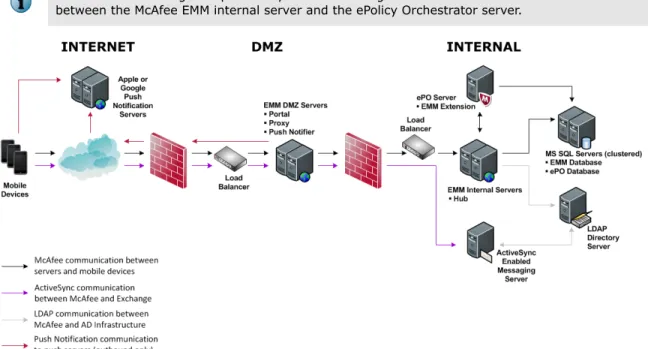
HA configuration installs McAfee EMM on multiple servers. The McAfee EMM Portal, Proxy, and Push Notifier are installed on multiple Internet-facing IIS servers in the DMZ. The McAfee EMM Hub is installed on one or more servers in the internal subnet.
1
Planning your installation Configuration overviewAdditional HA configuration requirements include SQL Server clustering as well as two load balancers: • Proxy load balancer — Located in front of proxies and behind the external network firewall.
• Hub load balancer — Located in front of the McAfee EMM Hubs and behind the internal network firewall.
For details about configuring load balancers, see KB81305.
We recommend using multiple ePolicy Orchestrator Agent Handlers to ensure continual communication between the McAfee EMM internal server and the ePolicy Orchestrator server.
Figure 1-1 Typical High Availability configuration
Planning your installation
Enhanced security configuration (dual servers)
The enhanced security configuration is recommended for most McAfee EMM installations. This
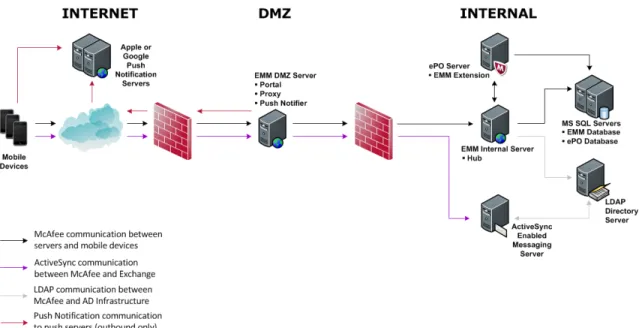
configuration provides maximum security and verifies web traffic before it enters your private network. The enhanced security configuration installs McAfee EMM on two servers. The McAfee EMM Portal, Proxy, and Push Notifier are installed on an Internet-facing IIS server in the DMZ. The McAfee EMM Hub is installed in the internal subnet.
Figure 1-2 Typical enhanced security configuration
Basic security configuration (single server)
The basic security configuration is appropriate for smaller organizations without complex security requirements, or for trial installations.
The basic security configuration installs all McAfee EMM server components on a single server located in the internal subnet.
Figure 1-3 Typical basic security configuration
1
Planning your installationInstallation requirements
McAfee EMM has specific system, certificate, and network requirements for installation and operation. For details about supported mobile device operating systems, see KB81475.
System requirements
Before installing McAfee EMM, verify that your system meets these minimum operating requirements. These requirements apply to the McAfee EMM server components. For details about ePolicy
Orchestrator requirements, see the ePolicy Orchestrator documentation.
To simplify installation and maintenance, we recommend creating a McAfee EMM service account. The account must be a local administrator account that has permission to create a database on the SQL Server. For details about SQL database permissions, see KB79251.
If you use Windows Authentication for database connectivity, we recommend using a domain account for installation.
Component Requirement
Software ePolicy Orchestrator 4.6.7–5.1 Hardware
(physical or virtual)
• 4 GB RAM • Dual Core CPU
Operating system • Windows Server 2008 64-bit with Service Pack 2 or later (Standard or Enterprise Edition)
• Windows Server 2008 R2 64-bit with Service Pack 1 or later (Standard or Enterprise Edition)
• Windows Server 2012 64-bit (Standard Edition) • Windows Server 2012 R2 64-bit (Standard Edition)
If the McAfee EMM server components are installed on a Windows Server 2012, you might need to manually resolve discrepancies with the certificate storage location to avoid a connection error when registering the McAfee EMM server. See
KB81110 for details.
SQL Server • 2008 64-bit with the latest Service Pack (Enterprise Edition)
• 2008 R2 32- and 64-bit with the latest Service Pack (Enterprise, Standard, or Workgroup Edition)
• 2012 64-bit with the latest Service Pack (Enterprise Edition)
Configuration and limitations:
• Database collation must be configured to the U.S. English default: SQL_Latin1_General_Cp1_CI_AS.
• SQL Express R2 is appropriate only for trial installations, with a single, on-premise server used in non-production environments.
Mail server • Exchange 2007, 2010, or 2013 • Domino 8.5.3 or 9.0
Other mail servers might work, but aren't tested for use with Exchange ActiveSync.
Planning your installation
Component Requirement
CA server (PKI
environments) • Windows Server 2008 R2 64-bit with Service Pack 1 or later (Standard orEnterprise Edition), with Simple Certificate Enrollment Protocol (SCEP) enabled
Server must be configured to use the Client Authentication certificate template.
Internet browsers • Internet Explorer 10.0 or later • Firefox 10.0 or later
• Chrome 17 or later
To access certain McAfee EMM features, Microsoft Silverlight 3.0 or later must be installed on the browser and pop-ups must be allowed for your ePolicy
Orchestrator site.
Supported languages
McAfee EMM software runs on any supported operating system regardless of the configured locale. The McAfee EMM interface has been translated into the languages shown here. Language support varies by ePolicy Orchestrator version. When the software is installed on an operating system using a language that is not on this list, the interface defaults to English.
ePolicy Orchestrator 4.6.7 ePolicy Orchestrator 5.0 and later
Chinese (Simplified) Chinese (Simplified) Japanese Chinese (Traditional) Chinese (Traditional) Korean
English Danish Norwegian
French Dutch Portuguese (Brazilian)
German English Portuguese (Iberian)
Japanese Finnish Russian
Korean French Spanish
Russian German Swedish
Spanish Italian Turkish
Certificate requirements
Before installing McAfee EMM, understand and verify these credentials. The McAfee EMM Deployment Helper walks you through obtaining portal and Mobile Device Management (MDM) certificates.
Retain a copy of your portal and MDM certificates and passwords in a secure location in case you need to restore them later.
1
Planning your installation Installation requirementsCredential Used for Used by Expiration Notes
Portal
certificate Mobile deviceverification and secure
communication between the McAfee EMM server and client components. McAfee EMM Portal McAfee EMM Proxy Windows IIS Varies. Obtain updates from your certificate authority.
• Must be a public certificate (not self-signed) obtained from a recognized certificate authority like Verisign or Go Daddy.
Without a trusted certificate, users can't configure devices.
• Must match the address (A) record defined in the Domain Name System (DNS) unless a wildcard (*) certificate is used.
MDM
certificate Communication withApple Push Notification services for device management. McAfee EMM Push Notifier Annually. Obtain updates from Apple.
• See KB73382 for details about generating or renewing MDM certificates.
Update MDM certificates before they expire to avoid reconfiguring all iOS devices on your network.
iOS Agent Push Notification certificate Communication with Apple Push Notification services for user notifications. McAfee EMM Push Notifier Annually. Obtain updates by visiting the McAfee
Downloads site and entering a valid McAfee EMM grant number.
• Installed automatically with McAfee EMM. Google Cloud Messaging (GCM) account credentials Communication with Google Push Notification services. McAfee EMM Push Notifier
Does not expire unless you generate a new token using the same Sender ID.
• See KB77397 for details about generating GCM credentials.
Network requirements
Before installing McAfee EMM, verify that your network meets these requirements.
Publically registered domain
You have a valid, externally facing URL to access the McAfee EMM Portal and Proxy.
Router and firewall access rules
Configuration Allow traffic
on this port From To
High Availability configuration (multiple servers)
443 Internet McAfee EMM DMZ server 443 McAfee EMM DMZ
server Email servers providing ActiveSyncServices (Microsoft Exchange or IBM Notes Traveler)
Planning your installation
Configuration Allow traffic
on this port From To
Enhanced security configuration (dual servers)
443 McAfee EMM DMZ
server McAfee EMM internal server
389 McAfee EMM
internal server LDAP server
88 McAfee EMM
internal server LDAP server
Communication on this port is required only for Active Directory with Kerberos authentication.
1433 (or dynamic SQL port)
McAfee EMM
internal server SQL Server where the McAfee EMMdatabase is installed
25 McAfee EMM
internal server SMTP server Basic security
configuration (single server)
443 Internet McAfee EMM server
443 McAfee EMM
server Email servers providing ActiveSyncor Notes Traveler
389 McAfee EMM
server LDAP server
88 McAfee EMM
internal server LDAP server 1433
(or dynamic SQL port)
McAfee EMM
server SQL Server where the McAfee EMMdatabase is installed
25 McAfee EMM
internal server SMTP server
iOS devices 2195 McAfee EMM
server (DMZ in enhanced security mode)
Apple Push Notification service at gateway.push.apple.com
2196 McAfee EMM server (DMZ in enhanced security mode)
Apple Push Notification service at feedback.push.apple.com
5223 Devices connected
to Wi-Fi Apple Push Notification service
For specific port and configuration details for iOS devices in a business environment, see the Apple guide to iPhone and iPad in Business.
Android devices 443 McAfee EMM server (DMZ in enhanced security mode)
Google Cloud Messaging service at android.googleapis.com
1
Planning your installation Installation requirementsConfiguration Allow traffic
on this port From To
5228 Devices connected
to Wi-Fi Google Cloud Messaging service 443 (to enable
App Protection) Devices connectedto Wi-Fi McAfee Global Threat Intelligenceserver at https:// appcloud.mcafee.com/aa
For outbound connections to Apple and Google push services, don't set IP-specific firewall restrictions because the IP addresses are subject to change.
Planning your installation
1
Planning your installation Installation requirements2
Installing in enhanced or basic security
configurations
To install McAfee EMM in enhanced or basic security configurations, complete these tasks in order.
Contents
Install the McAfee EMM extension bundle in ePolicy Orchestrator Run the Deployment Helper
Install McAfee EMM server components
Add McAfee EMM as a registered server in ePolicy Orchestrator
Install the McAfee EMM extension bundle in ePolicy
Orchestrator
Install the McAfee EMM extension bundle before installing the McAfee EMM server components so that you can prepare policies for quick deployment.
This method manually installs the McAfee EMM extension bundle from a local copy. For details about other methods of checking in product packages, including using the Software Manager, see the ePolicy Orchestrator documentation.
The McAfee EMM extension bundle might be automatically installed by the Automatic Product Configuration process during ePolicy Orchestrator 5.1 configuration.
Task
For option definitions, click ? in the interface.
1 Download and save the McAfee EMM extension bundle in an accessible location.
Don't unzip the file.
2 On the ePolicy Orchestrator console, select Menu | Software | Extensions, then click Install Extension.
3 Browse to and select the McAfee EMM extension bundle, then click OK.
4 Review and accept the product details and license agreement, then click OK.
Run the Deployment Helper
The Deployment Helper verifies the McAfee EMM installation requirements and prepares your environment for installation.
The Deployment Helper is available on the McAfee Downloads site. The utility guides you through
• Enhanced security configuration — The Deployment Helper validates settings for the Hub on the internal server, and for the Portal, Push Notifier, and Proxy on the DMZ server.
• Basic security configuration — The Deployment Helper validates settings for the Hub, Portal, Push Notifier, and Proxy on one server.
For enhanced security configurations, complete this task on your internal server first, then repeat it on your DMZ server.
Task
1 Install the Deployment Helper.
a Log on to a Windows server.
b Locate and double-click the installer file DeploymentHelperInstall.msi.
c Review and accept the terms of the license agreement, then click Install.
2 Select Start | All Programs | McAfee EMM | EMM Deployment Helper.
3 Review the instructions, then click Next.
4 Select the installation appropriate to your configuration and server type: • Dual Server (Internal) — Internal server in enhanced security configurations • Dual Server (External) — External server in enhanced security configurations • Single Server — Basic security configurations
5 Review your installation configuration, then click Next.
6 Complete the component settings screens.
Settings for components provides option definitions for all component settings screens.
7 Review the information on the Confirm Installation Settings screen, then click Run Scan.
When the scan is complete, results are shown. If any tasks are marked failed, review the information, then click Launch KB Assistance for help resolving any issues.
See also
Database settings on page 25 LDAP server settings on page 26 Hub server settings on page 26 Portal certificate settings on page 27 MDM certificate settings on page 28 ActiveSync server settings on page 29 GCM settings on page 29
Install McAfee EMM server components
The server installation process depends on your planned configuration.
Before you begin
Run the Deployment Helper. See Run the Deployment Helper.
2
Installing in enhanced or basic security configurations Install McAfee EMM server components• Enhanced security configuration — Use enhanced security installation for maximum security. This configuration installs the server components on dual servers.
• Basic security configuration — Use a basic security installation if your organization doesn't have complex security requirements. This configuration installs the server components on a single server.
For enhanced security configurations, complete this task on your internal server first, then repeat it on your DMZ server.
Task
1 Log on to the server with the McAfee EMM service account.
2 Locate and right-click the installer file Setup.exe, then select Run as Administrator. • Click Continue if prompted to install Windows installer or .NET version.
• Click Yes if prompted to restart the server. The installer continues automatically after restarting.
3 Review and accept the terms of the license agreement, then click Next.
4 Select the installation appropriate to your configuration and server type: • Dual Server (Internal) — Internal server in enhanced security configurations • Dual Server (External) — External server in enhanced security configurations • Single Server — Basic security configurations
5 Complete the component settings screens.
Settings for components provides option definitions for all component settings screens.
6 Review the information on the Summary screen, then click Install. When installation is complete, click
Finish.
See also
Run the Deployment Helper on page 17 Database settings on page 25
LDAP server settings on page 26 Communication settings on page 28 DMZ settings on page 29
Add McAfee EMM as a registered server in ePolicy Orchestrator
Configure access to the McAfee EMM server by adding it as a registered server.Before you begin
Install or configure the McAfee EMM extension bundle.
Task
For option definitions, click ? in the interface.
1 On the ePolicy Orchestrator console, select Menu | Configuration | Registered Servers, then click New Server.
2 From the Server type drop-down list, select EMM Hub, enter a unique name for the server, then click
Next.
Installing in enhanced or basic security configurations
3 Provide details about the connection to your McAfee EMM server, click Establish Connection to test your configuration, then click Save.
For a first-time installation, the default logon credentials are: • User name — admin
• Password — TDadmin*
To secure the connection between the McAfee EMM Hub and the ePolicy Orchestrator server, change the default credentials after adding the registered server. See the McAfee EMM Product Guide for details.
2
Installing in enhanced or basic security configurations Add McAfee EMM as a registered server in ePolicy Orchestrator3
Upgrading in enhanced or basic security
configurations
You can upgrade to McAfee EMM 12.0 from version 11.0. No direct upgrade path is available for earlier versions.
Verify system requirements before upgrading because requirements change from version to version.
To upgrade from version 11.0, complete these tasks in order.
Contents
Upgrade the McAfee EMM ePolicy Orchestrator extension bundle Upgrade McAfee EMM server components
Upgrade the McAfee EMM ePolicy Orchestrator extension
bundle
Upgrading the McAfee EMM extension bundle preserves existing policies and settings. New options added in this version are inactive by default.
To upgrade the McAfee EMM extension bundle, install the updated extension bundle in ePolicy Orchestrator. You don't have to uninstall the existing product extension bundle first, but the McAfee EMM 11.0 Help must be manually removed before upgrade.
This method manually installs the McAfee EMM extension bundle from a local copy. For details about other methods of checking in product packages, including using the Software Manager, see the ePolicy Orchestrator documentation.
Task
For option definitions, click ? in the interface.
1 Manually remove the McAfee EMM 11.0 Help extension.
a In the ePolicy Orchestrator console, select Menu | Software | Extensions.
b From the Extensions list, select Help Content.
c Select the McAfee EMM Help extension (emm_help), click Remove, then click OK to confirm.
2 Download and save the McAfee EMM extension bundle in an accessible location.
Don't unzip the file.
3 On the ePolicy Orchestrator console, select Menu | Software | Extensions, then click Install Extension.
4 Browse to and select the McAfee EMM extension bundle, then click OK.
5 Review and accept the product details and license agreement, then click OK.
6 Clear the web browser cache.
Upgrade McAfee EMM server components
Upgrading version 11.0 server components preserves your existing McAfee EMM installation, including database and authorization directories. The upgrade process differs based on your configuration.
Before you begin
Back up your existing McAfee EMM installation. See the McAfee EMM Product Guide for details.
If you assigned packages to individual users in previous versions of McAfee EMM, manually reassign these packages to groups. You can no longer assign packages on a per-user basis.
Tasks
• Upgrade McAfee EMM server components in enhanced security configurations on page 22 In enhanced security configurations, the McAfee EMM servers must be upgraded in a specific order.
• Upgrade McAfee EMM server components in basic security configurations on page 22 In basic security configurations, upgrade all McAfee EMM server components
simultaneously.
Upgrade McAfee EMM server components in enhanced security
configurations
In enhanced security configurations, the McAfee EMM servers must be upgraded in a specific order.
Task
• Follow the instructions in KB81482.
Upgrade McAfee EMM server components in basic security
configurations
In basic security configurations, upgrade all McAfee EMM server components simultaneously.
Task
1 Log on to the server with the McAfee EMM service account.
2 Locate and right-click the installer file Setup.exe, then select Run as Administrator.
Click Yes if prompted to restart the server. The installer continues automatically after restarting.
3 Review and accept the terms of the license agreement, then click Next.
Select Use Configuration from Previous Installations if you want to keep settings from a previous upgrade. If you're reusing an existing McAfee EMM database for upgrade, settings from the previous
installation are preserved by default, regardless of any changes you make in the installer.
4 Click Upgrade.
5 Review the information on the Summary screen, then click Upgrade. When installation is complete, click Finish.
3
Upgrading in enhanced or basic security configurations Upgrade McAfee EMM server components4
Installing or upgrading in High
Availability configurations
HA environments require modified installation and upgrade to ensure continuous email access.
Contents
Install McAfee EMM in High Availability environments Upgrade McAfee EMM in High Availability environments
Install McAfee EMM in High Availability environments
In HA environments, install the McAfee EMM Proxy and Hub on multiple servers to ensure continual access.
Plan your installation using hardware redundancy options like Network load balancing (NLB), multiple ePolicy Orchestrator Agent Handlers, SQL Server replication, or clustering options built into the operating system and applications.
For details about installing McAfee EMM in HA environments, see KB70278.
Task
1 Install the McAfee EMM extension bundle in ePolicy Orchestrator. See Install the McAfee EMM extension bundle in ePolicy Orchestrator.
2 Use the Dual Server (Internal) option in the McAfee EMM installer to install the first Hub and database on a single server.
3 Stop IIS on any additional internal servers where you plan to install the McAfee EMM Hub and database.
4 Add McAfee EMM as a registered server in ePolicy Orchestrator with the virtual IP address of the Hub load balancer.
See Add McAfee EMM as a registered server in ePolicy Orchestrator.
5 Export an encryption key from ePolicy Orchestrator.
a Select Menu | Configuration | Server Settings | Enterprise Mobility Management.
b In the General Settings section, in the Encryption Key row, click Export.
c Enter a Key password, then click OK.
6 Use the Custom Installation option in the McAfee EMM installer, along with the encryption key, to install the Hub and database on more internal servers. Restart IIS on each server after installation.
Install both the McAfee EMM Hub and database on each server.
7 Use the Dual Server (External) option in the McAfee EMM installer to install the Proxy, Portal, and Push Notifier on the DMZ servers.
8 Pair systems using load balancing appropriate for your setup.
See also
Install the McAfee EMM extension bundle in ePolicy Orchestrator on page 17 Add McAfee EMM as a registered server in ePolicy Orchestrator on page 19
Upgrade McAfee EMM in High Availability environments
In HA environments, the McAfee EMM servers must be upgraded in a specific order.Task
• Follow the instructions in KB81482.
4
Installing or upgrading in High Availability configurations Upgrade McAfee EMM in High Availability environmentsA
Settings for components
Use these tables to configure settings for the Deployment Helper and McAfee EMM server components.
If you use the installer to upgrade components while reusing an existing database, the new component is installed with existing settings, regardless of any changes you make in the installer. This functionality prevents accidentally overriding McAfee EMM database settings that affect your network. If you upgrade an individual component and create a new database, you can reuse old settings, or change them as needed.
Contents
Database settings LDAP server settings Hub server settings Portal certificate settings MDM certificate settings Communication settings ActiveSync server settings GCM settings
DMZ settings
Database settings
These settings in the Deployment Helper and installer identify the SQL Server that hosts the McAfee EMM database.
Option Definition
Use SQL Express
(Deployment Helper only)
Installs SQL Express on the local system and create the McAfee EMM database.
SQL Express is appropriate only for trial installations, with a single, on-premise server used in non-production environments.
Server name Host name or IP address of the SQL Server where you want to install the McAfee EMM database.
Authentication • Windows Authentication (recommended)
• SQL Authentication
Username or Login User name for the connection to the McAfee EMM database server.
Password Password for the connection to the McAfee EMM database server.
Database Name for the McAfee EMM database.
See also
LDAP server settings
These settings in the Deployment Helper and installer identify the server for authenticating users. Fields vary depending on which authentication type you select.
Option Definition
Server Type • Active Directory
• Domino
• ActiveSync Protocol
FQDN Fully qualified domain name of the LDAP server.
Domain • Active Directory — Windows NetBIOS domain name. • Domino — Name of the Domino domain.
DN Domain distinguished name of the LDAP server.
• Active Directory — This field is populated with the domain components when Domain FQDN is completed.
• Domino — Leave this field blank.
ActiveSync Server
(installer only)
IP address or fully qualified domain name of the ActiveSync server.
Username or
Verification Username
User name for the connection to the
authentication server. For ActiveSync authentication, the account used to install McAfee EMM can't be an administrative account. We recommend a service account with permissions to query group membership.
Password or
Verification Password
Password for the connection to the authentication server.
External EMM Proxy Server Address
Fully qualified domain name of the McAfee EMM Proxy. Devices connect to this McAfee EMM Proxy address for ActiveSync.
See also
Run the Deployment Helper on page 17
Install McAfee EMM server components on page 18
Hub server settings
These settings in the Deployment Helper connect the DMZ server in an enhanced security installation to the internal McAfee EMM Hub server.
Option Definition
Server address Fully qualified domain name or IP address of the McAfee EMM Hub server
See also
Run the Deployment Helper on page 17
A
Settings for components LDAP server settingsPortal certificate settings
These settings in the Deployment Helper specify the portal certificate. The Deployment Helper can also assist with generating a certificate signing request (CSR), then creating a portal certificate from the verified CSR.
On the Provide a Portal Certificate screen of the Deployment Helper, select one of these options: • Create new SSL certificate to generate an SSL certificate, followed by specifying the certificate you
created.
• Use existing SSL certificate to specify an existing, valid SSL certificate.
Generate a portal certificate
Step Option Definition
1 Generate the CSR. Common Name URL that you want customers to connect to. For a wildcard certificate, add an asterisk before the common name, for example, *.domainname.com.
Organization Legally incorporated name of your company.
Organization Unit Unit within your organization requesting the certificate, for example, Engineering or Human Resources.
You can enter a DBA (doing business as) name in this field.
City/Locality Unabbreviated city where your organization is legally registered.
State/Province Unabbreviated state or province where your organization is legally registered.
Country/Region Two-letter ISO country code where your organization is legally registered, like US or FR.
Certificate Request File
Path Browse to select the location to store the certificaterequest.
2 Verify the CSR.
This step is completed outside the Deployment Helper. Contact a valid certificate authority (CA) for verification.
3 Generate the portal
certificate. Certificate File Path Browse to select the .cer or .pem file created in step2.
Certificate Password Password for the certificate.
Specify a portal certificate
Option Definition
File Path Browse to select the .pfx file.
Password Password for the certificate.
See also
Run the Deployment Helper on page 17
Settings for components
MDM certificate settings
These settings in the Deployment Helper specify the MDM certificate. The Deployment Helper can also assist with generating a CSR, then creating an MDM certificate from the verified CSR.
On the Provide an MDM Certificate screen of the Deployment Helper, select one of these options: • Create new/renew existing MDM certificate to generate an MDM certificate, followed by specifying the
certificate you created.
• Use existing MDM certificate to specify an existing, valid MDM certificate.
Generate an MDM certificate
Step Option Definition
1 Generate the CSR. Common Name URL that you want customers to connect to.
Email Email address of the administrator making the request.
Country/Region Two-letter ISO country code where your organization is legally registered, like US or FR.
Certificate Request File Path Browse to select the location to store the certificate request.
2 Verify the CSR.
This step is completed outside the Deployment Helper. Follow the instructions in KB73382 to verify the CSR through Apple.
3 Generate the MDM
certificate. Certificate File Path Browse to select the .pem file created in step2.
Certificate Password Password for the certificate.
Specify an MDM certificate
Option Definition
File Path Browse to select the .pfx file.
Password Password for the certificate.
See also
Run the Deployment Helper on page 17
Communication settings
These settings in the installer specify portal and MDM certificates, and GCM account credentials.
Option Definition
Portal Certificate Available Certificates Select an existing certificate from an earlier McAfee EMM
installation, or select Use New Certificate to specify a new certificate.
File Path Browse to select the portal certificate.
Password Password for the portal certificate.
MDM Push Certificate File Path Browse to select the MDM certificate.
Password Password for the MDM certificate.
A
Settings for components MDM certificate settingsOption Definition
GCM Settings Sender ID Project number of your Google API project.
Token API key value of your Google API project.
To verify connection to the Google server, click the green checkmark next to the Token field.
See also
Install McAfee EMM server components on page 18
ActiveSync server settings
These settings in the Deployment Helper identify the ActiveSync server that communicates with the McAfee EMM Proxy.
Option Definition
Server Address Fully qualified domain name of the ActiveSync server.
For a Domino server, enter <servername>/servlet/traveler.
Domain Name Domain name of the ActiveSync server.
Username User name for the connection to the ActiveSync server.
Password Password for the connection to the ActiveSync server.
See also
Run the Deployment Helper on page 17
GCM settings
These settings in the Deployment Helper validate GCM account credentials.
Option Definition
Sender ID Project number of your Google API project. Token API key value of your Google API project.
See also
Run the Deployment Helper on page 17
DMZ settings
These settings in the installer identify the ActiveSync server that communicates with the McAfee EMM Proxy.
Option Definition
ActiveSync Server Address Fully qualified domain name of the ActiveSync server.
To verify connection to the server, click the green checkmark next to the server address, then click Verify.
Settings for components
See also
Install McAfee EMM server components on page 18
A
Settings for components DMZ settingsIndex
A
about this guide 5
Active Directory
ActiveSync server settings 29
LDAP server settings 26
ActiveSync Protocol, LDAP server settings 26
ActiveSync server
Deployment Helper settings 29
installation settings 29
port requirements 13
administrator
accounts, installation permissions 11
credentials, default logon 19
Agent Handlers
automatically connected 8
HA configuration 8
Agent, EMM, See app, EMM Android devices
EMM app description 8
port requirements 13
Secure Container description 8
supported versions 11
App Protection, port requirements 13
app, EMM, description 8
Apple Push Notification
certificates, requirements 12
MDM certificates, Deployment Helper, generating and specifying 28
MDM certificates, installation settings 28
port requirements 13
authentication, server settings 26
B
backups, EMM database 22
basic security configuration
comparison to other configurations 8
Deployment Helper 17
description 10
installation 18
port requirements 13
upgrade 22
browsers
cache, clearing after upgrade 21
bundle, EMM, extensions included 7
C
.cer file, certificate signing request (CSR), portal certificate 27
certificate authority (CA) certificate requirements 12
certificate verification, portal certificate 27
server, PKI environments 11
certificate signing request (CSR) .cer and .pem files 27
MDM certificate 28
portal certificate 27
certificates expiration 12
installation settings 28
obtaining and renewing 12
requirements 12
clusters, redundancy 23
communication
between server components 7
certificates, installation settings 28
with certificate authorities and push services 12
components client-side 8
server-side 7
configurations, basic security
comparison to other configurations 8
Deployment Helper 17
description 10
installation 18
upgrade 22
configurations, enhanced security comparison to other configurations 8
Deployment Helper 17
description 10
installation 18
upgrade 22
configurations, High Availability (HA) comparison to other configurations 8
description 8
installation 23
upgrade 24
D
database collation, SQL Server 11
database, EMM description 7
existing vs. new, effects on upgrading components 25
HA configuration, one-to-one installation with EMM Hub 23
settings 25
default options, preserved in upgrade 21
Deployment Helper 17
devices, See mobile devices DMZ
configuration 7
port requirements 13
settings 29
documentation
audience for this guide 5
product-specific, finding 6
typographical conventions and icons 5
documentation, EMM Product Guide backing up installation 22
changing default system administrator logon credentials 19
documentation, ePO Product Guide installation, extension bundles 17
system requirements 11
documentation, McAfee KnowledgeBase
enhanced security configuration, upgrading, KB81482 22
GCM credentials, obtaining, KB77397 12
HA configuration, load balancers, KB81305 8
HA environments, installing, KB70278 23
HA environments, upgrading, KB81482 24
MDM certificate creation, KB73382 12, 28
SQL Server permissions, KB79251 11
Windows Server 2012 certificate storage, KB81110 11
domain name system (DNS) server, certificate requirements 12
Domino
ActiveSync server settings 29
LDAP server settings 26
supported mail servers 11
dual servers, See configurations, enhanced security
E
encryption key, HA configuration 23
enhanced security configuration
comparison to other configurations 8
Deployment Helper 17
description 10
installation 18
port requirements 13
upgrade 22
ePO
basic security configuration with EMM 10
EMM extension bundle, installation 17
EMM extension bundle, upgrade 21
encryption key, exporting for HA configuration 23
ePO (continued)
enhanced security configuration with EMM 10
HA configuration with EMM 8
registered server, connecting EMM to ePO 19
server, guidelines for configuring with EMM 8
supported versions, 4.6.7–5.1 11
Exchange, supported mail servers 11
expiration, certificates 12
extensions, EMM
included in extension bundle 7
installation 17
upgrade 21
F
figures
basic security configuration 10
enhanced security configuration 10
HA configuration 8
firewalls, access rules 13
G
Go Daddy, certificate authority (CA) 12
Google Cloud Messaging (GCM) Deployment Helper settings 29
installation settings 28
port requirements 13
requirements 12
GTI, See App Protection
H
hardware redundancy, HA configuration 23
hardware requirements 11
Help extension
automatic installation with EMM 7
manual removal before upgrade 21
High Availability (HA) configuration comparison to other configurations 8
description 8
installation 23
port requirements 13
upgrade 24
Hub, EMM
basic security configuration 10
description 7
enhanced security configuration 10
guidelines for all configurations 8
HA configuration 8
HA configuration, one-to-one installation with EMM database 23
registered server in ePO 19
settings 26 Index
I
installation
extension bundle 17
permissions 11
preparation with the Deployment Helper 17
registered server, connecting EMM to ePO 19
server components 18
interface languages 11
Internet browsers
cache, clearing after upgrade 21
requirements 11
Internet Information Services (IIS), Windows certificate requirements 12
Proxy, EMM 7
stopping and restarting during HA installation 23
iOS Agent Push Notification certificate, requirements 12
iOS devices
EMM app description 8
port requirements 13
supported versions 11
iPad, See iOS devices iPhone, See iOS devices iPod, See iOS devices
K
KnowledgeBase (KB), McAfee, See documentation, McAfee KnowledgeBase
L
languages, supported 11
LDAP server
port requirements 13
settings 26
load balancing, High Availability (HA) configuration 8
pairing systems 23
logon, default administrative credentials 19
M
mail server, requirements 11
McAfee Downloads Deployment Helper 17
iOS Agent Push Notification certificate updates 12
McAfee ServicePortal, accessing 6
Microsoft Silverlight, supported versions 11
mobile device management (MDM) certificates Deployment Helper, generating and specifying 28
installation settings 28
requirements 12
mobile devices
port requirements 13
supported versions 11
Mobile ePO (MePO) extension, automatic installation with EMM
7
N
network load balancing (NLB), redundancy 23
network requirements 13
O
operating system requirements 11
options, preserved in upgrade 21
P
packages, assigning to groups before upgrade 22
.pem file, certificate signing request (CSR) MDM certificate 28
portal certificate 27
permissions, installation 11
.pfx file, personal information exchange MDM certificate 28
portal certificate 27
PKI extension, automatic installation with EMM 7
popups, enabling for legacy console 11
portal certificates
Deployment Helper, generating and specifying 27
installation settings 28
requirements 12
Portal, EMM
basic security configuration 10
certificate requirements 12
description 7
domain requirements 13
enhanced security configuration 10
HA configuration 8
ports, access rules 13
Product Guide, EMM
backing up installation 22
changing default system administrator logon credentials 19
Product Guide, ePO
installation, extension bundles 17
system requirements 11
Proxy, EMM
basic security configuration 10
certificate requirements 12
description 7
domain requirements 13
enhanced security configuration 10
HA configuration 8
Public Key Infrastructure (PKI) environments, requirements 11
Push Notifier, EMM
basic security configuration 10
certificate requirements 12
description 7
enhanced security configuration 10
HA configuration 8
push technology
certificate requirements 12
port requirements 13
R
redundancy, installation planning 23
registered servers, connecting EMM to ePO 19
requirements certificate 12
network 13
system 11
routers, access rules 13
S
Secure Container, description 8
Sender ID, GCM settings, definition 28
service account, EMM 11
ServicePortal, finding product documentation 6
settings
configuration from previous installations 22
Deployment Helper and installer 25
Silverlight, Microsoft, supported versions 11
Simple Certificate Enrollment Protocol (SCEP), PKI environments 11
single server, See configurations, basic security
.skx file, encryption key, installing in HA environments 23
SMTP server, port requirements 13
SQL Server
cluster, HA configuration 8
port requirements 13
replication, redundancy 23
requirements 11
SQL Server (continued) settings 25
SSL certificates, See portal certificates system requirements 11
T
technical support, finding product information 6
token, GCM settings, definition 28
trial installation, definition 11
trusted certificates requirements 12
U
upgrade
EMM database, effects of existing vs. new 25
extension bundle 21
server components 22
supported versions 21
URL, EMM Portal and Proxy 13
V
Verisign, certificate authority (CA) 12
W
Windows Authentication, domain account recommendation 11
Windows Phones, supported versions 11 Index
![[Image removed due to copyright concerns]](data:image/gif;base64,R0lGODlhAQABAIAAAP///wAAACH5BAEAAAAALAAAAAABAAEAAAICRAEAOw==)