2
ISBN: N/A SWsoft.
13755 Sunrise Valley Drive Suite 325
Herndon VA 20171 USA
Phone: +1 (703) 815 5670 Fax: +1 (703) 815 5675
© Copyright 1999-2007, SWsoft Holdings, Ltd. All rights reserved
Distribution of this work or derivative of this work in any form is prohibited unless prior written permission is obtained from the copyright holder.
Patented hosting technology protected by U.S.Patents 7,099,948; 7,076,633. Patents pending in the U.S.
MS Windows, Windows 2003 Server, Windows XP, Windows 2000, Windows NT, Windows 98, and Windows 95 are registered trademarks of Microsoft Corporation.
3
Contents
Plesk for Windows Copyright Notice
2
Preface
4
About This Guide ... 4
Who Should Read This Guide ... 4
Organization Of This Guide ... 4
Typographical Conventions ... 4
Feedback ... 5
Plesk Backup and Restoration Basics
6
How To Back Up and Restore Your Plesk Data ... 7What Plesk Data Is Backed Up and Restored ... 8
Backing Up and Restoring Your Plesk Data
12
Backing Up Your Plesk Data ... 13Scheduling Plesk Data Backups ... 15
Backing Up Plesk Data Through Command Line Interface ... 17
Restoring Your Plesk Data ... 20
Restoring All Plesk Data ... 20
Restoring Clients ... 24
Restoring Domains ... 27
Restoring Plesk Data Through Command Line Interface ... 30
Backing Up And Restoring Domains
31
Backing Up a Domain ... 32Restoring a Domain ... 34
Appendix
39
Troubleshooting ... 39Additional Notes on Backup and Resoration ... 41
Additional Command Line Parameters of domain_bu.exe Utility ... 42
4
About This Guide
This Guide is intended to give Plesk administrators a practical introduction to Plesk backup/restore utilities by explaining how to perform backup and restoration tasks via Plesk backup/restore utilities.
The document contains step-by-step instructions you should follow when using backup/restore utilities.
Who Should Read This Guide
The primary audience for the Guide is everyone responsible for administering Plesk-enabled servers. It is assumed that the reader has a conceptual understanding of hosting, domain, backup and restore issues and possesses some knowledge of MS Windows OS.
Organization Of This Guide
The Guide includes the following chapters:Plesk Backup And Restoration Basics describes the basic concepts of backup and restoration you must understand before using Plesk backup/restore utilities. This chapter explains why you need to back up your data, what data can be backed up and restored, and how can you back it up and restore it using Plesk backup/restore utilities.
Backing Up And Restoring Your Server provides detailed information on server data backup and restoration.
Backing Up And Restoring Domains focuses on backing up and restoring individual domains.
Troubleshooting addresses possible problems that can be encountered while performing backup/restore tasks.
Typographical Conventions
C
H A P T E R1
Preface 5
The following kinds of formatting in the text identify special information. Formatting convention Type of Information Example
Special Bold Items you must select, such as menu options, command buttons, or items in a list.
Go to the QoS tab.
Titles of chapters, sections, and subsections.
Read the Basic Administration chapter.
Italics Used to emphasize the importance of a point, to introduce a term or to designate a command line placeholder, which is to be replaced with a real name or value.
The system supports the so called wildcard character search.
Monospace The names of style sheet selectors, files and directories, and CSS fragments.
The license file is located in the
httpdocs/common/license
directory.
Preformatted On-screen computer output in
your command-line sessions; source code in XML, C++, or other programming languages.
# ls –al /files
total 14470
Preformatted Bold What you type, contrasted with
on-screen computer output.
# cd /root/rpms/php
Feedback
If you have found a mistake in this guide, or if you have suggestions or ideas on how to improve this guide, please send your feedback to [email protected]. Please include in your report the guide's title, chapter and section titles, and the fragment of text in which you have found an error.
6
Backup is a process of making a copy of your current data and storing it in another place. If the original data is lost or damaged, the backed up data can be restored, i.e., copied back. Backing up is useful when you need to make system-wide changes that can affect your data or server performance (for instance, upgrade the OS that Plesk is running on). Backing up is also done for safety purposes, i.e., to avoid losing data in case of unforeseen circumstances (e.g., server HDD malfunction).
Plesk backup/restore utilities offer you the following data backup and restoration options:
Plesk data backup is carried out by Plesk Backup utility, which has both GUI and command line interface.
Plesk data restore is performed by Plesk Restore utility, which is entirely GUI-based.
Individual domains are backed up and restored by domain_bu.exe utility, which is accessed through command line interface. You can also backup and restore
individual domains using Backup feature available through Plesk control panel GUI. For more information about these utilities, refer to How To Back Up And Restore Your Plesk Data (see page 7) section.
To find out what specific data is backed up/restored using these options, refer to the What Plesk Data Is Backed Up And Restored (see page 8) section.
In this chapter:
How To Back Up and Restore Your Plesk Data ... 7 What Plesk Data Is Backed Up and Restored ... 8
C
H A P T E R2
Plesk Backup and Restoration Basics 7
How To Back Up and Restore Your Plesk Data
Backing up and subsequent restoration of Plesk settings and data can beaccomplished in a variety of ways. Plesk data backup/restore is performed by Plesk Backup and Plesk Restore utilities, while individual domains are typically backed up and restored via domain_bu.exe utility or through Backup feature accessible through Plesk control panel GUI.
Note: You can backup and restore individual domains through Plesk Backup and Plesk Restore utilities, although using domain_bu.exe should be quicker and more
convenient for this task. Plesk Data Backup
Plesk data backup is carried out by Plesk Backup utility, which has both GUI and command line interface.
To access Plesk Backup utility and back up your data:
1
Click
Start
on the taskbar and select
SWsoft
>
Plesk
program group in
the
Start
menu.
2
Click
Plesk Backup
to access Plesk Backup utility.
3
Follow the instructions provided in the Backing Up Your Plesk Data
(see page 13) section to successfully create a backup of your Plesk
data.
Plesk Backup utility can also be accessed through command line interface by running backup.exe located in the %plesk_dir%\admin\bin\ folder (where
%plesk_dir% is the system variable defining the folder where Plesk is installed). To learn more about using the command line interface of Plesk Backup utility, refer to the Backing Up Plesk Data Through Command Line Interface (on page 17) section. Plesk Data Restore
Plesk data restoration is done by Plesk Restore utility, which is entirely GUI-based.
To access Plesk Restore utility and restore your data:
1
Click
Start
on the taskbar and select
SWsoft
>
Plesk
program group in
the
Start
menu.
2
Click
Plesk Restore
to access Plesk Restore utility.
3
Follow the instructions provided in the Restoring Your Plesk Data (see
page 20) section to successfully restore backed up Plesk data.
Plesk Backup and Restoration Basics 8
Individual domains are backed up and restored by domain_bu.exe utility, which can be accessed through command line interface by running domain_bu.exe located in the %plesk_dir%\admin\bin\ folder (where %plesk_dir% is the system variable defining the folder where Plesk is installed). For detailed instructions on how to use domain_bu.exe utility, refer to Backing Up And Restoring Domains (see page 31) section.
Note: Individual domains can also be backed up and restored through internal Plesk Control Panel means. This feature is called Back Up and it is located in the Domain section on a domain management page in Plesk. For more information about this feature, refer to Backing Up And Restoring Domains (see page 31) section.
What Plesk Data Is Backed Up and Restored
What Plesk Data Is Backed Up And RestoredThe following data can be backed up and subsequently restored by Plesk Backup/Restore utilities:
Plesk control panel configuration and Plesk server settings:
System settings
Plesk IP addresses pool
Plesk license key
Plesk services configuration
DNS zone templates
Mail preferences
ODBC settings
Plesk scheduler configuration, including scheduled tasks with their parameters
IIS application pool configuration and usage policy settings
SSL certificates
Shared SSL settings
Default domain skeleton
Server application settings
Note: Only the settings of server applications are backed up and restored, not the server applications themselves.
Site application settings (Application Vault)
Note: Only the settings of site applications are backed up and restored, not the site applications themselves.
Acronis True Image scheduled backup settings
Spam-filter settings
Plesk Backup and Restoration Basics 9
Control panel logo settings
Session settings
Control panel preferences and system preferences
Interface management preferences
Notification settings
Action Log settings
Event Manager configuration
Interface skins
Custom buttons
Plesk Administrator preferences
Control panel Administrator personal settings
Control panel access policy configuration
Plesk Administrator templates
Client templates
Domain templates Client settings and data:
Personal settings
Control Panel interface settings
Report and report delivery settings
Limits and permissions
IP addresses pool
Site applications (Application Vault) pool
IIS application pool settings
Default domain skeleton for all client domains
Control Panel logo
Custom buttons
Domain Templates
Traffic usage statistics Domain settings and data:
General domain settings
Domain user settings (including CP interface settings, personal information and permissions)
Report and report delivery settings
Domain preferences
Domain limits
Domain aliases
Domain backup settings (including backup schedule settings and FTP connection settings)
Plesk Backup and Restoration Basics 10
Custom buttons
Domain services configuration
Mail configuration (including mail accounts, their settings and messages in the mailboxes)
Note: If you are restoring to a Plesk installation with a different mail server, messages in the mailboxes will not be restored.
Mailing lists and their settings
DNS configuration
MySQL databases
Microsoft SQL Server databases
Note: Only local Microsoft SQL Server databases can be backed up and restored. If remote Microsoft SQL Server databases are used, only their configuration can be backed up and restored.
Domain SSL certificates
Tomcat Java application list and applications themselves
ODBC settings
Hosting configuration
Physical hosting configuration
Web users and their settings
Subdomains list
Web directories protection
Virtual directories and their settings
Domain-wide MIME types configuration (MIME type settings for individual directories are not backed up and restored)
Domain-wide error documents configuration (Error documents configuration for individual directories is not backed up and restored)
Anonymous FTP settings
Log rotation preferences
Scheduled tasks
Installed Site Applications and their preferences
Installed ASP.NET web applications and their preferences
Performance settings
IIS application pool settings
Shared SSL settings
Hotlink protection settings
Domain home directory, excluding log files
Standard and frame forwarding settings (IP address and destination URL)
Subdomain settings and data
Plesk Backup and Restoration Basics 11
Web directories protection
Virtual directories and their settings
Subdomain-wide MIME types configuration (MIME type settings for individual directories are not backed up and restored)
Subdomain-wide error documents configuration (Error documents configuration for individual directories is not backed up and restored)
Installed Site Applications and their preferences
Installed ASP.NET web applications and their preferences
Shared SSL settings
Hotlink protection settings
Interface skins
By default, Plesk Backup utility is set to back up everything from the list above, excluding interface skins.
What Plesk Data Is Not Backed Up And Restored
The following data is not backed up (and, accordingly, not restored) by Plesk Backup/Restore Utilities:
Server Applications (only their settings are backed up and restored)
Default Site Applications available for installation in Application Vault
Help Desk configuration and data
Firewall settings
MySQL and Microsoft SQL databases connection settings
Default ASP.NET application packages available for installation in ASP.NET Web Applications
SiteBuilder configuration and data
ASP.NET server-wide settings
MIME types configuration for each directory
Error documents configuration for each directory
Messages in the mailboxes, if you are restoring to a Plesk installation with a different mail server
12
This chapter provides detailed information on Plesk server data backup and restoration through Plesk Backup and Plesk Restore utilities.
In this chapter:
Backing Up Your Plesk Data ... 13 Restoring Your Plesk Data ... 20
C
H A P T E R3
Backing Up and Restoring Your Plesk
Data
Backing Up and Restoring Your Plesk Data 13
Backing Up Your Plesk Data
Plesk data backup is carried out by Plesk Backup utility. Using this utility, you can:
Back up your Plesk data via easy-to-use GUI
Choose what Plesk data should be backed up, with a couple of clicks
Quickly and efficiently schedule backups
Use command line interface to back up your Plesk data or integrate backup in your own applications and batch files
Save certain combinations of backup settings to reuse them later
To see the list of data that can be backed up with Plesk Backup utility, see the What Plesk Data Is Backed Up And Restored (see page 8) section.
To back up your Plesk data:
1
Start Plesk Backup utility (
Start
>
All Programs
>
SWsoft
>
Plesk
>
Plesk
Backup
)
2
Select the objects you want to back up.
You can choose what clients and domains you want to backup by selecting the corresponding checkboxes in the Select the objects to be backed up menu.
When selecting or deselecting a client, all domains of this client are selected and deselected as well.
You cannot back up a domain without backing up the client it belongs to. If a domain is selected to be backed up, its owner will be automatically selected as well.
Use Select All to select all available objects and Clear All to deselect all objects previously selected.
3
Choose the appropriate backup options.
If you are making a full backup, it is recommended that you leave the Suspend
control panel services during backing up checkbox selected to ensure that backup procedure is performed correctly and that resulting backup file is not corrupted.
If you are making selective domain backup, we recommend you to clear the
Suspend control panel services during backing up checkbox and leave the Suspend
domain operations during backing up checkbox selected. This will ensure that domains which are not backed up are accessible during the backup procedure.
If you do not want to see the warning messages that are displayed if problems are encountered during the backup process, select the Do not prompt with
warnings checkbox. To see the list of encountered problems, click Show Details >> on the backup results message window after the backup process is finished. Note that this button is disabled if no problems were encountered.
Leave Back up domains content selected to back up domains content.
Note: If you do not back up domains content, web applications and databases might not function properly after the subsequent restoration.
Backing Up and Restoring Your Plesk Data 14
Leave Back up databases content selected to back up the MySQL and local Microsoft SQL Server databases.
Note: If you do not back up databases content, web applications and databases might not function properly after the subsequent restoration.
Leave Back up control panel configuration and server settings selected to back up Plesk Control Panel preferences and server-wide settings.
Select Back up interface skins to back up currently installed inferface skins.
4
Select the destination for the backup file.
Choose Store backup file on local drive to store the backup on a local hard disk or local network. Use Browse to specify the filename and location for the backup, and click OK to confirm your choice.
Choose Store backup file on FTP to store the backup on a remote server via FTP protocol. Click FTP settings to specify FTP server, base FTP directory and login credentials. Select the Passive mode checkbox to use passive mode for FTP transfers. Click Apply to save the changes.
5
Enter a description for the backup file in the
Description
field.
6
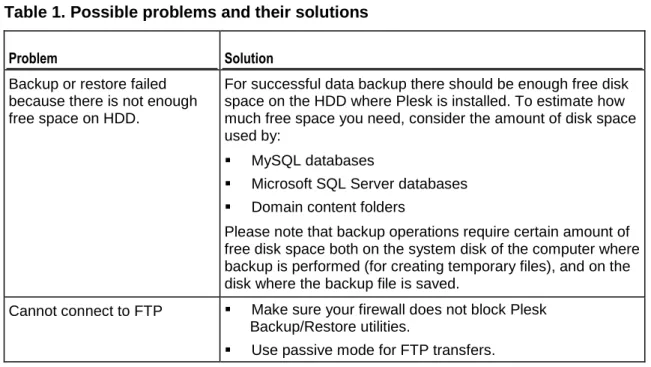
Select a temporary folder for backup purposes, if the hard disk
partition where Plesk is installed doesn't have enough free space.
Under
File
menu, click
Set Temporary folder...
and specify the required
folder. Click
OK
.
7
Save the backup configuration, if necessary. Under
File
menu, click
Save config
, specify the filename and configuration file location, and
click
OK
to confirm your choice. To use an existing backup
configuration, click
Load confing
, find the required file and click
OK
.
8
Click
Start
to start backup. If
Suspend control panel services during backing up
or
Suspend domain operations during backing up
options were selected, Plesk
will stop the required services automatically before proceeding with
backup.
9
After the backup process is finished, you will be prompted with a
message that dispays the backup results, including all possible
problems encountered during the procedure. Click
OK
to close the
window, or click
Show Details >>
to see what problems were
encountered. Note that this button is disabled if no problems were
encountered.
Backing Up and Restoring Your Plesk Data 15
Scheduling Plesk Data Backups
To schedule Plesk data backup:
1
Start Plesk Backup utility (
Start
>
All Programs
>
SWsoft
>
Plesk
>
Plesk
Backup
).
2
Select the objects to be backed up during scheduled backups, if you
want to back up only selected Plesk clients and their domains. If you
want to back up all Plesk clients and domains, proceed to step 3.
You can choose what clients and domains you want to backup by selecting the corresponding checkboxes in the Select the objects to be backed up menu.
When selecting or deselecting a client, all domains of this client are selected and deselected as well.
You cannot back up a domain without backing up the client it belongs to. If a domain is selected to be backed up, its owner will be automatically selected as well.
3
Select a temporary folder for scheduled backup purposes, if the hard
disk partition where Plesk is installed doesn't have enough free space.
Under
File
menu, click
Set Temporary folder...
and specify the required
folder. Click
OK
.
4
Under
File
menu, click
Schedule backup...
.
5
Select the
Enable automatic Plesk backups
checkbox to enable backup
scheduling feature.
6
In the
Schedule settings
field specify how often you want Plesk Backup
to create backups. To do so, choose the appropriate day and time in
the
Back up Plesk
menu.
7
Select the required backup settings in the
Backup settings
field.
Choose Back up all domains and clients to schedule backups of all Plesk clients and domains.
Choose Back up currently selected domains and clients to schedule backups of the clients and domains you selected earlier during step 2.
If you selected Back up all domains and clients option, it is recommended that you leave the Suspend control panel services during backing up checkbox selected to ensure that backup procedure is performed correctly and that resulting backup file is not corrupted.
If you are making selective domain backup and selected Back up currently selected
domains and clients option, we recommend you to clear the Suspend control panel
services during backing up checkbox and leave the Suspend domain operations during
backing up checkbox selected. This will ensure that domains which are not backed up are accessible during the backup procedure.
To backup Plesk Control Panel configuration and Plesk server settings, select the Back up control panel settings and server configuration checkbox.
8
Select the destination for the backup file.
Choose Store backup file on local drive to store scheduled backups on a local hard disk or in the local network.
Backing Up and Restoring Your Plesk Data 16
Choose Store backup file on FTP to store the backup on a remote server via FTP protocol. Click FTP settings to specify FTP server, base FTP directory and login credentials. Select the Passive mode checkbox to use passive mode for FTP transfers. Click Apply to save the changes.
Specify the path and filename in the Backup file field. Use Browse to specify the filename and location for the backup, and click Save to confirm your choice. If you chose to store backup file on FTP, you can only specify its name.
Specify what to do if a backup file with such name already exists in the If backup
file exists menu. Select Overwrite file to overwrite the existing backup file, or
Generate next file name to create a backup file with slightly different file name without removing previously saved backups.
9
Specify whether Plesk Backup should notify you about scheduled
backup and its results in the
Send notification
field.
Specify your e-mail address in the To e-mail field. Plesk Backup notifications will be sent to this address.
Specify the e-mail address from which the notifications will be sent in the From
e-mail field. This can help you filter your e-mail correspondence and avoid false spam filter alarms.
Specify the subject of the notification e-mails in the Subject field. This can help you filter your e-mail correspondence and avoid false spam filter alarms.
10
Click
Apply
to save your settings and enable scheduled backup of
Backing Up and Restoring Your Plesk Data 17
Backing Up Plesk Data Through Command Line Interface
To back up Plesk data through CLI with backup.exe utility, you need to create a configuration file with required backup settings first. The configuration file is created through Plesk Backup utility (GUI-based), thus all backup settings available in GUI can be used when creating a configuration file. This allows you to create a very flexible backup configuration: for example, to be able to back up all domains or all clients through CLI, simply create a configuration file with all domains or clients selected with Plesk Backup utility.
To create a configuration file for Plesk Backup utility:
1
Start Plesk Backup utility (
Start
>
All Programs
>
SWsoft
>
Plesk
>
Plesk
Backup
)
2
Select the objects you want to back up.
You can choose what clients and domains you want to backup by selecting the corresponding checkboxes in the Select the objects to be backed up menu.
When selecting or deselecting a client, all domains of this client are selected and deselected as well.
You cannot back up a domain without backing up the client it belongs to. If a domain is selected to be backed up, its owner will be automatically selected as well.
Use Select All to select all available objects and Clear All to deselect all objects previously selected.
3
Choose the appropriate backup options.
If you are making a full backup, it is recommended that you leave the Suspend
control panel services during backing up checkbox selected to ensure that backup procedure is performed correctly and that resulting backup file is not corrupted.
If you are making selective domain backup, we recommend you to clear the
Suspend control panel services during backing up checkbox and leave the Suspend
domain operations during backing up checkbox selected. This will ensure that domains which are not backed up are accessible during the backup procedure.
If you do not want to see the warning messages that are displayed if problems are encountered during the backup process, select the Do not prompt with
warnings checkbox. To see the list of encountered problems, click Show Details >> on the backup results message window after the backup process is finished. Note that this button is disabled if no problems were encountered.
Select Back up domains content to back up domains content.
Select Back up mailboxes content to back up messages in the mailboxes.
Select Back up databases content to back up the MySQL and local Microsoft SQL Server databases.
Select Back up control panel configuration and server settings to back up Plesk Control Panel preferences and server-wide settings.
Select Back up interface skins to back up currently installed inferface skins.
Backing Up and Restoring Your Plesk Data 18
Choose Store backup file on local drive to store the backup on a local hard disk or in the local network. Use Browse to specify the filename and location for the backup, and click OK to confirm your choice.
Choose Store backup file on FTP to store the backup on a remote server via FTP protocol. Click FTP settings to specify FTP server, base FTP directory and login credentials. Select the Passive mode checkbox to use passive mode for FTP transfers. Click Apply to save the changes.
5
Enter a description for the backup file in the
Description
field.
6
Select a temporary folder for backup purposes, if the hard disk
partition where Plesk is installed doesn't have enough free space.
Under
File
menu, click
Set Temporary folder...
and specify the required
folder. Click
OK
.
7
Save the backup configuration. Under
File
menu, click
Save config
,
specify the filename and configuration file location, and click
OK
to
confirm your choice. To load an existing backup configuration, click
Load confing
, find the required file and click
OK
.
To back up Plesk data via CLI, using custom backup configuration file:
Run the following command in the %plesk_dir%\admin\bin\ folder (where %plesk_dir% is the system variable defining the folder where Plesk is installed):
backup.exe --batch-mode --config-file <path\filename>
Note: Specify the path and the name of the configuration file instead of
<path\filename> variable. If the path to the backup file is not specified, backup file will be saved in the PLESK_DATA_DIR\Backup folder (where PLESK_DATA_DIR is the folder you selected during the installation of Plesk for the location of Plesk data) E.g., to back up Plesk data using backup configuration file named basic_bu.psc located in the c:\My Documents\Plesk into the C:\backup\psa folder, run the following command:
backup.exe --batch-mode --config-file "c:\My Documents\Plesk\basic_bu.psc"
You can also back up all Plesk data, except interface skins, without using a configuration file, but still using CLI.
To back up all Plesk data via CLI:
Run the following command in the %plesk_dir%\admin\bin\ folder (where %plesk_dir% is the system variable defining the folder where Plesk is installed):
backup.exe -f <path\filename>
Note: Specify the path and the name of the file instead of <path\filename> variable. If the path is not specified, backup file will be saved in the
PLESK_DATA_DIR\Backup folder (where PLESK_DATA_DIR is the folder you selected during the installation of Plesk for the location of Plesk data)
Backing Up and Restoring Your Plesk Data 19
E.g., to back up all Plesk data, except interface skins, into the C:\backup\psa folder with backup file named my_psabackup.bu, run the following command in the
%plesk_dir%\admin\bin\ folder (where %plesk_dir% is the system variable defining the folder where Plesk is installed):
Backing Up and Restoring Your Plesk Data 20
Restoring Your Plesk Data
Plesk data restoration is carried out by Plesk Restore utility. Using this utility, you can:
Restore your Plesk data via easy-to-use GUI
Choose what Plesk data should be restored with a couple of clicks
Restore selected clients and domains
Use command line interface to restore your Plesk data or integrate restoration in your own applications and batch files
To see the list of data that can be restored up with Plesk Restore utility, see the What Plesk Data Is Backed Up And Restored (see page 8) section.
To learn more about restoring all Plesk data, refer to the Restoring All Plesk Data (on page 20) section.
To find out how to restore Plesk clients and their data, refer to the Restoring Clients (on page 24) section.
To learn about restoring Plesk domains, refer to the Restoring Domains (on page 27) section.
Restoring All Plesk Data
To restore all Plesk data:
1
Start Plesk Restore utility (
Start
>
All Programs
>
SWsoft
>
Plesk
>
Plesk
Restore
)
2
Select the backup file you wish to restore in the
Select backup file
field.
To specify a backup file stored on a local hard disk or local network, click
Browse, select the required file and click OK to confirm your choice.
To specify a backup file stored on remote FTP server:
1. Click
FTP settings
.
2. Specify FTP server, base FTP directory and login credentials.
3. Select the
Passive mode
checkbox to use passive mode for FTP
transfers.
4. Click
Apply
.
5. Click
FTP browse
.
6. Select the required file and click
OK
to confirm your choice.
To see the detailed information about selected backup file, click Show backup file
Backing Up and Restoring Your Plesk Data 21
3
Select a temporary folder for restore purposes, if the hard disk
partition where Plesk is installed doesn't have enough free space.
Under
File
menu, click
Set Temporary folder...
and specify the required
folder. Click
OK
.
4
To restore all information contained in the selected backup file, select
Full
in the
Select a restore type
menu.
Leave the Restore control panel configuration and server settings option selected if you wish to restore Plesk Control Panel preferences and server-wide settings.
5
Click
Next >
to proceed to the IP mapping screen, where you have to
specify which IP addresses should be restored. Select the required IP
addresses and click
Next >
to proceed.
Note: You cannot deselect the IP addresses that are required for successful restoration.
You can change the mapping of IP addresses that will be restored by right-clicking the required IP address, right-clicking Add Mapping, remapping the IP address (see below) and clicking OK fo confirm your choice.
To map the IP address to already existing IP address, select the Existing IP
address option and choose the IP from the list.
To map the IP address to a new IP address, select the Create new IP address option and specify the IP address, IP mask and network interface.
The types (shared or exclusive) of the source IP address and destination IP address must coincide. If the destination IP does not exist, a new one is created with required type.
To learn more about mapping, refer to the Additional Notes on Backup and Restoration (on page 41) section.
6
Select the appropriate restore options in the
Restore options
field.
Select Test mode to run Plesk Restore in Test Restore mode. In this mode Plesk Restore simulates the restoration progress without actually restoring the backup data. If any errors are encountered during the restoration process, it is advised to check your Plesk installation with Plesk Reconfigurator and check the intergrity of the backup file.
Select Skip missing files to skip the files that are missing in the backup file. This might be useful if the backup file was corrupted, and you still need to restore all possible data from it.
We recommend you to leave the Suspend domain operations checkbox selected. This will ensure that the restoration process will not be interrupted by a sudden change made to one of the domains by their users.
If you do not want to see the warning messages that are displayed if problems are encountered during the restoration process, select the Do not prompt with
warnings checkbox. To see the list of encountered problems, click Show Details >> on the restoration results message window after the restoration process is finished. Note that this button is disabled if no problems were encountered.
Backing Up and Restoring Your Plesk Data 22
Select Do not check limits if you do not want Plesk Restore to check the client and domain user limits during the restoration process. This can be useful when, for example, a client limited to having 5 mailboxes already has those 5 mailboxes and you try to restore a backup file with other 4 mailboxes. If the Do not check
limits check box is not selected, Plesk Restore refuses to restore them as it exceeds the limit. If the Do not check limits check box is selected, Plesk Restore restores the objects, ignoring the limits.
Note: This might cause problems in Plesk Control Panel functioning. Moreover, client or domain quotas might be exceeded, and client or domain user will not be able to create new objects until the quota is increased (though the existing ones do not cease to work).
7
Choose whether Plesk Restore should restore the license key in
backup file.
Leave Keep the current key selected to use the key that is currently installed in Plesk.
Select Restore the key from backup to restore and use the key saved in the backup file.
If you decided to restore the key saved in the backup file, Restart control panel checkbox will be automatically selected. This will restart Plesk after the restoration process is completed. If you do not want Plesk Restore to restart Plesk, clear the Restart control panel checkbox.
8
Select the objects you want to restore from the backup file.
Select Restore default skeleton to restore the default domain skeleton. Note that this does not necessarily restore the default domain skeleton that comes with Plesk installation. If you changed the default domain skeleton before backing up your data, Plesk Restore will restore the changed skeleton.
Leave Restore scheduler tasks selected to restore Plesk scheduler tasks.
Leave Restore domains content selected to restore domains content.
Note: If you do not restore domains content, web applications and databases might not function properly.
Leave Restore mailboxes content to restore messages in the mailboxes.
Leave Restore databases content to restore the MySQL and local Microsoft SQL Server databases.
Note: If you do not restore databases content, web applications and databases might not function properly.
Select Back up interface skins to restore inferface skins.
9
In the
If language pack is missing, use
field select the language pack that
will be used if the language pack information is missing from the
backup file.
10
Click
Start
to restore your Plesk data. If
Suspend domain operations
option
was selected, Plesk will stop the required services automatically
before proceeding with restoration.
Backing Up and Restoring Your Plesk Data 23
11
After the restoration process is finished, you will be prompted with a
message that dispays the restoration results, including all possible
problems encountered during the procedure. Click
OK
to close the
window, or click
Show Details >>
to see what problems were
encountered. Note that this button is disabled if no problems were
encountered.
Backing Up and Restoring Your Plesk Data 24
Restoring Clients
To restore selected Plesk clients and their domains:
1
Start Plesk Restore utility (
Start
>
All Programs
>
SWsoft
>
Plesk
>
Plesk
Restore
)
2
Select the backup file you wish to restore in the
Select backup file
field.
To specify a backup file stored on a local hard disk or local network, click
Browse, select the required file and click OK to confirm your choice.
To specify a backup file stored on remote FTP server:
1. Click
FTP settings
.
2. Specify FTP server, base FTP directory and login cred entials.
3. Select the
Passive mode
checkbox to use passive mode for FTP
transfers.
4. Click
Apply
.
5. Click
FTP browse
.
6. Select the required file and click
OK
to confirm your choice.
To see the detailed information about selected backup file, click Show backup file
info at the bottom of the Plesk Restore screen.
3
Select a temporary folder for restore purposes, if the hard disk
partition where Plesk is installed doesn't have enough free space.
Under
File
menu, click
Set Temporary folder...
and specify the required
folder. Click
OK
.
4
To restore the selected clients and their domains contained in the
backup file, select
By clients
in the
Select a restore type
menu.
Leave the Restore control panel configuration and server settings option selected if you wish to restore Plesk Control Panel preferences and server-wide settings.
5
Click
Next >
to proceed to the client selection screen, where you have
to specify which clients with their domains should be restored. Select
the required clients and click
Next >
to proceed.
You can restore all client data, including domains, to another client by right-clicking the initial client, right-clicking Add Mapping, choosing the target client from the list and clicking OK fo confirm your choice.
If a client account that already exists in Plesk installation you are restoring to and a client account in the backup file have the same login name and personal name, the two such accounts are considered the same and their data is
merged.
To learn more about mapping, refer to the Additional Notes on Backup and Restoration (on page 41) section.
6
Click
Next >
to proceed to the IP mapping screen, where you have to
specify which IP addresses should be restored. Select the required IP
Backing Up and Restoring Your Plesk Data 25
Note: You cannot deselect the IP addresses that are required for successful restoration.
You can change the mapping of IP addresses that will be restored by right-clicking the required IP address, right-clicking Add Mapping, remapping the IP address (see below) and clicking OK fo confirm your choice.
To map the IP address to already existing IP address, select the Existing IP
address option and choose the IP from the list.
To map the IP address to a new IP address, select the Create new IP address option and specify the IP address, IP mask and network interface.
The types (shared or exclusive) of the source IP address and destination IP address must coincide. If the destination IP does not exist, a new one is created with required type.
To learn more about mapping, refer to the Additional Notes on Backup and Restoration (on page 41) section.
7
Select the appropriate restore options in the
Restore options
field.
Select Test mode to run Plesk Restore in Test Restore mode. In this mode Plesk Restore simulates the restoration progress without actually restoring the backup data. If any errors are encountered during the restoration process, it is advised to check your Plesk installation with Plesk Reconfigurator and check the intergrity of the backup file.
Select Skip missing files to skip the files that are missing in the backup file. This might be useful if the backup file was somehow corrupted, and you still need to restore all possible data from it.
We recommend you to leave the Suspend domain operations checkbox selected. This will ensure that the restoration process will not be interrupted by a sudden change made to one of the domains by their users.
If you do not want to see the warning messages that are displayed if problems are encountered during the restoration process, select the Do not prompt with
warnings checkbox. To see the list of encountered problems, click Show Details >> on the restoration results message window after the restoration process is finished. Note that this button is disabled if no problems were encountered.
Select Do not check limits if you do not want Plesk Restore to check the client and domain user limits during the restoration process.
Note: This might cause problems in Plesk Control Panel functioning.
8
Choose whether Plesk Restore should restore the license key in
backup file.
Leave Keep the current key selected to use the key that is currently installed in Plesk.
Select Restore the key from backup to restore and use the key saved in the backup file.
If you decided to restore the key saved in the backup file, Restart control panel checkbox will be automatically selected. This will restart Plesk after the restoration process is completed. If you do not want Plesk Restore to restart Plesk, clear the Restart control panel checkbox.
Backing Up and Restoring Your Plesk Data 26
Select Restore default skeleton to restore the default domain skeleton. Note that this does not necessarily restore the default domain skeleton that comes with Plesk installation. If you changed the default domain skeleton before backing up your data, Plesk Restore will restore the changed skeleton.
Leave Restore scheduler tasks selected to restore Plesk scheduler tasks.
Leave Restore domains content selected to restore domains content.
Note: If you do not restore domains content, web applications and databases might not function properly.
Leave Restore mailboxes content to restore messages in the mailboxes.
Leave Restore databases content to restore the MySQL and local Microsoft SQL Server databases.
Note: If you do not restore databases content, web applications and databases might not function properly.
Select Back up interface skins to restore inferface skins.
10
In the
If language pack is missing, use
field select the language pack that
will be used if the language pack information is missing from the
backup file.
11
Click
Start
to restore your Plesk data. If
Suspend domain operations
option
was selected, Plesk will stop the required services automatically
before proceeding with restoration.
12
After the restoration process is finished, you will be prompted with a
message that dispays the restoration results, including all possible
problems encountered during the procedure. Click
OK
to close the
window, or click
Show Details >>
to see what problems were
encountered. Note that this button is disabled if no problems were
encountered.
Backing Up and Restoring Your Plesk Data 27
Restoring Domains
To restore selected Plesk domains and the clients that own them:
1
Start Plesk Restore utility (
Start
>
All Programs
>
SWsoft
>
Plesk
>
Plesk
Restore
)
2
Select the backup file you wish to restore in the
Select backup file
field.
To specify a backup file stored on a local hard disk or local network, click
Browse, select the required file and click OK to confirm your choice.
To specify a backup file stored on remote FTP server:
1. Click
FTP settings
.
2. Specify FTP server, base FTP directory and login credentials.
3. Select the
Passive mode
checkbox to use passive mode for FTP
transfers.
4. Click
Apply
.
5. Click
FTP browse
.
6. Select the required file and click
OK
to confirm your choice.
To see the detailed information about selected backup file, click Show backup file
info at the bottom of the Plesk Restore screen.
3
Select a temporary folder for restore purposes, if the hard disk
partition where Plesk is installed doesn't have enough free sp ace.
Under
File
menu, click
Set Temporary folder...
and specify the required
folder. Click
OK
.
4
To restore the selected domains and the clients that own them, select
By domains
in the
Select a restore type
menu.
Leave the Restore control panel configuration and server settings option selected if you wish to restore Plesk Control Panel preferences and server-wide settings.
5
Click
Next >
to proceed to the domain selection screen, where you
have to specify which domains with the clients that own them should
be restored. Select the required domains and click
Next >
to proceed.
You can restore all domain data to another domain by right-clicking the initial domain, clicking Add Mapping, choosing the target domain from the list and clicking OK fo confirm your choice.
To learn more about mapping, refer to the Additional Notes on Backup and Restoration (on page 41) section.
6
Click
Next >
to proceed to the IP mapping screen, where you have to
specify which IP addresses should be restored. Select the required IP
addresses and click
Next >
to proceed.
Note: You cannot deselect the IP addresses that are required for successful restoration.
Backing Up and Restoring Your Plesk Data 28
You can change the mapping of IP addresses that will be restored by right-clicking the required IP address, right-clicking Add Mapping, remapping the IP address (see below) and clicking OK fo confirm your choice.
To map the IP address to already existing IP address, select the Existing IP
address option and choose the IP from the list.
To map the IP address to a new IP address, select the Create new IP address option and specify the IP address, IP mask and network interface.
The types (shared or exclusive) of the source IP address and destination IP address must coincide. If the destination IP does not exist, a new one is created with required type.
To learn more about mapping, refer to the Additional Notes on Backup and Restoration (on page 41) section.
7
Select the appropriate restore options in the
Restore options
field.
Select Test mode to run Plesk Restore in Test Restore mode. In this mode Plesk Restore simulates the restoration progress without actually restoring the backup data. If any errors are encountered during the restoration process, it is advised to check your Plesk installation with Plesk Reconfigurator and check the intergrity of the backup file.
Select Skip missing files to skip the files that are missing in the backup file. This might be useful if the backup file was somehow corrupted, and you still need to restore all possible data from it.
We recommend you to leave the Suspend domain operations checkbox selected. This will ensure that the restoration process will not be interrupted by a sudden change made to one of the domains by their users.
If you do not want to see the warning messages that are displayed if problems are encountered during the restoration process, select the Do not prompt with
warnings checkbox. To see the list of encountered problems, click Show Details >> on the restoration results message window after the restoration process is finished. Note that this button is disabled if no problems were encountered.
Select Do not check limits if you do not want Plesk Restore to check the client and domain user limits during the restoration process.
Note: This might cause problems in Plesk Control Panel functioning.
8
Choose whether Plesk Restore should restore the license key in
backup file.
Leave Keep the current key selected to use the key that is currently installed in Plesk.
Select Restore the key from backup to restore and use the key saved in the backup file.
If you decided to restore the key saved in the backup file, Restart control panel checkbox will be automatically selected. This will restart Plesk after the restoration process is completed. If you do not want Plesk Restore to restart Plesk, clear the Restart control panel checkbox.
Backing Up and Restoring Your Plesk Data 29
Select Restore default skeleton to restore the default domain skeleton. Note that this does not necessarily restore the default domain skeleton that comes with Plesk installation. If you changed the default domain skeleton before backing up your data, Plesk Restore will restore the changed skeleton.
Leave Restore scheduler tasks selected to restore Plesk scheduler tasks.
Leave Restore domains content selected to restore domains content.
Note: If you do not restore domains content, web applications and databases might not function properly.
Leave Restore mailboxes content to restore messages in the mailboxes.
Leave Restore databases content to restore the MySQL and local Microsoft SQL Server databases.
Note: If you do not restore databases content, web applications and databases might not function properly.
Select Back up interface skins to restore inferface skins.
10
In the
If language pack is missing, use
field select the language pack that
will be used if the language pack information is missing from the
backup file.
11
Click
Start
to restore your Plesk data. If
Suspend domain operations
option
was selected, Plesk will stop the required services automatically
before proceeding with restoration.
12
After the restoration process is finished, you will be prompted with a
message that dispays the restoration results, including all possible
problems encountered during the procedure. Click
OK
to close the
window, or click
Show Details >>
to see what problems were
encountered. Note that this button is disabled if no problems were
encountered.
Backing Up and Restoring Your Plesk Data 30
Restoring Plesk Data Through Command Line Interface
To restore all Plesk data, except default domain skeleton and interface skins, using CLI, run the following command in the %plesk_dir%\admin\bin\ folder (where %plesk_dir% is the system variable defining the folder where Plesk is installed):
restore.exe -f <path\filename>
Note: Specify the path and the name of the file instead of <path\filename> variable. If the path is not specified, Plesk Restore will assume that the backup file is located in the PLESK_DATA_DIR\Backup folder (where PLESK_DATA_DIR is the folder you selected during the installation of Plesk for the location of Plesk data)
E.g., to restore all Plesk data, except default domain skeleton and interface skins, from the backup file named my_psabackup.bu located in C:\backup\psa folder, run the following command in the %plesk_dir%\admin\bin\ folder (where %plesk_dir% is the system variable defining the folder where Plesk is installed):
31
This chapter focuses on backing up and restoring individual domains through domain_bu.exe utility.
In this chapter:
Backing Up a Domain ... 32 Restoring a Domain ... 34
C
H A P T E R4
Backing Up And Restoring Domains 32
Backing Up a Domain
You can backup a domain using domain_bu.exe utility, though we recommend you to backup and restore individual domains using Backup feature available through Plesk control panel GUI.
How to use domain_bu.exe utility:
domain_bu.exe <command> [options]
Here, <command> is the command you want domain_bu.exe to perform (e.g., backup domain data), and [options] are the parameters for the specified command (e.g., the path where backup file should be stored).
Note: Most commands require use of options for the utility to function properly. There are commands that do not require options at all.
To back up a domain to local machine:
Run the following command in the %plesk_dir%\admin\bin\ folder (where %plesk_dir% is the system variable defining the folder where Plesk is installed):
domain_bu.exe --backup [options]
The following parameters have to be specified to create a backup:
To specify the domain name, use --domain-name option (e.g., --domain-name=example.com).
To specify the location for the resulting backup file, use --dump-file option (e.g., --dump-file=c:\backup\psa\my_psabackup.bu).
You can also use the following options:
By default, domain operations will be suspended during the backup procedure. This is done to ensure that the backup process will not be interrupted by a sudden change made to the domain by its users. If you do not want to suspend the domain, use --do-not-suspend-domain option (this option has no additional parameters).
To specify a description for the backup file, use --desc-file option (e.g., --desc-file=c:\backup\psa\default_desc.txt).
Note: You have to create a plain text file with description in order to use this option.
To send a notification upon backup completion to a specific e-mail, use --e-mail-from and --e-mail-to options (e.g.,
[email protected] --e-mail-from=backup@plesk_server.com).
To limit the total amount of backup files for this domain, use --rotate-dump-files, --max-dump-files and --dump-file-prefix options (e.g., --rotate-dump-files --max-dump-files=3
Backing Up And Restoring Domains 33
Note: If these options are used, the resulting files will have the following names: [prefix]_<current time>.psa, where [prefix] is the prefix you specified and <current time> is current time stamp.
E.g., to make a backup of domain my_domain.org to c:\My
Documents\Plesk\my_domain-default.psa and send the notification to admin@my_domain.org from pleskadmin@plesk_server.com, run the following command in the %plesk_dir%\admin\bin\ folder (where %plesk_dir% is the system variable defining the folder where Plesk is installed):
domain_bu.exe --backup --domain-name=my_domain.org --dump-file="c:\My Documents\Plesk\my_domain-default.psa"
--e-mail-from=pleskadmin@plesk_server.com --e-mail-to=admin@my_domain.org
To back up a domain to remote FTP server:
Run the following command in the %plesk_dir%\admin\bin\ folder (where %plesk_dir% is the system variable defining the folder where Plesk is installed):
domain_bu.exe --ftp-backup [options]
The following parameters have to be specified to create a backup:
To specify the domain name, use --domain-name option (e.g., --domain-name=example.com)
To specify the name for the resulting backup file, use --dump-file option (e.g., --dump-file=my_psabackup.bu)
To specify the FTP server where the resulting backup file will be uploaded, use --ftp-server option (e.g., --ftp-server=14.201.183.24)
To specify the FTP path where the backup file should be stored, use --ftp-path option (e.g., --ftp-path=\private\admin\mydomain_backup)
You can also use the following options:
To specify the FTP login credentials, use --ftp-login and --ftp-password options (e.g., --ftp-login=ftp_admin --ftp-password=ZXv6Fwq91)
To enable passive mode for FTP transfers, use ftppassivemode option (e.g. --ftp-passive-mode=on)
By default, domain operations will be suspended during the backup procedure. This is done to ensure that the backup process will not be interrupted by a sudden change made to the domain by its users. If you do not want to suspend the domain, use --do-not-suspend-domain option (this option has no additional parameters)
To specify a description for the backup file, use --desc-file option (e.g., --desc-file=c:\backup\psa\default_desc.txt).
Note: You have to create a plain text file with description in order to use this option.
To send a notification upon backup completion to a specific e-mail, use --e-mail-from and --e-mail-to options (e.g.,
[email protected] --e-mail-from=backup@plesk_server.com)
Backing Up And Restoring Domains 34
To limit the total amount of backup files for this domain, use --rotate-dump-files, --max-dump-files and --dump-file-prefix options (e.g., --rotate-dump-files --max-dump-files=3
--dumpfile-prefix=example).
Note: If these options are used, the resulting files will have the following names: [prefix]_<current time>.psa, where [prefix] is the prefix you specified and <current time> is current time stamp.
E.g., to make a backup of domain my_domain.org to FTP mydata.example.com in the folder private\my_backups\plesk_domain, naming the backup file
my_domain_001.psa, with FTP login 'administrator' and FTP password
'CVa8x74pPIj14', run the following command in the %plesk_dir%\admin\bin\ folder (where %plesk_dir% is the system variable defining the folder where Plesk is installed):
domain_bu.exe --ftp-backup --domain-name=my_domain.org --dump-file=my_domain_001.psa server=mydata.example.com
path=private\my_backups\plesk_domain login=administrator --ftp-password=CVa8x74pPIj14
To see the list of additional commands and options for domain_bu.exe utility, please refer to the Additional Command Line Parameters of domain_bu.exe Utility (on page 42) section in the Appendix.
Restoring a Domain
You can restore a domain using domain_bu.exe utility, though we recommend you to backup and restore individual domains using Backup feature available through Plesk control panel GUI.
The utility has the following limitations:
1 domain_bu.exe utility can only restore backup files created by domain_bu.exe utility.
2 Before restoration, the domain which files are restored must exist in Plesk.
How to use domain_bu.exe utility:
domain_bu.exe <command> [options]
Here, <command> is the command you want domain_bu.exe to perform (e.g., backup domain data), and [options] are the parameters for the specified command (e.g., the path where backup file should be stored).
Note: Most commands require use of options for the utility to function properly. There are commands that do not require options at all.
Backing Up And Restoring Domains 35
To get information about the backup file you want to restore:
Run the following command in the %plesk_dir%\admin\bin\ folder (where %plesk_dir% is the system variable defining the folder where Plesk is installed):
domain_bu.exe <command> [options]
To get a domain name from the backup file, use --get-domain-name command. You need to specify the location for the backup file, using --dump-file option (e.g., --dump-file=c:\backup\psa\my_psabackup.bu).
To get general information about backup file, use --get-dump-info command. The following parameters have to be specified to get general information about backup file:
To specify the domain name, use --domain-name option (e.g., --domain-name=example.com).
To specify the location for the backup file, use --dump-file option (e.g., --dump-file=c:\backup\psa\my_psabackup.bu).
The following information will be displayed:
Domain IP address and its type (shared or exclusive)
The amount of mailboxes in the backup file
The amount of mail redirects in the backup file
The amount of mail groups in the backup file
The amount of autoresponders in the backup file
The amount of web users in the backup file
The amount of databases in the backup file
The amount of web applications for which the preferences were saved in the backup file
The amount of subdomains in the backup file
The amount of mailing lists in the backup file
To see the backup description, use --get-dump-desc command. The following parameters have to be specified to get general information about backup file:
To specify the domain name, use --domain-name option (e.g., --domain-name=example.com).
To specify the location for the backup file, use --dump-file option (e.g., --dump-file=c:\backup\psa\my_psabackup.bu).
To get information about when the backup file was created, use --get-dump-ctime command. The following parameters have to be specified to get general information about backup file:
To specify the domain name, use --domain-name option (e.g., --domain-name=example.com).
To specify the location for the backup file, use --dump-file option (e.g., --dump-file=c:\backup\psa\my_psabackup.bu).