Release 346 Graphics Drivers
for Windows - Version 347.09
RN-W34709-01v01 | December 17, 2014Windows Vista / Windows 7 / Windows 8 / Windows 8.1
TABLE OF CONTENTS
1 Introduction to Release Notes... 1
Structure of the Document ... 1
Changes in this Edition ... 1
2 Release 346 Driver Changes ... 2
Version 347.09 Highlights ... 2
What’s New in Version 347.09 ... 3
What’s New in Release 346 ... 5
Limitations in This Release ... 6
Advanced Driver Information ... 8
Changes and Fixed Issues in Version 347.09... 12
Open Issues in Version 347.09 ... 13
Windows Vista/Windows 7 32-bit Issues... 13
Windows Vista/Windows 7 64-bit Issues... 13
Windows 8 32-bit Issues... 14
Windows 8 64-bit Issues... 14
Windows 8.1 Issues ... 14
Not NVIDIA Issues... 15
Windows Vista Considerations ... 15
Windows 7 Considerations ... 15
Unsupported Features... 16
OpenGL Application Issues ... 17
Application Issues... 18
Operating System Issues ... 20
Known Product Limitations ... 21
GPU Temperature Reported Incorrectly on Optimus Systems... 22
Damaged or Missing WMI Service Prevents NVIDIA Driver Installation .. 22
Screen Turns Black During Clean Overinstall of NVIDIA Drivers on Windows
8.1 Optimus Notebook ... 23
Flickering Black Screen Occurs After NVIDIA Drivers Installed on Windows 8
23
Total Available Graphics Memory Reported Incorrectly ... 25
Increasing 4-way SLI/Multi-GPU Performance ... 26
TABLE OF CONTENTS
Graphics Driver Release 346 Graphics Drivers for Windows - Version 347.09 Driver Version RN-W34709-01v01 |ii
No PhysX Acceleration Using the GPU ... 27
NVIDIA PhysX System Software Cannot Be Installed or Uninstalled in
Windows Safe Mode ... 27
3DMark 11 Does Not Run in Stereoscopic 3D Mode ... 27
Do Not Use Windows Rollback for Graphics Drivers ... 28
Uninstalling Drivers Using Device Manager is Not Supported ... 28
Changing Primary Display Across SLI GPUs Takes Longer Than Expected 28
Understanding the DirectX Version Shown in the NVIDIA System Information
Window ... 29
Using HDMI Audio with Displays That Have a High Native Resolution... 29
Using HDMI Displays That Do Not Support Audio ... 30
Using HDMI/DisplayPort Audio in Dualview or Clone Mode ... 31
Flat Panel Scaling Controls Not Functional for Some TV Modes in Some
Displays... 31
GPU Runs at a High Performance Level (full clock speeds) in Multi-display
Modes ... 32
1280 × 1024 @ 60 Hz Not Available on BenQ FP241W Monitors ... 32
Image Sharpening Control Not Available with GeForce 8 Series and Later
GPUs ... 32
Gigabyte GA-6BX Motherboard ... 33
3 The Release 346 Driver...34
About the Release 346 Driver ... 34
Hardware and Software Support... 35
Supported Operating Systems... 35
Supported NVIDIA Desktop Products ... 35
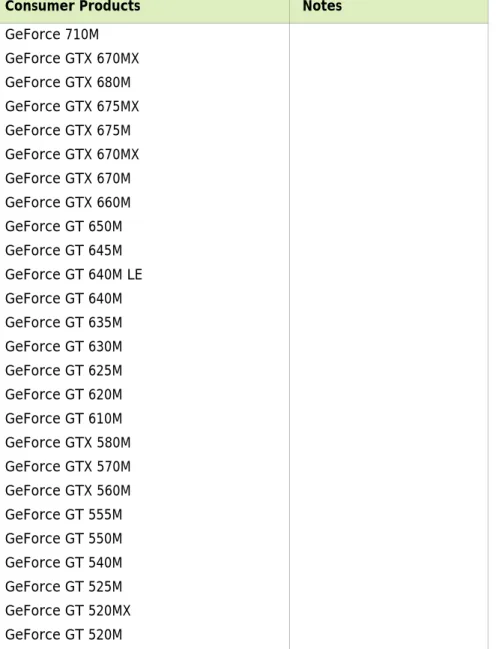
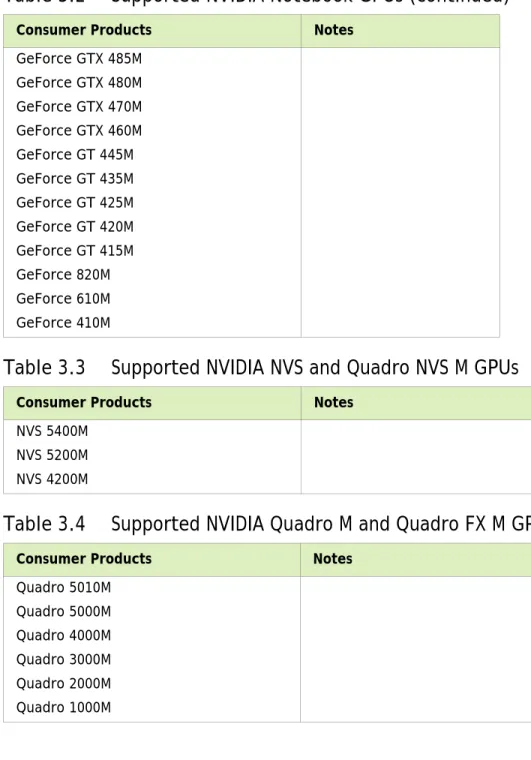
Supported NVIDIA Notebook Products ... 38
Supported Languages... 41
Driver Installation... 41
Minimum Hard Disk Space ... 41
Before You Begin ... 42
Installation Instructions... 42
Appendix: Mode Support for Windows ...44
General Mode Support Information... 45
TABLE OF CONTENTS
GeForce 900, 700, 600, 500, and 400 Series GPUs ... 47
GeForce 400M, 500M, 600M, 700M, 800M, 900M Series, and Quadro M
Notebook GPUs... 49
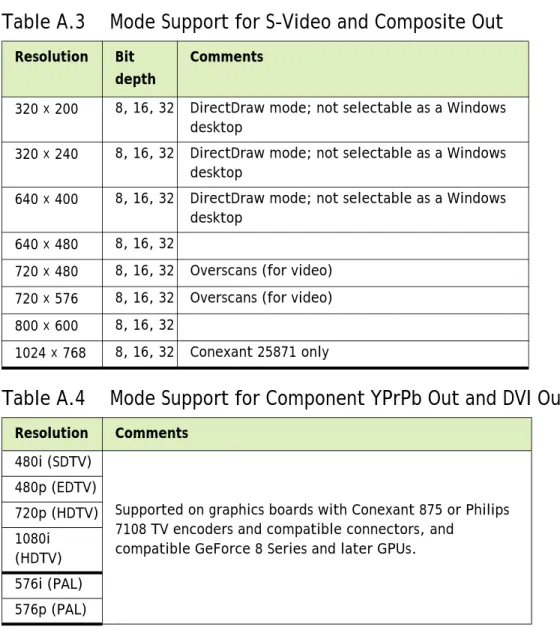
Modes Supported by TV Encoders ... 51
LIST OF TABLES
Graphics Driver Release 346 Graphics Drivers for Windows - Version 347.09 Driver Version RN-W34709-01v01 |iv
Table 3.1 Supported NVIDIA Desktop GPUs ... 35
Table 3.2 Supported NVIDIA Notebook GPUs ... 38
Table 3.3 Supported NVIDIA NVS and Quadro NVS M GPUs ... 40
Table 3.4 Supported NVIDIA Quadro M and Quadro FX M GPUs... 40
Table A.1 Modes Supported for High Resolution Displays ... 45
Table A.2 Non-standard Modes Supported ... 45
Table A.3 Mode Support for S-Video and Composite Out... 51
1
INTRODUCTION TO RELEASE NOTES
This edition of Release Notes describes the Release 346 family of graphics drivers (versions 343.xx to 345.xx) for Microsoft® Windows® Vista and later1. NVIDIA provides these notes to describe performance improvements and bug fixes in each documented version of the driver.
Structure of the Document
This document is organized in the following sections:
“Release 346 Driver Changes” on page 2 gives a summary of changes, and fixed and open issues in this version.
“The Release 346 Driver” on page 34 describes the NVIDIA products and languages supported by this driver, the system requirements, and how to install the driver. “Mode Support for Windows” on page 44 lists the default resolutions supported by
the driver.
Changes in this Edition
This edition of the Release Notes for Windows Vista and later1 includes information about NVIDIA graphics driver version 347.09, and lists changes made to the driver since the Release 340 driver version 340.52. These changes are discussed beginning with the chapter “Release 346 Driver Changes” on page 2.
Release 346 Graphics Drivers for Windows - Version 347.09 RN-W34709-01v01 |2
2
RELEASE 346 DRIVER CHANGES
This chapter describes open issues for version 347.09, and resolved issues and driver enhancements for versions of the Release 346 driver up to version 347.09.
The chapter contains these sections: “Version 347.09 Highlights” on page 2’
“Changes and Fixed Issues in Version 347.09” on page 12
“Open Issues in Version 347.09” on page 13
“Not NVIDIA Issues” on page 15
“Known Product Limitations” on page 21
Version 347.09 Highlights
This section provides highlights of version 347.09 of the NVIDIA Release 346 Driver for Windows Vista, Windows 7, Windows 8, and Windows 8.1.
What’s New in Version 347.09
What’s New in Release 346
Limitations in This Release
Chapter 2 : RELEASE 346 DRIVER CHANGES
What’s New in Version 347.09
The latest GeForce Game Ready driver, release 347.09 WHQL, ensures you'll have the best possible gaming experience for Metal Gear Solid V: Ground Zeroes and Elite: Dangerous.See also “What’s New in Release 346” on page 5.
Game Ready
Best gaming experience for Metal Gear Solid V: Ground Zeroes and Elite: Dangerous.
Application Profiles
Added or updated the following profiles:
•
Project CARS3D Vision Profiles
Added or updated the following profiles:
•
Alien: Isolation - Not recommended•
Elite: Dangerous - Not recommended•
Escape Dead Island - rated as Fair•
Far Cry 4 - Not recommended•
Metal Gear Solid: Ground Zeroes - Not recommended•
Middle-Earth - Shadow of Mordor - Not recommended•
Resident Evil Revelations 2 - Disabled•
The Vanishing of Ethan Carter - rated as Fair3D Compatibility Mode Support
Support for 3D Compatibility Mode has been added for the following games:
•
Alien: Isolation - rated as Excellent•
Elite: Dangerous - rated as Excellent•
Escape Dead Island - rated as ExcellentNote: GeForce GTX 980M SLI and GTX 970M SLI notebooks are not supported with this driver. With SLI enabled on these notebooks, a black screen will occur upon uninstalling this driver. To workaround this issue, disable SLI before uninstalling the driver.
Release 346 Graphics Drivers for Windows - Version 347.09 RN-W34709-01v01 |4 Chapter 2 : RELEASE 346 DRIVER CHANGES
•
Far Cry 4 - rated as Excellent•
Middle-Earth - Shadow of Mordor - rated as GoodSoftware Modules
NVIDIA PhysX System Software - version 9.14.0702
HD Audio Driver - version 1.3.33.0
CUDA - version 7.0
GeForce Experience - 16.18.9.0
Fixed Issues
See “Changes and Fixed Issues in Version 347.09” on page 12 for a list of other changes and resolved issues in this driver version.
Chapter 2 : RELEASE 346 DRIVER CHANGES
What’s New in Release 346
The section summarizes the driver changes in Release 346, including previous Release 343 drivers:
Application Profiles
Added or updated the following profiles:
•
Project CARS3D Vision Profiles
Added or updated the following profiles:
•
Alien: Isolation - Not recommended•
Elite: Dangerous - Not recommended•
Escape Dead Island - rated as Fair•
Far Cry 4 - Not recommended•
Metal Gear Solid: Ground Zeroes - Not recommended•
Middle-Earth - Shadow of Mordor - Not recommended•
Resident Evil Revelations 2 - Disabled•
The Vanishing of Ethan Carter - rated as Fair3D Compatibility Mode Support
Support for 3D Compatibility Mode has been added for the following games:
•
Alien: Isolation - rated as Excellent•
Elite: Dangerous - rated as Excellent•
Escape Dead Island - rated as Excellent•
Far Cry 4 - rated as Excellent•
Middle-Earth - Shadow of Mordor - rated as GoodThese games must be run in DirectX 10/11 mode to see improvements. Not compatible with 3D Vision Surround mode. See “3D Compatibility Mode” on page 8 for more information.
Release 346 Graphics Drivers for Windows - Version 347.09 RN-W34709-01v01 |6 Chapter 2 : RELEASE 346 DRIVER CHANGES
Limitations in This Release
The following are features that are not currently supported or have limited support in this driver release:
Surround Gaming with 3-way SLI
Surround gaming is not supported on a 3-way SLI system using GeForce GTX 200 series GPUs. [681228/683943]
NVIDIA Control Panel Display Category
The Graph tab on the Adjust Desktop Color Settings page is not available. Negative LOD Bias Clamp
Negative LOD bias clamp for DirectX applications is not supported on Fermi-based GPUs and later.
Hybrid Power
Support for Hybrid Power, a Hybrid SLI technology, is discontinued and not available with this driver.
Legacy Support for GeForce 6-series and GeForce 7-series GPUs
GeForce 6-series and GeForce 7-series GPUs have moved to legacy support with the GeForce Release 304 drivers. These products are no longer supported beginning with the GeForce Release 310 drivers.
3D Vision Legacy Support Notification for Windows Vista
Support for 3D Vision under Windows Vista is discontinued beginning with the Release 313 drivers. 3D Vision and 3DTV Play functionality will not be available with these drivers.
NVIDIA will continue to support basic 3D Vision and 3DTV Play functionality for Windows Vista with Release 310 or earlier drivers. Basic functionality includes full-screen viewing of 3D games, pictures, and movies on 3D Vision monitors, notebooks, and 3D TVs (with 3DTV Play software installed).
Legacy Support for Tesla architecture GPUs
Beginning with Release 343, the NVIDIA graphics drivers no longer support the Tesla generation of NVIDIA GPUs. These products are identified in the section Supported NVIDIA Desktop Products and Supported NVIDIA Notebook Products.
The Release 340 drivers will continue to support these products until April 1, 2016, and the NVIDIA support team will continue to address driver issues for these
products in driver branches up to and including Release 340. However, future driver enhancements and optimizations in driver releases after Release 340 will not support these products.
The following is a summary of legacy products beginning with Release 343 drivers:
•
GeForce 8 & 9 Series Desktop Products•
GeForce 100/200/300 Series Desktop Products•
GeForce 7/8/9 Series Notebook ProductsChapter 2 : RELEASE 346 DRIVER CHANGES
•
GeForce 100/200/300 Series Notebook Products•
Quadro FX/CX/VX Workstation products•
Select Quadro NVS Workstation products•
Quadro FX and NVS Notebook Products•
Quadro Plex 2200See the section Supported NVIDIA Desktop Products and Supported NVIDIA Notebook Products for specific products.
Release 346 Graphics Drivers for Windows - Version 347.09 RN-W34709-01v01 |8 Chapter 2 : RELEASE 346 DRIVER CHANGES
Advanced Driver Information
This section contains the following additional information about the driver: Differing GPU Voltages in SLI Mode
3D Compatibility Mode
Help for Resizing Your HDTV Desktop
Dynamic GPU Performance Mode
Power Efficiency Optimizations
Understanding the DirectX Information Shown in the NVIDIA System Information Window
Differing GPU Voltages in SLI Mode
When non-identical GPUs are used in SLI mode, they may run at different voltages. This occurs because the GPU clocks are kept as close as possible, and the clock of the higher performance GPU is limited by that of the other. One benefit is that the higher
performance GPU saves power by running at slightly reduced voltages.
An end-user gains nothing by attempting to raise the voltage of the higher performance GPU because its clocks must not exceed those of the other GPU.
3D Compatibility Mode
3D Compatibility Mode is an NVIDIA proprietary rendering mode for 3D Vision that improves the 3D experience for many key DirectX 10 and 11 games. NVIDIA continues to add game support with new driver versions.
Requirements and Compatibility
Games must be run in DirectX 10 or DirectX 11 mode. Not compatible with 3D Vision Surround.
Switching Compatibility Modes
Games with 3D Compatibility Mode will launch in this mode by default. You can switch between 3D Compatibility mode and standard 3D Vision mode as follows:
1
Before starting the game, enable Advanced In-game Settings in the NVIDIA Control Panel:a Open the NVIDIA Control Panel and navigate to the Stereoscopic 3D->Set up stereoscopic 3D page and click Set Keyboard Shortcuts.
b Click the Show advanced in-game settings arrow if the section is not expanded, then select Enable advanced in-game settings.
Chapter 2 : RELEASE 346 DRIVER CHANGES
2
Press Ctrl+Alt+F11 during the game to toggle between 3D Compatibility mode and standard 3D Vision mode.Help for Resizing Your HDTV Desktop
The best way to resize the screen in order to view the entire content is to use the controls provided by the display hardware.Click the link on the Size tab to view a guide to changing the settings on your display hardware.
The resize controls on the NVIDIA Control Panel are provided in case satisfactory results cannot be achieved using the controls on the display.
After resizing the HDTV desktop using the NVIDIA Control Panel Resize controls, the new custom resolution created is now added to the list of available resolutions for that display, and also added to the resolution list within the game or application.
In Release 190 and later drivers, the method for resizing the HDTV desktop has changed to provide better image quality when applying underscan. This method results in a new custom resolution being created which needs to be selected from games or applications to apply the resizing. In the example displayed in the following screen shot, the underscan has created a new resolution (1216 × 682). Although this resolution looks different, it is
Release 346 Graphics Drivers for Windows - Version 347.09 RN-W34709-01v01 |10 Chapter 2 : RELEASE 346 DRIVER CHANGES
still in HD format. Remember to select this resolution in your game or other application in order to take advantage of it.
Dynamic GPU Performance Mode
With the Release 280 drivers, NVIDIA GPU clock speeds will increase more quickly in response to increased graphics demands. Conversely, with lower graphics use the GPU clock speed slows down more quickly, conserving as much power as possible.
In the Release 280 drivers, some users reported a noticeable fluctuation in clock speeds while engaging in various tasks on the PC. With the Release 285 and later drivers, adjustments have been made to reduce the sensitivity to levels similar to the R275 driver.
Note: Some games or applications may not support the new resolu-tion.
Chapter 2 : RELEASE 346 DRIVER CHANGES
Power Efficiency Optimizations
Release 310 drivers introduced power-optimizing enhancements. As a result of these enhancements, you may notice that GPU core clock speeds are different with this driver. For example, the GPU core clock might be faster when the GPU is in idle mode than in previous drivers. Or you may notice higher GPU core clock speeds after closing or opening certain games than in previous drivers.
This is because the reported GPU core clock frequency is no longer correlated to GPU power-saving states. Instead of lowering the GPU core clock frequency, the hardware and software use other methods to put the GPU into a low power state when the GPU is idle or in response to changing application requirements. This ensures optimum power use while continuing to provide high graphics performance.
Understanding the DirectX Information Shown in the NVIDIA System
Information Window
The System Information window–accessed by clicking System Information at the bottom left corner of the NVIDIA Control Panel–provides technical information about the NVIDIA graphics cards and driver installed in the system.
It also provides the following system information:
Operating system: For example, “Windows 7 Enterprise, 64-bit” DirectX runtime version: For example, “11.0”
In order to use the version of DirectX reported in the System Information window, the NVIDIA GPU and graphics driver must also support that DirectX version.
This information is provided in the Graphics card information section of the System Information window as follows:
DirectX support
(Provided in previous driver versions)
This is the DirectX version that is supported by the NVIDIA graphics hardware and driver.
Direct3D API version
(Provided in later driver versions, for Windows 7 and later)
This is the Direct3D version that is supported by the NVIDIA graphics hardware and driver. The API version is expressed in terms of Direct3D – the graphics subsystem component of DirectX.
Direct3D feature level
(Provided in later driver versions, for Windows 7 and later)
Direct3D feature levels describe a subset of features within the Direct3D API version that are supported by the NVIDIA graphics hardware and driver.
Release 346 Graphics Drivers for Windows - Version 347.09 RN-W34709-01v01 |12 Changes and Fixed Issues in Version 347.09
Changes and Fixed Issues in Version 347.09
The following sections list the important changes and the most common issues resolved since version 340.52. This list is only a subset of the total number of changes made in this driver version. The NVIDIA bug number is provided for reference.
Windows Vista/Windows 7/Windows 8/Windows 8.1 Fixed Issues
Windows 8.1: After resuming from S4 after S3, the system’s internal panel won'tdisplay TV if there is an external HDMI 4K monitor. [1576842]
344.48: Following a driver update, the GPU outputs fuzzy lines over DisplayPort after a period of time. [1571179]
344.48, Windows 7 x64: Distortion around mouse cursor if DSR enabled. [1569959] 340.52, GeForce GTX 750 Ti: Characters have black faces in Risen 2: Dark Waters.
Open Issues in Version 347.09
Open Issues in Version 347.09
As with every released driver, version 347.09 of the Release 346 driver has open issues and enhancement requests associated with it. This section includes lists of issues that are either not fixed or not implemented in this version. Some problems listed may not have been thoroughly investigated and, in fact, may not be NVIDIA issues. Others may have workaround solutions.
For notebook computers, issues can be system-specific and may not be seen on your particular notebook.
“Windows Vista/Windows 7 32-bit Issues” on page 13
“Windows Vista/Windows 7 64-bit Issues” on page 13
“Windows 8 32-bit Issues” on page 14
“Windows 8 64-bit Issues” on page 14
“Windows 8.1 Issues” on page 14
Windows Vista/Windows 7 32-bit Issues
Single GPU Issues
[Video][Notebook][Internet Explorer][Stage Video]: Stage Video picture-in-picture content cannot be played within Internet Explorer. [999929]
GeForce 500 series, [Need for Speed: The Run]: During the race the sun flickers and there are bright blips and black patches. [909577]
Windows Vista/Windows 7 64-bit Issues
Single GPU Issues
Dragon Age Inquisition runs poorly (stutters) on NVIDIA hardware. [1588023] GeForce 500 series, [Need for Speed: The Run]: During the race the sun flickers and
there are bright blips and black patches. [909577]
GeForce 400 series: [Total War: Shogun 2]: The sun and surrounding area within the game flicker. [807036]
NVS 4200M, Optimus, [F1 2011]: The game hangs while selecting “Quit To Main Menu” during gameplay. [879537]
Multi-GPU Issues
347.09, 3D Vision/3DTV: Windowed mode stereo is not working. [200065284] [SLI], GTX Titan Z, [The Crew]: With SLI enabled, pressing Alt+Tab causes the
Release 346 Graphics Drivers for Windows - Version 347.09 RN-W34709-01v01 |14 Open Issues in Version 347.09
[SLI], [Company of Heroes: Tales of Valor]: With SLI enabled, there is heavy flickering in the game after switching from windowed mode to full-screen mode. [892264] [SLI], GeForce 500 series: With SLI enabled, the secondary Dualview display may go
blank after hot-plugging the DisplayPort monitor and then rebooting the system. [906810]
[SLI], GeForce 500 series, [Dragon Age II], DirectX 11: Shadows flicker in the cutscene when SLI is enabled. [849235]
Windows 8 32-bit Issues
[Video][Notebook] [Internet Explorer]
•
[YouTube]: The NVIDIA Control Panel video color settings have no effect on YouTube flash video playback within Internet Explorer 10. [999485]•
[Stage Video]: Stage Video picture-in-picture content cannot be played within Internet Explorer. [999929] [Video][Notebook] [Hulu Desktop]: When attempting to play videos using Hulu Desktop, there is audio but no video. [1000017]
Windows 8 64-bit Issues
[Optimus][Notebook]: After installing the driver, the Device Manager includes an entry for the NVIDIA Virtual Audio Device but the entry has a yellow bang.
The NVIDIA Virtual Audio Device is not needed nor used on Optimus notebooks, so there is no effect on your notebook function. To remove the yellow bang, reboot your notebook. [Guild Wars 2]: Ambient Occlusion effect disappears at different camera angles and
when using supersampling. [1023202]
Windows 8.1 Issues
[3DVision]: While a stereoscopic 3D video with stereoscopic 3D enabled is played, the monitor refresh rate switches to 60 Hz after changing the resolution using the
Windows control panel. [1314811]
With a 3DTV connected and the resolution set to an HD3D resolution through the NVIDIA Control Panel, the display flickers constantly after installing the driver via INF over driver version 320.49. [1315116]
[Surround][GeForce GTX 780 Ti 3x]: HDCP error occurs while playing Blu-ray disc in Surround mode when accessory display is attached. [1429829]
Not NVIDIA Issues
Not NVIDIA Issues
This section lists issues that are not due to the NVIDIA driver as well as features that are not meant to be supported by the NVIDIA driver for Windows Vista/Windows 7.
“Windows Vista Considerations” on page 15
“Windows 7 Considerations” on page 15
“Unsupported Features” on page 16
“OpenGL Application Issues” on page 17
“Application Issues” on page 18
“Operating System Issues” on page 20
Windows Vista Considerations
These are behaviors that may be different from Windows XP and are related directly to the Windows Vista operating system.
NVIDIA TurboCache
Windows Vista now controls the allocation of system memory to the GPU for
TurboCache functions. The Windows Vista Display Properties pages show the shared system memory (SSM), or how much memory is allocated for NVIDIA GPUs to use for TurboCache.
For more information on graphics memory reporting under Windows Vista, visit
http://www.microsoft.com/whdc/device/display/graphicsmemory.mspx.
Windows 7 Considerations
Hotplug Action
Unlike the hotplug activity under Windows Vista, the default settings are not applied when a new display is hotplugged, and there is no message balloon alert stating that a new display was detected. Under Windows 7, all display connection and detection events are handled through the Windows 7 Connecting and Configuring Displays (CCD) mechanism.
Release 346 Graphics Drivers for Windows - Version 347.09 RN-W34709-01v01 |16 Not NVIDIA Issues
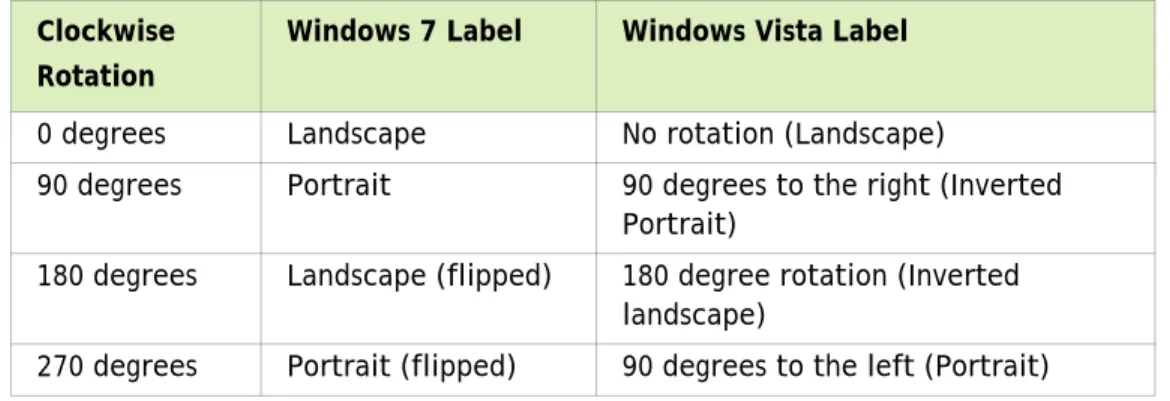
NVIDIA Control Panel Rotate Display Page
The rotation radio button labels are changed slightly under Windows 7 to be consistent with the Microsoft panel
Limitation
When switching the refresh rate from 59 Hz to 60Hz, the refresh rate remains at 59 Hz. See the Microsoft KB article KB2006076 at http://support.microsoft.com/kb/2006076.
Unsupported Features
The following are features and functionality that were available in driver releases supporting Windows XP, but are not–and will not be–available in driver releases for Windows Vista/Windows 7:
High resolution scaling desktop (HRSD)
MultiView Display Mode (for NVIDIA Quadro NVS graphics cards)
NVKeystone
Unified back buffer (UBB) controls
OpenGL Video Overlays
This is an operating system limitation.
Vista window manager features will provide new ways of accomplishing overlays, but will require application porting.
Overclocking
GPU overclocking is no longer supported in the default GPU driver control panel. This feature is available in the NVIDIA System Tools software, which you can download from NVIDIA.com.
GPU Temperature Monitoring
Temperature monitoring is no longer supported in the default GPU driver control panel. This feature is available in the NVIDIA System Tools software, which you can download from NVIDIA.com.
Table 2.1 NVIDIA Control Panel Rotation Page Radio Buttons Clockwise
Rotation
Windows 7 Label Windows Vista Label
0 degrees Landscape No rotation (Landscape)
90 degrees Portrait 90 degrees to the right (Inverted Portrait)
180 degrees Landscape (flipped) 180 degree rotation (Inverted landscape)
Not NVIDIA Issues
AGP Settings Adjustment
Video Zoom
Pan & Scan - the process of panning across the desktop in order to display a desktop on a monitor with lower resolution
Per-display Desktop Color Setting Adjustments
For Clone mode, the desktop color setting adjustments through the NVIDIA Control Panel can only be made across all displays in a system, and not on a per-display basis. Per-display Video Color Setting Adjustments
For Dualview mode, the video color setting adjustments through the NVIDIA Control Panel can only be made across all displays in a system, and not on a per-display basis. Edge Blending
Run display optimization wizard
Run multiple display wizard
Run television setup wizard
nView Horizontal and Vertical Span Modes
Due to architectural changes in the new Windows Vista Window Display Driver Model (WDDM), span mode cannot be supported in NVIDIA graphics drivers. NVIDIA recommends using the built-in Windows Vista multi-display modes. Display/Connection Wizard (such as was provided with Windows Media Center
Edition)
DVD/MPEG Extensions (such as was provided with Windows Media Center Edition) Audio Extensions (such as was provided with Windows Media Center Edition) NVIDIA nView Desktop Manager
The nView Desktop Manager will not be included in drivers for GeForce products.
OpenGL Application Issues
The following are known compatibility issues for OpenGL applications developed under Windows XP:
Mixed GDI and OpenGL rendering does not work.
A number of applications use GDI to render UI components and object highlighting. This is not supported in the Windows Vista driver model.
NVIDIA recommends converting GDI rendering to OpenGL.
The following are some applications that are known to have this issue:
•
Maya 7.01 Applications, Tools, and Benchmarks not Supported Under Windows Vista
•
GLperfRelease 346 Graphics Drivers for Windows - Version 347.09 RN-W34709-01v01 |18 Not NVIDIA Issues
•
3ds max 8 (later releases may be supported)•
CATIA V5R15 (V5R16 is supported)•
PTC’s CDRS 2001 Front buffered rendering may be slow, especially when DWM is enabled. Flushing the rendering queue while rendering to the front buffer may cause the window manager to recomposite. Applications should therefore minimize the frequency with which they flush the rendering queue.
Application Issues
[Surround][Crysis 3]: With Surround enabled, the mouse cursor is restricted to one of the displays after launching the game. [1331143]
Adobe Flash 10.x/11.x–1080p video content stutters during browser playback in full-screen mode.
The issue is resolved with Flash 11.0.1.83 and later.
GeForce 500 Series: Crysis 2 (DirectX 11 mode)–with 16x Antisotropic filtering set using the NVIDIA Control Panel, there is LOD distortion and other issues with AF. [848406]
GeForce 400 Series: Dirt 2–the game does not show any 3D-rendered objects when multisample antialiasing is increased to 16xCSAA or higher. [644651]
GeForce 400 Series: Aliens vs Predator (DirectX 11)–there is ghosting in the sky textures.[660817]
GeForce 400 Series: S.T.A.L.K.E.R Clear Sky–there is flickering in the background when Sun Shadow is enabled. [667627]
Dirt2–distant terrain is clipped. [644821]
Dark Void–if you experience issues playing Dark Void, NVIDIA recommends the following steps:
a Install all game patches.
Retail box owners can get the patch here: http://download.nvidia.com/downloads/ nZone/patches/DarkVoid_PhysX_Update_Patch.exe
b From the Windows Control Panel->Add/Remove programs, uninstall NVIDIA Game System Software 2.8.1.
c From the Windows Control Panel->Add/Remove programs, right-click NVIDIA PhysX and then click Repair.
If you still experience problems after performing these steps, then either enable V-Sync or skip the cut-scenes by pressing [Enter] twice at the cut-scene.
Operation Flashpoint: Dragon Rising–the game crashes to the desktop when it starts to load.
This is an issue in the application–the problem does not occur if you disconnect your internet cable.
Not NVIDIA Issues
World of Warcraft–if you have run the 3D Vision setup wizard, then the game automatically enables 3D stereo even after you disable it.
To work around this issue, you must uninstall the 3D Vision driver.
Counter Strike–the application crashes to the desktop if the resolution or bit-depth is changed from the in-game video options menu. [416582]
This is an application issue, but the problem does not occur if you change the resolution or bit-depth from the game’s main menu and not while in a game.
Star Wars: Knights Of The Old Republic 2–the game fails to launch, and an “application has stopped working” error message appears. [420115]
This occurs because the application is not able to interpret the driver version correctly. Tiger Woods PGA Tour 2007–Fly-by shot before each hole blacks-out textures.
[274697]
NVIDIA is working with the developer to resolve this issue. City of Heroes–The mouse cursor does not display. [259256]
This is an application issue that can be worked around in full-screen mode by adding “compatible cursors 1” to the City of Heroes desktop shortcut.
NVIDIA is pursuing a fix with the application developer.
Sims 2–“Smooth Edges (AA)” option is not available with Release 100 drivers. [272477]
This occurs because of an incorrect driver version check in the application.
NVIDIA has worked around this issue in the operating system by changing the way the driver version is reported to this application.
Warhammer 40k Dawn of War (all versions) does not run with Release 100 drivers. [273154]
This occurs because of an incorrect driver version check in the application.
NVIDIA has worked around this issue in the operating system by changing the way the driver version is reported to this application.
Need for Speed Carbon–After upgrading with patch 1.3, the game crashes when launched. [290506]
This is an issue with the application patch under Windows Vista. Nascar Simracing–the game crashes when launched. [270792]
This is an issue with the application under Windows Vista.
Call of Duty 2–Only solid colors render during game play when 4xAA is enabled. [257454]
The application is not applying antialiasing properly. Please try selecting 2x AA, disabling antialiasing, or using NVIDIA Enhanced application or Override antialiasing modes. NVIDIA is pursuing a fix with the application developer
Release 346 Graphics Drivers for Windows - Version 347.09 RN-W34709-01v01 |20 Not NVIDIA Issues
Age of Empires III–the game has rendering artifacts, such as textured squares for smoke. [258036]
Flight Simulator X–pressing Alt+Tab to switch to the desktop does not work. [293729] Everquest 2– with NVIDIA driver versions 100.xx, the following error message
appears: [273346]
“You currently have a (7.15.11.120) video card installed. We recommend that you download version 7772 drivers before playing Everquest.”
This occurs because the application is not checking the driver version correctly, but this does not affect game play. Please select “Continue Anyway” to launch the game. The problem does not occur with a previous Release 95 driver (xx.xx format).
NVIDIA is pursuing a fix with the application developer.
Windows Vista 64-bit, [PhysX]: TheGameCreators PhysX Screen Saver doesn't get installed properly. [491613]
This is not an NVIDIA issue, but a bug in Vista 64-bit OS that affects the installation of many screen savers. To work around, locate the corresponding.scr file for the screen saver, then right-click and select Install.
Note: PhysXscreensaver.scr is located in <system root>\\windows\SysWOW64.
Operating System Issues
Windows Vista
Direct-X diagnostics tool (DXDIAG) may report an unexpected value for the display adapter’s memory. [673360]
See the Microsoft KB article http://support.microsoft.com/kb/2026022.
When S-video and DVI displays are set up in Clone mode and rotated 90 degrees, the screen turns black.[304267, 283546]
This is an issue with DirectX.
Windows 8 Issues
When upgrading from Windows 7 to Windows 8, the system fails to retrieve the installed WHQL display driver. [1024416]
Known Product Limitations
Known Product Limitations
This section describes problems that will not be fixed. Usually, the source of the problem is beyond the control of NVIDIA. Following is the list of problems and where they are discussed in this document:
“GPU Temperature Reported Incorrectly on Optimus Systems” on page 22
“Damaged or Missing WMI Service Prevents NVIDIA Driver Installation” on page 22
“Screen Turns Black During Clean Overinstall of NVIDIA Drivers on Windows 8.1 Optimus Notebook” on page 23
“Flickering Black Screen Occurs After NVIDIA Drivers Installed on Windows 8” on page 23
“Total Available Graphics Memory Reported Incorrectly” on page 25
“Increasing 4-way SLI/Multi-GPU Performance” on page 26
“3D Vision USB Driver Does Not Get Installed” on page 26
“No PhysX Acceleration Using the GPU” on page 27
“NVIDIA PhysX System Software Cannot Be Installed or Uninstalled in Windows Safe Mode” on page 27
“3DMark 11 Does Not Run in Stereoscopic 3D Mode” on page 27
“Do Not Use Windows Rollback for Graphics Drivers” on page 28
“Uninstalling Drivers Using Device Manager is Not Supported” on page 28
“Changing Primary Display Across SLI GPUs Takes Longer Than Expected” on page 28
“Understanding the DirectX Version Shown in the NVIDIA System Information Window” on page 29
“Using HDMI Audio with Displays That Have a High Native Resolution” on page 29
“Using HDMI Displays That Do Not Support Audio” on page 30
“Using HDMI/DisplayPort Audio in Dualview or Clone Mode” on page 31
“Flat Panel Scaling Controls Not Functional for Some TV Modes in Some Displays” on page 31
“GPU Runs at a High Performance Level (full clock speeds) in Multi-display Modes” on page 32
“1280 × 1024 @ 60 Hz Not Available on BenQ FP241W Monitors” on page 32
“Image Sharpening Control Not Available with GeForce 8 Series and Later GPUs” on page 32
Release 346 Graphics Drivers for Windows - Version 347.09 RN-W34709-01v01 |22 Known Product Limitations
GPU Temperature Reported Incorrectly on Optimus Systems
Issue
On Optimus systems, temperature-reporting tools such as Speccy or GPU-Z report that the NVIDIA GPU temperature is zero when no applications are running.
Explanation
On Optimus systems, when the NVIDIA GPU is not being used then it is put into a low- power state. This causes temperature-reporting tools to return incorrect values.
Waking up the GPU to query the temperature would result in meaningless measurements because the GPU temperature change as a result.
These tools will report accurate temperatures only when the GPU is awake and running.
Damaged or Missing WMI Service Prevents NVIDIA Driver
Installation
Issue
“Install failed” or “Install Failed, could not find compatible graphics hardware” message may appear during installation, even if the system has a compatible graphics card. This can occur when installing the NVIDIA driver or GeForce Experience software.
Cause
This issue could be the result of a corrupt WMI service on your system. The NVIDIA Installer requires the WMI service to properly install the driver or other NVIDIA software.
Resolution
You must repair the WMI service on your system in order to successfully install NVIDIA drivers. A future driver release will alert the user during installation that there is a problem with the WMI service on the system.
Known Product Limitations
Screen Turns Black During Clean Overinstall of NVIDIA
Drivers on Windows 8.1 Optimus Notebook
Issue
After installing a Release 325 driver earlier than version 326.09 on an Optimus notebook running Windows 8.1, a subsequent clean overinstall of a later driver results in a black screen. The screen turns black when the driver uninstalls the older driver.
Typically, you may encounter this when attempting to upgrade the NVIDIA driver after installing Windows 8.1. While installing Windows 8.1, Windows Update installs NVIDIA driver version 326.01, then during the clean overinstall the black screen occurs as the older driver is uninstalled.
Workaround - Prevention
To avoid the issue during the initial installation of Windows 8.1, do not reboot the system after Windows Update installs the NVIDIA driver. Then perform the custom clean overinstall of the newer driver.
Resolution
This issue does not occur after installing an NVIDIA driver version 326.09 or later for Windows 8.1. When driver version 326.09 or later is installed, performing a clean overinstall with a newer driver will not result in a black screen.
Flickering Black Screen Occurs After NVIDIA Drivers Installed
on Windows 8
Issue
After installing the NVIDIA drivers on Windows 8, the subsequent reboot results in a black or flickering screen.
Root Cause
This occurs because Windows Update performed a background installation of a Release 304 driver, which requires a reboot to complete the installation. After installing the Release 313 driver and then rebooting the system, installation of both the Release 304 as well as the Release 313 is completed, resulting in conflicting driver binaries and the black/ flickering screen.
Release 346 Graphics Drivers for Windows - Version 347.09 RN-W34709-01v01 |24 Known Product Limitations
Workaround - Prevention
To avoid the issue, reboot the system before installing the Release 313 driver.
Alternately, you can check the driver status under the Device Manager and perform the reboot if the Device Manager indicates that a restart is needed. Then install the driver.
Workaround - Recovery
If you did not perform the necessary reboot prior to installing the driver and now encounter the black screen, do the following:
1
Reboot in Safe Mode.2
Uninstall the driver.3
Disconnect from the internet and then restart the system.4
In normal mode, install the new driver.Known Product Limitations
Total Available Graphics Memory Reported Incorrectly
Background–TAG Memory
In the Windows Display Driver Model (WDDM), Total Available Graphics (TAG) memory is reported as the sum of
•
Dedicated Video Memory (video memory dedicated for graphics use)•
Dedicated System Memory (system memory dedicated for graphics use), and•
Shared System Memory (system memory shared between the graphics subsystemand the CPU).
The values for each of these components are computed according to WDDM guidelines when the NVIDIA Display Driver is loaded.
Issue
Some TAG-reporting APIs represent video memory using 32-bits instead of 64-bits, and consequently do not properly report available graphics memory when the TAG would otherwise exceed 4 gigabytes (GB). This results in under reporting of available memory and potentially undesirable behavior of applications that rely on these APIs to report available memory.
The under reporting can be extreme. For example, 6 GB might be reported as 454 MB, and 8 GB might be reported as 1259 MB.
Driver Action for GeForce-based Graphics Systems
On graphics systems with less than 2.75 GB of advertized physical memory, the NVIDIA display driver typically limits the Shared System Memory to maintain a TAG memory value of less than 4 GB1.
This results in reliable reporting of sub-4 GB TAG memory on systems with less than 2.75 GB of advertized physical memory.
On systems with 2.75 GB or more of advertized physical memory, you may see different reported TAG memory values between the NVIDIA Control Panel and other reporting APIs.
1. The WDDM guidelines dictate minimum and maximum values for the components, but the dis-play driver may further constrain the values that are reported (within the allowed minimum and maximum).
Release 346 Graphics Drivers for Windows - Version 347.09 RN-W34709-01v01 |26 Known Product Limitations
Increasing 4-way SLI/Multi-GPU Performance
Issue
With some games and applications, you may experience little to no performance gain or even a performance drop with 4-way SLI or multi-GPU configurations.
Resolution
1
Open the NVIDIA Control Panel, then click Manage 3D Settings from the navigation pane.2
Click the Global Settings tab, then scroll to the Power management mode feature, click the corresponding list arrow and select Prefer maximum performance, then click Apply.3D Vision USB Driver Does Not Get Installed
Issue
After installing the NVIDIA graphics driver, if the 3D Vision USB emitter was not plugged in, the 3D Vision USB Controller driver does not get installed. If you plug in the emitter after installing the driver, the indicator light on the emitter will flash red and will not turn green.
Resolution
To fix this issue, NVIDIA recommends performing a driver re-install with the 3D Vision USB emitter connected. Please download the latest drivers and follow these steps:
1
Plug in the 3D Vision USB emitter.2
Re-install the NVIDIA driver.Select Custom (Advanced) and then select Perform a clean Installation during the driver installation.
Known Product Limitations
No PhysX Acceleration Using the GPU
If after installing the PhysX System Software you find that there is no PhysX acceleration on supported applications, repeat the PhysX setup as follows:
1
Reboot the PC.2
Open the NVIDIA Control Panel and then, under 3D Settings, click Set PhysX configuration to open that page.3
Under Select a PhysX processor, verify that either auto-select or a specific NVIDIA GPU is selected.4
Click Apply.NVIDIA PhysX System Software Cannot Be Installed or
Uninstalled in Windows Safe Mode
Issue
Beginning with Release 280, the NVIDIA PhysX System Software is not included in the NVIDIA driver installation/uninstallation under safe mode.
Explanation
The NVIDIA PhysX System Software installer is not compatible with Microsoft's policy for Windows safe Mode. Consequently, installation or uninstallation of the PhysX System Software under safe mode would fail. To allow installation or uninstallation of the graphics driver under safe mode, the NVIDIA PhysX System Software is blocked from the process.
3DMark 11 Does Not Run in Stereoscopic 3D Mode
Issue
When attempting to run 3DMark 11 with NVIDIA 3D Vision enabled, the benchmark may hang, present a black screen, or in other ways not appear correctly.
Explanation
3DMark 11 is not compatible with running in stereoscopic 3D. To facilitate running the benchmark, recent drivers will run it in monoscopic mode, even with 3D Vision enabled.
Release 346 Graphics Drivers for Windows - Version 347.09 RN-W34709-01v01 |28 Known Product Limitations
Do Not Use Windows Rollback for Graphics Drivers
To reinstall a previous or older NVIDIA graphics driver, do not use the Windows rollback feature. This method will not reliably restore all the previous driver files. Instead, use the Windows Add and Remove programs to remove the current driver, and then install the older driver using setup.exe.
Uninstalling Drivers Using Device Manager is Not Supported
Issue
On all supported versions of Microsoft Windows, uninstalling the NVIDIA driver using the Windows Device Manager may not remove associated files or applications.
Explanation
Microsoft has confirmed that this behavior is by design. If you wish to uninstall the NVIDIA driver, it is recommended that you do so using Add and Remove programs. See the Microsoft KB article 2278714.
Changing Primary Display Across SLI GPUs Takes Longer
Than Expected
Issue
On an SLI system, switching the primary (or SLI focus) display when each display in the SLI group is connected to a different GPU takes longer than expected.
Explanation
On an SLI system with each SLI GPU driving a display, the display connected to the slave GPU is the primary display (also the SLI focus display). In order to switch the primary display to the one connected to the other GPU, the master and slave GPU configuration must also switch. In order to reassign which GPU is the master and which is the slave, the driver must be reloaded. It the process of reloading the driver that takes the additional time.
Known Product Limitations
Understanding the DirectX Version Shown in the NVIDIA
System Information Window
The System Information window–accessed by clicking System Information at the bottom left corner of the NVIDIA Control Panel–provides technical information about the NVIDIA graphics cards and driver installed in the system.
It also provides information about the Windows version as well as the DirectX version that is installed.
However, in order to use the version of DirectX reported in the System Information window, the NVIDIA GPU and graphics driver must also support that DirectX version. For example, driver version 197.45 and Windows Vista (with available patch) support DirectX 11. But only NVIDIA graphics cards based on the Fermi architecture released in 2010 support DirectX 11. So your system must have one of these cards installed in order to take advantage of DirectX 11 performance.
Using HDMI Audio with Displays That Have a High Native
Resolution
To use HDMI audio with some displays that have a native resolution higher than 1920 × 1080, you must set the display to a lower HD resolution.
Some HDMI displays have a native resolution that exceeds the maximum supported HD mode. For example, displays with a native resolution of 1920 × 1200 exceed the maximum supported HD mode of 1920 × 1080.
Applying this native mode results in display overscan which cannot be resized using the NVIDIA Control Panel since the mode is not an HD mode.
To avoid this situation and provide a better user experience, the driver treats certain TVs– such as the Viewsonic VX2835wm and the Westinghouse LVM- 37w3–as a DVI monitor when applying the native mode. Because the driver does not treat the TV as an HDMI in this case, the HDMI audio is not used.
Release 346 Graphics Drivers for Windows - Version 347.09 RN-W34709-01v01 |30 Known Product Limitations
Using HDMI Displays That Do Not Support Audio
Some HDMI displays do not support audio, or have issues with GeForce 9 series and earlier, and GeForce GTX 200-series NVIDIA graphics cards.
The NVIDIA driver attempts to identify such displays and automatically disables the audio. For example, the NVIDIA driver disables HDMI audio for all Philips HDMI TVs, as these have been identified as having issues with GeForce 9 series and earlier, and GeForce GTX 200-series NVIDIA graphics cards.
There may be cases where either the driver disables audio even though there is no problem, or does not disable the audio when in fact the audio does not work. The following sections describe these situations and provides guidance for handling them.
Corrupted video and no audio
The driver has not disabled audio and the display’s audio signal is incompatible with the graphics card, causing video corruption.
With a different display connected in order to establish video, disable audio for the HDMI display using the NVIDIA Control Panel-> Set Up Digital Audio page. Click the arrow for the problem display and then click Turn off audio.
Video but no audio
Check the display list for the problem connection on the NVIDIA Control Panel->Set Up Digital Audio page.
If Turn off audio is selected and you want to test whether your HDMI audio does, in fact, work, then click the list arrow and select the name of the display.
The driver will prompt you with instructions for testing HDMI audio with that display.
If the display name is selected, then the driver has not successfully detected that an incompatible display is connected.
Known Product Limitations
Using HDMI/DisplayPort Audio in Dualview or Clone Mode
Two Audio-enabled Ports
In a multi-display configuration where both HDMI/DisplayPort audio ports are enabled, only the primary display will provide the audio.
One Audio-enabled Port
In a multi-display configuration where only one audio port is enabled, such as when one display is a DVI display, then the HDMI/DisplayPort display can provide the audio whether is it the primary or secondary display.
Flat Panel Scaling Controls Not Functional for Some TV
Modes in Some Displays
The NVIDIA Control Panel flat panel scaling controls on the “Adjust Size & Position” page are not intended to be used for TV modes, and normally the controls are not available for TV or HDTV displays.
However, Microsoft requires that certain TV/HDTV modes be available for all digital displays, including DVI and HDMI, even if they are not HDTV.
While the NVIDIA flat panel scaling controls are available for those displays, they will not be functional for the TV modes that appear in compliance with the Microsoft requirements. The affected modes are as follows:
1920 × 1080i @ 50/59.94/60 Hz 1280 × 720p @ 50/59.94/60 Hz 720 × 480p @ 59.94/60 Hz 720 × 576p @ 50 Hz
Release 346 Graphics Drivers for Windows - Version 347.09 RN-W34709-01v01 |32 Known Product Limitations
GPU Runs at a High Performance Level (full clock speeds) in
Multi-display Modes
This is a hardware limitation with desktop and older notebook GPUs, and not a software bug. When multiple displays are connected and active, the GPU will always operate with full clock speeds in order to efficiently drive multiple displays–even when no 3D
programs are running.
1280
×
1024 @ 60 Hz Not Available on BenQ FP241W Monitors
Even though the monitor EDID lists 1280 × 1024 @ 60 Hz, the screen turns blank when using an HDMI connection. This is an issue with the monitor and not the NVIDIA driver. Because of this issue with the monitor, the NVIDIA driver blocks the problem mode (1280 × 1024 @ 60 Hz) and makes it unavailable.
Image Sharpening Control Not Available with GeForce 8
Series and Later GPUs
With GeForce 8 Series and later graphics cards, the Image sharpening slider on the NVIDIA Control Panel-> Display->Adjust Desktop Color Settings page is grayed out. This control is intentionally disabled because image sharpening is not supported on GeForce 8 series and later GPUs.
Note: NVIDIA notebook GeForce 5xxM series and later GPUs do not have this limitation. For those GPUs the driver can adjust the per-formance level, depending on demand, even when driving multiple displays.
Known Product Limitations
Gigabyte GA-6BX Motherboard
This motherboard uses a LinFinity regulator on the 3.3 V rail that is rated to only 5 A— less than the AGP specification, which requires 6 A. When diagnostics or applications are running, the temperature of the regulator rises, causing the voltage to the NVIDIA chip to drop as low as 2.2 V. Under these circumstances, the regulator cannot supply the current on the 3.3 V rail that the NVIDIA chip requires.
This problem does not occur when the graphics board has a switching regulator or when an external power supply is connected to the 3.3 V rail.
Release 346 Graphics Drivers for Windows - Version 347.09 RN-W34709-01v01 |34
3
THE RELEASE 346 DRIVER
This chapter covers the following main topics: “About the Release 346 Driver” on page 34
“Hardware and Software Support” on page 35
“Driver Installation” on page 41
About the Release 346 Driver
This driver release is from the Release 346 family of drivers (versions 343.xx to 345.xx). This driver package supports the GeForce 400, 500, 600, 700, and 900-series desktop GPUs. See “Supported NVIDIA Desktop Products” on page 35 for the list of specific products supported in this release.
As part of the NVIDIA Notebook Driver Program, this is a reference driver that can be installed on supported NVIDIA notebook GPUs. However, please note that your notebook original equipment manufacturer (OEM) provides certified drivers for your specific notebook on their website. NVIDIA recommends that you check with your notebook OEM about recommended software updates for your notebook. OEMs may not provide technical support for issues that arise from the use of this driver.
Chapter 3 : THE RELEASE 346 DRIVER
Hardware and Software Support
“Supported Operating Systems” on page 35
“Supported NVIDIA Desktop Products” on page 35
“Supported NVIDIA Notebook Products” on page 38
“Supported Languages” on page 41
Supported Operating Systems
This Release 346 driver includes drivers designed for the following Microsoft® operating systems:
Microsoft Windows® 8.1, supporting both 32-bit and 64-bit versions. Microsoft Windows® 8, supporting both 32-bit and 64-bit versions. Microsoft Windows® 7, supporting both 32-bit and 64-bit versions. Microsoft Windows® Vista, supporting both 32-bit and 64-bit versions.
Supported NVIDIA Desktop Products
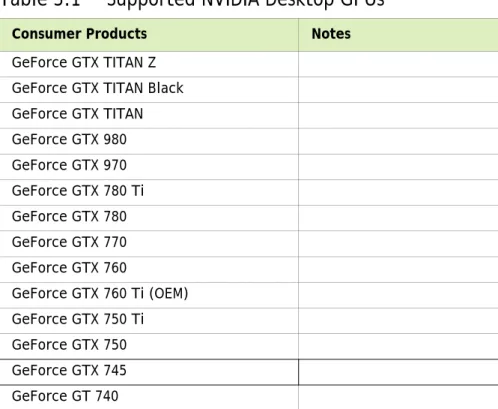
The following table lists the NVIDIA products supported by the Release 346 driver, version 347.09:
Table 3.1
Supported NVIDIA Desktop GPUs
Consumer Products Notes
GeForce GTX TITAN Z GeForce GTX TITAN Black GeForce GTX TITAN GeForce GTX 980 GeForce GTX 970 GeForce GTX 780 Ti GeForce GTX 780 GeForce GTX 770 GeForce GTX 760 GeForce GTX 760 Ti (OEM) GeForce GTX 750 Ti GeForce GTX 750 GeForce GTX 745 GeForce GT 740
Release 346 Graphics Drivers for Windows - Version 347.09 RN-W34709-01v01 |36 Chapter 3 : THE RELEASE 346 DRIVER
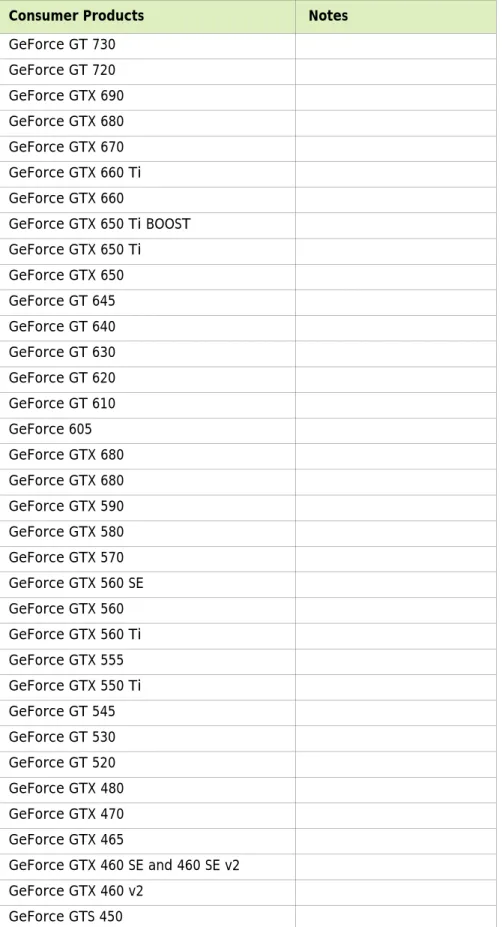
GeForce GT 730 GeForce GT 720 GeForce GTX 690 GeForce GTX 680 GeForce GTX 670 GeForce GTX 660 Ti GeForce GTX 660 GeForce GTX 650 Ti BOOST GeForce GTX 650 Ti GeForce GTX 650 GeForce GT 645 GeForce GT 640 GeForce GT 630 GeForce GT 620 GeForce GT 610 GeForce 605 GeForce GTX 680 GeForce GTX 680 GeForce GTX 590 GeForce GTX 580 GeForce GTX 570 GeForce GTX 560 SE GeForce GTX 560 GeForce GTX 560 Ti GeForce GTX 555 GeForce GTX 550 Ti GeForce GT 545 GeForce GT 530 GeForce GT 520 GeForce GTX 480 GeForce GTX 470 GeForce GTX 465 GeForce GTX 460 SE and 460 SE v2 GeForce GTX 460 v2 GeForce GTS 450
Table 3.1
Supported NVIDIA Desktop GPUs
Chapter 3 : THE RELEASE 346 DRIVER
GeForce GT 430
Table 3.1
Supported NVIDIA Desktop GPUs
Release 346 Graphics Drivers for Windows - Version 347.09 RN-W34709-01v01 |38 Chapter 3 : THE RELEASE 346 DRIVER
Supported NVIDIA Notebook Products
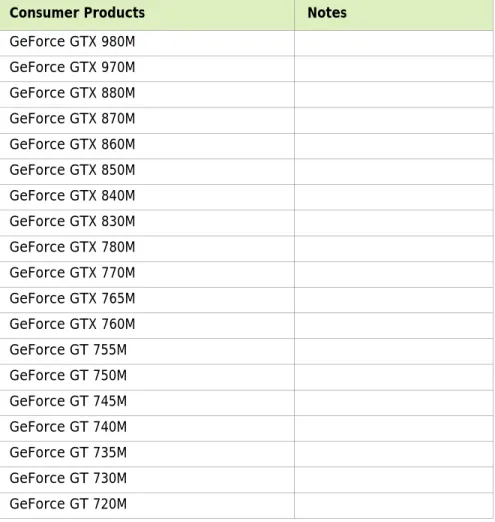
The following tables list the NVIDIA notebook products supported by the Release 346 driver, version 347.09:
Note:
Notebooks supporting Hybrid Power technology are not supported. (NVIDIA Optimus technology is supported.)
The following Sony VAIO notebooks are supported: Sony VAIO F Series with NVIDIA GeForce 310M, GeForce GT 330M, GeForce GT 425M, GeForce GT 520M or GeForce GT 540M. Other Sony VAIO notebooks are not supported. (Please contact Sony for driver support.)
Fujitsu notebooks are not supported. (Fujitsu Siemens notebooks are sup-ported.)
Table 3.2
Supported NVIDIA Notebook GPUs
Consumer Products Notes
GeForce GTX 980M GeForce GTX 970M GeForce GTX 880M GeForce GTX 870M GeForce GTX 860M GeForce GTX 850M GeForce GTX 840M GeForce GTX 830M GeForce GTX 780M GeForce GTX 770M GeForce GTX 765M GeForce GTX 760M GeForce GT 755M GeForce GT 750M GeForce GT 745M GeForce GT 740M GeForce GT 735M GeForce GT 730M GeForce GT 720M
Chapter 3 : THE RELEASE 346 DRIVER GeForce 710M GeForce GTX 670MX GeForce GTX 680M GeForce GTX 675MX GeForce GTX 675M GeForce GTX 670MX GeForce GTX 670M GeForce GTX 660M GeForce GT 650M GeForce GT 645M GeForce GT 640M LE GeForce GT 640M GeForce GT 635M GeForce GT 630M GeForce GT 625M GeForce GT 620M GeForce GT 610M GeForce GTX 580M GeForce GTX 570M GeForce GTX 560M GeForce GT 555M GeForce GT 550M GeForce GT 540M GeForce GT 525M GeForce GT 520MX GeForce GT 520M
Table 3.2
Supported NVIDIA Notebook GPUs (continued)
Release 346 Graphics Drivers for Windows - Version 347.09 RN-W34709-01v01 |40 Chapter 3 : THE RELEASE 346 DRIVER
GeForce GTX 485M GeForce GTX 480M GeForce GTX 470M GeForce GTX 460M GeForce GT 445M GeForce GT 435M GeForce GT 425M GeForce GT 420M GeForce GT 415M GeForce 820M GeForce 610M GeForce 410M
Table 3.3
Supported NVIDIA NVS and Quadro NVS M GPUs
Consumer Products Notes
NVS 5400M NVS 5200M NVS 4200M
Table 3.4
Supported NVIDIA Quadro M and Quadro FX M GPUs
Consumer Products Notes
Quadro 5010M Quadro 5000M Quadro 4000M Quadro 3000M Quadro 2000M Quadro 1000M
Table 3.2
Supported NVIDIA Notebook GPUs (continued)
Chapter 3 : THE RELEASE 346 DRIVER
Supported Languages
The Release 346 Graphics Drivers supports the following languages in the main driver Control Panel:
Driver Installation
Minimum Hard Disk Space
Desktop
The hard disk space requirement for 32-bit is minimum 220 MB for English-only, and 300 MB for International.
The hard disk space requirement for 64-bit is minimum 320 MB for English-only, and 400 MB for International.
Notebook
The hard disk space requirement for 32-bit is minimum 300 MB. The hard disk space requirement for 64-bit is minimum 400 MB.
English (USA) German Portuguese (Euro/
Iberian)
English (UK) Greek Russian
Arabic Hebrew Slovak
Chinese (Simplified) Hungarian Slovenian Chinese (Traditional) Italian Spanish
Czech Japanese Spanish (Latin America)
Danish Korean Swedish
Dutch Norwegian Thai
Finnish Polish Turkish
Release 346 Graphics Drivers for Windows - Version 347.09 RN-W34709-01v01 |42 Chapter 3 : THE RELEASE 346 DRIVER
Before You Begin
nTune
If you have previously installed NVIDIA nTune, NVIDIA recommends that you uninstall nTune before installing this driver. After the driver install is complete, you can reinstall NVIDIA nTune.
Notebooks
Check to make sure that your notebook has a supported GPU (see “Supported NVIDIA Notebook Products” on page 38).
It is recommended that you back up your current system configuration. If you own a Dell Inspiron 1420, Dell XPS M1330, Dell XPS M1530, or Dell
Latitude D630 or D630c, it is highly recommended that you first install this Dell software update.
Installation Instructions
1
Follow the instructions on the NVIDIA.com Web site driver download page to locate the appropriate driver to download, based on your hardware and operating system.2
From the driver download page, click the Download button.The Download Confirmation page appears.
3
If you agree to the “License For Customer Use of NVIDIA Software”, click the Agree & Download button to begin the download.The File Download dialog appears.
4
Either click Save to save the file and then run it from your PC, or click Run.An extraction path dialog appears prompting you to specify where on your PC you want the driver files to be installed.
5
Click OK to use the default location, or click the folder icon and specify an alternate location to install the driver files.The files are extracted and then the NVIDIA Installer is launched automatically.
6
At the License Agreement page of the Installer, click Agree and Continue.Chapter 3 : THE RELEASE 346 DRIVER
7
Follow the instructions in the NVIDIA Installer to complete the installation.See also the installation/uninstallation considerations explained in “Known Product Limitations” on page 21.
Note: The driver presents game screenshots while the driver is installing. If you are not connected to the internet during the installa-tion, you may see a “Navigation to the webpage was cancelled” mes-sage instead. The mesmes-sage can be ignored and does not affect the installation. The message won’t appear if the browser cache is cleared.
Note: The NVIDIA PhysX System Software will not be included in the installation if the same version or a later version is already installed.
Note: After the driver installation, Windows may default to 16-bpp color and disable the Desktop Window Manager (DWM). To work around this issue, set the color to 32-bpp and then reboot the PC.
Release 346 Graphics Drivers for Windows - Version 347.09 RN-W34709-01v01 |44
APPENDIX:
MODE SUPPORT FOR
WINDOWS
This chapter details the Windows modes supported by the Release 346 driver for NVIDIA products. It contains these sections:
“General Mode Support Information” on page 45
“Default Modes Supported by GPU” on page 46
Appendix: : MODE SUPPORTFOR WINDOWS
General Mode Support Information
The NVIDIA graphics driver includes a standard list of display modes that are supported by default. These modes are listed in the section “Default Modes Supported by GPU” on page 46.
The actual modes available depend on the capabilities of the display. In addition, the NVIDIA graphics driver has a “dynamic EDID detection” capability and will make available additional modes that are listed in the display EDID, provided the graphics hardware can support it.
The NVIDIA graphics driver also supports the high resolutions available with the displays listed in Table A.1 as well as the non-standard modes listed in Table A.2.
Table A.1
Modes Supported for High Resolution Displays
Display Maximum Resolution
Apple 30” Cinema HD Display (Dual link DVI)
2560× 1600 @ 60 Hz Dell WFP 3007 (Dual Link DVI) 2560× 1600 @ 60 Hz HP LP3065 dual-link DVI flat
panel
2560× 1600 @ 60 Hz
Table A.2
Non-standard Modes Supported
Resolution
1680 × 1050 1366 × 768
Release 346 Graphics Drivers for Windows - Version 347.09 RN-W34709-01v01 |46 Appendix: : MODE SUPPORTFOR WINDOWS
Default Modes Supported by GPU
This section lists the modes that are included by default in the driver INF for the following product families:
“GeForce 900, 700, 600, 500, and 400 Series GPUs” on page 47
“GeForce 400M, 500M, 600M, 700M, 800M, 900M Series, and Quadro M Notebook GPUs” on page 49
Understanding the Mode Format
Figure A.1 gives an example of how to read the mode information presented in this section.