Parallels
®
Plesk Sitebuilder
Copyright Notice
ISBN: N/AParallels
660 SW 39th Street Suite 205
Renton, Washington 98057 USA
Phone: +1 (425) 282 6400 Fax: +1 (425) 282 6444
© Copyright 1999-2008, Parallels, Inc.
All rights reserved
Distribution of this work or derivative of this work in any form is prohibited unless prior written permission is obtained from the copyright holder.
Contents
Preface
5
About Parallels Plesk Sitebuilder ... 5
What's New in This Version ... 6
About This Guide ... 6
Who Should Read This Guide ... 7
Typographical Conventions ... 7
Feedback ... 8
Getting Started with Plesk Sitebuilder Wizard
9
Overview of Main Steps to Create Site ... 10Logging In to Plesk Sitebuilder ... 10
Learning Plesk Sitebuilder Wizard Interface ... 11
Working with Lists ... 14
Starting to Work with Plesk Sitebuilder Wizard ... 16
Getting Help ... 17
Choosing Type of Created Site
18
Creating Site Design
19
Selecting Design Template for Site ... 21Removing Design Template from Page ... 22
Selecting Color Scheme ... 23
Selecting Banner ... 23
Selecting Menu Style ... 24
Uploading Logo ... 25
Specifying Site Title, Subtitle, and Footer Message ... 25
Buying Pictures from Fotolia ... 26
Creating Site Structure
28
Types of Pages ... 31Structuring Your Site ... 32
Adding Pages ... 33
Changing Position of Pages ... 33
Renaming Pages ... 35
Hiding Pages in Site Navigation ... 35
Removing Pages ... 37
Choosing Site Language, Currency, and Format of Numbers, Time and Date ... 37
Populating Site with Content
39
Working with Text ... 41Applying Styles, Fonts, and Colors to Text ... 42
Formatting Paragraphs ... 42
Copying and Moving Text ... 43
Undoing and Redoing Actions... 45
Inserting Links ... 46
Working with Images ... 54
Inserting Image... 55
Editing Image ... 59
Removing Image ... 62
Working with Tables ... 62
Inserting Table... 63
Editing Table Properties ... 64
Adding or Removing Rows, Columns, and Cells ... 65
Editing Cell Properties ... 67
Merging Cells ... 68
Spanning Cell across Several Rows or Columns ... 68
Splitting Cell ... 69
Adding Content to Table ... 69
Removing Table ... 70
Working with Modules ... 70
Adding Blog ... 73
Adding Image Gallery ... 80
Adding Online Store ... 88
Providing Content for Download ... 118
Adding Flash Intro ... 119
Adding Forum ... 120
Adding Guestbook ... 128
Providing Registration to Your Site Visitors ... 132
Incorporating Link to External Page into Your Site Menu ... 138
Adding Maps ... 138
Adding Feedback Form ... 143
Adding RSS News Feeds ... 148
Inserting Scripts into Your Web Pages ... 150
Conducting Polls and Online Surveys ... 152
Adding Online Status Indicator... 154
Adding SitePal Animated Character ... 155
Adding Site Map ... 159
Making Your Site Searchable
160
Specifying Keywords to be Used by Search Engines ... 160Providing Description to be Displayed in Search Results ... 161
Submitting Site to Search Engines ... 161
Tracking Site Popularity
162
Enabling Statistics Count on Site ... 162Viewing Site Visitors Statistics ... 163
Adding Visitors Counter to Site Pages ... 163
Publishing Site
164
Requirements to Host ... 169Appendix. Most Common Google Base Attributes
170
In this section:
About Parallels Plesk Sitebuilder ... 5
About This Guide ... 6
Who Should Read This Guide ... 7
Typographical Conventions ... 7
Feedback ... 8
About Parallels Plesk Sitebuilder
Parallels Plesk Sitebuilder consists of two parts: the Wizard and the Administrator Panel. With Plesk Sitebuilder Wizard, you can create sites by simply choosing the design preset you like and adding text and images. Then you can add picture galleries, blogs and online stores in a few clicks. You do not need to know any markup or scripting languages to have a site. The Administrator Panel is a tool for managing and maintaining web sites created in the Wizard.In this section:
What's New in This Version ... 6What's New in This Version
Plesk Sitebuilder 4.5 offers the following new features:
Site Map module. Allows you to display a clickable hierarchical model of your site structure to visitors
Removing design template from pages. You can now remove design template's layout and graphics from the desired pages.
External Page module. Allows you to link site menu items to external web sites.
Save button. A handy way to save changes you make while working on your site.
Counter settings are moved to the Wizard. You can now enable a counter on your site at the Pages step of the Wizard, which previously required going to the Administrator Panel.
Site visitor management is moved to the Wizard. You can now manage your registered visitors through the Registration module editor at the Edit step of the Wizard, which previously required going to the Administrator Panel.
Updated WYSIWYG editor to fix a series of issues.
About This Guide
This guide instructs you how to create and publish sites on the Internet using Plesk Sitebuilder Wizard.
This guide covers the following steps of creating and publishing your site:
1 Choosing the type of site to be created (see page 18) 2 Creating site design (see page 19)
3 Creating and editing site structure (see page 28) 4 Creating and editing site content (see page 39) 5 Publishing site on the Internet (see page 164)
Who Should Read This Guide
The target audience of this guide is regular users of Plesk Sitebuilder as well as guests, who are working with Plesk Sitebuilder in the guest mode, creating trial sites without publishing them on the Internet.
Typographical Conventions
Before you start using this guide, it is important to understand the documentation conventions used in it.
The following kinds of formatting in the text identify special information.
Formatting convention
Type of information Example
Special Bold Items you must select, such as menu options, command buttons, or items in a list.
Go to the Content tab.
Titles of chapters, sections,
and subsections. Read the chapter. Creating Site Design
Italics Used to emphasize the
importance of a point, to introduce a term or to designate a command line placeholder, which is to be replaced with a real name or value.
Block modules. These modules
do not require dedicated site pages...
Monospace URLs, names of
commands, files, and directories.
Go to
http://hostname/Wizard.
CAPITALS Names of keys on the
keyboard. SHIFT, CTRL, ALT KEY+KEY Key combinations for
which the user must press and hold down one key and then press another.
Feedback
If you have found a mistake in this guide, or if you have suggestions or ideas on how to improve this guide, please send your feedback using the online form at
http://www.parallels.com/en/support/usersdoc/. Please include in your report the guide's title, chapter and section titles, and the fragment of text in which you have found an error.
This chapter describes your first steps with Plesk Sitebuilder Wizard.
In this chapter:
Overview of Main Steps to Create Site ... 10
Logging In to Plesk Sitebuilder ... 10
Learning Plesk Sitebuilder Wizard Interface ... 11
Starting to Work with Plesk Sitebuilder Wizard ... 16
Getting Help ... 17
C
H A P T E R1
Getting Started with Plesk Sitebuilder
Wizard
Overview of Main Steps to Create Site
As a rule, the process of creating a web site includes three main stages: planning, implementation, and web site updating or maintenance.
Planning: The first and most essential stage in any project is planning. Before starting with Plesk Sitebuilder, think about the purpose of your web site and its target audience. After this, decide where your web site will be stored, or, in Internet terminology, hosted. This stage is beyond the scope of this document. Since Plesk Sitebuilder is often provided in a bundle with a web hosting package, we assume that you already have a web space for publishing your site. Then, you create a detailed structure of your future web site and prepare its contents, including text information and graphics. The planning stage is extremely important because it eventually determines the usefulness of your web site.
Implementation: The next stage is the implementation of your web site. The five-step Plesk Sitebuilder Wizard takes you through the entire process of creating your site, from initial design to publishing and maintenance. The following is an overview of the main steps required to create a web site using Plesk Sitebuilder:
1 To create a web site, open Plesk Sitebuilder Wizard. You can start working with the
Wizard anonymously, without supplying login and password.
2 Complete the first four Wizard steps (choose the site type, select the design, create
the site structure, add web site content including text, graphics and site modules and provide extra information for search engines).
3 Go to the Publish step and start the publishing process. If you do not have a Plesk
Sitebuilder account and work with the program in demo mode, the site you create is temporary and cannot be published on the Internet until you register and buy
hosting for your site. Once you are done with this, you can log in to Plesk Sitebuilder and assign your trial site to your account, thus making it possible to permanently publish your site on the Internet.
Maintenance: When you complete the above steps, your site becomes available for visitors. It is critical to keep your site content fresh because this is a good way to show your attitude to customers and services. Therefore, we recommend to update your site on a regular basis. All you need to do is to log in to the Plesk Sitebuilder Administrator Panel, edit the site content in Plesk Sitebuilder Wizard, and click Publish. Sitebuilder will automatically transfer the updated content to your hosting location.
For detailed instructions on what to do on every step of creating your site, see the chapters below.
Logging In to Plesk Sitebuilder
The Plesk Sitebuilder Wizard access procedure is different for different user roles. Below we describe the login process for site owners and anonymous users. The Plesk Sitebuilder administrator and resellers access Plesk Sitebuilder Wizard from their Administrator Panels.
To log in to Plesk Sitebuilder Wizard using your site owner account:
1
Open your Internet browser.
2
Enter the URL you have received from your Plesk Sitebuilder provider
into the address bar of your browser and press ENTER.
For example, http://sitebuilder/login
where 'sitebuilder' is the domain name of the server where Plesk Sitebuilder is
installed.
3
Enter you user name and password, select the interface language and
click
Log in
.
If prior to gaining a Plesk Sitebuilder account you have created a trial site in Plesk Sitebuilder Wizard (on the same computer that you are logging in from), you will be prompted to assign the site to your account and thus upgrade it to regular. You can skip this step and register your trial site later, but note that it may be deleted by your Plesk Sitebuilder provider or automatically destroyed after the expiration date. Plesk Sitebuilder Wizard opens on the Start page, from which you can start creating your first site. You can proceed to your Administrator Panel by clicking the Go to Admin Panel shortcut at the top of the screen.
To access Plesk Sitebuilder Wizard as an anonymous user (in demo mode):
1
Open your Internet browser.
2
Enter the URL to Plesk Sitebuilder demo version into the address bar
of your browser and press ENTER.
For example, http://sitebuilder/Wizard
where 'sitebuilder' is the domain name of the server where Plesk Sitebuilder is
installed.
The link may be distributed by a Plesk Sitebuilder provider, or obtained otherwise.
3
Select the language of Plesk Sitebuilder interface from the
Interface
language
list.
The Plesk Sitebuilder Wizard opens on the Overview page, which provides access to all five steps of the Wizard.
Learning Plesk Sitebuilder Wizard
Interface
In Plesk Sitebuilder, a site is created in five steps. Each step has its own working and navigation principles, which will be covered in respective sections further in this guide. Here we will outline the general principles of working with the Plesk Sitebuilder Wizard interface, and enumerate elements present on all Plesk Sitebuilder screens.
Figure 1: Plesk Sitebuilder Wizard Interface
Every Plesk Sitebuilder Wizard window contains the following elements:
1 Plesk Sitebuilder logo linked to the Sitebuilder page on the official Parallels web site.
This image can be customized by your Plesk Sitebuilder provider.
2 Save Changes button used for saving the results of actions performed on the page. If
no changes have been applied, the button is inactive. This button is also disabled when editing the content of page modules on step Edit, since modules have their own dialogs for saving changes.
3 Top help string, whichprovides short instructions about the operations you can
perform on the current page and displays the result of your last action.
4 Shortcuts used to switch between the five Wizard steps. The step you are currently
on is highlighted in color.
5 Support button, which, by default, opens Plesk Sitebuilder Online Server Support
screen on the official Parallels web site, where you can fill in the form to request the help of Parallels technical support team. This link can be customized by your Plesk Sitebuilder provider.
6 Help button opens the context-sensitive online help on the corresponding page. 7 Go to Admin Panel shortcut takes you to your Plesk Sitebuilder Administrator
Panel.
8 Parallels logotype image linked to Parallels web site.
Note: The Go to Admin Panel and Log out buttons are not displayed to anonymous
users. Instead of the Log out button, they see a shortcut Already a registered user? Log in here..
10 Work area, where the interface options available on the current step of the Wizard
are displayed.
11 Back button, which enables you to get to the previous step of the Wizard (you
can also return to the previous step using the top navigation bar).
12 Preview button, which allows you to preview the site at any stage of its creation. 13 Next button, which switches you to the next step of creating your site (you can
also click the next tab in the top navigation bar).
In this section:
Working with Lists
When setting up page or block modules on the Edit step of Plesk Sitebuilder Wizard, you will see lists of various system objects (blog posts, online store orders, etc.). In such a list, each object record is a table row displaying the object name and the relevant parameters of the object (for example, for each forum topic, the author of the topic, the category the topic belongs to, the date of last the update, and the number of replies to the topic are displayed). Above and below each list, the total number of items contained in the list is displayed. Below the list, you can adjust the number of items to be displayed per page (5, 10, 25, or 100). In multi-page lists, you can navigate between the pages by clicking the page number shortcuts above and below the list. To go to the first/last page of the list, click First Page or Last Page, accordingly.
In lengthy lists, you can find items using the search function, or sort items by certain parameters. To find an item, type a search criterion into the input box above the list, and click Search. The list will show the items matching the search criterion. To return to the full list of items, click Show All.
Figure 2: Searching for Objects
To sort list items by a certain parameter in ascending or descending order, click the parameter's title in the column heading. The order of sorting will be indicated by a small triangle displayed next to the parameter's title.
Figure 3: Sorting Objects
In some lists, you can filter items by a certain attribute by selecting one of them from the drop-down list (for example, on the Orders tab of your eShop page, you can filter out orders of certain status: New, Paid, Processed, Backorder, Completed, Cancelled, Failed, or
Any).
Note: All the above described principles also apply to the list of design template
categories on the Design step of the Wizard. For information on using these options on the Design step, read section Creating Site Design (on page 19).
To choose a list object for further operation, select the check box to the left of the object's name.
Figure 5: Selecting Particular Objects in a List
To choose all objects in the list, select the check box at the head of the column.
Figure 6: Selecting All List Objects at Once
To perform operations with certain objects in a list, select the required objects and click an operation shortcut above the list (for example, Activate, Deactivate, Remove Selected, etc.).
In the list of guestbook messages, the status of a message is indicated by icon in the
Status (S) column (not archived or archived ).
In most lists, individual operation shortcuts are displayed for each item. For example, for each product category on the Categories tab on the eShop page, there are arrows ( and ) used to change the order in which the categories are displayed on the site page; and the Edit icon used to open the categories in editing mode.
In most lists, you can configure or edit a list object by:
Clicking the object name, if it is clickable (for example, the post names on the
Content tab of the Blog page)
Clicking the Edit icon for this object in the list (for example, for a product on the
Products tab of the eShop page)
In some lists, you will also see shortcuts to managing the objects' dependent items - such as the View/Edit Comments shortcut for each blog post on the Content tab of the Blog
convenience, which you can delete or reuse at a later stage.
Starting to Work with Plesk Sitebuilder
Wizard
The Overview page provides quick access to and contains short description of each of the five steps required for creating a site in Plesk Sitebuilder.
Figure 7: Plesk Sitebuilder Wizard Overview Page
The five Plesk Sitebuilder Wizard steps are as follows:
1 Start. On this step, you choose whether to create a site from scratch or create a site
using one of the proposed site templates (site-blog, site-photo gallery, etc.).
2 Design. On this step, you configure your site layout, color scheme, menu style, logo
and banner, as well as set up text elements appeared at the background of your site, such as the title phrase and the copyright notice.
3 Pages. On this step, you configure the structure of your site and arrange the pages
hierarchy in the site map.
4 Edit. On this step, you create and edit the content of your site pages. 5 Publish. On this step, you publish your site on the Internet.
For anonymous users, on the Overview page, the Interface language box is displayed allowing to select the language of the Wizard interface.
To start creating your site, click Start at the bottom of the screen.
Getting Help
If you encounter a problem while using Plesk Sitebuilder, there are several resources available to help you troubleshoot the problem:
Use on-screen context-sensitive help.
At the bottom of the navigation pane, you can find short instructions on the operations that are available on the current page.
Refer to our knowledge base (http://kb.parallels.com/en/products/sitebuilderlinux). The knowledge base provides solutions to the most common problems with Plesk Sitebuilder.
Go to our forum
(http://forum.swsoft.com/forumdisplay.php?s=f2b895fc3636e705ec9b9a85ef81f040 &forumid=99).
Here all users can post questions, exchange ideas, and troubleshoot issues not described in the knowledge base. Note that Parallels does not provide official support through this forum.
Contact technical support.
If you have any problems or questions that are not covered in the user documentation or knowledge base, you can click Support located on the
The first step of creating site with Plesk Sitebuilder is to choose whether you want to start creating your site from scratch or use one of proposed site templates (the so-called site families). By default, there are two site templates available - blog and image gallery, but the Plesk Sitebuilder administrator can extend this list by creating custom site templates and including them in your service plan.
To choose the type of the created site, go to the Start step and click the required site family to select it.
The Start page looks as follows:
Figure 8: Step 1. Choosing the Site Type
The chosen site family is indicated with the sign.
Having selected a site family, click Next at the bottom of the screen to proceed to configuring the design of your site.
If you fail to select a certain site family (and you see it in the list as grayed out), contact your Plesk Sitebuilder administrator for assistance.
In Plesk Sitebuilder, you can build the graphic design of your site by combining the provided presets with your custom design elements which you can upload to
Sitebuilder. Plesk Sitebuilder offers design presets of several types, including: design templates, color schemes, page banners and site menu styles. You can personalize your design by uploading a custom page banner and logo. Besides uploading your own banner and logo, you can specify the title, subtitle and footer message for your site. In this chapter you will find a step-by-step instruction on creating your site design in Plesk Sitebuilder.
The Plesk Sitebuilder Design step screen looks as follows.
Figure 9: Step 2. Creating Site Design
The work area of the screen contains the following elements:
1 Design template selection area, which provides the functions facilitating the choice of a
site design template (see page 21). When you choose to display All categories, this area shows all available design templates.
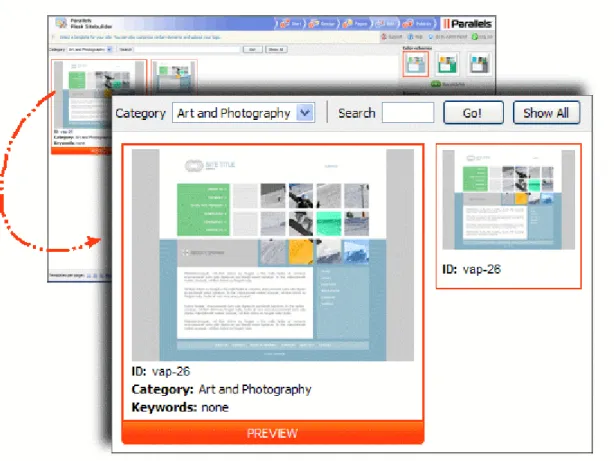
window for full-size preview of the template. The chosen design template, color scheme and menu style are shown in red frames in the corresponding areas of the screen.
3 Color schemes area, where you can choose the colors for your site (see page 23). 4 Banners area enabling you to select or upload a banner for your site (see page 23). 5 Menu styles area, where you can choose the appearance of the site menu (see page 24). 6 Logo area enabling you to upload your custom logo (see page 25).
7 Site info area where you can provide the information to be displayed in the header and
footer of your site pages (see page 25).
8 The design template list navigation area.
Read this chapter to learn how to use these options to create your site design.
In this section:
Selecting Design Template for Site ... 21
Removing Design Template from Page ... 22
Selecting Color Scheme ... 23
Selecting Banner ... 23
Selecting Menu Style ... 24
Uploading Logo ... 25
Specifying Site Title, Subtitle, and Footer Message ... 25
Selecting Design Template for Site
On this step, you choose the general graphic and layout concept of the site page - the site design template. For more convenience, design templates are grouped into categories which correspond to the most frequently encountered site types. Your
choice of the design template defines the choice of available color schemes, menu styles and page banners further on this step.
The list of available site design templates is determined by your service plan.
To select a design template for your site:
1
On the
Design
step, select a template category from the
Category
list.
The default design template which goes with the category is displayed in the main design preview window; the alternative ones - in smaller windows beside the main window.
2
Click a design template to select it.
The selected template appears in the main design preview window. By selecting a design template you can view the color schemes, menu styles and page banners which go with it in the respective areas of the page.
Each design template has a unique alphanumeric code (for example, (vap-26, eug-29, etc.) by which you can identify it in Plesk Sitebuilder.
To choose a design template on pure aesthetic grounds (not by category), select All Categories from the Category list to display all available templates, and then click the desired template to select it.
For some tips on working with the list of design templates, see section Working with Lists
(on page 14).
If necessary, you can remove the design template (see page 22) from selected standard (HTML) pages of your site at a later stage.
Figure 10: Selecting a Design Template
Removing Design Template from Page
All pages of your Plesk Sitebuilder site are built on the basis of a design template - the one which you have applied on the Design step and which includes pre-configured page graphics and layout. You can remove these elements from any common (standard) page (indicated by the icon in the site map), turning it into a plain page with no design.
To remove the design template from a page, go to the Edit step, select the page in the
Site map area and click Remove Design Template.
At any moment later you can get the page design back by clicking Restore Design Template.
Selecting Color Scheme
For each design template, a number of color schemes are available. No custom color schemes can be uploaded to Plesk Sitebuilder.
To select color scheme for your site, on the Design step, click the thumbnail image you like in the Color schemes section.
The chosen color scheme is applied to the design template, and the results are displayed on the design template preview.
Figure 11: Selecting a Color Scheme
Selecting Banner
In Plesk Sitebuilder, a banner is a large image of rectangular shape which serves as a
central element of the page layout. Each design template offers a choice of available banners.
To select a banner:
1
On the
Design
step, in the
Banners
area, click the downward arrow to
expand the list of available banners.
2
Select the banner you like.
The chosen banner is displayed it in the main design preview window.
You can also upload a custom banner for your site. The maximum allowed dimensions of a banner vary depending on the selected template. To find out the maximum banner size for a particular template, try uploading an image bigger than 1024x350 px - you will see a warning message containing the maximum banner dimensions for the current template. The supported file formats are *.jpg, *.bmp, *.gif, and *.png.
1
On the
Design
step, click
Browse
in the
Banners
area
.
2
In the
Browse
window, navigate to the image file you want to upload.
3
Click
Open
in the
Browse
window.
4
Click
Upload
in the
Banners
area.
Figure 12: Selecting or Uploading a Banner
Selecting Menu Style
Menu style defines the visual appearance of the menu items on your site.
To select the menu style, on the Design step, choose the preferable style in the Menu styles area.
For each design template, there are a number of menu styles to choose from.
Uploading Logo
In Plesk Sitebuilder, a logo is a small image displayed at the top of each page, within the page banner. The maximum size of logo image is 320x320 px; the supported file formats are *.bmp, *.gif, *.jpg, *.png.
To upload a custom logo:
1
On the
Design
step, click
Browse
in the
Logo
area.
2
In the
Browse
window, navigate to the image file you want to upload.
3
Click
Open
in the
Browse
window.
4
Click
Upload
in the
Logo
area.
For each template, Plesk Sitebuilder provides its own default logo image. To restore this logo, click Restore Default.
To remove logo from your site design, click Clear.
Figure 14: Uploading a Logo
Specifying Site Title, Subtitle, and Footer
Message
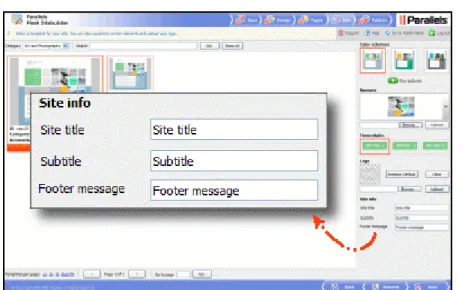
Site title, subtitle, and footer message are text elements appeared at the background of your site: site title and subtitle are displayed within the site banner, and footer message is put at the bottom of every page of your site.
To specify your site title, subtitle phrase and footer message, on the Design step, fill in the fields in the Site info section:
business sites, this is usually a company name.
In the Subtitle field, provide any phrase which reflects the concept and objectives of the site. This phrase will be displayed below the site title in smaller font. On
business sites, this is usually a corporate slogan.
In the Footer message field, provide the copyright notice or any other information of similar kind - disclaimers, contact information, etc., which you would like to place in the page footer.
For each text element, it is possible to break the text into multiple lines. To do so, insert the <br> tag where you want the line break to be. For example: first line<br>second line<br>third line...
If you do not wish to specify the title, subtitle or footer message for your site, clear the corresponding fields.
Note: Some design templates allow customizing only the site title. For these templates,
the Subtitle and Footer message fields are disabled.
Figure 15: Specifying Site's Title, Subtitle, and Footer Message
Buying Pictures from Fotolia
In Plesk Sitebuilder, you can buy images from Fotolia (http://www.fotolia.com/parallels/) - the first worldwide social marketplace for royalty free stock images, directly from the Wizard. As a Parallels customer, you have a 20% bonus when purchasing Fotolia images.
To purchase images from Fotolia:
1
On the
Design
step, click the
Buy pictures
shortcut under the
Color
schemes
area.
2
Follow the instructions provided on Fotolia web site to purchase
Note: If you do not see this shortcut, it means that this option is disabled in the Plesk
Sitebuilder license.
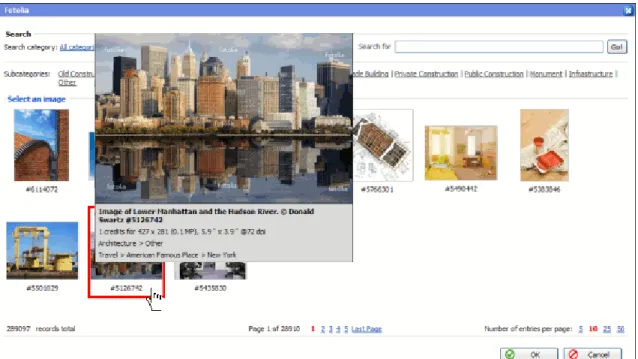
Note that when filling your site with content on the Edit step, you can browse the Fotolia gallery and buy images directly from Plesk Sitebuilder (see Inserting Image (on page 55)).
A site consists of several pages linked together to present information in an ordered way. Using Plesk Sitebuilder, you can arrange the pages in the two levels of hierarchy: top level pages and second level pages. Therefore, before this stage you must clearly understand how you intend to structure your site.
Note: The maximum number of pages you can create in one site is determined by your
service plan.
To facilitate creating your site, you are provided with a number of pre-defined site structures, or page sets, which can be used as templates for creating your own site
structure. The default page set of your site is determined by the type of site you chose
on the Start page of Plesk Sitebuilder Wizard.
On the Pages step, you can build any possible site structure by adding the desired pages and arranging them as needed. Find out about the types of pages (see page 31) offered by Plesk Sitebuilder and about the process of building site structure (see page 32).
The Pages step screen provides the following functionalities:
Figure 17: Step 3. Creating Site Structure
1 The Page sets area allows you to choose a page set. The selected page set is
shown in red frame.
2 The Standard pages area displays the structure of the page set chosen in the Page
sets area. You can expand or collapse this section by clicking the or icons in the top bar of the section.
3 The Your site structure area shows the final structure of your site.
4 The Page position area enables you to organize the hierarchy of pages (see page 33) in
the site map, and to rename pages (see page 35).
5 and buttons allow you add or remove pages from the site
structure.
6 The Site regional and language options area allows you to set the site language and
the format of numeric data. You can expand or collapse this section by clicking the or icons.
7 The Special pages area displays all available types of pages which can be added to
your site structure: one common text page, and all available page modules. You can expand or collapse this section by clicking the or icons.
In this chapter:
Types of Pages ... 31 Structuring Your Site ... 32 Choosing Site Language, Currency, and Format of Numbers, Time and Date ... 37
Types of Pages
In Plesk Sitebuilder, there are two types of pages:
Standard (common) pages - ordinary HTML pages used for displaying text
information. Such pages are marked with icons in the site map.
Special pages - page modules which extend the site functionality. Each module is
designed for a certain purpose and is identified by its own icon. There are the following types of page modules in Plesk Sitebuilder:
Blog (see page 73). Supports a standard set of blog functionality: posting, commenting, content categorizing, etc. A Blog page is very convenient for organizing the News, Events and similar pages on sites.
Image Gallery (see page 80). Allows you to share images or photos online. Supports batch image upload with group editing functions, organizing images into albums, etc.
eShop (see page 88). Online store creation and management tool featuring shopping cart, multi-currency, categorized product catalog with thumbnail upload capability, product inventory and shipping cost support, order
management. Provides integration with a number of online payment systems, such as PayPal, Authorize.Net, and others.
File Download (see page 118). Allows providing content for download to site visitors.
Note: Each File Download page can hold only one file. To provide several files
for download, it is necessary to add several File Download pages to the site structure.
Flash Intro (see page 119). A pre-designed flash introduction to your site. It is possible to choose between several designs of the intro and insert your own text content into it.
Note: The Flash Intro module is the only page module that requires no PHP on
the publishing location and therefore can be included into a static site.
Forum (see page 120). Allows you to set up a forum where visitors can post questions and participate in discussions.
Guestbook (see page 128). Allows you to create a guestbook and manage the posted messages.
Registration (see page 132). Allows you to set up voluntary user
authentication on sites. After a registered site visitor opts in, their details are automatically inputted in all forms they open on the site, for example, when submitting a forum topic or shopping at the online store. You can suspend a visitor account, thus restricting a visitor from authenticating under his or her user name.
External Page (see page 138). Allows incorporating links to external pages into the site menu.
Flash Intro and Registration).
Structuring Your Site
You can build and edit your site structure on the Pages step of Plesk Sitebuilder Wizard. To facilitate creating your site, you are provided with a number of pre-defined site structures, or page sets, which can be used as templates for creating your own site
structure. The default page set of your site is determined by the type of site you chose on the Start page of Plesk Sitebuilder Wizard. You see this default page set highlighted in the list of page sets, its structure is displayed in the Your site structure box on the right. You can modify the proposed site structure as desired by adding pages from other page sets (or even whole page sets), renaming pages, changing pages hierarchy, or removing pages from the Your site structure box.
The list of page sets available depends on your service plan and can be extended only by your Plesk Sitebuilder administrator. The structure of each page set is shown in the
Standard pages area after you select the page set in the list.
The Special pages area shows a list of special pages, or modules which you can add to your site, plus one common site page which you can use as an ordinary text page. To learn which modules are available, refer to Types of Pages (on page 31).
In this section:
Adding Pages ... 33 Changing Position of Pages ... 33 Renaming Pages ... 35 Hiding Pages in Site Navigation ... 35 Removing Pages ... 37
Adding Pages
To add pages to the site structure:
1
Select the necessary pages in the
Standard pages
, or in the
Special pages
area.
Note: The module titles in the page set may differ from the original names of the
modules. For example, a page Photo may represent the Image Gallery module. You can always identify a module by its icon.
2
Click
.
Or just drag and drop needed pages into the Your site structure box.
You can add as many modules of one type to your site as you wish - except for the
Flash Intro and Registration modules. These modules can be added to your site only once.
Figure 18: Adding Pages
Changing Position of Pages
To change the pages hierarchy:
1
Select the required page in the
Your site structure
box.
2
Use one of the buttons in the
Page position
area:
To move a page from the second level to the top level of the site structure, click
Left.
To move a page down at the same level, click Down.
When you move a first level page Up or Down, all dependent second level pages are moved together with it.
Note: In Plesk Sitebuilder, modules can be only first-level pages in the site structure,
and cannot have dependent second level pages. The only exception is the File
Download module, which you can set a second-level page, but you cannot depend other pages on it.
Renaming Pages
To rename a page:
1
Select the page in the
Your site structure
box and click
Rename
.
Or just double-click the page's name to make it editable.
2
Provide a new name for the page.
3
Press ENTER.
If you choose to rename the page at a later stage, you can use the Page title field on the
Edit step of the Plesk Sitebuilder Wizard.
Figure 20: Renaming Pages
Hiding Pages in Site Navigation
You can make certain pages invisible in site menu. The page which you choose to hide will be accessible only by clicking a link placed on other pages of your site (or wherever you would like to place it). Note that when a site visitor actually accesses a hidden page, it appears in the site menu, and when they switch to another (not hidden) page, the hidden page disappears again.
To hide a page in the site navigation menu:
1
Go to the
Edit
step.
2
Go to the desired page.
3
Clear the
Show this page in site map
check box.
Hidden pages are highlighted with grey color in the Site map area and in the site structure on the Pages step.
Figure 21: Hiding Pages in Site Navigation
You can hide both first and second level pages.
To understand how hiding pages correlates with pages hierarchy, see the example below:
Let the site structure look as follows:
Page 1
Page 2 (hidden)
Page 3
Page 3.1 (hidden) Page 3.2
Page 4 (hidden)
Page 4.1
Page 4.2 (hidden)
To understand the dependency of pages' visibility and position in the hierarchy, see the table below.
Active Page* Visible Pages
Page 1 Page 1, Page 3
Page 2 Page 1, Page 2, Page 3
Page 3 Page 1, Page 3, Page 3.2
Page 3.1 Page 1, Page 3, Page 3.1, Page 3.2
Page 3.2 Page 1, Page 3, Page 3.2
Page 4 Page 1, Page 3, Page 4, Page 4.1
Page 4.1 Page 1, Page 3, Page 4.1
Page 4.2 Page 1, Page 3, Page 4.1, Page 4.2
Removing Pages
To remove a page from the site map, select the page in the Your site structure box and click .
Note: You cannot delete all pages from the Your site structure area. In case you need to
clear the space - for example, before setting up a completely new site structure, we recommend to select all pages, except one, delete them, add the necessary pages to the site, and then delete or reuse the old page.
Figure 22: Removing Pages
Choosing Site Language, Currency, and
Format of Numbers, Time and Date
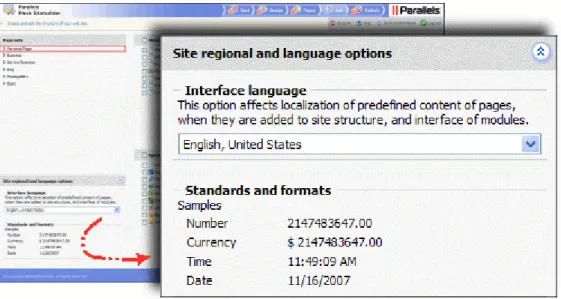
In Plesk Sitebuilder, you can create a site in the language which is different from the language of your Wizard interface. The desired language is selected on the Pages step of Plesk Sitebuilder Wizard.
The choice of the language determines the format of numbers, the site currency and price format, and also the format of date and time records everywhere on your site.
To select the language for your site and the format of displaying numbers, currencies,
times and dates:
1
Go to the
Pages
step.
the currency associated with the chosen language.
If you do not see a required language in the list, check Parallels web site
(http://www.parallels.com/en/download/sitebuilder) to see if it is available. Only a user with administrator's privileges can download and install language packs in Plesk Sitebuilder. If you wish to use any of the available language packs, contact your Plesk Sitebuilder provider for assistance.
Note that the currency and price format specified here will be applied to your online store, if you add one to your site. You can alter these settings for your online store at a later stage by configuring the eShop module accordingly (see page 100). The online store settings and the regional and language settings of the whole site are independent of each other.
Figure 23: Choosing Site Language and Customizing Settings for Display of Numbers, Currencies, Time and Date
In Plesk Sitebuilder, creating your site content means creating the content of each HTML page constituting your site, and setting up functional modules you added to your site. You can do all this on the Edit step of Plesk Sitebuilder Wizard.
The Plesk Sitebuilder editor is organized in such a way that the information you type on the pages and the design of the pages are independent. Therefore, you can completely change the design for a page after you had typed a text on this page, without having to retype the information.
The Edit step screen is structured in the following way:
Figure 24: Step 4. Populating Site with Content
C
H A P T E R4
selecting a page in this area, you open its content for editing in the work area of the screen. To hide the Site map section, click the Hide Site Map icon. To restore the
Site map area on the screen, click the Show Site Map icon.
2 Work area provides access to different functions, depending on the type of the edited
page:
On ordinary text pages, the work area provides the space for creating the text content of the page (see page 41) and inserting images (see page 54) with the help of the WYSIWYG editor, like on the screenshot above.
On special pages, or page modules, the work area provides the module editor
screen, where you can configure various parameters of the module on the respective tabs, and, in most cases, populate the module with content (for example, fill your online store catalog with products). For information on working with lists of objects on module management pages, read section Working with Lists (on page 14). For more information about configuring and editing each module, see respective sections further in this chapter.
3 Modules area allows to embed block modules in text pages, by drag-and-dropping
the module icon to the required spot on the page. For some tips on using block modules, see section Working with Modules (on page 70). To hide the Modules
section, click the Hide Modules icon. To restore the Modules area on the screen, click the Show Modules icon.
Note: When you edit special pages (page modules), the Modules area of the screen
is not displayed.
In this chapter:
Working with Text ...41 Working with Images ...54 Working with Tables ...62 Working with Modules ...70
Working with Text
Plesk Sitebuilder is empowered with a user-friendly WYSIWYG (What You See Is What You Get) content editor, which enables you to see the content on the display screen exactly as it appears on the Internet.
This subsection describes the ways of working with textual information on your web pages. You will learn how to format characters and paragraphs, cut, copy, paste text, insert images and links, check spelling, and more.
Figure 25: Working with Text
In this section:
Applying Styles, Fonts, and Colors to Text ... 42 Formatting Paragraphs ... 42 Copying and Moving Text ... 43 Finding and Replacing Text Fragments ... 44 Checking Spelling on Page ... 45 Undoing and Redoing Actions ... 45 Inserting Links ... 46
Applying Styles, Fonts, and Colors to Text
To apply formatting to a text:
1
On the
Edit
step, select the desired site page.
2
Select the text fragment you want to edit.
You can select the whole text on the page by clicking Select All.
3
Apply desired formatting options to the selected text:
Select a font from the Font list.
Select a font size from the Size list.
Click the Text Color icon and select a color.
Click the Background Color icon and select a color.
Click the Bold, Italic, Underline, Strike Through icons to make the text bold, italic, underlined, or strikethrough respectively.
Click the Subscript or Superscript icon to make the text subscript or superscript respectively.
4
To insert a special symbol into the text, place the mouse cursor on
the required spot on the page, click the
Insert Special Character
icon
and select a symbol.
To undo the last formatting action, click the Remove Format or Undo icon.
Formatting Paragraphs
To apply formatting to a paragraph:
1
On the
Edit
step, select the desired site page.
2
Place the cursor anywhere in the paragraph you want to format.
3
Apply necessary formatting:
To apply a text style, select it from the Format list.
To align the text, click the Align Left, Center, Align Right, or
Justify icon.
To change the indentation of the text, click the Increase Indent or
Decrease Indent icon.
4
To insert a horizontal line between two paragraphs, place the cursor
at the end of the first paragraph and click the
Insert Horizontal Line
5
To split a paragraph with a page break, click the
Insert Page Break
icon before the beginning of the new prospective paragraph.
Copying and Moving Text
To copy or move text:
1
On the
Edit
step, select the desired site page.
2
Select a text fragment.
You can select the whole text of the page by clicking the Select All icon.
3
Click the
Cut
or
Copy
, icon depending on the type of operation
(moving or copying).
4
Paste the text on the page using one of the three pasting options:
To simply paste the text from the current page, or from other pages of the site, place the cursor in the appropriate spot on the page and click the Paste icon.
To paste the text from MS Word, and to retain the formatting applied to it, click the Paste from Word icon, paste the text into the provided window, and click
OK.
To paste the text, and to discard all formatting applied to it, click the Paste as Plain Text icon, paste the text into the provided window, and click OK.
Finding and Replacing Text Fragments
To find a particular text fragment on the page:
1
On the
Edit
step, select the desired site page.
2
Click the
Find
icon.
3
In the
Find what
field, enter the text you want to find.
4
Select the
Match case
check box to search only for text that exactly
matches the case (uppercase or lowercase character formatting) of
the specified search pattern.
5
Click
Find
to start the search.
To find and replace a text fragment on the page:
1
Click the
Replace
icon.
2
In the
Find what
field, enter the text you want to find.
3
In the
Replace with
field, enter the text to replace the searched fragment
with.
4
Select the necessary search options:
Match case - to search for text that exactly matches the case (uppercase or lowercase character formatting) for the specified search pattern.
Match whole words - to search for the exact phrase as it is specified.
5
Click
Replace
to replace a particular found segment.
6
Click
Replace All
to replace all segments found on the page without
Checking Spelling on Page
The Spell Checker feature can be used only with Internet Explorer version 5.5 or later. To be able to use the Spell Checker, you need to install ieSpell - a free-of-charge spell checker utility for Internet Explorer. To install ieSpell, download the application setup package from the official ieSpell web site (http://www.iespell.com/download.php), run it on your computer and complete the steps of the installation procedure as described, then restart Internet Explorer.
The Spell Checker is available for English only.
To check spelling on the page:
1
On the
Edit
step, select the desired site page.
2
Click the
Check Spell
icon.
In the Not in dictionary field, possible spelling mistakes are shown.
3
If you are sure that the word found by the Spell Checker is not
misspelled, click
Ignore
to leave the word as is.
To ignore all occurrences of this word in the text, click Ignore All.
4
If you wish to add this word to the Spell Checker dictionary, click
Add
.
5
If you want to replace the misspelled word with the word in the
Suggestions
field, click
Change.
To replace this word in the whole text, click Change All.
6
If you wish to configure the Spell Checker parameters, click
Options
.
Undoing and Redoing Actions
To undo the last action, click Undo.
Inserting Links
Using the Plesk Sitebuilder editor, you can insert both internal links leading to other pages of your site, and external links. Internal links point to other pages of your site. External links pointing to other sites are often used to improve your site popularity and will direct visitors of your site to friendly sites (the so-called link exchange).
With the help of Plesk Sitebuilder link manager, you can add the following types of links:
External links (see page 47)
Internal links, or links to other pages of your site (see page 50)
Anchors (see page 50) E-mail links (see page 52)
To edit a link, right-click the selected link and click Edit Link.
To remove a link, right-click the selected link and click Remove Link, or select the link text and click the Remove Link icon on the editor panel.
In this section:
Inserting External Link ... 47 Inserting Internal Link ... 50 Inserting Anchor ... 50 Inserting E-Mail Link ... 52
Inserting External Link
An external link is a reference in a hypertext document to another document on a different web site.
To insert an external link:
1
Type/Select the text which you want to set as a hyperlink to another
web resource.
2
Click the
Insert/Edit Link
icon.
Figure 26: Inserting an External Link
3
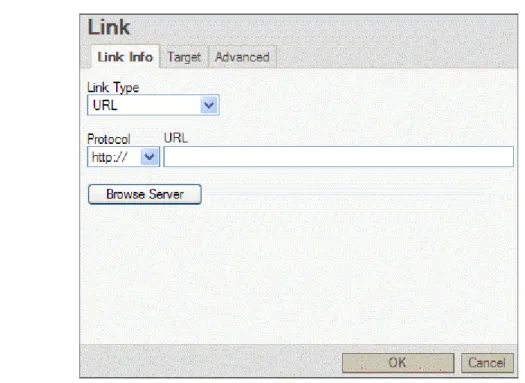
On the
Link Info
tab, select
URL
from the
Link type
list.
4
Select the protocol from the
Protocol
list.
The available selections are:
http:// https:// ftp:// news:// <other>
5
In the
URL
field, enter the web address to which the link will point.
6
On the
Target
tab, select the way the link should open from the
Target
list:
To open the link in same browser window (the target page replaces the page of your site), leave the Target option in its default value <not set>, and leave the
Target list.
To open the link as a pop-up window, select <popup window> from the Target list, and specify the parameters of the pop-up in the Popup Window Features area below.
Note: Other options in the Target list have been designed to work with the HTML
Frames technology, which is currently not used on Plesk Sitebuilder sites. On non-frames sites, all these options open the link in the same window.
7
If you wish to specify additional attributes for the link, enter them on
the
Advanced
tab:
Id, this attribute assigns a name to the link. This name must be unique on the page.
Language Direction, this attribute specifies the base direction of directionally neutral text. Direction can be Left-to-right or Right-to-left.
Access Key, this attribute assigns an access key to an element. An access key is a single character from the document character set.
Name, this attribute names the current link as an anchor, so that it may be the destination of another link. The value of this attribute must be a unique anchor name within the current page.
Language Code, this attribute specifies the base language of the link's attribute values and text content.
Tab Index, this attribute specifies the position of the current element in the tabbing order for the current document. The tabbing order defines the order in which elements receive focus when navigated by the user via the keyboard. The tabbing order may include elements nested within other elements.
Advisory Title, this attribute offers advisory information about the link. The
information is displayed in the status bar of the browser when the mouse hovers over the link.
Advisory Content Type, this attribute gives an advisory hint as to the content type of the content available at the link target address. It allows user agents to opt to use a fallback mechanism rather than fetch the content if they are advised that they will get content in a content type they do not support.
Stylesheet Classes, this attribute assigns a CSS class name or set of class names to the link.
Linked Resource Charset, this attribute specifies the character encoding of the resource designated by the link.
Style, this attribute specifies style information for the current link. The information should be formatted as follows: Content-Style-Type: text/css.
8
Click
OK
.
You can also provide a link to an image, document or a media file stored on your computer.
To provide a link to a file on your computer:
1
Type/Select the text which you want to set as a hyperlink.
3
On the
Link Info
tab, select
URL
from the
Link type
list.
4
Select
<other>
from the
Protocol
check box.
5
Click
Browse Server
.
6
In the file uploading window, select the type of file from the
Resource
type
box:
File
,
Image
,
Flash
, or
Media
.
Inside each resource type, you can organize your files into a number of folders. To do so, create the desired hierarchy of folders prior to uploading the files. To create a folder in the root directory, click Add New Folder in the bottom part of the screen. Having created a folder, click its name to open it. You can create a new folder inside the opened folder, or upload a file to it.
When the folder is opened, the top bar of the file uploading screen shows the path to this folder on the server, and the left frame provides navigation to the upper-level folder. To navigate one level up, click the .. icon.
7
To upload a file of the selected type to the server, click
Browse
, locate
the file in your local file system, click
Open
and then click
Upload
.
For each uploaded file, size is shown.
To delete a file, click the corresponding icon.
8
To create a link to the file, click the file name.
Figure 27: Inserting a Link to a File
The path to the file on the server is automatically inputted into the URL field on the
Link screen.
Inserting Internal Link
An internal link is a link to another page of your site.
To insert an internal link:
1
Type/Select the text which you want to set as a link to another page.
2
From the
Custom links
box on the WYSIWYG panel, select the page to
which the link should point.
Figure 28: Inserting a Link to Another Page of Your Site
Inserting Anchor
Anchor is a word or a group of words that define the destination a hyperlink leads to. Anchors are very helpful in facilitating navigation through a great amount of text located on a single place. With this function you can provide the site visitors an easy way to jump from one part of the text to another.
To insert an anchor:
1
Place the cursor where you want the link to lead to.
2
Click the
Insert/Edit Anchor
icon.
3
On the
Anchor Properties
form, enter the anchor name.
4
Click
OK
.
The anchor icon appears in the selected place in the text.
5
Select a text fragment which you want to link to the anchor to.
6
Click the
Insert/Edit Link
icon.
7
On the
Link Info
tab, select
Anchor in this page
from the
Link type
list.
Select an anchor from the list.
Figure 30: Creating a Link to the Anchor
8
If you wish to specify additional attributes for the anchor, enter them
on the
Advanced
tab:
Id, this attribute assigns a name to the anchor. This name must be unique on the page.
Language Direction, this attribute specifies the base direction of directionally neutral text. Direction can be Left-to-right or Right-to-left.
Access Key, this attribute assigns an access key to an element. An access key is a single character from the document character set.
Name, this attribute names the current link as an anchor, so that it may be the destination of another link. The value of this attribute must be a unique anchor name within the current page.
Language Code, this attribute specifies the base language of the anchor's attribute values and text content.
Tab Index, this attribute specifies the position of the current element in the tabbing order for the current document. The tabbing order defines the order in which elements receive focus when navigated by the user via the keyboard. The tabbing order may include elements nested within other elements.
information is displayed in the status bar of the browser when the mouse hovers over an anchor.
Advisory Content Type, this attribute gives an advisory hint as to the content type of the content available at the link target address. It allows user agents to opt to use a fallback mechanism rather than fetch the content if they are advised that they will get content in a content type they do not support.
Stylesheet Classes, this attribute assigns a CSS class name or set of class names to the anchor.
Linked Resource Charset, this attribute specifies the character encoding of the resource designated by the link.
Style, this attribute specifies style information for the current anchor. The information should be formatted as follows: Content-Style-Type: text/css.
9
Click
OK
.
To remove a link to the anchor, select the link text and click the Remove Link icon. To remove an anchor itself, select it on the page and click the DELETE key.
Inserting E-Mail Link
If you want visitors of your site to contact you by e-mail, insert an e-mail link into your web page. On a web page, this looks like your e-mail address underlined, and when a user clicks it, a mail program on his or her computer opens a "Compose New
Message" window with your e-mail address specified as the recipient address. When placing e-mail links, you can also specify the default subject for the message.