Nutanix Best Practices
Veeam Backup and Replication v8 on
Microsoft Hyper-V
Version 1.1 May 2015
Copyright 2015 Nutanix, Inc.
All rights reserved. This product is protected by U.S. and international copyright and intellectual property laws.
Nutanix is a trademark of Nutanix, Inc. in the United States and/or other jurisdictions. All other marks and names mentioned herein may be trademarks of their respective companies.
1
Executive Summary ... 2
2
Introduction ... 4
2.1 Audience ... 4
2.2 Purpose ... 4
2.3 Synergistic Technologies ... 4
3
Architecture ... 5
3.1 Component Overview ... 5
3.2 Veeam Server Sizing ... 7
3.2.1 Nutanix VSS Provider ... 7
3.3 Deployment Model ... 8
3.3.1 Virtualized Veeam on Nutanix ... 8
3.4 Physical Veeam Server ... 9
3.5 Veeam Restore Options ... 10
4
Configuration Details ... 12
4.1 Veeam Configuration Optimization ... 12
4.2 Veeam Backup Proxy Configuration ... 12
4.3 Veeam Backup Methods ... 13
4.4 Veeam Job Configuration ... 14
4.5 Nutanix Configuration ... 16
5
Best Practice Checklist ... 17
6
Conclusion ... 19
7
Appendix ... 20
7.1 Table of Figures ... 20
7.2 Table of Tables ... 20
1
Executive Summary
The Nutanix Virtual Computing Platform is a scalable virtualization platform for desktop, server, and big-data deployments. This document provides recommendations for the optimization and scaling of Veeam Backup and Replication v8 on Nutanix with Microsoft Hyper-V 2012 R2. It shows the scalability of the Nutanix Virtual Computing Platform and provides configuration information on the scale-out capabilities of both Veeam Backup & Replication and Nutanix.
By deploying a Veeam proxy agent in each Hyper-V parent partition, efficient backups taking advantage of Nutanix data locality can take place. This deployment model enables linear scale-out of the Veeam backup solution in conjunction with Nutanix. Starting with Nutanix NOS 3.5.4, Nutanix now features deep Microsoft VSS integration for fast,
application-consistent snapshots when performing Veeam backups.
About Nutanix
Nutanix delivers web-scale converged IT infrastructure to medium and large enterprises with its software-driven Virtual Computing Platform, natively converging compute and storage into a single solution to drive unprecedented simplicity in the datacenter. Customers can start with a few servers and scale to thousands, with predictable performance and economics. With a patented elastic data fabric and consumer-grade management, Nutanix is the blueprint for application-optimized and policy-driven infrastructure. Learn more at www.nutanix.com or follow up on Twitter @nutanix.
About Veeam Software!
Veeam recognizes the new challenges companies across the globe face in enabling the Always-On Business™, a business that must operate 24/7/365. To address this, Veeam has pioneered a new market of Availability for the Modern Data Center™ by helping
organizations meet recovery time and point objectives (RTPO™) of less than 15 minutes for all applications and data, through a fundamentally new kind of solution that delivers high-speed recovery, data loss avoidance, verified protection, leveraged data and complete visibility. Veeam Availability Suite™, which includes Veeam Backup & Replication™, leverages virtualization, storage, and cloud technologies that enable the modern data center to help organizations save time, mitigate risks, and dramatically reduce capital and operational costs.
Founded in 2006, Veeam currently has 29,000 ProPartners and more than 135,000 customers worldwide. Veeam’s global headquarters are located in Baar, Switzerland, and the company has offices throughout the world. To learn more, visit http://www.veeam.com.
Product Versions
The solution and testing provided in this document were completed with Veeam Backup & Replication v8 Patch 1 on Windows Server 2012 R2, deployed on Microsoft Hyper-V 2012 R2 on the Nutanix Virtual Computing Platform using Nutanix OS 3.5.4 or later.
2
Introduction
2.1
Audience
This best practices document is part of the Nutanix solutions library and is intended for use by individuals responsible for the architecture, design, management, and support of Veeam Backup & Replication on Nutanix systems. Consumers of this document should be familiar with concepts pertaining to Microsoft Hyper-V, Veeam Backup & Replication v8, and Nutanix.
2.2
Purpose
This document covers the high level best practices for Veeam Backup & Replication v8 and Nutanix using SMB 3.0 shares for Hyper-V 2012 R2. This best practices guide is focused on an optimized disk-to-disk backup architecture. A “Best Practice Checklist” is included to help ensure you implement all of the applicable best practices.
2.3
Synergistic Technologies
The web-scale Nutanix solution and its data locality technology are strongly complimented by the distributed and scale-out architecture of Veeam Backup & Replication v8. The
combined solutions leverage the strengths of both products to provide network-efficient backups to meet recovery point objective (RPO) and recovery time objective (RTO) requirements. The architecture is flexible enough to enable the use of either 100% virtualized Veeam components or a combination of virtual and physical components, depending on customer requirements and available hardware.
3
Architecture
Performing backups in a Microsoft Hyper-V environment requires the interaction of several components, including the extensive usage of the Microsoft Volume Shadow Copy Service (VSS). The Nutanix solution can leverage the Veeam scale-out proxy architecture by placing a lightweight Veeam proxy agent on each Nutanix Hyper-V parent partition. This reduces the network load and leverages the data locality feature of Nutanix. All of the components involved in the backup process are described in the following sections.
3.1
Component Overview
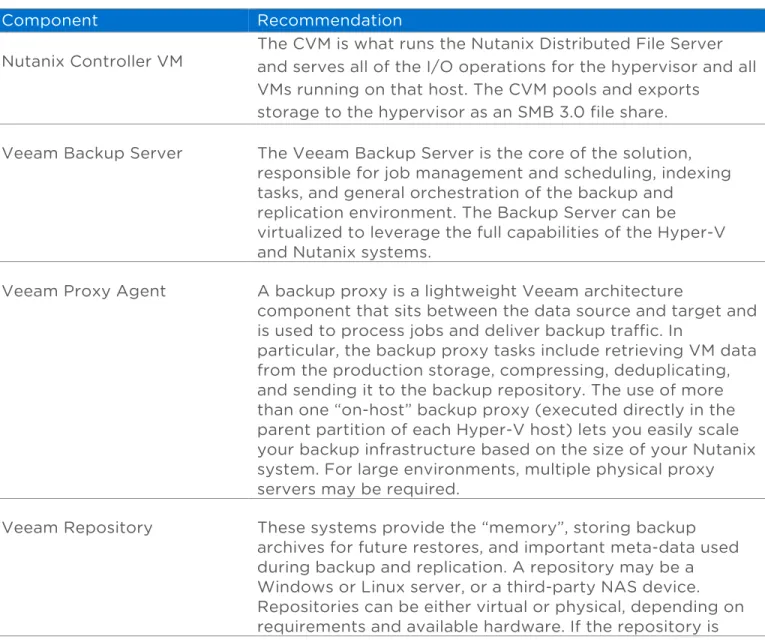
Tables 1 and 2 describe the different components and virtualization/guest OS related technologies for the joint solution.
Table 1: Backup Components
Component Recommendation
Nutanix Controller VM The CVM is what runs the Nutanix Distributed File Server and serves all of the I/O operations for the hypervisor and all VMs running on that host. The CVM pools and exports
storage to the hypervisor as an SMB 3.0 file share. Veeam Backup Server The Veeam Backup Server is the core of the solution,
responsible for job management and scheduling, indexing tasks, and general orchestration of the backup and
replication environment. The Backup Server can be virtualized to leverage the full capabilities of the Hyper-V and Nutanix systems.
Veeam Proxy Agent A backup proxy is a lightweight Veeam architecture
component that sits between the data source and target and is used to process jobs and deliver backup traffic. In
particular, the backup proxy tasks include retrieving VM data from the production storage, compressing, deduplicating, and sending it to the backup repository. The use of more than one “on-host” backup proxy (executed directly in the parent partition of each Hyper-V host) lets you easily scale your backup infrastructure based on the size of your Nutanix system. For large environments, multiple physical proxy servers may be required.
Veeam Repository These systems provide the “memory”, storing backup archives for future restores, and important meta-data used during backup and replication. A repository may be a Windows or Linux server, or a third-party NAS device. Repositories can be either virtual or physical, depending on requirements and available hardware. If the repository is
virtual, it should not be stored in the same Nutanix cluster as production data to provide fault domain isolation.
Table 2: Backup Technologies
Technology Recommendation
Microsoft VSS Microsoft Volume Shadow copy Service (VSS) is a built-in Microsoft framework for application-consistent backups. Built into Windows, VSS enables the creation of a
consistent snapshot of application data, such as Microsoft Exchange, SQL, Active Directory, or the NTFS file system. Veeam and Nutanix can leverage VSS to ensure application-consistent backups for VSS-aware applications.
Microsoft VSS Provider Providers manage data volumes and create the shadow copies of them on demand. There are three types of providers: system, software, and hardware. All providers must be able to do the following:
• Intercept I/O requests between the file system and
the underlying mass storage system.
• Capture and retrieve the status of a volume at the
time of shadow copy, maintaining a "point in time" view of the files on the disk with no partial I/O operations reflected in its state.
• Use this "point in time" view to expose a virtual
volume containing the ‘shadow copy’ data.
• Nutanix supplies a VSS provider to enable
application-consistent snapshots.
Microsoft VSS Requester A requester is any application that uses the VSS API to request the services of the Volume Shadow Copy Service to create and manage shadow copies and shadow copy sets of one or more volumes. A backup application, such as Veeam Backup & Recovery, is the primary requester type. Microsoft VSS Writer Writers are applications or services that store persistent
information in files on disk and that provide the names and locations of these files to requesters by using the shadow copy interface. Examples of applications that have VSS writers are Microsoft Exchange and Active Directory. You can list VSS writers by using the vssadmin list writers command.
3.2
Veeam Server Sizing
Sizing Veeam Backup & Replication servers is dependent on the number of concurrent jobs, total number of VMs, and the estimated size of the repository. The sizing guidelines in Table 3 below are the minimum recommended by Veeam at time of publication. The proxy
servers can be deployed into the Hyper-V parent partition or on physical servers. Both deployment models are viable, and the chosen solution is dependent on customer requirements and available hardware.
A general rule of thumb for a physical proxy is 1 core per 50 VMs. But this number is greatly dependent on the size of VMs and number of concurrent backups. Proper testing for your environment is critical to ensure backup windows can be met. The Veeam Backup & Repository server may need to upsized for environments with specific needs. Refer to Veeam Backup & Replication v8 documentation for additional details on sizing.
Table 3 Veeam Sizing Recommendations
Veeam Technology Recommendation
Veeam Backup Proxy Sizing should be tested in the customer environment to verify the backup window can be met. Hyper-V Parent Partition: The lightweight agent runs in the parent partition, so no specific resource allocation is required.
Physical: 1 CPU core for every 50 VMs
(recommended minimum 4 cores) and 4GB RAM.
Veeam Backup Server 4GB of RAM plus 500MB of RAM for each concurrent job. Disk space: 2GB for product, plus 10GB per 100 VMs for guest file system catalog, and at least 10GB for VM recovery cache folder. Additional sizing considerations should be applied if the backend SQL server is deployed on this server. See the Veeam documentation for additional guidance. Veeam Repository It can be co-located with the backup server role for small
deployments, or on a dedicated server (physical or virtual Windows/Linux server, NAS device, or dedicated backup appliance), and requires sufficient free space to store all backup job data. If virtualized on Nutanix, the repository should reside in a secondary Nutanix cluster for fault domain isolation.
3.2.1
Nutanix VSS Provider
Starting with Nutanix NOS 3.5.4, VSS integration is available to customers with Hyper-V deployments. This is a major advancement in Hyper-V support, which Veeam Backup & Replication can leverage. NOS 3.5.4 and later supports VSS integration and only requires
administrators join the Nutanix platform to the Windows domain using the ncli cluster join-domain command. See the Nutanix NOS upgrade guide for additional details.
Nutanix platforms leverage the Server Message Block (SMB) Protocol 3.0 to provide shared access to files between the Nutanix CVM and Hyper-V. For deployments leveraging
Microsoft VSS on Hyper-V for application consistency, the Nutanix platform supports up to 50 VMs per Nutanix container, but requires a gflag tuning parameter for support. Please engage Nutanix Support to optimize the gflag parameter for VSS optimization. There is no limit to the number of VMs per container for deployments not leveraging VSS.
3.3
Deployment Model
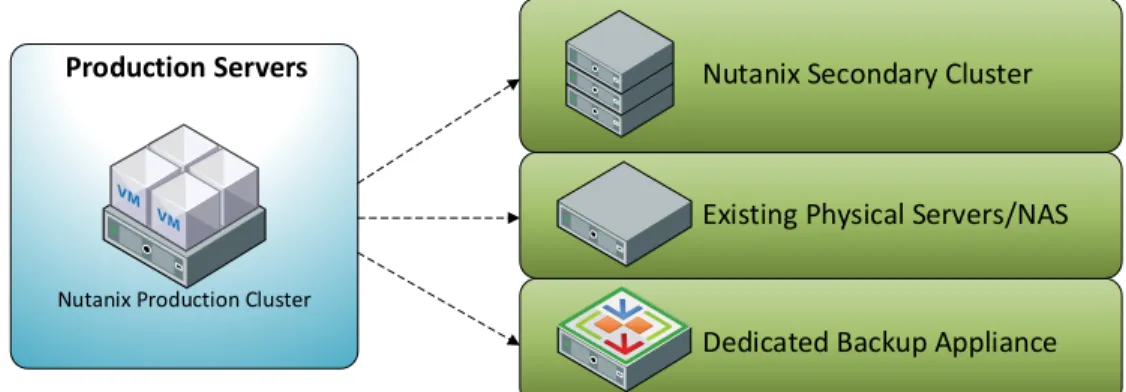
As shown in the figure below, Veeam supports the repository server using a variety of targets, including a secondary Nutanix system, existing physical servers, NAS, or dedicated backup appliances. The following two sections provide guidance for two of the scenarios: 1) 100% virtualized solution on Nutanix; and 2) leveraging an existing physical backup/proxy server. A hybrid scenario is also viable where there is a physical Veeam repository server (when tape vaulting is required, for example), but virtualized proxy VMs are used. This can be a good approach if physical hardware is limited, as performance can be easily
determined. The defined backup window may be a big factor in determining how much, if any, of the Veeam infrastructure to virtualize.
Figure 1: Veeam Backup & Replication Repository Options
3.3.1
Virtualized Veeam on Nutanix
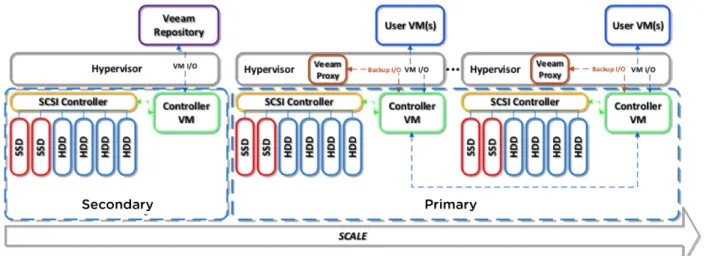
The following figure shows the recommended scale-out model for Veeam Backup &
Replication. In each Hyper-V parent partition, a lightweight Veeam Proxy agent is deployed along with the Nutanix VSS provider, which will process all of the VMs currently running on that node. All VM data is read from the local storage, then compressed and deduplicated data is sent over the network to the Veeam repository. Only a single Veeam Backup & Replication VM is required for this configuration, as the Veeam on-host proxy agent is installed directly on the hypervisor parent partition.
Nutanix(Secondary(Cluster
Existing(Physical(Servers/NAS
Dedicated(Backup(Appliance Production*Servers
Figure 2: Example of Virtualized Veeam Deployment Model on Nutanix (partial view of the cluster)
If a 100% virtualized solution on Nutanix is deployed, placing the Veeam repository server in a secondary Nutanix system is recommended for disaster recovery. This provides maximum protection from a complete production system failure and allows scaling out the backup repository independent of the production VMs. If your organization has multiple remote locations which need to replicate to a centralized location, a Nutanix system as a replication target is also an ideal solution. Starting with Nutanix OS 4.0, customers can leverage the Nutanix Prism Central functionality to manage multiple Nutanix systems across different locations.
Multiple Veeam proxies will perform concurrent backups, thus enabling NDFS-style linear scale-out backup performance. The Nutanix model preserves performance over time by evenly distributing the backup workload across all nodes. When Proxy servers complete one disk, the next local disk is then processed until all local VMs are fully backed up.
3.4
Physical Veeam Server
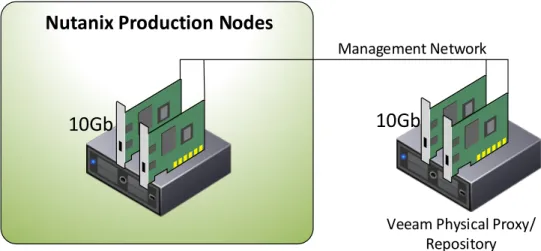
As an alternative to deploying a virtualized Veeam repository, the figure below shows a notional topology for a physical Veeam configuration. In this example, all Veeam roles (backup, proxy, and repository) are co-located on a single physical server. Situations requiring backup to tape will require a physical dedicated "tape server" role.
As per best practice, each Nutanix node should have the Hyper-V management interface configured to use the two 10GbE NICs. This enables optimal backup performance, versus using the 1Gb NICs. The physical Veeam server should also have dual 10Gb NICs, and be connected to the same layer-2 network as the Hyper-V management network. The physical server should meet the minimum Veeam sizing requirements, based on the number of VMs you are backing up and concurrent jobs. In larger environments, multiple Veeam proxies may be required to meet backup window or storage capacity requirements.
Veeam%Physical%Proxy/ Repository
Nutanix(Production(Nodes
10Gb
10Gb
Management%Network
Figure 3: Physical Veeam Topology
3.5
Veeam Restore Options
Veeam features fast recovery activities on Hyper-V, leveraging the access to the parent partition of any Hyper-V host. First, Veeam Backup & Replication reads the VM
configuration from the backup file in the repository and creates a dummy VM with the same settings and empty disks on the destination host. Then, it initiates the creation of a
protective snapshot for the dummy VM and the VM is started. If the Instant VM Recovery process fails for some reason, the protective snapshot guarantees that no data is lost. On the backup repository and on the destination host, Veeam Backup & Replication deploys a pair of Veeam transport services that are used to mount the VM disks from the backup file to the dummy VM.
Finally, on the destination host, Veeam Backup & Replication starts a proprietary Veeam driver. The driver redirects requests to the file system of the recovered VM (for example, when a user accesses some application) and reads necessary data from the backup file on the backup repository via the pair of Veeam transport services which maintain the disk mount. This process is fully supported on the Nutanix platform.
This technology is used to perform the following tasks: o Recovery Verification (SureBackup, SureReplica) o Instant VM Recovery
o Universal Application-Item Recovery (U-AIR)
Nutanix and Veeam Backup & Replication enables you to perform both image-level and file-level restores of backups and replicas. You can restore a virtual machine as a whole to start it on the target Hyper-V server, recover only VM hard disks, VM files, or VM guest OS files and folders, and save them on your local machine. VMs or files can be restored at any of the available restore points. All restores are performed via the network, and no special
4
Configuration Details
This section provides specific instructions on how to configure Veeam Backup & Replication to follow best practices for a deployment on the Nutanix Virtual Computing Platform. A basic familiarity with Veeam and Hyper-V is assumed. When deploying the Veeam servers, use the latest approved Windows operating system for your environment. Nutanix and Veeam recommend using Windows Server 2012 R2, but this is not required.
4.1
Veeam Configuration Optimization
1. Install Veeam Backup & Replication v8 patch 1 (or later) on the backup server, version 8.0.0.971. (See Veeam KB1982 for more details.)
4.2
Veeam Backup Proxy Configuration
1. If you want to use On-Host proxies, there is no dedicated installation for this proxy type. Each Hyper-V host you add and configure to Veeam Backup & Replication automatically becomes also a Veeam On-Host proxy.
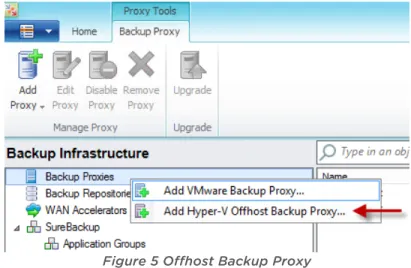
2. If you want to use a physical proxy, launch Veeam Backup & Recovery and navigate to the Backup Infrastructure window. Right click on Backup Proxies and select Add Hyper-V Offhost Backup Proxy.
Figure 5 Offhost Backup Proxy
3. Click on Add New and enter the DNS name of the physical proxy. If not already configured, add a Managed Account that has local administrator rights on the physical proxy.
4. If a firewall is running on the proxy, verify that 137/UDP, 138/UDP and 139/TCP are open. If you are using the Windows firewall, enable the following three rules shown in
Figure 6 Windows Firewall Rules to Enable
5. Click through the rest of the wizard until you get to the Server screen and change the Max concurrent tasks to 2.
Figure 7 Maximum Concurrent Tasks
6. Accept the defaults for the remainder of the wizard and wait for the proxy to install.
4.3
Veeam Backup Methods
Veeam and Nutanix recommend using the new forever forward incremental backup method. This is the new default method for newly created jobs in Veeam Backup & Replication v8, and can be selected also for existing jobs if upgrading from previous
versions. In this scenario, a full backup is performed on day one, then incremental backups are performed for all subsequent days. The day-one backup may have lower throughput, due to reading all of the VM data that may be in the storage tier, versus the performance SSD or RAM tiers.
Figure 8 Forever Forward Incremental Backup
This backup method offers the ability to execute forever incremental backups on the production storage, thus minimizing the load on the Nutanix cluster. At the same time, it offers the best space utilization on the backup repository, since only one full backup file is stored at any time. When reaching the desired retention period, the oldest incremental file is injected into the full backup file. This additional disk activity is created into the backup repository itself, while any vSphere snapshot has already been removed. In this way, no additional load is created on the production Nutanix cluster.
Refers to Veeam documentation for further design considerations.
4.4
Veeam Job Configuration
During the backup job configuration, ensure that the default of using “on-host backup” proxy is selected.
Figure 9 On-Host Backup Configuration
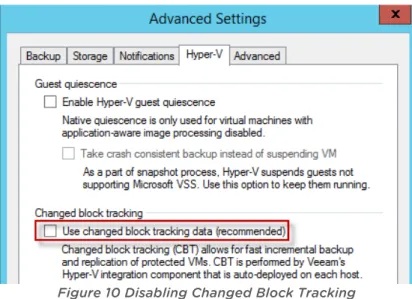
For each backup job which you configure that is located on a Nutanix SMB 3.0 container, go into the advanced settings and ensure that the changed block tracking box is UN-checked. This is not supported on Nutanix, as the technology is only compatible with Windows file servers.
Figure 10 Disabling Changed Block Tracking
If you want to leverage VSS for application consistency, then in each backup job be sure to check the box and provide the required credentials for the guest VMs. The Veeam server will require network access to the guest VMs with this option, which the default Windows firewall rules may block. Refer to the Veeam documentation for more detailed firewall requirements.
Figure 11 Enabling Application-Consistent Snapshots
When configuring your backup jobs, exclude the Nutanix CVMs and the Veeam Backup and Replication server (when virtualized) from the schedule. These VMs do not need to be backed up; you only need to save the Veeam Backup Configuration using a specific configuration option inside Veeam Backup Server, which is enabled by default. Configure your jobs to back up multiple VMs depending on your environment and infrastructure, so that parallel processing can be enabled for faster backups. Also, Veeam native
deduplication can be higher with an increased number of VMs inside the same job. There is no need to manually configure which proxy is used for VM backup operations, Veeam Backup Server will automatically distribute the VMs to be processed to all available proxies. Once all of the jobs are configured, monitor the jobs to ensure that each proxy is only backing up the VMs on its host. This can be easily validated by opening the Veeam job console, locating the VM name, and reviewing the job log in the GUI. Look for the text Using backup proxy. Proxies can backup off-host VMs if a local proxy is not available for any VMs in the job schedule.
4.5
Nutanix Configuration
Upgrading the cluster(s) to 3.5.4 (or later) is required to enable VSS functionality. You must also join the Nutanix system to the Windows domain for the VSS integration. See the
Nutanix upgrade documentation for details.
For deployments leveraging Microsoft VSS on Hyper-V for application consistency, the Nutanix platform supports up to 50 VMs per Nutanix container but requires a gflag tuning parameter for support. Please engage Nutanix Support to optimize the gflag parameter for VSS optimization. There is no limit to the number of VMs per container for deployments not leveraging VSS.
5
Best Practice Checklist
The Veeam Backup & Replication v8 on Nutanix best practices can be summarized into the following items:
General
o When deploying the Veeam Backup & Replication server, use the latest approved Windows operating system for your environment. You must use Hyper-V on Windows Server 2012 R2 to leverage the Nutanix VSS provider. Windows Server 2008/2008 R2/2012 Hyper-V hosts do not support the required SMB 3.0 VSS features.
o The server(s) hosting the Veeam repository can be running older operating systems such as Windows Server 2012, or 2008 R2. You should verify compatibility with the Veeam documentation. In any case, Veeam suggests a 64 bit Windows operating system.
o Start with a Proof of Concept, test, optimize, iterate, and scale.
o Validate guest VM firewall rules if you want Veeam to leverage in-guest VSS capabilities.
Veeam Components
o Use Veeam Backup & Replication v8 patch 1 (build 8.0.0.971) or later. o Use forever forward incremental backups. Avoid active full backups.
o Deploy the lightweight Veeam Proxy agent into each Hyper-V parent partition. o Do not backup the Nutanix CVMs or any Hyper-V parent partitions.
o Verify the default of “on-host backup” is selected for all backup jobs. o Configure the Veeam jobs to back up more than one VM to enable parallel
processing and enhanced deduplication ratios.
o Verify backup jobs are using the “on-host” proxy backup method. To verify this, review the backup job history, select a VM in the left pane, and in the middle Action pane look for “using source proxy” and verify “on-host” is used.
o Configure the jobs to enable application-aware image processing if you want VSS-enabled backups.
Nutanix Components
o Upgrade Nutanix clusters to NOS 3.5.4 or later.
o Join the Nutanix clusters to the Windows domain to enable VSS integration. When leveraging VSS, contact Nutanix support to set the gflag to increase support up to 50 VMs per container.
o If more than 50 VMs need to be backed up with VSS, create additional containers as needed.
6
Conclusion
The Nutanix and Veeam Backup & Replication v8 solution provides the best of many worlds: industry-leading performance with the ability to scale out your backup solution as you grow your Nutanix solution. Of the converged architectures in the market today, none can truly provide the optimal configuration for all workloads and allow scale-out backup
7
Appendix
7.1
Table of Figures
Figure 1: Veeam Backup & Replication Repository Options ... 8!
Figure 2: Example of Virtualized Veeam Deployment Model on Nutanix (partial view of the cluster) ... 9!
Figure 3: Physical Veeam Topology ... 10!
Figure 4: Veeam Restore Process ... 10!
Figure 5 Offhost Backup Proxy ... 12!
Figure 6 Windows Firewall Rules to Enable ... 13!
Figure 7 Maximum Concurrent Tasks ... 13!
Figure 8 Forever Forward Incremental Backup ... 14!
Figure 9 On-Host Backup Configuration ... 14!
Figure 10 Disabling Changed Block Tracking ... 15!
Figure 11 Enabling Application-Consistent Snapshots ... 15!
7.2
Table of Tables
Table 1: Backup Components ... 5!Table 2: Backup Technologies ... 6!
7.3
Meet the Authors
Derek Seaman is a senior solutions and performance engineer at Nutanix, Inc., VMware Certified Design Expert (VCDX) #125, and a multi-year VMware vExpert. In this role, Derek helps design architectures combining applications with the Nutanix platform, creating solutions that solve critical business needs and requirements, while disrupting the infrastructure space.
Prior to joining Nutanix, Derek was an IT architect at the global leader in wireless chip technology where he was focused on deploying secure infrastructure solutions to support the development of solutions for the U.S. Government. In these spaces, he has developed methodologies, reference architectures, and frameworks focusing on the design and
transformation to agile, scalable, and cost-effective infrastructures which can be consumed in a service-oriented or cloud-like manner.
Follow Derek on Twitter at @vDerekS
Luca Dell’Oca is an EMEA evangelist at Veeam Software. Based in Italy, Luca is a popular blogger and an active member of the virtualization community. At Veeam, Luca creates and publishes valuable content about the latest technologies and business trends in
virtualization, with a deep focus on VMware, storage, and data protection for service providers and large enterprises. He engages customers and peers during webinars and public events to help them learn about modern data protection and how Veeam solutions can help them.
Luca’s career started in information security before focusing on virtualization. Prior to joining Veeam, Luca was a data protection manager and virtualization architect at a service provider, where he refined his skills and knowledge about always-on business and the requirements of such demanding environments, while helping customers to embrace the “cloud revolution”.
Luca holds VCAP5-DCD and CISSP certifications, and he has become the first worldwide VMCE (Veeam Certified Engineer).