faxing simplified. anytime. anywhere.
Outlook
™
Plug-in
MyFax Send Fax Plug-in
The MyFax® Send Fax Plug-in is an add-in for Microsoft Outlook® that places a Send Fax button on the toolbar, enhancing the
experience of sending faxes with MyFax. It includes support for:
Sending Faxes using Outlook Address Book
Managing the MyFax Password
Using Cover Pages
Adding a Billing Code
Specifying Legal Size Paper
Requirements:
Microsoft® Outlook 2000, Outlook 2002, Outlook 2003 for Windows®.
Installation Instructions
1. Download the Plug-in from the MyFax website: http://www.MyFax.com
2. Make sure that Outlook is not running. Run the executable file: MyFaxPlugin.exe 3. Follow the Installation package instructions.
Setup
The only setup required with the MyFax Send Fax Plug-in is to specify whether your MyFax account requires a password when sending faxes by email.
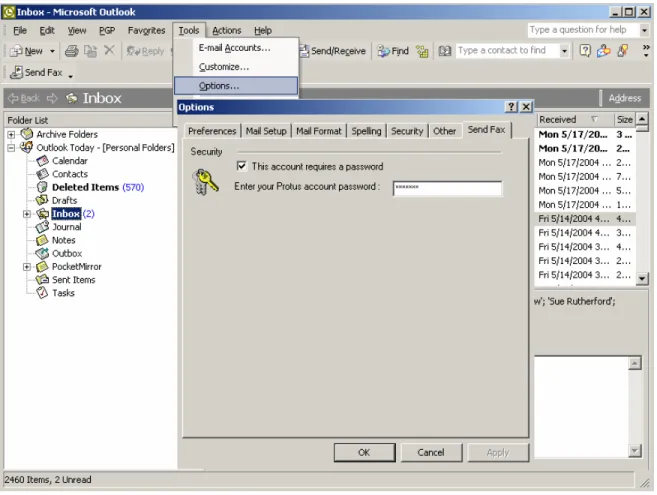
1. Select Tools on the Outlook main menu.
2. Select Options on the drop-down menu.
3. Click on the Send Fax tab.
4. Click the box to specify if your account requires a password. If it does not, leave the check box empty.
5. If your account does require a password, enter your MyFax account password in the box provided. Whenever you send a fax using the MyFax Send Fax Plug-in, your password will be automatically included, so you don’t need to type it.
Sending a Fax with the Send Fax Plug-in
1. Instead of opening a new email message, as described in the MyFax User Guide, click on the new Send Fax button which appears directly below your Outlook toolbar. This opens a message window specifically tailored for sending faxes.
2. Enter the destination Fax Number and Name. This can be done in one of two ways: a. Type the Fax Number and Name directly in the box provided.
b. Click the <Fax Number> button, and select a contact from your address book. Note: The fax number must start with the country code (“1” for North America).
3. If you have documents to attach, click the Insert… button. This will open a standard browser window for you to select your document. Repeat this as often as desired, up to a total of eight attached documents. If you have made a mistake attaching documents, you can click Clear and start over.
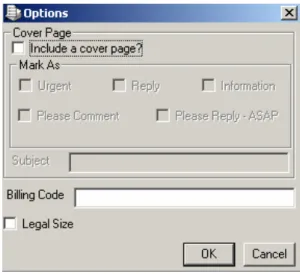
4. If you wish to use any optional features, such as cover page, billing code, or legal size paper, click Options, and follow the instructions below. Click OK in the Options window when done.
Options
Adding a Cover Page
1. On the Options Window, in the Cover Page section, click Include a cover page?.
2. Select any of the desired Mark As boxes. These correspond to the check boxes on the actual cover page when sent.
3. Type the text to appear on the Subject line of the cover page, if desired.
4. Note that whatever text is typed in the main area of the New Fax window will appear in the Comments section of the cover page.
Adding a Billing Code
1. Type an Alphanumeric Billing Code in the box provided in the Options window. This is a code that will appear on reports, but not on the faxed document.
Specifying Legal Size Paper
1. If the attached document(s) you wish to fax require legal size paper, indicate that by checking the Legal Size box in the
Options window.
Note: The Cover page, and any text typed in the main area of the New Fax window will always fax as letter size paper.
Outlook 2003 Security Warning
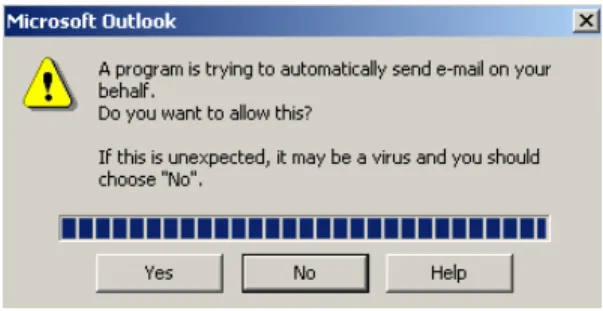
Note that Outlook 2003 will pop up a security warning that “A program is trying to automatically send e-mail on your behalf…”. This is a security feature of Outlook 2003. When this occurs, simply click Yes in order to send your fax.
Figure 5 - Outlook 2003 Security Warning
About MyFax
MyFax is the fastest growing Internet fax service used by individuals, small, medium, and large businesses to send and receive faxes using existing email accounts or the web. MyFax offers services in North America and Europe, including the United Kingdom, to industries recognized among the fastest
Sue Rutherford
Director, Marketing Communications 613.733.0000 ext.519 MyFax: 613.234.4614 Cell: 613.852.0460 Toll Free: 1.888.733.0000 [email protected] 2379 Holly Lane, Suite 210
Ottawa, Ontario Canada K1V 7P2 www.protus.com