Dell
™
Unified Communications Command
Suite - Analytics 8.1
© 2015 Dell Inc. ALL RIGHTS RESERVED.
This guide contains proprietary information protected by copyright. The software described in this guide is furnished under a software license or nondisclosure agreement. This software may be used or copied only in accordance with the terms of the applicable agreement. No part of this guide may be reproduced or transmitted in any form or by any means, electronic or mechanical, including photocopying and recording for any purpose other than the purchaser’s personal use without the written permission of Dell Inc.
The information in this document is provided in connection with Dell products. No license, express or implied, by estoppel or otherwise, to any intellectual property right is granted by this document or in connection with the sale of Dell products. EXCEPT AS SET FORTH IN THE TERMS AND CONDITIONS AS SPECIFIED IN THE LICENSE AGREEMENT FOR THIS PRODUCT, DELL ASSUMES NO LIABILITY WHATSOEVER AND DISCLAIMS ANY EXPRESS, IMPLIED OR STATUTORY WARRANTY RELATING TO ITS PRODUCTS INCLUDING, BUT NOT LIMITED TO, THE IMPLIED WARRANTY OF MERCHANTABILITY, FITNESS FOR A PARTICULAR PURPOSE, OR NON-INFRINGEMENT. IN NO EVENT SHALL DELL BE LIABLE FOR ANY DIRECT, INDIRECT, CONSEQUENTIAL, PUNITIVE, SPECIAL OR INCIDENTAL DAMAGES (INCLUDING, WITHOUT LIMITATION, DAMAGES FOR LOSS OF PROFITS, BUSINESS INTERRUPTION OR LOSS OF INFORMATION) ARISING OUT OF THE USE OR INABILITY TO USE THIS DOCUMENT, EVEN IF DELL HAS BEEN ADVISED OF THE POSSIBILITY OF SUCH DAMAGES. Dell makes no representations or warranties with respect to the accuracy or completeness of the contents of this document and reserves the right to make changes to specifications and product descriptions at any time without notice. Dell does not make any commitment to update the information contained in this document.
If you have any questions regarding your potential use of this material, contact: Dell Inc.
Attn: LEGAL Dept 5 Polaris Way Aliso Viejo, CA 92656
Refer to our web site (software.dell.com) for regional and international office information.
Trademarks
Dell and the Dell logo are trademarks of Dell Inc. Microsoft, Active Directory, ActiveSync, Lync, and Skype are either registered trademarks or trademarks of Microsoft Corporation in the United States and/or other countries. Cisco and the Cisco logo are trademarks or registered trademarks of Cisco and/or its affiliates in the U.S. and other countries. Other trademarks and trade names may be used in this document to refer to either the entities claiming the marks and names or their products. Dell disclaims any proprietary interest in the marks and names of others.
UCCS - Analytics Deployment Guide Updated - June 2015
Software Version - 8.1 Legend
CAUTION:A CAUTION icon indicates potential damage to hardware or loss of data if instructions are not followed.
WARNING:A WARNING icon indicates a potential for property damage, personal injury, or death.
Contents
Prerequisites for your installation . . . 6
Overview . . . 6
Supported environments . . . 6
Supported browsers . . . 7
Architecture . . . 7
Information stored by the Storage Engine . . . 7
Deployment options . . . 9
Hardware minimum requirements . . . 9
Suggested hardware configurations for different size environments . . . 9
Software prerequisites . . . .11
Prerequisites for the UCCS - Analytics services . . . .11
Web site prerequisites . . . .11
Planning for deployment . . . .12
Determining where to install components . . . .12
Credential permissions needed to collect data from different data sources . . . .14
Active Directory credentials prerequisites . . . .14
Exchange credentials prerequisites . . . .14
Lync credential prerequisites . . . .16
Cisco credential prerequisites . . . .17
Office 365 credential prerequisites . . . .17
About UCCS - Analytics configuration . . . .18
Installing UCCS - Analytics . . . 19
Types of installations . . . .19
About upgrades . . . .19
About a pilot installation . . . .19
About a production installation . . . .20
Rules when performing a distributed installation . . . .20
Considerations before you install . . . .20
Accounts required during installation . . . .21
Performing a pilot installation . . . .21
Performing a production installation . . . .22
Installing additional Storage Engine services after installation . . . .24
Setting up the web site for HTTPS on IIS 7.0 . . . .24
Configuring UCCS - Analytics . . . 26
About administration settings . . . .27
How do I set a user to be a product administrator? . . . .27
Configuration process overview . . . .28
Verifying the initial target environment . . . .28
About the Authentication Credential . . . .29
Adding a target environment for native Office 365 . . . .30
Adding and configuring data sources . . . .30
About data collections . . . .31
How often do collections update the data? . . . .31
Creating an Active Directory collection . . . .32
Creating an Exchange configuration collection . . . .33
Best practices for gathering performance . . . .34
Can I enter the Domain Users group as the target for the data collection? . . . .35
Troubleshooting the Exchange configuration collection . . . .35
Creating an Exchange tracking log collection . . . .36
About collecting historical tracking logs . . . .36
Creating a mailbox contents (EWS) collection . . . .37
Tips for better performance for mailbox contents collection . . . .38
Do I need both Exchange tracking log and mailbox contents (EWS) collections? . . . .39
Creating an Exchange IIS Logs collection . . . .40
Creating a Lync configuration collection . . . .41
Creating a Lync CDR database collection . . . .42
Creating a Lync QoE database collection . . . .42
Creating a Cisco configuration collection . . . .43
Creating a Cisco CDR log collection . . . .44
Creating an Exchange Online user configuration collection . . . .44
Creating a Exchange Online mailbox contents (EWS) collection . . . .45
Setting the time period for retaining data . . . .46
Setting the start date for data collection . . . .46
Viewing the collection status information . . . .46
When would I use the Delete Data option? . . . .46
Renaming a data source . . . .47
Identifying internal domains and classifying domains . . . .47
Guidelines when specifying domains . . . .48
Setting call classifications for Lync and Cisco . . . .48
About specifying Lync Enterprise Voice call classifications . . . .48
About specifying Cisco call classifications . . . .49
Granting users access to data . . . .50
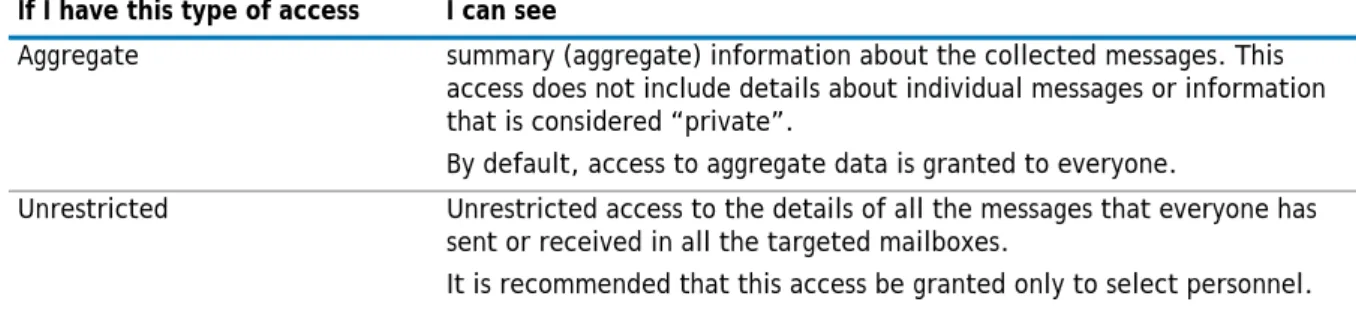
Differences between aggregate and unrestricted access . . . .50
About target environments . . . .51
To grant full access to admin settings . . . .51
To grant access to specific collected data . . . .51
Managing how data is queried . . . .53
Setting chargeback costs for Exchange and Lync . . . .53
Setting chargeback costs for Cisco . . . .54
Viewing UCCS - Analytics . . . .54
Changing formats for date, time, and digit separators . . . .55
Overriding the time zone offset . . . .55
Specifying the SMTP relay server . . . .56
Making changes to your deployment . . . 57
Managing your deployment . . . .57
Operational notes . . . .58
Deploying additional Storage Engines . . . .58
Bundling log files for Dell Support . . . .58
Appendix A: Configuring Impersonation . . . 60
Setting impersonation for Exchange 2013 . . . .60
Setting impersonation for Office 365 . . . .60
Appendix B: Configuring Lync Server . . . 62
Configuring Lync Server 2010 . . . .62
1. Adding the SQL store for monitoring . . . .62
2. Installing the Monitoring role . . . .62
3. Enabling Call Detail Recording (CDR) . . . .63
4. Starting the monitoring services . . . .63
Configuring Lync Server 2013 . . . .63
Prerequisite . . . .63
1. Associating the store with the Front-End pool . . . .64
2. Updating the Lync Server . . . .64
3. Enabling and configuring monitoring . . . .64
4. Starting the monitoring services . . . .65
Appendix C: Configuring IIS Log Files . . . 66
Configuring IIS Logging on the Exchange CAS Server . . . .66
Configuring IIS Logging if Exchange is hosted on Windows Server 2008 or later . . . .67
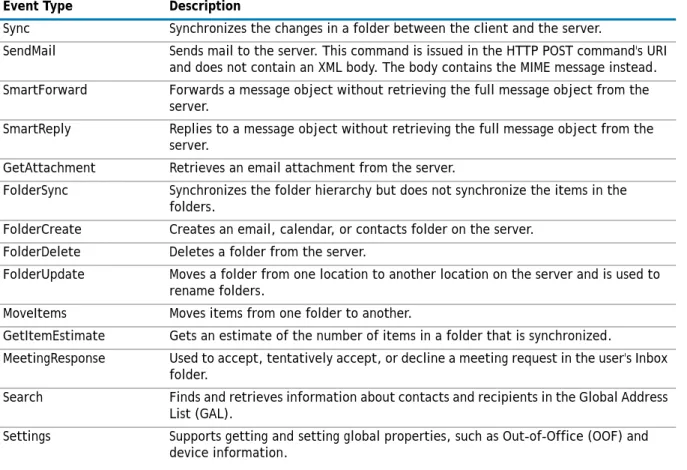
What ActiveSync events are collected and displayed in the insights? . . . .68
Appendix D: Custom configurations and recovery recommendations . . . 70
Moving your storage location . . . .70
Recommendations for disaster recovery . . . .71
Setting up for multi-forest environment with a one-way trust . . . .72
Contacting Dell . . . .73
1
Prerequisites for your installation
• Overview• Supported environments
• Architecture
• Deployment options
• Hardware minimum requirements
• Software prerequisites
• Planning for deployment
• Determining where to install components
• Credential permissions needed to collect data from different data sources
Overview
Unified Communications Command Suite – Analytics provide dynamic just-in-time analytics about your Exchange on-premise messaging environments, about your Lync on-premise environments, about your Cisco environments, and about Office 365 Exchange Online hybrid or native environments. UCCS - Analytics unlock the business intelligence in your corporate messaging system to enable better business decisions.
Predefined insights provide a simple way to view Exchange messaging volumes and details between individuals, groups, and external entities, and to see peer-to-peer session and conference information for your Lync or Cisco. You can also view the quality information about Lync enterprise voice calls and peer-to-peer sessions. You can select predefined insights from the insight library and add them to your personal dashboard. Once UCCS - Analytics is installed, access the UCCS - Analytics home page, at the following location:
http://<ServerName>/Analytics/
Supported environments
You can use UCCS - Analytics to collect data from the following environments:
• Microsoft Exchange 2007 (SP1 and later)
• Microsoft Exchange 2010 (SP1 and later)
• Microsoft Exchange 2013
• Microsoft Lync 2010
• Microsoft Lync 2013
• Cisco Unified Communications Manager (CUCM) 8.6 and later
Supported browsers
Once you have installed UCCS - Analytics, you can access the web site from anywhere using one of the following browsers:
• Internet Explorer 9 or higher
• Mozilla Firefox
• Google Chrome
• Apple Safari
Since UCCS - Analytics uses Windows Integrated Authentication to connect to the web site, if you are on a different domain than the web site or are using an iPad, you will be prompted for your user name and password when you connect to the web site.
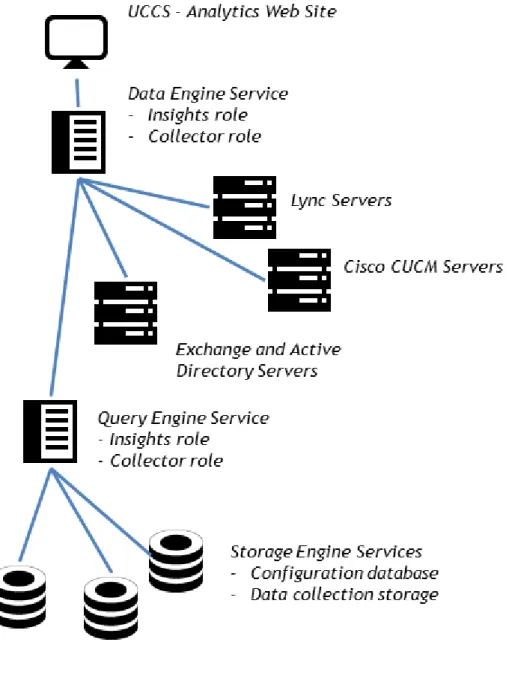
Architecture
The following are the main services that comprise UCCS - Analytics:
• Web site (IIS)
• Dell UCCS - Analytics Data Engine
• Dell UCCS - Analytics Query Engine
• Dell UCCS - Analytics Storage Engine
You can install all the services on a single computer or distribute the services across two or more computers. For a distributed installation, the Data Engine and the Query Engine can be divided into two different roles:
• collector role
• insights role
Information stored by the Storage Engine
Data is gathered from Active Directory, from Exchange mailboxes through EWS (Exchange Web Services) and from Exchange tracking logs, from Exchange ActiveSync logs, from Lync CDR and QoE databases, and from Cisco Unified Communications Manager server and from Cisco CDR logs.
The Storage Engine service is used to store the collected information:
• user, group, and Data Loss Prevention (DLP) policy information from Active Directory using LDAP.
• Exchange message traffic information gathered from Exchange message tracking logs.
• Exchange message information gathered through EWS (Exchange Web Services).
• Data Loss Prevention (DLP) policy rule matches collected from Exchange message tracking logs.
• Exchange and Lync configuration information from PowerShell and Active Directory
• mobile device information from Exchange IIS ActiveSync logs
• Lync peer-to-peer session and conference data collected from the Lync Call Detail Recording (CDR) database.
• Lync QoE (Quality of Experience) information from the Lync QoE database.
• Cisco configuration end-user data from the Cisco Unified Communications Manager (Call Manager) server and user data from Active Directory (LDAP).
• Cisco peer-to-peer and conference data collected from the Cisco Call Detail Recording (CDR) log files.
• Exchange Online user configuration and message data collected from mailboxes in a native Office 365 deployment.
Deployment options
There are two main options for installing UCCS - Analytics:
• Pilot deployment—all components on a single computer, simple configuration.
• Production deployment—components can be distributed across several computers:
• Web site & Data Engine (insights role)
• Data Engine (collector role)
• Query Engine (collector role and insights role)
• multiple instances of the Storage Engine service.
If you install multiple Storage Engines, data is shared across the Storage Engines. There is no redundancy since only one copy of a specific piece of data is stored; no multiple copies of data are stored.
You install the Data Engine (insights role) and the web site on the same server for performance reasons.
Hardware minimum requirements
If you are installing UCCS – Analytics, the computer must meet the following minimum requirements:
Suggested hardware configurations for different size
environments
Generally you can install UCCS - Analytics on a single computer. For some large installations, you might have a distributed installation on two or more computers. The following examples show the estimated requirements for a single server installation.
For distributed installations, you can use the UCCS - Analytics Deployment Sizing.xlsx spreadsheet to see different options that can meet your environment’s needs. The spreadsheet can be found under Documentation in the autorun.exe.
Example 1: This example shows the suggested hardware requirements for a deployment with all the roles installed on a single computer. The environment from which data is to be collected has the following characteristics:
• # of AD users = 5000
• # of Exchange mailboxes = 5000
• # of Lync users = 5000
• # of Cisco users = 5000
• Retention period = 365 days
Table 1. Minimum requirements for hardware.
Type Minimum
Processor Minimum: Quad core 64-bit computer. RAM Minimum: 16 GB.
Disk • 5 GB for the application
• X GB where X is the required disk space for collected data
For estimates regarding the required disk space for the collected data for different numbers of users for all the platforms, see the UCCS - Analytics Deployment Sizing.xlsx
Example 2: This example shows the suggested hardware requirements for a larger installation with all the roles installed on a single server. The environment from which data is to be collected has the following
characteristics:
• # of AD users = 20000
• # of Exchange mailboxes = 20000
• # of Lync users = 20000
• # of Cisco users = 20000
• Retention period = 365 days
Example 3: This example shows the suggested hardware requirements for a larger installation with all the roles installed on a single server. The environment from which data is to be collected has the following
characteristics:
• # of AD users = 50000
• # of Exchange mailboxes = 50000
• # of Lync users = 50000
• # of Cisco users = 50000
• Retention period = 365 days
If you install the Storage Engine on a server with two disks, you should specify a directory on the non-operating system drive as the Storage Directory for the Storage Engine during installation.
Table 2. Shows the minimum requirements for the single server installation in Example 1.
RAM Required Disk Space
Minimum: 16 GB 430 GB
Table 3. Shows the minimum requirements for the single server installation in Example 2.
RAM Required Disk Space
36 GB 1.7 TB
Table 4. Shows the minimum requirements for the single server installation in Example 3.
RAM Required Disk Space
Software prerequisites
This section lists the prerequisites for the individual UCCS - Analytics components. If you want to install more than one component on a single server, you must ensure all the prerequisites for the components are met. The server on which UCCS - Analytics is installed must meet following minimum requirements:
Prerequisites for the UCCS - Analytics services
Dell UCCS - Analytics includes several services that are used to perform different activities. The following prerequisites must be met to install the following services:
• Data Engine service
• Query Engine Service
• Storage Engine Service.
Web site prerequisites
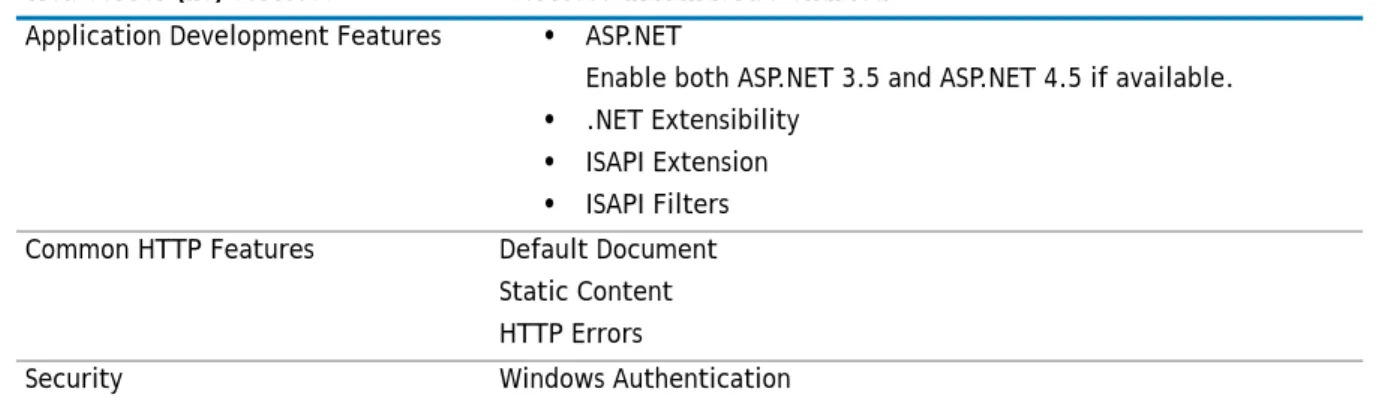
The Analytics web site requires IIS (Internet Information Services).
Under Internet Information Services (IIS), the World Wide Web Services must be installed. You install World Wide Web Services using Windows Features and enable the required services.
Table 5. Software requirements
Component Minimum Requirements
Operating Systems One of the following:
• Windows 7 (64 bit version) or later
• Windows Server 2008 R2 (Service Pack 1) or later
• Windows Server 2012 and later
Any server on which UCCS - Analytics components are installed must have a static IP address defined.
For a distributed deployment, the Remote Registry Service must be running.
Table 6. Prerequisites for Dell UCCS - Analytics services.
Service Minimum Requirements
Dell UCCS - Analytics Data Engine
service •• Microsoft .NET Framework 4.5 (full version) or laterTo collect Exchange configuration data for Exchange 2007, Exchange management tools are required on the computer on which the Data Engine service is installed.
Dell UCCS - Analytics Query Engine service
Dell UCCS - Analytics Storage Engine service
• 64-bit Java Runtime Environment (JRE) 1.7 or later
You can download the Java Runtime Environment (JRE) from the following web site: http://java.com/en/download/manual.jsp.
Under Web Management Tools, the following service must be enabled:
Planning for deployment
When you are planning your deployment, you must determine the number of servers on which you are installing components. For more information, see Suggested hardware configurations for different size environments on page 9.
You also must determine how much storage is required for the number of mailboxes from which you are collecting data. For more information, see Software prerequisites on page 11.
Determining where to install components
It is not recommended that you install any UCCS - Analytics components on the same server where core MessageStats is installed.
If you are installing the UCCS - Analytics components on several computers, consider the following information:
• Data collection performance is better if the Data Engine service is located near the Exchange server and to the Lync CDR database server.
• Ideally, you would install UCCS - Analytics on a computer that is in the same forest as the Exchange servers from which you are collecting data. However, you can install in a forest that is separate from the forest that contains your Exchange servers. For information about configuring multi-forest environments, see Adding multiple Active Directory forests on page 29.
• You can install UCCS - Analytics on a virtual machine (VM) but, to obtain optimal performance for a production installation, it is recommended that you install on a physical machine.
• The Storage Engine Service nodes automatically synchronize with each other. If you install multiple Storage Engine services, it is better to have them collocated when possible for performance reasons.
• It is best to have all the UCCS - Analytics services located as close as possible. At a minimum they should all be within the same site.
• For security considerations, all services are recommended to be installed within the intranet. For
Table 7. World Wide Web Services (IIS) services that must be enabled.
Web server (IIS) services Services that must be enabled
Application Development Features • ASP.NET
Enable both ASP.NET 3.5 and ASP.NET 4.5 if available.
• .NET Extensibility
• ISAPI Extension
• ISAPI Filters Common HTTP Features Default Document
Static Content HTTP Errors
Security Windows Authentication
Table 8. Web Management services that must be enabled.
Web Management tools Services that must be enabled
• For small to mid-size installations. UCCS - Analytics can be installed on a single computer.
• For large installations, use the recommended deployments provided in the installer. To help you select the right deployment for your environment, see Hardware minimum requirements on page 9.
Credential permissions needed to collect
data from different data sources
Using the Data Collection page, you specify credentials used to gather data Active Directory user data and Exchange message traffic and DLP information. You can create data collections to collect configuration data directly from Exchange and Lync servers.
In other data collections you specify credentials to collect conference and peer-to-peer session information from a Lync CDR database and QoE data from a Lync QoE database.
When you create the connection and specify the data sources, you can specify the accounts that are used for gathering Active Directory data, Exchange data, Lync data, and Cisco data.
Active Directory credentials prerequisites
The credentials that are used to collect Active Directory data must have the following permissions:
• Read permissions on all the Active Directory user, group and contact objects
Specifying the Active Directory collection credentials is optional if the Data Engine service credentials that you specified during installation have read permissions on the Active Directory user objects.
Exchange credentials prerequisites
To collect data from Exchange, you can create data collections to gather:
• Exchange configuration and mailbox properties using PowerShell and Active Directory LDAP queries
• message traffic and DLP rule match data from the Exchange tracking logs
• mailbox contents (using Exchange Web Service (EWS)
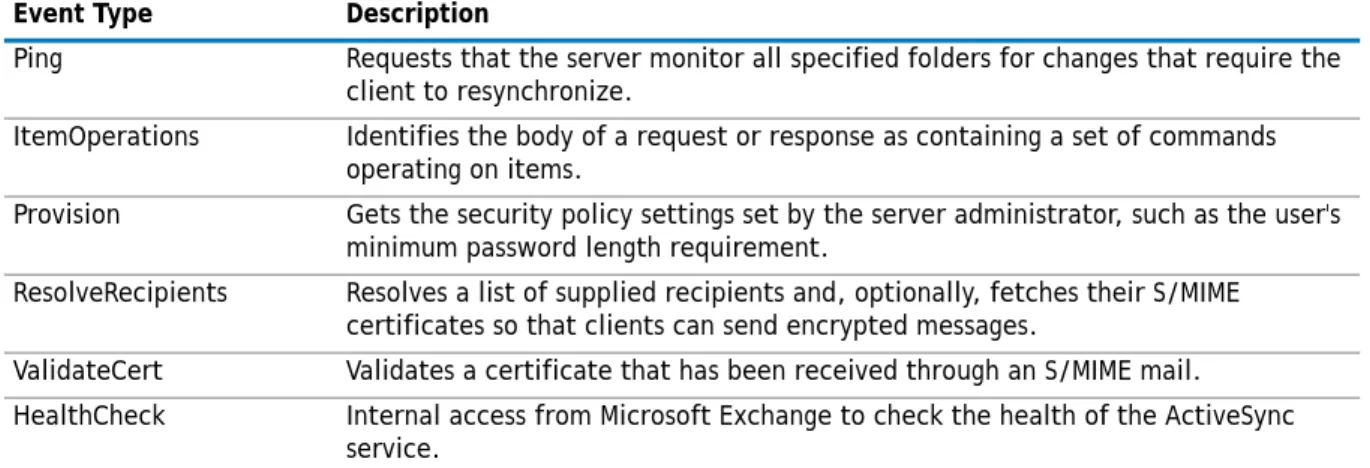
• Exchange ActiveSync information about mobile devices from IIS logs
In most collections, you have the option to use the credential that is specified for the Data Engine service. If you want to use that credential for your data collections, ensure it meets the following prerequisites.
Prerequisites to collect Exchange configuration
Any credentials that are used to collect Exchange configuration and mailbox properties through PowerShell and LDAP must be a member of the following security groups:
• View-Only Organization Management (View-Only Administrator for Exchange 2007)
• Public Folder Management (If a legacy public folder database is deployed)
Prerequisites to collect Exchange tracking logs
For Exchange tracking logs, the specified credentials are used to collect message traffic and DLP incident data from the Exchange message tracking logs. (DLP data is collected for Exchange 2013 only.) The credentials must have the following permissions:
• have access rights to the share that contains the Exchange message tracking logs
• be a member of the View-Only Organization Management security group You can gather Exchange message tracking logs from any of the following locations:
• From any file share that contains up-to-date Exchange tracking log copies. Original log files and compressed zip files (using either WinZip or Windows native compressed format) are supported in the share.
For information about gathering historical tracking logs from a centralized location, see About collecting historical tracking logs on page 36.
Default locations for tracking logs
By default, the tracking log folder is located as follows:
• Exchange 2007
\\ServerName\c$\Program Files\Microsoft\Exchange Server\TransportRoles\Logs\MessageTracking
• Exchange 2010
\\ServerName\c$\Program Files\Microsoft\Exchange Server\V14\TransportRoles\Logs\MessageTracking
• Exchange 2013
\\ServerName\c$\Program Files\Microsoft\Exchange Server\V15\TransportRoles\Logs\MessageTracking
Prerequisites to collect mailbox contents
Any credentials that are used to collect Exchange mailbox contents using Exchange Web Services (EWS) must have “Exchange Impersonation” permissions to all the target mailboxes:
• For information about how to set Exchange impersonation for Exchange 2013, see Setting impersonation for Exchange 2013 on page 60.
• For information about how to set Exchange impersonation for Exchange 2010, see the Microsoft article: Configuring Exchange Impersonation.
• For information about how to set Exchange impersonation for Exchange 2007, see the Microsoft article: Configuring Exchange Impersonation (Exchange Web Services).
• For information about how to set impersonation for Office 365, see Setting impersonation for Office 365 on page 60.
Prerequisites to collect Exchange IIS log (ActiveSync) data
The credentials that are used to collect device and user information through LDAP from Active Directory must have the following Active Directory permissions:
• Read permission on User objects.
• Read permission on msExchActiveSyncDevice objects.
• Read permission on msExchActiveSyncDevices objects.
You can grant the required permissions by adding the account to the Organization Management group. An alternate method to grant an account the necessary permissions is to specifically add the following permissions to the root Domain object for the account:
• list contents
• read all properties
• read permissions
Use Active Directory Users and Computers to add the permissions for the descendant User, msExchActiveSyncDevice, and msExchActiveSyncDevices objects.
The credentials that are used to collect information from the IIS log files on the Exchange Client Access Server (CAS) must have the following permissions:
The Local Administrators rights are required to access to the IIS logs through an administrative volume share, such as C$.
As an alternative to providing Local Administrators rights, you could create a non-administrative share for the IIS log folder. You could then grant read access to the credentials to the IIS log files through the share. Also, IIS logging must be configured on the Exchange CAS servers. For more information, see Appendix C: Configuring IIS Log Files on page 66.
Lync credential prerequisites
To collect data from Lync, you can create data collections to gather:
• Lync configuration using PowerShell
• peer-to-peer session and conference details from a Lync CDR database
• Quality of Experience (QoE) information from a Lync QoE database
Prerequisites to collect Lync configuration
The account that is used to collect the user, server, and pool configuration data from the Lync servers must have the CsViewOnlyAdministrator RBAC (role-based access control) role in the Lync organization.
The easiest method to assign this role is to add the user to the CS View-Only Administrators build-in security group.
Prerequisites to collect Lync session and conference details
The Lync Call Detail Recording (CDR) database stores usage information about peer-to-peer activities including instant messaging, Voice-over-Internet-Protocol (VoIP) calls, application sharing, file transfers, and
conferences.
The account that is used to collect the Lync conference and peer-to-peer session data must have the following database role memberships in the Lync CDR SQL databases:
• db_datareader
• public
For UCCS - Analytics to collect statistical conference and session data from Lync server, the Monitoring role must be installed on the Lync server and Call Detail Recording (CDR) must be enabled and running. For the steps to configure your Lync server, see Appendix B: Configuring Lync Server on page 62.
Prerequisites to collect Lync QoE data
Quality of Experience (QoE) provides numeric data that tracks the quality of audio and video calls in your organization. To collect QoE data from Lync server, QoE must be enabled and running on the Lync server. For more information see Enable Quality of Experience on Lync Server 2013.
The account that is used to collect Lync QoE data must have the following database role memberships on the Lync QoE SQL database:
• db_datareader
• public
NOTE: For Exchange 2007, the IIS Logs data collection cannot link the ActiveSync events to users or their devices.
Cisco credential prerequisites
Cisco is supported only if Active Directory is present and Cisco end-users are synchronized to Active Directory users using the SAM account name. You can create data collections to gather:
• End-user data from the Cisco Unified Communications Manager (CUCM) and user data from Active Directory using LDAP
• Peer-to-peer session and conference details from the Cisco CDR (call detail records) log files.
UCCS - Analytics does not directly access your Cisco CDR database. You must copy the CDR logs to a share location from which you want to gather the data. For example, you can configure the Cisco Unified Communications Manager server to automatically upload the CDR logs to the directory you specify.
Prerequisites to collect Cisco configuration
You specify the credentials that are used to collect user data from Active Directory and the credentials used to collect end-user data from the Cisco Unified Communications Manager (CUCM) server.
• The credential that is used to collect Active Directory (LDAP) user data must have read permissions on all the Active Directory user, group and contact objects.
• The credential that is used to collect Cisco end-user data (including phone number and SAM account) must have read permissions on the Cisco Unified Communications Manager server. The credential must be a member of user group Standard AXL API Access.
There are different methods that Active Directory (LDAP) can be integrated with Cisco. UCCS - Analytics requires that the SAM account name be used to synchronize the Cisco end-users and Active Directory users.
Prerequisites to collect Cisco CDR session and conference
details
To configure the Cisco CDR data collection, you require the following credentials and permissions:
• You must specify a credential to access the Cisco server to collect Cisco configuration for the specified Cisco Unified Communications Manager (CUCM). The credential must be a member of user group Standard AXL API Access.
• To access the directories that contain the CDR logs, you can enter specific Windows credentials or you can use the credential that is specified for the Data Engine service. The credential used to access the Cisco CDR logs must have read rights on all the file shares on which you have stored the log files.
Office 365 credential prerequisites
If you have a native Office 365 target environment, you can collect user information and mailbox content information from your Exchange Online deployment. You can create data collections to gather:
• user and distribution group data from Exchange Online using remote PowerShell
• mailbox content information from Exchange Online using Exchange Web Services (EWS)
Prerequisites to collect Exchange Online user configuration
The credentials that you specify to collect Exchange Online user configuration data using remote PowerShell:
• Must be a member of the Exchange View-Only Organization Management role in the Exchange Online tenant.
Prerequisites to collect Exchange Online mailbox content
data
The credentials that you specify to collect Exchange Online mailbox content data using EWS:
• Must have Exchange impersonation permissions for all of the target mailboxes.
• Must have Exchange Web Services (EWS) access enabled.
• Must be a member of the Exchange View-Only Organization Management role in the Exchange Online tenant.
• Must have PowerShell access enabled.
About UCCS - Analytics configuration
After you install UCCS - Analytics, you must configure Admin Settings. You can access Admin Settings from the UCCS- Analytics home page located at:
http://<ServerName>/Analytics.
Click the gear icon on the home page side bar to access Admin Settings. For more information, see Configuration process overview on page 28.
2
Installing UCCS - Analytics
• Types of installations• Considerations before you install
• Accounts required during installation
• Performing a pilot installation
• Performing a production installation
• Installing additional Storage Engine services after installation
• Setting up the web site for HTTPS on IIS 7.0
Types of installations
When you install UCCS - Analytics, you can perform one of two types of installation:
• a pilot installation (single computer)
• a production installation (distributed)
For performance reasons, it is recommended that you do not install UCCS - Analytics on the same computer as MessageStats.
For information about the number of mailboxes from which you can collect data see Software prerequisites on page 11.
If you have a native Office 365 environment with no on-premise users, you can install UCCS - Analytics on a workgroup.
About upgrades
If you are upgrading from UCCS - Analytics 8.0 to UCCS - Analytics 8.1, perform an in-place upgrade by directly installing UCCS - Analytics 8.1. Do not uninstall the previous version. If you uninstall UCCS - Analytics 8.0, you will lose all the collected data.
When you install UCCS - Analytics 8.1, your configuration settings are migrated from SQL to the Storage Engine service and the existing SQL configuration database is removed. Ensure that the account that you use to install has dbcreator rights so that the SQL database can be removed. Otherwise, you must remove the SQL
configuration database manually after you have completed the upgrade.
If you are upgrading from 8.0.1 to 8.1, perform an in-place upgrade to ensure you maintain your collected data.
About a pilot installation
In a pilot installation, all the UCCS insight components are installed on a single computer. Though pilot installations are typically used in test installations, if you have a computer with enough resources you could also use a pilot installation for a production environment.
If you have a native Office 365 environment with no on-premise users, you can install UCCS - Analytics on a workgroup.
About a production installation
In a production installation, you can distribute the UCCS - Analytics components across several servers. In a UCCS - Analytics installation you can distribute the following components:
• Web site & Data Engine (insights role)
• Data Engine (collector role)
• Query Engine (collector role)
• Query Engine (insights role)
• multiple instances of the Storage Engine service.
For example, you might install the web site and the Data Engine (insights) and Query Engine (Insights) on one server and the Data Engine (collector) and Query Engine (collector) on a second computer. You might install instances of the Storage Engine Service on both the servers and an additional Storage Engine on a third server.
For information about storage requirements, see Suggested hardware configurations for different size environments on page 9 and Software prerequisites on page 11.
Also, you must ensure that the computer on which UCCS - Analytics is to be installed meets the minimum software requirements. For information about the minimum requirements, Software prerequisites on page 11.
Rules when performing a distributed installation
Generally you select one of the recommended installations and specify the servers on which components are to be installed. For larger, more complex environments, you can perform a production installation and specify the location for each component or component role.
If you are performing a production installation, be aware of the following rules:
• You install multiple instances of the Storage Engine but only one web site and only one instance of each role for the Data Engine and the Query Engine.
• For performance reasons, the web site and the Data Engine (insights role) are always installed on the same computer.
• If you install the Data Engine (collector role) and Data Engine (insights role) on the same computer, you must also install the Query Engine (collector role) and Query Engine (insights role) on the same
computer. UCCS - Analytics does not support having the Data Engine roles installed on single computer while the Query Engine roles are installed on separate (multiple) computers.
Considerations before you install
The following limitations must considered before you install UCCS - Analytics:
• Do not install UCCS - Analytics on the same server on which you have installed MessageStats.
• For evaluation scenarios, you can install UCCS - Analytics on a virtual machine (VM). However, in a production environment, a physical computer provides better performance.
Table 9. Example of a distributed installation
Server1 Server2 Server3
Web Site &Data Engine (insights) Data Engine (collector) Storage Engine Query Engine (insights) Query Engine (collector) Storage Engine Storage Engine
Accounts required during installation
The account that you use to install UCCS - Analytics must be a local administrator on the computer. If you are distributing the components, the account must have local administrator rights on each computer on which you are installing.
Before you install the product, you must also determine the following accounts:
• The account that is used to access the administration web site that is used to enter the configuration settings.
• The account that is used to install and start the Data Engine Service. This account must be a domain account and must have local Admin rights on the computer on which the Data Engine Service is installed.
Performing a pilot installation
A pilot installation installs all components on a single computer. This type of installation is typically done for evaluation purposes.
Any server on which UCCS - Analytics components are installed must have a static IP address defined.
To perform a pilot installation of UCCS - Analytics
1 Copy the UCCS - Analytics.exe file to the computer on which you want to install and double-click the file.
OR
-Double-click the autorun.exe file and select the Install tab. 2 Click Dell UCCS Analytics and click OK.
3 Select Pilot Install.
4 Enter information about the environment from which you want to gather data such as the number of Active Directory users, Exchange mailboxes, Lync users, and/or Cisco users and the time that you want to retain the collected data.
The UCCS - Analytics installer verifies the disk space and physical memory (RAM) on the selected server and provides approximate estimated recommendations for your hardware configuration.
5 Enter the credentials that will be used to run the Data Engine Service and click Next.
The account must be a domain account (not a local computer account) and must have local Admin rights to the computer on which the Data Engine Service is being installed.
6 Verify that the software prerequisites are met and click Next.
7 Specify the users who will be product administrators and have access to Admin Settings and click Next. By default, the account used to install UCCS - Analytics is added to the accounts that can access the Admin Settings. You can add additional users by rerunning the installer and selecting to add additional product administrators.
8 Accept the license agreement and install the product.
9 To access Admin Settings, open the UCCS - Analytics web site: http://<ServerName>/Analytics
Performing a production installation
When you perform a production installation, you can install different components on separate computers. You can run the installer centrally and remotely deploy the different components to different computers.
When planning a distributed installation, be aware of the following factors:
• In a distributed installation, all the servers on which the UCCS - Analytics components are installed must have a static IP address defined.
• The port numbers that are specified for the various services are the user port numbers (1024-49151). Any port number that you specify should not already be in use. If you have a firewall, ensure that the ports that you specify have access.
• To improve performance and distribute the data storage load, you can install multiple instances of the Storage Engine Service. Ensure that you specify the storage directory in which you have enough available disk space; otherwise the installer will use the default installation location.
For information about rules for distributed installations, see Information stored by the Storage Engine on page 7.
To perform a production installation of UCCS - Analytics
1 Copy the UCCS - Analytics.exe file to the computer on which you want to install and double-click the file.
OR
-Double-click the autorun.exe file and select the Install tab. Click DellUCCS Analytics and click OK.
2 Select Production Install.
3 Enter information about the environment from which you want to gather data such as the number of Active Directory users, Exchange mailboxes, Lync users, and/or Cisco users and the time that you want to retain the collected data and click Next.
4 Select either Recommended Deployment or Advanced Deployment.
Recommended Deployment
If you selected Recommended Deployment, the installer displays the recommended deployment options for one or more servers. It shows the recommended memory and storage for each configuration.
1 Select the option that you want.
The Configuration Deployment page shows all the roles to be installed and shows a placeholder server (Server1, Server2, and so on) with the appropriate roles selected.
2 Select a server and click Edit Properties.
3 Enter the actual server name for the server on which the roles will be installed. 4 Repeat Step 2 and Step 3 for each server on which roles will be installed.
Advanced Deployment
If you selected Advanced Deployment, the installer displays the Configuration Deployment page with all
Table 10. Deployment options based on estimated RAM required.
Estimated RAM required Number of options displayed
Less than 64 GB RAM One option is displayed. Greater than 64 GB RAM but less than 128 GB RAM Two options are displayed. Greater than 128 GB RAM Three options are displayed
1 To remove any roles from the current server, click Edit Properties and remove the roles that you do not want installed.
2 To add additional servers and specify the roles that should be installed on each server, use the following steps:
a Click Add Server.
b Specify the server name and select the check boxes for the server roles that are to be installed.
c Repeat Step a and Step b for each server on which UCCS - Analytics roles are to be installed.
For most installations, you can use the default values defined for each server role. However, you can change the default values if necessary.
5 To change the default values for a server role, click Edit Properties.
6 Click Advanced, enter any changes to the properties for the selected server role and click OK.
7 In the Storage Directory Path field, specify the directory path in which all the collected data is stored and click Next.
The UCCS - Analytics installer verifies the hardware prerequisite for required disk space against actual disk space and physical memory (RAM) on the selected servers for the roles you have specified and provides recommendations for your hardware configuration.
8 Enter the credentials that will be used to run the Data Engine service and click Next.
Table 11. Data Engine service properties.
Query Port Number If the port is already used by another application, change the port number. This port is used by the web site to access the Data Engine Service for query purposes.
Configuration Port Number If the port is already used by another application, change the port number. This port is used by the web site to access the Data Engine for configuration purposes.
Table 12. Query Engine service properties.
Physical Memory (MB)
Calculate automatically
Ensure the check box is selected to calculate whether sufficient memory is available. If you clear the check box, the value you enter in text box is assigned.
NOTE: Physical memory is automatically assigned during installation. After you successfully install, if you display the properties dialog, the currently installed physical memory is displayed in the text box. Query Port Number If the port is already used by another application, change the port
number. This port is used by the Data Engine service to access the Query Engine service.
Table 13. Storage Engine service properties.
Physical Memory (MB)
Calculate automatically
Ensure the check box is selected to calculate whether sufficient memory is available. If you clear the check box, the value you enter in text box is assigned.
NOTE: Physical memory is automatically assigned during installation. After you successfully install, if you display the properties dialog, the currently installed physical memory is displayed in the text box. Query Port Number If the port is already used by another application, change the port
number. This port is used by the Query Engine Service to access the Storage Engine Service.
The account must be a domain account (not a local computer account) and must have local Admin rights to the computer on which the Data Engine Service is being installed.
9 Verify that the software prerequisites are met.
10 Specify the users who will be product administrators and have access the Admin Settings and click Next. By default, the account used to install UCCS - Analytics is added to the accounts that can access the Admin Settings. By rerunning the installer and selecting Change Product Administrators, you can add or remove product administrators.
11 Accept the license agreement and install the product.
12 To access Admin Settings, open the UCCS - Analytics web site: http://<ServerName>/Analytics
13 To begin product configuration, click the gear icon on the home page side bar. For more information, see Configuring UCCS - Analytics on page 26.
Installing additional Storage Engine services after
installation
At some later date, you might decide you need to install additional Storage Engine services to distribute your stored data. For information about adding more Storage Engines to an existing installation, see Deploying additional Storage Engines on page 58.
Setting up the web site for HTTPS
on IIS 7.0
Generally it is recommended that you set security for your UCCS - Analytics web site. The steps for configuring Secure Sockets Layer (SSL) for a site generally include the following:
1 Get an appropriate certificate. 2 Create an HTTPS binding on a site.
3 Optionally, configure SSL options by making SSL a requirement. 4 Test by making a request to the site.
First you must obtain a web server certificate. For information about how to install an Internet Server Certificate (IIS 7.0) see the following article:
http://technet.microsoft.com/en-us/library/cc731977(v=ws.10)
After the certificate is obtained, you must install it. Now you can configure the https binding and the SSL options. Use the procedure that follows.
To add the https binding and configure the SSL options
1 Open IIS Manager.
2 In the Connections pane, expand the Sites node in the tree and select the Default Web Site. 3 In the Actions pane, click Bindings.
4 In the Site Bindings dialog box, click Add.
7 On the SSL Settings page, select Require SSL. 8 In the Client certificates area, select Ignore. 9 In the Actions pane, click Apply.
10 To open the web site, enter the following address in the browser: https://<ServerName>/Analytics/
3
Configuring UCCS - Analytics
• About administration settings• Configuration process overview
• Verifying the initial target environment
• Adding multiple Active Directory forests
• Adding a target environment for native Office 365
• Adding and configuring data sources
• About data collections
• Creating an Active Directory collection
• Creating an Exchange configuration collection
• Creating an Exchange tracking log collection
• Creating a mailbox contents (EWS) collection
• Do I need both Exchange tracking log and mailbox contents (EWS) collections?
• Creating an Exchange IIS Logs collection
• Creating a Lync configuration collection
• Creating a Lync CDR database collection
• Creating a Lync QoE database collection
• Creating a Cisco configuration collection
• Creating a Cisco CDR log collection
• Creating an Exchange Online user configuration collection
• Creating a Exchange Online mailbox contents (EWS) collection
• Setting the time period for retaining data
• Renaming a data source
• Identifying internal domains and classifying domains
• Setting call classifications for Lync and Cisco
• Granting users access to data
• Managing how data is queried
• Setting chargeback costs for Exchange and Lync
• Setting chargeback costs for Cisco
About administration settings
If you are a product administrator, you can configure UCCS - Analytics at the following location: http://<ServerName>/Analytics/
Click the gear icon on the home page side bar to access Admin Settings.
Before you begin to use UCCS - Analytics to gather and analyze information, you must specify basic settings that determine what data is collected (data source), affect how data is collected, and how data is displayed in the insights.
By default, a target environment is configured for the forest in which UCCS - Analytics is installed. You must specify the credentials that are used to collect data from your on-premise Active Directory, Exchange, Lync, and Cisco environments and from any hybrid Office 365 deployments.
If you are collecting from a native Office 365 environment, you must set up an Office 365 target environment and specify the required credentials when you configure the Exchange online data sources.
Depending on your configuration, UCCS - Analytics can collect different types of data:
• User data and Data Loss Prevention (DLP) policy data from Active Directory
• Exchange configuration including organization, server, DAG, database status, database copy, and mailbox property data directly from the Exchange server
• Exchange message data through Exchange Web Services (EWS) from your target mailboxes
• Exchange message traffic and DLP rule matches from your Exchange 2013 message tracking logs
• Mobile device activities from the ActiveSync IIS log files on your Exchange Client Access Servers (CAS).
• Lync configuration including server, pool and Lync user configuration data directly from the Lync server
• Lync peer-to-peer session and conference data from the Lync CDR database
• Lync Quality of Experience (QoE) data from the Lync QoE database
• Cisco end-user data the Cisco Unified Communications Manager server and synchronized user data from Active Directory.
• Cisco peer-to-peer and conference information from Cisco CDR log files.
• Exchange Online user configuration and mailbox contents from a native Office 365 environment
In the Admin Settings, you also can configure security. You can determine how and which data is displayed and which users can access the data. For example, you specify the domain classifications for messages and security settings which determine which users can see detail or aggregate data for the Exchange messages and Lync data.
How do I set a user to be a product administrator?
When you first install UCCS - Analytics, you can add users as product administrators in the installer.
After installation, to add additional administrators you can use the UCCS - Analytics Deployment Manager from the Start menu.
To access the Deployment Manager
1 Click Start and select Programs | Dell UCCS Analytics |UCCS Analytics. 2 Select the Change Product Administrators option.
Configuration process overview
If your user account is set as a product administrator, you can configure UCCS - Analytics using the Admin Settings. The following steps provide a sample workflow for an initial configuration and identify the tile (in parentheses) in which you specify the configuration.
1 Click the gear icon on the home page side bar to access Admin Settings.
2 Review the target environment used to create the initial connection (Target Environments)
3 Add any additional target environments (such as another Active Directory forest or a native Office 365 deployment).
4 Add and configure the data sources and create the data collections used to gather data from on-premise Active Directory, Exchange, Lync, Cisco, and Office 365 hybrid and native deployments (Data Collection). For information about prerequisites for the accounts used to collect data, see Credential permissions needed to collect data from different data sources on page 14.
5 Set a data aging time period for the data you collect (Data Collection). 6 Set the initial data collection start date (Data Collection).
7 Identify the domains that are internal to your environment (Classifications | Domain Classifications). This information is used in insights to identify internal and external message traffic and Lync activities. 8 Specify classifications that map to specific domains (Classifications | Domain Classifications).
The classifications are used to group the Exchange messaging, Lync session and conference data, and Cisco session and conference in the insights.
9 Set security to manage the levels of access to the Exchange, Lync, and Cisco data that each user has when viewing insights (Security).
Other configuration tasks can include:
• Specifying words that should be omitted when filtering for subject keywords (Queries).
• Entering the call classifications for the different Lync or Cisco call types (Classifications | Call Classifications).
• Entering the cost values to be used for chargeback insights (Chargeback).
• Specifying the SMTP server to be used when creating automatic subscriptions for insights (Subscriptions). For more information about subscriptions, see the section titled “Automatically creating and sending insights” in the UCCS - Analytics User Guide.
Verifying the initial target environment
When you install UCCS - Analytics, the installer creates an initial target environment. By default, the target environment is the Active Directory forest (or workgroup) in which UCCS - Analytics is installed. The target environment is used to collect data and to provide users with access to the UCCS - Analytics web site. Check the initial target environment to verify that the default credentials being used for authentication have the required permissions.
To provide access for users or to collect data from outside the initial target environment, you can add a new target environment. You can add target environments to connect with other Active Directory forests or with a native Office 365 deployment. For example, if you have a native Office 365 environment with no Active Directory users or on-premise Exchange, you would add an Office 365 target environment and allow your Office 365 users to be authenticated.
To review the initial target environment
1 Click the gear icon on the home page side bar. 2 Click Target Environments.
By default, an environment is configured for the Active Directory forest in which you installed UCCS - Analytics.
3 Click the tile for the forest.
4 Review the information. The Allow users from this target environment to log in to UCCS - Analytics
check box is selected. This indicates that the environment is used for authenticating users. 5 Specify an Authentication Credential, if necessary.
About the Authentication Credential
If you have a single forest, you typically do not need to specify an Authentication Credential in the default target environment.
However, in secure environments, you might need to restrict rights for the UCCS – Analytics service account. You could install UCCS – Analytics using a local computer account or using a domain account with restricted rights. In this case, you specify an Authentication Credential in the default environment to allow users to access UCCS – Analytics:
• The credential must have read rights to the Active Directory forest specified in the target environment.
• The credential must also have sufficient rights to browse users and groups and to resolve group memberships for all users and groups from this environment that are specified in the Security settings. For information about the Security settings, see Granting users access to data on page 50.
If you do not provide an authentication account or if the account has insufficient rights, the security settings to access data are not applied when user logs in to UCCS - Analytics. As a result, the user cannot access some aspects of UCCS - Analytics.
Adding multiple Active Directory forests
When you install UCCS - Analytics, an initial target environment is created for the Active Directory forest in which you installed.
You can add target environments for other Active Directory forests as required. If you add target environments for additional Active Directory forests, there must be at two-way or a one-way trust between the forest from which you collect data and the forest in which UCCS - Analytics is installed.
For information about configuring target environments for a multi-forest environment with a one-way trust, see Setting up for multi-forest environment with a one-way trust on page 72.
To add an target environment for an additional Active Directory forest
1 Click the gear icon on the home page side bar. 2 Click Target Environments.
3 Click + beside Target Environments. 4 Select Active Directory Forest.
5 Under Name, click Active Directory Forest. 6 Enter a name to identify the forest and click Apply. 7 Under Forest Name, click the <None specified> field.
8 Enter a domain name associated with the forest
9 If necessary, enter the credential that is used to access Active Directory and resolve the forest. 10 Click Resolve Forest Name.
The name of the forest in which the domain resides is displayed. 11 Click Apply.
12 If this environment is to be used for authenticating users, select the check box beside Allow users from this target environment to log in to UCCS-Analytics.
13 Specify the credential if the credential is to be used for authentication. 14 Click Add.
Adding a target environment for native
Office 365
If you have a native Office 365 environment, without on-premise Exchange or Active Directory, you can add a Office 365 target environment to connect directly to your native Office 365 environment.
To add a target environment for native Office 365
1 Click the gear icon on the home page side bar. 2 Click Target Environments.
3 Click + beside Target Environments. 4 Select Office 365.
5 Under Name, click Office 365.
6 Enter a descriptive name for the environment and click Apply.
7 To use this environment for authenticating users, select the check box beside Allow users from this target environment to log in to UCCS-Analytics.
This setting only controls whether the users from this target environment can log in to UCCS - Analytics. You control the types of data that users can view in the insights through the Admin Settings | Security section. For information, see Granting users access to data on page 50.
8 Click Set credential and enter the Office 365 credential to be used to access UCCS - Analytics. 9 Click Set.
10 Click Add.
Adding and configuring data sources
The general workflow in adding data sources and setting up data collection is similar for each target environment that you have created.
To set up data collection for your environments
1 Click the gear icon on the home page side bar. 2 Click Data Collection.
4 Select the data sources for Active Directory (Domain Controller), Exchange, Lync, Cisco, and Office 365 from which you want to collect data
Tiles for each data source are displayed.
5 Click the data source tile to enter the configuration information for the data collection.
You must add data sources for each target environment that you have created. For example, if you have two Active Directory forests, you must add
To distribute the data collection load, you can add multiple data sources of the same type to distribute data collection. For example, see Best practices for gathering performance on page 34.
About data collections
By default, each data collection has a default schedule.When you configure a data collection, you have the option of changing the schedule for that collection. You can configure and schedule the following data collections for an Active Directory forest target environment:
• Active Directory domain controllers (user, group, and contact information)
• Exchange configuration (Exchange server, database, mailbox, mobile device configuration, and statistics)
• Exchange mailbox contents (message information using EWS)
• Exchange tracking logs (message traffic, DLP matches)
• Exchange ActiveSync IIS logs (events and email statistics for mobile devices)
• Lync configuration (Lync server, pool, and user policy configuration)
• Lync CDR database (peer-to-peer session and conference information)
• Lync QoE database (Quality of Experience data)
• Cisco configuration (Cisco server and user information from the Cisco Unified Communications Manager)
• Cisco CDR logs (peer-to-peer calls, ad hoc conference calls, and meet-me conference calls)
You can configure and schedule the following data collections for a native Office 365 Azure target environment:
• Exchange Online User Configuration (mailbox information using PowerShell)
• Exchange Online Mailbox Contents (message information using EWS)
After a data collection is created and is running on a regular basis, you can change the collection. For example, you could select additional types of data to be collected. For some types of data, the data is collected only once a day so the new data will not be available in insights until the following day.
For information about the permissions required to collect the different types of data, see Credential permissions needed to collect data from different data sources on page 14.
How often do collections update the data?
Some of the data collections update each time that the collection job is run. For these data collections, only the data that changed from the previous job run is gathered. The data collections that update the data that changed since the last run are:
• Exchange mailbox contents (message information using EWS)
• Exchange tracking logs (message traffic, DLP matches)
• Exchange ActiveSync IIS logs (mobile device event and email statistics)
• Lync CDR database (peer-to-peer session and conference information)
• Lync QoE database (Quality of Experience data)
• Exchange Online Mailbox Contents (message information using EWS)
Data collections take a once-a-day “snapshot” of the data. Data collections that gather data once a day are:
• Active Directory domain controllers (user information through LDAP)
• Exchange configuration (Exchange server, database, mailbox, mobile device configuration, and statistics using LDAP and PowerShell)
• Lync configuration (Lync server, pool, and user policy configuration using LDAP and PowerShell)
• Cisco configuration (LDAP for Active Directory and Cisco Unified Communications Manager)
• Exchange Online User Configuration (user information using PowerShell)
Additionally, there are data collections that run in the background and update data only as needed:
• Consistency (used to ensure messages received before and after UTC midnight are inserted in the database only once).
• Exchange calculation (recipient response times, message delivery times)
• Cisco calculation (duration times for ad hoc conferences)
• Data Query Availability (used to make the data available for queries. Data collected between runs of the Data Query Availability job are not available until the job runs)
Creating an Active Directory collection
When you create a data collection for Active Directory, you configure the Domain Controller data source. The data collection retrieves information about users, groups, and mail contacts from Active Directory using LDAP. If you have created more than one Active Directory forest target environment, remember to add a Domain Controller data source for each environment.
To set up an Active Directory collection
1 Click the gear icon on the home page side bar. 2 Click Data Collection.
3 Click + beside the name of the target environment. 4 Select the Domain Controller check box.
5 Enable the data collection for the data source. 6 Select the types of data that you want to collect.
7 Specify the credentials to be used to collect from Active Directory.
If the Data Engine service credentials that you specified during installation have read permissions on the Active Directory user objects, you can use this account to collect from Active Directory.
Advanced settings (not required for most deployments)
• If you want to change the minimum interval between the data collection runs, click Show Advanced Settings in the Scheduling section.
• If you want to specify a specific domain controller instead of automatically discovering the domain controller, click Show Advanced Settings in the LDAP Collection Parameters section. If the Data Engine is in a different forest from the data to be collected, you must specify the domain controller you want to use for data collection. If you leave the default setting to automatically discover domain controller, the data collector selects a domain controller from the forest that hosts the Data Engine, not a domain controller from the forest from which you are