IP Villa System
Quick Start Guide
1
Welcome
Thank you for purchasing our device!
This quick start guide will help you become familiar with our device in a very short time. Before installation and operation, please read the following safeguard and warning carefully!
Important Safeguard and Warning
1
.
Electrical safety
All installation and operation here should conform to your local electrical safety codes. The product must be grounded to reduce the risk of electric shock.
We assume no liability or responsibility for all the fires or electrical shock caused by improper handling or installation.
2
.
Transportation security
Heavy stress, violent vibration or water splash are not allowed during transportation, storage and installation.
3
.
Installation
Keep upwards. Handle with care.
Do not apply power to the device before completing installation. Do not place objects on the device.
4
.
Qualified engineers needed
All the examination and repair work should be done by the qualified service engineers. We are not liable for any problems caused by unauthorized modifications or attempted repair.
5
.
Environment
The device should be installed in a cool, dry place away from direct sunlight, inflammable, explosive substances and etc.
6. Accessories
Be sure to use all the accessories recommended by manufacturer.
Before installation, please open the package and check all the components are included: Contact your local retailer ASAP if something is missing in your package.
CAUTION
FOR YOUR OWN SAFETY, PLEASE CHANGE SYSTEM DEFAULT PASSWORD
AFTER YOU FIRST LOGIN!
2
Table of Contents
1
Typical Connection
... 3
2
General Settings
... 4
2.1
Change Default Password
... 4
2.2
VTO Settings
... 4
2.3
Master Digital VTH Settings
... 6
2.4
Digital Extension VTH Settings
... 8
2.5
Change Villa VTO IP via VTH
... 9
2.6
Check Results
... 12
3
Network Camera Settings
... 13
3.1
VTH Settings
... 13
3.2
Add Dahua Network Camera
... 13
3.3
Add ONVIF Network Camera
... 13
3.4
Check Results
... 14
3.5
VTO Settings
... 14
3.5.1
Add Dahua Network Camera
... 14
3.5.2
Check Results
... 14
4
Cell Phone Settings
... 15
4.1
VTO Settings
... 15
4.2
Cell Phone Settings
... 15
4.3
Check Results
... 17
5
Installation
... 18
5.1
VTO Installation
... 18
5.1.1
Direct Installation
... 18
5.1.2
Embedded in Wall
... 19
5.2
VTH Installation
... 21
5.2.1
Installation Mode 1
... 21
5.2.2
Installation Mode 2
... 21
6
Electric Lock and Magnetic Door Lock
... 22
6.1
Electric Door Lock
... 22
6.2
Magnetic Door Lock
... 22
3
1
Typical Connection
Note: All the installation and operations here should conform to your local
electric safety rules.
When a visitor press call button on VTO, multiple VTHs will ring at the same time. You can call, hang up, and unlock on any of these VTHs.
1.1
IP Connection Mode 1
This mode is for VTO2000A/VTH1550CH/VTH1560B.
VTH has one master VTH and up to three extension VTHs. See Figure 1-1.
Figure 1-1
1.2
IP Connection Mode 2
This mode is for VTO2000A-2/VTH1550CHW-2.
The VTH has two types: one master VTH and up to three extension VTHs. See Figure 1-2.
4
2
General Settings
The VTO default IP address is 192.168.1.110. The default WEB account is: user name: admin, password: admin.
The VTH default IP address is 192.168.1.109, the project password is 002236.
After the connection, please make sure the VTH and VTO connection are OK. Please change the default password after your first login.
2.1
Change Default Password
Please refer to Figure 2-1 to change VTO password.
Figure 2-1
Please refer to Figure 2-2 to change account password, open door password, arm/disarm password, an-hijack password of the VTO (Settings->Password).
Figure 2-2
2.2
VTO Settings
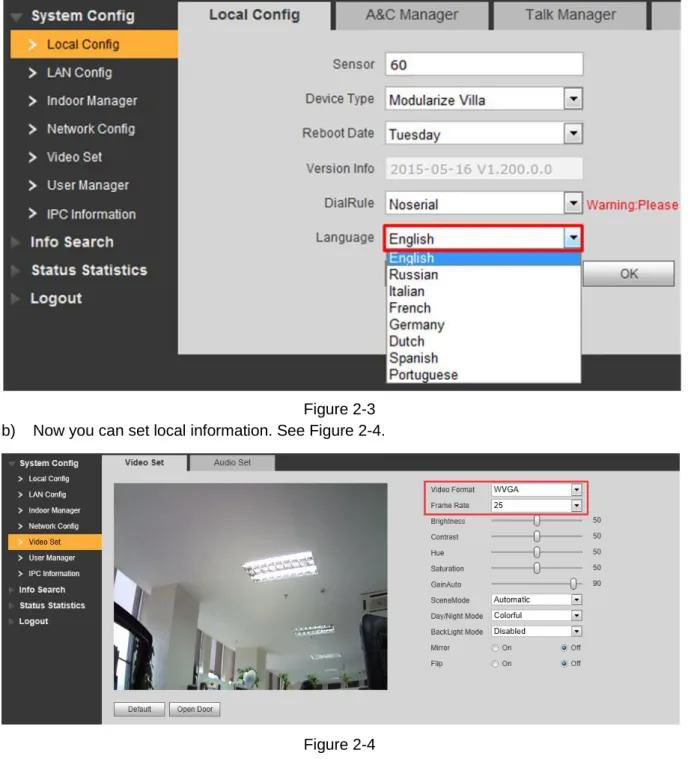
a) Please use the PC to access the VTO. Open the browser and then input the VTO IP address. Click the Enter, input user name and password to login. System supports English, Russian, Italian, French, Germany, Dutch, Spanish, and Portuguese by default. See Figure 2-3.
5
Figure 2-3 b) Now you can set local information. See Figure 2-4.
Figure 2-4
c) Now you can add digital VTH. System has added room 9901 by default. See Figure 2-5.
6
d) Set network information. See Figure 2-6.
Figure 2-6
2.3
Master Digital VTH Settings
a) When device is booting up, you can set device language. System supports English, Russian, Italian、French, Germany, Dutch, Spanish, and Portuguese by default. See Figure 2-7. After device booted up, you can go to Settings->Language->002236 to change language again.
Figure 2-7
b) On the main VTH menu, from System->Project, you can input project password 002236 to go to the project setup interface.
7
c) Set current VTH as the master VTH. See Figure 2-8.
Figure 2-8
d) Click Network on the right pane, and then input master VTO name, IP address and enable current function.
Note: Click to go to the extension VTO interface; you can set extension VTO information. You can several extension VTOs at the same time. See Figure 2-9.
8
2.4
Digital Extension VTH Settings
a) On the extension VTH menu, from System->Project, you can input project password (002236) to go to the project interface.
b) Set current VTH as extension VTH. Step1 Press Product Info, See Figure 2-10
Step2 Press Master, Master icon becomes Extention icon.
Step3 Set Room No. (i.e. 9901-1), input IP Address, Subnet Mask and Gateway. Step4 In Master IP, input IP of the master VTH.
Figure 2-10
c) Click Network on the right pane and then enable current function. See Figure 2-11.
Figure 2-11
d) Click to go to the next page to set extension VTO. Enable current function and then click OK.
9
Note
Please make sure the status is ON. The extension VTH can synchronize information with the master VTH. If one master VTH has several extension VTOs, please enable status as on. See Figure 2-12.
Figure 2-12
2.5
Change Villa VTO IP via VTH
a) On the digital VTH interface, from Settings->Project->002236, select Search device. See Figure 2-13.
10
b) Change VTO IP address as 192.168.1.11. See Figure 2-14.
Figure 2-14
c) Click Add to add VTO settings. See Figure 2-15.
11
d) Use 192.168.1.11 of the VTO to change default setup 192.168.1.110, change status as on. See Figure 2-16.
Figure 2-16
e) Now you can see the following interface. See Figure 2-17.
12
f) Or you can go to the Network interface to view the add result. See Figure 2-18.
Figure 2-18
2.6
Check Results
On the indoor VTO, click monitor button, you can view the situation of the VTO.
On the villa VTO, click the Call button, you can call any of the VTHs.
For the VTH, from “Video Talk->Call User”, input “-1” to call the VTH extension number. See Figure 2-19.
13
3
Network Camera Settings
3.1
VTH Settings
The VTH supports 8 network cameras. It supports product from Dahua and ONVIF protocol.
3.2
Add Dahua Network Camera
On the VTH menu, from Settings-> Local IPC, input network camera name, IP address, port (5000), protocol (local) and then click Save button. User name and password are the account for you to login the network camera. See Figure 3-1.
Figure 3-1
3.3
Add ONVIF Network Camera
On the VTH menu, from Settings-> Local IPC, input network camera name, IP address, port (80), protocol (ONVIF) and then click Save button. User name and password are the account for you to login the network camera.See Figure 3-2.
14
3.4
Check Results
On the VTH menu, from Video Talk-> Monitor->IPC, you can use Last Channel/Next Channel to switch to different network camera video. See Figure 3-3.
Figure 3-3
3.5
VTO Settings
For the VTO, it supports 24 network cameras. It supports product from Dahua.
3.5.1 Add Dahua Network Camera
Please refer to the following interface. See Figure 3-4.
Figure 3-4
3.5.2 Check Results
15
4
Cell Phone Settings
4.1
VTO Settings
a) Go to the Network interface, set VTO IP address so that it can connect to the network. Set local DNS address. See Figure 4-1.
Figure 4-1
b) Go to P2P interface; check the box to enable the P2P function. Please wait until the status becomes on. See Figure 4-2.
Figure 4-2
4.2
Cell Phone Settings
a)
Scan the QR code to download the APP. See Figure 4-3.
APP for iPhone OS APP for Android OS
16
b) Use the cell phone to scan the QR code of VTO on the device’s label or Web. See Figure 4-4 and Figure 4-5.
Figure 4-4
17
c) Give a name to VTO first. Click the detect VTO. You can view the corresponding video from the VTO after it detects the device.
Figure 4-6
4.3
Check Results
When the VTO is calling the VTH, you can see a push message on your cell phone. Open the message; you can see the video from the VTO.
18
5
Installation
5.1
VTO Installation
This VTO2000A series product supports direction installation and embedded in wall installation.
5.1.1 Direct Installation
a) Install metal bracket into the groove on wall. Secure 4 fasten screw (ST4.2×25), and fix metal bracket on wall. See Figure 5- .
Component Name Icon No.
ST4.2×25 Cross recessed pan head tail tapping screws -stainless
4
FEC5-30 plastic expansion bolt 4
Figure 5- 1
Figure 5-2
b) Align the device on metal bracket according to screw hole. Fasten screw (M3×8 Cross recessed countersunk head tail machine screws --- galvanizing white), and fix device on metal bracket. See Figure 5- 1.
Component Name Icon No. M3×8Cross recessed countersunk head tail
machine screws --- galvanizing white 4 M3×6 Hex slot pan head tail machine
screws --- galvanizing white 4
Tips:
19
Figure 5- 1
5.1.2
Embedded in Wall
a) Dig a hole on wall, its dimension is 117*128*80(mm).See Figure 5- .
Figure 5- 4
b) Embed metal bracket into wall until its four peaks lean against the wall. See Figure 5- 2.
20
Figure 5- 2
c) Align the device on metal bracket according to screw hole. Fasten screws (M3×8 Cross recessed countersunk head tail machine screws --- galvanizing white), and fix device on metal bracket. See Figure 5- 3.
Component Name Icon No.
M3×8Cross recessed countersunk head tail
machine screws --- galvanizing white 4 M3×6 Hex slot pan head tail machine screws ---
galvanizing white 4
Tips:
M3x6 or M3x8 either is OK.
21
5.2
VTH Installation
Important
The center of the device shall be 1400mm-1600mm height from the ground.
5.2.1 Installation Mode 1
a) Secure the installation bracket on the wall. Use three M4×30 screws to fix.
b) Fix the device on the installation bracket and then use the clip to secure. See Figure 5-1. Component Name Icon No.
M4×30 crosshead pan head
thread 3
Figure 5-1
5.2.2 Installation Mode 2
a) Secure the installation bracket on the wall. Use thirty-two M4×30 screws to fix.
b) Fix the device on the installation bracket and then use the clip to secure. See
Figure 5-2
. Component Name Icon No.M4×30 crosshead pan head
thread 2
22
6
Electric Lock and Magnetic Door Lock
6.1
Electric Door Lock
When connect the VTO to the electric door lock, connect the positive end of the electric door lock to the NO of the VTO, connect the negative end of the electric door lock to the public end. When connect to the off button, connect one end of the off button to the one end of the on-off button of the VTO, and then connect the other end of the on-on-off button to the GND of VTO. See Figure 6-1.
Electric Lock Unlock Button
Power
+
-GND ALM1 NO COM+
-Figure 6-16.2
Magnetic Door Lock
When connect the VTO to the magnetic door lock, connect the positive end of the magnetic door lock to the NC of the VTO, connect the negative end of the magnetic door lock to the public end. When connect to the magnetic door lock feedback, connect one end of the feedback to the one end of the feedback of the VTO, and then connect the other end of the feedback to the GND of VTO. See Figure 6-2.
Door Sensor Magnetic Feedback Power
+
-GND ALM2 NC COM+
-Figure 6-223
7
Appendix Specifications
Model VTH1550CH/VTH1550CHW-2 VTH1560B/VTH1560BW OS
Main processor Embedded micro controller
OS Embedded LINUX OS
Video
Video compression
standard H.264 Resolution 800×480
Audio
Input All-direction microphone
Output Built-in speaker
Audio talk Dual-way bidirectional talk
Display
Monitor dimensions 7-inch TFT true color screen
Operation mode
Input Touch buttons
Alarm
Alarm Input 6-channel local alarm input 8-channel local alarm input
Alarm Output 1-channel local alarm output N/A
Network
Ethernet Network 10M/100Mbps self-adaptive
Network protocol TCP/IP
Specifications
Power DC 10~15V or special switch to provide power directly Power
consumption Standby≤1.5W ;working≤7W Working
environment
-10℃~+60℃
10%~90%RH Dimensions
(L×W×H) 200mm×136mm×22 mm
221mm×154mm×25mm
24
Model VTO2000A/VTO2000A-2
System
Main Process Embedded micro controller
OS Embedded Linux OS
Video
Video
Compression Standard
H.264
Input/Sensor Megapixel CMOS HD camera
Night Vision Support
Audio
Input All-direction microphone
Output Built-in speaker
Talk Support bidirectional talk
Operation Mode
Input Single key input Door Lock
Status Check Support (optional)
Network
Ethernet 10M/100Mbps self-adaptive Network
Protocol TCP/IP
General
Power DC 10V~15V or special switch to provide power directly
Consumption Standby ≤1W; working ≤10W Working
Temperature ﹣30℃~+60℃ Relative
Humidity 10%~90%RH Dimensions
(L×W×H) 129.9mm×32.2mm×140mm Weight 0.5kg
Note
All interface for reference only. Slight difference may be found in user interface.
All the designs and software here are subject to change without prior written notice.
All trademarks and registered trademarks mentioned are the properties of their respective owners.
If there is any uncertainty or controversy, please refer to the final explanation of us.