How to Install an
ISONAS PowerNet™
ISONAS Inc.
FCC ID: OCZRC-03, OCZRC-03M
IC: 8431A-RC03, 8431A-RC03M
This device complies with
Part 15 of the FCC Rules
.
Operation is subject to the following two conditions:
(1) This device may not cause harmful interference, and
(2) This device must accept any interference received, including interference that
may cause undesired operation.
Changes or modifications not expressly approved by the party responsible for compliance
could void the user’s authority to operate the equipment.
This equipment has been tested and found to comply with the limits for a Class B digital
device, pursuant to part 15 of the FCC Rules. These limits are designed to provide
reasonable protection against harmful interference in a residential installation. This
equipment generates, uses, and can radiate radio frequency energy and, if not installed
and used in accordance with the instructions, may cause harmful interference to radio
communications. However, there is no guarantee that interference will not occur in a
particular installation. If this equipment does cause harmful interference to radio or
television reception, which can be determined by turning the equipment off and on, the
user is encouraged to try to correct the interference by one or more of the following
measures: 1) Reorient or relocate the receiving antenna. 2) Increase the separation
between the equipment and receiver. 3) Connect the equipment to an outlet on a circuit
different from that to which the receiver is connected. 4) Consult the dealer or an
experienced radio/TV technician for help.
This device complies with
RSS-210 of Industry Canada
.
Operation is subject to the following two conditions:
(1) This device may not cause harmful interference, and
(2) This device must accept any interference received, including interference that
may cause undesired operation.
Le présent appareil est conforme aux CNR d’Industrie Canada applicables aux appareils
radio exempts de licence.L’exploitation est autorisée aux deux conditions suivantes:
1. l’appareil ne doit pas produire de brouillage, et
2. l’utilisateur de l’appareil doit accepter tout brouillage radioélectrique subi, même si le
brouillage est susceptible d’en compromettre le fonctionnement.
Table of Contents
1: BEFORE YOU BEGIN ... 5
1.1: GENERAL REQUIREMENTS: ... 5
1.2: POWERNET READER-CONTROLLER SPECIFICATIONS: ... 6
1.3: INSTALLATION LOCATION GUIDELINES ... 7
1.4: INSTALLER TOOLKIT COMPONENTS ... 9
1.5: POWERNET CONFIGURATION ... 10
2: WIRING AT THE DOOR AND READER-CONTROLLER ... 12
2.1: POWERING THE READER-CONTROLLERS ... 12
2.1.1: POWER OVER ETHERNET (PoE) OPTION ... 12
2.1.2: ADDITIONAL POWER OPTIONS ... 14
2.2: WIRING THE DOORS ... 17
2.2.1: READER-CONTROLLER CONTROL-LEADS DESCRIPTION ... 18
2.2.2: LOCK WIRING -- BASIC ... 20
2.2.3: WIRING THE REX BUTTON ... 23
2.2.4: WIRING THE AUX INPUT ... 23
2.2.5: WIRING THE DOOR SENSE ... 24
2.2.6: LOCK WIRING -- LOW-VOLTAGE 12VDC POWER OPTION ... 25
2.2.7: LOCK WIRING -- EXTERIOR DOOR KIT ... 26
2.2.8: EDK LED STATUS INDEX ... 28
2.2.9: LOCK WIRING -- 2 READERS TO 1 LOCK ... 29
2.2.10: USING THE TTL LEADS ... 30
2.2.11: USING THE POWERNET’S RS-232 INPUT ... 30
2.2.12: WIRING THE WIEGAND INTERFACE MODULE ... 31
2.2.13: WIRING THE DUAL-SRM ... 33
2.2.14: WIRING THE QUAD-SRM... 35
2.2.15: MANAGING INDUCTIVE LOAD CHALLANGES ... 37
2.2.16: MANAGING IN-RUSH CURRENT LOADS ... 38
2.3: CONFIGUATION EXAMPLES ... 39
2.3.1: PoE --- ELECTRIC STRIKE ... 39
2.3.2: PoE --- EXTERNAL PWR FOR ELECTRIC STRIKE ... 40
2.3.3: 12VDC – ELECTRIC STRIKE ... 41
2.3.4: PoE --- MAGNETIC LOCK ... 42
2.3.5: PoE --- MAGNETIC LOCK & PIR ... 43
2.3.6: PoE --- MAGNETIC LOCK, EDK & PIR ... 44
2.3.7: DUAL POWER SOURCES ... 45
3: CONFIGURING THE READER-CONTROLLER’S COMMUNICATIONS ... 46
3.1: ETHERNET-BASED TCP/IP READER-CONTROLLERS ... 46
Document Version
Date of Revision
Revision Author Description
9/14/2012 2.16 Shirl Jones Updated for the RC03 model. Added descriptions of alternate power options 9/17/2012 2.17 Shirl Jones Minor edits
10/7/2012 2.18 Shirl Jones Added WIM and SRM sections. 11/27/2012 2.19 Shirl Jones Updated FCC statements
1/23/2013 2.20 Shirl Jones Updated PowerNets current specs 3/4/2013 2.21 Shirl Jones Added Tool Kit guidelines.
7/10/2013 2.22 Shirl Jones Expanded jumper pin descriptions 8/12/2013 2.23 Shirl Jones Expanded Wiegand Device guidelines 9/18/2013 2.24 Shirl Jones Minor Edit on RFID modulation spec 02/06/2014 2.25 Shirl Jones Added input power tolerances. 02/26/2014 2.26 Shirl Jones Described In-Rush’s BackEMF diode 03/05/2014 2.27 Shirl Jones Expanded EDK wiring instructions 03/28/2014 2.28 Shirl Jones Described use of Diode Assy, and French
version of RSS-210 statement. 4/25/2014 2.29 Shirl Jones Updated EDK wiring description
1: BEFORE YOU BEGIN
To install an ISONAS Reader-controller unit, you must complete three key wiring tasks: 1.Supply power to the Reader-controller unit. This may be accomplished with a power feed on the Ethernet Data cable (Power over Ethernet [PoE]) or through an external DC power source (12VDC or 24VDC)
2.Wire the unit to the door’s locks and other components for physical access control.
3.Connect the unit to the data network for communication with the server/workstation host PC.
This guide discusses each wiring process separately. Understanding all of these processes makes a project much simpler and guarantees success.
1.1: GENERAL REQUIREMENTS:
If PoE is not being used, then use only UL-listed, access control, power-limited power
supplies with an ‘AC on’ indicator light clearly visible on the enclosure. Power supplies should provide at least four hours of standby power.
Never connect power supplies to a switch-controlled receptacle.
Install the ISONAS system in accordance with the National Electrical Code NFPA 70. (Local
authority has jurisdiction.)
Use only wire or UL-listed cabling recognized suitable for ISONAS power supply and data
communications, in accordance with the National Electrical Code.
Where possible, separate ISONAS equipment and cabling from sources of electromagnetic
interference (EMI). Where this is not possible, take other steps to reduce the effect of EMI on cabling or equipment.
Protect input and output terminals adequately from transient signals. Also, connect these
1.2: POWERNET READER-CONTROLLER SPECIFICATIONS:
Input Voltage 12 VDC (8.0V to 14.5V);
24 VDC (23.0V to 54.0V); or
PoE per IEEE 802.3af
Input Current Draw < 0.125 AMPS @ 12VDC
< 0.070 AMPS @ 24VDC Supplied Power for External Devices
(when PoE power is being used) 0.60 AMPS @ 12VDC
Read Range 3 TO 5 inches typically
Read Speed <250msec (Prox)
Exciter Field Frequency Proximity -- 125khz
Multi-Tech - 13.56 MHz
Modulation Schemes Proximity -- FSK
Multi-Tech --ISO 14443 type A and type B
Communication Interface TCP/IP Over Ethernet
10 Mbps, ½ duplex
Inputs/Outputs 3 Inputs/2 TTL Outputs/1 Tamper Input
Relay 2.0 amp @ 30V DC (Resistive load)
Standalone Memory Capacity 64000 Cards/ 5000 Events/ 32 Time zones
Visual Indicators 2 LEDs for Normal Operations
Operating Temperatures -40° To 122° Fahrenheit
-40° To 50° Celsius
Weight Mullion Approximately 8 Ounces
1.3: INSTALLATION LOCATION GUIDELINES
When selecting the location where you are going to mount the ISONAS reader-controller, a few guidelines should be observed.
1) The reader-controller should be kept at least 2 feet from another ISONAS reader-controller,
and 6 feet from any other RF emitting device.
2) Assure that the window on the back of the reader-controller’s is mounted against a
reflective surface. A self-adhesive reflective sticker is provided with each reader-controller, in case the wall’s mounting surface is non-reflective. Please note that this reflective surface is required for successful operation of the ISONAS reader-controller
3) In an exterior location, the reader-controller’s mounting should be sealed to prevent water
from running down between the mounting surface and the back of the reader-controller.
4) For the PowerNet reader, a dielectric insulating compound (Dow Corning DC-4 or
equivalent) can be used to obtain extra water protection of the reader-controller’s cable connections.
5) The reader-controller should be protected from extreme heat and sunlight. It is rated for
conditions up to 120 F. A direct southern exposure, in the Southwest area of the United States may exceed these ratings.
6) For a few installations, mounting the reader against a large metal object may reduce the
read range of the reader. Steel, iron, and copper will have more of an effect on the read range than aluminum. If the PowerNet will be mounted on a steel surface we recommend being prepared to mount a pad ( “1 to 3” inches in depth) between the reader and the metal frame. Then during the installation phase and before final mounting of reader test the reader’s read range to make sure it is acceptable. If not, then insert the pad between the reader and the steel surface to improve the read range.
7) The cables extending from the back of the PowerNet’s Pigtail cable comes in a standard 4 ft
length. 10 ft and 25 ft lengths Pigtails are optionally available. Plan for terminating the door wiring within that distance of the reader-controller.
8) The wall mounting features required for the reader-controller are shown in the next figure.
Electronic versions of this figure can be found on the ISONAS website, and can be printed out, for use as life-size drill templates.
1.4: INSTALLER TOOLKIT COMPONENTS
Before an installer goes to a customer site, they need to put together their supplies and tool-kit. The ISONAS solution is simpler to install than other Access Control Systems, but materials are still needed. And some of those materials may be different than what you are use to carrying. The list below identifies some important items that you should make sure to bring with you, to the
customer’s site.
A prepared installer will have:
Installer completed the on-line reseller training program. An installer’s Tool Kit should include the following:
1. The copy of the PowerNet Installation and Wiring Guide
2. A Volt-Ohm Meter
3. A laptop with Crystal Matrix installed
4. A PoE Injector
5. A Cross-over Cat5/Cat6 cable
6. A straight-thru Cat5/Cat6 patch cable.
7. Basic Ethernet network cable tester (Tests for: Opens, Shorts, Split Pairs,
Mis-wires & Reversals)
8. A spare PowerNet
9. An extra PowerNet Pigtail
10.Silicon Caulking for sealing the PowerNet to exterior walls
11.Dielectric Silicon Grease (Dow DC-4) for protecting cable terminations.
12.The ISONAS As-Built forms, which is used to record the details of the door's
installation.
13.Credentials that match the customer system’s technology
o ISONAS Proximity
o HID Proximity
o Smart Cards (ISO 14443)
The customer’s Crystal Matrix system should have Internet access. This enables the use of on-line meeting tools, such as GoToMeeting, during any remote support sessions.
1.5: POWERNET CONFIGURATION
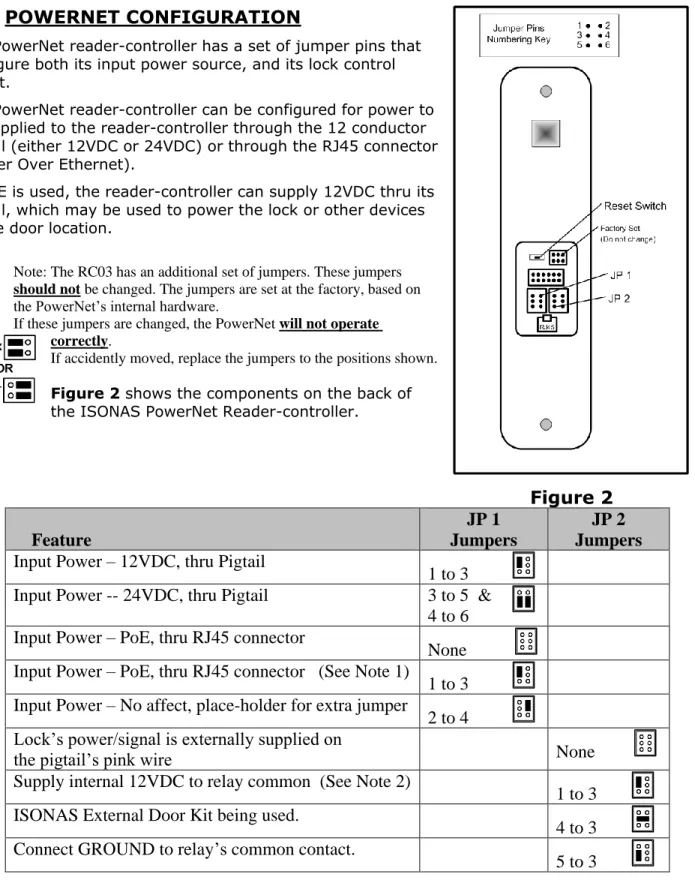
The PowerNet reader-controller has a set of jumper pins that configure both its input power source, and its lock control circuit.
The PowerNet reader-controller can be configured for power to be supplied to the reader-controller through the 12 conductor pigtail (either 12VDC or 24VDC) or through the RJ45 connector (Power Over Ethernet).
If POE is used, the reader-controller can supply 12VDC thru its pigtail, which may be used to power the lock or other devices at the door location.
Note: The RC03 has an additional set of jumpers. These jumpers
should not be changed. The jumpers are set at the factory, based on the PowerNet’s internal hardware.
If these jumpers are changed, the PowerNet will not operate correctly.
If accidently moved, replace the jumpers to the positions shown.
Figure 2 shows the components on the back of
the ISONAS PowerNet Reader-controller.
Figure 2
Feature
JP 1
Jumpers
JP 2
Jumpers
Input Power – 12VDC, thru Pigtail
1 to 3
Input Power -- 24VDC, thru Pigtail
3 to 5 &
4 to 6
Input Power – PoE, thru RJ45 connector
None
Input Power – PoE, thru RJ45 connector (See Note 1)
1 to 3
Input Power – No affect, place-holder for extra jumper
2 to 4
Lock’s power/signal is externally supplied on
the pigtail’s pink wire
None
Supply internal 12VDC to relay common (See Note 2)
1 to 3
ISONAS External Door Kit being used.
1.6: POWERNET READER-CONTROLLER RESET BUTTON
The PowerNet reader-controller has a Reset Button located on the back. It can be used for two different types of resets.
It is helpful if the PowerNet’s Ethernet cable is connected, and functioning (the amber LED is lit). Monitoring the amber LAN status LED allows you to determine the status of the reset operation.
Reset CPU: Press, hold (approx. 2 seconds) and release the Reset button. Once the Reset
Button is released, the Amber LAN Status LED should turn off (approx. 6 seconds), and then turn back on. If the Amber LED does not turn off, then the reset did not occur.
Reset Configuration: Press and hold the Reset button (approx. 10 seconds), until the
Amber LAN LED turns off. Selected reader-controller configuration is reset to factory defaults. Setting that are changed include:
IP Address (Default value: 192.168.1.119)
IP Port (Default value: 10001)
Subnet Mask (Default value: 255.255.0.0)
Gateway (Default value: 0.0.0.0)
DHCP Setting (Default value: Off)
ACS Server (Default value: SrvrAcs)
ACS Server IP (Default value: 0.0.0.0)
Serial Port (Default values: 9600, 8, N 1)
Clear AES Encryption Configuration
2: WIRING AT THE DOOR AND READER-CONTROLLER
2.1: POWERING THE READER-CONTROLLERS
All ISONAS Reader-controller models require a direct connection to a power source.
The PowerNet reader-controllers can be powered with 12 volts DC, 24 volts DC, or PoE (IEEE
802.3af) power and the supply must be regulated. Many brands of power sources work well with
ISONAS equipment. For the PowerNet reader-controller, the desired input power selection is made thru the use of the jumper pins. See previous section (1.4) for the description of the usage of these jumper pins.
2.1.1: POWER OVER ETHERNET (PoE) OPTION
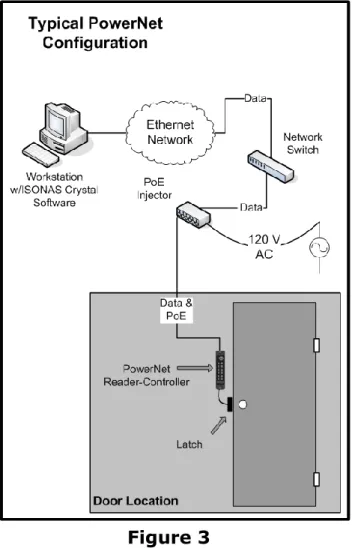
If you are installing ISONAS PowerNet readers, then you can use the Power Over Ethernet (PoE) option. PoE allows one cable to supply data and power to both the Reader-controller and an Electronic lock. The obvious savings here is that you only need to run a single CAT5 cable to the door which will provide enough power to run both the ISONAS Reader-controller and an electronic lock. If you are not familiar with PoE, please take a moment to read the PoE document located on the ISONAS web site.
If your network switch is equipped to provide PoE power, then the separate PoE Injector is not required.
If used, the PoE Injector is normally located right next to your existing network hub/switch, and the Injector itself is plugged directly into a standard AC outlet, or for extra security, a UPS battery backup.
Figure 3 is an overview of how to use PoE to
power both the ISONAS PowerNet Reader-controller and an electronic locking mechanism.
A standard CAT5 cable is then run between the PoE source (Injector or switch) and the PowerNet Reader-Controller which will be located right next to the door. The CAT5 cable can be up to 100 Meters (328 feet) long.
With one cable, you provided the required network connection and all the power that will be needed at the door site.
PowerNet Supplying 12 VDC to Door Components
When using PoE, the PowerNet reader can supply 0.6 amps@12 Volts of power for
the external door components. This power can be routed to the lock control circuit using the jumper pins. The supplied 12V power can also be accessed thru the reader-controller’s Pigtail, when the reader’s jumper-pins are properly configured (on Jumper block JP1, jumper pin 1 to pin 3). The power will be continuously available on the Pigtail’s Red and Black conductors. You might use this 12VDC source to power a Motion Detector located at the door location.
PoE Power Budget Calculations
When planning an installation using PoE, you need to assure that the PoE source (PoE Injector or PoE equipped Network Switch) supplying the PoE power is sized properly for the power draw of all the doors. To do this, you total up the power draw (in watts) of the PoE connections, and compare that total power draw to the rated capacity of the PoE source.
Below is a chart of expected PoE power draws of the ISONAS Reader-controllers.
Door Location Configuration
PoE Power Requirement **
(Watts)
PowerNet Reader-Controller
3.0 Watts
PowerNet Reader-Controller with
Electronic Lock (0.6 amp @ 12V)
11.0 Watts
*** Ethernet cabling power losses not included. Losses range from being negligible for short Cat5 cables up to about 16% for 100 meter Cat5 cables.
To meet the PowerNet’s variable PoE power requirements, the PowerNet will classify itself with the PoE source as a “Class 0” PoE device. The power usage of a Class 0 device can range between 0.4 to 13.0 watts at the device (up to 15.4 watts from the PoE source).
Some network PoE equipment will budget and allocate it’s distribution of PoE power based upon the maximum power usage of the each attached device’s classification. If your network equipment uses this power provisioning technique, then you should budget 15.4 watts for each PowerNet. Such network PoE Equipment may allow you to manually configure the amount of power that should be allocated to each device. Configuring the PoE equipment for an allocation of 3.0 watts or 11.0 watts per connection would be appropriate.
2.1.2: ADDITIONAL POWER OPTIONS
Most installations will use PoE for the PowerNet and door locks.
That is a clean way to control a door using a single, standard network cable.
There are many additional options available, that can be used, if the door location requires more power than a standard PoE-powered PowerNet can provide.
The different options require different configurations of the supporting equipment and /or building
wiring. The following chart and Figure 4 describes some of these power options.
Power Source
Switchable
Power
(Max)
Equipment at
the Door
Limiting Factor
Topology
Diagram
PoE (802.3af)
0.60 amps
(12VDC)
PowerNet
PowerNet’s available
PoE Output
A
PoE (802.3af)
0.55 amps
(12VDC)
PowerNet
EDK
PowerNet’s available
PoE Output
{minus}
the power required by
the EDK
B
DC Power Supply
12 or 24 VDC
2.0 amps
(As supplied) (RC02: 1.0A)
PowerNet
Rating of PowerNet’s
lock relay
C
DC Power Supply
12 VDC
3.0 amps
(12VDC)
PowerNet
EDK
Rating of EDK’s lock
relay
(
12VDC required by EDK’s internal circuitry)
D
High-Powered PoE
(802.3at)
1.8 amps
(12VDC)
(RC02: 1.0A)
PowerNet
PoE Splitter
Example PoE Splitter PowerDsine PD-AS-701/12
Rating of PoE Splitter
{minus}
power required to
operate PowerNet
E
High-Powered PoE
(802.3at)
1.8 amps
(Approx)
(12VDC)
PowerNet
EDK
PoE Splitter
Example PoE Splitter PowerDsine PD-AS-701/12
Rating of PoE Splitter
{minus}
power required to
operate PowerNet &
EDK
F
High-Powered PoE
(non-standard)
Example PoE Injector PowerDsine PD-9501G
3.00 amps
(12VDC)
PowerNet
EDK
PoE Splitter
Example PoE Splitter PowerDsine PD-AS-951/12-24
Rating of EDK’s lock
relay
2.2: WIRING THE DOORS
After you connect power to every
Reader-controller, the next step is to connect the wiring at each
door.
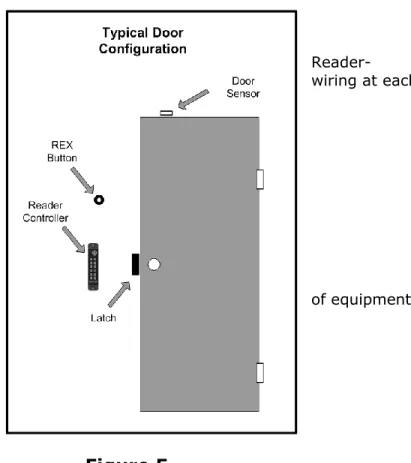
Wiring a door may involve connecting:
An electronic door latch
A request to exit (REX) like:
REX Button
Motion Detector
An auxiliary (AUX) button
Door sensors
TTL lines (TTL1 and TTL2)
Figure 5 shows the typical configuration of equipment
at the door.
2.2.1: READER-CONTROLLER CONTROL-LEADS DESCRIPTION
The reader-controller has a cable extending from its back plate that is referred to as “the pigtail”. The pigtail consists of 12 wire leads (22 awg) which are used to connect to the various components at the door location. Most installations do not require the use of all the leads. The typical usage
of each available lead is shown in Figure 6.
The controllers have a lock-control circuit. This circuit consists of a form-C relay, with its “normally open”, “normally closed” and “common” contacts connected to three leads of the pigtail. These pigtail leads can be directly connected to the electronic lock to unlock the door when a valid credential is presented.
There are two additional output signals called TTL1 and TTL2 that can be programmed to behave in a variety of ways.
2.2.2: LOCK WIRING -- BASIC
Electronic door lock Overview:
If the door does not already have an electronic lock, first install the electronic door lock according to the manufacturer's instructions. Examine the lock to determine whether applying power will lock or unlock the door.
Fail Safe: If applying power locks the door
(usually magnetic locks), use the gray wire labeled (NC).
Fail Secure: If applying power unlocks the
door (usually electric strike locks), use the tan wire labeled (NO).
Most locking mechanisms have two leads for
the power coil. On an electric strike, the leads
power a solenoid. On a Mag Lock, the leads power an electromagnet.
The door lock control relay inside the ISONAS
Reader-Controller has a set of Form “C” contacts that are rated at 1.0 amp @ 30V DC. This means it can handle most locking mechanisms. If your application requires more voltage or amperage than this, an external relay that is controlled by the reader/controller can be used.
Installation Tip
For non-PoE installations: Before you start wiring an electronic door lock, check that its power source is separate from the power source for the Reader-controller at that door. Voltage fluctuations caused by using the same power source for both devices may cause the Reader to malfunction.
Generic Wiring, using External Power for the Lock: See Figure 7
1. The PowerNet itself is being powered by PoE.
2. Connect the positive side of the power supply to the pink (common)wire on the ISONAS
Reader.
3. For a Fail Safe lock, connect the gray (Normally Closed (NC)) wire on the ISONAS
Reader-controller to one lead of the electric lock. For a Fail Secure lock use the Reader's tan
(Normally Open (NO)) wire instead.
4. Wire the other lead of the lock to the Black wire on the power supply.
Generic Wiring, using PoE: See Figure 8
The PowerNet supports a simplified configuration when PoE is being used to supply the lock’s power.
1. Assure that the jumpers are
configured as shown: JP1: Pins 2 to 4 Or No jumper JP2: Pins 1 to 3.
2. For a Fail Safe lock, connect the gray
(Normally Closed (NC)) wire on the ISONAS Reader-controller to one lead of the electric lock. See In-Rush suppressor section for more info.
3. For a Fail Secure lock use the
Reader's tan (Normally Open
(NO)) wire instead. See BackEMF diode section for more info.
4. Connect the other lead of the lock to
the black wire on the ISONAS
reader-controller.
Figure 8
Additional Lock Circuit wiring Notes:
There are many additional ways that the lock-control circuit can be used. Examples include: Gate Controllers, Intelligent locking mechanisms, and Fuel pumps.
The general guidelines for using the Lock-Control Circuit are:
1. Always keep the voltage under 30 volts, and the current under 1 amp.
2.2.3: WIRING THE REX BUTTON
The REX (Request for Exit) signal expected by ISONAS
Reader-controllers is a momentary closure. You can
generate this signal with a pushbutton, infrared motion detector, or other simple device. Typically the REX is placed adjacent to the door so that people can press the button and let themselves out the door without setting off the alarm. When pressed, this button tells the ISONAS Reader-controller that that someone wishes to pass through the door, and the latch releases. In the ISONAS Crystal software you can configure how the door responds to the REX button.
You must wire this switch through the ISONAS Reader-controller. (See Figure 9) First, connect
one terminal of the momentary switch to
the Reader's green wire.Then, connect
the switch's other terminal to the
Reader's common ground wire
(black).
2.2.4: WIRING THE AUX
INPUT
In host mode, the AUX Input is another momentary switch which functions
exactly like the REX button. (See Figure
9) The AUX Input might be controlled by
a relay on an intercom at the door. This would allow the receptionist to unlock the door using the intercom system’s functionality.
In the ISONAS Crystal software you can configure how the door responds to the AUX button.
In local mode, the door will stay
unlocked while the AUX switch is closed. Wiring for the AUX button is similar to that of the REX button. First, connect one terminal of the momentary switch to
the Reader's orange wire. Then,
About REX and AUX
REX and AUX are
both normally open
inputs. No action is
taken until the input
is closed.
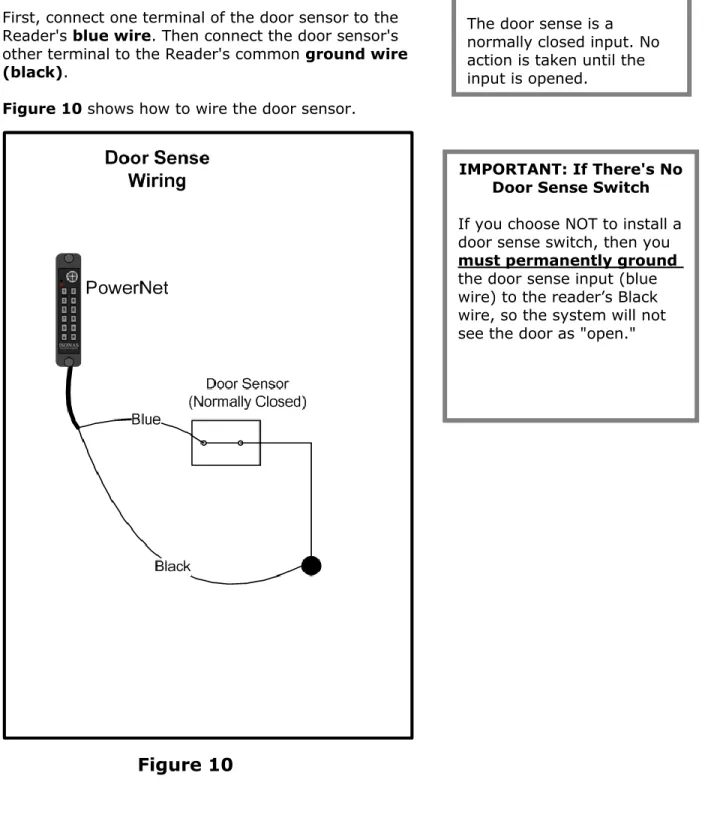
2.2.5: WIRING THE DOOR SENSE
Connecting the ISONAS Reader-controller to a door sensor allows our Crystal software to
determine whether that door is physically open. Then the Crystal software can create alarms based on the door’s state. This wiring task is similar to wiring
the REX or AUX buttons.
First, connect one terminal of the door sensor to the
Reader's blue wire. Then connect the door sensor's
other terminal to the Reader's common ground wire
(black).
Figure 10 shows how to wire the door sensor.
About the Door Sense The door sense is a normally closed input. No action is taken until the input is opened.
IMPORTANT: If There's No Door Sense Switch If you choose NOT to install a door sense switch, then you must permanently ground the door sense input (blue wire) to the reader’s Black wire, so the system will not see the door as "open."
2.2.6: LOCK WIRING -- LOW-VOLTAGE 12VDC POWER OPTION
Powering the reader-controller using low-voltage DC:
Wiring DC power to a Reader-controller: Simply run the positive and negative wires from the
power source to the positive and negative wires on each Reader. The example below shows the typical power connection for a reader-controller and a lock.
1. Connect the positive power from the
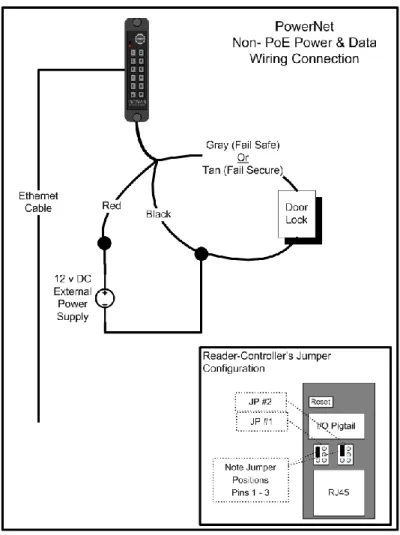
power supply to the positive power connection (red lead) of the reader-controller. Install the Jumper pins as shown, which provides 12VDC to the lock circuit.
2. Connect one side of the electric lock
to EITHER the Tan (Fail Secure) or Gray (Fail Safe) connection on the reader-controller. See BackEMF diode or In-Rush suppressor sections for more info.
3. Connect the negative power from
the power supply to the negative power connection (black lead) of the reader-controller and the remaining side of the electric lock.
Figure 11 shows how to take the power
from the External Power supply and drive both the PowerNet Reader-Controller and an Electronic lock.
Figure 11
2.2.7: LOCK WIRING -- EXTERIOR DOOR KIT
The PowerNet reader-controller has an optional Exterior Door Kit (EDK), which allows you to isolate the door’s lock control circuitry on the secure side of the building. Also, since the EDK is rated for 3 amps of current @ 12 Volts, it can be used in cases where the locking mechanism requires more current than the reader-controller’s control circuit is rated for.
Two methods of connecting the EDK are shown
The 1st example shows powering both the lock and
the EDK with the Reader-controller’s PoE power
See Figure 12
Figure 12
Label Reader Side Connection Label Lock Side Connection
R Pigtail’s Red wire
(12 V Input Power) 1 12V Output Power
B Pigtail’s Black wire
(Ground) 2 Power Ground
P Pigtail’s Pink wire 3 EDK Relay’s Common Contact
G Not used 4 EDK Relay’s Normally Closed (NC)
contact (Fail-Safe Lock)
T Pigtail’s Tan wire 5 EDK Relay’s Normally Open (NO)
contact (Fail-Secure Lock) Installation Tip:
Jumper Block #1 and #2 should be configured as shown.
EDK Wire Conductor Preparation:
Strip back the wire insulation: .25 to .275 (1/4 to 9/32) inches Acceptable single conductor sizes: 26 gauge to 15 gauge Acceptable two conductors sizes: 26 gauge to 15 gauge Note for multi-stranded conductors:
The 2nd example shows powering the EDK with
the Reader-controller’s PoE power output, and the lock with an external 24 volt power supply.
See Figure 13
Figure 13
Label Reader Side Connection Label Lock Side Connection
R Pigtail’s Red wire
(12 V Input Power) 1 Not Used
B Pigtail’s Black wire
(Ground) 2 Not Used
P Pigtail’s Pink wire 3 EDK Relay’s Common Contact
G Not Used 4 EDK Relay’s Normally Closed (NC)
contact (Fail-Safe Lock)
T Pigtail’s Tan wire 5 EDK Relay’s Normally Open (NO)
contact (Fail-Secure Lock) Installation Tip:
Configure the Jumper Blocks as shown in previous
2.2.8: EDK LED STATUS INDEX
The EDK has two status LEDs Power LED:
Located on the side towards the PowerNet’s pigtail.
A Red LED indicates 12VDC power is being supplied to the EDK. Communication Status LED:
Located on the side towards the Lock wiring.
LED status meaning are described in the table below. PowerNet
Locked PowerNet Unlocked Lock State when PowerNet is unlocked
Description or Item to Check
Off Green Normal Operation
Flash
Amber Amber Flash No Operation Pink wire may be disconnected
Off Flash
Amber No Operation Tan wire may be disconnected
Off Flash
Amber
No Operation Invalid encryption key received from
PowerNet
Off Off No Operation If PowerCycle of PowerNet allows for one or
more lock operations,and then the lock stops operating, then the BackEMF diode may not be installed correctly.
2.2.9: LOCK WIRING -- 2 READERS TO 1 LOCK
If you are wiring both sides of the door to control IN and OUT access, then you will have the special condition of wiring 2 Reader-Controllers to a single locking mechanism.
If there is not a door sensor switch connected to the door, then typically you connect both reader-controllers to the door’s lock circuit.
For Fail-Secure locks, wire the two reader-controller’s lock circuits in-parallel (Lock is
connected to both reader-controller’s Tan leads)
For Fail-Safe locks, wire the two reader-controller’s lock-circuits in-series (Gray lead of
Reader #1 connects to Pink lead of Reader #2, Gray lead of Reader #2 connects to lock).
If there is a door sensor switch connected to the door, then Reader #1 controls the door, and is
wired to the door’s Door-sense switch. Use the following steps to cause Reader #2 to activate the
REX button on Reader #1.
Two Readers & One Lock Wiring Steps: See
Figure 14
1. Wire reader #1 normally
2. Connect the tan (NO) lead from reader #2 to
the Green (REX) lead on reader #1.
3. Connect the pink (common) lead from
reader #2 to the black (ground) lead on
reader #1.
Programming Reader #1 must be programmed to accepted REX inputs
Installation Tip:
For Figure 11 -- Verify that there are no jumpers installed on Controller #2 ‘s JP 2 jumper block.
2.2.10: USING THE TTL LEADS
The TTL1 and TTL2 leads are logical output leads. In their “normal” state, there is a 5VDC
potential on the leads. When the leads “activate”, this voltage potential is removed (0 VDC.
These leads are typically used to connect to an alarm system. Certain abnormal conditions of the
reader-controller can be configured to activate these leads. An example would be having TTL2
activate when the door is held open too long.
See the Crystal Access Software manual for more information on the usage of these leads.
2.2.11: USING THE POWERNET’S RS-232 INPUT
The pigtail’s RS-232 signal leads (Yellow & White) can be connected to an external device that will pass a credential ID to the PowerNet.
The most common usage is:
To pass in a 2 to 9 character long ASCII data string.
Only Numeric ASCII values are allowed in the string (“0” to “9”).
Delimiter characters are typically used at the beginning and/or end of the message.
The serial connection’s default configuration is:
9600 Baud (Adjustable w/ PlugNPlay [9600, 19200, 38400, 57600])
8 Data Bits
N Parity (Adjustable w/ PlugNPlay [N, E, O])
1 Stop Bit
2.2.12: WIRING THE WIEGAND INTERFACE MODULE
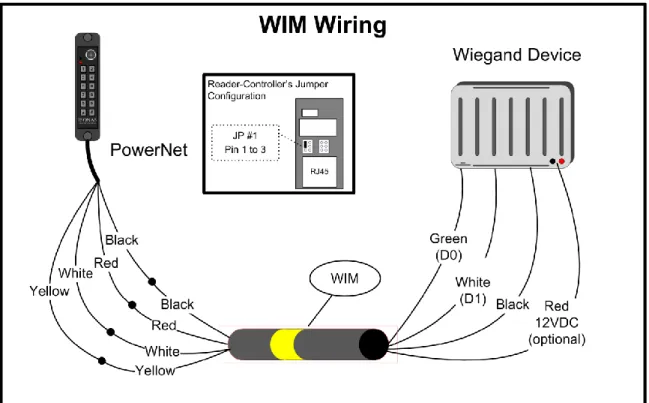
The ISONAS Wiegand Interface Module (WIM) allows the PowerNet to receive credential data from a Wiegand-based device, validate the credential, and then log that activity.
The WIM is an in-line module that is attached to selected conductors of the PowerNet’s Pigtail.
Figure 15 shows how to wire the WIM.
Figure 15
Note: The WIM is easily identified by a yellow stripe
The PowerNet can supply the 12VDC power required by the WIM. The PowerNet’s jumper JP1 is used to control this. This same 12VDC power can also be used to power the Wiegand device. The WIM’s output red wire provides a convenient connection to this power. Please make sure that the total power draw of the Wiegand device, lock, and other devices does not exceed the PowerNet’s available power (0.60 amps). External power can be used, if the door components require additional power.
The ISONAS solution can interpret the incoming Wiegand data in one of 3 ways.
1) As a raw 64 bit binary number, so the card format is not a factor.
2) As a HID formatted credential number, with the ISONAS Bit masking processing rules
applied
3) As a HID formatted credential, with the ISONAS Data mangle processing rules applied.
The recommended system integrator evaluation process is to use either an IPBridge or PowerNet w/WIM and test against the existing hardware and credentials.
Validate that the reported credential data really uses the Wiegand protocol, and that the existing card format is handled appropriately.
If you need assistance, and can supply the appropriate materials to ISONAS, we will test your configuration at the factory
Required items include:
A reader that is known to work with the currently installed equipment.
5 working credentials, to verify credential formatting.
Installation instructions for the supplied reader, for power and operation instructions.
WIM’s wiring color code
Color Function
Red
(PowerNet-side) 12 VDC Power
Black
(PowerNet-side) Ground (Power & Signal)
White
(PowerNet-side) RS-232 Transmit to PowerNet
Yellow
(PowerNet-side) RS-232 (Future use)
Red
(Wiegand-Side)
12VDC connection (power from PowerNet) Black
(Wiegand-Side) Ground connection (Power & Signal) Green
(Wiegand-Side)
DO signal from Wiegand Reader
2.2.13: WIRING THE DUAL-SRM
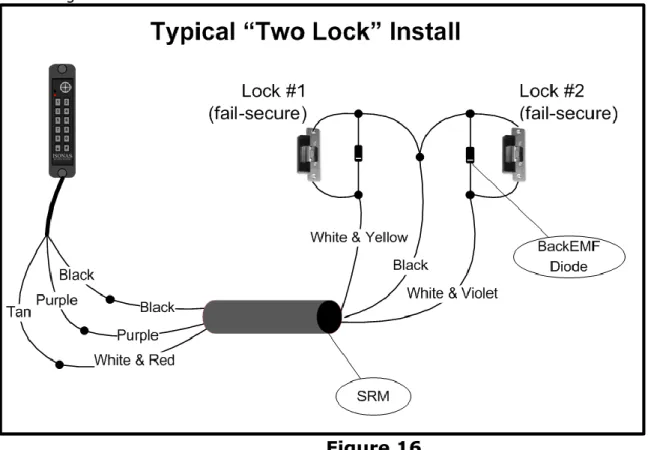
The dual Secondary Relay Module (SRM) is available to enhance the PowerNet’s ability to control devices located at the door.
The SRM provides a set of form-C relay contacts, which are controlled by one of the PowerNet’s TTL outputs. There a multiple options available within the Crystal Matrix software to control the TTL outputs.
The SRM is commonly used to selectivity control two locks, or to control a device located at the door, in addition to the door’s lock.
Two example SRM usages are shown below.
Figure 16 shows a PowerNet controlling two locks. Note Tan wire’s power supply can be
configured by JP2. See section 2.2.2 of this manual for more details.
Figure 17 shows the PowerNet controlling an external device, in addition to the potentially
Figure 17
SRM’s wiring color code
Color Function
Purple TTL input to SRM.
Connected to the PowerNet pigtail’s Purple or Brown conductor.
Black Power Ground from PowerNet.
Connects to Pigtail’s Black conductor and other grounded connections
White / Red SRM Relay
Common contact
White / Violet SRM Relay
Open contact (when TTL is inactive)
2.2.14: WIRING THE QUAD-SRM
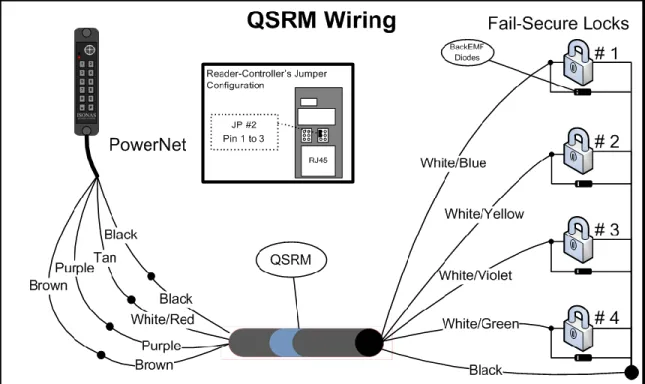
The Quad Secondary Relay Module (QSRM) is available to allow a single PowerNet to control up to 4 locks.
The QSRM is an electronically controlled 4-way switch, that directs an input electrical signal to one-of-four outputs connections.
The QRM is commonly used to control multiple doors on storage cabinets or computer racks.
Figure 18 shows a PowerNet and QSRM controlling four fail-secure locks.
Figure 18
QSRM’s wiring color code
Color Function
Purple TTL input to SRM.
Connected to the PowerNet pigtail’s Purple conductor.
Brown TTL input to SRM.
Connected to the PowerNet pigtail’s Brown conductor. Red
(PowerNet-side) 12 VDC Power
Black
(PowerNet-side) Ground (Power & Signal)
Black (x4)
(Lock side) Ground connection Connects to Pigtail’s Black conductor and other grounded
connections
White / Red Electrical Signal Input
Common contact White / Blue
Connection’s Output TTL1 = Active TTL2 = Inactive White / Yellow Connection’s Output TTL1 = Inactive
TTL2 = Active White / Violet
Connection’s Output TTL1 = Active TTL2 = Active White / Green Connection’s Output TTL1 = Inactive
TTL2 = Inactive
Example usages of the QSRM are shown in the Knowledge-base Article KBA0015CabinetControl.PDF
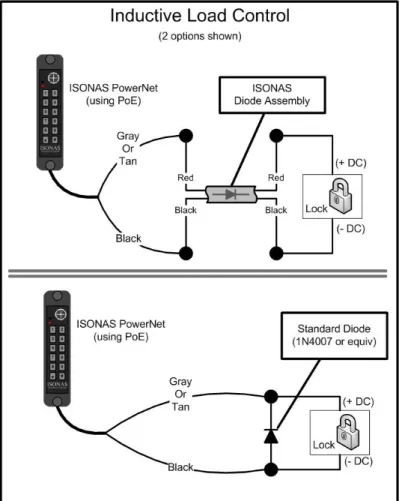
2.2.15: MANAGING INDUCTIVE LOAD CHALLANGES
Most door latches use a relay coil that powers up and down to open and close the door. When this
happens, electricity enters the connected circuit. This problem, known as back EMF, produces
network interference that usually becomes more pronounced when the device is switched off. Switching off a typical 12 VDC relay coil can produce a back EMF of 300 volts or more. If this relay is switched via an output, that voltage appears across the terminals of the output. The problem gets worse as switching voltage/current rises.
Figure 19 shows a solution. You can virtually eliminate back EMF by installing a transient
suppression device (diode). Each PowerNet is supplied with a diode assembly, which simplifies
the installation process. A standard diode, from any electronic supply store, can also be used. Always check that the diode is correctly rated for the circuit voltage. For optimum performance, the diode should be installed at the lock or close to the lock. Standard diodes have a stripe-band
marking on one side. That side of the diode should be connected to the “+” wire of the lock circuit.
Protect the Digital Output
Which type of transient suppressor should you install? This depends mainly on the type of inductive load being switched. Some locks have Back EMF protection built into the lock itself. For Back EMF in low-voltage DC applications, a 1N4007 diode will suffice. However, for protection against other transient voltages (i.e. lightening), we recommend using a fast-switching transient voltage suppressor, such as a bipolar TranZorb.
2.2.16: MANAGING IN-RUSH CURRENT LOADS
Some Magnetic Locks with advanced quick-release circuitry will generate an initial surge of
current when the lock is turned on. This surge of current can be 20 times greater than the lock’s steady state current requirements. The lock control relay is rated for 1 amp of current. This in-rush current can greatly exceed that rating, and shorten the useful life of the reader-controller.
Any installation that is using Magnetic Locks that are equipped with a “quick-release feature”
should have this in-rush protection installed.
Other devices who also create this in-rush current include incandescent light bulbs and “capacitive loads”. A light bulb’s cold resistance is close to 0 ohms, and a discharged capacitor is also a short-circuit when power is initially applied. Any installation which is controlling these types of devices should have the in-rush suppressor installed.
Figure 20a Figure 20b
(ACC-IRS-4700 w/two black wires) (ACC-IRS-4700 w/red & black wires)
Figure 20a and 20b shows the solution to this. Installing an in-rush suppressor in the lock circuit
2.3: CONFIGUATION EXAMPLES
2.3.1: PoE --- ELECTRIC STRIKE
3: CONFIGURING THE READER-CONTROLLER’S COMMUNICATIONS
ISONAS Crystal software communicates to the Reader-controller units over the organization's
data network.
3.1: ETHERNET-BASED TCP/IP READER-CONTROLLERS
There are many Ethernet network topology permutations, too many topologies to cover in this guide. Here are two common Ethernet configurations used by ISONAS customers:
Direct Crystal-Software to Readers: This is the simplest type of network connection.
ISONAS Crystal software runs on a server/workstation that is connected to an Ethernet network. All the Reader-controllers are also directly connected to this network.
Addressing: Each reader’s assigned IP address is reachable from the server/workstation. For example, assume that you are installing three Reader-controllers. Two are located in your own Austin Texas office, and 1 is located in the company’s Singapore office. Your networking staff gives you three IP addresses to use. 205.155.45.130 and 205.155.45.131 for the Readers that are located in your office. 205.172.37.130 for the reader located in the Singapore office. As long as the network is configured so your workstation can reach all three reader-controllers, there is no difference in configuring or using the three readers. Here are a couple guidelines to follow to assure that your network’s configuration will support the ISONAS access system.
1. The ISONAS reader-controller is a standard “network appliance”. Standard TCP/IP
rules apply.
2. For many installations, each reader-controller is assigned a static IP address.
Typically, the network administrator will define what IP address to use.
3. The reader-controller’s IP Address should be a valid IP address for the
network-subnet that the reader-controller is physically connected to.
4. If the reader-controller’s IP Address must be changed, then the ISONAS tool “Plug
and Play” can be used to reset the IP Address. See the Crystal Matrix Software Users Guide for more details on using this tool. Note: Plug and Play requires that the workstation running the Plug and Play application and the reader-controller be physically connected to the same network subnet.
5. The host’s IP Address should be a valid IP address for the network-subnet that the
host is physically connected to.
6. If the host and reader-controller are on different subnets, then network routers must
be in-place to enable TCP/IP communications between the two subnets.
7. One definition of a “Network subnet” is:
The set of network connections that can communicate with each other without
Using Port Forwarding to reach the Readers. This is common on networks where the
available number of IP addresses is limited. It can also be used when the ISONAS software must communicate with Reader-controllers on another site that is behind a network
firewall.
As in the first topology, ISONAS Crystal software runs on a server/workstation that is connected to a Ethernet network. The readers are connected to a network, but because of the design of the network, the readers can not be directly reached from the
workstation/server. A router is between the server/workstation and the readers. The router is configured to implement Port Forwarding. The router will intercept and redirect the IP communications to enable the server/workstation to communicate with the Readers. This configuration allows you to connect many Readers without consuming the primary
network's IP address allotment.
Addressing: Each Reader- controller
unit is assigned an IP address compatible
with its local network (not the
server/workstation network). For
example, assume the reader’s local
network uses IP addresses in the range of
192.168.10.2 thru
192.168.10.254. In this example,
assume that the
Server/workstation has an IP address of
84.117.31.158.
Port Addressing: (please refer to Figure
28) Port forwarding is a function of
Routers, when using this
configuration the ISONAS software
does not need the IP address of each
reader-controller, it just needs the Port
number associated with each reader;
however, the software does need the IP
address of the Router.
Figure
28
Configuring the ISONAS software is
Here is an example of the ISONAS Network screen for the above configuration:
Port Forwarding requires steps outside of the ISONAS software; you must configure your Router to “forward” each port number to exactly one reader. This configuration is specific to the Router that you purchase and will be defined in the vendor’s documentation. Typically the configuration is labeled “port forwarding”; however it is sometimes referred to as “gaming options.”
When using Port Addressing, it will also be necessary to configure each of the Reader-controllers to have the proper IP address and to use the correct Port number. Changing the IP addresses and port number for the reader-controller is easily accomplished using the ISONAS Plug and Play application
Note:
Port Forwarding requires configuration of the network router. Please reference the router’s manual for instructions on configuring the router to support this feature.
3.2: SECURING MESSAGES ON YOUR NETWORK
You can configure ISONAS Readers and software to secure each and every message to and from
the Reader using Advanced Encryption Standard (AES).
When you enable AES in both an ISONAS Reader-controller and the Crystal software, every
message to and from that Reader-controller is encrypted. Therefore, anyone who manages to hack into your data network would still face a daunting task to decrypt the actual messages to the Reader-controllers. This is a significant ISONAS advantage in protecting Reader-controllers from hackers.