© April, 2001 Johnson Controls, Inc. www.johnsoncontrols.com
Chapter 5
Working with Multiple Devices
Introduction
Display View enables you to compare information from a selected set of devices or to monitor network variables from one or more devices to verify the operation of an application involving multiple devices on the network.
This chapter describes how to:
• change the polling rate
• monitor network variables
• verify configuration properties (parameters)
• check network connections (bindings)
• select multiple items for download
Key Concepts
Monitoring Devices
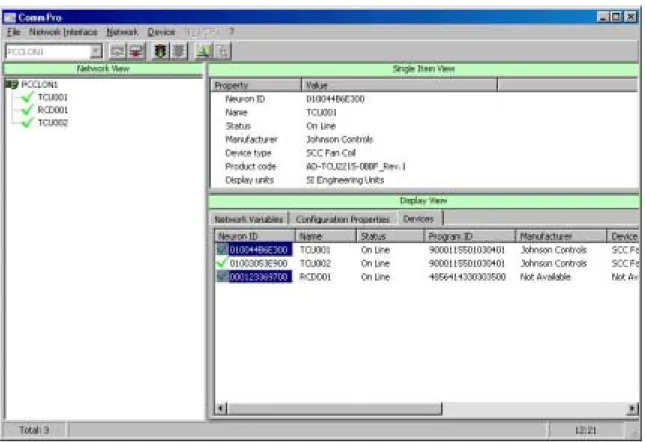
After scanning the network, all connected devices appear in the Network View and the Display View.
Display View shows the following information:
• Neuron ID • name, status • program ID • manufacturer • type • device type • product code • subnet • node • transmission errors
To sort the information in each column numerically/alphabetically, click on the field label.
Use Display View to display TCU product codes in order to verify that all controllers have the correct application versions and show that all selected devices are online.
Polling Rate
Polling rate is the rate devices are updated in the Display View and Network View. Fewer devices are polled more quickly than a large number of devices. The actual polling rate is limited by the number of devices in the Display View and Network View.
Detailed Procedures
Changing the Polling Rate
To change the polling rates:
1. Remove all devices that you do not need to monitor from the Network View and Display View and any NVs or CPs in the Display View for the fastest polling of remaining devices. 2. Select Network > Settings.
3. Adjust the polling rates for Network Variables and other items in the Network Settings menu relative to the polling rate for Device Status and click OK.
Monitoring Network Variables
To Monitor Network Variables:
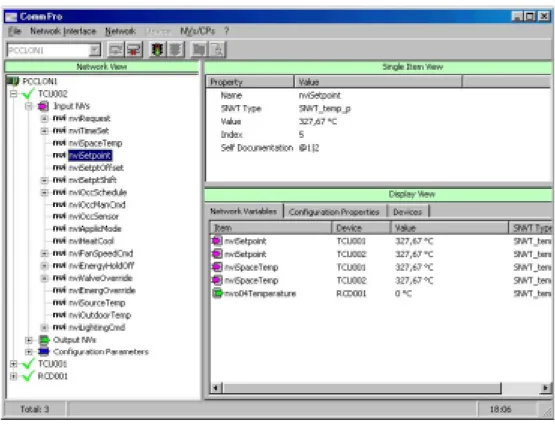
1. Click on the Network Variables tab in the Display View to display the selected network variables.
2. Double-click a network variable to copy it into the Display View. 3. Select the variables to monitor in succession. The variables appear
in the Display View. This allows you to monitor the values of network variables from one or more different devices.
Verifying Configuration Properties (Parameters)
To verify configuration properties:
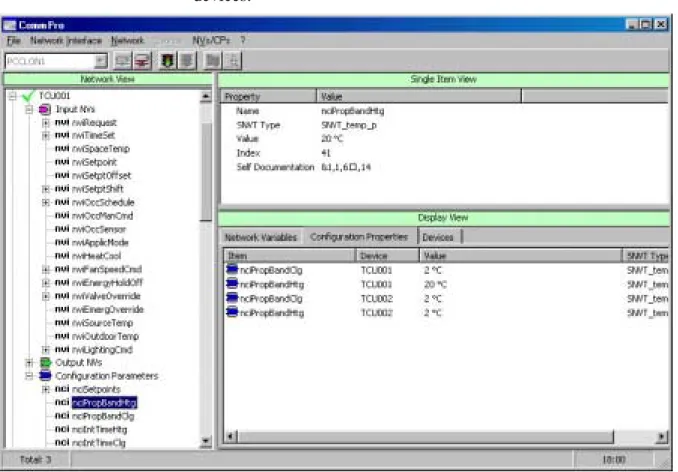
1. Click on the Configuration Properties tab in Display View to display the selected configuration properties.
2. Double-click the desired configuration property to copy it into the Display View.
3. Select the configuration properties to monitor in succession, and they will appear in the Display View. This allows you to monitor the values of network variables from one or many different devices.
Figure 5-2: Checking Configuration Properties
Figure 5-2 shows the differences between similar properties in different controllers.
Checking Network Connections (Bindings)
To check network variable connections:
1. Use Display View to check the network variable connections (or bindings) between the input and output network variables of the various devices. Bindings must be performed by a network management tool.
2. Select the necessary devices and network variables to display on the screen using the binding information from the tool
documentation. The variables are shown under the Network Variables tab in the Display View.
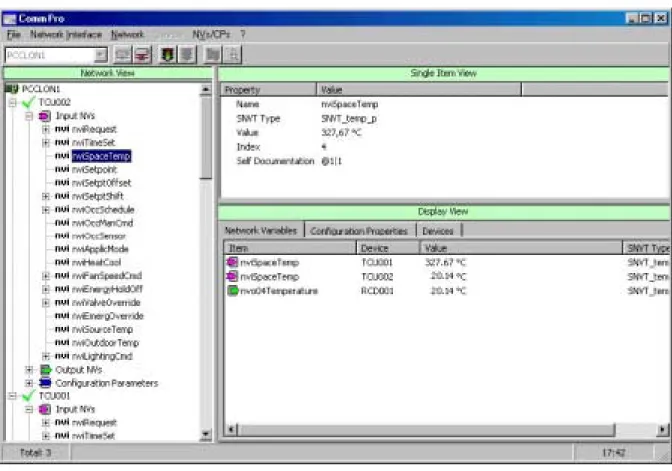
Figure 5-3: Checking Bindings
In the diagram above, the first network variable
(nviSpaceTemp - TCU001) has a default value. The variable has not received a value since the device’s last reset. Possible reasons are:
• The network variable is not bound to another network variable.
• The output network variable to which it is bound has no heartbeat. If this variable should have a valid value, check the connection
The second variable (nviSpaceTemp - TCU002) has the same value as the third variable (nvo04Temperature - RCD001), because they were bound by a network configuration tool. You can verify that the network connection between these variables is working correctly by watching the input NV value as the value in the output NV changes. To change the value for an input network variable in the Network Variables window, choose the input network variable name in the Display View, and select the NVs/CPs > Edit Value menu. A window appears in which you can change the value. If the network variable is bound on the network, its value changes automatically when it receives an update or heartbeat.
After checking a binding, delete the network variables from the Display View via the NVs/CPs > Remove from Display View menu. The window is empty and ready for the next set of network variables to be checked. Commissioning is easier when only the variables currently needed are shown in the window.
Selecting Multiple Items for Download
To select multiple devices for download:
1. Select the first item in the Display View Device tab. Hold the Shift key and left-click the last item, or hold the Control Key and select other items as required.
2. Select Device > Download Firmware, Parameters > Download, or > Download Application.
3. Select the directory, and double-click the *. XIF file. 4. Click Open.
5. Select Device > Download Firmware.
6. Select the directory and then the *. NXE file. Double-click the *.NXE file.
7. Click Open. The download begins, and the device state is changed to Applicationless Unconfigured. The Status bar reports
Downloading Device: Neuron ID.
After downloading, the device status changes to On LineConfigured. Use the Download an Application procedure to download an
application.
To abort the download, click on Cancel. The download continues until completed in the current device and then stops.
Creating a Template of Parameter Values
To create a template of parameter values for multiple devices:
1. Set the parameters of one device, and save them under a template name such as Templ01-TCU2205.CPS.
2. Select all the devices you want to load with these parameter values.
3. Select Device > Parameters > Download and the template file Temp101-TCU2205.CPS.
Note: Before downloading, you can deselect parameters in the Parameter Download window that are not common to all selected devices.