Application Guide
This document gives you a detailed description of the Tenor Survivable SIP Gateway (SSG) including functions, configuration, and how it fits into your network.
For hardware and installation information, see the User Guide specific to the Tenor model you have (Tenor AS, AF, or AX). You can find the latest user guides at www.quintum.com/support.
The following topics are included in this Application Guide:
! What is the Quintum Survivable SIP Gateway (SSG)?
! Features/Functions
! Why SSG is needed
! Network Examples/Site Survivability via SSG
! Upgrade to the latest SSG Software
! Upgrade your current Tenor for SSG
! Configure SSG
! Configure IP Phone
What is the Quintum Survivable SIP Gateway?
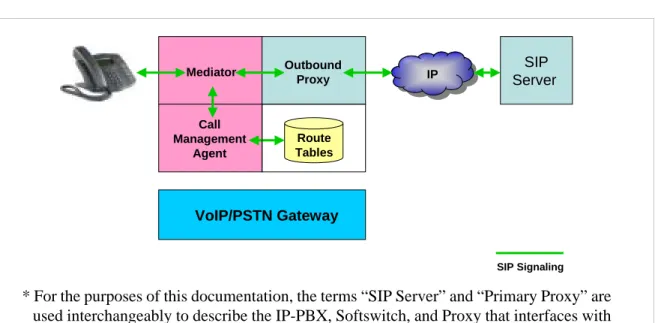
Quintum’s Survivable SIP Gateway (SSG) is a signaling intermediary between the local IP endpoints and the central SIP Server. SSG technology (internal to the Tenor) provides site survivability for branch offices in a single, integrated access solution. The SSG acts as an outbound proxy--all IP endpoints register to the SIP Server via SSG and all SIP signaling passes through it. It is an intelligent local agent that gathers and maintains rout-ing information for all endpoints passrout-ing registrations and call signalrout-ing through it to the central SIP proxy.
In the event of a loss of connection with the central SIP Server, SSG takes control as the SIP session manager and uses its internal database of stored routing information to pro-vide local routing support for all local IP endpoints (this routing information is automat-ically built from the registration and signaling information passed through the SSG acting as an outbound proxy).
SSG Combines Powerful Technology with the Tenor
The SSG combines Survivability and the powerful Tenor VoIP/PSTN gateway. The SSG supports the FXS ports required to interface with the various legacy analog devices that need to be integrated into the new IP based telephony systems. It can also support FXO ports to enable the internal IP based telephony system to place calls to/from the PSTN. These FXO ports are also used for site survivability by providing back up connections over the PSTN during periods of WAN IP failure.
Figure 1-1 Quintum SSG
* For the purposes of this documentation, the terms “SIP Server” and “Primary Proxy” are used interchangeably to describe the IP-PBX, Softswitch, and Proxy that interfaces with the SSG. * VoIP/PSTN Gateway SIP Server IP IP Outbound Proxy Mediator Call Management Agent Route Tables SIP Signaling
trex service. In actuality, SSG makes no distinction between whether this proxy is a SIP Proxy, IP PBX, IP Centrex or Softswitch. Depending upon your application, any of these, or a combination of these, can be used.
Features/Functions
Signaling/Call Processing
Signaling. The SSG supports UDP signaling.
Call Processing based on call services supported. When calls are sent end-to-end, before the calls are forwarded, the SSG removes, modifies, adds, or deletes information (headers) based on the call services supported in the SSG.
Call Routing
Route Selection. When a new call arrives at the SSG, the routing database is queried to build a list of possible routes.
Default Route. A single static route serves as the default route for all calls which cannot be completed to their intended destination, or registered endpoints.
Call Survivability
Call Fail Over. The SSG monitors the call progress of each outgoing call session. If the call session cannot be established (due to the Primary Proxy being down or not avail-able) the SSG selects the next available server, and attempts to establish a session with that destination.
Registration Fail Over. The SSG monitors registration sessions when used as an out-bound proxy. When an IP endpoint fails to respond, the SSG continues to respond to the endpoint registration until it becomes active.
DNS Failover. If the outgoing call session is a FQDN (Fully Qualified Domain Name), the SSG sends the request to the IP address returned by the DNS lookup. If the request fails, the SSG sends the request to the next server of the domain name. This process con-tinues until each server has been attempted, or the message request has been processed.
Why SSG is needed
In a typical pre-SSG VoIP network, all IP calls are controlled by a central SIP Proxy (i.e., IP PBX, or hosted IP PBX/Centrex). If the local WAN IP fails, there is no site survivabil-ity for Local IP or PSTN-to-IP phone calls. See Figure 1-2.
• Connection with the central call routing and management function is lost.
• The Branch office IP phones will not be able to make calls within the site, and will not be able to route calls to the local VoIP gateway for back-up over the PSTN. •Incoming calls from the PSTN will not be able to be routed to the IP phones.
Figure 1-2 Normal Operation/No Site Survivability - Local IP Phone Calls Local IP phone calls routed over IP by SIP Server
Local IP phone calls fail - Branch office is unreachable Branch Office Media Path
SIP Signaling
IP
Gateway ServerSIP Head Office PSTN
Branch Office Media Path SIP Signaling
IP IP
Gateway ServerSIP Gateway ServerSIP
Head Office PSTN
Branch Office
SIP Signaling
IP
Gateway ServerSIP Head Office PSTN Branch Office SIP Signaling IP IP
Gateway ServerSIP Gateway ServerSIP
Head Office PSTN
Network Examples/ Site Survivability via SSG
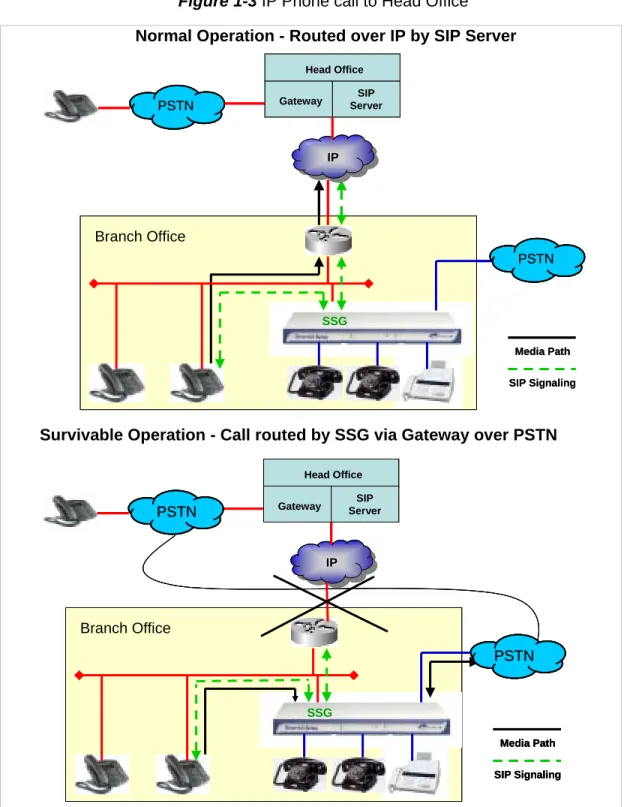
IP Phone Call to Head OfficeFigure 1-3 IP Phone call to Head Office Normal Operation - Routed over IP by SIP Server
Survivable Operation - Call routed by SSG via Gateway over PSTN
SSG
Branch Office
Media Path SIP Signaling IP
Gateway ServerSIP Head Office PSTN PSTN SSG Branch Office Media Path SIP Signaling IP
Gateway ServerSIP Head Office PSTN PSTN SSG Branch Office Media Path SIP Signaling IP
Gateway ServerSIP Head Office PSTN PSTN SSG Branch Office Media Path SIP Signaling IP
Gateway ServerSIP Head Office PSTN PSTN SSG Branch Office Media Path SIP Signaling IP
Gateway ServerSIP Head Office
PSTN
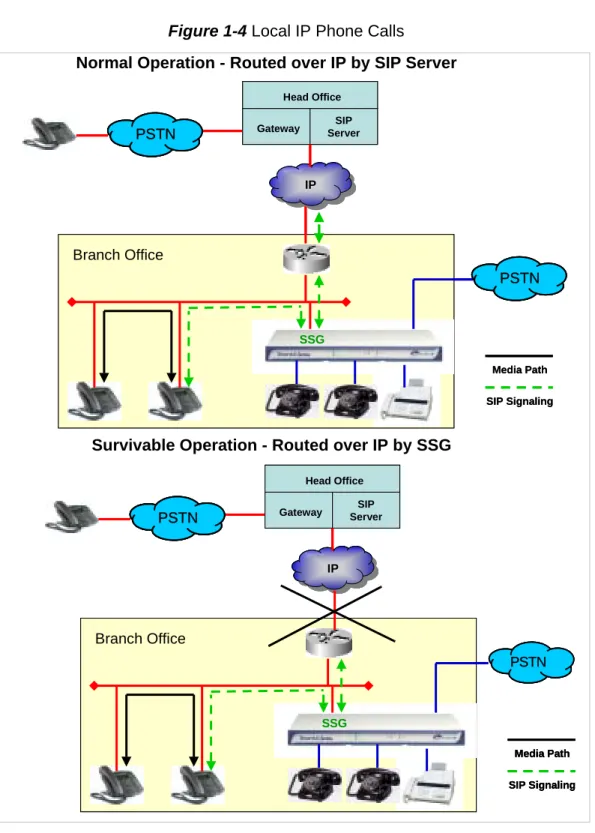
Local IP Phone Calls
Figure 1-4 Local IP Phone Calls
Normal Operation - Routed over IP by SIP Server
Survivable Operation - Routed over IP by SSG
SSG
Branch Office
Media Path SIP Signaling
IP
Gateway ServerSIP Head Office PSTN PSTN SSG Branch Office Media Path SIP Signaling IP
Gateway ServerSIP Head Office PSTN PSTN SSG Branch Office Media Path SIP Signaling IP
Gateway ServerSIP Head Office PSTN PSTN SSG Branch Office Media Path SIP Signaling IP
Gateway ServerSIP Head Office PSTN PSTN SSG Branch Office Media Path SIP Signaling IP
Gateway ServerSIP Head Office PSTN
PSTN
PSTN PSTN
Local Analog to IP Phone Calls
Figure 1-5 Local Analog Phone to IP Phone Calls
Normal Operation - Routed over IP by SIP Server via Gateway
Survivable Operation - Routed over IP by SSG via Gateway
SSG
Branch Office
Media Path SIP Signaling
IP
Gateway ServerSIP Head Office PSTN PSTN SSG Branch Office Media Path SIP Signaling IP
Gateway ServerSIP Head Office PSTN PSTN SSG Branch Office Media Path SIP Signaling IP
Gateway ServerSIP Head Office PSTN PSTN SSG Branch Office Media Path SIP Signaling IP
Gateway ServerSIP Head Office PSTN PSTN SSG Branch Office Media Path SIP Signaling IP
Gateway ServerSIP Head Office PSTN
PSTN to IP Phone Calls
Figure 1-6 PSTN to IP Phone Calls
Normal Operation - Routed over IP by SIP Server via Gateway
Survivable Operation - Routed over IP by SSG via Gateway
SSG
Branch Office
Media Path SIP Signaling IP
Gateway ServerSIP Head Office PSTN PSTN SSG Branch Office Media Path SIP Signaling IP
Gateway ServerSIP Head Office PSTN PSTN SSG Branch Office Media Path IP
Gateway ServerSIP Head Office PSTN PSTN SSG Branch Office Media Path IP
Gateway ServerSIP Head Office PSTN PSTN SSG Branch Office Media Path IP
Gateway ServerSIP Head Office
PSTN
Upgrade to the latest SSG software
Ensure you have the latest SSG software loaded using the instructions below. To find Quintum's latest firmware versions, please visit: http://www.quintum.com/support. 1. Download the firmware from the Quintum website and unzip the file (i.e. using a
pro-gram such as WinZip). Save the files to a new, empty directory on your hard drive. 2. From your PC, select Start> All Programs> Accessories> Command Prompt. The
Command Prompt window is displayed.
3. Use the CD command (cd\) to change to the directory containing the unzipped firm-ware files on your local hard drive.
4. Type ftp followed by the IP address of the unit. Press Enter. 5. Login with the username and password. Default for both is admin.
• Type bin <Enter> • Type hash<Enter> • Type prompt<Enter> • Type mput *.*<Enter>
• Type get reset.sys <Enter> (In order for the upgrade to take effect, you must reset the unit. You can reset now or wait until the next time you login).
6. To confirm the upgrade, initiate a telnet session with the unit and use the command show –v. The system software should reflect the upgraded firmware version.
Upgrade your current Tenor License File for SSG
If you would like to upgrade your current analog unit (Tenor AS, Tenor AF, or Tenor AX) to include the Survivable SIP Gateway (SSG) functionality, you must install the applica-ble license file. A license file contains configuration information that is used to enaapplica-ble features and options in the Tenor, such as the SSG functionality.
This section outlines the process of manually upgrading a Quintum Tenor VoIP analog device with a new license file which enables the SSG functionality.
Prerequisites
Before attempting to install the new license file, ensure that you have the following com-ponents readily available:
• “license.dat” file (obtained from Quintum Technical Support) • IP Address of target Tenor VoIP device
• Admin Password for target Tenor VoIP device Getting Started
You should receive an mail confirmation of the enabled license SSG feature. This E-mail also contains one or more attachments, the most important of which is the
license.dat file. This file is the actual license generated for a particular Quintum Tenor VoIP device.
NOTE: The license file will only work in the Quintum Tenor VoIP device with the serial num-ber that matches the one provided when the license file was generated. The license file is not interchangeable among devices.
The license file must be installed on the appropriate Quintum Tenor VoIP device (e.g., a Tenor AX) via FTP. In brief, the license.dat file should be placed in the /cfg/sys/ direc-tory in the target device. You may use any FTP client in order to accomplish this; the examples shown in this document are for using MS DOS. After FTP’ing the license.dat file to the Tenor VoIP device, the device must be reset for the new license to become active.
Upgrade the Unit
5. Type ftp followed by the IP address of the unit. Press Enter. 6. Login with the username and password. Default for both is admin.
7. Use the CD command to change to the cfg/sys directory (this is the directory on the Tenor into which you will copy the license.dat file). Depending upon the product type and software revision, the directory structure you see in your Tenor VoIP device may be different.
8. Type bin <Enter>.
9. Type put license.dat<Enter>
10.Type get reset.sys <Enter> (In order for the upgrade to take effect, you must reset the unit. You can reset now or wait until the next time you login).
Configure SSG
WARNING: When configuring the SSG, you must configure the SIP Server (Primary, Secondary, or both) even if you are not using the FXO/FXS interfaces. See Figure 1-8.
Once you have installed and connected to the Tenor (with SSG supported), you are ready to configure the SSG information. (For installation/connection instructions go to
www.quintum.com/support).
Configuration can be accomplished through the Command Line Interface (CLI) or through the Configuration Manager. For more information, go to
www.quintum.com/support.
Configuration through the Tenor Configuration Manager
NOTE: For detailed information about any of these fields, see the Online Help available with the Configuration Manager.
1. Launch the Tenor Configuration Manager and connect to the Tenor in which the SSG feature is supported. For more information about logging into the Tenor Configuration Manager, see the Configuration Manager User’s Guide located at
www.quintum.com/support.
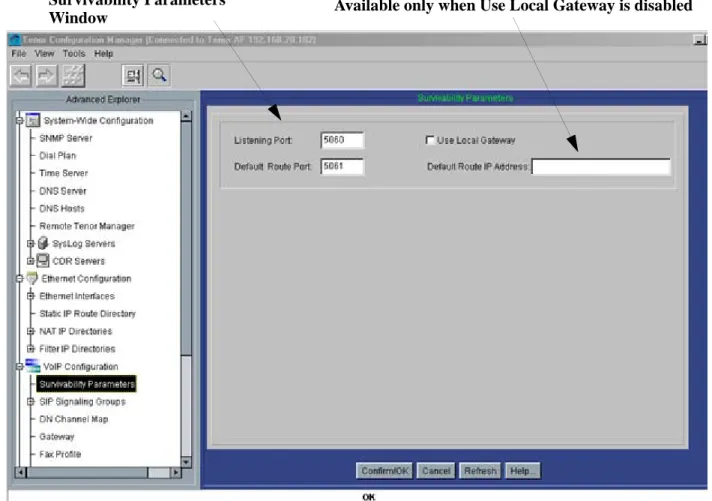
2.From the main panel, click on VoIP Configuration> Survivability Parameters. The Sur-vivability Parameters window is displayed. See Figure 1-7.
Figure 1-7 Survivability Parameters window
3. In the Listening Port field, enter a port number. The default port is 5060.
4. Ensure the Use Local Gateway radio box is checked. If you choose to disable this option, the Default Route IP Address field is displayed. (The Default Route IP Address is a static route destination for calls when UseLocalGateway is disabled.) 5. Enter a Default Route Port (the default is5061).
6. Click on Confirm/Ok.
7. From the main panel, click on VoIP Configuration> SIP Signaling Group -1. The SIP Signaling Group window is displayed. See Figure 1-8.
Survivability Parameters Available only when Use Local Gateway is disabled Window
Figure 1-8 SIP Signaling Group window
WARNING: When configuring the SSG, you must configure the SIP Server (Primary, Secondary, or both) even if you are not using the FXO/FXS interfaces.
8. In the Primary SIP Server box, enter the IP address for the Primary SIP Server (in the Secondary SIP Server box, enter the IP address for the Secondary SIP Server, if required). Configure the SIP Server Ports for both.
9. If you are not using the built in UserAgent and Gateway functionality, enter 0 in the Register Expiry Time box (setting this option to 0 will stop unnecessary register mes-sages from being sent from the UserAgent to the SSG).
10.Ensure the Primary Outbound User Local Survivable Gateway box is checked. Primary SIP Server Register Expiry Secondary SIP Server
Configuration through the Command Line Interface (CLI)
NOTE: For detailed information about any of these fields, see the Command Reference Guide, on www.quintum.com/support.
1. Through Telnet launch a connection to the Tenor unit in which SSG is supported, and access the Command Line Interface (CLI). For more information about logging into the Tenor, see the Command Reference Guide at www.quintum.com/support.
Figure 1-9 Survivability Parameters Command Line Interface (CLI)
2. Access the SurvivabilityParameters prompt.
3. Type set ListeningPort (or set lp),followed by a port number. The default port is 5060.
4. Type setUseLocalGateway1 (or setulg 1) to enable the option. If you choose to dis-able this option (by typing set UseLocalGateway 0) the DefaultRouteIPAddress is displayed. (If this is enabled, enter a route IP address by typing set DefaultRouteI-PAddress followed by an IP address). The Default Route IP Address is a static route destination for calls when UseLocalGateway is disabled.
5. Type set DefaultRoutePort followed by a port number (the default is 5061). 6. Access the SIPSignalingGroup-1 prompt.
Survivability Parameters Prompt
Configurable Fields
Figure 1-10 SIP Signaling Group Parameters Command Line Interface (CLI)
7. Type set OBPrimaryUseLocalSurvivableGW 1 (to enable the field).
8. Type set PrimarySIPServer <IP Address> (to configure the IP address for the Pri-mary SIP Server (for the SecondarySIP Server field, type set Secondary SIP Server <IP Address>, if required). Configure the SIP Server Ports for both (PrimarySIPServ-erPort and SecondarySIPServ(PrimarySIPServ-erPort).
9. If you are not using the built in UserAgent and Gateway functionality, type set Regis-terExpiryTime 0 (setting this option to 0 will stop the extra register messages from being sent from the UserAgent to the SSG).
10.Type submit to submit the changes to the SSG. SIPSignalingGroup Parameters Prompt
Configurable Fields
Configure SIP Phone
The Quintum Survivable SIP Gateway (SSG) gathers and maintains routing information for all endpoints (i.e, SIP phones) passing registrations and call signaling through it to the central SIP proxy. For a SIP phone to employ the capabilities of the SSG, the phone must be configured to use the Quintum SSG as an “Outbound Proxy” / “Outbound Gate-way” (ensure that your Proxy is configured to use your own Proxy). It is important that the SIP Phone be configured to send all SIP call signaling messages to the correct IP Address and port on the Quintum SSG. Most SIP phones have a configuration option to use an “Outbound Proxy” and allow the user to enter the IP address and Port of the Out-bound Proxy Server. Assuming the IP address of the SSG is 192.168.2.100:5060, the SIP phone will need to be configured to “Always” and use the “Outbound Proxy” at
“192.168.2.100:5060”
Before configuring a SIP phone, ensure the following:
• In the SSG’s configuration, ensure the Listening Port (From the Configuration Manager’s main panel, click on VoIP > Survivability Parameters and configure 5060 in the Listening port.) This is the port the SSG is configured to listen too. • If there is an option in the IP SIP phone for when to use an Outbound Proxy, it
should always be set to “Always” or “Yes”.
SIP phones (depending on type) need to be configured in a specific way, according to the model. Below are a few examples for specific models that have been successfully con-figured with the SSG, including configuration tips and how to optimize the SIP phone to interoperate with the SSG.
AVAYA® 4600 SIP Telephone (Ex: 4620SW, 4621SW)
NOTE: For detailed information on configuring these fields, see the user documentation you received with the Avaya 4600 phone.
The AVAYA 4600 SIP telephone successfully interoperates with the SSG. Information is detailed below for configuring the AVAYA SIP phone to work with the SSG. As shipped from the factory, the AVAYA 4600 Series IP Telephones will not contain sufficient soft-ware and configuration information for registration and operation. When the phone is first plugged in, a download from a TFTP or HTTP server gives the phone its proper configuration and software version. One of the files the AVAYA 4600 phone downloads from the TFTP/HTTP server is the “46xxsettings.txt” file.
To configure the AVAYA SIP phone to use the Quintum SSG, it is necessary to modify the “46xxsettings.txt” file such that the MCIPADD, SIPPROXYSRVR, and SIPREGIS-TRAR parameters are set to the IP address of the SSG. Assuming the IP address of the SSG is 192.168.2.100:5060, and the SIP domain name is “devcon.com”, below are examples of the entries needed in the “46xxsettings.txt” file.
• SET SIPPROXYSRVR “192.168.2.100” • SET SIPREGISTRAR “192.168.2.100”
The following parameter must match the Primary SIP Server configured in the SSG: • SET SIPDOMAIN "devcon.com"
Cisco® 7900 Series SIP Telephone Configuration
The Cisco 7900 Series SIP telephone successfully interoperates with the SSG.
Information is detailed below for configuring the Cisco SIP phone to work with
the SSG.
As shipped from the factory, the Cisco 7900 Series IP Telephones does contain sufficient configuration information to work with the Quintum SSG. The necessary configuration information can be entered in the “SIPXXXXYYYYZZZZ.cnf” file that is downloaded from a TFTP server or entered via the phone keypad. The format of the filename must be SIPXXXXYYYYZZZZ.cnf, where XXXXYYYYZZZZ is the MAC address of the phone.
The following configuration file parameters must reference the IP address and port of the Quintum SSG:
• Outbound Proxy (IP Address of the SSG)
• Outbound Proxy Port (SSG listen port, default 5060)
For more details on how to configure these options, see the Cisco SIP IP Phone
Administrator Guide.
X10® XLite v2.0 IP Phone Configuration
The XLite 2.0 SIP telephone successfully interoperates with the SSG. Ensure the
fields below are configured for the XLite IP Phone to work with the SSG.:
• Enabled (ensure this is set to yes). • Display Name (name)
• Authorization (if using authentication on the server) • SIP Proxy (Proxy IP)
LinkSys® Sipura IP Phone
The LinkSys Sipura IP telephone successfully interoperates with the SSG.
For interoperability, select “Always Use Outbound Proxy” and enter the Outbound Proxy IP Address and port number in the format of IP address followed by port (e.g.., 192.168.2.100:5060).
For more details on how to configure these options, see the user documentation
you received with the Sipura phone.
Diagnostics
Diagnostics on the Tenor SSG are accessed through the Command Line Interface (alarms/error messages) and through the Tenor Monitor. For the latest information, see www.quintum.com/support.