A guide to finding information in Roberts-LaForge Library
Guide to Using CINAHL
What is CINAHL?
CINAHL with Full Text is the world's most comprehensive source of full text for more than 610 nursing & allied health journals indexed in CINAHL. Of those, more than 300 are not available with full text from any other EBSCO database. With full-text coverage dating back to 1981, CINAHL with Full Text is the definitive research tool for all areas of nursing and allied health literature.
Accessing the CINAHL database:
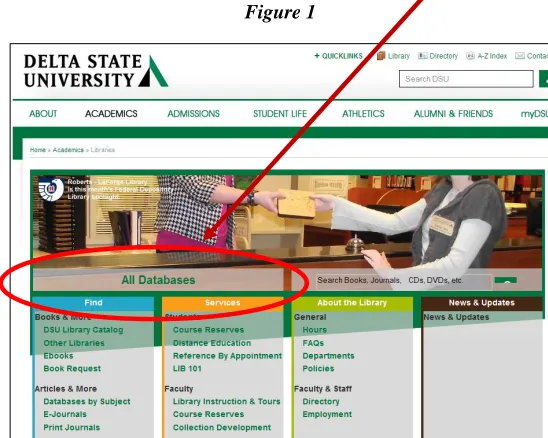
Roberts-LaForge Library provides access to CINAHL through EBSCOhost. The easiest way to access the CINAHL database is to go to the library home page at http://www.deltastate.edu/pages/177.asp and click on “All Databases” in the middle of the page (See Figure 1).
Figure 1
A screen with an alphabetical list of databases will appear.
If you are logging in at home or anywhere off-campus, you will need to pick up the “DSU Virtual Library Guide” available in Roberts-LaForge Library and online at http://www.deltastate.edu/docs/library/VirtualLibraryonline.pdf .
Searching in CINAHL
:By default, the Advanced Search is the initial search screen (To switch to other search types, click on the appropriate blue tab). The Advanced Search is broadest type of search available in CINAHL. To perform n Advanced Search enter appropriate search terms or keywords and separate them using Boolean operators (AND, OR, NOT). To find out more about the uses of Boolean operators, click on the Online Help Button at the top of the screen.).
Figure 2- Example of an Advanced Search Screen
Advancedsearching allows the user the most flexibility in performing searches. It provides three keyword search boxes to separate unique terms or phrases as well as capabilities to search within specific parts of each record. If you only want to search for words or phrases in the title, author, or subject fields, the drop-down box provides that capability. (Each record typically consists of the citation
information, abstract, subject headings or descriptors and possible full text or linked full-text.)
Search Example:
Prenatal care AND Diet will retrieve records that have the phrase prenatal care and the word diet somewhere in the record. When performing a Default Fields search the Title, Abstract, and Subject Heading of a record is searched. Figure 3 shows this search.Figure 3- Search Example
Understanding the Search Results:
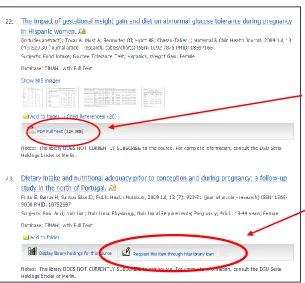
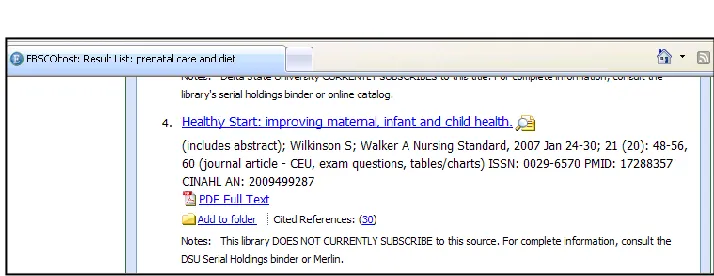
When performing a CINAHL search, the results are listed in chronological order, with the most recent articles first. See Figure 3 for a partial result list from the above search. Click on the title (underlined and in blue) to see the complete citation, including an abstract. To access full-text articles, click on the PDF or HTML links.
In the Notes section of the citation you will see a message indicating whether or not the DSU library subscribes to the source.
If the library does subscribe to the source check the DSU Serials Holdings Binder or the online catalog for more information. If we do not subscribe to the source you may have to request the article through Interlibrary Loan.
Note: The “Linked Full Text” option is often a dead-end or leads you to a web source where you have to pay for the article. If this happens, it is best to request the article for free using the library’s Inter-library Loan service.
Figure45
Another benefit of the Advanced Search
screen is the presence of very specific limiters. For instance, if you know you need to find a case study, the limiter “Publication
Type” will allow you to focus the search on only records that have this type of
publication. Figure 5 illustrates this example and shows some of the other limiters available in CINAHL.
Figure 4 – In this example, the search has been limited and will only retrieve results of the chosen publication type. In the “Age Groups” limiter, you can specify whether or not you want to limit results to a certain age group, in this case “Infant, 1-23 months” has been selected.
What are CINAHL Headings?
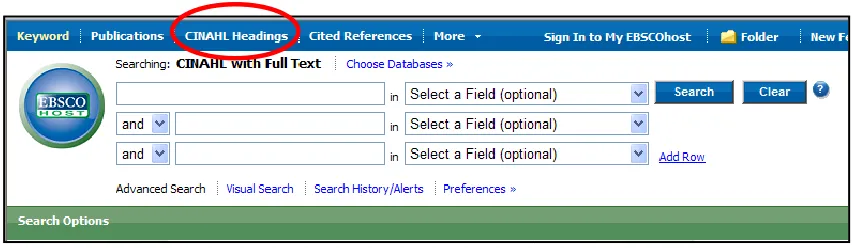
CINAHL Headings is a list of subject headings assigned to each item indexed in CINAHL. To access CINAHL Headings click on the blue tab at the top of the search screen labeled “CINAHL Headings”. (See Figure 5)
Figure 5 – CINAHL Headings Tab
These headings are arranged in hierarchical order using a controlled vocabulary. Controlled vocabulary means all items dealing with a particular topic will be indexed using the same term. For example, when looking for information about “Cancer” there are a number of terms you could use, such as cancer,tumor, or malignancy, etc.
Figure 6- Browse Headings
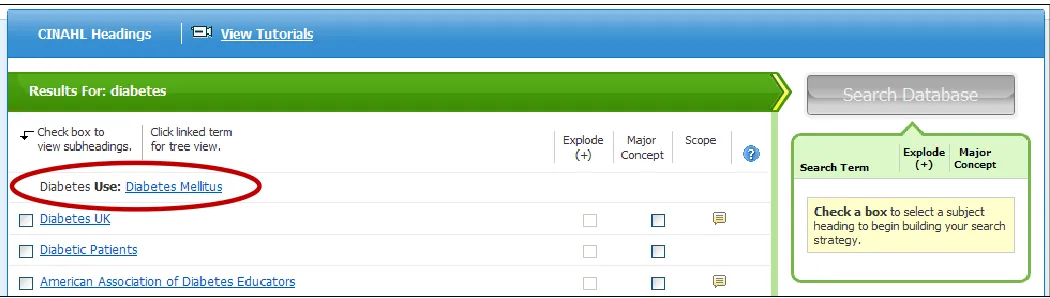
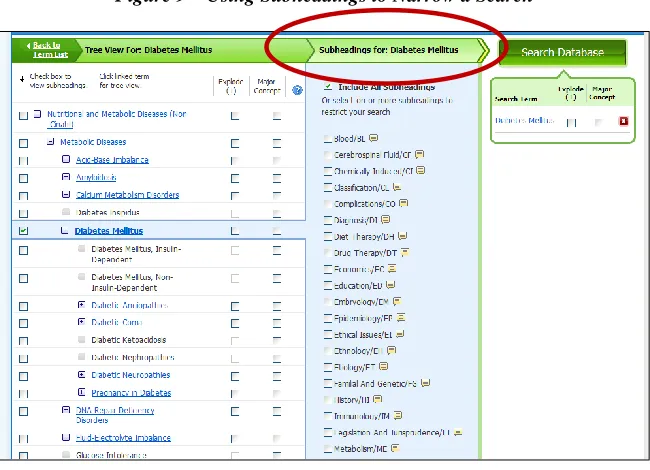
Browsing for “diabetes” results in a list of headings shown on the left in Figure 7. Notice that the assigned subject heading for “diabetes” is “Diabetes Mellitus”.
Figure 7
Hierarchical “Tree View” in CINAHL Headings
Clicking once on the general term “Diabetes Mellitus” will bring you to another screen (Figure 8) that inserts the term “Diabetes Mellitus” into an hierarchical tree under Metabolic Diseases. Figure 8reveals a “Tree View” for the heading “Diabetes Mellitus” The
Figure 8- CINAHL Hierarchical Tree View
To view “Subheadings under Diabetes Mellitus, check the box on the right. This will bring up the following screen to narrow your search (See Figure 9).
Figure 9 – Using Subheadings to Narrow a Search
After you have selected the subheading(s) you want in your search, click on the green SEARCH button.
Using Explode and Major Concept:
You may also use “Qualify Subheadings” to narrow your search further.
Explode = Broader, Less Targeted Search
When you Explode a term, you create a search query that expands on the CINAHL heading. The headings are exploded to retrieve all references indexed to that CINAHL Heading as well as all references indexed to any narrower headings in the tree hierarchy. To Explode a term, click the box beside Explode before you click on the green SEARCH button. This action will perform a search that retrieves all citations that have your chosen subject heading and citations that have subject headings of any narrower terms. (In the tree view a + sign appears next to terms that have subheadings.) In the example on the previous page, checking the Explode box beside Neoplasms and clicking on Add and then clicking Search will retrieve citations that have the subject heading “Neoplasms” as well as the
narrower terms “Childhood neoplasms”, “cysts”, “neoplasm metastatsis”, etc…
For more information on searching using CINAHL Headings click on the “Search Tips” link in the CINAHL Database.
Not Getting the Results You Want? :
On occasion, you may not get the desired results, which can be both frustrating and overwhelming. The following tips will allow you to expand or narrow your search as desired.
• Too many Results?
o Try adding more search terms. It is crucial when searching any database to be as specific as possible. If you enter only one word, search results will abound, and more than likely the results will not have anything to do with what you are
researching. Remember to use the Boolean operators (and, or, not) and provide terms that completely reflect your search interest.
o Search within a specific field. A keyword search using default fields will search several fields at once. If you want results that reflect the essence of your topic, limit your search to one of the fields provided in the Advanced Search module.
• Not Enough Results?
o Use different variations of the same term.
o Truncate your term using the “*” which will search for the stem of your word and any ending it may have. For example, by typing educat*, you will get educate, educates, educational, educating, etc. This is particularly helpful for those terms that do have multiple variations.
o Think of other ways to describe your topic. Before you even sit down, it is important to come prepared with several different ways to phrase your search in the event you do not find what you need immediately.
• No Results?
o Check for any misspellings or typos.
o Do not enter long phrases in a keyword or advanced search. Stop words such as for, as, to, the, of, etc. are hardly ever indexed and therefore are inconsequential when doing keyword searching. If these words are entered, the results will be skewed.
Printing/Emailing/Saving Records:
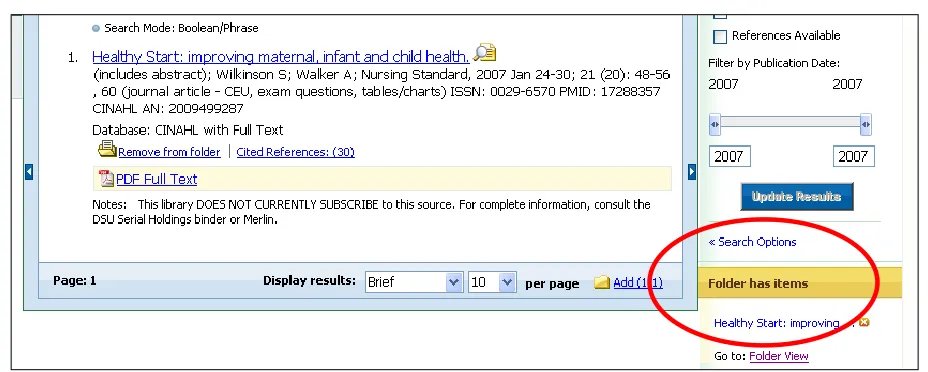
Figure 10 – Add to Folder Link
Using the Folder:
Once you have added the individual article records to the EBSCO folder, you can retrieve them by clicking on the
Folder
View
link on the bottom right-hand side of the search screen (See Figure 11).
Figure 11- Opening the Folder
Figure 12 – Folder View
Once you are in Folder View, you can select the articles you want to print, email or save by using the icons to direct the records to the Print, Email or Save Managers (See Figure 12).
To Print: Select the articles you want to print by checking the box next to the title. Then click on the printer icon. This will take you to the Print Manager screen (See Figure 13).
Figure 13 – Print Manager Print Manager –Now select either
the Citation/Abstract or Full Text (when available) option, then click on the blue Print button.
Manger page. Enter in your email address and subject then choose whether you want the citation(s) and abstract(s) only or full text if available. Click on the blue Send button to email.
Save Manager – This works like Print and Email, except this time you would choose the Save icon (computer disk) to go to the Save Manager. Once you have clicked on the blue Save button, your items will appear on the screen. To save to a disk, click on File and then Save as from your browser’s toolbar. Be sure to save the document as a plain text file (.txt) or an HTML only file (.html).