555-230-890
Comcode 108383811
Issue 3
June 1999
DEFINITY
®
Enterprise Communications Server
Release 7
Notice
Every effort was made to ensure that the information in this book was complete and accurate at the time of printing. How-ever, information is subject to change.
Your Responsibility for Your System’s Security
Toll fraud is the unauthorized use of your telecommunications system by an unauthorized party, for example, persons other than your company’s employees, agents, subcontractors, or persons working on your company’s behalf. Note that there may be a risk of toll fraud associated with your telecommuni-cations system and, if toll fraud occurs, it can result in substan-tial additional charges for your telecommunications services.
You and your system manager are responsible for the security of your system, such as programming and configuring your equipment to prevent unauthorized use. The system manager is also responsible for reading all installation, instruction, and system administration documents provided with this product in order to fully understand the features that can introduce risk of toll fraud and the steps that can be taken to reduce that risk. Lucent Technologies does not warrant that this product is immune from or will prevent unauthorized use of common-car-rier telecommunication services or facilities accessed through or connected to it. Lucent Technologies will not be responsible for any charges that result from such unauthorized use.
Lucent Technologies Fraud Intervention
If you suspect that you are being victimized by toll fraud and you need technical support or assistance, call the Lucent Tech-nologies National Customer Care Center support line at 1-800-643-2353. Outside the continental United States, contact your local Lucent Technologies authorized representative.
Federal Communications Commission Statement
Part 15: Class A Statement. This equipment has been tested
and found to comply with the limits for a Class A digital device, pursuant to Part 15 of the FCC Rules. These limits are designed to provide reasonable protection against harmful interference when the equipment is operated in a commercial environment. This equipment generates, uses, and can radiate radio frequency energy and, if not installed and used in accor-dance with the instruction manual, may cause harmful interfer-ence to radio communications. Operation of this equipment in a residential area is likely to cause harmful interference, in which case the user will be required to correct the interference at his own expense
Trademarks
DEFINITY is a registered trademark of Lucent Technologies. GuestWorks is a registered trademark of Lucent Technologies.
Voice 1-800-457-1235 Intl Voice +1-317-361-5353 Fax 1-800-457-1764 Intl Fax +1-317-361-5355
Order: Document No. 555-230-890 Comcode 108383811 Issue 3, June 1999
For more information about Lucent Technologies documents, refer to the section entitled “Related Documents” in “About This Document.”
Product Support
To receive support on your product, call 1-800-242-2121. Out-side the continental United States, contact your local Lucent Technologies authorized representative.
European Union Declaration of Conformity
The “CE” mark affixed to the DEFINITY® equipment described in this book indicates that the equipment conforms to the following European Union (EU) Directives:
• Electromagnetic Compatibility (89/336/EEC) • Low Voltage (73/23/EEC)
• Telecommunications Terminal Equipment (TTE) i-CTR3 BRI and i-CTR4 PRI
For more information on standards compliance, contact your local distributor.
Comments
To comment on this document, return the comment form.
Lucent Technologies Web Page
The World Wide Web home page for Lucent Technologies is http://www.lucent.com
Acknowledgment
Contents
Contents iii
Console Operations 1
■ About This Document 1
Assumptions 1
Conventions 1
Related Documents 3
■ Basic Operation 4
Console Layout 4
Status Lamps 8
Call Purpose Indicators 8
Administrable Features 9
Activate the Console 10
Deactivate the Console 10
Answer Calls 10
Make Calls 11
Forced Release 14
Split Calls 14
Split Swap 15
Auto Start and Don’t Split 17
Class of Restriction 17
Night Service 18
■ Feature Operation 19
Attendant Backup 19
Busy Verification 20
Call Forwarding 21
Call Park 23
Conference 23
Crisis Alert 24
Emergency Access to Attendant 25
Hold 25
Integrated Directory 26
Intrusion 28
Override 30
Recall 31
Serial Calling 32
Transfer 34
Trunk Identification 36
Console Operations
About This Document
This document contains basic telephony procedures for using the DEFINITY® Enterprise Communications Server (ECS) attendant console. These procedures are done by the attendants or front desk personnel.
All office staff personnel that operate the attendant console or do console
operations at a backup telephone should be familiar with these procedures. If you need extra copies of this document, contact your Lucent representative or order more copies as described on the inside cover of this document.
Assumptions
It is assumed throughout this document that the user is familiar with the basic operation of telephones and attendant consoles. If users have access to a
multimedia personal computer, there is training available on CD-ROM for basic console and telephone operations.
Conventions
The following conventions are used in this document:
■ Buttons you press on the console are shown as follows:
RELEASE button
Some button labels on the console, such as Serial Call, span two lines. Because of line spacing in this document, they are shown across one line of text, such as SERIAL CALL.
■ The term “dial keypad” refers to the touch-tone keypad where you dial (enter) telephone numbers and feature access codes.
■ When referring to lamps, the reference is to one of two types of lamps found on the attendant console: the status lamps next to the dial keypad and the lamps associated with feature and trunk buttons. The status lamps next to the dial keypad have fixed meanings. Those lamps are shown as follows:
Position Available
Lamps associated with feature and trunk buttons are identified by their button label (such as NORMAL MODE).
■ Messages appearing on the display are shown as follows:
When the display examples show a value within “arrows” (< >), this represents a variable that will differ for each example.
■ The term “attendant console” signifies the Model 302B, 302C, or PC console that usually is found at the front desk. The term “backup
telephone” signifies either a Model 6408, 6424, 8410D or 8434 telephone with attendant-type feature buttons. Other multiappearance telephones can be used, but the preferred models are the 6408, 6424, 8410D or 8434.
■ When a procedure refers to a “extension,” the procedure is referring to the extension number of a user or guest. A guest’s room number and extension are not always the same.
■ You will hear the following tones during normal operation:
— Dial tone — a steady tone you hear when you select an idle call appearance.
— Ringback tone — the normal ringing tone you hear after you dial an extension or outside number.
— Busy tone — a slow on-off-on-off tone you hear when the person you are calling is busy.
— Reorder tone — a fast on-off-on-off tone you hear when calling facilities are not available or are out of order.
— Confirmation tone — a three-burst tone you hear after successfully using a feature access code.
— Intercept tone — a high-to-low tone you hear when a call or feature access code is not accepted.
■ The following table lists the features described in this document. Ask your administrator for these codes and write them down in this table.
Related Documents
■ DEFINITY® Console Operations — 555-230-700
■ PC Console Quick Reference User’s Guide — 555-230-795
■ DEFINITY® ECS and GuestWorks® Hospitality Operations — 555-230-723
Feature
Feature Access Code
Answer Back (for Call Park)
Call Forwarding - All Calls
Activation
Deactivation
Call Forwarding - Busy/Don’t Answer
Activation
Deactivation
Call Park
Trunk Answer Any Station (used
Basic Operation
Console Layout
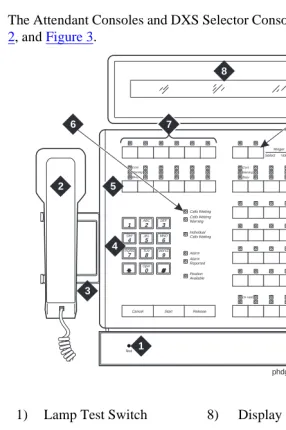
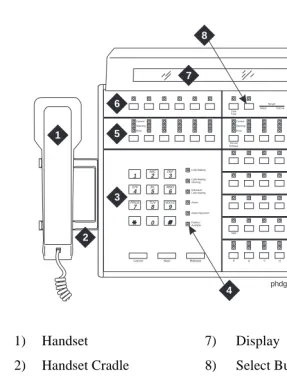
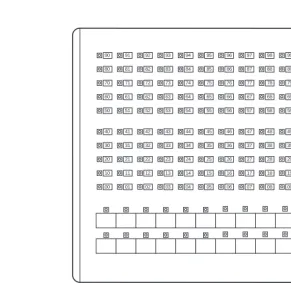
The Attendant Consoles and DXS Selector Console are shown in Figure 1, Figure 2, and Figure 3.
Figure 1. Model 302A/B Attendant Console
1) Lamp Test Switch 8) Display
2) Handset 9) Select Button
3) Handset Cradle 10) Volume Control Buttons
4) Call Processing Area 11) Outside-line Buttons
5) Outside-line Buttons 12) Feature Buttons
6) Warning Lamps and Call Waiting Lamps
13) Call Appearance Buttons
7) Display Buttons
Test 1
Figure 2. Model 302C Attendant Console
1) Handset 7) Display
2) Handset Cradle 8) Select Button
3) Call Processing Area 9) Volume Control Buttons
4) Warning Lamps and Call Waiting Lamps
10) Outside-line Buttons
5) Outside-line Buttons 11) Feature Buttons
6) Display Buttons 12) Call Appearance Buttons a b c d e f
Position Available Forced Release Night Pos Busy Calls Waiting Calls Waiting Warning Individual Calls Waiting Alarm Alarm Reported Control Warning Busy Control Warning Busy Split Hold Date Time Ringer Select Volume
Cancel Start Release
3 DEF 1 4 GHI 7 PRQS 6 MNO 9 WXYZ 2 ABC 5 JKL 8 TUV 0
phdg302c KLC 031199
Figure 3. DXS Selector Console
The following list items correspond with the callouts shown in Figure 1, Figure 2, and Figure 3. All the feature buttons, trunk access buttons, and display buttons are on this console. The DXS Selector Console allows you to dial an extension number and view the status for each extension.
■ Lamp Test Switch — This is a switch under the front panel of the
Model 302A/B console that allows you to test the console lamps. The test starts when you press the switch and stops when you release the switch.
On the Model 302C console, you must press simultaneously and hold the
POS BUSY and VOLUME UP buttons to test the console lamps. The test starts
when you press the buttons and stops when you release the buttons.
■ Handset — This is a standard handset with coiled cord and a dual-prong, phone-plug connector. The handset can be unplugged from the console and replaced with an amplified headset that also uses a dual-prong, phone-plug connector.
■ Handset Cradle — This is where you place the handset when it is not in use. If you use a headset, the handset cradle can be removed from the console.
1) DXS Hundreds Group Select Buttons
2) DXS/BLF Buttons
10 11 12 13 14 15 16 17 18 19
00 01 02 03 04 05 06 07 08 09
20 21 22 23 24 25 26 27 28 29
30 31 32 33 34 35 36 37 38 39
40 41 42 43 44 45 46 47 48 49
50 51 52 53 54 55 56 57 58 59
60 61 62 63 64 65 66 67 68 69
70 71 72 73 74 75 76 77 78 79
80 81 82 83 84 85 86 87 88 89
90 91 92 93 94 95 96 97 98 99
phdgdxs KLC 031199
1
■ Call Processing Area, Warning Lamps, and Call Waiting Lamps — This area consists of the dial keypad, some fixed status lamps, and the START,
CANCEL, and RELEASE buttons. Use the START button to get an idle call
appearance to place a call, the CANCEL button to cancel a dialing instruction,
and the RELEASE button to end a call.
■ Display Buttons — These 8 buttons are used to control access to the alphanumeric display.
■ Display — This is a single-line, 40-character, alphanumeric display that shows call progress and feature usage information.
■ Volume Control Buttons — These buttons, along with the SELECT button, control the ringer volume for incoming calls, timed reminder calls, call waiting calls, and emergency calls. Incoming crisis alert calls (refer to
‘‘Crisis Alert’’ on page 24) ring at a louder fixed volume that you cannot control.
NOTE:
Always check your ringer volume to make sure it is set at an audible level. If the console should experience a power outage, the volume level is reset to the lowest setting.
■ Outside-line Buttons — These 12 buttons are assigned with trunk access codes that allow access to outside lines.
■ Feature Buttons — These 24 buttons are used to access features such as Do Not Disturb and Automatic Wakeup.
■ Call Appearance Buttons — These 6 call appearance buttons are used to select a call appearance and are labeled A through F. Pressing one of them is
similar to pressing the START button, but you can specify which appearance
you want.
■ DXS Hundreds Group Select Buttons — These buttons on the DXS selector console are assigned the first digit or the first two digits of each group of 100 extensions. For example, if you have extensions numbered from 7000 to 7099, there will be a button labeled 7000.
■ DXS/BLF Buttons — These are known as the direct extension select/busy lamp field (DXS/BLF) buttons. They are used with the hundreds group select buttons to place calls to extensions and to determine the status of extensions.
— If the lamp is dark, the extension is idle.
— If the lamp is lighted, the extension is in use.
Status Lamps
The buttons on the console have status lamps associated with their use. These status lamps come on, go off, or flash as you use the console features. When the lamps come on, the feature is active. When the lamps go off, the feature is inactive. When the lamps flash 3 times, you have pressed the wrong button or you cannot access the feature at this time.
There are also some status lamps not directly associated with buttons, and they are located next to the dial keypad.
■ Calls Waiting — This lamp lights when there is one call in the queue.
■ Calls Waiting Warning — This lamp lights when the attendant calls waiting in queue limit has been reached. When this happens, any administered backup telephones are alerted. The queue limit is an administrable value.
■ Individual Calls Waiting — This lamp lights when a call is made to the console’s individual extension number and the call is in queue to be answered.
■ Alarm — This lamp lights when the switch has detected a failure. Follow local procedures if this lamp is lit.
■ Alarm Reported — This lamp lights when an alarm prompts the switch to dial up the remote maintenance center, report the alarm, and the
maintenance center acknowledges the alarm. For some installations, this remote alarm reporting is not available.
■ Position Available — This lamp lights when the console is available to handle a call.
The trunk group select buttons have 3 status lamps associated with each button.
■ Control — This lamp is on if the trunk group has controlled restrictions administered.
■ Warning — This lamp is on when some trunks are busy. Select an alternate trunk group if possible, or use this group if necessary.
■ Busy — This lamp is on when all the trunks in a trunk group are busy. You must select another trunk group or try again later.
Call Purpose Indicators
The following is a list of call purpose indicators that are displayed when calls are redirected to the attendant console or to a backup telephone:
■ co — Controlled Outward Restriction Call. Indicates that a user attempted to make an outgoing call, but the extension has Outward Restriction applied.
■ cs — Controlled Station-to-Station Restriction Call. Indicates that a user attempted to make a call to another extension, but the extension has Station-to-Station Restriction applied.
■ ct — Controlled Termination Restriction Call. Indicates that a user or an outside caller attempted to make a call to an extension, but the called extension has Termination Restriction applied.
■ d — Don’t Answer or Cover. Indicates that the user did not answer the telephone, and the call is redirected to the attendant through Call Coverage.
■ f — Call Forwarding. Indicates that a call has been redirected using Call Forwarding.
■ ic — Intercept Treatment. Indicates that an incoming call has been redirected as a result of intercept treatment.
■ ld — Direct Inward Dialing (DID) Listed Directory Number (LDN) Call. Indicates that an incoming call came in on the LDN over a DID trunk.
■ rc — Recall Call. Indicates that a call being held on the console is requesting more help.
■ rt — Return Call. Indicates that a call transferred to another telephone or parked at an extension was not answered, and has returned to the console for processing.
■ s — Send All Calls. Indicates that a call was redirected because the called party used Send All Calls.
■ sc — Serial Call. Indicates a recall to the console when an outside caller is making a series of calls.
■ tc — Trunk Control. Indicates that a user attempted to place a call using a trunk that has controlled access.
Administrable Features
Some of the features on the attendant console are administrable, which means that you may be able to use the feature, depending on whether the switch is
administered for that feature. The administrable features include the following:
■ Attendant Lockout — If Attendant Lockout is on, you cannot reenter a conference call.
■ Attendant Auto Start — If Attendant Auto Start is on, you do not have to press the START button or a call appearance button to make a call. For an
■ Attendant Tone — If Attendant Tone is off, you will not hear busy tones, dial tones, or ringback tones for internal calls.
■ Auto Answer — If Auto Answer is on, incoming calls are answered automatically, which means that you do not have to press a call appearance button. This feature can be used only when you are using a headset.
■ Display Languages — The display can show messages in four different languages: U.S. English, French, Italian, and Spanish. This is an administrable option.
Activate the Console
To use the attendant console, you first must activate the console by performing the following:
1. Plug in the handset or the headset on either side of the console.
2. If the Night lamp is on, press the NIGHT button.
■ The Night lamp goes off.
■ The Position Available lamp goes on.
Deactivate the Console
If you do not want anyone using the attendant console after hours, perform the following to deactivate the attendant console:
1. If the Night lamp is off, press the NIGHT button.
2. Unplug the handset or the headset.
■ All lamps on the console go off.
Answer Calls
To answer calls, perform the following:
1. A call comes in to the console:
■ You hear a 1-burst repetitive ring.
■ The caller’s name (if available) and extension displays. If this is a call from outside, incoming trunk information displays.
■ The Position Available lamp goes off.
■ A call appearance lamp flashes.
2. Press the call appearance button where the lamp is flashing.
■ The call appearance lamp stops flashing, but remains on.
■ You are connected to the calling person.
3. To end the call, press the RELEASE button.
■ You are disconnected from the call.
■ The call appearance lamp goes off.
■ The display goes blank.
■ The Position Available lamp goes on.
■ The console returns to the normal operating mode.
Make Calls
You can make calls using the dial keypad or using the DXS selector console. To make outside calls, you can use the dial keypad or the trunk group select buttons.
To make calls using the selector console, perform the following (use number 7062 as an example):
1. At the selector console, press the hundreds group select button that is marked 7000. This button controls all extensions that start with 70.
2. Press the 62 button in the DXS/BLF button field.
■ A call appearance lamp goes on.
■ The Position Available lamp goes off.
■ You hear a ringback tone.
■ The display shows the dialed number.
■ The ringback tone stops when the called party answers.
3. To end the call, press the RELEASE button.
■ You are disconnected from the call.
■ The call appearance lamp goes off.
■ The display goes blank.
■ The Position Available lamp goes on.
■ The console returns to the normal operating mode.
NOTE:
Before the call completes, you can press the CANCEL or RELEASE
button to end the call attempt. If you press CANCEL, you get another
dial tone. If you press RELEASE, the console returns to the normal
To make calls not using the selector console, perform the following:
1. Press the START button or an idle call appearance button.
■ You hear a dial tone.
■ The call appearance lamp goes on.
■ The Position Available lamp goes off.
2. Dial the extension.
■ You hear a ringback tone.
■ The display shows the dialed number.
■ The ringback tone stops when the called party answers.
3. To end the call, press the RELEASE button.
■ You are disconnected from the call.
■ The call appearance lamp goes off.
■ The display goes blank.
■ The Position Available lamp goes on.
■ The console returns to the normal operating mode.
NOTE:
Before the call completes, you can press the CANCEL or RELEASE
button to end the call attempt. If you press CANCEL, you get another dial tone. If you press RELEASE, the console returns to the normal
operating mode.
Making a call to an outside number requires an outgoing trunk. You can access an outgoing trunk in two ways:
■ You can make a call to an outside number by dialing a code for the Automatic Route Selection feature or a specific trunk group, or
■ You can make a call to an outside number by pressing the trunk group select button for the desired trunk.
NOTE:
To make a call to an outside number, perform the following:
1. Do one of the following:
a. Press the START button or an idle call appearance button.
■ You hear a dial tone.
■ The call appearance lamp goes on.
■ The Position Available lamp goes off.
b. Press a trunk group select button. Continue with Step 3.
■ The call appearance lamp goes on.
■ The Position Available lamp goes off.
■ The trunk group select Busy lamp goes on.
2. Dial the trunk access code or dial the Automatic Route Selection feature access code.
3. Listen for the call progress tones. If you hear:
■ Dial tone, this is a valid trunk access code. Continue with Step 4.
■ Busy or reorder tone, this indicates that there are no outgoing trunks available. Press the CANCEL button and redial, or press the RELEASE
button and try again later.
■ Intercept tone, this is an invalid code. Press the CANCEL button and redial, or press the RELEASE button and try again later.
4. Dial the outside number, and listen for call progress tones. If you hear:
■ Ringback tone and the call is answered, go to Step 5. If the call is not answered, press the CANCEL button and redial, or press the
RELEASE button and try again later.
■ Busy tone or intercept tone, the call cannot be completed as dialed; press the CANCEL button and redial, or press the RELEASE button and
try again later.
5. To end the call, press the RELEASE button.
■ You are disconnected from the call.
■ The call appearance lamp goes off.
■ The display goes blank.
■ The Position Available lamp goes on.
Forced Release
While making calls and answering calls, you can get in a situation where you cannot cancel or release a call. If this happens, use the FORCED RELEASE button. This disconnects you from the current call and returns the console to the normal operating mode. Use this feature only when necessary.
Split Calls
You can disconnect temporarily from a call, make a call to another person, and then connect the two people together. You always must split a call in order to transfer an incoming call to a extension or to an outside number. Splitting allows you to do the following:
■ Either talk with the second person to announce the waiting call, or drop out of the call before the second person answers.
■ Connect the two calls together.
■ Join the calling and called parties in a 3-way connection from which you can later drop out.
■ Return to the split calling person if the called person does not answer or does not want to accept the call.
This feature is activated automatically after you answer an incoming call if you do any of the following:
■ Dial an extension number using the DXS Selector Console.
■ Press the START button, and then dial a number (for example, an extension number, a trunk access code, or the Automatic Route Selection feature access code).
■ Press a trunk group select button.
While the calling person is split from the console, the Split lamp is on. The split condition is canceled, and the Split lamp goes off when you perform one of the following:
■ Press the RELEASE button to connect the split person to the called person and disconnect the console.
■ Press the SPLIT button to establish a 3-way connection with you, the calling person, and the called person.
■ Press the CANCEL button to cancel the outgoing call attempt and reconnect to the calling person.
Split Swap
Split Swap allows the attendant to alternate between active and split calls. This operation may be useful when the attendant may need to transfer a call, but first must talk with each party before completing the transfer. This operation is done using the SPLIT SWAP button.
!
SECURITY ALERT:The Split Swap operation can involve transferring calls per the callers requests. Refer to ‘‘Transfer’’ on page 34 for more information concerning security issues.
To use the Split Swap feature, perform the following:
1. While active on a call, press the START button.
■ You hear a dial tone.
■ The Split lamp goes on.
2. Dial the number for the person to whom you may transfer the call.
■ You hear a ringback tone.
■ The display shows the number you are calling.
3. After the person answers, press the SPLIT SWAP button to alternate between
the original call and the new call.
■ The Split Swap lamp goes on and stays on as long as you alternate between calls.
4. Use one of the following steps (a, b, c, or d) to complete the call.
a. To set up a 3-way connection, press the SPLIT button.
■ You and the other two callers are connected.
■ The Split lamp goes on.
■ The display shows a conference call in progress.
■ The Split Swap lamp goes off and the button can no longer be used for this call.
To drop out of the 3-way connection, press the RELEASE button.
■ You are disconnected from the call.
■ The Split lamp goes off.
■ The call appearance lamp goes off.
■ The display goes blank.
■ The console returns to the normal operating mode.
b. To transfer the call, press the SPLIT button (this joins all three parties together), then the RELEASE button.
■ You are disconnected from the call.
■ The Split lamp goes off.
■ The call appearance lamp goes off.
■ The display goes blank.
■ The Position Available lamp goes on.
■ The console returns to the normal operating mode.
c. While alternating between calls using the SPLIT SWAP button, you may want to disconnect one of the calls. Press the CANCEL button
when you are connected with the caller you wish to disconnect.
■ The active call is disconnected.
■ The console is connected to the other caller.
■ The Split Swap lamp goes off.
To disconnect the caller, press the RELEASE button.
■ You are disconnected from the call.
■ The call appearance lamp goes off.
■ The display goes blank.
■ The Position Available lamp goes on.
■ The console returns to the normal operating mode.
d. While alternating between calls using the SPLIT SWAP button, you may want to place one of the calls on hold. Press the HOLD button
when you are connected with the caller you wish to place on hold.
■ The On Hold lamp at the call appearance button goes on.
■ The call appearance lamp goes off.
■ The active call is placed on hold.
■ The console is connected to the other caller.
■ The Split Swap lamp goes off.
To disconnect the caller, press the RELEASE button.
■ You are disconnected from the call.
■ The call appearance lamp goes off.
■ The Position Available lamp goes on.
■ The console returns to the normal operating mode.
Auto Start and Don’t Split
Auto Start is an administrable feature that allows you to initiate a phone call by pressing any button on the dial keypad. If you are on an active call and you dial digits on the keypad, the console automatically splits the call and begins dialing the next call. When the Auto Start feature is enabled, the START button is disabled.
To disable the Auto Start feature, use the Don’t Split feature. This allows the switch to send the digits you dial to the other end. Use the Don’t Split feature if you need to send touch-tone digits to the far end to pick up answering machine messages when Auto Start is administered.
Auto Start
To use the Auto Start feature, perform the following:
1. To extend (transfer) an active call to another extension, begin dialing the digits of the extension.
■ The active call is split away automatically from the console.
2. Press the RELEASE button to transfer the call.
Don’t Split
To use the Don’t Split feature, perform the following:
1. Press the DON’T SPLIT button to send touch tones on an active call.
■ The call remains active.
2. Dial the keypad digits for the call.
■ The touch tones are sent to the far end.
3. Press the DON’T SPLIT button again to cancel the Don’t Split feature.
Class of Restriction
To check on a user’s COR, do the following:
1. While on an active call, press the CLASS (COR) button.
■ The Class (COR) lamp goes on.
■ The display shows the user’s COR value (a two-digit code) and a four-character restriction identifier, such as:
The COR call restriction identifiers are the following:
■ ORIG — Origination restriction; calls of any type are not allowed from that extension.
■ OTWD — Outward Restriction; calls to numbers outside of the system are not allowed from that extension.
■ TOLL — Toll Restriction; toll calls are not allowed from that extension.
■ NONE — No restrictions are active for that extension.
2. Follow local procedures for handling calls from restricted extensions.
Night Service
The Night Service feature prevents calls from terminating at the attendant console. Calls to the attendant console enter the attendant call waiting queue and can be answered from the backup telephones or by hotel staff at other telephones using the Trunk Answer Any Station feature (refer to ‘‘Attendant Backup’’ on page 19).
To activate Night Service, perform the following:
1. Press the NIGHT button on the console or the NIGHT button on the backup telephone (only one backup telephone can have a NIGHT button).
■ The Night lamp goes on at the console and at the backup telephone that has the NIGHT button.
■ The Position Available lamp goes off.
To cancel Night Service (go into day mode), perform the following:
1. Press the NIGHT button at the console or at the backup telephone that has a
NIGHT button.
■ The Night lamp goes off at the console and at the backup telephone that has a NIGHT button.
■ The Position Available lamp goes on.
Feature Operation
This section contains user operation for features used from an attendant console or from a backup telephone.
Attendant Backup
The Attendant Backup feature allows you to access most attendant console features from one or more specially-administered multiappearance telephones. The recommended telephones are the Lucent Technologies Model 6408, 6424, 8410 and 8434. When calls terminate at the attendant console during normal operation, users at the backup telephones can answer overflow calls by pressing a button or dialing a feature access code. You can then process the calls as if you are at the attendant console. Procedures for basic feature operation are documented in the quick reference guides for each telephone.
NOTE:
The Attendant Backup features cannot be used from extensions
administered as “client” extensions even if they have a multiappearance telephone.
When the attendant console is in day mode (the Night lamp is off), you cannot answer overflow calls at the backup telephones until the number of calls waiting in the attendant queue has reached an administered threshold. Until the threshold is reached, the only indication the backup telephones receive about calls waiting in queue is when the Queue Calls and the Queue Time lamps go on. You can press
the QUEUE TIME button to see how long the call has been waiting, but you cannot
answer the call. The Queue Time lamp starts flashing when the time in queue warning level has been reached (this is usually set for 15 seconds). When the calls waiting in queue threshold has been reached, the backup telephones will beep every 10 seconds as long as the number of calls waiting stays above the threshold. You then can answer calls using the Trunk Answer Any Station (TAAS) feature access code _____ or an automatic dialing button administered with that feature access code.
The following is a typical scenario for answering overflow attendant console calls from a backup telephone:
1. The Calls Waiting In Queue threshold is reached.
■ The backup telephones beep and will beep every 10 seconds until the calls in queue go below the threshold or you shut the ringer off by pressing the RINGER CUTOFF button.
■ The Queue Calls lamp starts flashing.
■ If calls remain in the queue for 15 seconds, the Queue Time lamp starts flashing.
2. Press either the QUEUE CALLS or QUEUE TIME button.
■ The display shows how long the calls have been waiting in queue and how may calls are in queue:
3. To answer the first call in queue, dial the Trunk Answer Any Station feature access code _____ or press the automatic dialing button administered with that feature access code.
4. When finished with the call, hang up.
In addition to answering overflow calls, you can use the backup telephones in a hospitality environment to handle guest requests such as wakeup calls. To do this, the following feature buttons must be administered on the backup telephone(s):
■ Automatic Wakeup
■ Check-In
■ Check-Out
■ Do Not Disturb Extension
■ Night Service (a NIGHT button can be assigned on only one backup telephone)
■ Busy indicators for the attendant console and the other backup telephones.
Busy Verification
The Busy Verification feature allows attendants and backup telephone users to make test calls to see if a trunk is actually busy or out of service.
To use the Busy Verification feature, perform the following:
1. At the attendant console or a backup telephone, press the BUSY VERIFY
button.
2. Dial the trunk access code followed by a specific trunk number (such as, 01, 02, and so on). One of the following occurs:
■ If the trunk is busy with an active call, you are bridged onto the active call. All parties on the active call receive a warning tone (2-second burst of 440 Hz tone) to let them know that you are bridging onto the call. A half-second burst of warning tone repeats every 15 seconds, as long as you remain on the call.
■ If the trunk is out of service, the busy verification is denied. You will hear reorder tone.
■ If the trunk is idle and it is an outgoing trunk, you will hear dial tone. You can make a call on that trunk to verify that it is in working order. If the trunk is an incoming trunk, you hear a confirmation tone which indicates that the trunk is available for use.
3. Press the RELEASE button to end the call from the attendant console, or go on-hook from a backup telephone.
Call Forwarding
There are two Call Forwarding features you can activate and cancel for any extension: Call Forwarding - All Calls, and Call Forwarding - Busy/Don’t Answer. Call Forwarding - All Calls causes calls to an extension to be forwarded immediately to a different telephone number. Call Forwarding - Busy/Don’t Answer causes calls to an extension to be forwarded to a different telephone number only if no one answers or if the line is busy. This feature is used when the user will be away from their telephone and wants the calls redirected.
!
SECURITY ALERT:Call Forwarding - All Calls, and Call Forwarding - Busy/Don’t Answer are not recommended for use to extend calls to “off-premises” sites due to the potential for toll fraud. Reliable call disconnect from your local service provider's central switching office may not always be possible, thus, allowing dial tone to be returned to the caller and toll fraud to occur.
To activate Call Forwarding - All Calls, or Call Forwarding - Busy/Don’t Answer for an extension, perform the following:
1. Press the START button or an idle call appearance button.
■ You hear a dial tone.
■ The call appearance lamp goes on.
2. Dial the Call Forwarding - All Calls activation feature access code _____ or the Call Forwarding - Busy/Don’t Answer activation feature access code _____.
■ You hear a dial tone.
3. Dial the extension of the user who wants his or her calls forwarded.
■ You hear a dial tone.
4. Dial the number to which you want to forward calls (the forwarded-to number). Listen for call-progress tones:
■ Confirmation tone — Call Forwarding is activated.
■ Intercept tone — The feature cannot be activated because of restrictions assigned to the forwarding number or the forwarded-to number.
5. Press the RELEASE button.
■ The call appearance lamp goes off.
■ The display goes blank.
■ The Position Available lamp goes on.
■ The Call Forwarding feature is now activated.
■ The console returns to the normal operating mode.
To cancel the Call Forwarding - All Calls, or Call Forwarding - Busy/Don’t Answer feature for an extension:
1. Press the START button or an idle call appearance button.
■ You hear a dial tone.
■ The call appearance lamp goes on.
■ The Position Available lamp goes off.
2. Dial the Call Forwarding deactivation feature access code _____.
■ You hear a dial tone.
3. Dial the extension for which the feature is being deactivated (the forwarding extension).
■ You hear a confirmation tone. This indicates that the feature is deactivated.
■ The call appearance lamp goes off.
■ The display goes blank.
■ The Position Available lamp goes on.
Call Park
The Call Park feature allows you to put a call on hold and then retrieve the call from any other telephone within the system. Calls can be parked using the attendant console or any telephone that does not have a “client room” COS.
To use Call Park from the attendant console, perform the following:
1. While on an active call, press the START button.
■ You hear a dial tone.
■ The Split lamp goes on.
2. Dial the Call Park feature access code _____, or press the CALL PARK button.
■ You hear a dial tone.
3. Dial one of the administered Call Park extensions. These extensions are designated for parking calls only.
■ You hear a confirmation tone.
4. Press the RELEASE button.
To pick up a parked call, perform the following:
1. Dial the Answer Back feature access code _____ at the attendant console or from any telephone or telephone that does not have the “client room” COS.
■ You hear a dial tone.
2. Dial the extension number where the call was parked.
■ You are connected to the parked call.
Conference
The Conference feature allows you to set up a conference call for up to 6 parties.
To use the Attendant Conference feature, perform the following:
1. While on an active call, press the START button.
■ You hear a dial tone.
■ The Split lamp goes on.
2. Call the person you want to add to the conference.
3. After contacting the new person, press the SPLIT button.
■ All parties, including the console, are connected together.
■ The Split lamp goes off.
4. To add more parties to the conference, repeat Steps 1, 2, and 3.
NOTE:
If you cannot reach one of the called parties, press the CANCEL button to end the attempt and rejoin the existing conference.
You can remain on the conference call, press the HOLD button to place the call on
hold, or press the RELEASE button to drop off the call.
Crisis Alert
The Crisis Alert feature provides a visual, audible, and printed record when users place a call to the local emergency service agency. This gives hotel personnel the ability to assist emergency personnel when they arrive at the hotel by identifying where the call came from and when the call was made.
Other than the emergency call, which can be placed from any telephone on the switch, all user operation occurs at the attendant console.
1. Someone dials the emergency services access code (for example, 911) from a telephone on the switch.
■ The call routes to the local emergency service agency. The call does
not route to the attendant console.
■ The Position Available lamp goes off and the Pos Busy lamp goes on. This prevents new incoming calls from interrupting this
emergency notification. All new incoming calls are queued and can be answered after the emergency notification is processed.
■ The Crisis Alert lamp flashes.
■ The special emergency alerting tone starts.
■ The following displays at the attendant console:
■ The call information is logged in the switch and is printed on the journal/schedule printer (if administered).
2. If you are currently on an active call, you may want to place that call on hold so you can process the emergency notification.
3. Press the CRISIS ALERT button once.
■ The alerting tone stops.
4. Write down the emergency information displayed on the console. Follow your local procedures for handling emergencies. Even though the console is set to “position busy,” you can place calls to assist with the emergency.
5. Press the CRISIS ALERT button a second time.
■ The Crisis Alert lamp stops flashing, but remains on.
6. When you are finished handling the emergency, press the CRISIS ALERT
button a third time.
■ The Crisis Alert lamp goes off.
■ The display goes blank.
7. Press the POS BUSY button.
■ The Pos Busy lamp goes off.
■ The Position Available lamp goes on.
8. You can now process other incoming calls.
Emergency Access to Attendant
The switch is administered to provide a way for users to place an emergency call to the attendant by either taking the handset off-hook or by dialing a feature access code. It works as follows:
1. A user takes the handset off-hook or dials the feature access code.
■ If the user took the handset off-hook, the call automatically rings at the attendant console after a predetermined amount of time (usually 10 seconds after dial tone stops). The call rings at the console with a louder-than-normal volume. If the guest dialed the feature access code, the call rings immediately at the attendant console.
■ The following displays:
2. Follow your local procedures for handling emergencies.
NOTE:
Even if the attendant console is in night service, the call still rings at the attendant console, but it can be answered at the backup telephone with Trunk Answer Any Station, or from a designated emergency redirection telephone.
Hold
You can place callers on hold to answer other calls or to find information for the caller. You can have a call on hold at each of the 6 call appearances.
To place a call on hold, perform the following:
1. While on an active call, press the HOLD button.
■ The On Hold lamp at the call appearance button goes on.
■ The call appearance lamp goes off.
■ The display goes blank.
■ The Position Available lamp goes on.
■ The console returns to the normal operating mode.
To return to a held call, perform the following:
1. Press the call appearance button where the call is held.
■ The On Hold lamp at the call appearance button goes off.
■ The call appearance lamp goes on.
■ The Position Available lamp goes off.
■ The person who was on hold is reconnected to the console.
■ The person’s name (if available) and extension are displayed.
2. To end the call, press the RELEASE button.
■ You are disconnected from the call.
■ The call appearance lamp goes off.
■ The display goes blank.
■ The Position Available lamp goes on.
■ The console returns to the normal operating mode.
NOTE:
When the On Hold lamp flashes, it indicates that the hold time has expired. When this happens, the console also beeps to indicate that a call needs attention. Press the call appearance button and answer the call.
Integrated Directory
The Integrated Directory feature allows you to find user extension numbers listed in the switch’s on-line directory. The directory contains an alphabetical listing of names and numbers.
NOTE:
To search for an extension number, perform the following:
1. Press INTEG DIRCTRY.
■ The Integ Dirctry lamp goes on.
2. Dial the keypad digits that correspond to the letters used to spell the name of the person you want to locate. You can use either of the formats listed below:
■ Last name, first name (for example, Grimaldi, Damian; use the *
button to represent a comma)
■ Single name of an organization or group (for example,
housekeeping).
NOTE:
When you dial the keypad digit for the first letter of a name, the first name that matches that letter displays on the console or display telephone. You can either continue to dial keypad digits to spell the rest of the name, or you can use the NEXT button to scroll down the
alphabetical list of names in the directory.
3. If you enter a name that is not found in the directory, the display tells you that no corresponding name was found.
4. When the desired name displays, press the CALL button to call that person.
5. To search for another name, press the INTEG DIRCTRY button again.
6. To exit the Integrated Directory, press the NORMAL MODE button.
The following special conditions apply when you use the keypad digits with the Integrated Directory feature:
■ Use the * button for a space and a comma.
■ Use the 7 button for the letter Q (some keypads are not labeled with this
letter).
■ Use the 9 button for the letter Z (some keypads are not labeled with this
Intrusion
The Intrusion feature enables you to interrupt a user’s call to deliver an urgent message or telephone call.
To interrupt a user to deliver an urgent message, perform the following:
1. Press the START button or an idle call appearance button.
■ You hear a dial tone.
■ The call appearance lamp goes on.
■ The Position Available lamp goes off.
2. Dial the user’s extension.
■ You hear ringback tone, busy tone, or Call Waiting tone.
3. If you hear a busy tone or a Call Waiting tone, press the INTRUSN button.
■ The Intrusn lamp goes on.
■ You are connected to the user’s call.
■ The people on the call may hear an intrusion tone, depending on how the switch is administered.
4. Relay the message to the user.
5. Press the RELEASE button.
■ You are disconnected from the call.
■ The call appearance lamp goes off.
■ The Intrusn lamp goes off.
■ The display goes blank.
■ The Position Available lamp goes on.
■ The console returns to the normal operating mode.
To interrupt a user to transfer a call, perform the following:
1. Transfer the call to the user’s extension as described in ‘‘Transfer’’ on page 34.
2. If you hear a busy tone or a Call Waiting tone, press the INTRUSN button.
■ You are connected to the call.
■ The people on the call may hear an intrusion tone, depending on how the switch is administered.
4. Press the RELEASE button.
■ If the called station is analog, the calling person is put on Call Waiting until the called person picks up the call.
■ If the called station is multiappearance, the calling person is connected to an idle appearance where the called person may pick up the call.
■ You are disconnected from the call.
■ The call appearance lamp goes off.
■ The display goes blank.
■ The Position Available lamp goes on.
■ The console returns to the normal operating mode.
NOTE:
You cannot use the Attendant Intrusion feature if:
■ A station is on a conference call with the maximum number of conference parties.
■ There is one call already waiting for the called person.
■ A call is established with Data Privacy activated.
■ A station in a call is administered with Data Restriction.
■ An attendant attempts to intrude on a call on a station that is a forward-to point of another station.
■ An attendant attempts to intrude on a busy station, where the station is talking to another attendant.
Loudspeaker Paging
The Loudspeaker Paging feature allows you to access loudspeaker paging equipment. Nine paging zones and a paging zone to activate all paging zones at the same time can be provided. Attendants can page individuals by pressing PAGE 1 through PAGE 9 or PAGE ALL, if provided, or by dialing an access code (the trunk
access code that is administered for the equipment installed for each paging zone). An allowable paging time limit is administered on the system. If the administered time limit expires while an announcement is being made, the call is disconnected and intercept tone is heard.
To use Loudspeaker Paging with paging buttons, perform the following:
1. Press an idle paging zone button. If the desired paging zone is already in use (the associated lamp is on), select another zone or wait for that zone to become idle (the associated lamp is off).
■ The lamp for the selected paging zone goes on.
■ If the PAGE ALL button is selected, all paging zone lamps go on.
2. Speak into the handset to make the announcement.
■ The announcement was heard in the selected zone(s). If the announcement lasted too long, you will hear intercept tone; release the button and try again.
3. Press the RELEASE button.
To use Loudspeaker Paging with trunk access codes, perform the following:
1. Press the START button or an idle call appearance button.
■ You hear a dial tone.
■ The call appearance lamp goes on.
■ The Position Available lamp goes off.
2. Dial the trunk access code for the zone you wish to page.
■ If you hear confirmation tone, continue with Step 3.
■ If you hear busy tone, the zone is not available; press the CANCEL
button and try again later.
3. Speak into the handset to make the announcement.
■ The announcement was heard in the selected zone(s). If the
announcement lasted too long, you will hear intercept tone; try again with a shorter announcement.
4. Press the RELEASE button.
Override
The Attendant Override of Diversion feature allows you to bypass these features:
■ Call Forwarding
■ Call Coverage
When the attendant calls a user that has an assigned Call Coverage path, the call rings at the user’s telephone and does not follow the Call Coverage path.
■ Send All Calls
When the attendant calls a user that has Send All Calls active, the call rings at the user’s telephone and is not forwarded to the Send All Calls
destination.
To activate the Attendant Override of Diversion feature, perform the following:
1. Press the START button or an idle call appearance button.
■ You hear a dial tone.
■ The call appearance lamp goes on.
■ The Position Available lamp goes off.
2. Press the OVRRIDE button.
■ The Override lamp goes on.
NOTE:
To cancel an override before you place a call, press the OVRRIDE
button again.
3. Dial the extension.
■ You hear a ringback tone.
■ The display shows the dialed number.
■ The Override lamp goes off.
4. To end the call, press the RELEASE button.
■ You are disconnected from the call.
■ The call appearance lamp goes off.
■ The display goes blank.
■ The Position Available lamp goes on.
■ The console returns to the normal operating mode.
Recall
analog telephones must press the RECALL button or flash the switchhook to recall
the attendant. Users at multiappearance telephones must press the CONF or
TRANSFER button to recall the attendant.
To use the Attendant Recall feature, perform the following:
1. When someone requests assistance:
■ The display, such as the following, indicates that a user is requesting assistance:
■ The Position Available lamp goes off.
■ The On Hold lamp at a call appearance button flashes.
2. To answer the recall, press the call appearance button where the On Hold lamp is flashing.
■ The On Hold lamp goes off.
■ The call appearance lamp goes on.
■ The ringing stops.
3. To end the call, press the RELEASE button.
■ You are disconnected from the call.
■ The call appearance lamp goes off.
■ The display goes blank.
■ The Position Available lamp goes on.
■ The console returns to the normal operating mode.
Serial Calling
The Serial Calling feature allows incoming trunk calls that you have transferred to an extension to automatically recall the console after the called person hangs up. You can then transfer the call to another extension.
To use the Serial Calling feature, perform the following:
1. Answer the call the same way you would answer any other incoming call.
2. Press the SERIAL CALL button.
■ The Serial Call lamp goes on.
3. Press the START button.
■ You hear a dial tone.
■ The Serial Call lamp goes off.
■ The Split lamp goes on.
4. Dial the number for the person to whom you want to transfer the call.
■ You hear a ringback tone.
■ The display shows the extension you are calling.
5. Press the RELEASE button as soon as the call starts ringing.
■ The calling person is connected to the ringing phone line.
■ You are disconnected from the call.
■ The Split lamp goes off.
■ The call appearance lamp goes off.
■ The display goes blank.
■ The Position Available lamp goes on.
■ The console returns to the normal operating mode.
6. When the called person hangs up on the calling person, the calling person is automatically routed back to the console.
■ You hear a 1-burst repetitive ring.
■ The display identifies the incoming call as a serial call:
■ The Position Available lamp goes off.
■ The call appearance lamp flashes.
7. Answer the recall.
■ You are reconnected to the caller.
■ The call appearance lamp stops flashing, but remains on.
■ The Serial Call lamp goes on.
8. Transfer the caller to the next person by repeating Steps 3 through 5.
The Serial Call feature remains activated until the trunk drops from the switch or you cancel the feature manually by pressing the SERIAL CALL button.
Transfer
!
SECURITY ALERT:Social Engineering — “Social Engineering” is a con game that hackers frequently use. It is sometimes referred to as “Operator Deceit.” The success of this con requires gullibility or laxity on the part of the operator or employee, of which the hacker takes full advantage. For example, hackers call an employee, claim to have the wrong extension number, and ask to be transferred back to the operator. To the operator, the call appears to be an internal call. The hacker then asks for an outside line. Often, because operators are not trained about toll fraud, they will connect the hacker to an outside line. Another example of social engineering is when a hacker calls the operator and pretends to be a telephone maintenance repair person. They make statements such as: “This is Lucent Technologies testing your lines. Please transfer me to 900 or 9#,” or “I need to verify your DID number range.” An untrained operator may provide the requested transfer or information, giving the hacker more ammunition with which to crack your system.
You can transfer calls to an extension or to an outside number. Some of the reasons to transfer a call include the following:
■ A person on an incoming call (from outside the hotel) wants to be connected to a user on the server.
■ A user calling the attendant wants to be connected to another user, but they does not know the extension.
■ A user wants to be connected to an outside number.
■ A person on an incoming call wants to be connected to an outside number, on another trunk.
To transfer a call, perform the following:
1. Answer the incoming call. Tell the calling person that you are going to transfer their call.
2. Press the START button.
■ You hear a dial tone.
■ The Split lamp goes on.
3. Dial the number for the person to whom you want to transfer the call.
■ You hear a ringback tone.
4. Use one of the following steps, a, b, c, or d, to complete the call.
a. To transfer the call, press the RELEASE button as soon as the call starts ringing.
■ The calling person is connected to the ringing phone line.
■ You are disconnected from the call.
■ The Split lamp goes off.
■ The call appearance lamp goes off.
■ The display goes blank.
■ The Position Available lamp goes on.
■ The console returns to the normal operating mode.
b. If you want to announce the call, wait for the called person to answer. If the called person accepts the call, press the RELEASE
button.
■ The calling person is connected to the called person.
■ You are disconnected from the call.
■ The Split lamp goes off.
■ The call appearance lamp goes off.
■ The display goes blank.
■ The Position Available lamp goes on.
■ The console returns to the normal operating mode.
c. If the called person does not want to talk to the calling person, does not answer, or the number is busy, press the CANCEL button.
■ The outgoing call is canceled.
■ The call progress tone stops.
■ The console is connected to the original call.
■ The Split lamp goes off.
Explain to the calling person that the called person is not available. Take a message, or ask the calling person to try again later. Then press the RELEASE button.
■ You are disconnected from the call.
■ The Split lamp goes off.
■ The call appearance lamp goes off.
■ The Position Available lamp goes on.
■ The console returns to the normal operating mode.
d. To set up a 3-way connection, press the SPLIT button before or after
the called person answers.
■ The console, calling person, and called person are connected together.
■ The Split lamp goes off.
To drop out of the 3-way connection, press the RELEASE button.
■ You are disconnected from the call.
■ The Split lamp goes off.
■ The call appearance lamp goes off.
■ The display goes blank.
■ The Position Available lamp goes on.
■ The console returns to the normal operating mode.
Trunk Identification
The Trunk Identification feature allows you to use the attendant console or a backup telephone to identify a specific trunk being used on any trunk call, incoming or outgoing. This can help you find faulty or noisy trunks so you can report them to your local telephone company, thus providing better service to your users.
To use the Trunk Identification feature from the attendant console or from a backup telephone, do the following:
1. While on a trunk call where you are experiencing a bad connection, press
the TRUNK ID button.
■ The display shows a number sequence. The first number is the trunk access code, and the second number is the trunk identification number. Write down the trunk information.
2. Continue with your call.
IN
Index
Numerics
302A/B Attendant Console,4
302C Attendant Console,5
A
Activate the Console,10
Administrable Features,9
Alarms,8
Answer Calls,10
Assumptions,1
Attendant Auto Start,9
Attendant Backup,19
Attendant Crisis Alert,24
Attendant Lockout,9
Attendant Tone,10
Auto Answer,10
Auto Start,17
B
Basic Operation,4
Busy Verification,20
Button Layout,4
C
Call Forwarding,21
Call Offer,28
Call Park,23
Call Purpose Indicators,8
Class of Restriction,17
Conference,23
Conventions,1
Crisis Alert,24
D
Deactivate the Console,10
Directory,26
Display Languages,10
E
Emergency Access to Attendant,25
F
Feature Access Codes,3
Forced Release,14
H
Hold,25
I
Integrated Directory,26
Intrusion,28
L
Lamp Test,6
Languages,10
Layout,4
Loudspeaker Paging,29
M
Make Calls,11
N
Night Service,18
O
Override,30
P
R
Recall,31
Related Documents,3
Release,14
S
Security,34
Selector Console,6, 11
Serial Calling,32
Split Calls,14
Split Swap,15
Status Lamps,8
T
Test Switch,6
Transfer,34
Trunk Group Select Button,13