NetVanta 340 Series Hardware Installation Guide
Trademarks NetVanta 340 Series Hardware Installation Guide
2 © 2004 ADTRAN, Inc. 61200422L1-34A
Trademarks
Any brand names and product names included in this manual are trademarks, registered trademarks, or trade names of their respective holders.
To the Holder of the Manual
The contents of this manual are current as of the date of publication. ADTRAN reserves the right to change the contents without prior notice.
In no event will ADTRAN be liable for any special, incidental, or consequential damages or for commercial losses even if ADTRAN has been advised thereof as a result of issue of this publication.
901 Explorer Boulevard P.O. Box 140000 Huntsville, AL 35814-4000
Phone: (256) 963-8000
© 2004 ADTRAN, Inc. All Rights Reserved.
NetVanta 340 Series Hardware Installation Guide Conventions
Conventions
Notes provide additional useful information.
Cautions signify information that could prevent service interruption.
Safety Instructions NetVanta 340 Series Hardware Installation Guide
4 © 2004 ADTRAN, Inc. 61200422L1-34A
Safety Instructions
When using your telephone equipment, please follow these basic safety precautions to reduce the risk of fire, electrical shock, or personal injury:
1. Do not use this product near water, such as a bathtub, wash bowl, kitchen sink, laundry tub, in a wet basement, or near a swimming pool.
2. Avoid using a telephone (other than a cordless-type) during an electrical storm. There is a remote risk of shock from lightning.
3. Do not use the telephone to report a gas leak in the vicinity of the leak.
4. Use only the power cord, power supply, and/or batteries indicated in the manual. Do not dispose of batteries in a fire. They may explode. Check with local codes for special disposal instructions.
5. The socket-outlet shall be installed near the equipment and shall be easily accessible.
Save These Important Safety Instructions
This equipment incorporates double pole/neutral fusing. If the neutral fuse opens and the line fuse does not open, voltage could still be present in the unit.
Changes or modifications to this unit not expressly approved by the party
NetVanta 340 Series Hardware Installation Guide FCC-Required Information
FCC-Required Information
FCC regulations require that the following information be provided in this manual:
1. This equipment complies with Part 68 of FCC rules and requirements adopted by ACTA. Each registered interface has a label that contains, among other information, a product identifier in the format US:AAAEQ##TXXXX. If requested, provide this information to the telephone company.
2. If this equipment causes harm to the telephone network, the telephone company may temporarily discontinue service. If possible, advance notification is given; otherwise, notification is given as soon as possible. The telephone company will advise the customer of the right to file a complaint with the FCC.
3. The telephone company may make changes in its facilities, equipment, operations, or procedures that could effect the proper operation of this equipment. Advance notification and the opportunity to maintain uninterrupted service are given.
4. If experiencing difficulty with this equipment, please contact ADTRAN for repair and warranty information. The telephone company may require this equipment to be disconnected from the network until the problem is corrected or it is certain the equipment is not malfunctioning.
5. This unit contains no user-serviceable parts.
6. This equipment is designed to connect to the telephone network or premises wiring using an FCC-compatible modular jack, which is compliant with Part 68 and requirements adopted by ACTA.
7. The following information may be required when applying to the local telephone company for leased line facilities:
8. The REN is useful in determining the quantity of devices you may connect to your telephone line and still have all of those devices ring when your number is called. In most areas, the sum of the RENs of all devices should not exceed five. To be certain of the number of devices you may connect to your line as determined by the REN, call your telephone company to determine the maximum REN for your calling area.
9. This equipment may not be used on coin service provided by the telephone company. Connection to party lines is subject to state tariffs. Contact your state public utility commission or corporation commission for information.
Part Number
Registration
Number Service Type REN/SOC FIC USOC
FCC Radio Frequency Interference Statement NetVanta 340 Series Hardware Installation Guide
6 © 2004 ADTRAN, Inc. 61200422L1-34A
FCC Radio Frequency Interference Statement
This equipment has been tested and found to comply with the limits for a Class B digital device, pursuant to Part 15 of the FCC Rules. These limits are designed to provide reasonable protection against harmful interference in a residential installation. This equipment generates, uses, and can radiate radio frequency energy and, if not installed and used in accordance with the instruction manual, may cause harmful interference to radio communications. However, there is no guarantee that interference will not occur in a particular installation. If this equipment does cause harmful interference to radio or television reception, which can be determined by turning the equipment off and on, the user is encouraged to try to correct the interference by one or more of the following measures:
• Reorient or relocate the receiving antenna.
• Increase the separation between the equipment and receiver.
• Connect the equipment into an outlet on a circuit different from that to which the receiver is connected. • Consult the dealer or an experienced radio/TV technician for help.
NetVanta 340 Series Hardware Installation Guide Industry Canada Compliance Information
Industry Canada Compliance Information
The Industry Canada label applied to the product (identified by the Industry Canada logo or the “IC:” in front of the certification/registration number) signifies that the Industry Canada technical specifications were met.
The Ringer Equivalence Number (REN) for this terminal equipment is supplied in the documentation or on the product labeling/markings. The REN assigned to each terminal device indicates the maximum number of terminals that can be connected to a telephone interface. The termination on an interface may consist of any combination of devices subject only to the requirement that the sum of the RENs of all the devices should not exceed five (5).
Canadian Emissions Requirements
This digital apparatus does not exceed the Class B limits for radio noise emissions from digital apparatus as set out in the interference-causing equipment standard entitled “Digital Apparatus,” ICES-003 of the Department of Communications.
Warranty and Customer Service NetVanta 340 Series Hardware Installation Guide
8 © 2004 ADTRAN, Inc. 61200422L1-34A
Warranty and Customer Service
ADTRAN will repair and return this product within the warranty period if it does not meet its published specifications or fails while in service. Warranty information can be found at: http://support.adtran.com
(Click on Warranty and Repair Information, under Support.).
Product Registration
Registering your product helps ensure complete customer satisfaction. Please take time to register your products on line at http://support.adtran.com. Click on Service/Support and then on Product Registration
under Support.
Product Support Information
A return material authorization (RMA) is required prior to returning equipment to ADTRAN. For service, RMA requests, training, or more information, use the following contact information:
Repair and Return
If you determine that a repair is needed, please contact our Customer and Product Service (CaPS) department to have an RMA number issued. CaPS should also be contacted to obtain information regarding equipment currently in house or possible fees associated with repair.
Identify the RMA number clearly on the package (below address), and return to the following address:
CaPS Department (256) 963-8722
ADTRAN Customer and Product Service 901 Explorer Blvd. (East Tower)
NetVanta 340 Series Hardware Installation Guide Product Support Information
Pre-Sales Inquiries and Applications Support
Your reseller should serve as the first point of contact for support. If additional pre-sales support is needed, the ADTRAN Support web site provides a variety of support services such as a searchable knowledge base, latest product documentation, application briefs, case studies, and a link to submit a question to an Applications Engineer. All of this, and more, is available at:
When needed, further pre-sales assistance is available by calling our Applications Engineering Department.
Post-Sale Support
Your reseller should serve as the first point of contact for support. If additional support is needed, the ADTRAN Support web site provides a variety of support services such as a searchable knowledge base, updated firmware releases, latest product documentation, service request ticket generation and trouble-shooting tools. All of this, and more, is available at:
When needed, further post-sales assistance is available by calling our Technical Support Center. Please have your unit serial number available when you call.
Installation and Maintenance Support
The ADTRAN Custom Extended Services (ACES) program offers multiple types and levels of installation and maintenance services which allow you to choose the kind of assistance you need. This support is available at:
For questions, call the ACES Help Desk.
http://support.adtran.com
Applications Engineering (800) 615-1176
http://support.adtran.com
Technical Support (888) 4ADTRAN
International Technical Support 1-256-963-8716
http://support.adtran.com
Product Support Information NetVanta 340 Series Hardware Installation Guide
10 © 2004 ADTRAN, Inc. 61200422L1-34A
Training
The Enterprise Network (EN) Technical Training Department offers training on our most popular products. These courses include overviews on product features and functions while covering applications of
ADTRAN's product lines. ADTRAN provides a variety of training options, including customized training and courses taught at our facilities or at your site. For more information about training, please contact your Territory Manager or the Enterprise Training Coordinator.
Training Phone (800) 615-1176, ext. 7500 Training Fax (256) 963-6700
Table of Contents
Introduction to the NetVanta Solution . . . 17
Features and Specifications . . . 17
Unpack and Inspect the System . . . 19
Contents of ADTRAN Shipments . . . 19
Physical Description . . . 20
Reviewing the Base Unit Front Panel Design . . . 20
Front Panel LEDs . . . 20
Reviewing the Rear Panel Design . . . 21
Rear Panel Interfaces and LEDs . . . 21
Unit Installation . . . 22
Mounting Options . . . 22
Wall Mounting . . . 23
Getting Started . . . 24
Connect to the NetVanta 340 . . . 24
Configure the ATM PVC . . . 24
Factory Default Switch . . . 25
Appendix A. Connector Pin Definitions . . . 27
Table of Contents NetVanta 340 Series Hardware Installation Guide
List of Figures
List of Figures NetVanta 340 Series Hardware Installation Guide
List of Tables
Table 1. Features and Specifications . . . 17
Table 2. NetVanta 340 LEDs . . . 20
Table A-1. ADSL Connector Pinouts . . . 27
List of Tables NetVanta 340 Series Hardware Installation Guide
1.
INTRODUCTION TO THE NETVANTA SOLUTION
The NetVanta 340 is an ATM router designed for cost-effective branch office connectivity over frame relay or point-to-point (PPP) networks. This product is designed for small- to medium-sized business customers. This unit comes equipped with a 10/100BaseT Ethernet LAN interface and an ADSL network interface.
Features and Specifications
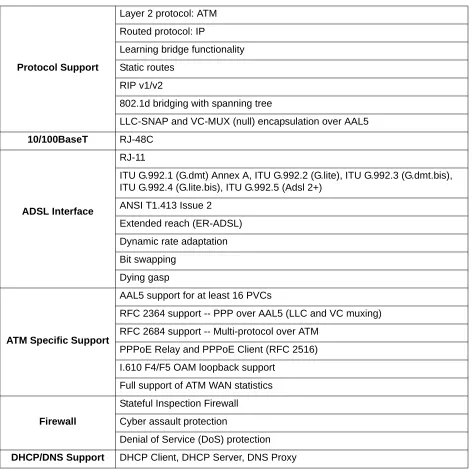
The following table highlights the major features of the NetVanta 340.
Table 1. Features and Specifications
Protocol Support
Layer 2 protocol: ATM Routed protocol: IP
Learning bridge functionality Static routes
RIP v1/v2
802.1d bridging with spanning tree
LLC-SNAP and VC-MUX (null) encapsulation over AAL5
10/100BaseT RJ-48C
ADSL Interface
RJ-11
ITU G.992.1 (G.dmt) Annex A, ITU G.992.2 (G.lite), ITU G.992.3 (G.dmt.bis), ITU G.992.4 (G.lite.bis), ITU G.992.5 (Adsl 2+)
ANSI T1.413 Issue 2 Extended reach (ER-ADSL) Dynamic rate adaptation Bit swapping
Dying gasp
ATM Specific Support
AAL5 support for at least 16 PVCs
RFC 2364 support -- PPP over AAL5 (LLC and VC muxing) RFC 2684 support -- Multi-protocol over ATM
PPPoE Relay and PPPoE Client (RFC 2516) I.610 F4/F5 OAM loopback support
Introduction to the NetVanta Solution NetVanta 340 Series Hardware Installation Guide
18 © 2004 ADTRAN, Inc. 61200422L1-34A
This hardware installation guide describes the NetVanta 340, details basic functionality, gives installation instructions, and lists unit specifications. For more information on router configuration for a specific application, refer to the quick configuration documents provided on the ADTRAN website at
www.adtran.com. For details on the command line interface, refer to the AOS Command Reference Guide, also on the website.
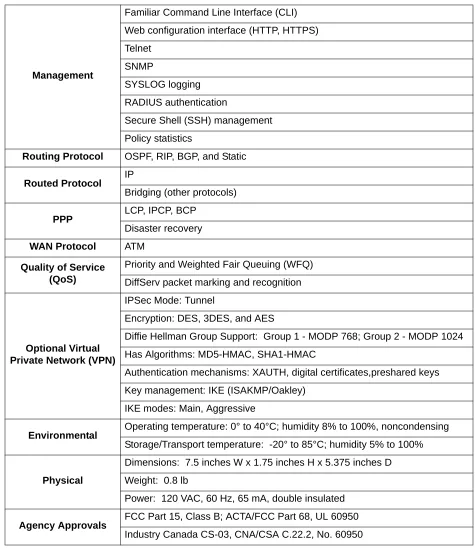
Management
Familiar Command Line Interface (CLI) Web configuration interface (HTTP, HTTPS) Telnet
SNMP
SYSLOG logging RADIUS authentication
Secure Shell (SSH) management Policy statistics
Routing Protocol OSPF, RIP, BGP, and Static
Routed Protocol IP
Bridging (other protocols)
PPP LCP, IPCP, BCP
Disaster recovery
WAN Protocol ATM
Quality of Service (QoS)
Priority and Weighted Fair Queuing (WFQ) DiffServ packet marking and recognition
Optional Virtual Private Network (VPN)
IPSec Mode: Tunnel
Encryption: DES, 3DES, and AES
Diffie Hellman Group Support: Group 1 - MODP 768; Group 2 - MODP 1024 Has Algorithms: MD5-HMAC, SHA1-HMAC
Authentication mechanisms: XAUTH, digital certificates,preshared keys Key management: IKE (ISAKMP/Oakley)
IKE modes: Main, Aggressive
Environmental Operating temperature: 0° to 40°C; humidity 8% to 100%, noncondensing
Storage/Transport temperature: -20° to 85°C; humidity 5% to 100%
Physical
Dimensions: 7.5 inches W x 1.75 inches H x 5.375 inches D Weight: 0.8 lb
Power: 120 VAC, 60 Hz, 65 mA, double insulated
Agency Approvals FCC Part 15, Class B; ACTA/FCC Part 68, UL 60950
Industry Canada CS-03, CNA/CSA C.22.2, No. 60950
NetVanta 340 Series Hardware Installation Guide Introduction to the NetVanta Solution
Unpack and Inspect the System
Each NetVanta 340 unit is shipped in its own cardboard shipping carton. Open each carton carefully, and avoid deep penetration into the carton with sharp objects.
After unpacking the unit, inspect it for possible shipping damage. If the equipment has been damaged in transit, immediately file a claim with the carrier and contact ADTRAN Customer Service (see Warranty and Customer Service on page 8).
Contents of ADTRAN Shipments
Shipments of the NetVanta 340 include the following items:
• NetVanta 340 Base Unit
• NetVanta 340 Quick Start Guide
Physical Description NetVanta 340 Series Hardware Installation Guide
20 © 2004 ADTRAN, Inc. 61200422L1-34A
2.
PHYSICAL DESCRIPTION
Reviewing the Base Unit Front Panel Design
Figure 1 shows the NetVanta 340 front panel.
Figure 1. NetVanta 340 Front Panel Layout
Front Panel LEDs
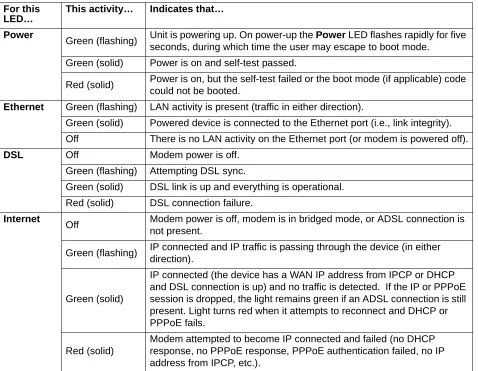
Table 2 describes the front panel LEDs.
Table 2. NetVanta 340 LEDs For this
LED…
This activity… Indicates that… Power
Green (flashing) Unit is powering up. On power-up the Power LED flashes rapidly for five seconds, during which time the user may escape to boot mode.
Green (solid) Power is on and self-test passed.
Red (solid) Power is on, but the self-test failed or the boot mode (if applicable) code could not be booted.
Ethernet Green (flashing) LAN activity is present (traffic in either direction).
Green (solid) Powered device is connected to the Ethernet port (i.e., link integrity). Off There is no LAN activity on the Ethernet port (or modem is powered off).
DSL Off Modem power is off.
Green (flashing) Attempting DSL sync.
Green (solid) DSL link is up and everything is operational. Red (solid) DSL connection failure.
Internet
Off Modem power is off, modem is in bridged mode, or ADSL connection is not present.
Green (flashing) IP connected and IP traffic is passing through the device (in either direction).
Green (solid)
IP connected (the device has a WAN IP address from IPCP or DHCP and DSL connection is up) and no traffic is detected. If the IP or PPPoE session is dropped, the light remains green if an ADSL connection is still present. Light turns red when it attempts to reconnect and DHCP or PPPoE fails.
Red (solid)
NetVanta 340 Series Hardware Installation Guide Physical Description
Reviewing the Rear Panel Design
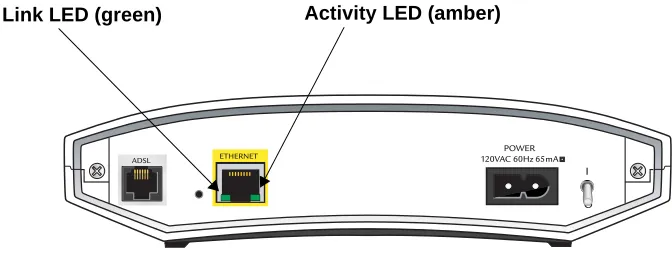
Figure 2 shows the NetVanta 340 rear panel. The Activity and Link LEDs, which are present on all NetVanta Ethernet ports, are pointed out.
Figure 2. NetVanta 340 Rear Panel Layout
Rear Panel Interfaces and LEDs
ADSL Interface
The ADSL port is an RJ-11 connector. See Table A-1 on page 27 for the ADSL port pinout. The ADSL port provides the following:
• ITU G.992.1 (G.dmt) Annex A • ITU G.992.2 (G.lite)
• ITU G.992.3 (G.dmt.bis) • ITU G.992.4 (G.lite.bis) • ITU G.992.5 (Adsl2+) • ANSI T1.413 Issue 2
• Extended Reach (ER-ADSL) • Dynamic Rate Adaptation • Bit Swapping
• Dying Gasp
10/100BaseT Ethernet Interface and Activity LEDs
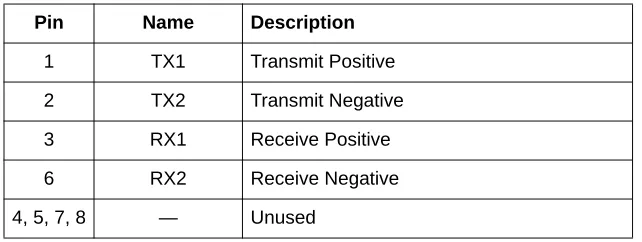
The ETHERNET port is an RJ-48C connector with LEDs. The yellow activity LED flashes when data traffic is being sent or received on the Ethernet port. The green link LED is on when the unit has a good connection to the LAN. See Table A-2 on page 27 for the Ethernet port pinout. The Ethernet port
Unit Installation NetVanta 340 Series Hardware Installation Guide
22 © 2004 ADTRAN, Inc. 61200422L1-34A
3.
UNIT INSTALLATION
The instructions and guidelines provided in this section cover hardware installation topics such as wall mounting and supplying power to the unit.
Mounting Options
The NetVanta 340 may be installed in a wallmount or tabletop configuration. The following section provides step-by-step instructions for wall mounting.
NetVanta 340 Series Hardware Installation Guide Unit Installation
Wall Mounting
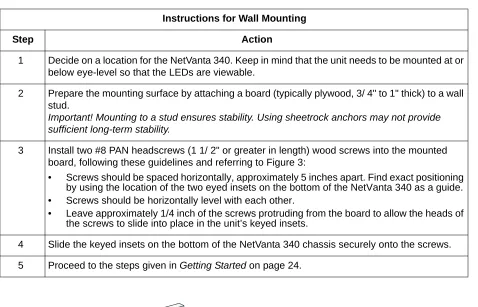
Instructions for Wall Mounting
Step Action
1 Decide on a location for the NetVanta 340. Keep in mind that the unit needs to be mounted at or below eye-level so that the LEDs are viewable.
2 Prepare the mounting surface by attaching a board (typically plywood, 3/ 4" to 1" thick) to a wall stud.
Important! Mounting to a stud ensures stability. Using sheetrock anchors may not provide sufficient long-term stability.
3 Install two #8 PAN headscrews (1 1/ 2" or greater in length) wood screws into the mounted board, following these guidelines and referring to Figure 3:
• Screws should be spaced horizontally, approximately 5 inches apart. Find exact positioning by using the location of the two eyed insets on the bottom of the NetVanta 340 as a guide. • Screws should be horizontally level with each other.
• Leave approximately 1/4 inch of the screws protruding from the board to allow the heads of the screws to slide into place in the unit’s keyed insets.
4 Slide the keyed insets on the bottom of the NetVanta 340 chassis securely onto the screws. 5 Proceed to the steps given in Getting Started on page 24.
STAT WAN
Unit Installation NetVanta 340 Series Hardware Installation Guide
24 © 2004 ADTRAN, Inc. 61200422L1-34A
Getting Started
Connect to the NetVanta 340
1. Connect the NetVanta 340 ETHERNET interface to the PC using the appropriate Ethernet cable.
2. Supply power to the PC and the NetVanta 340 and begin the operating system boot up process. During boot up, the PC obtains an IP address from the NetVanta 340 DHCP server. By default, both the DHCP and HTTP servers are enabled. The default IP address is 10.10.10.1.
3. Open your internet browser and enter 10.10.10.1. in the URL field. The NetVanta 340 login window appears.
4. Enter the default username (admin) and password (adtran), and click the OK button.
5. By default, the NetVanta 340 comes with an ADSL and an ATM (Asynchronous Transfer Mode) port already configured and enabled. The service provider should provide a PVC (VPI / VCI) number which will be used to configure the ATM PVC.
Configure the ATM PVC
1. Click on the Getting Started link under the System menu. This will bring up a side bar page. 2. Click on Step 1 - Configure the Public Interface at the top of the side bar page to open the ATM
PVC page.
3. Fill in the PVC number and select an Interface Mode. This is usually PPP or PPPoE; however, if
IP routing is chosen, you will need to enter an IP address.
4. Click Apply. If PPP or PPPoE is selected as the Interface Mode, you will be taken to the PPP page after clicking Apply. Here you will need to select the type of authentication needed, authentication passwords, and the Address Type. In most cases you will want the Address Type to be
Negotiated. Click Apply when all the information is complete.
The 10/100BaseT Ethernet interface MUST NOT be metallically connected to interfaces which connect to the Outside Plant or its wiring. This interface is designed for use as an intrabuilding interface only. The addition of primary protectors is not sufficient protection in order to connect this interface metallically to OSP wiring.
For security purposes, you should set up an admin password immediately. Use the
NetVanta 340 Series Hardware Installation Guide Unit Installation
Factory Default Switch
• If pressed during bootup, the default switch will cause the unit to stay in bootstrap mode. Since the unit has no serial port, Telnet has been built into the boot code. The default IP address is 10.10.10.1.
• If pressed and held for 5 seconds after boot, the ETHERNET interface will default to 10.10.10.1, and all access policies will be removed from that interface.
• If pressed for 30 seconds, a default configuration will overwrite your existing configuration and reboot the unit.
The default switch must be pressed WHILE the power light is flashing green. Do not press the default switch BEFORE the power light is flashing green, as this will cause boot to be missed.
Maximum recommended ambient operating temperature is 50
°
C.Unit Installation NetVanta 340 Series Hardware Installation Guide
APPENDIX A. CONNECTOR PIN DEFINITIONS
The following tables provide the pin assignments for the NetVanta 340.
Table A-1. ADSL Connector Pinouts Pin Name Description
1-2 — Unused
3 T ADSL Tip
4 R ADSL Ring
5-6 — Unused
Table A-2. 10/100BaseT Ethernet Port Pinouts Pin Name Description
1 TX1 Transmit Positive
2 TX2 Transmit Negative
3 RX1 Receive Positive
6 RX2 Receive Negative
Appendix A. Connector Pin Definitions NetVanta 340 Series Hardware Installation Guide
Index
Numerics
10/100BaseT Ethernet interface21 pinout27
A
admin password24 ADSL interface21
pinout27 ATM PVC
configuring24
B
boot up24
C
configuring ATM PVC24 connecting to unit24 contents of shipment19
D
default switch25
F
factory default switch25 features of NetVanta 34017 front panel20
LEDs20
G
getting started24
I
installing unit22 interfaces21
L
LEDs20, 21
M
mounting options22
N
NetVanta 340 connecting to24 default switch25 features17 front panel20 getting started24 installation22 interfaces21 LEDs20, 21 mounting options22 physical description20 rear panel21
unpacking and inspecting the system19 wall mounting23
P
passwords page24 pinouts
10/100BaseT27
ADSL27
product registration8
R
rear panel21
S
shipping contents19
U
unpacking and inspecting the system19
W
wall mounting NetVanta 34023 warranty8
web GUI
Index NetVanta 340 Series Hardware Installation Guide