61200410L2-1A
ESU LT
User Manual
Trademarks
Any brand names and product names included in this manual are trademarks, registered trademarks, or trade names of their respective holders.
T-Watch PRO® is a registered trademark of ADTRAN, Inc.
To the Holder of the Manual
The contents of this manual are current as of the date of publication. ADTRAN reserves the right to change the contents without prior notice.
In no event will ADTRAN be liable for any special, incidental, or consequential damages or for commercial losses even if ADTRAN has been advised thereof as a result of issue of this publication.
901 Explorer Boulevard P.O. Box 140000 Huntsville, AL 35814-4000
(256) 963-8000
Copyright © 2004 ADTRAN, Inc. All Rights Reserved.
The following conventions are used in this manual.
Safety Instructions
When using your telephone equipment, please follow these basic safety precautions to reduce the risk of fire, electrical shock, or personal injury:
1. Do not use this product near water, such as a bathtub, wash bowl, kitchen sink, laundry tub, in a wet basement, or near a swimming pool.
2. Avoid using a telephone (other than a cordless-type) during an electrical storm. There is a remote risk of shock from lightning.
3. Do not use the telephone to report a gas leak in the vicinity of the leak. 4. Use only the power cord, power supply, and/or batteries indicated in the
manual. Do not dispose of batteries in a fire. They may explode. Check with local codes for special disposal instructions.
Save These Important Safety Instructions
Cautions signify information that could prevent service interruption.
Notes provide additional useful information.
Federal Communications Commission Radio Frequency Interference Statement
This equipment has been tested and found to comply with the limits for a Class A digital device, pursuant to Part 15 of the FCC Rules. These limits are designed to provide reasonable protection against harmful interference when the equipment is operated in a commercial environment. This equipment generates, uses, and can radiate radio frequency energy and, if not installed and used in accordance with the instruction manual, may cause harmful interference to radio frequencies. Operation of this equipment in a residential area is likely to cause harmful interference in which case the user will be required to correct the interference at his own expense.
Canadian Emissions Requirements
The Class B digital apparatus meets all requirements of the Canadian Interference Equipment Regulations.
Cet appareil numérique dela Class B respecte les exigences du Regulement sur le materiel brouilleur du Canada.
Shielded cables must be used with this unit to ensure compliance with Class A FCC limits.
International Cordset Selection
The following list is a selection of recommended cordset configurations to ensure protective earthing continuity when utilizing this product internationally. This list gives the proper rating, cordage type, and plug/connector configuration for the specific country where the product is to be utilized.
Country Minimum
Rating
Cordage Type Plug Type Connector Type Austria Belgium Czech Republic Finland France Germany Greece Hungary Iceland Luxembourg Netherlands Norway Poland Portugal Slovenia Spain Sweden Yugoslavia
250 VAC, 10A HAR CEE 7/7 IEC 60320 C13
Australia, China 250 VAC, 10A V76419 AS 3112 IEC 60320 C13 Denmark 250 VAC, 10A HAR Afsnit 107-2-D1 IEC 60320 C13 India/South Africa 250 VAC, 10A HAR BS 546 IEC 60320 C13
Israel 250 VAC, 10A HAR SI-32 IEC 60320 C13
Italy 250 VAC, 10A HAR CEI-23-16/VII IEC 60320 C13 Japan 125 VAC, 7 A 12-1367
Yukita 300 V
JIS 8303 IEC 60320 C13
Russian Federation
250 VAC, 10A HAR GOST 7396 IEC 60320 C13
Switzerland 250 VAC, 10A HAR SEV 1011 IEC 60320 C13 Ireland;
United Kingdom
250 VAC, 10A HAR BS 1363 IEC 60320 C13
Warranty and Customer Service
Customer Service, Product Support Information, and Training
ADTRAN will repair and return this product if within the warranty period from the date of shipment the product does not meet its published specification or the product fails while in service.
A return material authorization (RMA) is required prior to returning equipment to ADTRAN. For service, RMA requests, training, or more information, use the contact information given below.
Repair and Return
If you determine that a repair is needed, please contact our Customer and Product Service (CAPS) department to have an RMA number issued. CAPS should also be contacted to obtain information regarding equipment currently in house or possible fees associated with repair.
Identify the RMA number clearly on the package (below address), and return to the following address:
Pre-Sales Inquiries and Applications Support
Your reseller should serve as the first point of contact for support. If additional pre-sales support is needed, the ADTRAN Support web site provides a variety of support services such as a searchable knowledge base, latest product documentation, application briefs, case studies, and a link to submit a question to an Applications Engineer. All of this, and more, is available at:
When needed, further pre-sales assistance is available by calling our Applications
CAPS Department (256) 963-8722
ADTRAN Customer and Product Service 901 Explorer Blvd. (East Tower)
Huntsville, Alabama 35806 RMA # _____________
Post-Sale Support
Your reseller should serve as the first point of contact for support. If additional support is needed, the ADTRAN Support web site provides a variety of support services such as a searchable knowledge base, updated firmware releases, latest product documentation, service request ticket generation and trouble-shooting tools. All of this, and more, is available at:
When needed, further post-sales assistance is available by calling our Technical Support Center. Please have your unit serial number available when you call.
Installation and Maintenance Support
The ADTRAN Custom Extended Services (ACES) program offers multiple types and levels of installation and maintenance services which allow you to choose the kind of assistance you need. This support is available at:
For questions, call the ACES Help Desk.
Training
The Enterprise Network (EN) Technical Training Department offers training on our most popular products. These courses include overviews on product features and functions while covering applications of ADTRAN's product lines. ADTRAN provides a variety of training options, including customized training and courses taught at our facilities or at your site. For more information about training, please contact your Territory Manager or the Enterprise Training Coordinator.
http://support.adtran.com
Technical Support (888) 4ADTRAN
http://www.adtran.com/aces
ACES Help Desk (888) 874-ACES (2237)
Training Phone (800) 615-1176, ext. 7500 Training Fax (256) 963-6700
Table of Contents
List of Figures ...13
List of Tables ...15
Chapter 1. Introduction...17
ESU LT Overview ...17
Functional Description...17
ESU LT Features...18
ESU LT Configuration Application ...19
Bridge/Router Application...19
Chapter 2. Installation ...21
Unpack, Inspect, Power Up ...21
Receipt Inspection...21
ADTRAN Shipments Include ...21
Customer Provides ...21
Power Connection ...22
Grounding Instructions ...22
Identification of Rear Panel Layout ...24
ESU LT Rear Panel...24
ESU LT Interfaces ...25
Network Interface (NI) ...25
Network Test Interface ...25
Nx56/64 Serial Interface ...25
Control Port Input ...26
Chain Port Output ...26
Power Up Testing And Initialization ...26
Self-Test ...26
Table of Contents
Util (Utilities) ... 31
Test ... 31
Menu Operation... 32
Editing Data Fields ... 33
Exiting Menu Field Operation Or Display ... 33
Alternate Methods of Control ... 34
T-Watch PRO Management Software Program ... 34
Chapter 4. Status Menu ... 35
STATUS ... 35
NI PERF RPTS... 36
CURR ERR/ALM ... 37
Alarms and Errors ... 37
ERR/ALM Hist ... 39
Chapter 5. Configuration Menu... 41
CONFIG ... 41
Network (NI) ... 42
Framing ... 42
Line Code ... 43
CRC-4 ... 43
NFAS Word ... 43
RFA Gen ... 44
Timing Mode ... 44
Unit... 46
Control Port ... 46
Alarms ... 47
Management ... 48
Port (Port Configuration) ... 49
Interface ... 49
TS0 Rate ... 49
Mapping ... 49
DTE TX Clock ... 50
Start TS0 ... 50
Number of TS0s ... 50
Data ... 51
CTS ... 51
DCD ... 51
DSR ... 51
Table of Contents
Chapter 6. Utility Menu...53
UTIL ...53
Time/Date...54
Software Rev...55
Reinit Unit...55
Address...55
Set Passcode...55
Keypad ...56
Fact Restore...56
Chapter 7. Test Menu ...57
TEST ...57
Network Tests ...58
Loopback Tests ...58
Network Interface Loopbacks ...58
DTE Interface Loopbacks ...59
Local Loopbk ...60
Remote Loopbk ...60
Test Pattern ...60
CLR Errors ...61
Insert QRSS or 511 Errors ...61
Run Self-test...62
Port Tests...63
Cancel Tests ...63
Chapter 8. Example Operations ...65
Testing Examples ...65
Far End Looped Back Test...65
Appendix A. DTE Data Rate Chart... 67
Appendix B. Pinouts... 69
List of Figures
Figure 1-1. ESU LT Unit ...17
Figure 1-2. Simple Bridge Application on an E1 or FE1 Circuit...19
Figure 2-1. ESU LT Rear Panel...24
Figure 2-2. ESU LT Interfaces ...25
Figure 3-1. Front Panel Layout ...29
Figure 3-2. Cursor on Menu Item...32
Figure 3-3. Submenu Fields ...32
Figure 4-1. Status Menu ...35
Figure 4-2. Severely Errored Seconds Screen...36
Figure 4-3. Loss of Signal (Current Errors/Alarms) Screens...37
Figure 4-4. Clear History Screen...39
Figure 5-1. Configuration Menu ...41
Figure 5-2. Network Timed Clock Source ...44
Figure 5-3. Internal Timing Clock Source ...45
Figure 5-4. DTE Clock Source...45
Figure 5-5. Unit Submenu...46
Figure 6-1. Utility Menu ...53
Figure 6-2. Time/Date Screen ...54
Figure 6-3. Address Screen ...55
Figure 7-1. Test Menu ...57
Figure 7-2. Local Loopback Screen ...58
Figure 7-3. Network Loopback Tests ...59
List of Tables
Table 2-1. Self-Test Results ...27
Table 3-1. Front Panel Descriptions...29
Table 3-2. Activating the Network Menus from the Config Menu...32
Table 3-3. Editing a Data Field ...33
Table 5-1. Normal Mode Operation for Port Control Signals...51
Table 6-1. Editing the Time/Date...54
Table 8-1. Initiating a Remote Loopback...66
Table 8-2. DTE Data Rate vs. TS0s ...67
Table 8-3. Network Pin Assignments ...69
Table 8-4. Control/Chain-In Pin Assignments...70
Table 8-5. Control/Chain-Out Pin Assignments ...71
Table 8-6. Nx56/64 Pin Assignments for EIA-530 and V.36 ...72
Table 8-7. Nx56/64 Pin Assignments for V.35 Mode...73
Table 8-8. DB-25 to V.35, 34-Pin Winchester Cable ...74
Table 8-9. Nx56/64 Pin Assignments for V.11/X.21 Mode...75
Chapter 1
Introduction
ESU LT
OVERVIEW
This section provides a functional description of the ESU LT, describes its features, and illustrates its four interfaces.
Functional Description
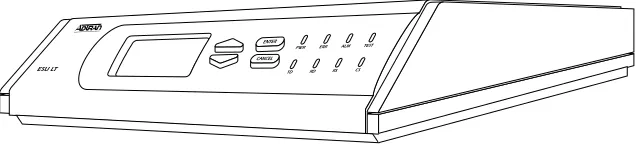
The ADTRAN ESU LT (Figure 1-1) is one of several E1
CSU/DSUs that offer complete flexibility for connection of various data sources to E1 or FE1 facilities. This family of ESU products includes the following:
• ESU LT - E1 CSU/DSUs with a single Nx56K/64K serial port. • ESU 120e - Same as the ESU LT with the added feature of a
G.703 drop port and a slot in the rear panel to house an option module. Each module offers up to four additional data ports.
Figure 1-1. ESU LT Unit
PWR ERR ALM TEST
TD RD RS CS
CANCEL ENTER
Chapter 1. Introduction
bandwidth allocated to the port is user-programmable. The data terminal equipment (DTE) data can occupy contiguous or alternate channels in the E1 stream, and the channels may start at any position.
ESU LT Features
• An E1 interface and an Nx56/64 DTE serial interface port. • Easy configuration capabilities using simplistic menus
dis-played in a liquid crystal display (LCD) window operated by a front panel keypad.
• Data port supports V.35, EIA-530, V.36, and X.21 electrical in-terfaces.
• Selectable timing from the network, the Nx56/64 DTE port, or internally.
• All ones, all zeros, 511, QRSS, and 1:8 test patterns.
• Extensive self-testing and monitoring ensures proper operation. • Flexible channel allocation (any starting channel and alternate
or contiguous).
• Remote management via 8K inband channel or 64K dedicated TS0 (using T-Watch as the network manager).
ESU LT CONFIGURATION APPLICATION
The following example illustrates a possible ESU LT application.
Bridge/Router Application
A bridge or router can be interfaced to the network by
Chapter 1. Introduction
be selected as contiguous or alternate. Figure 1-2 shows a simple bridge application.
Figure 1-2. Simple Bridge Application on an E1 or FE1 Circuit High-speed
serial interface
ESU LT ESU LT Bridge Router
Nx56/64
E1
Nx56/64 Bridge Router
Chapter 2
Installation
UNPACK, INSPECT, POWER UP
Receipt Inspection
Carefully inspect the ESU LTfor any shipping damage. If damage is suspected, file a claim immediately with the carrier and then contact ADTRAN Customer Service. If possible, keep the original shipping container for use in shipping the ESU LTback for repair or for verification of damage during shipment.
ADTRAN Shipments Include
The following items are included in the ADTRAN shipment:
• ESU LTunit
• DB-15 to BNC adapter
• ESU LT User Manual
• DB-15 to solid conductor cable
Customer Provides
• DTE cable(s)
• Cable for supervisory port, if used
• Power cable
Chapter 2. Installation
POWER CONNECTION
Power is supplied to the ESU LT through an IEC-type power connector on the rear of the unit.
Grounding Instructions
Grounding instruction information from the Underwriters' Laboratory UL 1950 3rd Edition is provided in this section. An equipment grounding conductor that is not smaller in size than the ungrounded branch-circuit supply conductors is to be installed as part of the circuit that supplies the product or system. Bare, covered, or insulated grounding conductors are acceptable. Individually covered or insulated equipment grounding conductors shall have a continuous outer finish that is either green, or green with one or more yellow stripes. The equipment grounding conductor is to be connected to ground at the service equipment. The attachment-plug receptacles in the vicinity of the product or system are all to be of a grounding type, and the equipment grounding conductors serving these receptacles are to be connected to earth ground at the service equipment. A supplementary equipment grounding conductor shall be installed between the product or system and ground that is in addition to the equipment grounding conductor in the power supply cord.
The supplementary equipment grounding conductor shall not be smaller in size than the ungrounded branch-circuit supply conductors. The supplementary equipment grounding conductor shall be connected to the product at the terminal provided, and shall be connected to ground in a manner that will retain the ground connection when the product is unplugged from the receptacle. The connection to ground of the supplementary equipment grounding conductor shall be in compliance with the rules for terminating bonding jumpers at Part K or Article 250 of the National Electrical Code, ANSI/NFPA 70. Termination of the supplementary
Chapter 2. Installation
equipment grounding conductor is permitted to be made to building steel, to a metal electrical raceway system, or to any grounded item that is permanently and reliably connected to the electrical service equipment ground.
Bare, covered, or insulated grounding conductors are acceptable. A covered or insulated grounding conductor shall have a continuous outer finish that is either green, or green with one or more yellow stripes.
The supplemental grounding conductor shall be connected to the equipment using a number 8 ring terminal. The terminal should be fastened to the grounding lug provided on the rear panel of the equipment. The ring terminal should be installed using the
Chapter 2. Installation
IDENTIFICATION OF REAR PANEL LAYOUT
ESU LT Rear Panel
Figure 2-1 shows the ESU LT rear panel and a description of the components.
Figure 2-1. ESU LT Rear Panel NX 56/64
NETWORK MON CHAIN IN CHAIN OUT CONTROL
90-240 VAC 50/60 HZ.24A
1
2 3 4 5 6 7
Number Identification for ESU LT Rear Panel
# Name Description
1 Network E1-FE1 network interface 2 MON (Monitor) Bantam test jack
3 Chain-In Interface of chain-in
4 Chain-Out Connects to chain-in of another ESU LT 5 Nx56/64 DTE port
Chapter 2. Installation
ESU LT Interfaces
The ESU LT is equipped with four interfaces: • E1 Network interface per ITU G.703
• Nx56/64 high-speed, multi-protocol serial interface • Control input (EIA-232)/Chain port input
• Chain port output
See Figure 2-2 and the following descriptions in this section.
Figure 2-2. ESU LT Interfaces
Network Interface (NI)
The Network Interface (NI) port provides the connection to the E1. This port complies with the applicable ANSI and CCITT standards. The 120Ω DB-15 interface (adapter provided) may be used for the NI. For more information, see Appendix B, Pinouts on page 69.
Network Test Interface
The MON test jack provides a bridged access jack for non-intrusive monitoring of the incoming E1.
Nx56/64 Serial Interface
Chapter 2. Installation
Control Port Input
The control port input provides an EIA-232 input from a PC or a modem for control of the ESU LT. You can also use it as a chain input from another ESU LT or ESU 120e. For more information, see Appendix B, Pinouts on page 69.
Chain Port Output
The chain port output provides an EIA-232 output to chain control to other ESU LTs or ESU 120es. For more information, see
Appendix B, Pinouts on page 69.
POWER UP TESTING AND INITIALIZATION
When shipped from the factory, the ESU LTis set to factory default conditions. At the first application of power, the unit automatically executes self-tests followed by an initialization sequence which sets up the unit.
Self-Test
The self-test checks the integrity of the electronic components internal operation by performing memory tests and by sending and verifying data test patterns through all internal interfaces. Although actual user data cannot be passed during these tests, the self-test can run with the network and DTE interfaces in place, without
disturbing any external interface.
The self-test automatically executes upon power-up. It can also be commanded from a front panel menu or from the control port. In addition to the specified self-tests, background tests are run on various parts of the internal electronics. These run during normal operation to confirm continued correct functioning. The
background tests include the following: • Monitoring the phase locked loop for lock.
Chapter 2. Installation
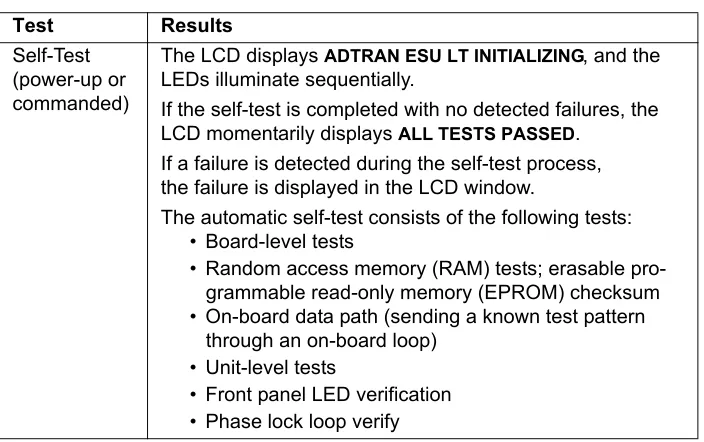
Table 2-1. Self-Test Results
Test Results
Self-Test (power-up or commanded)
The LCD displays ADTRAN ESU LT INITIALIZING, and the LEDs illuminate sequentially.
If the self-test is completed with no detected failures, the LCD momentarily displays ALL TESTS PASSED.
If a failure is detected during the self-test process, the failure is displayed in the LCD window.
The automatic self-test consists of the following tests: • Board-level tests
• Random access memory (RAM) tests; erasable pro-grammable read-only memory (EPROM) checksum • On-board data path (sending a known test pattern
through an on-board loop) • Unit-level tests
Chapter 3
Operation
FRONT PANEL OVERVIEW
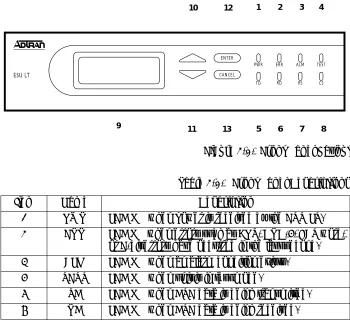
The ESU LT front panel monitors operation and controls the configuration of the unit. Figure 3-1 shows the ESU LT front panel. Table 3-1 describes each part of the front panel. Front panel operation is more fully described in subsequent pages.
Figure 3-1. Front Panel Layout ESU LT
CS TEST ALM
TD PWR ERR
RD RS ENTER
CANCEL
1 2 3 4
5 6 7 8 9
10 12
11 13
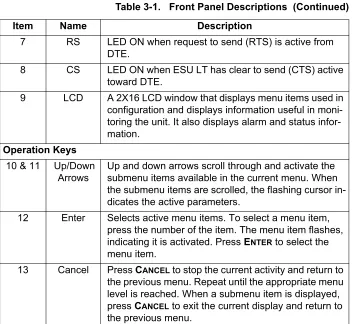
Table 3-1. Front Panel Descriptions
Item Name Description
1 PWR LED ON when power is received by the ESU LT. 2 ERR LED ON when errors such as BPV, CRC-4, FAS word,
Chapter 3. Operation
7 RS LED ON when request to send (RTS) is active from DTE.
8 CS LED ON when ESU LT has clear to send (CTS) active toward DTE.
9 LCD A 2X16 LCD window that displays menu items used in configuration and displays information useful in moni-toring the unit. It also displays alarm and status infor-mation.
Operation Keys
10 & 11 Up/Down Arrows
Up and down arrows scroll through and activate the submenu items available in the current menu. When the submenu items are scrolled, the flashing cursor in-dicates the active parameters.
12 Enter Selects active menu items. To select a menu item, press the number of the item. The menu item flashes, indicating it is activated. Press ENTER to select the
menu item.
13 Cancel Press CANCEL to stop the current activity and return to
the previous menu. Repeat until the appropriate menu level is reached. When a submenu item is displayed, press CANCEL to exit the current display and return to
the previous menu.
Table 3-1. Front Panel Descriptions (Continued)
Chapter 3. Operation
FRONT PANEL MENU STRUCTURE AND
OPERATION
Menu Structure
The ESU LTuses a multilevel menu structure containing both menu items and data fields. All menu operations and data are displayed in the LCD window.
The opening menu is the access point to all other operations. Each Main menu item has several functions and submenus to identify and access specific parameters. The menu items are numbered and can be viewed by scrolling with the up and down arrows. (Menu operation is discussed on page 32.)
The front panel LCD of the Main menu contains four options:
STATUS, CONFIG, UTIL, and TEST.
Status
The STATUS menu displays all relevant information for the
network and DTE interfaces. For detailed information on status options, see Status Menu on page 35.
Config (Configuration)
The CONFIG menu displays and sets the ESU LT operational
configuration, including all network interface parameters, the allocation of the TS0s, and the port parameters. For detailed information on configuration options, see Configuration Menu on page 41.
Util (Utilities)
The UTILITY menu displays and sets system parameters. For
detailed information on utility options, see Utility Menu on page 53.
Chapter 3. Operation
Menu Operation
To choose menu items, place the cursor on the appropriate menu item by pressing the number corresponding to the menu item or highlighting the menu item with the up and down arrow (also see Table 3-1 on page 29). All fields followed by a colon (:) are editable. Menu fields followed by an equal sign (=) cannot be edited; these fields are used for display only. As an example, Table 3-2 describes how to activate the NETWORK menus from the
CONFIG menu.
Figure 3-2. Cursor on Menu Item
Figure 3-3. Submenu Fields Table 3-2. Activating the Network Menus from the Config Menu
Step Action
1 Use theup and down arrows to place the cursor on the appropriate menu item (in this example CONFIG). See Figure 3-2 on page 32.
2 Place the cursor on the number 2 andpress Enter.
Chapter 3. Operation
Editing Data Fields
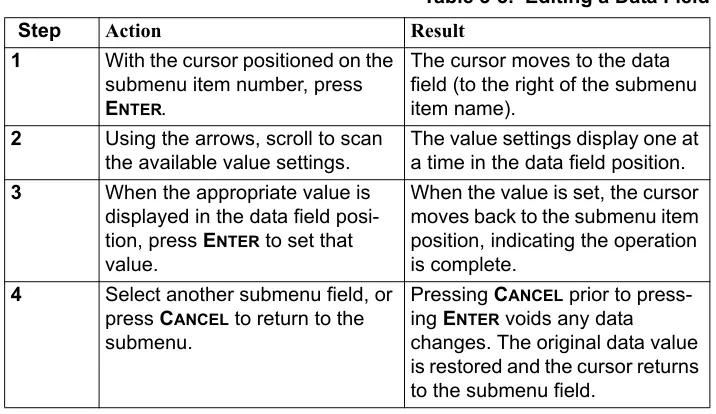
You can edit data fields preceded by a colon (:). Table 3-3 describes using the front panel keys to edit data fields.
Exiting Menu Field Operation Or Display
Press CANCEL as many times as required to return to the
appropriate menu level.
Table 3-3. Editing a Data Field
Step Action Result
1 With the cursor positioned on the submenu item number, press
ENTER.
The cursor moves to the data field (to the right of the submenu item name).
2 Using the arrows, scroll to scan the available value settings.
The value settings display one at a time in the data field position.
3 When the appropriate value is displayed in the data field posi-tion, press ENTER to set that value.
When the value is set, the cursor moves back to the submenu item position, indicating the operation is complete.
4 Select another submenu field, or press CANCEL to return to the
submenu.
Pressing CANCEL prior to
press-ing ENTER voids any data
Chapter 3. Operation
Alternate Methods of Control
T-Watch PRO Management Software Program
T-Watch PRO is the ADTRAN management software program that allows the user to control the ESU LT from a PC. It provides complete control over the configuration of the
ESU LTusing a graphic interface. The T-Watch PRO program displays the same status and performance data as the front panel LCD. This data is displayed as tables and graphs.
The T-Watch PRO program has the following capabilities: • Interfaces with a modem which permits dialing into a remote
ESU LTto configure the unit or view the unit’s status or performance.
• The performance data read from the units can be exported into a file which is compatible with common spread sheet
Chapter 4
Status Menu
STATUS
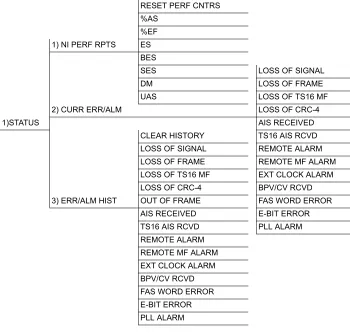
The STATUSmenu branch allows you to view the status of the ESU
LToperation. See Figure 4-1.
RESET PERF CNTRS %AS
%EF 1) NI PERF RPTS ES
BES
SES LOSS OF SIGNAL DM LOSS OF FRAME UAS LOSS OF TS16 MF 2) CURR ERR/ALM LOSS OF CRC-4
1)STATUS AIS RECEIVED
CLEAR HISTORY TS16 AIS RCVD LOSS OF SIGNAL REMOTE ALARM LOSS OF FRAME REMOTE MF ALARM LOSS OF TS16 MF EXT CLOCK ALARM LOSS OF CRC-4 BPV/CV RCVD 3) ERR/ALM HIST OUT OF FRAME FAS WORD ERROR
AIS RECEIVED E-BIT ERROR TS16 AIS RCVD PLL ALARM REMOTE ALARM
Chapter 4. Status Menu
NI PERF RPTS
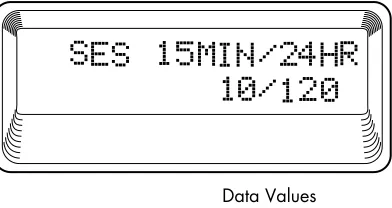
The Network Interface Performance Reports display the user’s copy of the performance data. The ESU LT maintains this performance data on the network based on G.821. The data displayed is data accumulated over the last 15 minutes and over the last 24 hours.
These fields cannot be edited, only cleared as previously discussed. Only the user copy of performance data is cleared. See Figure 4-2. Continue with standard operating procedures to exit the display.
Figure 4-2. Severely Errored Seconds Screen
Reset Perf CNTRS
Resets the user’s copy of the performance data.
%AS
Percentage of available seconds.
%EF
Percentage of error-free seconds.
ES
Number of errored seconds (1 or more errors/second).
BES
Between 2 and 832 errored/seconds.
SES
Chapter 4. Status Menu
DM
Number of minutes with bit error rate 1x10⁻⁶.
UAS
Number of unavailable seconds (10 or more consecutive seconds).
CURR ERR/ALM
The CURRENT ERROR/ALARMmenuis used for viewing currently
Active/Inactive errors and alarms (see Figure 4-3).
Figure 4-3. Loss of Signal (Current Errors/Alarms) Screens
The up and down arrowsare used to access the complete display of the errors/alarms that are currently active.
Alarms and Errors
Chapter 4. Status Menu
LOSS OF FRAME
NI unable to frame align with incoming FAS/NFAS framing pattern. Remote Alarm (Bit 3 of NFAS word) is transmitted out the network interface.
LOSS OF TS16 MF
NI unable to sync on TS16 multiframe signal. Valid only when CAS/ TS16 framing enabled. Remote Multiframe Alarm is transmitted out the network interface.
LOSS OF CRC-4
NI unable to sync on 4 multiframe signal. Valid only when CRC-4 framing is enabled. Remote Alarm is transmitted out the network interface.
AIS RECEIVED
Unframed ones being received at network interface.
TS16 AIS RCVD
Unframed ones being received in TS16 on network interface. Remote Multiframe Alarm transmitted out network interface.
REMOTE ALARM
Remote alarm signal (Bit 3 of NFAS word) being received at network interface.
REMOTE MF ALARM
Remote multiframe alarm signal (Bit 6 of TS16 for three consecutive multiframes) being received at network interface.
EXT CLOCK ALARM
No external clock at DTE.
BPV/CV RCVD
Indicates that a bipolar violation has occurred when set for AMI line coding. Indicates that a code violation has occurred when set for HDB3 line coding.
FAS WORD ERROR
Indicates word errors have occurred in the Frame Alignment Signal.
E-BIT ERROR
Chapter 4. Status Menu
PLL ALARM
Unable to sync up to selected clock.
ERR/ALM Hist
The ERROR/ALARM HISTORY menu is used for viewing history of
errors and alarms. If an alarm has occurred since the last CLEAR HISTORYselection, the menu is active. If an alarm has not occurred, the menu is inactive (see Figure 4-4).
Figure 4-4. Clear History Screen
These conditions are the same as for the CURR ERR/ALM
submenu except that these are history Alarm/Errors instead of
Chapter 5
Configuration Menu
CONFIG
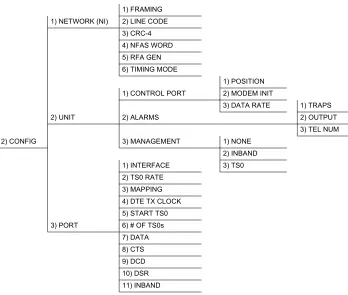
The CONFIGURATIONmenuis used to set the ESU LToperational
configuration, including all of the network interface parameters and the allocation of the time slots and the port parameters. See Figure 5-1.
1) FRAMING 1) NETWORK (NI) 2) LINE CODE
3) CRC-4 4) NFAS WORD 5) RFA GEN 6) TIMING MODE
1) POSITION
1) CONTROL PORT 2) MODEM INIT
3) DATA RATE 1) TRAPS
2) UNIT 2) ALARMS 2) OUTPUT
3) TEL NUM
2) CONFIG 3) MANAGEMENT 1) NONE
2) INBAND
1) INTERFACE 3) TS0
2) TS0 RATE 3) MAPPING 4) DTE TX CLOCK 5) START TS0
3) PORT 6) # OF TS0s
Chapter 5. Configuration Menu
Network (NI)
This menu is used to access the configuration of parameters associated with the network interface in the ESU LT. There are six submenu items that include setting the framing type, the line code, and the clock source.
The fields and parameters available are listed in the following sections.
Framing
The ESU LT can operate in three different framing modes: Common Channel Signaling (CCS), Channel Associated Signaling (CAS), or UNFRAMED.
CCS
CCS uses a 7-bit pattern called the Frame Alignment Signal (FAS) to establish and maintain frame synchronization. The FAS word is located in timeslot 0 of even frames. Odd numbered frames may contain the Not FAS word (NFAS) in timeslot 0. The ESU LT can be configured to require the NFAS word for frame sync.
In CCS mode, there are 31 channels (timeslots 1-32) available for user data. Timeslot 16 cannot be used to carry signaling
information in this mode.
CAS/TS16
CAS, also known as timeslot 16 multiframing, requires a multiframe alignment signal to be present for frame sync. The Multiframe Alignment Signal (MFAS) is inserted into the 16th timeslot of frame 0 of the 16-frame multiframe. The MFAS word consists of four zeros, an unused bit, the multiframe alarm bit, and two more unused bits. Frames 1 through 15 carry the A, B, C, and D bits for timeslots 1-15 and 17-32.
Chapter 5. Configuration Menu
In CAS mode, there are 30 channels available for user data. If timeslot 16 is included in the unit’s mapping, it will be disregarded. For example, if the starting TS0 is set to 1 and the number of TS0s is set to 20, user data will be mapped to timeslots 1 to 15 and 17 to 21.
UNFRAMED
The ESU LT can operate in unframed mode. In this mode, user data is inserted into all 32 channels of the E1 stream. Since the object of running without framing is to utilize the full bandwidth of the E1 line, the starting TS0 and number of TS0s option settings are ignored.
Other option settings that have no effect in unframed mode include:
CRC4, NFAS WORD, RFA GEN, AUTO DTE TXCLK,
MAPPING, DATA INVERT, INBAND.
Choices: CCS; CAS/TS16; UNFRAMED
Line Code
Selects either Alternate Mark Inversion (AMI) or High Density Bipolar Order 3 (HDB3) line coding. AMI provides a 12.5% minimum ones pulse density and alternates signal polarity of transmitted ones from positive to negative. HDB3 is an extension of AMI that inserts a bipolar violation (signal of the wrong polarity) whenever there are 4 or more transmitted zeros.
Choices: HDB3; AMI CRC-4
When enabled, the CRC-4 checksum bits are transmitted in the outgoing E1 data stream. The received signal is also checked for errors. CRC-4 can be enabled in both CCS and CAS modes. A CRC-4 checksum cannot be sent in unframed mode.
Choices: ENABLE; DISABLE
NFAS Word
Chapter 5. Configuration Menu
RFA Gen
When enabled, remote frame alarm is transmitted toward the network during alarm.
Choices: ENABLE; DISABLE
Timing Mode
Selects the clock source for transmission toward the network from the NI.
Choices: NETWORK; INTERNAL; DTE
Network Timing
The network is the source of timing. The received data clocking is looped back to the network, where it is used to determine the transmission timing. This option is also referred to as looped timed as the transmission clock is derived from the received clock. See Figure 5-2.
Chapter 5. Configuration Menu
Internal Timing
The ESU LTis the source of timing. The ESU LTis configured to use its own internal oscillator as the source of timing. Applications include private line driver circuits, where one end is set to network and the other to internal.
See Figure 5-3.
Figure 5-3. Internal Timing Clock Source
DTE Timing
Chapter 5. Configuration Menu
Unit
The UNITsubmenuis used to change control port and alarm
options, and to select the management channel.
Follow standard operating procedure to access the UNITmenu items. See Figure 5-5.
Figure 5-5. Unit Submenu
Control Port
The CONTROL PORT sets the unit up as the master or slave on a
chain of units and initializes a modem and the control port data rate. It also sets baud rate for communications with a PC or modem.
Position
Determines whether this ESU LT is at the head of a chain of units (directly connected to the modem or PC). The head of the chain is referred to as the master unit. Units down the chain are referred to as slaves or a slave unit. The setting of thePOSITION SELECTION is necessary only when using a modem, in which case the head unit should be MASTER. For all other cases, select SLAVE. (The master is in charge of control of the modem.)
Chapter 5. Configuration Menu
Modem Init
The ESU LT can initialize a modem. This menu selection is used to perform this initialization and should be selected only when the ESU LT is serving as the MASTERunit. Prior to modem initialization, the modem should be physically connected to the ESU LT and the power turned on. At this point, an industry-standard AT command string is used to initialize the modem. The string is also used following future power-up sequences.
Choices: ENA; DISA Data Rate
Selects the data rate for the control port. This should be consistent with all units on a chain and with the modem and/or PC serial port. Choices: 1200; 2400; 9600
Alarms
Used to initialize the method by which the control port handles alarm conditions.
Traps
Determines whether alarm conditions should automatically send alarm messages (traps) to the controlling PC. The setting is for this unit, or for slaves if this unit is a master.
Choices: ENA, DISA Output
Selects whether the alarm traps (if enabled) are sent directly or whether the telephone number stored in the ESU LT should be dialed first (industry-standard AT dial command sent to modem). Choices: DIRECT, DIAL
Tel Num
This is the telephone number which is dialed to obtain alarm traps. The string can be up to 20 characters in length and is terminated with a semicolon (;) as the last character. A colon (:) character is used to represent a pause in the dial string.
Chapter 5. Configuration Menu
the semicolon.
Choices: 20 digits (0-9, :, and ;)
Management
Selects the management channel. Units with firmware revision D or greater can choose either a 64 kbps TS0 management channel or the existing 8 kbps inband channel. This would be used for remote management applications, such as using T-Watch PRO to send and receive configuration across an E1 span to a remote unit. For units with firmware less than revision D, the inband channel can be turned on or off from the PORTCONFIGURATION menu.
None
Indicates that neither the inband channel nor the TS0 management channel is utilized.
Inband
Selects the 8K inband channel as the management channel. When this option is selected, the first time slot occupied operates in 56K mode and the DTE clock rate is reduced by
8 kbps. This channel can be configured to always on (NORMAL), or active only when traffic is present (AUTO). If the channel is configured for AUTO and no T-Watch PRO activity is detected for 10 minutes, the inband channel is deactivated. This option is selected in the PORTCONFIGURATION menu.
The 8 kbps channel is only taken out of the first time slot. If two 64K TS0s are mapped, the DTE rate would be 120 kbps instead of 128 kbps.
The inband channel is not available in unframed mode.
Chapter 5. Configuration Menu
TS0
Selects a full 56/64K TS0 as the management channel. The management channel is automatically allotted to the first active TS0, and the DTE clock rate decreases by either 56K or 64K (depending on the Nx configuration). For example, on a full E1 circuit with TS0 management enabled, channel 1 is the
management channel and the DTE clock rate will drop from 1984K to 1920K.
On a fractional E1 with channels 3 and 4 mapped and TS0 management enabled, channel 3 will be the management channel and the DTE clock rate would drop from 128K to 64K.
TS0 management is not available in unframed mode.
Port (Port Configuration)
The menu item PORTis used to select and then to configure the parameters associated with the high-speed serial interface.
Interface
This option sets the electrical interface for the Nx56/64 port.
TS0 Rate
This sets the base rate of the interface. The actual data rate depends on the number of time slots used.
Choices: 56K; 64K Mapping
This sets the unit to use alternate or contiguous channels in the E1 data stream. If more than 16 channels are used in CCS mode, contiguous must be used. If more than 15 channels are used in CAS mode, contiguous must be used. If other than a private network is used, the carrier must be notified of this choice.
Chapter 5. Configuration Menu
DTE TX Clock
Controls the clock used by the ESU LTto accept the transmit (TX) data from the DTE. Most applications allow for this
to be set to INTERNAL. If the interface cable is long (causing a phase
shift in the data), the clock can be selected as INT/INV (Internal/ Inverted). This switches the phase of the clock, thus compensating for a long cable.
The factory default setting for this option is AUTO. The AUTODTE TX CLKsetting allows the ESU LT to automatically detect the delay from the DTE device to the ESU LT and set the proper phase of the clock.
AUTO DTE TX CLK is not available in unframed mode.
This feature automatically selects between the INTERNALand INT-INV
settings. If the DTE provides a clock with TX data, the clock selection is set to EXTERNAL. The ESU LTdepends on an externally supplied clock to accept the TX data.
Choices: INTERNAL; INT-INV; EXTERNAL; AUTO
Start TS0
Used to select the time slot in which the E1 data stream will start. In CAS mode, time slot 16 may not be used as the starting time slot. This option setting is ignored in unframed mode since all time slots are automatically used.
Choices: CCS mode (all TS0s - 01 to 31);
CAS mode (all TS0s except 16)
Number of TS0s
Used to select the number of time slots to be used. The DTE rate will be this number times 56K or 64K, depending on the TS0 rate setting (see Appendix A, DTE Data Rate Chart, on page 67). This option setting is ignored in unframed mode since all time slots are automatically used.
Choices: CCS mode (01 to 31);
Chapter 5. Configuration Menu
Data
Used to control the inverting of the DTE data. This inversion can be useful when operating with an HDLC protocol. This is often used as a means to ensure ones (1s) density. ESU LTs on both ends of the circuit must have this option configured the same way. This option is ignored in unframed mode.
Choices: NORMAL; INVERT
CTS
Used to control characteristics of CTS. Choices: NORMAL (see Table 5-1); FORCE ON
DCD
Data Carrier Detect - Indicates to the DTE that a valid signal is being received at the Network Interface.
Choices: NORMAL (see Table 5-1); FORCE ON
DSR
Data Set Ready - This signal indicates to the DTE that the DCE is turned ON and ready for operation.
Choices: NORMAL (see Table 5-1); FORCE ON
Table 5-1. Normal Mode Operation for Port Control Signals
NORMAL MODE OPERATION
Conditions which cause the Port Control Signals to be deactivated
SIGNAL RTS V.54 LOOP BK 511 TST ON SELF-TEST ACTIVE NETWK TEST ACTIVE NO TS0 MAPPED NETWORK ALARM CTS Follows OFF OFF OFF OFF OFF OFF
DCD — — — OFF — OFF OFF
Chapter 5. Configuration Menu
Inband
If Inband is selected as the management channel, set to NORMALor
AUTO.
In NORMAL mode, the channel is always enabled.
Chapter 6
Utility Menu
UTIL
The UTILITYmenu is used to view and set system parameters. See
Figure 6-1. This includes setting the time and date, resetting all parameters to factory values, and re-initializing the unit. This menu is also used to view the unit’s software revision and the unit ID setting.
Figure 6-1. Utility Menu
1) TIME/DATE TIME: HH:MM:SS DATE: MM/DD/YY
2) SOFTWARE REV Displays current software revision 3) UTIL 3) REINIT UNIT
4) ADDRESS 5) SET PASSCODE 6) KEYPAD
Chapter 6. Utility Menu
Time/Date
TIME/DATE is used to view or edit the current time and date. The
time and date are maintained during power off conditions (see Figure 6-2). To edit the date and time, follow the steps outlined in Table 6-1.
Figure 6-2. Time/Date Screen
Table 6-1. Editing the Time/Date
To.... Do this...
Record the entry and move to the next editing position
Press Enter (after any numeric change).
Move to the next editing posi-tion or field
Press Enter without making any changes at the cursor.
Chapter 6. Utility Menu
Software Rev
Use the SOFTWARE REVISIONsubmenu to access the display of the current software revision level. This information is required when requesting assistance from ADTRAN Customer and Product Service or when updates are needed.
Reinit Unit
The REINIT UNIT submenu is used to reinitialize the unit. This
menu item is not usedto restore the factory default settings for all parameters.
Address
ADDRESS is used to access the current UNIT ADDRESS setting. Unit
identification numbers must be between 000 and 256. See Figure 6-3.
Figure 6-3. Address Screen
Set Passcode
SET PASSCODE allows a passcode to be set for T-Watch PRO and
Chapter 6. Utility Menu
Keypad
Allows the user to lock or unlock the front panel keypad. This feature keeps the unit configuration from being changed by unauthorized personal.
When the keypad is LOCKED, option settings can be viewed but not
changed. The user-selected passcode is not required to lock the keypad.
When UNLOCKEDis selected, the user is required to enter the
four-digit passcode. If an incorrect passcode is entered, the unit will remain locked.
Fact Restore
The FACTORY RESTORE submenu is used to restore the factory
Chapter 7
Test Menu
TEST
The TESTmenu is used to initiate different types of tests and view test results (see Figure 7-1). Test results are displayed in the LCD window.
.
Test execution will disrupt some of the normal operation. See indi-vidual menu items concerning tests before executing.
NO LOOPBACK 1) LOCAL LOOPBK LINE ON
PAYLOAD ON 2) REMOTE LOOPBK NO LOOPBACK
1) NETWORK TESTS FE1 LOOPBACK NO PATTERN 1:8 ALL TS0s 3) TEST PATTERN QRSS ACT. TS0s
4) TEST 511 ACT. TS0s
4) CLR ERRS (displays results) ALL ZEROS 5) INSERT QRSS or 511 ERRORS ALL ONES 2) RUN SELFTEST (Displays results)
Chapter 7. Test Menu
Network Tests
Network tests are used to control the activation of loopbacks and the initiation of data test patterns.
The network tests are run on the network interface. Three different test configurations can be selected to determine the type of loopback and the pattern to run. Test results are displayed in the LCD window. See Figure 7-2.
Figure 7-2. Local Loopback Screen
Loopback Tests
A number of different loopbacks can be invoked locally from the front panel, by T-Watch commands, or remotely by using special in-band codes (AT&T D4 network loop-up and loopdown codes). Additionally, the loopbacks can be remotely controlled by means of out-of-band commands by the E1 ESF FDL or from T-Watch PRO via a modem connection.
Network Interface Loopbacks
Network interface loopbacks affect the entire E1 data stream (see Figure 7-3 on page 59). The two types of network loopbacks are described below.
Line Loopback
Loops all of the received data back toward the network. The transmitted data is the identical line code that was received, including any bipolar violations or framing errors.
Payload Loopback
Chapter 7. Test Menu
Figure 7-3. Network Loopback Tests
DTE Interface Loopbacks
The Nx56K/64K serial interface offers a DTE loopback. See Figure 7-4.
DTE Loopback
Loops all data from the DTE back towards the DTE. This loopback may be initiated by using the front panel or T-Watch PRO
commands. The DTE (or the external test equipment) must provide a test pattern to check the DTE interface.
Figure 7-4. DTE Interface Loopback
ESU
E1
Chapter 7. Test Menu
LOCAL LOOPBK
There are three choices available for setting the local loopback:
No Loopback
Deactivates the loopback.
Line On
Activates the line loopback.
Payload On
Activates the payload loopback. The payload loopback is not supported in unframed mode.
REMOTE LOOPBK
No Loopback
Deactivates the loopback.
FE1 Loopback
FE1 loopback sends V.54 loopback code in all mapped TS0s toward the network. The far end unit will respond by initiating a local line loopback. This loopback is not available when operating in unframed mode.
TEST PATTERN
Sets the pattern for the test and initiates the transmission of the pattern. There are four patterns available. The test is terminated by selecting NO PATTERN.
1:8 ALL TS0s
The 1:8 is a stress pattern which places the maximum number of 0s in the transmitted data. This is always done over all time slots. This pattern is used in conjunction with external test equipment to determine whether the E1 line is performing acceptably under a stress condition. Each channel of the E1 has only one bit set.
QRSS ACT TS0s
Chapter 7. Test Menu
511 Active TS0s
The 511 pattern is generated and checked by the Nx56K/64K serial interface. It only appears in the TS0s assigned to the Nx56K/64K port.
When used in conjunction with the payload loopback at the far end, an end-to-end integrity check can be made on the DTE ports.
All Zeros
Generates an all zeros pattern in every channel.
All Ones
Generates an all ones pattern in every channel.
CLR ERRORS
CLR ERRORS has two functions.
1. To clear out the 511 error total when you press Enter. 2. To display a total of the 511 errors. If 511 errors are being
received, the display is updated accordingly. See Figure 7-5.
Figure 7-5. Clear Errors Screen
Chapter 7. Test Menu
Run Self-test
This menu selection is used to execute an internal self-test. This is the same self-test that is performed automatically at power up. The results of the self-tests are displayed in the LCD. Upon invoking the command, the LCD displays INITIALIZING and test failures are displayed in the LCD window (see Figure 7-6). The following board-level tests are performed during self-test.
Figure 7-6. Self Test Results Screen
Order Test
1 RAM tests; EPROM checksum
2 On-board data path; sending a known test pattern through an on-board loop
3 Front panel LED verification
4 Phase lock loop verify
If a failure is detected, note the failure number and contact ADTRAN Technical Support.
Chapter 7. Test Menu
Port Tests
Port Tests are used to control the activation of a DTE loopback. This test loops data received at the high-speed serial interface back towards the DTE. See Figure 7-7.
Figure 7-7. Loopback Setting Screen
Cancel Tests
Chapter 8
Example Operations
TESTING EXAMPLES
ADTRAN recommends running tests on the circuit before using the ESU LT to pass data. Testing consists of sending a test pattern from end-to-end and checking for errors in the pattern. Two types of tests are used to accomplish this:
• Loop-up the far end and then send a test pattern.
• Send a test pattern from both ends and check at both ends.
Far End Looped Back Test
E1 CSU/DSUs should respond to a loop-up code sent over the E1 circuit. The remote unit will “loop” the network interface, providing a path for data from the local unit over the circuit and back again. Sending a known test pattern over this loop and checking for errors verifies circuit connectivity. The following example loops the remote unit and sends 511 or QRSS pattern through the data path. Use the 511 or QRSS test pattern with any E1 configuration (regardless of the channel configuration) because 511 and QRSS are always sent in the occupied channels. (See Test Menu on page 57 for a complete TEST menu tree.) Complete the
Chapter 8. Example Operations
When you have finished viewing the results, complete the following steps to return the ESU LT to normal operation:
Table 8-1. Initiating a Remote Loopback
Step Action
1 Select TESTfrom the main menu.
2 Use theup and down arrows to place the cursor on TEST. Press Enter
to select.
Result: The first two TEST submenu items display.
3 Using the up and down arrows, place the cursor on NETWORK TESTS.
4 Press Enter to enter the NETWORK TEST menu.
Result:Beginning display of the submenu items. Each menu item can be selected with theup and down arrows.
5 Use the up and down arrows to place the cursor on REMOTELOOPBK.
6 Press Enter to select FE1 Loopback.
7 Use the up and down arrows to select TEST PATTERN. 8 Press Enter again to activate the TEST PATTERN submenu.
9 Use the up and down arrows to select 511 ACT TS0S. (QRSS ACT TS0S is also an available test pattern.)
10 Press Enter to activate the selection.
Result: The ESU LT always checks for 511 errors. The results of this check are shown under submenu item 4.
Step Action
1 Press Cancel to return to submenu item TEST PATTERN.
2 Select NO PATTERNto terminate the test and the 511 pattern
genera-tion.
Result: The far end remains in loopback until the network REMOTE LOOPBK is
Appendix A
DTE Data Rate Chart
The DTE data rate chart is shown in Table 8-2.
Table 8-2. DTE Data Rate vs. TS0s
# OF TS0s (N) DTE RATE=56K DTE RATE=64K
N=1 56K 64K
N=2 112K 128K
N=3 168K 192K
N=4 224K 256K
N=5 280K 320K
N=6 336K 384K
N=7 392K 448K
N=8 448K 512K
N=9 504K 576K
N=10 560K 640K
N=11 616K 704K
N=12 672K 768K
N=13 728K 832K
Appendix A. DTE Data Rate Chart
N=18 1008K 1152K N=19 1064K 1216K N=20 1120K 1280K N=21 1176K 1344K N=22 1232K 1408K N=23 1288K 1472K N=24 1344K 1536K N=25 1400K 1600K N=26 1456K 1664K N=27 1512K 1728K N=28 1568K 1792K N=29 1624K 1856K N=30 1680K 1920K N=31 1736K 1984K N=32 1792K 2048K
Table 8-2. DTE Data Rate vs. TS0s (Continued)
Appendix B
Pinouts
WIRING
Network Interface Connector
The network connections are as follows:
Connector Type 15-pin female D connector
Table 8-3. Network Pin Assignments
Pin Name
1 Tx data (output) 2 Frame ground 3 Rx data (input) 4 Frame ground 5 Frame ground 7 Frame ground 9 Tx data (output) 11 Rx data (input) 6,8,10,12,
13,14,15
Appendix B. Pinouts
Control/Chain-In
Use this as an EIA-232 port for connection to a computer or modem (chain-in) or another ESU (chain-out). See Table 8-4 for the pin assignment for this connector.
Connector Type RJ-48
Table 8-4. Control/Chain-In Pin Assignments
Pin Name Description
1 GND Ground connected to unit chassis. 2 UNUSED —
3 RXDATA Data received by the ESU. 4 UNUSED —
5 TXDATA Data transmitted by the ESU. 6 UNUSED —
Appendix B. Pinouts
Control/Chain-Out
Use this to connect to another ESU LTchain-in connector. The pinout for this connector is shown in Table 8-5.
Connector Type RJ-48
Table 8-5. Control/Chain-Out Pin Assignments
Pin Name Description
1 GND Ground-connected to unit chassis. Connect to GND of next unit (pin 1).
2 UNUSED —
3 TXDATA Data transmitted to chained units by the ESU. Connect to RX DATA of the next unit (chain-in pin 3).
4 UNUSED —
5 RXDATA Data received from chained units by the ESU. Connect to TX DATA of the next unit (chain-in pin 3).
Appendix B. Pinouts
Data Port Interface
Connector Type 25-pin female D connector
Table 8-6. Nx56/64 Pin Assignments for EIA-530 and V.36
Pin EIA/CCITT Description Source
1 Shield _
2 BA (A)/103 Transmitted Data (TD-A) DTE 3 BB (A)/104 Received Data A (RD-A) DCE 4 CA (A) /105 Request to Send A (RTS-A) DTE 5 CB (A) /106 Clear to Send A (CTS-A) DCE 6 CC (A)/107 DCE Ready (DSR-A) DCE 7 AB /102 Signal Ground DTE 8 CF (A) /109 Received Line Detector (DCD-A) DCE 9 DD (B) /115 Receiver Element Timing (RC-B) DCE 10 CF (B)/109 Received Line Detector (DCD-B) DCE 11 DA (B) /113 External Clock B (ETC-B) DTE 12 DB (B)/114 Transmit Element Timing (TC-B) DCE 13 CB (B)/106 Clear to Send (CTS-B) DCE 14 BA (B)/103 Transmitted Data (TD-B) DTE 15 DB (A)/114 Transmit Element Timing (TC-A) DCE 16 BB (B) /104 Received Data (RD-B) DCE 17 DD (A) /115 Receiver Element Timing (RC-A) DCE 18 Not supported
19 CA (B)/105 Request to Send (RTS-B) DTE 20 Not supported
21 Not supported
22 CC (B)/107 DCE Ready (DSR-B) DCE 23 Not supported
Appendix B. Pinouts
Table 8-7. Nx56/64 Pin Assignments for V.35 Mode
Pin Name CCITT Description Source
1 GND Protective GND _ 2 TD-A 103 Tx Data A DTE 3 RD-A 104 Rx Data A DCE
4 RTS 105 RTS DTE
5 CTS 106 CTS - Clear to Send DCE 6 DSR 107 DSR - Data Set Ready DCE 7 GND 102 Signal GND DTE 8 DCD 109 Rec Line Det DCE 9 RC-B 115 Rx Timing B DCE 10 Not Used
11 ETC-B 113 External Clock B DTE 12 TC-B 114 Tx Timing B DCE
13 Not Used DCE
14 TD-A 103 Tx Data B DTE 15 TC-A 114 Tx Timing A DCE 16 RD-B 104 Rx Data B DCE 17 RC-A 115 Rx Timing A DCE 18 Not Supported
Appendix B. Pinouts
Part Number 1200285L1
Table 8-8. DB-25 to V.35, 34-Pin Winchester Cable
DB-25 34 Pin Name
1 A Protective GND 2 P Tx Data A 3 R Rx Data A 4 C RTS or RR 5 D CTS 6 E DSR 7 B Signal GND
8 F Rec Line Sig Det (DCD) 9 X Rx Signal Timing B 10 Not Connected 11 W External Clock B 12 AA Tx Signal Timing B 13 Not Connected 14 S Tx Data B
15 Y Tx Signal Timing A 16 T Rx Data B
17 V Rx Signal Timing A 18 J Local Loopback 19 Not Connected 20 H DTR
Appendix B. Pinouts
Table 8-9. Nx56/64 Pin Assignments for V.11/X.21 Mode
Pin Name Description Source
Appendix B. Pinouts
Table 8-10. Adapter Cable DB-25 to X.21, DB-15 Connector
Name DB-25 DA15S
Index
Numerics
511 active TS0s, test pattern61 511 errors, displaying and clearing61 511 test pattern
activating66
A
ADTRAN management software19 alarms and errors, status menu37 all ones, test pattern61
all zeros, test pattern61
B
bridge/router application19
C chain in70 chain port output26 chain-out pinout71
changing control port and alarm options46 clock source, internal timing45
config menu41 Control26 control in70 control port
alarms47 input26 CRC-4, config menu43
CURR ERR/ALM, status menu37 current error/alarm menu37
D
data port interface, pinouts72 data rate chart67
ESU LT25 features18
functional description17 interfaces25
operation29 overview17 rear panel24
F
factory restore
restoring unit to factory settings56 far end looped back test65
features of unit18
framing mode, configuration menu42 front panel, software management19
,
34G
grounding instructions22
I
installation21 interfaces, ESU LT25 internal timing45
international cordset selection5
K keypad
how to secure56
L
line code, config menu43 line loopback58 local loopback
Index
payload 58
terminating a remote loopback 66 loopback tests 58
M
management channel for unit configuration 48 management software 34 menu features 29 menu operation 31
example 29 menu tree
configuration menu 41 utility menu 53
N
network interface
for configuration menu42 network interface connector
15-pin female D 69 network interface test66 network interfaces 25 network loopbacks 58 network tests
controlling loopbacks 58 initiating data test patterns 58 network timing44
clock source 44 NFAS Word, config menu 43 NI PERF RPTS, status menu36 NI, network interfaces 25
P
payload loopback 58 PC management34 pinouts
25-pin female D connector 72
adapter cable, DB 25 to V.35, 34-pin Winches-ter 74
control in/chain in 70 control/chain out71 data port interface 72 network connections 69 Nx56/64 for v.11/x.21 mode75 Nx56/64 for V.35 Mode 73 port configuration 49
port tests
DTE loopback activation 63
power connection
IEC power connector 22
Q
QRSS ACT TS0s, test pattern 60 QRSS test pattern
activating 66
R
rear panel 24 remote loopback
initiating 66
remote loopback, test menu 60 RFA GEN, config menu 44 run self-test
executing internal self-tests 62
S self test 26 shipping damages21 software management 34
front panel 19
software revision, on utility menu how to access 55
status menu 35
T
test menu57 test pattern
1-8 all TS0s 60 511 active TS0s60 activating 66 all ones 60 all zeros60 QRSS ACT TS0s 60 terminating 66 testing examples65 timing mode, config menu 44 timing, DTE 45
trademark, information8 transmission clock 44 T-Watch PRO® 34
U utility menu
Index
menu tree53
reinitializing the unit55
setting passcode for T-Watch PRO and keypad lockout55
setting system parameters53