Part No. P0919416 03
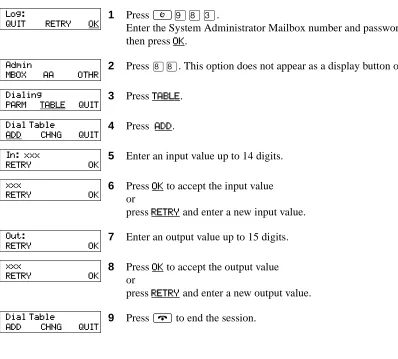
CallPilot 150
Telephone Administration
Guide
2
CallPilot 150 Telephone
Administration Guide
Copyright © 2002 Nortel Networks
All rights reserved. 2002.
The information in this document is subject to change without notice. The statements, configurations, technical data, and recommendations in this document are believed to be accurate and reliable, but are presented without express or implied warranty. Users must take full responsibility for their applications of any products specified in this document. The information in this document is proprietary to Nortel Networks NA Inc.
The software described in this document is furnished under a license agreement and may be used only in accordance with the terms of that license. The software license agreement is included in this document.
Trademarks
NORTEL NETWORKS is a trademark of Nortel Networks.
Contents 3
Contents
Chapter 1 Getting started with CallPilot . . . 7About CallPilot . . . 7
CallPilot features . . . 7
Voicemail . . . 7
Automated Attendant . . . 7
Custom Call Routing (CCR) . . . 7
CallPilot options . . . 8
Message Networking . . . 8
Call Center . . . 8
How to get help . . . 9
Chapter 2 Using CallPilot . . . 11
Who can use CallPilot . . . 11
System timeout . . . 11
Using CallPilot with a two line display telephone . . . 11
Using the dialpad . . . 12
Symbols and conventions used in this guide . . . 13
About telephone buttons . . . 13
Chapter 3 CallPilot mailboxes . . . 15
About installing mailboxes . . . 15
System Administrator Mailbox . . . 15
General Delivery Mailbox . . . 16
Subscriber mailboxes . . . 16
Guest mailboxes . . . 17
Information mailboxes . . . 18
Mailbox Class of Service . . . 19
Class of Service values . . . 20
Mailbox properties . . . 21
Restricting outdialing . . . 23
4 Contents
Chapter 4
Working with mailboxes . . . 25
Adding a Subscriber mailbox . . . 25
Adding a Guest mailbox . . . 27
Adding an Information mailbox . . . 28
Adding many mailboxes . . . 29
About mailbox passwords . . . 31
Changing a mailbox . . . 32
Deleting a mailbox . . . 35
About Group Lists . . . 36
About Sending Group List messages . . . 36
About Group List Numbers . . . 36
Adding a Group List . . . 37
Changing a Group List . . . 38
Deleting a Group List . . . 40
Chapter 5 Setting up the Automated Attendant . . . 41
About the Automated Attendant . . . 41
Greeting Tables . . . 42
About Company Greetings . . . 43
Recording a Greeting . . . 44
Setting up a Greeting Table . . . 45
Configuring line answering . . . 49
Changing line configuration . . . 50
To change or view how a line is answered . . . 50
Assigning the number of rings before CallPilot answers . . . 51
Setting up Touchtone Gate . . . 52
About the CLID Routing Table . . . 54
Chapter 6 Custom Call Routing . . . 57
About Custom Call Routing . . . 57
Planning and designing a CCR Tree . . . 58
Components of a CCR Tree . . . 58
The Home node . . . 58
Information Messages . . . 59
Sub-menus . . . 59
Mailbox nodes . . . 60
Transfer nodes . . . 60
Contents 5
Chapter 7 Working with CCR Trees . . . 63
Building a CCR Tree . . . 63
Creating a Home node . . . 64
Adding nodes to the Home node . . . 65
Adding a Menu node . . . 66
Adding an Information node . . . 68
Adding a Mailbox node . . . 70
Adding a Transfer node . . . 72
About transfers to external numbers . . . 73
Adding special characters to an external transfer number . . . 75
Assigning a CCR Tree to a Greeting Table . . . 76
Testing a CCR Tree . . . 77
Disabling a CCR Tree . . . 77
Deleting a CCR Tree . . . 78
Changing a CCR Tree message . . . 79
Changing a Mailbox node . . . 80
Changing a destination type . . . 81
Changing a Transfer node . . . 82
Deleting a Path . . . 83
Chapter 8 Broadcast and Information messages . . . 85
About Broadcast messages . . . 85
Information mailbox messages . . . 87
About recording an Information mailbox message . . . 87
Recording an Information mailbox message . . . 88
Chapter 9 CallPilot operations . . . 89
About resetting CallPilot . . . 89
Initializing CallPilot . . . 90
Resetting the System Administrator password . . . 91
Operator settings . . . 92
Setting the Operator status . . . 92
Changing the Operator password . . . 93
Resetting the Operator password . . . 93
Changing the Operator default extension . . . 94
Setting the Business Status . . . 94
Changing greetings or the Business Status from a remote telephone . . . 95
Setting up line answering . . . 95
6 Contents
CallPilot default system options . . . 97
Language availability . . . 97
Group List leading digit . . . 98
Voicemail . . . 99
Company Directory . . . 100
Outdialing . . . 101
General Delivery Mailbox . . . 102
Enabling a software authorization code . . . 103
External Mailbox Initialization . . . 104
Chapter 10 Dialing Translation . . . 105
About Dialing Translation . . . 105
How the Dialing Translation Table works . . . 105
Examples of Dialing Translation Tables . . . 106
Setting Dialing Translation properties . . . 108
Building a Dialing Translation Table . . . 109
Reviewing entries in the Dialing Translation Table . . . 110
Changing a Dialing Translation Table entry . . . 111
Deleting a Dialing Translation Table entry . . . 112
Chapter 11 Troubleshooting CallPilot . . . 113
CallPilot error messages . . . 117
Chapter 12 CallPilot configuration tips . . . 121
Delayed answering by the Automated Attendant . . . 121
Ringing lines and answer buttons . . . 121
Ringing Answer button . . . 121
Using Call Forward All Calls (CFAC) and Call Forward No Answer (CFNA) . . . 122
How to set up CallPilot for different businesses . . . 123
CallPilot for a small business . . . 123
CallPilot for a medium business . . . 125
Feature Compatibility . . . 128
Chapter 13 Default configuration values . . . 133
Glossary . . . 137
7
Chapter 1
Getting started with CallPilot
About CallPilot
CallPilot is a versatile business communications tool that you can use to:
• answer incoming calls
• offer callers a selection of options to route their calls or access information • provide advanced voicemail, Automated Attendant and call handling capabilities
This guide leads a System Administrator through setting up and operating CallPilot on a CallPilot 150 system. You can program CallPilot using any two-line display telephone on your Norstar system. You can also use the web-based CallPilot Manager to set up and operate CallPilot.
CallPilot features
CallPilot includes:
Voicemail
Records messages and stores them in a mailbox for easy retrieval. Business telephones on your system can have their own mailbox and greeting. Information can be distributed quickly to departments and workgroups.
Automated Attendant
Answers your business calls promptly, 24 hours a day, with a Company Greeting. Callers can direct their own calls by using the Company Directory.
Custom Call Routing (CCR)
8 Chapter 1 Getting started with CallPilot
CallPilot options
CallPilot has two options to enhance your office communications. You need a software authorization code to enable a CallPilot option. Contact your vendor if you want to trial or purchase a software authorization code.
CallPilot options are:
Message Networking
Message Networking links the CallPilot system with other voicemail systems and allows the exchange of voice messages between users at different sites. CallPilot supports Digital networking and Audio Messaging Interchange Specification (AMIS) networking. For information about Message Networking refer to the CallPilot Message Networking Set Up and Operation Guide.
Call Center
CallPilot is an application that handles incoming calls as efficiently and economically as possible. Call Center answers calls, then routes the calls to agents in a skillset that most closely matches the needs of the caller. Calls can be routed based on the origin of the call, the destination of the call, or the information entered by the caller. Callers can be given high or low priorities. Callers can overflow to different groups or skillsets of agents, transfer out of the system, leave a message, and hear announcements or informative messages. For information about Call Center refer to the Nortel Networks Call Center Set Up and Operation Guide.
For CallPilot 150, you have the option of choosing either CallPilot or Call Center as your primary application.
Desktop Messaging
Chapter 1 Getting started with CallPilot 9
How to get help
USA and Canada
Authorized Distributors - ITAS Technical Support
Telephone:
1-800-4NORTEL (1-800-466-7835)
If you already have a PIN Code, you can enter Express Routing Code (ERC) 196#.
If you do not yet have a PIN Code, or for general questions and first line support, you can enter ERC 338#.
Website:
http://www.nortelnetworks.com/itas/
email:
Presales Support (CSAN)
Telephone:
1-800-4NORTEL (1-800-466-7835) Use Express Routing Code (ERC) 1063#
EMEA (Europe, Middle East, Africa)
Technical Support - CTAS
Telephone:
00800 800 89009 or 33 4 9296 1341
Fax:
33 49296 1598
email:
CALA (Caribbean & Latin America)
Technical Support - CTAS
Telephone: 1-954-858-7777
email:
APAC (Asia Pacific)
Technical Support - CTAS
Telephone:
+61 388664627
Fax:
+61 388664644
email:
11
Chapter 2
Using CallPilot
Who can use CallPilot
CallPilot can be used by outside callers and mailbox owners (subscribers) in your company. Subscribers at your office can use CallPilot from any display telephone that is connected to your telephone system. Subscribers outside your office can use CallPilot from any tone dial telephone.
Incoming calls from a rotary dial telephone are transferred to your company receptionist or designated operator. If an operator is not available, the call transfers to the General Delivery Mailbox.
System timeout
If you pause longer than 2 minuteswhen you program CallPilot, the system times out and ends the session. This is a safety feature that prevents unauthori
z
ed use of the system.For example, if the system times out before you enter all the settings for a mailbox, you must use the procedures in “Changing a mailbox” on page 32 to finish setting up the mailbox.
Using CallPilot with a two line display telephone
You cannot use a single line display telephone to set up and administer CallPilot. You must use a two line display telephone. Two line display phones show CallPilot commands and options. A two line display can show up to three display options at once. In some instances, an option does not have a corresponding display button, and you must select the option by pressing buttons on the diapad.
While you program CallPilot, at any time, you can press • to go back to the previous selections.
An example of a two line display
Pswd:
OTHR RETRY OK Display command line
12 Chapter 2 Using CallPilot
Using the dialpad
The buttons on your display telephone dialpad act as both numbers and letters. Each button represents a number and letters of the alphabet.
Numbers and letters on the dialpad.
The display can show up to 16 characters. Whether the prompt remains on the display depends on the type of prompt that is displayed.
The prompt disappears for these command line prompts:
• Name: • Log: • Dest ph:
To enter a character press the dialpad button that represents the letter or number. Press the
button again to see the next letter or number.
To accept a character press £or press another button. When you press another button, the
cursor advances and the display shows the first character on the new button.
To delete a character press the BKSP display button.
⁄ 1 ’ - ¤ A B C 2 a b c ‹ D E F 3 d e f › G H I 4 g h i fi J K L 5 j k l fl M N O 6 m n o ‡ P Q R S 7 p q r s ° T U V 8 t u v · W X Y Z 9 w x y z
• Quit ‚ Q Z Zero q z £ Accepts the displayed letter and, (comma)
This is an example of a display with fewer than 16 characters, where the command line prompt remains on the display.
This display shows the Name: command line prompt.
When you begin to enter the last name, the Name: command line prompt disappears. For example, if you enter the name Partridge, you press the pad ‡ for P, and the display drops the Name: prompt.
Although the name is only nine characters long, the command line prompt is not shown on the display after you enter the entire name. Pswd:1111
OTHR RETRY OK
Name:
RETRY BKSP OK P
RETRY BKSP OK
PARTRIDGE
Chapter 2 Using CallPilot 13
Symbols and conventions used in this guide
These conventions and symbols are used to represent the Business Series Terminal display and dialpad.
About telephone buttons
This table shows the Nortel Networks Business Series Terminal buttons. Use the buttons that pertain to the type of telephone you use.
You can enter ≤, ƒ or Ä and the code to use a feature. For example, press
≤·°⁄ to access your mailbox.
The T7100 works differently from other telephones on your system because it does not have line buttons. Where other telephones require that you select a line button to answer a call, on the T7100 terminal you pick up the handset. Where other telephones require you to select a line button to take a call off hold, you press the ú button on the T7100 terminal.
On T7100 terminals, you can answer a second call by pressing ú . Your active call is put on hold and you connect to the waiting call. You can have no more than two active calls at one time.
Convention Example Used for
Word is in a special font (in the top line of the display) Pswd:
Command line prompts on display telephones.
Underlined word in capital letters (on the bottom line of a two line display telephone)
PLAY Display option. Available on two line display telephones
.
Press the button directly below the option on the display to proceed.Dialpad buttons £ Buttons you press on the dialpad to select a particular option.
Button name T7100, T7208, T7316
M7100, M7208, M7310, M7324
M7100N, M7208N, M7310N, M7324N
Feature ≤ ƒ Ä
Handsfree Bottom right-hand
button © ©
Hold ≥ú ˙ ú
Volume Control √ √ Ã
15
Chapter 3
CallPilot mailboxes
About installing mailboxes
You install mailboxes by enabling a software authorization code. The software authorization code enables the number of mailboxes that you can add to CallPilot. On CallPilot 150 you can have a maximum of 200 subscriber mailboxes. Refer to “Enabling a software authorization code” on page 103 for information on how to enable software authorization codes.
System Administrator Mailbox
The System Administrator Mailbox:
• is reserved for the System Administrator
• is created automatically when the system is initialized for the first time • is where you send Broadcast Messages from
Only the System Administrator can access the System Administrator Mailbox. Remember to check this mailbox for messages.
The default Class of Service for the System Administrator Mailbox is 7. You can change the Class of Service any time. For information on changing the Class of Service, refer to “Changing a mailbox” on page 32.
Warning: Change the System Administrator password as soon as possible to minimize the risk of unauthorized activity.
Default System Administrator Mailbox number and password combinations For a mailbox
number length of...
the default System Administrator Mailbox number is...
and the default System Administrator Mailbox password is...
so the combined mailbox number and password is...
2 12 0000 120000
3 102 0000 1020000
4 1002 0000 10020000
5 10002 0000 100020000
6 100002 0000 1000020000
16 Chapter 3 CallPilot mailboxes
General Delivery Mailbox
The General Delivery Mailbox is your company mailbox. It is created automatically when the system is initialized for the first time. The General Delivery Mailbox stores messages from callers when the Operator is not available, from callers who use a rotary dial telephone, and when a mailbox is full.
Usually the receptionist or designated Operator checks for messages in the General Delivery Mailbox.
The default Class of Service for the General Delivery Mailbox is 1. You can change the Class of Service any time. For information on changing the Class of Service, refer to “Changing a mailbox” on page 32.
The General Delivery Mailbox can receive messages before it is initialized, but you must initialize it before you can retrieve messages from it. For information about initializing mailboxes, refer to “Initializing a mailbox” on page 24.
Subscriber mailboxes
Create a Subscriber mailbox for each person in your organization who needs to be able to receive messages.
A Subscriber mailbox must be initialized by the mailbox owner before it can receive voice messages. Until a mailbox is initialized, it cannot receive voice messages, it does not appear in the Company Directory, and any calls that are directed to it are rerouted to the General Delivery Mailbox. Tell subscribers to change their mailbox password as soon as they initialize their
Warning: Change the General Delivery Mailbox password as soon as possible to minimize the risk of unauthorized activity.
Default General Delivery Mailbox number and password combinations For a mailbox
number length of...
the default System Administrator Mailbox number is...
and the default System Administrator Mailbox password is...
so the combined mailbox number and password is...
2 10 0000 100000
3 100 0000 1000000
4 1000 0000 10000000
5 10000 0000 100000000
6 100000 0000 1000000000
Chapter 3 CallPilot mailboxes 17
Guest mailboxes
Create Guest mailboxes for people who do not have an operating extension but require a mailbox. A Guest mailbox must be initialized by the mailbox owner before it can receive messages.
When you create Guest mailboxes, assign mailbox numbers that begin with the same digit. This identifies the mailbox type. Create Guest mailbox numbers that begin with a digit that is different than the Subscriber mailbox numbers. For example, if Subscriber mailbox numbers start with two, Guest mailboxes can start with the number four.
When to use Guest mailboxes
Guest mailboxes can provide a temporary employee with CallPilot services, give clients access to internal messaging and call routing, and let customers leave telephone orders.
You can use Guest mailboxes to:
• take personal catalog shopping orders
• list classes or seminars and let callers register by telephone • give frequent customers access to CallPilot services
Using a Guest mailbox for telephone registration
This example shows how to set up a Guest mailbox with announcement and order-taking capabilities. When you provide services that let a customer call into a mailbox, include the mailbox number in the greeting. This lets a caller transfer directly to the mailbox.
To use a Guest mailbox to provide telephone registration, you must first determine a mailbox number. Make sure that the Guest mailbox number is unique and is not assigned to any display telephone extension. Next, record the mailbox greeting.
For example:
“This month we are pleased to provide the following courses: Jazz Dancing Made Easy,
Intermediate Jazz Dancing, Warming Up for that Big Performance, and Beginner Ballet. If you are interested in any of these courses, please leave your name and telephone number after the tone. One of our instructors will contact you with more information.”
You can include the time and date the classes are being offered. This example is applicable to Guest mailboxes that are used for taking orders.
After you record the announcement, record a Company Greeting that tells callers about the mailbox is available. For example:
“Good Morning. This is On Your Toes Dance School. To reach the dance studio, press ›fl. To register for our fall classes, press ¤°. To reach our receptionist, press ‚.”
18 Chapter 3 CallPilot mailboxes
Make sure the leading digit of Guest mailbox numbers is different from the leading digit of the extensions. If you must use the same leading digit, ensure the Guest mailbox numbers are “out-of-range” extension numbers. To test if an extension is out-of-range, dial it from another extension. If the number is out-of-range, the display shows Invalid number. If the number is not out-of-range but does not have a set plugged into the corresponding port, the display shows Not in service.
You must assign a Class of Service to the Guest mailbox. When you assign a Class of Service to a Guest mailbox used as an order mailbox, choose a Class of Service that has the maximum mailbox greeting and message time available. Refer to “Mailbox Class of Service” on page 19.
Information mailboxes
Information mailboxes play an informative message to callers who access it. An Information mailbox must be initialized before it can play an information message. Callers cannot leave messages in Information mailboxes. Information mailboxes do not have operating extensions. For more information about Information messages refer to “Information mailbox messages” on page 87.
Information mailboxes are maintained by the System Administrator or a mailbox owner.
You can use Information mailboxes to:
• announce sales • provide product lists • announce special events
A caller is disconnected automatically after listening to an Information mailbox. Information mailbox Greetings can be recorded by you or by the person assigned the Information mailbox.
To let callers know about your company’s Information mailboxes:
• Advertise the Automated Attendant main number, and record a Company Greeting that mentions the Information mailbox services.
• Provide a list of your company’s Information mailboxes in brochures and telephone directory advertising.
• Mention the Information mailboxes in the Company Greeting if your company has a small number of Information mailboxes, such as three or four. Use Custom Call Routing (CCR) if you have a large number of Information mailboxes.
• Assign the Operator as the transfer point for all Information mailbox inquiries. Record a statement in the Company Greeting that tells callers to press zero to reach company
Chapter 3 CallPilot mailboxes 19
Mailbox Class of Service
Class of Service (COS) values reduce the amount of programming you do when you add a mailbox. Instead of entering values for several features, you can select the COS appropriate for a mailbox. You enter the COS when you add the mailbox and the system uses the associated values.
The COS tables, shown in “Class of Service values” on page 20 have preset values. If you use the web-based CallPilot Manager you can change individual COS values to meet the needs of your company. For more information about using CallPilot Manager to edit Classes of Service, refer to the CallPilot Manager Set Up and Operation Guide.
Class of Service features
Prompt language If you select bilingual operation, Classes of Service 1, 3, 5, 7, 9, 11, 13, 15 use the
Primary Language, and Classes of Service 2, 4, 6, 8, 10, 12, 14, 16 use the Alternate Language.
Mailbox message time
The total message time available to a mailbox. The maximum message time is 180 minutes. Mailboxes have a Never Full feature that lets a caller leave a message in a “full” mailbox. The message is stored in the mailbox, but cannot be played, copied or saved until a saved message is deleted.
Message length The maximum length of an incoming message. Message length is from 1 to 30
minutes.
Message retention period
The number of days messages are saved in a mailbox. Message retention period is from one to 365 days or 0 = indefinitely.
Greeting length The maximum length of a mailbox greeting. Greeting length is from 1 to 30 minutes. Off-premise Message
Notification
Redirects messages to another extension, telephone number or pager. Dialing restrictions that apply to outdial lines apply to Off-premise Message Notification.
Retry intervals For Off-premise Message Notification, the minutes between attempts to notify the
recipient of a new or urgent message. The retry interval is from 1 to 120 minutes.
Number of attempts For Off-premise Message Notification, the number of attempts the system makes to
notify the recipient of a new or urgent message. The number of attempts is from 1 to 20.
Outbound Transfer Lets a caller who reaches a mailbox transfer to an external telephone number or an
extension.
Incorrect password attempts
The maximum number of incorrect password attempts before a mailbox owner is locked out of their mailbox. The incorrect password attempts are from 4 to 20.
Password Expiry The maximum length of time a mailbox password is active. The password expiry is
from 1 to 365 days or 0 = never expire.
Networking If the Message Networking option is installed, lets callers send messages to
mailboxes at various sites on a communication network.
Target Attendant Lets subscribers set up a Personal Target Attendant. Otherwise, callers are
directed to the Target Attendant specified in the Greeting Table.
Call Record Lets subscribers use the Call Record feature. With Call Record (≤·°·) a
subscriber can record an active telephone call. The recorded message is placed in the subscriber’s mailbox.
User Interface The user interface used for the mailbox. There are two mailbox UI choices: Norstar
20 Chapter 3 CallPilot mailboxes
Class of Service values
Class of Service 1 2 3 4 5 6 7 8
Prompt language P A P A P A P A
Mailbox message time (in minutes) 15 15 15 15 5 5 20 20
Message length (in minutes) 3 3 7 7 3 3 2 2
Message retention period (in days) 30 30 0 0 7 7 15 15
Greeting length (in minutes) 1 1 1 1 1 1 10 10
Off-premise Message Notification Y Y Y Y N N Y Y
Retry intervals (in minutes) 5 5 10 10 15 15 30 30
Number of attempts 3 3 5 5 7 7 9 9
Outbound Transfer Y Y Y Y N N Y Y
Incorrect pswd attempts 9 9 9 9 6 6 4 4
Password expiry (in days) 90 90 90 90 60 60 30 30
Networking* Y Y Y Y N N Y Y
Target Attendant Y Y Y Y N N Y Y
Call Record N N N N N N N N
Mailbox UI The interface selected from the Installation Wizard as the primary interface.
Class of Service 9 10 11 12 13 14 15 16
Prompt language P A P A P A P A
Mailbox message time (in minutes) 10 10 30 30 120 120 120 120
Message length (in minutes) 3 3 7 7 10 10 2 2
Message retention period (in days) 365 365 60 60 90 90 45 45
Greeting length (in minutes) 1 1 2 2 3 3 5 5
Off-premise Message Notification Y Y N N Y Y Y Y
Retry intervals (in minutes) 5 5 10 10 15 15 30 30
Number of attempts 3 3 5 5 7 7 9 9
Outbound Transfer Y Y N N Y Y Y Y
Incorrect pswd attempts 9 9 9 9 6 6 4 4
Password expiry (in days) 90 90 90 90 60 60 30 30
Networking* Y Y N N Y Y Y Y
Target Attendant Y Y N N Y Y Y Y
Call Record N N N N N N N N
Chapter 3 CallPilot mailboxes 21
Mailbox properties
Apart from mailbox Class of Service settings, you can change these mailbox properties:
• Company Directory
• Message Waiting Notification • Outdial route
• Alternate extensions • Express Messaging Line • Call Screening
Mailbox properties are not included in a Class of Service. When you add a mailbox, you can change these options without changing the Class of Service.
Company Directory
The Company Directory is an internal list that contains the names of mailbox owners with initialized mailboxes who are assigned to the directory.
When you add a mailbox, you determine whether the mailbox appears in the Company Directory. Even if you do not include a mailbox in the Company Directory the mailbox owner must still record their name when they initialize their mailbox.
Message Waiting Notification
Message Waiting Notification gives subscribers a visual indication on their telephone display that they have new messages. Message Waiting Notification displays Message for you on a subscriber’s display telephone when they have a message.
Message Waiting Notification is enabled by default. When you create Guest Mailboxes, do not enable Message Waiting Notification. Guest Mailboxes do not have an operating extension.
Outdial route
The Outdial route determines which line or line pool the system uses when a subscriber uses:
• the Reply feature to reply to a message left by an external caller • Off-premise Message Notification
• Outbound Transfer
The default for Outdial route is None. The values available are None, Line, Pool or Route. Until you assign a line or line pool as the Outdial route for a mailbox, the mailbox owner can use the Reply feature to reply to calls from internal extensions only, Off-premise Message Notification for internal extensions only and Outbound Transfer for internal extensions only.
22 Chapter 3 CallPilot mailboxes
You can apply dialing restrictions to display telephones and the extensions connected to the system. For more information on restricting outdialing refer to “Restricting outdialing” on page 23.
If you set the Outdial route to anything but None, there is a potential for unauthorized long-distance dialing. You can prevent this by creating outdialing restrictions.
Alternate extensions
You can assign up to two alternate extensions to each Subscriber Mailbox. If a caller dials the main extension (the mailbox that has alternate extensions assigned), the call rings at the main extension only.
Only extensions that do not have a mailbox assigned can be used as an alternate extension. There are no default alternate extensions for Subscriber mailboxes.
Alternate extensions receive the same Message Waiting Indication and Caller Display information as the primary extension. Subscribers can use the Open Mailbox feature (≤·°⁄) from alternate extensions to access messages from their primary extension.
Subscribers can use the Interrupt feature (≤·°‡) on an alternate extension the same way the same way they use ≤·°‡ on a primary extension.
Express Messaging Line
When you create a Subscriber mailbox, you can assign an Express Messaging Line to it. Instead of assigning an extension number to the Subscriber mailbox, assign an Express Messaging Line. If you assign an Express Messaging Line, voice calls are left in the Subscriber Mailbox without ringing at the set. Inform the subscriber that they should frequently check their mailbox for messages because they do not receive Message Waiting Notification.
The line used for Express Messaging must be between 1 and 500. Give the corresponding seven digit phone number associated with the line you assign as the Express Messaging Line to the subscriber. For example, if line 20 is the Express Messaging Line and the corresponding phone number is 555-2424, give this phone number to the subscriber. After you assign a line to a mailbox, you cannot use the line for another function until you remove it from the mailbox.
The prime set for the Express Messaging Line must be set to the voicemail DN. For more information refer to your system documentation. The Express Messaging default is none.
Chapter 3 CallPilot mailboxes 23
Call Screening
Call Screening lets subscribers determine who is calling before they accept a call. Call Screening is useful if there is no Caller ID available. The system records the caller’s name, calls the
subscriber’s telephone, announces the name of the caller and offers options such as accepting the call or taking a message.
Call Screening applies to external calls dialed by callers using the extension dialing facilities of the Automated Attendant or Custom Call Routing (CCR). Call Screening does not apply to internal calls, or external calls routed using a CCR Transfer node or placed to a mailbox owner’s dedicated line. If a caller is calling from a line for which the mailbox owner has recorded a Personal Mailbox Greeting, Call Screening is bypassed and the call transfers without delay.
If Call Screening is enabled, CallPilot calls a mailbox owner’s telephone that is call forwarded.
The default for Call Screening is No, which means that unless subscribers have Calling Line Identification (CLID) they cannot determine who is calling before they answer the call.
Restricting outdialing
You can apply dialing restrictions to Nortel Networks Business Series Terminals and the extensions connected to CallPilot 150.
To restrict outdialing
Do one of the following:
• In system programming, assign dialing restrictions to the extension numbers that CallPilot is connected to. This restricts all outdialing calls including external transfers from CCR trees, Off-premise Message Notification and Outbound Transfers. Outdialing is done by the extension that CallPilot is connected to. For more information refer to your system documentation.
• In system programming, assign dialing restrictions to the extension of the subscriber. For additional information, refer to your system documentation.
24 Chapter 3 CallPilot mailboxes
Initializing a mailbox
Initializing a mailbox prepares the mailbox to receive messages. A mailbox cannot receive and store messages and does not appear in the Company Directory until it is initialized.
Initializing a mailbox involves:
• choosing a password from four to eight digits long that does not start with zero • changing the default password to the new password
• recording the mailbox owner’s name in the Company Directory
To initialize a mailbox
1 Press
≤
·°⁄.2 Log on by following the voice prompts.
3 This display appears briefly to indicate that you must change your password.
4 Enter a new password from four to eight digits long that does not start with zero.
Press OK or £.
5 Reenter your new mailbox password and press OK or £.
6 At the tone, record your name in the Company Directory.
Include your mailbox number in the recording, For example, “Pat Smith, mailbox 5813.”
Press OK or £ to end the recording.
7 Press OK or £ to accept the recording or
press PLAY or ⁄ to listen to the recording or
press RETRY or ¤ to re-record your name.
8 Press ® to end the session. Must change pswd
Pswd:
RETRY OK
Again:
RETRY OK Record name:
RETRY OK
Accept name:
25
Chapter 4
Working with mailboxes
Adding a Subscriber mailbox
Assign all Subscriber mailboxes mailbox numbers that begin with the same digit. This helps you to identify the mailbox type. If the system times out before you enter all the values for a mailbox, use the procedures in “Changing a mailbox” on page 32 to finish setting up the mailbox.
To add a Subscriber mailbox
1 Press ≤·°‹.
Enter the System Administrator Mailbox number and password, and then press OK.
2 Press MBOX.
3 Press ADD.
4 Enter the mailbox number.
5 Press OK.
6 Enter the extension number.
7 Enter a Class of Service from 1 to 16.
8 Enter the mailbox owner’s last name, press ££, enter the mailbox owner’s first name or initial, and then press OK.
The name can be a maximum of 16 characters.
For information on entering names using the telephone dialpad, refer to “Using the dialpad” on page 12.
9 Press YES if you want the Subscriber’s name to be included in the Company Directory.
10 Press YES if you want the Subscriber to have Message Waiting Notification.
11 Press NEXT if you do not want to assign outdialing and go to step 15 or
press CHNG. Log:
QUIT RETRY OK
Admin
MBOX AA OTHR
Mailbox Admin ADD DEL CHNG
Mbox:
RETRY QUIT
Type:subscriber NEXT OK
Ext:
RETRY OK
Service class: RETRY OK
Name:
RETRY BKSP OK
Directory? YES NO
Msg waiting? YES NO
26 Chapter 4 Working with mailboxes
12 Press NEXT if you want to use a line or
press CHNG if you want to use a line within a line pool.
13 Enter the Line or Pool number and press OK. Line numbers must be between 1 and 500.
Although line pools are labelled by a letter such as A, B or C, CallPilot accepts only numbers. If you enter a line pool use 1 for A, 2 for B, 3 for C, and so on.
14 Press OK.
15 Press CHNG if you want to assign an Alternate extension or
press NEXT if you do not want to assign an Alternate extension and go to step 21.
16 Enter the Alternate extension and press OK.
17 Press NEXT.
18 Press CHNG if you want to assign another Alternate extension or
press NEXT and go to step 21.
This display does not appear unless you assigned an Alternate extension.
19 Enter the second Alternate extension and press OK.
20 Press NEXT.
21 Press CHNG to assign an Express Messaging Line or
press NEXT and go to step 24.
22 Enter an Express Messaging Line number between 1 and 500 and press OK.
23 Press NEXT.
24 Press NEXT or
press CHNG if you want to enable Call Screening.
25 Press ® to end the session. Outdial: <line>
CHNG NEXT
xxxx:
RETRY OK
Accept: x
RETRY OK
Alt1 ext:(none) CHNG NEXT
Alt1 ext:
RETRY OK
Alt1 ext: xx
CHNG NEXT
Alt2 ext: (none) CHNG NEXT
Alt2 ext:
RETRY OK
Alt2 ext:xx
CHNG NEXT
Msg line: (none) CHNG NEXT
Msg line:
RETRY OK
Msg line: xx
CHNG NEXT
Xfers:blind
CHNG NEXT
Chapter 4 Working with mailboxes 27
Adding a Guest mailbox
Assign all Guest mailboxes mailbox numbers that begin with the same digit. This helps you to identify the mailbox type.
To add a Guest mailbox
1 Press
≤
·°‹.Enter the System Administrator mailbox number and password, and then press OK.
2 Press MBOX.
3 Press ADD.
4 Enter the Guest Mailbox number.
5 Press OK.
6 Press OK or £.
7 Enter a Class of Service from 1 to 16.
8 Enter the mailbox owner’s last name, press ££, enter the mailbox owner’s first name or initial, and then press OK.
For information on entering names using the telephone dialpad, refer to “Using the dialpad” on page 12.
9 Press YESif you want to include the mailbox owner’s name in the Company Directory.
10 Press NO.
11 Press •.
12 To add another Guest Mailbox, repeat steps 3 through 11 or
press ® to end the session. Log:
QUIT RETRY OK
Admin
MBOX AA OTHR
Mailbox Admin ADD DEL CHNG
Mbox:
RETRY QUIT
Type:subscriber NEXT OK
Ext:
RETRY OK
Service class: RETRY OK
Name:
RETRY BKSP OK
Directory? YES NO
Msg waiting? YES NO
Outdial:<none> CHNG NEXT
28 Chapter 4 Working with mailboxes
Adding an Information mailbox
Assign all Information mailboxes mailbox numbers that begin with the same digit. This helps you identify the mailbox type. Assign a Class of Service that has the maximum message length. To accommodate an average Information Mailbox recorded message, assign a Class of Service of either 7 or 8. These Classes of Service have a greeting length of 10 minutes.
To add an Information mailbox
1 Press
≤
·°‹.Enter the System Administrator mailbox number and password, and then press OK.
2 Press MBOX.
3 Press ADD.
4 Enter the Information Mailbox number.
5 Press NEXT.
6 Press OK.
7 Enter a Class of Service from 1 to 16.
8 Enter the mailbox name and press OK.
For information on entering names using the telephone dialpad, refer to “Using the dialpad” on page 12.
9 Press YESif you want to include the mailbox name in the Company Directory.
10 Repeat steps 4 through 10 to add another Information Mailbox or
press ® to end the session. Log:
QUIT RETRY OK
Admin
MBOX AA OTHR
Mailbox Admin ADD DEL CHNG
Mbox:
RETRY QUIT
Type: subscriber NEXT OK
Type:information NEXT OK
Service class: RETRY OK
Name:
NEXT BKSP OK
Directory? YES NO
Chapter 4 Working with mailboxes 29
Adding many mailboxes
You can save time by creating multiple mailboxes when you set up CallPilot 150 for the first time, or when you need to add a large number of mailboxes to the CallPilot system. Adding many mailboxes creates Subscriber mailboxes for the range of extensions that you define. You must use extensions that are not already assigned to mailboxes. You can add mailboxes only for the amount of working telephone numbers that have specific extensions on your system.
To make the most effective use of adding multiple mailboxes, identify people who need a
non-standard Subscriber mailbox. Create these mailboxes individually. Use Add Many Mailboxes to add the remaining mailboxes.
The mailboxes you create using Add Many Mailboxes have these characteristics:
• the mailbox number is the same as the extension number • Class of Service is the same for all mailboxes
• the Call Screening setting is the same for all mailboxes
• the mailbox name is taken from the extension names assigned on your system. If extension names are not programmed, the mailbox number is used
• the Message Waiting Notification property is the same for all mailboxes • the Outdial route is the same for all mailboxes
• the Display in Directory property is the same for all mailboxes
The mailboxes created are uninitialized and ready for initialization by mailbox owners.
A mailbox is not created if:
• a mailbox with the same number already exists • the extension is used by another mailbox • the extension is a CallPilot voice port
To add multiple mailboxes
1 Press
≤
·°‹.Enter the System Administrator mailbox number and password, and then press OK.
2 Press flfl.
This option does not appear as a display button option.
3 This display appears briefly.
4 Enter the extension number to start creating mailboxes from.
5 Enter the extension number to stop creating mailboxes at. Log:
QUIT RETRY OK
Admin
MBOX AA OTHR
Create mboxes
From ext:
RETRY QUIT
To ext:
30 Chapter 4 Working with mailboxes
6 Enter a Class of Service from 1 to 16.
7 Press NEXT if you do not want to assign outdialing and go to step 11 or
press CHNG.
8 Press NEXT if you want to use a line or
press CHNG if you want to use a line within a line pool.
9 Enter the Line or Pool number and press OK. Line numbers must be between 1 and 500.
Although line pools are labelled by a letter such as A, B or C, CallPilot accepts only numbers. If you enter a line pool use 1 for A, 2 for B, 3 for C, and so on.
10 Press OK.
11 Press NEXT or
press CHNG to enable Call Screening for the mailboxes.
12 Press YES.
13 The display shows the numbers of the mailboxes that are being created.
14 Press OK to end the session. Service class:
RETRY OK
Outdial: <none> CHNG NEXT
Outdial: <line> CHNG NEXT
xxxx:
RETRY OK
Accept: x
RETRY OK
Xfers:blind
CHNG NEXT
Proceed?
YES QUIT
Checking xx
Chapter 4 Working with mailboxes 31
About mailbox passwords
Each mailbox is protected by a password established by the mailbox owner. When you add a mailbox to CallPilot Manager, the password 0000 is assigned. This is the default password.
To use a mailbox, a mailbox owner must change the default password. The new password must be four to eight digits in length and cannot start with a zero.
If a mailbox owner cannot remember the password, you can reset the password to the default password 0000. Refer to “To change a mailbox” on page 32.
Incorrect password lock-out
In its Class of Service each mailbox is assigned a maximum number of incorrect password attempts. CallPilot records the number of incorrect attempts from the last time the mailbox was accessed successfully. If the number is exceeded, the mailbox owner is “locked-out”. The mailbox cannot be opened until the password is reset. Refer to “To change a mailbox” on page 32.
Password expiry
In its Class of Service each mailbox is assigned the maximum number of days a password remains active. If the maximum number of days is exceeded, the mailbox password expires. The mailbox owner can open the mailbox, but cannot access messages or perform other mailbox functions until they change the password. Unless the telephone has a two-line display, this announcement plays when the mailbox is opened after the password expires:
“Your current password has expired. You must change your password. Please enter your new password and press £.”
After the new password is entered the mailbox returns to normal operation.
Warning: Change the System Administrator password frequently to minimize the risk of unauthorized activity.
32 Chapter 4 Working with mailboxes
Changing a mailbox
After you add a mailbox, you can change the mailbox: • password
• extension • Class of Service • display name
• appearance in the Company Directory • Message Waiting Notification
• outdial route • Alternate extension • Express Messaging Line • Call Screening
To change a mailbox
Note: Reset a password only if the mailbox owner forgets it or is “locked-out”. The password for a reset mailbox is 0000. Mailbox owners cannot access their messages until they change the default password. After you reset a mailbox password, tell the mailbox owner to change the default password as soon as possible. While the mailbox has the default password, the mailbox is vulnerable to unauthorized access.
1 Press
≤
·°‹.Enter the System Administrator mailbox number and password, and then press OK.
2 Press MBOX.
3 Press CHNG.
4 Enter the mailbox number or press DIR to use the Company Directory.
5 If you want to change the password press RESET or
press NEXT to change other mailbox settings and go to step 8.
6 The password is reset.
7 Press NEXT to change other mailbox settings or
press ® to end the session. Log:
QUIT RETRY OK
Admin
MBOX AA OTHR
Mailbox Admin ADD DEL CHNG
Mbox:
DIR QUIT
Password
RESET NEXT
Password reset
Password
Chapter 4 Working with mailboxes 33
8 If you want to change the extension number, pressCHNG or
press NEXT and go to step 10.
9 Enter the new extension number and press NEXT.
10 If you want to change the Class of Service, pressCHNG or
press NEXT and go to step 12.
11 Enter a Class of Service from 1 to 16 and press NEXT.
12 If you want to change the mailbox owner’s display name pressCHNG or
press NEXT and go to step 15.
13 Enter the mailbox owner’s last name, press ££, enter the mailbox owner’s first name or initial, and then press OK.
For information on entering names using the telephone dialpad, refer to “Using the dialpad” on page 12.
14 PressNEXT.
15 If you want to change whether the mailbox owner’s name is included in the Company Directory, press CHNG
or
press NEXT and go to step 17.
16 Press NEXT.
17 If you want to change message waiting notification for the mailbox press CHNG
or
press NEXT.
18 Press CHNG if you want to change the outdial method or
press NEXT and go to step 27.
19 Press NEXT if you want to use the outdial method shown on the display
or
press CHNG if you want choose another outdial method. Ext: xx
CHNG NEXT
Ext: xx
RETRY QUIT
Service class:x CHNG NEXT
Service class: x RETRY OK
<mbox owner name> CHNG NEXT
xxxxx, xx
RETRY BKSP OK
xxxxx, xx
CHNG NEXT
Directory:Y
CHNG NEXT
CHNG NEXT
Msg waiting:Y CHNG NEXT
Outdial: <xxxx> CHNG NEXT
34 Chapter 4 Working with mailboxes
20 Enter the Line or Pool number and press OK.
Line numbers must be between 1 and 500. Although line pools have a letter such as A, B or C, CallPilot accepts only numbers. If you enter a line pool use 1 for A, 2 for B, 3 for C, and so on.
21 Press OK.
Steps 22 through 26 appear only if the mailbox has Alternate extensions. If not, go to step 27.
22 If you want to change or delete the first Alternate extension press CHNG
or
if you want to change the second Alternate extension press NEXT and go to step 25.
23 If you want to delete the first Alternate extension, press £ or
if you want to change the Alternate extension, enter the new extension number and press OK.
24 Press CHNG to change the second Alternate extension.
25 If you want to delete the second Alternate extension, press £. The display shows: Alt2 ext: (none)
or
if you want to change the second Alternate extension number enter the new extension number and press OK.
Alt2 ext appears only if Alternate extension 1 is assigned.
26 Press NEXT.
27 Press CHNG to change or assign an Express Messaging Line or
press NEXT and go to step 29.
28 Enter an Express Messaging Line number between 1 and 500 and press OK.
29 Press NEXT.
30 PressCHNG if you want to change the call screening status or
press NEXT and go to step 30.
31 PressNEXT.
32 Press ® to end the session. xxxx:
RETRY OK
Accept: x
RETRY OK
Alt1 ext: xx
CHNG NEXT
Alt1 ext:
RETRY OK
Alt1 ext: xx
CHNG NEXT
Alt2 ext:xxx
RETRY OK
Alt2 ext:xxx
RETRY OK
Msg line:xxx
CHNG NEXT
Msg line:
RETRY OK
Msg line: xx
CHNG NEXT
Xfers:blind
CHNG NEXT
Chapter 4 Working with mailboxes 35
Deleting a mailbox
Before you delete a mailbox, ensure the mailbox owner has listened to all their messages. When a mailbox is deleted, all messages stored in that mailbox are deleted and the mailbox is deleted automatically from the Company Directory and all Group Lists.
If you are deleting a mailbox associated with a CCR Tree, make sure you remove the mailbox from the CCR Tree first. If you do not delete the mailbox, the message Mbox in CCR appears on your display.
You cannot delete a mailbox if:
• it is currently in use
• it is used in a CLID table or a CCR Tree
• it is the System Administrator or the General Delivery Mailbox
To delete a mailbox
1 Press ≤·°‹.
Enter the System Administrator Mailbox number and password, and then press OK.
2 Press MBOX.
3 Press DEL.
4 Enter the number of the mailbox you want to delete or
press DIR to use the Company Directory.
5 Press DEL.
6 This display appears briefly.
7 Press DEL to delete additional mailboxes or
press ® to end the session. Log:
QUIT RETRY OK
Admin
MBOX AA OTHR
Mailbox Admin ADD DEL CHNG
Mbox:
DIR QUIT
<Mbox ow ner name> DEL QUIT
Mailbox deleted
36 Chapter 4 Working with mailboxes
About Group Lists
You can create a maximum of 99 Group Lists on your system. Each Group List can contain a maximum of 300 mailboxes. Before you add Group Lists, prepare a group mailbox member list. This list must contain:
• the Group List name – maximum 16 characters long • the mailbox numbers to include in the group
After you create a Group List, you can change the mailboxes included in the list, record a new list name, view the Group List, or delete the Group List.
About Sending Group List messages
You can send a Group List message whenever you want to notify a group of people about an event or notice that pertains to them. When a subscriber sends a message to the Group List, the
subscriber does not receive the message.
For instructions on how to send a Group List message to a Voice Group List, refer to the CallPilot Reference Guide.
About Group List Numbers
During system installation, a number from 0 to 9 (default 9) is assigned as the Group List leading digit. For example, the default Group List numbers are 901 to 999. If the leading digit is 5, the Group List numbers are 501 to 599. Group List numbers are three digits long.
You can change the Group List leading digit. For more information on changing the Group List leading digit, refer to “Group List leading digit” on page 98.
The Group List number acts like a mailbox number when you leave a message for the mailboxes in the Group List. The table below shows two sample Group Lists.
This table shows an example of a Group List
Group List number Name Mailbox number
901 Sales 224
223 233
902 Shipping 227
Chapter 4 Working with mailboxes 37
Adding a Group List
A mailbox must be initialized before you can add it to a Group List. For information on how to initialize a mailbox, refer to “Initializing a mailbox” on page 24.
To add a Group List
1 Press ≤·°‹.
Enter the System Administrator Mailbox number and password, and then press OK.
2 Press OTHR.
3 Press GLIST.
4 Press ADD.
5 Press OK.
CallPilot assigns a Group List number automatically.
6 At the tone, record the Group List name and press OK to end the recording.
This Group List name is played to any caller who leaves a message for the mailboxes in the group.
7 To listen to your recording, press PLAY or
to accept the recording, press OK or
to record the name again, press RETRY.
8 Enter the Group List name (maximum 16 characters) and press OK.
9 Enter the number of the first mailbox you want to include in the Group List.
If you do not know the number of the mailbox, press DIR to search the Company Directory.
10 Press ADD.
11 This display appears briefly.
12 To add additional mailboxes to the Group List, repeat steps 10 through 12
or
Press ® to end the session. Log:
QUIT RETRY OK
Admin
MBOX AA OTHR
Admin
GLIST CCR OTHR
Group List Admin ADD DEL CHNG
GList: xxx
OK
Record name:
RETRY OK
Accept name? RETRY PLAY OK
Name:
RETRY BSKP OK
Mbox:
DIR QUIT
xxxx, xx
RETRY ADD
Member added
Mbox:
38 Chapter 4 Working with mailboxes
Changing a Group List
At any time you can:
• change a Group List display name • add, delete or view Group List members
You cannot change a Group List number. To change a Group List number, you must delete the Group List and add new member mailbox numbers as a new Group List. For more information, refer to “Adding a Group List” on page 37.
To change a Group List
1 Press ≤·°‹.
Enter the System Administrator Mailbox number and password, and then press OK.
2 Press OTHR.
3 Press GLIST.
4 Press CHNG.
5 Enter the number of the Group List you want to change.
6 To change the Group List name, press CHNG. or
press NEXT and go to step 9.
7 Enter the new Group List name and press OK.
8 Press NEXT.
9 To change the recorded Group List name, press REC or
press NEXT and go to step 12.
10 At the tone, record the new Group List name and press OK.
11 To listen to your recording, press PLAY or
to accept the recording, press OK or
to re-record the name, press RETRY. Log:
QUIT RETRY OK
Admin
MBOX AA OTHR
Admin GLIST CCR
Group List Admin ADD DEL CHNG
GList:
RETRY QUIT
xxxxxxx
CHNG NEXT
Name:
RETRY BKSP OK
xxxxxx
CHNG NEXT
Recorded name: REC PLAY NEXT
Record name:
RETRY OK
Chapter 4 Working with mailboxes 39
12 Press ADD to add a mailbox number to the Group List or
press DEL to delete a mailbox number from the Group List or
press VIEW to view the members of the Group List.
13 Enter the number of the mailbox you want to add or delete.
14 After you make the changes you want to the make to the Group List, press ® to end the session.
GList members ADD DEL VIEW
Mbox:
DIR QUIT
40 Chapter 4 Working with mailboxes
Deleting a Group List
You can delete a Group List at any time. When you delete a Group List, the Group List number is re-assigned by CallPilot the next time you add a Group List. Deleting a Group List does not delete any mailboxes from the CallPilot system.
To delete a Group List
1 Press ≤·°‹.
Enter the System Administrator Mailbox number and password, and then press OK.
2 Press OTHR.
3 Press GLIST.
4 Press DEL.
5 Enter the number of the Group List you want to delete.
6 Press DEL.
7 This display appears briefly.
8 Press ® to end the session. Log:
QUIT RETRY OK
Admin
MBOX AA OTHR
Admin
GLIST CCR OTHR
Group List Admin ADD DEL CHNG
GList:
RETRY QUIT
<Group List Name> DEL QUIT
GList deleted
41
Chapter 5
Setting up the Automated Attendant
About the Automated Attendant
The Automated Attendant answers your company’s incoming phone lines with a prerecorded greeting selected from the Greeting Table, according to the time of day.
You can record and assign different greetings to the Greeting Table. You can specify which greetings play for particular lines. For example, you can program the system so that callers hear one greeting when they call the sales line, and a different greeting when they call the customer support line.
After the greeting, the Automated Attendant Menu offers a range of options that callers can select using the dialpad of their phone. If you want to offer a greater range of options and services for incoming calls, you can assign a Custom Call Routing (CCR) menu to play instead of the Automated Attendant Menu. See “Planning and designing a CCR Tree” on page 58 for information on creating a CCR menu.
Automated Attendant answering overview
Automated Attendant answers answers
Receptionist
Company Greeting plays
Custom Call Routing Home Menu plays
Automated Attendant Menu plays
42 Chapter 5 Setting up the Automated Attendant
Greeting Tables
Greeting Tables store the recordings played by the Automated Attendant to incoming callers. CallPilot has four Greeting Tables.
You can record a total of 40 Company Greetings, but only four greetings can be assigned to a Greeting Table at any one time. You can assign the same four greetings to each table, or you can assign unique greetings for each table.
This table shows an example of how you can assign Greetings.
We recommend using greetings 1 through 16 as your daily business greetings, and greetings 17 through 40 as special greetings.
Each Greeting Table is divided into four times of day.
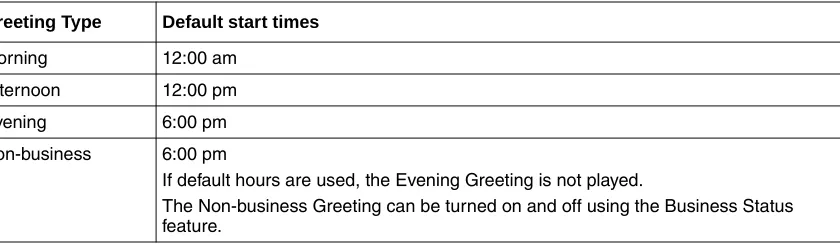
This table shows the default times of day.
Greeting Tables using the alternate language
If you use primary and alternate languages, we recommend that you assign one Greeting Table to the alternate language. For example, if your company has two incoming lines and you want to have one line assigned to the alternate language, assign the line to the Greeting Table that has greetings recorded in the alternate language. You can record greetings 5, 6, 7 and 8 in the alternate language and assign the greetings to Greeting Table 2 for line 2.
Greeting Type Table 1 Table 2 Table 3 Table 4
Morning Greeting 1 Greeting 5 Greeting 9 Greeting 13
Afternoon Greeting 2 Greeting 6 Greeting 10 Greeting 14
Evening Greeting 3 Greeting 7 Greeting 11 Greeting 15
Non-business Greeting 4 Greeting 8 Greeting 12 Greeting 16 Morning Greeting 17 Greeting 21 Greeting 25 Greeting 29 Afternoon Greeting 18 Greeting 22 Greeting 26 Greeting 30 Evening Greeting 19 Greeting 23 Greeting 27 Greeting 31 Non-business Greeting 20 Greeting 24 Greeting 28 Greeting 32
Greeting Type Default start times
Morning 12:00 am
Afternoon 12:00 pm
Evening 6:00 pm
Non-business 6:00 pm
If default hours are used, the Evening Greeting is not played.
Chapter 5 Setting up the Automated Attendant 43
About Company Greetings
Before you record your Company Greetings, decide what type of greetings you want to use for the incoming phone lines, and what you want the greetings to say. There are four greeting times that reflect the Morning, Afternoon, Evening and Non-business hours. You can prepare four greetings, or you can use the same greeting for each time of day. As you record the greetings, number them from 1 to 4. An example greetings for each time of day:
1 Morning Greeting: “Good morning. You have reached Touchstone Marketing.”
2 Afternoon Greeting: “Good afternoon. You have reached Touchstone Marketing.”
3 Evening Greeting: “Good evening. You have reached Touchstone Marketing.”
4 Non-business Greeting: “You have reached Touchstone Marketing. Our business hours are Monday to Friday from 8:00 a.m. to 5:00 p.m. Please stay on the line and leave a message. Thank you for calling.”
Greetings 1 through 4 are assigned by default to all Greeting Tables. This means that Greeting 1 plays as the Morning Greeting for Greeting Table 1, 2, 3 and 4.
If you use only one Greeting Table, the numbered greetings you record from 1 to 4 play automatically. You do not have to assign Greetings 1 to 4 to the table, but you must select the language preference.
If you use a Primary and Alternate Language, record the option · instruction in both languages. For example, if you use English as your Primary Language and French as your Alternate
Language, your main greeting can be in English and the option · instruction can be in French. For example:
“Good morning. This is Touchstone Marketing. To use our voice messaging service in French, please press ·.”
Since the default Automated Attendant Menu prompt does not announce an Alternate Language option, in your greeting you must tell callers to press · to use the Alternate Language.
Company Greetings can be 0 to 10 minutes in duration. If you need to change the greeting duration, you must change the Class of Service assigned to the System Administrator Mailbox. For information on how to change the setting, refer to “Changing a mailbox” on page 32.
44 Chapter 5 Setting up the Automated Attendant
Recording a Greeting
Do not use Handsfree to record your company Greetings. Speak directly into the phone handset.
To record a company Greeting
1 Press ≤·°‹.
Enter the System Administrator Mailbox number and password, and then press OK.
2 Press AA.
3 Press GRTG.
4 Press GRTG.
5 Enter the number of the Greeting you want to record (from 1 to 40) and press OK.
6 Press REC. At the tone, record your greeting.
Do not hang up the handset when you are finished recording.
7 Press OK to end your recording.
8 To listen to the greeting, press PLAY or
to accept the recording, press OK or
to re-record the greeting, press RETRY.
Repeat steps 5 through 9 if you want to record another greeting.
9 Press ® to end the session. Log:
QUIT RETRY OK
Admin
MBOX AA OTHR
Auto Atdt Admin GRTG TABLE LINES
Greeting admin GRTG AA
Greeting:
RETRY OK
Greeting <X>
RETRY PLAY REC
Record greeting: RETRY OK