NCS Console
For NCS Ware Release 4.0
User Guide
Part No. 77000CON04 April 2001
WARNING!
Toll fraud is committed when individuals unlawfully gain access to customer telecommunication systems. This is a criminal offense. Currently, we do not know of any telecommunications system that is immune to this type of criminal activity. NEC America will not accept liability for any damages, including long distance charges, which result from unauthorized and/or unlawful use. Although NEC America has designed security features into its products, it is your sole responsibility to use the security features and to establish security practices within your company, including training, security awareness, and call auditing.
NOTICE
While every effort has been made to ensure accuracy, NEC America will not be liable for technical or editorial errors or omissions contained within the documentation. The information contained in this documentation is subject to change without notice.
This documentation may be used only in accordance with the terms of the NEC America License Agreement.
NEC America, Inc., Corporate Networks Group 4 Forest Parkway
Shelton, CT. 06484 Telephone: 203-926-5400 Fax: 203-929-0535 Web site: cng.nec.com
TRADEMARKS
NEC, NCS Serv, NCS Ware, Extended Caller ID, N-TeliTouch, NCS Link, NCS Console, NCS Admin and N-TeliCall are trademarks or registered trademarks of NEC.
All other brand names mentioned are trademarks or registered trademarks of their respective manufacturers.
Table of Contents
NCS Console 4.0 User Guide i
Contents
Warranty . . . iii
Before You Begin . . . 1
About NCS Console . . . 1
New in Version 4.0 . . . 1
Package Contents . . . 2
System Requirements . . . 2
Before You Install NCS Console . . . 3
Installing NCS Console . . . 3
Getting Started . . . 4
Extension Settings Apply to NCS Console . . . 5
About the NCS Console Main Window . . . 6
Busy Lamp Field View (BLF tab) . . . 8
All Extensions View (ALL tab) . . . 8
Trunk Status View (Trunk tab) . . . 9
Speed Dial View (SPEED tab) . . . 9
Call States . . . 10
Keyboard Shortcuts . . . 11
Mouse Shortcuts . . . 12
Handling Calls . . . 13
A General Procedure . . . 13
Headset or Hands Free Call Handling . . . 13
Dialing . . . 14
Answering Calls . . . 14
Answering Calls without Using the Phone Hand Set . . . 14
Answering Calls when You’re Already Connected . . . 14
Answering Calls to Other Extensions. . . 15
Hanging-Up . . . 15
Hold and Hold Pending . . . 15
Transferring Calls . . . 16
Blind Transfer . . . 17
Table of Contents
Transfer to Auto Attendant. . . 18
Transfer to Voice Mail . . . 18
System Call Park . . . 19
Conference Calls . . . 20
Overhead Paging . . . 21
Configuring NCS Console Settings . . . .22
Setting Your Extension Number . . . 22
Setting the Auto Attendant Number. . . 22
Setting NCS Console Behavior and Overhead Paging. . . 23
Setting Speed Call List Entries. . . 23
NCS Console 4.0 User Guide iii
Warranty
Coverage
NEC America warrants its hardware products to be free from defects in material and workmanship during the warranty period. If a product proves to be defective in material or workmanship during the warranty period, NEC America will at its sole option repair, refund, or replace the product with a like product.
How Long is the Warranty Effective
All NEC Americas’ NCS products are warranted for one (1) year for all parts from the date of the first consumer purchase.
Who the Warranty Protects
This warranty is valid only for the first consumer purchaser.
What the Warranty Does Not Cover
1. Any product on which the serial number has been defaced, modified or removed.
2. Damage, deterioration or malfunction resulting from:
a) Accident, misuse, neglect, fire, water, lightning, or other acts of nature, unauthorized product modification, or failure to follow instructions supplied with the product.
b) Repair or attempted repair by anyone not authorized by NEC.
c) Any damage of the product due to shipment.
d) Removal or installation of the product.
e) Causes external to the product, such as electric power fluctuations or failure.
f) Use of supplies or parts not meeting NEC Americas’ specifications.
g) Normal wear and tear.
h) Any other cause which does not relate to a product defect.
Warranty
Limitation of Liability
Except for personal injury, direct damages to tangible personal property proximately caused by NEC America products and liability otherwise expressly assumed in a written agreement signed by NEC, the liability of NEC, its affiliates, suppliers, and authorized resellers for any claims, losses, damages, or expenses from any cause whatsoever (including acts of omission of third parties), regardless of the form of action, whether in contract, tort or otherwise, shall not exceed an amount equal to the lesser of the direct damages proven or the purchase price of the product. In no event shall NEC America or its affiliates, suppliers, or authorized resellers be liable for incidental, consequential or any other indirect loss or damage (including lost profits or revenues) incurred in connection with the product. This limitation of liability shall survive failure of the exclusive remedy set forth in the limited warranty above.
Effect of State Law
About NCS Console
NCS Console 4.0 User Guide 1
Before You Begin
About NCS Console
NCS Console is an attendant console application for a client system or personal computer running Microsoft Windows 95/98/2000 or Windows NT (Server or Workstation) 4.0 with Service Pack 6a (or higher).
It connects to NEC’s NCS Serv, the telephony server, running NCS Ware Release 4.0 or higher. This can simultaneously support up to three (3) operators on the same NCS Serv system. However, you must purchase a copy of NCS Console for each operator.
NCS Console provides the following call handling functions: • Placing and answering calls
• Placing Calls on Hold
• Transferring Calls (Blind and Supervised Transfers) • Transferring Calls to Voice Mail
• Transferring Calls to Auto Attendant
• Conference Calls (with up to six total parties) • Parking Calls
• Accessing Overhead Paging, if that is available on your system
New in Version 4.0
• Incoming calls are displayed with the user name associated with DNIS/DID numbers, if the name is assigned. If there is no name assigned, the number itself is displayed.
• A trunk view displays the status of trunk lines, telling which are in use and by whom.
• Extension status views are updated for users logging on or off in real time and automatically.
• The Parked Calls list displays the name of the person who parked the call and the duration of the call park.
Before You Begin
Functional Changes
In addition to new features, some existing functions have changed in response to user needs and requests.
• The Hang Up button can only disconnect calls on your extension. • Call handling functions now operate on a currently connected call
only, with the exception that Overhead Paging simply requires that you have a dial tone.
• When there is a Ringing status, you can now pick up both Ringing and Hold calls.
• The user’s extension must be off hook to place a call.
Package Contents
The following items are included in the NCS Console package:
• NCS Console 4.0 CD ROM
• NCS Console 4.0 User Guide
• NCS Console End User License Agreement
Make sure you have all items listed above. If anything is missing or damaged, please contact your Authorized NEC Dealer.
System Requirements
The client system must meet the following minimum requirements: • Windows 95/98/2000 or Windows NT 4.0 (Server or Workstation)
with Service Pack 6a (or higher) installed.
• Intel 166 MHz or faster Pentium processor
• 30 MB available hard disk drive space
Before You Install NCS Console
NCS Console 4.0 User Guide 3
Before You Install NCS Console
• NCS Ware Release 4.0 or higher must be installed on the NCS Serv system to which the NCS Console client will connect.
• In NCS Admin, the operator’s extension should be configured to enable Multiple Call Waiting as an Answering option. Also, configure the extension’s Busy Call Handling and No Answer Handling.
• The client system should be connected to the NCS Serv system over the LAN.
Installing NCS Console
1. Insert the NCS Console CD into the CD-ROM drive.
Getting Started
Getting Started
Starting NCS Console
Start NCS Console from the Start | Programs menu. The login dialog box will appear.
In order to run NCS Console, NCS Serv server must be up and running. While NCS Serv is running, the data you see in your NCS Console windows is refreshed and updated. If NCS Serv is stopped in the middle of an NCS Console session, you will be prompted to close your session.
Figure 1. Console Log In dialog box
• Inter the name of the NCS Serv server. Ask you network administrator if you do not know the name of the server.
• Enter your extension number.
You can only use a physical extension number when logging in. Although this physical extension can belong to workgroups (e.g. operator workgroup), NCS Console will only display calls for the physical extension it controls, and not calls in queue for any workgroups that the physical extension may belong to. (However, once the call in a workgroup queue rings your physical extension, the call appears in NCS Console.)
• Enter your password and click on OK.
Installing NCS Console
NCS Console 4.0 User Guide 5
First Time Login
The first time you run the NCS Console application, you should configure its operation to meet your needs. Click the Setup button in the main window to open the Setup window. Refer to “Configuring NCS Console Settings” on page 22
Extension Settings Apply to NCS Console
If you have configured your extension settings by way of other NCS Serv interfaces, those settings apply when you run NCS Console on your extension. For example, if you enable Headset and Manual Answer Mode by pressing #82 on your telephone keypad, that setting is active when you use NCS Console.
Getting Started
About the NCS Console Main Window
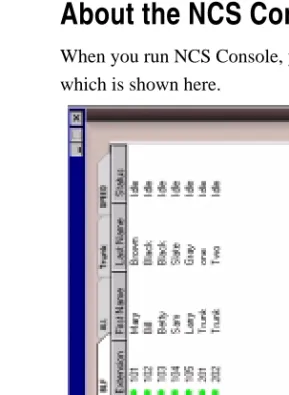
When you run NCS Console, you see the main window, an example of which is shown here.
About the NCS Console Main Window
NCS Console 4.0 User Guide 7 The main window is composed of the following displays and buttons:
• The title bar displays your extension number.
• The Info line at the bottom displays information on the current action or about errors.
• The Active Calls panel shows the status and information about currently connected calls, including caller ID and DNIS information if available.
With the Multiple Call Waiting feature enabled for the your extension on the NCS Serv, this panel can hold up to 50 concurrent calls.
The call states shown in the status column in the Active Calls and other views, are described on page 10.
• The Parked Calls panel shows for whom the call is parked, who parked it, and the call park ID, a unique number assigned to each call parked call that allows the user to pick up the right call.
• The Dial Pad provides answering and dialing functions. The Dial Pad is disabled when it is not available, for example, when you’re connected to a call and haven’t taken some action place it on hold.
The * and # keys are always dimmed because they are not sup-ported in certain networking functions at this time.
The Roll Back button, unique to NCS Console, has a “cancel and return” function. For example, clicking it will drop a Supervised Transfer or Conference Call attempt, and reconnect the original call.
• The Call Handling buttons provide options such as conferencing, transferring, hold and park.
• The Setup button accesses the NCS Console Setup windows • The Help button gets online help.
• The right portion of the NCS Console desktop shows details view of different activities, each represented by a tab. These views are described in the subsequent subsections.
Getting Started
Busy Lamp Field View (BLF tab)
The panel at the right of the main window contains four tabs. The first tab is labeled BLF, or Busy Lamp Field. This display lists only physical
extensions on the NCS Serv system.
You can sort by any of the columns except the Status column by clicking the column heading. Clicking the heading repeatedly reverses the sort order from descending to ascending and vice versa.
Besides the extension and name of the extension user, this list displays the status of calls, which are described on page 10.
Further, at the left of each extension is a colored dot:
• a solid black dot means the extension is in a Do Not Disturb state.
• a solid green dot means the extension is Idle.
• a solid red dot means the extension is busy—off-hook or ringing.
• a red circle means the extension is On Hold.
All Extensions View (ALL tab)
The second tab in the panel at the right is labeled ALL.
This panel view displays all extensions—physical, virtual and workgroup pilots—in the NCS Serv system.
In addition to the columns that are the same as that of the BLF tab described in the preceding subsection, an Extension column displays the type of extension: PH Physical, VR (Virtual), WG (Workgroup).
Also, the status column shows a black circle next to the extension number for workgroup pilot and virtual extensions.
Further, in this view, an A (for Attendant) appears in place of a dot to indicate your extension.
Trunk Status View (Trunk tab)
NCS Console 4.0 User Guide 9
Trunk Status View (Trunk tab)
The third tab in the panel at the right is the Trunk tab.
The Trunk view displays Location and Status. The location identifies the card ID and port (channel) number on the board. For example, in location 00:05, the card ID is 0 and the port number is 5.
The Status column states are described on page 10.
The dots at the left have the following meanings:
• A black circle means not ready.
• A green circle means idle.
• A red circle means the line is in use, off hook for some reason such as on hold, or in an error condition.
If all trunks are busy, the Trunk tab title will flash to notify the operator that no more trunks are available.
Speed Dial View (SPEED tab)
The last tab in the panel at the right is the Speed tab.
The Speed Dial view displays a list you can set up for speed dialing and speed transfers. It is similar to, but more functional than, the system or station speed dialing lists in NCS Serv.
You can set up your Speed Dial list as described on page 23.
The columns information is the same as that in the BLF and ALL views above, but there is an additional dot indicator: a solid blue dot represents an outside line.
Getting Started
Call States
The Status column appears in many of the NCS Console panels. The call states and their dot indicators [in brackets] can be one of the following. Generally stated, red means the line is being used; green means idle.
• AA (Auto Attendant) [a solid red dot]—a call being transferred to the auto attendant.
• Busy [a solid red dot]—the called party is busy.
• Conferenced [a solid red dot]—call participating in a conference call. • Connected [a solid red dot]—a call that is connected to a call or
extension.
• Dial Tone [a solid red dot]—the user’s extension is off-hook. • Disconnect [a solid red dot]—a call is disconnected.
• Error [a solid red dot]—there is an error, usually with regard to the dialed number. You must hang up to clear this status.
• Hold [a red circle]—a call placed on hold by pressing the Hold button. • Hold Pend [a red circle]—the status of a call placed on “temporary”
hold during a call handling process such as conference or transfer using the Call Handling Keys (other than the Hold button). The icon for this status is a red circle.
• Idle [a solid green dot]—an extension with no current activity and available to make or receive calls.
• In Use [a solid red dot]—an extension that is busy or in an intermediate state (e.g. during a transfer).
• Park [a solid red dot]—a call that is parked, being parked or is in a Multiple Call Waiting queue.
• Proceeding [a solid red dot]—an extension setting up (dialing) a call. • Ringing [a solid red dot]—an incoming call that is not yet answered. • Setup Call [a solid red dot]—a call ready for transferring or
conferencing.
Keyboard Shortcuts
NCS Console 4.0 User Guide 11
Keyboard Shortcuts
General Tips
• You can type extension or phone numbers using the keyboard number keys or the number pad.
• Once you are in any of the panel views you can use the keyboard arrow keys to scroll through and select a desired call or extension.
• Clicking the Roll Back button with a number in the dial pad phone box selects the number for copying or deleting.
Specific Keyboard Shortcuts
Call Handling Function/ Button1
1. The limitations that apply to all calls also apply to these shortcuts: while connected to a call, you cannot place another call, but you can answer another incoming call. To place or answer a call, your phone must be off-hook.
Keyboard Short Cut
Number Pad Short Cut2
2. To use the numeric keypad functions, the Num Lock must be on.
Hang-Up Alt-h .
Dial Alt-d Enter
Roll Back Alt-r
-Answer Alt-a +
Blind Transfer Alt-b /
Supervised Transfer Alt-s *
Park Alt-p
Overhead Paging Alt-x
Hold Alt-o
Voice Mail Alt-v
Conference Alt-c
Auto Attendant Alt-u
Getting Started
Mouse Shortcuts
You can use several mouse shortcuts. The limitations that apply to all calls also apply to these shortcuts: while connected to a call, you cannot place another call, but you can answer another incoming call. To place or answer a call, your phone must be off-hook.
• Double-click an extension in any list of extensions to call that extension.
• Double-click an incoming call (Ringing state in the Active Calls list) to answer it.
• Double-click a call on Hold (Hold state in the Active Calls list) to pick it up.
• Double-click an incoming call to another extension to redirect it to your extension.
• While you’re connected to a call, double-click another call to put the first call on hold and take the new one.
A General Procedure
NCS Console 4.0 User Guide 13
Handling Calls
A General Procedure
In general, the steps in handling a call in NCS Console are as follows:
1. Select the call.
2. Select the operation such as Blind Transfer, Park, Hold, etc. 3. Select the destination extension or outside number where the call
should be sent.
4. Click the Dial button or press Enter on the keyboard.
Double-clicking the destination numberin step 3 completes the action and eliminates the need for step 4. Some actions, such as conferencing, are somewhat more complex.
Headset or Hands Free Call Handling
You can perform the basic functions such as dialing and answering in NCS Console without having to pick up the telephone handset. To do so, you must enable the Handsfree and Headset Mode (#82) for your extension. There are two different methods for using this feature:
• The receiver can be on-hook and the speaker phone turned ON, or
• You can use a headset. Depending on the telephone used, the speaker phone may have to be on or off for headset operation
In this mode, you can answer calls using the Answer button or make a call using the Dial button, or you can use their keyboard shortcut equivalents. You must be off-hook to use the on screen buttons. If the speaker phone is off and the handset is on-hook when you try to answer a call using the
Answer button, or if you try to place a call using the Dial button, NCS Console will display an Invalid Operation error message in the
Handling Calls
Dialing
In the NCS Console main window, you can dial as follows:
1. Type a number using the keyboard number keys or the numeric keypad, or click numbers on the dial pad, or select a number in one of the view panels (BLF, All, or Speed).
2. Click the Dial button, or press Alt-d or the Enter key on the keyboard.
The Double-Click Shortcut
If you’re calling a number in one of the view panels (BLF, All, or Speed),
simply double-click the number.
If the call is to an outside number, enter the entire phone number, including the trunk access code and area code if necessary.
Answering Calls
You can answer a call simply by picking up the receiver. Use the Answer button or double-clicking to answer calls without picking up the phone.
Answering Calls without Using the Phone Hand Set
If it isn’t already enabled, turn on the Hands Free and Headset Mode as discussed on page page 13.
• When you get a ring, click the Answer button or press Alt-a on the keyboard or the + key on the numeric keypad to answer the call through the speaker phone or headset.
• To answer a call with the Ringing status in the Active Calls list, double-click it.
Answering Calls when You’re Already Connected
Hold and Hold Pending
NCS Console 4.0 User Guide 15
Answering Calls to Other Extensions
You can take calls that were going to another extension under certain conditions:
You can’t answer (take) a call to another extension if you have calls other than Hold calls in the Active Calls list. You have to deal with pending calls first.
You can answer (take) the call if it shows a Ringing status.
Use the Answer button, Alt-a, and the numeric keypad + key can also pick up calls ringing to other extensions.
To pick up a ringing call on another extension
Select the extension call in the BLF/ALL/SPEED panel view, then click the Answer button or press Alt-a on the keyboard; or, simply double-click the extension call you want to pick up.
Hanging-Up
Use the Hang-Up button, or alternatively, Alt-h, to disconnect a call without having to place the phone back on-hook.
The Hang-Up button does not disconnect calls on hold. If you want to disconnect a call on hold, select it in the Active Calls list and then click the
Hang-Up button.
Hold and Hold Pending
You can place a call on hold in two different ways:
• Click the Hold button to put the call on hold until you click Hold again.
• Any time you use one of the other call handling functions such as Blind Transfer or Park, the call is put on Hold Pending (which appears as
Hold Pend) until the call handling action is completed.
• A key difference between the types of Hold is that Hanging up will not disconnect a call on Hold but will disconnect a Hold Pend call.
Handling Calls
Calls on hold will ring back on your extension if they are not picked up with the time-out period set in the NCS Ware Administrator.
To Place a Call on Hold
• While connected to a call, click the Hold button or press Alt-o on the keyboard.
The call is placed on hold and will hear music or recorded greetings (if it is configured in NCS Serv) until it is picked up or you get a ring back.
To Pick-Up a Call on Hold
The call must have a Hold status in the Active Calls list.
• To pick up the call, Double-click it in the Active Calls list, or select it and click the Hold button, or select it and press Alt-o.
Transferring Calls
When You Can and Can’t Transfer Calls
Transfer functions include blind and supervised transfer, transferring to an auto attendant, transferring to voice mail, and parking calls. These functions follow the following simple rules.
• With the exception of transferring to voice mail or auto attendant, the call to transfer must be Connected in the Active Calls list. If it’s Ringing, double-click it to connect it.
If there is no selection and there is no currently connected call, the first ringing call is selected.
• You can transfer Ringing as well as Connected calls to voice mail or to an auto attendant.
• You cannot transfer calls with a Hold or Hold Pending status.
Transferring Calls
NCS Console 4.0 User Guide 17
Blind Transfer
Blind Transfer transfers an incoming call to an extension without your having to wait for the called party to answer. For limitations on this transfer, see the discussion, “When You Can and Can’t Transfer Calls” on page 16.
To Blind Transfer a Connected Call
1. Click the Blind Transfer button or press Alt-b on the keyboard.
2. Select the destination extension from one of the view panels (BLF/ ALL/SPEED) by clicking it, or simply enter the destination extension number in the Dial Pad.
If the transfer is to an outside number, enter the entire phone number, including the trunk access code and full number if necessary. To use
Centrex Transfer, transfer the call using your desk set dial pad.
3. Click the Dial button or press Enter on the keyboard.
Double-clicking the destination extension number at step 2 eliminates this step.
Supervised Transfer
Supervised Transfer allows you to transfer a call to another extension
after checking if the called party at that extension wants to receive the call. For limitations on this transfer, see the discussion, “When You Can and Can’t Transfer Calls” on page 16.
To Transfer a Connected Call
1. Click the Supervisor Transfer button or press Alt-s on the keyboard.
2. Select the destination extension from one of the view panels (BLF/ ALL/SPEED) by clicking it, or simply enter the destination extension number in the Dial Pad.
If the transfer is to an outside number, enter the entire phone number, including the trunk access code and full number if necessary. To use
Centrex Transfer, transfer the call using your desk set dial pad.
3. Click the Dial button or press Enter on the keyboard.
Handling Calls
4. After connecting to the destination party, verify that the person wants to accept the call, and depending on their response, do one of the following:
• If yes, click the Supervised Transfer button or press Alt-s on the keyboard again to complete the transfer.
• If no, click the Roll Back button or press Alt-r on the keyboard to cancel the transfer and return to the original caller.
Transfer to Auto Attendant
You can transfer a connected or ringing call to any Auto Attendant as follows.
This function can make use of the default Auto Attendant which is described under “Configuring NCS Console Settings” on page 22.
1. Select the Connected or Ringing call in the Active Calls list.
2. Click the Auto Attendant button or press Alt-u.
3. If you want to transfer the call to the default Auto Attendant, skip to the next step. If the Auto Attendant ID you want is different from the default, enter it in the Dial Pad.
4. Click Dial or press Enter on the keyboard.
Transfer to Voice Mail
You can transfer a connected or ringing call to the voice mail of any extension. If you do not select an extension, the caller is transferred to your own voice mail.
1. Select the Connecting or Ringing call in the Active Calls list. If you do not select a call and then proceed with these steps, the currently connected call is selected by default.
2. Click the Voice Mail button or press Alt-v.
3. Select the voice mailbox for the extension to which you want to transfer. You can select the extension number from the BLF or ALL panel views or enter the number using the Dial Pad.
System Call Park
NCS Console 4.0 User Guide 19
To Transfer Users to their own NCS Mail Voice Mailboxes
If a user calls in and wants to be transferred to his or her own voice mailbox, follow the “Transfer to Voice Mail” in the preceding subsection to transfer the user to their own voice mail.
In addition, inform the person to press the * key during the voice mail greeting to gain access.
The user is then prompted to enter a password or to press # to log into a different extension’s mailbox.
System Call Park
System Call Park allows you to park a call at a public location. The system
announces where the call is parked—a location number for an extension. After a time-out period expires without the call being answered, your extension is rung to let you know the call is still parked. The time-out period is set in the NCS Ware Administrator.
Up to 100 calls can be parked simultaneously using System Call Park.
On the phone set, System Call Park is performed by entering FLASH #41.
For limitations, see the discussion, “When You Can and Can’t Transfer Calls” on page 16.
To Park a Connected Call
1. Click the Park button or press Alt-p on the keyboard.
2. Select the destination extension from one of the view panels (BLF/ ALL/SPEED) by clicking it, or simply enter the destination extension number in the Dial Pad.
3. Click the Dial button or press Enter on the keyboard.
Double-clicking the destination extension number at step 2 eliminates this step.
The system automatically assigns an ID number to the parked call and lists the call in the Parked Calls panel.
Handling Calls
To Pick-Up a Parked Call
You cannot be currently connected to any other call when you pick up a parked call.
1. Click the Park button or press Alt-p on the keyboard.
2. Select the parked call from the Parked Calls list and click the Dial button.
Shortcut: Double-click the parked call in the Parked Calls list to immediately take the parked call.
Conference Calls
NCS Console can provide for a connection of up to 6 parties into a conference call.
While you are participating in a conference call, you cannot handle other incoming calls other than transferring Ringing calls to voice mail, to an Auto Attendant, or to an extension using Blind Transfer.
You cannot mix NCS Console conferencing with phone set conferencing in the same conference session.
To Setup a Conference Call
While connected to the first conference participant other than yourself:
1. Click the Conference button or press Alt-c to call the second party.
2. Select the second party’s extension number from the BLF/ALL/
SPEED tab or enter the extension number using the Dial Pad.
To add an outside caller to the conference call, enter the full phone number, including trunk access code and area code, if necessary, using the Dial Pad.
3. Click Dial or press Enter on the keyboard.
Double-clicking an extension in step 3 eliminates this step.
4. After connecting with the second party and announcing the conference call, click the Conference button or press Alt-c to add the call to the conference.
Conference Calls
NCS Console 4.0 User Guide 21
Overhead Paging
If your NCS Serv is setup with an overhead paging system, you can connect to it by clicking the Overhead Paging button. If your system is not setup with this function, the Overhead Paging button is dimmed.
You cannot answer a call while engaged in an overhead page, nor can you place the overhead page session on hold.
Also, you cannot use overhead page during a conference call or during a supervised transfer.
You must have Dial Tone status in order to connect to overhead paging.
Overhead paging options are configured in setup. See “Configuring NCS Console Settings” on page 22.
To Connect to the Overhead Paging
1. Click the Overhead Paging button.
2. Make your announcement.
Configuring NCS Console Settings
Configuring NCS Console Settings
Click the Setup button at the bottom of the main window open the Setup windows where you can set the default Auto Attendant, audio and popup behavior, the overhead paging connection and method, and your speed dial numbers.
In these windows, you can save your changes by clicking Apply, or you can save and close the setup windows by clicking OK.
Setting Your Extension Number
The NCS Console Setup (tab) window is the default that you’ll see after clicking the Setup button.
NCS Console version 4.0 automatically sets your extension number when you log in. The extension number in this box cannot be changed.
Setting the Auto Attendant Number
Click the Auto Attendant Number tab and select the Auto Attendant number to be used as the default to which callers are sent when you transfer a call to the Auto Attendant.
Conference Calls
NCS Console 4.0 User Guide 23
Setting NCS Console Behavior and Overhead Paging
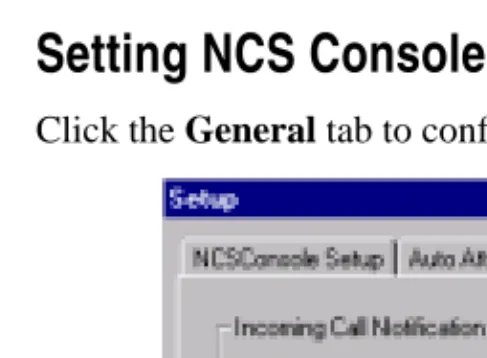
Click the General tab to configure audio, video, and paging settings.
Figure 3. Console Setup General dialog box
• Select the Screen Pop check box to have NCS Console pop up when a call comes in.
• Select the Audio Beep check box to hear a beep when a call comes in.
• For overhead paging, select whether to send the output to an audio
output (the same as pressing #44 on the phone pad) or to a trunk line
(#45). If you select a trunk line, use the drop down list to select the trunk to be used for the overhead paging.
Overhead paging is configured in the NCS Ware
Administrator. Check with your system administrator about the correct settings for these options in NCS Console.
Setting Speed Call List Entries
Configuring NCS Console Settings
To add a number:
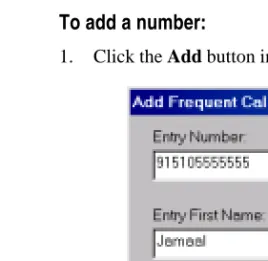
1. Click the Add button in the Speed Call List window to open a dialog.
Figure 4. Setup Window—Add Frequent Call Entry dialog
2. Enter the number, first and last name of the user, workgroup or external contact.
Outside phone numbers must include all necessary digits such as trunk access code, long distance prefix, area code, etc.
Entering first and last name is optional; it can help you identify the entry.
3. Click OK.
To edit a number:
1. Select the number in the Speed Call List window and click the Edit button to open an Edit dialog that has the same data boxes as the Add dialog example.
2. Modify the number, first name, or last name as needed.
Outside phone numbers must include all necessary digits such as trunk access code, long distance prefix, area code, etc.
3. Click OK.
To delete numbers:
• To delete one number, select the number in the Speed Call List window, click the Delete button, and confirm your decision.
Index
NCS Console 4.0 User Guide I
Index
Index
A
AA status 10 active calls view 7, 10 All Extensions view 8 answering calls 14–15 attendant extension 22 audio beep 23 Auto Attendant 18 Auto Attendant default 22
B
BLF (see Busy Lamp Field) blind transfer 17
Busy Lamp Field (BLF) 8 busy status 10
buttons 7
C
call handling buttons 7 call park 19
pickup 20 call park ID 7 call states 10 calls status view 7 conference calls 20 conferenced status 10 configuration 22–24 connected status 10
D
dial pad 7
roll back button 7 dial tone status 10 dialing 14
disconnect status 10 double-click shortcut 14
E
error status 10 extension setting 22
H
handling calls 13–21
Hands Free and Headset Mode 13 hang-up 15
hold
pickup a call on hold 16 hold pend status 10 hold status 10 hold, hold pend 15
I
ID 7 idle status 10 In Use status 10 installation
NCS Console client system 3 system requirements 2
K
keyboard shortcuts 11
M
main window 6 making a call 14 mouse shortcuts 12 multiple call waiting 7
N
NCS Console basic functions 1
client system installation 3 main window 6
setup 22–24 number pad
shortcuts 11
O
Index
overhead paging 21 setup 23
P
paging 21 Park status 10 parking a call 19 pickup a parked call 20 placing a call 14 proceeding status 10
R
ringing status 10 roll back button 7
S
screen popup 23 setup 22–24
audio beep 23 Auto Attendant 22 extension number 22 overhead paging 23 screen pop 23 speed call list 23 setup call status 10 shortcuts
double-click 14 keyboard 11 mouse 12 number pad 11 Speed Call list setup 23 Speed view 9
states 10 Status column 10 supervised transfer 17 system call park 19 system requirements 2
T
Telephone ii
transferring calls 16–20
rules about 16 supervised transfer 17 to Auto Attendant 18 to user’s voice mailbox 19 to Voice Mail 18
Trunk view 9
trunk, and overhead paging 23
V
VM (Voice Mail) status 10 Voice Mail 18
W
NEC America, Inc., Corporate Networks Group
4 Forest Parkway, Shelton, CT 06484
Tel: 800-365-1928 Fax: 203-926-5458
cng.nec.com
Other Important Telephone Numbers
Sales: . . . .203-926-5450 Customer Service: . . . .203-926-5444 Customer Service FAX: . . . .203-926-5454 Technical Service: . . . .203-925-8801 Discontinued Product Service: . . . .900-990-2541 Technical Training: . . . .203-926-5430 Emergency Technical Service (After Hours) . . . .203-929-7920