Introduction to
SAS
®
IT Resource
Management 3.2
Second Edition
Introduction to SAS® IT Resource Management 3.2, Second Edition Copyright © 2011, SAS Institute Inc., Cary, NC, USA
All rights reserved. Produced in the United States of America.
For a hardcopy book: No part of this publication may be reproduced, stored in a retrieval system, or transmitted, in any form or by any means, electronic, mechanical, photocopying, or otherwise, without the prior written permission of the publisher, SAS Institute Inc.
For a Web download or e-book: Your use of this publication shall be governed by the terms established by the vendor at the time you acquire this publication.
The scanning, uploading, and distribution of this book via the Internet or any other means without the permission of the publisher is illegal and punishable by law. Please purchase only authorized electronic editions and do not participate in or encourage electronic piracy of copyrighted materials. Your support of others' rights is appreciated.
U.S. Government Restricted Rights Notice: Use, duplication, or disclosure of this software and related documentation by the U.S. government is subject to the Agreement with SAS Institute and the restrictions set forth in FAR 52.227–19, Commercial Computer Software-Restricted Rights (June 1987).
SAS Institute Inc., SAS Campus Drive, Cary, North Carolina 27513. 1st electronic book, May 2011
SAS® Publishing provides a complete selection of books and electronic products to help customers use SAS software to its fullest potential. For more information about our e-books, e-learning products, CDs, and hard-copy books, visit the SAS Publishing Web site at
support.sas.com/publishing or call 1-800-727-3228.
SAS® and all other SAS Institute Inc. product or service names are registered trademarks or trademarks of SAS Institute Inc. in the USA and other countries. ® indicates USA registration.
About This Book . . . v
Recommended Reading . . . vii
Chapter 1 • About SAS IT Resource Management . . . 1
What Is SAS IT Resource Management? . . . 1
Domain Intelligence Offered by SAS IT Resource Management . . . 2
Gallery Manager . . . 17
Chapter 2 • Working with SAS IT Resource Management . . . 21
About the IT Data Mart . . . 21
What Are Adapters? . . . 23
How Does SAS IT Resource Management Work? . . . 23
Processing with the Adapter Setup Wizard . . . 25
Appendix 1 • Supported Adapters . . . 27
Appendix 2 • Other Resources . . . 33
About This Book
Audience
Introduction to SAS IT Resource Management is intended to address the needs of the following types of users:
Information Consumers
Information consumers are business people who are interested in the overall performance aspects of IT at a company. They need to access IT intelligence reports from the office as well as from remote locations in order to support decision-making. Information consumers often function as system architects, IT managers, and IT executives.
Performance Analysts
Performance analysts understand how to analyze the IT resource measurement data that is managed by data administrators. They analyze this data in order to best benefit the business and to improve the utilization, availability, and performance of IT enterprise resources. To do this, performance analysts use SAS IT Resource Management to design, create, and share reports. They often function as capacity planners, system administrators, and business analysts.
Data Administrators
Data administrators create the analysis and report-ready data sources used by performance analysts and information consumers for the purposes of performing IT performance management and capacity planning tasks. They accomplish this task by setting up jobs to transform IT performance data measurements into actionable data sources from which IT intelligence is derived. They also create and schedule report jobs so that resulting reports are rendered and made accessible in report galleries. Data administrators often function as IT performance managers and capacity planners.
Prerequisites
Prerequisites for using SAS IT Resource Management are:
• An operating environment that includes SAS IT Resource Management software. • A user ID and password with permissions that are appropriate for that user's use of
IT Resource Management functions.
• Depending on your role, you might need direct access to the SAS technologies upon which SAS IT Resource Management is built and which are installed with this solution. If you have questions about this, contact your system administrator.
Recommended Reading
• Administering SAS Enterprise Guide • Getting Started with SAS Enterprise Guide • SAS Data Integration Studio: User's Guide
• SAS IT Resource Management: Administrator's Guide • SAS IT Resource Management: Reporting Guide
• SAS IT Resource Management: Migration Documentation • SAS 9.2 Intelligence Platform: Overview
• SAS Management Console: Guide to Users and Permissions
For a complete list of SAS publications, go to support.sas.com/bookstore. If you have questions about which titles you need, please contact a SAS Publishing Sales
Representative: SAS Publishing Sales SAS Campus Drive Cary, NC 27513-2414 Phone: 1-800-727-3228 Fax: 1-919-677-8166 E-mail: [email protected]
Chapter 1
About SAS IT Resource
Management
What Is SAS IT Resource Management? . . . 1
Domain Intelligence Offered by SAS IT Resource Management . . . 2
Introduction to SAS IT Resource Management Domain Intelligence . . . 2
Charts to Communicate Forecasts, Predictions, and Analytical Results . . . 3
Tile Charts . . . 5
Three-Dimensional Bar Charts . . . 7
Tabular and Line Plot Reports . . . 8
Stacked Bar Reports . . . 10
Line Plots . . . 12
Horizontal Bar Chart . . . 14
Bubble Plots . . . 16
Gallery Manager . . . 17
About the Gallery Manager . . . 17
Viewing Galleries . . . 17
What Is SAS IT Resource Management?
SAS IT Resource Management is an IT performance management and capacity planning solution that enables the analysis of any IT data source. The solution creates an
integrated IT performance data warehouse, delivers and applies the advanced analytic capabilities of SAS to that warehouse for the purposes of IT performance management and capacity planning, and renders the IT intelligence necessary to optimize the IT infrastructure. In addition, the solution leverages the IT performance data warehouse and the SAS product capabilities that are included in the solution for purposes beyond the scope of IT performance management, such as IT financial management or IT service management. With SAS IT Resource Management, IT departments can manage and plan the usage of their resources to provide a stable yet scalable IT environment for current and future operations.
In today’s competitive business environment, the IT department must solicit information from the leaders of the business about the demands that directly affect the IT
infrastructure. Concurrently, the IT department must deliver enough information about the performance and capacity of IT resources to allow the business's decision makers to understand and evaluate their current consumption of IT. As such, the communication of IT performance and capacity information must be in a language and format that is suitable for its intended purpose and audience. IT performance management and capacity planning software facilitates this communication so that the IT department can
plan and implement adjustments to the IT infrastructure. This ensures that the business remains competitive and responsive to its customers.
SAS IT Resource Management renders the results of its IT analysis in reports that communicate many topics of interest, including the following:
• IT performance measurements and analysis over any time period
• comparative performance of IT resources over multiple time periods (for baseline, peak, seasonal, and change analysis)
• peak period identification and analysis of those periods (single and periodic) • workload analysis for enhanced business processing
• ranked (top, bottom, and so on) resource consumption, availability, and response time measurements
• correlation of performance measurements for root cause analysis
• operational level agreement analysis (for example availability and response time) • candidate lists of resources that are appropriate for consolidation and virtualization
consideration
• forecasted or predicted IT capacity needs • exhaust prediction for resources
• compliance to regulatory requirements
Unique to SAS IT Resource Management is its ability to facilitate the previously described IT performance management and capacity planning features by using an application called Gallery Manager. Gallery Manager is a Web-based application that enables the many reports that are produced by the SAS IT Resource Management solution to be grouped, filtered, managed, and viewed as logical containers called galleries.
Domain Intelligence Offered by SAS IT Resource
Management
Introduction to SAS IT Resource Management Domain Intelligence
SAS IT Resource Management offers a wide variety of reports that provide analytical intelligence about IT resources, all of which are delivered by Gallery Manager.
Gallery Manager is the single source of performance and capacity information about the IT infrastructure. It is designed to deliver IT Intelligence to any individual in an
organization that wants that information. For example, see the following gallery that shows one page of a public gallery.
This page consists of nine thumbnail graphs, including two tile charts.
Display 1.1 Example of a Daily Reporting Gallery: ITRM Domain Intelligence Gallery
Each of the reports shown in a gallery has a particular value to individuals throughout an organization. The selection of a report type to communicate an IT domain intelligence fact is best made by understanding both the message and the target audience. Over 4,000 unique reports are supplied with SAS IT Resource Management. Each of these reports can be used as is, or copied and edited to satisfy the unique needs of an organization.
Charts to Communicate Forecasts, Predictions, and Analytical Results
Using Charts to Present Analytic Results
SAS IT Resource Management delivers sets of supplied reports that communicate trends, forecasts, predictions, and analytical results. It also delivers SAS analytical calculation and illustration capabilities as well as specific implementations of these capabilities for the purpose of IT performance management and capacity planning. One such example of these special implementations is the exhaust forecast chart. This type of chart calculates and graphs the amount of time that is predicted for a particular aspect of an IT resource to reach a threshold.
Display 1.2 CPU Busy Percent plus Two Standard Deviation
Example of Using Forecast Charts with Microsoft System Center Operations Manager Data
As illustrated in the preceding exhaust forecast chart, the actual measurements (shown as yellow points) are used to create a forecast for the CPU Busy Percent with 2 Standard Deviations (shown in the purple line). This purple line indicates the variations over the reported time period (daily). Next, this chart shows the trend line (the green smooth line on the chart). Finally, the upper and lower confidence boundaries are presented as an indication of the accuracy of the predicted and forecasted values presented on the chart.
Using Forecast Charts for Performance Management and Capacity Planning
A primary job function of the capacity manager is to appropriately size the IT enterprise to accommodate the needs of the business that it services in terms of the availability and performance of IT resources. Successfully performing this task requires the capacity planner to:
• provide sufficient resources to run the business
• allocate adequate resources to accommodate business growth and innovation • eliminate excessive IT resource capacity (as well as the IT personnel effort, physical
space, and resources to power that equipment) and the costs that are associated with it
Exhaust reports are an excellent means to accomplish this task. Exhaust reports are possible through the delivery of SAS statistics and advanced analytic capabilities with SAS IT Resource Management. For any IT element for which a fixed capacity exists (such as CPU, disk, memory, bandwidth, and so on), exhaust reports are essential. These reports can predict, with adequate lead time to respond, the exhaustion of those IT resources. Exhaust reports can also be used to anticipate the obsolescence of resources from the IT enterprise. SAS analytics can forecast and predict any aspect of the IT data available from the SAS IT Resource Management solution.
The forecast chart is configured to accommodate the amount of time that will be required to procure, install, and configure additional components to meet the demand for this server to ensure that the IT enterprise sustains the business that it supports.
IT performance data from Windows and UNIX systems is derived from many sources. SAS IT Resource Management supports adapters for many of them, including those from HP, BMC, Microsoft, Demand Technology, and many UNIX operating system providers. Therefore, a consolidated IT performance data warehouse, such as the one delivered by SAS IT Resource Management, enables this data to be analyzed in a coordinated and consolidated fashion. SAS IT Resource Management also delivers special key metric summarizations of this data that presents the most common measurements for these systems across the multiple adapters that deliver them. This facilitates long-term trending and analysis for and across all systems that are represented in the IT data warehouse.
For information about key metrics summarizations, see Appendix 6, “Adapter Key Metrics” in the SAS IT Resource Management: Administrator’s Guide.
Tile Charts
Using Tile Charts
Tile charts are rectangular tree maps. They enable you to view a large quantity of hierarchical data in a limited space. Each unique category combination is represented by a rectangular tile whose size and color are determined by response variables. These tiles are placed in a hierarchical arrangement. You can drill down into a tile to view it in more detail. You can also link to reports that are associated with tiles.
Using Tile Charts for Performance Management and Capacity Planning
To maximize the performance and capacity of any IT environment, you can create a consolidated IT performance data warehouse, and provide the tools to analyze and statistically enrich the data within it. Given this premise, tile charts are ideal for use by performance managers and capacity planners to provide both a first glance and a detailed view that enables for the evaluation of large volumes of data. The scenarios that
illustrate the value of this report technique include the evaluation of large volumes of data for outlying measurements that are likely indicators of issues that need to be addressed in the IT infrastructure. Tile charts have been used by SAS IT Resource Management customers for the purposes of server consolidation, server virtualization, workload load balancing, creating high availability resource groups in support of critical business processing, orchestrating and defining the cloud, network tuning, and so on.
Display 1.3 Guest CPU Busy Percent by Cluster
Tile charts are used by performance managers and capacity planners to evaluate large volumes of data that would otherwise be extremely difficult to work with. In the preceding display, the size of each tile shows the CPU count and the color indicates the CPU Busy Percent weighted mean. This provides an overall status of the VMware environment from a cluster perspective for a period of time. You can drill down to view the guests that are allocated to this tile.
From this single image, the performance manager can identify the utilization issues that need attention. These issues are easily identifiable because they are represented on the tile chart by boxes with the most intense colors. Starting with this one quick view, the performance manager can prioritize issues.
Your IT organization can reap the benefits that are offered through virtualization technologies.
Virtualization technologies are recently gaining wide-scale adoption for distributed system environments. Much intelligence can be gained by understanding which application workloads and system technologies best lend themselves to virtualization. The performance and availability of virtual environments demands that the appropriate amount of memory be allocated to the hosts that support each virtual server.
The SAS IT Resource Management adapter for VMware vCenter includes a data acquisition transformation. This transformation gathers configuration information, including the allocation of VMware guests to VMware hosts, on a periodic basis. Evaluation analysis topics that are made possible through the data acquisition transformation include topics unique to virtual environments such as memory ballooning, opposing host failover commitment analysis, and host memory heap analysis.
Example of Using the Tile Chart with VMware Guest System Data
In the preceding chart, each box represents a VMware Cluster and the VMware guests that are allocated to the Cluster on a particular day, and for each hour of that day.
Three-Dimensional Bar Charts
Using Three-Dimensional Bar Charts
Three-dimensional vertical bar charts show the relationships between three variables or statistics.
Using Three-Dimensional Bar Charts for Performance Management and Capacity Planning
Presenting large volumes of data with vertical block charts is most useful when the relative magnitude of the bars is more significant than the exact magnitude of any particular bar.
Display 1.4 Three-Dimensional Bar Chart of Guest CPU Ready Percent
Example of Using Three-Dimensional Bar Charts with VMware vCenter Server Data
In the preceding display, the vertical bar chart shows the CPU Ready Percent for all guests that are allocated to a VMware cluster. In VMware environments, closely monitoring the CPU Ready Percent measurement is critical. This measurement is the percentage of time for which a virtual machine has work that is ready to be performed but for which there is no physical machine ready to process that work. In well-tuned environments, this measurement should never exceed 10%. It should typically be a value of less than 5% in order to ensure that the needs of each of the consumers of virtual resources are satisfied. Any value in excess of this recommendation is cause for additional IT performance evaluation.
For an alternative view of this data, right-click anywhere on the chart to display pie charts for each guest in the cluster. Pie charts create simple, group, or stacked charts that represent the relative contribution of the parts to the whole by displaying data as wedge-shaped "slices" of a circle. Each slice represents a category of data. The size of a slice of the pie represents the contribution of the data to the total chart statistic.
Display 1.5 Pie Charts of Guest CPU Ready Percent
Right-click a pie chart to display the graph toolbar. Display 1.6 Graph Toolbar
As shown in the preceding display, the graph toolbar provides a button ( ) that enables you to rotate the graph. You can also zoom into the graph by clicking . The pie charts enable performance and capacity analysts to gain a detailed perspective for a particular measurement that is associated with a designated resource. In the preceding example, if a particular cluster had a guest with a disproportional value for CPU Ready Percent, that value would be easily identifiable in a pie chart view.
Tabular and Line Plot Reports
Using Tabular Reports
Tabular reports enable you to generate crosstabulation tables, also known as contingency tables, from your data. Tabular reports are used extensively for communicating
performance and capacity information. They typically present measurements in ranked orders to focus the report consumer's attention most appropriately.
Using the Tabular Report for Performance Management and Capacity Planning
For the purposes of IT performance management and capacity planning, tabular reports are good for displaying measurements to view and understand the relationship (cause and effect or correlation) between them. Examples include the analysis of directly related measurements like CPU and Run Queue or Memory and Paging. Tabular reports are also useful for readily identifying suspect performance values that warrant further investigation.
Display 1.7 Tabular Report of RMF Data
Example of Using a Tabular Report with IBM System Management Facility RMF - System Data
The preceding tabular report shows the available CPU Busy, hardware millions of instructions per second (MIPS), hardware millions of service units per second (MSUs), and CPU Active Time for all engine types that are available on a particular mainframe system for each hour of the day. The report includes standard, System z Integrated Information Processor (ZIIP), and System z Application Assist Processor (ZAAP) engine types. The report is sorted by All Engines CPU Hardware Mips Total. It presents the consolidation of key metrics data that is fundamental to managing the CPU
performance and capacity of an IBM mainframe system.
The System CPU Busy Percent measurements that were used to create this report came from RMF data. SAS IT Resource Management obtains RMF data through MXG. For other sources of data that are made available to SAS IT Resource Management through
MXG, see “Adapters That Are Supported by SAS IT Resource Management” on page 27.
SAS IT Resource Management accommodates the analysis of mainframe and special purpose processors as well as the unique applications that operate on these systems. SAS IT Resource Management can provide an analysis of the eligible Java work (that is, work that can be performed on a lower cost special-purpose engine) so that the cost
advantages of implementing special purpose engines can be explored. In the preceding report, the MSU values are calculated using appropriate CPU active times (based on the type of processor) in conjunction with a hardware service unit factor that corresponds to the CPU model on which the resource is consumed. The MIPS values in the report are calculated from the resulting MSU values by multiplying with an MSU to MIPS conversion factor that also corresponds to the CPU model.
SAS IT Resource Management adapters enhance the value of IT mainframe performance measurements by providing mainframe processor performance data in the following various formats:
• MIPS that accommodate the needs of the performance manager and capacity planner who assess the availability of mainframe resources
• MSUs that accommodate the capacity planner and IT financial analysts who need to determine how best to accommodate business demand for mainframe resources • CPU time-expended measurements that are most appropriate for detailed system
performance analysis.
IBM Large System Performance Reference (LSPR) tables are owned by and available from IBM. They are used as reference information to enable the calculation of MIPS and MSUs from the expended CPU time. Hardware MSUs are used in the physical engine type calculations for systems and logical partitions (LPARs). Software MSUs are used for application measurements.
Note: SAS and IBM worked together as partners to understand and create methods to accommodate full capacity and sub-capacity machines. This methodology includes the adjustment of machine model numbers for full capacity machines to calculate the most accurate MIPS and MSU values.
For more information, see the “How MSU and MIPS Columns Are Included in Staged Tables for the SMF Adapter” topic in the “Working with MXG Code to Stage Data” section of Appendix 2, “Data Sources Supported by SAS IT Resource Management Adapters” in the SAS IT Resource Management: Administrator’s Guide.
Stacked Bar Reports
Using Stacked Bar Reports
Stacked bar reports show the relative magnitude of data by displaying bars of varying height. Each set of color-coded segments in a bar represents a category of data. Stacked bar charts are most useful when the relative magnitude of the segments in the bars is more, or as, significant as the exact magnitude of any particular bar. Stacked bar charts display the color-coded segments for each category of data, one on top of the other.
Using the Stacked Bar Report for Performance Management and Capacity Planning
Reports of this type are essential to understanding the allocation of specific resources to workloads for a host system, network component, or virtual system environment. These reports also help create load-balancing strategies and enable users to adjust their workloads in order to minimize the use of resources.
Evaluating workload measurements, such as transaction counts, I/O and exception rates, response times, and CPU, disk, and memory performance attributes, is crucial for ensuring service quality and assessing charges that should be allocated to business units that share computer resources. Stacked charts are useful for understanding the parts of a whole entity, whether that entity is a resource, a segment of time, or any other
quantifiable object. Facts that are communicated by stacked charts, along with other data, are effective in determining the proper allocation of resources to the business tasks that must be accommodated. For example, certain business processing must take place in a given time period. Therefore, the resource to accommodate this processing must be available.
Display 1.8 Workload CPU MIPS
Example of Using the Stacked Bar Report with IBM System Management Facility RMF - Workload Data
The presentation of any data in a stacked bar chart enables you to make quick
comparative observations. Viewing the resource utilization and workload components of an IT resource over the hours of a day enables the IT performance manager to
understand how that resource can best be allocated and used.
In the preceding report, the CPU resource (specified in Mips) is segmented by the applicable active workloads defined to the system (typically through the RMF Workload Manager). Workload usage of the resource can be reviewed and analyzed. This analysis enables capacity planners to understand exactly how much of the resource is being used by workloads and when those resources are being used.
Line Plots
Using Line Plots
Line plots connect data points with straight lines. Points are connected in the order in which they occur in the input data set. From an IT perspective, line plots are most often used to show a particular aspect of IT performance over a designated period of time. Line plots show the mathematical relationships between multiple numeric variables by revealing trends or patterns of data points.
Using Line Plots for Performance Management and Capacity Planning
Line plots are used extensively for the purposes of performance management and capacity planning. They are a quick and easy way to understand variations on a single metric or comparative cause and effect relationships between multiple variables. For example, the CPU utilization of a resource over the course of an hour, day, week, or month can yield valuable information about the business cycles that are being
accommodated by that resource. These facts are essential to planning for the capacity of that device. Similarly, evaluating the relationship between CPU utilization and system run queues, as well as memory utilization and paging rates, yields facts that can help capacity planners to configure resources that can best accommodate assigned workloads. Establishing and understanding the utilization and availability profiles of resources and sets of resources is useful for managing the performance and capacity of those machines. This type of time-based analysis enables you to readily identify exceptions to anticipated performance activities.
For example, at 9:00 a.m. resource utilization increases to accommodate the beginning of the work day, and you can observe user login activity. You can observe a decrease in utilization around noon when employees are at lunch. This observation is followed by another peak that ends around 5:00 p.m. when the work day ends. Overnight, peaks and valleys in utilization illustrate batch processing activities, routine system maintenance work such as backups, and lulls that are associated with business inactivity. Viewing this behavior over long periods of time and over various periods of time (days, weeks, quarters, or months) enables IT profiles to be characterized. These profiles provide information that is useful in the following ways:
• planning for future capacity needs
• identifying abnormal activities such as a security intrusion
• considering cost-based initiatives such as virtualization or the allocation of resources to accommodate work forces around the globe
• examining IT utilization, availability, and performance in relation to business cycles Business cycles and the performance and capacity of IT systems all change over time. The good news for IT performance managers is that these changes can be analyzed and reported on over different time periods. This information enables IT performance managers to make the correct and best IT business decisions. For example, performance measurements of a particular resource can be analyzed over time to assess its
performance, utilization, and availability. From this assessment, the IT response to business events, economic drivers, or natural weather occurrences can be analyzed. If necessary, adjustments to the configuration of IT enterprise can be identified to accommodate these occurrences in the future.
Example of Using Line Plots with HP Performance Agent Data
In the following example, the CPU utilization of a particular UNIX machine is being evaluated. SAS IT Resource Management can obtain UNIX data through the following adapters:
• System Activity Reporter (SAR) • HP Performance Agent (HP Perf Agent ) • HP Reporter
• BMC Performance Manager for Servers (BMC Perf Mgr) Display 1.9 CPU Busy Percent
This chart shows the CPU Busy activity of a machine for the hours of the day over the course of a week. Analysis of this type facilitates load balancing and redistribution of workload activities as well as the overall capacity planning function.
An IT performance data warehouse benefits UNIX environments because it is the single best method to accommodate the many resource, enterprise systems management, and freeware monitoring tools that are used to measure the performance and manage the availability of these systems.
Using Line Plots with Multiple Vertical Columns for Performance Management and Capacity Planning
Comparing the three lines on the following graph provides a perspective that shows how seemingly small variations in the maximum and mean memory measurements for a particular UNIX device relate to the paging rates that are associated with that device. This long-term (monthly) analysis can prompt more detailed memory analysis activity to ensure that the system is configured with an adequate quantity of memory for the processing allocated to this device.
Display 1.10 Memory Usage Percent and Paging Rate
Horizontal Bar Chart
Using Horizontal Bar Charts
Horizontal bar charts show the relative magnitude of data by displaying horizontal bars of varying length.
Using Horizontal Bar Charts for Performance Management and Capacity Planning
Stacked bar charts illustrate the comparative volume of a measurement or measurements typically over a time period. From a performance management and capacity planning perspective, bar charts are used for comparative analysis and to get a good perspective on the measurements being analyzed. You might consult these charts to prioritize issues or to quantify the severity of issues.
Display 1.11 Network Traffic
Example of Using Horizontal Bar Charts with Simple Network Management Protocol Data
The one element of the IT infrastructure that is common across large portions of the enterprise is the network. The best source of information that can be used to measure the performance and to assess the health of that network is a repository of Simple Network Management Protocol (SNMP) data.
The preceding chart shows the network interfaces that have the highest incoming and outgoing bit rates over the course of a day. Charts of this type establish an understanding of what is normal and expected activity with respect to network traffic. Deviations to measurements of this type and the trends associated with them should be more thoroughly analyzed.
SAS IT Resource Management provides a reference table that identifies the type of devices that are charted. (For example, in the preceding chart, the reference table was used to determine that the device measurements pertained to the traffic on a Type1 device.)
For information about this lookup table, see “Working with the
ITMS_SNMP_DeviceType Lookup Table” topic in the “Accessing Raw Data for SNMP” section of Appendix 2, “Data Sources Supported by SAS IT Resource Management Adapters” in the SAS IT Resource Management: Administrator’s Guide. SNMP measurements are essential for understanding the status and components of a network and the devices that are serviced by the network. These measurements can show the status of the network's routers, hubs, and switches as well as the status of the
network's links and interfaces. Network administrators and performance analysts must be able to understand the behavior and error rates that are associated with network devices over time. In that way, they can identify and replace faulty hardware components that contribute to the overall degradation of the network. SNMP also communicates the utilization status and highlights instances where thresholds that were established for that utilization have been exceeded. All of this information, and its analysis, is used to best allocate traffic to the network and to tune its flow across individual network
SAS IT Resource Management enables you to import MIB definitions that can be used to create the metadata for SNMP staged tables.
Prior releases of SAS IT Resource Management used the repository of SNMP data that was created by the HP Network Node Manager and the Tivoli NetView snmpColDump utility. Newer releases of the HP and Tivoli network management system products do not support the snmpColDump utility. Accordingly, SAS IT Resource Management now supports data collection of SNMP data from a round-robin database to which the data is written. As a convenience for our customers, SAS IT Resource Management continues to support the collection of SNMP data from the repository created by the HP and Tivoli snmpColDump utility.
For information about the support that is provided for these two data sources, see the “Accessing Raw Data for SNMP” section of Appendix 2, “Data Sources Supported by SAS IT Resource Management Adapters” in the SAS IT Resource Management: Administrator’s Guide.
Bubble Plots
Using Bubble Plots
Bubble plots display information from several perspectives to illustrate the relationships of those perspectives.
Display 1.12 Run Queue Length
Example of Using Bubble Plots with Microsoft System Center Operations Manager
In the preceding display, Run Queue Length measurements from Microsoft System Center Operations Manager for a particular machine is evaluated for each day of the month and over each hour of the day. This analysis enables performance managers to understand when Run Queue Lengths are at their peak so that systems can be sized or work can be prioritized and allocated or reallocated to alternate devices.
Gallery Manager
About the Gallery Manager
Gallery Manager is a Web-based application that enables performance analysts and information consumers to access, filter, and manage galleries of report content. These galleries are stored on the SAS Content Server.
The following display shows the wizard that enables you to create a gallery. Display 1.13 Create Gallery Wizard
You can manage your galleries by copying them into gallery folders that you created. You can distribute galleries by e-mail to colleagues. Gallery Manager also provides you with the ability to keep selected galleries or gallery folders as Favorites. For a complete description of the features and functions of Gallery Manager, see SAS IT Resource Management Gallery Manager: User’s Guide.
Viewing Galleries
About Viewing Galleries
Gallery Manager provides three methods of viewing your galleries: • table view
• thumbnail view • flow view
Viewing Galleries with the Table View
When you access a gallery, you can click the table view icon ( ) to the reports as rows in a table, as shown in the following display.
Display 1.14 Table View of a Gallery
Viewing Galleries with the Thumbnail View
When you access a gallery, you can click the thumbnail view icon ( ) to display smaller images of the reports that are in that gallery. As shown in the following display, the reports are arranged in a 3 x 3 grid.
Display 1.15 Example of a Gallery Showing the Thumbnail View
You can double-click a thumbnail image to generate a larger version of the report that is easier to view.
Viewing Galleries with the Flow View
When you access a gallery, you can click the flow view icon ( ) to view the reports by leafing through them as if they were pages in a book. As shown in the following display, the reports are displayed as a horizontal stack.
Display 1.16 Cover Flow View of a Gallery
Each stack contains ten reports. You can navigate between the first and tenth report by clicking each page as if it were a page in a book. (Clicking a report on the right side of the Gallery pane moves that report into the center of the pane. The report that was previously in the center part of the pane is moved to the left side of the pane. You can leaf through the stack of reports from either the left or right side of the pane.) When you come to the end of a set of reports, you must use the horizontal scroll bar to click the
Chapter 2
Working with SAS IT Resource
Management
About the IT Data Mart . . . 21
What Are Adapters? . . . 23
How Does SAS IT Resource Management Work? . . . 23
Processing with the Adapter Setup Wizard . . . 25
About the IT Data Mart
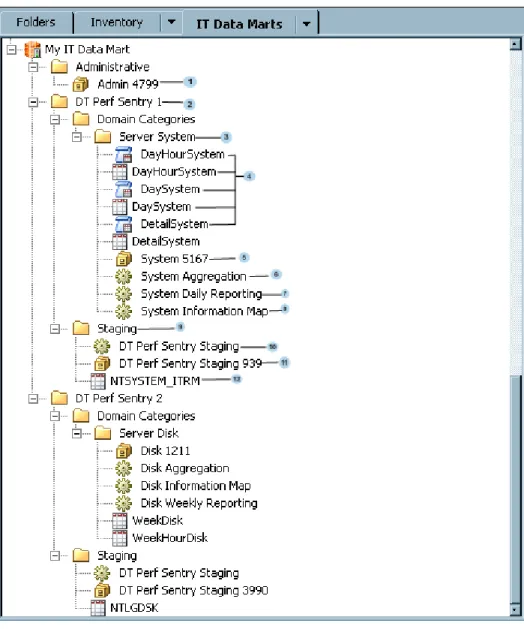
At the center of SAS IT Resource Management are IT data marts. IT data marts enable SAS IT Resource Management to store and access IT data as well as the jobs and processes that manipulate, analyze, and report on this data. The collection of IT data marts form the IT performance data warehouse from which domain intelligence is derived.
Figure 2.1 Example of an IT Data Mart with Numbered Explanations
1 Admin library that was generated for MY IT Data Mart
2 Folder that is generated for the first instance of running the Adapter Setup wizard for the DT Perf Sentry adapter
3 Folder that contains objects related to the Server System domain category for DT Perf Sentry
4 Tables and information maps for the aggregations that are connected with the Server System domain
5 Library that contains all aggregation tables that are connected with the Server System domain
6 Job that generates the aggregation tables that are connected with the Server System domain
7 Job that generates reports that are connected with the Server System domain 8 Job that generates information maps that are connected with the Server System
9 Folder that contains the staging library, tables, and job that are connected with DT Perf Sentry
10 Staging job for DT Perf Sentry
11 Library that contains all staged tables that are populated by the DT Perf Sentry Staging job
12 Staged table that is populated by the DT Perf Sentry Staging job
In the preceding figure, the IT data mart called MY IT Data Mart also contains metadata for two instances if the DT Perf Sentry adapter:
• DT Perf Sentry 1, the first instance of using the Adapter Setup wizard for DT Perf Sentry
• DT Perf Sentry 2, the second instance of using the Adapter Setup wizard for DT Perf Sentry
For more information about IT data marts, see Chapter 4 “About the IT Data Mart” in the SAS IT Resource Management: Administrator's Guide.
What Are Adapters?
An adapter is a collection of SAS IT Resource Management processes that start with raw IT data sources and end with sets of reports that deliver the domain intelligence about the resource from which that raw IT data was generated.
Raw data about an IT resource is represented using measures and formats that are specific to the software that collected it. In order for the data to be processed into statistics about an enterprise's IT resources, the raw data must be read, interpreted, and possibly converted into a more standard form. It can then be loaded into staged tables in preparation for subsequent aggregation and reporting. The raw data about an IT resource is generated by the logging mechanism of that resource or by a system management utility that works with that data.
For those sources of data that are not natively supported by SAS IT Resource Management, a User-Written Adapter capability is provided. User-written adapters support the creation of processes to manage those sources by fully leveraging the staging, aggregation, information map, and reporting capabilities that are delivered with the solution.
For a list of the adapters that SAS IT Resource Management supports, see “Adapters That Are Supported by SAS IT Resource Management” on page 27.
How Does SAS IT Resource Management Work?
SAS IT Resource Management provides the processes and the supporting technology that are required to regularly collect, aggregate, analyze, and report on the IT performance data that is vital to the management of the IT infrastructure. For data sources that are supported by SAS IT Resource Management, the Adapter Setup wizard guides the user through a series of specific choices that describe how that data is to be aggregated, analyzed, and reported on.
The following steps are necessary to gather and analyze data using SAS IT Resource Management:
1. Collect and stage the raw data about a resource.
IT performance data is information about IT resources, such as hardware, operating system software, virtual systems, networks, Web servers, databases, and
applications. Raw (or unprocessed) data about the usage, availability, or performance of these resources is generated by the logging mechanisms that are inherent to IT resources or is created by the Enterprise Systems Management tools that are used to manage the IT infrastructure. All of the data that is managed and analyzed by SAS IT Resource Management is first staged. The adapter's staging code performs functions such as reading the raw data source, normalizing measurement units, separating into tables based on domain categories, generating computed columns, and checking for and managing duplicate data. Staging is performed by SAS IT Resource Management transformations that are set up in SAS Data Integration Studio.
For a list of the adapters that are supported by SAS IT Resource Management, see “Adapters That Are Supported by SAS IT Resource Management” on page 27. 2. Aggregate the staged tables.
After the raw data is staged, it can be input to the aggregation step. Aggregation transformations can generate simple aggregation or summarized aggregation tables. Simple aggregations read data from the staged table and append that new data to an existing table without undergoing any summarization. Summarized aggregations read data from a staged table and then categorize and aggregate that data according to the specifications of the aggregation transformation. Aggregation transformations are created, updated, and deployed for execution using the SAS IT Resource Management client.
After the performance data has been aggregated, it is ready for the information mapping and reporting processes.
3. Generate information maps.
SAS IT Resource management generates transformations that create information maps that reference the tables of data that are generated by that adapter's aggregation transformations. Information maps provide clearly labeled analysis and report-ready references for all data fields that are used to create and view reports. Information maps can be used in SAS Enterprise Guide and SAS Enterprise Business Intelligence applications such as SAS Web Report Studio and SAS BI Dashboard. They generate reports that provide domain intelligence about the data that is available for each adapter.
4. Define and run reports.
SAS Enterprise Guide, described below, generates reports by using information maps or by directly accessing data in SAS tables. The business friendly information maps that are provided by SAS IT Resource Management are the recommended data sources for all reporting activity.
In SAS Enterprise Guide, the ITRM gallery task can be selected. When the gallery task is run, it creates a report definition that is stored on the SAS Metadata Server. SAS IT Resource Management Client provides features that enable report definitions to be selected, and creates the jobs that will run these reports.
5. Create galleries.
SAS IT Resource Management provides the Gallery Manager to organize and view collections of reports called galleries. The contents of a gallery are determined by
selecting filter values that are available for those reports that are created by SAS IT Resource Management. In the Gallery Manager, performance analysts and
information consumers can access the reports that were created by report definitions and stored on the SAS Content Server. They can create filters that subset the available reports, and view the resulting reports on a browser.
Note: The jobs that execute these transformations can run interactively, but more typically they are scheduled to run in batch mode.
In addition, ad hoc reporting is provided through several SAS products. Documentation for these products is available at http://support.sas.com/documentation/ index.html.
• SAS Enterprise Guide, which is a Windows application, accesses data directly or uses information maps to select and report on data.
• SAS Web Report Studio, which has a Web-based interface, uses information maps to select and report on data.
• SAS BI Dashboard, which is an easy to administer and easy to use Web interface that enables you to use dashboards to monitor key performance indicators that convey how well resources are performing.
• SAS Add-In for Microsoft Office enables SAS functionality to be accessed directly from the menus and toolbars of Microsoft Office products.
Performance analysts and information consumers who frequently work with Microsoft Office products can access the analysis and report-ready data that is created by SAS IT Resource Management.
Note: Reports that are created with SAS Web Report Studio, SAS BI Dashboard, or with stored processes can be viewed on a browser through SAS Information Delivery Portal.
For more detailed information about these tasks, see the SAS IT Resource Management: Administrator's Guide and the SAS IT Resource Management: Reporting Guide at
http://support.sas.com/documentation/index.html.
Processing with the Adapter Setup Wizard
For supported adapters, the preferred method of setting up the ETL and reporting jobs for IT performance data is to use the Adapter Setup wizard. Alternatively, you can set up the ETL and reporting jobs for IT performance data by specifying the required jobs and transformations manually, outside of the Adapter Setup wizard. For more information about the ETL processes, see the SAS IT Resource Management: Administrator's Guide. For ore information about the reporting processes, see the SAS IT Resource
Management: Reporting Guide.
Data administrators typically specify the ETL and reporting jobs for an adapter by means of the Adapter Setup wizard. The Adapter Setup wizard prompts the data administrator for the appropriate options and parameters and creates the jobs and transformations that are necessary to generate the required reports.
The Adapter Setup wizard automates the processes that are needed to generate reports from IT performance data. It guides you through the steps that set up the jobs that, when run, create the staged tables, aggregation tables, information maps, and report output for a supported input data source.
As shown in the following display, you can access the Adapter Setup wizard from the
New menu of the SAS IT Resource Management Client toolbar by selecting IT Resource Management ð Adapter Setup.
Display 2.1 Accessing the Adapter Setup Wizard from the New Menu
To set up the ETL jobs, the Adapter Setup wizard prompts you to specify the IT data mart, the adapter, the location and the format of the input data. In addition, the wizard prompts you for the parameters that specify how the data is delimited or how duplicate data checking is to be performed. (The Adapter Setup wizard uses supplied template tables to create the required staged tables for each adapter.)
In order to set up the jobs that generate reports, the Adapter Setup wizard prompts you for information about the domain categories and time periods for which you want report-ready data to be prepared, the location of the formulas that are to be used in creating additional fields of data, and the location on the SAS Content Server where the reports and their associated metadata is to be stored.
When you click Finish, the ETL and report jobs are created and stored in the IT data mart that you specified. In addition, the wizard generates the metadata for the tables, information maps, report definitions, and libraries that are needed.
The jobs that are created by the Adapter Setup wizard are intended to be deployed for scheduling and executed in batch mode on the operating environment where you created them.
After a report job is deployed, scheduled, and executed, the resulting report output is available for viewing with Gallery Manager. Gallery Manager enables you to access, filter, and manage your report content from a Web browser. For more detailed
information about how to work with Gallery Manager, see Chapter 6, "Viewing Reports Using Gallery Manager" in the SAS IT Resource Management: Reporting Guide.
Appendix 1
Supported Adapters
The name of an adapter represents the data source from which SAS IT Resource Management gathers raw data.
Note: All SAS IT Resource Management adapters are supported on all SAS IT Resource Management operating environments unless there is a technical limitation that is associated with the raw data (log file) sources. For example, if the raw data resides on a device that is not compatible with the architecture of the host system on which the SAS IT Resource Management server is installed, then that raw data file might not be usable as input unless further processing is performed.
Table A1.1 Table of Supported Adapters
Adapter Name Description
Latest Verified Version of the Data Source
ASG TMON2CIC ASG TMON for CICS TS for z/OS (formerly from Landmark) monitors the CICS Transaction Server (TS) and provides resource consumption measurements by tracing each transaction's performance by CICS event and related unit of work.
Note: CICS data can be produced by either ASG TMONCICS or as a subtype of SMF.
MXG 28.07*
ASG TMONDB2 ASG TMON for DB2 (formerly from Landmark) works with the SQL Analyzer to manage DB2 applications and critical DB2 resources by providing a single view of DB2 data-sharing group performance. ASG TMON for DB2 tracks DB2 buffer pools, lock contention and serialized resource usage, transaction statistics from ASG TMON for CICS to ASG TMON for DB2, and dynamic and static SQL calls. ASG TMON for DB2 provides a view for all performance statistics by plan, package, and statement, including CPU time, I/O analysis, lock activity, and buffer pool utilization by SQL statement.
Adapter Name Description
Latest Verified Version of the Data Source
BMC Mainview IMS BMC Mainview for IMS (formerly IMF) supplies transaction information such as CPU usage, number of I/Os, and response time. When you collect BMC Mainview for IMS data instead of IBM IMS data, BMC recommends that you collect a duration of one hour of consistently high activity, starting at the beginning and ending at the end of an RMF interval.
MXG 28.07*
BMC Perf Mgr BMC Performance Manager for Servers (formerly BMC PATROL) collects UNIX and Windows enterprise system management data.
v3.7.30
CA TMS The Computer Associates CA 1 Tape
Management product (formerly TMS) controls and protects tape data sets and volumes in z/OS environments.
MXG 28.07*
DT Perf Sentry Demand Technology Performance Sentry (formerly NTSMF) collects data from Windows systems and for Windows server applications such as Exchange, SQL Server, and IIS. SAS IT Resource Management also supports a separate Demand Technology Performance Sentry adapter that is z/OS based. The Demand Technology Performance Sentry with MXG adapter that is z/OS based is for raw data sources that are supported through MXG.
v3.1.4
DT Perf Sentry with MXG
Demand Technology Performance Sentry (formerly NTSMF) with MXG collects data from Windows systems and for Windows server applications such as Exchange, SQL Server, and IIS. (SAS IT Resource Management also supports a separate Demand Tech Perf Sentry adapter that is not MXG based.)
MXG 28.07*
HP Perf Agent HP Performance Agent (formerly OpenView Performance Agent) captures enterprise systems management measurement data for IT resources from Windows systems and many UNIX variants such as HP-UX, Sun OS/Solaris, IBM AIX, Tru 64 UNIX, and Linux.
v5.0
HP Reporter HP Reporter software (formerly OpenView Reporter) captures HP Performance Agent measurement data that is stored in a relational database via SAS/ACCESS to Oracle or ODBC.
Adapter Name Description
Latest Verified Version of the Data Source
IBM AS400 IBM OS/400 Collection Services
Note: The staging code that is required for the
IBM AS400 data source is not automated by a SAS IT Resource Management adapter. Instead, SAS IT Resource Management supplies a User-written Staging transformation and templates that contain table and column metadata for this adapter for use with user-written staging code.
MXG 28.07*
IBM DCOLLECT IBM DFSMS Data Collection Facility obtains the following Mainframe Storage System data: • active data sets
• VSAM data set information • volumes
• inactive data • migrated data sets • backed-up data sets
• capacity-planning data such as the following: - DASD capacity planning: IBM
DCOLLECT provides information and statistics for volumes that are managed by DFSMShsm (ML0 and ML1).
- tape capacity planning: IBM DCOLLECT provides statistics for tapes that are managed by DFSMShsm.
• SMS configuration information
MXG 28.07*
IBM EREP IBM Environmental Record Editing and Printing Program processes the error records from the MVS, VM, and VSE operating systems to produce formatted reports. These IBM EREP reports can show the status of the entire installation, an I/O subsystem, or an individual device, depending on which report you request. IBM EREP reports can vary in format, depending on the following report types: • System summary reports show error data in
summary form.
• Trend reports show error data by daily totals. • Event history reports show error data in a
time sequence by occurrence.
Adapter Name Description
Latest Verified Version of the Data Source
IBM IMS IBM Information Management System (IMS) is the transaction and hierarchical database management system from IBM.
Note: The staging code that is required for the
IBM IMS data source is not automated by a SAS IT Resource Management adapter. Instead, SAS IT Resource Management supplies a User-written Staging transformation and templates that contain table and column metadata for this adapter for use with user-written staging code.
MXG 28.07*
IBM SMF IBM System Management Facility collects and records system and job-related information that is used for the following purposes:
• billing users • reporting reliability • analyzing the configuration • scheduling jobs
• summarizing direct access to volume activity • evaluating data set activity
• profiling system resource use • maintaining system security
Note: RMF is a subtype of SMF records. IBM RMF is the IBM strategic product for z/OS performance measurement and management. IBM RMF is the base product that collects performance data for z/OS and Sysplex environments to monitor system performance. Because IBM RMF data is a subtype of IBM SMF data, the IBM SMF adapter can be used with IBM RMF data without requiring additional customizations.
MXG 28.07*
IBM TPF The IBM Transaction Processing Facility operating system works with application programs to process transactions in a real-time environment. The IBM TPF system is designed for businesses and organizations that have large networks and high volumes of online
transactions.
MXG 28.07*
IBM VMMON IBM VM Monitor Collection product collects performance information that is associated with VM, including measurements for user activity, processor storage, I/O, and applications.
MXG 28.07*
MS SCOM Microsoft System Center Operations Manager monitors Windows systems, Microsoft software, and applications to provide a view of the health of an organization’s Windows environment.
Adapter Name Description
Latest Verified Version of the Data Source
SAP ERP Enterprise Resource Planning (ERP) Software from SAP (formerly SAP R/3), via the SAS IT Management Adapter for SAP, collects SAP ERP and SAP Business Warehouse (BW) workload performance measurements. • For SAP ERP, measurements are read from
the SAP Statistic File (stat file). • For SAP BW, the measurements that
communicate the amount of computer resources that were consumed to populate and query BW cubes are read. These measurements are then used to supplement BW server performance statistics.
v7.0
SAR System Activity Reporter is a logging mechanism that is native to most UNIX and Linux variants. SAR captures the contents of cumulative system activity counters.
Dependent on operating system. For information about specific operation system release versions, see “Accessing Raw Data for SAR” in Appendix 2, “Data Sources Supported by SAS IT Resource Management Adapters” in SAS IT Resource Management: Administrator’s Guide.
SNMP Simple Network Management Protocol is a component of the Internet Protocol Suite. The SNMP adapter also supports gathering SNMP data from round-robin databases (RRDs) that are used in many network management tools.
Adapter Name Description
Latest Verified Version of the Data Source
VMware vCenter VMware vCenter Server is an operational console for VMware and includes the VMware vCenter database that serves as the raw data source for this SAS IT Resource Management adapter. The vCenter database contains VMware performance and utilization measurements for both the virtual machines and the physical servers on which they run, including detailed CPU, memory, storage, and I/O metrics. The vCenter relational database is accessed via SAS/ACCESS to Oracle, DB2, or ODBC.
v4.0
VMware Data Acquisition
VMware Data Acquisition is a transformation that can extract topology and configuration information from the VMware vCenter database more frequently than once a day. The vCenter relational database is accessed via
SAS/ACCESS to Oracle, DB2, or ODBC
Note: This is not an adapter. However, a
staging transformation is available for this source.
v4.0
Web Log The Web Server Log adapter reads and analyzes Web logs that conform to the Common and W3C Extended Log Formats (CLF and ELF.)
Not applicable
* SAS IT Resource Management uses MXG for this adapter.
Note: The specific software versions of the raw data sources in this table have been used to verify each SAS IT Resource Management 3.2 adapter. This information is not an exclusive list of all data source versions that are supported. Earlier versions of some data source software might be supported. Future releases of some data source software might be compatible and supported by adapters for SAS IT Resource Management 3.2. For information about supporting a data source version that is not included in the previous table, contact your SAS Installation Representative or on-site SAS support personnel.
For data sources (and for raw data sources) that are user-written, staging code is supported by the wizards of SAS Data Integration Studio, and the transformations that are supplied by SAS IT Resource Management. The New Table wizard of SAS Data Integration Studio can create the transformations that can stage raw data from any input source.
Appendix 2
Other Resources
SAS IT Resource Management provides many other resources to assist you in using this product and in managing your IT resources.
Online Help
Online Help is available for the user interfaces that SAS IT Resource Management uses. You can access the online Help from within the following SAS products by clicking
Help on the associated window or pressing the F1 key. To access the user assistance for
Gallery Manager, use the cursor to hover over the field in question. • SAS Data Integration Studio
Online Help consists of the standard help for SAS Data Integration Studio and the field-level help for the additional software that provides support for SAS IT Resource Management.
• Gallery Manager
User assistance consists of field-level help for managing IT resource reports. • SAS Management Console
• SAS Enterprise Guide
Online Help consists of the standard help for SAS Enterprise Guide, as well as help for the ITRM gallery task.
• SAS Web Report Studio • SAS Information Map Studio
To access the help for SAS Add-In for Microsoft Office, on the toolbar for Microsoft Word or for Microsoft Excel, select SAS. Then, select SAS Add-In for Microsoft
Office.
To access the help for SAS/CONNECT, from within SAS, click Help to open SAS Help and Documentation. From the SAS Products section, scroll down to the help for
SAS/CONNECT.
To access the help for SAS/SHARE, from within SAS, click Help to open SAS Help and Documentation. From the SAS Products section, scroll down to the help for
Web-Based Product Documentation
About Web-Based Product Documentation
SAS IT Resource Management is built on the SAS®9 architecture and leverages other SAS products and solutions. Web-based access to SAS product documentation is available for SAS IT Resource Management documentation and SAS System documentation.
To access these Web pages, use a frame-capable version of a Web browser such as Microsoft Internet Explorer 6 and later or Mozilla Firefox2 and later.
SAS IT Resource Management Documentation
Information about SAS IT Resource Management is available at: http://
support.sas.com/documentation/index.html. Along with notes about topics of general interest, this site contains links to the following sets of documents:
• What's New in SAS IT Resource Management: Provides a brief description of new and changed features in SAS IT Resource Management.
• Introduction to SAS IT Resource Management: Provides an overview of SAS IT Resource Management.
• SAS IT Resource Management: Administrator's Guide: Provides a detailed description of the SAS IT Resource Management for data administrators.
• SAS IT Resource Management: Reporting Guide: Provides a detailed description of the reporting functionality of SAS IT Resource Management for performance analysts and information consumers. It also provides the Report Conversion appendix that describes how to convert your IT Resource Management 2.7 reports for use with the current version of SAS IT Resource Management.
• Installation documentation is available from the Install Center at: http:// support.sas.com/documentation/installcenter/index.html. It describes how to install and configure the latest software.
• SAS IT Resource Management: Migration Documentation: Describes how to convert your IT Resource Management 2.7 environment to the current version of SAS IT Resource Management.
• The Metrics Documentation section of the SAS IT Resource Management documentation Web page provides a list of available metrics documentation. Navigate to this Web page from http://support.sas.com/documentation/ index.html.
Note: Information about the previous version of the software, SAS IT Resource Management 2.7, is also available on that Web page.
The Web page at http://www.sas.com/solutions/itresource/ provides access to white papers and articles about many topics that pertain to managing your IT resources.
SAS System Documentation
The SAS System includes many software products and solutions that are leveraged by SAS IT Resource Management. You can access SAS documentation by using the A-Z index on this Web page: http://support.sas.com/documentation/
Note: You can also order SAS books from SAS Book Sales (1-800-727-3228).
Technical Support
If you have questions about or problems with your licensed SAS software, you can explore the multiple resources that are available on the SAS Institute Technical Support Web site at http://support.sas.com/documentation/index.html. Among these resources, are the Knowledge Base and the Learning Center.
Select Knowledge Base to access technical support resources, such as SAS Notes, Technical Support documents, installation and migration information, focus areas, and SAS sample programs. This Web site also provides an online mechanism for reporting and tracking problems and questions for Technical Support. These electronic services are available 24 hours a day.
Select Learning Center to access links to the SAS bookstore, training information, and the certification program. In addition, you can access information about SAS Learning Edition, SAS Global Academic Program, and SAS OnDemand for Academics.
If you want your question or problem handled by phone, ask your site's SAS Installation Representative or on-site SAS support personnel to call the SAS Technical Support Division. Sites in North America can call 919-677-8008 or send a Fax to 919-531-9449. Sites that are outside of North America should check the Technical Support Web site or their local SAS office.
Training and Consulting Services
The SAS IT Resource Management solution is tightly integrated with other SAS solutions, such as SAS Data Integration Studio, SAS Enterprise Guide, and the business intelligence components of SAS Intelligence Platform. Therefore, customers might require training for these solutions as well for SAS IT Resource Management. SAS offers training that is suited to your needs. For example, you can select live Web classes, instructor-led classes, or self-paced SAS e-Learning courses. Because SAS is a global company with customers in many different countries, SAS also provides training in the national language of many of these countries. For more information, see the Training Web page at http://support.sas.com/training/index.html. At this Web site, you can select training that is appropriate for your location and language. You can also contact the SAS Education department by calling 1-800-333-7660.
SAS IT Resource Management E-mail Forum
You can exchange information with other users of SAS IT Resource Management by subscribing to the ITMS-L listserv. This e-mail forum is available for users to exchange tips, techniques, and information about SAS IT Resource Management.
To subscribe, send an e-mail message to [email protected] with the following information:
• Leave the subject line blank.
• In the body of the message, type the following:
SUBSCRIBE ITMS-L <your first name><your last name> For example, type the following: subscribe ITMS-L John Smith To send mail to the listserv, send e-mail to [email protected].
To remove your name from the e-mail forum, send an e-mail message to [email protected] with the following information:
• Leave the subject line blank. • In the body of the message, type