TECHILA INTERCONNECT
END-USER GUIDEWWW.TECHILATECHNOLOGIES.COM
Disclaimer
Techila Technologies Ltd. disclaims any and all warranties, express, implied or statutory regarding this document or the use of thereof by you to the full extent permitted by law. Without limiting the generality of the foregoing, this document provided by Techila Technologies Ltd. in connection therewith are provided “as-is” and without warranties of any kind, including, without limitation, any warranties of performance or implied warranties of merchantability, fitness for a particular purpose, title and noninfringement. Further, Techila Technologies Ltd. does not make, and has not made, any presentation or warranty that the document is accurate, complete, reliable, current, error-free, or free from harmful information.
Limitation of Liability
In no event shall Techila Technologies Ltd. or any of its respective directors, officers, employees, or agents, be liable to you or any other person or entity, under any theory, including without limitation negligence, for damages of any kind arising from or related to the application of this document or any information, content, or materials in or accessible through this document, including, but not limited to, direct, indirect, actual, incidental, punitive, special or consequential damages, lost income, revenue or profits, lost or damaged data, or other commercial or economic loss, that result from your use of, or inability to use, this document, even if any of those persons or entities have been advised of the possibility of such damages or such damages are foreseeable.
Use of this document and copyright
No part of this document may be used, reproduced, modified, or transmitted in any form or means without the prior written permission of Techila Technologies. This document and the product it describes are considered protected by copyrights and other intellectual property rights according to the applicable laws.
Techila, Techila Grid, and the Techila logo are either registered trademarks or trademarks of Techila Technologies Ltd in the European Union, in the United States and/or other countries. All other trademarks are the property of their respective owners.
WWW.TECHILATECHNOLOGIES.COM
Table of contents
1. Introduction ... 4
2. Version Requirements ... 4
3. Interconnect Overview ... 5
3.1. Techila Interconnect Network ... 6
3.2. Using Suitable Techila Workers in Your Interconnect Project ... 6
3.3. Minimum Required Amount of Techila Worker CPU Cores ... 7
4. Interconnect Functionality ... 9
4.1. InitIc ... 9
4.2. SendDataToJob ... 10
4.3. RecvDataFromJob ... 11
4.4. CloudOp ... 12
4.5. CloudBc ... 14
4.6. CloudSum ... 16
WWW.TECHILATECHNOLOGIES.COM
1.
Introduction
This document introduces the Techila interconnect feature, which enables Techila Jobs to
communicate with other Jobs in the same Project. This document is intended for End-Users who wish to process computational workloads in Techila that are not embarrassingly parallel.
The structure of this document is as follows
Chapter 2 contains information about the minimum required versions of the Techila components that are needed in order to use the Techila interconnect feature.
Chapter 3 contains a general overview of the Techila interconnect feature.
Chapter 4 contains a list of commands available in the Techila interconnect feature set. Also includes a more detailed description of the each command with general examples on how to utilize the features.
2.
Version Requirements
In order to use the Techila interconnect functionality, your Techila environment must meet following requirements for the Techila Server, Techila Worker and Techila SDK.
If you are unsure about your Techila Server and Techila Worker versions, please contact your local Techila administrator for support.
Component Required Version
On-Premise Cloud
Techila Server Techila Virtual Server installed using installation package “Techila VM 2015-02-12” or newer
OR
Techila Server updated with Service Pack 2015-02-12
Initial Techila Server installation performed after 2015-02-12
OR
Techila Server updated with Service Pack 2015-02-12
Techila Worker Techila Worker installed using installer 2015-02-12 or newer
OR
Techila Server updated with Service Pack 2015-02-12
Techila Worker deployed after 2015-02-12
OR
Techila Server updated with Service Pack 2015-02-12
Techila SDK 2015-02-04 09:39:39 or newer. Version information can be found in the ‘VERSION’ file in the Techila SDK.
WWW.TECHILATECHNOLOGIES.COM
3.
Interconnect Overview
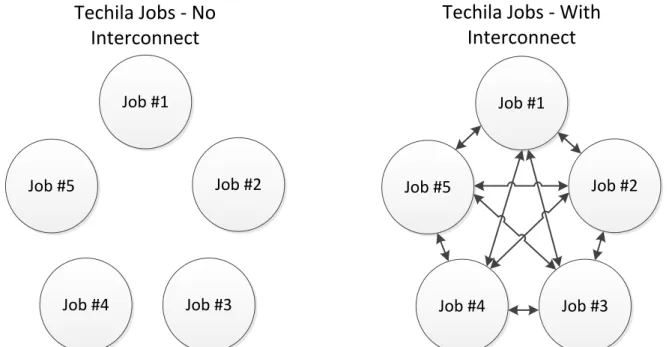
Techila interconnect establishes an interconnect network between each Job in the Project, which enables interconnect data packages to be transferred between Jobs. This allows Techila to be used in situations where computational Jobs must be able to communicate with other Jobs in the Project.
Techila Jobs - No
Interconnect
Job #5
Job #1
Job #2
Job #4 Job #3
Techila Jobs - With
Interconnect
Job #5
Job #1
Job #2
Job #4 Job #3
Figure 1. Techila interconnect establishes a network, which connects each Job in the Project with all other Jobs.
This interconnect network can be used to transfer interconnect data packages between specific Jobs, or to broadcast data from one Job to all other Jobs in the Project. More detailed information about different types of interconnect data transfers can be found in Chapters 4.2 and 4.5.
Job #1 Job #2
Job #4 Job #3
Broadcast
Job #1 Job #2
Job #4 Job #3
Job-to-Job
WWW.TECHILATECHNOLOGIES.COM
Native Techila interconnect functionality is currently available for the following programming languages / frameworks:
MATLAB Python R
C# / .NET
Please see following programming language specific guides for more information and examples:
Techila with MATLAB Techila with R Techila with Python Techila with CSharp
3.1.
Techila Interconnect Network
When using the Techila interconnect commands in a Project, an interconnect network is
automatically created. This interconnect network will connect each Worker that participates in the Project. The interconnect network will be used to transfer interconnect data between Jobs. Jobs will have a limited amount of time to join this interconnect network, before the connection will timeout. The duration of the default timeout window depends on the method used to initialize the interconnect network:
When InitIc command (Chapter 4.1) is called separately to initialize the interconnect network, the default timeout window will be 30 seconds
When InitIc command is not called separately, the timeout window will be 60 seconds
If needed, these default timeout windows can be overridden by specifying the desired timeout window as an input argument to the InitIc command.
If any Job in the Project fails to connect to the interconnect network within the timeout window, the Project will be terminated. This is to ensure that each Job in the Project will be able to communicate with all other Jobs in the Project.
Note! If you specify a timeout window with a negative value (e.g. -1) when executing the InitIc command, Job execution will be allowed to continue even if they could not join the interconnect network.
3.2.
Using Suitable Techila Workers in Your Interconnect Project
By default, Jobs from a Project can be assigned to any Worker that belongs to a Workers Group that is assigned to the End-User’s Techila Account. However, there is no guarantee that all of these Techila Workers can establish an interconnect network, which can cause the Project to fail.
This means that when creating a Project that uses Techila interconnect commands, Jobs from the Project must be assigned to Techila Workers that are able to establish an interconnect network.
WWW.TECHILATECHNOLOGIES.COM
This can be achieved by specifying the name of the Worker Group that contains Workers capable of establishing interconnect networks as a Project parameter.
Please note that such Worker Groups must be configured by a Techila Administrator before they can be used.Please contact your Local Techila Administrator for more information about what Workers Groups in your Techila environment can be used in Projects that use the interconnect functionality.
3.3.
Minimum Required Amount of Techila Worker CPU Cores
When using the Techila interconnect commands in your code, all Jobs belonging to the Project must be able to join the interconnect network within the timeout window. This means that you must have a sufficient amount of available Techila Worker CPU cores to process all Jobs at the same time.
Please contact your local Techila Administrator for more information about how many Techila Worker CPU Cores capable of processing interconnect Jobs are available in your Techila
environment.
Below are two examples that illustrate what happens when a sufficient amount of suitable CPU cores is available and what happens when not enough CPU cores are available.
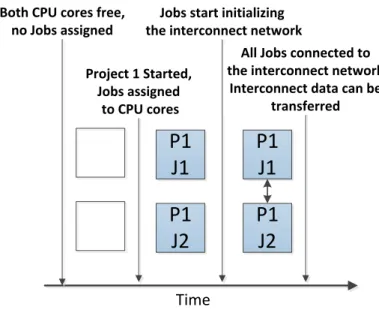
Example 1: The figure below illustrates a situation where a Project consisting of two interconnect Jobs is started in a Techila environment. In this example, the Techila environment has two CPU cores available. This means that each Job can be assigned to free CPU core and is able to initialize the interconnect network within the timeout window.
Project 1 Started, Jobs assigned to CPU cores
P1
J2
P1
J1
Time
Jobs start initializing the interconnect network
P1
J2
P1
J1
Both CPU cores free, no Jobs assigned
All Jobs connected to the interconnect network.
Interconnect data can be transferred
Free CPU Core
CPU Core in use by Job y from Project x
Px
Jy
WWW.TECHILATECHNOLOGIES.COM
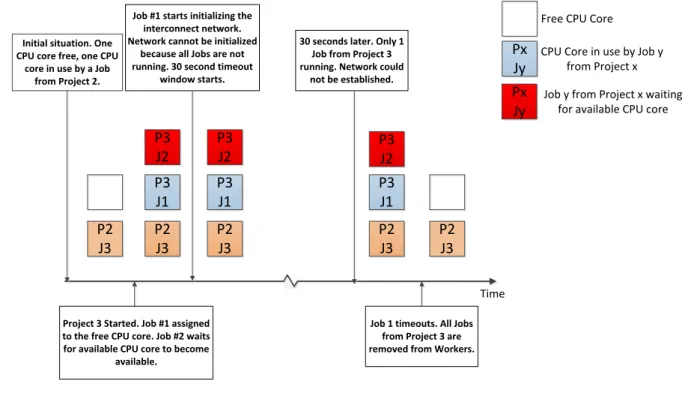
Example 2: The figure below illustrates a situation where a Job from another Project (Project 2, non-interconnect) is already running on one of the CPU cores. This means that there is only one CPU core available in the Techila environment.
When Project 3, which consists of two Jobs, is started, only one Job can be assigned to a CPU core and started. This Job will then try to establish the interconnect network when the interconnect commands are executed in the Worker Code. This will trigger the 30 second timeout window. After 30 seconds have passed, all Jobs from Project 3 will be automatically terminated because the interconnect network was not joined by all Jobs in the Project.
P2 J3 P3 J1 Time P2 J3 P2 J3 P3 J1 P2 J3 P3 J1 P2 J3 P3 J2 P3 J2 P3 J2
Initial situation. One CPU core free, one CPU
core in use by a Job from Project 2.
Project 3 Started. Job #1 assigned to the free CPU core. Job #2 waits for available CPU core to become
available.
Job #1 starts initializing the interconnect network. Network cannot be initialized
because all Jobs are not running. 30 second timeout
window starts.
30 seconds later. Only 1 Job from Project 3 running. Network could
not be established.
Job 1 timeouts. All Jobs from Project 3 are removed from Workers.
Free CPU Core
CPU Core in use by Job y from Project x
Px Jy
Job y from Project x waiting for available CPU core
Px Jy
Figure 4. In this scenario, the interconnect network could not be established successfully because all Jobs from Project 3 could not be assigned to CPU cores at the same time.
WWW.TECHILATECHNOLOGIES.COM
4.
Interconnect Functionality
This Chapter contains a general description of Techila interconnect functionality that is common with all programming languages. Depending on the programming language, the described functionality is typically implemented by using a function, method or a variable. Please see the programming language specific examples for details.
Please note that depending on the programming language you are using, the naming convention and syntax of the function/method/variable might be different than the one described in this document.
4.1.
InitIc
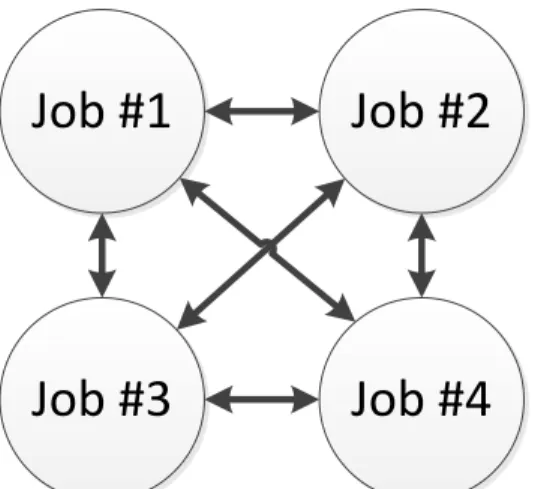
The InitIc command can be used to initialize the interconnect network. This interconnect network will connect each Job in the Project with all other Jobs and will allow Jobs to transfer interconnect data packets between other Jobs in the same Project.
Job #1
Job #2
Job #3
Job #4
Figure 5. All-to-all interconnect network.
Note! The InitIc command is executed automatically when calling interconnect commands
(MATLAB) or when creating interconnect objects (Python). This means that you do not need to call the InitIc command separately, unless you specifically want to do so. If using R, the InitIc command must be called separately.
Calling the InitIc command separately can be useful, for example, in situations where you are testing the Techila environment and want to verify that the interconnect network can be successfully established. If there is a problem with forming the interconnect network between Jobs, the connection will timeout after the programming language specific timeout window. If establishing the interconnect network fails, the Project will be stopped and removed.
WWW.TECHILATECHNOLOGIES.COM
4.2.
SendDataToJob
This command is used to send interconnect data from one Job to another Job. When executing this command, you will need to specify the target Job where the data packet will be sent. Any interconnect data packages sent with this command must be received in the target Job. In other words, a ‘SendDataToJob’ command in the source Job must always be paired with a corresponding ‘RecvDataFromJob’ command in the target Job.
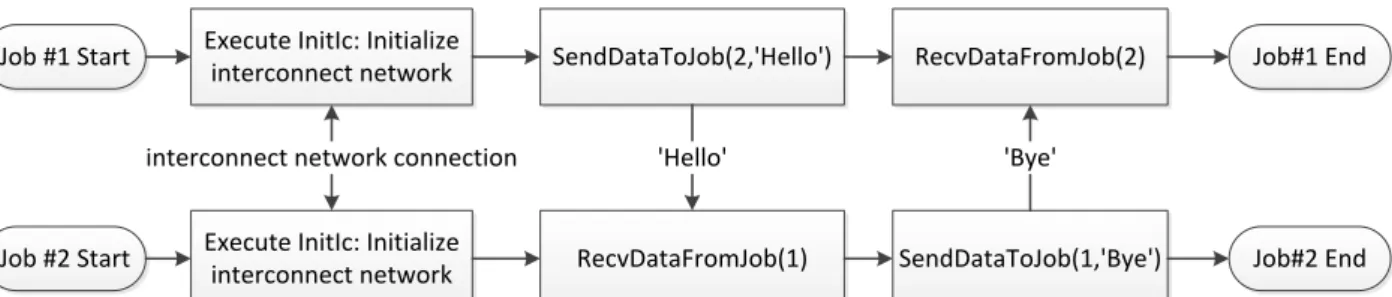
Example: The figure below illustrates a situation where Job-to-Job interconnect transfers are used to transfer words ‘Hello’ and ‘Bye’ between Job #1 and Job #2. After both Jobs have been started, the interconnect network is established between Jobs 1 and 2.
After the interconnect network has been established, Job #1 will send the word ‘Hello’ to Job #2. Job #2 will be listening for any data originating from Job #1.
After Job #2 has received the data from Job #1, Job #2 will send the word ‘Bye’ to Job #1. Job #1 will be listening for any data originating from Job #2.
After the data has been received by Job #2, both Jobs continue processing and will automatically terminate the process after all remaining code in the Worker Code has been executed.
Job #1 Start Execute InitIc: Initialize SendDataToJob(2,'Hello') RecvDataFromJob(2) Job#1 End
interconnect network
Job #2 Start Execute InitIc: Initialize RecvDataFromJob(1) SendDataToJob(1,'Bye') Job#2 End
interconnect network
interconnect network connection 'Hello' 'Bye'
Figure 6. Each interconnect data packet transferred with ‘SendDataToJob’ command must be received with a matching ‘RecvDataFromJob’ command.
WWW.TECHILATECHNOLOGIES.COM
4.3.
RecvDataFromJob
This command is used to receive data from other Jobs that has been sent with the
‘SendDataToJob’ command. When executing this command, you will need to define the source Job from which data will be received.
In situations where a Job needs to receive data from multiple Jobs, each interconnect data packet (sent with the ‘SendDataToJob’) must be received with a matching ‘RecvDataFromJob’ command. Data packets will be received sequentially, in the order defined by the ‘RecvDataFromJob’
commands.
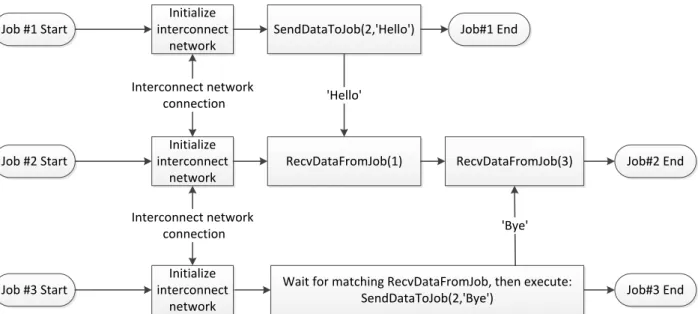
Example: The figure below illustrates a situation where two Jobs are sending data to one Job. Both Jobs (Job #1 and Job #3) will send the interconnect data packet at the same time to Job #2, but the interconnect data packet from Job #1 will be received first. The interconnect data packet from Job #3 will be received after the interconnect data packet from Job #1 has been received.
This order is which interconnect data packets are received is defined by input arguments given to the ‘RecvDataFromJob’ command. The first command that is executed is RecvDataFromJob(1), which defines that data from Job #1 will be received. The second command that is executed is RecvDataFromJob(3), which in turn defines that data from Job #3 will be received.
Job #1 Start SendDataToJob(2,'Hello') Job#1 End
Initialize interconnect
network
Job #2 Start RecvDataFromJob(1) RecvDataFromJob(3) Job#2 End
Initialize interconnect
network
'Hello'
Job #3 Start Wait for matching RecvDataFromJob, then execute:
SendDataToJob(2,'Bye') Job#3 End
Initialize interconnect
network Interconnect network
connection Interconnect network
connection
'Bye'
Figure 7. The order in which in interconnect data packets are received is determined by the execution order of ‘RecvDataFromJob’ commands.
WWW.TECHILATECHNOLOGIES.COM
4.4.
CloudOp
The CloudOp command executes defined operations in all Jobs belonging to the same Project. After the operation has been executed in all Jobs, the result of the operation will be broadcasted to all Jobs and returned as the return value of the CloudOp command.
This operation can for example be used to find the minimum or maximum value of a parameter that is defined in all Jobs. This operation can also be a reference to a function defined by an End-User, meaning the operations are not limited to basic arithmetic operations.
When using CloudOp, data is transferred between Jobs using a binary tree structure. The figure below illustrates how the data is transferred in an example situation where six Jobs use the CloudOp operation. The numbers in the arrows indicate the order in which the transfers are executed. Arrows labeled with ‘1’ will happen first, followed by arrows labeled with ‘2’ and so forth.
When a Job receives new data, the operation defined in CloudOp command will be executed in the Job. The result of the operation will then be sent according to the binary tree to the next Job, which will again perform the defined operation.
Each Job can have only one active send or receive transmission. If multiple Jobs wish to send data to the same Job, the Jobs will transfer the data sequentially.
Job 4
Job 5
Job 6
Job 2
Job 3
Job 1
1 2
3 4
1
Job 4
Job 5
Job 6
Job 2
Job 3
Job 1
1 2
3 4 3
Computational Data
Aggregation
Result Data
Distribution
Figure 8. The image labelled “Computational Data Aggregation” shows how information is transferred using a binary tree structure while the operation defined in the CloudOp command is performed. The image labelled “Result Data Distribution” shows how the result data is transferred to Jobs, after the operations have been completed.
Below is another example illustration of what takes place in Jobs when searching for the smallest value of a variable. Each Job sets the value of variable ‘a’ to be different, 10 in Job #1, 1 in Job #2 and 12 in Job #3. The CloudOp command is then used to find the smallest of these values (1),
WWW.TECHILATECHNOLOGIES.COM
which will then be transferred to each Job and returned as the output value. This means that the value of variable ‘a’ will be 1 in all Jobs after the command has been executed.
Job #1 Start
Set value of a to 10:
a=10 Execute InitIc: Initialize
interconnect network
Job #2 Start
Set value of a to 1:
a=1
a=cloudop(@min,a) Execute InitIc: Initialize
interconnect network
Job #3 Start
Set value of a to 12:
a=12
a=cloudop(@min,a) Execute InitIc: Initialize
interconnect network
a=cloudop(@min,a) Value of a: 1
Value of a: 1
Value of a: 1
WWW.TECHILATECHNOLOGIES.COM
4.5.
CloudBc
The ‘CloudBc’ command broadcasts data from one Job to all the other Jobs in the same Project. By default, the CloudBc command will broadcast the data from Job #1 to all other Jobs. The example figure below shows a situation where Job #1 broadcasts data to all other Jobs.
Job 4 Job 5 Job 6
Job 2 Job 3
Job 1
1 2
3 4 3
Job #1 Broadcasting
Figure 10. Job #1 broadcasting data using a binary tree structure.
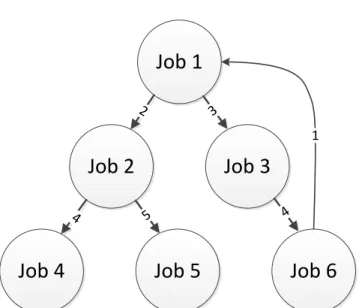
If you do not want Job #1 to broadcast the data, you can define a different Job when calling the CloudBc command. If another Job is defined to broadcast the data, the specified Job will start by sending the data to Job #1, which will then broadcast the data to all other Jobs using the binary tree structure. The example figure below shows a situation where Job #6 broadcasts data to all other Jobs.
Job 4
Job 5
Job 6
Job 2
Job 3
Job 1
2 3
4 5 4
1
Job #6 Broadcasting
Figure 11. When another Job is configured to broadcast data, the data will be transferred one additional step (to Job #1).
WWW.TECHILATECHNOLOGIES.COM
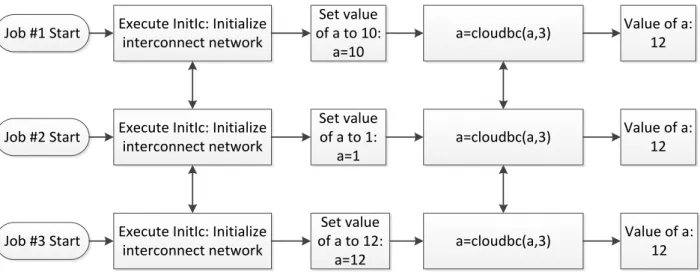
Example: Below is an illustration of what takes place in Jobs when Job #3 broadcasts the value of a variable. Each Job starts by setting the value of variable ‘a’ to be different: 10 in Job #1, 1 in Job #2 and 12 in Job #3. The CloudBc command is then used to broadcast the value of the variable from Job #3 to all other Jobs in the Project. This broadcasted value is returned by the CloudBc command and stored in the variable ‘a’. This means that the value of variable ‘a’ will be 12 in all Jobs after the CloudBc command has been executed.
Job #1 Start
Set value of a to 10:
a=10 Execute InitIc: Initialize
interconnect network
Job #2 Start
Set value of a to 1:
a=1
a=cloudbc(a,3) Execute InitIc: Initialize
interconnect network
Job #3 Start
Set value of a to 12:
a=12
a=cloudbc(a,3) Execute InitIc: Initialize
interconnect network
a=cloudbc(a,3) Value of a: 12
Value of a: 12
Value of a: 12
WWW.TECHILATECHNOLOGIES.COM
4.6.
CloudSum
The ‘CloudSum’ command sums the values of variables in all Jobs and returns the summation result as the output value. Interconnect data packets are transferred by using a binary tree structure, similar to the one described in Chapter 4.4.
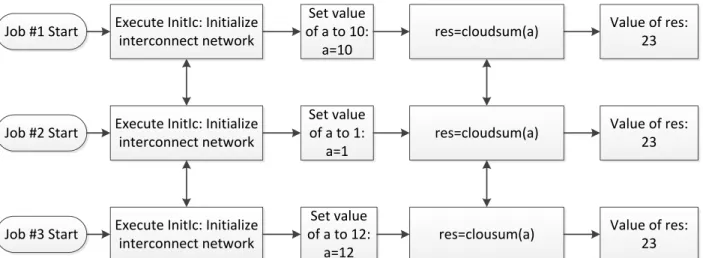
Example: Below is an illustration of what takes place in Jobs when the values of variable ‘a’ are summed. Each Job starts by setting the value of variable ‘a’ to be different: 10 in Job #1, 1 in Job #2 and 12 in Job #3. The CloudSum command is then used to sum the values of variable ‘a’ (10+1+12=23). The summation result is returned as the output value of the CloudSum command, which in this example is stored in variable ‘res’. The value of the ‘res’ variable will be 23 in all Jobs after the CloudSum command has been executed.
Job #1 Start
Set value of a to 10:
a=10 Execute InitIc: Initialize
interconnect network
Job #2 Start
Set value of a to 1:
a=1
res=cloudsum(a) Execute InitIc: Initialize
interconnect network
Job #3 Start
Set value of a to 12:
a=12
res=clousum(a) Execute InitIc: Initialize
interconnect network
res=cloudsum(a) Value of res: 23
Value of res: 23
Value of res: 23
Figure 13. CloudSum can be used to sum the value of a variable that is defined in the Worker Code and return the value of the summation to all Jobs.
WWW.TECHILATECHNOLOGIES.COM
4.7.
WaitForOthers
The ‘WaitForOthers’ command acts as a synchronization point for all the Jobs in the Project. When this command is executed in a Job, the Job will send a synchronization data package to all other Jobs in the Project. After sending the package, the Job will start to wait until it has received similar synchronization packages from all other Jobs.
Example: The figure below illustrates a situation where three Jobs are performing computations that require a different amount of time to perform: 10 seconds for Job #1, 20 seconds for Job #2 and 30 seconds for Job #3. After the computations are complete, each Job will execute the WaitForOthers command, which will synchronize the Jobs and prevent any Job from continuing before all Jobs have executed the WaitForOthers command. This means that Job #1 will remain waiting for 20 seconds, Job #2 will remain waiting for 10 seconds.
Job #1
Job #2
Job #3 Job #1 Start
Perform computation:
10 s Execute InitIc: Initialize
interconnect network
Job #2 Start Perform computation: 20 s
WaitForOthers(): Send synchronization info. Wait 10
seconds Execute InitIc: Initialize
interconnect network
Job #3 Start Perform computation: 30 s
WaitForOthers(): Send synchronization
info. Continue. Execute InitIc: Initialize
interconnect network
WaitForOthers():
Send synchronization info. Wait 20 seconds
Job #1 Continues Job #2 Continues Job #3 Continues Time Sync info Sync
info Syncinfo
Sync info Sync info Sync info