Gesellschaft für angewandte Informatik und Mikroelektronik m.b.H. Sasbacher Str. 2, D-79111 Freiburg, Germany
PBA.pro Getting Started
Issue 01.04May 2007
AIM GmbH Sasbacherstr. 2
79111 Freiburg Germany
Gesellschaft für angewandte Informatik und Mikroelektronik m.b.H. Sasbacher Str. 2, D-79111 Freiburg, Germany
Table of Contents
Table of Contents ... 2
General ... 3
PBA.pro Configuration... 4
PBA.pro System Information ... 6
PBA.pro Framework ... 7
File Menu ... 9
PBA Project Manager... 11
View Menu ... 13
Windows Menu ... 14
Help Menu... 14
Other Menu Items and Toolbar buttons ... 14
Standard Table Usage ... 15
Single Object Table ... 15
Multiple Object Table... 16
Table editing options ... 16
Gesellschaft für angewandte Informatik und Mikroelektronik m.b.H. Sasbacher Str. 2, D-79111 Freiburg, Germany
General
PBA.pro is a scalable and flexible application framework focusing on Test, Simulation and Integration of Systems based on Avionics Databuses and other peripheral interconnections and hardware.
The PBA.pro core consists of the Framework with Component Explorer and Panel Designer.
Furthermore, basic setup load and save capabilities via XML formatted files are supported by the Framework.
PBA.pro Scalability is given via the Component based approach, implementing functionality in dedi-cated functional entities.
Additional Components are available for: - MIL-STD1553 Interfaces - STANAG3910 EFAbus Interfaces - STANAG3910 EFEx Interfaces
- ARINC429
- AFDX
- PANAVIA
- RS232 / 422
- Scripting Manager
- Database Manager for Databus Payload decoding - Analogue/Discrete I/O
- Others t.b.d.
Each PBA.pro component typically implements its functionality in hierarchical manner. While each resource component is usually visualised and controlled via the PBA.pro Resource Manager (which is the main navigation and access window), all other components like the designer or database use their own windows which can be docked individually.
Each PBA.pro component is basically “scriptable” and can be accessed from a PBA.pro Script. PBA.pro is platform independent and supports Windows as well as LINUX platforms.
Gesellschaft für angewandte Informatik und Mikroelektronik m.b.H. Sasbacher Str. 2, D-79111 Freiburg, Germany
PBA.pro Configuration
The PBA.pro supports a comprehensive set of configuration parameters, which can be statically con-figured via two basic INI files:
- the Global configuration file
located at <PBA.pro Executable Directory>\config\pbapro.ini
- the Local configuration file located at the directory
c:\document and settings\<User Name>\Application Data\AIM GmbH\pbapro.ini
The Local INI file is user dependent and supports customized PBA.pro configuration in comparison to the Global INI file, which contains settings which are applicable to all users.
The contents of the INI file can be viewed and changed via the \Help\About menu of the PBA.pro.
The “Global Settings” represents the contents of the Global INI file, which is common to all users of a PC, and the “Local Settings” represents the contents of the Local INI file, which is related to each user of the PC.
Gesellschaft für angewandte Informatik und Mikroelektronik m.b.H. Sasbacher Str. 2, D-79111 Freiburg, Germany
The ‘Copy to Clipboard’ supports documentation of current INI file settings for support purposes. Any PBA.pro component can use the “Global” and the “Local” settings, hence the available options for particular components are described separately for each component.
All configurable configuration parameters will be documented in detail in a later version.
The Component Load Order Tab in the About Dialog, allows to enable / Disable the dedicated Com-ponents. You should only enable the required comCom-ponents. Components which do not have a valid Licence key will not be loaded.
Gesellschaft für angewandte Informatik und Mikroelektronik m.b.H. Sasbacher Str. 2, D-79111 Freiburg, Germany
PBA.pro System Information
The current PBA.pro System information like H/W and S/W version is available via the \Help\About Menu of the PBA.pro Main menu.
The ‘Copy to Clipboard’ function places dedicated information in the clipboard, which may be e.g. pasted to a support request mail.
Gesellschaft für angewandte Informatik und Mikroelektronik m.b.H. Sasbacher Str. 2, D-79111 Freiburg, Germany
PBA.pro Framework
After PBA.pro startup, the PBA.pro appears per default with Main Menu, Tool Bar, the ‘Resources’ and ‘Output Window’ is visible visible. Depending on the installed components, other docking widgets are present.
The Main Menu and Toolbars are dynamically extended, dependent on the installed components, offering quick access to dedicated functionality.
The Output Window shows PBA.pro system messages, classified into Information, Warnings and Errors. The displayed information can be copied and used in case of support requests.
In case of an installed Script Manager, the Script Console appears additionally in the Output Window. The basic Menu Entries of the PBA.pro are
- File
- View
- Window
- Help
All other menu entries are dependent on the loaded components.
The Component dependant windows as well as the Output window or the Resource Manager can either be docked individually on every edge of the PBA.pro main window or used as so called floating windows: Main menu Toolbars Resource tree Output window Other components
Gesellschaft für angewandte Informatik und Mikroelektronik m.b.H. Sasbacher Str. 2, D-79111 Freiburg, Germany
Docked windows
Gesellschaft für angewandte Informatik und Mikroelektronik m.b.H. Sasbacher Str. 2, D-79111 Freiburg, Germany
File Menu
The PBA.pro File menu offers functions for PBA.pro Project Handling (New, Load, Save, Save As…). The recently used files can be accessed via the ‘Recent Files’ menu item. The last recently used project is also got via the Ctrl+1 Hot Key.
The “Load File” shows a File Open dialog, which allows to open any supported PBA.pro file. The related filter may be specified at the file type combo Box. The displayed types are related to the installed components.
Gesellschaft für angewandte Informatik und Mikroelektronik m.b.H. Sasbacher Str. 2, D-79111 Freiburg, Germany
The File Menu functions arealso available via the Toolbar (see the associated icons)
Furthermore a more selective file open dialog may be used if you click to the triangle beside the “Load File” Button.
Gesellschaft für angewandte Informatik und Mikroelektronik m.b.H. Sasbacher Str. 2, D-79111 Freiburg, Germany
PBA Project Manager
The PBA.pro Project Manager Function is accessed via the ‘Project Manager’ menu item. The PBA.pro Project Manager offers support for PBA.pro project organization.
Per default, all PBA.pro setup information incl. all its components (except Database Manager) is stored in a single project file in XML format.
The ‘Options’ page of the Project Manager offers entering of user defined project information via the ‘Comment’ field.
The project can be renamed via the ‘Project’ Input line.
The ‘References’ Tab offers support to override the PBA.pro default handling of storing all project information into a single project file and to use separate XML coded files for storing object setup information.
The configuration is based on selection of a saveable object via the ‘Saveable Objects’ picklist. Dependent on implementation of a object, not all information can be saved in separate files. If supported, a file name can be selected for the corresponding object of the ‘Object’ column, which is displayed and selected via the ‘Reference Path’ column. Additionally a comment can be added.
Gesellschaft für angewandte Informatik und Mikroelektronik m.b.H. Sasbacher Str. 2, D-79111 Freiburg, Germany
Example for storage of BC, RT, BM and Replay Setup Information in seprate files, apart from the project file:
1. select the corresponding Ressource in the “Saveable Objects” Box: e.g. “API3910”
2. Select the BC node with a single mouse click
3. Double Click into the “Reference Path” column of the BC node and the default file name is shown “MilBCSetupBC.ppref”.
4. Enter another file name or select one by pressing the “…” button. 5. Confirm the file name selection by pressing Enter
6. Repeat these steps for all oher saveable components, which are required to be stored in seprate files.
Gesellschaft für angewandte Informatik und Mikroelektronik m.b.H. Sasbacher Str. 2, D-79111 Freiburg, Germany
Please Note, that in case of missing files, a project cannot be properly loaded !
Hence, for the beginning it is recommended to store all PBA.pro information into a single PBA.pro project file.
Note:
A Engineering Unit Database, when working with the Database Manager component, is always stored in a seprate file.
View Menu
The View menu supports showing/hiding specific PBA.pro Windows - Output Window
- Component Explorer - Property Explorer
- Toolbars (dependent on loaded components)
Furthermore, the ‘View’ menu offers further handling for managing PBA.pro Screen Layouts. The screen Layout functionality supports organising PBA.pro Windows and Panels within the PBA.pro Framework. Screen Layouts are stored within a PBA.pro project.
- “Save Layout” stores an arrangement of PBA.pro Windows under a user configurable name.
Gesellschaft für angewandte Informatik und Mikroelektronik m.b.H. Sasbacher Str. 2, D-79111 Freiburg, Germany
- “Manage Layout” supports renaming and deleting existing Screen Layouts
´
- the “Layout” menu entry supports recalling previously defined Screen Layouts
Windows Menu
The Windows menu supports arrangement and access to currently open windows (Windows Standard MDI functionality)
Help Menu
The Help menu item offers access to the PBA.pro system configuration and system information. See the chapters above for “PBA.pro Configuration” and “PBA.pro System Information”.
Furthermore the Help Menu allows to show all documentation in PDF Format, which is present in the <PBA.pro Dir>\doc folder.
Other Menu Items and Toolbar buttons
Dependent on the installed PBA.pro Components, additional Menus and Tool buttons appear. These are described at the corresponding Component section.
Gesellschaft für angewandte Informatik und Mikroelektronik m.b.H. Sasbacher Str. 2, D-79111 Freiburg, Germany
Standard Table Usage
By default two basic Table types for object editing are used within the PBA.pro.
Single Object Table
For single object editing and display the so called vertical property table can be used:
In this Table the object’s properties are displayed vertical where the row headers display the property name and the corresponding column entry the property value.
Property name
Current object
Gesellschaft für angewandte Informatik und Mikroelektronik m.b.H. Sasbacher Str. 2, D-79111 Freiburg, Germany
Multiple Object Table
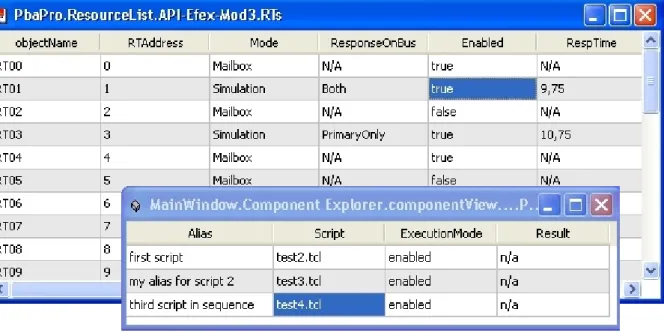
For multiple object editing and display the so called horizontal property table can be used:
In this Table the object’s properties are displayed horizontal where the row headers display the object name and the columns the properties.
Table editing options
• Table Navigation:
o Standard mouse selection
o Arrow keys
o “Tab” and “Return” Keys
While the “Tab” key can be used to navigate horizontal from left to right, the “Return” key can be used to navigate vertical from top to bottom. Holding the “Shift” key as well will switch the navigation direction (Tab Æ right to left, Return Æ bottom to top) In Edit mode the edited cell value will be written to the object’s property and the next editor will be opened.
Note: The next editor will only be opened if the property is writable and only one cell was selected)
• Cell editing:
o Mouse Double click on a cell
o Press “Return”
o Press F2
The object’s property value will be set on editor close. To cancel the editing press “Esc” or an Arrow key.
Gesellschaft für angewandte Informatik und Mikroelektronik m.b.H. Sasbacher Str. 2, D-79111 Freiburg, Germany
• Multi selection:
o Mouse click on the cell
To select multiple cells hold down the left mouse button and drag the cursor ofer the cells to select
o Selection via “Shift”
o Selection via “Strg”
Hold down the “Strg” key and navigate via mouse or arrow keys to the next cell which should be selected. Click on the cell or press the “Space“ key to add the cell to the current selection.
• Multi cell editing:
The multi object table supports multi selection resp. property editing. To do a multi selec-tion edit, select multiple cells as explained above. While holding the “Shift” resp. “Strg” key activate an editor for a selected cell. On edit confirm (close the editor) all cells which are in the same column as the editor was, are set to the editor’s value.
Gesellschaft für angewandte Informatik und Mikroelektronik m.b.H. Sasbacher Str. 2, D-79111 Freiburg, Germany
Resource Manager
An essential part of the PBA.pro is the Resource Manager which is identified via the ‘Resource’ win-dow.
The Resource Manager handles all resource interface components. An interface component can be understood as a component responsible for controlling an interface board or device.
The interface components for AIM’s avionics data bus interface boards like MIL-STD1553, STANAG3910 appear within the Resource Manager. Entire access to an interface component func-tionality is done per default via the Resource Manager. A resource’s funcfunc-tionality is typically reflected in a hierarchical (tree) model of its functionality and described separately.