Rational Rose 2000e
Using Rose Oracle8
Part Number 800-023325-000
Revision 2.1, March 2000 (Software Release 2000e) This document is subject to change without notice.
GOVERNMENT RIGHTS LEGEND: Use, duplication, or disclosure by the U.S. Government is subject to restrictions set forth in the applicable Rational Software Corporation license agreement and as provided in DFARS 227.7202-1(a) and 227.7202-3(a) (1995), DFARS 252.227-7013(c)(1)(ii) (Oct 1988), FAR 12.212(a) (1995), FAR 52.227-19, or FAR 52.227-14, as applicable.
You may copy this manual for use internal to your company provided you include Rational’s copyright notice and mark the copies “made by customer.” Trademark acknowledgments:
Rational, the Rational logo, and Rational Rose are trademarks or registered trademarks of Rational Software Corporation in the United States and in other countries. All other names are used for identification purposes only and are trademarks or registered trademarks of their respective companies. Oracle8 is a registered trademark of Oracle Corporation. The Oracle8 logo is used with permission.
Rational Rose 2000e, Using Rose Oracle8 iii
Contents
List of Tables
vii
Preface
ix
How This Manual is Organized ix Related Documentation x
Online Help and Tutorials xi Online Manual xi
Chapter 1
Introduction
1
About Rational Rose Oracle8 1 Getting Started with a Tutorial 2
Chapter 2
How Rational Rose Oracle8 Models Schema Objects
3
About Rational Rose, UML, and Oracle8 3 About Oracle8-Specific Class Stereotypes 4 About Property Settings and Property Files 4 Object Types in a Rational Rose Model 5
About Object Types 5
How Object Types are Structured 5 About Attributes 6
Object Views in a Rational Rose Model 9 About Object Views 9
How Rational Rose Oracle8 Models Object Views 10 Rules for Using Object Views 11
Object Tables in a Rational Rose Model 11 About Object Tables 11
How Rational Rose Oracle8 Models Object Tables 12 Rules for Using Object Tables 12
VARRAYS in a Rational Rose Model 12 About VARRAYs 12
How Rational Rose Oracle8 Models VARRAYs 13 Rules for Using VARRAYs 14
Nested Tables in a Rational Rose Model 14 About Nested Tables 14
How Rational Rose Oracle8 Models Nested Tables 15 Rules for Using Nested Tables 16
Relational Tables in a Rational Rose Model 16 About Relational Tables 16
How Rational Rose Oracle8 Models Relational Tables 17 Rules For Using Relational Tables 20
Relational Views in a Rational Rose Model 20 About Relational Views 20
How Rational Rose Oracle8 Models Relational Views 21 Rules For Using Relational Views 21
Rational Rose 2000e, Using Rose Oracle8 v
Chapter 3
Reverse Engineering an Oracle8 Schema
23
What is Reverse Engineering? 23 How to Reverse Engineer a Schema 23 What You Can Do Next 24
Display the Specification for Any Model Element 24 Create a New Class Diagram 24
Add New Schema Objects to the Model 25
Updating Your Schema by Forward Engineering a Rational Rose Model 26
Chapter 4
Working with a Rational Rose Oracle8 Model
27
Adding Oracle8 Base Classes to a Model 27
Using the Oracle8 Framework to Load Scalar Datatypes 28 Importing the Scalar Datatypes into an Existing Model 29 How to Create New Schema Objects 29
Creating an Object Type 30 Creating an Object View 31 Creating an Object Table 33 Creating a VARRAY 33 Creating a Nested Table 34 Creating a Relational Table 35 Creating a Relational View 37 Checking Model Syntax 38 Generating Reports 39
Viewing/Modifying the Order of Columns and Attributes 40 Creating/Editing Foreign Keys 40
Chapter 5
Forward Engineering a Rational Rose Model
43
What is Forward Engineering? 43
How to Forward Engineer a Rational Rose Oracle8 Model 44
Appendix A
Rational Rose Oracle8 Mapping Reference
47
Overview 51
Schema Generation Properties 52
Schema Generation Properties for Rational Rose Oracle8 Projects 52
Schema Generation Properties for Rational Rose Oracle8 Classes 56 Schema Generation Properties for Rational Rose Oracle8
Operations 56
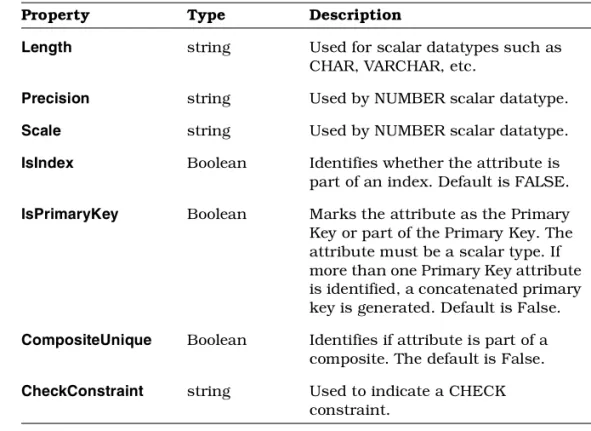
Schema Generation Properties for Rational Rose Oracle8 Attributes 57
Schema Generation Properties for Rational Rose Oracle8 Roles 58 Schema Generation Properties for Rational Rose Oracle8 Module Specifications 58
Appendix C
Quick Start Tutorial
59
Overview 59
How To Use This Tutorial 59
What You Need To Run The Tutorial 60
Lesson 1 Reverse Engineering a Relational Database 60 Lesson 2 Working with a Subset of Your Database 62 Lesson 3 Adding Oracle8 Objects to Your Model 66
Part I: Creating an Object Type 67 Part II: Creating an Object View 70 Part III: Generating a Report 74
Lesson 4 Updating Your Database Schema 74
Index
79
Rational Rose 2000e, Using Rose Oracle8 vii
List of Tables
Table 1 Rational Rose to Oracle8 Mapping Reference 47 Table 2 Project Properties 52
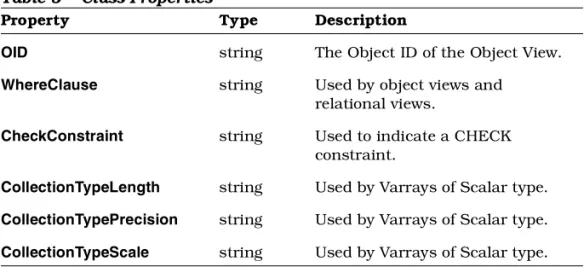
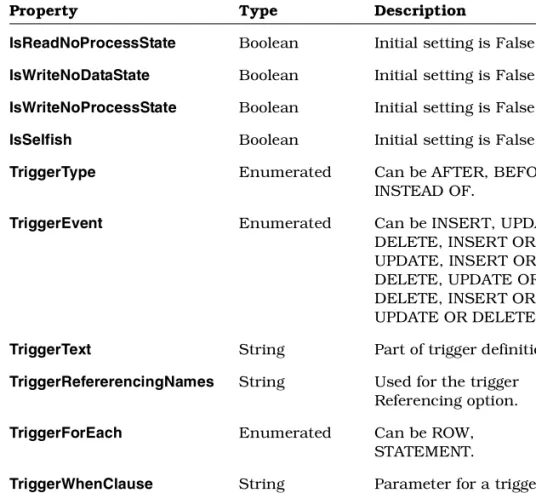
Table 3 Class Properties 56 Table 4 Operation Properties 56 Table 5 Attribute Properties 57 Table 6 Role Properties 58
Rational Rose 2000e, Using Rose Oracle8 ix
Preface
This guide,Rational Rose 2000, Using Rose Oracle8, is for anyone who wants to use Rational Rose to:
■ Model Oracle8 schemas.
■ Generate schemas from Rational Rose models.
■ Reverse-engineer existing schemas into Rational Rose models. The guide assumes that you are familiar with Oracle8 concepts and constructs, and that you are comfortable with basic Rational Rose concepts and procedures.
If you need to learn to use Rational Rose, you should run the Rational Rose tutorial included on your product CD. To learn more about Rational Rose Oracle8, see theGetting Startedtutorial that is included in Appendix C of this guide, or run the online version of the tutorial that is packaged with the Rational Rose product CD.
How This Manual is Organized
This manual contains the following chapters and appendices:
■ Chapter 1—Introduction
Provides an overview of Rational Rose Oracle8.
■ Chapter 2—How Rational Rose Oracle8 Models Schema Objects
Describes how an Oracle8 schema presented in a Rational Rose model using UML notation.
■ Chapter 3—Reverse Engineering an Oracle8 Schema
Describes the reverse engineering step for creating a Rational Rose model from an Oracle8 schema.
■ Chapter 4—Working with a Rational Rose Oracle8 Model
Explains how to create schema objects in a model, how to check model syntax, generate reports, and use Rational Rose Oracle8 wizards to modify schema objects.
■ Chapter 5—Forward Engineering a Rational Rose Model
Explains how to update an Oracle8 schema using the DDL generated from a Rational Rose Oracle8 model.
■ Appendix A—Rational Rose Oracle8 Mapping Reference
Provides a summary of how Rational Rose Oracle8 models specific schema objects and structure.
■ Appendix B—Schema Generation Properties
Lists the specific properties that affect how Rational Rose Oracle8 generates the DDL for an Oracle8 schema.
■ Appendix C—Quick Start Tutorial
This is a tutorial you can use to become familiar with Rational Rose Oracle8.
Related Documentation
The information in this guide is also provided in the form of online help. In addition, you will find context-based online help as you complete procedures and work in the various Rational Rose Oracle8 dialog boxes.
After installation and before you begin using Rational Rose Oracle8, please review anyReadme.txtfiles andRelease Notesto ensure that you have the latest information about the product.
For additional resources, refer to theUsing Rational Roseguide and online help. If you are new to Rational Rose, visual modeling, or the Unified Modeling Language (UML), you may also want to read the book,
Visual Modeling with Rational Rose and UML, included with your product documentation.
Online Help and Tutorials
Rational Rose 2000e, Using Rose Oracle8 xi
Online Help and Tutorials
Rational Rose Oracle8 includes comprehensive online help with hypertext links and a two-level search index.
In addition, an online version of the Rational Rose Oracle8Getting Startedtutorial (included in printed form as Appendix C in this guide) is available on the product CDs that are packaged with the Rational Rose software.
Online Manual
Rational Rose includes all of the user manuals online. Please refer to the Readme.txt file (found in the Rational Rose installation directory) for more information.
Rational Rose 2000e, Using Rose Oracle8 1
Chapter 1
Introduction
About Rational Rose Oracle8
Rational Rose Oracle8 enables you to create object models from Oracle8 relational schemas and extend them to exploit Oracle8's object capabilities.
Rational Rose Oracle8 visualizes existing relational databases and facilitates the discovery and composition of existing business objects. This enables you to preserve your investment in existing relational databases while taking advantage of all the benefits that object modeling and development bring to desktop and server applications. Rational Rose Oracle8 lets developers represent business objects as native types in the application implementation language and the database. Wizards assist in the evolution from relational to object-relational by guiding you through the definition of an object-object-relational model.
Rational Rose Oracle8 can model, generate, and visualize relational tables, triggers, object types, objects views, VARRAYs, nested tables, and other key objects featured in Oracle8.
Getting Started with a Tutorial
Appendix C of this manual is a quick start tutorial. By following its instructions, you can:
■ Reverse engineer an Oracle8 schema
■ Create a new Rose class diagram
■ Create new schema objects in the model
■ Forward engineer the new schema objects to an Oracle8 schema The tutorial is based on the DEMO demonstration schema that is packaged with Oracle.
Rational Rose 2000e, Using Rose Oracle8 3
Chapter 2
How Rational Rose Oracle8 Models
Schema Objects
This chapter describes how Rational Rose Oracle8 models the most common elements in an object-relational schema. These include:
■ Object Types ■ Object Views ■ Object Tables ■ VARRAYs ■ Nested Tables ■ Relational Tables ■ Relational Views
About Rational Rose, UML, and Oracle8
As a modeling tool, Rational Rose is largely language-independent. It uses Unified Modeling Language (UML) notation to model business processes, objects, components, and (with the advent of Oracle8), object-relational database schemas.
To tailor modeling to a specific environment, particularly for forward and reverse engineering, Rational Rose uses two important
mechanisms:
■ Class Stereotypes. Rational Rose Oracle8 uses a set of Oracle8-specific class stereotypes to model schema objects.
■ Property Files. A property file controls how items are mapped to schema-specific elements.
About Oracle8-Specific Class Stereotypes
Rational Rose uses classes, class stereotypes, and the relationships between classes to capture and model schema design. There are class stereotypes for: ■ Object Types ■ Object Views ■ Object Tables ■ VARRAYs ■ Nested Tables ■ Relational Tables ■ Relational Views
This section describes how each of these schema objects is modeled as a stereotyped class. (For a quick summary of how Rational Rose Oracle8 uses classes, stereotypes and related elements to model a database schema, see Appendix A.)
About Property Settings and Property Files
Rational Rose Oracle8 supplies a default property file (oracle8.pty) with Oracle8-specific settings. The file is automatically attached and initialized when you start Rational Rose Oracle8. The file contains property settings for:
■ Project ■ Class ■ Attribute ■ Operation ■ Role ■ Module
Object Types in a Rational Rose Model
Rational Rose 2000e, Using Rose Oracle8 5
For example,IsPrimaryKeyis a Boolean property setting for an attribute that indicates if a column in a relational table is a primary key. While you can edit and customize property settings, this section describes some of the settings that are automatically determined for you when you:
■ Create a Rational Rose model by forward engineering (analyzing) an existing Oracle8 schema.
■ Use Rational Rose’s Data Type Creation Wizard to create new schema objects in a Rational Rose model.
For a list of the property settings see Appendix B.
Object Types in a Rational Rose Model
About Object Types
An object type is a user-defined datatype that enables you to capture a complex, real-world entity as a single structured data unit that can be queried, updated, and stored in an Oracle8 database. The object types you create can be used the same way you use built-in (scalar) relational datatypes.
By creating object types in your schema you are able to:
■ Package and store data together with its associated application logic.
■ Enable multiple applications to access the data without having to generate the code needed to use it.
■ Create a bridge between an existing relational database and an object-based application.
How Object Types are Structured
An object type has:
■ Attributes that capture the structure and state of the entity the object type is modeling. For example, a CUSTOMER object type may have attributes such as NAME, ADDRESS, CUSTOMER-ID, etc.
■ Methods, such as procedures, functions, and map or order comparison methods.
About Attributes
When you create an attribute for an object type, you provide the attribute’s datatype, which can be:
■ Scalar, using built in types such as CHAR, NUMBER, VARCHAR, DATE, etc. For example, the CUSTOMER object type may have a NAME attribute whose datatype is VARCHAR2.
■ Another object type. For example, an attribute for the CUSTOMER object type may have another PURCHASE_ORDER object type as its datatype. This association can be made by creating a reference (REF) to PURCHASE_ORDER or it can be by value.
■ A collection type—either a VARRAY or a nested table. VARRAYs and nested tables are structured collections of data. For example, the CUSTOMER object type may have a CUSTOMER_CONTACTS attribute whose datatype is a VARRAY of five names.
About Methods
By defining methods for an object, you are able to package application logic with your data, enabling object-based applications to use the data without requiring additional code. The methods you can define for an object type include:
■ Functions and procedures
■ Triggers
■ Map or Order Comparison methods
■ Constructor method (the method for creating the object itself)
How Rational Rose Oracle8 Models Object Types
Rational Rose Oracle8 models an object type as a class with a stereotype of Object Type. For example, the following is a sample CUSTOMER object type from a Rational Rose class diagram:
Object Types in a Rational Rose Model
Rational Rose 2000e, Using Rose Oracle8 7
Attributes
Object type attributes are modeled in Rational Rose as class attributes. Nested Object Types
Rational Rose models an attribute whose datatype is another object type (a nested object type) as an association between the two object types. For example, if the object type CUSTOMER has an attribute whose datatype is the PURCHASE_ORDER object type, the attribute is modeled as follows:
In this case, the association is byvalue. If you create a REF (a pointer or reference similar to a foreign key in a relational table), Rational Rose Oracle8 models it as anaggregateassociation.
In this case, CUSTOMER is the Client (Role B in the association’s Rational Rose specification) and PURCHASE_ORDER is the Supplier (Role A in the association’s Rational Rose specification):
Rational Rose Oracle8 models the NULL constraint as a property setting for an attribute. By default, theNullsAllowedproperty is set to True.
Unique Constraint
Rational Rose Oracle8 models the Unique constraint as a property setting for an attribute. By default, theIsUniqueproperty is set to False.
Methods
Rational Rose models methods as operations of a class. These can include:
■ Triggers. These use theImplementationsetting forExport Controlto distinguish them from other methods.
■ Procedures. These are methodswithouta return type. They are modeled as operations of a Rational Rose Class.
■ Stored functions. These are methodswitha return type. They are modeled as operations of a Rational Rose Class.
■ Map or Order comparisons.
■ Object constructor/destructor.
The type of method is captured by an operation’sMethodKind.
Rules for Using Object Types
All Oracle8 rules for creating and using object types also apply in Rational Rose Oracle8. Please note these specific rules:
■ An object type can have one MAP method or one ORDER method, but not both.
■ An object type cannot have an attribute with a datatype of ROWID, LONG, LONG RAW, NCLOB, NCHAR, or NCHAR VARYING.
■ You must use PRAGMAs to indicate the access level of member functions.
■ You cannot define an INDEX on an object type or an object type’s attributes unless it has a scalar datatype.
Object Views in a Rational Rose Model
Rational Rose 2000e, Using Rose Oracle8 9
Object Views in a Rational Rose Model
About Object Views
An object view is a virtual object table. Its significant features include your ability to:
■ “Objectify” the data currently stored in relational tables. By creating these object containers for existing relational data, your client applications can begin using object technology without the need to immediately change the underlying structure of your data.
■ Begin to introduce objects into a relational database.
■ Customize access to data.
■ Possibly improve overall performance. (When stored as a row in an object view, relational data is retrieved as a single unit.)
Rational Rose Oracle8 greatly simplifies introducing object views to your schemas. Specifically, you can:
■ Reverse engineer an existing relational schema into Rational Rose.
■ Use Rational Rose Oracle8’s Data Type Creation Wizard to build the object types and object views that will front-end your relational data with object-relational constructs.
■ Forward engineer (generate schema) from your Rational Rose model and update your schema with the new object views and types.
To create an object view (whether you’re using Rational Rose Oracle8 or generating the SQL yourself), you first need to create an object type that encapsulates the data from one or more relational tables. This object type serves as the bridge between the object view and relational data.
You also need to designate one or more of the object view’s attributes as an object identifier that the view will use to enable REF’s to point to objects (rows) in the view. (An object identifier can be a composite of more than one attribute.)
Since it generates the constructs you need, use Rational Rose Oracle8’s Data Type Creation Wizard to create both the object types and object views that will extend your relational database.
How Rational Rose Oracle8 Models Object Views
Rational Rose Oracle8 models an object view as a class with a
stereotype of Object View. It represents the link between the underlying object types and relational tables as dependencies.
For example, the following shows an object view and its underlying object type and the relational table it front-ends:
The object view’s attribute (or attributes, if a composite) that you selected as the Object Identifier is captured as a property setting. For example:
Object Tables in a Rational Rose Model
Rational Rose 2000e, Using Rose Oracle8 11
Rules for Using Object Views
All Oracle8 rules for creating and using object views also apply in Rational Rose Oracle8. In addition, note that you cannot specify an alias when creating an object view.
Object Tables in a Rational Rose Model
About Object Tables
An object table enables you to place an object type in a relational construct. The columns in the object table correspond to the attributes in the underlying object type. Each row in the object table contains an object.
For example, consider a simple NEW CUSTOMER object type that has a NAME attribute and a CUSTOMER_ID attribute. Conceptually, an object table created from this object type would look like this:
By packaging an object type in an object table, you can access the objects in using relational techniques. Note that another alternative for creating object packages that can be used in a relational environment, is to create object views.
How Rational Rose Oracle8 Models Object Tables
Rational Rose Oracle8 models an object table as a class with a stereotype of Object Table. Since object tables are built from underlying object types, Rational Rose Oracle8 models this relationship as a dependency.
For example:
Rules for Using Object Tables
All Oracle8 rules for creating and using object tables also apply in Rational Rose Oracle8.
VARRAYS in a Rational Rose Model
About VARRAYs
A VARRAY is a datatype you create to define an ordered collection of data elements.
All of the elements in a VARRAY must have the same datatype. The size of a VARRAY determines how many elements it can contain. Since a VARRAY defines anorderedcollection, you can use it where the order of the elements is significant. (Each element in a VARRAY has an index that is based on the element’s position in the array.) This is in contrast
VARRAYS in a Rational Rose Model
Rational Rose 2000e, Using Rose Oracle8 13
to a nested table, which is an unordered collection type. VARRAYs are stored in a single column; they allow you to retrieve a collection as a whole.
You can use a VARRAY to define the datatype for:
■ An attribute in an object type
■ A column in a relational table
For example, in a CUSTOMER object type, you can use a CONTACT_NAME VARRAY to define the datatype for a
CUSTOMER_CONTACTS attribute. If the size of the CONTACT_NAME VARRAY is five, up to five names can be in the array.
Since VARRAYs can be used to define the datatype of a column in a relational table, you are able to introduce this object construct into your existing relational schema.
How Rational Rose Oracle8 Models VARRAYs
Rational Rose Oracle8 models a VARRAY as a class with a stereotype of VARRAY. When you create a VARRAY in Rational Rose Oracle8, it can have a scalar datatype or it can be based on an object type.
If based on another object type, Rational Rose Oracle8 models this as a dependency between the object type and the VARRAY:
Rules for Using VARRAYs
All Oracle8 rules for creating VARRAYs also apply in Rational Rose Oracle8. Please note these specific rules:
■ A VARRAY cannot have a datatype (directly or indirectly by nested object types) of BLOB, CLOB, NCLOB, NCHAR, or NCHAR
VARYING. Note that this rule does not apply to object types that are included by reference.
■ A VARRAY cannot have a nested table as a datatype, either directly or indirectly.
■ A VARRAY does not support an index.
Nested Tables in a Rational Rose Model
About Nested Tables
A nested table is a table of unordered data elements that is embedded as a column in another table. You can perform the same operations on a nested table that you can perform on other tables. All of the elements in a nested table must have the same datatype.
You can use a nested table to define the datatype for:
■ An attribute in an object type
Nested Tables in a Rational Rose Model
Rational Rose 2000e, Using Rose Oracle8 15
How Rational Rose Oracle8 Models Nested Tables
Rational Rose Oracle8 models a nested table as a class with a
stereotype of NestedTable. When you create a nested table in Rational Rose Oracle8, it is based on an object type. Rational Rose models the association between the nested table and its underlying object type as a dependency. For example:
When you use a nested table as the datatype for an object type attribute or a column in a relational table, Rational Rose models the nested table attribute as an association between the nested table schema object and the object type or relational table. For example:
Rules for Using Nested Tables
All Oracle8 rules for creating nested tables also apply in Rational Rose Oracle8. In addition, note that a nested table cannot be based on a scalar type of NCLOB, NCHAR, or NCHAR VARYING.
Relational Tables in a Rational Rose Model
About Relational Tables
Relational tables have been the fundamental schema structure for relational databases. With the introduction of object technology and Oracle8, conventional relational tables can also support:
■ Using an object type, VARRAY, or nested table as the datatype for a column.
■ Building object views that extend a relational database by packaging data as virtual objects.
Rational Rose Oracle8 smooths the transition to object-relational environments by:
■ Enabling you to reverse engineer your current schemas into Rational Rose models.
■ Create new schema objects, such as object views, as well as modify existing relational constructs.
Relational Tables in a Rational Rose Model
Rational Rose 2000e, Using Rose Oracle8 17
How Rational Rose Oracle8 Models Relational Tables
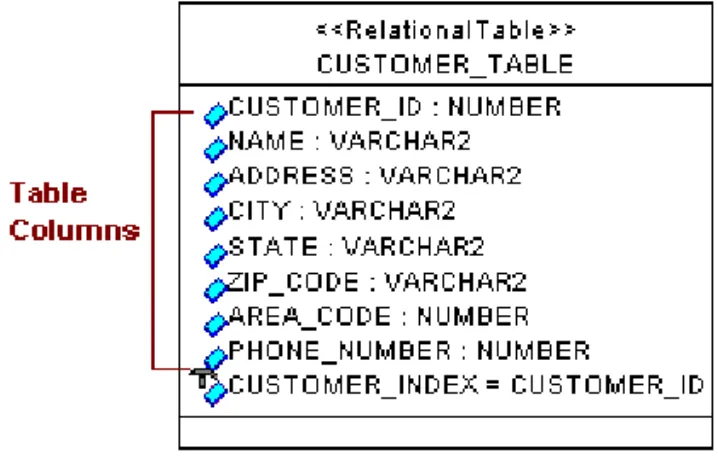
Rational Rose Oracle8 models a relational table as a class with a stereotype of RelationalTable. For example, the following is a sample CUSTOMER relational table:
Table Columns
Rational Rose Oracle8 models table columns as attributes of the RelationalTable class.
Nested Datatypes for Columns
Rational Rose models a column whose datatype is a user-defined datatype (i.e., an object type, VARRAY, or nested table) as an association between the table and the datatype. For example, if the CUSTOMER relational table has a CONTACTS column whose datatype is a CONTACT_LIST VARRAY, it would be modeled as:
REFs
A REF is similar to a foreign key in that it serves as a reference to another entity, in this case, an object type. REFs enable you to derive the content of a column by “pointing” to an object type in the schema. Rational Rose Oracle8 models a REF as an aggregate association. For example, if the CUSTOMER table has an INVOICE column that uses a REF to an INVOICE object type, it would be modeled as:
Relational Tables in a Rational Rose Model
Rational Rose 2000e, Using Rose Oracle8 19
Foreign Keys
Rational Rose Oracle8 models foreign keys as associations. For example, if the CUSTOMER table has a foreign key to a
DEPARMENT_ID in another table, it would be modeled as:
NULL and NOT NULL Constraints
Rational Rose Oracle8 models the NULL constraint as a model property associated with an attribute (column). By default, theNullsAllowed property is set to True.
Unique Constraint
Rational Rose Oracle8 models the Unique constraint as a model property for an attribute (column). By default, theIsUniqueproperty is set to False.
Index
Rational Rose Oracle8 models an index as a class attribute and lists it with the other attributes (columns) associated with the table. The index attribute is shown with an implementation access control symbol.
Rules For Using Relational Tables
All Oracle8 rules for creating and using relational tables also apply in Rational Rose Oracle8.
Relational Views in a Rational Rose Model
About Relational Views
A relational view is a standard Oracle construct for creating a virtual table based on one or more existing relational tables.
Relational Views in a Rational Rose Model
Rational Rose 2000e, Using Rose Oracle8 21
How Rational Rose Oracle8 Models Relational Views
Rational Rose Oracle8 models a relational view as a class with a stereotype of RelationalView. The columns of the view are modeled as attributes of the class. The view’s ties to underlying tables are modeled as dependencies.
For example, consider a relational view that creates a virtual table based on the ITEM and PRICE relational tables:
Rules For Using Relational Views
Rational Rose 2000e, Using Rose Oracle8 23
Chapter 3
Reverse Engineering an Oracle8
Schema
This chapter provides procedures for reverse engineering an existing Oracle8 schema, including:
■ Connecting to the Oracle Database Server from Rational Rose.
■ Analyzing a schema.
■ Viewing the Rational Rose model that is generated from the schema.
What is Reverse Engineering?
Reverse engineering is the process of analyzing an Oracle8 schema and creating a Rational Rose model that captures the elements and structure of the schema. Rational Rose Oracle8 enables you to view and manipulate this model using the UML notation for object-oriented analysis and design.
How to Reverse Engineer a Schema
Follow these steps to reverse engineer an existing Oracle8 schema: 1. Start Rational Rose.
2. A tabbed display appears enabling you to choose a framework for a new model or to open an existing model. Since you are creating a new model, select the Oracle8 framework icon. (This automatically loads the base classes you need for using Oracle8 scalar datatypes in your model.) (Note that Unix platforms do not support
frameworks.)
4. On the dialog box that appears, enter the name of the Oracle schema that you want Rational Rose to analyze.
5. On theDatabase Connect dialog box, enter theDatabase Server name, yourUserName, andPassword.
Note: In order for Rational Rose Oracle8 to connect to the database, the OracleTNSListener80 service must be running on the host server.
6. Rational Rose connects to the database and begins analyzing the schema you identified. It then creates a new class diagram that contains all of the schema elements. Rational Rose uses the schema name as the name of the class diagram.
7. Initially, the elements in the class diagram may overlap. To order the display, clickTools>Layout Diagram.
8. Look at the browser on the left side of the Rational Rose Oracle8 window. To view your schema, expand theLogical View. Each schema object is listed under the schema name.
9. ClickFile>Save Asto name and save the model. Models are always saved with the.mdlfile extension.
What You Can Do Next
These are among the functions you can perform with your model.
Display the Specification for Any Model Element
To display the specification for any element in the model, including relationships, you can double-click on the object in the diagram or on its name in the browser. An object’s specification provides the details about how the object was analyzed and how it is modeled.
Create a New Class Diagram
When it reverse engineered your database, Rational Rose Oracle8 created a single class diagram that includes every element in the schema. You’ll probably want to work with several separate diagrams, each one dealing with some logical part of the database.
What You Can Do Next
Rational Rose 2000e, Using Rose Oracle8 25
When you create a new class diagram you are able to pull in the schema objects you want. Once you select a model element to copy to a new class diagram, Rational Rose Oracle8 can check the model for all other elements that are related to it and bring those elements along to the new diagram.
Follow these steps to create a new class diagram that shows a subset of your complete database model:
1. Select the button on the toolbar to display theSelect Class Diagramdialog box.
2. Select your schema name under Class Category and<New>under Class Diagrams.
3. Enter the name of a new diagram and clickOKin theCreateDiagram dialog box. This displays a new, blank diagram.
4. From the browser, drag and drop the objects from the browser to your new class diagram.
5. To have Rational Rose automatically include the objects that have a relationship to the objects you’ve dragged into the new diagram, clickQuery > Expand Selected Elements.
6. In theExpand Selected Elements dialog box, notice that you can check forClients,Suppliers, orBoth(the default). This enables you to control which other objects are brought into the class diagram. ClickRelationsto view the relations that Rational Rose Oracle8 can check. All relations are checked by default.
(To understand how Rational Rose uses relationships to model the structure of your schema, see 2.)
7. Adjust the new class diagram display by clickingTools > Layout Diagram.
8. Save the model.
Add New Schema Objects to the Model
You can begin to create new schema objects by first modeling them in Rational Rose. For example, if you’re working with a relational
database that you reverse-engineered to a Rational Rose model, you can begin to introduce object technology by creating object types and object views that are built upon the existing relational data.
The easiest (and recommended) way to create schema objects is to use Rational Rose Oracle8’s Data Type Creation Wizard. The wizard steps you through the process and ensures that underlying structures (such as REFs, foreign keys, and other integrity constraints) are modeled correctly. If you intend to use Rational Rose to generate the DDL that will update your Oracle8 schema, it is important that objects and their relationships be modeled correctly.
For details about creating new objects, see 4.
Updating Your Schema by Forward Engineering a Rational Rose Model
By using Rational Rose Oracle8’s forward engineering capability, you can generate and execute the DDL for all or part of a Rational Rose model. For example, if you use Rational Rose Oracle8 to create new object types and object views for existing relational data, you can use the forward engineering feature to add the new constructs to your Oracle8 schema. For more information about forward engineering, see 5.
Rational Rose 2000e, Using Rose Oracle8 27
Chapter 4
Working with a Rational Rose Oracle8
Model
This chapter describes how you use Rational Rose Oracle8 to:
■ Load the base classes you need to model Oracle8 model elements.
■ Create new schema objects.
■ Check the syntax of your model.
■ Generate reports from a model.
■ Display or modify the order of columns and attributes.
■ Edit or create Foreign Keys for existing relational tables.
Adding Oracle8 Base Classes to a Model
For each of the Oracle8 scalar datatypes, there is a corresponding base class in Rational Rose. When you model a new Oracle8 element that relies on a scalar datatype, Rational Rose uses the datatype’s
underlying base class.
For example, suppose you created a VARRAY that has a scalar datatype of CHAR. On a diagram, if you were to expand all of the VARRAY’s relationships, you would see adependencyrelationship between the VARRAY and the underlying scalar base class. (To expand all of an
object’s relationships, select the object and click Query>Expand Selected Elements. From the dialog box, selectRelationshipsthen selectAllfor Type.)
For example:
Note that the browser has been expanded to display the Scalar Type classes.
There are two ways to add the Oracle8 base classes to a model:
■ By selecting the Oracle8 framework when you are creating a new model.
■ By importing the classes into an existing model, particularly a model that was created using a different framework.
Using the Oracle8 Framework to Load Scalar Datatypes
You can use the Oracle8 framework when you are creating new model. (Note that Unix platforms do not support frameworks.) By selecting the Oracle8 framework, the base classes for scalar datatypes are loaded into your model for you. To do this, follow these steps:
1. Start Rational Rose.
2. From the opening tabbed display, select the Oracle8 framework from the set of available frameworks.
3. The base classes are loaded into your model and can be displayed by using the browser.
How to Create New Schema Objects
Rational Rose 2000e, Using Rose Oracle8 29
Importing the Scalar Datatypes into an Existing Model
Rational Rose Enterprise supports multi-language models, thus enabling you to model real-world systems that incorporate different technologies.
To add the ability to model Oracle8 elements in an existing model, you need to import the Oracle8 base classes. To do this, follow these steps: 1. Start Rational Rose Enterprise and open a model.
2. ClickTools>Oracle>Import Oracle Datatypes.
3. The base classes are loaded into your model and can be displayed by using the browser.
How to Create New Schema Objects
Rational Rose Oracle8 features a Data Type Creation Wizard that enables you to add new schema objects to your Rational Rose model. The wizard takes the guesswork out of creating syntactically correct objects. For example, it:
■ Creates the necessary classes, relationships and schema components (Rational Rose constructs) needed for schema generation (forward engineering).
■ Sets the appropriate property settings and stereotypes for you.
■ Places the visual elements on a Rational Rose diagram. Using the wizard, you can create:
■ Object Types ■ Object Views ■ Object Tables ■ VARRAYs ■ Nested Tables ■ Relational Tables ■ Relational Views
Creating an Object Type
For a description of object types and how Rational Rose Oracle8 models them, see 2. For a summary of property settings that affect a model, see Appendix B.
1. (Optional.) From your class diagram, consider selecting
(highlighting) any existing object types or relational tables whose attributes or columns you will be using to map to attributes of the new object type.
2. Call the Data Type Creation Wizard. ClickTools>Oracle8>Data Type Creation Wizard.
3. SelectObject Typefrom the list of schema object icons. Note that if you selected object types and/or tables before you started the wizard, they appear in theSelected Itemslist. Select Nextto continue.
4. Assign a name to the new object type, identify the schema where the type will be created, and select the diagram where the new object type will appear. SelectNext.
5. To define the object type’s attributes you can map attributes or columns from existing object types or tables, or you can create new attributes.
To select from existing tables and types, choose from theMap From list. Entries appear in the list automatically if they were selected
beforeyou started the wizard. Otherwise, display a list of available types and tables by using theMap Frombutton.
To rename a mapped attribute, double-click on its name and go to step 6. To create a new attribute, clickCreateand go to step 6. If you won’t be creating or editing attributes, clickNextand go to step 7.
6. To modify the name of a mapped attribute, use theNamefield.
Note: Do not change any of the type information for a mapped attribute if the object type you’re creating will be used to create an object view.
To create a new attribute, assign a name to the attribute and select the attribute’s datatype. If you selectScalar, you will need to select a built-in type from the list of types, as well as the appropriate Precision,Scale, andLengthvalues. If the attribute has a user -defined datatype, select eitherObject Type,VARRAY, or Nested Table. ForType, select from the list of existing user -defined types or
How to Create New Schema Objects
Rational Rose 2000e, Using Rose Oracle8 31
useNewto create a new one on the fly. Use theNulls Allowed checkbox to allow nulls for the attribute. Use theUniquecheckbox to require unique values. Use theReference checkbox to create a REF to another datatype. (The attribute will refer to another datatype for its value.)
SelectAdd Attributeto create the attribute and clear the fields for another definition. ClickCloseto return to theDefine Attribute dialog box.
7. (Optional.) Define operations (methods) for the object type. Enter an operation name and select a type.Normalcreates a function or a procedure. (A procedure will not have aReturn Type.) For
comparison methods, choose betweenMapandOrder. Choose the appropriateReturn Type. Optionally, specify arguments by entering aParameter Name, selecting aDirectionand aType, then select Parameter Add. This clears theParameterfields enabling you to define another set if needed. When the operation definition is complete, select the OperationAdd. Repeat the step for each operation you’re defining or clickNextto go to the next step in the wizard.
8. (Optional.) You can change the order of the attributes in the object type by clicking and dragging items to the position you need. When you clickFinishthe new object type you created appears on the diagram you specified.
Creating an Object View
For a description of object views and how Rational Rose Oracle8 models them, see 2. For a summary of property settings that affect a model, see Appendix B.
1. (Optional.) From class diagram, consider selecting (highlighting) any other existing object types or tables whose attributes or columns you will be using to create the new object view.
2. Call the Data Type Creation Wizard. ClickTools>Oracle8>Data Type Creation Wizard.
3. SelectObject Viewfrom the list of schema object icons. Note that if you selected object types or tables before you started the wizard, they appear in theSelected Itemslist. ClickNext.
4. Assign a name to the new object view, identify the schema where the view will be created, and select the diagram where the view will appear. ClickNext.
5. Select theObject Typefor the object view from the list of available types. (If you selected an object type before you started the wizard, it appears as the selected type.) Or, create a new object type on the fly by clickingNew Object Type. (The wizard will step you through the creation process.) ClickNextto continue.
You use theObject View Map dialog box to map attributes from an object type to attributes from one or more relational tables or other object view(s), as follows.
Use theMap Tobutton to select the object view(s) and/or relational tables whose attributes you will be mapping to. (This populates the selection box on the right side of the dialog box.)
The attributes of the object type should already be displayed in the selection box on the left. To perform the mapping, click once on an attribute from the left, then click once on the corresponding attribute on the right. ClickMap. This places your selection in the View Mapbelow the two selection boxes. Note that you must map every attribute displayed on the left. (Shortcut: Instead of using the Map button, select one attribute and double-click on the second attribute. It doesn’t matter which attribute you select first.)
To add filtering criteria that will test data for inclusion in the view, use theWherebutton. This displays an area for you to enter SQL statements that are included when you generate the DDL for the schema.
Note that once in theView Map, you can edit the attribute by double-clicking on the attribute name or by clicking once with the right mouse button. This displays an edit dialog box for creating expressions associated with the attribute/column.
When you’ve finished mapping the view’s attributes, clickNext. 6. Select one or more attributes that will serve as an object-identifier
for the view. ClickFinish. The new object view appears on the diagram you specified.
How to Create New Schema Objects
Rational Rose 2000e, Using Rose Oracle8 33
Creating an Object Table
For a description of object tables and how Rational Rose Oracle8 models them, see 2. For a summary of property settings that affect a model, see Appendix B.
1. (Optional.) From your class diagram, consider selecting
(highlighting) the underlying object type for the object table you are creating (if the type already exists).
2. Call the Data Type Creation Wizard. ClickTools>Oracle8>Data Type Creation Wizard.
3. SelectObject Tablefrom the list of schema object icons. Note that if you selected an object type before you started the wizard, it
appears in theSelected Itemslist in the opening dialog box. Select Next.
4. Assign a name to the new object table, identify the schema where the table will be created, and select the diagram where the table will appear. ClickNext.
5. Select theObject Typefor the object table from the list of available types. (If you selected an object type before you started the wizard, it appears as the selected type.) Or, create a new object type on the fly by clickingNew Object Type. The wizard will step you through the creation process.
6. When you clickFinish, the new object table you created appears on the class diagram you selected.
Creating a VARRAY
For a description of VARRAYs and how Rational Rose Oracle8 models them, see Section 2. For a summary of property settings that affect a model, see Appendix B.
1. (Optional.) From the Rational Rose model, select (highlight) the object type for the VARRAY you are creating if the type already exists.
2. Call the Data Type Creation Wizard. ClickTools>Oracle8>Data Type Creation Wizard. Note that if you selected an object type before you started the wizard, it appears in theSelected Itemslist. Click Next.
4. Assign a name to the VARRAY, identify the schema where the VARRAY will be created, and select the diagram where the VARRAY will appear. ClickNext.
5. Select the datatype for the VARRAY. The datatype can beScalaror another object type. IfScalar, you will need to specify the
appropriatePrecision, Length, andCardinality values. If the
datatype is an object type, the drop down list will display all of the object types in the schema for you to choose from. If you selected an object type before you started the wizard, it is automatically displayed as the selected type. Note that you can create a new object type on the fly by selectingNew Object Type. The wizard steps you through the creation process.
6. When you’ve completed the datatype designation, clickFinish.The new VARRAY you created appears on the class diagram you selected.
Creating a Nested Table
For a description of nested tables and how Rational Rose Oracle8 models them, see 2. For a summary of property settings that affect a model, see Appendix B.
1. (Optional.) From your class diagram, select (highlight) the
underlying object type for the nested table you are creating if the type already exists.
2. Call the Data Type Creation Wizard. ClickTools>Oracle8>Data Type Creation Wizard. Note that if you selected an object type before you started the wizard, it appears in theSelected Itemslist of the opening dialog box.
3. SelectNested Tablefrom the list of schema object icons. ClickNext. 4. Assign a name to the nested table, identify the schema where the
table will be created, and select the diagram where the table will appear. ClickNext.
5. Select theObject Typefor the nested table from the list of available types. (If you selected an object type before you started the wizard, it appears as the selected type.) Or, create a new object type on the fly by clickingNew Object Type.
6. When you clickFinish, the new nested table you created appears on the class diagram you selected.
How to Create New Schema Objects
Rational Rose 2000e, Using Rose Oracle8 35
Creating a Relational Table
For a description of relational tables and how Rational Rose Oracle8 models them, see 2. For a summary of property settings that affect a model, see Appendix B.
1. (Optional.) From your class diagram, consider selecting (highlighting) any other existing object types or tables whose attributes or columns you will be using to create the table. 2. Call the Data Type Creation Wizard. ClickTools>Oracle8>Data
Type Creation Wizard.
3. SelectRelational Tablefrom the list of schema object icons. Note that if you selected object types or tables before you started the wizard, they appear in theSelected Itemslist. ClickNext. 4. Assign a name to the new relational table, identify the schema
where the table will be created, and select the diagram where the table will appear. ClickNext.
5. To define the relational table’s columns you can map attributes or columns from existing object types or tables, or you can create new columns.
To select from existing tables and types, choose from theMap From list. Entries appear in the list automatically if they were selected before you started the wizard. Otherwise, display a list of available types and tables by clickingMap From. To rename a mapped column, double-click on its name and go to step 6. To create a new column, clickCreateand go to step 6. If you won’t be creating or editing columns, clickNextand go to step 7.
6. Rename a mapped column by modifying theNamefield. If you are creating a new column, assign a name to the new column and select the column’s datatype.
If you selectScalar, you will need to select a built-in type from the list of types, as well as provide the appropriatePrecision, Scale, andLengthvalues.
If the column has a user -defined datatype, select eitherObject Type, VARRAY, orNested Table. ForTypeselect from the list of existing user-defined types or useNewto create a new one on the fly. If the datatype is an object type and you want to create a REF, check theReferencecheckbox.
Decide if the column will permit nulls and if the data in the column must be unique by checking theNulls AllowedandUnique
checkboxes.
When the column definition is complete, clickAdd Columnto create it; this clears the fields for another column definition. When you’ve created all of the new columns, clickClose to return to the Define Columndialog box.
7. (Optional.) You can define Foreign Keys for the table. Name the foreign key. Select the table your foreign key will reference. Once you have selected a table from theTablesselection box, a list of the columns with the Primary Key and Unique Key constraints is displayed in theColumnsselection box. To select only the columns with a Primary Key, clickSelect Primary Keys. This acts as a filter. When you have selected the columns from theColumnselection box, use theAdd Foreign Keybutton to complete creating the Foreign Key. When you do this, the new Foreign Key is added to the Foreign Keys Tableat the bottom of the dialog box, and theFK Namefield is cleared for you to create another Foreign Key. TheForeign Keys table lists the Foreign Keys you have created for the new relational table. You can edit a column name by double-clicking on the name or by displaying the control menu via the right mouse button.
ClickNextto continue.
8. (Optional.) You can define indices for the table. Assign a name to the index. Select one or more columns and clickAdd. If the index should be a Primary Key index, checkPrimarybeforeyou use the Create Indexbutton. When you select Create Index, the entry is added to the list of indices you’ve created for the table. This clears the definition fields enabling you to create another index. Click Nextto continue.
9. (Optional.) You can change the column order of the table by clicking and dragging columns to the position you need. When you clickFinish, the relational table you created appears on the
How to Create New Schema Objects
Rational Rose 2000e, Using Rose Oracle8 37
Creating a Relational View
For a description of relational views and how Rational Rose Oracle8 models them, see 2. For a summary of property settings that affect a model, see Appendix B.
1. (Optional.) From your class diagram, consider selecting
(highlighting) any other existing relational tables and/or views whose columns you will be using to create the new view.
2. Call the Data Type Creation Wizard. ClickTools>Oracle8>Data Type Creation Wizard.
3. SelectRelational Viewfrom the list of schema object icons. Note that if you selected tables and/or views before you started the wizard, they appear in theSelected Itemslist. ClickNext.
4. Assign a name to the new view, identify the schema where the view will be created, and select the diagram where the view will appear. SelectNext.
5. If you selected one or more relational tables or relational views before you started the wizard, they are displayed in theMap From selection box. Otherwise, you can use theMap From button to display a list of all of the relational tables and relational views currently in the schema.
To add a column from theMap Frombox to the list of the new relational view’s column list you can:
❑ Double-click on a single column name.
❑ Double-click on the relational table or relational view name to add all of the columns in the table or view.
❑ ClickAdd to add a single column or to add all of the columns from a relational table or relational view.
You can add filtering criteria to the view to determine when to include data. To do this, clickWhere.Whereopens aWhere Clause
dialog box that lets you enter SQL statements that are carried forward into your Oracle8 schema when you perform schema generation.
6. ClickNextto continue.
7. (Optional.) You can change the order of the view by clicking and dragging columns to the position you need. When you clickFinish, the new relational view appears on the diagram you specified.
Checking Model Syntax
The Rational Rose Oracle8 Syntax Checker checks the Oracle8 model elements you select for possible DDL generation errors. You can use the Syntax Checker to make sure the schema objects in your model are defined appropriately and will generate the correct DDL for forward engineering. The syntax check is always the first line of defense for debugging. (In fact, when you generate DDL from a model, a syntax check is automatically performed for you as part of the generation process.)
The portions of the model that are checked are:
■ All components in the model that have the <<Schema>> stereotype and all of the classes that are assigned to those components.
■ All components in the model that have theirIsSchemaproperty set to True and all classes that are assigned to those components.
■ Any classes in the model that have a valid Oracle8 stereotype (see 2) but that are not assigned to any component.
To check the syntax of your model, follow these steps: 1. Select (highlight) a model element on a class diagram. 2. ClickTools>Oracle8>Syntax Checker.
3. A message indicates if warning or errors have been found. View the results in the Rational Rose Log by clickingWindow > Log.
4. Clear and/or save the contents of the log file by clickingFile and the appropriate function from the Rational Rose menu. To return to your class diagram, use theWindowmenu.
Generating Reports
Rational Rose 2000e, Using Rose Oracle8 39
Generating Reports
Rational Rose Oracle8 has a reporting feature that lets you view selected details about the schema objects in your model. Follow these steps to create a report:
1. ClickTools > Reports.
2. This displays the selection criteria you can set for the report, including the sort order and level of detail:
3. When you’ve selected your report criteria, useOKto generate the report. Rational Rose Oracle8 prompts you for a file where the report will be stored. Reports are automatically saved with the.or8
file extension.
4. If you elected to display the report, Rational Rose Oracle8 opens Notepad (by default) and displays the report.
Viewing/Modifying the Order of Columns and Attributes
In some databases, the order of attributes or columns in a type, view, or table, may be significant. Use the Rational Rose Oracle8 Ordering Wizard to display how attributes/columns are ordered in an object type, relational table, or relational view. This is particularly useful if an attribute has a non-scalar attribute (such as another datatype or REF) since these are modeled as relationships with other schema objects. To use the Ordering Wizard, follow these steps:
1. From your class diagram, select an object type, relational table, or relational view whose attributes/columns you want to view or whose order you want to rearrange.
2. ClickTools>Oracle8>Ordering Wizard.
3. On the dialog box, use your mouse to drag attributes/columns to the positions you want.
4. ClickFinishwhen ordering is complete. This saves the new order you created and determines how the DDL is generated if you forward engineer the schema object.
Creating/Editing Foreign Keys
Rational Rose Oracle8 provides a Foreign Key Wizard that enables you to create and edit Foreign Keys for the columns in a relational table. (For details about how Rational Rose Oracle8 models Foreign Keys, see 2.)
When you identify a Foreign Key, you link the column content of the relational table you have selected to the column content (Unique column, usually a Primary Key) of another referenced table. By adding this constraint, you indicate that the data in the two columns must be identical. (The value of the Foreign Key must match the value of the Unique column.)
Creating/Editing Foreign Keys
Rational Rose 2000e, Using Rose Oracle8 41
You can create composite keys that consist of multiple columns (up to 16) as long as the composite Foreign Key and composite Unique columns remain exactly the same (same datatypes).
To use the Foreign Key Wizard, follow these steps:
1. On your class diagram, select the relational table where you are adding/editing a foreign key.
2. ClickTools>Oracle8>Edit Foreign Key.
3. Complete the dialog box as follows:
❑ FK Name
This is the name of the Foreign Key you are creating/editing.
❑ Tables
TheTablesselection box displays all of the tables that currently exist in your schema. Select the table your Foreign Key will reference.
❑ Columns
Once you have selected a table from the Tablesselection box, a list of the columns with the Primary Key and Unique Key constraints is displayed in theColumnsselection box. (Note that the column names are preceded with a U for Unique or P for Primary.)
To select only the columns with a Primary Key, clickSelect Primary Keys. This acts as a filter.
❑ Add Foreign Key
When you have selected the columns from theColumnselection box, clickAdd Foreign Keyto complete creating the Foreign Key. When you do this:
The new Foreign Key is added to the Foreign Keys tableat the bottom of the dialog box, and
TheFK Namefield is cleared for you to create another Foreign Key.
❑ Foreign Keys Table
This table lists the Foreign Keys you have created for the new relational table. You can edit the column names by double-clicking on the name or by displaying the control menu via the right mouse button.
Rational Rose 2000e, Using Rose Oracle8 43
Chapter 5
Forward Engineering a Rational Rose
Model
This chapter describes how you use Rational Rose Oracle8’s forward engineering feature to update an Oracle8 schema from a Rational Rose model. It includes:
■ What forward engineering is.
■ How to create the DDL for selected model elements.
■ How to execute the generated DDL against an existing Oracle8 schema.
What is Forward Engineering?
Forward engineering is the process of analyzing the elements in a Rational Rose Oracle8 model, generating a DDL script based on those elements, and executing the DDL against an Oracle8 database schema. For example, if you reverse-engineered a relational schema into a Rational Rose model, then created new schema objects based on the relational objects, you could use forward engineering to add the new schema objects to your original Oracle8 relational schema.
Rational Rose Oracle8’s forward engineering feature enables you to:
■ Generate the DDL for some or all of the elements in a model.
■ Examine the generated DDL script.
■ Connect to the Oracle8 database server to execute some or all of the generated statements, or
How to Forward Engineer a Rational Rose Oracle8 Model
To forward engineer all or part of a Rational Rose Oracle8 model, follow these steps:
1. (Optional.) From your Rational Rose model, select (highlight) the schema objects for which you want to generate a DDL script. These are the Rational Rose elements that you will forward engineer to an Oracle8 schema. If you don’t select the model elements now, you can do so from theSchema Generationdialog box.
2. ClickTools>Oracle8>Schema Generation. The Syntax Checker automatically checks the syntax of your model and theSchema Generationdialog box is displayed. If the Syntax Checker encountered errors, they are displayed in the lower half of the Schema Generationdialog box.
3. Complete the dialog box by supplying the following:
File Name
This displays the name of the default file where the generated DDL script is stored. To select a different file, enter the file name or click Browseto browse folders. If you enter the name of a file that doesn’t exist, it will be created for you. Note that the default file name is controlled by a schema generation property for the project.
Select Components
Click on the schema icon to expand it. If you selected model elements on a class diagram before starting schema generation, they are selected on the list. (They appear in bold.)
If you didn’t select elements before, you can do so now, or you can change your prior selections. To select all of the components in the model, select the schema name.
4. ClickGenerateto create the DDL for the selected components. (Execution is a separate step.) This displays theDDL Execution dialog box.
5. The top half of theDDL Executiondialog box displays status; namely, any errors that were encountered during DDL generation (and later, during execution). The bottom half of the dialog box displays the generated DDL statements.
How to Forward Engineer a Rational Rose Oracle8 Model
Rational Rose 2000e, Using Rose Oracle8 45
6. Initially, all of the generated statements are selected (highlighted). At this point, you can:
❑ UseCancel to exit the dialog box. The DDL script isn’t saved or executed. TheDDL Executiondialog box is closed, returning you to your class diagram.
❑ Review and, if desired, edit the generated statements.
❑ UseDoneto save the DDL script without executing it. The script is saved to the file you specified in the previous dialog box and theDDL Executiondialog box is closed, returning you to your class diagram.
❑ Select (highlight) some or all of the statements that you intend to execute, then useExecuteto initiate a connection to the Oracle Database Server where your schema is located.Only those statements that are highlighted can be executed.(See Step 7.)
7. As a result of selectingExecute, Rational Rose Oracle8 displays a Database Connectdialog box. Enter the Database Server name, your UserName, and your Password.
Note: In order for Rational Rose Oracle8 to connect to the database, the OracleTNSListener80 service must be running on the host server.
When the connection is established, the DDL you selected is executed against the schema you named. Execution status appears in the upper half of theDDL Executiondialog box.
Rational Rose 2000e, Using Rose Oracle8 47
Appendix A
Rational Rose Oracle8 Mapping
Reference
The following in a quick reference to how Rational Rose Oracle8 models Oracle8 schema objects.
Table 1 Rational Rose to Oracle8 Mapping Reference
Oracle Concept Model Item Description Object Type Class Stereotype=
Object Type
Rational Rose models an Object Type as a class with an Object Type stereotype. The Object Type’s attributes are modeled as class attributes; its methods are modeled as operations.
Relational Table Class Stereotype= Relational Table
Rational Rose models a
Relational Table as a class with a Relational Table stereotype. Table columns are modeled as class attributes.
Object Table Class Stereotype= Object Table
Rational Rose models an Object Table as a class with an Object Table stereotype. It models the table’s relationship with its underlying Object Type as a dependency.
Object View ClassStereotype= Object View
Rational Rose models an Object View as a class with an Object View stereotype. View columns are modeled as attributes; methods are modeled as operations. The relationships between the Object View and its underlying object type(s) and relational table(s) are modeled as dependencies.
VARRAY ClassStereotype= VARRAY
Rational Rose models a VARRAY as a class with a VARRAY stereotype. The relationship between the VARRAY and an underlying type is modeled as a dependency.
Nested Table Class Stereotype= Nested Table
Rational Rose models a Nested Table as a class with a Nested Table stereotype. The
relationship between the Nested Table and the underlying type is modeled as a dependency. Relational View ClassStereotype=
Relational View
Rational Rose models a
Relational View as a class with a Relational View stereotype. View columns are modeled as class attributes. Rational Rose uses dependencies to model
relationships between the view and its underlying tables. Column Name
for Table or View
Attribute The scalar type of the column is defined by using two model properties; one for the scalar type and a second for the length or size of the column (if
applicable). Attribute for an
Object Type
Attribute Scalar or another Object Type. Oracle Concept Model Item Description