Accelerator™
Installation Guide
Symantec Discovery Accelerator: Installation Guide
The software described in this book is furnished under a license agreement and may be used only in accordance with the terms of the agreement.Last updated: 2013-01-27.
Legal Notice
Copyright © 2013 Symantec Corporation. All rights reserved.
Symantec, the Symantec Logo, the Checkmark Logo, Enterprise Vault, Compliance Accelerator, and Discovery Accelerator are trademarks or registered trademarks of Symantec Corporation or its affiliates in the U.S. and other countries. Other names may be trademarks of their respective owners.
This Symantec product may contain third party software for which Symantec is required to provide attribution to the third party (“Third Party Programs”). Some of the Third Party Programs are available under open source or free software licenses. The License Agreement accompanying the Software does not alter any rights or obligations you may have under those open source or free software licenses. Please see the Third Party Software file accompanying this Symantec product for more information on the Third Party Programs. The product described in this document is distributed under licenses restricting its use, copying, distribution, and decompilation/reverse engineering. No part of this document may be reproduced in any form by any means without prior written authorization of Symantec Corporation and its licensors, if any.
THE DOCUMENTATION IS PROVIDED "AS IS" AND ALL EXPRESS OR IMPLIED CONDITIONS, REPRESENTATIONS AND WARRANTIES, INCLUDING ANY IMPLIED WARRANTY OF MERCHANTABILITY, FITNESS FOR A PARTICULAR PURPOSE OR NON-INFRINGEMENT, ARE DISCLAIMED, EXCEPT TO THE EXTENT THAT SUCH DISCLAIMERS ARE HELD TO BE LEGALLY INVALID. SYMANTEC CORPORATION SHALL NOT BE LIABLE FOR INCIDENTAL OR CONSEQUENTIAL DAMAGES IN CONNECTION WITH THE FURNISHING,
PERFORMANCE, OR USE OF THIS DOCUMENTATION. THE INFORMATION CONTAINED IN THIS DOCUMENTATION IS SUBJECT TO CHANGE WITHOUT NOTICE.
The Licensed Software and Documentation are deemed to be commercial computer software as defined in FAR 12.212 and subject to restricted rights as defined in FAR Section 52.227-19 "Commercial Computer Software - Restricted Rights" and DFARS 227.7202, "Rights in Commercial Computer Software or Commercial Computer Software Documentation", as applicable, and any successor regulations. Any use, modification, reproduction release, performance, display or disclosure of the Licensed Software and Documentation by the U.S. Government shall be solely in accordance with the terms of this Agreement.
Symantec Corporation
350 Ellis Street, Mountain View, CA 94043 http://www.symantec.com
Symantec Technical Support maintains support centers globally. Technical Support’s primary role is to respond to specific queries about product features and functionality. The Technical Support group also creates content for our online Knowledge Base. The Technical Support group works collaboratively with the other functional areas within Symantec to answer your questions in a timely fashion. For example, the Technical Support group works with Product Engineering and Symantec Security Response to provide alerting services and virus definition updates.
Symantec’s support offerings include the following:
■ A range of support options that give you the flexibility to select the right amount of service for any size organization
■ Telephone and/or web-based support that provides rapid response and up-to-the-minute information
■ Upgrade assurance that delivers software upgrades
■ Global support purchased on a regional business hours or 24 hours a day, 7 days a week basis
■ Premium service offerings that include Account Management Services For information about Symantec’s support offerings, you can visit our website at the following URL:
http://support.symantec.com
All support services will be delivered in accordance with your support agreement and the then-current enterprise technical support policy.
Contacting Technical Support
Customers with a current support agreement may access Technical Support information at the following URL:
http://support.symantec.com
Before contacting Technical Support, make sure you have satisfied the system requirements that are listed in your product documentation. Also, you should be at the computer on which the problem occurred, in case it is necessary to replicate the problem.
When you contact Technical Support, please have the following information available:
■ Hardware information
■ Available memory, disk space, and NIC information
■ Operating system
■ Version and patch level
■ Network topology
■ Router, gateway, and IP address information
■ Problem description:
■ Error messages and log files
■ Troubleshooting that was performed before contacting Symantec
■ Recent software configuration changes and network changes
Licensing and registration
If your Symantec product requires registration or a license key, access our Technical Support webpage at the following URL:
http://support.symantec.com
Customer service
Customer service information is available at the following URL:
http://support.symantec.com
Customer Service is available to assist with non-technical questions, such as the following types of issues:
■ Questions regarding product licensing or serialization
■ Product registration updates, such as address or name changes
■ General product information (features, language availability, local dealers)
■ Latest information about product updates and upgrades
■ Information about upgrade assurance and support contracts
■ Information about the Symantec Buying Programs
■ Advice about Symantec's technical support options
■ Nontechnical presales questions
contact the support agreement administration team for your region as follows:
[email protected] Asia-Pacific and Japan
[email protected] Europe, Middle-East, and Africa
[email protected] North America and Latin America
Technical Support
... 3Chapter 1
Introducing Discovery Accelerator
... 9Key features of Discovery Accelerator ... 9
About the Discovery Accelerator components ... 9
Product documentation ... 10
White papers on the Symantec Support website ... 11
"How To" articles on the Symantec Support website ... 12
Discovery Accelerator training modules ... 12
Comment on the documentation ... 12
Chapter 2
Preparing to install Discovery Accelerator
... 15Configuration options for Discovery Accelerator ... 15
Discovery Accelerator configuration for large installations ... 16
Discovery Accelerator configuration for smaller installations ... 16
Prerequisites for Discovery Accelerator ... 17
Prerequisites for the SQL Server computer ... 17
Prerequisites for the Discovery Accelerator server computer ... 18
Prerequisites for Discovery Accelerator client computers ... 21
Setting the Windows and ASP.NET Temp folder permissions ... 22
Disabling networking facilities that can disrupt a Discovery Accelerator environment ... 23
Configuring the SQL Server Agent service ... 24
Assigning SQL Server roles to the Vault Service account ... 24
Verifying that Enterprise Vault expands distribution lists ... 27
Chapter 3
Installing Discovery Accelerator
... 29Installing the Discovery Accelerator server software ... 29
Allowing Enterprise Vault to communicate with Discovery Accelerator through the firewall in Windows Server 2008 R2 ... 31
Creating the configuration database and customer
databases ... 32
Setting up a Custodian Manager website ... 39
Uploading the Discovery Accelerator report templates ... 42
Installing Discovery Accelerator in a clustered environment ... 45
Maximizing security in your Discovery Accelerator databases ... 46
Installing the Discovery Accelerator client software ... 46
Modifying the configuration file for the Discovery Accelerator client ... 47
Using the MSI installer package to install the Discovery Accelerator client ... 47
Using ClickOnce to deploy the Discovery Accelerator client ... 48
Appendix A
Ports that Discovery Accelerator uses
... 57Default ports for Discovery Accelerator ... 57
Changing the ports that Discovery Accelerator uses ... 58
Appendix B
Troubleshooting
... 61Enterprise Vault Accelerator Manager service not created ... 61
Enterprise Vault Accelerator Manager service does not start ... 62
Home page of Discovery Accelerator website not found ... 62
Cannot create or upgrade Discovery Accelerator customer databases when Symantec Endpoint Protection is running ... 64
Permissions error when uninstalling the Discovery Accelerator client from a UAC-enabled computer ... 65
Users cannot start the Discovery Accelerator client when an invalid ClickOnce update is available for download ... 65
Uninstalling the Discovery Accelerator client from a shared location may prevent other users from starting the client ... 66
Index
... 67Contents 8
Introducing Discovery
Accelerator
This chapter includes the following topics:
■ Key features of Discovery Accelerator
■ About the Discovery Accelerator components
■ Product documentation
Key features of Discovery Accelerator
Discovery Accelerator is an electronic discovery and review system that integrates with Enterprise Vault services and archives. Discovery Accelerator lets authorized users search for, retrieve and preserve, analyze, review, mark, and export or produce emails, documents, and other electronic items for lead counsel
examination or court-ready production—rapidly and in a cost-effective manner. Using attorneys and external counsel to review large numbers of items is costly. With Discovery Accelerator, you can create a hierarchy of reviewers for a discovery action or case, with different levels of reviewers able to assign certain review marks. In this way, paralegal staff and non-legal staff can perform an initial review of search and collection results and leave only the privileged, relevant, or questionable items for counsel. Optionally, you can then produce the relevant items with an appropriate Bates number or else simply export them from Discovery Accelerator in various formats.
About the Discovery Accelerator components
Table 1-1lists the primary Discovery Accelerator components.1
Chapter
Table 1-1 The Discovery Accelerator components
Notes Component
The client is used by Discovery Accelerator administrators to set up and manage the system and by reviewers to access the items that they are to mark.
Discovery Accelerator client
This website lets you set up multiple Discovery Accelerator databases in which to store your data.
Accelerator Manager website
This service handles the requests from the Discovery Accelerator client and works with the Enterprise Vault components to access archives, perform searches, and so on.
Enterprise Vault Accelerator Manager service
The customer database is a SQL database in which Discovery Accelerator stores details of cases, user roles, search results, review marks and tags, and more.
You can set up multiple customer databases. Customer database
The configuration database is a SQL database that specifies the location of the customer databases and stores details of the SQL Server, database files, and log files to use. Configuration database
This website lets you store the details of the custodians (individual employees) and custodian groups for which you want to search with Discovery Accelerator. A custodian group is any collection of employees, such as Windows or Domino groups and distribution lists, Active Directory or Domino LDAP searches, and Active Directory containers. Custodian Manager website
(optional)
This website lets you use the Discovery Accelerator API to integrate third-party tools with the software, and thereby retrieve data from or export it to a Discovery Accelerator customer database.
For more information on the Discovery Accelerator API, contact Symantec Support.
Discovery Accelerator API website (optional)
Product documentation
Table 1-2lists the documentation that is available for Discovery Accelerator.
Introducing Discovery Accelerator Product documentation 10
Table 1-2 The Discovery Accelerator documentation set
Comments Document
Outlines how to perform a first-time installation of the Discovery Accelerator server and client software. Installation Guide
Explains how to upgrade an existing installation of Discovery Accelerator to version 10.0.
Upgrade Instructions
Provides information for Discovery Accelerator
administrators on how to set up and assign roles, search for items to include in the review set, export items for offline review, create reports, and more.
Administrator's Guide
Describes the features of the Discovery Accelerator client that are available to reviewers.
Reviewer's Guide
Accompanies all the Discovery Accelerator applications and provides extensive information on how to use their facilities. Online Help
Provides late-breaking information that you may need to be aware of before you install and use Discovery Accelerator. Release Notes
Provides extensive information on how best to plan for and implement Discovery Accelerator. To obtain this guide, go to the following page of the Symantec Support website: http://www.symantec.com/docs/TECH159520 Best Practices Guide
White papers on the Symantec Support website
For more information on the deduplication features in Discovery Accelerator, see the Accelerator Deduplication white paper. This is available from the following page of the Symantec Support website:
http://www.symantec.com/docs/DOC3621
For extensive information on how to conduct searches with Discovery Accelerator, see the Effective Searching white paper. This is available from the following page of the Symantec Support website:
http://www.symantec.com/docs/HOWTO77131
The Effective Reviewing white paper provides comprehensive information on the features and tools that are available to Discovery Accelerator reviewers. This is available from the following page of the Symantec Support website:
"How To" articles on the Symantec Support website
Most of the information in the Discovery Accelerator manuals is also available online as "How To" articles on the Symantec Support website. You can access these articles by searching the Internet with any popular search engine, such as Google, or by following the procedure below.
To access the "How To" articles on the Symantec Support website
1
Type the following in the address bar of your web browser, and then press Enter:http://www.symantec.com/business/support/all_products.jsp
2
In the Supported Products A-Z page, choose Enterprise Vault Discovery Accelerator.3
In the Product Support box at the right, click How To.4
Search for a word or phrase by using the Knowledge Base Search feature, or browse the list of most popular subjects.Discovery Accelerator training modules
The Enterprise Vault Tech Center (http://go.symantec.com/education_evtc) provides free, publicly available training modules for Discovery Accelerator. Modules are added regularly and currently include the following:
■ Discovery Accelerator demo
■ Changes to Accelerator searches in Enterprise Vault 10
■ Changes to Custodian Manager in Enterprise Vault 10
More advanced instructor-led training, virtual training, and on-demand classes are also available. For information about them, see
http://go.symantec.com/education_enterprisevault.
Comment on the documentation
Let us know what you like and dislike about the documentation. Were you able to find the information you needed quickly? Was the information clearly presented? Report errors and omissions, or tell us what you would find useful in future versions of our guides and online help.
Please include the following information with your comment:
■ The title and product version of the guide on which you want to comment.
■ The topic (if relevant) on which you want to comment.
Introducing Discovery Accelerator Product documentation 12
■ Your name.
Email your comment [email protected]. Please only use this address to comment on product documentation.
Introducing Discovery Accelerator Product documentation 14
Preparing to install
Discovery Accelerator
This chapter includes the following topics:
■ Configuration options for Discovery Accelerator
■ Prerequisites for Discovery Accelerator
■ Setting the Windows and ASP.NET Temp folder permissions
■ Disabling networking facilities that can disrupt a Discovery Accelerator environment
■ Configuring the SQL Server Agent service
■ Assigning SQL Server roles to the Vault Service account
■ Verifying that Enterprise Vault expands distribution lists
Configuration options for Discovery Accelerator
Discovery Accelerator is a client/server application. The client software runs on a Windows workstation, and the server software runs on a Windows server. For optimum performance, we strongly recommend that you install the server software on a dedicated computer rather than your normal Enterprise Vault server. A SQL Server computer stores all the configuration and customer information. You can choose from several configuration options. If your planned configuration is different and you are unsure of what to configure on the Discovery Accelerator computer, contact Symantec for advice.
2
Chapter
Discovery Accelerator configuration for large installations
A self-contained installation of Discovery Accelerator with a separate SQL Server computer minimizes the effect that intensive Discovery Accelerator searches and export runs have on the Enterprise Vault installation. This configuration is likely to suit larger installations.
The Discovery Accelerator computer must be in the same domain as the Enterprise Vault server or in a trusted domain.
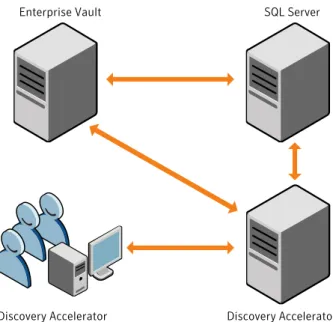
Figure 2-1 Configuration for large installations
Enterprise Vault
Discovery Accelerator clients
Discovery Accelerator server
SQL Server
Discovery Accelerator configuration for smaller installations
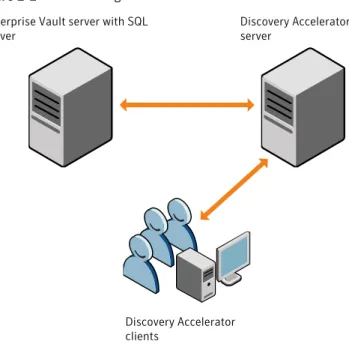
The only difference between the configuration for smaller installations and the configuration for large installations is that, in smaller installations, Enterprise Vault and SQL Server are on the same computer.
Preparing to install Discovery Accelerator Configuration options for Discovery Accelerator 16
Figure 2-2 Configuration for smaller installations
Discovery Accelerator clients
Discovery Accelerator server
Enterprise Vault server with SQL Server
For test purposes, you can run Discovery Accelerator, SQL Server, and Enterprise Vault on the same computer.
Prerequisites for Discovery Accelerator
The computers on which you install SQL Server, the Discovery Accelerator server software, and the Discovery Accelerator client software each have different requirements. The following sections describe these requirements.
For the latest information on supported devices and versions of software, see the Enterprise Vault Compatibility Charts
(http://www.symantec.com/docs/TECH38537).
Prerequisites for the SQL Server computer
The SQL Server computer must be running one of the following versions:
■ SQL Server 2005 SP2 or later (SP3 or later is recommended).
■ SQL Server 2008 x64 Edition, SP1 or later.
■ SQL Server 2008 R2 x64 Edition, original release or later.
Note:For information on the effect that using SQL Server 2008/2012 can have on the analytics facilities in Discovery Accelerator, see the Administrator's Guide.
Prerequisites for the Discovery Accelerator server computer
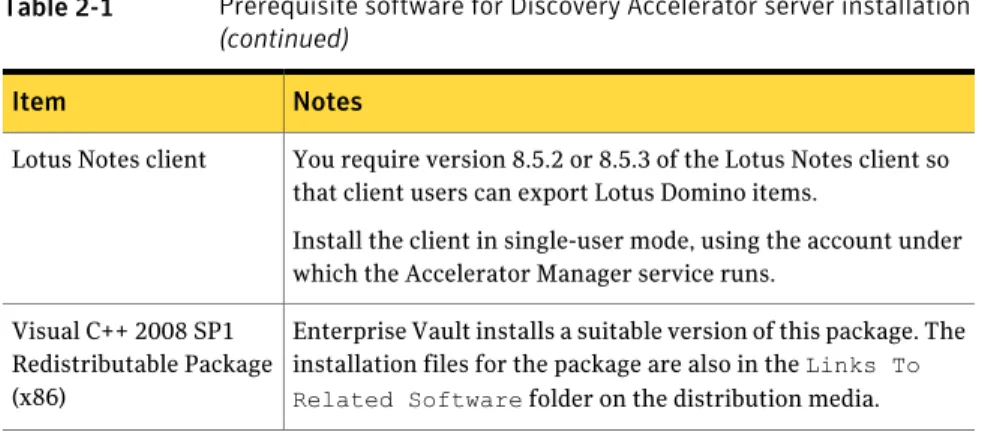
Table 2-1lists the software items that you must install and configure on the computer that is to run the Discovery Accelerator server software.
Table 2-1 Prerequisite software for Discovery Accelerator server installation
Notes Item
You require Windows Server 2008 R2 x64 Edition, original release or SP1.
Windows
You require IIS 7.5 with ASP.NET, IIS 6.0 Management Compatibility, and Windows Authentication.
Internet Information Services (IIS)
You require Internet Explorer 7.0 or later to run the Accelerator Manager website and Custodian Manager website.
For optimum results, do the following:
■ Configure the privacy settings in Internet Explorer to allow cookies.
■ Turn off any pop-up blockers.
■ Ensure that the advanced option Play animations in webpages is selected.
In Internet Explorer, click Internet Options on the Tools menu. Then, on the Advanced tab, locate the required option in the Multimedia category.
Internet Explorer
The installation package for these controls is in theLinks To Related Softwarefolder on the distribution media. Some versions of Windows may display the message "This program has known compatibility issues" when you install the Internet Explorer Web Controls. You can ignore this message, as the Web Controls should still install without problem. Internet Explorer Web
Controls Preparing to install Discovery Accelerator Prerequisites for Discovery Accelerator 18
Table 2-1 Prerequisite software for Discovery Accelerator server installation
(continued)
Notes Item
You require one of the following so that client users can export Exchange Server items in PST format and download the original versions of the items:
■ Outlook 2003 SP2 or SP3.
■ Outlook 2007 SP2.
Add the AttachmentMax and RecipientMax values to the registry on the Discovery Accelerator server to avoid problems when processing items that have many attachments or many recipients. See the following articles on the Microsoft website for more information:
■ Outlook 2003:http://support.microsoft.com/kb/948074
■ Outlook 2007:http://support.microsoft.com/kb/952295 Outlook
If Discovery Accelerator is installed on a separate computer from Enterprise Vault, you must install the Enterprise Vault software on the Discovery Accelerator computer.
As a minimum, you require a 9.0 or 10.0 version of one of the following:
■ Enterprise Vault Services
■ Enterprise Vault API Runtime
There is no need to configure Enterprise Vault after you have installed it on your Discovery Accelerator server computer; do not run the Enterprise Vault configuration wizard. In addition, if the Enterprise Vault Admin service is running on your Discovery Accelerator server computer, we recommend that you stop it and set its startup type to Disabled.
Table 2-1 Prerequisite software for Discovery Accelerator server installation
(continued)
Notes Item
Note the following important points about the version of Enterprise Vault that you install on the Discovery Accelerator server:
■ All Enterprise Vault servers in all Enterprise Vault sites in a Discovery Accelerator environment must run the same version of Enterprise Vault.
For example, when using Discovery Accelerator with two Enterprise Vault installations, you cannot have one site that runs Enterprise Vault 9.0 and another that runs Enterprise Vault 10.0.
■ The major version of Discovery Accelerator must be the same as, or one later than, the major version of Enterprise Vault. For example, you can run Discovery Accelerator 10.0 with Enterprise Vault 9.0 servers, but you cannot run Discovery Accelerator 9.0 with Enterprise Vault 10.0 servers.
■ If the major version of Discovery Accelerator is the same as the major version of Enterprise Vault, the minor version (Service Pack) of Discovery Accelerator must be the same as, or later than, the minor version of Enterprise Vault. For example, you can run Discovery Accelerator 10.0.3 with Enterprise Vault 10.0.2 servers, but you cannot run Discovery Accelerator 10.0.2 with Enterprise Vault 10.0.3 servers. See theCompatibility Chartsfor more information on supported versions of Enterprise Vault.
To search on content with Discovery Accelerator, set indexing on the Enterprise Vault archives to full.
You require Windows Installer 3.1 or later. The installation package for version 3.1 is in theLinks To Related Softwarefolder on the distribution media.
Windows Installer
You require .NET Framework 3.5 SP1 or later.
This is available as a separate download (see theLinks To Related Softwarefolder in the distribution media). We recommend that you do not configure the Discovery Accelerator server to download and install .NET Framework updates automatically from the Windows Update site. Contact Symantec Support before installing such updates.
.NET Framework Preparing to install Discovery Accelerator Prerequisites for Discovery Accelerator 20
Table 2-1 Prerequisite software for Discovery Accelerator server installation
(continued)
Notes Item
You require version 8.5.2 or 8.5.3 of the Lotus Notes client so that client users can export Lotus Domino items.
Install the client in single-user mode, using the account under which the Accelerator Manager service runs.
Lotus Notes client
Enterprise Vault installs a suitable version of this package. The installation files for the package are also in theLinks To Related Softwarefolder on the distribution media. Visual C++ 2008 SP1
Redistributable Package (x86)
For the best results, we recommend that you install the Discovery Accelerator server software on a computer that has the following:
■ 64-bit architecture.
■ At least 4 GB of memory.
■ Sufficient hard drive space to accommodate the searches and export runs that you expect to undertake.
All transaction requests from Discovery Accelerator clients to the Enterprise Vault and Discovery Accelerator servers use the Temp folder of the Vault Service account for temporary storage. Therefore, you must ensure that this folder has sufficient free space to handle large Discovery Accelerator searches and export runs. On both the Discovery Accelerator and Enterprise Vault servers, the Vault Service account's Temp folder must be on a drive that has a minimum of 40 GB of free space. However, 80 GB of free space is preferable. Exclude the Vault Service account's Temp folders from antivirus scanning.
■ Multiple hard drives. For example, you might use drive C for the operating system, drive D for the CD or DVD drive, drive E for the Temp folder of the Vault Service account, and drive F for the export output folder. You might split the Windows paging file across drives E and F.
The Best Practices Guide provides extensive information on the Discovery Accelerator server's hardware requirements. You can obtain this guide from the Symantec Support website athttp://www.symantec.com/docs/TECH159520.
Prerequisites for Discovery Accelerator client computers
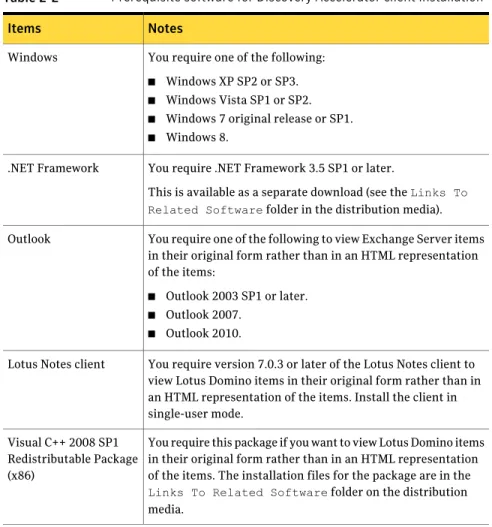
Table 2-2lists the software items that you must install and configure on the computers that are to run the Discovery Accelerator client software.
Table 2-2 Prerequisite software for Discovery Accelerator client installation
Notes Items
You require one of the following:
■ Windows XP SP2 or SP3.
■ Windows Vista SP1 or SP2.
■ Windows 7 original release or SP1.
■ Windows 8. Windows
You require .NET Framework 3.5 SP1 or later.
This is available as a separate download (see theLinks To Related Softwarefolder in the distribution media). .NET Framework
You require one of the following to view Exchange Server items in their original form rather than in an HTML representation of the items:
■ Outlook 2003 SP1 or later.
■ Outlook 2007.
■ Outlook 2010. Outlook
You require version 7.0.3 or later of the Lotus Notes client to view Lotus Domino items in their original form rather than in an HTML representation of the items. Install the client in single-user mode.
Lotus Notes client
You require this package if you want to view Lotus Domino items in their original form rather than in an HTML representation of the items. The installation files for the package are in the Links To Related Softwarefolder on the distribution media.
Visual C++ 2008 SP1 Redistributable Package (x86)
The recommended screen resolution for the Discovery Accelerator client is 1024×768 or higher. For the best results, ensure that your client computers have at least 2 GB of memory.
Setting the Windows and ASP.NET Temp folder
permissions
To enable users to access any of the Discovery Accelerator websites, such as the Accelerator Manager site, you must ensure that the Authenticated Users group has Full Control permissions in the following folders:
Preparing to install Discovery Accelerator
Setting the Windows and ASP.NET Temp folder permissions 22
■ The Windows Temp folder on the Discovery Accelerator server. This folder is typically%windir%\Temp.
■ The ASP.NET Temp folder on the IIS computer. This folder is typically:
%windir%\Microsoft.NET\Framework\version\Temporary ASP.NET Files
64-bit versions of Windows also have the following ASP.NET Temp folder:
%windir%\Microsoft.NET\Framework64\version\Temporary ASP.NET Files To set the Temp folder permissions
1
In Windows Explorer, right-click the folder whose permissions you want to change, and then click Properties.2
Click the Security tab.3
Add Authenticated Users and give them Full Control.4
Click Advanced.5
In the Advanced Security Settings dialog box, ensure that Allow inheritable permissions from parent to propagate to this object is checked.Disabling networking facilities that can disrupt a
Discovery Accelerator environment
The Windows networking subsystem provides a number of facilities that can cause issues in a Discovery Accelerator environment. We recommend that you disable these facilities.
To disable networking facilities that can disrupt a Discovery Accelerator environment
1
Disable the following features on your designated Discovery Accelerator server, Enterprise Vault servers, and all SQL Servers that host an Enterprise Vault database:■ Receive-Side Scaling
■ TCP Chimney
■ TCP Segmentation Offloading
■ TCP/IP Offload Engine
The following article on the Symantec Support website provides instructions on how to disable these features:
http://www.symantec.com/docs/TECH63230
2
Disable any network interface card (NIC) Teaming that may be present on the Enterprise Vault and Discovery Accelerator servers.For guidelines on how to disable NIC Teaming, consult the documentation that your hardware vendor provides.
Configuring the SQL Server Agent service
Discovery Accelerator provides the facility to create schedules with which you can conduct recurrent or future searches for items. As these schedules are SQL Server Agent jobs, you must ensure that the SQL Server Agent service is running on your SQL Server computer.
You must also ensure that the SQL Server Agent service is running if you want to use the analytics facilities in Discovery Accelerator to mark or tag items automatically. For more information on these facilities, see the Administrator's
Guide.
We recommend that you configure the SQL Server Agent service to start automatically when the SQL Server computer starts.
To configure the SQL Server Agent service to start automatically
1
On your SQL Server computer, double-click the Administrative Tools applet in Control Panel.2
Double-click Services.3
Right-click SQL Server Agent, and then click Properties.4
Change the startup type to Automatic, and then click OK.Assigning SQL Server roles to the Vault Service
account
The Vault Service account is the account that Enterprise Vault services and tasks use when accessing Enterprise Vault databases. You must assign a number of SQL Server roles to this account to perform various activities with Discovery Accelerator. The two required roles are as follows:
■ dbcreator (database creator). The facility to create configuration and customer databases with Discovery Accelerator is dependent on the Vault Service account having this role.
■ sysadmin (system administrator). Discovery Accelerator provides the facility to create schedules with which you can conduct searches repeatedly or at some
Preparing to install Discovery Accelerator Configuring the SQL Server Agent service 24
future time. These schedules are SQL Server Agent jobs and, by default, Discovery Accelerator assumes that you want to make a user with the sysadmin role the creator and owner of them.
In addition, you require the sysadmin role to enable Discovery Accelerator cases for analytics.
Note:The dbcreator and sysadmin roles are server-wide roles that may grant more security privileges to the Vault Service account than you are comfortable with. If this is the case, you can give the Vault Service account the minimum required permissions by following the instructions in this article on the Symantec Support website:
http://www.symantec.com/docs/HOWTO80670
Then, after you have installed the Discovery Accelerator client, you must change the value of the security configuration option "Use SQL Server SysAdmin Server Role for Schedules". For instructions on how to do this, see theAdministrator's
Guide.
To assign SQL Server roles to the Vault Service account
1
On the SQL Server computer, start SQL Server Management Studio.2
In the left pane of the SQL Server Management Studio window, expand the tree to display first the required SQL Server and then the Security folder.3
Under the Security folder, double-click Logins to display the users in the right pane.4
In the Logins list, right-click the Vault Service account, and then click Properties.5
In the Login Properties dialog box, select the Server Roles page.Preparing to install Discovery Accelerator
Assigning SQL Server roles to the Vault Service account 26
6
In the Server roles box, make sure that dbcreator and sysadmin are checked.7
Click OK.Verifying that Enterprise Vault expands distribution
lists
In Microsoft Exchange environments, you must ensure that the Enterprise Vault Exchange Journaling Task expands distribution lists in the To, CC, and BCC fields of items.
To verify that Enterprise Vault expands distribution lists
1
Open the Enterprise Vault Administration Console.3
Right-click the required policy, and then click Properties. For example:4
Click the Advanced tab, and then check the value for the Expand distribution lists setting.5
If you need to change the value for the setting, do the following:■ Click Modify.
■ Change the value to On.
■ Click OK in each dialog box to save the change that you have made.
■ Restart the Journaling task to put the change into effect.
Preparing to install Discovery Accelerator
Verifying that Enterprise Vault expands distribution lists 28
Installing Discovery
Accelerator
This chapter includes the following topics:
■ Installing the Discovery Accelerator server software
■ Installing the Discovery Accelerator client software
Installing the Discovery Accelerator server software
Follow the instructions in this section to perform a first-time installation of the Discovery Accelerator server software. If you want to upgrade an existing Discovery Accelerator installation, see theDAUpgradeInstructionsfile.
Before you proceed, note the following restrictions on where you can install the server software:
■ Installing this software on a computer on which you have also installed the Compliance Accelerator server software is not supported.
■ You can configure Discovery Accelerator for use in a Network Load Balancing cluster. However, installing the software on the nodes in other types of clusters is not supported.
See“Installing Discovery Accelerator in a clustered environment”on page 45.
To install the Discovery Accelerator server software
1
Load the release media, and then do one of the following:■ When the Install Launcher starts, follow the links to install the Discovery Accelerator server software.
3
Chapter
■ In Windows Explorer, browse to theSymantec Enterprise Vault Discovery Accelerator\Serverfolder, and then start the installation
program that is in the appropriate language folder.
The file name of the installation program isSymantec Enterprise Vault Discovery Accelerator Server-language.msi.
2
Follow the on-screen instructions, which prompt you to submit information at several points.■ Choose between the following setup types:
Installs all the components. This option is recommended for most users.
Typical
Lets you select the components to install. For example, you can choose to install the Enterprise Vault Accelerator Manager service but not the Custodian Manager website or Discovery Accelerator API website.
Custom
■ If you are prompted for details of the account under which to run the Enterprise Vault Accelerator Manager service, enter the details of the Vault Service account with which you manage your Enterprise Vault server.
Installing Discovery Accelerator
Installing the Discovery Accelerator server software 30
3
If you have chosen to install the Accelerator Manager service then, when the installation program has finished, check the option to display the Enterprise Vault Accelerator Manager website. Then you can create the configuration database and customer databases.The installation program automatically opens the Accelerator Manager website with administrator privileges if you have installed Discovery Accelerator on a server in which User Account Control (UAC) is enabled. (This is a requirement when accessing the website in such environments.) If UAC is not enabled, a Run As dialog box may prompt you for the name and password of the user account under which to access the website. Enter the details of the Vault Service account with which you manage your Enterprise Vault server.
See“Creating the configuration database and customer databases”on page 32.
4
If you want to use the Legal Hold facility to stop users from deleting items from their archives, you must install a Discovery Accelerator license on each storage server in your Enterprise Vault site. To install the license, find the Enterprise Vault license key file on each server, and open it in a text editor. Then paste into the file the Discovery Accelerator license key with which you have been provided.The following is a typical example of a key:
<key>
<name>EVDA</name> <version>1.0</version>
<start_date>2009-05-28</start_date> <end_date>2010-12-31</end_date> <warn_policy>1,07</warn_policy> </key>
Contact Symantec Corporation to obtain your license key, if you do not already have it.
Allowing Enterprise Vault to communicate with Discovery Accelerator
through the firewall in Windows Server 2008 R2
If you have installed the Discovery Accelerator server software on a Windows 2008 R2 computer, you must configure the Windows firewall to permit Enterprise Vault to communicate with Discovery Accelerator through it. Certain interactions between the Enterprise Vault server and the Discovery Accelerator server require unrestricted communication. You can allow Enterprise Vault to communicate with Discovery Accelerator through the Windows firewall by adding the Accelerator service process to the exceptions list for the firewall.
You must be logged on to the computer as an administrator to complete this procedure.
To allow Enterprise Vault to communicate with Discovery Accelerator through the firewall in Windows Server 2008 R2
1
Click the Windows Start menu, and then click Control Panel.2
Click System and Security, and then click Windows Firewall.3
Click Allow a program or feature through Windows Firewall.4
Click Change settings, and then click Allow another program.5
Click Browse, and then browse to the Discovery Accelerator program folder (typically,C:\Program Files (x86)\Enterprise Vault Business Accelerator).6
ClickAcceleratorService.exe, and then click Open.7
Click Add, and then click OK.Creating the configuration database and customer databases
After you have installed the Discovery Accelerator server software, you must set up the required configuration and customer databases with the Accelerator Manager website.
The configuration database specifies the locations of the customer databases, and it stores details of the SQL Server, database files, and log files to use. Each customer database stores details of cases, user roles, search results, review marks and tags, and more.
You can set up one configuration database only, but you can set up multiple customer databases. The configuration database can reside on one SQL Server, and the customer databases can reside on a different SQL Server. You may find it useful to set up multiple customer databases if, for example, you want to separate the groups who are to perform searches in Discovery Accelerator. Suppose that your legal department and human resources department both need to perform searches. These two departments may not be able to share roles in a Discovery Accelerator system. Setting up two customers lets both departments use Discovery Accelerator without needing access to the same Discovery Accelerator setup. Before you proceed, note the following:
■ If you have installed Discovery Accelerator on a server in which User Account Control (UAC) is enabled, you must open the Accelerator Manager website with administrator privileges. Right-click the Internet Explorer shortcut on the Windows Start menu and then click Run As Administrator.
Installing Discovery Accelerator
Installing the Discovery Accelerator server software 32
■ If Symantec Endpoint Protection is running on your Discovery Accelerator server, we recommend that you shut it down temporarily.
See“Cannot create or upgrade Discovery Accelerator customer databases when Symantec Endpoint Protection is running”on page 64.
To create the configuration database
1
If you have yet to display the Accelerator Manager website, start Internet Explorer and browse to the following location:http://server_name/EVBAAdmin
where server_name is the name of the server on which you installed the Discovery Accelerator server software.
2
In the Configuration Database Details page, enter your preferred details, and then click OK.Specifies the name or IP address of the SQL Server computer. You can specify the IP address in either IPv4 or IPv6 format. SQL instances are supported. SQL Server
Specifies the name of the configuration database. The name cannot contain any of the following characters: \ / : * ? " < > | '
Note:Compliance Accelerator and Discovery Accelerator cannot share the same configuration database. So, if you previously created the
configuration database for one application, you must create a new database with a different name when setting up the other application.
Database name
Instructs Discovery Accelerator to use the specified existing database instead of creating a new one. If you choose this option, the remaining boxes in the page are unavailable.
Use Existing Database
Specifies a location for the configuration database file. This location should be a valid, existing path on the SQL Server computer, and it must be a local path (not a network share path). For example, you might specify the path asE:\SQLData. A minimum of 300 MB is required for the default configuration database. Data File Folder
Specifies a location for the database log files. This location should be a valid, existing path on the SQL Server computer, and it must be a local path (not a network share path). For example, you might specify the path asF:\SQLLogs. A minimum of 300 MB is required for the database log files.
Log File Folder
Sets the initial size in megabytes of the configuration database file. In the Growth % box, you can specify as a percentage of the file size the amount of space that is automatically added to the file each time more is needed.
Initial Database Size
Sets the initial size in megabytes of the database log files. In the Growth % box, you can specify as a percentage of the file size the amount of space that is automatically added to a file each time more is needed. Initial Log Size
3
When Discovery Accelerator prompts you to do so, restart the Enterprise Vault Accelerator Manager service by using the Services snap-in to Microsoft Management Console.4
In the Accelerator Manager website, click Upload License to import your license key file into Discovery Accelerator.To create the customer databases
1
In the left pane of the Accelerator Manager website, right-click the server node, and then click New Customer.2
Complete the details in the Create Customer page, and then click OK.Specifies whether this database is a customer database for Discovery Accelerator or Custodian Manager. Customer Type
Specifies a unique name for the customer. The name cannot contain any of the following characters: \ / : * ? " < > | '
Name Installing Discovery Accelerator
Installing the Discovery Accelerator server software 34
Specifies the DNS alias, server name, or IP address of the Enterprise Vault Directory service computer. You can specify IP addresses in either IPv4 or IPv6 format. If you want to specify multiple Directory service computers, type the details of each one on a line of its own. All the computers must be running exactly the same version of Enterprise Vault.
Take care to specify the correct DNS alias information. If the information is wrong, no vault stores will be visible in any area of the Discovery Accelerator client. Directory DNS aliases
Optionally nominates an Active Directory user account or group account as an administrator for the Discovery Accelerator customer database. This user or group has full administrative permissions in the customer database and typically assigns application-wide roles to other users. Specify the account details in the form domain\user_or_group_name; for example,
"OurDomain\Marie.Lopez".
Note that the Vault Service account already has full administrative permissions in the customer database, so there is usually no need to nominate another user or group. However, you may want to do this if your company policy restricts the use of service accounts. Administrator User or Group
Enables users to perform activities in the Discovery Accelerator client. If you uncheck this option, only automatic tasks like scheduled searches are permissible.
Enable Customer's tasks
IIS section
Specifies the name of the IIS virtual directory for the Discovery API website. This site lets software developers integrate third-party tools with Discovery Accelerator, and thereby retrieve data from or export it to a Discovery Accelerator customer database. No two customers can share the same virtual directory name. The directory name must not include space characters or any of the following characters: * ? \ / % ' "
Note that you cannot name the virtual directory for any Discovery Accelerator customer as "EVBAAdmin", because this name is reserved for the Accelerator Manager website.
Specifies the name or IP address of the IIS server that is to host the Discovery Accelerator site. You can type the IP address in either IPv4 or IPv6 format. However, you cannot type an IPv6 address that includes colons (:) or is enclosed in square brackets ([]).
The default entry for this field is the server on which you are running the Accelerator Manager website. IIS Server
Lets you administer the virtual directory by using the Discovery Accelerator client. By default, the option is checked.
Manage Virtual Directory
Database Details section
Specifies the name or IP address of the SQL Server on which the customer database is to reside. You can specify the IP address in either IPv4 or IPv6 format. The default entry for this field is the server on which you are running the Accelerator Manager website. SQL Server
Specifies the name of the customer database. The name cannot contain any of the following characters: \ / : * ? " < > | '
Database
Instructs Discovery Accelerator to use the specified existing database instead of creating a new one. If you check this option, many of the remaining boxes in the page become unavailable. By default, the option is not checked.
Use Existing Database
Specifies a location for the customer database file. This location should be a valid, existing path on the SQL Server computer, and it must be a local path (not a network share path). For example, you might specify the path asE:\SQLData.
Data File Folder
Specifies a location for the database log files. This location should be a valid, existing path on the SQL Server computer, and it must be a local path (not a network share path). For example, you might specify the path asF:\SQLLogs.
Log File Folder
Sets the initial size in megabytes of the customer database file. In the Growth % box, you can specify as a percentage of the file size the amount of space that is automatically added to the file each time more is needed.
Initial Database Size Installing Discovery Accelerator
Installing the Discovery Accelerator server software 36
Sets the initial size in megabytes of the database log files. In the Growth % box, you can specify as a percentage of the file size the amount of space that is automatically added to a file each time more is needed. Initial Log Size
Specifies whether to use a Microsoft Windows user account to connect to the customer database. If you uncheck this option, you must set the SQL logon name and password to use for the database connection. Windows Authentication
Specifies the amount of time in seconds to wait for connections to the customer database to complete before terminating the attempt and generating an error.
Connection Time Out
Specifies the time in seconds that a connection to the customer database is considered valid. When the time has elapsed, the connection is disposed of.
Connection Life Time
Specifies the maximum number of database
connections that can be simultaneously opened to the customer database.
Max Pool Size
Specifies the full connection string, or Data Source Name (DSN), to use when connecting to the customer database. The process of creating and connecting to the database automatically fills in this field. Do not modify the details unless Symantec Support advises you to do so.
DSN
Database Locations For Analytics section
This area of the page lists existing database locations for analytics data, and lets you add new database locations. You must specify at least one database location for analytics. If you do not intend to use the analytics feature with this customer, use the default database location.
See“Configuring analytics database locations”on page 37.
3
Wait for Discovery Accelerator to create the customer database. This process can take several minutes to complete.4
Repeat steps1through3for each customer database that you want to create.Configuring analytics database locations
When you enable a case for analytics, Discovery Accelerator must fetch all the case items from Enterprise Vault into the customer database, and index them. This requires a large amount of disk space. Discovery Accelerator lets you define
locations to host the analytics table file groups and indexes. You can add more locations when you need more disk space.
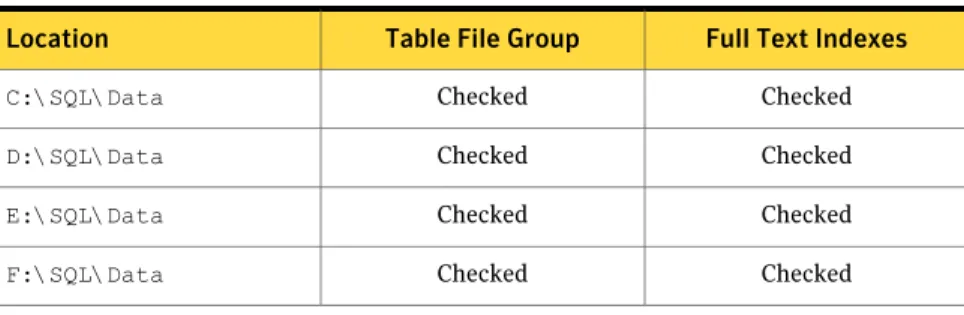
The Customer page of the Accelerator Manager website lists existing analytics database locations, and lets you add more. Next to each location, check marks in the Table File Group and Full Text Indexes columns show whether the location is used for table files, search indexes, or both.
When you plan and configure analytics database locations, consider the following:
■ The volume of data. The collection and indexing of analytics data can generate very large databases and index files. As a rough guide, collecting one million items that are all 20 kilobytes in size can produce a database that is 40 gigabytes or more in size. However, this can vary from one environment to another. The Best Practices Guide for Discovery Accelerator provides extensive information on how to size your Discovery Accelerator databases appropriately. You can obtain this guide from the Symantec Support website at
http://www.symantec.com/docs/TECH159520.
■ Performance. Host each database location on a physically separate disk. If you have more than one analytics database location, Discovery Accelerator uses them in rotation to spread the data and the disk access requirements. Each Discovery Accelerator case uses only one location for the search index and one location for the database.
The following examples show two valid configurations for analytics database locations.
Table 3-1 Analytics database locations: example 1
Full Text Indexes Table File Group
Location Checked Checked C:\SQL\Data Checked Checked D:\SQL\Data Checked Checked E:\SQL\Data Checked Checked F:\SQL\Data
Table 3-2 Analytics database locations: example 2
Full Text Indexes Table File Group
Location Checked Unchecked C:\SQL\Data Checked Unchecked D:\SQL\Data Unchecked Checked E:\SQL\Data Installing Discovery Accelerator
Installing the Discovery Accelerator server software 38
Table 3-2 Analytics database locations: example 2 (continued)
Full Text Indexes Table File Group
Location
Unchecked Checked
F:\SQL\Data
To add a database location for analytics
1
Browse to the Accelerator Manager website.2
Right-click the appropriate customer, and then click Properties.3
Under Database Locations For Analytics, click New Location.4
Enter the path to the new database location. Note the following:■ The database locations must reside on the SQL server, and you must use local paths to refer to them. For example, do not use UNC paths to refer to database locations.
■ The Accelerator Manager website does not verify that the specified locations exist. You must ensure that the paths are valid.
5
Check Table File Group, Full Text Indexes, or both.6
Click OK next to the new location.7
Repeat steps3through6if you want to add more database locations.Setting up a Custodian Manager website
Custodian Manager is a browser-based application with which you can store the details of the custodians (individual employees) and custodian groups for which you want to search with Discovery Accelerator. A custodian group is any collection of employees, such as Windows or Domino groups and distribution lists, Active Directory or Domino LDAP searches, and Active Directory containers. After you have added the custodians and custodian groups to Custodian Manager, you can pick from them when you define the criteria for a Discovery Accelerator search.
Note:A Discovery Accelerator configuration database can have one Custodian Manager website only. All customers that share the configuration database share Custodian Manager.
To set up a Custodian Manager website
1
Open the Accelerator Manager website.If you have installed Discovery Accelerator on a server in which User Account Control (UAC) is enabled, you must open the Accelerator Manager website with administrator privileges.
2
Right-click the server node in the left pane, and then click New Customer.3
In the Create Customer page, set the customer type to Custodian Manager.4
Enter your preferred IIS and SQL database details, and then click OK.5
Browse to the Custodian Manager website that you have just created. The address of this website takes the following form:http://server_name/virtual_directory For example:
http://server2/EVBACustodianManager
6
Use the facilities in Custodian Manager to create and manage the custodians and custodian groups. For instructions on how to do this, see theAdministrator's Guide and the online Help for Custodian Manager.
Assigning the required Active Directory permissions to the
Custodian Manager synchronization account
By default, Custodian Manager uses the account under which the Accelerator Manager service is running when it synchronizes custodians and custodian groups with the corresponding Active Directory accounts. However, if you prefer, you can nominate a different account on a per-domain basis.
For instructions on how to specify a different user account for synchronization purposes, see the Administrator's Guide.
The nominated synchronization account must have certain delegated permissions to query the Active Directory domain.
To assign the required delegated permissions to the Custodian Manager synchronization account
1
Open Active Directory Users and Computers.2
Right-click the domain object, and then select Delegate Control.3
In the Delegation of Control Wizard, click Next, and then click Add.4
In the Select Users, Computers, or Groups dialog box, enter the required account name, and then click OK, and then click Next.Installing Discovery Accelerator
Installing the Discovery Accelerator server software 40
5
In the Tasks to Delegate page, in Delegate the following common tasks, check the following tasks, and then click Next:■ Read all user information
■ Read all inetOrgPerson information
6
Click Finish.The Custodian Manager synchronization account must also have List Content and Read Property permissions on the Deleted Objects container in Active Directory. Without these permissions, it is not possible to deactivate any custodians and custodian groups whose Active Directory details have been moved to the Deleted Objects container.
The following article on the Microsoft website provides detailed instructions on how to view and set permissions on the Deleted Objects container:
http://technet.microsoft.com/en-us/library/cc816824(WS.10).aspx
Note:You require a recent version of thedsaclscommand-line utility to complete
the instructions in this article. Some older versions of the utility do not support all the required commands.
In brief, the procedure is as described below.
To give the Custodian Manager synchronization account access to the Deleted Objects container in Active Directory
1
On the Windows Start menu, right-click Command Prompt and then click Run as administrator.2
Take ownership of the Deleted Objects container by running thedsaclscommand-line utility, as follows:
dsacls deleted_objects_dn /takeownership
where the parameters are as follows:
The distinguished name of the Deleted Objects container.
deleted_objects_dn
Take ownership of the Deleted Objects container. /takeownership
dsacls "CN=Deleted Objects,DC=Contoso,DC=com" /takeownership
3
Grant the List Content and Read Property permissions to the user account under which Custodian Manager synchronizes custodians and custodian groups, as follows:dsacls deleted_objects_dn /G user_or_group:permissions
where the parameters are follows:
The distinguished name of the Deleted Objects container.
deleted_objects_dn
The user or group to whom the permissions apply.
user_or_group
The permissions to grant. For List Content and Read Property, specify the permissions as LCRP.
permissions
For example:
dsacls "CN=Deleted Objects,DC=Contoso,DC=com" /G CONTOSO\VaultAdmin:LCRP
Uploading the Discovery Accelerator report templates
Using Microsoft SQL Server Reporting Services as the reporting mechanism, Discovery Accelerator provides extensive facilities for monitoring the details of a case and validating compliance with discovery requests. For information on the available reports and guidelines on how to use them, see the Administrator's
Guide.
To make the reports available to users of the Discovery Accelerator client, you must upload the supplied template (.rdl) files to your SQL reporting server. The
template files contain data retrieval and layout information for their respective reports in XML format.
Note:Any reports that you used with Discovery Accelerator 2007 or earlier are not suitable for use with Discovery Accelerator 10.0.
To upload the Discovery Accelerator report templates
1
If you have not already done so, install and configure SQL Server Reporting Services on the selected reporting server.You can check the configuration of SQL Server Reporting Services by using the Reporting Services Configuration Manager on the reporting server. Make a note of the virtual directory name on the Web Service URL page, as you
Installing Discovery Accelerator
Installing the Discovery Accelerator server software 42
need to specify this name later. The default name of the virtual directory is ReportServer.
The following figure shows the typical settings in a Web Service URL page.
2
On the SQL reporting server, assign the following roles to the Vault Service account:■ The System Administrator role on the SQL reporting server.
You can assign this role by using the browser-based Report Manager tool that comes with SQL Server. First click Site Settings on the global toolbar in Report Manager and then click Security. Then click New Role Assignment and assign the System Administrator role to the Vault Service account.
■ The Content Manager role on the Home folder of the SQL reporting server. To assign this role in Report Manager, click Security on the Properties tab for the Home folder. Then click New Role Assignment and assign the Content Manager role to the Vault Service account.
See the Microsoft Reporting Services documentation for more information.
3
On the Discovery Accelerator server, open the Accelerator Manager website.4
Click Reporting Server at the bottom of the page. The Uploading Reporting Server Templates page appears.5
In the Reporting Server URL field, type the URL with which you access the SQL reporting server in the following form:http://server_name/virtual_directory
where server_name is the host name, fully qualified domain name, or IPv4 or IPv6 address of the SQL reporting server, and virtual_directory is the name of the required virtual directory. For example:
http://EVSQL/ReportServer Note the following:
■ If you have multiple SQL Server instances, type the URL in the following form:
http://server_name/virtual_directory$instance_name
■ If you have configured the SQL reporting server to listen for HTTP requests on a port other than the default, 80, type the URL in the following form: http://server_name:port_number/virtual_directory
6
In the User Name field and Password field, type the credentials for the Vault Services account. By doing so, you identify the Vault Services account as the owner of all exchanges between the Discovery Accelerator server and SQL reporting server.Caution:The Accelerator Manager website does not authenticate the logon credentials that you enter, so it is important to enter the correct ones. If you omit the credentials or enter the wrong ones, Discovery Accelerator client users receive the error message "An error occurred creating the report" when they try to generate reports.
7
Click Upload Reports.Note that it can take several minutes to upload the report templates to the server. A confirmation message appears when the process has completed.
Installing Discovery Accelerator
Installing the Discovery Accelerator server software 44
Installing Discovery Accelerator in a clustered environment
Symantec does not support installing the Discovery Accelerator server software on any node in a Windows Server failover cluster or Veritas Cluster Server (VCS) cluster. So, if you have configured Enterprise Vault for use in a cluster, you must not install the server software on one of the cluster nodes. However, an unclustered Discovery Accelerator installation can reference a clustered Enterprise Vault virtual server.
In addition, you can enhance the scalability, performance, and high availability of Discovery Accelerator by configuring it for use in a Network Load Balancing cluster.
Configuring Discovery Accelerator for use in a Network Load
Balancing cluster
Network Load Balancing (NLB) is a clustering technology that Microsoft offers as part of Windows Server 2008 R2.
NLB balances the network traffic across all the nodes in a cluster, which work together to run a common set of applications and provide the image of a single system to client users. NLB helps to enhance the scalability and performance of Discovery Accelerator by distributing client requests across the nodes in the cluster; background Discovery Accelerator tasks are unaffected. It also provides high availability by detecting node failures and automatically redistributing traffic to operational nodes.
The process of setting up an NLB cluster requires you to specify a virtual name or IP address for the cluster. When they start the Discovery Accelerator client, your users must specify this virtual name or address as the server to which they want to connect.
For more information on load balancing, see the Best Practices Guide. This is available from the following page of the Symantec Support website:
http://www.symantec.com/docs/TECH159520
To configure Discovery Accelerator for use in an NLB cluster
1
Ensure that each node that you want to include in the NLB cluster has a fixed IP address.If you do not have these fixed addresses, you can obtain them from your network administrator.
2
Use the Network Load Balancing Manager that comes with Windows to set up and manage the cluster.Consult the documentation that accompanies Network Load Balancing Manager for guidelines on how to do this.
3
Install the Discovery Accelerator server software on each node in the cluster. As a minimum, you must install the Enterprise Vault Accelerator Manager service on each node.Maximizing security in your Discovery Accelerator databases
By default, the Vault Service account owns all the Discovery Accelerator databases and can access all the objects in them. To maximize security in your SQL Server environment, you may want to change the ownership of each database and revoke many of the Vault Service account's access privileges. The following article on the Symantec Support website describes how to perform these activities:
http://www.symantec.com/docs/HOWTO80670
Installing the Discovery Accelerator client software
Caution:The version of the client software that you install on your users' computers must exactly match that of the Discovery Accelerator server software on the Discovery Accelerator server.
The Discovery Accelerator release media include two packages with which you can install the client software on your users' computers:
■ A standard Windows Installer (.msi) package.
■ A ClickOnce installation package. ClickOnce is a Microsoft technology that lets users install a Windows application by clicking a link in a webpage. One advantage of using the MSI installer package is that it lets you install the client software on a per-user or per-machine basis, whereas ClickOnce installations are on a per-user basis only. On the other hand, ClickOnce provides the ease of deployment of web applications and makes it simple to distribute updates to the Discovery Accelerator client.
Note:You cannot use both packages to install or upgrade the Discovery Accelerator client on the same computer.
Installing Discovery Accelerator
Installing the Discovery Accelerator client software 46