Dr. Will Styler
Document Version: 1.6.1 Last Update: October 29, 2015
Important!
This document will be continually updated and improved. Download the latest version at:
http://savethevowels.org/praat
Using Praat for Linguistic Research by Will Styler is licensed under a Creative Commons Attribution-ShareAlike 3.0 Unported License. For more information on the specifics of this
Contents
1 Version History 4
2 Introduction 6
2.1 Versions . . . 6
2.2 Other Resources . . . 6
2.3 Getting and Installing Praat . . . 7
2.4 Using this guide . . . 7
3 About Praat 7 3.1 Praat Windows . . . 7
4 Recording Sounds 9 5 Opening and Saving Files} 10 5.1 Opening Files . . . 10
5.1.1 Working with longer sound files . . . 10
5.2 Saving Files . . . 10
6 Phonetic Measurement and Analysis in Praat 11 6.1 Working with Praat Waveforms and Spectrograms . . . 11
6.1.1 Pulling out a smaller section of the file for analysis . . . 12
6.2 Adjusting the Spectrogram settings . . . 13
6.2.1 Narrowband vs. Broadband Spectrograms . . . 14
6.3 Measuring Duration . . . 14
6.3.1 Measuring Voice Onset Time (VOT) . . . 14
6.4 Examining and measuring F0/Pitch . . . 15
6.4.1 Measuring F0 from a single cycle . . . 15
6.4.2 Viewing Pitch via a narrowband spectrogram . . . 15
6.4.3 Using Praat’s Pitch Tracking . . . 16
6.4.4 Improving Pitch tracking by changing the Pitch Settings . . . 16
6.4.5 Scripting: Creating a Pitch Object . . . 17
6.4.6 Getting Maximum, Minimum, and Average pitch for a section of speech . . . 18
6.5 Measuring Pulses, Jitter, Shimmer, and Harmonics-to-noise ratio . . . 18
6.6 Measuring Formants . . . 19
6.6.1 Using the Formant tools in the Editor window . . . 19
6.6.2 Improving Formant Finding results . . . 19
6.6.3 Scripting Only: Formant Objects . . . 21
6.7 Measuring Intensity/Amplitude . . . 22
6.7.1 Units of Intensity (dB vs. Pascal) . . . 22
6.8 Working with Spectra . . . 23
6.9 Taking a spectral slice . . . 23
6.11 Measuring Creakiness and Breathiness using Spectral Tilt . . . 24
6.12 Measuring Nasality using A1-P0 . . . 25
6.13 Measuring Spectral Center of Gravity . . . 28
7 Creating and manipulating sound Files in Praat 29 7.1 Creating sounds from Formula . . . 29
7.2 Cropping, Copying, Splicing and Pasting . . . 29
7.3 Sampling rates and Resampling . . . 30
7.4 Filtering Sounds . . . 31
7.4.1 Low-pass filtering . . . 31
7.4.2 High-pass filtering . . . 31
7.4.3 Band-pass (notch) filtering . . . 31
7.5 Manipulating Spectral Tilt . . . 32
7.6 Pitch Manipulation (To Manipulation…) . . . 32
7.7 Matching the pitch tracks of two sounds . . . 33
7.8 Manipulating Duration (Slowing Down and Speeding Up Sounds) . . . 34
7.8.1 Modifying Duration by Script . . . 35
7.9 Matching Intensity . . . 35
7.10 Combining Sounds . . . 35
7.11 Formula Modification: Waveform addition, subtraction and so much more . . . 36
7.12 Synthesizing Sounds from scratch . . . 38
7.13 Source-Filter Vowel Resynthesis . . . 38
8 Exporting images for use and publication 40 8.1 Creating Complex Displays . . . 42
8.1.1 Overlaying Plots . . . 43
8.1.2 Multiple Plots in the Picture Window . . . 43
9 Annotating Sound Files (Praat TextGrids) 45 10 Using Log Files 46 11 Scripting in Praat 48 11.1 What is Praat scripting? . . . 48
11.1.1 Praat Scripting Alternatives for common tasks . . . 50
11.1.2 Praat’s scripting tutorials . . . 51
11.1.3 Praat scripts vs. Editor scripts . . . 51
11.2 Working with Scripts . . . 52
11.2.1 Opening and running a Praat script . . . 52
11.2.2 Making (and removing) Menu Shortcuts for scripts . . . 52
11.2.3 “The Praat script I downloaded won’t run!” . . . 54
11.3 Creating a new script . . . 56
11.3.1 Using other text editors . . . 56
11.3.2 Filenames . . . 57
11.3.4 How to magically write a Praat script (using the Praat “history” function) . . 58
11.3.5 Writing your first single-command script . . . 60
11.3.6 Scripts with Variables . . . 60
11.4 About the Praat Scripting Language . . . 62
11.4.1 ‘for’ loops . . . 62
11.4.2 ‘if’ statements . . . 63
11.4.3 ‘while’ loops . . . 64
11.4.4 Forms . . . 64
11.4.5 Commented lines (#) . . . 68
11.4.6 Scaling scripts up: nowarn, noprogress, and avoiding the editor window . . . 68
11.4.7 Useful tips . . . 69
11.4.8 Everything Else . . . 70
11.5 In defense of Code Cannibalism . . . 71
11.6 Closing Remarks on Praat scripting . . . 71
12 Advanced Techniques 72 12.1 Getting Amplitude Envelopes and AM Demodulation in Praat . . . 72
12.2 Breaking the “Sound” barrier: Working with analytical “sounds” in Praat . . . 74
13 Conclusion 77
1 Version History
• 1.6.1 - October 29th, 2015 - Added some dire-sounding warnings about the need to update Praat regularly, in part reflecting the fact that we’re now up to Version 6. Also added Section 11.2.3, which discusses some common ways of fixing things when a Praat script you’ve downloaded from the internet simply won’t run.
• 1.6 - July 5th, 2015 - Added Section 12: “Advanced Techniques”, including (initially) Am-plitude Envelopes, AM Demodulation, and using Praat Sounds for non-acoustic data. Also added a needlessly florid conclusion, to appease my sense of symmetry.
• 1.5.1 - April 30th, 2015 - Added a quick tip about closing Editor Windows generated by script to Section 11.4.7.
• 1.5 - February 2015 - Added “Script tips!” to various parts of the document to aid in au-tomating these tasks, and added sample code for modifying duration. Completely re-typeset for easier maintenance. Modified some notes about A1-P0, added some scripting detail, and made lots of small revisions for easier understanding.
• 1.4.9 - January 22nd, 2015 - Added a brief description of modifying Spectral Tilt in Praat • 1.4.8 - November 28th, 2014 - Added a section discussing tasks best done outside of Praat
and the best free alternative tools (Section 11.1.1), gave stern warnings regarding the use of H1-H2 for creak/breathiness (Section 6.11), the use of LongSound files (Section 5.1.1). Added a shameless plug for the author’s dissertation research to Section 6.12, and revised
the Code Cannibalism section to include a link to the author’s Github page containing many tasty scripts.
• 1.4.5 - March 6, 2014 - Made a number of clarifications, improvements, fixes, and updates to the scripting section (11) based on (wonderful) feedback from José Joaquín Atria. Thanks, José! Also, added brief discussion and URLs for various forced-alignment tools in the intro to Section 11.
• 1.4.2 - January 16, 2014 - Added Section 11.4.6, discussing nowarn, noprogress, and other ways to speed up your scripting on large datasets.
• 1.4.1 - January 10, 2014 - Fixed a few typoes and updates based on Gareth Walker’s feedback. Thanks Gareth!
• 1.4 - December 9, 2013 - Added discussion of the shift in command syntax in newer versions of Praat (Section 11.3.3). Added discussion of units of intensity, addressing the Pascal vs. dB issues some of my students were having (Section 6.7.1). Added further warning, admonition, doom and gloom to Section 6.12 about A1-P0 as a measure of nasality, which, sadly, is complicated. Updated the “Reasonably Recent” Praat version number to encourage people to upgrade. Added quick code example for finding odd and even numbers in a Praat script to Section 11.4.7. Added a brief discussion of “while” loops (Section 11.4.3).
• 1.3.6 - October 2, 2013 - Added discussion of the smoothing of the intensity line and its relation to the pitch track in Praat.
• 1.3.5 - March 22, 2013 - Updated License for the Manual. A few typoes squashed.
• 1.3 - September 28th, 2012 - Added Section 7.7, Manipulating Duration with explanations of how to slow and speed sound files
• 1.2.5 - August 10th, 2012 - Added discussion of Praat Picture for more complex displays • 1.2 - May 19th, 2012 - A few small tweaks, added a section on measuring Voice Onset Time • 1.1.1 - January 2nd, 2012 - A few other small corrections based on Paul Boersma’s feedback. • 1.1 - January 1st, 2012 - Updated with Paul Boersma’s valuable feedback and a variety of
small corrections.
• 1.0.2 - July 14th, 2011 - Removed some typoes and fixed other small issues.
• 1.0.1 - July 10th, 2011 - Updated to include instructions on removing scripts from Buttons. • 1.0 - July 10th, 2011 - Version created for LSA Institute Workshop on Praat.
2 Introduction
Praat is a wonderful software package written and maintained by Paul Boersma and David Weenink of the University of Amsterdam. Available for free, with open source code, there is simply no bet-ter package for linguists to use in analyzing speech.
Unfortunately, much of the existing documentation for the software is just that, software docu-mentation, and is not designed to help linguists (who may not necessarily consider themselves to be “phoneticians” or have a strong phonetics background) get the measurements and make the changes that they need and desire for their research.
As such, rather than introducing each menu item and function as such, I’ve instead chosen to describe how to do some of the tasks that linguists want to do without assuming a strong phonet-ics or programming background. Then, eventually, we’ll discuss some of the more complicated measures and tricks one can perform with Praat.
Of course, no one workshop can discuss the myriad of features present in Praat, nor cover all of the quirks of the package, but this workshop will hopefully leave you feeling more at home in Praat, and give you an opportunity to go forth and explore further on your own.
2.1 Versions
This guide is kept up to date, so that all code and commands will work in the latest version of Praat (6.0, at the time of writing). Download the latest version right now before getting started with this guide, and in the future, you should start any given project by downloading the latest version fromhttp://praat.org. Paul Boersma isexceptionallygood about not breaking old functionality,
andnot using the latest version of Praat is the most common cause of issues when trying to run scripts or following online tutorials, so please do stay up to date!
All screenshots here are from Praat 5.3.60 running on Mac OS X, but your copy on your platform should not differ significantly. Unless otherwise specified, workflows for making measurements and manipulations do not differ significantly across platforms and versions, and any version-specific issues are mentioned there.
2.2 Other Resources
Although this guide aims to be painfully comprehensive, there are many other resources available for helping with Praat. The first step for dealing with any issue is Praat’s built in help guide, accessible from the upper right corner of most windows in the program. You’ll be best served by starting with “Intro” and moving from there.
There are also a variety of tutorials for Praat available online, and the Yahoo! Groups “Praat-users” group, whose archives can be searched at the below link:
You will want to search the archives before posting, as there are likely a great many people who have had your question before in the history of the software.
2.3 Getting and Installing Praat
Praat can be downloaded from http://www.praat.org, and its installation will vary depending
on your platform.
• Mac OS X - Just drag Praat into your Applications folder.
• Windows - Download the installer and run it, and a link to the program will be placed on your desktop.
• Linux - If you’re running Linux, you’ll be able to figure out the install on your own. Many distributions have Praat as an installable package in their repositories, but check the version numbers, as you won’t want anything older than 5.2.x, and many scripts will want versions newer than 5.4.
2.4 Using this guide
This guide is meant to be useful both to people just starting with the Praat program, and to experienced users who are getting deeper into Praat scripting.
If this is your first exposure to Praat, you can and should ignore all of the “Scripting” sections and “Script tips!” bubbles. That’s meant for people who want to automate what they’re doing over large datasets. You may want to go there someday, but you’ll get more from understanding the interface now that you will from getting behind the scenes with scripting.
3 About Praat
3.1 Praat Windows
Once you’ve opened Praat, a variety of windows will open automatically, and there are many other windows which will pop up when using the software. It’s best to discuss these now so we can refer to them by name later when discussing the path to certain commands.
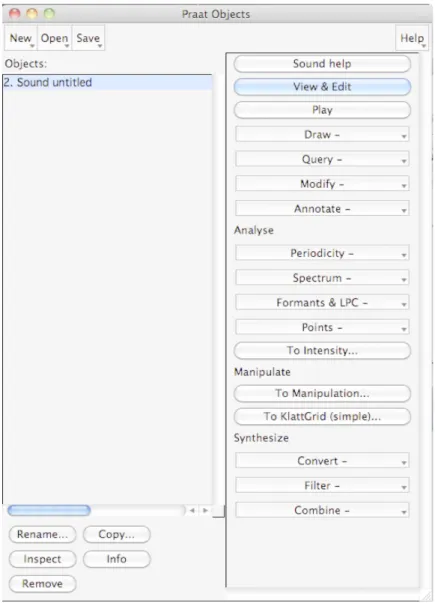
The Praat Objects window(Figure 1) is where you’ll start most workflows, using this menu to open, create and save files, as well as to open the various editors and queries which you’ll need to work with sound files.
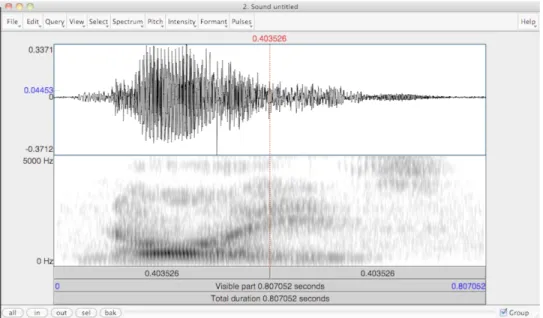
TheEditor window (Figure 2) is where you’ll spend most of your time, and can be accessed by selecting a sound and choosing “View & Edit”. When examining a sound file, the editor window will show the sound’s waveform on the top and a spectrogram on the bottom, and the cursor will allow you to take selections and measurements. The menus along the top will allow you to show and hide different bits of information (formants, pitch, intensity), as well as to make more detailed
queries. When working with other types of Praat objects (e.g. spectra), the editor window will allow you to query those objects as well.
When you make a query, either in the editor window or from the objects window, theInfo Win-dowwill pop up with your results. You can also print to this window when scripting in Praat (see Section 11). Note that information printed here will not necessarily be saved, and running a new query will overwrite it by default.
The Praat Picture window (shown towards the end of the document in Figure 10) is used to create and display publication-quality images, and is open by default when you start the program. For detailed information about using the Pictures window and why it exists at all, see Section 8.
Knowing the names of all these commands allow us to more easily describe the commands to use when working with Praat. For instance, if this guide says that you get the duration of a sound by using:
Objects→Query →Query Time Domain→Get Total Duration
It means, roughly, “Go to the Objects window, Choose “Query”, then from that submenu choose “Query Time Domain”, then “Get Total Duration”.
4 Recording Sounds
To record sound using Praat, you’ll want to plug in your microphone, sound card, or external ADC (Analog-Digital Conversion) box to your computerbefore starting Praat, and then…
Objects→New→Record Mono
This will pull up a recording menu which allows you to choose a sampling frequency (the default, 44100 Hz, is fine for most purposes), a microphone or other sound source, and whether to record a mono or stereo sound. Press Record to record, andStop to stop, being careful that the sound level bar stays within the “green” range to avoid clipping. Once you’ve made a recording, name it and chooseSave to list, and it will now show up in the Praat objects window where it’s ready for editing.
If you don’t see a green bar (indicating that Praat hears you) while you are recording, try changing
the Input source on the left side of the SoundRecorder window. If this doesn’t help, go to the
computer’s sound control panel to ensure the proper microphone is selected, and that the input volume is not turned way down.
Praat only records in one minute long chunks out of the box. To record longer sounds, you can either change the buffer size inPraat→Preferences→Sound Recording Preferencesor you can use Audacity (free, available from http://audacity.sourceforge.net/) to record the session and
5 Opening and Saving Files}
5.1 Opening Files
If you already have a sound file recorded that you’d like to open (recorded in .aiff, .wav or .flac format), there are two ways to open it in Praat. If you’re using Praat on OS X, you can drag supported files onto the Praat icon in the dock. However, if that doesn’t work, or if you’re on a different platform:
Objects→Open→ Read from File…
Then use the next dialog to find the files you’re interested in on your hard disk. Once you’ve loaded the files, they’ll appear in your objects window for further use. Note that other files created by Praat can be opened in the same way.
Tip:Praat can’t open .wma, .mp3 or .m4a audio files. To convert these easily to .wav filesen masse, download iTunes, set it to “import” files into the .wav format in Preferences, and use iTunes →
Advanced→Create .wav version.
5.1.1 Working with longer sound files
Praat has historically had trouble working on sound files more than 20 minutes or so long, and if you’re using a 32-bit version or have little available memory, you may experience frequent out-of-memory errors working with large files unless you use the Objects→Open → Open long sound
file…option.
However,if you can possibly avoid using LongSound objects, avoid using LongSound objects. Certain analyses, menu commands, and other miscellaneous functions cannot be applied to LongSound objects, and as computers evolve, they’re less necessary.
To avoid these issues, it’s recommended to cut your files into chunks shorter than an hour, either using Audacity or by editing the Long Sound object as described in Section 7.2.
For Mac users, this is a non-issue if you have a 64-bit Mac and download a recent 64-bit build for OS X.
5.2 Saving Files
Praat does not saveanything by default, and until you save files explicitly, opened or edited ver-sions of the files will exist fleetingly in the objects window. For emphasis,unless you save files explicitly, they will disappear completely and unrecoverably when Praat is closed.
To save a file, select the file in the Objects window, then…
Objects→Save→Save as ______ file
For sound files, you’ll likely choose Save as WAV file, but for the other types of files (TextGrids, formant objects, pitch objects, etc), you’ll save them as text files.
Figure 2: The Praat Editor Window
As this can be very tedious, you might consider downloading and installing a Praat script (see Section 11) which saves all the objects in the objects window at once.
6 Phonetic Measurement and Analysis in Praat
6.1 Working with Praat Waveforms and Spectrograms
Once a sound has been recorded or opened, you’ll spend much of your time interacting with the sound by means of the Editor window. To open a sound in the editor window, select the sound and then…
Objects→View & Edit
You’re immediately presented with an editor window (like that in Figure 2), showing the wave-form of the sound, and if the sound is sufficiently short, a broadband spectrogram showing the spectral energy of the sound over time. In addition, you might also be presented with a series of red dots (representing formants), blue lines (representing the speaker’s pitch), and a yellow line (representing intensity). These can be enabled and disabled in theEditor→View→Show Analyses
menu.
Clicking within this window will place the cursor on the waveform and spectrogram. If you click within the editor window, the cursor will spawn two dotted lines. A vertical bar shows the time within the sound where you clicked (labeled at the top in seconds) and, if you clicked within the spectrogram, a horizontal bar shows the frequency at the cursor (labeled on the left in red). If the pitch or intensity tracks are displayed where the cursor is placed, values at the time the cursor represents are given on the left side of the editor window.
In addition, you can click and drag (or use theSelect menu) to select portions of the sound. The time of the start and finish of the selection will be displayed in red, and the duration of the selection (in seconds) will be displayed in the top of the bar.
To play a sound in the editor window, use the three gray bars at the bottom of the editor window. The bottom-most bar (Total Duration) will play the entire sound. The middle bar (Visible Part) will play only the visible portion of the sound. The different sections of the top bar (split by the cursor or selection), when clicked, will play the corresponding pieces of the visible portions of the sound file. Hitting also plays the visible portion of the file.
Obviously, to view some analyses and to get a closer look at your data, you’ll need to use the five buttons in the bottom left corner of the window. As you can imagine, all shows the entire file, in andout zoom in and out, sel zooms to make the current selection fill the window, and
bak zooms back to the previous zoom level. For longer sound files, in order to view analyses like the spectrogram and formants, you’ll need to zoom in to show only a pre-defined amount of time.1
The Group setting in the bottom right corner of the window will ensure that if two sounds are
open in two Editor windows at once, they’ll share the same zoom characteristics. This is best used to compare two versions of the same file, say, an original versus one with an acoustic modification made.
All of the measures discussed in this section will use the Editor window, and you will spend much of your time working with Praat here, so any time spent gaining familiarity will be repaid tenfold.
6.1.1 Pulling out a smaller section of the file for analysis
Although zooming in and out will get you most of the way there, it’s often useful to isolate a section of a sound (usually a single word or vowel) into a different Sound object. To do this, select a portion of a sound, say, a vowel, and then:
Editor→File→Extract Selected Sound (time from 0)
This will create a new sound in the Objects window, containing just the selected part of the original sound. The (preserve times)option (in the sameEditor → File menu) just keeps the timecode on the extracted sound the same as in context (so, if the vowel starts at 0.245 s, the extracted sound file will start at 0.245 s).
This can also be done from the objects window using Objects→ Convert→ Extract part…, if you know the start and end time of the portion you’d like to extract.
1This amount of time can be changed inEditor -> View -> Show Analyses -> Longest analysis. 20 seconds is a sane value for most modern computers, much higher will cause your system to lag when viewing files.
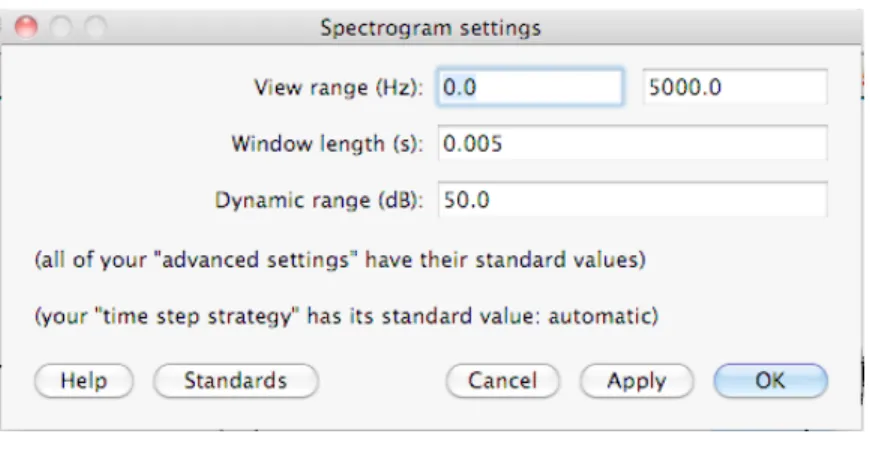
Figure 3: Praat’s Spectrogram Settings 6.2 Adjusting the Spectrogram settings
Although the basic 0-5000 Hz broadband spectrogram will suffice for many uses, it’s useful to be able to change those settings. To make changes to the spectrogram settings…
Editor→Spectrum→Spectrogram Settings
This will pull up the Spectrogram settings window (like that in Figure 3) The most important settings here are thewindow lengthandview range.
View range controls how much of the spectrum is visible. For speech, you’ll likely be interested in the range from 0 to 5000 or 6000 Hz, but if you’re examining fricatives, you might want to look as high as 15,000 Hz. If you’re looking at music, you may focus on the area from 100 to 2000 Hz. Either way, this is how you set which part of the spectrum you care about.
If your sound files have a relatively small or large dynamic range (the difference in volume between the loudest and quietest frequencies or times), or if your spectrograms seems too light or too dark, you may want to adjust the dynamic range setting, but 50 dB is usually fine for most purposes2.
Window length (given in seconds) controls how large of a chunk of the sound Praat will examine when trying to find the frequencies present at a given moment in the signal.
This reveals a fundamental tradeoff in signal processing: You can either have precise information about frequency, or precise information about time. If you examine large chunks of the signal, you’ll be able to see patterns repeating over and over, and will have avery firm understanding of their frequency. However, if you’re looking at a large chunk, sudden changes (say, the end of a stop consonant, or a vowel-to-nasal transition) will seem fuzzy. On the other hand, if you only examine a very small chunk of data for each moment in the spectrogram, you’ll have a very good sense of time, able to make precise claims about starts and stops, but you’ll have very little accuracy in discussing frequencies3.
2Like so many things, the key to understanding the usefulness of these settings is sitting down and playing around with them a bit. ”Fiddling around with settings” is one of the best things a novice Praat user can do with 20 minutes
3Another analogy is a camera. If you open the shutter for a longer period of time, moving objects are blurry, so you don’t know what any of them were doing at the moment you hit the shutter. If you only open the shutter for a
This choice, of “wide window, good frequency, bad timing” vs. “small window, bad frequency, good timing” is the difference between Broadband and Narrowband spectrograms, and switching between them is a useful technique for analyzing a novel linguistic signal.
6.2.1 Narrowband vs. Broadband Spectrograms
Praat defaults to showing a Broadband spectrogram, which is excellent for viewing the temporal structure of the sound and for seeing vowel formants, but sometimes, you’ll want to look at har-monics and F0instead. To do this, you’ll ask Praat to provide you with a narrowband spectrogram. To do this:
1. Editor→Spectrum→Spectrogram Settings
2. Set theWindow Lengthto 0.025 (or the narrowband window length of your choosing) 3. Click OK
Now, harmonics should clearly be visible in the spectrogram. Note that this is often the most reliable way to quickly visualize pitch variation, as it’s immune to pitch-tracking issues.
To return to a broadband spectrogram:
1. Editor→Spectrum→Spectrogram Settings
2. Set theWindow Lengthto 0.005 (or the broadband window length of your choosing) 3. Click OK
6.3 Measuring Duration
As you might expect, measuring duration is quite easy. Once the sound file is open in the Editor window:
1. Select the portion of the file you’d like to measure (e.g. the vowel) with the cursor
2. Read the duration of the selection (in seconds) from the duration bar along the bottom of the Editor window OR
3. Editor→Query→Get selection lengthand read your selection in the info window
If you’d like the durationof an entire file, just select the file in the Objects window and:
Objects→Query→Query Time Domain→Get Total Duration
6.3.1 Measuring Voice Onset Time (VOT)
“Voice Onset Time” (VOT) is the time between when the stop is released and when the voicing of the following vowel begins. Measuring this time, which can be positive (say, for the English voiceless aspirated stop FIXMEta), around zero (for the English “voiced” stop /d/, or, more com-monly, the voiceless unaspirated [ta] around the the world), or negative (for fully voiced stops,
where voicing starts before the stop is released, as found in most non-English languages). Many languages classify their stops largely based on Voice Onset Time, and it’s often an excellent, more gradient empirical measure of the “voiced/voiceless” phonological distinction.
Measuring Voice Onset Time (VOT) is very easy to do in Praat, as it’s just a duration measurement between two set points, the release of the stop and the start of voicing.
1. Find the stop release 2. Find the start of voicing
3. Select the span between these two points
4. Read the duration of the selection (in seconds) from the duration bar along the bottom of the Editor window OR
5. Editor→Query→Get selection lengthand read your selection in the info window
6. If the start of voicing came before the stop release, the VOT is negative. Otherwise, the VOT is positive.
In general, voiced sounds (in languages other than English) will have a VOT which is negative, voiceless unaspirated sounds will have a VOT which is around 0, and aspirated sounds will have a positive VOT.
6.4 Examining and measuring F0/Pitch
F0 and Pitch can be measured in a number of ways in Praat, more and less reliably. 6.4.1 Measuring F0 from a single cycle
The surest way to get an accurate F0 for a single cycle is to open the file in the Editor window, then:
1. Zoom in to the point where you can see individual cycles in the sound file
2. Select one complete cycle, as accurately as possible, thus, giving Praat the period in seconds (t)
3. Praat will calculate the frequency of the sound in Hertz in the top bar, giving it in the format ( ___/ s). Use the zoomselbutton to zoom in if you can’t see the frequency readout.4
6.4.2 Viewing Pitch via a narrowband spectrogram
The most reliable way of getting a sense of the pitch through the course of the word in Praat is by examining a narrowband spectrogram with a reduced visible range (0 - 400 Hz for speech). This can be done by editing the spectrogram settings as described in Section 6.2. The contours
4This is going to be an accurate number (so long as you gave an accurate period), but you’re welcome to calculate it yourself to make sure. f =1
of the harmonics will accurately represent the pitch contours of the voice during the word, and doing this will give you a sense of the contour before using the Praat pitch tracker for more precise measurement.
6.4.3 Using Praat’s Pitch Tracking
Praat does have the ability to provide a pitch track in the editor window. To enable the pitch track in the Editor window:
Editor→Pitch→Show Pitch
At this point, a blue line will be placed on top of the spectrogram representing the pitch, where Praat can find it. Once the pitch track is placed, you can use the cursor to check the pitch at any given point in the word. Just place the cursor and look for the middle blue number on the right side of the window. You can also place your cursor at a given point in the file andEditor→Pitch
→Get Pitch. RunningEditor→Pitch→Get Pitchwhen a chunk of the sound is collected will return
the average pitch during that selection.
6.4.4 Improving Pitch tracking by changing the Pitch Settings
It’s worth noting, though, that Praat’s pitch tracking can be quite finicky. You will often see it jump up and down, doubling and halving the actual F0, and in many cases, especially where the speaker is at all creaky, the pitch track will drop out altogether. This does not represent any specific failing of the software, but instead, comes from the variability and noise inherent in actual phonetic data. Part of the strength of Praat’s approach is that you as a user can help Praat improve its pitch tracking for a given file or speaker by changing some of the Pitch settings.
So, in order to do any serious research using the pitch track, and to avoid some of the problems discussed above, you may need to adjust some of the pitch settings, to help Praat’s pitch tracker better reflect the speaker’s voice. To do so:
Editor→Pitch→ Pitch Settings…
Then adjust the settings as follows:
• Pitch Range (Hz)
– Set the pitch range to a reasonable range (50 - 400 for general usage, going much higher for song or children’s voices). If you have a good idea what the speaker’s actual range is (taken from a narrowband spectrogram, for instance), set the minimum to just under the speaker’s lowest F0 and the maximum to just over their highest pitch excursion. Changing the minimum pitch will also change the smoothing of the intensity line, when displayed.
• Unit
– Here you can choose your unit of choice for the display of the speaker’s F0, ranging from Hertz to Semitones to auditory-scaled measures like logHz or mel.
• Method
– You’ll usually keep this parameter set to “autocorrelation”, but you can switch to “cross-correlation” to see if it improves your pitch track.
You may want to tweak the advanced settings as well. To do so:
Editor→Pitch→Advanced Pitch Settings…
Then adjust the settings as follows:
• Silence threshold
– This is the amplitude threshold for what Praat considers to be speech, relative to the peak amplitude in a file. If Praat can’t find ANY pitch in a quiet file, adjust this setting.
• Voicing threshold
– Praat uses this value in its algorithm to help it decide whether voicing is present. If Praat is finding voiceless portions of the word as voiced, raise this number. If Praat isn’t detecting voicing that’s there in the signal, lower it. This is mostly important when working with data with either very large or very small amounts of background noise, and can often be left alone.
• Octave Jump cost
– Changing this value affects the algorithm’s decision about whether a jump in F0 is reasonable. Larger values discourage abrupt changes in F0. Increase this number if you are getting pitch-doubling, decrease it if you are failing to track actual rapid changes in F0.
• Voiced / unvoiced cost
– Increasing this number will make Praat more reluctant to claim a transition between voicing and voicelessness. Turn this up if your pitch track is cutting in and out more than is reasonable.
Danger!
Praat’s pitch tracking is a good way to get a rough idea of what’s going on with
the speaker’sF0, but relying on it to give you sane measures is not wise, especially
in scripts. Make sure you sanity-check any measures which seem unreasonable
against single-cycle F0 measurements or against harmonic frequencies, and that
you throw out anything completely ridiculous.
6.4.5 Scripting: Creating a Pitch Object
Again, if you’re just learning Praat for the first time, skip right past these “Scripting” sections. This is down-the-road stuff for automating these measurements, not where you want to focus today!
When scripting, you may want to create a Pitch object (select the sound, thenObjects →Analyze
measure pitch. Once a pitch object is created, you can instead select the Pitch object and run
Objects → Query → Get value at time… to find the pitch at whatever time you’d like. Pitch in
a pitch object is calculated in the same way as in the Editor window, so the same disclaimers apply.
Script Tip!
Build in sanity-checks for pitch! Specify the highest and lowest reasonable pitches at the start of the script, use them in the creation of pitch objects and elsewhere, and specify that any values out of this range are wrong,
and should be measured again. 10 or 600 Hz F0 measurements won’t be a
problem anymore!
6.4.6 Getting Maximum, Minimum, and Average pitch for a section of speech This is easy.
1. Select the portion of the sound for which you’d like the Maximum, Minimum or Average Pitch
2. Select the proper command for your task from theEditor →Pitchmenu. Note thatEditor→Pulses→Voice Report will give this information as well.
6.5 Measuring Pulses, Jitter, Shimmer, and Harmonics-to-noise ratio
As a part of its pitch-handling system, Praat includes the ability to find individual glottal pulses in a signal and to analyze the pulses as part of more complex analyses. To view these pulses,Editor
→ Pulses →Show Pulses, and they’ll then display on top of the waveform in your file. Although
the pulses themselves are mostly only useful in scripting, theEditor→ Pulsesmenu contains one of the more useful commands in the program:
Editor→Pulses→ Voice Report
To use this command, simply select a voiced section of the sound, then Editor→ Pulses → Voice
Report. An information window will then pop up providing you with a variety of useful measures.
In addition to maximum and minimum pitch (with additional statistics), you will also be given the jitter, shimmer, harmonics-to-noise ratio (HNR), and the noise-to-harmonics ratiosfor the selected portion of the sound.
Jitter is a measure of the periodic deviation in the voice signal, or thepitch perturbationof the signal. Put differently, each cycle of speech with a given F0 should, in a perfect world, have the same period. The jitter in a person’s voice is how much one period differs from the next in the speech signal. This is a useful measure in speech pathology, as pathological voices will often have a higher jitter than healthy voices5.
Shimmer (amplitude perturbation) is similar to jitter, but instead of looking at periodicity, it measures the difference in amplitude from cycle to cycle. Once again, this is a useful measure in speech pathology, as pathological voices will often have a higher shimmer than healthy voices (although again, both healthy and unhealthy voices will havesomeshimmer).
Harmonics-to-noise ratio (HNR) and Noise-to-harmonics ratio are both measures of the amount of periodic noise compared to the amount of irregular, aperiodic noise in the voicing signal. Because the aperiodic noise often represents frication in the vocal tract, the HNR will go down signifi-cantly with hoarse or breathy speech, and other laryngeal pathologies will lower the HNR further still.
6.6 Measuring Formants
Praat has several methods of built in formant measurement. Of course, the easiest way to examine formant heights is by simply looking at a broad-band spectrogram and using the cursor to find, roughly their frequencies. However, “eyeballing it” won’t pass scientific muster, and is more time consuming than using Praat’s built-in Linear Predictive Coding (LPC) algorithms as a tool to help to find them.
6.6.1 Using the Formant tools in the Editor window
When you open a sound file in the Editor window, you can choose to have Praat calculate and display where it thinks that the vowel formants are (Editor→ Formants→ Show Formants). This will overlay a series of red dots onto the image which represent peaks in the series of LPCs which Praat has run at each moment in the word.
This formant track can be queried at any time in a variety of ways, all accessed through theEditor
→ Formants menu. If you’re interested in a single formant’s height, you can place the cursor
where you want a measurement and choose Editor → Formants → Get formant…, but it’s often more efficient to useEditor→Formants→Formant Listing, which will give you heights for F1, F2, F3, F4, along with the timepoint at which the measures were taken.
In addition, if you’re interested in formant bandwidth, bandwidth for the first four formants can be taken using theEditor→Formants→Get ___ Bandwidthcommands.
For hand measurement, usingEditor→Formants→Formant Listingand sanity-checking by visually inspecting the formants on the Spectrogram will usually produce reasonable results, but there are ways to improve Praat’s formant-picking performance for a given speaker.
6.6.2 Improving Formant Finding results
For most speakers, the default settings will suffice, but if you find Praat to be struggling with “missing” or the addition of extra formants, you’ll likely find that that particular speaker’s formants
older speakers, smokers, etc. The presence of *any* jitter isn’t a pathology, just a massive degree, and low-level jitter doesn’t particularly affect speech perception.
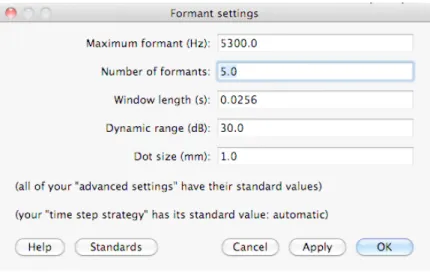
Figure 4: Praat’s Formant Settings Window
are more effectively measured if you make some tweaks to Praat’s Formant Settings, helping the computer with its task.
To apply any of these changes, you’ll want to open the Formant Settings window (see Figure 4):
Editor→Formants→Formant Settings…
Finding formants is a tricky thing. When you set out looking for areas of the spectrum where there’s a bit of extra energy, you willfind them, so the problem isn’t finding peaks, but finding
the correct peaks. To help in this task, Praat has settings dictating how many formants it will find,
and how spread out those formants will be.
We typically will assume that speakers will have one formant per 1000 Hz, and thus, that there will be 5 formants in the 5000 Hz we usually worry about for speech research. Thus, “5” is the default setting for Number of Formants, and the highest we’ll look for formants (the Maximum
Formant) is 5000 Hz by default.
Usually, you’ll only need to adjust theNumber of Formants. Although 5 formants is a good baseline, if Praat is finding formants where there are none (latching onto a small bump between two actual formants, usually), you should lower this value down to 4 or 3. If Praat is finding too few formants (missing F2 and labeling F3 as F2, for instance), you’ll want to raise this number up to 6.
If you’re working with a child, gnome, hobbit, or a creature of otherwise unusually small vocal tract length, you may find that the Praat is finding non-existent formants between the speaker’s F1 and F2, and missing the speaker’s higher formants (F3 and F4) altogether. In this situation, you’d want to increase theMaximum Formant (Hz)value to tell Praat to search a bit higher up in the spectrum for formants, and perhaps lower the number of formants it’s searching for. Again, this is a somewhat speaker-specific process, and the first set of measurements for a new speaker may require some “dialing in” to get accurate measures.
Realize, though, that Praat can always find more peaks, and there are often small peaks not perceptible to humans which may still have an acoustical relevance. When there are “too many
formants”, Praat is not necessarily finding formants which “aren’t there”, but is finding additional peaks which, although present, aren’t the F1, F2 and F3 peaks which we as linguists are chiefly interested in. When there are “too few”, Praat is just giving you only the most prominent peaks that you’ve asked for. The results of Praat’s formant tracker, in reality, are largely determined by what you’re asking it to find, and this settings adjustment be done with a mind to what you’re actually interested in.
Dot size (mm)simply controls how large the red dots in the formant display are. Although
chang-ing this can be useful if the track obscures the spectrogram, this will have no effect on your measurements.
These settings persist even once you’ve closed Praat, so if you make adjustments here, you’ll want to return these settings to the defaults when you’ve finished with your odd speaker.
Danger!
No matter your settings, Praat will happily find you formants even in fricative noise or silence, and because it doesn’t know how many formants it should be searching for where, it commonly merges F1 and F2 for high back vowels (where they’re close together). In addition, Praat will often have issues finding a single timepoint, so if you’re getting an unusual measurement, a timepoint shortly before or after may be more accurate. Always sanity-check your measurements, make sure you know what you’re measuring, and during automated measurement, always run the results by a trained human first!
6.6.3 Scripting Only: Formant Objects
When scripting, you may want to create a Formant object (select the sound, thenObjects→
For-mants & LPC→To Formant (burg)…, specifying the proper settings) so that you don’t need to open
the editor to measure formants. Once a formant object is created, you can instead select the For-mant object and run any of the commands in theObjects→Querymenu to get information.
Script Tip!
All of the parameters discussed above are manipulable when scripting, so build in some sanity checks to capture the common failure modes. ”If F2 > 3000Hz, increase the number of formants and try again”. This little step can save a lot of pain down the road.
Oddly, formant measures taken at the same timepoint and with the same settings from a formant object and from the editor window do not always agree, and in fact, can differ significantly. If measuring formants automatically, you may consider using both methods (the formant object and the editor window’s formant track). It often happens that if one of the measurement tactics misses or adds a formant, the other will not, so a measure where both are in agreement is often
more trustworthy than one where they disagree significantly. The author cannot explain the discrepancy, but is quite happy to leverage it extensively in his scripting.
6.7 Measuring Intensity/Amplitude
Measuring intensity in Praat is relatively straightforward, albeit with a major disclaimer.
To get the overall intensity of a sound, select the desired sound and run Objects→ Query→ Get
Intensity (dB). To get the intensity at a specific point in the sound, open it in an editor window,
Editor→Intensity→Show Intensity, and then use the various commands available in theEditor→
Intensitymenu to get whatever information you desire.
By default, Praat’s display of the intensity of a word is smoothed to avoid showing individual pulses in the amplitude lines, both in the editor window and in amplitude objects (when drawn or viewed). This smoothing is based on the minimum F0 of the sound.
If you want to see something closer the amplitude envelope of the sound in Praat (where pulses show up individually as amplitude peaks), or if you want the amplitude curve to be smoother than it normally would be, you must simply adjust the minimum pitch expected by Praat. This can be done in Editor→ Pitch →Pitch Settings…, as described more fully in Section 6.4.3. Simi-lar smoothing/desmoothing can be accomplished when creating Intensity objects by altering the minimum pitch value in theObjects→ To Intensity…dialog box.
This decrease in amplitude smoothing is particularly useful for measuring or counting quick, amplitude-based phenomena like taps and flaps.
That said, in most recordings made for phonetic research, absolute intensity measures as given by Praat are largely meaningless. To accurately measure the absolute intensity of a speaker’s voice, a sound-attenuated booth with a calibrated sound level meter or calibrated mi-crophone with specialized software should be used.
Relative intensity (say, between two segments or words) can be measured with an uncalibrated microphone, but is only accurate if the recording is made in a consistently quiet area, and the speaker stayed in the same general position relative to the microphone throughout the recording(s) (and wouldn’t have changed much during the time between the two points of comparison). This issue is discussed in depth in Praat’s user manual.
6.7.1 Units of Intensity (dB vs. Pascal)
Praat uses two measures of intensity: Pascal and dB. Pascal tend to be very small numbers (like “0.00033082594541105064”) whereas dB measurements are far larger yielding numbers like “59.23328336655995”. Often, when scripting or making measurements of intensity of a section through the interface, we want information in dB, but selectingObjects→Query→Get mean…to get Mean intensity gives us the information in Pascal.
In order to get minimum, maximum, or mean intensity in dB, we must first convert the sound to an intensity object:
Objects→To Intensity
Thenselect the intensity objectand runObjects→Query→Get mean…. This will return values in dB, as desired.
Similarly, if scripting this process:
select Sound soundname$
min = do ("Get minimum...", 0, 0, "Sinc70") max = do ("Get maximum...", 0, 0, "Sinc70") mean = do ("Get mean...", 0, 0, 0)
… will yield min, max, and mean intensity measurements in Pascal, whereas …
select Sound soundname$
do ("To Intensity...", 100, 0, "yes")
min = do ("Get minimum...", 0, 0, "Parabolic") max = do ("Get maximum...", 0, 0, "Parabolic") mean = do ("Get mean...", 0, 0, "energy")
… will yield measurements in dB. 6.8 Working with Spectra
Sometimes, you need specific details about the frequencies and individual harmonics in a sound at a given moment in time, and examining a narrowband spectrogram alone does not provide sufficient information. In these cases, you’ll need to take a spectral slice for analysis. Spectral slices (also referred to as FFTs or spectra) are the result of a fast fourier transform done on a very small portion of the sound, providing you with very specific information about the frequencies present in the sound and their relative amplitudes.
Spectral slices are useful for a variety of measures ofF0, nasality, creak, breathiness, and spectral tilt, and are a crucial part of many measurement workflows.
6.9 Taking a spectral slice
To take a spectral slice, you’ll need to do the following:
1. Editor→Spectrum→Spectrogram Settings
2. SetWindow Lengthto “0.025” (effectively producing a narrow-band spectrogram)
3. Editor→Spectrum→Advanced Spectrogram Settings
4. SetWindow Shapeto “hamming”
5. Select the point at which you’d like to see the slice taken
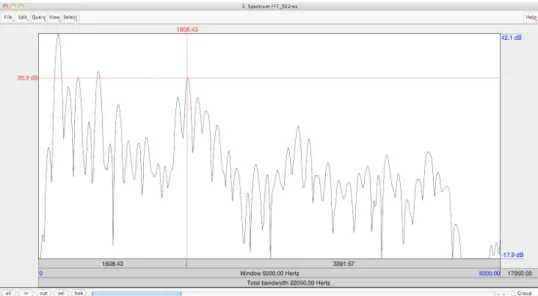
Figure 5: A spectral slice Editor window
This will create a new Spectrum object, and pull up a window like that in figure 5, showing amplitude on the Y axis, and frequency (from 0 up to the Nyquist frequency) on the X axis. You can zoom in and out using the buttons in the bottom left corner, as you wish.
If you’ve selected a portion of the sound (rather than a single timepoint) when you useEditor →
Spectrum → View Spectral Slice, Praat will create a spectrum representing the average
character-istics across the entire selection, which isn’t useful for most of the spectral measures discussed below.
6.10 Measuring Harmonic Amplitude, Frequency
Getting harmonic frequency and amplitude in a Spectrum Editor window is fairly straightforward, as clicking anywhere within the spectrum editor window will give you the frequency and ampli-tude measurements at the cursor. So, to find the ampliampli-tude and frequency of a given point in the spectrum, click that point and read off the amplitude (on the left) and the frequency (at the top), as shown in figure 5.
This can be done even more easily and efficiently by script, allowing you to find the highest point on a given harmonic without clicking guesswork.
6.11 Measuring Creakiness and Breathiness using Spectral Tilt
Spectral tiltis often used in phonetic research as a measure of creak. As discussed in Gordon and Ladefoged 2001 Gordon and Ladefoged (2001):
One of the major acoustic parameters that reliably differentiates phonation types in many languages is spectral tilt, i.e., the degree to which intensity drops off as fre-quency increases. Spectral tilt can be quantified by comparing the amplitude of the
fundamental to that of higher frequency harmonics, e.g., the second harmonic, the har-monic closest to the first formant, or the harhar-monic closest to the second formant. Spec-tral tilt is characteristically most steeply positive for creaky vowels and most steeply negative for breathy vowels.
Spectral tilt is easily measured by finding H1 and H2, measuring their amplitudes as described above, and comparing the two numbers.
However, H1-H2 is subject to very strong interference from nasality, as described in A.P. Simp-son’s sternly named paperThe first and second harmonics should not be used to measure breathiness
in male and female voices. Simpson (2012), and investigators of these phenomena would do well to
read that paper, and focus on other measures like Harmonics-to-Noise ratio (see Section 6.5). 6.12 Measuring Nasality using A1-P0
A1-P0is an acoustical measure of nasality first described by Marilyn Chen inAcoustic correlates
of English and French nasalized vowels(Chen (1997)). Like spectral tilt, it’s a ratio measure of the
amplitudes of two harmonics: A1, which is the highest harmonic peak near the first formant, and P0, which is a low frequency harmonic (usually H1 or H2) which corresponds to a low resonance in the nasal passages. See Figure 6 for an illustration of these peaks in spectra. To compute A1-P0, you need to take three main steps6
1. Find A1 and measure its amplitude
2. A1 is the highest harmonic near the frequency of the first formant. • F1 can be located as described in Section 6.6
• The frequency of F1 will vary from vowel to vowel, tending to be lower for high vowels and higher for low vowels. The amplitude of A1, though, will not vary by vowel quality 3. Find P0 and measure its amplitude
• P0 is a specific harmonic peak which is reinforced by resonances within the nasal pas-sages.
• The frequency of P0 will be specific to each speaker, and won’t change from word to word (as the speaker’s nasal passages are unlikely to change resonant characteristics) or from vowel to vowel.
• The amplitude of P0 will change from word to word, depending on the degree of open-ness of the velopharyngeal port.
• Although each talker is different, P0 is likely to correspond to either H1 or H2 for a given speaker
• In general, for speakers with lower pitched voices, P0 will be H2, and for speakers with higher pitched voices, P0 will likely be H1
6Many thanks to Dr. Rebecca Scarborough, on whose handout “Measuring Nasality (using A1-P0)” this section is loosely based
• The best way to identify this peak is by examining a known nasal vowel and a known oral vowel to determine which peak is reinforced by the nasality. You may need to examine several words before a clear winner emerges.
4. Subtract P0 from A1 to get the measurement
Because the nasal peak (P0) will be reinforced by the resonances in the nose during nasal vowel production, nasal vowels will tend to have lower A1-P0 values than non-nasal vowels. Across many tokens, A1-P0 can be a very good predictor of vowel nasality, however, there are several important things to keep in mind when using A1-P0 to measure vowel nasality:
1. A1-P0 only works in situations where F1 is higher in frequency than H1 and H2. Most of the time, this is true, but for high vowels, A1 and P0 often occur at the same place in the spectrum, leaving the measurement useless.
• In these situations, A1-P1 (a second nasal resonance at ~950 Hz, described in Chen (1997)) is an oft-used measurement, but identifying P1 can be very difficult for some speakers.
2. A low A1-P0 relative to known oral tokens is a good predictor of nasalityacross a large number
of tokens, but individual nasal/oral vowel pairs may or may not demonstrate a strong effect.
It should not be used to measure the nasality of one individual token compared to another. 3. A1-P0 should only be examined in comparison with other tokens from the same speaker. An A1-P0 of -2 may be normal for an oral vowel for some speakers, but indicate extreme nasality for others. The absolute value of A1-P0 is not interpretable across speakers.
• Different speakers have not only different baseline values, but different amounts of A1-P0 change from oral to nasal vowels. Comparison of raw or Z-Scored A1-A1-P0 values is not wise, and will lead to untrustworthy measurements.
4. Remember, here you’re relying on Praat to give an accurate measurement of the first formant, as well as F0. Feel free to tweak the formant settings, and don’t blindly trust Praat’s formant tracker to find what linguists call the first formant and not some other spectral prominence. This is a complex measure, and I (personally) have spent a great deal of time working with it and its measurements7.
Although it is among the best acoustical approaches to nasality presently available, it is also re-markably noisy, capricious, and complex. A1-P0 nasality should be one element of your successful analysis, not the sole element, and as I have discovered, no nasality experiment is simple. Proceed with caution.
7For more on nasality, please see the description of my dissertation work, Styler (2015), posted at http://
savethevowels.org/will/dissertation.html. I did not write 70 pages worth of Praat manual only to shy away
from a completely self-serving and shameless plug in the sole earthly context in which nasality research is actually relevant.
Frequency (Hz) 0 2.205·104 So un d pr es su re le ve l ( dB / H z) -20 0 20 Frequency (Hz) 0 2.205·104 So un d pr es su re le ve l ( dB / H z) -20 0 20
Lower Spectral COG (/ʃ/) Higher Spectral COG (/s/)
Figure 7: Two spectra showing the higher spectral COG for a token of /s/ (here, 8202 Hz) com-pared with the lower spectral COG for a token of [ʃ] (here, 3243 Hz)
6.13 Measuring Spectral Center of Gravity
Spectral center of gravity (Spectral COG)is useful for measuring the frequency characteristics of aperiodic sounds in speech (release bursts and fricatives, usually). It is most often used to describe the production of fricatives (with the understanding that sounds with a higher spectral COG are often produced more towards the front of the mouth), and simply measures the overall weighting of the noise in the spectrum by reporting its “center of gravity”. See Figure 7 for a more visual demonstration. This measure can be useful in sociophonetic work, as well as in fieldwork, for determining the articulatory positions of different fricatives.
To measure spectral COG in Praat:
1. Open the sound in an Editor window
2. Complete the steps in Section 6.9 to create a spectral slice in Praat at the point you’d like to measure
3. Select the spectral slice in the Objects window, thenObjects →Query→ Get Centre of Grav-ity…
An info window will then pop up, presenting you with the spectral COG for the point represented by the spectrum.
For further information about Spectral Center of Gravity and an example of its use in fricative description and cross-linguistic comparison (showing the relationship between articulation and spectral COG), refer to Gordon et al 2002A cross-linguistic acoustic study of voiceless fricatives. Gor-don and Barthmaier (2002).8 For an example of this measure used in discussing gender differences
in spectral COG, refer to Jane Stuart-Smith’sEmpirical evidence for gendered speech production: /s/
in Glaswegian. Stuart-Smith (2007)
8Paul Boersma has stated in correspondence that this paper incorrectly implements Spectral COG, leading to in-consistent results, and thus, should not be emulated. For more information, see Boersma & Hamann 2008 (from http://www.fon.hum.uva.nl/paul/papers/BoersmaHamannPhonology2008.pdf), Footnote 7
7 Creating and manipulating sound Files in Praat
7.1 Creating sounds from Formula
To create a sound from formula (a pure or complex tone) , you’ll want to use:
Objects→New→Sound→Create sound from formula…
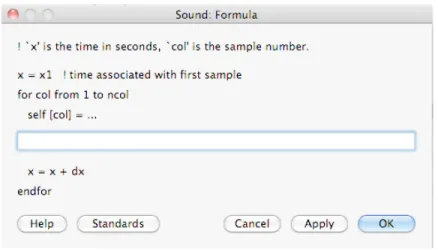
There, you can plug in a formula which will generate the sound you want. For instance:
To create a 1000 Hz puretone at 0.5 dB: 1. Objects→New→Sound→Create sound from formula…
2. Under formula, enter 1/2 * sin(2*pi***1000*x)} 3. Specify the time, sampling frequency,
number of channels and such as you desire
To create a 250 Hz puretone at 1 dB: 1. Objects→New→Sound→Create sound from formula…2. Under formula, enter1 * sin(2*pi***250*x)} 3. Specify the time, sampling frequency, number
of channels and such as you desire
To create a complex sound with 1 dB components at 250 and 1000 Hz: 1. Objects → New →
Sound → Create sound from formula… 2. Under formula, enter 1/2 * sin(2*pi***250x) +
sin(2pi**1000}x)} 3. Specify the time, sampling frequency, number of channels and such as you
desire
For more information, see the Praat Help guide’s excellent Formulas Tutorial. To create a sound with harmonics, useObjects→New→Sound→Create sound from tone complex…
Note as well that you can use ‘if’ statements in formulae, as well as ‘else if’ statements (but not ‘elif’ or ‘elsif’), so long as you include the relevant ‘endif’. See Section 12.2 for more information. 7.2 Cropping, Copying, Splicing and Pasting
It’s not unusual to need to move, remove, or copy sound within and across different sound files, and luckily, Praat makes that relatively easy. Most file editing is done with a combination of selection, copying and pasting.
However, producing quality splices is not as straightforward as copy and pasting within a word document. Because sound waveforms are continuous, you need to make sure that all the cuts you’re making occur at the same point in the cycle, namely, at the zero crossing. Failure to do so will result in loud pops or clicks in the resulting file. To ensure that you’re being zero-crossing friendly, following the below steps (substituting “Ctrl” (the “control” key) for “Cmd” (the “command” key) if you’re using a Windows or Linux machine):
Tocopy/pastea portion of the soundfile:
1. Select the portion of your soundfile that you’d like to copy
2. Editor→Select→Move start of selection to nearest zero crossing or Cmd + ,
3. Editor→Select→Move end of selection to nearest zero crossing or Cmd + .
5. Put the cursor where you’d like the portion to go
6. Editor→Select→Move cursor to nearest zero crossingor Cmd + 0
7. Paste usingEditor→Edit→Pasteor Cmd + p
Following these steps will cleanly insert the snippet into the word. Given time, you’ll develop muscle memory and find yourself quickly typing “Cmd + , Cmd + . Cmd + c” to copy and “Cmd + 0 Cmd + p” to paste. Copy-pasting can be done either within the same file, or between two different files in Praat.
This can also be done from the objects window usingObjects→Convert→Extract Part.
To delete a portion of a file or to remove silence, you’ll select, again attending to zero crossings, and use the “Cut” command (without pasting anywhere else):
To deletea portion of the soundfile: 1. Select the portion of your soundfile that you’d like to disappear 2. Editor→ Select→ Move start of selection to nearest zero crossingCmd + , 3. Editor →
Select→ Move end of selection to nearest zero crossingor Cmd + . 4. Editor →Edit→ Cutor Cmd
+ X
Unfortunately, Praat doesn’t include an easy way to trim, splice or cut portions of the file from the objects window, meaning that any scripts will have to use GUI scripting (the computer controlling the mouse/selection tool) on the Editor window, telling the Editor what to select, then to cut, etc. This works well, but is slightly less efficient than is desirable. Some progress can be made from the Objects window alone by using a combination ofObjects→Convert→Extract Part andObjects
→ Combine → Concatenate to, effectively, create new sounds which resemble a cut or trimmed
sound, but this can be quite counterintuitive.
If Praat won’t let you copy and paste a chunk between two files, the files may need to beresampled to match.
7.3 Sampling rates and Resampling
Praat is very picky about the sampling rates of the files it works with. When combining sounds or copy/pasting from one file to another, both sounds will need to have the same sampling rate. To get the sampling rate of an existing file: 1. Load the sound into the objects window of Praat
2. Objects→Query→Query Time Sampling→Get Sampling Frequency 3. An info window will pop
up displaying the sampling rate.
Toresamplea soundfile (e.g. change the sampling rate from 44,100 Hz to 22,050 Hz): 1. Load the sound into the objects window of Praat
2. Objects→Convert→Resample…
• New Sampling Frequency= 22050 (or whatever sampling rate you’d like)
• Precision (Samples)= 50 (don’t change this number)
3. The filtered sound will be placed into your Objects window as “Sound soundname_(new sampling rate)”
7.4 Filtering Sounds
Not all changes you’ll want to make involve parts of files. Sometimes (for perception experiments and otherwise), you’ll find it necessary to filter your sound files.
Often, sounds files will have extraneous background noise, or in the case of particularly low-frequency-sensitive microphones, room noise not blocked by sound attenuation. In those cases, you’ll want to filter the sound file to remove it:
7.4.1 Low-pass filtering
Low-pass filtersare useful for simulating high-frequency hearing loss and cellular phone speech, among other things. They remove all signal above a given frequency.
Tolow-pass filtera soundfile (e.g. removing all sound above 2000 Hz): 1. Load the sound into the objects window of Praat
2. Objects→Filter→Filter (Pass Hann Band)
• From Frequency= 0
• To Frequency = 2000 (or whatever you’d like your highest frequency sound to be)
• Smoothing = 20 Hz (20 Hz is a good baseline. This controls how “soft” the cutoff is. 5
Hz is as low as you’ll ever want to go for this setting.)
3. The filtered sound will be placed into your Objects window as “Sound soundname_band” 7.4.2 High-pass filtering
High-pass filtersare useful for removing low frequency noise from recordings (which might seep through a sound-booth). They remove all signal below a given frequency.
Tohigh-pass filtera soundfile (e.g. removing all sound below 2000 Hz): 1. Load the sound into the objects window of Praat 2. Objects→ Filter→ Filter (Stop Hann Band)*From Frequency= 0
*To Frequency= 2000 (or whatever you’d like your highest frequency sound to be) * Smoothing
= 20 Hz (20 Hz is a good baseline. This controls how “soft” the cutoff is. 5 Hz is as low as you’ll ever want to go for this setting.) 3. The filtered sound will be placed into your Objects window as “Sound soundname_band”
7.4.3 Band-pass (notch) filtering
Band-pass filters (also called “Notch filters”) are useful for removing sound in a very specific band of the spectrum. Notch filters are best suited for removing particular background noises with specific frequencies (e.g. computer fans, mains hum, or chair squeaking). Your bands will be wider or narrower depending on the signal you’re working to cut out.
Toband-pass filter a soundfile (e.g. removing all sound between 1500 and 3500 Hz): 1. Load the sound into the objects window of Praat 2. Objects→ Filter→ Filter (Stop Hann Band)*From
Frequency= 1500 *To Frequency= 3500 (or whatever you’d like your highest frequency sound
to be) *Smoothing= 20 Hz (20 Hz is a good baseline. This controls how “soft” the cutoff is. 5 Hz is as low as you’ll ever want to go for this setting.) 3. The filtered sound will be placed into your Objects window as “Sound soundname_band”
Finally, note theObjects→Filter→Filter (Formula)option, which lets you filter sounds in a much more specific way than the two options above provide.
7.5 Manipulating Spectral Tilt
Although you could band-pass out many frequency bands, alter their amplitudes, and then re-combine, the most efficient way is to use:
Objects→Filter→Filter (Formula)
Then, you can use a formula like:
self / (1 + x/100) ^ 0.2
This formula9reduces the amplitude of the signal increasingly as the frequency increases, and can
be modified to further increase the amount of spectral tilt by increasing the exponent, or decrease it by decreasing the exponent.
7.6 Pitch Manipulation (To Manipulation…)
Praat does allow you to manipulate the speaker’s pitch in already-recorded sound files. To create a manipulation object (which allows you to change a sound’s pitch and duration):
1. Load the sound into the objects window of Praat
2. Objects→To Manipulation…
• LeaveTime Stepunchanged • Set the pitch range to 75-600 Hz
3. Select the newly created “Manipulation (Soundname)”, thenObjects→View & Edit
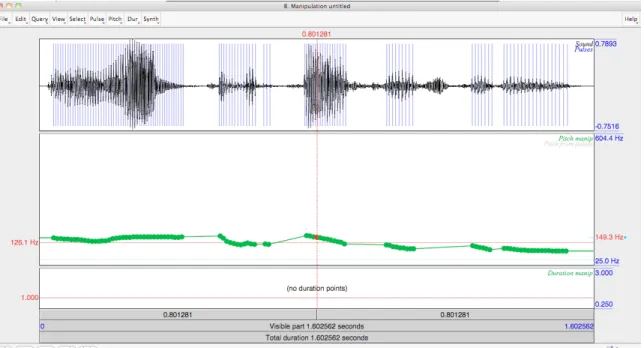
This will open a manipulation window (like the one shown in Figure 8). It shows you the pitch track (in the center), as well as the waveform. The blue lines on top of the waveform represent pulses. This window allows you to modify the duration and pitch of the sound by creating and moving pitch points. A good first step is stylizing the pitch contour which will change the detailed contour into something more manageable.
Manipulation→Pitch→ Stylize Pitch
Figure 8: The Praat Manipulation Window
If you still have too many points, select a few (by selecting a part of the sound) and go to
Ma-nipulation→Pitch →Remove pitch point(s). If you need a different pitch point, place your cursor
where you want a point andManipulation →Pitch→Add pitch point at cursor.
You can now drag the individual green pitch points around to raise and lower the speaker’s pitch at different points throughout the word, to great phonetic (and comedic) effect.
To save the result of your manipulations, use Manipulation → File → Publish Resynthesis, and a pitch-modified copy of the sound will be placed in the Objects window to be saved as usual. Note as well that Praat can use either LPC resynthesis (discussed later) or “overlap-add” resyn-thesis to create the file. “Overlap-add” is actually PSOLA (Pitch Synchronous Overlap Add) resynthesis, and will almost always produce more natural results.
7.7 Matching the pitch tracks of two sounds
When combining sounds, or creating perception experiment stimuli, it can be useful to match the pitch contours of two sounds. Although one can attempt this in the Manipulation window (as described above), it’s far easier to use the below procedure to match the pitch track automati-cally.
To give Sound A the same pitch pattern as Sound B: 1. Load both Sound A and Sound B into the objects window of Praat 2. Trim either Sound A or Sound B so that they haveexactly the same duration * Praat will not allow you to swap the pitch tiers of sound files which are not the same length. * You could also use PSOLA to manipulate the duration, as described below. 3. Select Sound B, Objects→ To Manipulation… * LeaveTime Stepunchanged * Set the pitch range to whatever is reasonable for that speaker. Usually 75-300 Hz works fine. 4. Select the newly

![Figure 7: Two spectra showing the higher spectral COG for a token of /s/ (here, 8202 Hz) com- com-pared with the lower spectral COG for a token of [ʃ] (here, 3243 Hz)](https://thumb-us.123doks.com/thumbv2/123dok_us/9054875.2394679/28.918.145.756.121.325/figure-spectra-showing-higher-spectral-token-pared-spectral.webp)