CUSTOMER SUPPORT INFORMATION
Order toll-free in the U.S 24 hours, 7 A.M. Monday to midnight Friday: 877-877-BBOX
FREE technical support, 24 hours a day, 7 days a week: Call 724-746-5500 or fax 724-746-0746
Mail order: Black Box Corporation, 1000 Park Drive, Lawrence, PA 15055-1018 Web site: www.blackbox.com * E-mail [email protected]
MARCH 2004 Term Server 16 - 37687-R2
Term Server 8 - 37688-R2
Rack Term Server 16 - 40870-R2
Rack Term Server 8 - 40871-R2
102 Term Server- 41872-R2
104 Term Server - 41874-R2
Terminal Server
User Guide
Page 2
Normas Oficiales Mexicanas (NOM) Electrical Safety Statement
INSTRUCCIONES DE SEGURIDAD
1. Todas las instrucciones de seguridad y operación deberán ser leídas antes de que el aparato eléctrico sea operado.
2. Las instrucciones de seguridad y operación deberán ser guardadas para referencia futura.
3. Todas las advertencias en el aparato eléctrico y en sus instrucciones de operación deben ser respetadas.
4. Todas las instrucciones de operación y uso deben ser seguidas.
5. El aparato eléctrico no deberá ser usado cerca del agua-por ejemplo, cerca de la tina de baño, lavabo, sótano mojado o cerca de una alberca, etc.
6. El aparato eléctrico debe ser usado únicamente con carritos o pedestales que sean recomendados por el fabricante.
7. El aparato eléctrico debe ser montado a la pared o al techo sólo como sea recomendado por el fabricante.
8. Servicio-El usuario no debe intentar dar servicio al equipo eléctrico más allá a lo descrito en las instrucciones de operación. Todo otro servicio deberá ser referido a personal de servicio calificado.
9. El aparato eléctrico debe ser situado de tal manera que su posición no interfiera su uso. La colocación del aparato eléctrico sobre una cama, sofá, alfombra o superficie similar puede bloquea la ventilación, no se debe colocar en libreros o gabinetes que impidan el flujo de aire por los orificios de ventilación.
10. El equipo eléctrico deber ser situado fuera del alcance de fuentes de calor como radiadores, registros de calor, estufas u otros aparatos (incluyendo
amplificadores) que producen calor.
11. El aparato eléctrico deberá ser connectado a una fuente de poder sólo del tipo descrito en el instructivo de operación, o como se indique en el aparato.
12. Precaución debe ser tomada de tal manera que la tierra fisica y la polarización del equipo no sea eliminada.
13. Los cables de la fuente de poder deben ser guiados de tal manera que no sean pisados ni pellizcados por objetos colocados sobre o contra ellos, poniendo particular atención a los contactos y receptáculos donde salen del aparato. 14. El equipo eléctrico debe ser limpiado únicamente de acuerdo a las
Page 3
15. En caso de existir, una antena externa deberá ser localizada lejos de las lineas de energia.
16. El cable de corriente deberá ser desconectado del cuando el equipo no sea usado por un largo periodo de tiempo.
17. Cuidado debe ser tomado de tal manera que objectos liquidos no sean derramados sobre la cubierta u orificios de ventilación.
18. Servicio por personal calificado deberá ser provisto cuando: a. El cable de poder o el contacto ha sido dañado; u
b. Objectos han caído o líquido ha sido derramado dentro del aparato; o c. El aparato ha sido expuesto a la lluvia; o
d. El aparato parece no operar normalmente o muestra un cambio en su desempeño; o e. El aparato ha sido tirado o su cubierta ha sido dañada.
Page 4
FEDERAL COMMUNICATIONS COMMISSION
AND
CANADIAN DEPARTMENT OF COMMUNICATIONS
RADIO FREQUENCY INTERFERENCE STATEMENTS
This equipment generates, uses, and can radiate radio frequency energy and if not installed and used properly, that is, in strict accordance with the manufacturer's instructions, may cause interference to radio communication. It has been tested and found to comply with the limits for a Class A computing device in accordance with the specifications in Subpart J of Part 15 of FCC rules, which are designed to provide reasonable protection against such interference when the equipment is operated in a commercial environment. Operation of this equipment in a residential area is likely to cause interference, in which case the user at his own expense will be required to take whatever measures may be necessary to correct the interference.
Changes or modifications not expressly approved by the party responsible for compliance could void the user's authority to operate the equipment.
This digital apparatus does not exceed the Class A limits for radio noise emission from digital apparatus set out in the Radio Interference Regulation of the Canadian Department of Communications.
Le présent appareil numérique n'émet pas de bruits radioélectriques dépassant les limites applicables aux appareils numériques de la classe A prescrites dans le Règlement sur le brouillage radioélectrique publié par le ministère des Communications du Canada.
Terminal Server User Guide Purpose of this manual
Page 5
Terminal Server User Guide
About this manual
Purpose of this manual
This manual tells you how to install, configure and use the Black Box Terminal Server communications servers.
Who this manual is for
This manual is aimed at users who want to connect serial devices directly to LANs and WANs. This manual requires a working knowledge of using personal computers and associated operating systems, as well as experience in installing host cards and peripherals.
Page 6
Fast Contents
A
BOUT
THIS
MANUAL
... 5
F
AST
C
ONTENTS
... 6
C
ONTENTS
... 7
C
HAPTER
1 I
NTRODUCTION
... 23
C
HAPTER
2 I
NSTALLATION
... 32
C
HAPTER
3 T
ERMINALS
ON
MUTLI
-
USER
SYSTEMS
... 50
C
HAPTER
4 S
ETTING
UP
DIAL
-
IN
MODEM
PORTS
... 58
C
HAPTER
5 M
ODEM
AUTHENTICATION
AND
LOGGING
... 66
C
HAPTER
6 D
IALOUT
MODEM
PORTS
SETUP
... 75
C
HAPTER
7 V
MODEM
(V
IRTUAL
MODEM
) ... 85
C
HAPTER
8 P
RINTING
... 94
C
HAPTER
9 O
THER
DEVICES
SETUP
... 110
C
HAPTER
10 T
HE
MENU
INTERFACE
... 121
A
PPENDIX
A C
OMMAND
L
INE
I
NTERFACE
... 156
A
PPENDIX
B 48V DC R
ACK
T
ERMINAL
S
ERVER
... 169
A
PPENDIX
C T
ROUBLESHOOTING
... 174
A
PPENDIX
D C
ABLING
... 193
Page 7
Contents
A
BOUT
THIS
MANUAL
... 5
Purpose of this manual ...5
Who this manual is for ...5
F
AST
C
ONTENTS
... 6
Page 8
C
HAPTER
1 I
NTRODUCTION
23
About the Terminal Server ...24
Terminal Server Features ...26
Hardware ...26
Software ...27
Security ...28
Hardware Overview ...29
Hardware description for Terminal Server ...29
Hardware description for Rack Terminal Server ...30
Page 9
C
HAPTER
2 I
NSTALLATION
32
Connecting to your Network ...33
10BASE-T (twisted pair) ...33
10BASE2 (Thin Ethernet) ...33
AUI port...33
10/100BASE-T ...33
Switching on Terminal Server ...34
Communicating via ARP ...35
Communicating via a Terminal or PC ...36
The Menu System ...37
Connections Menu ...39
Administration Menu ...40
Server Configuration Menu ...42
Port Setup Menu and Beyond...44
Tips ...46
Copy Command ...46
Connecting via BOOTP (for Unix systems only) ...46
Saving and downloading configurations ...48
Domain Name Server (DNS) ...49
Reassigning your Terminal Server to a New Network...49
Page 10
C
HAPTER
3 T
ERMINALS
ON
MUTLI
-
USER
SYSTEMS
50
Introduction ...51
Terminal Port Configuration ...52
Host Table Setup ...54
Making a Connection ...55
Tips ...57
Connecting via ‘fixed ttys’ ...57
Multisessions on terminals/PCs ...57
Page 11
C
HAPTER
4 S
ETTING
UP
DIAL
-
IN
MODEM
PORTS
58
Introduction ...59
Dial-in Port ...60
The host ...62
The modem ...63
Client login ...64
Tips ...65
Domain Name Server (DNS) ...65
WINS Server ...65
MOTD ...65
Page 12
C
HAPTER
5 M
ODEM
AUTHENTICATION
AND
LOGGING
66
Introduction ...67
User authentication/logging ...68
The host ...71
Basic authentication...71
User services authentication...71
Logging ...73
Page 13
C
HAPTER
6 D
IALOUT
MODEM
PORTS
SETUP
75
Introduction ...76
Configuration ...77
The host ...78
For dial-out connections on Unix ...78
For dial-out connections on Windows ® systems ...78
Routing ...79
Remote Access Systems ...80
Dial-out PAP Authentication...82
Remote site devices ...83
Page 14
C
HAPTER
7 V
MODEM
(V
IRTUAL
MODEM
)
85
About Vmodem (Virtual modem) ...86
Configuring ports to use Vmodem ...87
Configuring ports to use Vmodem in Normal Mode ...87
Making a Call using Vmodem in Normal Mode ... 89
Disconnecting a Call in Vmodem Normal Mode ... 89
Configuring Vmodem to use Dial on DTR mode...90
Making a Call using Vmodem in Dial on DTR Mode ... 91
Disconnecting a Call in Vmodem Dial on DTR Mode ... 91
Setting/Modifying up Vmodem responses ...92
Page 15
C
HAPTER
8 P
RINTING
94
Introduction ...95
Using ioland ...96
Configuration...97
The Host ...98
Using LPD ...99
Configuration...99
Accessing the Printer ...101
LPD printing from DOS/Windows ® ...102
LPD Printing from BSD Unix and Linux ...103
LPD Printing from SYS V Unix...104
LPD printing from AIX ...104
LPD printing from HP/UX ...104
Using RCP ...105
Configuration...105
The Host ...106
Using RCP with Unix System V line printer spoolers...107
RCP printing on a spooler system based on BSD Unix ...108
Page 16
C
HAPTER
9 O
THER
DEVICES
SETUP
110
Introduction ...111
Reverse Telnet Port Configuration ...112
The Host ...113
Black Box IOLAND Utility ...114
Mandatory arguments ...115
Optional arguments...116
Example daemon configuration file...119
Page 17
C
HAPTER
10 T
HE
MENU
INTERFACE
121
Introduction to menu commands ...122
Toggle fields ...122
Fast keys...123
Connections menu ...124
Port setup menu ...126
Hardware ...127
User ...128
Flow control...129
IP address...130
Options...131
Keys ...132
Access ...133
Administration menu ...135
Extra statistics screens ... 136
Access menu ...137
Remote access sites...138
Remote site devices...140
Authentication/Logging ...142
Change password options ...144
Gateway menu ...145
Host Address menu ...146
Kill command ...146
Lines menu ...147
Access ...148
Flow control...148
Hardware ...148
Network connections...149
Options...149
Terminal ...150
Port menu ...150
Quit command ...150
Reboot command ...150
Server configuration menu ...151
Statistics screens ...154
Page 18
A
PPENDIX
A C
OMMAND
L
INE
I
NTERFACE
156
Introduction ...157
Using the CLI ...158
System administration ...159
Basic configuration ...160
Command descriptions ...161
arp...161
clear ...161
connect ...161
copy ...162
dial ...162
disconnect ...162
exit ...162
facreset ...162
gateway...162
help ...163
host ...163
kill...163
lock...163
logout ...163
prov ...163
reboot...164
resume ...164
rlogin ...164
save ...164
set ...165
set admin ...165
set menu ...165
set modem ...165
set term ...165
set port ...166
set port [number] ... 166
set port [number] [access, flow, hardware, options, tcp, user] ... 166
set server ... 166
set slip [IP address] ... 166
set ppp [IP address] ... 166
set password [admin] or [login] ... 166
Page 19 show ports ... 167 show lines ... 167 show statistics ... 167
su ...167
telnet ...167
test ...168
Page 20
A
PPENDIX
B 48V DC R
ACK
T
ERMINAL
S
ERVER
169
Introduction ...170
Installing the Rack Terminal Server 48V DC ...171
Installation...171
Electrical Supply Details ...171
Safety Earth ...172
Fusing ...172
Electrical Safety Guidelines ...173
Connecting up your Rack Terminal Server ...173
Page 21
A
PPENDIX
C T
ROUBLESHOOTING
174
Introduction ...175
Terminals/PC Problems ...176
Printer Problems ...178
Modem problems ...180
Unit still does not communicate ...181
Resetting Your unit ...182
Using the Statistics screens ...183
ETH/TTY/GATEWAY...183
IP/ICMP/UDP ...184
TCP...184
Users...184
Framed Link Status ...185
Netstat...186
Gateway...186
SLIP ...186
Clear counters...186
Restore counters...187
Port Status ...187
Line status...187
LPD Status ...188
PPP Status...188
Using SNMP ...188
Diagnostics ...189
Entering the Diagnostic Menu...189
Self-test...189
Monitor ...189
Download ...190
Ethernet Interface ... 190
Reset...191
Reset all settings ... 191
Reset password ... 191
Reset IP address ... 191
Reset product name ... 191
Reset Ethernet address ... 191
Page 22
A
PPENDIX
D C
ABLING
193
Introduction ...194
Serial port connectors on the Terminal Server unit ...195
Serial port connector guide ...195
RS232 DB25 female DTE ...195
RS232 RJ45 DTE socket ...197
RS422 RJ45 DTE socket ...198
Standard modem cables ...199
Terminal Server DB25 DTE to Modem DB25 DCE ...199
Cable diagram ... 199 Connector pinout table ... 199
Rack Terminal Server and 102/104 Terminal Server RS232 RJ45 DTE to
Modem DB25 DCE ...200
Cable diagram ... 200 Connector pinout table ... 200
Standard Terminal/PC cables ...201
Terminal Server DB25 DTE to Terminal DB25 DTE...201
Cable diagram ... 201 Connector pinout table ... 201
Terminal Server DB25 DTE to PC DB9 DTE ...202
Cable diagram ... 202 Connector pinout table ... 202
Rack Terminal Server and 102/104 Terminal Server RJ45 DTE to Terminal
DB25 DTE...203
Cable diagram ... 203 Connector pinout table ... 203
Rack Terminal Server and 102/104 Terminal Server RJ45 DTE to PC DB9
DTE...204
Cable diagram ... 204 Connector pinout table ... 204
Printer cables with hardware flow control ...205
Terminal Server DB25 DTE to Printer DB25 DTE...205
Cable diagram ... 205 Connector pinout table ... 205
Rack Terminal Server and 102/104 Terminal Server RJ45 male to printer
DB25 DTE...206
Cable diagram ... 206 Connector pinout table ... 206
I
NDEX
... 207
Terminal Server User Guide Page 23 Chapter 1 Introduction Terminal Server User Guide
Chapter 1 Introduction
You need to readthis chapter if you want to...
You need to read this chapter if you want an overview of the Terminal Server product. This chapter provides introductory information about the Black Box Terminal Server, its associated components, software and configuration utilities.
This chapter includes the following sections; • About the Terminal Serveron page24
• Terminal Server Featureson page26
• Hardware Overviewon page29
• Hardware description for Terminal Serveron page29
• Hardware description for Rack Terminal Serveron page30
Terminal Server User Guide About the Terminal Server
Page 24
Chapter 1 Introduction
About the Terminal Server
The Terminal Server is a unique Ethernet TCP/IP communications / terminal server allowing serial devices to be connected directly to LANs and WANs. The 2, 4, 8 or 16 serial ports enable Terminal Server to connect to a wide range of devices including:
• Modems for remote access and Internet access
• ISDN adapters for branch remote access and Internet access • Terminals for multi-user Unix systems
• PCs using terminal emulation or SLIP/PPP • All types of serial printers
• Data acquisition equipment (manufacturing, laboratory, etc.) • Retail point-of-sale equipment (bar coding, registers, etc.)
The performance and flexibility of Terminal Server allows you to use a wide range of high speed devices in complex application environments. These operating systems include: • Windows ® 95/98
• Windows NT ® • Citrix Winframe • SCO Unix & Gemini • IBM AIX
• Sunsoft Solaris
• Hewlett Packard HP-UX • Data General DG/UX
Terminal Server User Guide About the Terminal Server
Page 25
Chapter 1 Introduction
This configuration diagram shows many of the features available on the
Ter-minal Server communications server:
NET1 32 4
Terminal Server User Guide Terminal Server Features
Page 26
Chapter 1 Introduction
Terminal Server
Features
Terminal Server is a TCP/IP communications server with 2, 4, 8 or 16, RS-232 or RS-422 ports for making serial network connections. It attaches to your TCP/IP network and allows serial devices such as modems, terminals and printers to access the network.
Hardware
The Terminal Server hardware features include:
• 2, 4, 8 or 16 serial lines, fully configurable with port speeds up to 115.2 kbps.
• RJ45 connectors on Terminal Server and 102/104 Terminal Server or DB25 connectors on Terminal Server.
• Full modem control using DTR, DSR, CTS, RTS and DCD. • FLASH memory for downloading firmware releases.
• 102/104 Terminal Server has 10BASE-T or 10/100BASE-T interfaces.
• Terminal Server and Rack Terminal Server have either autosensing 10BASE-T / 10BASE2 / AUI or 10/100BASE-T interfaces.
• Auto sensing power supply; 110-250V AC (48-60V DC option available on Terminal Server ).
• LEDs for diagnostic testing. • Self-test on power-up.
Terminal Server User Guide Terminal Server Features
Page 27
Chapter 1 Introduction
Software
The Terminal Server software features include:
• Support for TCP/IP and UDP protocols including telnet and rlogin. • Remote access support including PPP, SLIP and CSLIP.
• Printer support via lpd, rcp, and utilities. • Modem support via PPP and utilities.
• Utilities provide ‘fixed tty’ support for Unix systems.
• A window oriented menu interface with pop-up menus and on screen help (command line also available).
• ARP or BOOTP for network based setup.
• Dynamic statistics displays and line status reporting for fast problem diagnosis. • Multi screens on terminals.
• Full support of SNMP MIBs, allowing remote configuration via SNMP as well as statistics gathering.
• Interoperability with IP routing through gateway tables. • Domain Name Server support.
• WINS support for Windows ® environments. • Port configuration copy and save functions.
Terminal Server User Guide Terminal Server Features
Page 28
Chapter 1 Introduction
Security
The Terminal Server security features include:
• Supervisory and port password. • Port locking.
• Authentication with PAP support. • Per user access level assignment. • Service logging.
• Logging facility for audit and billing. • Modem auto reset.
Terminal Server User Guide Hardware Overview
Page 29
Chapter 1 Introduction
Hardware Overview
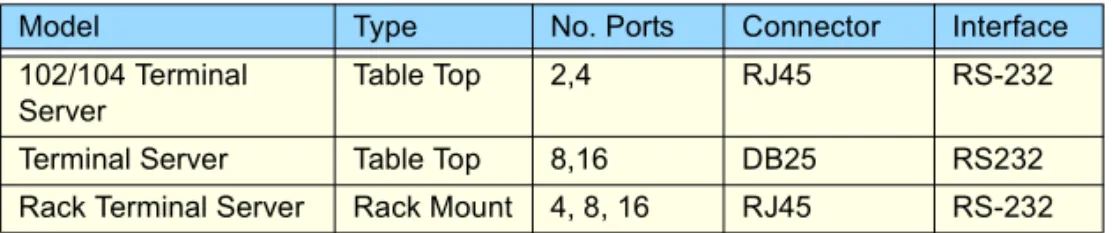
The following table and diagrams describe the units:
Model
Hardware description for Terminal Server
Model Type No. Ports Connector Interface 102/104 Terminal
Server
Table Top 2,4 RJ45 RS-232 Terminal Server Table Top 8,16 DB25 RS232 Rack Terminal Server Rack Mount 4, 8, 16 RJ45 RS-232
Main power switch
Serial ports
Power input socket
Power indicator 10/100 BASE T socket 100 BASE T Link/Activity
Terminal Server User Guide
Hardware description for Rack Terminal Server
Page 30
Chapter 1 Introduction
Hardware description for Rack Terminal Server
I O
Main power switch
Serial ports Power input socket 10/100 BASE T socket Port activity indicator
POWER 10 BASE T 100 BASE T ACTIVITY
Terminal Server User Guide
Hardware description for 102/104 Terminal Server
Page 31
Chapter 1 Introduction
Hardware description for 102/104 Terminal Server
Serial ports
Port activity indicators
10/100 BASE-T socket Network indicator
Power input socket Power indicator
Terminal Server User Guide Page 32 Chapter 2 Installation Terminal Server User Guide
Chapter 2 Installation
You need to readthis chapter if you want to...
You need to read this chapter if you want information about installing your Terminal Server product.
This chapter provides information about installing the Black Box Terminal Server including connecting to your network, configuring communications as well as information on the menu system and general tips.
This chapter includes the following sections; • Connecting to your Networkon page33
• Switching on Terminal Serveron page34
• Communicating via ARPon page35
• Communicating via a Terminal or PCon page36
• The Menu Systemon page37
Terminal Server User Guide Connecting to your Network
Page 33
Chapter 2 Installation
Connecting to your Network
First connect Terminal Server to a network then begin configuring the unit for your application. Additional information on configuring modems and printers follows.
Terminal Server and Rack Terminal Server connect to your ethernet network via one of the following (depending on your hardware model):
• Auto-sensing 10BASE-T (twisted pair) • Auto-sensing 10BASE2 (thin) • Auto-sensing AUI
• 10/100BASET
102/104 Terminal Server connect using either: • 10BASE-T (twisted pair)
• 10/100BASE-T
10BASE-T (twisted pair)
Attach the RJ connector from a hub directly to Terminal Server twisted pair port.
10BASE2 (Thin Ethernet)
Attach a BNC T connector directly to your Terminal Server. If your unit is the termination point for the cable you need to add a terminator. Always ensure that each segment of the thin Ethernet cable is at least 0.5m in length. The maximum length for a thin Ethernet cable is 185 metres.
AUI port
The AUI connector allows an external transceiver to be connected. This allows a number of different interfaces to connect including 10BASE5 (or thick) and fibre optic transceivers. Attach the RJ45 connector from a hub directly to the Terminal Server port.
10/100BASE-T
Terminal Server User Guide Switching on Terminal Server
Page 34
Chapter 2 Installation
Switching on Terminal Server
The Terminal Server power supply accepts input voltages in the range 110 to 240V AC, allowing it to be used world-wide. The 102/104 Terminal Server has an external power supply unit.
After you connect your LAN interface, you can power up the unit. The green power indicator at the side (or front for rack and 102/104 units) should be lit. If the unit fails to power up with the green power indicator lit, disconnect the unit and contact your dealer for help.
The Terminal Server firmware may be compressed, and this takes a short time to decompress before running.
During this phase the network LEDs will light alternately to indicate that decompression is in progress.
The green Ethernet indicators show the active connections. It remains lit and blinks when LAN traffic is active.
If your unit has 10BASE-T, 10BASE2 and AUI connectors, then the green ethernet indicators show the active connection. The indicators remain lit and blink when LAN traffic is active. If you have an Rack Terminal Server unit with 10/100BASE-T, then the Ethernet indicators will light green to indicate either 10Mbit or 100Mbit link, and the Activity light flickers to indicate LAN traffic.
If you have a Terminal Server or 102/104 Terminal Server with 10/100BASE-T, then the Ethernet will light green to indicate a 100Mbit link, and orange to indicate a 10Mbit link. The LED will flicker to show LAN traffic.
You are now ready to begin communicating with your Terminal Server. You can connect to the unit in different ways: via a terminal or PC on port 1, or using ARP or BOOTP. Using ARP is the preferred method for both Windows ® and Unix, however a terminal or PC attached to port 1 is often used.
BOOTP setup is for Unix users only. Choose the appropriate method for your application. Third party BOOTP packages are available for Windows ®
Note:
Terminal Server User Guide Communicating via ARP
Page 35
Chapter 2 Installation
Communicating via ARP
Your Terminal Server supports the ‘Address Resolution Protocol’ (ARP). It allows you to temporarily connect to your Terminal Server to assign a permanent IP address. If you prefer to use a terminal or PC attached to Terminal Server see Communicating via a Terminal or PCon page36.
To do this proceed as follows;
1. From a local Unix host, type the following:
arp -s a.b.c.d aa:bb:cc:dd:ee:ff
(where a.b.c.d is the IP address you want for Terminal Server, and aa:bb:cc:dd:ee:ff is the Ethernet address of your Terminal Server, found on the bottom of the unit itself).
2. On a Windows ® NT/98 system, the arp command is slightly different (using dashes instead of colons):
arp -s a.b.c.d aa-bb-cc-dd-ee-ff
3. Whether you use Unix or Windows ® to run arp, you are now ready to telnet to Terminal Server. Here is the sequence to use:
arp -s 192.168.209.8 00:80:d4:00:33:4e telnet 192.168.209.8
password> local>
4. At the password prompt, press the Enter key since this is not set yet. The IP address still needs to be configured on the unit (ARP has only allowed you to connect to the unit so far).
You can now skip the next section and go straight to The Menu Systemon page37
Note
If there are any errors, recheck both the IP and Ethernet addresses you keyed in (this is the most common error here). See Appendix B Troubleshooting for more information on problems.
Terminal Server User Guide Communicating via a Terminal or PC
Page 36
Chapter 2 Installation
Communicating via a Terminal or PC
You can connect to Terminal Server using a terminal or PC (with a terminal emulation package such as Hyperterm).
1. Connect a terminal or your PC to port 1. The Terminal Server serial ports are DTE type RS-232 ports. When connecting a terminal/ PC directly (without modems), the RS-232 signals need to be crossed over (‘null modem’ cable). See Appendix D Cabling for pinout information.
2. For a terminal/PC to communicate with a server, set it to the following: 9.6 kbps, eight data bits, one stop bit, software flow control, no parity.
After powering up your Terminal Server, you are prompted to enter a ‘Local login:>‘. 3. You can just hit any character and at this point (the character is required).
The next prompt displayed is local>, which is the Command Line Interface (CLI) prompt.
You can now move to The Menu System. See The Menu Systemon page37. Note
If there are any problems, check the cable you are using (this is the most common error). Port 1 is configured to provide error messages should any problems occur. See Appendix B Troubleshooting for more information on problems.
Terminal Server User Guide The Menu System
Page 37
Chapter 2 Installation
The Menu System
You should now be at the Command Line Interface (CLI) of the Terminal Server as
designated by the local> prompt. If you would like to continue in CLI mode refer to Appendix A Command Line Interface, but we recommend the menu system.
1. Set the terminal emulation type and begin using the menus. The following are the terminal options:
ansi, dumb, vt100, wyse50, wyse60, tvi925, ibm3151, vt320, falco50, hp700
2. The default setting is ‘dumb’. To set the menu interface to your emulation simply type set term with your option.
Example:
local> set term ansi
3. To switch from the command line interface to the menu interface, at the local> prompt enter:
set menu
Note
Terminal Server User Guide The Menu System
Page 38
Chapter 2 Installation
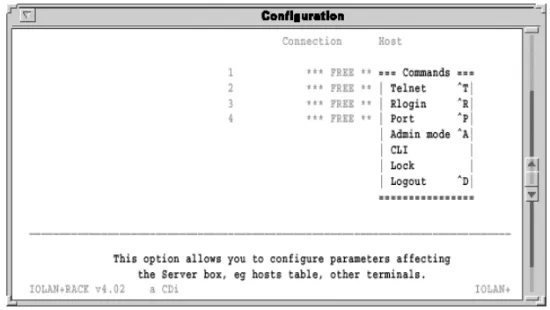
The Connections Menu should now be displayed.
This menu displays the current state of the four possible connections. There are no active connections.
The firmware version of Terminal Server is located on the lower left hand portion. The wording ‘REMOTE-ADMIN’ in the upper right signifies you are remotely telneted into Terminal Server (and will read ‘Terminal: 1’ if you are using a terminal/PC into port 1.) The keys used to move about in the menus depend on the terminal emulation you are using. The arrow keys should all work. The TAB key is very important for moving between fields. Backspace and DEL should work, but depend on the emulation.
ESC (the escape key) will move you back one menu.
An accelerator key can be used to jump to an option within a menu and is the first letter of the option.
Note
If there is a problem with your emulation, you can try a different emulation mode. See Appendix B Troubleshootingfor more information.
Terminal Server User Guide The Menu System
Page 39
Chapter 2 Installation
Connections Menu
Select connection '1’ on the Connections Menu and press the Enter key. The Commands pop-up menu is displayed. There are a number of options available from this menu.
Before communication across the network can be established the Terminal Server must be assigned a network IP address. This is accessed through the Administration Menu. Select the Admin mode field and press the Enter key.
Note
If you are telneted into Terminal Server, the telnet, rlogin and port options do not appear on the Commands pop-up menu.
Terminal Server User Guide The Menu System
Page 40
Chapter 2 Installation
Administration Menu
The top level Administration Menu appears as follows:
1. Select the Password field and press the Enter key. Use the factory default password here: this is iolan (no caps).
The Administration Menu is redisplayed, it now has some extra fields (access, change, kill, reboot, trap).
Note:
This password level will time-out in four minutes if there is no activity. This is for security reasons and will take you back to Administration Menu (view level).
Terminal Server User Guide The Menu System
Page 41
Chapter 2 Installation
2. Select the server entry and press the Enter key. This takes you into the Server Configuration Menu.
Terminal Server User Guide The Menu System
Page 42
Chapter 2 Installation
Server Configuration Menu
There are a number of fields in the Server Configuration menu which are explained in
Chapter 10 The menu interface. At this point proceed as follows; 1. Give the Terminal Server an IP address and a name.
2. The important fields that you need to fill in are as follows:
Name: In the example above the communications server name has been set to IOLAN. It is a good idea for the Terminal Server name entered here to match the name entered in the host machine’s domain name server.
IP Address: This address must be set to a value that is consistent with the network the Terminal Server is on.
3. Having filled in the fields press the Enter key. This brings the Commands pop-up menu as shown in the next picture.
Note
For more information about domain name servers, consult your operating system manuals.
Note
The Ethernet address is factory set. This address is uniquely assigned to the Terminal Server and MUST NOT be changed.
Terminal Server User Guide The Menu System
Page 43
Chapter 2 Installation
4. Select the Save & Exit field and press the Enter key. Other options are Quit & Exit, which does not save the changes before exiting this menu, Values, which will display the optional values for this field if available, and Cancel, which will take you back to this screen for more editing.
5. You have now set up the unit with a new IP address. This should be confirmed with the message:
IP CHANGED—PLEASE REBOOT
6. Reboot the communications server to activate the new IP address using the reboot command. The IP address and/or subnet mask are the only parameters that when changed necessitate rebooting.
Terminal Server User Guide The Menu System
Page 44
Chapter 2 Installation
Port Setup Menu and Beyond
Your communications server is now ready to configure for terminals on multi-user systems or modems, printers and other devices. The next sections deal with each of these.
If you’ve got a good feel for the menu system, you should proceed to the section appropriate for your application.
If you’d like a full review of the menu system refer to section 9, The Menu Interface later in this guide. For more information about the Command Line mode, consult Appendix A Command Line Interface.
All of the procedures are based around the Port Setup Menu. This is accessed through the Administration Menu (password level). Remember, that if you are not in the password level, you can only view the information, not change it.
Here is the Port Setup Menu:
This menu allows the user to set up all the parameters associated with a port. The
administrator can alter the set-up of any port on the communications server while a user can only alter the set-up for their own port.
Terminal Server User Guide The Menu System
Page 45
Chapter 2 Installation
This menu is divided into the following sections:
If you’re ready to install terminals, printers and modems, proceed to the appropriate section. For a good review, go to Chapter 10 The menu interface.
Menu option Description
Hardware Defines port type and is used for setting up the hardware configuration of the modem, terminal, printer or PC session. This section is always used.
User Defines various user parameters such as name and terminal type. Most fields are used in this section.
Flow Control Defines the various flow control options used by the Terminal Server. This section is always used.
IP Addresses Deals with remote access via PPP/SLIP sessions.
Options Deals mainly with the telnet options. This section is the least used. Keys Defines the various accelerator keys that the Terminal Server responds
to and can be used for convenience.
Access Controls the type of the connection made from this port. This is the most important section in defining a port.
Terminal Server User Guide Tips Page 46 Chapter 2 Installation
Tips
Copy Command
The Terminal Server has a copy command that allows you to copy the setup of one port to another. You will need to get to the CLI (from the Connection menu) and use the following syntax.
Connecting via BOOTP (for Unix systems only)
Your Terminal Server supports BOOTP which allows the communications server to
dynamically configure itself on startup. Upon startup your Terminal Server sends four BOOTP broadcast requests if it has no IP address. This broadcast request packet contains the Ethernet address of your unit.
The request is received by all hosts on the network and is checked against a file to find a match. This data base file will normally be /etc/bootptab and will be of the following format:
# bootptab description iolan:ht=ethernet:ha=0080d400024e:\ :hd=/tftp:\ :bf=iolan.DL:\ :ip=192.168.209.8: Where:
ht is the type of network
ha is the Ethernet address on back of your unit Note:
To get back to the menu system once in the CLI, type set menu at the command line.
local> su password>
ADMIN:local> copy 1 2 3 4 5 ADMIN:local> set menu
The commands above would copy the configuration of port number 1 to ports 2, 3, 4 and 5 (and return you to the menu system).
Terminal Server User Guide Tips
Page 47
Chapter 2 Installation hd is the home directory for specifying Terminal Server firmware (optional)
bf is the name of Terminal Server firmware (optional)
ip is the IP address you want to use
You can now move back to The Menu System in this chapter. Note
This BOOTP implementation is a subset and not a full implementation of the RFC. Note
The most common error is bad information in the /etc/bootptab file (recheck it). See Appendix B Troubleshooting for more information.
Terminal Server User Guide Tips
Page 48
Chapter 2 Installation
Saving and downloading configurations
It is possible to save the configuration of your Terminal Server. This is convenient for loading multiple communications servers with the same setup. It is also advisable as a backup method.
If the boot file name has the extension “.cfg” (eg iolan.cfg), it will be loaded as a configuration file rather than a boot file.
This allows the administrator to configure one Terminal Server, save its configuration and automatically configure subsequent units via bootp.
Should the configuration of your Terminal Server ever be corrupted because of user error or damage, it is an advantage to have the configuration stored somewhere for easy re-installation.
This can be achieved by uploading the configuration of the unit to a host on the network. To do this, enter the Communications Server Menu from the Administration Menu. Select the Init file entry of this menu.
Set this to the full pathname of the file in which you wish to store the configuration. Set Boot host to the host machine you wish the file to reside within and save these entries.
Boot host: rockvegas (or ip address) Init file: /tftp/term_serv.cfg
Log onto the host machine in the normal manner and create the file you have specified in the Terminal Server menu, this could be as shown in the next picture:
touch term_serv.cfg
Note
This file must exist with the correct read/write permissions before you can write to it.This can be accomplished by pressing the Enter key and selecting the CLI option in the pop up menu. At the iolan> prompt, use the CLI as the administrator by typing:
su
and enter the password and type: save config
This uploads the communications server port configurations to the host in a format that can be downloaded at a later date.
Note
This does not save any of the settings configured in the Server Configuration Menu, including the IP address, language, name, subnet mask, etc.
Terminal Server User Guide Tips
Page 49
Chapter 2 Installation
Terminal Server will now automatically download this configuration on reboot. Remember that whenever you change a setting on the unit, it will be overwritten the next time the unit is rebooted unless the new configuration is saved.
Domain Name Server (DNS)
Terminal Server can be configured to take advantage of your network’s Domain Name Server (DNS). This is done from the server in the Administration Menu by keying in the IP address of your DNS in the Name server field. Fill in the Domain name field as well.
Reassigning your Terminal Server to a New Network
If you need to attach your Terminal Server to a different network with a new IP address, it is possible to reset it to factory default condition using the following procedure:
1. Power on the unit. 2. Wait 30 seconds.
3. Hold down the RESET button for 15 seconds. 4. Release the button.
After this is done, the unit will start sending BOOTP request packets.
This procedure is useful for factory defaulting units which cannot be reached via TCP/IP. This includes reassigning a programmed unit to a network to which the previously assigned IP address does not belong.
Updating Terminal Server Firmware
Firmware can be downloaded across the network using tftp protocol if the host machine and file name are set in the boot host and boot file entries of the server menu. These entries are checked at start up and if they have been configured, the relevant file will be downloaded.
Note
If firmware is compressed, then network LED will alternately light for approximately an additional 30 seconds.
Note:
Terminal Server User Guide
Page 50
Chapter 3 Terminals on mutli-user systems
Terminal Server User Guide
Chapter 3 Terminals on mutli-user systems
You need to readthis chapter if you want to...
You need to read this chapter if you want information on setting up a terminal for use with your Terminal Server product.
This chapter provides information on how to setup a terminal, and other tips such as the concept of ‘fixed ttys’, multiscreens, the copy command, TERM features, etc.
This chapter includes the following sections; • Introductionon page51
• Terminal Port Configurationon page52
• Host Table Setupon page54
• Making a Connectionon page55
Terminal Server User Guide Introduction
Page 51
Chapter 3 Terminals on mutli-user systems
Introduction
Terminal Server is used extensively for connecting terminals, printers and modems on multi-user Unix systems, especially in retail applications. These Unix systems include SCO Unix, IBM AIX, HP-UX, Data General’s DG/UX, etc. This chapter deals with terminals and/or PCs using emulation packages (such as Hyperterm).
In many applications, the users need to be ‘direct connected’ to a specific Unix host so that they see the login prompt automatically. This is helpful in securing your system, or in environments where the users need to be in one application only.
This chapter will show how to setup a terminal, and other tips such as the concept of ‘fixed ttys’, multi screens, the copy command, TERM features, etc. Consult Appendix D Cabling, for information on wiring your terminal.
Remember to use the TAB key to bounce between fields, and if you get the Commands exit menu by mistake, use Cancel to return to editing this menu.
Terminal Server User Guide Terminal Port Configuration
Page 52
Chapter 3 Terminals on mutli-user systems
Terminal Port Configuration
This is the setup for making a terminal connect to a designated Unix host login prompt automatically.
The following fields are important:
Menu
option Description
Access Set this field to Local. This tells the terminal server port to listen for data on the RS-232 side.
Mode With this field set to telnet, the port will operate in telnet mode (or raw for rlogin). Most systems will use telnet.
Connection Set this field to Initiated and the port will establish a TCP/IP connection to a specified host only after receiving a <CR> on the RS-232 port. If you set this field to none, then the user of this port will see the menu system when the terminal is powered on.
Host Use this field to define which host computer you want the port to automatically connect to when using Initiated connections. Use the host’s IP address or if you setup the Host Address Menu, you can use a name.
Terminal Server User Guide Terminal Port Configuration
Page 53
Chapter 3 Terminals on mutli-user systems
Remote Port This corresponds to Telnet service on the remote host and must be set to the standard 23 (or 513 for rlogin).
Monitor DSR You can set this field to Yes if you wire the terminal’s DTR signal pin 20 (DB25) to the Terminal Server's DSR signal pin 3 on the RJ45 connector ( see Appendix D Cabling for DB25 pin assignments). When you turn the terminal off, it will reset the Terminal Server port, which tells the Unix host to kill the user’s processes.
Menu
Terminal Server User Guide Host Table Setup
Page 54
Chapter 3 Terminals on mutli-user systems
Host Table Setup
In order for your Terminal Server to connect easily to machines on the network it must know the IP addresses of the other computers. The Terminal Server can have its own internal table of IP addresses set up in the host table. This is a ‘local’ naming system only. Your Terminal Server can also use the name server utility of your Unix system (consult your Unix system manual and Tipson page57).
The Host Address Menu is accessed from the Administration Menu by selecting the host entry. The host table can contain up to 10 addresses. Each entry consists of a host name and its corresponding IP address.
You can fill in an entry (both the name and the IP Address) for your host machines and then save the values by pressing the Enter key.
Terminal Server User Guide Making a Connection
Page 55
Chapter 3 Terminals on mutli-user systems
Making a Connection
If you are using initiated connections, you will not see the Terminal Server menus. Instead, you see the login prompt of the host you assigned in the host field of the Port Setup Menu. However, if your connection field is set to None, the Connections Menu appears. You are now ready to make connections. From the Connections Menu press the Enter key on a *** FREE *** session to display the Commands menu. Select the Telnet field and press the Enter key.
This produces a pop-up menu allowing the choice of the host machines that are configured in the host table. To select a host, move the cursor down to the required name then press the Enter key. At this point the unit attempts to make a connection across the network to the indicated host using the telnet protocol.
If it succeeds, the host machine’s login prompt is displayed. There may be an error in the configuration if the connection cannot be established.
While in session to the host machine, you can return to the communications server by using a hot key. This is user-defined, but defaults to ^]. Press this key and the Connections Menu is displayed. To resume your connection select the host session you were on (notice that the
Note
At this point, check the host table again for correct entries, then check the network connection and host machine you’re connecting to.
Terminal Server User Guide Making a Connection
Page 56
Chapter 3 Terminals on mutli-user systems
name of the host is now displayed where *** FREE *** was). Press the Enter key to bring up the Connection pop-up menu, then select the Resume Connection option.
When logging out of your session the connection is automatically closed. Note
If the ^] did not work, you might have a conflict with that character sequence and should check the Keys section of this port.
Terminal Server User Guide Tips
Page 57
Chapter 3 Terminals on mutli-user systems
Tips
Connecting via ‘fixed ttys’
Your Terminal Server has the ability to create a ‘fixed tty’ under Unix. This is helpful for older or secure Unix applications that require a fixed location for each terminal. Consult Chapter 9 Other devices setup.
Multisessions on terminals/PCs
Your Terminal Server is capable of supporting multiple sessions. This allows the user to connect to all four *** FREE *** sessions with different hosts and move between them using the ^] hot key. You can also key through the screens by setting the session key (that is, If set to ^A you would bounce through the screens with a ^A1, ^A2, ^A3, ^A4.). If you are using a terminal that supports video pages such as the Wyse 60, the screens will be refreshed if you set the video pages field on the Port Menu to the number of pages supported by your terminal (for Wyse 60 = 3).
The TERM field The TERM field in the Port Setup Menu can be used to pass the terminal type information to the host. The terminal type field is local to the Terminal Server but will be passed to the host.
The TERM field can override the information being sent to the host about the type of terminal. This allows you to customise information being passed to the host. For example, a user could encode the physical location into this field (that is, tty16) and then extract that at the host end to determine which port the user has logged in on (that is, port 16).
Gateway Tables
When the host and Terminal Server are connected via a gateway router, a connection is not possible until the gateway table has been updated with the IP address of the local gateway machine. See Gateway Menuon page149 in Chapter 10 The menu interface.
Terminal Server User Guide
Page 58
Chapter 4 Setting up dial-in modem ports
Terminal Server User Guide
Chapter 4 Setting up dial-in modem ports
You need to readthis chapter if you want to...
You need to read this chapter if you want information on creating dial-in connections with your Terminal Server product.
This chapter provides information on the configuration necessary to create dial-in
connections. It includes the most simple connection such as a dial-in Unix connection, The setting up PPP ports which is how Windows ® systems dial-in (as well as Unix).
This chapter includes the following sections; • Introductionon page59
• Dial-in Porton page60
• The hoston page62
• The modemon page63
• Client loginon page64
Terminal Server User Guide Introduction
Page 59
Chapter 4 Setting up dial-in modem ports
Introduction
This chapter will review the configuration necessary to create dial-in connections. It will start with the most simple connection such as a dial-in Unix connection. The chapter then moves into setting up PPP ports which is how Windows ® systems dial-in (as well as Unix). This is very important if you are an Internet Service Provider (ISP) or a corporate site providing remote access or Internet/Intranet access.
Your Terminal Server can make a very good dial-in solution for ISPs and corporate users alike by using its remote access facilities.
This chapter goes hand-in-hand with Chapter 5 Modem authentication and logging. Note
In many of the modem examples, we are using PPP. You can use SLIP and CSLIP in those applications requiring these legacy modes.
Terminal Server User Guide Dial-in Port
Page 60
Chapter 4 Setting up dial-in modem ports
Dial-in Port
The following is the port configuration for a dial-in connection, including PPP.
The following fields are important:
Option Description
Monitor DCD With this flag set to Yes, your Terminal Server will monitor Data Carrier Detect (DCD) - pin 8 - from the modem. As soon as your modem answers a call and establishes a carrier signal, the modem raises DCD. The terminal server will then establish a telnet/rlogin connection to a specified host. When the modem hangs up, DCD goes low and the terminal server port resets. This will also drop the connection to the host. TERM This field is the TERM environment variable.Whatever you type in here
will be passed to the host as the TERM variable when a telnet connection is established and the user logs in.
Flow Ctrl The modem and terminal server port should be configured to use Hardware (RTS/CTS) flow control. This will be especially important if you are using SLIP.
Terminal Server User Guide Dial-in Port
Page 61
Chapter 4 Setting up dial-in modem ports
Dst: This field contains the IP address the dial-in user will borrow for the PPP session. If you are using a straight forward dial-in connection for Unix, this is not required.
Mask If using PPP, SLIP or CSLIP, this is the subnet mask that controls the range of IP addresses accessible from the port and must correspond with your network. (If used for terminals, this is not needed.)
Secure This field is set to Yes to force the call-in user to use the Dst IP address. (su is not available in this mode.) If the Secure flag is set, the dial-in user will not be able to obtain administrative privileges. This also applies to local terminals.
Access Set this field to Dynamic. This sets the port of the terminal server to listen for data on both the RS-232 side and the network side. If only used for dial-in, set to Local and it will only listen on the RS-232 side.
Connection With the connection set to Dedicated, the port will automatically connect to a specified host when not doing PPP (DCD goes high on the modem).
Host When not doing PPP, this field defines which host computer you want the port to automatically connect to. Use the host’s IP address. You can also define the host in the terminal server’s Host Table and just use the name.
Remote port
This corresponds to the Login (for example, rlogin) service on the remote host and must be 513 (or 23 for Telnet).
Local port The inetd process running on the terminal server for this port is listening for TCP/IP connections on TCP port 10006.
Terminal Server User Guide The host
Page 62
Chapter 4 Setting up dial-in modem ports
The host
Make sure you have setup a valid user account for authentication on the designated authentication host. See Chapter 5 Modem authentication and logging.
Terminal Server User Guide The modem
Page 63
Chapter 4 Setting up dial-in modem ports
The modem
You will need to configure the modem using a configuration string. To do this, go to the Remote Site Devices screen (via the Access section of the Administrative Menu). Select the UNUSED ENTRY that corresponds to the port with the modem attached (that is, third one down is port 3, etc.). You can set the type (for example, name) and the Modem Config to the required configuration string (for example, ate0s0=1&w). All other fields are default.
You will now need to kill this port (from the Administration Menu or CLI) to activate the changes and configure the modem.
The configuration string will be sent to the modem after each call, keeping the modem in sync with Terminal Server.
Terminal Server User Guide Client login
Page 64
Chapter 4 Setting up dial-in modem ports
Client login
When the caller connects, you may want to send out a welcome message of some sort. After the user gets this message, you want him/her to enter a login and password then connect to the Host for a shell account.
Or, if it is a PPP user, they will simply start sending PPP packets at the login prompt (for example, Windows ® 95/98) and use PAP for authentication. Optionally, the dial-in user can place a P, S or C (all caps) in front of the user name at the Login prompt (this starts the corresponding protocol after successful authentication).
Welcome to the Internet site
login: Cflint
password:
Host authentication succeeded.
My IP Address is : 204.17.209.7
Your IP Address is : 204.17.209.210
The Subnet Mask is : 255.255.255.0
With this example, the Terminal Server is now in CSLIP mode, so put your PC into CSLIP mode as well. Your dialer script will have to parse out the My/Your addresses from the above message.
‘Your IP Address’ will be the address of the PC that is calling in, and ‘My IP Address’ can be the PC’s default gateway. The above procedure works for SLIP and PPP as well. However, PPP will not display the ‘My IP...’ message because the IP addresses are negotiated automatically in the IPCP layer.
With the Connection field on the Port Setup Menu set to Dedicated, if you do not specify a P, S or C in front of the user name, you will be authenticated and then connected to the host. This will leave you at a shell prompt on the Authentication host. A caller will never see Terminal Server. If Connection is set to None, you will be left at the CLI prompt (for example, IOLAN> ).
Terminal Server User Guide Tips
Page 65
Chapter 4 Setting up dial-in modem ports
Tips
Domain Name Server (DNS)
Your Terminal Server can be configured to take advantage of your network’s Domain Name Server (DNS). This is important for ISPs. From the Administration Menu select server and key in the IP address of your DNS in the Name server field. You could fill in the Domain name field as well.
WINS Server
If you have a local NT server running WINS and you want dial-in clients to take advantage of that, put the IP address of the NT server in the WINS server field of the Server Configuration screen.
MOTD
A Message of the Day (MOTD) can be displayed before login. This is setup from the Server Configuration menu using MOTD and Boot host fields.
Gateway notes
If you have a router on your local network, make sure you enter this into the Terminal Server Gateway Menu.
Note
The Windows ® 95/98 client obtains the WINS address by setting 'Use DHCP for WINS resolution'.
Terminal Server User Guide
Page 66
Chapter 5 Modem authentication and logging
Terminal Server User Guide
Chapter 5 Modem authentication and logging
You need to readthis chapter if you want to...
You need to read this chapter if you want information on modem authentication and logging for your Terminal Server unit.
This chapter contains information providing authentication support to validate users connecting to the serial port, and updating a host log file on connection states. This chapter includes the following sections;
• Introductionon page67
• User authentication/loggingon page68
• The hoston page71
• Loggingon page73