Implementation of eScan Live Events with SYSLOG (CACTI)
Enterprise customers, implement NMS (Network Management Servers) to get the status of devices like Routers, Switches, printers etc. So whenever a switch or router goes down an event is generated and send to NMS server based on the criticality of that event NMS server may send notifications to System/Network administrator.
NMS servers do support SNMP and SYSLOG protocol, keeping this in mind eScan team developed integration with SNMP and SYSLOG. Considering events related to eScan can be forwarded to NMS server for further action.
By default, eScan clients generate and send events to eScan server, and then you can configure eScan server to send one copy of those events to NMS server either using SNMP or SYSLOG, based on these events administrator can configure notifications, in case of any virus detected or any USB is plugged in or if any porn site is visited administrator can receive notifications. Notifications through email for all the events are already available on eScan server. So what is the point forwarding event to NMS server? Well! This is an additional option.
Here we will consider that RSYSLOG and CACTI is configured and working. We will discuss more on eScan configuration part which will show us how to configure eScan server to forward events to RSYSLOG server.
Prerequisites:
1. eScan server installed (eScan Corporate for Windows)
2. CACTI installed on a server with SYSLOG plugin and configured.
3. RSYSLOG configured to write the events to the MYSQL database used by Cacti
(Please note: Cacti is independent software and eScan is not responsible to provide any kind of support related to it.)
Let us see how to configure eScan to forward events to SYSLOG daemon in this case RSYSLOG.
1. Go to Start > Run > type “CMD” press enter. 2. Then go to %windir% folder
3. Open win.ini file in your favorite text editor 4. Modify the below entries in the WIN.INI file
[General] # Section
SysLogHost= (Enter the IP Address of the SYSLOG Server here)
SysLogPort= (Enter the Port on which the SYSLOG server listens. Default port is 514, unless the default port is changed to some other port number)
SysLogEnabled= (This entry should be set to 1 for enabling the Syslog events. If set to 0, the Syslog events will not be generated nor will be sent)
IMPORTANT: If eScan Server is installed on a terminal server, the changes need to be carried in the following registry path HKLM\Software\Microworld\Win.ini\General
5. Save the file. ( If changed in the registry close the regedit.exe ) 6. Then restart the system once.
Once the eScan server system is restarted, it should start sending events to the SYSLOG server (Cacti server). eScan will send events to the SYSLOG server in the below format.
“date=2012-10-17 time=16:08:28 hostname=QA30 srcip=192.168.0.30 user=administrator eventid=102 application=CONSCTL severity=0 product=escan type="executable launched" action=allowed filename=c:\PROGRA~1\eScan\Vista\escanmon.exe”
Description of the fields in the above format:
date = Will show the date of the occurrence of the event time = Will show the time of the occurrence of the event
hostname = Will show the hostname of the system where the event occurred srcip = Will show the IP Address of the system where the event occurred
eventid = Will show the event id, for complete list of event id’s please refer the below link. http://wiki.escanav.com/wiki/index.php/Escan/english/eScan-FAQ/Features#anchor41 application = Will show which module of eScan logged this event.
severity = Will show the severity of the event.
product = Will show which product logged this event, will be always “eScan” type = Will show what type of event it is.
action = Will show the action as Allowed/Denied/File Quarantined etc. filename = Will show the path and the name of the file.
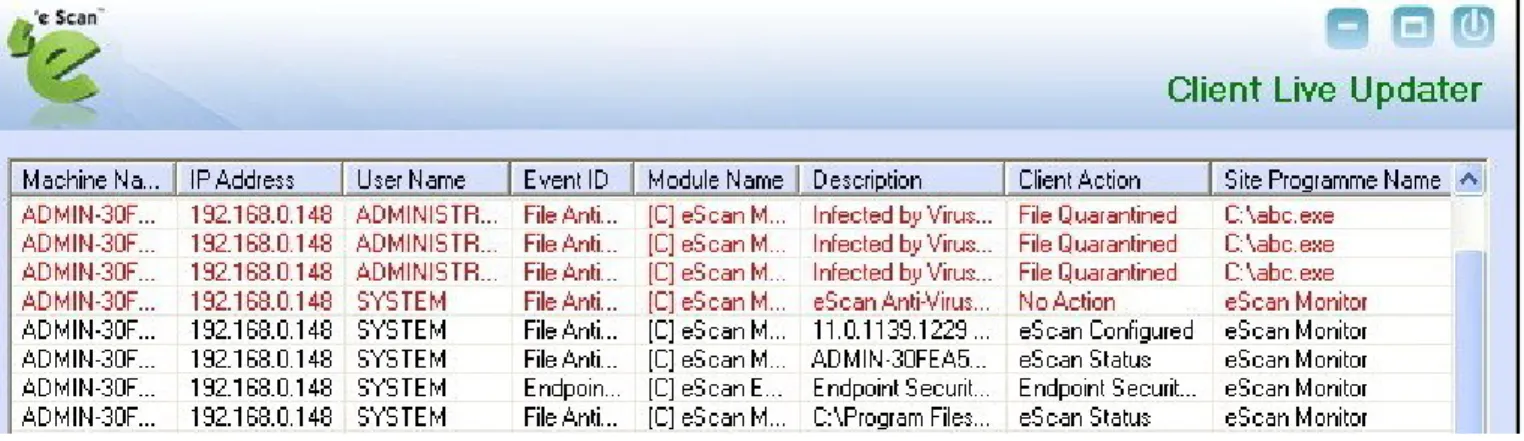
Figure 1: shows the Client Live Updater window on eScan server where all the events will be shown
Figure 1.
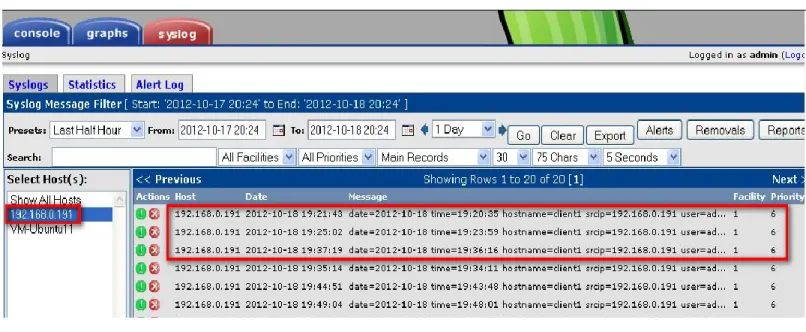
When these events reach the RSYSLOG, it will put these events in the MYSQL database as per the configuration in the RSYSLOG. These events will be displayed by the CACTI server with the help of the SYSLOG plugin.
Figure 2: shows the events in the “Web-Console” of CACTI
Figure 2.
With the configuration in CACTI you can configure email alerts as required based on the eScan events.
In case NMS server does not show any events related to eScan, in order to troubleshoot the same thing a small utility is available on internet which act like SYSLOG daemon and shows all the events sent to it. The name of that utility is KIWISYSLOG. You can google it for exact download link.
You can install it on any test system and under win.ini change the IP address of the system on which Kiwi Syslog is installed
[General] # Section SysLogHost =
Save the file and restart the system once and then wait for an event to occur. To generate test events you can go to any of the eScan client system and follow below steps:
1. Go to Start > Run > Type “cmd” press enter. 2. Then go to c:\Program files\escan folder 3. And type following command
Test2 /eicar and press enter
This will generate a test virus called eicar. This virus is a test virus and will not provide any harm to your system. eScan will detect that virus and send an event to eScan server this event should then be forwarded to NMS or Kiwi syslog server
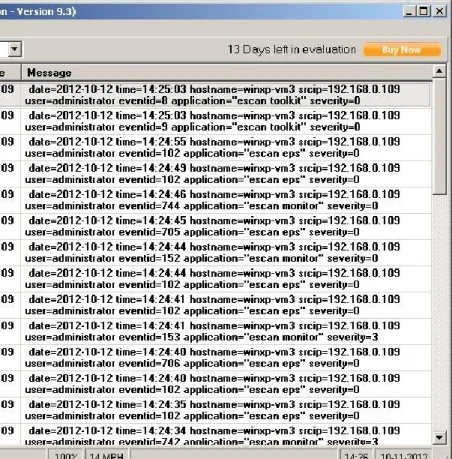
Figure 3. Shows you the Kiwi Syslog Daemon where eScan will start forwarding events.
If you need any further assistance configuring eScan server, please contact [email protected]