TECHNOLOGY INCORPORATED
XENIX
T
M
SYSTEM
TEXT
PROCESSING
CONTENTS
1.0
INTRODUCTION...
1-1 2.0USING THE TEXT EDITORS ED AND SED...
2-1 2 • 1E D . . .
2 - 42.1.1
2.1.2 2.1.3
A Summary of Commands and Line
Numbers
2-4
More Advanced Editing Techniques
Editing Scripts
2-302-6
2 • 2
S E D . . . " . . .
2 - 31 2.2.12.2.2 2.2.3
2.2.4
2.2.5
2.2.6
Overall Operation
2-31Command-line Flags
2-32Order of Application of Editing Commands
2-32
Pattern-space
2-33Addresses
2-33Functions
2-343.0
PATTERN RECOGNITION AND FILE COMPARISON
UTILITIES. . . .. . . . . 3-1
3 • 1 G RE P ••••••••••• .• • • • • • • • • • • • • • • • • • • • • • • • • • • • • • • • 3 - 2 3 • 2 AWK. • • • • • • • • • • • • • • • • • • • • • • • • • • • • • • • • • • • • • • • • • • • • 3- 5
3 • 3
D I FF . . . • • • . • . . . • . . . • . • . . 3-163 • 4 D I
FF
3 •••••••••••••••••••••••••••••••••••••••••• 3-183 • 5 C
OMM •••••.••.••.••.••••••••••••.•••..••••••••.•
3-193 • 6 SPELL .•...••••••••. " • • • • . . • • . • . • • • • . • . . . • . . 3- 20
4.0
TEXT FORMATTING AND DOCUMENT PREPARATION...
4-14. 1
FORMATTING PACKAGES...
4- 24.2
SUPPORTING TOOLS...
4-3 4.3HINTS
FORPREPARING DOCUMENTS...
4-44 .4
A NOTE ABOUT THE PAPERS...
4- 5
4.4.1
Using the -ms Macros with Troff and
Nroff
4.4.2
A Guide to Preparing Documents with
-ms
4.4.3
NROFF/TROFF User's Manual
4.4.4
A TROFF Tutorial
4.4.5
Tbl- A Program to Format Tables
4.4.6
Typesetting Mathematics- User's
Guide
4.4.7
Some Applications of Inverted
Indexes
4.3
HINTS FOR PREPARING DOCUMENTS...
4-4
4.4
A NOTE ABOUT THE PAPERS...
4 .... 5
4.4.1
Using the -ms Macros with Troff and
Nroff
4.4.2
A Guide to Preparing Documents with
-ms
4.4.3
NROFF/TROFF User's Manual
4.4.4
A TROFF Tutorial
4.4.5
Tbl- A Program to Format Tables
4.4.6
Typesetting Mathematics- User's
Guide
4.4.7
Some Applications of Inverted
Indexes
-CHAPTER
1
INTRODUCTION
Users involved in text processing applications
like
typing
memos,
writing
technical
reports,
and
preparing
documentation,
will
soon
discover
that
their
pr1mar~interface with
the
computer
is
through the editors, the
various pattern recognition and file
comparison
utilities,
and
the
text
formatting
packages.
Programmers also make
extensive use of the editors and other
utilities described
in this volume for writing and revising code.
Therefore, it
is extremely important that
all
users
learn
as
much
as
possible
about
the
tools
available
to them on the XENIX
system,
and
practice
using
the
various
commands
and
functions.
The
more
understanding
the
user has of which
functions
work
best
in
which
situations
and
the
more
dexterity
the
user developes in using particular commands,
the more powerful the editors and related tools become.
This volume contains
an
introduction
to
the
XENIX
text
editors,
ed and sed.
For a more detailed tutorial material
concerning the XENIX
text editors,
read
the
appropriate
sections in The
Programmer'~Introduction.
Also introduced in this volume are some
tools
which
prove
extremely useful in the process of preparing documents, when
it is necessary to locate repeated elements in a single file
or group of files to make a consistent set of changes, or to
compare and contrast two or more files in order to
identify
the
differences
between
them.
Because
several
of these
programs may be used interchangeably, knowing which one will
do
the
job
at hand
most
efficiently is a large part of
understanding
their
use.
These
programs
streamline
complicated
editing
command
procedures, locate variations
among several versions of text,
and
can
deal
with
large
numbers of text files at once.
~
members of the grep family, grep, egrep, and fgrep.
$
awk.
~
diff and diff3.
$
comm.
XENIX Text Processing
The XENIX system also offers two
text
formatting
packages
which
simplify
the
production of
technical
reports,
memoranda, formal papers, and documentation, nroff and troff
designed
to
produce
output
for
the
lineprinter
and
typesetter,
respectively.
-Ms,
a
canned
package
of
formatting
requests which is much simpler to use than nroff
and troff, is described in detail.
Some supporting programs
that
aid
in
document
preparation,
including
eqn
which
integrates mathematical symbols and equations into the
text
of
a
document, tbl which provides an analogous service for
preparing
tabular
material,
and,
refer which
prepares
bibliographic citations from a data base, are also discussed
in this volume.
CHAPTER
2
USING THE TEXT EDITORS ED AND SED
Most users of a computer system rely heavily on text editors
in
doing
their
work,
whether
it be writing programs or
preparing data. For those users involved in text
processing
applications,
for
typing memos, writing technical reports,
or preparing documentation, the. various
editing
functions
may be their primary interface with the computer. Therefore,
it is extremely important
that
the
text
processing
user
learn
as much as possible about the editing tools available
on the system, and practice using the various
commands
and
functions.
The
more
understanding
the
user has of which
functions
work
best
in
which
!ituations
and
the
more
dexterity
the
user developes in using particular commands,
the more powerful the editors and related tools become.
For
a
more
detailed
introduction
to text editing with XENIX,
read
the
appropriate
sections
in
The
Programmer'~Introduction.
XENIX offers two
text
editors,
ed,
an
interactive
line
editor, and sed, a non-interactive context editor.
Although
in many respects
the
capabilities
of
these
two
editors
overlap, the user will soon find that ed is more appropriate
to on-the-spot entry, deletion and
simple
modification
of
text.
Sed is more appropriate when uniform changes must be
made ·in large files or groups of file, or when the
sequence
of
editing
commands
needed
to
make
the changes becomes
complex.
Because sed is derived from ed,
however,
the . two
editors
share
some
characteristics.
In particular, they recognize
the same class of regular expressions.
A regular expression
specifies
a set of strings of characters to be matched by a
pattern found in
the
text,
sometimes
referred
to
as
a
context address.
In practical terms, these are the patterns
the user asks the
editor
to
search
and
substitute
when
changes
in
text
are
required.
These regular expressions
include:
1.
An ordinary character
below)
is
a
regular
character.
(not
one
of
those
discussed
expression,
and
matches that
2.
A
circumflex
' A Iat
the
beginning
of
a
regular
XENIX Text Processing
3. A
dollar-sign
'$1
at the end of a
regular
expression
matches the null character at the end of a line.
4.
The
characters
character,
but
pattern
~pace.'\n'
not
match
an
the
newline
imbedded
newline
at the end of the
5.
A
period
'.1matches any character except the terminal
newline of the pattern space.
6.
Aregular
expression
followed
by
an
asterisk
'*'
matches
any
number
(including
0)
of
adjacent
occurrences of the regular expression it follows.
7.
A
string of
characters
in
square
brackets
'[ ]'
matches
any
character
in the string, and no others'.
If, however, the first character
of
the
string
is
circumflex
'A"
the
regular
expression matches any
character except the characters in the string and
the
terminal newline of the pattern space.
B.
A concatenation of regular expressions
is a
regular
expression which matches the concatenation of strings
matched by the components of the regular expression.
9.
A regular expression between the
sequences
'\(1
and
' \ ) '
is
identical in effect to the unadorned regular
expression, but has side-effects which
are
described
under
the
s
command
below
and
specification
10)
immediately below.
10.
The
expression '\d' means
the
same
string
of
characters matched
by an expression enclosed in
'\(1
and '\)
Iearlier in the same pattern.
Here
d
is a
single digit;
the string specified is that beginning
with the dth occurrence of
'\{' counting
from
the
left.
For example, the expression 'A\(.*\)\ll matches
a line beginning with two
~epeatedoccurrences of
the
same string.
11.
The null
'II')
is
compiled.
regular
expression
equivalent
to the
standing
alone
(e.g.,
last regular expression
To use one of the special characters
(A $ •* [ ] \
I)
as
a
literal
(to match
an
occurrence of itself in the input),
precede the special character by a backslash
'\1.
For a context address to 'match' the input requires that the
whole
pattern within the address match some portion of the
pattern space.
The
use
of
these
pattern matches
for
XENIX Text
~~oce~singspecific
applications within
ed
and sed are discussed in
XENIX Text Processing
2.1 ED
Ed is one of the text editors on
the
XENIX
system,
used
primarily
to create and modify text interactively, whether
it is a document, a program, or data
for
a
program.
The
most
frequently used commands are summarized here, followed
by a discussio.n of editing techniques especially useful
in
text processing applications.
2.1.1
A Summary of Commands and Line Numbers
The general form of
preceded
by one or
r.
and
w, followed
allowed
per
line,
command (except for
ed commands is the command name, perhaps
two line numbers, and, in the case of e,
by a
filename.
Only
one
command
is
but
a
p
command may follow any other
e, r,
w,
and q).
a
Append, that is, add lines to the buffer (at line dot,
unless
a
different
line
is specified).
Appending
continues until a period is is typed
on
a
new
line.
The value of dot is set to the last line appended.
c
Change the
specified lines
to
the
new
text which
follows.
The new lines are terminated by a period on a
newline, as with a.
If no lines are specified, replace
line dot.
Dot is set to last line changed.
d
Delete the lines specified.
If none
are
specified,
delete
line dot.
Dot
is set to the first unde1eted
line, unless $ is deleted, in which case dot is set
to
$.
e
Edit new file.
Any previous contents of the buffer are
thrown away, so issue a
w
beforehand.
f
Print remembered filename.
If a name follows
f,
then
the remembered name is set to it.
g
The command
i
g/---/commands
will execute the commands on those lines
that contain
which can be any context search expression.
Insert lines before specified line
(or
single period
is
typed on a new line.
the last line inserted.
2-4
dot)
until a
XENI~ Text Processing
m Move lines specified to after the line named after m.
Dot is set to the last line moved.
p Print specified lines. If none are specified, print
line the line specified by dot. A single line number
is equivalent to the line-numberp command. A single
<RETURN> prints .+!,the next line.
q Quit ed. Wipes out all text in buffer if given twice
in a row without a w command.
r Read a file into buffer (at end unless specified
elsewhere.) Dot is set to the last line read.
s The command
s/stringl/string2/
substitutes the characters stringl into string2 in the
specified lines. If no lines are specified, the
substitution takes place only on the line specified by
dot. Dot is set to the last line in which a
substitution took place, which means that if no
substitution takes place, dot remains unchanged s
changes only the first occurrence of stringl on a line; to change all of them, type a 9 after the final slash.
v The command
v/---/commands
executes commands on those lines that do not contain
w
Write out buffer onto a file. Dot remains unchanged.. - Print value of dot. value of
$.)
The line
!command-line
(Anequalsignbyitself prints the
causes command-line to be executed as a XENIX command.
/string/ Context search~ Search for next line which
contains this string of' characters. Print it. Dot is
set to the line where string was found. Search starts
at .+1 , wraps around from
$
to 1, and continues toXENIX Text Processing
?string? Context
search
in
reverse
direction.
search at .-1 , scan to 1, wrap around to
$.
2.1.2 More Advanced Editing Techniques
Start
There
are
often
several
alternative
procedures
for
accomplishing the same editing task, with varying degrees of
efficiency.
This section provides explanations and examples
of how to use ed to edit with less effort and greater speed.
Topics covered include
$
Special characters in search and substitute commands
$
Line addressing
$
Global commands
$
Line moving
$
Line copying
2.1.2.1
Special Characters
characters
which
facilitate
ed.
There
are
several
special
searching and substitution in
The List command
'1'
Ed
provides two commands for
printing
the
contents
of lines.
One of these is p, in combinations
like
l,$p
to print all the lines in the file, or
s/abc/def/p
to change 'abc' to 'deft on the current line.
Less familiar
is the list command 1 (the letter
'1'),
which gives slightly
more information than p.
In
particular,
1
makes
visible
characters
that
are
normally
invisible, such as tabs and
backspaces.
1 prints each tab as
~and each backspace as
~,in
a
line which contains these characters.
This makes it
much easier to correct typing mistakes when extra spaces are
adjacent to tabs, or backspaces are followed by a space.
The 1 command also 'folds' long lines, by printing any
line
that
exceeds
72 characters on multiple lines; each printed
line except the last is terminated
by
a
backslash
\,
to
XENIX Text Processing
indicate that it was folded. This overcomes the limitation
of your terminal screen width.
Occasionally, the 1 command will print in a line a string of numbers preceded by a backslash, such as \07 or \16, making
visible characters that normally do not print, like form
feed or vertical tab or bell, usually typed in error. These combinations are a single character with special meanings on some terminals.
The Substitute Command's' The substitute command s is the
command for changing the contents of individual lines,
probably the most complicated and powerful of ed commands.
The most straightforward example is the trailing 9 after a
substitute command. with
s/this/that/
and
s/this/that/g
the first one replaces the first 'this' on the line with
'that'. If there is more than one 'this' on the line, the second form with the trailing 9 changes all' of them.
Either form of the s command can be followed by p or 1 to 'print' or ' l i s t ' the contents of the line:
s/this/that/p s/this/that/l s/this/that/gp s/this/that/gl
are all slight variations.
Of course, any s command can be preceded by one or two 'line
numbers' to specify that the substitution is to take place
on a group of lines. Thus
l,$s/mispell/misspell/
changes the first occurrence of 'mispell' to 'misspell' in
each line of the file. But
l,$s/mispell/misspell/g
XENIX Text Processing
If a
p
or
1is added to the end of any of
these
substitute
commands,
only
the
last line
that got changed will be
printed, not all the lines.
The Undo Command 'u'
If a
substitution
in
a
line
is
incorrect,
The
<undo'
command
uwill
'undo'
the
last
substitution: the last line
that was
substituted can
be
restored to its previous state by typing the command
u
The Metacharacter ' . '
Certain
characters
have
special
meanings
when
they
occur in the left side of a substitute
command, or in
a
search
for
a
particular
line.
These
special characters, are called 'metacharacters.'
The first one is the period ' . ' . On
the
left side of
a
substitute command,
or
in a search with / •.. /, ' . ' stands
for any single character.
Thus the search
/x.y/
finds any line where 'x' and 'y' occur separated by a single
character, as in
x+y
x-y
x
y
xzy
and so on.
Since ' . ' matches any single character, it can
be
used
to
delete or substitute special characters printed by 1.
If a
line printed with the
1command, appears as
th\07is
which represents the bell character,
s/\07//
will not delete it. Retyping the entire line is inefficient.
The metacharacter ' . ' , used in the following way
s/th.is/this/
will do the job.
The
"
matches whatever
character
is
between the 'h' and the
~i'.XENIX Text Processing
Since ' . ' matches any character, the command
s/./,/
converts the first character on a line into a comma does not correct the punctuation.
,
,
'.
,
itLike other special characters in ed,
meanings, depending on its context.
three:
the ' . ' has several This line demonstrates
.s/././
The first period is the current ,line number, which is called 'dot'. The second ' . ' is a metacharacter that matches any single character on that line. The third '~, is the literal
period. On the right side of a substitution, ' . ' is not
special.
The Backslash ' \ ' Sometimes a period is really required.
To convert the line
Now is the time.
into
Now is the time?
use the backslash ' \ ' . A backslash turns off any special
meaning that the next character might have~ in particular,
' \ . ' converts the ' . ' from a 'match anything' into a period, so It can replace the period in
Now is the time.
like this:
s/\./?/
The pair of characters ' \ . ' is considered by ed to be a single real period.
The backslash can also be used when searching for lines that
contain a special character. The following example looks
for a line that contains
.DE
at the start of a line.
XENIX Text Processing
I.DEI
isn't adequate, for it will find lines like
JME FME
MME
because the' , matches each of the letters
'A'.
search
I\.DEI
x •.•
will result in lines that contain '.DE'.
But
the
The backslash can also be used to turn off special meanings
for
characters
other
than
"
For
example,
consider
finding a line that contains a backslash.
The search
1\1
won't work, because the ' \ ' isn't a literal backslash,
but
instead means
that
the
second
'I'
no longer delimits the
search.
By
preceding
a
backslash
with
another
one,
a
literal backslash
can
be
searched.
Thus
1\\1
does work.
Search for a forward slash
'I'
with
1\11
The
backslash
turns
off
the
special
meaning
of
the
immediately
following
'I'
so that it doesn't terminate the
1 ... 1
construction prematurely.
As an exercise, find two substitute commands each
of
which
will convert the line
\x\.\y
into the line
\x\y
Here are
several
solutions;
verify
that
each
works
as
advertised.
s/\\\.11
s/x •• /xl
s/ •• y/yl
XENIX Text
Prbc~ssingAny character can delimit the pieces of an s command:
there
is nothing sacred about slashes.
(slashes are necessary for
context searching.) For instance, in a line that contains
a
lot of slashes already, like
Ilexec
Ilsys.fort.go
II
etc •••
a colon can be used as the
delimiter;
to delete
all
the
slashes, type
s:
I:
:gSecond, if
'#'
and
'@'
are the character erase and line kill
characters, it is necessary to type \# and
\@,
whether in ed
or any other program.
When adding text with a or
ior c, backslash is not special;
use only the
backsla~hesactually required.
The Circumflex
'A,The
circumflex
'A,stands
for
the
beginning
of
the
line.
For example, searching for a line
that begins with 'the', the command
Ithel
will probably locate several lines that contain 'the' in any
position.
With
IAthel
the context is specified.
The other use of
' A tis to insert something at the beginning
of a line:
SiAl
I
places a space at the beginning of the current line.
Metacharacters can be combined. To search for
a
line
that
contains only the characters
.PP
the command
IA\.PP$I
XENIX Text Processing
The Star
'*'
It is
between
x
and
ylike this:
possible
to
replace
all
the
spaces
with a single space in a line that looks
text
x
y
text
where text stands for lots
of
text,
and
indeterminate
number
of
spaces
between
without retyping the whole line.
there
the
are
some
x and the
y
The metacharacter
'*'
following any character stands for any
number
of
consecutive
occurrences
of that character.
To
refer to all the spaces at once, use
six *y/x y/
The construction' *' means 'as many
spaces
as
possible'.
Thus
'x *y' means 'an x, as many spaces as possible, then a
y' •
The star can be used
with
any
other
ch~racter.original example was instead
text
x---y text
If
the
then all
'_Isigns can be replaced by a
single
space
with
the command
s/x-*y/x y/
To change
Now is the time for all good men . . . .
into
Now is the time.
use '.*' to eat up everything after the 'for':
s/ for.*/./
The star '*' should be used very carefully. Note
especially
that
'as many as possible' occurrences can mean zero.
if a
line contains
xy text x
y text
and we said
XENIX Text Processing
six *y/x y/
the first 'xy' matches this pattern, for it consists of
an
'x',
zero
spaces,
and
a
'y'.
The
result
is that the
substitute acts on the first 'xY', and does
not
touch
the
later one that actually contains some intervening spaces.
To avoid this, specify a pattern like
/x *y/
which creates 'an x, a space, then as many
more
spaces
as
possible, then a y', in other words, one or more spaces.
The other startling behavior of '*' is again related to
the
fact
that
zero
is
a
legitimate number of occurrences of
something followed by a star. The command
s/x*/y/g
when applied to the line
abcdef
produces
yaybycydyeyfy
which is almost certainly not what was intended.
The reason
for this behavior is that zero is a legal number of matches,
and there are no
XiSat the
beginn~ngof the line
(so
that
gets
converted into a 'y'), nor between the 'a' and the 'b'
(so that gets converted into a 'y'), and so
on.
To
avoid
zero matches, write
s/xx*/y/g
'xx*' is one or more
XiS.Brackets '[ ]'
In deleting any numbers that appear
at
the
beginning
of
all
lines of a file, it is possible to use a
series of commands like
and so on, but this is a lengthy process if the numbers
are
at
all long.
To remove all the digits on one pass, use the
XENIX Text Processing
The construction
[0123456789]
matches any single digit
the whole thing
is
called
a
'character class'.
The pattern
'[01~3456789]*'matches zero
or more digits· (an entire number), so
1,$s/~[0123456789]*//
deletes all digits from the beginning of all lines.
Any characters appears within
a
character
class,
with
no
special
characters
inside the brackets; even the backslash
doesn't have a
special
meaning.
To
search
for
special
characters, for example, try
Within [ ••• ], the
' [ Iis not special.
To get a ' ] '
into
a
character class, make it the first character.
The digits can be abbreviated
as
[0-9];
similarly,
[a-z]
stands for the lower case letters, and
[A-Z]
for upper case.
Also a class that means 'none of the following
characters'.
can be specified using a
'~':stands for 'any character except a digit'.
To find a
first
line that doesn't begin with a tab or space use:
/~ [~(space)
(tab) ] /
Within a character
class,
the
circumflex
has
a
special
meaning only if it occurs at the beginning.
The Ampersand
'&'
The ampersand
'&'
is
used
primarily
to
save typing.
To change
Now is the time
to
Now is the best time
without repeating the word 'the'; the ampersand
'&'
can
be
used.
On
the
right
side
of a substitute, the ampersand
means 'whatever was just matched'. In
XENIX Text Processing
s/the/& best/
the '&' will stand for 'the'.
This
can
save
typing
and
potential errors
in
complicated
text.
For
example, to
parenthesize a line, regardless of its length, type:
s/.*/(&)/
The ampersand can occur more than once on the right side:
s/the/& best and & worst/
makes
Now is the best and the worst time
and
s/.*/&? &11/
converts the original line into
Now is the time? Now is the time!!
To get a literal ampersand, the backslash is
used
to
turn
off the special meaning.
For example,
s/ampersand/\&/
converts the word into the symbol.
Notice that '&'
is
not
special on the left side of a substitute, only on the right
side.
Substituting Newlines
Ed provides a facility for
splitting
a single line into two or more shorter lines by substituting
in a newline.
As the simplest example,
suppos~a
line has
gotten
unmanageably
long
because
of editing. If it looks
like
text
xy
text
it can be broken between the 'x' and the 'y' like this:
s/xy/x\
y/
This is actually a single command, although it is
typed
on
two
lines.
Since ' \ ' turns off special meanings, a ' \ ' at
XENIX Text Processing
A single line can be made into several lines with this
same
mechanism.
For
example,
consider
underlining
the
word
'very' in a long line by splitting 'very'
onto
a
separate
line, and preceding it by the formatting command ' . I ' :
text
a very big
text
The command
sl
very
1\
.I\
very\
I
converts the line into four
shorter
lines,
preceding
the
word
'very'
by
the
line ' . I ' , and eliminating the spaces
around the 'very', all at the same time,
When a newline is substituted
in
a
string,
dot
is
left
pointing at the last line created.
Joining Lines
Lines may also be joined together,
but
this
is done with the
jcommand instead of s.
Given the lines
Now is
the time
and supposing that dot is set to the first of them, then the
command
j
joins them together.
No blanks are added, because
a
blank
was included at the beginning of the second
l~ne.All by itself, a
jcommand joins the lines signified by
dot
and
dot
+
1, but any contiguous set of lines can be joined.
Just specify the starting
and
ending
line
numbers.
For
example,
l,$jp
joins all the lines into one big one and prints it.
XENIX Text Processing
Rearranging a Line with \( ••• \)
'&'
stands
for
whatever
is matched by the left side of an s command.
It is possible
to specify which parts of a line need to be matched in order
to rearrange them.
If a file consists of names in the form
Smith, A. B.
Jones, C.
and so on, to get the initials to precede the name, as in
A. B. Smith
C. Jones
'tag' the pieces of the pattern
(in
this
case,
the
last
name,
and the initials), and then rearrange the pieces.
On
the left side of a substitution, if part of the
~atternis
enclosed
between
\(
and \), whatever matched that part is
remembered, and available for use on the
ri~htside.
On the
right
side,
the symbol '\1' refers to whatever matched the
first \( ... \) pair, '\2' to the second \( .•. \), and so on.
The command
1 , $
s /
A \ ( [ A , ]* \), * \ ( . * \) /\
2 \
1 /although hard to read, does
the
job.
The
first \( . . . \)
matches
the last name, which is any string up to the
comma~this is referred to on the right slde with '\1'. The second
\( .•• \) is whatever follows the comma and any spaces, and is
referred to as '\2'.
Any editing sequence this complicated should
be
used
with
the
global
commands
9
and v to print exactly those lines
which were affected by the substitute
command,
and
verify
that each case is correct.
2.1.2.2
Line Addressing in the Editor
It is
important
to
understand
how
line addressing works in ed, in order to be
able to specify which lines
will
be
affected
by
editing
commands.
Constructions like
l,$s/x/y/
specify a change on all lines.
Using a
single
newline
or
return to print the next line, with
/thing/
XENIX Text Processing
?thing?
can be used to scan backwards for the previous occurrence of
'thing',
a
useful feature if the item is above the current
line.
The slash and question mark are the
only characters
which
delimit
a
context search, although essentially any
character can be used in a substitute command.
Address Arithmetic The next step is
to combine
the
line
numbers like ' . ' ,
'$', ' / •.• / '
and ' ? . ? ' with
'+'
and
'_IThus
$-1
is a command to print the next to last line of
the
current
file (that is, one line before line '$'). For example,
$-S,$p
prints the last six six lines of
a
file.
As another example,
.-3,.+3p
prints from three lines before the
current
lines
after,
to provide
some
context.
omitted:
.-3,.3p
is identical in meaning.
line
The
to
'+'
three
can be
Using
'_Iand
'+'
as line numbers by themselves saves typing
effort.
Move
back
up one line in the
fil~for each minus
sign:
moves up three lines, as does '-3'.
Since
'_Iis shorter than '.-1', constructions like
-,.s/bad/good/
are useful. This changes 'bad' to 'good'
on
the
previous
line and on the current line.
'+'
and
'_Ican be used in combination with
searches
using
' / ••• /' and ' ? . ? ' , and with
'$'.
The search
XENIX Text Processing
/thing/--finds the line containing 'thing', and positions the current
line two lines before it.
Repeated Searches
Suppose the search
/horrible thing/
finds the wrong horrible
thing,
and
it is
necessary
to
repeat the search.
Instead of retyping the search, use
//
as shorthand for 'the previous thing that was searched for'.
This
can
be
repeated
as
many
times
as
necessary.
In
addition
??
searches for the same thing, but in the reverse direction.
'II'
can be used as the left side of a
substitute command,
to mean 'the most recent pattern'.
/horrible thing/
••. ed prints line with 'horrible thing'
s//good/p
To go backwards and change a line, use
??s//good/
Of course, the '&' on the right hand side of
a
substitute
can still be used to stand for whatever got matched:
//s//& &/p
finds the next occurrence of whatever
was
searched
last,
replaces
it by
two copies of itself, then prints the line
just to verify that it worked.
Default Line Numbers and the Value of Dot
To
speed
up
editing
know what lines will be affected by a command if no
lines are specified, and what the current line will be
when
a command finishes.
XENIX Text Processing
/thing/
makes the current line the next line that contains 'thing'.
Then
no
address is required with commands like s to make a
substitution on that line, or p to print it, or 1
to list
it, or d to delete it, or
a
to append text after it, or c to
change it, or
·i
to insert text before it.
If the
search was
unsuccessful
the
position
remains
unchanged.
This
is also true if the current position was
the only occurence of
thing'.
The
same
rules
hold
for
searches that use
' ? . ? ' .
The delete command d leaves dot pointing at the
line
that
followed the last deleted line. When line
'$'
gets deleted,
however, dot points at the new line
'$'.
The line-changing commands a, c and i by default all affect
the current line: if no line number is specified, a appends
text after the current line, c changes the current line, and
i inserts text before the current line.
a, c, and
i
point at the last line entered when
appending,
changing or inserting is over.
For example,
a
text
botch
(minor error)
s/botch/correct/
(fix botched line)
a
more text
works without specifying any line number for "the
substitute
command or the second append command, as will
a
text
horrible botch
(major error)
c
(replace entire line)
fixed up line
The r command will read a file into the text being
edited,
either at the
end
if no
address is given, or after the
specified line.
In either case, dot points at the last line
read in.
Remember that
Or
XENIX
Text Processing
will read a file in at the beginning of the text.
Oa or
Ii
can be used to start adding text at the beginning.
The
w
command writes out the entire file.
one
line
number
preceding
a
command, writes that line.
A
command preceded
by two line numbers, writes that
range
of
lines.
The
w
command
does
not
change dot: the current line remains the
same, regardless of what lines are written.
Since the
w
command is so easy to use,
periodically
while
editing
in
case
disasterous errors.
it
should
be
used
of system crashes or
with the
s
command, the rule is that the current position is
the
last
line
changed;
if there are no changes, then the
position is unchanged.
To illustrate, Suppose that there are
three
lines
in
the
buffer, and the line given by dot is the middle one:
xl
x2
x3
Then the command
-,+s/x/y/p
prints the third line, which is the last one
changed.
But
if the three lines had been
xl
y2
y3and the same command had been issued ,while
dot
pointed
at
the
second
line,
then
the
result would be to change and
print only the first line, and that is where
dot
would
be
set.
XENIX Text Processing
ab
bc
Starting at line 1,
/a/,/b/p
does not print all the lines
from
the
'ab'
to
the
'bc'
inclusive.
Both
searches (for 'a' and for 'b
l)
start from
the same
poin~ndboth find the line that
contains
'able
The
result
is
a
single line.
Worse, if there had been a
line with a 'b' in it before the 'abe line, then
the
command
would
be
in
error,
since the second line number
would be less than the first, and it is illegal
to
try
to
lines
in
reverse
order.
This is because the comma
separator for line numbers doesn't set dot as
each
address
is processed; each search starts from the same place.
In ed, the semicolon ' ; ' can be used just like
comma,
with
the
single difference that use of a semicolon forces dot to
be
set
at
that
point
as
the
line
numbers
are
being
evaluated.
In
effect, the semicolon 'moves' dot.
Thus in
the example above, the command
/a/;/b/p
prints the range of lines from 'ab' to 'be', ·because
after
the
'a'
is found, dot is set to that line, and then 'b' is
searched for, starting beyond that line.
This
property
is
useful
if searching
for
the
occurrence of 'thing'.
Instead of
/thing/
//
second
which prints the first occurrence as well as the second, use
/thing/;//
This finds the first occurrence of 'thing', sets dot to that
line, then finds the second and prints only that.
XENIX Text Processing
Closely
related
is
searching
for
the
second
occurrence of something, as in
?something?:??
previous
To find
the
first
occurrence
of
something
in
a
file,
starting
at
an
arbitrary place within the file, it is not
sufficient to use
li/thing/
because this fails if 'thing' occurs on line 1.
But
it
is
possible to use
O:/thing/
for this starts the search at line 1.
Interrupting the Editor
If the interrupt,
delete,
rubout,
or
break keys are used while ed is executing a command, the
file is restored as much as possible to what it was
before
the command began.
Naturally, some changes are irrevocable:
an interrupted read or write to a file or
substitutions
or
deletions will be
stopp~din some unpredictable state in the
middle.
Dot mayor may not be changed.
Printing
is
more
clear cut.
Dot is not changed until the printing is done.
2.1.2.3
Global Commands
The global commands g
and
v
are
used
to
perform
one or more editing commands on all lines
that either contain (g) or don't
contain
(v)
a
specified
pattern.
As the simplest example, the command
g/XENIX/p
prints all lines that contain the word 'XENIXI.
The pattern
that
goes between the slashes can be anything that could be
used in a line search or in a
substitute
command;
exactly
the same rules and limitations apply.
As another example, then,
XENIX Text Processing
The v command is identical to g, except that it operates
on
those line that do not contain an occurrence of the pattern.
Mnemonically, the
'~canbe thought of as part of the
word
inverse.
For example
prints all the lines that don't
begin
with
actual text lines.
,
.
,
the
The command that
follows
9
or
v
can
be
anything.
For
example,
the following command deletes all lines that begin
with ' . ' :
This command deletes all empty lines:
Probably the most useful command that can follow a global is
the
substitute
command;
it can be make a change and print
each affected line for verification.
For example, the
word
'Xenix'
could
be
changed
to
'XENIX'
globally,
and
simultaneouly verified with
g/Xenix/s//XENIX/gp
Notice that
' / / '
in
the
substitute
command
means
'the
previous
pattern', in this case, 'Xenix'.
The p command is
done on each line that matches the pattern, not
just
those
on which a substitution took place.
The global command operates by making two
passes
over
the
file.
On
the first pass, all lines that match the pattern
are marked.
On
the
second
pass,
each
marked
line
is
examined,
in
turn,
and
dot
is set to that line, and the
command executed.
This means that it is
possible
for
the
command that follows a 9 or v to use addresses, set dot, and
so on, quite freely.
prints the line that follows each
'.P'
command.
that '+' means 'one line past dot' and
g/topic/?A\.H?l
searches
for
each
line
that
contains
'topic',
2-24
Remember
XENIX Text Processing
backwards until it finds a line that begins '.H' (a heading)
and prints the line that follows that, thus showing the
headings under which 'topic' is mentioned. Finally,
prints all the lines that lie between lines beginning with
'.EQ' and '.EN' formatting commands.
The
9
andv
commands can also be preceded by line numbers, in which case the lines searched are only those in the range specified.Multi-line Global Commands It is possible to do more than
one command under the control of a global command, although
the syntax may be awkward. As an example, suppose the task
is to change ~x, to 'y' and 'a' to 'b'
on
all lines thatcontain 'thing'. Then
g/thing/s/x/y/\ s/a/b/
is sufficient. The ' \ ' signals the
9
command that the set of commands continues on the next line; it terminates on the first line that does not end with ' \ ' . A substitute command cannot be used to insert a newline within a g command.The command
g/x/s//y/\ s/a/b/
does not work as expected. The remembered pattern is the
last pattern actually executed, so sometimes it will be 'x' (as expected), and sometimes it will be 'a' (not expected). It must be spelled out, like this:
g/x/s/x/y/\ s/a/b/
It is also possible to execute
a, c
andi
commands under aglobal command; as with other multiline constructions, all
that is needed is to add a ' \ ' at the end of each line
except the last. Thus, to add a '.nf' and '.sp' command
before each '.EQ' line, type:
g/'"'\.EQ/i\ .nf\
XENIX Text Processing
There is no need for
a
final
line containing a
' . ' to
terminate
the
i
command, unless there are further commands
being done under the global.
2.1.2.4 Cut and Paste with the Editor
Sometimes
the
best
approach
to doing
cut and paste work with files is to use
the familiar
XENIX
commands
for
copying,
changing
file
names,
removing
files,
and
putting
two
or more
files
together. Often, however,
it is necessary
to manipulate
parts of
files,
individual lines, or groups of lines.
Ed
offer several techniques for doing this work conveniently.
Filenames
rand ware the two essential commands for 'read'
and 'write.' There is also the 'edit' command e.
Within ed,
the command
e
newfile
allows the user to change current working files. It has
the
same
effect as using the q command, then reentering ed with
a new file name, except that if a
pattern
is
remembered,
then a command like
II
will still work.
The command
ed
file
remembers the name of the file, and any subsequent e, r or w
commands
that don't
contain a filename will refer to this
remembered file.
Thus,
ed
filel
(editing)
w
(writes back in filel)
e
file2
(edit new file, without leaving editor)
(editing on file2)
w
(writes back on file2)
(and so on) does a series of edits on various files without
ever leaving ed and without typing the name of any file more
than once.
This is extremely useful for making
changes
in
several files at once.
The f command without a file name will give the name of
the
remembered
file;
the
name of the remembered file name can
also be changed with
f:a useful sequence is
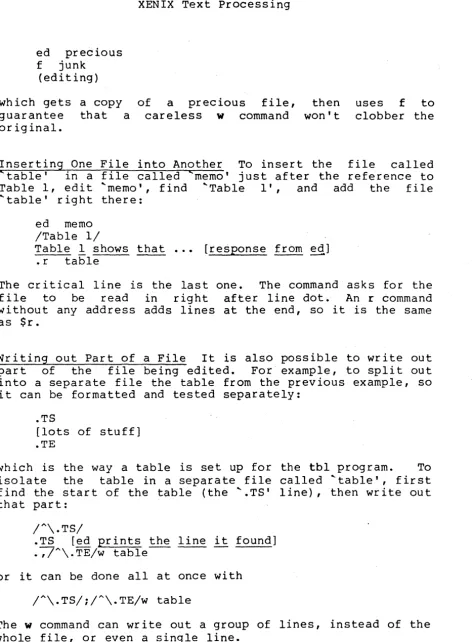
ed precious f junk
(editing)
which gets a copy
guarantee that a
original.
XENIX Text Processing
of a precious file,
careless
w
commandthen won't
uses f to
clobber the
Inserting One File into Another To insert the file called
'table' in a file called 'memo' just after the reference to
Table 1, edit 'memo', find 'Table 1', and add the file
'table' right there:
ed memo
/Table
1/
Table 1 shows that •.• [response from ~]
.r table
The critical line is the last one. The command asks for the
file to be read in right after line dot. An r command
without any address adds lines at the end, so it is the same as
Sr.
writing out Part of a File It is also possible to write out
part of the file being edited. For example, to split out
into a separate file the table from the previous example, so i t can be formatted and tested separately:
.TS
[lots of stuff] .TE
which is the way a table is set up for the tbl program. To
isolate the table in a separate file called 'table', first
find the start of the table (the '.TS' line) ,then write out that part:
/~\.TS/
.TS red prints the line i t found]
.,/~\.TE/w table
or it can be done all at once with
[image:32.620.73.546.69.712.2]XENIX Text Processing
Moving Lines Around
Sometimes
it is
useful
to move
a
paragraph
from
its present position in a paper to the end.
One possibility is to write the paragraph onto
a
temporary
file,
delete it from its current position, then read in the
temporary file at the end.
Assuming that the
current
line
is
the
'.PI command that begins the paragraph, this is the
sequence of commands:
.,/~\.P/-w
temp
.,//-d
$r temp
That is, from the current line ('.I) until one
line
before
the
next
'.P'
('/~\.P/-I)write onto 'temp'.
Then delete
the same lines.
Finally, read 'temp' at the end.
An easier way to do this is to use the move command
m that
ed
provides to perform the whole set of operations at once,
without any temporary file.
The
m
command is like many other
ed
commands
in
that
it
takes
up
to two line numbers in front that tell what lines
are to be affected.
It is also followed by
a
line
number
that tells where the lines are to go.
Thus
linel, line2 m line3
moves all the lines between linel and
line2
after
line3.
Naturally,
any
of
linel,
etc.,
can
be patterns between
slashes,
$signs, or other ways to specify lines.
If the current line is the first line of the paragraph, then
.,/~\.P/-m$