PUBLIC
SAP IQ 16.0 SP08
Document Version: 2.0 - 2014-06-20
Installation and Configuration Guide
[ Windows ]
Table of Contents
1 Preparing for Installation. . . 5
1.1 About SAP IQ. . . 5
1.1.1 Supported Server Platforms. . . .5
1.1.2 Supported Client Platforms. . . 5
1.1.3 Licensing Requirements. . . .5
1.1.4 Installation Media. . . 6
1.2 Planning Your Installation. . . .6
1.2.1 Installing for the First Time. . . 6
1.2.2 Upgrading From an Earlier Version. . . 6
1.2.3 Avoiding Environmental Issues. . . 7
1.2.4 Changing Hardware Platforms. . . 7
1.2.5 Planning for Distributed Query Processing or High Availability. . . 7
1.3 Preinstallation Tasks. . . 8
1.3.1 Check for Operating System Patches. . . 8
1.3.2 Increase the Swap Space. . . 8
1.3.3 License Server Requirements. . . 8
1.3.4 Windows Support Issues. . . 9
1.3.5 Verify Network Functionality. . . 10
1.3.6 Windows Installer Requires Microsoft Visual C++ Redistributable Packages. . . .11
2 Licensing Your Software. . . 12
2.1 Available Licenses. . . 12
2.1.1 Enterprise Edition. . . 12
2.1.2 Express Edition. . . 13
2.1.3 Evaluation Edition. . . 14
2.2 Before You Generate Your License. . . .14
2.2.1 Read the SySAM Documentation. . . .14
2.2.2 Decide On the License Model You Want To Use. . . .14
2.2.3 Get Your Host ID. . . 14
2.2.4 Determine the Host Name. . . .15
2.2.5 Choose a Port Number. . . 15
2.3 Generating a SySAM License. . . .15
2.4 Installing a New License Server. . . 16
2.5 Starting a License Server. . . 17
3 Server Installations. . . 18
3.1 Server Components. . . 18
3.2 What a Server Installation Does. . . 19
3.3 SAP Database Administration Tools. . . .21
3.3.1 SAP Control Center. . . 21
3.3.2 SAP IQ Cockpit. . . 23
3.4 Other SAP IQ Installation Options. . . 24
3.5 Installing Server Software. . . 25
3.5.1 Installing in GUI Mode. . . 25
3.5.2 Installing from the Command Line. . . .26
3.5.3 Installing in Unattended (Silent) Mode. . . 26
3.5.4 Install Logs. . . 28
3.6 Solutions to Common Installation Problems. . . .29
3.7 Uninstalling SAP IQ. . . 29
4 Testing Installed Products. . . 30
4.1 Demo Database. . . 30
4.1.1 Starting the Demo Database. . . 30
4.1.2 Table Names. . . .30
4.2 Running SAP IQ Server. . . .32
4.3 Starting SAP Database Administration Tools. . . 34
4.3.1 Starting the SCC Agent. . . 34
4.3.2 Starting SAP IQ Cockpit. . . 35
4.4 Running Interactive SQL. . . .35
4.5 Post-Installation Tasks. . . .36
4.5.1 Verify and Authorize Licenses. . . .36
4.5.2 Change the Default Connection Parameters. . . .38
4.5.3 Remove Sample Application Files. . . 38
5 Client Installations. . . 39
5.1 Client Components. . . 39
5.2 What a Client Installation Does. . . 39
5.3 Installing Client Software. . . 41
5.3.1 Installing in GUI Mode. . . .41
5.3.2 Installing from the Command Line . . . 41
5.3.3 Installing in Unattended (Silent) Mode. . . 42
6 Configuration . . . .44
6.1 Using Configuration Files. . . 44
6.2 Running SAP IQ as a Windows Service. . . .45
6.2.1 Creating a New Windows Service. . . 45
6.2.2 Suppressing Windows Event Log Messages. . . 46
6.2.3 Granting Administrator Privilege to the SAP IQ Service. . . 46
6.3 Configuring Client Connectivity. . . .47
6.3.1 Connecting Using ODBC. . . .47
6.3.3 Connecting Using OLE DB. . . 49
6.3.4 Connecting Using Open Client. . . 50
6.3.5 Running the Client and Server On the Same System. . . 50
6.3.6 Network Issues for SAP IQ Servers. . . 51
6.3.7 Connecting Across a Firewall. . . 52
7 Important Disclaimers on Legal Aspects. . . 53
1
Preparing for Installation
Read this section before you install SAP® IQ.
1.1
About SAP IQ
SAP® IQ is a high-performance decision-support server designed specifically for mission-critical business
intelligence, analytics, and data warehousing. Component Integration Services within SAP IQ provide direct access to relational and non-relational databases on mainframe, UNIX, or Windows servers.
1.1.1
Supported Server Platforms
SAP IQ is compatible with these platforms and operating systems.
● Microsoft Windows Server 2012 R2 for 64-bit systems
● Microsoft Windows 2008 R2 for 64-bit systems - Service Pack 1
● Microsoft Windows 7 for 64-bit systems - Service Pack 1
1.1.2
Supported Client Platforms
SAP IQ includes a network client for all supported server platforms.
SAP IQ Network Client for Windows includes 32-bit ODBC Windows drivers, which allow you to connect to SAP IQ from third-party 64-bit Windows applications, and 64-bit Windows applications written in C++. Platform support for the Windows network client includes Windows 2008 R2 SP1, Windows 7 SP1, and Windows 2012.
1.1.3
Licensing Requirements
All product editions except the Evaluation Edition require a license. Optional features are sold and licensed separately.
Whether you install a licensed or evaluation edition, you have 30-day access to all features and options. To use an option beyond the 30-day evaluation period, you must purchase and install an appropriate SAP Software Asset Management (SySAM) license.
The e-mail message or Web key you receive when you purchase an SAP product provides specific product and licensing information. Before installing and configuring any product edition, know which features you are licensed to use.
1.1.4
Installation Media
SAP IQ installation media includes software for server and client installations.
Table 1: SAP IQ Installation Media.
Media Description
SAP IQ Server Suite Installs server components and other support tools.
SAP IQ Client Suite Installs the components required for client connections to a SAP IQ server.
1.2
Planning Your Installation
The installation process depends on whether you are installing for the first time, upgrading from a previous version, or migrating your databases to a new hardware platform.
1.2.1
Installing for the First Time
Follow these steps to install SAP IQ for the first time.
● Read the release bulletin for the latest information. See the special installation instructions section for any installation instructions not included in this document.
● Complete all pre-installation tasks. Apply any required operating system patches, check to see that there is sufficient disk space and memory, and update any necessary configuration changes.
● Determine the license model you want to use. SySAM supports served and unserved license models. See the
Sybase Software Asset Management (SySAM) 2 Users Guide to determine which model is best suited for your environment.
● Use the product and licensing information you received from SAP to log in to the SAP Service Marketplace at
http://service.sap.com/licensekeys and generate a license key for your software.
● Install SAP IQ server components, activate your license, then start and test your server.
● Install and configure SAP IQ client components.
1.2.2
Upgrading From an Earlier Version
Follow these general guidelines when you install a new version of SAP IQ.
● Uninstall the version currently installed on your system. Install the new version as if you were installing for the first time.
● Upgrade your client tools. Although you can use the current version of the client tools to connect to an earlier server version, some options, tools, and objects may not be available.
Additional Information
Migration > Database Upgrades
1.2.3
Avoiding Environmental Issues
Installing SAP SQL Anywhere and SAP IQ on different machines avoids potential start-up problems.
Install SAP SQL Anywhere and SAP IQ on different host machines. When you install both products on the same machine, the environment variables for the product installed last overwrite those of the product installed first, causing start-up problems for the first product.
1.2.4 Changing Hardware Platforms
Although SAP IQ Server Suite is no longer available for 32-bit platforms, you can move a 32-bit database to a 64-bit platform.
Additional Informaiton
● Migration > Hardware Changes > Moving 32-Bit Databases to 64-bit Platforms
● Migration > Hardware Changes > Converting to a new hardware platform
1.2.5
Planning for Distributed Query Processing or High
Availability
Distributed query processing can benefit from an optional high-speed interconnect. Use scalable interconnect technology to connect multiplex nodes.
For best performance, use:
● A high-speed network interconnect providing a local network that connects all multiplex nodes. Use an interconnect bandwidth of 1Gb or higher or the highest bandwidth, lowest latency interconnect available.
● Two physically separate network interfaces for each multiplex node:
○ A public network for multiplex interconnection traffic and client traffic.
○ A private network for multiplex interconnect traffic only, excluding external client traffic. Currently, multiplex interconnects support only the TCP/IP standard.
These two networks improve security, fault-tolerance, and performance.
● A switch that enables high-speed communication between nodes.
● Network cards that reside on different fabrics so that the multiplex survives network failure. Separate the public and private networks physically.
● Private interconnect fabrics that contain only links to machines participating in the multiplex. Private interconnect for all multiplex nodes should connect to the same switch, which connects to no other public switches or routers.
● Redundant network interface cards added to private or public networks if desired. The private and public connection information allows for multiple IP addresses on each.
1.3
Preinstallation Tasks
Perform the following tasks before you install SAP IQ.
1.3.1
Check for Operating System Patches
Check with your vendor and apply the latest operating system patches. Do not use a patch that is earlier than the version suggested for your operating system.
1.3.2
Increase the Swap Space
The recommended minimum swap space is at least 1GB. Certain operations may cause the memory usage to grow dynamically. Changing the way SAP IQ uses buffers can dramatically change the way it uses memory. Depending on the load, swap requirements may exceed space allotted. Insufficient swap space may result in the system supporting fewer users, and large processes that cannot acquire sufficient swap space may be
prematurely killed by the operating system.
See your operating system documentation for information about extending swap space.
1.3.3
License Server Requirements
SAP IQ requires SySAM license server version v11.6.1 or later, which is distributed on the SAP IQ Server Suite installation media. Using an older SySAM server can cause the server to become unresponsive. Install the license server before you install SAP IQ.
The SySAM license server is installed as part of a custom install. To check the version of your current SySAM license server, open a console or command prompt, change to %SYBASE%\SYSAM-2_0\bin, and enter:
lmutil lmver lmgrd
If you currently use a license server to host SySAM licenses for other Sybase products:
● Uninstall your current license server
● Install the license server distributed on the SAP IQ Server Suite DVD
● Rehost your licenses
Rehost your SySAM licenses after you install the new license server.
Addtional Information
Sybase Software Asset Management (SySAM) 2 Users Guide
1.3.4 Windows Support Issues
Review these issues related to running SAP IQ on Windows 2008.Windows Security
Windows 2008 incorporates a new security model. User Account Control (UAC) is enabled by default and may affect the behavior of programs that expect to be able to write files, especially when the computer supports more than one user. Depending on where and how files and directories are created, a file created by one user may have permissions that do not allow another user to read or write to that file. If you install SAP IQ in the default
directories, files and directories that require read/write access for multiple users are set up appropriately.
SAP IQ Elevated Operations Agent
Certain actions require privilege elevation to execute when run under User Account Control. The programs
dbelevate11.exe and iqdsn.exe may require elevation in SAP IQ.The following dll files require elevation when they are registered or unregistered: dbodbc16.dll and dboledb16.dll.
Certain actions require privilege elevation to execute when run under User Account Control. The following
programs may require elevation in SAP IQ: SybaseIQservice16.exe, dbelevate11.exe, and iqdsn.exe.The
following dlls require elevation when they are registered or unregistered: dbodbc16.dll and dboledb16.dll. On a system with User Account Control activated, you may receive an elevation prompt for the SAP IQ elevated operations agent. The prompt is issued by the User Account Control system to confirm that you want to continue running the identified program (if logged on as an administrator) or to provide administrator credentials (if logged on as a non-administrator).
Deployment Changes
The program dbelevate16.exe is used internally by SAP IQ components to perform operations that require
elevated privileges. This executable must be included in deployments of .SAP IQ Administrator privileges are required to run dbelevate.
SAP IQ Executables Signed
SAP IQ executables are signed by Sybase, Inc.
Using an AWE Cache
To use an AWE (Address Windowing Extensions) cache on Windows 2008, you must run the database server as administrator. Starting a non-elevated database server with an AWE cache results in a warning that the database server must be run as an administrator to use AWE.
Samples
Samples now correctly handle SAP IQ installation path names that contain one or more spaces.
Windows Services
Windows 2008-compliant services are not allowed to interact with the desktop. SAP IQ services do not interact with the desktop (even if Allow Interaction with Desktop is enabled in the service definition). SAP IQ database servers can be monitored using the dbconsole utility or SAP IQ Control Center.
1.3.5
Verify Network Functionality
Make sure your network devices can communicate before you install SAP IQ.
SAP IQ uses networking software whenever the client and server components are installed on different systems. Use the ping command to and from another computer to verify that the server where you plan to install SAP IQ can use TCP/IP to communicate with other devices on your network.
1.3.6
Windows Installer Requires Microsoft Visual C++
Redistributable Packages
Launching the installer may return the following exception: Windows error 14001 occurred while
loading the Java VM.
Context
If you get this error, install the Microsoft Visual C++ Redistributable Package MFC Security Updates before launching the installer again. These service packs are included as part of the installation package.
Procedure
1. Open Windows Explorer.
2. Change to the \archives directory on the installable image.
The MS Visual C++ Redistributable Packages are located in three subdirectories:
○ ms-redist-2005 ○ ms-redist-2008 ○ ms-redist-20010
You must install the packages from each subdirectory. 3. Change to the appropriate directory, and do this:
○ On 32-bit machines, run vcredist_x86.exe
2
Licensing Your Software
When you purchase a SAP product, you receive an e-mail message or a Web key that tells you how to generate SAP IQ license keys on the Web. The e-mail message or Web key also provides specific product and licensing information. Use this information when you generate your licenses.
2.1
Available Licenses
Available licenses are determined by product edition. All product editions except the Evaluation Edition require a license. Optional features are sold and licensed separately.
Whether you install a licensed or evaluation edition, you have 30-day access to all features and options. To use an option beyond the 30-day evaluation period, you must purchase and install an appropriate SAP Software Asset Management (SySAM) license.
Because using an unlicensed option on a licensed server can cause the server to shutdown when the initial grace period expires, the DBA must explicitly authorize access to an optionally licensed feature. SAP IQ will not attempt to check-out an optional license by default. Unless the DBA grants access to an option, the option will not be available.
See the sp_iqlmconfig stored procedure in Reference: Building Blocks, Tables, and Procedures for information about authorizing optional features and other issues related to license management configuration.
2.1.1
Enterprise Edition
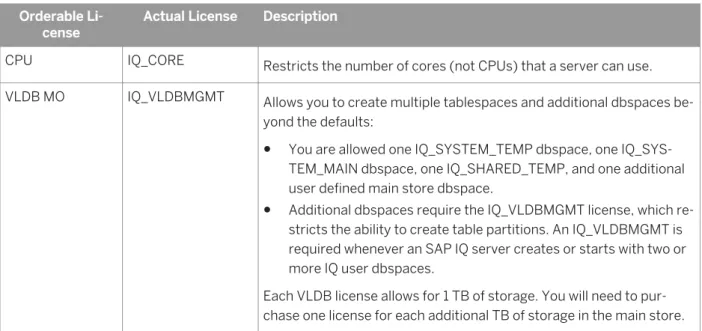
SAP IQ Enterprise Edition requires a CPU license and supports several licensing options.
Table 2: Enterprise Edition. Orderable Li
cense Actual License Description
CPU IQ_CORE Restricts the number of cores (not CPUs) that a server can use.
VLDB MO IQ_VLDBMGMT Allows you to create multiple tablespaces and additional dbspaces be
yond the defaults:
● You are allowed one IQ_SYSTEM_TEMP dbspace, one IQ_SYS
TEM_MAIN dbspace, one IQ_SHARED_TEMP, and one additional user defined main store dbspace.
● Additional dbspaces require the IQ_VLDBMGMT license, which re
stricts the ability to create table partitions. An IQ_VLDBMGMT is required whenever an SAP IQ server creates or starts with two or more IQ user dbspaces.
Each VLDB license allows for 1 TB of storage. You will need to pur chase one license for each additional TB of storage in the main store.
Orderable Li cense
Actual License Description
ASO IQ_SECURITY Allows you to use column encryption, ECC Kerberos and FIPS. The
number of ASO licenses must match cores.
MPXO IQ_MPXNODE Allows you to start secondary multiplex nodes (readers/writers). The
number of nodes must always be less than cores, as each multiplex server must have at least one core.
IDBA-PSO IQ_UDF Allows you to define and run high-performance scalar and aggregate
user-defined functions.
This license is only available with approved third-party libraries.
IQ_IDA Allows you to build, deploy and run your own C/C++ V4 User-Defined
Functions (UDF).
The IQ_IDA license will function as both the InDatabase Analytics Op tion and Partner Solutions license.
UDA IQ_UDA Allows you to use the IQ Text Search functionality, which lets SAP IQ
search unstructured and semi-structured data. An IQ_UDA also in cludes an IQ_LOB license. This license applies to TEXT indexes.
2.1.2
Express Edition
Unlike the Evaluation Edition, the Express Edition does not expire, but does place some limits on the way you deploy your server.
Available at no cost, the SAP IQ Express Edition supports all options and features available in the Evaluation Edition, and includes an IQ_XE SySAM license, which is installed as part of the Express Edition server package. Unlike the Evaluation Edition, which limits server access to a 30-day appraisal period, the IQ_XE SySAM license does not expire. However, the IQ_XE license restricts the aggregated size of all IQ main dbspaces to a size of 5GB or less. The SAP IQ Express Edition is not eligible for production deployment and is not supported by SAP Customer Service and Support (CS&S).
2.1.3
Evaluation Edition
The Evaluation Edition does not require a license. The Evaluation Edition is an unlicensed server, which provides full access to all features and options available in the Enterprise Edition. To run an unlicensed database beyond a 30-day evaluation period, however, you must purchase and install an appropriate license.
2.2 Before You Generate Your License
Follow these steps before you generate your license.2.2.1
Read the SySAM Documentation
Review the SySAM documentation for specific information about SySAM licensing, license models, and procedures.
● Sybase Software Asset Management (SySAM) 2 Users Guide introduces asset management concepts and provides instructions for establishing and administering SySAM 2 licenses.
● SySAM 2 Quick Start Guide tells you how to get your SySAM-enabled SAP product up and running quickly.
● FLEXnet Licensing End User Guide explains FLEXnet Licensing for administrators and end users and describes how to use the tools which are part of the standard FLEXnet Licensing distribution kit from SAP.
2.2.2 Decide On the License Model You Want To Use
A license model refers to the way you set up your license files for your licensed programs. License files can reside on a central, networked license server in a served license model or on the machine running the licensed program in an unserved license model.
Decide on the license model you want to use before you generate your license file. For information about served and unserved licenses, and which model is best suited for your environment. See the Sybase Software Asset Management (SySAM) 2 Users Guide.
2.2.3 Get Your Host ID
To install or use a license server, you need the license server host ID.
FLEXnet Licensing uses different machine identifications for different machine architectures. If you have a copy of the FLEXnet licensing utilities installed, you can use the lmhostid utility to print the exact host ID that FLEXnet Licensing expects to use on any given machine. lmutil is included in your product distribution, or you can
download a copy from the FLEXnet Publisher download page at: http://www.globes.com/support/
fnp_utilities_download.htm#unixdownload
You can also use a system-level command to find the host ID. For platform-specific commands and examples, see
Hostids for FLEXnet Licensing-Supported Platforms at:
http://www.flexerasoftware.com/products/flexnet-publisher/requirements.htm .
Note
Some platforms derive the host ID from the network adapter address. If your machine has multiple network adapters, the command you use to get the host ID may return one host ID for each network adapter. If this occurs, choose only one from the list of host IDs. Use the value associated with the primary wired Ethernet adapter. Do not use values associated with internal loopback adapters.
2.2.4 Determine the Host Name
You must specify the host name of the license server for served licenses. Although the host name is optional for unserved license models, providing the host name for all license types can simplify future license administration tasks.
2.2.5 Choose a Port Number
If you plan to install a license server or use an existing license server, you need to know the TCP/IP port number that the license server will use to serve your licenses.
If you do not specify a port number, the license server uses the first available port in the range of 27000 to 27009. If you are using three-server redundancy, specify a port number outside of this range.
2.3 Generating a SySAM License
Login to SAP Service Marketplace to generate a license key for SAP products that use SySAM 2-based licenses. Refer to the Web key or email you received for information about your account.
Context
When you purchase SySAM 2–enabled SAP products, you must generate, download, and deploy SySAM product licenses.
● Before you generate your license, you need the host ID and host name of the server where you plan to install SAP IQ.
● Served licenses require a license server. If you do not plan to use an existing license server, you must install one before you install SAP IQ.
Procedure
1. Start your browser, and login to the SAP Service Marketplace at: http://service.sap.com/licensekeys . 2. Follow the online instructions.
3. Save your license to a temporary location on the local file system. You must save the license file with a .lic
extension.
2.4 Installing a New License Server
The SAP IQ Server Suite installation media includes SySAM Network License Server utilities you can use to install a new license server.
Prerequisites
● Use an account with Administrator privileges to log in to Windows.
● Stop and shut down all programs before you run the installation.
Procedure
1. Insert the installation media into the drive.
If the installer does not start automatically, start Windows Explorer, change to your DVD drive, and choose:
setup.exe
2. On the Welcome screen, click Next.
3. Choose an installation directory, then click Next.
4. Choose Custom as the installation type you want to perform, click Next. 5. Unselect all installation options except SySAM License Utilities.
6. Select SySAM License Server, click Next. 7. Follow the instructions on the screen.
2.5 Starting a License Server
Copy your license to the license directory, and start the license server from a console or command line.
Prerequisites
If you installed your license server on Windows 7, you must use the Run as Administrator command to start
and stop the license server.
Procedure
1. From a console or command line, copy the license file you generated to the %SYBASE% \SYSAM-2_0\licenses directory on the network license server.
2. Change to %SYBASE%\SYSAM-2_0\bin, then refresh or restart the license server:
Option Description
sysam start Start the license server.
Perform this step if the license server is not running. After you perform this step, repeat step 2 to verify that the server is running.
sysam reread Make the license server read the new license file.
Perform this step if the license server is already started. 3. To verify that the license server is running, enter sysam status.
Note
The SySAM License Server Installer installs both IPv4-only and IPv4/IPv6 dual-stack license server binaries during installation and configures use of IPv4-only binaries.
Use the sysam configure [IPv6 | IPv4] to configure the appropriate version of the license server. For example, sysam configure IPv6 will configure use of the IPv4/IPv6 dual stack binaries. For more information, see SySAM Users Guide.
3
Server Installations
Read this section for step-by-step server installation instructions.
3.1
Server Components
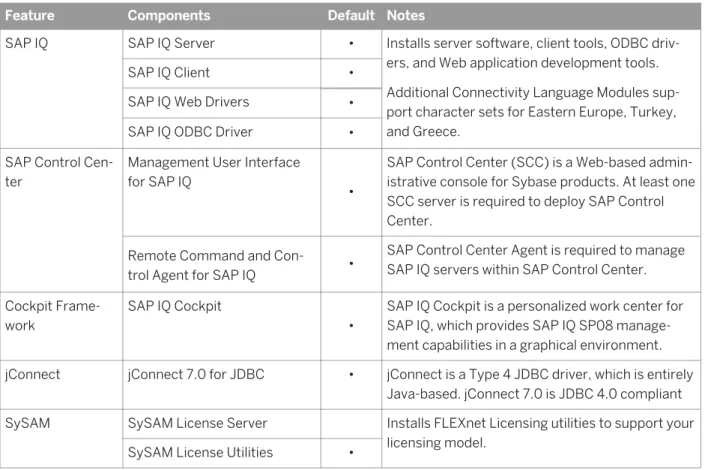
Server components are grouped by feature. Items marked as default are installed in typical installations. Optional items can be installed in custom installations.
Table 3: SAP IQ Server Components.
Feature Components Default Notes
SAP IQ SAP IQ Server • Installs server software, client tools, ODBC driv
ers, and Web application development tools. Additional Connectivity Language Modules sup port character sets for Eastern Europe, Turkey, and Greece.
SAP IQ Client •
SAP IQ Web Drivers •
SAP IQ ODBC Driver •
SAP Control Cen ter
Management User Interface for SAP IQ
•
SAP Control Center (SCC) is a Web-based admin istrative console for Sybase products. At least one SCC server is required to deploy SAP Control Center.
Remote Command and Con
trol Agent for SAP IQ •
SAP Control Center Agent is required to manage SAP IQ servers within SAP Control Center. Cockpit Frame
work
SAP IQ Cockpit
•
SAP IQ Cockpit is a personalized work center for SAP IQ, which provides SAP IQ SP08 manage ment capabilities in a graphical environment.
jConnect jConnect 7.0 for JDBC • jConnect is a Type 4 JDBC driver, which is entirely
Java-based. jConnect 7.0 is JDBC 4.0 compliant
SySAM SySAM License Server Installs FLEXnet Licensing utilities to support your
licensing model.
SySAM License Utilities •
3.2 What a Server Installation Does
A typical installation installs the server and other components into a parent directory on the host machine.
Directory Variables
SAP IQ uses environment variables that point to different installation directories.
Table 4: Directory Variables.
Variable Description
<%SYBASE%> Points to the parent installation directory. This variable is set by the installer. <%IQDIR16> Points to the product installation directory. This variable is set by the instal
ler.
<%ALLUSERSPROFILE%> Points to the Windows local resources directory. The location of these re sources depends on the Windows version. On Windows 7, these resources
are located in the C:\ProgramData\SybaseIQ directory.
Note
Do not install SAP IQ into a destination directory or path that contains spaces. The GUI installer warns you if you try to install to an invalid path; other installation methods do not display this warning.
Parent Installation Directory
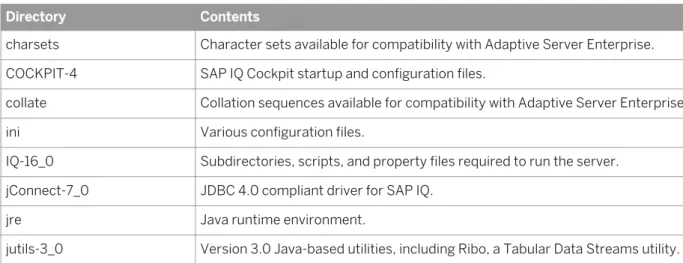
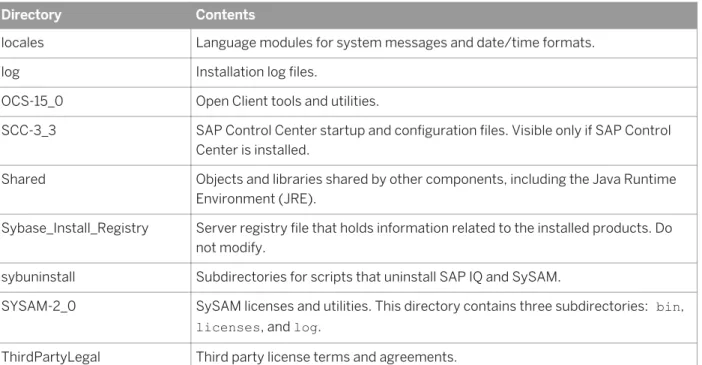
The <%SYBASE%> directory contains the files, scripts, and other objects required to support the server.
Table 5: Parent Installation Directory.
Directory Contents
charsets Character sets available for compatibility with Adaptive Server Enterprise.
COCKPIT-4 SAP IQ Cockpit startup and configuration files.
collate Collation sequences available for compatibility with Adaptive Server Enterprise.
ini Various configuration files.
IQ-16_0 Subdirectories, scripts, and property files required to run the server.
jConnect-7_0 JDBC 4.0 compliant driver for SAP IQ.
jre Java runtime environment.
Directory Contents
locales Language modules for system messages and date/time formats.
log Installation log files.
OCS-15_0 Open Client tools and utilities.
SCC-3_3 SAP Control Center startup and configuration files. Visible only if SAP Control
Center is installed.
Shared Objects and libraries shared by other components, including the Java Runtime
Environment (JRE).
Sybase_Install_Registry Server registry file that holds information related to the installed products. Do not modify.
sybuninstall Subdirectories for scripts that uninstall SAP IQ and SySAM.
SYSAM-2_0 SySAM licenses and utilities. This directory contains three subdirectories: bin,
licenses, and log.
ThirdPartyLegal Third party license terms and agreements.
Product Installation Directory
<%IQDIR16%> is a <%SYBASE%> subdirectory that contains the files, scripts, and other objects required to run the server.
Table 6: Product Installation Directory.
Directory Contents
Assembly ADO.NET and .NET assembly files.
Bin32 Libraries required for 32-bit compatibility.
Bin64 Utilities you use to start and manage your server.
DBACOCKPIT Stores query plans generated by DBA Cockpit.
demo A readme that identifies the location of the demo database and other local resour
ces.
install Installation history file.
java Different JAR files.
logfiles SAP IQ writes log files to this directory.
lsunload Local Store Unload utility.
Scripts Sample scripts and stored procedures.
SDK Subdirectories for various language utilities.
SNMP Not supported by SAP IQ.
support A Web page with links to online resources.
Directory Contents
Sysam Local SySAM configuration information.
unload Various unload scripts, files, and utilities.
Local Resources Directory
The %ALLUSERSPROFILE%\SybaseIQ directory contains local resources, including the demo database, server logs, and utilities.
Directory Contents
demo Sample data and scripts for the demo database.
logfiles Server log files.
Samples Sample scripts, drivers, and utilities.
3.3 SAP Database Administration Tools
SAP IQ database administration tools include SAP Control Center 3.3 and SAP IQ Cockpit 4.0. Both tools provide a Web-based interface, but differ in scope. SAP Control Center provides a landscape view of all available servers in the enterprise, but is not fully compatible with SAP IQ SP08. SAP IQ Cockpit provides a view specific to SAP IQ and full access to SP08 features.
3.3.1
SAP Control Center
SAP Control Center is a Web-based administrative console, which lets you manage and monitor SAP IQ in a graphical environment.
SAP Control Center (SCC) includes a Management User Interface, Remote Command and Control Agent, and Web client. The Management User Interface, or SCC server, manages communication between the SCC agent and client. The SCC agent is installed with the SAP IQ server, and continually broadcasts information about the server to subscribing clients via the SCC server. Messages from an SCC client pass through the SCC server to the agent, which in turn, processes the request on the SAP IQ server.
SCC activities range from simple resource monitoring to complete database administration. Specific user activities are determined by the role assigned to the user initiating the request.
Server Deployment
A single SCC server can monitor up to 250 resources. (The number of resources one SCC server can effectively monitor depends on the complexity of the monitored resources, the frequency of data collection, the number of
concurrent SCC users, and the hardware configuration of the host on which SCC is running.) To monitor more resources, install additional SCC servers and distribute the resources among them. The monitoring limit applies whether you install SCC on the same machine as a managed server or on a dedicated machine.
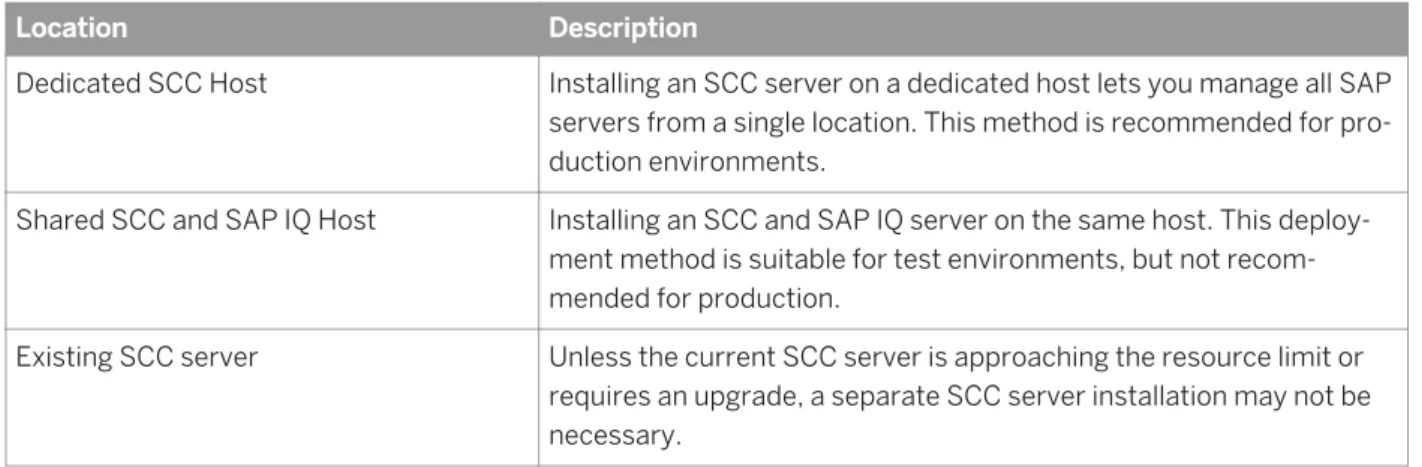
Installation locations
SCC may collect and store performance data for every server it monitors. Because data collection can use significant quantities of CPU cycles, disk space, and network resources, SCC can affect the performance of other servers sharing the same host machine. Choose your installation location carefully before installing an SCC server on the same host as a managed server in a production environment.
Table 7: SCC Installation Locations.
Location Description
Dedicated SCC Host Installing an SCC server on a dedicated host lets you manage all SAP
servers from a single location. This method is recommended for pro duction environments.
Shared SCC and SAP IQ Host Installing an SCC and SAP IQ server on the same host. This deploy
ment method is suitable for test environments, but not recom mended for production.
Existing SCC server Unless the current SCC server is approaching the resource limit or
requires an upgrade, a separate SCC server installation may not be necessary.
If you install SCC on the same machine as an SAP IQ server, consult the system requirements for both SCC and the SAP IQ server and make sure that the host machine provides ample CPU, RAM, disk, and network resources for both products. The resources required by an SAP IQ server vary a great deal based on the server's
configuration, as do the resources required by SCC. In general, SCC uses more resources to manage more complex servers. SCC also uses more resources when it is configured to run more frequent data collections.
SAP Control Center (SCC) Authentication
Initial passwords for SCC administrator and SCC agent are set in the SAP IQ installer. SCC passwords must have at least 6 characters.
Role Requirements
SCC Administrator SCC Administrator is a preconfigured login with access to all SCC ad
ministration features. The default SCC Administrator user name is <sccadmin>.
SCC Agent User SCC Agent User name for authentication of the agent. The default
SCC Agent User name is <uafadmin>.
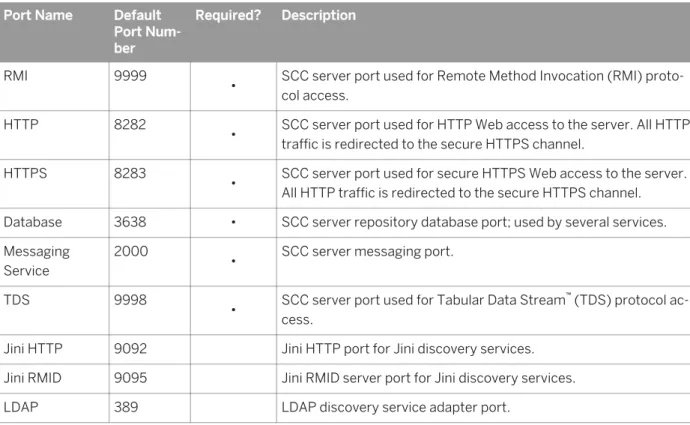
Network Ports
SCC uses TCP ports for a variety of services. Choose new RMI, HTTP, or HTTPS port numbers in the installer if the default ports are unavailable.
Table 8: SAP Control Center Port Numbers. Port Name Default
Port Num ber
Required? Description
RMI 9999
• SCC server port used for Remote Method Invocation (RMI) proto
col access.
HTTP 8282
• SCC server port used for HTTP Web access to the server. All HTTP
traffic is redirected to the secure HTTPS channel.
HTTPS 8283
• SCC server port used for secure HTTPS Web access to the server.
All HTTP traffic is redirected to the secure HTTPS channel.
Database 3638 • SCC server repository database port; used by several services.
Messaging Service
2000
• SCC server messaging port.
TDS 9998
• SCC server port used for Tabular Data Stream™ (TDS) protocol ac
cess.
Jini HTTP 9092 Jini HTTP port for Jini discovery services.
Jini RMID 9095 Jini RMID server port for Jini discovery services.
LDAP 389 LDAP discovery service adapter port.
SCC Server Start Up Option
If you install an SCC server, the SAP IQ installer includes an option that lets you start the server from within the installer.
3.3.2 SAP IQ Cockpit
SAP IQ Cockpit is a personalized work center for SAP IQ. The SAP IQ Cockpit Framework is installed as part of an SAP IQ server installation.
The SAP IQ Cockpit Framework manages communication between an SAP IQ Cockpit command and control agent, SAP IQ server, and Web client. The SAP IQ Cockpit agent continually broadcasts information about the server to subscribing clients via the SAP IQ Cockpit framework. Messages from the Web client pass through the SAP IQ Cockpit framework to the agent, which in turn, processes the request on the SAP IQ server.
SAP IQ Cockpit activities range from simple resource monitoring to complete database administration. Specific user activities are determined by the role assigned to the user initiating the request.
Installation Options
Installation location and options depend on server type.
Table 9: Server Installation Locations Server Type Description
Simplex Install the SAP IQ Cockpit Framework as part of a typical installation. This is default
behavior for the SAP IQ installer.
Multiplex Install the SAP IQ Cockpit Framework on each multiplex node.
TCP Ports
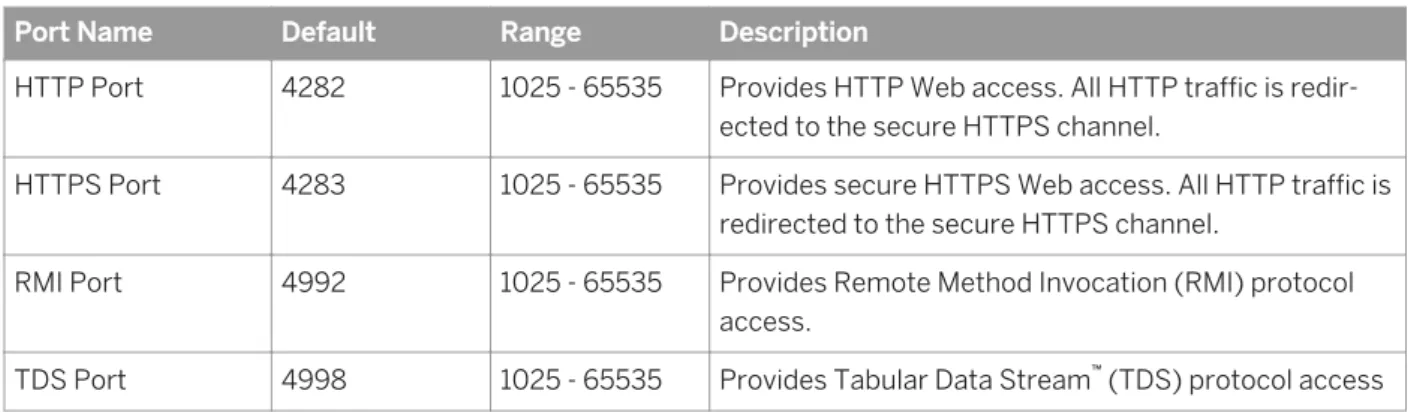
SAP IQ Cockpit uses TCP ports to provide a variety of services. Choose new RMI, HTTP, or HTTPS port numbers in the installer if the default ports are unavailable.
Table 10: SAP IQ Cockpit Port Configuration
Port Name Default Range Description
HTTP Port 4282 1025 - 65535 Provides HTTP Web access. All HTTP traffic is redir
ected to the secure HTTPS channel.
HTTPS Port 4283 1025 - 65535 Provides secure HTTPS Web access. All HTTP traffic is
redirected to the secure HTTPS channel.
RMI Port 4992 1025 - 65535 Provides Remote Method Invocation (RMI) protocol
access.
TDS Port 4998 1025 - 65535 Provides Tabular Data Stream™ (TDS) protocol access
3.4 Other SAP IQ Installation Options
Installing a licensed copy of SAP IQ Server Suite includes configuration options not available in the evaluation edition.
License Keys
The license you download from the SAP Service Marketplace Web site contains the license key(s) for your software.
Option Action
Specify License Keys Browse to the location of license file and choose the license file.
Use License Server Identify the license server Host Name and Port Number.
Install without License Key Click Continue installation without a license key.
If you don't specify a license, you can continue to install without a li cense, but you must obtain the required license key(s) within 30 days or the server will stop functioning.
Email Alerts
Email alerts notify recipients about SySAM events that may require administrator attention. To configure email alerts, provide:
● SMTP server host name
● SMTP server port number
● Sender email
● Recipient emails (for multiple recipients, separate each email address with a comma)
● Message severity for email alerts (Information, Warning, Error)
3.5 Installing Server Software
Server installation media supports GUI, console, and unattended (silent) installs.
3.5.1
Installing in GUI Mode
Use this option to set up your software in a graphic user interface (GUI) environment. The GUI installer is wizard-driven and supports all product editions and installation types.
Procedure
1. Insert the installation media into the drive.
If the installer does not start automatically, start Windows Explorer, change to your drive, and choose:
2. Follow the instructions on the screen. 3. Remove the installation media from the drive.
3.5.2 Installing from the Command Line
Choose a command-line installation if you prefer a non-GUI interface or for developing custom installation scripts. Installing components in console mode is similar to installing in GUI mode, except that you run the installer from the command line, and enter text to select the installation options.
Procedure
1. Insert the installation media into the drive.
If the installation program launches automatically, click Cancel to stop the installer. 2. From a command line, change to the setup directory.
The setup directory is the directory that contains setupConsole.exe, installer.properties, and other
installation files. 3. Enter:
setupConsole.exe -i console
4. Follow the instructions on the screen.
Note
Selecting or deselecting a product feature typically installed with SAP IQ also selects or deselects all child components associated with that feature. To select individual components, omit the number of the main product feature, and choose the child components you want to install.
3.5.3 Installing in Unattended (Silent) Mode
Unattended or silent installations are typically used to update multiple systems. Except for the absence of the GUI screens, all actions of InstallAnywhere are the same, and the result of an installation in silent mode is exactly the same as one done in GUI mode with the same responses.
Prerequisites
A response file is a text file that contains installation options. You can override or edit the default response file,
installer.properties, for use in subsequent installations. To override the default installation options, use the
-f argument to point to a custom response file.
To create a response file:
1. From the command line, enter:
setup.exe -r <<responseFileName>>
Where <<responseFileName>> includes the absolute path and file name of the response file. 2. Run the installer in GUI mode to record your actions in the response file. Use an editor to change any
responses for subsequent installations, if necessary.
Procedure
1. Insert the installation media into the drive.
If the installation program launches automatically, click Cancel to stop the installer. 2. From a command line, change to the setup directory.
The setup directory contains setupConsole.exe, installer.properties, and other installation files. 3. Enter:
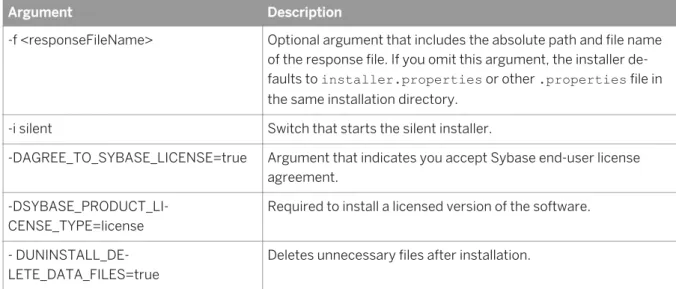
setupConsole.exe –f <responseFileName> -i silent -DAGREE_TO_SAP_LICENSE=true
-DSYBASE_PRODUCT_LICENSE_TYPE=license Table 11: Response File Arguments.
Argument Description
-f <responseFileName> Optional argument that includes the absolute path and file name
of the response file. If you omit this argument, the installer de faults to installer.properties or other .properties file in the same installation directory.
-i silent Switch that starts the silent installer.
-DAGREE_TO_SYBASE_LICENSE=true Argument that indicates you accept Sybase end-user license
agreement. -DSYBASE_PRODUCT_LI
CENSE_TYPE=license
Required to install a licensed version of the software. - DUNINSTALL_DE
LETE_DATA_FILES=true
3.5.4 Install Logs
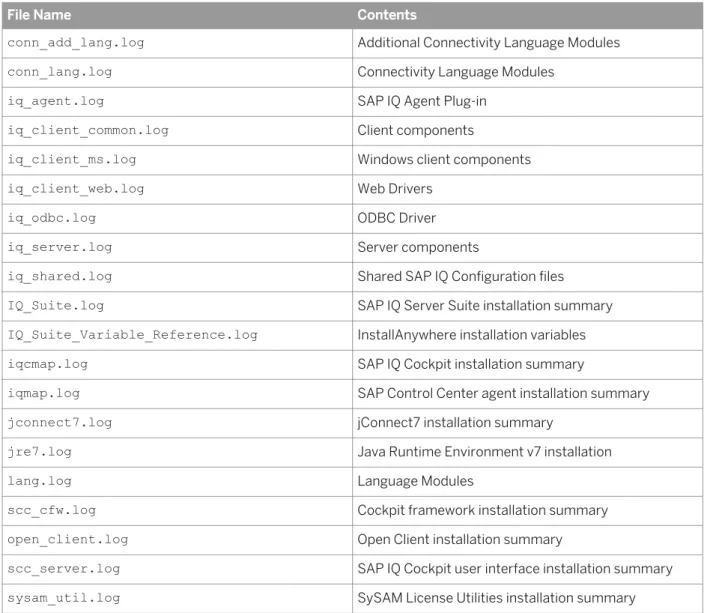
The installer writes a general log that records all installation activity and individual logs for each installed component. If an installation problem occurs, start with the IQ_Suite.log, then refer to the component log for specific details.
The installer also creates a set of corresponding .out files for each component .log file. These files capture different component installation activities. If the installer runs normally, these files may remain empty.
Table 12: SAP IQ Log Files.
File Name Contents
conn_add_lang.log Additional Connectivity Language Modules
conn_lang.log Connectivity Language Modules
iq_agent.log SAP IQ Agent Plug-in
iq_client_common.log Client components
iq_client_ms.log Windows client components
iq_client_web.log Web Drivers
iq_odbc.log ODBC Driver
iq_server.log Server components
iq_shared.log Shared SAP IQ Configuration files
IQ_Suite.log SAP IQ Server Suite installation summary
IQ_Suite_Variable_Reference.log InstallAnywhere installation variables
iqcmap.log SAP IQ Cockpit installation summary
iqmap.log SAP Control Center agent installation summary
jconnect7.log jConnect7 installation summary
jre7.log Java Runtime Environment v7 installation
lang.log Language Modules
scc_cfw.log Cockpit framework installation summary
open_client.log Open Client installation summary
scc_server.log SAP IQ Cockpit user interface installation summary
sysam_util.log SySAM License Utilities installation summary
3.6 Solutions to Common Installation Problems
Check this section for solutions to common installation issues.Table 13: Troubleshooting installation problems
Problem Possible Cause and Solution
Install fails Check the installer log: %SYBASE%/log/IQ_Suite.log
The install log can help you trace the install progress and troubleshoot failed installations. The installer also writes individual logs for components included as part of the install to this directory.
3.7 Uninstalling SAP IQ
Instructions apply to server and network client software.
GUI Mode
1. On the Control Panel, choose Add or Remove Programs. 2. Choose SAP IQ from the program list.
3. Click Remove.
4. Follow the instructions on the screen.
Silent Mode
1. From the command line, change to %SYBASE%\sybuninstall\IQSuite.
2. Enter:
uninstall –i silent
Note
The silent uninstaller does not display status messages.
User files are not deleted by default. To delete user files, pass the -DUNINSTALL_DELETE_DATA_FILES=true
4 Testing Installed Products
This section tells you how to start SAP IQ and use the demo database to test your installation.
4.1 Demo Database
Many of the examples throughout the documentation use the demo database (iqdemo.db) as a data source.
The demo database is installed as part of the SAP IQ Server Suite and resides on the server. Client access is provided by tools installed as part of the SAP IQ Client Suite.
4.1.1
Starting the Demo Database
Use the demo database to test your installation.
Procedure
From the SAP IQ program group, choose SAP IQ 16.0 Start SAP IQ Demo Database .
The first time you use this option,SAP IQ may prompt you for some additional information. Scripts that create
and load the demo database are located in the %ALLUSERSPROFILE%\SybaseIQ\demo directory.
4.1.2
Table Names
Demo database table names and owners.
GROUPO Tables
GROUPO tables in iqdemo contain internal information about a fictional company that sells athletic clothing.
Table 14: GROUPO Table Names
Table Name Owner
Contacts GROUPO
Customers GROUPO
Departments GROUPO
Table Name Owner Employees GROUPO FinancialCodes GROUPO FinancialData GROUPO Products GROUPO SalesOrderItems GROUPO SalesOrders GROUPO
DBA Table Names
The DBA user is the default SAP IQ user and owns these tables.
Table 15: DBA Table Names
Table Description
iq_dummy iq_dummy is a one-row, one-column utility table that you can use to extract infor
mation from the database. For example, running the NOW() function against
iq_dummy returns the current date and time:
SELECT NOW() FROM iq_dummy
Use of the DUMMY system table in SAP IQ is implied for all queries that do not have a FROM clause. For more information, see DUMMY system table in Refer ence.
emp1 Sample employee table that includes dept_id, start_date, name, and salary
columns.
sale Sample sales table that includes prod_id, month_num, rep_id, and sales col
umns.
SYSOPTION - DEFAULTS Table
SYSOPTIONDEFAULTS is a utility table owned by DBO that contains all option names and values. Query this table to see all default option values:
4.2 Running SAP IQ Server
Use the startup utility, start_iq, to start your server. start_iq is a command line utility that runs on all platforms and ensures that all required parameters are set correctly.
Starting a Server or Database
To use start_iq to start a server or database from the command line, change to a directory where the configuration and database files are located, and use the following command format:
start_iq [< server-options> ] [ <database-file >
[< database-options >]<, ...>]
● <server-options> include the database server name and other options that control the behavior of the server, for all databases that are running on that server.
● <database-file >is the file name of the catalog store. You can omit this option, or enter one or more database file names on the command line. Each of these databases is loaded and available for applications. If the starting directory contains the database file, you do not need to specify the path; otherwise, you must specify the path. You need not specify the .db file extension.
● <database-options> are options that you can specify for each database file you start, that control certain aspects of its behavior.
Default Startup Parameters
start_iq uses a default configuration file ( %IQDIR16%\scripts\default.cfg) to set the default start-up parameters.
Table 16: Parameters set by start_iq
Parameter Value Description
–c 48MB Catalog store cache size.
–gc 20 Checkpoint interval.
–gd all Allows all users to start the database by connecting.
–gl all Allows all users to load or unload tables.
–gm 10 Default number of connections.
–gp 4096 Catalog store page size.
–ti 4400 Client timeout set to 72 hours. Prevents users with long queries from being log
ged off over a long weekend.
Note
If SAP SQL Anywhere is installed on the same subnet as SAP IQ, the server must have a unique name. Both SAP SQL Anywhere and SAP IQ servers default to the port 2638.
Use a new port number for each server. Set each new port number in the %IQDIR16%\scripts\default.cfg
file. Change the following line in each IQ database configuration file (for example, %ALLUSERSPROFILE% \SybaseIQ\demo\iqdemo.cfg) to update the port number:
–x tcpip{port=2638}
Configuration Files
To override the default start-up parameters, store your options in a configuration file. To start a server with a configuration file, use this syntax:
start_iq @<configuration_filename>.cfg <dbname>.db
This command starts the database and sets parameters named in the (optional) configuration (.cfg) file. On the start_iq command line, the last option you specify takes precedence, so to override your configuration file, list any options you want to change after the configuration file name. For example:
start_iq @iqdemo.cfg –x 'tcpip{port=1870}' iqdemo.db
The –x parameter here overrides connection information in the iqdemo.cfg file.
A configuration file for the demo database (iqdemo.cfg) is installed in the %ALLUSERSPROFILE%\SybaseIQ
\demo directory as an example.
Default Server Directories
The directory where the server is started becomes the default directory for all server files created by SAP IQ.
Startup and Server Logs
SAP IQ writes start-up and server logs in the %ALLUSERSPROFILE%\SybaseIQ\logfiles directory:
● Startup information is saved in the iq_startup_nt.log file.
● Server status is logged in the servername.nnnn.srvlog file.
The <nnnn> variable in the file name indicates the number of times the server has been started. For example,
Additional Information
Utility Guide > start_iq Database Server Startup Utility > start_iq Server Options
4.3 Starting SAP Database Administration Tools
Commands to start SAP Control Center and SAP IQ Cockpit.4.3.1 Starting the SCC Agent
To use SCC to manage your server, start the SCC agent.Procedure
1. Use the scc script to start the SCC agent. %SYBASE%\SCC-3_3\bin\scc.bat
2. Connect to the SAP IQ Cockpit server. In your Web browser, enter: https://<scc-hostname>:8283/scc. 3. Log in.
When logging in to a newly installed SAP IQ Cockpit for which secure authentication has not been configured, use the sccadmin account—the password is set during installation. For more information, see the SAP Sybase Control Center Installation Guide.
Tip
If you use a Windows account to log in to SCC, enter your user name in the format username@domain. Omit top-level domain extensions such as .com or .net—for example, enter fred@sap, not [email protected]. 4. In SCC, register and authenticate your SCC agent.
If you use SCC to manage your SAP IQ server, leave the SCC agent running whenever SAP IQ is running. The easiest way to do this is to run the SCC agent as a service that restarts automatically. See the SAP Control Center product documentation at http://help.sap.com/iq for additional information.
To stop the SCC agent from the scc-console prompt, enter shutdown.
Related Information
SAP Control Center [page 21]
4.3.2 Starting SAP IQ Cockpit
Start SAP IQ Cockpit to test your installation.Procedure
Next Steps
To stop SAP IQ Cockpit, enter: shutdown from the cockpit prompt.
4.4 Running Interactive SQL
Interactive SQL is a utility that ships with SAP IQ that lets you execute SQL statements, build scripts, and display database data.
Context
To use Interactive SQL to run a sample query, the demo database must be up and running. The connection parameters in this procedure use default login credentials and assume that iqdemo is running locally. If you installed iqdemo in another location or changed the default login, use those values instead.
Procedure
1. From the SAP Program Group, select SAP IQ 16.0 Interactive SQL .
2. On the Connect dialog, enter:
Tab Name Field Value
Identification Authentication Database
User ID DBA or dba (case-insensitive)
Password sql (case-sensitive)
Tab Name Field Value
Server name <<localhost>_iqdemo>
Database name iqdemo
Network TCP/IP protocol options Host <<localhost>>
Port 2638
3. In the SQL Statements window, enter: SELECT * FROM Employees 4. Press F9 to run the query.
Results
Note
Interactive SQL uses the deprecated iAnywhere JDBC driver.
4.5 Post-Installation Tasks
Perform these tasks after you install and test SAP IQ.4.5.1
Verify and Authorize Licenses
All product editions except the Evaluation Edition require a license. Optional features are sold and licensed separately.
Whether you install a licensed or evaluation edition, you have 30-day access to all features and options. To use an option beyond the 30-day evaluation period, you must purchase and install an appropriate SAP Software Asset Management (SySAM) license.
Using an unlicensed option on a licensed server can throw the server into grace mode, which can cause the server to shutdown when the grace period expires. The DBA or other equivalent user must explicitly authorize access to an optionally licensed feature. A server will not attempt to check-out an optional license by default. Unless the DBA grants access to an option, the option will not be available.
Authorizing access to a separately licensed option, grants access to that option by all users system-wide. Separately licensed features continue to be available as licensed options after the grace period expires.
Verifying Your License
To verify your license, connect to the server, start Interactive SQL (dbisql), and run sp_iqlmconfig without parameters to return a set of properties and values that indicate the state of your licenses:
Property Value
--- Edition EE
License Type DT Application Type IQ
IQ_CORE License Count in use 2 (CPU core based) Optional license in use : IQ_UDA No Optional license in use : IQ_LOB No
Optional license in use: IQ_SECURITY No Optional license in use: IQ_MPXNODE No Optional license in use: IQ_VLDBMGMT No IQ_VLDBMGMT License Count in use 0 Optional license in use: IQ_UDF No Optional license in use: IQ_IDA No Optional license in use: IQ_URIDA No Optional license in use: IQ_TS_FSF No Email Severity NONE SMTP Host smtp SMTP Port 25 Email Sender Email Recipients
Authorizing Optional Features
Run sp_iqlmconfig with the allow or disallow parameter to enable or disable an optional license. The ALL keyword enables or disables all optional licenses, except IQ_VLDBMGT:
sp_iqlmconfig 'allow', 'ALL' // enable all, except IQ_VLDBMGT sp_iqlmconfig 'disallow', 'IQ_SECURITY' // disable IQ_SECURITY
Use the IQ_VLDBMGT and <quantity> parameters to change the number of available IQ_VLDBMGT licenses:
sp_iqlmconfig 'allow', 'IQ_VLDBMGT', '8' // increase by 8 sp_iqlmconfig 'disallow', 'IQ_VLDBMGT', '2' // decrease by 2
See the sp_iqlmconfig stored procedure in Reference: Building Blocks, Tables, and Procedures for information about authorizing optional features and other issues related to license management configuration.
Note
The disallow parameter can only disable an unlicensed option if the option is not in use. If the server checks out an unlicensed option, the option cannot be unauthorized and the server may fall into grace mode.
License Server Issues
All license server status and error messages are written to the SYBASE.log in the log directory. To diagnose
issues with a license server, check the %SYBASE%\SYSAM-2_0\log\SYBASE.log file. You can use iqdemo.db to
perform this task.
A line that begins with “Checked out license...” indicates a successful license configuration. If you see a
Additional Information
● SySAM 2 Users Guide > Administering License Servers > Managing the License Server Debug Log
● Troubleshooting SySAM section and the SySAM 2 Users Guide
4.5.2 Change the Default Connection Parameters
Change the default connection parameters to protect your system against unauthorized access.Do not rely on the default connection parameters to secure your database against unauthorized access. Change these parameters to protect your data.
Table 17: Default Connection Parameters
Parameter Default Value
User ID DBA or dba (case insensitive)
Password sql (case sensitive)
Port Number 2638
Additional Information
Administration: Database > Security Overview
4.5.3 Remove Sample Application Files
Before you deploy your server in a production environment, remove the sample client applications.
The SAP IQ Server Suite installation may include directories that contain sample client applications, which are
included for training purposes only. Remove the $IQDIR16\SybaseIQ\Samples directory before you deploy
your server in a production environment.
5
Client Installations
Installing client components lets you connect a client to a network server.
5.1
Client Components
Client components are grouped by feature. Items marked as default are installed in a typical installation. Optional items can be installed in a custom installation.
Table 18: SAP IQ Client Components.
Feature Components Default Notes
SAP IQ SAP IQ Client • Installs client software, Web application develop
ment tools, and ODBC drivers.
SAP IQ Web Drivers •
SAP IQ ODBC Driver •
jConnect jConnect 7.0 for JDBC • jConnect is a Type 4 JDBC driver, which is en
tirely Java-based. jConnect 7.0 is JDBC 4.0 com pliant
5.2 What a Client Installation Does
A typical client installation installs the network client components into a parent directory on a client machine.
Directory Variables
SAP IQ uses environment variables to point to different installation directories.
Table 19: Directory Variables.
Variable Contents
<%SYBASE%> Points to the parent installation directory. This variable is set by the installer. <%IQDIR16%> Points to the SAP IQ installation directory
<%ALLUSERSPROFILE%> Points to the Windows local resources directory. The location of local resour ces depends on the Windows version. On Windows 7, these resources are lo
Parent Installation Directory
The <%SYBASE%> directory contains the files, scripts, and other objects required to support the client. The default <%SYBASE%> directory is C:\Sybase.
Table 20: Parent Installation Directory.
Directory Contents
IQ-16_0 SAP IQ client components.
jConnect-7_0 JDBC 4.0 compliant driver for SAP IQ.
Shared Shared software components.
Sybase_Install_Registry Client component registry file.
jre Java Runtime Environment directory.
jutils-3_0 Version 3.0 Java-based utilities, including Ribo, a Tabular Data Streams util
ity.
log Client log file directory.
ThirdPartyLegal Third-party license agreements.
sybuninstall Subdirectories for scripts that uninstall SAP IQ and SySAM.
Product Installation Directory
<%IQDIR16%> is a <%SYBASE%> subdirectory that contains the files, scripts, and other objects required to run the client.
Table 21: Product Installation Directory.
Directory Contents
Assembly SAP SQL Anywhere support files.
bin<<platform>> Utilities you use to start and manage your server. <<platform>> value is 64 or 32, depending on your installation.
install Installation history file.
Java Different JAR files.
support A Web page with links to online resources.
Local Resources Directory
The %ALLUSERSPROFILE%\SybaseIQ directory contains local resources, including the demo database, server logs, and utilities.
Table 22: Local Resources Directory.
Directory Contents
Samples Sample scripts, drivers, and utilities.
5.3 Installing Client Software
Client installation media supports GUI, console, and unattended installations. Use an account with Administrator privileges to install the software. Shut down all programs before you begin the installation.
5.3.1
Installing in GUI Mode
Use this option to set up your software in a graphic user interface (GUI) environment. The GUI installer is wizard-driven and supports all product editions and installation types.
Procedure
1. Insert the installation media into the drive.
If the installer does not start automatically, start Windows Explorer, change to your DVD drive, and choose:
setup.exe
2. Follow the instructions on the screen. 3. Remove the installation media from the drive.
5.3.2 Installing from the Command Line
Choose a command-line installation if you prefer a non-windowing interface or for developing custom installation scripts. Installing components in console mode is similar to installing in GUI mode, except that you run the installer from the command line, and enter text to select the installation options.
Procedure
1. Insert the installation media into the drive.
If the installation program launches automatically, click Cancel to stop the installer. 2. From a command line, change to the setup directory.
The setup directory is the directory that contains setupConsole.exe, installer.properties, and other installation files.
3. Enter:
setupConsole.exe -i console
4. Follow the instructions on the screen.
5.3.3 Installing in Unattended (Silent) Mode
Unattended or silent installations are typically used to update multiple systems. Except for the absence of the GUI screens, all actions of InstallAnywhere are the same, and the result of an installation in silent mode is exactly the same as one done in GUI mode with the same responses.
Prerequisites
A response file is a text file that contains installation options. You can override or edit the default response file,
installer.properties, for use in subsequent installations. To override the default installation options, use the
-f argument to point to a custom response file. To create a response file:
1. From the command line, enter:
setup.exe -r <<responseFileName>>
Where <<responseFileName>> includes the absolute path and file name of the response file. 2. Run the installer in GUI mode to record your actions in the response file. Use an editor to change any
responses for subsequent installations, if necessary.
Procedure
1. Insert the installation media into the drive.
If the installation program launches automatically, click Cancel to stop the installer. 2. From a command line, change to the setup directory.
The setup directory contains setupConsole.exe, installer.properties, and other installation files. 3. Enter:
setupConsole.exe –f <responseFileName> -i silent -DAGREE_TO_SYBASE_LICENSE=true
-DSYBASE_PRODUCT_LICENSE_TYPE=license
Table 23: Response File Arguments.
Argument Description
-f <responseFileName> Optional argument that includes the absolute path and file name
of the response file. If you omit this argument, the installer de faults to installer.properties or other .properties file in the same installation directory.
-i silent Switch that starts the silent installer.
-DAGREE_TO_SYBASE_LICENSE=true Argument that indicates you accept Sybase end-user license
agreement. -DSYBASE_PRODUCT_LI
CENSE_TYPE=license
Required to install a licensed version of the software. - DUNINSTALL_DE
LETE_DATA_FILES=true