Automated Configuration Guide
EAServer
6.0
DOCUMENT ID: DC00548-01-0600-01 LAST REVISED: July 2006
Copyright © 1997-2006 by Sybase, Inc. All rights reserved.
This publication pertains to Sybase software and to any subsequent release until otherwise indicated in new editions or technical notes. Information in this document is subject to change without notice. The software described herein is furnished under a license agreement, and it may be used or copied only in accordance with the terms of that agreement.
To order additional documents, U.S. and Canadian customers should call Customer Fulfillment at (800) 685-8225, fax (617) 229-9845. Customers in other countries with a U.S. license agreement may contact Customer Fulfillment via the above fax number. All other international customers should contact their Sybase subsidiary or local distributor. Upgrades are provided only at regularly scheduled software release dates. No part of this publication may be reproduced, transmitted, or translated in any form or by any means, electronic, mechanical, manual, optical, or otherwise, without the prior written permission of Sybase, Inc.
Sybase, SYBASE (logo), ADA Workbench, Adaptable Windowing Environment, Adaptive Component Architecture, Adaptive Server, Adaptive Server Anywhere, Adaptive Server Enterprise, Adaptive Server Enterprise Monitor, Adaptive Server Enterprise Replication, Adaptive Server Everywhere, Advantage Database Server, Afaria, Answers Anywhere, Applied Meta, Applied Metacomputing, AppModeler, APT Workbench, APT-Build, APT-Edit, APT-Execute, APT-Translator, APT-Library, ASEP, Avaki, Avaki (Arrow Design), Avaki Data Grid, AvantGo, Backup Server, BayCam, Beyond Connected, Bit-Wise, BizTracker, Certified PowerBuilder Developer, Certified SYBASE Professional, Certified SYBASE Professional Logo, ClearConnect, Client-Library, Client Services, CodeBank, Column Design, ComponentPack, Connection Manager, Convoy/DM, Copernicus, CSP, Data Pipeline, Data Workbench, DataArchitect, Database Analyzer, DataExpress, DataServer, DataWindow, DataWindow .NET, DB-Library, dbQueue, Dejima, Dejima Direct, Developers Workbench, DirectConnect Anywhere, DirectConnect, Distribution Director, Dynamic Mobility Model, e-ADK, E-Anywhere, e-Biz Integrator, E-Whatever, EC Gateway, ECMAP, ECRTP, eFulfillment Accelerator, EII Plus, Electronic Case Management, Embedded SQL, EMS, Enterprise Application Studio, Enterprise Client/ Server, Enterprise Connect, Enterprise Data Studio, Enterprise Manager, Enterprise Portal (logo), Enterprise SQL Server Manager, Enterprise Work Architecture, Enterprise Work Designer, Enterprise Work Modeler, eProcurement Accelerator, eremote, Everything Works Better When Everything Works Together, EWA, ExtendedAssist, Extended Systems, ExtendedView, Financial Fusion, Financial Fusion (and design), Financial Fusion Server, Formula One, Fusion Powered e-Finance, Fusion Powered Financial Destinations, Fusion Powered STP, Gateway Manager, GeoPoint, GlobalFIX, iAnywhere, iAnywhere Solutions, ImpactNow, Industry Warehouse Studio, InfoMaker, Information Anywhere, Information Everywhere, InformationConnect, InstaHelp, Intelligent Self-Care, InternetBuilder, iremote, irLite, iScript, Jaguar CTS, jConnect for JDBC, KnowledgeBase, Legion, Logical Memory Manager, M2M Anywhere, Mach Desktop, Mail Anywhere Studio, Mainframe Connect, Maintenance Express, Manage Anywhere Studio, MAP, M-Business Anywhere, M-Business Channel, M-Business Network, M-Business Suite, MDI Access Server, MDI Database Gateway, media.splash, Message Anywhere Server, MetaWorks, MethodSet, mFolio, Mirror Activator, ML Query, MobiCATS, MobileQ, MySupport, Net-Gateway, Net-Library, New Era of Networks, Next Generation Learning, Next Generation Learning Studio, O DEVICE, OASiS, OASiS logo, ObjectConnect, ObjectCycle, OmniConnect, OmniQ, OmniSQL Access Module, OmniSQL Toolkit, OneBridge, Open Biz, Open Business Interchange, Open Client, Open ClientConnect, Open Client/Server, Open Client/Server Interfaces, Open Gateway, Open Server, Open ServerConnect, Open Solutions, Optima++, Partnerships that Work, PB-Gen, PC APT Execute, PC DB-Net, PC Net Library, Pharma Anywhere, PhysicalArchitect, Pocket PowerBuilder, PocketBuilder, Power++, Power Through Knowledge, power.stop, PowerAMC, PowerBuilder, PowerBuilder Foundation Class Library, PowerDesigner, PowerDimensions, PowerDynamo, Powering the New Economy, PowerScript, PowerSite, PowerSocket, Powersoft, PowerStage, PowerStudio, PowerTips, Powersoft Portfolio, Powersoft Professional, PowerWare Desktop, PowerWare Enterprise, ProcessAnalyst, Pylon, Pylon Anywhere, Pylon Application Server, Pylon Conduit, Pylon PIM Server, Pylon Pro, QAnywhere, Rapport, Relational Beans, RemoteWare, RepConnector, Report Workbench, Report-Execute, Replication Agent, Replication Driver, Replication Server, Replication Server Manager, Replication Toolkit, Resource Manager, RFID Anywhere, RW-DisplayLib, RW-Library, SAFE, SAFE/PRO, Sales Anywhere, Search Anywhere, SDF, Search Anywhere, Secure SQL Server, Secure SQL Toolset, Security Guardian, ShareSpool, ShareLink, SKILS, smart.partners, smart.parts, smart.script, SOA Anywhere Trademark,SQL Advantage, SQL Anywhere, SQL Anywhere Studio, SQL Code Checker, SQL Debug, SQL Edit, SQL Edit/TPU, SQL Everywhere, SQL Modeler, SQL Remote, SQL Server, SQL Server Manager, SQL SMART, SQL Toolset, SQL Server/CFT, SQL Server/DBM, SQL Server SNMP SubAgent, SQL Station, SQLJ, Stage III Engineering, Startup.Com, STEP, SupportNow, S.W.I.F.T. Message Format Libraries, Sybase Central, Sybase Client/Server Interfaces, Sybase Development Framework, Sybase Financial Server, Sybase Gateways, Sybase IQ, Sybase Learning Connection, Sybase MPP, Sybase SQL Desktop, Sybase SQL Lifecycle, Sybase SQL Workgroup, Sybase Synergy Program, Sybase Virtual Server Architecture, Sybase User Workbench, SybaseWare, Syber Financial, SyberAssist, SybFlex, SybMD, SyBooks, System 10, System 11, System XI (logo), SystemTools, Tabular Data Stream, The Enterprise Client/Server Company, The Extensible Software Platform, The Future Is Wide Open, The Learning Connection, The Model For Client/Server Solutions, The Online Information Center, The Power of One, TotalFix, TradeForce, Transact-SQL, Translation Toolkit, Turning Imagination Into Reality, UltraLite, UltraLite.NET, UNIBOM, Unilib, Uninull, Unisep, Unistring, URK Runtime Kit for UniCode, Viafone, Viewer, VisualWriter, VQL, WarehouseArchitect, Warehouse Control Center, Warehouse Studio, Warehouse WORKS, Watcom, Watcom SQL, Watcom SQL Server, Web Deployment Kit, Web.PB, Web.SQL, WebSights, WebViewer, WorkGroup SQL Server, XA-Library, XA-Server, XcelleNet, XP Server, XTNDAccess and XTNDConnect are trademarks of Sybase, Inc. or its subsidiaries. 05/06
Unicode and the Unicode Logo are registered trademarks of Unicode, Inc.
All other company and product names used herein may be trademarks or registered trademarks of their respective companies. Use, duplication, or disclosure by the government is subject to the restrictions set forth in subparagraph (c)(1)(ii) of DFARS 52.227-7013 for the DOD and as set forth in FAR 52.227-19(a)-(d) for civilian agencies.
Contents
About This Book ... vii
CHAPTER 1 Introduction ... 1
Silent installation ... 1
Command-line configuration tools... 1
Ant-based configuration ... 2
Scheduled tasks ... 2
Service components... 2
The Thread Manager ... 3
Jagtool and jagant ... 3
CHAPTER 2 Ant-Based Configuration... 5
About Ant ... 6
Ant in EAServer... 6
EAServer configuration targets ... 7
The deploy target ... 7
The configure target ... 8
The recompile target ... 8
The refresh target ... 8
The undeploy target ... 9
Configuration scripts for J2EE modules ... 9
User-configuration scripts... 10
Creating user-configuration scripts... 11
Embedding configuration scripts in J2EE archives ... 12
Applying settings from configuration scripts ... 12
Predefined configuration scripts ... 13
Structure of a configuration script ... 15
Add required imports ... 15
Optionally add Ant property definitions... 15
Define required targets ... 16
Ant configuration command syntax ... 16
Contents
CHAPTER 3 Using Scheduled Tasks ... 17
About scheduled tasks ... 17
Predefined tasks ... 18
Creating new tasks... 19
Task properties on the General tab... 20
Task properties on the Schedule tab... 23
Ant configuration example... 24
Configuring scheduled tasks to run ... 25
CHAPTER 4 Creating Service Components ... 27
Introduction ... 27
Creating service components... 29
Create the service implementation... 30
Implement GenericService interface methods ... 31
Create a service component entity... 35
Install the service component in the server ... 37
Determining service state... 38
Refreshing service components ... 40
CHAPTER 5 Using the Thread Manager... 43
About the Thread Manager ... 43
The Thread Manager and service components... 43
The Thread Manager and the message service... 44
The Thread Manager and scheduled tasks... 44
Thread Manager interface documentation ... 44
Using the Thread Manager ... 45
Before you start ... 45
Instantiating the Thread Manager ... 47
Starting threads ... 48
Suspending and resuming execution ... 49
Stopping threads ... 49
CHAPTER 6 Using jagtool and jagant ... 51
Working with jagtool ... 51
jagtool syntax ... 52
Local versus connected mode... 52
Entity identifiers ... 54
jagtool and jagant... 56
Setting up your environment ... 56
jagant scripts ... 57
jagant syntax ... 57
Contents
A sample build file ... 58
Registering jagtool commands in the Ant build file... 60
Using the jag_connect command ... 60
XML configuration files ... 63
Format of the XML configuration file ... 63
Sample configuration file ... 65
jagtool commands ... 66 compilejsp ... 67 configure ... 70 create ... 71 delete ... 73 deploy... 75 ejbref ... 78 enventry ... 80 exists ... 82 export ... 83 exportconfig... 85 getmonitorstats... 87 getserverinfo ... 88 getservicestate ... 89 grantroleauth ... 91 install ... 92 jmscreate... 94 jmsdelete... 96 jmsflush ... 97 jmslist ... 98 jmslist_listeners ... 99 jmslist_messages ... 100 jmsmanage_listeners ... 101 jmsmanage_selectors ... 102 jmsprops... 103 jmsset_props ... 104 list... 106 merge_props ... 108 ping ... 111 props ... 112 rebind ... 113 refresh ... 114 remove ... 116 removeroleauth ... 118 resref ... 119 restart ... 120 set_props ... 121
Contents
sync ... 125 Index ... 129
About This Book
Subject This book describes the automated configuration features available in EAServer.
Audience This book is for administrators and application providers that must perform scripted configuration to automate deployment of application components and server configurations.
How to use this book Chapter 2, “Ant-Based Configuration,” describes how to manage application servers, components, and resources using the EAServer Ant based configuration mechanism.
Chapter 3, “Using Scheduled Tasks,” describes how to create and run scheduled tasks to automate periodic maintenance such as checking log files or running database cleanup commands.
Chapter 4, “Creating Service Components,” describes how to create service components, which run a specially coded application component automatically in the server as a background task.
Chapter 5, “Using the Thread Manager,” describes how to use the Thread Manager to to start threads from EAServer components to perform asynchronous processing.
Chapter 6, “Using jagtool and jagant,” contains information about these command line tools that allow you to automate some EAServer
development and deployment tasks.
Related documents Core EAServer documentation The core EAServer documents are available in HTML and PDF format in your EAServer software installation and on the SyBooks™ CD.
What’s New in EAServer 6.0 summarizes new functionality in this version.
The EAServer API Reference Manual contains reference pages for proprietary EAServer Java classes and C routines.
The EAServer Automated Configuration Guide (this book) explains how to use Ant-based configuration scripts to:
• Perform administrative and deployment tasks
The EAServer CORBA Components Guide explains how to:
• Create, deploy, and configure CORBA and PowerBuilder™ components
and component-based applications
• Use the industry-standard CORBA and Java APIs supported by EAServer
The EAServer Enterprise JavaBeans User’s Guide describes how to:
• Configure and deploy EJB modules
• Develop EJB clients, and create and configure EJB providers • Create and configure applications clients
• Run the EJB tutorial
The EAServer Feature Guide explains application server concepts and architecture, such as supported component models, network protocols, server-managed transactions, and Web applications.
The EAServer Java Message Service User’s Guide describes how to create Java Message Service (JMS) clients and components to send, publish, and receive JMS messages.
The EAServer Migration Guide contains information about migrating EAServer 5.x resources and entities to an EAServer 6.0 installation. The EAServer Performance and Tuning Guide describes how to tune your server and application settings for best performance.
The EAServer Security Administration and Programming Guide explains how to:
• Understand the EAServer security architecture
• Configure role-based security for components and Web applications • Configure SSL certificate-based security for client connections
• Implement custom security services for authentication, authorization, and role membership evaluation
• Implement secure HTTP and IIOP client applications
• Deploy client applications that connect through Internet proxies and firewalls
About This Book
• Start the preconfigured server and manage it with the Sybase Management Console
• Create, configure, and start new application servers • Define database types and data sources
• Create clusters of application servers to host load-balanced and highly available components and Web applications
• Monitor servers and application components
• Automate administration and monitoring tasks with command line tools The EAServer Web Application Programming Guide explains how to create, deploy, and configure Web applications, Java servlets, and JavaServer Pages. The EAServer Web Services Toolkit User’s Guide describes Web services support in EAServer, including:
• Support for standard Web services protocols such as Simple Object Access Protocol (SOAP), Web Services Description Language (WSDL), and Uniform Description, Discovery, and Integration (UDDI)
• Administration tools for deployment and creation of new Web services, WSDL document creation, UDDI registration, and SOAP management The EAServer Troubleshooting Guide describes procedures for
troubleshooting problems that EAServer users may encounter. This document is available only online; see the EAServer Troubleshooting Guide at
http://infocenter.sybase.com/help/index.jsp?topic=/com.sybase.help.eas_5.2.eas tg/html/eastg/title.htm.
jConnect for JDBC documents EAServer includes the jConnect™ for JDBC™ 6.0.5 driver to allow JDBC access to Sybase database servers and gateways. The jConnect for JDBC 6.0.5 Programmer’s Reference is available on the Sybase Product Manuals Web site at
http://infocenter.sybase.com/help/index.jsp?topic=/com.sybase.help.jconnjdbc_6. 05.prjdbc/html/prjdbc/title.htm&toc=/com.sybase.help.jconnjdbc_6.05/toc.xml. Sybase Software Asset Management User’s Guide EAServer includes the Sybase Software Asset Management license manager for managing and tracking your Sybase software license deployments. The Sybase Software Asset
Management User’s Guide is available on the Getting Started CD and in the
EAServer 6.0 collection on the Sybase Product Manuals Web site at
http://infocenter.sybase.com/help/index.jsp?topic=/com.sybase.help.eas_6.0/title. htm.
Conventions The formatting conventions used in this manual are:
Other sources of
information Use the Sybase Getting Started CD, the SyBooks CD, and the Sybase Product Manuals Web site to learn more about your product: • The Getting Started CD contains release bulletins and installation guides
in PDF format, and may also contain other documents or updated information not included on the SyBooks CD. It is included with your software. To read or print documents on the Getting Started CD, you need Adobe Acrobat Reader, which you can download at no charge from the Adobe Web site using a link provided on the CD.
• The SyBooks CD contains product manuals and is included with your
software. The Eclipse-based SyBooks browser allows you to access the manuals in an easy-to-use, HTML-based format.
Some documentation may be provided in PDF format, which you can access through the PDF directory on the SyBooks CD. To read or print the PDF files, you need Adobe Acrobat Reader.
Formatting example To indicate
commands and methods When used in descriptive text, this font indicates keywords such as: • Command names used in descriptive text
• C++ and Java method or class names used in descriptive text • Java package names used in descriptive text
• Property names in the raw format, as when using Ant or jagtool to configure applications rather than the Management Console
variable, package, or component
Italic font indicates:
• Program variables, such as myCounter
• Parts of input text that must be substituted, for example: Server.log
• File names
• Names of components, EAServer packages, and other entities that are registered in the EAServer naming service
File | Save Menu names and menu items are displayed in plain text. The vertical bar shows you how to navigate menu selections. For example, File | Save indicates “select Save from the File menu.”
package 1 Monospace font indicates:
• Information that you enter in the Management Console, a command line, or as program text
• Example program fragments • Example output fragments
About This Book
Refer to the SyBooks Installation Guide on the Getting Started CD, or the
README.txt file on the SyBooks CD for instructions on installing and
starting SyBooks.
• The Sybase Product Manuals Web site is an online version of the SyBooks CD that you can access using a standard Web browser. In addition to product manuals, you will find links to EBFs/Maintenance, Technical Documents, Case Management, Solved Cases, newsgroups, and the Sybase Developer Network.
To access the Sybase Product Manuals Web site, go to Product Manuals at http://sybooks.sybase.com/nav/base.do.
Sybase certifications
on the Web Technical documentation at the Sybase Web site is updated frequently.
❖ Finding the latest information on product certifications 1 Point your Web browser to Technical Documents at
http://www.sybase.com/support/techdocs/.
2 Select Products from the navigation bar on the left. 3 Select a product name from the product list and click Go.
4 Select the Certification Report filter, specify a time frame, and click Go. 5 Click a Certification Report title to display the report.
❖ Creating a personalized view of the Sybase Web site (including support pages)
Set up a MySybase profile. MySybase is a free service that allows you to create a personalized view of Sybase Web pages.
1 Point your Web browser to Technical Documents at http://www.sybase.com/support/techdocs/.
2 Click MySybase and create a MySybase profile.
Sybase EBFs and software
maintenance
❖ Finding the latest information on EBFs and software maintenance 1 Point your Web browser to the Sybase Support Page at
http://www.sybase.com/support.
2 Select EBFs/Maintenance. If prompted, enter your MySybase user name
4 Specify a time frame and click Go. A list of EBF/Maintenance releases is displayed.
Padlock icons indicate that you do not have download authorization for certain EBF/Maintenance releases because you are not registered as a Technical Support Contact. If you have not registered, but have valid information provided by your Sybase representative or through your support contract, click Edit Roles to add the “Technical Support Contact” role to your MySybase profile.
5 Click the Info icon to display the EBF/Maintenance report, or click the product description to download the software.
Accessibility
features EAServer has been tested for compliance with U.S. government Section 508 Accessibility requirements. The online help for this product is also provided in Eclipse help formats, which you can navigate using a screen reader.
The Web console supports working without a mouse. For more information, see “Keyboard navigation” in Chapter 2, “Management Console Overview,” in the EAServer System Administration Guide.
The Web Services Toolkit plug-in for Eclipse supports accessibility features for those that cannot use a mouse, are visually impaired, or have other special needs. For information about these features see the Eclipse help:
1 Start Eclipse.
2 Select Help | Help Contents.
3 Enter Accessibility in the Search dialog box.
4 Select Accessible User Interfaces or Accessibility Features for Eclipse.
Note You may need to configure your accessibility tool for optimal use. Some screen readers pronounce text based on its case; for example, they pronounce ALL UPPERCASE TEXT as initials, and MixedCase Text as words. You might find it helpful to configure your tool to announce syntax conventions. Consult the documentation for your tool.
For additional information about how Sybase supports accessibility, see
Sybase Accessibility at http://www.sybase.com/accessibility. The Sybase Accessibility site includes links to information on Section 508 and W3C standards.
About This Book
If you need help Each Sybase installation that has purchased a support contract has one or more designated people who are authorized to contact Sybase Technical Support. If you cannot resolve a problem using the manuals or online help, please have the designated person contact Sybase Technical Support or the Sybase subsidiary in your area.
C H A P T E R 1
Introduction
EAServer provides several configuration tools and programming interfaces that allow you to automate installation, deployment, and maintenance tasks.
Silent installation
On most platforms, the EAServer installation media includes a silent installation option. You can configure a silent install kit to automate a scripted installation of the software. For details, see the EAServer
Installation Guide for your platform.
Command-line configuration tools
EAServer provides many command-line tools that can be called from operating system scripts to automate configuration and maintenance. For more information, see Chapter 12, “Command Line Tools,” in the System
Administration Guide.
Topic Page
Silent installation 1
Command-line configuration tools 1
Ant-based configuration 2
Scheduled tasks 2
Service components 2
The Thread Manager 3
Ant-based configuration
Ant-based configuration
EAServer includes built-in Ant support and uses Ant build files to perform many administrative and deployment tasks. You can run Ant configuration scripts to define and configure entities such as EJB modules, Web applications, data sources, servers, and so forth. You can also embed Ant configuration scripts in J2EE deployment archives such as an application EAR file. The script runs automatically when you deploy the archive to EAServer. For more information, see Chapter 2, “Ant-Based Configuration.”
Scheduled tasks
In EAServer, a scheduled task is a background task that runs at server startup, shutdown, or at scheduled intervals during server operation. You can use scheduled tasks to automate periodic configuration and maintenance activities.EAServer provides several predefined tasks to perform common maintenance operations such as collecting memory and component invocation statistics. You can define new tasks by assembling them from common, predefined operations such as checking log files and sending administrator mail. You can also define tasks to call application code, such as an enterprise JavaBean method or an application client. For more information, see Chapter 3, “Using Scheduled Tasks.”
Service components
Service components allow you to run specially coded application components as a service in the server. Service components load at startup and run
independently of client interaction. You can use service components to perform background processing or to provide common services for EAServer clients and other EAServer components. For more information, see Chapter 4, “Creating Service Components.”
CHAPTER 1 Introduction
The Thread Manager
The Thread Manager allows you to spawn threads from application code running in the server. Like service components, you can use the Thread Manager to run code in the background. However, the Thread Manager allows you to start a background task programmatically. For more information, see Chapter 5, “Using the Thread Manager.”
Jagtool and jagant
The jagtool and jagant command line tools are provided primarily for backward compatibility. These tools allow you to perform common configuration options from operating system scripts or from an Ant build file. Chapter 6, “Using jagtool and jagant,” describes these tools.
C H A P T E R 2
Ant-Based Configuration
EAServer includes built-in Ant support and uses Ant build files to perform many administrative and deployment tasks. You can run Ant
configuration scripts to define and configure entities such as EJB modules, Web applications, data sources, servers, and so forth. EAServer generates Ant configuration scripts when you deploy J2EE archives. The generated script applies settings from the archive’s deployment descriptor to the new EAServer entities. You can also embed a user configuration file in J2EE archives to configure settings beyond those that can be specified by the deployment descriptor.
Entity types that are not deployed in J2EE archives can also be created or managed with configuration scripts. For example, you can create data sources, restart servers, and manage security roles and domains.
Topic Page
About Ant 6
Ant in EAServer 6
EAServer configuration targets 7
Configuration scripts for J2EE modules 9
User-configuration scripts 10
Applying settings from configuration scripts 12
Predefined configuration scripts 13
Structure of a configuration script 15
Ant configuration command syntax 16
About Ant
About Ant
Ant is an open-source, Java-based build tool provided by the Apache Software Foundation. Like UNIX make, Windows nmake, and other build tools, Ant can be used to automate repetitive tasks such as building software, deploying Web sites, and configuring application servers. Unlike make, nmake, and other shell-based build tools, Ant build commands use a platform-independent XML format.
Ant build files use XML syntax consisting of targets and tasks. Targets define the sequence of commands to build a deliverable or achieve a specific outcome; for example: compiling Java source files or rebooting a server. Targets have a name that allowed them to be invoked from the Ant command line. For example, this command invokes the target named create-ejbjar in the build file mybuild.xml:
ant -f mybuild.xml create-ejbjar
The build sequence in each target is defined by calling Ant tasks. Tasks perform a step in the build process, such as invoking the Java compiler, copying or deleting files, creating a Java archive, or running an XSLT transform. Tasks are implemented as Java classes. Ant includes many built-in tasks and EAServer provides additional configuration tasks.
For more information, see the Ant documentation on the Apache Ant Web site at http://ant.apache.org/.
Ant in EAServer
EAServer runs Ant build files to perform most administrative and deployment tasks. You can run Ant configuration scripts to define and configure entities such as EJB modules, Web applications, data sources, servers, and so forth. When you deploy J2EE archives, EAServer generates Ant configuration files to apply the configuration settings described in the J2EE deployment descriptor. You can embed EAServer user configuration files to customize the settings and perform configuration tasks beyond those described in the deployment descriptor, such as defining data sources or administrative user accounts.
EAServer includes the following utilities to run Ant build files:
CHAPTER 2 Ant-Based Configuration
• configure – to run Ant and invoke the configure target in an EAServer configuration file
• recompile – to run Ant and invoke the recompile target in an EAServer configuration file
• jagant – which is the same as djc-ant and provided for backward compatibility with EAServer 5.x
EAServer configuration targets
EAServer defines the standard configuration targets in Table 2-1 to perform common deployment and setup tasks. Each Ant build file that is associated with a J2EE deployment archive can define these targets.
Table 2-1: EAServer configuration targets
The deploy target
EAServer executes this target one time only after you deploy a J2EE archive. You can use this target to perform tasks that must be done after deployment but that should not execute again whenever the configure and recompile targets are invoked. For example, to perform one-time setup of a runtime database or to create an administrator login account.
To add your own tasks that execute as part of the deploy target, embed a Sybase user configuration file in the J2EE archive. Inside that build file, run the tasks in a target named deploy-user.
Target Description
The deploy target Invoked immediately after deploying a J2EE archive, and before invoking the
configure target. Executes one time only.
The configure target Creates and configures entities, setting properties, assigning users to roles, creating user accounts, and so forth.
The recompile target Executes the configure task (via an Ant dependency), then regenerates runtime classes required to integrate the entity implementation files into EAServer.
The refresh target Reloads the entity implementation classes and applies property changes.
The undeploy target Invoked before undeploying entities deployed from a J2EE archive. This target executes one time only.
EAServer configuration targets
The configure target
EAServer invokes this target after deploying a J2EE archive, when you reconfigure or recompile J2EE modules in the Management Console, and when you run the configure or recompile utilities. Typically, the target creates and configures entities, setting properties, assigning users to roles, creating user accounts, and so forth.
To add your own tasks to a J2EE entity’s configuration, create a user configuration file for the entity and define a target named configure-user. The configure target can also be used in build files that are not associated with J2EE archives. The predefined Ant build files use this target to create entities that are not deployed from J2EE archives—see “Predefined configuration scripts” on page 13.
The recompile target
EAServer invokes this target after deploying a J2EE archive, when you recompile J2EE modules in the Management Console, and when you run the
recompile utility. This target regenerates runtime classes required to integrate the entity implementation files into EAServer. Since this target depends on the configure target, the configure tasks execute whenever you run the recompile target.
To add your own tasks to a J2EE entity’s recompile target, create a user configuration file for the entity and define a target named recompile-user.
The refresh target
EAServer invokes this target after deploying a J2EE archive, when you select Refresh for entity’s context menu in the Management Console, and when you run the refresh utility. This target reloads the entities implementation files into EAServer and applies property changes that affect runtime behavior, such as changing or adding JNDI name bindings.
If you have run the configure or recompile target on an entity, you must run the refresh target so that changes to the generated code and properties take affect.
To add your own tasks to a J2EE entity’s refresh target, create a user configuration file for the entity and define a target named refresh-user.
CHAPTER 2 Ant-Based Configuration
The undeploy target
EAServer executes this target one time only when you undeploy a J2EE archive. The target executes when undeploy with the Management Console or the undeploy utility. You can use this target to undo configuration done in the deploy target.
To add your own tasks that execute as part of the undeploy target, embed a Sybase user configuration file in the J2EE archive. Inside that build file, run the tasks in a target named undeploy-user.
Configuration scripts for J2EE modules
When you deploy a J2EE archive with the Management Console or the deploy
utility, EAServer generates an Ant configuration script that creates the corresponding EAServer entities and configures them with settings read from the deployment descriptor.
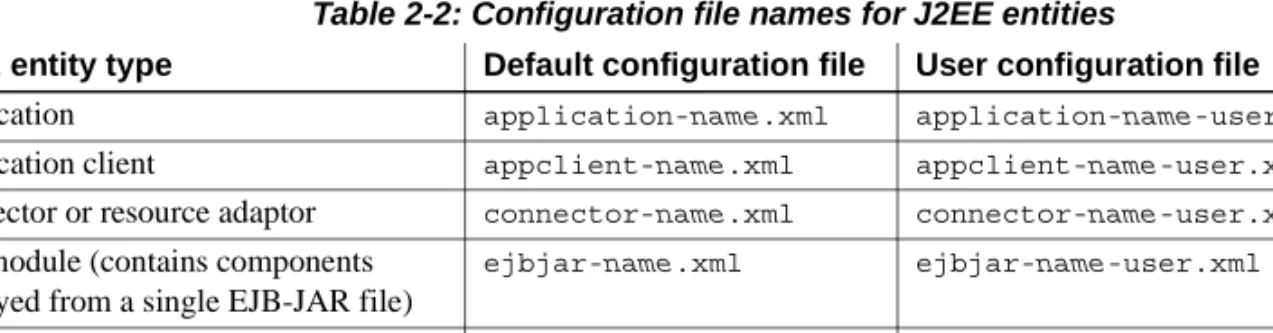
Configuration scripts reside in the EAServer config subdirectory with a naming prefix based on the EJB archive type. Table 2-2 lists the configuration file names for each J2EE entity type. The default configuration contains settings that match the deployment descriptor. You can define user configuration files to override the default settings, or to perform configuration tasks beyond those that can be described in the deployment descriptor.
Table 2-2: Configuration file names for J2EE entities
J2EE entity type Default configuration file User configuration file Application application-name.xml application-name-user.xml
Application client appclient-name.xml appclient-name-user.xml
Connector or resource adaptor connector-name.xml connector-name-user.xml
EJB module (contains components deployed from a single EJB-JAR file)
ejbjar-name.xml ejbjar-name-user.xml
Web application webapp-name.xml webapp-name-user.xml
User-configuration scripts
In Table 2-2, name represents the base name of the archive file from which the entities are deployed. For example, if you deploy EJB components from
ejb1.jar, the corresponding configuration file is config/ejbjar-ejb1.xml.
Deploying ejb1.jar creates a package that contains the components defined in the JAR file, and the configuration file contains settings to configure and generate code for the package and all the components inside it.
Note Do not edit generated configuration scripts. Changes you make to the main configuration script are overwritten if you redeploy the module. Customize the component properties by creating a user configuration script with settings that override those in the main script.
When you redeploy entities, existing configuration scripts are backed up to the config/old directory, with numeric suffixes appended to the file name. For example, ejbjar-foo.xml is backed up as ejbjar-foo.xml.1, ejbjar-foo.xml.2, and so forth. EAServer retains up to ten previous backups.
User-configuration scripts
To customize the entity properties or component attributes in a module deployed from a J2EE archive, you can create a user-configuration script, which is called when you redeploy or reconfigure the module. You can also embed user configuration scripts in J2EE archives, to configure EAServer deployment settings that cannot be specified by deployment descriptor settings, such as creation of new security roles or binding components external to an EJB-JAR to EJB naming references in the module.
When you reconfigure or recompile entities deployed from J2EE modules, EAServer first calls the default (generated) Ant configuration script, then calls the user-configuration script. Therefore, settings in the user-configuration script override those in the Ant configuration script.
For J2EE entities, the user configuration script has the same base name as the generated script listed in Table 2-2, with -user appended. For example, if the generated script is ejbjar-ejb1.xml, the user configuration script is
ejbjar-ejb1-user.xml.
You also use user-configuration scripts to automate the management of entities that are not deployed from J2EE archives such as data sources or JMS message queues.
CHAPTER 2 Ant-Based Configuration
Creating user-configuration scripts
User configuration scripts can be created manually or using the Management Console. To create scripts manually, use a text editor, an XML editor, or an IDE that understands Ant build files to create the script in the EAServer config subdirectory. See “Structure of a configuration script” on page 15 for details. The procedures below describe how to create scripts in the Management Console.
❖ Creating a user-configuration script for entities deployed from J2EE archives
To create a user-configuration script for a deployed application, EJB, or Web application module:
1 In the Management Console, select the module, right-click, and select Create User Configuration. A user-configuration script is created. 2 Right-click again, and select Refresh. The user-configuration script
displays on the User Configuration tab.
3 Edit the values you want to change in the script. Click Apply to save your changes.
4 For the changes to take affect, perform the following:
a Recompile the module by highlighting the module, right-clicking, and selecting Run Ant Recompile.
b Refresh the module by highlighting the module, right-clicking, and selecting Refresh. EAServer applies the property changes and refreshes the entity implementations so the new behavior takes affect.
❖ Creating configuration scripts for entities of other types
All configuration files defined in the EAServer installation appear under the Configuration Files folder in the Management Console. You can create generic configuration files here to manage entities of any type. Create them as follows: 1 In the Management Console, right-click the Configuration Files folder and
choose Add.
Applying settings from configuration scripts
Embedding configuration scripts in J2EE archives
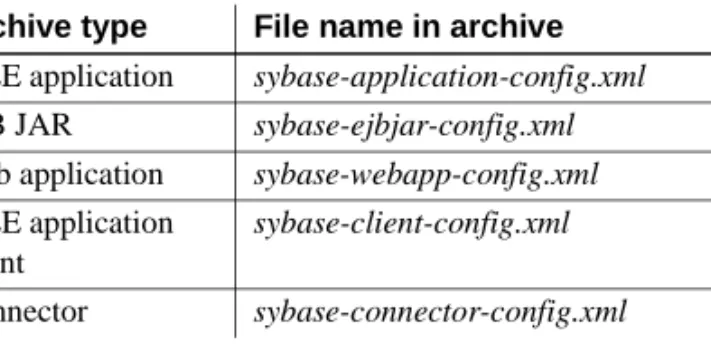
You can embed user configuration scripts in J2EE archives to automate post-deployment configuration. When you deploy the archive to EAServer, EAServer copies the script into the installation as a user configuration script. If present, the deploy-user, configure-user, and recompile-user targets execute after deployment. The undeploy-user target executes when you undeploy the module.
Place the configuration file in the archive’s META-INF subdirectory, using the file name that matches the archive type, as listed in the second column of Table 2-3.
Table 2-3: File names for Sybase configuration files in J2EE archives
After deployment, EAServer copies the configuration file to the config subdirectory of the EAServer installation, and renames it using the standard naming scheme for user configuration files–see Table 2-2 on page 9.
Applying settings from configuration scripts
You can configure or recompile entities in the Management Console or by using command-line tools.
❖ Updating configurations with the Management Console
1 Start the Management Console and connect to EAServer as described in Chapter 2, “Management Console Overview,” in the System
Administration Guide.
2 In the left frame, right-click the icon for the configuration file or entity and choose one of the following:
• Run Ant Configure, to apply the XML configuration file to the package and component properties.
Archive type File name in archive J2EE application sybase-application-config.xml
EJB JAR sybase-ejbjar-config.xml
Web application sybase-webapp-config.xml
J2EE application client
sybase-client-config.xml
CHAPTER 2 Ant-Based Configuration
• Run Ant Recompile, to apply the XML configuration file to the package and component properties and recreate generated classes. 3 If you have modified a Web application or EJB module, you must refresh
the module for the changes to take affect. In the left frame, right-click the icon for the entity and choose Refresh.
❖ Updating configurations with the command line
1 If necessary, use a text or XML editor to edit the contents of the configuration file.
2 Run the recompile utility to apply the changes to the component and recreate generated classes. See Chapter 12, “Command Line Tools,” in the
New Features Guide for details on this utility.
You can also run the configure utility to update the component properties without regenerating affected code.
3 If you have modified a Web application or EJB module, you must refresh the module by running the refresh utility.
Predefined configuration scripts
The installation includes default configurations for several module types, including data sources, database types, EJB providers, export configurations, and thread monitors. Using the Management Console, you can view the predefined Ant scripts by expanding the Configuration Files folder, and selecting the file; the contents of the file display in the right pane. Table 2-4 lists the predefined scripts and what they configure.
Table 2-4: Predefined configuration scripts
Name Configures defaults for
camel-case-off.xml Defines a configure target to turn off camel-case style mappings of IDL types to Java types.
camel-case-on.xml Defines a configure target to enable camel-case style mappings of IDL types to Java types.
default-application-servers.xml New application server instances.
default-code-sets.xml Character sets present in the server.
default-database-types.xml Database types. See Chapter 4, “Database Access,” in the System
Predefined configuration scripts
default-data-sources.xml Data sources. See Chapter 4, “Database Access,” in the System
Administration Guide.
default-ejb-providers.xml EJB providers. See Chapter 3, “Developing EJB Clients,” in the EJB Users
Guide.
default-export-configurations.xml Export configurations. See Chapter 7, “Exporting Server Modules,” in the
System Administration Guide. default-http-contexts.xml HTTP contexts for Web applications.
default-install.xml Entities configured with input gathered by the installation program, such as port numbers for the default network listeners.
default-jms-providers.xml JMS providers.
default-jms-resources.xml Sample JMS resource factories.
default-mail-sessions.xml JavaMail sessions.
default-scheduled-tasks.xml Scheduled tasks.
default-security-domains.xml Security domains.
default-security-profiles.xml Security profiles.
default-service-components.xml Service components.
default-system-components.xml System components such as the message service and deployment service.
default-socket-listeners.xml Network listeners.
default-transaction-batches.xml Transaction batching configurations.
default-thread-monitors.xml Thread monitors.
default-windows-service.xml Installation of EAServer as a Windows service.
default-windows-service-sybmaster.xml
Installation of sybmaster, the EAServer SNMP master agent, as a Windows service.
deploy-tool-options.xml Options for the deploy utility.
idl-generator-off.xml Turns off generation of IDL for EJB components deployed from EJB-JAR files.
idl-generator-on.xml Turns on generation of IDL for EJB components deployed from EJB-JAR files.
idl-style-cts.xml Configures the IDL generator to create “CTS” style IDL. This style is recommended when clients are primarily PowerBuilder. It also provides backward compatibility with EAServer 5.x clients.
idl-style-xdt.xml Configures the IDL generator to create “XDT” style IDL. This style is recommended when clients are primarily C++.
jacc-provider-info.xml Example settings to install a customized JACC provider.
long-transactions-off.xml Disables support for long transactions.
long-transactions-on.xml Enables support for long transactions.
CHAPTER 2 Ant-Based Configuration
Structure of a configuration script
If you manually create configuration scripts, follow the structure described below. You can use an existing script as a template. For J2EE archives that have been deployed already, you can use the Management Console to create a user configuration script template as described in “Creating user-configuration scripts” on page 11.
Scripts must be run from the EAServer config subdirectory. Otherwise, Ant imports are not resolved, and integration with the Management Console and command-line tools will not work.
Add required imports
Configuration scripts must import ant-config-tasks.xml: <import file="ant-config-tasks.xml"/>
Add the imports inside the project tag, above any target definitions.
Optionally add Ant property definitions
In the default (generated) configuration file for a J2EE archive, settings that may be used in multiple places are defined as Ant properties at the top of the default configuration file. For example, since all components deployed from the same archive typically connect to the same database, EAServer defines a sql.dataSource property as follows:
<property name="sql.dataSource" value="default"/> This property specifies the data source name that is bound to any resource reference names used in the package.
In the user configuration file, you can override the definitions of these properties by redefining them. However, if your script imports the default configuration file, you must define the property in the user configuration file before the import of the default configuration file. For example:
<property name="sql.dataSource" value="Glossary"/> <import file="ant-config-tasks.xml"/>
Ant configuration command syntax
In Ant, the first declaration of a property takes precedence. If you define the property after the import of the default configuration file, the value in the default configuration takes precedence.
Define required targets
If you are creating a user configuration file for a J2EE archive, define any of the deploy-user, configure-user, recompile-user, and undeploy-user targets. “EAServer configuration targets” on page 7 describes what these targets should do. You do not need to define all targets. EAServer ignores missing target names.
If you are creating a configuration file that is not associated with a J2EE archive, define a configure target.
Ant configuration command syntax
For details on the syntax of Ant commands, see the following file in your EAServer installation:
html\help\en\index.html
Examples
For examples of configuration targets, see the default-*.xml configuration scripts in the config subdirectory of your installation. These scripts create the predefined entities in the installation. You can use them as a template to define and configure new entities.
The Enterprise Java Beans tutorial shows how to embed a user-configuration in an EJB-JAR file to run configuration commands at deployment time. To run the tutorial, see Chapter 6, “Tutorial: Creating Enterprise JavaBeans
C H A P T E R 3
Using Scheduled Tasks
About scheduled tasks
A scheduled task is a background task that runs at server startup, shutdown, or at scheduled intervals during server operation. You can use scheduled tasks to automate periodic configuration and maintenance activities.
EAServer provides several predefined tasks to perform common maintenance operations such as collecting memory and component invocation statistics.
You can define new tasks to run predefined task operations, such as: • Parsing logs for errors
• Running SQL commands through a data source to configure the
remote database server
• Posting a message to a JMS message queue
• Calling application code such as an EJB stateful session bean method or running an application client
• Running operating system commands
• Sending email to server administrators
You can also assemble task chains, to combine operations defined in multiple tasks. For example, you can combine tasks that check for log
Topic Page
About scheduled tasks 17
Predefined tasks 18
Creating new tasks 19
Predefined tasks
Service components can also run automated tasks using code that you write yourself.—see Chapter 4, “Creating Service Components.” EAServer activates scheduled tasks after service components. A scheduled task configured to run at server startup runs after services are started.
Predefined tasks
Table 3-5 describes the tasks that you can schedule to be performed automatically. To schedule tasks individually, choose Select, then select or unselect each task. To schedule all the tasks, select All.
To add new tasks and configure task schedules, see “Creating new tasks” on page 19.
Table 3-1: Scheduled tasks
Task Description
AutoDeploy Automatically deploy any EJB-JAR, WAR, EAR, or application-client JAR that is in the deploy directory. By default, this is enabled.
AutoRefresh Enables EJBs and Web modules that are refreshed by AutoDeploy, or by running the deploy or refresh commands to be reloaded by the server. By default, this is enabled.
CheckForApplicationExceptions Check the log for application exceptions that match a given string. CheckForErrorMessages Check the log for error messages that match a given string. CheckForSecurityAlerts Check the log for security alerts that match a given string. CheckForSystemExceptions Check the log for system exceptions that match a given string. CheckForWarningMessages Check the log for warning messages that match a given string.
CheckMemoryUsage Compare memory usage to the memory monitor limits configured in the server properties. For more information on memory limits, see “Monitors tab” in Chapter 3, “Creating and Configuring Servers,” in the System
Administration Guide.
Dump60MinuteMemoryUsage Write 60-minute memory usage statistics to the log file every hour. Dump60MinuteStatistics Write 60-minute statistics to the log file every hour. Files are written in the
logs/statistics directory.
Dump60SecondMemoryUsage Write 60-second memory usage statistics to the log file every minute. Dump60SecondStatistics Write 60-second statistics to the log file every minute. Files are written in the
logs/statistics directory
EjbSessionTimeout Deletes session state from the session.db data source for passivated EJB stateful session bean instances that have timed out due to inactivity.
CHAPTER 3 Using Scheduled Tasks
Creating new tasks
You can create scheduled tasks with the Management Console or by running an Ant configuration script.
The scheduled task properties specify which actions to perform and when to run the tasks.
❖ Creating or modifying scheduled tasks with the Management Console 1 In the Management Console, expand the Scheduled Tasks folder. 2 To modify an existing task, highlight the task to configure.
EndOfServerLog Used by other tasks; for example, to include part of the server log in an e-mail message.
JmsDuplicateDetectionExpiry Deletes expired JMS duplicate-detection records. JmsPersistentMessageExpiry Deletes expired JMS persistent messages.
LocalRestart Enables the -local option for restarting the local server. LocalStop Enables the -local option for stopping the local server. NotifyApplicationExceptions Send a notification if application exceptions are logged. NotifyErrorMessages Send a notification if errors are logged.
NotifySecurityAlerts Send a notification if a security violation occurs. NotifyServerShutdown Send a notification when the server shuts down. NotifyServerStartup Send a notification when the server starts. NotifySystemExceptions Send a notification if system exceptions occur. NotifyWarningMessages Send a notification if warnings are logged.
PbHeap_dumpSummary Print a summary of the PowerBuilder heap memory usage.
StartOfServerLog Used by other tasks; for example, to include part of the server log in an e-mail message.
SybHeap_dumpSummary Print a summary of the EAServer heap memory usage.
TxRef Log transaction cross references. To run this task, the server -txRef option must be set to true.
XaRecovery Recover transactions that did not complete due to server failure. This option sends a recovery call to the database to get the list of transaction IDs, then either commits or rolls back each transaction, depending on its state.
Creating new tasks
To create a new task, right-click the Scheduled Tasks folder and choose Add from the context menu. The Add wizard runs. Specify the task name when prompted for it and click Finish.
3 The tasks properties display on tabbed pages in the right pane. Set the scheduled task options using these pages. Click Apply to save changes before moving between tabs.
Properties are described in “Task properties on the General tab” on page 20 and “Task properties on the General tab” on page 20.
4 To run the task, follow the instructions in “Configuring scheduled tasks to run” on page 25
❖ Creating or modifying scheduled tasks using Ant
1 In the EAServer config subdirectory, define an Ant configuration script with a configure target that calls the <setProperties> command to create an entity of type scheduledTask. For an example, see “Ant configuration example” on page 24.
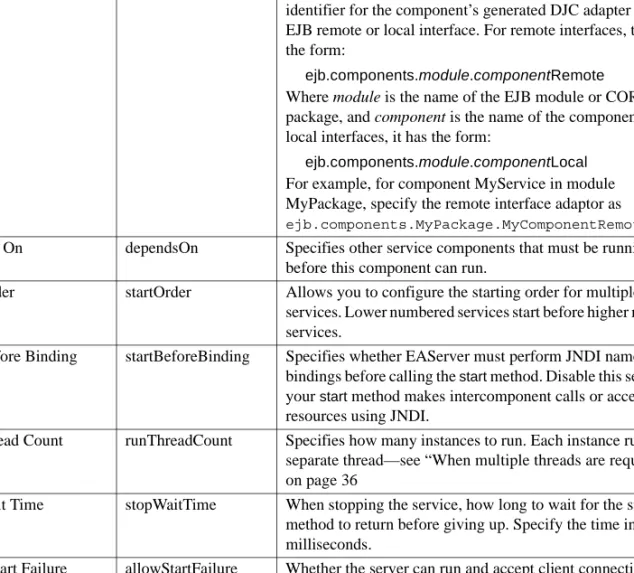
The Ant property names are listed in Table 3-2, Table 3-3, and Table 3-4. Ant property names are provided in parentheses after the Management Console display name. Properties are also described in the HTML reference located in the following file in your installation:
html\help\en\com.sybase.djc.scheduler.ScheduledTask .html
2 Run the script with the configure command-line tool, specifying the base name of the configuration script as the argument.
3 To run the task, follow the instructions in “Configuring scheduled tasks to run” on page 25.
Task properties on the General tab
The properties on the General tab, specify which tasks to perform. Table 3-2 on page 21 defines the options that are common to all the tasks. Ant property names are provided in parentheses after the Management Console display name.
CHAPTER 3 Using Scheduled Tasks
Table 3-2: Scheduled task common options
Table 3-3 defines optional properties that depend on the value of taskAction. Ant property names are provided in parentheses after the Management Console display name. These options are appropriate for predefined and user-defined tasks.
Property Description Task Action
(taskAction)
Select the action to perform: • Run Component Method • Check File
• Print File Head • Print File Tail
• Publish JMS Text Message • Run Application Client • Run Component Method • Run Database Command • Run System Command • Send Mail Message • Send JMS Text Message After Failure Run
(afterFailureRun)
If the current task fails, select another task to perform. You can choose any of the tasks defined in Table 3-1 on page 18 or a user-defined task.
After Success Run (afterSuccessRun)
Select another task to perform after the current task completes. You can choose any of the tasks defined in Table 3-1 on page 18 or a user-defined task.
Thread Monitor (threadMonitor)
Select the thread monitor to use to perform the task. Wait After Failure
(waitAfterFailure)
If a task fails, the number of seconds to wait before allowing the task to run again. Wait After Success
(waitAfterSuccess)
If a task succeeds, the number of seconds to wait before allowing the task to run again. Log Execution
(logExecution)
Select to log scheduled task execution details. Random Wait Offset
(randomWaitOffset)
Creating new tasks
Table 3-3: Type-specific options
Option Description
Component Method (componentMethod)
If taskAction is runComponentMethod, specify the component method to run. The method must be void with no parameters. You can specify either:
• The name method in a simple Java class (which must be in the class path); for example,
com.example.MyTask.run, or
• The name of a deployed component method; for example,
ejb.components.mypackage.MyCompLocal.myMethod or
ejb.components.mypackage.MyCompRemote.myMethod
Check File (checkFile)
If the task action is checkFile, specify which file to check.
Line Match (lineMatch)
Enter the character string to search for in the file. Match if Count Exceeds
(matchIfCountExceeds)
Specify the number of lines in which the pattern must be found to constitute a match. Match if Delta Exceeds
(matchIfDeltaExceeds)
Specify the number of new lines—added since the last check—in which the pattern must be found to constitute a match.
After Match Run (afterMatchRun)
If a line match is found, select another task to perform. You can choose any of the tasks defined in Table 3-1 on page 18.
Wait After Match (waitAfterMatch)
Specify the number of seconds to wait after a matching line is found before allowing the task to run again.
Print File Tail (printFileTail)
Specify the name of the log file. Maximum Tail Lines
(maximumTailLines)
Enter the maximum number of lines to print from the end of the file. Mail Session
(mailSession)
Specify the name of the mail session to use. From
(mailFrom)
Enter the sender’s e-mail address. To
(mailTo)
Enter the recipients’s e-mail address. Cc
(mailCc)
To send a carbon copy of a mail message, enter the recipient’s e-mail address. Subject
(mailSubject)
Enter the subject of the mail. Message
(mailMessage)
Enter the mail message body. Append Output From
(appendOutputFrom)
To append the output from a task as text in the mail message, select the task from those defined in Table 3-1 on page 18.
Attach Output From (attachOutputFrom)
To include the output from a task as an attachment in the mail message, select the task from those defined in Table 3-1 on page 18.
CHAPTER 3 Using Scheduled Tasks
Task properties on the Schedule tab
Properties on the Schedule tab define when to run the task. Table 3-4 describes the properties. Ant property names are provided in parentheses after the Management Console display name.
Table 3-4: Task schedules Print File Head
(printFileHead)
Specify the name of the log file. Maximum Head Lines
(maximumHeadLines)
Enter the maximum number of lines to print from the beginning of the file.
Option Description
Property Description Schedule
(schedule)
Select the frequency at which to perform the task: • At specified interval • Every second • Every minute • Hourly • Daily • Weekly • Monthly • At server startup • At server shutdown • None Start Time (startTime)
Specify the first time to perform the task, as HH:MM.
End Time (endTime)
Specify the last time to perform the task, as HH:MM.
Start Date (startDate)
Specify the first date to perform the task, as YYYY-MM-DD.
End Date (endDate)
Specify the last date to perform the task, as YYYY-MM-DD.
Exclude Date (excludeDate)
List specific dates to not perform the task, as YYYY-MM-DD<, YYYY-MM-DD, ...>.
Include Date (includeDate)
Creating new tasks
Ant configuration example
Below is an example Ant configuration script to define a scheduled task. For additional examples, see the file default-scheduled-tasks.xml in the config subdirectory of your installation. This configuration file defines the preconfigured scheduled tasks described in “Predefined tasks” on page 18. Here is the example configuration script:
<?xml version="1.0"?>
<project name="default-scheduled-tasks" default="configure"> <import file="ant-config-tasks.xml"/>
<target name="configure">
<setProperties scheduledTask="MyScheduledTask">
<property name="taskAction" value="runComponentMethod"/> <property name="componentMethod"
value="ejb.components.myjar.MyCompLocal.myTask"/> <property name="schedule" value="interval"/> <property name="interval" value="30"/> </setProperties>
</target> </project>
Day of Week (dayOfWeek)
To perform the task on specific days of the week, choose Select, then select or unselect each day. To perform the task every day of the week, select All. To create a schedule that is unrelated to days of the week, select None.
Day of Month (dayOfMonth)
To perform the task on specific days of the month, choose Select, then select or unselect each day. To perform the task every day of the month, select All. To create a schedule that is unrelated to days of the month, select None.
Month of Year (monthOfYear)
To schedule the task for specific months of the year, choose Select, then select or unselect each month. To perform the task every month of the year, select All. To create a schedule that is unrelated to months of the year, select None.
CHAPTER 3 Using Scheduled Tasks
Configuring scheduled tasks to run
Scheduled tasks defined in the repository do not run by default. You must install them into the server to run them. You can install a task in a server using the Management Console or by running an Ant configuration file.
To install using the Management Console, configure the Tasks tab in the Management Console Server Properties pages. For more information, see Chapter 3, “Creating and Configuring Servers,” in the System Administration
Guide.
To install a scheduled task from an Ant configuration file, add it to the list of tasks in the server's scheduledTasks Ant configuration property. For example, if the task is “MyTask” and the server name is “MyApplicationServer”, add the following commands to your configure target:
<setProperties applicationServer="MyApplicationServer" merge="true"> <property name="scheduledTasks"
operation="append-list" value="MyTask"/>
C H A P T E R 4
Creating Service Components
This chapter describes how to create service components. Service components are loaded and initialized when EAServer starts and have a
run method that executes perpetually, independent of any client interaction.
You can use service components to perform background processing or to provide common services for EAServer clients and other EAServer components.
Introduction
Service components perform background processing or provide common services for EAServer clients and other EAServer components. For example, you might create service components to perform the following tasks:
• Maintain cached copies of commonly used database tables
• Move or replicate data between data sources during server idle time • Manage application-specific log files
What are service
components? Service components are like any other EAServer component, except that:
• They must implement the methods in the CtsServices::GenericService
IDL interface. These methods allow the server to control the service component’s initialization, execution, and shutdown.
• Instances are loaded and initialized when the host server starts.
Topic Page
Introduction 27
Creating service components 29
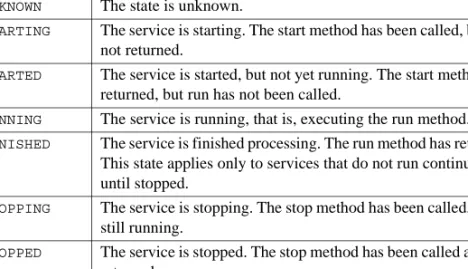
Determining service state 38
Introduction
The Thread Manager and service components
You can use the Thread Manager as an alternative to creating a service component to handle repetitive processing. You may find the Thread Manager interface allows more design flexibility. For example, you can suspend processing in services run by the Thread Manager, and you can start threads at any time rather than only at server start-up. Chapter 5, “Using the Thread Manager” describes how to use the thread manager.
PowerBuilder developers can use the Thread Manager to develop more robust services. Since PowerBuilder components cannot support sharing and concurrency, you cannot develop a service that can be stopped or refreshed without using the Thread Manager. For more information, see the Application
Techniques manual in the PowerBuilder documentation.
The GenericService
interface Your component’s remote or local interface can include the methods in the CtsServices::GenericService IDL interface. EAServer calls these methods to control the service component’s initialization, execution, and shutdown. Your implementation does not need to explicitly implement the interface (that is, list it in the implements clause of the class declaration), and you do not need to list the interface in the component properties. The methods are:
• start() Called to initialize the component when the server starts. This method typically initializes data structures and resources that the service requires. For example:
• A service that writes to log files would open each file and cache each file handle as a class instance variable.
• A service that caches tabular data from a remote database would open a connection to the database and create the data structures required to store tabular data in memory.
• run() Called after the first invocation of start() returns. run() can loop and perform repetitive tasks as an EAServer background process. If the component does not perform background processing, run() can return immediately.
For services that perform background processing, run() should loop continuously while performing the service task. run() must periodically suspend its own execution by calling the Java java.lang.Thread.sleep()
method, one of the Java Object.wait() methods, or the EAServer JagSleep
C routine. These APIs suspend the current thread for a specified duration so that other threads may execute. run() should return after the server invokes the stop() method.
CHAPTER 4 Creating Service Components
If you configure your service to run in multiple threads, EAServer calls
run() concurrently in the specified number of threads.
Warning! Your run() method must either return immediately or call one of the Object.wait() Java methods, the EAServer JagSleep C routine, or some other thread-aware implementation of sleep. Do not call the sleep system routine or any other routine that suspends process (and not thread) execution. If coding service components in PowerBuilder, code your component to call the JagSleep C routine; do not use the PowerBuilder timer event, which may suspend the EAServer process.
• stop() Called when the server is shutting down or when the component has been refreshed (refresh stops the service then restarts the service cycle). EAServer calls the stop() method on a different thread than the run()
method. Code in the stop() method should set a flag that indicates the the
run() method should return.
stop() should also wake up sleeping run() threads if the language allows this. For example, in Java, call the Object.notifyAll() method to wake threads that called Object.wait() on the same monitor object. In languages that do not allow you to wake up sleeping threads, keep your sleep interval reasonably short. The service cannot be refreshed until all running threads return from the run() method; that is, if your sleep interval is one hour, it can take that long to refresh the service unless you add code to wake up sleeping threads.
Implementing addtional remtoe interface methods
Your component can implement additional remote or local interface methods. EAServer clients, servlets, and other components can execute a service component’s methods like those of any other component, with one exception: Clients cannot invoke methods on the service component until the start()
method has returned. This restriction allows you to perform required initialization in start() without worrying about thread synchronization issues. After start() returns, EAServer calls the run() method in its own thread. Client method invocations may arrive at this time as well. There is no guarantee that
run() will have been called when a client method invocation occurs; the first client invocations may arrive before EAServer calls the run() method.