.
.
.
.
.
.
.
.
Using IBM Watson Analytics to analyze
data from an Oracle Database
Visualize your data for easier analysis
Arun Sar
Ravisankar Shanmugam
Cognitive Systems - ISV Ecosystem
Table of contents
Abstract ... 1
Introduction to IBM Watson Analytics ... 1
Data... 1
Discover ... 1
Display ... 1
IBM Watson Analytics Secure Gateway ... 2
IBM Watson Analytics with an Oracle Database ... 2
Data connections ... 2
Data asset and operations ... 6
Discovering insightful results ... 7
Displaying results... 8
Summary ... 9
Resources ... 11
Abstract
This paper explains some features of IBM® Watson Analytics®, especially secured connection and data connection, to connect with an on-premises Oracle Database securely, and shows you how to upload Oracle Database data for analysis into IBM Watson® in the IBM Cloud™.
It also explains configuring a secured connection using IBM Secured Gateway between Watson Analytics and an on-premises host where an Oracle Database is running, and shows how to configure database connections on Watson Analytics to connect with the Oracle Database. The document provides an overall flow for transforming on-premises Oracle Database data into actionable information by using the data visualization capabilities of Watson Analytics.
Introduction to IBM Watson Analytics
Watson analytics is a natural language based cognitive service that enables business professionals with any skill level to quickly access and use data from different data sources to produce meaningful analytical results. Watson Analytics offers cloud-based services which use powerful predictive and visual analytic tools to process structured and unstructured data.
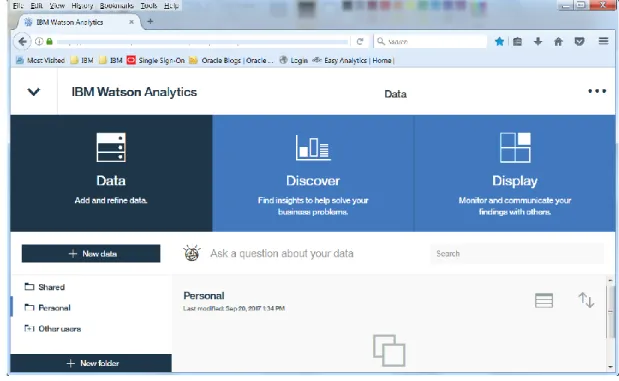
Watson Analytics provides user-friendly tools for professionals making advanced analytics easy, allowing them to find answers and insights from data. With the cognitive capabilities, Watson Analytics provides answers to the questions in the forms of refined structured data to create simple and compelling reports. Watson Analytics organizes the content and workflow into Data, Discovery and Display.
Data
The Data portion of Watson Analytics imports, manages and refines data and quickly launches new data explorations. The data loaded into Watson Analytics becomes a data asset. It is a collection of data from external sources such as structured data with rows and columns, spreadsheet data, or data from .csv files.
Discover
The Discover option explores uploaded data by asking natural language questions, either by using the suggested starting point questions or by building your own custom questions or your own visualization from scratch. It organizes discoveries and visualizations into Discovery sets.
Display
After discovering the insights from the data, the Display option is used to build and communicate the data story to others by creating dashboards and infographics based on the discoveries found in the data. Display uses visualizations from the Discover sets to build custom data stories with dashboards and infographics.
Figure 1. IBM Watson Analytics home page
IBM Watson Analytics Secure Gateway
A Secure Gateway in Watson Analytics provides secure connectivity and establishes a “tunnel” between Watson Analytics in the IBM Cloud and on-premises data sources. The Secure Gateway can be
configured with a few simple steps and is able to access the on-premises database using client applications such as IBM Installer, Docker or IBM Data Power.
Refer to the following Web link for an example of configuring IBM Secure Gateway between Watson Analytics and on-premises data sources.
How do I configure a Secure Gateway between #WatsonAnalytics and an on-premisess Data Source?
IBM Watson Analytics with an Oracle Database
Watson Analytics provides the data connection feature to connect with an on-premises Oracle Database through an IBM Secure Gateway. A secured tunnel is established between Watson Analytics and an on-premises Oracle Database to secure the data uploaded into Watson in the IBM Cloud.
Data connections
To connect with the Oracle Database from Watson Analytics, a new Oracle data connection should be configured in Watson Analytics. The data connection securely connects to the database and displays accessible database objects in Watson Analytics based on the database username and password given in the database connection profile.
To bring data into Watson Analytics Cloud from an Oracle Database located on-premises to discover insightful analytical results, Oracle Database tables and views can be directly uploaded to Watson Analytics. For connecting an on-premises Oracle Database to Watson Analytics, a Secure Gateway must
be created between Watson Analytics and the database host server. After a secure connection is created it is easy to create a data connection to a database by creating a data connection profile. The data connection profile needs a connection name (database connect string), a Secure Gateway, a hostname or IP address of the system where the database is running, a port number where the database can be connected, and a database username and password.
Data connection property Description
Connection name Name to identify the data connection in Watson Analytics Description Optional. Description of the data connection
Secure Gateway Select a Secure Gateway for this property to be available. Hostname or IP address IP address or fully qualified host name
Port Database port allocated in the database host server
Database (SID) Database System ID, which is used for connecting to the database Username Database username for the connection
Password User password for the connection
Table 1. Data connection properties
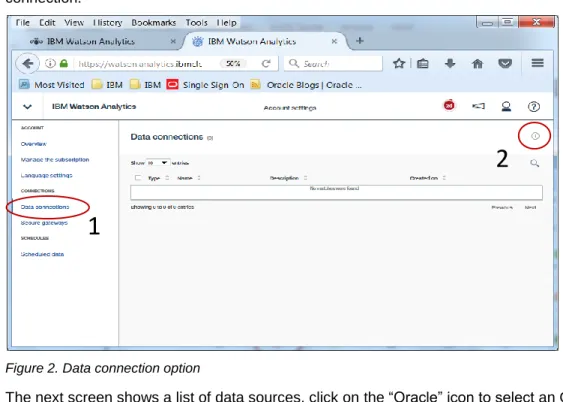
The following simple steps can help for setting up a data connection with an Oracle Database. On the Account settings page, Click on “Data connections” and click on “+” symbol to add a data connection.
Figure 2. Data connection option
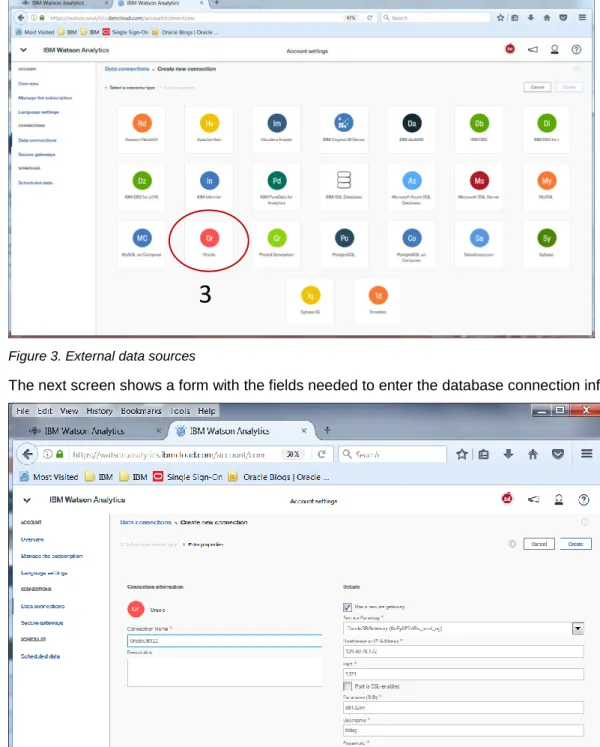
The next screen shows a list of data sources, click on the “Oracle” icon to select an Oracle Database as a data source.
1
Figure 3. External data sources
The next screen shows a form with the fields needed to enter the database connection information.
Figure 4. Input for creating a data connection for an Oracle Database
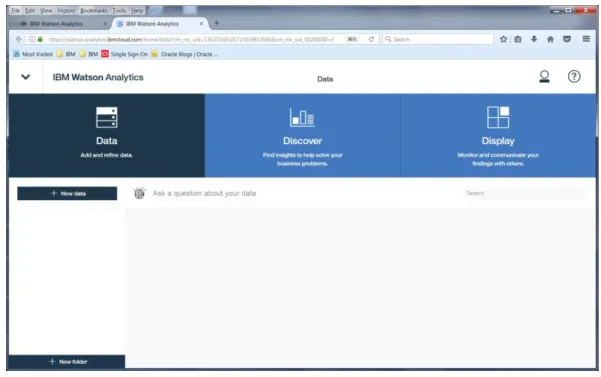
Click “Create” button to create the data connection. After the data connection for the Oracle Database is created, go back to the Watson Analytics home page and click on “+ New data” button to plan for uploading data from the Oracle Database.
Figure 5. Preparing for creating new data set
On the next screen, click “connection” icon, which will display the data connection created for the Oracle Database.
Figure 6. Data Connection for an Oracle Database
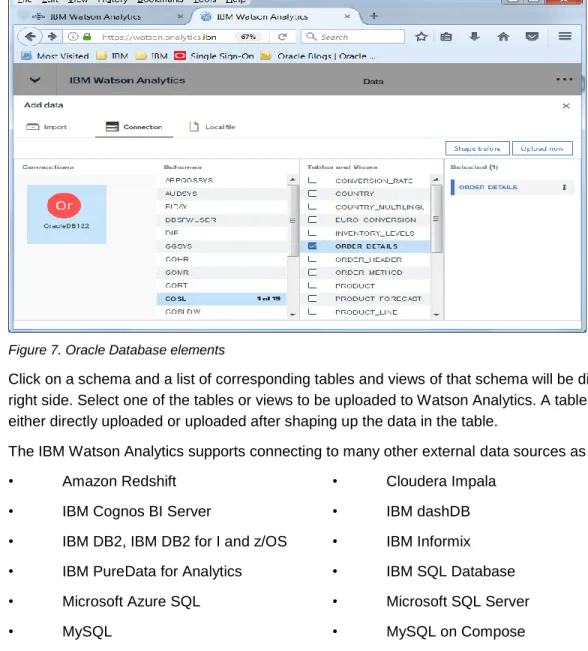
Click on “Oracle” icon, it will connect to the on-premises database and displays the database schemas accessible to the username given in the data connection profile.
2
Figure 7. Oracle Database elements
Click on a schema and a list of corresponding tables and views of that schema will be displayed on the right side. Select one of the tables or views to be uploaded to Watson Analytics. A table or a view can be either directly uploaded or uploaded after shaping up the data in the table.
The IBM Watson Analytics supports connecting to many other external data sources as shown below. • Amazon Redshift • Cloudera Impala
• IBM Cognos BI Server • IBM dashDB • IBM DB2, IBM DB2 for I and z/OS • IBM Informix • IBM PureData for Analytics • IBM SQL Database • Microsoft Azure SQL • Microsoft SQL Server
• MySQL • MySQL on Compose
• Pivotal Greenplum • PostgreSQL • PostgreSQL on Compose • Salesforce.com
• Sybase • Sybase IQ
• Teradata • Apache Hive
Data asset and operations
The data loaded into Watson Analytics becomes available for analysis as a data asset. A data asset is a collection of data from external sources that is in the form of rows and columns. After uploading the data, it can be refined or new data can be added to the uploaded data to make the data more useful or
meaningful when you create discoveries. For example, you can remove columns or change their names or apply filters to them. You can also create calculations, hierarchies, and groups of data. Watson
The data quality assesses the degree to which a dataset is suitable for analysis. The data quality score is measured on a scale of 0 – 100, with 100 representing the highest possible data quality. By default, Watson Analytics automatically analyzes the qualified data for ten starting point questions. Additional questions can also be made manually with different elements of the data.
Data assets that are collected from different data sources can be joined for an analysis. If the data in the relational databases to be analyzed by Watson Analytics are changing frequently a scheduling option in Watson Analytics can schedule the replacement of the data daily, weekly, or monthly (by date or day of the week). There are various options available for setting up a scheduled refresh of the data.
For more information on data assets and operations, refer to: IBM Watson Analytics guide for data and operation.
Discovering insightful results
Watson Analytics can help you to understand your data and find insights which are hidden in the data. It allows you to visualize the data with many types of visuals, but without the complexity. It discovers patterns and the relationship between data. Insights can be found in data with any of the given categories such as “Compare data”, “Understand relationship” and “Identify patterns”, “Aggregate data”, “Sort and filter data”, and “Predict data”.
After uploading the data from an Oracle Database table or view into Watson Analytics, click on the icon created for the uploaded data, the data are analyzed automatically with ten sample questions.
For example, an ORDER_DETAILS table uploaded to Watson Analytics is automatically analyzed for the sample questions as shown in the following screen shot.
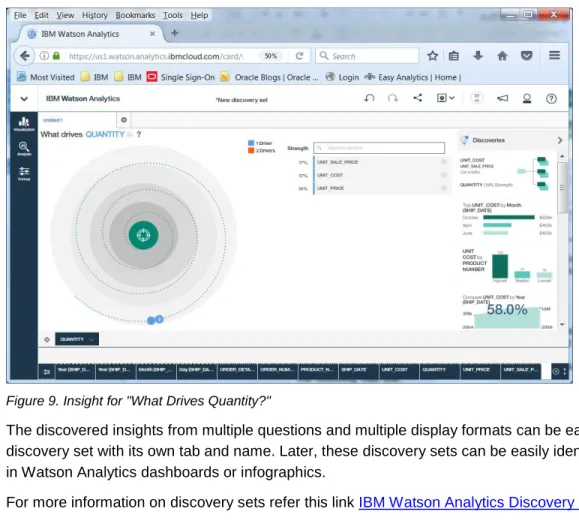
One of the sample questions that Watson Analytics asked on the ORDER_DETAILS table was “What Drives Quantity?”, clicking on the icon shows the answer to that question as below.
Figure 9. Insight for "What Drives Quantity?"
The discovered insights from multiple questions and multiple display formats can be easily stored as a discovery set with its own tab and name. Later, these discovery sets can be easily identified to assemble in Watson Analytics dashboards or infographics.
For more information on discovery sets refer this link IBM Watson Analytics Discovery Sets.
Displaying results
The Display section of Watson Analytics helps to assemble the insights which are discovered for the data in the “Discover” section. The display has different layout formats to assemble discoveries from discovery sets and turn them into dashboards, infographics, or storybooks. The display can be enhanced to look nicer by adding widgets such as text, media, web pages, images, and shapes.
For example, Figure 10 shows a sample display of insights collected from different Oracle Database tables.
Figure 10. Sample Display of insights put together in a dashboard
Refer this link IBM Watson Analytics Display for more information on Display feature.
Summary
Watson Analytics makes complex analytics tasks easy for data retrieved securely from many data sources and transforms the data into insightful analysis through visuals which may allow you to find trends hidden in your data. These insights help the business decision makers to understand their historical data and make smarter decision on new opportunities.
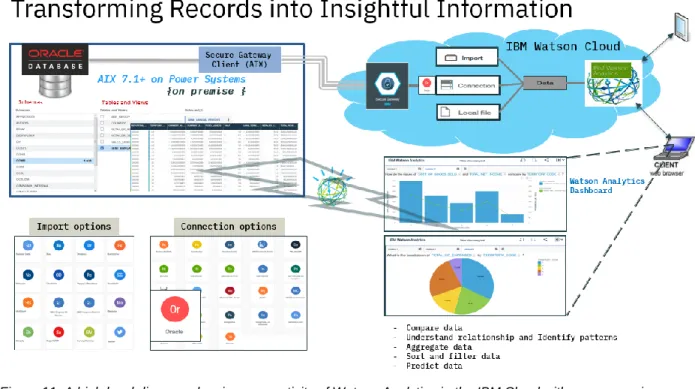
Getting started is very easy and setting up Watson Analytics with on premises Oracle Database data and getting business insights for that data can be done in minutes. Figure 11 shows a schematic diagram of the connectivity between Watson Analytics and an on premises Oracle Database.
Figure 11. A high level diagram showing connectivity of Watson Analytics in the IBM Cloud with an on-premises Oracle Database
Resources
▪ IBM Watson Analytics Guide
https://www.ibm.com/support/knowledgecenter/en/SS4QC9/kc_gen/master_map-gen1.html ▪ IBM Watson Analytics – Free trial sign up page
https://www.ibm.com/us-en/marketplace/watson-analytics ▪ IBM Marketplace
Trademarks and special notices
© Copyright. IBM Corporation 2018. All rights reserved.References in this document to IBM products or services do not imply that IBM intends to make them available in every country.
IBM, the IBM logo, IBM Public Cloud, IBM Watson and Watson Analytics are trademarks or registered trademarks of International Business Machines Corporation in the United States, other countries, or both. Other company, product, or service names may be trademarks or service marks of others.
The information provided in this document is distributed “AS IS” without any warranty, either express or implied.
The information in this document may include technical inaccuracies or typographical errors.
All customer examples described are presented as illustrations of how those customers have used IBM products and the results they may have achieved. Actual environmental costs and performance
characteristics may vary by customer.
Information concerning non-IBM products was obtained from a supplier of these products, published announcement material, or other publicly available sources and does not constitute an endorsement of such products by IBM. Sources for non-IBM list prices and performance numbers are taken from publicly available information, including vendor announcements and vendor worldwide homepages. IBM has not tested these products and cannot confirm the accuracy of performance, capability, or any other claims related to non-IBM products. Questions on the capability of non-IBM products should be addressed to the supplier of those products.
Any references in this information to non-IBM Web sites are provided for convenience only and do not in any manner serve as an endorsement of those Web sites. The materials at those Web sites are not part of the materials for this IBM product and use of those Web sites is at your own risk.