Visual Basic
December 29, 2013
On the 28th of April 2012 the contents of the English as well as German Wikibooks and Wikipedia projects were licensed under Creative Commons Attribution-ShareAlike 3.0 Unported license. A URI to this license is given in the list of figures on page 247. If this document is a derived work from the contents of one of these projects and the content was still licensed by the project under this license at the time of derivation this document has to be licensed under the same, a similar or a compatible license, as stated in section 4b of the license. The list of contributors is included in chapter Contributors on page 245. The licenses GPL, LGPL and GFDL are included in chapter Licenses on page 251, since this book and/or parts of it may or may not be licensed under one or more of these licenses, and thus require inclusion of these licenses. The licenses of the figures are given in the list of figures on page 247. This PDF was generated by the LATEX typesetting software. The LATEX source
code is included as an attachment (source.7z.txt) in this PDF file. To extract the source from the PDF file, you can use thepdfdetachtool including in thepoppler suite, or thehttp://www. pdflabs.com/tools/pdftk-the-pdf-toolkit/utility. Some PDF viewers may also let you save the attachment to a file. After extracting it from the PDF file you have to rename it tosource.7z. To uncompress the resulting archive we recommend the use ofhttp://www.7-zip.org/. The LATEX
source itself was generated by a program written by Dirk Hünniger, which is freely available under an open source license fromhttp://de.wikibooks.org/wiki/Benutzer:Dirk_Huenniger/wb2pdf.
Contents
1 Introduction 3
1.1 How to use this book . . . 3
1.2 Terminology . . . 4
1.3 VB Integrated Development Environment . . . 4
2 History 5 2.1 Evolution of Visual Basic . . . 6
2.2 Timeline of Visual Basic . . . 6
2.3 See also . . . 7
3 Getting Started 9 3.1 Hello World . . . 9
3.2 The Visual Basic Integrated Development Environment . . . 9
3.3 Parts of a Visual Basic Program . . . 13
3.4 Controls . . . 13
3.5 Reserved Words . . . 17
3.6 REMs . . . 18
3.7 Error Checking . . . 18
3.8 Declaring Variables (Dimensioning) . . . 20
3.9 Simple output . . . 21
4 Simple Arithmetic 25 4.1 Arithmetic Operators . . . 25
4.2 Comparison Operators . . . 29
4.3 Built in Arithmetic Functions . . . 29
4.4 Trigonometrical Functions . . . 30 5 Branching 33 5.1 If...Then Statement . . . 33 5.2 If..Then..Else Statement . . . 34 5.3 Select Case . . . 35 5.4 Unconditionals . . . 35 6 Loops 39 6.1 For..Next Loops . . . 39 6.2 Do Loops . . . 40 6.3 While Loops . . . 42 6.4 Nested Loops . . . 42 7 Strings 43 7.1 Built In String Functions . . . 43
Contents
7.2 Regular Expressions . . . 43
8 Built In String Functions 45 8.1 Comparison . . . 45
8.2 Concatenation . . . 46
8.3 Containment . . . 46
8.4 Replacing . . . 46
8.5 Indexing and Substrings . . . 46
8.6 String constants . . . 47
8.7 String Functions . . . 47
8.8 Quotes in strings . . . 50
8.9 Startswith and Endswith . . . 50
8.10 Pattern Matching . . . 51
9 Regular Expressions 53 9.1 Class outline . . . 53
9.2 Constructing a regexp . . . 53
9.3 Testing for match . . . 54
9.4 Finding matches . . . 54 9.5 Finding groups . . . 54 9.6 Replacing . . . 55 9.7 Splitting . . . 55 9.8 Example application . . . 55 9.9 External links . . . 58 10 Arrays 59 10.1 Introduction . . . 59 10.2 Use of Arrays . . . 59 10.3 Indices . . . 60 10.4 Size . . . 60 10.5 Dynamic Arrays . . . 60 10.6 Variant Arrays . . . 62 10.7 Multi-Dimensional Arrays . . . 63 10.8 Erasing Arrays . . . 63 10.9 Mixing Arrays . . . 63 10.10 Use of Matrices . . . 64 10.11 Sorting . . . 65 11 Collections 67 12 Dictionaries 71 13 Data Types 73 13.1 Built in Types . . . 73
13.2 Byte, Integer & Long . . . 74
13.3 Single & Double . . . 74
13.4 String . . . 75
13.5 Structure . . . 76
Contents
13.7 Type Test . . . 77
14 Procedures and Functions 79 14.1 Defining procedures . . . 79 14.2 Calling procedures . . . 79 14.3 Procedure parts . . . 80 14.4 Visibility . . . 80 14.5 Early Termination . . . 81 14.6 Procedure type . . . 81 14.7 Optional arguments . . . 82 15 Error Handling 83 16 Files 85 16.1 Layout of Data . . . 85 16.2 Input . . . 85 16.3 Output . . . 87
16.4 How to specify the path to a file . . . 88
16.5 Examples . . . 89
17 User Interfaces 91 18 Simple Graphics 93 18.1 Shape and Line controls . . . 93
19 Windows Dialogs 95 19.1 Open and Save dialogs . . . 95
19.2 Color dialog . . . 97 19.3 Font dialog . . . 99 19.4 Print dialog . . . 101 20 Databases 103 21 Windows API 107 21.1 Declaration . . . 107 21.2 Resources . . . 108 22 Subclassing 109 22.1 Why Subclass . . . 110 22.2 Example . . . 110 23 External Processes 113 23.1 The Shell Function . . . 113
23.2 Exercises . . . 114
24 Object Oriented Programming 115 24.1 Types . . . 116
24.2 Classes . . . 117
24.3 Inheritance . . . 117
Contents 24.5 Iterators . . . 120 25 Effective Programming 121 25.1 General Guidelines . . . 121 25.2 Declaring variables . . . 122 25.3 Comments . . . 123
25.4 Avoid Defensive Programming, Fail Fast Instead . . . 125
25.5 Assertions and Design By Contract . . . 126
25.6 Tests . . . 128
25.7 Scope, Visibility and Namespaces . . . 129
25.8 Hungarian Notation . . . 129
25.9 Memory and Resource Leaks . . . 130
25.10 Errors and Exceptions . . . 134
26 Idioms 139 26.1 Resource Acquisition Is Initialization - RAII . . . 139
26.2 References . . . 144
27 Optimizing Visual Basic 145 27.1 Integers and Longs . . . 145
27.2 Strings . . . 148
27.3 ByRef versus ByVal . . . 151
27.4 Collections . . . 154
27.5 Dictionaries . . . 156
27.6 The Debug Object . . . 159
27.7 Object Instantiation . . . 160
28 Examples 167 29 Snippets 169 29.1 TopMost Function . . . 169
29.2 Form Close Button Disable . . . 169
29.3 ComboBox Automation . . . 170
29.4 Reversing a String . . . 170
29.5 Preventing flicker during update . . . 171
29.6 Useful Date Functions . . . 172
29.7 Blast Effect . . . 172
29.8 Sleep Function . . . 172
29.9 Random Numbers . . . 173
29.10 Animated Mouse Cursor . . . 173
29.11 Adding a bitmap to a menu entry . . . 174
29.12 Application Launching . . . 175
29.13 Rounding Things Up . . . 175
29.14 TCP/Winsock - Point-to-Point Connection . . . 176
29.15 TCP/Winsock - Point-to-MultiPoint Connection . . . 178
30 The Language 181 30.1 Statements . . . 181
Contents 30.3 Conditions . . . 185 30.4 Unconditionals . . . 185 30.5 Loops . . . 186 31 Coding Standards 187 31.1 Overview . . . 187
31.2 When Does This Document Apply? . . . 187
31.3 Naming Standards . . . 188 31.4 Variables . . . 190 31.5 Scope . . . 190 31.6 Data Type . . . 190 31.7 Option Explicit . . . 191 31.8 Variable Names . . . 191
31.9 User Defined Types (UDTs) . . . 194
31.10 Arrays . . . 194
31.11 Procedure . . . 195
31.12 Function Procedure Data Types . . . 195
31.13 Parameters . . . 196
31.14 Function Return Values . . . 196
31.15 Constants . . . 197
31.16 Controls . . . 199
31.17 Specifying Particular Control Variants - NOT . . . 199
31.18 Menu Controls . . . 201
31.19 Cradle to Grave Naming of Data Items . . . 201
31.20 Fields in databases . . . 202
31.21 Objects . . . 202
31.22 Control Object Variables . . . 202
31.23 API Declarations . . . 204 31.24 Source Files . . . 205 31.25 Procedure Length . . . 206 31.26 IF . . . 206 31.27 SELECT CASE . . . 207 31.28 DO . . . 208 31.29 FOR . . . 209
31.30 Assignment Statements (Let) . . . 209
31.31 GOTO . . . 209
31.32 EXIT SUB and EXIT FUNCTION . . . 209
31.33 EXIT DO/FOR . . . 211 31.34 GOSUB . . . 211 31.35 Procedure Calls . . . 212 31.36 Procedure Parameters . . . 212 31.37 Error Handling . . . 213 31.38 Formatting Standards . . . 216
31.39 White Space and Indentation . . . 216
31.40 Commenting Code . . . 218
32 VB6 Command Reference 223 32.1 String Manipulation . . . 223
Contents
32.2 Mathematical Functions . . . 228
32.3 Input and output . . . 231
32.4 Date and Time . . . 232
32.5 Miscellaneous . . . 233 32.6 File Handling . . . 233 32.7 Selection . . . 233 33 Glossary 235 33.1 A . . . 235 33.2 B . . . 235 33.3 C . . . 236 33.4 I . . . 236 33.5 J . . . 236 33.6 O . . . 236 33.7 P . . . 237 33.8 R . . . 237 33.9 S . . . 237 34 Work in Progress 239 34.1 Miscellaneous . . . 239 34.2 Graphics . . . 239 34.3 Unicode Support . . . 239 34.4 Networks . . . 239 34.5 Shell Integration . . . 240
34.6 Shell Context Menu . . . 240
34.7 Command Line . . . 240
34.8 Console Programs . . . 240
34.9 CGI . . . 240
34.10 Windows management Interface . . . 240
34.11 Sound . . . 240
35 Links 241 35.1 External Links . . . 241
36 Contributors 243 36.1 Authors and Contributors . . . 243
37 Contributors 245 List of Figures 247 38 Licenses 251 38.1 GNU GENERAL PUBLIC LICENSE . . . 251
38.2 GNU Free Documentation License . . . 252
1 Introduction
1.1 How to use this book
The first page of the book is an annotated contents1 list, click the headings with the mouse to go to the page you want to read.
• You will need a copy of Visual Basic. You can see the Microsoft US2 or Microsoft
UK3 sites for information but the language has been retired and is now unsupported by Microsoft4. Visual studio 2005 is also available free of charge on the Microsoft website
but only supports VB.net.
• You will often see Visual Basic abbreviated to VB, and for the purpose of conciseness, this guide will use VB from this point onwards.
• VB code is written in US English. There are some key differences you should note, as misspelling code can cause hours of problems. Below is a list of the differences- when writing in VB, you should use the right-hand column's spellings:
Many of these words you will not need until you progress into more complex VB
Commonwealth English US English (VB)
Analyse Analyze Centimetres Centimeters Centre Center Colour Color Co-ordinates Coordinates Grey(ed) Gray(ed) Licence License Millimetres Millimeters
Words which can be spelled with an 'ise' and 'ize' suffix should be spelled with 'ize' in VB. This book will guide you step-by-step through Visual Basic. Some chapters of this book contain exercises. The exercises are an integral part of the text and at least some should be tried or you will not get the full benefit of the book. There are no answers to the exercises because most do not have a single correct answer. Physical exercises are done to build muscle and stamina, intellectual exercises are the same thing for the brain. In almost every
1 http://en.wikibooks.org/wiki/..%2F 2 http://www.microsoft.com
3 http://www.microsoft.co.uk
Introduction
case you should be able to think of at least two 'solutions'. Some exercises require you to write code, please write it and execute it, others expect you to think about or describe something, please write it down even if only on a piece of scrap paper, it helps fix it in your mind.
If you try an exercise and fail to find a solution please ask for help by adding a comment to the relevant discussion page. It is of course entirely possible that the exercise is faulty so reports of problems will help the authors too.
Please add comments to the discussion page (click thediscussion button at the top of this page). If there are specific topics that you want covered please say so in as much detail as you can.
1.2 Terminology
Please refer to the ../Glossary/5 for definitions of any unfamiliar words or any words that
appear to be used in an unusual sense.
1.3 VB Integrated Development Environment
Visual Basic has several key components you will need to get acquainted with. The first is the tool box, usually located on the left of the screen. This is used for creating objects on your form. A form is the basic window a user will see upon running your program. What is on the form is what the user sees. Make some picture boxes and command buttons on your screen by clicking the button, then clicking and dragging where you want the object to be placed. The next key feature is the properties of objects. Captions, names, and other properties of objects may be edited here. Now, click an object, and a white window will appear. This is where your code goes. Toward the top of your screen you should see a "play" button, but in Visual Basic it is referred to as the "Run" button. This will run any programs you make. Next to it are the pause, and stop buttons, which are pretty self explanatory.
2 History
Visual Basic is Microsoft's high-level object-oriented rapid application development1
envi-ronment for the Windows platform. The first versions of Visual Basic were intended to target Windows 3.0 (a version for DOS existed as well), however it was not until version 3.0 for Windows 3.1 that this programming language gained large-scale acceptance in the shareware and corporate programming community.
Using drawing tools that resemble those found in hardcopy page layout programs or Photo-Shop, VB programmers make user interfaces by drawing controls and other UI components onto forms. The programmer then adds code to respond to user interactions with the con-trols (for example, clicks, drag and drop, etc) known as events. The code can trigger events in other controls (for example, by displaying text or an image), execute procedures (run some algorithm based on the values entered in some control, output data, do business logic, etc), or almost anything else one might do in code.
Visual Basic can be considered to be an interpreted language like its Basic2 ancestor, with appropriate modifications to accommodate object-oriented programming3, and has implicit type conversion. That is, the VB development environment goes to great lengths to format (and aid the user in formatting) programming code so that it conforms to executable syntax. For example, VB will appropriately change the case of newly typed variable names to match those that have been declared previously (if they have been declared at all!). Tradition-ally, VB is known for compiling programs into pseudo-code (p-code, similar to Java's byte code) which is interpreted at runtime, requiring the use of dynamically-linked libraries (for example, VBRUN300.DLL for version 3 of Visual Basic, circa 1992) but newer versions can compile code into something more closely resembling the efficient machine code generated by C-like compilers. VB6 can be compile either into p-code or into native code; in fact VB6 uses the Microsoft C++ compiler to generate the executable.
For new Windows programmers, VB offers the advantage of being able to access much of the Windows UI functionality without knowing much about how it works by hiding the technical details. Although accessing low-level Windows UI functionality is possible, doing so in VB is as, or more difficult compared to such access using Visual C++ or other lower level programming languages. Recently VB.NET4 has gone a long way to fixing some of the limitations.
Using custom controls provided by Microsoft or third parties, almost any functionality that is possible in Windows can be added to a VB program by drawing a custom control onto a form in the project.
1 http://en.wikipedia.org/wiki/rapid%20application%20development 2 http://en.wikibooks.org/wiki/Subject%3ABASIC%20programming%20language 3 http://en.wikibooks.org/wiki/Object%20Oriented%20Programming
History
Visual Basic traditionally comes in at least entry level and professional versions, with vari-ous designations depending on Microsoft's contemporary marketing strategy. The different versions are generally differentiated by the number of custom controls included, and the capabilities of the compiler. Higher priced packages include more functionality.
2.1 Evolution of Visual Basic
VB 1.0 was introduced in 19915. The approach for connecting the programming language
to the graphical user interface is derived from a system calledTripod(sometimes also known as Ruby), originally developed by Alan Cooper6, which was further developed by Cooper and his associates under contract to Microsoft.
2.2 Timeline of Visual Basic
• Visual Basic 1.0 (May 1991) was released for Windows.
• Visual Basic 1.0 for DOS was released in September 1992. The language itself was not quite compatible with Visual Basic for Windows, as it was actually the next version of Microsoft's DOS-based BASIC compilers, Microsoft QuickBASIC compiler QuickBASIC and BASIC Professional Development System. The interface was barely graphical, using extended ASCII characters to simulate the appearance of a GUI.
• Visual Basic 2.0 was released in November 1992. The programming environment was easier to use, and its speed was improved.
• Visual Basic 3.0 was released in the summer of 1993 and came in Standard and Pro-fessional versions. VB3 included a database engine that could read and write Access databases.
• Visual Basic 4.0 (August 1995) was the first version that could create 32-bit as well as 16-bit Windows programs. It also introduced the ability to write classes in Visual Basic. • With version 5.0 (February 1997), Microsoft released Visual Basic exclusively for 32-bit versions of Windows. Programmers who preferred to write 16-bit programs were able to import programs written in Visual Basic 4.0 to Visual Basic 5.0, and Visual Basic 5.0 programs can easily be converted with Visual Basic 4.0. Visual Basic 5.0 also introduced the ability to create custom user controls, as well as the ability to compile to native Windows executable code, speeding up runtime code execution.
• Visual Basic 6.0 (Mid 1998) improved in a number of areas, including the ability to create web-based applications using Internet Explorer. Visual Basic 6 is no longer supported.
5 http://en.wikipedia.org/wiki/1991
See also
2.3 See also
• w:VBScript7
3 Getting Started
3.1 Hello World
The very simplest program in VB is this:
Public Sub Main()
MsgBox("Hello World!")
End Sub
To create this do as follows: • Start VB
• ANew Projectwindow will appear. SelectStandard.exeand click on Open. • Open VB's Projectmenu and clickAdd Module
• Copy or type the Main subroutine shown above into the new code module.
• Go to VB's Project menu again and click the Project1 Propertiesitem (it should be the last item in the menu).
• In the Project Properties dialog box you should find a dropdown list labeled Startup Object, click there and choose Sub Main
• Go to the Run menu and click Start (or press F5) to run the program. VB might ask if you want to save, just say no this time.
The running program will show the wordsHello World! in a small message window.
3.2 The Visual Basic Integrated Development Environment
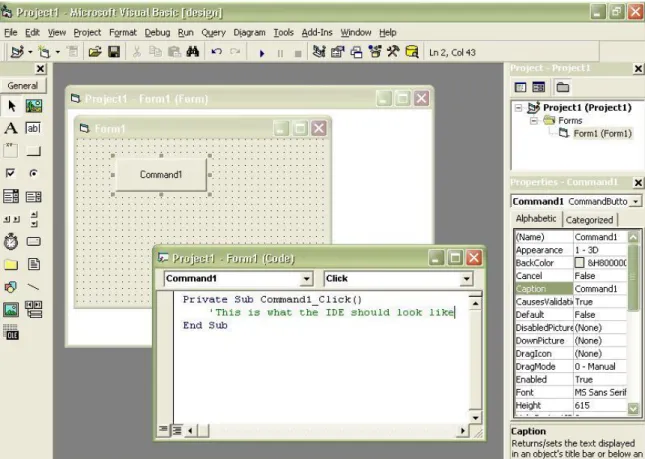
The Visual Basic Integrated Development Environment (IDE) is a program from Microsoft used to create, test, and deploy Visual Basic (VB) programs. VB programs can be written using other text editors, which must then be converted to executable code (compiled and linked) by the programmer. The VB IDE allows a programmer to write code and test it immediately, converting the source program to executable code as needed (on the fly). As the name implies, creation, editing, compiling, and linking are all integrated in this development environment.
The top of the IDE window shows VB's menu bar (see screenshot). Common menu cat-egories (File, Edit, Help, etc.) as well as items specific to creating code (Project, Debug, Run) provide the text interface for the IDE. Commonly used menu items are provided as toolbar buttons directly below the menu bar.
Getting Started
Figure 1 A screen shot of Microsoft Visual Basic 6 Integrated Development Environment
Two parts of creating a program; designing the user interface using forms and controls, and writing the source code; take up the majority of space in the IDE. As initially configured, four dockable windows also appear in the IDE's application space; the Project Explorer,
Properties Window,Form Layout Window, andToolbox. These and other supplied windows may be floated above the IDE, or docked to the sides, top, or bottom of the IDE application space as may be convenient for the programmer. Clicking on the title bar of a dockable window and dragging it around will dock, or undock, the window at will.
3.2.1 Availability
As of April 8, 2008, Microsoft no longer provides support to the Visual Basic 6.0 IDE.http://msdn.microsoft.com/en-us/vstudio/ms788708/ Nonetheless, Visual Basic 6 is still available via MSDN subscription, under the name of "Visual Studio 6".http: //stackoverflow.com/questions/229868/how-to-compile-legacy-vb6-code
3.2.2 Visual Editing
VB programs are divided into two views, the visual design of the user interface, and the code editors. The visual interface is created by adding controls from the Toolbox to the Form Layout Window. To add a control to a form; click on the desired control in theToolboxand
The Visual Basic Integrated Development Environment
then click and drag its bounding rectangle on the representation of the Form in theForm Layout Window. When you release the mouse button after the click and drag operation, the selected control will appear on the form.
Clicking on a control, or the form, in the Form Layout Window highlights the control (or form) with sizing handles. You can use the sizing handles to change the Left, Top, Height, and Width properties of a control or the Height and Width properties of a form. A highlighted control can be dragged to other positions on the form simply by clicking on the control and dragging it into place. A highlighted control can also be copy and pasted to reproduce additional identical controls on the form. Clicking and dragging around multiple controls (a lasso operation) will highlight them all as a group, which can then be moved as a group, or copy and pasted as a group, as may be needed.
3.2.3 Code Editing
Code editing is done using the code module windows. The title text of a code module window shows the project and module name. Two dropdown lists show the objects accessible to that module (General) and the subroutines (Declarations) associated with the selected object in the General list. In a form's code module, the General list will list all of the controls that have been placed on the form. Each control has its own set of events and methods, which will populate the Declarations list upon selection of any control. These two windows combined help the programmer locate specific code for events and methods in the program. In small programs, the editors can be scrolled up and down to find a desired routine to work on. In large programs finding the right spot can be much more difficult, where these two lists bring the programmer to the desired location using a few clicks of the mouse. The code editors will show the program as one long text document, or it can show the program a single routine at a time. The two buttons in the lower left of the code module window allow the programmer to set his/her view preference.
The code editors can be split into two views by moving the small bar in the upper right of the editing area. The two views show two different views of the same code module. Again, in larger programs, it may be helpful to see one section of the code in the module while working on another area of the code in the module. The split view mode allows the programmer to keep one section of the code in view while creating a new method or function.
3.2.4 VB Project Files
Code modules and forms are saved individually as text documents in the project folder. The filename extension (.xxx) is used to identify which type of module the file contains. The project file (.vbp) describes the project as a whole, naming the individual files needed to create the program. With VB installed correctly, double clicking on a project file will bring the entire project into a new instance of the VB IDE, while double clicking on a form (.frm) or module (.bas) or class (.cls) or control (.ctl) file will load that individual file into a new instance of the IDE. Typically, loading a single file from a multi file project (other than the project file) will not have all the information required to allow the program to run. However, in many cases, short test code, code written to test out some small idea, is best
Getting Started
kept in its own module (and file) where it can be loaded and discarded at will. Such code can be added, removed, or edited, until it is perfected (debugged) and copied into the real program modules.
3.2.5 Immediate Window
While testing a program for correctness (usually called debugging) it is often advantageous to see interim results in a calculation, or to check on values being passed to a subroutine. Setting breakpoints to stop the program at specific lines can help, as can sending printed values to a second window. VB provides a dockable window for text called theImmediate Window. It is available under the View menu or you can press CTRL+G to bring it into view. It is called the Immediate Window because it can be used to execute BASIC commands immediately. For example:
Print Atn(1) * 4
When you type that line into the Immediate Window and press Enter, VB interprets that line as a VB command and executes the command. In this case it prints the number 3.14159265358979 on the line following the command. (For expediency, the question mark can be substituted for the Print command in most circumstances.)
You can send text to that same window from a running program using the Print method of the Debug object:
Private Sub Text1_KeyPress(KeyAscii As Integer) Debug.Print Chr(KeyAscii), KeyAscii
End Sub
In this case, with a Textbox called Text1 on some form, every letter a user enters into the textbox will be echoed to the Immediate Window, as well as its numerical ASCII value. Because text is sent to the Immediate Window using the Debug object, many people refer to the Immediate Window as the Debug Window. You may find it listed either way in this literature.
IDE NOTE:
It should be noted that running a program using the VB IDE is not identical to running a stand alone executable program. The program running inside the IDE is running as a sub-process of the IDE. There are a few small connection and timing issues associated with running as a sub-process. On the whole, however, a program run in the IDE will look and feel like the finished program, but to fully test a program as the user will see it, it is advisable to create the program executable (.exe) and test that for correctness and usability.
Parts of a Visual Basic Program
3.3 Parts of a Visual Basic Program
3.3.1 Forms
A form is a window where controls are placed for use by the user of the program. The .Caption property changes the text on the title bar of the window, and the .MinButton and .MaxButton properties show or hide the minimize and maximize buttons. Different window styles such as Dialog boxes, ToolWindows, and standard Forms; as well as some allowed user actions such as resizing and minimizing; are controled by the form's .BorderStyle property. It is a common practice to name a form withfrm<FormName>(ex: frmMain, or frmAlert).
3.3.2 Components
A component is an executable module stored either as a .VBX file (Visual Basic eXtension for the 16-bit versions of VB), .OCX (OLE Control eXtension for 32-bit versions) file or as a .DLL (Dynamic Link Library) file. Components are pre-compiled code modules used by other program writers with/without knowledge and understanding of the details of its inner workings. Pre-compiled components provide reuseable code that has already been written and debugged. Components can be code only (.DLL) or have a visual component that can be placed on a form (.VBX and .OCX). VB supplies many commonly used components (Button, Textbox, Listbox, etc.) as controls in theToolbox.
3.3.3 Events
Anevent is an activity that occurs during a program's execution usually in response to the user's actions, such as a mouse click or a keypress. An event causes aprocedureto execute. You the programmer can decide what code (if any) you want to place within the different event procedures.
3.4 Controls
3.4.1 Control Properties
To display the Control Properties window, select View\Properties Window or press the F4 key. The Properties window initially appears on the right edge of the main window and contains all the names of the editable properties as well as their current values. Some control properties are only editable while the program is running, some are only editable while in design mode.
3.4.2 Buttons
A button will be your best friend in Visual Basic. Each button should contain code, which is added by you, the programmer. Upon clicking the button, the user will be instructing the program to execute that portion of code. For example, you could set it so when pressed, the
Getting Started
program will make a message box that says "HELLO!". Good programming styles generally usecmd<ButtonName> when naming a button.
3.4.3 Text boxes
Text boxes allows the users to add text areas to their programs. This text does not have to be typed in directly by the programmer, but could come from other sources such as database fields, text files or data the user will type in while the program is running. Although the default value for this is the name of the control, it can be set to anything including "" (or nothing). Text box names are prefixed with txt, eg;txt<BoxName>.
3.4.4 Labels
Labels are one of the most used Visual Basic objects. They are often used to label other controls (textboxes, images, etc.) or provide feedback to the user. They are usually named likelbl<LabelName>.
3.4.5 Timers
Timers are interesting and easy to learn. If you want the program to perform a certain task after a certain amount of time, the Timer is there to help you out. Their only event procedure is _timer, which will be executed every time after a certain amount of time is passed. The most common steps to use Timers is as simple as follows:
1. Add a timer to the form and give it a name.
2. Set the time interval in thePropertieswindow to some value above 0.
3. Double click the timer and add the code you want executed at the set intervals.
Timers have very few properties too.
This is a possible use of timer: (To see it in action add a Command button, Shape control, and Timer to a new form. Then set the Timer.Interval property using the Properties
window. Copy the code below into the form's code module and press F5 to run the program.)
Private Sub Command1_Click()
Timer1.Enabled = Not Timer1.Enabled
End Sub
Private Sub Timer1_Timer()
Shape1.Visible = Not Shape1.Visible
Controls
This would make the command button stop and start the flashing (repeatedly disappear and reappear) of the Shape control. The flash interval is determined by the Timer's Interval property. Timer.Intervalis measured in milliseconds.
Here is another timer example of a counter:
'***************************************************************** * 'APRON TUTORIAL PRESENTED BY MORROWLAND *
'***************************************************************** * 'Project Name : Timer * * Project Description : Using Timer and 'Counter * * Project Type : Visual Basic * * Author : Ronny André 'Reierstad * * Web Page : www.morrowland.com * * E-Mail : '[email protected] * * Version : English (UK) * * Date : '27.06.2002 *
'***************************************************************** 'Timers are the backbone in any good application, you will be able 'to decide when things will happen in millisecounds by using timers 'and counters you gain control
'declare counter as integer
Dim counter As Integer
Private Sub Form_Load()
Timer1.Enabled = False 'disable timer at startup
End Sub
Private Sub Command1_Click()
Timer1.Enabled = True 'starts the timer by enabling it
End Sub
Private Sub Command2_Click()
Timer1.Enabled = False 'stops the timer by disabling it
End Sub
Private Sub Command3_Click()
counter = 0 'reset the counter
End Sub
'The timer procedure
'the timer procedure will loop in the interval of the timer
'I have set the timer interval in the "properties" menu to 1000 ms (1 sec)
Private Sub Timer1_Timer()
counter = counter + 1 'we set the counter to count here
Text1.Text = counter 'write the counter value out as text
End Sub
VB Timers are given low priority on the processing totempole. If any other code needs to execute when the timed interval has elapsed, that other code is allowed to execute before the timer's procedure is called. Other code can yield some of their processing time to Windows by using the DoEvents command. That is the only VB command that will allow code you write to yield time to any pending timer events in the program. Without the use of DoEvents, each subroutine or function is executed start to finish, in serial
Getting Started
fashion. In other words, only one command or statement can be executed at a time. Each subroutine or function must list the proper commands to execute, in their proper order.
3.4.6 Picture boxes
Although called picture boxes, these objects are not just a heavyweight version of image boxes: picture boxes almost have the same properties and function as Form objects. It can do far more than just displaying pictures. Probably the best way to describe picture boxes is that they are containers that can group other objects together, kind of similar to frame objects. E.g. several command buttons can be drawn "inside" of it.
See also ../Simple Graphics/1.
3.4.7 General properties
VB extends some common properties to all controls placed on a form. Name, Top, Left, and Tag, are a few of the extended property names. When you lasso and highlight several controls on a form, you can change the general property values of all the highlighted controls using thePropertieswindow. Making a change there will change the property of the same name for all of the highlighted controls.
3.4.8 References
Reference is a kind of link that is used by Visual Basic. The word reference is used in two distinct ways:
Component reference
Are typically external libraries such as DLLs2, OCXs3, or type library4. Component
references are added to the project, so that all parts of the program may interact with the outside component.
Object reference
Is typically a pointer to an internal object5. Object references differentiate, or identify,
specific objects within the program. The term object is a very general term used to indicate just about anything that has properties to set, or methods to call. For example, if your form has 5 textboxes on it and you want to put text in just one of them, you need to use the proper 'object reference' to address that specific textbox.
These two uses are quite distinct and generally do not cause any problems. Usually when
object referenceis meant it will be written out in full whereas justreferencesusually means references to an external library. In both cases, accessing the properties (or methods) of a
1 Chapter 17 on page 91
2 http://en.wikibooks.org/wiki/..%2FDLL 3 http://en.wikibooks.org/wiki/..%2FOCX 4 http://en.wikibooks.org/wiki/..%2Ftypelib 5 http://en.wikibooks.org/wiki/..%2Fobjects
Reserved Words
component or object reference requires a special syntax that includes a period to separate the object and property. The syntax is: .<property> or, by example: Form1.Caption = "This", or Text1.Text = "That", etc. where Form1 or Text1 are the specific objects you want to alter, and Caption or Text are the specfic properties being changed.
You can create components6in VB to be used by other programs (not just those written in
VB).
3.5 Reserved Words
Visual Basic contains several reserved words. These words are "reserved" because they are specific functions and commands in Visual Basic. For example, a variable may not be named "Print" because it is a feature in VB to print. This can be avoided however, by naming your variables "prnt" or "print1". As long as it is not the exact word, it should work. A list of frequently used reserved words/keywords:
And As Beep Call Close Command Date Do End Error Event Exit False For Function Get GoTo If Input Kill Let Load Loop Me Name Next Not Nothing On Option Or Print Private Public Put Reset Resume Set Step 6 Chapter 3.3.2 on page 13
Getting Started Stop Sub Then Time True Until While With
3.6 REMs
While programming you may find it necessary to leave yourself notes. This can be used to easily identify areas of code, or as a reminder of sections of code with logic errors that need to be fixed. REMs are very simple. Merely place an apostrophe, " ' ", or the word, "REM", before the line and that line will be ignored by the interpreter, whether it be a message to yourself or a section of code. For example:
' I leave notes to myself REM or I could do it like this
'If I REM a line of code it will not execute! REM x=5
An apostrophe is most often used due to the comparative reduction in space and time as REM has been included so as to be backward compatible with earlier versions of BASIC. The REM statement is a basic command and must be preceded by a colon if following other commands on the same line. An apostrophe needs no colon:
x = 5 'This comment will work
y = 3: REM and this comment will work.
z = 1 REM This line would cause a syntax error.
3.7 Error Checking
These are several common types of errors that one might get from a VB program: run-time errors
This type of error are errors that are raised when the program is running. Examples: dividing anything by zero or assigning a string to a numeric variable.
compile errors
Compile errors are errors that the IDE spots at design-time and upon compiling the pro-gram just before it runs the propro-gram. These errors include syntax errors -- the error raised when the computer does not understand your code, and also errors like undeclared variables etc.
Error Checking
Logic errors are errors that the computer cannot spot. These are errors that, even though the program runs, the result is not what you intended.
The first two of these errors are generally easy to spot, and the debugging tool can be used to high-light the line of text at which the error occurred. For example, if you wanted to make a program to convert Celsius to Fahrenheit, and in the code you used a multiplication symbol instead of division, the program would run fine, but the program would not convert the temperatures correctly, as you desired. Although sometimes these logic errors can be easy to spot, some are quite difficult. Logic errors become concealed in the lines of code when making complex programs, such as a game. Just remember, the computer does not know what the program is supposed to do, it only knows the code. Look through the code step-by-step and think of how the computer would interpret the code.
VB won't let you just ignore syntax/compile errors. You have to fix them before you can run your program. But run-time errors, which are syntactically correct, but may cause an error if an attempt is made to execute it, can be handled to possibly prevent your program from crashing. The following example shows a very good way of handling a possible error:
Private Sub Form_Load()
On Error GoTo ErrorHappened
i = 1 / 0 'This line will cause an error to be raised as anything divided by zero = infinity
'... 'Some code
Exit Sub 'Here the subroutine is exited if no errors occur
ErrorHappened:
'Informs the user an error happened.
MsgBox "Error Number " & Err.Number & ":" & Err.Description
End Sub
The output of this example is a message box that says "Error Number 11: Division by zero". The statement On Error Goto ErrorHappenedwill skip everything from i = 1 / 0
toExit Subif any run-time error occurs within this procedure. When an error is detected the program will continue to run from right after ErrorHappened:, where the error will be displayed so that the programmer can find out what it is and fix it. This also prevents the program from "crashing".
ErrorHappened is just a line label, you can name it anything you wish to identify that section of the procedure you want to execute when an error happens. On Error Goto
can only reference line labels that are within the current procedure. You cannot (easily) define one error handler for all procedures. Exit Sub means to end the Form_Load event immediately.
So if no error occurs, a message box will NOT be called becauseExit Subwill already have ended or exited our subroutine. And if an error does occur, the message box will pop up, displaying the Error Number and the Error Description.
The above example is the safest way of detecting and handling any error that takes place in the subroutine. However you can also choose to ignore errors by using "On Error Resume Next" which means to ignore all errors. Ignoring errors is not a good idea in most scenarios, but in some cases the proper way to handle an error is to do nothing, so they might as well be ignored. Even using Resume Next, you can test the Err object (Err.Number) to see if an error happened on preceding lines.
Getting Started
See Errors7 for more detail about error handling.
3.8 Declaring Variables (Dimensioning)
If you don't already know, a variable is, by dictionary definition: a symbol (like x or y) that is used in mathematical or logical expressions to represent a variable quantity. In mathematics, common variables are: x, y, z, etc., and they can "hold" values like x=1, y=3, etc. In VB, instead of x, y and z, a variable can have whatever name you want. It is often good practice, and sometimes necessary, to dimension variables. Often it is called 'dimming'. This process gives the variable its name and the type of value it will be able to hold (which will be discussed later). To dimension a variable, the code is:
Dim variablename [As Type]
Of course, the variable name could be whatever you want. The type however, is different. You have a choice of single, integer, or string. This tells the computer what type of infor-mation the variable holds. "Single" variables can hold numbers with decimal. "Integers" variables can hold whole numbers, while "String" variables holds text or a set of characters. If you don't dim a variable, the type would automatically be "Variant", which can hold almost all kinds of information. For example:
Option Explicit
Dim intNumber As Integer
intNumber = 31 ' This is ok
intNumber = "I didn't" ' Error: type mismatch (intNumber is an integer while "I didn't" is a string)
Dimming is especially important for arrays and matrices. For an array, next to the variable name, you enter the range of the array. For example:
Dim x(1 to 10) As Integer
Arrays will be covered more in depth later. Matrices are dimensioned almost exactly like arrays are, however, instead of the having only one dimension (1 to 20), matrices may have two: (1 to 20,1 to 5), or even three. Dimensioning can also be used to tell the computer that variables are public. This will be discussed later in the Scope section.
Note: If you don't dimension your variables, you might end up with many unexpected errors. It could be avoided by using the Option Explicit statement, which requires every variable to be defined; if not every variable used in the program is defined, VB raises an error: "Variable is not defined". To enable this, you just have to type Option Explicit at the very top of ALL your code in the current module. It's a very good practice to do so.
Simple output
3.9 Simple output
The interaction between the user and the computer consists of both the input and output of data. The computer will not receive your commands if you don't have a mouse or keyboard which are used to input commands. And conversely, you wouldn't know what the computer is doing at all if there is no monitor or speaker which are used to output data. Therefore output is important.
3.9.1 Message boxes
One of the easiest form of output is message box. I'm sure you've seen a lot of message boxes in Windows. This is what the code of a normal message box should look like.
MsgBox("Hello world!")
Try it. Are you tired of the boring "Hello world!"? Let's make a fancier one:
MsgBox("Fatal error: Your computer will be shut down in five seconds.", vbCritical, "System")
That will creep out quite a lot of people.
3.9.2 Printing
Note: The word "printing" here means using the Print statement, it's not about using the printer or printing files. Printing is a fairly simple part of Visual Basic, but also essential. Printing is used to output information to the user. It proves to be a valuable trou-bleshooting tool. Whenever printing, you need an object to print on, followed by of course, something to print. Printing may be used with various objects, however, the most common in the picture box. For the sake of simplicity, we are assuming you renamed the pic-ture box as "pic". In this wikibook though, print is done mainly on picpic-ture boxes and forms:
pic.Print "Hello world!!" 'Prints message on picture box Print "Hello world!!!" 'Prints message on current form
3.9.3 Spacing
There are various ways to alter how text is spaced when printing. The most common is the comma. A comma will go to the next print zone. Print zones are 15 characters long. You can think of it like pressing the tab key when typing something out. Remember that print zones are fixed, so if you've typed 1 letter, and then used a comma, then it will be a big space. If you type 13 characters and use a comma, it will not be a large space. For example:
Getting Started
Private Sub Form_Click()
Me.Print "Hello", "Next Zone" End Sub
Several new concepts are introduced in this example. The "Form_Click" contains a block of code and it is called to run when the user clicks on the current Form(Form1). 'Me' is the same as the current form (Form1). Don't be afraid to experiment. No matter what you do in VB, its always reversible. Now, the comma isn't all that versatile. Another feature is tab. Tab will move so many spaces from the BEGINNING of the line. Followed by tab in parentheses is the amount of characters spaces. For example:
Form1.Print "Hello"; Tab(10); "Yay"
This will NOT print "yay" 10 spaces after the O of "Hello". Rather it will print 10 spaces from the beginning of the line. You may use as many tabs as you want in the same print command. Although tab is useful, sometimes it is better to space things in relation to what has already been printed. This is where the space function comes in. The syntax of space is identical to that of tab. Space will move the next printed text so many spaces over from its CURRENT location. For example:
Pic.print "Hello"; Space(10); "Yay"
This will print the first Y of "Yay" 10 spaces to the right of the O in "Hello". It is important to note, if you write:
Pic.Print "Hello" Pic.Print "Hello"
They will appear on separate lines as:
Hello Hello
This can be easily dealt with in the need of having separate print statements print on the same line. You merely have to change the code to: (note the semicolon)
Pic.Print "Hello"; Pic.Print "Hello"
This will appear as:
Simple output
If you want to make a blank line in between the two "hello"'s, then you may simply have a blank print statement WITHOUT a semicolon. For example:
Pic.Print "Hello" Pic.Print
Pic.Print "Hello"
This will print as:
Hello Hello
It is important to remember that if the first print has a semicolon at the end, often referred to as a trailing semicolon, the empty print will only reverse it, and print the second Hello on the next line, and no blank line will appear.
4 Simple Arithmetic
Visual Basic has all of the common arithmetical functions. It does not have complex num-bers nor does it allow you to overload operators so manipulating complex numnum-bers or matrices must be done by explicit function and subroutine calls.
4.1 Arithmetic Operators
The operators are infix and take two arguments: arg1 operator arg2except for unary plus and minus
4.1.1 Numeric Operators Operator Comments
+ Adds two numbers. Also concatenates strings but avoid this use be-cause Visual Basic will try to convert the string to a number first and the results might not be what you expect.
- Subtract the second number from the first. - unary negate the operand.
* Multiply two numbers. The result will be promoted to whatever data type is needed to represent the size of the number if one of the numbers is already that type (see note below about odd behavior).
/ Normal division. Treats both operands as real numbers and returns a real result.
\ Integer division. Be careful with this because the arguments are con-verted to integers before the division is performed so use this with in-teger operands unless you comment your code carefully. Also note that "/" and "*" are evaluated before "\", so (1000 \ 13 * 3) is not equal to ( (1000 \ 13) * 3)
Mod Produces the remainder after integer division. Be careful with this as the interpretation of the modulus operator in mathematics is ambigu-ous. a Mod b gives the same answer as this expression: a - (a \ b) * b
ˆ Raises the first operand to the power of the second. In Visual Basic ei-ther or both operands may be negative. If all you want is a square or cube it is faster to explcitly multiply the number by itself the appropri-ate number of times.
Simple Arithmetic
Text2 = Text1 * 5
Will display the value in Text1, multiplied by 5, in Text2. E.g. if Text1 = 4 then Text2 will be equal to 20.
4.1.2 Order of operations • Exponentiation (ˆ)
• Multiplication and normal division (* and /) • Integer division (\)
• Mod (Mod)
• Addition and subtraction (+,-)
General hint : If an expression uses more than (+,-,*) use all possible brackets to force the expression to be evaluated the way you are thinking it.
4.1.3 VB odd behavior note
VB considers "explicitly stated" integral numbers to be of type Integer (which must be between -32768 and 32767) if they are within (-32768, +32767) and gives an error if the result of arithmetic with them is more than 32768. This can be seen by trying
Debug.Print (17000 + 17000)
or
Debug.Print (17000 * 3)
which both cause an error. This can be solved (in a direct but ugly way) by enclosing numbers inCLng()(Convert to Long) so that
Debug.Print (CLng(17000) + CLng(17000))
or by using the type-declaration character&which specifies a Long constant:
Debug.Print (17000& + 17000&)
neither of which cause an error. To avoid having to think about this, avoid using explicit numbers in code and instead use "Long" variables and constants such as :
Const TEST_NUM As Long = 17000& Debug.Print (TEST_NUM + TEST_NUM)
Dim TestNumVar As Long TestNumVar = 17000
Arithmetic Operators
4.1.4 Boolean Arithmetic
Boolean operatorsuse Boolean variables or integer variables where each individual bit is treated as a Boolean. There are six operators:
Operator: Meaning:
Not Negation
And Conjuncton
Or Disjunction (logical addition)
Xor Exclusive Or
Eqv Equivalence
Imp Implication
Simple Arithmetic A B A And B A Or B A Xor B A Eqv B A Imp B T T T T F T T T F F T T F F F T F T T F T F F F F F T T
Built in Arithmetic Functions
4.2 Comparison Operators
These operators, composed of <, > and =, are use to decide whether one value is smaller than, larger than, or equal to another.
For example:
Dim i i = 50
If i < 0 Then
MsgBox "i is less than 0" ElseIf i <= 100 And i >= 0 Then
MsgBox "i is less than or equal to one hundred and greater than or equal
to 0"
ElseIf i > 100 And i < 200 Then
MsgBox "i is greater than one hundred less than 200"
Else
MsgBox "i is greater than or equal to 200" End if
Caution! Due to the internal structure of floating-point numbers (Single and Double), do not use = or <> to compare them. Instead, use a small value (usually called Epsilon) as a "maximum difference". For example:
' This returns False :
Debug.Print (Sqr(1.234) * Sqr(1.234)) = 1.234 ' This returns True :
E = 0.000001 Debug.Print Abs((Sqr(1.234) * Sqr(1.234)) - 1.234) < E Operator Meaning = Equality <> Inequality < Less than > Greater than
>= Greater than or equal to. Or put another way: not less than
<= Less than or equal to. Or put another way: not greater than
4.3 Built in Arithmetic Functions
There are not many native mathematical functions in Visual basic but this doesn't mean that you can't do significant calculations with it.
Abs(x)
returns the absolute value of x, that is, it removes a minus sign if there is one. Examples: Abs(3)=3 ; Abs(-3)=3
Exp(x)
returns the value ex. e is Euler's constant, the base of natural logarithms. Log(x)
Simple Arithmetic
Randomize(x)
not really a mathematical function because it is actually a subroutine. This initializes the random number generator.
Rnd(x)
produces the next random number in the series. Please read that sentence again! the random numbers aren't really random, they are instead pseudo-random. If you initialize the random number generator with the same number each time you start a program then you will get the same series of values fromRnd()
Round(x,n)
returns a real number rounded tondecimal places (uses Banker's rounding). Sgn(x)
returns plus one if x is positive, minus one if it is negative, zero if x is identically zero. Sgn(-5)=-1 ; Sgn(5)=1 ; Sgn(0)=0
Sqr(x)
square root of x. Example: Sqr(25)=5. x must be non-negative. Thus Sqr(-25) will generate an error
4.3.1 Derived Functions
If you want logarithms to some other base you can use this expression:
Log(x, base) = Log(x) / Log(base)
And to calculate the nth root of a number (cube root, ...)
RootN(x, n) = x ^ (1.0 / n)
4.4 Trigonometrical Functions
Visual Basic has the usual simple trigonometric functions, sin, cos, tan, but if you want some of the more unusual ones or inverses you will need to write some simple functions. Remember that the angles must be supplied asradians
radians = degrees * π / 180 ArcSin(x) = Atn(x / Sqr(-x * x + 1))
ArcCos(x) = Atn(-x / Sqr(-x * x + 1)) + 2 * Atn(1)
Notice that the range of applicability of these expressions is limited to the range -1<=x<=1. Here are some more:
Trigonometrical Functions
Cosecant Cosec(x) = 1 / Sin(x)
Cotangent Cotan(x) = 1 / Tan(x)
Inverse Sine Arcsin(x) = Atn(x / Sqr(-x * x + 1))
Inverse Cosine Arccos(x) = Atn(-x / Sqr(-x * x + 1)) + 2 * Atn(1) Inverse Secant Arcsec(x) = Atn(x / Sqr(x * x - 1)) + Sgn((x) - 1) *
(2 * Atn(1))
Inverse Cosecant Arccosec(x) = Atn(x / Sqr(x * x - 1)) + (Sgn(x) - 1) * (2 * Atn(1))
Inverse Cotangent Arccotan(x) = -Atn(x) + 2 * Atn(1)
Hyperbolic Sine HSin(x) = (Exp(x) - Exp(-x)) / 2
Hyperbolic Cosine HCos(x) = (Exp(x) + Exp(-x)) / 2
Hyperbolic Tangent HTan(x) = (Exp(x) - Exp(-x)) / (Exp(x) + Exp(-x)) Hyperbolic Secant HSec(x) = 2 / (Exp(x) + Exp(-x))
Hyperbolic Cosecant HCosec(x) = 2 / (Exp(x) - Exp(-x))
Hyperbolic Cotangent HCotan(x) = (Exp(x) + x)) / (Exp(x) - Exp(-x))
Inverse Hyperbolic Sine HArcsin(x) = Log(x + Sqr(x * x + 1)) Inverse Hyperbolic Cosine HArccos(x) = Log(x + Sqr(x * x - 1)) Inverse Hyperbolic Tangent HArctan(x) = Log((1 + x) / (1 - x)) / 2 Inverse Hyperbolic Secant HArcsec(x) = Log((Sqr(-x * x + 1) + 1) / x) Inverse Hyperbolic
Cose-cant
HArccosec(x) = Log((Sgn(x) * Sqr(x * x + 1) + 1) / x)
Inverse Hyperbolic Cotan-gent
HArccotan(x) = Log((x + 1) / (x - 1)) / 2
The very useful atan2 function (calculate the angle in all four quadrants of a vector) can be simulated like this:
Public Const PiAs Double = 3.14159265358979
Public Function Atan2(ByVal y AsDouble, ByVal x As Double) As Double
If y > 0 Then If x >= y Then Atan2 = Atn(y / x) ElseIf x <= -y Then Atan2 = Atn(y / x) + Pi Else Atan2 = Pi / 2 - Atn(x / y) End If Else If x >= -y Then Atan2 = Atn(y / x) ElseIf x <= y Then Atan2 = Atn(y / x) - Pi Else Atan2 = -Atn(x / y) - Pi / 2 End If End If End Function Other functions:
Simple Arithmetic
ASin(x) = Atan2(x, Sqr(1 - x * x)) ACos(x) = Atan2(Sqr(1 - x * x), x)
5 Branching
A branch is a point at which your program must make a choice. With these data structures, it is now possible to make programs that can have multiple outcomes. You may be familiar with the first type from Algebra1, an If-Then statement, or If P then Q. And they work
pretty much the same. Another type is the Select Case, this may prove to be easier at times.
Another name for this concept isconditional clauses. Conditional clauses are blocks of code that will only execute if a particular expression (the condition) is true.
5.1 If...Then Statement
If...Then statements are some of the most basic statements in all of programming. Every language has them, in some form or another. In Visual Basic, the syntax for an If...Then statement is as follows:
If (condition) Then
(reaction)
End If
• condition - a set of test(s) that the program executes.
• reaction - the instructions that the program follows when the condition returns true. The condition returns true if it passes the test and returns false if it fails the test. The condition can be anything from
If X = 1 Then
MsgBox "X = 1"
End If
to
If InStr(1, sName, " ") > 0 Then
sName = """" & sName & """"
End If
If there is only one reaction to the condition, the statement can also be expressed without the End If:
If Y + 3 = 7 Then MsgBox "Y + 3 DOES = 7"
Branching
There are also other parts to these statements to make them more complex. Two other terms that can be used are Else, and ElseIf.
Else will, if the condition is false, do whatever comes between the Else statement and the End If statement.
ElseIf will, if the condition directly proceeding it is false, check for another condition and go from there.
5.2 If..Then..Else Statement
The If..Then..Else statement is the simplest of the conditional statements. They are also called branches, as when the program arrives at an "If" statement during its execution, control will "branch" off into one of two or more "directions". An If-Else statement is generally in the following form:
If condition Then
statement
Else
other statement
End If
If the original condition is met, then all the code within the first statement is executed. The optional Else section specifies an alternative statement that will be executed if the condition is false. The If-Else statement can be extended to the following form:
If condition Then
statement
ElseIf condition Then
other statement ElseIf condition Then
other statement ...
Else
another statement
End If
Only one statement in the entire block will be executed. This statement will be the first one with a condition which evaluates to be true. The concept of an If-Else-If structure is easier to understand with the aid of an example:
Dim Temperature AsDouble ...
If Temperature >= 40.0 Then
Debug.Print "It's extremely hot"
ElseIf 30.0 <= Temperature And Temperature<=39.0 Then
Debug.Print "It's hot"
ElseIf 20.0 <= Temperature And Temperature <= 29.0 Then
Debug.Print "It's warm"
ElseIf 10.0 <= Temperature And temperature <= 19.0 Then
Debug.Print "It's cool"
ElseIf 0.0 <= Temperature And Temperature <= 9.0 Then
Debug.Print "It's cold"
Else
Debug.Print "It's freezing"
Select Case
5.2.1 Optimizing hints
When this program executes, the computer will check all conditions in order until one of them matches its concept of truth. As soon as this occurs, the program will execute the statement immediately following the condition and continue on, without checking any other condition for truth. For this reason, when you are trying to optimize a program, it is a good idea to sort your If..Then..Else conditions in order of descending likelihood. This will ensure that in the most common scenarios, the computer has to do less work, as it will most likely only have to check one or twobranches before it finds the statement which it should execute. However, when writing programs for the first time, try not to think about this too much lest you find yourself undertaking premature optimization.
In Visual Basic Classic conditional statements with more than one conditional do not use short-circuit evaluation. In order to mimic C/C++'s short-circuit evaluation, use ElseIf as described in the example above. In fact for complicated expressions explicitIf..Then..ElseIf
statements are clearer and easier to read than the equivalent short circuit expression.
5.3 Select Case
Often it is necessary to compare one specific variable against several constant expressions. For this kind of conditional expression the Select Case is used. The above example is such a case and could also be written like this:
Select Case Temperature
Case Is >= 40#
Debug.Print "It's extremely hot" Case 30# To 39#
Debug.Print "It's hot" Case 20# To 29#
Debug.Print "It's warm" Case 10# To 19#
Debug.Print "It's cool" Case 0# To9#
Debug.Print "It's cold" Case Else
Debug.Print "It's freezing"
End Select
5.4 Unconditionals
Unconditionals let you change the flow of your program without a condition. You should be careful when using unconditionals. Often they make programs difficult to understand. ReadIsn't goto evil? below for more information.
5.4.1 Exit
End a function, subroutine or property and return to the calling procedure or function. Note that in Visual Basic returning from a function and assigning a return value requires two separate statements.
Branching For procedures: Exit Sub For functions: Exit function For properties: Exit Property 5.4.2 End
This simple command ends the execution of the program For example:
Private Sub cmd1_Click() End
End Sub
In this example, when the button cmd1 is clicked, the program will terminate. The End command is provided for backward compatibility and is rarely (if ever) needed to end a VB program. The proper way to end a VB program is to release all object references, stop any running timers, and exit out of any executing procedures. In a small program this could mean to simply unload all the forms. When there are no active object references and no code running, VB will terminate the program in a graceful manner. UsingEnd to end the program will terminate the program in an ungraceful manner (some things may not get shut down properly).
5.4.3 Goto
Transfer control to the statement after the label (or line number).
Goto Label Dont_Do_Something Label:
...
In Visual Basic the target of a Goto statement must be in the same procedure; this prevents abuse of the feature by making it impossible to jump into the middle of another subroutine.
Isn't Goto Evil?
One often hears that Goto is evil and one should avoid using goto. But it is often overlooked that any exit statement which is not the last statement inside a procedure or function is also an unconditional statement - a goto in disguise.
Unconditionals
Therefore if you have functions and procedures with more than one exit statement you can just as well use goto. When it comes down to readability the following two samples are almost the same:
Sub Use_Exit Do_Something If Test Then Exit Sub End If Do_Something_Else End Sub Sub Use_Goto is Do_Something If Test Then Goto Exit_Use_Goto End If Do_Something_Else Exit_Use_Goto: End Sub
In the pure structured approach, neither goto nor multiple exit statements are needed:
Sub Use_If is Do_Something
If Not Test Then
Do_Something_Else
End If End Sub
A couple of notes:
• Return is a reserved keyword and can only be used with a matching Gosub and that the Gosub must reside in the same function, sub or property. It cannot be used to return from a function, sub or property - maybe it should read Exit Sub.
• Error handling in Visual Basic does need the use of Goto, but with a different syntax. • Visual Basic, believe it or not, supports line numbering, so for example Goto 20 is perfectly
acceptable if line 20 exists!
• Using Exit instead of Goto as shown above has some side effects. Calling Exit Sub clears a current error state, i.e. it is the equivalent of an Err.Clear.
Compatibility with VB.Net
If you are concerned that you might want to port your code to VB.Net without recasting it later you should probably avoidgotoaltogether.
One alternative is the pseudo loop. Its purpose is to fake a gototarget that occurs later in the routine:
Sub Use_PseudoLoop
Do 'Start the pseudo loop. Exists only so that you can use Exit Do Try_Something IfTest Then Exit Do End If Try_Again IfTest Then
Branching
Exit Do End If
Try_Try_Again
Loop While False ' will never loop Do_One_Last_Thing
End Sub
Of course this example can be recast usingIf..Then..Else..End If without the need for any Exit statements at all so it is a little artificial:
Sub Use_IfThen Try_Something
If Not Test Then
Try_Again
If Not Test Then
Try_Try_Again
End If End If
Do_One_Last_Thing