. .Wicked Cool Shell Scripts: 101 Scripts for Linux, Mac OS X, and Unix Systems
by Dave Taylor ISBN:1593270127
No Starch Press © 2004
This cookbook of useful, customizable, and fun scripts gives you the tools to solve common Linux, Mac OS X and UNIX problems and personalize your computing environment.
Table of Contents
Wicked Cool Shell Scripts?101 Scripts for Linux, Mac OS X, and Unix Systems
Introduction
Chapter 1 - The Missing Code Library
Chapter 2 - Improving on User Commands
Chapter 3 - Creating Utilities
Chapter 4 - Tweaking Unix
Chapter 5 - System Administration: Managing Users
Chapter 6 - System Administration: System Maintenance
Chapter 7 - Web and Internet Users
Chapter 8 - Webmaster Hacks
Chapter 9 - Web and Internet Administration
Chapter 10 - Internet Server Administration
Chapter 11 - Mac OS X Scripts
Chapter 12 - Shell Script Fun and Games
Afterword
Index
List of Figures
Back Cover
The UNIX shell is the main scripting environment of every Linux, Mac OS X and UNIX system, whether a rescued laptop or a million-dollar mainframe. This cookbook of useful, customizable, and fun scripts gives you the tools to solve common Linux, Mac OS X and UNIX problems and personalize your computing environment. Among the more than 100 scripts included are an interactive calculator, a spell checker, a disk backup utility, a weather tracker, and a web logfile analysis tool. The book also teaches you how to write your own sophisticated shell scripts by explaining the syntax and techniques used to build each example scripts. Examples are written in Bourne Shell (sh) syntax.
About the Author
Wicked Cool Shell Scripts—101 Scripts for Linux, Mac OS X, and
Unix Systems
by Dave Taylor
San Francisco
Copyright © 2004 by Dave Taylor.
All rights reserved. No part of this work may be reproduced or transmitted in any form or by any means, electronic or mechanical, including photocopying, recording, or by any information storage or retrieval system, without the prior written permission of the copyright owner and the publisher.
Printed on recycled paper in the United States of America 1 2 3 4 5 6 7 8 9 10 - 06 05 04 03
No Starch Press and the No Starch Press logo are registered trademarks of No Starch Press, Inc. Other product and company names mentioned herein may be the trademarks of their respective owners. Rather than use a trademark symbol with every occurrence of a trademarked name, we are using the names only in an editorial fashion and to the benefit of the trademark owner, with no intention of infringement of the trademark.
Publisher: William Pollock Managing Editor: Karol Jurado
Cover and Interior Design: Octopod Studios Technical Reviewer: Richard Blum
Copyeditor: Rebecca Pepper Compositor: Wedobooks Proofreader: Stephanie Provines Indexer: Kevin Broccoli
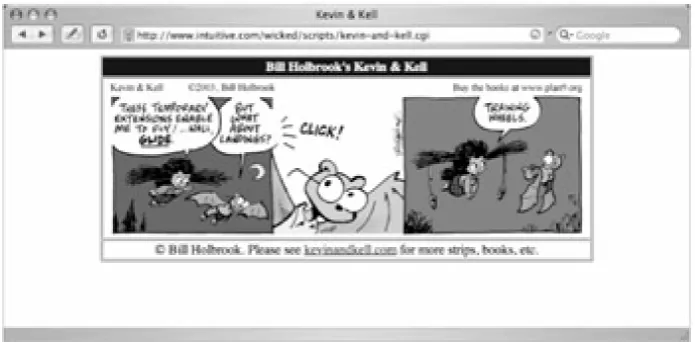
Kevin & Kell strip on page 209 reproduced with permission of Bill Holbrook, creator of Kevin & Kell.
For information on translations or book distributors, please contact No Starch Press, Inc. directly: No Starch Press, Inc.
555 De Haro Street, Suite 250, San Francisco, CA 94107
phone: 415-863-9900; fax: 415-863-9950; <[email protected]>; http://www.nostarch.com
contained in it.
Library of Congress Cataloguing-in-Publication Data
Taylor, Dave.
Wicked cool shell scripts / Dave Taylor. p. cm.
ISBN 1-59327-012-7
1. UNIX (Computer file) 2. UNIX Shells. I. Title. QA76.76.O63T3895 2004
Introduction
If you've used Unix for any length of time, you've probably found yourself starting to push the envelope, tweak how things work, change the default flags for commands you use a lot, and even create rudimentary shell scripts that automate simple tasks in a coherent fashion. Even if all you've done is to create an alias or two, you've taken the first step on the road to being a shell script hacker extraordinaire, as you'll soon see.
I've been using Unix for more years than I want to think about, and it's a great OS, especially because I can tweak, tune, and hack it. From simply automating common tasks to creating sophisticated, user-friendly versions of existing Unix commands, and creating brand-new utilities that serve a useful purpose, I've been creating spiffo little shell scripts for quite a while.
This book is about making Unix a friendlier, more powerful, and more personal computing environment by exploiting the remarkable power and capabilities of the shell. Without writing a single line of C or C++, without invoking a single compiler and loader, and without having to take any classes in program design and methodology, you'll learn to write dozens of wicked cool shell scripts, ranging from an interactive calculator to a stock ticker monitor, and a set of scripts that make analyzing Apache log files a breeze.
This Book Is for You If...
What Is a Shell Script, Anyway?
Time was (years ago) when hacking was considered a positive thing. Hackers were people on the cutting edge of computer use, experimenting with and trying novel and unusual solutions to solve existing problems. These were people who changed the way the rest of us looked at computers and computing.
But as the public network became more pervasive, a subset of these hackers started to migrate to remote system break-in missions, with a zeal that rather overwhelmed the rest of us. Nowadays, many consider hacking a bad thing, as in "hacking into the secure Department of Energy database." However, I like to think of hacking as being a more benign, intellectually engaging, and considerably less criminal enterprise, more akin to the wonderful praise a computer aficionado can offer with the compliment "Cool hack!"
Which Shell?
There are at least a dozen Unix shells floating around, but they're all based on two major flavors: Bourne Shell (sh) and C Shell (csh). The most important shells in the Unix and Linux world are the Bourne Shell, C Shell, Korn Shell (a descendant of C Shell), and Bourne Again Shell (bash).
The original command shell of note is the Bourne Shell, written by Steven Bourne at AT&T Bell Labs in the early days of Unix. It's probably still on your Unix box as /bin/sh, and while it's not sexy, and its syntax may be a bit odd, it's a simple and powerful scripting environment so sufficiently common across Unixes that it's the lingua franca of the shell scripting world.
The Free Software Foundation's open source reimplementation of the Bourne Shell goes by the name of bash, the Bourne Again Shell. It is a lot more than just a reimplementation of a 20-year-old command shell, however; it's both a great scripting environment and a highly capable interactive user shell. On many Linux systems, /bin/sh is actually a hard link to bash.
And then there is the C Shell, UC Berkeley's most important innovation in the realm of shell script hacking. The C Shell replaced the odd Bourne Shell syntax with a command syntax more like its namesake language, C.
As with many facets of Unix, passions are strong about which scripting environment is the best, with three
predominant camps: Bourne Shell, Korn Shell, and C Shell. But all is not equal. Consider the well-known article "Csh Programming Considered Harmful" [1] whose author, Tom Christiansen, points out, quite correctly:
I am continually shocked and dismayed to see people write test cases, install scripts, and other random hackery using the csh. Lack of proficiency in the Bourne shell has been known to cause errors in /etc/rc and .cronrc files, which is a problem, because you must write these files in that language.
The csh is seductive because the conditionals are more C-like, so the path of least resistance is chosen and a csh script is written. Sadly, this is a lost cause, and the programmer seldom even realizes it, even when they find that many simple things they wish to do range from cumbersome to impossible in the csh.
I agree wholeheartedly with Tom, and hence in this book we will eschew the use of the C Shell. If you're a strong advocate of the C Shell, well, you should find it easy to rewrite almost all of the scripts in this book to fit your shell. Similarly, many people are advocates of the Korn Shell, which has a terrific interactive command line but, I feel, is less capable as a scripting environment.
When evaluating a shell, consider both its interactive capabilities (such as aliases, command-line history, on-the-fly spelling corrections, helpful error messages) and its scripting capabilities. This book focuses on the scripting side of things, and so the scripts presented here will be Bourne Shell scripts (with an occasional sprinkling of bash or POSIX shell tweaks for entertainment value) and should work just fine on any Unix you may have.
The Solaris Factor
If you're working on a Solaris system, you've got a bit of a problem, but not one that can't be solved. The scripts in this book are all written against the POSIX 1003 standard for the Bourne Shell, which includes functions, variable slicing,
$() notation as a smarter alternative to backticks, and so on. So what's the problem? The default /bin/sh in Solaris 9 and earlier is not POSIX-compliant, which causes a huge hassle.
Fortunately, you can fix it, in one of two ways:
Replace /bin/sh with a hard link to /usr/xpg4/bin/sh, the POSIX-compliant shell in Solaris. This might be a bit radical, and there's a tiny chance it'll break other things in Solaris, so I'd be cautious about this choice.
In every single script in this book, replace the #!/bin/sh first line with #!/usr/ xpg4/bin/sh, which is straightforward. This has the added advantage of allowing you to automate the process with a for loop similar to the following:
# This assumes that you're in the Wicked Cool Shell Scripts script directory! for script in *
do
sed 's|#!/bin/sh|#!/usr/xpg4/bin/sh|' < $script > outfile mv outfile $script
done 2.
Hopefully, with the release of Solaris 10 Sun will just say "ciao!" to the legacy problems and include a POSIX-compliant version of the Bourne Shell as the default /bin/sh, and this will all go away as a problem. [1]
Organization of This Book
This book is organized into 12 chapters that reflect the wide range of different ways that shell scripts can improve and streamline your use of Unix. If you're a Mac OS X fan — as I am — rest assured that almost every script in this book will work just fine in both Jaguar and Panther, with the exception of those scripts that check the /etc/passwd file for account information. (The user password information is in the NetInfo database instead. Visit the book's website for a discussion of this issue and how to work with nireport and nidump instead.)
Chapter 1: The Missing Code Library
Programming languages in the Unix environment, particularly C and Perl, have extensive libraries of useful functions and utilities to validate number formats, calculate date offsets, and perform many more useful tasks. When working with the shell, you're left much more on your own, so this first chapter focuses on various tools and hacks to make shell scripts more friendly, both throughout this book and within your own scripts. I've included various input validation functions, a simple but powerful scriptable front end to bc, a tool for quickly adding commas to improve the
presentation of very large numbers, a technique for sidestepping Unixes that don't support the helpful -n flag to echo, and an include script for using ANSI color sequences in scripts.
Chapters 2 and 3: Improving Commands and Creating Utilities
These two chapters feature new commands that extend and expand Unix in various helpful ways. Indeed, one wonderful aspect of Unix is that it's always growing and evolving, as can be seen with the proliferation of command shells. I'm just as guilty of aiding this evolution as the next hacker, so this pair of chapters offers scripts that implement a friendly interactive calculator, an unremove facility, two different reminder/event-tracking systems, a
reimplementation of the locate command, a useful front end to the spelling facility, a multi-time-zone date command, and a new version of ls that increases the use-fulness of directory listings.
Chapter 4: Tweaking Unix
This may be heresy, but there are aspects of Unix that seem to be broken, even after decades of development. If you move between different flavors of Unix, particularly between open source Linux distributions and commercial Unixes like Solaris and HP-UX, you are aware of missing flags, missing commands, inconsistent commands, and similar issues. Therefore, this chapter includes both rewrites and front ends to Unix commands to make them a bit friendlier or more consistent with other Unixes. Scripts include a method of adding GNU-style full-word command flags to
non-GNU commands and a couple of smart scripts to make working with the various file-compression utilities considerably easier.
Chapters 5 and 6: System Administration Tools
If you've picked up this book, the odds are pretty good that you have both administrative access and administrative responsibility on one or more Unix systems, even if it's just a personal Debian Linux or FreeBSD PC. (Which reminds me of a joke: How do you fix a broken Windows PC? Install Linux!) These two chapters offer quite a few scripts to improve your life as an admin, including disk usage analysis tools, a disk quota system that automatically emails users who are over their quota, a tool that summarizes which services are enabled regardless of whether you use inetd or xinetd, a killall reimplementation, a crontab validator, a log file rotation tool, and a couple of backup utilities.
Chapter 7: Web and Internet Users
when changes appear.
Chapter 8: Webmaster Hacks
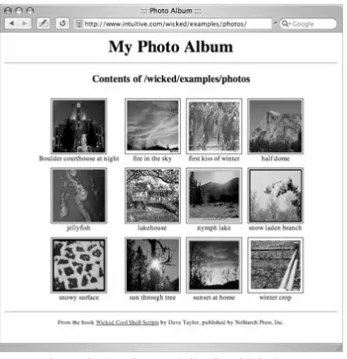
The other side of the web coin, of course, is when you run a website, either from your own Unix system or on a shared server elsewhere on the network. If you're a webmaster or an ISP, the scripts in this chapter offer quite interesting tools for building web pages on the fly, processing contact forms, building a web-based photo album, and even the ability to log web searches. This chapter also includes a text counter and complete guest book implementation, all as shell scripts.
Chapters 9 and 10: Web and Internet Administration
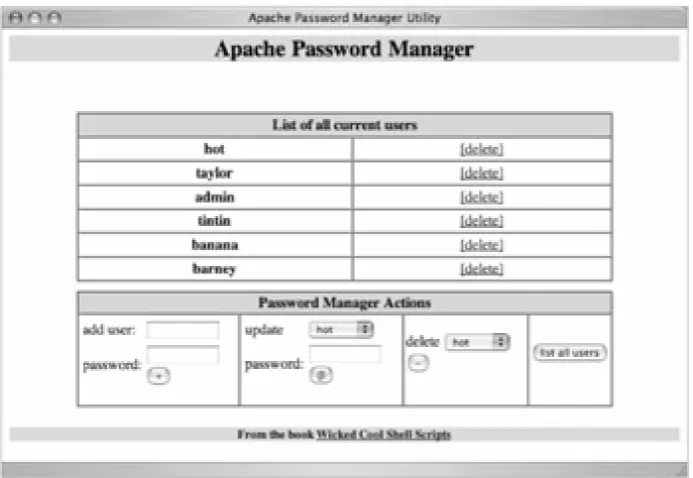
These two chapters consider the challenges facing the administrator of an Internet server, including two different scripts to analyze different aspects of a web server traffic log, tools for identifying broken internal or external links across a website, a web page spell-check script, and a slick Apache web password management tool that makes keeping an .htaccess file accurate a breeze. Techniques for mirroring directories and entire websites with mirroring tools are also explored.
Chapter 11: Mac OS X Scripts
The Macintosh operating system is a tremendous leap forward in the integration of Unix and an attractive, commercially successful graphical user interface. More importantly, because every Mac OS X system includes a complete Unix hidden behind the pretty interface, there are a number of useful and educational scripts that can be written, and that's what this chapter explores. In addition to a rewrite of adduser, allowing new Mac OS X user accounts to be set up in seconds from the command line, scripts in this chapter explore how Macs handle email aliases, how iTunes stores its music library, and how to change Terminal window titles and improve the useful open program.
Chapter 12: Fun and Games
The Website
The official website for this book can be found at http://www.intutive.com/wicked/
Acknowledgments
A remarkable number of people have contributed to the creation and development of this book, most notably Dee-Ann LeBlanc, my first-generation tech reviewer and perpetual IM buddy, and Richard Blum, tech editor and scripting expert, who offered significant and important commentary regarding the majority of the scripts in the book. Nat Torkington helped with the organization and robustness of the scripts. Others who offered invaluable assistance during the development phase include Andrey Bronfin, Martin Brown, Brian Day, Dave Ennis, Werner Klauser, Eugene Lee, Andy Lester, and John Meister. The MacOSX.com forums have been helpful (and are a cool place to hang out online), and the AnswerSquad.com team has offered great wisdom and infinite opportunities for procrastination. Finally, this book wouldn't be in your hands without the wonderful support of Bill Pollock and stylistic ministrations of Hillel Heinstein, Rebecca Pepper, and Karol Jurado: Thanks to the entire No Starch team!
Finally ...
I hope you enjoy this book, find the scripts useful and interesting, and perhaps get more of a sense of the power and sophistication of the shell programming environment along the way, which is certainly more powerful and capable than most people realize. And fun. Did I mention that writing shell scripts is great fun? :-)
Dave Taylor
<[email protected]> http://www.intuitive.com/
Chapter 1:
The Missing Code Library
Overview
Unix's greatest strength is that it lets you create new commands by combining old ones in unique and novel ways. However, although Unix includes hundreds of commands and there are thousands of ways to combine them, you will still encounter situations in which nothing does the job quite right. This chapter focuses on scripts that allow you to create smarter and more sophisticated programs within the constraints of shell scripts.
There's a secret that we should address up front: The shell script programming environment isn't as sophisticated as a real programming environment. Perl, Python, and even C have structures and libraries that offer extended capabilities, but shell scripts are more of a "roll your own" world. The scripts in this chapter will help you make your way in that world. They'll serve as a set of tools that will let us write better, smarter, more sophisticated scripts later in the book.
What Is POSIX?
The early days of Unix were like the mythical Wild West, with companies innovating and taking the operating system in quite different directions while simultaneously assuring customers that the new operating systems were compatible and just like the other Unixes. The Institute for Electrical and Electronic Engineers (IEEE) stepped in and, with a tremendous amount of effort from all the major Unix vendors, created a standard version of Unix called POSIX, against which all the commercial and open source Unix implementations are measured. You can't buy a POSIX operating system per se, but the Unix or Linux you run is POSIX compliant.
Yet even POSIX-compliant Unix implementations can vary. One example of this that will be addressed later in this chapter involves the echo command. Some versions of this command support an -n flag, which disables the trailing newline that's a standard part of the command execution. Other versions of echo support the \c escape sequence as a special "don't include a newline" notation, while still others ignore it all and have no apparent way to avoid newlines. To make things even more puzzling, some command shells have a built-in echo function that ignores the -n and \c flags, while the same Unix system usually also has a stand-alone binary /bin/echo that understands these flags. This makes prompting for input in a shell script quite tough, because ideally the script should work identically on as many Unix systems as possible. For functional scripts, needless to say, it's critical to normalize the echo command, and that's just one of the many scripts included in this book.
#1 Finding Programs in the PATH
Shell scripts that use environment variables (like MAILER and PAGER) have a hidden danger: Some of their settings may well point to nonexistent programs. For example, if you decide to be flexible by using the PAGER setting to display script output, instead of just hard-coding a specific tool, how do you ensure that the PAGER value is set to a valid program? After all, if it's not a valid program, your script will break. This first script addresses how to test whether a given program can be found in the user's PATH, and it's also a good demonstration of a number of different shell scripting techniques, including script functions and variable slicing.
The Code
#!/bin/sh
# inpath - Verifies that a specified program is either valid as is, # or that it can be found in the PATH directory list.
in_path() {
# Given a command and the PATH, try to find the command. Returns # 0 if found and executable, 1 if not. Note that this temporarily modifies # the IFS (input field separator) but restores it upon completion.
cmd=$1 path=$2 retval=1 oldIFS=$IFS IFS=":"
for directory in $path do
if [ -x $directory/$cmd ] ; then
retval=0 # if we're here, we found $cmd in $directory fi
done IFS=$oldIFS return $retval }
checkForCmdInPath() {
var=$1
# The variable slicing notation in the following conditional # needs some explanation: ${var#expr} returns everything after # the match for 'expr' in the variable value (if any), and # ${var%expr} returns everything that doesn't match (in this # case, just the very first character. You can also do this in # Bash with ${var:0:1}, and you could use cut too: cut -c1.
if [ "$var" != "" ] ; then
if [ "${var%${var#?}}" = "/" ] ; then if [ ! -x $var ] ; then
return 1 fi
elif ! in_path $var $PATH ; then return 2
Where to put your scripts I recommend that you create a new directory called "scripts," probably as a part of your HOME directory, and then add that fully qualified directory name to your PATH variable. (Use echo $PATH to see your current PATH, and edit the contents of your .login or .profile (depending on the shell) to modify your PATH appropriately.)
Running the Script
To run this script, we first need to append a short block of commands to the very end of the file. These commands pass a starting parameter to the validation program and check the return code, like so:
if [ $# -ne 1 ] ; then
echo "Usage: $0 command" >&2 ; exit 1 fi
checkForCmdInPath "$1" case $? in
0 ) echo "$1 found in PATH" ;; 1 ) echo "$1 not found or not executable" ;; 2 ) echo "$1 not found in PATH" ;; esac
exit 0
Once you've added the additional code snippet, you can invoke this script directly, as shown in "The Results," next. Make sure to remove or comment out the additional code before you're done with this script, however, so its later inclusion as a library function doesn't mess things up.
The Results
To test the script, let's invoke inpath with the names of three programs: a program that exists, a program that exists but isn't in the PATH, and a program that does not exist but that has a fully qualified filename and path:
$ inpath echo echo found in PATH $ inpath MrEcho MrEcho not found in PATH $ inpath /usr/bin/MrEcho
/usr/bin/MrEcho not found or not executable
Hacking the Script
Perhaps the most unusual aspect of this code is that it uses the POSIX variable slicing method of ${var%${var#?}}. To understand this notation, realize that the apparent gobbledygook is really two nested string slices. The inner call, ${var#?}, extracts everything but the first character of the variable var (? is a regular expression that matches one character). Next, the call ${var%pattern} produces a substring with everything left over once the specified pattern is applied to the inner call. In this case, what's left is the first character of the string.
This is a pretty dense explanation, admittedly, but the key to getting check- ForCmdInPath to work is for it to be able to differentiate between variables that contain just the program name (like echo) and variables that contain a full directory path plus the filename (like "/bin/echo"). It does this by examining the very first character of the given value to see if it's a "/" or not; hence the need to isolate the first character from the rest of the variable value.
character, you can also use a system call: $(echo $var | cut -c1).
#2 Validating Input: Alphanumeric Only
Users are constantly ignoring directions and entering data that's inconsistent or incorrectly formatted, or that uses incorrect syntax. As a shell script developer, you need to intercept and correct these errors before they become problems.
A typical situation you may encounter in this regard involves filenames or database keys. You prompt the user for a string that's supposed to be made up exclusively of uppercase characters, lowercase characters, and digits. No punctuation, no special characters, no spaces. Did they enter a valid string or not? That's what this script tests.
The Code
#!/bin/sh
# validAlphaNum - Ensures that input consists only of alphabetical # and numeric characters.
validAlphaNum() {
# Validate arg: returns 0 if all upper+lower+digits, 1 otherwise
# Remove all unacceptable chars
compressed="$(echo $1 | sed -e 's/[^[:alnum:]]//g')"
if [ "$compressed" != "$input" ] ; then return 1
else return 0 fi }
# Sample usage of this function in a script
echo -n "Enter input: " read input
if ! validAlphaNum "$input" ; then
echo "Your input must consist of only letters and numbers." >&2 exit 1
else
echo "Input is valid." fi
exit 0
How It Works
The logic of this script is straightforward. First, it transforms the input with a sed-based transform to create a new version of the input data, and then it compares the new version with the original. If the two versions are the same, all is well. If not, the transform lost data that wasn't part of the acceptable alphanumeric (alphabetic plus numeric) character set, and the input was unacceptable.
Running the Script
This particular script is self-contained. It prompts for input and then informs you whether the result is valid or not. A more typical use of this function, however, would be to include it at the top of another shell script or in a library, as shown in Script #12, Building a Shell Script Library.
This script is a good example of a general shell script programming technique. Write your functions and then test them before you integrate them into larger, more complex scripts. It'll save lots of headaches.
The Results
$ validalnum
Enter input: valid123SAMPLE Input is valid.
$ validalnum
Enter input: this is most assuredly NOT valid, 12345 Your input must consist of only letters and numbers.
Hacking the Script
This "remove the good characters and then see what's left" approach is nice because it's tremendously flexible. Want to force uppercase letters but also allow spaces, commas, and periods? Simply change the substitution pattern: sed 's/[^[:upper:] ,.]//g'
A simple test for valid phone number input (allowing integer values, spaces, parentheses, and dashes) could be sed 's/[^[:digit:]\(\)- ]//g'
To force integer values only, though, beware of a pitfall. You might try the following: sed 's/[^[:digit:]]//g'
#3 Normalizing Date Formats
One problematic issue with shell script development is the number of inconsistent data formats; normalizing them can range from tricky to quite difficult. Date formats are some of the most challenging to work with because a date can be specified in several different ways. Even if you prompt for a specific format, like "month day year," you're likely to be given inconsistent input: a month number instead of a month name, an abbreviation for a month name, or a full name in all uppercase letters.
For this reason, a function that normalizes dates, though rudimentary on its own, will prove to be a very helpful building block for subsequent script work, especially Script #7, Validating Date Formats.
The Code
#!/bin/sh
# normdate -- Normalizes month field in date specification # to three letters, first letter capitalized. A helper
# function for Script #7, valid-date. Exits w/ zero if no error.
monthnoToName() {
# Sets the variable 'month' to the appropriate value case $1 in
1 ) month="Jan" ;; 2 ) month="Feb" ;; 3 ) month="Mar" ;; 4 ) month="Apr" ;; 5 ) month="May" ;; 6 ) month="Jun" ;; 7 ) month="Jul" ;; 8 ) month="Aug" ;; 9 ) month="Sep" ;; 10) month="Oct" ;; 11) month="Nov" ;; 12) month="Dec" ;;
* ) echo "$0: Unknown numeric month value $1" >&2; exit 1 esac
return 0 }
## Begin main script
if [ $# -ne 3 ] ; then
echo "Usage: $0 month day year" >&2
echo "Typical input formats are August 3 1962 and 8 3 2002" >&2 exit 1
fi
if [ $3 -lt 99 ] ; then
echo "$0: expected four-digit year value." >&2; exit 1 fi
if [ -z $(echo $1|sed 's/[[:digit:]]//g') ]; then monthnoToName $1
else
# Normalize to first three letters, first upper, rest lowercase month="$(echo $1|cut -c1|tr '[:lower:]' '[:upper:]')"
month="$month$(echo $1|cut -c2-3 | tr '[:upper:]' '[:lower:]')" fi
echo $month $2 $3
How It Works
Notice the third conditional in this script: if [ -z $(echo $1|sed 's/[[:digit:]]//g') ]; then
It strips out all the digits and then uses the -z test to see if the result is blank or not. If the result is blank, the first input field must be a digit or digits, so it's mapped to a month name with a call to monthnoToName. Otherwise, a complex sequence of cut and tr pipes follows to build the value of month by having two subshell-escaped sequences (that is, sequences surrounded by $(and) so that the enclosed command is invoked and its output substituted). The first of the sequences shown here extracts just the first character and forces it to uppercase with tr. (The sequence echo $1|cut -c1 could also be written as ${1%${1#?}} in the POSIX manner, as seen earlier.) The second of the sequences extracts the second and third characters and forces them to be lowercase:
month="$(echo $1|cut -c1|tr '[:lower:]' '[:upper:]')"
month="$month$(echo $1|cut -c2-3 | tr '[:upper:]' '[:lower:]')"
Running the Script
To ensure maximum flexibility with future scripts that incorporate the normdate functionality, this script was designed to accept input as three fields entered on the command line. If you expected to use this script only interactively, by contrast, you'd prompt the user for the three fields, though that would make it more difficult to invoke normdate from other scripts.
The Results
This script does what we hoped, normalizing date formats as long as the format meets a relatively simple set of criteria (month name known, month value between 1 and 12, and a four-digit year value). For example,
$ normdate 8 3 62
normdate: expected four-digit year value. $ normdate 8 3 1962
Aug 3 1962
$ normdate AUGUST 3 1962 Aug 3 1962
Hacking the Script
Before you get too excited about the many extensions you can add to this script to make it more sophisticated, check out Script #7, which uses normdate to validate input dates. One modification you could make, however, would be to allow the script to accept dates in the format MM/DD/YYYY or MM-DD-YYYY by adding the following snippet immediately before the test to see if three arguments are specified:
if [ $# -eq 1 ] ; then # try to compensate for / or - formats set -- $(echo $1 | sed 's/[\/\-]/ /g')
fi
With this modification, you could also enter the following common formats and normalize them too: $ normdate March-11-1911
Mar 11 1911
#4 Presenting Large Numbers Attractively
A common mistake that programmers make is to present the results of calculations to the user without first formatting them. It's difficult for users to ascertain whether 43245435 goes into the millions without manually counting from right to left and mentally inserting a comma every three digits. Use this script to format your results.
The Code
#!/bin/sh
# nicenumber -- Given a number, shows it in comma-separated form. # Expects DD and TD to be instantiated. Instantiates nicenum # or, if a second arg is specified, the output is echoed to stdout.
nicenumber() {
# Note that we assume that '.' is the decimal separator in
# the INPUT value to this script. The decimal separator in the output value is # '.' unless specified by the user with the -d flag
integer=$(echo $1 | cut -d. -f1) # left of the decimal decimal=$(echo $1 | cut -d. -f2) # right of the decimal
if [ $decimal != $1 ]; then
# There's a fractional part, so let's include it. result="${DD:="."}$decimal"
fi
thousands=$integer
while [ $thousands -gt 999 ]; do
remainder=$(($thousands % 1000)) # three least significant digits
while [ ${#remainder} -lt 3 ] ; do # force leading zeros as needed remainder="0$remainder"
done
thousands=$(($thousands / 1000)) # to left of remainder, if any result="${TD:=","}${remainder}${result}" # builds right to left done
nicenum="${thousands}${result}" if [ ! -z $2 ] ; then
echo $nicenum fi
}
DD="." # decimal point delimiter, to separate integer and fractional values TD="," # thousands delimiter, to separate every three digits
while getopts "d:t:" opt; do case $opt in
d ) DD="$OPTARG" ;; t ) TD="$OPTARG" ;; esac
done
if [ $# -eq 0 ] ; then
echo "Usage: $(basename $0) [-d c] [-t c] numeric value" echo " -d specifies the decimal point delimiter (default '.')" echo " -t specifies the thousands delimiter (default ',')" exit 0
fi
nicenumber $1 1 # second arg forces nicenumber to 'echo' output
exit 0
How It Works
The heart of this script is the while loop within the nicenumber function, which takes the numeric value and iteratively splits it into the three least significant digits (the three that'll go to the right of the next comma) and the remaining numeric value. These least significant digits are then fed through the loop again.
Running the Code
To run this script, simply specify a very large numeric value, and the script will add a decimal point and thousands separators as needed, using either the default values or the characters specified as flags.
Because the function outputs a numeric result, the result can be incorporated within an output message, as demonstrated here:
echo "Do you really want to pay $(nicenumber $price) dollars?"
The Results
$ nicenumber 5894625 5,894,625
$ nicenumber 589462532.433 589,462,532.433
$ nicenumber -d, -t. 589462532.433 589.462.532,433
Hacking the Script
Different countries use different characters for the thousands and decimal delimiters, hence the addition of flexible calling flags to this script. For example, Germans and Italians would use -d"." and -t",". The French use -d"," and -t" ", and the Swiss, who have four national languages, use -d"." and -t"'". This is a great example of a situation in which flexible is better than hard-coded, so that the tool is useful to the largest possible user community.
On the other hand, I did hard-code the "." as the decimal separator for input values, so if you are anticipating fractional input values using a different delimiter, you can change the two calls to cut that specify a "." as the decimal delimiter. Here's one solution:
integer=$(echo $1 | cut "-d$DD" -f1) # left of the decimal decimal=$(echo $1 | cut "-d$DD" -f2) # right of the decimal
This works, but it isn't particularly elegant if a different decimal separator character is used. A more sophisticated solution would include a test just before these two lines to ensure that the expected decimal separator was the one requested by the user. We could add this test by using the same basic concept shown in Script #2: Cut out all the digits and see what's left:
separator="$(echo $1 | sed 's/[[:digit:]]//g')" if [ ! -z "$separator" -a "$separator" != "$DD" ] ; then
echo "$0: Unknown decimal separator $separator encountered." >&2 exit 1
#5 Validating Integer Input
As you saw in Script #2, validating integer input seems like a breeze until you want to ensure that negative values are acceptable too. The problem is that each numeric value can have only one negative sign, which must come at the very beginning of the value. The validation routine in this script makes sure that negative numbers are correctly formatted, and, to make it more generally useful, it can also check that values are within a range specified by the user.
The Code
#!/bin/sh
# validint -- Validates integer input, allowing negative ints too.
function validint {
# Validate first field. Then test against min value $2 and/or
# max value $3 if they are supplied. If they are not supplied, skip these tests.
number="$1"; min="$2"; max="$3"
if [ -z $number ] ; then
echo "You didn't enter anything. Unacceptable." >&2 ; return 1 fi
if [ "${number%${number#?}}" = "-" ] ; then # is first char a '-' sign? testvalue="${number#?}" # all but first character
else
testvalue="$number" fi
nodigits="$(echo $testvalue | sed 's/[[:digit:]]//g')"
if [ ! -z $nodigits ] ; then
echo "Invalid number format! Only digits, no commas, spaces, etc." >&2 return 1
fi
if [ ! -z $min ] ; then
if [ "$number" -lt "$min" ] ; then
echo "Your value is too small: smallest acceptable value is $min" >&2 return 1
fi fi
if [ ! -z $max ] ; then
if [ "$number" -gt "$max" ] ; then
echo "Your value is too big: largest acceptable value is $max" >&2 return 1
fi fi return 0 }
Running the Script
This entire script is a function that can be copied into other shell scripts or included as a library file. To turn this into a command, simply append the following to the bottom of the script:
echo "That input is a valid integer value within your constraints" fi
The Results
$ validint 1234.3
Invalid number format! Only digits, no commas, spaces, etc. $ validint 103 1 100
Your value is too big: largest acceptable value is 100 $ validint -17 0 25
Your value is too small: smallest acceptable value is 0 $ validint -17 -20 25
That input is a valid integer value within your constraints
Hacking the Script
Notice in this script the following test to see if the number's first character is a negative sign: if [ "${number%${number#?}}" = "-" ] ; then
If the first character is a negative sign, testvalue is assigned the numeric portion of the integer value. This nonnegative value is then stripped of digits, and what remains is tested further.
You might be tempted to use a logical AND to connect expressions and shrink some of the nested if statements. For example, it seems as though the following should work:
if [ ! -z $min -a "$number" -lt "$min" ] ; then
echo "Your value is too small: smallest acceptable value is $min" >&2 exit 1
fi
#6 Validating Floating-Point Input
Upon first glance, the process of validating a floating-point (or "real") value within the confines and capabilities of a shell script might seem daunting, but consider that a floating-point number is only two integers separated by a decimal point. Couple that insight with the ability to reference a different script inline (validint), and you can see that the floating-point validation test is surprisingly short.
The Code
#!/bin/sh
# validfloat -- Tests whether a number is a valid floating-point value. # Note that this script cannot accept scientific (1.304e5) notation.
# To test whether an entered value is a valid floating-point number, we # need to split the value at the decimal point. We then test the first part # to see if it's a valid integer, then test the second part to see if it's a # valid >=0 integer, so -30.5 is valid, but -30.-8 isn't.
. validint # Bourne shell notation to source the validint function
validfloat() {
fvalue="$1"
if [ ! -z $(echo $fvalue | sed 's/[^.]//g') ] ; then
decimalPart="$(echo $fvalue | cut -d. -f1)" fractionalPart="$(echo $fvalue | cut -d. -f2)"
if [ ! -z $decimalPart ] ; then
if ! validint "$decimalPart" "" "" ; then return 1
fi fi
if [ "${fractionalPart%${fractionalPart#?}}" = "-" ] ; then echo "Invalid floating-point number: '-' not allowed \ after decimal point" >&2
return 1 fi
if [ "$fractionalPart" != "" ] ; then if ! validint "$fractionalPart" "0" "" ; then return 1
fi fi
if [ "$decimalPart" = "-" -o -z "$decimalPart" ] ; then if [ -z $fractionalPart ] ; then
echo "Invalid floating-point format." >&2 ; return 1 fi
fi
else
if [ "$fvalue" = "-" ] ; then
fi
if ! validint "$fvalue" "" "" ; then return 1
fi fi
return 0 }
Running the Script
If no error message is produced when the function is called, the return code is 0, and the number specified is a valid floating-point value. You can test this script by appending the following few lines to the end of the code just given: if validfloat $1 ; then
echo "$1 is a valid floating-point value" fi
exit 0
The Results
$ validfloat 1234.56
1234.56 is a valid floating-point value $ validfloat -1234.56
-1234.56 is a valid floating-point value $ validfloat -.75
-.75 is a valid floating-point value $ validfloat -11.-12
Invalid floating-point number: '-' not allowed after decimal point $ validfloat 1.0344e22
Invalid number format! Only digits, no commas, spaces, etc.
Debugging the debugging If you see additional output at this point, it might be because you added a few lines to test out validint earlier, but forgot to remove them when you moved on to this script. Simply go back to validint and ensure that the last few lines that run the function are commented out or deleted.
Hacking the Script
A cool additional hack would be to extend this function to allow scientific notation, as demonstrated in the last
#7 Validating Date Formats
One of the most challenging validation tasks, but one that's crucial for shell scripts that work with dates, is to ensure that a specific date is actually possible. If we ignore leap years, this task is not too bad, because the calendar is well behaved and consistent each year. All we need in that case is a table with the days of each month against which to compare a specified date. To take leap years into account, you have to add some additional logic to the script. One set of rules for calculating a leap year is as follows:
Years not divisible by 4 are not leap years. Years divisible by 4 and by 400 are leap years.
Years divisible by 4, not divisible by 400, and divisible by 100, are not leap years. All other years divisible by 4 are leap years.
Notice how this script utilizes normdate (Script #3) to ensure a consistent date format before proceeding.
The Code
#!/bin/sh
# valid-date -- Validates a date, taking into account leap year rules.
exceedsDaysInMonth() {
# Given a month name, return 0 if the specified day value is # less than or equal to the max days in the month; 1 otherwise
case $(echo $1|tr '[:upper:]' '[:lower:]') in jan* ) days=31 ;; feb* ) days=28 ;; mar* ) days=31 ;; apr* ) days=30 ;; may* ) days=31 ;; jun* ) days=30 ;; jul* ) days=31 ;; aug* ) days=31 ;; sep* ) days=30 ;; oct* ) days=31 ;; nov* ) days=30 ;; dec* ) days=31 ;;
* ) echo "$0: Unknown month name $1" >&2; exit 1 esac
if [ $2 -lt 1 -o $2 -gt $days ] ; then return 1
else
return 0 # the day number is valid fi
}
isLeapYear() {
# This function returns 0 if a leap year; 1 otherwise. # The formula for checking whether a year is a leap year is: # 1. Years not divisible by 4 are not leap years.
# 2. Years divisible by 4 and by 400 are leap years.
# 3. Years divisible by 4, not divisible by 400, and divisible by 100, # are not leap years.
# 4. All other years divisible by 4 are leap years.
if [ "$((year % 4))" -ne 0 ] ; then return 1 # nope, not a leap year elif [ "$((year % 400))" -eq 0 ] ; then return 0 # yes, it's a leap year elif [ "$((year % 100))" -eq 0 ] ; then return 1
else return 0 fi }
## Begin main script
if [ $# -ne 3 ] ; then
echo "Usage: $0 month day year" >&2
echo "Typical input formats are August 3 1962 and 8 3 2002" >&2 exit 1
fi
# Normalize date and split back out returned values
newdate="$(normdate "$@")"
if [ $? -eq 1 ] ; then
exit 1 # error condition already reported by normdate fi
month="$(echo $newdate | cut -d\ -f1)" day="$(echo $newdate | cut -d\ -f2)" year="$(echo $newdate | cut -d\ -f3)"
# Now that we have a normalized date, let's check to see if the # day value is logical
if ! exceedsDaysInMonth $month "$2" ; then if [ "$month" = "Feb" -a "$2" -eq "29" ] ; then if ! isLeapYear $3 ; then
echo "$0: $3 is not a leap year, so Feb doesn't have 29 days" >&2 exit 1
fi else
echo "$0: bad day value: $month doesn't have $2 days" >&2 exit 1
fi fi
echo "Valid date: $newdate"
exit 0
Running the Script
To run the script, simply specify a date on the command line, in "month day year" format. The month can be a three-letter abbreviation, a full word, or a numeric value; the year must be four digits.
The Results
$ valid-date august 3 1960 Valid date: Aug 3 1960 $ valid-date 9 31 2001
$ valid-date feb 29 2004 Valid date: Feb 29 2004 $ valid-date feb 29 2006
valid-date: 2006 is not a leap year, so Feb doesn't have 29 days
Hacking the Script
#8 Sidestepping Poor Echo Implementations
While most modern Unix and Linux implementations have a version of the echo command that knows that the -n flag should cause the program to suppress the trailing newline, not all implementations work that way. Some use \c as a special embedded character to defeat the default behavior, and others simply insist on including the trailing newline regardless.
Figuring out whether your particular echo is well implemented is easy: Simply type in the following on the command line and see what happens:
$ echo -n "The rain in Spain"; echo " falls mainly on the Plain"
If your echo works with the -n flag, you'll see: The rain in Spain falls mainly on the Plain
If it doesn't, you'll see this: -n The rain in Spain falls mainly on the Plain
Ensuring that the script output is presented to the user as desired is quite important and will certainly become increasingly important as our scripts become more interactive.
The Code
There are as many ways to solve this quirky echo problem as there are pages in this book. One of my favorites is very succinct:
function echon {
echo "$*" | awk '{ printf "%s" $0 }' }
You may prefer to avoid the overhead incurred when calling the awk command, however, and if you have a user-level command called printf you can use it instead:
echon() {
printf "%s" "$*" }
But what if you don't have printf and you don't want to call awk? Then use the tr command: echon()
{
echo "$*" | tr -d '\n' }
This method of simply chopping out the carriage return with tr is a simple and efficient solution that should be quite portable.
Running the Script
When using this script, you can simply replace calls to echo with echon, which will leave the cursor at the end of the line, rather than automatically appending a carriage return:
#9 An Arbitrary-Precision Floating-Point Calculator
One of the most commonly used sequences in script writing is $(()), which lets you perform calculations using various rudimentary mathematical functions. This sequence can be quite useful, most commonly when incrementing counter variables, and it supports addition, subtraction, division, remainder, and multiplication, though not any sort of fractional or decimal value. Thus, the following command returns 0, not 0.5:
echo $((1 / 2))
So when calculating values that need better precision, you've got a challenge on your hands. There just aren't many good calculator programs that work on the command line. Except, that is, for bc, an oddball program that few Unix people are taught. Billing itself as an arbitrary-precision calculator, the bc program harkens back to the very dawn of Unix, with its cryptic error messages, complete lack of prompts, and assumption that if you're using it, you already know what you're doing. But that's okay. We can cope.
The Code
#!/bin/sh
# scriptbc - Wrapper for 'bc' that returns the result of a calculation.
if [ $1 = "-p" ] ; then precision=$2 shift 2 else
precision=2 # default fi
bc -q << EOF scale=$precision $*
quit EOF
exit 0
How It Works
This script demonstrates the useful here document capability in shell scripting. The << notation allows you to include material in the script that is treated as if it were taken directly from the input stream, which in this case allows an easy mechanism for handing commands to the bc program.
This is also our first script that demonstrates how command arguments can be utilized within a script to enhance the flexibility of a command. Here, if the script is invoked with a -p flag, it allows you to specify the desired scale. If no scale is specified, the program defaults to scale=2.
When working with bc, it's critical to understand the difference between length and scale. As far as bc is concerned, length refers to the total number of decimal digits in the number, while scale is the total number of digits after the decimal point. Thus, 10.25 has a length of four and a scale of two, while 3.14159 has a length of six and a scale of five. By default, bc has a variable value for length, but because it has a scale of zero, bc without any modifications works exactly as the $(()) notation does. Fortunately, if you add a scale setting to bc, you find that there's lots of hidden power under the hood, as shown here:
Copyright 1991, 1992, 1993, 1994, 1997, 1998 Free Software Foundation, Inc. This is free software with ABSOLUTELY NO WARRANTY.
For details type `warranty'. scale=10
(2002-1962)*365 14600
14600/7 2085.7142857142 quit
To allow access to the bc capabilities from the command line, a wrapper script has to silence the opening copyright information, if present, even though most bc implementations know that they should silence the header if their input isn't the terminal (stdin). The wrapper also sets the scale to a reasonable value, feeds in the actual expression to the bc program, and then exits with a quit command.
Running the Script
To run this script, feed a mathematical expression to the program as an argument.
The Results
$ scriptbc 14600/7 2085.71
#10 Locking Files
Any script that reads or appends to a shared data file, such as a log file, needs a reliable way to lock the file so that other instantiations of the script don't step on the updates. The idea is that the existence of a separate lock file serves as a semaphore, an indicator that a different file is busy and cannot be used. The requesting script waits and tries again, hoping that the file will be freed up relatively promptly, denoted by having its lock file removed.
Lock files are tricky to work with, though, because many seemingly foolproof solutions fail to work properly. For example, the following is a typical approach to solving this problem:
while [ -f $lockfile ] ; do sleep 1
done touch $lockfile
Seems like it would work, doesn't it? You loop until the lock file doesn't exist, then create it to ensure that you own the lock file and can therefore modify the base file safely. If another script with the same loop sees your lock, it will spin until the lock file vanishes. However, this doesn't in fact work, because while it seems that scripts are run without being swapped out while other processes take their turn, that's not actually true. Imagine what would happen if, just after the done in the loop just shown, but before the touch, this script was swapped out and put back in the processor queue while another script was run instead. That other script would dutifully test for the lock file, find it missing, and create its own version. Then the script in the queue would swap back in and do a touch, with the result that two scripts would both think they had exclusive access, which is bad.
Fortunately, Stephen van den Berg and Philip Guenther, authors of the popular procmail email filtering program, include a lockfile command that lets you safely and reliably work with lock files in shell scripts.
Many Unix distributions, including Linux and Mac OS X, have lockfile already installed. You can check whether your system has lockfile simply by typing man 1 lockfile. If you get a man page, you're in luck! If not, download the procmail package from http://www.procmail.org/ and install the lockfile command on your system. The script in this section assumes that you have the lockfile command, and subsequent scripts (particularly in Chapter 7, "Web and Internet Users") require the reliable locking mechanism of Script #10.
The Code
#!/bin/sh
# filelock - A flexible file locking mechanism. retries="10" # default number of retries action="lock" # default action
nullcmd="/bin/true" # null command for lockfile
while getopts "lur:" opt; do case $opt in
l ) action="lock" ;; u ) action="unlock" ;; r ) retries="$OPTARG" ;; esac
done
shift $(($OPTIND - 1))
if [ $# -eq 0 ] ; then cat << EOF >&2
Usage: $0 [-l|-u] [-r retries] lockfilename
exit 1 fi
# Ascertain whether we have lockf or lockfile system apps
if [ -z "$(which lockfile | grep -v '^no ')" ] ; then
echo "$0 failed: 'lockfile' utility not found in PATH." >&2 exit 1
fi
if [ "$action" = "lock" ] ; then
if ! lockfile -1 -r $retries "$1" 2> /dev/null; then echo "$0: Failed: Couldn't create lockfile in time" >&2 exit 1
fi
else # action = unlock if [ ! -f "$1" ] ; then
echo "$0: Warning: lockfile $1 doesn't exist to unlock" >&2 exit 1
fi rm -f "$1" fi
exit 0
Running the Script
While the lockfile script isn't one that you'd ordinarily use by itself, you can try to test it by having two terminal windows open. To create a lock, simply specify the name of the file you want to try to lock as an argument of filelock. To remove the lock, add the -u flag.
The Results
First, create a locked file: $ filelock /tmp/exclusive.lck $ ls -l /tmp/exclusive.lck
-r--r--r-- 1 taylor wheel 1 Mar 21 15:35 /tmp/exclusive.lck
The second time you attempt to lock the file, filelock tries the default number of times (ten) and then fails, as follows: $ filelock /tmp/exclusive.lck
filelock : Failed: Couldn't create lockfile in time
When the first process is done with the file, you can release the lock: $ filelock -u /tmp/exclusive.lck
To see how the filelock script works with two terminals, run the unlock command in one window while the other window spins trying to establish its own exclusive lock.
Hacking the Script
Because this script relies on the existence of a lock file as proof that the lock is still enforced, it would be useful to have an additional parameter that is, say, the longest length of time for which a lock should be valid. If the lockfile routine times out, the last accessed time of the locked file could then be checked, and if the locked file is older than the value of this parameter, it can safely be deleted as a stray, perhaps with a warning message, perhaps not.
#11 ANSI Color Sequences
Although you probably don't realize it, your standard terminal application supports different styles of presenting text. Quite a few variations are possible, whether you'd like to have certain words in your script displayed in bold, or even in red against a yellow background. However, working with ANSI (American National Standards Institute) sequences to represent these variations can be difficult because these sequences are quite user unfriendly. Therefore, this script fragment creates a set of variables, whose values represent the ANSI codes, that can turn on and off the various color and formatting display capabilities.
The Code
#!/bin/sh
# ANSI Color -- Use these variables to make output in different colors # and formats. Color names that end with 'f' are foreground (text) colors, # and those ending with 'b' are background colors.
initializeANSI() {
esc="\033" # if this doesn't work, enter an ESC directly
blackf="${esc}[30m"; redf="${esc}[31m"; greenf="${esc}[32m" yellowf="${esc}[33m" bluef="${esc}[34m"; purplef="${esc}[35m" cyanf="${esc}[36m"; whitef="${esc}[37m"
blackb="${esc}[40m"; redb="${esc}[41m"; greenb="${esc}[42m" yellowb="${esc}[43m" blueb="${esc}[44m"; purpleb="${esc}[45m" cyanb="${esc}[46m"; whiteb="${esc}[47m"
boldon="${esc}[1m"; boldoff="${esc}[22m" italicson="${esc}[3m"; italicsoff="${esc}[23m" ulon="${esc}[4m"; uloff="${esc}[24m" invon="${esc}[7m"; invoff="${esc}[27m"
reset="${esc}[0m" }
How It Works
If you're used to HTML, you might be a bit baffled by the way these sequences work. In HTML, you open and close modifiers in opposite order, and you must close every modifier you open. So to create an italicized passage within a sentence displayed in bold, you'd use the following HTML:
<b>this is in bold and <i>this is italics</i> within the bold</b>
Closing the bold tag without closing the italics wreaks havoc and can crash some Web browsers. But with the ANSI color sequences, some modifiers replace the previous modifier, and all modifiers are closed with a single reset sequence. With ANSI sequences, you must make sure to output the reset sequence after colors and to use the "off" feature for anything you turn on. Using the variable definitions in this script, you would write the previous sequence as follows:
${boldon}this is in bold and ${italicson}this is italics${italicsoff}within the bold${reset}
To run this script, we'll need to initialize all the ANSI sequences and then output a few echo statements with different combinations of color and type effect:
initializeANSI
cat << EOF
${yellowf}This is a phrase in yellow${redb} and red${reset} ${boldon}This is bold${ulon} this is italics${reset} bye bye ${italicson}This is italics${italicsoff} and this is not ${ulon}This is ul${uloff} and this is not
${invon}This is inv${invoff} and this is not
${yellowf}${redb}Warning I ${yellowb}${redf}Warning II${reset} EOF
The Results
The appearance of the results isn't too thrilling in this book, but on a display that supports these color sequences it definitely catches your attention:
This is a phrase in yellow and red This is bold this is italics bye bye This is italics and this is not This is ul and this is not This is inv and this is not Warning I Warning II
Hacking the Script
When using this script, you may see something like the following: \033[33m\033[41mWarning!\033[43m\033[31mWarning!\033[0m
If you do, the problem might be that your terminal or window doesn't support ANSI color sequences, but it also might simply be that the \033 notation for the all-important esc variable isn't understood. To remedy the latter problem, open up the script in the vi editor or your favorite editor, replace the \033 sequence with a ^V sequence, and then press the ESC key. You should see ^[ displayed, so the results on screen look like esc="^[" and all should work fine.
#12 Building a Shell Script Library
Many of the scripts in this chapter have been written as functions rather than as stand-alone scripts so that they can be easily and gracefully incorporated into other scripts without incurring the overhead of making system calls. While there's no #include feature in a shell script, as there is in C, there is a tremendously important capability called sourcing a file that serves the same purpose.
To see why this is important, let's consider the alternative. If you invoke a shell script within a shell, by default that script is run within its own subshell. You can immediately prove this experimentally:
$ cat tinyscript.sh test=2
$ test=1 $ tinyscript.sh $ echo $test 1
Because this script changed the value of the variable test within the subshell running the script, the value of the existing test variable in the current shell's environment was not affected. If you instead use the "." source notation to run the script, it is handled as though each command in the script was typed directly into the current shell:
$ . tinyscript.sh $ echo $test 2
As you might expect, if you have an exit 0 command within a script that's sourced, for example, it will exit that shell and log out of that window.
The Code
To turn the functions in this chapter into a library for use in other scripts, extract all the functions and concatenate them into one big file. If we call this file library.sh, a test script that accesses all of the functions might look like this:
#!/bin/sh
# Library test script
. library.sh
initializeANSI
echon "First off, do you have echo in your path? (1=yes, 2=no) " read answer
while ! validint $answer 1 2 ; do
echon "${boldon}Try again${boldoff}. Do you have echo " echon "in your path? (1=yes, 2=no) "
read answer done
if ! checkForCmdInPath "echo" ; then echo "Nope, can't find the echo command." else
echo "The echo command is in the PATH." fi
echo ""
read year
while ! validint $year 1 9999 ; do
echon "Please enter a year in the ${boldon}correct${boldoff} format: " read year
done
if isLeapYear $year ; then
echo "${greenf}You're right! $year was a leap year.${reset}" else
echo "${redf}Nope, that's not a leap year.${reset}" fi
exit 0
Notice that the library is incorporated, and all functions are read and included in the run-time environment of the script, with the single line
. library.sh
This is a useful approach in working with the many scripts in this book, and one that can be exploited again and again as needed.
Running the Script
To run the test script given in the previous section, simply invoke it at the command line.
The Results
$ library-test
First off, do you have echo in your path? (1=yes, 2=no) 1 The echo command is in the PATH.
Enter a year you think might be a leap year: 432423 Your value is too big: largest acceptable value is 9999 Please enter a year in the correct format: 432 You're right! 432 was a leap year.
#13 Debugging Shell Scripts
Although this section does not contain a true script per se, it's a good place to spend a few pages talking about some of the basics of debugging and developing shell scripts, because it's a sure bet that bugs are going to creep in! The best debugging strategy I have found is to build scripts incrementally. Some script programmers have a high degree of optimism that everything will work right the first time, but I find that starting small, on a modest scale, can really help move things along. Additionally, liberal use of echo statements to track variables, and using the -x flag to the shell for displaying debugging output, are quite useful. To see these in action, let's debug a simple number-guessing game.
The Code
#!/bin/sh
# hilow -- A simple number-guessing game
biggest=100 # maximum number possible guess=0 # guessed by player
guesses=0 # number of guesses made
number=$(($$ % $biggest) # random number, between 1 and $biggest
while [ $guess -ne $number ] ; do echo -n "Guess? " ; read answer if [ "$guess" -lt $number ] ; then echo "... bigger!"
elif [ "$guess" -gt $number ] ; then echo "... smaller!
fi
guesses=$(($guesses + 1)) done
echo "Right!! Guessed $number in $guesses guesses."
exit 0
Running the Script
The first step in debugging this game is to test and ensure that the number generated will be sufficiently random. To do this, we take the process ID of the shell in which the script is run, using the $$ notation, and reduce it to a usable range using the % mod function. To test the function, enter the commands into the shell directly:
$ echo $(($$ % 100)) 5
$ echo $(($$ % 100)) 5
$ echo $(($$ % 100)) 5
It worked, but it's not very random. A moment's thought reveals why that is: When the command is run directly on the command line, the PID is always the same. When run in a script, the command is in a different subshell each time, so the PID varies.
using exactly the code just shown, warts and all: $ hilow
./013-hilow.sh: line 19: unexpected EOF while looking for matching `"' ./013-hilow.sh: line 22: syntax error: unexpected end of file
Ugh; the bane of shell script developers: an unexpected EOF. To understand what this message means, recall that quoted passages can contain newlines, so just because the error is flagged on line 19 doesn't mean that it's actually there. It simply means that the shell read merrily along, matching quotes (incorrectly) until it hit the very last quote, at which point it realized something was amiss. In fact, line 19 is perfectly fine:
$ sed -n 19p hilow
echo "Right!! Guessed $number in $guesses guesses."
The problem, therefore, must be earlier in the script. The only really good thing about the error message from the shell is that it tells you which character is mismatched, so I'll use grep to try to extract all lines that have a quote and then screen out those that have two quotes:
$ grep '"' 013-hilow.sh | egrep -v '.*".*".*' echo "... smaller!
That's it: The close quote is missing. It's easily fixed, and we're ready to go: $ hilow
./013-hilow.sh: line 7: unexpected EOF while looking for matching `)' ./013-hilow.sh: line 22: syntax error: unexpected end of file
Nope. Another problem. Because there are so few parenthesized expressions in the script, I can eyeball this problem and ascertain that somehow the closing parenthesis of the instantiation of the random number was mistakenly truncated, as the following line shows:
number=$(( $$ % $biggest ) # random number, between 1 and $biggest
This is fixed by adding the closing parenthesis. Now are we ready to try this game? Let's find out: $ hilow
Guess? 33 ... bigger! Guess? 66 ... bigger! Guess? 99 ... bigger! Guess? 100 ... bigger! Guess? ^C
Because 100 is the maximum possible value, there seems to be a logic error in the code. These errors are particularly tricky because there's no fancy grep or sed invocation to identify the problem. Look back at the code and see if you can identify what's going wrong.
To try and debug this, I'm going to add a few echo statements in the code to output the number chosen and verify that what I entered is what's being tested. The relevant section of the code is
echo -n "Guess? " ; read answer if [ "$guess" -lt $number ] ; then
In fact, as I modified the echo statement and looked at these two lines, I realized the error: The variable being read is answer, but the variable being tested is called guess. A bonehead error, but not an uncommon one (particularly if you have oddly spelled variable names). To fix this, I change read answer to read guess.
The Results
$ hilow Guess? 50 ... bigger! Guess? 75 ... bigger! Guess? 88 ... smaller! Guess? 83 ... smaller! Guess? 80 ... smaller! Guess? 77 ... bigger! Guess? 79
Right!! Guessed 79 in 7 guesses.
Hacking the Script
The most grievous bug lurking in this little script is that there's no checking of input. Enter anything at all other than an integer and the script spews up bits and fails. Including a rudimentary test could be as easy as adding the following lines of code:
if [ -z "$guess" ] ; then
echo "Please enter a number. Use ^C to quit"; continue; fi