Windows
®Sysinternals
Administrator’s Reference
Mark Russinovich
Aaron Margosis
Table of Contents
Foreword . . . .xix
Introduction . . . .xxi
Tools the Book Covers . . . .xxi
The History of Sysinternals . . . .xxi
Who Should Read This Book . . . . xxv
Assumptions . . . . xxv
Organization of This Book . . . . xxv
Conventions and Features in This Book . . . .xxvi
System Requirements . . . .xxvi
Acknowledgments . . . . xxvii
Errata & Book Support . . . . xxviii
We Want to Hear from You . . . . xxviii
Stay in Touch . . . . xxviii
Getting Started
Getting Started with the Sysinternals Utilities . . . . 3
Overview of the Utilities . . . . 3
The Windows Sysinternals Web Site . . . . 6
Downloading the Utilities . . . . 7
Running the Utilities Directly from the Web . . . . 10
Single Executable Image . . . . 11
The Windows Sysinternals Forums . . . . 11
Windows Sysinternals Site Blog . . . . 12
Mark’s Blog . . . . 12
Mark’s Webcasts . . . . 13
Sysinternals License Information . . . . 13
End User License Agreement and the /accepteula Switch . . . . 13
Frequently Asked Questions About Sysinternals Licensing . . . . 14
Windows Core Concepts . . . . 15
Administrative Rights . . . . 15
Running a Program with Administrative Rights on Windows XP and Windows Server 2003 16 Running a Program with Administrative Rights on Windows Vista or Newer 18 Processes, Threads, and Jobs . . . . 21
User Mode and Kernel Mode . . . . 22
Handles . . . . 23
Call Stacks and Symbols . . . . 24
What Is a Call Stack? . . . . 24
What Are Symbols? . . . . 26
Configuring Symbols . . . . 28
Sessions, Window Stations, Desktops, and Window Messages . . . . 30
Terminal Services Sessions . . . . 31
Window Stations . . . . 32
Desktops . . . . 33
Window Messages . . . . 34
Usage Guide
Administrative Rights . . . . 42Main Window . . . . 43
Process List . . . . 43
Customizing Column Selections . . . . 53
Saving Displayed Data . . . . 65
Toolbar Reference . . . . 65
Identifying the Process That Owns a Window . . . . 66
Status Bar . . . . 67
DLLs and Handles . . . . 67
Finding DLLs or Handles . . . . 68
DLL View . . . . 69
Handle View . . . . 73
Process Details . . . . 77
Image Tab . . . . 78
Performance Tab . . . . 79
Performance Graph Tab . . . . 80
Threads Tab . . . . 81
TCP/IP Tab . . . . 82
Security Tab . . . . 83
Environment Tab . . . . 84
Strings Tab . . . . 85
Services Tab . . . . 86
.NET Tabs . . . . 87
Job Tab . . . . 88
Thread Details . . . . 89
Verifying Image Signatures . . . . 91
System Information . . . . 92
Display Options . . . . 95
Procexp as a Task Manager Replacement . . . . 96
Creating Processes from Procexp . . . . 97
Other User Sessions . . . . 97
Miscellaneous Features . . . . 97
Shutdown Options . . . . 97
Command-Line Switches . . . . 98
Restoring Procexp Defaults . . . . 98
Keyboard Shortcut Reference . . . . 98
Process Monitor . . . . 101
Getting Started with Procmon . . . . 102
Events . . . . 104
Understanding the Column Display Defaults . . . . 104
Customizing the Column Display . . . . 107
Event Properties Dialog Box . . . . 108
Displaying Profiling Events . . . . 114
Finding an Event . . . . 115
Copying Event Data . . . . 115
Jumping to a Registry or File Location . . . . 115
Searching Online . . . . 116
Filtering and Highlighting . . . . 116
Configuring Filters . . . . 117
Configuring Highlighting . . . . 119
Advanced Output . . . . 120
Saving Procmon Traces . . . . 124
Opening Saved Procmon Traces . . . . 125
Logging Boot, Post-Logoff, and Shutdown Activity . . . . 127
Boot Logging . . . . 127
Keeping Procmon Running After Logoff . . . . 128
Long-Running Traces and Controlling Log Sizes . . . . 129
Drop Filtered Events . . . . 129
History Depth . . . . 130
Backing Files . . . . 130
Importing and Exporting Configuration Settings . . . . 131
Automating Procmon: Command-Line Options . . . . 132
Analysis Tools . . . . 134
Process Activity Summary . . . . 134
File Summary . . . . 136
Registry Summary . . . . 137
Stack Summary . . . . 138
Network Summary . . . . 139
Cross Reference Summary . . . . 140
Count Occurrences . . . . 140
Injecting Debug Output into Procmon Traces . . . . 141
Toolbar Reference . . . . 142
Autoruns . . . . 145
Autoruns Fundamentals . . . . 146
Disabling or Deleting Autostart Entries . . . . 148
Autoruns and Administrative Permissions . . . . 148
Verifying Code Signatures . . . . 149
Hiding Microsoft Entries . . . . 150
Getting More Information About an Entry . . . . 151
Viewing the Autostarts of Other Users . . . . 151
Viewing ASEPs of an Offline System . . . . 152
Listing Unused ASEPs . . . . 152
Changing the Font . . . . 153
Autostart Categories . . . . 153
Logon . . . . 153
Explorer . . . . 155
Internet Explorer . . . . 157
Scheduled Tasks . . . . 158
Services . . . . 158
Drivers . . . . 159
Codecs . . . . 160
Boot Execute . . . . 160
Image Hijacks . . . . 161
AppInit . . . . 162
KnownDLLs . . . . 162
Winlogon . . . . 163
Winsock Providers . . . . 164
Print Monitors . . . . 164
LSA Providers . . . . 164
Network Providers . . . . 165
Sidebar Gadgets . . . . 165
Saving and Comparing Results . . . . 166
Saving as Tab-Delimited Text . . . . 166
Autoruns and Malware . . . . 168
PsTools 171
Common Features . . . . 172Remote Operations . . . . 172
Troubleshooting Remote PsTools Connections . . . . 174
PsExec . . . . 176
Remote Process Exit . . . . 177
Redirected Console Output . . . . 178
PsExec Alternate Credentials . . . . 179
PsExec Command-Line Options . . . . 180
Process Performance Options . . . . 180
Remote Connectivity Options . . . . 181
Runtime Environment Options . . . . 181
PsFile . . . . 184
PsGetSid . . . . 185
PsInfo . . . . 187
PsKill . . . . 188
PsList . . . . 189
PsLoggedOn . . . . 191
PsLogList . . . . 192
PsPasswd . . . . 196
PsService . . . . 197
Query . . . . 198
Config . . . . 199
Depend . . . . 200
Security . . . . 201
Find . . . . 202
SetConfig . . . . 202
Start, Stop, Restart, Pause, Continue . . . . 202
PsShutdown . . . . 203
PsSuspend . . . . 205
PsTools Command-Line Syntax . . . . 206
PsExec . . . . 206
PsFile . . . . 206
PsGetSid . . . . 206
PsInfo . . . . 207
PsKill . . . . 207
PsList . . . . 207
PsLoggedOn . . . . 207
PsLogList . . . . 207
PsPasswd . . . . 207
PsService . . . . 207
PsShutdown . . . . 208
PsSuspend . . . . 208
PsTools System Requirements . . . . 208
Process and Diagnostic Utilities . . . . 211
VMMap . . . . 211
Starting VMMap and Choosing a Process . . . . 212
The VMMap window . . . . 214
Memory Types . . . . 216
Memory Information . . . . 217
Viewing Allocations from Instrumented Processes . . . . 221
Address Space Fragmentation . . . . 224
Saving and Loading Snapshot Results . . . . 225
VMMap Command-Line Options . . . . 226
Restoring VMMap defaults . . . . 227
ProcDump . . . . 227
Command-Line Syntax . . . . 228
Specifying Which Process to Monitor . . . . 229
Specifying the Dump File Path . . . . 229
Specifying Criteria for a Dump . . . . 230
Dump File Options . . . . 232
Miniplus Dumps . . . . 233
Running ProcDump Noninteractively . . . . 235
Capturing All Application Crashes with ProcDump . . . . 236
Viewing the Dump in the Debugger . . . . 236
DebugView . . . . 237
What Is Debug Output? . . . . 237
The DebugView Display . . . . 238
Capturing User-Mode Debug Output . . . . 240
Capturing Kernel-Mode Debug Output . . . . 241
Searching, Filtering, and Highlighting Output . . . . 242
Saving, Logging, and Printing . . . . 245
Remote Monitoring . . . . 247
LiveKd . . . . 249
LiveKd Requirements . . . . 250
Running LiveKd . . . . 250
LiveKd Examples . . . . 251
ListDLLs . . . . 253
Handle . . . . 256
Handle List and Search . . . . 256
Handle Counts . . . . 259
Closing Handles . . . . 260
Security Utilities . . . . 261
SigCheck . . . . 261
Signature Verification . . . . 263
Which Files to Scan . . . . 264
Additional File Information . . . . 265
Output Format . . . . 267
AccessChk . . . . 267
What Are “Effective Permissions”? . . . . 267
Using AccessChk . . . . 268
Object Type . . . . 270
Searching for Access Rights . . . . 272
Output Options . . . . 273
AccessEnum . . . . 275
ShareEnum . . . . 277
ShellRunAs . . . . 278
Autologon . . . . 280
LogonSessions . . . . 280
SDelete . . . . 283
Using SDelete . . . . 284
How SDelete Works . . . . 285
Connecting to a Domain . . . . 287
The AdExplorer Display . . . . 288
Objects . . . . 290
Attributes . . . . 291
Searching . . . . 293
Snapshots . . . . 294
AdExplorer Configuration . . . . 296
AdInsight . . . . 296
AdInsight Data Capture . . . . 297
Display Options . . . . 300
Finding Information of Interest . . . . 301
Filtering Results . . . . 303
Saving and Exporting AdInsight Data . . . . 305
Command-Line Options . . . . 306
AdRestore . . . . 306
Desktop Utilities . . . . 309
BgInfo . . . . 309
Configuring Data to Display . . . . 310
Appearance Options . . . . 313
Saving BgInfo Configuration for Later Use . . . . 315
Other Output Options . . . . 315
Updating Other Desktops . . . . 317
Desktops . . . . 318
ZoomIt . . . . 320
Using ZoomIt . . . . 320
Zoom Mode . . . . 321
Drawing Mode . . . . 322
Typing Mode . . . . 323
Break Timer . . . . 323
LiveZoom . . . . 324
File Utilities . . . . 325
Strings . . . . 325
Streams . . . . 326
NTFS Link Utilities . . . . 328
Junction . . . . 329
FindLinks . . . . 330
DU (Disk Usage) . . . . 331
Post-Reboot File Operation Utilities . . . . 333
PendMoves . . . . 333
MoveFile . . . . 334
Disk Utilities . . . . 335
Disk2Vhd . . . . 335
Diskmon . . . . 337
Sync . . . . 339
DiskView . . . . 341
Contig . . . . 344
PageDefrag . . . . 345
DiskExt . . . . 347
LDMDump . . . . 347
VolumeID . . . . 350
Use Counts . . . . 352
Processes . . . . 354
Priority Summary . . . . 355
Physical Pages . . . . 355
Physical Ranges . . . . 356
File Summary . . . . 357
File Details . . . . 358
Purging Physical Memory . . . . 359
Saving and Loading Snapshots . . . . 359
CoreInfo . . . . 359
ProcFeatures . . . . 361
WinObj . . . . 362
LoadOrder . . . . 365
PipeList . . . . 366
ClockRes . . . . 367
Network and Communication Utilities . . . . 369
TCPView . . . . 369
Whois . . . . 371
Portmon . . . . 371
Searching, Filtering, and Highlighting . . . . 373
Saving, Logging, and Printing . . . . 375
Miscellaneous Utilities . . . . 377
RegJump . . . . 377
Hex2Dec . . . . 378
RegDelNull . . . . 378
Bluescreen Screen Saver . . . . 379
Ctrl2Cap . . . . 380
Troubleshooting—”The Case
of the Unexplained . . .”
Error Messages . . . . 383
The Case of the Locked Folder . . . . 383
The Case of the Failed AV Update . . . . 385
The Case of the Failed Lotus Notes Backups . . . . 387
The Case of the Failed Play-To . . . . 389
The Case of the Crashing Proksi Utility . . . . 390
The Case of the Installation Failure . . . . 391
The Troubleshooting . . . . 392
The Analysis . . . . 394
The Case of the Missing Folder Association . . . . 397
The Case of the Temporary Registry Profiles . . . . 400
Hangs and Sluggish Performance . . . . 405
The Case of the IExplore-Pegged CPU . . . . 405
The Case of the Excessive ReadyBoost . . . . 408
The Case of the Slow Keynote Demo . . . . 410
The Case of the Slow Project File Opens . . . . 415
The Compound Case of the Outlook Hangs . . . . 420
Malware . . . . 427
Index . . . . 437
About the Authors . . . . 463
Microsoft Press
A Division of Microsoft Corporation One Microsoft Way
Redmond, Washington 98052-6399
Copyright © 2011 by Aaron Margosis and Mark Russinovich
All rights reserved. No part of the contents of this book may be reproduced or transmitted in any form or by any means without the written permission of the publisher.
Library of Congress Control Number: 2011931614 ISBN: 978-0-7356-5672-7
Printed and bound in the United States of America.
First Printing
Microsoft Press books are available through booksellers and distributors worldwide. If you need support related to this book, email Microsoft Press Book Support at [email protected]. Please tell us what you think of this book at http://www.microsoft.com/learning/booksurvey.
Microsoft and the trademarks listed at http://www.microsoft.com/about/legal/en/us/IntellectualProperty/ Trademarks/EN-US.aspx are trademarks of the Microsoft group of companies. All other marks are property of their respective owners.
The example companies, organizations, products, domain names, email addresses, logos, people, places, and events depicted herein are fictitious. No association with any real company, organization, product, domain name, email address, logo, person, place, or event is intended or should be inferred.
This book expresses the author’s views and opinions. The information contained in this book is provided without any express, statutory, or implied warranties. Neither the authors, Microsoft Corporation, nor its resellers, or distributors will be held liable for any damages caused or alleged to be caused either directly or indirectly by this book.
Acquisitions Editor: Devon Musgrave Developmental Editor: Devon Musgrave Project Editor: Devon Musgrave
Editorial Production: Waypoint Press
Technical Reviewer: Christophe Nassare; Technical Review services provided by Content Master, a member of CM Group, Ltd.
To my fellow Windows troubleshooters: Never give up! Never surrender!
— Mark Russinovich
To Elise, who makes great things possible and then makes sure they happen. (And who is much cooler than I am.)
Contents at a Glance
Part I
Getting Started
1 Getting Started with the Sysinternals Utilities . . . . 3
2 Windows Core Concepts . . . . 15
Part II
Usage Guide
3 Process Explorer . . . . 39
4 Process Monitor . . . . 101
5 Autoruns . . . . 145
6 PsTools . . . . 171
7 Process and Diagnostic Utilities . . . . 211
8 Security Utilities . . . . 261
9 Active Directory Utilities . . . . 287
10 Desktop Utilities . . . . 309
11 File Utilities . . . . 325
12 Disk Utilities . . . . 335
13 Network and Communication Utilities . . . . 351
14 System Information Utilities . . . . 359
15 Miscellaneous Utilities . . . . 377
Part III
Troubleshooting—”The Case of the Unexplained...”
16 Error Messages . . . . 383
17 Hangs and Sluggish Performance . . . . 405
Table of Contents
Foreword . . . .xix
Introduction . . . .xxi
Tools the Book Covers . . . .xxi
The History of Sysinternals . . . . xxii
Who Should Read This Book . . . . xxv
Assumptions . . . . xxv
Organization of This Book . . . .xxvi
Conventions and Features in This Book . . . .xxvi
System Requirements . . . .xxvi
Acknowledgments . . . . xxvii
Errata & Book Support . . . . xxviii
We Want to Hear from You . . . . xxviii
Stay in Touch . . . . xxviii
Part I
Getting Started
1 Getting Started with the Sysinternals Utilities . . . . 3
Overview of the Utilities . . . . 3
The Windows Sysinternals Web Site . . . . 6
Downloading the Utilities . . . . 7
Running the Utilities Directly from the Web . . . . 10
Single Executable Image . . . . 11
The Windows Sysinternals Forums . . . . 11
Windows Sysinternals Site Blog . . . . 12
Mark’s Blog . . . . 12
Mark’s Webcasts . . . . 13
Sysinternals License Information . . . . 13
End User License Agreement and the /accepteula Switch . . . . 13
Frequently Asked Questions About Sysinternals Licensing . . . . 14
Microsoft is interested in hearing your feedback so we can continually improve our books and learning resources for you. To participate in a brief online survey, please visit:
2 Windows Core Concepts . . . . 15
Administrative Rights . . . . 15
Running a Program with Administrative Rights on Windows XP and Windows Server 2003 . . . . 16
Running a Program with Administrative Rights on Windows Vista or Newer . . . . 18
Processes, Threads, and Jobs . . . . 21
User Mode and Kernel Mode . . . . 22
Handles . . . . 23
Call Stacks and Symbols . . . . 24
What Is a Call Stack? . . . . 24
What Are Symbols? . . . . 26
Configuring Symbols . . . . 28
Sessions, Window Stations, Desktops, and Window Messages . . . . 30
Terminal Services Sessions . . . . 31
Window Stations . . . . 32
Desktops . . . . 33
Window Messages . . . . 34
Part II
Usage Guide
3 Process Explorer . . . . 39
Procexp Overview . . . . 39
Measuring CPU Consumption . . . . 41
Administrative Rights . . . . 42
Main Window . . . . 43
Process List . . . . 43
Customizing Column Selections . . . . 53
Saving Displayed Data . . . . 65
Toolbar Reference . . . . 65
Identifying the Process That Owns a Window . . . . 66
Status Bar . . . . 67
DLLs and Handles . . . . 67
Finding DLLs or Handles . . . . 68
DLL View . . . . 69
Handle View . . . . 73
Process Details . . . . 77
Performance Graph Tab . . . . 80
Threads Tab . . . . 81
TCP/IP Tab . . . . 82
Security Tab . . . . 83
Environment Tab . . . . 84
Strings Tab . . . . 85
Services Tab . . . . 86
.NET Tabs . . . . 87
Job Tab . . . . 88
Thread Details . . . . 89
Verifying Image Signatures . . . . 91
System Information . . . . 92
Display Options . . . . 95
Procexp as a Task Manager Replacement . . . . 96
Creating Processes from Procexp . . . . 97
Other User Sessions . . . . 97
Miscellaneous Features . . . . 97
Shutdown Options . . . . 97
Command-Line Switches . . . . 98
Restoring Procexp Defaults . . . . 98
Keyboard Shortcut Reference . . . . 98
4 Process Monitor . . . . 101
Getting Started with Procmon . . . . 102
Events . . . . 104
Understanding the Column Display Defaults . . . . 104
Customizing the Column Display . . . . 107
Event Properties Dialog Box . . . . 108
Displaying Profiling Events . . . . 114
Finding an Event . . . . 115
Copying Event Data . . . . 115
Jumping to a Registry or File Location . . . . 115
Searching Online . . . . 116
Filtering and Highlighting . . . . 116
Configuring Filters . . . . 117
Configuring Highlighting . . . . 119
Advanced Output . . . . 120
Process Tree . . . . 122
Saving and Opening Procmon Traces . . . . 123
Saving Procmon Traces . . . . 124
Opening Saved Procmon Traces . . . . 125
Logging Boot, Post-Logoff, and Shutdown Activity . . . . 127
Boot Logging . . . . 127
Keeping Procmon Running After Logoff . . . . 128
Long-Running Traces and Controlling Log Sizes . . . . 129
Drop Filtered Events . . . . 129
History Depth . . . . 130
Backing Files . . . . 130
Importing and Exporting Configuration Settings . . . . 131
Automating Procmon: Command-Line Options . . . . 132
Analysis Tools . . . . 134
Process Activity Summary . . . . 134
File Summary . . . . 136
Registry Summary . . . . 137
Stack Summary . . . . 138
Network Summary . . . . 139
Cross Reference Summary . . . . 140
Count Occurrences . . . . 140
Injecting Debug Output into Procmon Traces . . . . 141
Toolbar Reference . . . . 142
5 Autoruns . . . . 145
Autoruns Fundamentals . . . . 146
Disabling or Deleting Autostart Entries . . . . 148
Autoruns and Administrative Permissions . . . . 148
Verifying Code Signatures . . . . 149
Hiding Microsoft Entries . . . . 150
Getting More Information About an Entry . . . . 151
Viewing the Autostarts of Other Users . . . . 151
Viewing ASEPs of an Offline System . . . . 152
Listing Unused ASEPs . . . . 152
Changing the Font . . . . 153
Autostart Categories . . . . 153
Logon . . . . 153
Scheduled Tasks . . . . 158
Services . . . . 158
Drivers . . . . 159
Codecs . . . . 160
Boot Execute . . . . 160
Image Hijacks . . . . 161
AppInit . . . . 162
KnownDLLs . . . . 162
Winlogon . . . . 163
Winsock Providers . . . . 164
Print Monitors . . . . 164
LSA Providers . . . . 164
Network Providers . . . . 165
Sidebar Gadgets . . . . 165
Saving and Comparing Results . . . . 166
Saving as Tab-Delimited Text . . . . 166
Saving in Binary ( .arn) Format . . . . 166
Viewing and Comparing Saved Results . . . . 167
AutorunsC . . . . 167
Autoruns and Malware . . . . 168
6 PsTools . . . . 171
Common Features . . . . 172
Remote Operations . . . . 172
Troubleshooting Remote PsTools Connections . . . . 174
PsExec . . . . 176
Remote Process Exit . . . . 177
Redirected Console Output . . . . 178
PsExec Alternate Credentials . . . . 179
PsExec Command-Line Options . . . . 180
Process Performance Options . . . . 180
Remote Connectivity Options . . . . 181
Runtime Environment Options . . . . 181
PsFile . . . . 184
PsGetSid . . . . 185
PsInfo . . . . 187
PsKill . . . . 188
PsLogList . . . . 192
PsPasswd . . . . 196
PsService . . . . 197
Query . . . . 198
Config . . . . 199
Depend . . . . 200
Security . . . . 201
Find . . . . 202
SetConfig . . . . 202
Start, Stop, Restart, Pause, Continue . . . . 202
PsShutdown . . . . 203
PsSuspend . . . . 205
PsTools Command-Line Syntax . . . . 206
PsExec . . . . 206
PsFile . . . . 206
PsGetSid . . . . 206
PsInfo . . . . 207
PsKill . . . . 207
PsList . . . . 207
PsLoggedOn . . . . 207
PsLogList . . . . 207
PsPasswd . . . . 207
PsService . . . . 207
PsShutdown . . . . 208
PsSuspend . . . . 208
PsTools System Requirements . . . . 208
7 Process and Diagnostic Utilities . . . . 211
VMMap . . . . 211
Starting VMMap and Choosing a Process . . . . 212
The VMMap window . . . . 214
Memory Types . . . . 216
Memory Information . . . . 217
Timeline and Snapshots . . . . 218
Viewing Text Within Memory Regions . . . . 220
Finding and Copying Text . . . . 221
Viewing Allocations from Instrumented Processes . . . . 221
VMMap Command-Line Options . . . . 226
Restoring VMMap defaults . . . . 227
ProcDump . . . . 227
Command-Line Syntax . . . . 228
Specifying Which Process to Monitor . . . . 229
Specifying the Dump File Path . . . . 229
Specifying Criteria for a Dump . . . . 230
Dump File Options . . . . 232
Miniplus Dumps . . . . 233
Running ProcDump Noninteractively . . . . 235
Capturing All Application Crashes with ProcDump . . . . 236
Viewing the Dump in the Debugger . . . . 236
DebugView . . . . 237
What Is Debug Output? . . . . 237
The DebugView Display . . . . 238
Capturing User-Mode Debug Output . . . . 240
Capturing Kernel-Mode Debug Output . . . . 241
Searching, Filtering, and Highlighting Output . . . . 242
Saving, Logging, and Printing . . . . 245
Remote Monitoring . . . . 247
LiveKd . . . . 249
LiveKd Requirements . . . . 250
Running LiveKd . . . . 250
LiveKd Examples . . . . 251
ListDLLs . . . . 253
Handle . . . . 256
Handle List and Search . . . . 256
Handle Counts . . . . 259
Closing Handles . . . . 260
8 Security Utilities . . . . 261
SigCheck . . . . 261
Signature Verification . . . . 263
Which Files to Scan . . . . 264
Additional File Information . . . . 265
Output Format . . . . 267
AccessChk . . . . 267
Object Type . . . . 270
Searching for Access Rights . . . . 272
Output Options . . . . 273
AccessEnum . . . . 275
ShareEnum . . . . 277
ShellRunAs . . . . 278
Autologon . . . . 280
LogonSessions . . . . 280
SDelete . . . . 283
Using SDelete . . . . 284
How SDelete Works . . . . 285
9 Active Directory Utilities . . . . 287
AdExplorer . . . . 287
Connecting to a Domain . . . . 287
The AdExplorer Display . . . . 288
Objects . . . . 290
Attributes . . . . 291
Searching . . . . 293
Snapshots . . . . 294
AdExplorer Configuration . . . . 296
AdInsight . . . . 296
AdInsight Data Capture . . . . 297
Display Options . . . . 300
Finding Information of Interest . . . . 301
Filtering Results . . . . 303
Saving and Exporting AdInsight Data . . . . 305
Command-Line Options . . . . 306
AdRestore . . . . 306
10 Desktop Utilities . . . . 309
BgInfo . . . . 309
Configuring Data to Display . . . . 310
Appearance Options . . . . 313
Saving BgInfo Configuration for Later Use . . . . 315
Other Output Options . . . . 315
Updating Other Desktops . . . . 317
ZoomIt . . . . 320
Using ZoomIt . . . . 320
Zoom Mode . . . . 321
Drawing Mode . . . . 322
Typing Mode . . . . 323
Break Timer . . . . 323
LiveZoom . . . . 324
11 File Utilities . . . . 325
Strings . . . . 325
Streams . . . . 326
NTFS Link Utilities . . . . 328
Junction . . . . 329
FindLinks . . . . 330
DU (Disk Usage) . . . . 331
Post-Reboot File Operation Utilities . . . . 333
PendMoves . . . . 333
MoveFile . . . . 334
12 Disk Utilities . . . . 335
Disk2Vhd . . . . 335
Diskmon . . . . 337
Sync . . . . 339
DiskView . . . . 341
Contig . . . . 344
PageDefrag . . . . 345
DiskExt . . . . 347
LDMDump . . . . 347
VolumeID . . . . 350
13 Network and Communication Utilities . . . . 351
TCPView . . . . 351
Whois . . . . 353
Portmon . . . . 353
Searching, Filtering, and Highlighting . . . . 355
14 System Information Utilities . . . . 359
RAMMap . . . . 359
Use Counts . . . . 360
Processes . . . . 362
Priority Summary . . . . 363
Physical Pages . . . . 363
Physical Ranges . . . . 364
File Summary . . . . 365
File Details . . . . 366
Purging Physical Memory . . . . 367
Saving and Loading Snapshots . . . . 367
CoreInfo . . . . 367
ProcFeatures . . . . 369
WinObj . . . . 370
LoadOrder . . . . 373
PipeList . . . . 374
ClockRes . . . . 375
15 Miscellaneous Utilities . . . . 377
RegJump . . . . 377
Hex2Dec . . . . 378
RegDelNull . . . . 378
Bluescreen Screen Saver . . . . 379
Ctrl2Cap . . . . 380
Part III
Troubleshooting—”The Case of the Unexplained...”
16 Error Messages . . . . 383
The Case of the Locked Folder . . . . 383
The Case of the Failed AV Update . . . . 385
The Case of the Failed Lotus Notes Backups . . . . 387
The Case of the Failed Play-To . . . . 389
The Case of the Crashing Proksi Utility . . . . 390
The Case of the Installation Failure . . . . 391
The Troubleshooting . . . . 392
The Analysis . . . . 394
The Case of the Missing Folder Association . . . . 397
17 Hangs and Sluggish Performance . . . . 405
The Case of the IExplore-Pegged CPU . . . . 405
The Case of the Excessive ReadyBoost . . . . 408
The Case of the Slow Keynote Demo . . . . 410
The Case of the Slow Project File Opens . . . . 415
The Compound Case of the Outlook Hangs . . . . 420
18 Malware . . . . 427
The Case of the Sysinternals-Blocking Malware . . . . 427
The Case of the Process-Killing Malware . . . . 429
The Case of the Fake System Component . . . . 431
The Case of the Mysterious ASEP . . . . 433
Index . . . . 437
Microsoft is interested in hearing your feedback so we can continually improve our books and learning resources for you. To participate in a brief online survey, please visit:
Foreword
I was honored when Mark and Aaron asked me to write the foreword for this book.
My association with Mark and his tools goes back to 1997 when I first heard him speak at a Windows developer conference in Santa Clara, California. Little did I know that two years later we would begin collaborating on Inside Windows 2000 and the subsequent editions of Windows Internals.
In fact, because of working with Mark on both the Windows Internals books and later on the Windows Internals courses we authored and taught together, I often get thanked for the Sysinternals tools—something that irks Mark! While I’m tempted to graciously accept the praise and say “You’re welcome,” the truth is that, while I use the tools heavily in my training and consulting work, I have not authored any of them.
There has been a need for a Sysinternals book for many years now, though it’s a testament to the design of the tools and their user interface that they have been used so widely and successfully without a book to explain them all. But the book opens the door even wider for more IT professionals to leverage the Sysinternals tools to peer beneath the surface of Windows to really understand what’s going on. Aaron Margosis’ careful, meticulous research resulted in many improvements in the tools—fixing inconsistencies, improving the help text, and adding new features.
I have personally solved innumerable client and server system and application problems with the tools, even in situations where I didn’t think the tools would help. As a result, I coined the expression “When in doubt, run Filemon and Regmon” (now Procmon).
To help more IT professionals see how to apply the tools to real problems, this book has an entire section on case studies. These real-life examples show how your fellow IT professionals have used the Sysinternals tools to solve what would otherwise be unsolvable problems.
Finally, a word of warning—even though I talk to Mark on a regular basis, I can’t count the number of times that I’ve reported a bug to him that he’d already fixed—so make sure you are running the latest versions before you send him email! The best way to do that is to follow the Sysinternals site blog RSS feed.
This book belongs on every IT professional’s desk (or e-reader)—and if you see Mark, tell him you appreciate Dave’s work on the Sysinternals tools.
David Solomon
Introduction
The Sysinternals Suite is a set of over 70 advanced diagnostic and troubleshooting utilities for the Microsoft Windows platform written by me—Mark Russinovich—and Bryce Cogswell. Since Microsoft’s acquisition of Sysinternals in 2006, these utilities have been available for free download from Microsoft’s Windows Sysinternals Web site (part of Microsoft TechNet). The goal of this book is to familiarize you with the Sysinternals utilities and help you understand how to use them to their fullest. The book will also show you examples of how I and other Sysinternals users have leveraged the utilities to solve real problems on Windows systems.
Although I coauthored this book with Aaron Margosis, the book is written as if I am speaking. This is not at all a comment on Aaron’s contribution to the book; without his hard work, this book would not exist.
Tools the Book Covers
This book describes all of the Sysinternals utilities that are available on the Windows Sysinternals Web site (http://technet.microsoft.com/en-us/sysinternals/default.aspx) and all of their features as of the time of this writing (summer, 2011). However, Sysinternals is highly dynamic: existing utilities regularly gain new capabilities, and new utilities are introduced from time to time. (To keep up, follow the RSS feed of the “Sysinternals Site Discussion” blog: http://blogs.technet.com/b/sysinternals/.) So, by the time you read this book, some parts of it may already be out of date. That said, you should always keep the Sysinternals utilities updated to take advantage of new features and bug fixes.
This book does not cover Sysinternals utilities that have been deprecated and are no longer available on the Sysinternals site. If you are still using RegMon (Registry Monitor) or FileMon (File Monitor), you should replace them with Process Monitor, described in Chapter 4. Rootkit Revealer, one of the computer industry’s first rootkit detectors (and the tool that discovered the “Sony rootkit”), has served its purpose and has been retired. Similarly, a few other utilities (such as Newsid and EfsDump) that used to provide unique value have been retired be-cause either they were no longer needed or equivalent functionality was eventually added to Windows.
The History of Sysinternals
layout, I set out to learn about Windows NT device driver development and to write a driver that converts Caps Lock key presses into Ctrl key presses as they make their way from the keyboard into the Windows NT input system. Ctrl2cap is still posted on the Sysinternals site today, and I still use it on all my systems.
Ctrl2cap was the first of many tools I wrote to learn about the way Windows NT works under the hood while at the same providing some useful functionality. The next tool I wrote, NTFSDOS, I developed with Bryce Cogswell. I had met Bryce in graduate school at Carnegie Mellon University, and we had written several academic papers together and worked on a startup project where we developed software for Windows 3.1. I pitched the idea of a tool that would allow users to retrieve data from an NTFS-formatted partition by using the ubiquitous DOS floppy. Bryce thought it would be a fun programming challenge, and we divided up the work and released the first version about a month later.
I also wrote the next two tools, Filemon and Regmon, with Bryce. These three utilities— NTFSDOS, Filemon, and Regmon—became the foundation for Sysinternals. Filemon and Regmon, both of which we released for Windows 95 and Windows NT, showed file sys-tem and registry activity, becoming the first tools anywhere to do so and making them indispensible troubleshooting aids.
Bryce and I decided to make the tools available for others to use, but we didn’t have a Web site of our own, so we initially published them on the site of a friend, Andrew Schulman, who I’d met in conjunction with his own work uncovering the internal operation of DOS and Windows 95. Going through an intermediary didn’t allow us to update the tools with enhancements and bug fixes as quickly as we wanted, so in September 1996 Bryce and I created NTInternals.com to host the tools and articles we wrote about the internal operation of Windows 95 and Windows NT. Bryce and I had also developed tools that we decided we could sell for some side income, so the same month, we also founded Winternals Software, a commercial software company that we bootstrapped by driving traffic with a single banner ad on NTInternals.com. The first utility we released as Winternals Software was NTRecover, a utility that enabled users to mount the disks of unbootable Windows NT systems from a working system and access them as if they were locally attached disks.
The mission of NTInternals.com was to distribute freeware tools that leveraged our deep understanding of the Windows operating system in order to deliver powerful diagnostic, monitoring, and management capabilities. Within a few months, the site, shown below as it looked in December 1996 (thanks to the Internet Archive’s Wayback Machine), drew 1,500 visitors per day, making it one of the most popular utility sites for Windows in the early days of the Internet revolution. In 1998, at the “encouragement” of Microsoft lawyers, we changed the site’s name to Sysinternals.com.
The Sysinternals utilities fell into three basic categories: those used to help programmers, those for system troubleshooting, and those for systems management. DebugView, a utility that captures and displays program debug statements, was one of the early developer-oriented tools that I wrote to aid my own development of device drivers. DLLView, a tool for displaying the DLLs that processes have loaded, and HandleEx, a process-listing GUI utility that showed open handles, were two of the early troubleshooting tools. (I merged DLLView and HandleEx to create Process Explorer in 2001.) The PsTools, discussed in Chapter 6, are some of the most popular management utilities, bundled into a suite for easy download. PsList, the first PsTool, was inspired initially by the UNIX “ps” command, which provides a process listing. The utilities grew in number and functionality, becoming a software suite of utilities that allowed you to easily perform many tasks on a remote system without requiring installation of special software on the remote system beforehand.
Microsoft had been on the mend since the 1996 article as the result of my sending Windows bug reports directly to Windows developers, but David still had to obtain permission, which Microsoft granted.
As a result, David Solomon and I coauthored the third, fourth, and fifth editions of the book, which we renamed Windows Internals at the fourth edition. (The fifth edition of Windows Internals was published in 2009.) Not long after we finished Inside Windows 2000 (Microsoft Press, 2000), I joined David to teach his Windows internals seminars, adding my own content. Offered around the world, even at Microsoft to the developers of Windows, these classes have long used the Sysinternals utilities to show students how to peer deep into Windows internals and learn more when they returned to their developer and IT professional roles at home. David still offers Windows internals classes at http://www.solsem.com/.
By 2006, my relationship with Microsoft had been strong for several years, Winternals had a full line of enterprise management software and had grown to about 100 employees, and Sysinternals had two million downloads per day. On July 18, 2006, Microsoft acquired Winternals and Sysinternals. Not long after, Bryce and I (there we are below in 2006) moved to Redmond to become a part of the Windows team. Today, I serve as one of Microsoft’s small group of Technical Fellows, providing technical leadership to help drive the direction of the company. I’m now in the Windows Azure group, working on the “kernel” of Microsoft’s cloud operating system.
Many people suggested that a book on the tools would be valuable, but it wasn’t until David Solomon suggested that one was way overdue that I started the project. My responsibilities at Microsoft did not permit me to devote the time necessary to write another book, but David pointed out that I could find someone to help. I was pleased that Aaron Margosis agreed to partner with me. Aaron is a Principal Consultant with Microsoft Public Sector Services who is known for his deep understanding of Windows security and application compatibility. I have known Aaron for many years and his excellent writing skills, familiarity with Windows internals, and proficiency with the Sysinternals tools made him an ideal coauthor.
Who Should Read This Book
This book exists for Windows IT professionals and power users who want to make the most of the Sysinternals tools. Regardless of your experience with the tools, and whether you manage the systems of a large enterprise, a small business, or the PCs of your family and friends, you’re sure to discover new tools, pick up tips, and learn techniques that will help you more effectively troubleshoot the toughest Windows problems and simplify your system- management operations and monitoring.
Assumptions
This book expects that you have familiarity with the Windows operating system. Basic familiarity with concepts such as processes, threads, virtual memory, and the Windows command prompt, is helpful, though some of these concepts are discussed in Chapter 2, “Windows Core Concepts”.
Organization of This Book
The book is divided into three parts. Part I, “Getting Started,” provides an overview of the Sysinternals utilities and the Sysinternals Web site, describes features common to all of the utilities, tells you where to go for help, and discusses some Windows core concepts that will help you better understand the platform and the information reported by the utilities.
Part III, “Troubleshooting—‘The Case of the Unexplained…’,” contains stories of real-world problem solving using the Sysinternals utilities from Aaron and me, as well as from administrators and power users from around the world.
Conventions and Features in This Book
This book presents information using conventions designed to make the information readable and easy to follow:
■ Boxed elements with labels such as “Note” provide additional information or alternative
methods for completing a step successfully.
■ Text that you type (apart from code blocks) appears in bold.
■ A plus sign (+) between two key names means that you must press those keys at the
same time. For example, “Press Alt+Tab” means that you hold down the Alt key while you press the Tab key.
■ A vertical bar between two or more menu items (for example, File | Close), means that
you should select the first menu or menu item, then the next, and so on.
System Requirements
The Sysinternals tools work on the following versions of Windows, including 64-bit editions, unless otherwise specified:
■ Windows XP with Service Pack 3
■ Windows Vista
■ Windows 7
■ Windows Server 2003 with Service Pack 2
■ Windows Server 2003 R2
■ Windows Server 2008
■ Windows Server 2008 R2
Acknowledgments
First, Aaron and I would like to thank Bryce Cogswell, cofounder of Sysinternals, for his enormous contribution to the Sysinternals tools. Because of our great collaboration, what Bryce and I published on Sysinternals was more than just the sum of our individual efforts. Bryce retired from Microsoft in October 2010, and we wish him luck in whatever he pursues.
We’d like to thank David Solomon for spurring Mark to write this book, providing detailed review of many chapters, and writing the Foreword. Dave has also been one of Sysinternals most effective evangelists over the years and has suggested many valuable features.
Thanks to Curtis Metz and Karl Seng, who manage the Sysinternals Web site, forums, and code-publishing process. Otto Helweg had that role when Microsoft acquired Sysinternals, and we thank him for helping to preserve the spirit of Sysinternals during the integration.
We are grateful to the following people who provided valuable and insightful technical review, corrections, and suggestions for the book: Andreas Klein, Brian Matusz, Bruno Aleixo, Carsten Kinder, Chris Jackson, Ewan MacKellar, Fatih Colgar, Gautam Anand, Gowri Kumar Chandramouli, Greg Cottingham, John Dietrick, Mario Hewardt, Mario Raccagni, Mark Priem, Matt Garson, Pavel Lebedynskiy, Richard Diver, Scott Frunzi, Stephen Griffin, and Tim Reckmeyer. Andrew Richards deserves special mention for providing detailed feedback on more chapters than any other reviewer.
We also want to thank Carl Harrison for supplying a sidebar on using LiveKd to capture online kernel dumps.
We’d like to thank Martin DelRe from Microsoft Press for seeing the potential of the book; Devon Musgrave, also from Microsoft Press, for championing the book; and Steve Sagman from Waypoint Press for guiding the book through the editorial and production process. Thanks also to Christophe Nasarre for technical editing and Roger LeBlanc for copyediting.
Aaron’s wife Elise deserves thanks for providing Aaron with enthusiastic encouragement at a crucial point in the book’s development. Aaron thanks her and their children—Elana, Jonah, and Gabriel—for their love and support. Aaron also thanks Brenda Schrier for his author photo.
Errata & Book Support
We’ve made every effort to ensure the accuracy of this book and its companion content. Any errors that have been reported since this book was published are listed on our Microsoft Press site at oreilly.com:
http://go.microsoft.com/FWLink/?Linkid=220275
If you find an error that is not already listed, you can report it to us through the same page.
If you need additional support, e-mail Microsoft Press Book Support at [email protected].
Please note that product support for Microsoft software is not offered through the addresses above.
We Want to Hear from You
At Microsoft Press, your satisfaction is our top priority, and your feedback our most valuable asset. Please tell us what you think of this book at:
http://www.microsoft.com/learning/booksurvey
The survey is short, and we read every one of your comments and ideas. Thanks in advance for your input!
Stay in Touch
Windows
Sysinternals Administrator’s Reference
Part I
Getting Started
In this part:
Chapter 1
Getting Started with the
Sysinternals Utilities
The Sysinternals utilities are free, advanced administrative, diagnostic, and troubleshooting utilities for the Microsoft Windows platform written by the founders of Sysinternals: me (Mark Russinovich) and Bryce Cogswell1. Since Microsoft’s acquisition of Sysinternals in July
2006, these utilities have been available for download from Microsoft’s TechNet Web site.
Among the hallmarks of a Sysinternals utility are that it
■ Serves unmet needs of a significant IT pro or developer audience
■ Is intuitive and easy to use
■ Is packaged as a single executable image that does not require installation and can be
run from anywhere, including from a network location or removable media
■ Does not leave behind any significant incidental data after it has run
Because Sysinternals doesn’t have the overhead of a formal product group, I can quickly release new features, utilities, and bug fixes. In some cases, I can take a useful and simple- to-implement feature from suggestion to public availability in under a week.
However, the other side of not having a full product group and formal testing organization is that the utilities are offered “as is” with no official Microsoft product support. The Sysinternals team maintains a dedicated community support forum—described later in this chapter—on the Sysinternals Web site, and I try to fix reported bugs as quickly as possible.
Overview of the Utilities
The Sysinternals utilities cover a broad range of functionality across many aspects of the Windows operating system. While some of the more comprehensive utilities such as Process Explorer and Process Monitor span several categories of operations, others can more or less be grouped within a single category, such as “process utilities” or “file utilities.” Many of the utilities have a graphical user interface (GUI), while others are console utilities with rich command-line interfaces designed for automation or for use at a command prompt.
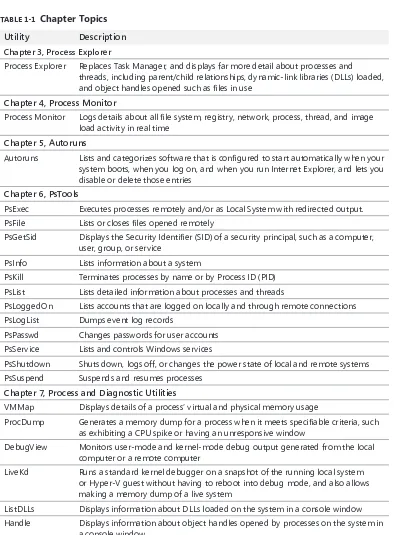
Table 1-1 lists these chapters with a brief overview of each of the utilities covered within them.
TABLE 1-1 Chapter Topics
Utility Description
Chapter 3, Process Explorer
Process Explorer Replaces Task Manager, and displays far more detail about processes and threads, including parent/child relationships, dynamic-link libraries (DLLs) loaded, and object handles opened such as files in use
Chapter 4, Process Monitor
Process Monitor Logs details about all file system, registry, network, process, thread, and image load activity in real time
Chapter 5, Autoruns
Autoruns Lists and categorizes software that is configured to start automatically when your system boots, when you log on, and when you run Internet Explorer, and lets you disable or delete those entries
Chapter 6, PsTools
PsExec Executes processes remotely and/or as Local System with redirected output. PsFile Lists or closes files opened remotely
PsGetSid Displays the Security Identifier (SID) of a security principal, such as a computer, user, group, or service
PsInfo Lists information about a system
PsKill Terminates processes by name or by Process ID (PID) PsList Lists detailed information about processes and threads
PsLoggedOn Lists accounts that are logged on locally and through remote connections PsLogList Dumps event log records
PsPasswd Changes passwords for user accounts PsService Lists and controls Windows services
PsShutdown Shuts down, logs off, or changes the power state of local and remote systems PsSuspend Suspends and resumes processes
Chapter 7, Process and Diagnostic Utilities
VMMap Displays details of a process’ virtual and physical memory usage
ProcDump Generates a memory dump for a process when it meets specifiable criteria, such as exhibiting a CPU spike or having an unresponsive window
DebugView Monitors user-mode and kernel-mode debug output generated from the local computer or a remote computer
LiveKd Runs a standard kernel debugger on a snapshot of the running local system or Hyper-V guest without having to reboot into debug mode, and also allows making a memory dump of a live system
Utility Description Chapter 8, Security Utilities
SigCheck Verifies file signatures, and displays version information
AccessChk Searches for objects that grant permissions to specific users or groups, and p rovides detailed information on permissions granted
AccessEnum Searches a file or registry hierarchy, and identifies where permissions might have been changed
ShareEnum Enumerates file and printer shares on your network and who can access them ShellRunAs Restores the ability to run a program under a different user on Windows Vista Autologon Configures a user account for automatic logon when the system boots
LogonSessions Enumerates active Local Security Authority (LSA) logon sessions on the computer SDelete Securely deletes files or folder structures, and erases data in unallocated areas of
the hard drive Chapter 9, Active Directory Utilities
AdExplorer Displays and enables editing of Active Directory objects
AdInsight Traces Active Directory Lightweight Directory Access Protocol (LDAP) API calls AdRestore Enumerates and restores deleted Active Directory objects
Chapter 10, Desktop Utilities
BgInfo Displays computer configuration information on the desktop wallpaper Desktops Runs applications on separate virtual desktops
ZoomIt Magnifies the screen, and enables screen annotation Chapter 11, File Utilities
Strings Searches files for embedded ASCII or Unicode text
Streams Identifies file system objects that have alternate data streams, and deletes those streams
Junctions Lists and deletes NTFS directory junctions FindLinks Lists NTFS hard links
DU Lists logical and on-disk sizes of a directory hierarchy
PendMoves Reports on file operations scheduled to take place during the next system boot MoveFile Schedules file operations to take place during the next system boot
Chapter 12, Disk Utilities
Disk2Vhd Captures a VHD image of a physical disk Diskmon Logs sector-level hard disk activity
Sync Flushes unwritten changes from disk caches to the physical disk
DiskView Displays a cluster-by-cluster graphical map of a volume, letting you find what file is in particular clusters and which clusters are occupied by a given file
Contig Defragments specific files, or shows how fragmented a particular file is PageDefrag Defragments system files at boot time that cannot be defragmented while
Utility Description
LDMDump Displays detailed information about dynamic disks from the Logical Disk Manager (LDM) database
VolumeID Changes a volume’s ID (also known as its serial number) Chapter 13, Network and Communication Utilities
TCPView Lists active TCP and UDP endpoints
Whois Reports Internet domain registration information or performs reverse Domain Name System (DNS) lookups
Portmon Monitors serial and parallel port I/O in real time Chapter 14, System Information Utilities
RAMMap Provides detailed view of physical memory usage
CoreInfo Lists mapping of logical processors to cores, sockets, Non-Uniform Memory Access (NUMA) nodes, and processor groups
ProcFeatures Reports processor features such as No-Execute memory protection WinObj Displays Windows’ Object Manager namespace
LoadOrder Shows approximate order in which Windows loads device drivers and starts services
PipeList Lists listening named pipes
ClockRes Displays the current, maximum, and minimum resolution of the system clock Chapter 15, Miscellaneous Utilities
RegJump Launches RegEdit, and navigates to the registry path you specify Hex2Dec Converts numbers from hexadecimal to decimal and vice versa
RegDelNull Searches for and deletes registry keys with embedded NUL characters in their names
Bluescreen
Screen Saver Screen saver that realistically simulates a “Blue Screen of Death” Ctrl2Cap Converts Caps Lock keypresses to Control keypresses
The Windows Sysinternals Web Site
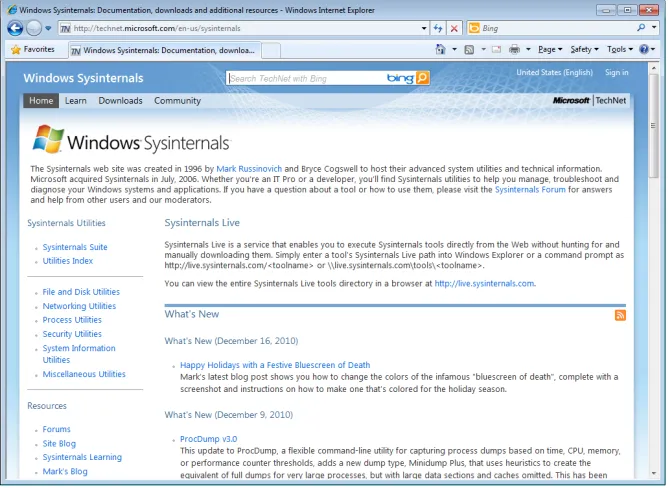
The easiest way to get to the Sysinternals Web site (Figure 1-1) is to browse to
FIGURE 1-1 The Windows Sysinternals Web site.
Downloading the Utilities
You can download just the Sysinternals utilities that you need one at a time, or download the entire set in a single compressed (.zip) file called the Sysinternals Suite. Links on the Sysinternals home page take you to pages that link to individual utilities. The Utilities Index lists all the utilities on one page; links to categories such as “File and Disk Utilities” or “Networking Utilities” take you to pages that list only subsets of the utilities.
Each download is packaged as a compressed (.zip) file that contains the executable (or executables), an End User License Agreement (EULA) text file, and for some of the utilities, an online help file.
Note The individual PsTool utilities are available for download only in bundles—either the
PsTools suite or the full Sysinternals Suite.
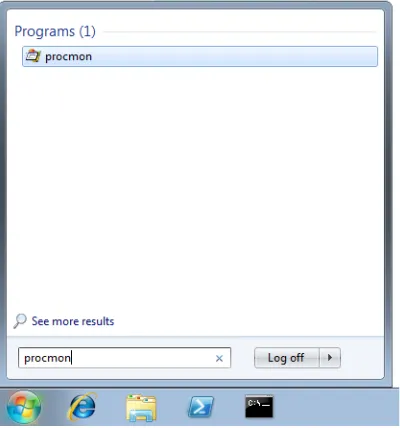
FIGURE 1-2 Launching Procmon via Path search from the Start menu search box.
“Unblock” .zip Files Before Extracting Files
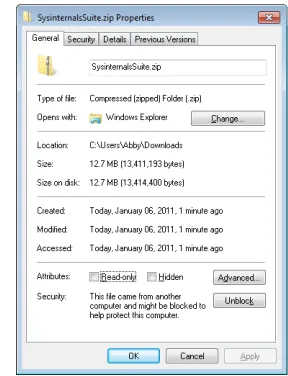
Before extracting content from the downloaded .zip files, you should first remove the marker that tells Windows to treat the content as untrusted and that results in warnings and errors like those shown in Figures 1-3 and 1-4. The Windows Attachment Execution Service adds an alternate data stream (ADS) to the .zip file indicating that it came from the Internet. When you extract the files with Windows Explorer, it propagates the ADS to all extracted files.
FIGURE 1-4 Compiled HTML Help (CHM) files fail to display content when marked as having come from the Internet.
[image:38.531.103.247.310.498.2]One way to remove the ADS is to open the .zip file’s Properties dialog box in Windows Explorer and click the Unblock button near the bottom of the General tab as shown in Figure 1-5. Another way is to use the Sysinternals Streams utility, which is described in Chapter 11, “File Utilities.”
Running the Utilities Directly from the Web
Sysinternals Live is a service that enables you to execute Sysinternals utilities directly from the Web without first having to hunt for, download, and extract them. Another advantage of Sysinternals Live is that it guarantees you run the latest versions of the utilities.
To run a utility using Sysinternals Live from Internet Explorer, type http://live.sysinternals. com/utilityname.exe in the address bar (for example, http://live.sysinternals.com/procmon. exe). Alternatively, you can specify the Sysinternals Live path in Universal Naming Convention (UNC) as \\live.sysinternals.com\tools\utilityname.exe. (Note the addition of the “tools” subdirectory, which is not required when you specify a utility’s URL.) For example, you can run the latest version of Process Monitor by running \\live.sysinternals.com\tools\ procmon.exe.
Note The UNC syntax for launching utilities using Sysinternals Live requires that the WebClient
service be running. In newer versions of Windows, the service might not be configured to start automatically. Starting the service directly (for example, by running net start webclient) requires administrative rights. You can start the service indirectly without administrative rights by running net use \\live.sysinternals.com from a command prompt or by browsing to
\\live.sysinternals.com with Windows Explorer.
You can also map a drive letter to \\live.sysinternals.com\tools or open the folder as a r emote share in Windows Explorer, as shown in Figure 1-6. Similarly, you can view the entire Sysinternals Live directory in a browser at http://live.sysinternals.com.
Single Executable Image
To simplify packaging, distribution, and portability without relying on installation programs, all of the Sysinternals utilities are single 32-bit executable images that can be launched directly. They embed any additional files they might need as resources and extract them either into the folder in which the program resides or, if that folder isn’t writable (for example, if it’s on read-only media), into the current user’s %TEMP% folder. The program deletes extracted files when it no longer needs them.
Supporting both 32-bit and 64-bit systems is one example where the Sysinternals utilities make use of this technique. For utilities that require 64-bit versions to run correctly on 64-bit Windows, the main 32-bit program identifies the CPU architecture, extracts the appropriate x64 or IA64 binary, and launches it. When running Process Explorer on x64, for instance, you will see Procexp64.exe running as a child process of Procexp.exe.
Note If the program file extracts to %TEMP%, the program will fail to run if the permissions on
%TEMP% have been modified to remove Execute permissions.
Most of the Sysinternals utilities that use a kernel-mode driver extract the driver file to %SystemRoot%\System32\Drivers, load the driver, and then delete the file. The driver image remains in memory until the system is shut down. When running a newer version of a utility that has an updated driver, a reboot might be required to load the new driver.
The Windows Sysinternals Forums
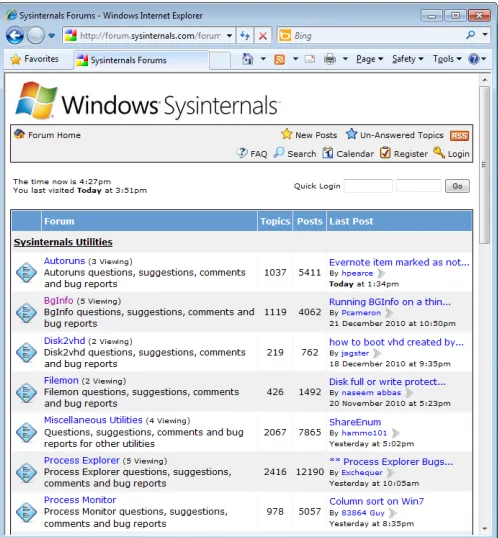
The Windows Sysinternals Forums at http://forum.sysinternals.com (shown in Figure 1-7) are the first and best place to get answers to your questions about the Sysinternals utilities and to report bugs. You can search for posts and topics by keyword to see whether anyone else has had the same issue as you. There are forums dedicated to each of the major Sysinternals utilities, as well as a forum for suggesting ideas for new features or utilities. The Forums also host community discussion about Windows internals, development, troubleshooting, and malware.
FIGURE 1-7 The Windows Sysinternals Forums.
Windows Sysinternals Site Blog
Subscribing to the Sysinternals Site Discussion blog is the best way to receive notifications when new utilities are published, existing utilities are updated, or other new content becomes available on the Sysinternals site. The site blog is located at http://blogs.technet.com/b/ sysinternals. Although the front page notes only major utility updates, the site blog reports all updates, including minor ones.
Mark’s Blog
My own blog covers Windows internals, security, and troubleshooting topics. The blog features two popular article series related to Sysinternals: “The Case of…” articles, which document how to solve everyday problems with the Sysinternals utilities; and “Pushing the Limits,” which describes resource limits in Windows, how to monitor them, and the effect of hitting them. You can access my blog by using the following URL: