A Guide for Experienced
Programmers
Copyright ©2002 by Gary Cornell
All rights reserved. No part of this work may be reproduced or transmitted in any form or by any means, electronic or mechanical, including photocopying, recording, or by any information storage or retrieval system, without the prior written permission of the copyright owner and the publisher.
ISBN (pbk): 1-893115-99-2
Printed and bound in the United States of America 12345678910
Trademarked names may appear in this book. Rather than use a trademark symbol with every occurrence of a trademarked name, we use the names only in an editorial fashion and to the benefit of the trademark owner, with no intention of infringement of the trademark. Editorial Directors: Dan Appleman, Gary Cornell, Jason Gilmore, Karen Watterson Technical Reviewers: Ken Getz, Tim Walton
Managing Editor and Production Editor: Grace Wong Copy Editors: Steve Wilent, Tracy Brown Collins Compositor: Susan Glinert Stevens
Artist: Allan Rasmussen Indexer: Valerie Haynes Perry Cover Designer: Karl Miyajima
Marketing Manager: Stephanie Rodriguez
Distributed to the book trade in the United States by Springer-Verlag New York, Inc.,175 Fifth Avenue, New York, NY, 10010
and outside the United States by Springer-Verlag GmbH & Co. KG, Tiergartenstr. 17, 69112 Heidelberg, Germany
In the United States, phone 1-800-SPRINGER, email [email protected], or visit http://www.springer-ny.com.
Outside the United States, fax +49 6221 345229, email [email protected], or visit http://www.springer.de.
For information on translations, please contact Apress directly at 901 Grayson Street, Suite 204, Berkeley, CA 94710.
Phone 510-549-5930, fax: 510-549-5939, email [email protected], or visit http://www.apress.com. The information in this book is distributed on an “as is” basis, without warranty. Although every precaution has been taken in the preparation of this work, neither the author nor Apress shall have any liability to any person or entity with respect to any loss or damage caused or alleged to be caused directly or indirectly by the information contained in this work.
iii
Contents at a Glance
Dedication ... iii
Contents ...v
Acknowledgments ... viii
About This Book...ix
Chapter 1 Introduction...1
Chapter 2 The VB .NET IDE: Visual Studio .NET ...11
Chapter 3 Expressions, Operators, and Control Flow ...47
Chapter 4 Classes and Objects (with a Short Introduction to Object-Oriented Programming) ...97
Chapter 5 Inheritance and Interfaces... 177
Chapter 6 Event Handling and Delegates ...237
Chapter 7 Error Handling the VB .NET Way: Living with Exceptions ...265
Chapter 8 Windows Forms, Drawing, and Printing ...279
Chapter 9 Input/Output ...333
Chapter 10 Multithreading ...379
Chapter 11 A Brief Introduction to Database Access with VB .NET ...423
Chapter 12 A Brief Overview of ASP .NET ...443
Chapter 13 .NET Assemblies, Deployment, and COM Interop ...463
Contents
Dedication
...iiiAcknowledgments
... xiiiAbout This Book
... xvChapter 1
Introduction
... 1Visual Basic Then and Now ... 1
The Versions of Visual Basic ... 2
The .NET Mentality Shift ... 3
The Common Language Runtime ... 4
Completely Object Oriented ... 5
Automatic Garbage Collection: Fewer Memory Leaks ... 6
Structured Exception Handling ... 6
True Multithreading ... 6
Why You Will Need To Learn a Whole Lot of New Concepts to Use VB .NET ... 7
Should You Use C# and Not Bother with VB .NET? ... 9
Chapter 2
The VB .NET IDE: Visual Studio .NET
... 11Getting Started ... 12
Creating a New Solution ... 13
A Tour of the Main Windows in the IDE ... 17
The Editor ... 19
The Solution Explorer ... 24
Properties Window ... 25
References and the Reference Window ... 26
Output Window and Command Window ... 27
Working with a Solution ... 28
Adding Projects to a Solution ... 33
Compiling ... 34
Multiple Compilations ... 36
Build Options ... 38
vi
Debugging in VB .NET ...40
New Debugger Features ...41
Chapter 3
Expressions, Operators,
and Control Flow
...47Console Applications ...48
Statements in VB .NET ...51
Comments ...52
Variables and Variable Assignments ...52
Literals and Their Associated Data Types ...54
Non-Numeric Literals ...58
Declaring Variables ...59
Conversion between Values of Different Types ...61
Strings ...64
String Functions ...65
Formatting Data ...68
Arithmetic Operators ...69
Parentheses and Precedence ...72
Math Functions and Math Constants ...73
Constants ...75
Repeating Operations—Loops ...75
Determinate Loops ...75
Indeterminate Loops ...77
Conditionals—Making Decisions ...79
Scoping Changes ...80
Short Circuiting ...81
Select Case ...81
The GoTo ...82
The Logical Operators on the Bit Level ...83
Arrays ...84
The For-Each Construct ...86
Arrays with More than One Dimension ...87
Procedures: User-Defined Functions and Subs ...87
Functions ...88
Sub Procedures ...90
Using Arrays with Functions and Procedures ...92
Procedures with a Variable or Optional Number of Arguments ...93
Chapter 4
Classes and Objects (with a Short
Introduction to Object-Oriented
Programming)
... 97Introduction to OOP ... 98
Classes As (Smart) User-Defined Types ... 99
The Vocabulary of OOP ... 101
The Relationships between Classes in Your Programs ... 101
How to Objectify Your Programs ... 107
What about Individual Objects? ... 109
Advantages to OOP ... 110
Creating Object Instances in VB .NET ... 111
More on Constructors: Parameterized Constructors ... 114
Example: The String Class ... 115
Example: The StringBuilder Class ... 115
Namespaces ... 120
Imports ... 120
Help and the (Vast) .NET Framework ... 124
Example: The Framework Collection Classes ... 127
More on Object Variables ... 134
Is and Nothing ... 136
TypeName and TypeOf ... 137
Subtleties of Passing Object Variables by Value ... 138
Building Your Own Classes ... 140
Overloading Class Members ... 144
More on Constructors ... 147
More on Properties ... 148
Scope of Variables ... 150
Nested Classes ... 152
Shared Data and Shared Members Inside Classes ... 155
Shared Members ... 157
The Object Life Cycle ... 158
Object Death ... 160
Value Types ... 161
Enums ... 163
Structure Types ... 165
Namespaces for Classes You Create ... 168
The Class View Window ... 169
Debugging Object-Based Programs ... 170
viii
Chapter 5
Inheritance and Interfaces
...177Inheritance Basics ...178
Getting Started with Inheritance ...180
Overriding Properties and Methods ...184
Abstract Base Classes ...195
Object: The Ultimate Base Class ...201
The Most Useful Members of Object ...202
The Fragile Base Class Problem: Versioning ...209
Overview of Interfaces ...215
Mechanics of Implementing an Interface ...217
When to Use Interfaces, When To Use Inheritance? ...222
Important Interfaces in the .NET Framework ...222
ICloneable ...223
IDisposable ...225
Collections ...225
For Each and IEnumerable ...226
Chapter 6
Event Handling and Delegates
...237Event Handling from an OOP Point of View ...237
What Goes into the Functions Called by Events? ...239
Basic Event Raising ...241
Hooking Up the Listener Objects to Event Source Objects ...243
Building Your Own Event Classes ...247
Dynamic Event Handling ...249
Handling Events in an Inheritance Chain ...253
Delegates ...254
Building Up a Delegate ...255
A More Realistic Example: Special Sorting ...257
Delegates and Events ...264
Chapter 7
Error Handling the VB .NET Way:
Living with Exceptions
...265Error Checking vs. Exception Handling ...266
First Steps in Exception Handling ...267
Analyzing the Exception ...269
Multiple Catch Clauses ...269
Throwing Exceptions ...272
Exceptions in the Food Chain ...275
And Finally…Finally Blocks ...277
Chapter 8
Windows Forms, Drawing,
and Printing
... 279First, Some History ... 280
Form Designer Basics ... 281
Keeping Things in Proportion: The Anchor and Dock Properties ... 284
The Tab Order Menu ... 287
Returning to a Simple Program ... 287
More Form Properties ... 292
Menu Controls and the New Visual Studio Menu Editor ... 294
Context Menus ... 297
MDI Forms ... 298
ColorDialog ... 301
FontDialog ... 302
FileDialogs ... 302
Adding Controls at Run Time ... 303
Form Inheritance: AKA Visual Inheritance ... 305
Building Custom Controls through Control Inheritance ... 306
Overriding an Event ... 306
The Inheritance Chains in the System.Windows.Forms Assembly ... 313
Basic Control Class Functionality ... 316
Graphics: Using GDI+ ... 318
Simple Drawing ... 320
Drawing Text ... 321
Printing ... 325
Chapter 9
Input/Output
... 333Directories and Files ... 334
The Path Class ... 335
The Directory Class ... 336
The File Class ... 338
The DirectoryInfo and FileInfo Classes ... 340
Working Recursively through a Directory Tree ... 341
The Most Useful Members of the FileSystemInfo,FileInfo, and DirectoryInfo Classes ... 344
Streams ... 347
Writing to Files: File Streams ... 350
Getting Binary Data into and out of Streams: BinaryReader and BinaryWriter ... 355
TextReader,TextWriter, and Their Derived Classes ... 358
x
Simple Deserialization ...364
Network Streams ...370
Writing a File System Monitor ...375
Going Further with File Monitoring ...378
Chapter 10 Multithreading
...379Getting Started with Multithreading ...380
The Mechanics of Thread Creation ...383
Join ...388
Thread Names, CurrentThread, and ThreadState ...389
The Threads Window ...390
Putting a Thread to Sleep ...391
Ending or Interrupting a Thread ...392
A More Serious Example: Screen Scraping Redux ...394
The Big Danger: Shared Data ...397
The Solution: Synchronization ...401
More on SyncLock and the Monitor Class ...403
Deadlock: the Danger of Synchronization ...404
Sharing Data as It Is Produced ...410
Multithreading a GUI Program ...415
Chapter 11 A Brief Introduction to Database Access
with VB .NET
...423Why ADO .NET Is Not ADO++ ...423
Disconnected Data Sets: The New Way to Use Databases ...424
The Classes in System.Data.DLL ...425
System.Data.OleDb ...425
System.Data.SqlClient ...429
Calling a Stored Procedure ...430
A More Complete VB .NET Database Application ...431
Chapter 12 A Brief Overview of ASP .NET
...443Some History ...443
A Simple ASP .NET Web Application ...444
What Gets Sent to the Client? ...448
The Web.config File ...451
A Simple Web Service ...455
Chapter 13 .NET Assemblies, Deployment,
and COM Interop
... 463How COM Works ... 464
.NET Assemblies ... 465
The Manifest ... 467
Drilling Down into a Manifest ... 469
Shared Assemblies and the GAC ... 471
Adding and Removing Assemblies from the GAC ... 473
Strong Names = Shared Names ... 473
Generating a Key Pair ... 474
Signing an Assembly ... 476
COM Interoperability and Native DLL Function Calls ... 476
xiii
ONE OF THE BEST PARTSof writing a book is when the author gets to thank those who have helped him or her, for rarely (and certainly not in this case) is a book solely the product of the names featured so prominently on the cover. First and foremost, I have to thank my friends and colleagues at Apress, but especially Grace Wong, whose efforts to get this book out under quite stressful conditions was nothing short of amazing! I would also like to thank Steve Wilent, Tracy Brown Collins, Susan Glinert Stevens, Valerie Haynes Perry for all their efforts on my behalf.
Next, Ken Getz did an amazingly thorough job of reviewing this book under terri-bly tight constraints. He caught dozens of obscurities and helped me avoid dozens of false steps (any errors that remain are solely my responsibility!). Karen Watterson and Tim Walton made comments that were very useful as well. Rob Macdonald, Carsten Thomsen, and Bill Vaughn all helped me to understand how ADO .NET relates to classic ADO. Thanks also go to my friend Dan Appleman—suffice it to say that not only have I learned an immense amount about every version of Visual Basic from him, but his general guidance on so many things have helped me over many difficult spots during these stressful times. While my friend Jonathan Morrison had to step away from this project before it could be completed, his insights into VB were very helpful as I worked to finish this book.
Finally, thanks to all my family and friends who put up with my strange ways and my occasionally short temper for lo so many months.
About This Book
THIS BOOK IS A COMPREHENSIVE, hands-on guide to the Visual Basic .NET programming language addressed to readers with some programming background. No background in Visual Basic is required, however.
While I show you the syntax of VB .NET, this book is not designed to teach you syntax. I have taken this approach because trying to force VB .NET into the frame-work of older versions of VB is ultimately self-defeating—you cannot take advantage of its power if you continue to think within an older paradigm.
First off, I have tried to give you a complete treatment of object-oriented programming in the context of the VB .NET language. I feel pretty strongly that without a firm foundation here, it is impossible to take full advantage of the power that VB .NET can bring to you.
Also, I have tried to cover at the least the fundamentals of every technique that a professional VB .NET developer will need to master. This includes topics like multi-threading, which are too often skimped on in most books. This does not mean that I cover all the possible (or even the majority of) applications of VB .NET to the .NET platform; that would take a book two or three times the size of this one. This is a book about the techniques you need to master, not the applications themselves. (I have tried to make most of the examples realistic, avoiding toy code as much as possible.)
Finally, since most people reading this book will have programmed with some version of Visual Basic before, I have also tried to be as clear about the differences between VB .NET and earlier versions of VB as I could. However, I want to stress that this book does not assume any knowledge of earlier versions of VB, just some programming experience.
How This Book Is Organized
Chapter 1, “Introduction,” explains what is so different about VB .NET. Experienced VB programmers will benefit from reading this chapter.
Chapter 2, “The VB .NET IDE: Visual Studio .NET,” introduces you to the Visual Studio .NET Integrated Development Environment (IDE).
Chapter 3, “Expressions, Operators, and Control Flow,” covers what I like to call the “vocabulary” of VB .NET. This is the basic syntax for code including variables, loops, and operators.
Chapter 4, “Classes and Objects (with a Very Short Introduction to Object-Oriented Programming),” is the first of the core object-oriented programming chapters. It shows you how to construct objects and use them.
xvi
introduction to the useful .NET collection classes which allow you to efficiently manage data inside a program.
Chapter 6, “Event Handling and Delegates,” takes up events and the new .NET notion of a delegate. Event-driven programming is still the key to good user interface design, and .NET depends on it just as much as Windows did.
Chapter 7, “Error Handling the VB .NET Way: Living with Exceptions,” covers
exceptions, the modern way of dealing with errors that lets you banish the archaic On Error GoTo syntax that has plagued VB since its start.
Chapter 8, “Windows Forms, Drawing, and Printing,,” takes up building Windows user interfaces, graphics and printing. Although the browser is obviously becoming more important as a delivery platform, traditional Windows-based clients aren’t going away, and this chapter gives you a firm foundation to build them under .NET.
Chapter 9, “Input/Output,” presents I/O, with a complete treatment of streams, which are at the root of .NET’s way of handling I/O.
Chapter 10, “Multithreading,” is a concise treatment of the fundamentals of mul-tithreading. Multithreading is an amazingly powerful technique of programming that is nonetheless fraught with peril. I hope this chapter does not just teach you enough “to be dangerous,” but rather, enough so that you can use this powerful technique safely and effectively in your programs.
Chapter 11, “A Brief Introduction to Database Access with VB .NET,” and Chapter 12, “A Brief Overview of ASP .NET,” are very brief introductions to two of the most important applications of .NET: ASP .NET and ADO .NET. Please note these chapters are designed to give you just a taste, and you will have to look at more detailed books to learn how to use ASP .NET or ADO .NET in production-level code. Chapter 13, “.NET Assemblies, Deployment, and COM Interop,” is a brief intro-duction to what goes on under the hood in .NET that includes a look the idea of assemblies and COM Interop. While I have tried to give you a flavor of these important topics, you will also need to consult a more advanced book to learn more about the topics.
Contacting Me
I would love to hear about your experiences with this book, suggestions for improvements, and any errata you may find. (The current list of errata may be found at the Apress Web site at www.apress.com). You can contact me at [email protected].
Introduction
WE HOPE THIS BOOKwill be useful to experienced programmers of all languages, but this introduction is primarily aimed at Visual Basic programmers. Other programmers can jump to Chapter 2, to begin delving into an incredibly rich integrated development environment (IDE) backed by the first modern fully object-oriented language in the BASIC1 family. Programmers accustomed to Visual Basic for Windows may need some convincing that all the work they face in moving to VB .NET is worth it. Hence this chapter.
Visual Basic Then and Now
Visual Basic for Windows is a little over ten years old. It debuted on March 20, 1991, at a show called “Windows World,” although its roots go back to a tool called Ruby that Alan Cooper developed in 1988.2
There is no question that Visual Basic caused a stir. Our favorite quotes came from Steve Gibson, who wrote in InfoWorld that Visual Basic was a “stunning new miracle” and would “dramatically change the way people feel about and use Microsoft Windows.” Charles Petzold, author of one of the standard books on Windows programming in C, was quoted in the New York Times as saying: “For those of us who make our living explaining the complexities of Windows programming to programmers, Visual Basic poses a real threat to our livelihood.” (Petzold’s com-ments are ironic, considering the millions of VB books sold since that fateful day in 1991.) But another quote made at Visual Basic’s debut by Stewart Alsop is more telling: Alsop described Visual Basic as “the perfect programming environment for the 1990s.”
But we do not live in the 1990s anymore, so it should come as no surprise that Visual Basic .NET is as different from Visual Basic for Windows as Visual Basic for Windows Version 1 was from its predecessor QuickBasic. While we certainly feel there is a lot of knowledge you can carry over from your Visual Basic for Windows programming experience, there are as many changes in programming for the
1. Read BASIC as meaning “very readable-with no ugly braces.…”
2
.NET platform using Visual Basic.NET (or VB .NET for short) as there were in moving from QuickBasic for DOS to VB1 for Windows.
The Versions of Visual Basic
The first two versions of Visual Basic for Windows were quite good for building prototypes and demo applications—but not much else. Both versions tied excellent IDEs with relatively easy languages to learn. The languages themselves had rela-tively small feature sets. When VB 3 was released with a way to access databases that required learning a new programming model, the first reaction of many people was, “Oh great, they’ve messed up VB!” With the benefit of hindsight, the database features added to VB3 were necessary for it to grow beyond the toy stage into a serious tool. With VB4 came a limited ability to create objects and hence a very limited form of object-oriented programming. With VB5 and VB6 came more features from object-oriented programming, and it now had the ability to build controls and to use interfaces. But the structure was getting pretty rickety since the object-oriented features were bolted on to a substructure that lacked support for it. For example, there was no way to guarantee that objects were created correctly in VB—you had to use a convention instead of the constructor approach used by practically every other object-oriented language. (See Chapter 4 for more on what a constructor does.) Ultimately the designers of VB saw that, if they were going to have a VB-ish tool for their new .NET platform, more changes were needed since, for example, the .NET Framework depends on having full object orientation.
We feel that the hardest part of dealing with the various changes in VB over the years is not so much in that the IDE changed a little or a lot, or that there were a few new keywords to learn, the pain was in having to change the way that you thought about your VB programs. In particular, to take full advantage of VB5 and VB6, you had to begin to move from an object-based language with an extremely limited ability to create your own objects to more of an object-oriented language where, for example, interfaces was a vital part of the toolset. The trouble really was that many VB programmers who grew up with the product had never pro-grammed using the principles of object-oriented programming before. When classes were introduced in VB, most VB developers had no idea what a class really was—never mind why they would ever want to use one.
Still, even with the limited object-oriented features available to you in VB5 and 6, when you learned how to use them they made programming large projects easier. For example, you could build reusable objects like controls, or on a more prosaic level, you could do neat things to help make maintaining your programs easier. You could also banish the Select Case statement from maintenance hell.
What we mean is that instead of having to write code that worked more or less like this:
Select Case kindOfEmployee Case Secretary
RaiseSalary 5% Case Manager RaiseSalary 10% Case Programmer RaiseSalary 15% Case Architect RaiseSalary 20% 'etc
End Select
which was a pain to maintain because whenever you added a new type of employee you had to change all the corresponding Select Case statements, the compiler
could do the work for you. This was finally possible because starting with VB5, you could use the magic of interface polymorphism (see Chapter 5 for more on this) and write code like this:
For Each employee in Employees employee.RaiseSalary
Next
and know that the compiler would look inside your objects to find the right RaiseSalary method.
Classes let you create VB apps in a much more efficient and maintainable manner. Whether you stick with VB5 or shift to VB .NET we cannot imagine writing a serious VB app without them.
The .NET Mentality Shift
What does all of this have to do with .NET? Quite a lot. You see, .NET is going to change the way you design your applications as much as the introduction of classes to VB changed the best way to build your VB5 or 6 applications. And just as we VB programmers suffered through the change from the classless to class-enabled incarnations of VB, so will we feel some pain in the transition to .NET!4
4
With that in mind, let us look at some of the things to watch out for—or take advantage of—when switching from VB6 to VB .NET.
The Common Language Runtime
Visual Basic has always used a runtime, so it may seem strange to say that the biggest change to VB that comes with .NET is the change to a Common Language Runtime (CLR) shared by all .NET languages. The reason is that while on the sur-face the CLR is a runtime library just like the C Runtime library, MSVCRTXX.DLL, or the VB Runtime library, MSVBVMXX.DLL, it is much larger and has greater functionality. Because of its richness, writing programs that take full advantage of the CLR often seems like you are writing for a whole new operating system API.5
Since all languages that are .NET-compliant use the same CLR, there is no need for a language-specific runtime. What is more, code that is CLR can be written in any language and still be used equally well by all .NET CLR-compliant languages.6 Your VB code can be used by C# programmers and vice versa with no extra work. Next, there is a common file format for .NET executable code, called Microsoft Intermediate Language (MSIL, or just IL). MSIL is a semicompiled language that gets compiled into native code by the .NET runtime at execution time. This is a vast extension of what existed in all versions of VB prior to version 5. VB apps used to be compiled to p-code (or pseudo code, a machine language for a hypothetical machine), which was an intermediate representation of the final executable code. The various VB runtime engines, interpreted the p-code when a user ran the program. People always complained that VB was too slow because of this,7 and therefore, constantly begged Microsoft to add native compilation to VB. This happened starting in version 5, when you had a choice of p-code (small) or native code (bigger but presumably faster). The key point is that .NET languages combine the best features of a p-code language with the best features of compiled languages. By having all languages write to MSIL, a kind of p-code, and then compile the resulting MSIL to native code, it makes it relatively easy to have cross-language compatibility. But by ultimately generating native code you still get good performance.
5. Dan Appleman, the wizard of the VB API, intends to write a book called something like The VB .NET Programmers Guide to Avoiding the Windows API. The .NET Framework is so full-featured that you almost never need the API.
6. Thus, the main difference between .NET and Java is that with .NET you can use any language, as long as you write it for the CLR; with Java, you can write for any platform (theoretically at least—in practice there are some problems) as long as you write in Java. We think .NET will be successful precisely because it leverages existing language skills.
Completely Object Oriented
The object-oriented features in VB5 and VB6 were (to be polite) somewhat limited. One key issue was that these versions of VB could not automatically initialize the data inside a class when creating an instance of a class. This led to classes being created in an indeterminate (potentially buggy) state and required the programmer to exercise extra care when using objects. To resolve this, VB .NET adds an important feature called parameterized constructors (see Chapter 4).
Another problem was the lack of true inheritance. (We cover inheritance in Chapter 5.8) Inheritance is a form of code reuse where you use certain objects that are really more specialized versions of existing objects. Inheritance is thus the perfect tool when building something like a better textbox based on an existing textbox. In VB5 and 6 you did not have inheritance, so you had to rely on a fairly cumbersome wizard to help make the process of building a better textbox tolerable.
As another example of when inheritance should be used is if you want to build a special-purpose collection class. In VB5 or 6, if you wanted to build one that held only strings, you had to add a private instance field that you used for the delegation process:
Private mCollection As Collection 'for delegation
Then you had to have Initialize and Terminate events to set up and reclaim the memory used for the private collection to which you delegated the work. Next, you needed to write the delegation code for the various members of the specialized collection that you wanted to expose to the outside world. For example:
Sub Add(Item As String) mCollection.Add Item End Sub
This code shows delegation at work; we delegated the Add method to the private collection that we used as an instance field.
The sticky part came when you wanted a For-Each.To do this you had to add the following code to the class module:
Public Function NewEnum As IUnknown Set NewEnum = mCollection.[_NewEnum] End Function
and then you needed to set the Procedure ID for this code to be –4!
6
(Obviously, “and then magic happens” is not a great way to code. With inherit-ance, none of this nonsense is necessary.) In VB .NET you just say
Class MyCollection Inherits Collection
and you get a For Each for free (see Chapter 5).
Automatic Garbage Collection: Fewer Memory Leaks
Programmers who used Visual Basic always had a problem with memory leaks from what are called circular references. (A circular reference is when you have object A referring to object B and object B referring to object A.) Assuming this kind of code was not there for a reason, there was no way for the VB compiler to realize that this circularity was not significant. This meant that the memory for these two objects was never reclaimed. The garbage collection feature built into the .NET CLR eliminates this problem of circular references using much smarter algorithms to determine when circular references can be “cut” and the memory reclaimed. Of course, this extra power comes at a cost, and Chapter 4 will explain the advantages and disadvantages of automatic garbage collection.
Structured Exception Handling
All versions of Visual Basic use a form of error handling that dates back to the first Basic written almost 40 years ago. To be charitable, it had problems. To be unchar-itable (but we feel realistic), it is absurd to use On Error GoTo with all the spaghetti code problems that ensue in a modern programming language. Visual Basic adds
structured exception handling (see Chapter 7) the most modern and most powerful means of handling errors.
True Multithreading
Why You Will Need to Learn a Whole Lot of New Concepts
to Use VB .NET
You may be tempted to think that you can use the conversion tool and a little bit of fiddling to move your VB programs to VB .NET. Do not go down this path. To really take advantage of VB .NET, you need to understand object-oriented principles and how the .NET Framework works. Note that we do not mean you have to memorize the many, many thousands of methods that are in the .NET Framework. However, in order to read the documentation or to take advantage of the IntelliSense feature of the IDE, you really do need to understand how the .NET “ticks.” To use the various Windows and Web form designers in the IDE, you really have to understand these issues.
The best way to help you see the massive changes that have come is to com-pare the code you saw when you activated a button in earlier versions of VB. All you needed to code (and all you saw as a result) was code inside a Button1_Click event procedure.
Fair warning: if you add a button to a form in VB .NET, you will get a lot more
code generated by the VB .NET IDE. One of the main purposes of this book is to show you why all this extra code is worth understanding—and of course, how to understand it as easily as you can the simple Button1_Click of yore.
Here is the code you get (luckily most is automatically generated for you) for adding a button to a form and having it display a message box when you click on it.. (The circled numbers in the code are not from the IDE—they are pointers to where the concepts relevant to that block of code are explained in this book):
! Public Class Form1
@ Inherits System.Windows.Forms.Form
# #Region " Windows Form Designer generated code "
$ Public Sub New() % MyBase.New()
'This call is required by the Windows Form Designer.
^ InitializeComponent()
'Add any initialization after the InitializeComponent() call
8
& Protected Overloads Overrides Sub Dispose(ByVal disposing As Boolean)
If disposing Then
If Not (components Is Nothing) Then components.Dispose()
End If End If
MyBase.Dispose(disposing) End Sub
* Friend WithEvents Button1 As System.Windows.Forms.Button
'Required by the Windows Form Designer
Private components As System.ComponentModel.Container
'NOTE: The following procedure is required by the Windows Form Designer 'It can be modified using the Windows Form Designer.
'Do not modify it using the code editor.
( <System.Diagnostics.DebuggerStepThrough()> Private Sub _
InitializeComponent()
Me.Button1 = New System.Windows.Forms.Button() Me.SuspendLayout()
' 'Button1 '
Me.Button1.Location = New System.Drawing.Point(109,224) Me.Button1.Name = "Button1"
Me.Button1.Size = New System.Drawing.Size(200, 48) Me.Button1.TabIndex = 0
Me.Button1.Text = "Click me!" '
'Form1 '
Me.AutoScaleBaseSize = New System.Drawing.Size(5,13) Me.ClientSize = New System.Drawing.Size(292, 266)
Me.Controls.AddRange(New System.Windows.Forms.Control() {Me.Button1}) Me.Name = "Form1"
Me.Text = "First Windows Application" Me.ResumeLayout(False)
End Sub
_ Private Sub Button1_Click(ByVal sender As System.Object, _ ByVal e As _ System.EventArgs) Handles Button1.Click
MsgBox("Welcome to Visual Basic .NET!") End Sub
Q End Class
! Classes are explained in Chapter 4.
@ The keyword Inherits is discussed in Chapter 5, and Windows Forms are
discussed in Chapter 8.
# The new IDE has the ability to define collapsible regions (Chapter 2). $ The constructor New is explained in Chapter 4.
% This is based on inheritance, which is explained in Chapter 5. ^ This is explained in the Windows Forms chapter (Chapter 8)
& This is explained in the Inheritance chapter (Chapter 5), but the key idea of a
Dispose method is explained in Chapters 4 and 5.
* Events are explained in Chapter 6. Event handling for GUI applications is
covered in Chapter 8.
( All the important code in this sub is explained in Chapter 8. _ This is also explained in Chapter 8.
QThis is explained in Chapter 4.
Should You Use C# and Not Bother with VB .NET?
9There is certainly something to be said for switching to C#.10 Most of the .NET Framework is written in it, so one can argue that C# is the .NET language. Although C# is a wee bit more powerful than VB .NET, 99 percent of programmers will never use its extra features.
But for those who have never programmed in a C-style language, C# will look strange and might be harder to learn than VB .NET. Besides, there are some definite pluses to VB .NET over C#. Here is our top five countdown:
5. Inclusion of many of the familiar VB/VBScript functions such as Mid, Sin(x) instead of Math.Sin(x), or FormatNumber instead of the more cryptic and often harder to use functions in the .NET Framework.
9. Dan Appleman has a e-book that goes into this question at some length (available at
www.desaware.com). Still, if you are browsing this chapter in a bookstore trying to decide, we hope the following are sufficient reasons for choosing VB .NET.
10
4. Readability. VB .NET uses human-readable words for everything. For example, C# uses a “:”, and VB .NET uses “inherits” or “implements.” C# uses words like abstract,sealed, and virtual, while VB .NET uses MustInherit,NotInheritable,Overridable,Overrides,Shadows. Which are clearer to you—even without knowing what the terms mean?
3. You still have background compilation of your code. This means you get immediate feedback from the compiler. (This is much better than simply parsing your code, as is done in C#.)
2. VB .NET is case insensitive and has a smart editor that changes the case to reflect your declarations. C#, like all languages in the C family, is case sensitive, which, for those inexperienced with case-sensitive languages, is guaranteed to drive you nuts.
and the #1 reason in our opinion is:
The VB .NET IDE:
Visual Studio .NET
IF YOU ARE ACCUSTOMED TO using an earlier version of VB, then the .NET IDE (integrated development environment)—Visual Studio .NET—will look some-what familiar. The concept of a rapid application development (RAD) tool with controls that you to drag onto forms is certainly still there, and pressing F5 will still run your program, but much has changed and mostly for the better. For example, the horrid Menu Editor that essentially has been unchanged since VB1 has been replaced by an in-place menu editing system that is a dream to use (see Chapter 8).
Also, VB .NET, unlike earlier versions of VB, can build many kinds of applications other than just GUI-intensive ones. For example, you can build Web-based appli-cations, server-side appliappli-cations, and even console-based (in what looks like an old-fashioned DOS window) applications. Moreover, there is finally a unified development environment for all of the “Visual” languages from Microsoft. The days when there were different IDEs for VC++, VJ++, Visual InterDev, Visual Basic, and DevStudio are gone. (Actually, Visual Interdev is now subsumed into VS .NET.) Another nice feature of the new IDE is the customization possible via an enhanced extensibility model. VS .NET can be set up to look much like the IDE from VB6, or any of the other IDEs, if you like those better.
The purpose of this chapter is to give you an overview of the IDE, not to bore you to death with details. The best way to get comfortable with the IDE is to use it, working with the online help as needed. We suggest skimming this chapter and returning to it for reference as needed. Also, note that the parts of the IDE that are connected with specific programming elements such as GUI design are covered in greater depth in later chapters.
12
Getting Started
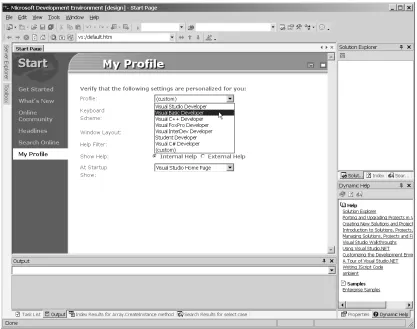
Users of earlier versions of VB (like us, for example) will probably want the IDE to resemble and work like the traditional VB6 IDE as much as possible. You can do this by selecting Visual Basic Developer from the Profile dropdown list on the My Profile link on the VS home page, as shown in Figure 2-1.
Notice that you can also customize the keyboard and the window layout for the IDE, and that you can save these in different profiles. You can always change your profile by going to Help|Show Start Page and then choosing My Profile.
[image:27.612.80.497.210.539.2]In VB .NET, every project is part of what Microsoft calls a solution. You cannot do anything in the VB .NET IDE without your code being part of a specific solution. Think of a solution as the container that holds all information needed to compile your code into a usable form. This means a solution will contain one or more projects; various associated files such as images, resource files, metadata (data
that describes the data in your program), XML documentation; and just about anything else you can think of. (People coming from VB5 or 6 should think of a solution as analogous to a program group.) Although solutions are cumbersome at first, and in all honesty are always cumbersome for small projects, once you get used to using solutions, enterprise development will be much easier. This is because with a solution-based approach you can more easily dictate which files you need to deploy in order to solve a specific problem.
Creating a New Solution
The first step in creating a new solution is to select File|New. At this point you have two choices: create a New Project or a Blank Solution. Note that even when you choose New Project, you get a solution. The difference is that the VS .NET IDE builds a bunch of bookkeeping files and adds them to the solution container if you choose a specific type of project. (The kind of files you get depends on what kind of project you choose.)
Most of the time you will choose New Project. When you do so, you will see a dialog box like the one shown in Figure 2-2, where we scrolled roughly halfway through the list of possible projects. This dialog box shows the many different kinds of projects VB .NET can build. (As we write this, there are ten types.) These project templates work in much the same way as templates did in VB6. For example, they often contain skeleton code but always contain bookkeeping infor-mation such as which files are part of the solution.
14
Since we scrolled down the New Project Dialog box, the icon for a Console Application is actually shown in Figure 2-2. Notice that when you choose Console Application (or any item but the last one, New Project in Existing Solution) from the New Project dialog, you are not asked if you want to create a solution. This is because, when you create a new project outside of an existing solution, the IDE creates the basic structure of a solution for you. (Most .NET programmers put each solution in a separate directory whose name matches the name of the solution, and this is the default behavior for solutions created in the IDE.)
We named this sample solution vb_ide_01, but any legal filename is accept-able. So, if you prefer spaces or capital letters in your solution names, that is fine. Of course, like everything in the Windows file system, case is ignored (but retained for readability). By making sure that the Create Directory for Solution box is checked, the IDE will automatically create a subdirectory for the solution using the name of the solution in the home directory you specify. In this case, our choices led to a directory named C:\vb net book\Chapter 2\vb_ide_01. At this point, your IDE should look similar to Figure 2-3.
Figure 2-3. The basic Visual Studio IDE
16
[image:31.612.90.497.116.436.2]The View menu on the main menu bar is always available to bring a specific window of the IDE into view (and into focus). Note that all windows on the IDE can be dragged around and actually “free float.” Interestingly enough, these are not MDI (multiple document interface) child windows that must live inside a parent window—you can move any window in the IDE outside the main window.
Figure 2-4. Context-sensitive help at work
[image:31.612.150.286.477.594.2]Another cool feature is that if you dock a window and it completely overlaps an existing window, you are not as lost as you sometimes were in VB6. The reason is that you automatically see the hidden windows as tabs. As an example, notice where the cursor is pointing in Figure 2-6. To reveal one of the hidden windows simply click and drag on the tab for that window. To recombine windows—for example, to preserve real estate—simply drag one on top of the other. The use of tabs in this way is a welcome change from the VB6 IDE, where overzealous docking occasionally caused the IDE to become practically unusable, forcing you to tweak the Registry in order to get things back to normal. Also note the use of tabs in the main window gives you another way to access the IDE Start page.
A Tour of the Main Windows in the IDE
[image:32.612.114.510.261.582.2]We cover the basic windows in this section and address specialized windows, such as
18
any further, however, we want to remind you that in the VS .NET IDE, as with most modern Windows applications, you get context menus by right clicking. We strongly suggest that you do a little clicking to become comfortable with each context menu. For example, the context menu available in the editor is shown in Figure 2-7.
As you can see, this context menu makes a mixture of editing tools and debugging tools available.
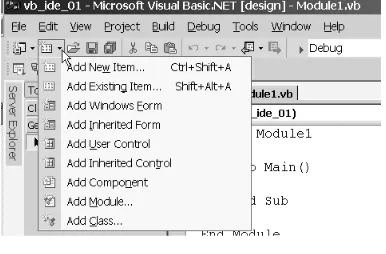
Next, the various icons on the menu bars have tool tips.1 A few of the icons have little arrows on them indicating they actually serve as mini menus. For example, the second item (Add New Item) has a list of the items you can add to a solution, as you can see in Figure 2-8.
[image:33.612.150.343.478.605.2]1. It has struck us, from time to time, that the need for tool tips shows that GUIs have their limitations. We wonder if the next trend in UI design will be to have these things called words on buttons dispensing with the icons completely??
Figure 2-7. The editor context menu
The Toolbox is used mostly for GUI applications (Chapter 8), but it also holds the new Clipboard Ring that we describe in the next section. You can also store code fragments directly on the Toolbox. We cover these features in the next section too.
The Editor
The code editor has all the features you might expect in a program editor, such as cut, paste, search, and replace.2 You access these features via the usual Windows shortcuts (Ctrl+X for cut, Ctrl+V for paste, and so on). If you like icons, you have them as well, on the context menu inside the Code window or the Edit menu. Check out the Edit menu for the keyboard shortcuts or look at the Help topic on “Editing, shortcut keys” for a full list. The shortcut Ctrl+I activates an incremental search facility, for example.
You also have the amazingly useful IntelliSense feature, which tells you what methods are available for a given object or what parameters are needed for a function, as you can see in Figure 2-9. You usually see IntelliSense at work when you hit the “.”, which is ubiquitous in accessing functionality in Visual Basic.
2. You can even automatically add line numbers by working with the dialog box you get by TIP If you are accustomed to using the incredibly useful Comment Block and Uncomment Block tools introduced in VB5, they are again available. Only now, thankfully, these default to being available in the standard toolbars that show up in the IDE as opposed to being on the Edit toolbar, where they were relegated to obscurity in VB6.
20
You usually get the global features of the editor by working with the Tools|Options dialog box and choosing the Text Editor option, as shown in Figure 2-10. This Options dialog box is quite different from its counterpart in earlier versions of VB6, so we suggest exploring it carefully. To set tab stops, for instance, click on the Text Editor option as shown in Figure 2-10. Once you do that, you can either set tabs on a language-by-language basis or solely for VB. You can also change how the indentation of the previous line affects the next line from None to Block (where the cursor aligns the next line with the previous line) to a Smart setting (where the body of a loop is automatically indented) as good programming style would indicate. (You can select tabs and apply smart formatting after the fact using Ctrl+K, Ctrl +F or via the Edit|Advanced|Format Selection option. Note that when you are using Smart Tabs, selecting a region and pressing Shift+Tab (to manage indents) also reformats.)
Figure 2-9. IntelliSense at work
One neat new feature in the Editor is the ability to “collapse” regions of code so that all you see is the header. Notice the lines of code in Figure 2-11 with the + signs next to them. Clicking on one of these would expand the region, as it is called in VS .NET. Hovering the mouse over the ellipses (the three dots) would show the collapsed code. The Edit|Outlining submenu controls this feature.
There are a few other nifty features of the VS .NET editor that will be new to experienced VB programmers, and we take them up next.
Figure 2-11. Collapsed regions in the editor
TIP You can create your own named regions as well by simply mimicking what you see in Figure 2-11. Place a #Region "NameOfRegion" at the beginning of the block you want to potentially collapse, and place a # End Region line after it.
22
The Clipboard Ring
You now have the ability to collect multiple items in a Clipboard Ring (Office 2000 and Office XP have similar features).Whenever you cut or copy text, it goes into the Clipboard Ring that is available on the Toolbox. You can see what is in the ring by clicking the Clipboard Ring tab on the Toolbox. The ring holds the last fifteen pieces of text that you cut or copied. To use the Clipboard Ring:
• Use Ctrl+Shift+V to paste the current item into the current document. Repeatedly pressing Ctrl+Shift+V lets you cycle through the Clipboard Ring. Each time you press Ctrl+Shift+V, the previous entry you pasted from the Clipboard Ring is replaced by the current item.
Code Fragments
[image:37.612.150.225.466.609.2]You can store any piece of code for instant reuse in the Toolbox. (Most people use the General tab for this, but you can easily create your own tab by right-clicking and choosing Add Tab from the context menu.) Storing code can be incredibly useful since it is very common to repeatedly use the same code fragment inside programs, and it is time consuming to constantly retype it. You store code fragments by highlighting them and dragging them to the Toolbox (see Figure 2-12). The frag-ments remain in the Toolbox until you delete them using the context menu. To reuse code, simply drag a fragment back to the correct insertion point in the Code window, or select the insertion point first and then double-click on the code fragment.
Task List and TODO, HACK, and UNDONE Comments
[image:38.612.118.538.236.579.2]Visual Studio now comes with a Task List feature that it inherited from Visual InterDev and Visual J++. The idea is that you can list in a comment what you need to do using special keywords right after the comment symbol. The built-in task comments include TODO, HACK, and UNDONE. These comments will then show up in the Task List window, which you display by choosing View|Other Windows|Task List (or Ctrl+Alt+K). An example is shown in Figure 2-13.
24
You can set up a custom keyword for use in the Task List such as “FOR_KEN” if it is code that Ken needs to look over. (Note that no spaces are allowed in Task keywords, hence the underscore). To set up a custom keyword for the Task List:
1. Select Tools|Options|Environment|Task List.
2. Enter FOR_KEN for your custom token (this enables the Add button).
3. Select the priority level.
4. Click Add and then OK.
The Solution Explorer
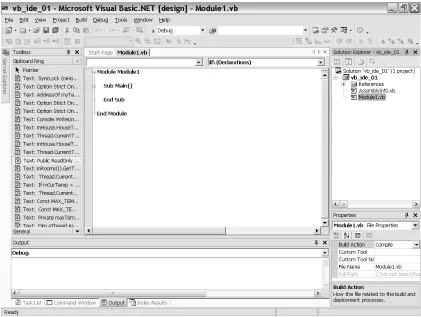
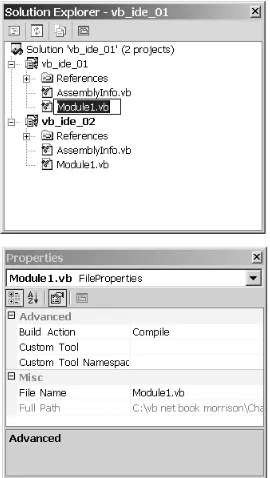
[image:39.612.160.295.386.625.2]The Solution Explorer window, shown in Figure 2-14, lets you browse the files that make up your solutions. The default name of the solution is the same as the first project created in it. As you can see in the Solution Explorer window, we also have a project named vb_ide_01, which contains a file named Module1.vb.
Note that in VB .NET, the .vb file extension is what is used for all VB .NET files, regardless of their type: no more .frm, .bas, or .cls files. One important feature is unchanged however: .vb files are still text files, just as in VB6. (And, in fact, the free .NET SDK comes with a standalone VB compiler that compiles VB programs that you can write with a text editor.)
Properties Window
The Properties window in VS .NET (also shown in Figure 2-14) is now much more than the place where you go to set properties of controls. The item you select determines what the Properties window shows. The combo box at the top of the Properties window describes the item you are working with. To edit a property, click in the cell to its right and start typing. The usual Windows editing shortcuts work within the Properties window.
As you can see in Figure 2-14, the Properties window now lets you set the proper-ties of the Module1.vb file. You can also use it to set the properproper-ties of designers such as the ones you use for building Web applications or server-side solutions.
ICON DESCRIPTION
Displays a Property Page for the property if one is supplied. (As in VB6, Property Pages are an aid to setting more complicated properties.)
Gives an alphabetical list of all properties and property values arranged by category. Categories can be collapsed or expanded at will.
Sorts the properties and events.
Displays the properties for an object. When you are dealing with objects NOTE Later in the book you will see how the IDE deals with designing forms and how it knows which parts of a file are visual and which parts are not. For now, you need only know that all VB .NET files end in .vb.
26
References and the Reference Window
If you look at the list of files in the Solution Explorer, you can see that there is a branch of the Solution Explorer tree named References that holds a list of the current assemblies you can use. (Think of an assembly as being analogous to a DLL. Chapter 13 has a lot more about assemblies.) Think of the References dialog box in a VB .NET solution as being analogous to the References dialog box you used to import COM libraries into your VB6 project.) Visual Studio always includes a ref-erence to the basic .NET assemblies needed for any project, and they are the ones currently listed in the Solution Explorer. If you expand the tree by clicking on the + icon, you should see something similar to Figure 2-15. Notice that almost all of the assemblies that Visual Studio is referencing are named System.<Something>.
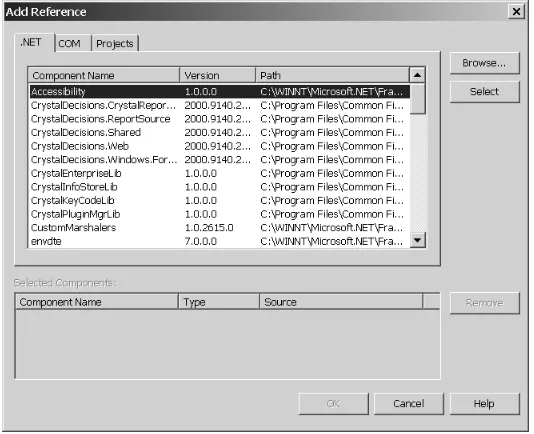
Now right-click on the References branch of the Solution Explorer tree and choose Add Reference. (You can also choose Project|Add Reference.) You will see a dialog box like the one pictured in Figure 2-16. Notice that you can add three types of references: .NET, COM, and Projects.
Figure 2-15. Drilling down in the Solution Explorer
Output Window and Command Window
The Output window (choose View|Other Windows or Ctrl+Alt+O) displays status messages. When you (try to) build a solution (see the section on this later in this chapter) this where you see the results of the compilation process, both good and bad.
The Command window (choose View|Other Windows or Ctrl+Alt+A) is analo-gous to VB6’s Immediate window and remains useful when debugging (more on this later). Unfortunately we think it fair to say that the Command window is much less useful than the Immediate window was in VB6, mostly because it does not supply real IntelliSense, nor does it work at design time. (IntelliSense does work in a very limited way when you use the Command window but only for menus and macros, and not for objects or while debugging.)
However, the Command window has gained the ability to interact with the IDE environment. You can actually issue commands like this:
File.AddNewProject
which brings up the New Project dialog box (although we are not sure why anyone would do this).
[image:42.612.115.382.115.332.2]The Command window has two modes: Command and Immediate. You switch
28
cmd into the window or typing immedinto the window (without the greater-than sign). You can navigate through the Command window using the following keystrokes:
Working with a Solution
Let us return to the simple vb_ide_01 you saw earlie in this chapter. Even for this simple a solution , the folder containing the vb_ide_01 solution (which you can view via Windows Explorer) has quite a few files and folders that were created automatically. Here is a list of everything in our folder; yours should be similar although not identical.
943 AssemblyInfo.vb <DIR> bin 79 Module1.vb <DIR> obj
1,354 vb_ide_01.sln 7,168 vb_ide_01.suo 3,008 vb_ide_01.vbproj 1,643 vb_ide_01.vbproj.user 6 File(s) 14,195 bytes
As you can see, there are two subdirectories named bin and obj that are used for compiled code, plus the four files that make up the solution. The bin directory contains the compiled code. The obj directory contains a subdirectory for debugging code. The Module1.vb file contains the source code. In this case, all you would see if
NAVIGATION MOVEMENT COMMAND
Move through the list of previously entered commands. Up Arrow or Down Arrow
Scroll up the window. Ctrl+ Up Arrow
Scroll down the window. Ctrl+ Down Arrow
you looked at it in a text editor is the following (we will explain how to put mean-ingful code into the file in the next chapter):
Module Module1 Sub Main() End Sub End Module
The vb_ide_01.sln file is the equivalent of the .vbp project file from VB6. It contains all the bookkeeping information needed to compile your solution. For example, this file contains information about all of the projects and files in the solution. It will look something like this when viewed in a text editor:
Microsoft Visual Studio Solution File, Format Version 7.00
Project("{F184B08F-C81C-45F6-A57F-5ABD9991F28F}") = "vb_ide_01", _ "vb_ide_01.vbproj", "{F40E94D3-09CA-4E17-9DEA-7A514E991F93}" EndProject
Project("{F184B08F-C81C-45F6-A57F-5ABD9991F28F}") = "vb_ide_02", _ "..\vb_ide_02\vb_ide_02.vbproj", "{926DC073-167F-49D0-8A30-AF27E27BA2B4}" EndProject
Global
GlobalSection(SolutionConfiguration) = preSolution ConfigName.0 = Debug
ConfigName.1 = Release EndGlobalSection
GlobalSection(ProjectDependencies) = postSolution EndGlobalSection
GlobalSection(ProjectConfiguration) = postSolution
{F40E94D3-09CA-4E17-9DEA-7A514E991F93}.Debug.ActiveCfg = Debug|.NET {F40E94D3-09CA-4E17-9DEA-7A514E991F93}.Debug.Build.0 = Debug|.NET {F40E94D3-09CA-4E17-9DEA-7A514E991F93}.Release.ActiveCfg = Release|.NET {F40E94D3-09CA-4E17-9DEA-7A514E991F93}.Release.Build.0 = Release|.NET {926DC073-167F-49D0-8A30-AF27E27BA2B4}.Debug.ActiveCfg = Debug|.NET {926DC073-167F-49D0-8A30-AF27E27BA2B4}.Debug.Build.0 = Debug|.NET {926DC073-167F-49D0-8A30-AF27E27BA2B4}.Release.ActiveCfg = Release|.NET {926DC073-167F-49D0-8A30-AF27E27BA2B4}.Release.Build.0 = Release|.NET EndGlobalSection
GlobalSection(ExtensibilityGlobals) = postSolution EndGlobalSection
GlobalSection(ExtensibilityAddIns) = postSolution EndGlobalSection
30
The file named vb_ide_01.vbproj, which is actually written in XML, contains information about the project, including descriptions of properties. These can usually be changed by choosing Project|Properties or by right-clicking on the project name in the Solution Explorer.
Here is what a project file looks like in text form. Notice the constant repetition of the keyword Assembly. We explain the other important keywords used here, Imports and Namespaces, in Chapter 4:
<VisualStudioProject> <VisualBasic
ProjectType = "Local" ProductVersion = "7.0.9148" SchemaVersion = "1.0" >
<Build> <Settings
ApplicationIcon = ""
AssemblyKeyContainerName = "" AssemblyName = "vb_ide_01" AssemblyOriginatorKeyFile = "" AssemblyOriginatorKeyMode = "None" DefaultClientScript = "JScript" DefaultHTMLPageLayout = "Grid" DefaultTargetSchema = "IE50" DefaultServerScript = "VBScript" DefaultSessionState = "True" DelaySign = "false"
OutputType = "Exe" OptionCompare = "Binary" OptionExplicit = "On" OptionStrict = "On"
RootNamespace = "vb_ide_01"
StartupObject = "vb_ide_01.Module1"
>
<Config
Name = "Debug" BaseAddress = "0" DefineConstants = "" DefineDebug = "true" DefineTrace = "true" DebugSymbols = "true" Optimize = "false" OutputPath = "bin\"
RemoveIntegerChecks = "false" TreatWarningsAsErrors = "false" WarningLevel = "1"
/> <Config
Name = "Release" BaseAddress = "0" DefineConstants = "" DefineDebug = "false" DefineTrace = "true" DebugSymbols = "false" Optimize = "false" OutputPath = "bin\"
RemoveIntegerChecks = "false" TreatWarningsAsErrors = "false" WarningLevel = "1"
/> </Settings> <References>
<Reference Name = "System" /> <Reference Name = "System.Data" /> <Reference Name = "System.XML" /> </References>
<Imports>
<Import Namespace = "Microsoft.VisualBasic" /> <Import Namespace = "System" />
32
<Files> <Include> <File
RelPath = "AssemblyInfo.vb" BuildAction = "Compile" />
<File
RelPath = "Module1.vb" SubType = "Code" BuildAction = "Compile" />
</Include> </Files> </VisualBasic> </VisualStudioProject>
The file named vb_ide_01.suo is a binary file that contains user settings for the solution, such as current breakpoints and open documents. If you delete the .suo file, you will lose these cached settings, but it will not break the solution. The analogous vbproj.user file is for user settings at the project level, such as how and where to start it, and whether it should be compiled for debugging. Notice how it, too, is written in XML.
<VisualStudioProject> <VisualBasic> <Build> <Settings
OfflineURL = "/vb_ide_01_Offline" ReferencePath = ""
>
<Config
Name = "Debug"
EnableASPDebugging = "false" EnableASPXDebugging = "false" EnableUnmanagedDebugging = "false" EnableSQLServerDebugging = "false" StartAction = "Project"
StartArguments = "" StartPage = "" StartProgram = "" StartURL = ""
<Config
Name = "Release"
EnableASPDebugging = "false" EnableASPXDebugging = "false" EnableUnmanagedDebugging = "false" EnableSQLServerDebugging = "false" StartAction = "Project"
StartArguments = "" StartPage = "" StartProgram = "" StartURL = ""
StartWorkingDirectory = "" StartWithIE = "false" />
</Settings> </Build>
<OtherProjectSettings
CopyProjectDestinationFolder = "" CopyProjectUncPath = ""
CopyProjectOption = "0" ProjectView = "ProjectFiles" />
</VisualBasic> </VisualStudioProject>
Adding Projects to a Solution
34
Suppose you choose Add to Solution and then select Console Application as before. At this point, as you can see in Figure 2-18, a new project named vb_ide_02 is added to our vb_ide_01 solution. So, we have a solution named vb_ide_01, which contains two projects named vb_ide_01 and vb_ide_02, respectively. This is similar to a Project Group in VB6. These multiple projects can interact with each other, and you can use them for testing components; for example, in the IDE.
Compiling
As mentioned in Chapter 1, when you compile .NET code you first get an inter-mediate language called MSIL, which is then compiled into native code. Suppose we want to create an executable from our solution. In this case, we have two
compilation units—our two projects. We can create an executable from either project; each project is capable of being independently compiled. The easiest way
Figure 2-17. Adding to an existing solution
to do this is to right-click on one of the projects in the Solution Explorer window and select Build or Rebuild from the menu. Choosing Build tells the compiler to compile only those parts of the project that have changed since the last build, while Rebuild recompiles all parts of the project. Using Build is often better, because it is faster than Rebuild. (If you choose F5 to run the project, the project gets Built, not Rebuilt.)
Once the project is compiled, you can see how things went during the build process by looking at the Output window. When we compiled the vb_ide_01 project, we got the output shown in Figure 2-19.
As Figure 2-19 shows, our project compiled successfully. What happens if things do not go so well? Figure 2-20 shows a build after a bogus function call.
Note that because of the background compilation feature of VB .NET you would see a squiggly line under the bad line of code. You can get detailed information in the Output window as well as a task-oriented view of the build errors in the Task List window, as shown in Figure 2-21. This is much more detailed than the output from the VB6 compiler.
Figure 2-19. Output of a successful build
36
Multiple Compilations
You will occasionally want to build all or some of the projects in a given solution without having to do individual builds of each part. This is where the Build Solution and Batch Build features of VB .NET come into play. When you select Build|Build Solution, all projects in the solution will be compiled. We do this when we are close to the end of the development process and getting ready to build all of the projects in our solution for deployment (see Chapter 13 for more on Deployment).
The Batch Build option lets you select which projects in the solution you want to build. This cool feature is especially useful when you are working on one or two projects and you do not want to have to wait for a Build Solution compilation, but also do not want to have to build each project by hand. When we used Build Solution on the vb_ide_01 solution, the Output window looked like Figure 2-22.
Figure 2-21. Details of a unsucessful build in the Task List window
TIP If you double-click on any item in the Task List build errors list, you will be taken to the code that caused the error.