PYTHON
FOR KIDS
PYTHON
FOR KIDS
A Pl ayfu l I ntrodu ctio n to Prog r am m i ng
J a s o n R . B r i g g s
Python is a powerful, expressive program-ming language that’s easy to learn and fun to use! But books about learning to program in Python can be kind of dull, gray, and boring, and that’s no fun for anyone.
Python for Kids brings Python to life and brings you (and your parents) into the world of programming. The ever-patient Jason R. Briggs will guide you through the basics as you experi-ment with unique (and often hilarious) example programs that feature ravenous monsters, secret agents, thieving ravens, and more. New terms are defined; code is colored, dissected, and explained; and quirky, full-color illustrations keep things on the lighter side.
Chapters end with programming puzzles designed to stretch your brain and strengthen your understanding. By the end of the book you’ll have programmed two complete games: a clone of the famous Pong and “Mr. Stick Man Races for the Exit”—a platform game with jumps, animation, and much more.
As you strike out on your programming adventure, you’ll learn how to:
M Use fundamental data structures like lists,
tuples, and maps
M Organize and reuse your code with func-tions and modules
M Use control structures like loops and
conditional statements
M Draw shapes and patterns with Python’s
turtle module
M Create games, animations, and other
graphical wonders with tkinter
Why should serious adults have all the fun?
Python for Kids is your ticket into the amaz-ing world of computer programmamaz-ing.
ABOUT THE AUTHOR
Jason R. Briggs has been a programmer since the age of eight, when he first learned BASIC on a Radio Shack TRS-80. He has written software professionally as a developer and systems archi-tect and served as Contributing Editor for Java
Developer’s Journal. His articles have appeared in JavaWorld, ONJava, and ONLamp. Python
for Kids is his first book.
SH EL VE IN : PR OGR AM MI NG L AN GU AGE S/ PY TH ON www.nostarch.com
TH E FI N EST I N G E E K E NTE RTAI N M E NT™
For kids aged 10+ (and their parents)
real prog r am m i ng .
real easy.
REAL Prog r am m i ng .
REAL EASY.
$34.95 ($36.95 CDN)
Illustrations by Miran Lipovaca
Python
for Kids
A Playful Introduction
to Programming
By Jason R. Briggs
PYTHON FOR KIDS. Copyright © 2013 by Jason R. Briggs.
All rights reserved. No part of this work may be reproduced or transmitted in any form or by any means, electronic or mechanical, including photocopying, recording, or by any information storage or retrieval system, without the prior written permission of the copyright owner and the publisher.
First printing
16 15 14 13 12 1 2 3 4 5 6 7 8 9
ISBN-10: 1-59327-407-6 ISBN-13: 978-1-59327-407-8
Publisher: William Pollock Production Editor: Serena Yang
Cover and Interior Design: Octopod Studios Illustrator: Miran Lipovaca
Developmental Editor: William Pollock
Technical Reviewers: Josh Pollock and Maria Fernandez Copyeditor: Marilyn Smith
Compositor: Serena Yang Proofreader: Greg Teague
For information on book distributors or translations, please contact No Starch Press, Inc. directly:
No Starch Press, Inc.
38 Ringold Street, San Francisco, CA 94103
phone: 415.863.9900; fax: 415.863.9950; [email protected]; http://www.nostarch.com/
Library of Congress Cataloging-in-Publication Data
A catalog record of this book is available from the Library of Congress.
No Starch Press and the No Starch Press logo are registered trademarks of No Starch Press, Inc. Other product and company names mentioned herein may be the trademarks of their respective owners. Rather than use a trademark symbol with every occurrence of a trademarked name, we are using the names only in an editorial fashion and to the benefit of the trademark owner, with no intention of infringement of the trademark.
BRIef Contents
About the Author, Illustrator, and Technical Reviewers . . . xv
Acknowledgments . . . xvii
Introduction. . . xix
Part I: Learning to Program
Chapter 1: Not All Snakes Slither . . . 3Chapter 2: Calculations and Variables . . . 15
Chapter 3: Strings, Lists, Tuples, and Maps. . . 25
Chapter 4: Drawing with Turtles. . . 43
Chapter 5: Asking Questions with if and else . . . 53
Chapter 6: Going Loopy . . . 67
Chapter 7: Recycling Your Code with Functions and Modules . . . 81
Chapter 8: How to Use Classes and Objects . . . 93
Chapter 9: Python’s Built-in Functions. . . 109
Chapter 10: Useful Python Modules . . . 129
Chapter 11: More Turtle Graphics. . . 145
Chapter 12: Using tkinter for Better Graphics . . . 163
Part II: Bounce!
Chapter 13: Beginning Your First Game: Bounce! . . . 193Chapter 14: Finishing Your First Game: Bounce! . . . 205
Part III : Mr. stick Man Races for the exit
Chapter 15: Creating Graphics for the Mr. Stick Man Game . . . 221Chapter 16: Developing the Mr. Stick Man Game . . . 233
Chapter 17: Creating Mr. Stick Man . . . 251
Chapter 18: Completing the Mr. Stick Man Game . . . 259
Afterword: Where to Go from Here . . . 285
Appendix: Python Keywords . . . 293
Glossary. . . 307
Contents In DetAIL
About the Author, Illustrator, and
technical Reviewers xv
Acknowledgments xvii
Introduction xix
Why Python? . . . xx
How to Learn to Code . . . xx
Who Should Read This Book . . . xxi
What’s in This Book . . . xxii
The Companion Website. . . xxiii
Have Fun! . . . xxiii
Part I: Learning to Program
1 not All snakes slither 3 A Few Words About Language. . . 4Installing Python . . . 5
Installing Python on Windows 7 . . . 5
Installing Python on Mac OS X . . . 7
Installing Python on Ubuntu . . . 9
Once You’ve Installed Python . . . 10
Saving Your Python Programs. . . 12
What You Learned . . . 13
2 Calculations and Variables 15 Calculating with Python. . . 16
Python Operators . . . 17
The Order of Operations . . . 18
Variables Are Like Labels . . . 19
Using Variables. . . 21
3
strings, Lists, tuples, and Maps 25
Strings . . . 26
Creating Strings . . . 26
Handling Problems with Strings . . . 27
Embedding Values in Strings. . . 30
Multiplying Strings. . . 31
Lists Are More Powerful Than Strings . . . 32
Adding Items to a List . . . 35
Removing Items from a List . . . 35
List Arithmetic . . . 36
Tuples . . . 38
Python Maps Won’t Help You Find Your Way . . . 39
What You Learned . . . 41
Programming Puzzles. . . 41
#1: Favorites . . . 41
#2: Counting Combatants . . . 42
#3: Greetings! . . . 42
4 Drawing with turtles 43 Using Python’s turtle Module . . . 44
Creating a Canvas. . . 44
Moving the Turtle . . . 46
What You Learned . . . 51
Programming Puzzles. . . 51
#1: A Rectangle . . . 51
#2: A Triangle . . . 51
#3: A Box Without Corners. . . 51
5 Asking Questions with if and else 53 if Statements . . . 54
A Block Is a Group of Programming Statements . . . 54
Conditions Help Us Compare Things. . . 57
if-then-else Statements. . . 58
if and elif Statements . . . 59
Combining Conditions . . . 61
Variables with No Value—None . . . 61
The Difference Between Strings and Numbers. . . 62
Contents in Detail ix
Programming Puzzles. . . 65
#1: Are You Rich? . . . 65
#2: Twinkies! . . . 65
#3: Just the Right Number . . . 66
#4: I Can Fight Those Ninjas . . . 66
6 Going Loopy 67 Using for Loops . . . 68
While We’re Talking About Looping... . . 75
What You Learned . . . 78
Programming Puzzles. . . 78
#1: The Hello Loop . . . 78
#2: Even Numbers. . . 79
#3: My Five Favorite Ingredients. . . 79
#4: Your Weight on the Moon . . . 79
7 Recycling Your Code with functions and Modules 81 Using Functions . . . 82
Parts of a Function . . . 83
Variables and Scope . . . 84
Using Modules. . . 87
What You Learned . . . 89
Programming Puzzles. . . 90
#1: Basic Moon Weight Function . . . 90
#2: Moon Weight Function and Years . . . 90
#3: Moon Weight Program . . . 90
8 How to Use Classes and objects 93 Breaking Things into Classes. . . 94
Children and Parents . . . 95
Adding Objects to Classes. . . 96
Defining Functions of Classes . . . 97
Adding Class Characteristics as Functions . . . 97
Why Use Classes and Objects?. . . 99
Objects and Classes in Pictures . . . 100
Other Useful Features of Objects and Classes . . . 102
Inherited Functions . . . 103
Initializing an Object . . . 105
What You Learned . . . 107
Programming Puzzles. . . 107
#1: The Giraffe Shuffle . . . 107
#2: Turtle Pitchfork. . . 108
9 Python’s Built-in functions 109 Using Built-in Functions . . . 110
The abs Function. . . 110
The bool Function . . . 111
The dir Function . . . 113
The eval Function . . . 114
The exec Function . . . 116
The float Function. . . 116
The int Function . . . 117
The len Function . . . 118
The max and min Functions. . . 119
The range Function. . . 121
The sum Function . . . 122
Working with Files . . . 122
Creating a Test File . . . 123
Opening a File in Python . . . 125
Writing to Files . . . 126
What You Learned . . . 127
Programming Puzzles. . . 127
#1: Mystery Code. . . 127
#2: A Hidden Message. . . 128
#3: Copying a File . . . 128
10 Useful Python Modules 129 Making Copies with the copy Module . . . 130
Keeping Track of Keywords with the keyword Module . . . 133
Getting Random Numbers with the random Module . . . 133
Using randint to Pick a Random Number . . . 134
Using choice to Pick a Random Item from a List . . . 135
Using shuffle to Shuffle a List . . . 136
Controlling the Shell with the sys Module . . . 136
Exiting the Shell with the exit function. . . 136
Reading with the stdin Object . . . 137
Writing with the stdout Object. . . 138
Contents in Detail xi
Doing Time with the time Module . . . 138
Converting a Date with asctime. . . 140
Getting the Date and Time with localtime . . . 140
Taking Some Time Off with sleep . . . 141
Using the pickle Module to Save Information . . . 142
What You Learned . . . 144
Programming Puzzles. . . 144
#1: Copied Cars . . . 144
#2: Pickled Favorites. . . 144
11 More turtle Graphics 145 Starting with the Basic Square . . . 146
Drawing Stars . . . 147
Drawing a Car. . . 151
Coloring Things In . . . 152
A Function to Draw a Filled Circle . . . 153
Creating Pure Black and White . . . 155
A Square-Drawing Function . . . 155
Drawing Filled Squares . . . 157
Drawing Filled Stars . . . 158
What You Learned . . . 160
Programming Puzzles. . . 160
#1: Drawing an Octagon . . . 160
#2: Drawing a Filled Octagon. . . 161
#3: Another Star-Drawing Function . . . 161
12 Using tkinter for Better Graphics 163 Creating a Clickable Button. . . 165
Using Named Parameters . . . 167
Creating a Canvas for Drawing . . . 167
Drawing Lines. . . 168
Drawing Boxes . . . 170
Drawing a Lot of Rectangles. . . 172
Setting the Color . . . 174
Drawing Arcs. . . 177
Drawing Polygons . . . 179
Displaying Text . . . 180
Displaying Images . . . 181
Creating Basic Animation . . . 183
Making an Object React to Something . . . 186
What You Learned . . . 190
Programming Puzzles. . . 190
#1: Fill the Screen with Triangles . . . 190
#2: The Moving Triangle. . . 190
#3: The Moving Photo . . . 190
Part II : Bounce!
13 Beginning Your first Game: Bounce! 193 Whack the Bouncing Ball . . . 194Creating the Game Canvas . . . 194
Creating the Ball Class. . . 196
Adding Some Action . . . 198
Making the Ball Move. . . 198
Making the Ball Bounce . . . 200
Changing the Ball’s Starting Direction . . . 202
What You Learned . . . 204
14 finishing Your first Game: Bounce! 205 Adding the Paddle. . . 206
Making the Paddle Move . . . 207
Finding Out When the Ball Hits the Paddle . . . 209
Adding an Element of Chance . . . 212
What You Learned . . . 216
Programming Puzzles. . . 216
#1: Delay the Game Start . . . 217
#2: A Proper “Game Over” . . . 217
#3: Accelerate the Ball . . . 217
#4: Record the Player’s Score . . . 217
Part III: Mr. stick Man Races for the exit
15 Creating Graphics for the Mr. stick Man Game 221 Mr. Stick Man Game Plan . . . 222Contents in Detail xiii
Creating the Game Elements. . . 224
Preparing a Transparent Image. . . 224
Drawing Mr. Stick Man . . . 225
Drawing the Platforms . . . 227
Drawing the Door . . . 228
Drawing the Background . . . 229
Transparency. . . 230
What You Learned . . . 231
16 Developing the Mr. stick Man Game 233 Creating the Game Class . . . 234
Setting the Window Title and Creating the Canvas . . . 234
Finishing the __init__ Function . . . 235
Creating the mainloop Function . . . 236
Creating the Coords Class . . . 238
Checking for Collisions . . . 239
Sprites Colliding Horizontally . . . 239
Sprites Colliding Vertically . . . 241
Putting It All Together: Our Final Collision-Detection Code. . . 242
Creating the Sprite Class . . . 244
Adding the Platforms . . . 245
Adding a Platform Object . . . 246
Adding a Bunch of Platforms . . . 247
What You Learned . . . 249
Programming Puzzles. . . 249
#1: Checkerboard. . . 249
#2: Two-Image Checkerboard. . . 250
#3: Bookshelf and Lamp . . . 250
17 Creating Mr. stick Man 251 Initializing the Stick Figure. . . 252
Loading the Stick Figure Images . . . 252
Setting Up Variables. . . 253
Binding to Keys . . . 255
Turning the Stick Figure Left and Right. . . 255
Making the Stick Figure Jump . . . 256
What We Have So Far . . . 257
18
Completing the Mr. stick Man Game 259
Animating the Stick Figure . . . 260
Creating the Animate Function . . . 260
Getting the Stick Figure’s Position . . . 263
Making the Stick Figure Move . . . 265
Testing Our Stick Figure Sprite. . . 273
The Door! . . . 273
Creating the DoorSprite Class . . . 274
Detecting the Door . . . 275
Adding the Door Object. . . 275
The Final Game . . . 276
What You Learned . . . 282
Programming Puzzles. . . 283
#1: “You Win!” . . . 283
#2: Animating the Door. . . 283
#3: Moving Platforms . . . 283
Afterword Where to Go from Here 285 Games and Graphics Programming. . . 286
PyGame . . . 286
Programming Languages . . . 288
Java . . . 288
C/C++ . . . 288
C# . . . 289
PHP . . . 289
Objective-C . . . 290
Perl. . . 290
Ruby . . . 290
JavaScript . . . 291
Final Words . . . 291
Appendix
Python Keywords 293
Glossary 307
About the Author
Jason R. Briggs has been a programmer since the age of eight, when he first learned BASIC on a Radio Shack TRS-80. He has written software professionally as a developer and systems architect and served as Contributing Editor for Java Developer’s Journal. His articles have appeared in JavaWorld, ONJava, and
ONLamp. Python for Kids is his first book.
Jason can be reached at http://jasonrbriggs.com/ or by email at [email protected].
About the Illustrator
Miran Lipovaca is the author of Learn You a Haskell for Great Good!. He enjoys boxing, playing bass guitar, and, of course, drawing. He has a fascination with dancing skeletons and the number 71, and when he walks through automatic doors he pre-tends that he’s actually opening them with his mind.
About the technical Reviewers
A recent graduate of The Nueva School, 15-year-old Josh Pollock is a freshman at Lick-Wilmerding High School in San Francisco. He first started programming in Scratch when he was 9 years old, began using TI-BASIC when he was in 6th grade, and moved on to Java and Python in 7th and UnityScript in 8th. In addition to programming, he loves playing the trumpet, developing computer games, and teaching people about interesting STEM topics.
Acknowledgments
This must be what it’s like when you get up on stage to accept an award, only to realize you’ve left the list of people you have to thank in your other trousers: You’re guaranteed to forget someone, and that music will soon start rolling to quickly usher you off the stage.
So that being said, here’s the (no doubt) incomplete list of people to whom I owe a huge debt of gratitude for helping make this book as good as I think it now is.
Thanks to the No Starch team, particularly Bill Pollock, for applying a liberal dose of “what-would-a-kid-think” while editing it. When you’ve been programming for a long time, it’s all too easy to forget how difficult some of this stuff is for learners, and Bill was invaluable at pointing out those oft-overlooked, over-complicated parts. And thanks to Serena Yang, production manager extra-ordinaire; here’s hoping you haven’t torn out too much hair getting 300+ pages of code correctly colorized.
A big thank you must go to Miran Lipovaca for utterly bril-liant illustrations. Beyond brilbril-liant. No really! If I had done the artwork, we’d be lucky to have the occasional smudged figure that doesn’t resemble anything in particular. Is it a bear . . . ? Is it a dog . . . ? No, wait . . . is that supposed to be a tree?
Thanks to the reviewers. I apologize if some of your sugges-tions weren’t implemented in the end. You were probably right, and I can only blame a personal character flaw for any probable goofs. Particular thanks to Josh for some great suggestions and some really good catches. And apologies to Maria for having to deal with occasionally dodgily formatted code.
Thanks to my wife and daughter, for putting up with a hus-band and father who had his nose buried in a computer screen even more than usual.
To Mum, for endless amounts of encouragement over the years. Finally, thanks to my father, for buying a computer back in the 1970s and putting up with someone who wanted to use it as much as he did. None of this would have been possible without him.
IntRoDUCtIon
Why learn computer programming?
challenging (and occasionally frustrating) activity, and the skills learned from it can be useful both in school and at work . . . even if your career has nothing to do with computers.
And, if nothing else, programming is a great way to spend an afternoon when the weather outside is dreary.
Why Python?
Python is an easy-to-learn programming language that has some really useful features for a beginning programmer. The code is quite easy to read when compared to other programming languages, and it has an interactive shell into which you can enter your programs and see them run. In addition to its simple language structure and an interactive shell with which to experiment, Python has some features that greatly augment the learning process and allow you to put together simple animations for creating your own games. One is the turtle module, inspired by Turtle graphics (used by the
Logo programming language back in the 1960s) and designed for educational use. Another is the tkinter module, an interface for the
Tk GUI toolkit, which provides a simple way to create programs with slightly more advanced graphics and animation.
How to Learn to Code
Like anything you try for the first time, it’s always best to start with the basics, so begin with the first chapters and resist the urge to skip ahead to the later chapters. No one can play an orchestral symphony the first time they pick up an instrument. Student pilots don’t start flying a plane before they understand the basic controls. Gymnasts aren’t (usually) able to do back flips on their first try. If you jump ahead too quickly, not only will the basic ideas not stick in your head, but you’ll also find the content of the later chapters more complicated than it actually is.
Introduction xxi
When you find something frustrating or too challenging, here are some things that I find helpful:
1. Break a problem down into smaller pieces. Try to understand what a small piece of code is doing, or think about only a small part of a difficult idea (focus on a small piece of code rather than trying to understand the whole thing at once).
2. If that still doesn’t help, sometimes it’s best to just leave it alone for a while. Sleep on it, and come back to it another day. This is a good way to solve many problems, and it can be par-ticularly helpful for computer programmers.
Who should Read this Book
This book is for anyone interested in computer programming, whether that’s a child or an adult coming to programming for the first time. If you want to learn how to write your own software rather than just use the programs developed by others, Python for Kids is a great place to start.
In the following chapters, you’ll find information to help you install Python, start the Python shell and perform basic calcula-tions, print text on the screen and create lists, and perform simple control flow operations using if statements and for loops (and
learn what if statements and for loops are!). You’ll learn how to
reuse code with functions, the basics of classes and objects, and descriptions of some of the many built-in Python functions and modules.
You’ll find chapters on both simple and advanced turtle graph-ics, as well as on using the tkinter module to draw on the computer
screen. There are programming puzzles of varying complexity at the ends of many chapters, which will help readers cement their newfound knowledge by giving them a chance to write small pro-grams by themselves.
Once you’ve built up your fundamental programming knowl-edge, you’ll learn how to write your own games. You’ll develop two graphical games and learn about collision detection, events, and different animation techniques.
would use in other applications), and an editor window where you can save your code for later use, which means IDLE works as both an interactive environment for experimentation and something a bit like a text editor. The examples will work just as well with the standard console and a regular text editor, but IDLE’s syntax highlighting and slightly more user-friendly environment can aid understanding, so the very first chapter shows you how to set it up.
What’s in this Book
Here’s a brief rundown of what you’ll find in each chapter.
Chapter 1 is an introduction to programming with instruc-tions for installing Python for the first time.
Chapter 2 introduces basic calculations and variables, and
Chapter 3 describes some of the basic Python types, such as strings, lists, and tuples.
Chapter 4 is the first taste of the turtle module. We’ll jump
from basic programming to moving a turtle (in the shape of an arrow) around the screen.
Chapter 5 covers the variations of conditions and if
state-ments, and Chapter 6 moves on to for loops and while loops.
Chapter 7 is where we start to use and create functions, and then in Chapter 8 we cover classes and objects. We cover enough of the basic ideas to support some of the programming techniques we’ll need in the games development chapters later on in the book. At this point, the material starts get a little more complicated.
Chapter 9 goes through most of the built-in functions in Python, and Chapter 10 continues with a few modules (basically buckets of useful functionality) that are installed by default with Python.
Chapter 11 returns to the turtle module as the reader
experi-ments with more complicated shapes. Chapter 12 moves on to using the tkinter module for more advanced graphics creation.
Introduction xxiii
In the Afterword, we wrap up with a look at PyGame and some other popular programming languages.
Finally, in the Appendix, you’ll learn about Python’s key-words in detail, and in the Glossary, you’ll find definitions of the programming terms used throughout this book.
the Companion Website
If you find that you need help as you read, try the companion site,
http://python-for-kids.com/, where you’ll find downloads for all the examples in this book and more programming puzzles. You’ll also find solutions to all the programming puzzles in the book on the companion site, in case you get stumped or want to check your work.
Have fun!
Remember as you work your way through this book that pro-gramming can be fun. Don’t think of this as work. Think of programming as a way to create some fun games or applications that you can share with your friends or others.
Part I
1
not ALL snAKes sLItHeR
A computer program is a set of instructions that causes
a computer to perform some kind of action. It isn’t the
physical parts of a computer—like the wires,
micro-chips, cards, hard drive, and such—but the hidden
stuff running on that hardware. A computer program,
which I’ll usually refer to as just a
program
, is the set
of commands that tell that dumb hardware what to do.
Without computer programs, almost every device you use daily would either stop working or be much less useful than it is now. Computer programs, in one form or another, control not only your personal computer but also video game systems, cell phones, and the GPS units in cars. Software also controls less obvious items like LCD TVs and their remote controllers, as well as some of the newest radios, DVD players, ovens, and some fridges. Even car engines, traffic lights, street lamps, train signals, electronic bill-boards, and elevators are controlled by programs.
Programs are a bit like thoughts. If you didn’t have thoughts, you would probably just sit on the floor, staring vacantly and drool-ing down the front of your shirt. Your thought “get up off the floor” is an instruction, or command, that tells your body to stand up. In the same way, computer programs tell computers what to do.
If you know how to write computer programs, you can do all sorts of useful things. Sure, you may not be able to write programs to control cars, traffic lights, or your fridge (well, at least not at first), but you could create web pages, write your own games, or even make a program to help with your homework.
A few Words About Language
Like humans, computers use multiple languages to communicate— in this case, programming languages. A program ming language
is simply a particular way to talk to a computer—a way to use instructions that both humans and the computer can understand.
There are programming languages named after people (like Ada and Pascal), those named using simple acronyms (like BASIC and FORTRAN), and even a few named after TV shows, like Python. Yes, the Python programming language was named after the Monty Python’s Flying Circus TV show, not after python the snake.
Not All Snakes Slither 5
A number of things about the Python programming language make it extremely useful for beginners. Most importantly, you can use Python to write simple, efficient programs really quickly. Python doesn’t have a lot of complicated symbols, like braces ({}),
hashes (#), and dollar signs ($), which make other programming
languages a lot more difficult to read and, therefore, a lot less friendly to beginners.
Installing Python
Installing Python is fairly straightforward. Here, we’ll go over the steps for installing it on Windows 7, Mac OS X, and Ubuntu. When installing Python, you’ll also set up a shortcut for the IDLE program, which is the Integrated DeveLopment Environment that lets you write programs for Python. If Python has already been installed on your computer, jump ahead to “Once You’ve Installed Python” on page 10.
Installing Python on Windows 7
To install Python for Microsoft Windows 7, point a web browser to
http://www.python.org/ and download the latest Windows installer for Python 3. Look for a section in the menu titled Quick Links, as shown here:
After you download the Windows installer, double-click its icon, and then follow the instructions to install Python in the default location, as follows:
1. Select Install for All Users, and then click Next.
2. Leave the default directory unchanged, but note the name of the installation directory (probably C:\Python31 or C:\ Python32). Click Next.
3. Ignore the Customize Python section of the installation, and click Next.
At the end of this process, you should have a Python 3 entry in your Start menu:
Next, follow these steps to add a Python 3 shortcut to your desktop:
1. Right-click your desktop, and select New4Shortcut from the
pop-up menu.
2. Enter the following in the box where it says Type the location of the item (make sure that the directory you enter is the same as the one you noted earlier):
Not All Snakes Slither 7
Your dialog should look like this:
3. Click Next to move to the next dialog.
4. Enter the name as IDLE, and click Finish to create the shortcut.
Now you can skip to “Once You’ve Installed Python” on page 10 to get started with Python.
Installing Python on Mac os X
If you’re using a Mac, you should find a version of Python pre-installed, but it’s probably an older version of the language. To be sure that you’re running the newest version, point your browser to
http://www.python.org/getit/ to download the latest installer for the Mac.
There are two different installers. The one you should down-load depends on which version of Mac OS X you have installed. (To find out, click the Apple icon in the top menu bar, and choose
About this Mac.) Pick an installer as follows:
•
If you’re running a Mac OS X version between 10.3 and 10.6, download the 32-bit version of Python 3 for i386/PPC.Once the file has downloaded (it will have the filename exten-sion .dmg), double-click it. You’ll see a window showing the file’s contents.
In this window, double-click Python.mpkg, and then follow the instructions to install the software. You’ll be prompted for the admin-istrator password for your Mac before Python installs. (Don’t have the administrator password? Your parent may need to enter it.)
Next, you need to add a script to the desktop for launching Python’s IDLE application, as follows:
1. Click the Spotlight icon, the small magnifying glass at the top-right corner of the screen.
2. In the box that appears, enter Automator.
3. Click the application that looks like a robot when it appears in the menu. It will either be in the section labeled Top Hit or in Applications.
Not All Snakes Slither 9
5. Click Choose to continue.
6. In the list of actions, find Run Shell Script, and drag it to the empty panel on the right. You’ll see something like this:
7. In the text box, you’ll see the word cat. Select the word and replace it with the following text (everything from open to -n):
open -a "/Applications/Python 3.2/IDLE.app" --args -n
You may need to change the directory depending on the version of Python you installed.
8. Select File4Save, and enter IDLE as the name.
9. Select Desktop from the Where dialog, and then click Save. Now you can skip to “Once You’ve Installed Python” on page 10 to get started with Python.
Installing Python on Ubuntu
Python comes preinstalled on the Ubuntu Linux distribution, but it may be an older version. Follow these steps to install Python 3 on Ubuntu 12.x:
1. Click the button for the Ubuntu Software Center in the Side-bar (it’s the icon that looks like an orange bag—if you don’t see it, you can always click the Dash Home icon and enter
Software in the dialog).
3. In the list of software presented, select the latest version of IDLE, which is IDLE (using Python 3.2) in this example:
4. Click Install.
5. Enter your administrator password to install the software, and then click Authenticate. (Don’t have the administrator pass-word? Your parent may need to enter it.)
n ote On some versions of Ubuntu you might only see Python (v3.2) in the main menu (rather than IDLE)—you can install this instead.
Now that you’ve got the latest version of Python installed, let’s give it a try.
once You’ve Installed Python
You should now have an icon on your Windows or Mac OS X desktop labeled
IDLE. If you’re using Ubuntu, in the
Applications menu, you should see a new group named Programming
Not All Snakes Slither 11
Double-click the icon or choose the menu option, and you should see this window:
This is the Python shell, which is part of Python’s integrated development environment. The three greater-than signs (>>>) are
called the prompt.
Let’s enter some commands at the prompt, beginning with the following:
>>> print("Hello World")
Make sure to include the double quotes (""). Press enter on
your keyboard when you’re finished typing the line. If you’ve entered the command correctly, you should see something like this:
>>> print("Hello World")
Hello World
>>>
The prompt should reappear to let you know that the Python shell is ready to accept more commands.
Congratulations! You’ve just created your first Python program. The word
print is a type of Python command called
saving Your Python Programs
Python programs wouldn’t be very useful if you needed to rewrite them every time you wanted to use them, never mind print them out so you could reference them. Sure, it might be fine to just rewrite short programs, but a large program, like a word proces-sor, could contain millions of lines of code. Print that all out, and you could have well over 100,000 pages. Just imagine trying to carry that huge stack of paper home. Better hope that you won’t meet up with a big gust of wind.
Luckily, we can save our programs for future use. To save a new program, open IDLE and choose File4New Window. An
empty window will appear, with *Untitled* in the menu bar. Enter the following code into the new shell window:
print("Hello World")
Now, choose File4Save. When prompted for a filename, enter hello.py, and save the file to your desktop. Then choose Run4Run Module. With any luck, your saved program should run, like this:
Not All Snakes Slither 13
After running the code, you’ll find a new icon on your desktop labeled hello.py. If you double-click the icon, a black window will appear briefly and then vanish. What happened?
You’re seeing the Python command-line console (similar to the shell) starting up, printing “Hello World,” and then exiting. Here’s what would appear if you had superhero-like speed vision and could see the window before it closed:
In addition to the menus, you can also use keyboard shortcuts to create a new shell window, save a file, and run a program:
•
On Windows and Ubuntu, use ctrl-N to create a new shellwindow, use ctrl-S to save your file after you’ve finished
edit-ing, and press F5 to run your program.
•
On Mac OS X, use z-N to create a new shell window, use z-S to save your file, and hold down the function (fn) key and pressF5 to run your program.
What You Learned
2
CALCULAtIons AnD
VARIABLes
Calculating with Python
Normally, when asked to find the product of two numbers like 8 × 3.57, you would use a calculator or a pencil and paper. Well, how about using the Python shell to perform your calculation? Let’s try it.
Start the Python shell by double-clicking the IDLE icon on your desktop or, if you’re using Ubuntu, by clicking the IDLE icon in the Applications menu. At the prompt, enter this equation:
>>> 8 * 3.57
28.56
Notice that when entering a multiplication calculation in Python, you use the asterisk symbol (*) instead of a multiplication sign (×).
How about if we try an equation that’s a bit more useful? Suppose you are digging in your backyard and uncover a bag of 20 gold coins. The next day, you sneak down to the basement and stick the coins inside your grandfather’s steam-powered repli-cating invention (luckily, you can just fit the 20 coins inside). You hear a whiz and a pop and, a few hours later, out shoot another 10 gleaming coins.
How many coins would you have in your treasure chest if you did this every day for a year? On paper, the equations might look like this:
10 × 365 = 3650 20 + 3650 = 3670
Sure, it’s easy enough to do these calculations on a calculator or on paper, but we can do all of these calculations with the Python shell as well. First, we multiply 10 coins by 365 days in a year to get 3650. Next, we add the original 20 coins to get 3670.
>>> 10 * 365
3650
>>> 20 + 3650
3670
Calculations and Variables 17
How many coins would you have left at the end of the year? Here’s how this calculation looks in the shell:
>>> 3 * 52
156
>>> 3670 - 156
3514
First, we multiply 3 coins by 52 weeks in the year. The result is 156. We subtract that number from our total coins (3670), which tells us that we would have 3514 coins remaining at the end of the year.
This is a very simple program. In this book, you’ll learn how to expand on these ideas to write programs that are even more useful.
Python operators
[image:43.504.118.285.360.438.2] [image:43.504.353.467.448.611.2]You can do multiplication, addition, subtraction, and division in the Python shell, among other mathematical operations that we won’t go into right now. The basic symbols used by Python to per-form mathematical operations are called operators, as listed in Table 2-1.
Table 2-1: Basic Python Operators
Symbol Operation
+ Addition - Subtraction * Multiplication / Division
The forward slash (/) is used for
divi-sion because it’s similar to the dividivi-sion line that you would use when writing a frac-tion. For example, if you had 100 pirates and 20 large barrels and you wanted to calculate how many pirates you could hide in each barrel, you could divide 100 pirates by 20 barrels (100 ÷ 20) by entering 100 / 20 in the Python shell.
the order of operations
We use parentheses in a programming language to control the order of operations. An operation is anything that uses an operator. Multiplication and division have a higher order than addition and subtraction, which means that they’re performed first. In other words, if you enter an equation in Python, multiplication or divi-sion is performed before addition or subtraction.
For example, in the following equation, the numbers 30 and 20 are multiplied first, and the number 5 is added to their product.
>>> 5 + 30 * 20
605
This equation is another way of saying, “multiply 30 by 20, and then add 5 to the result.” The result is 605. We can change the order of operations by adding parentheses around the first two numbers, like so:
>>> (5 + 30) * 20
700
The result of this equation is 700 (not 605) because the parenthe-ses tell Python to do the operation in the parentheses first, and then do the operation outside the paren-theses. This example is saying “add 5 to 30, and then multiply the result by 20.”
Parentheses can be nested, which means that there can be parentheses inside parentheses, like this:
>>> ((5 + 30) * 20) / 10
70.0
Calculations and Variables 19
In other words, this equation is saying, “add 5 to 30, then multiply the result by 20, and divide that result by 10.” Here’s what happens:
•
Adding 5 to 30 gives 35.•
Multiplying 35 by 20 gives 700.•
Dividing 700 by 10 gives the final answer of 70.If we had not used parentheses, the result would be slightly different:
>>> 5 + 30 * 20 / 10
65.0
In this case, 30 is first multiplied by 20 (giving 600), and then 600 is divided by 10 (giving 60). Finally, 5 is added to get the result of 65.
WARnInG Remember that multiplication and division always go before addition and subtraction, unless parentheses are used to control the order of operations.
Variables Are Like Labels
The word variable in programming describes a place to store infor-mation such as numbers, text, lists of numbers and text, and so on. Another way of looking at a variable is that it’s like a label for something.
For example, to create a variable named fred, we use an equal
sign (=) and then tell Python what information the variable should
be the label for. Here, we create the variable fred and tell Python
that it labels the number 100 (note that this doesn’t mean that another variable can’t have the same value):
>>> fred = 100
To find out what value a variable labels, enter print in the
shell, followed by the variable name in parentheses, like this:
>>> print(fred)
We can also tell Python to change the variable fred so that it
labels something else. For example, here’s how to change fred to
the number 200:
>>> fred = 200
>>> print(fred)
200
On the first line, we say that fred labels the number 200. In
the second line, we ask what fred is labeling, just to confirm the
change. Python prints the result on the last line.
We can also use more than one label (more than one variable) for the same item:
>>> fred = 200
>>> john = fred
>>> print(john)
200
In this example, we’re telling Python that we want the name (or variable) john to label the same thing as fred by using the equal
sign between john and fred.
Of course, fred probably isn’t a very useful name for a variable
because it most likely doesn’t tell us anything about what the vari-able is used for. Let’s call our varivari-able number_of_coins instead of fred, like this:
>>> number_of_coins = 200
>>> print(number_of_coins)
200
This makes it clear that we’re talking about 200 coins. Variable names can be made up of letters, numbers, and the underscore character (_ ), but they can’t start with a number. You
can use anything from single letters (such as a) to long sentences
for variable names. (A variable can’t contain a space, so use an underscore to separate words.) Sometimes, if you’re doing some-thing quick, a short variable name is best. The name you choose should depend on how meaningful you need the variable name to be.
Calculations and Variables 21
Using Variables
Remember our equation for figuring out how many coins you would have at the end of the year if you could magically create new coins with your grandfather’s crazy invention in the basement? We have this equation:
>>> 20 + 10 * 365
3670
>>> 3 * 52
156
>>> 3670 - 156
3514
We can turn this into a single line of code:
>>> 20 + 10 * 365 – 3 * 52
3514
Now, what if we turn the numbers into variables? Try entering the following:
>>> found_coins = 20
>>> magic_coins = 10
>>> stolen_coins = 3
These entries create the variables found_coins, magic_coins, and
stolen_coins.
Now, we can reenter the equation like this:
>>> found_coins + magic_coins * 365 - stolen_coins * 52
3514
instead of three? When we use a variable, we can simply change the variable to hold that new number, and it will change every-where it is used in the equation. We can change the stolen_coins
variable to 2 by entering this:
>>> stolen_coins = 2
We can then copy and paste the equation to calculate the answer again, like so:
1. Select the text to copy by clicking with the mouse and drag-ging from the beginning to the end of the line, as shown here:
2. Hold down the ctrl key (or, if you’re using a Mac, the z key) and press C to copy the selected text. (You’ll see this as ctrl-C
from now on.)
3. Click the last prompt line (after stolen_coins = 2).
4. Hold down the ctrl key and press V to paste the selected text.
(You’ll see this as ctrl-V from now on.)
Calculations and Variables 23
Isn’t that a lot easier than retyping the whole equation? It sure is.
You can try changing the other variables, and then copy (ctrl-C) and paste (ctrl-V) the calculation to see the effect of
your changes. For example, if you bang the sides of your grand-father’s invention at the right moment, and it spits out an extra 3 coins each time, you’ll find that you end up with 4661 coins at the end of the year:
>>> magic_coins = 13
>>> found_coins + magic_coins * 365 - stolen_coins * 52
4661
Of course, using variables for a simple equation like this one is still only slightly useful. We haven’t gotten to really useful yet. For now, just remember that variables are a way of labeling things so that you can use them later.
What You Learned
3
stRInGs, LIsts,
tUPLes, AnD MAPs
strings
In programming terms, we usually call text a string. When you think of a string as a collection of letters, the term makes sense. All the letters, numbers, and symbols in this book could be a string. For that matter, your name could be a string, and so could your address. In fact, the first Python
pro-gram we created in Chapter 1 used a string: “Hello World.”
Creating strings
In Python, we create a string by put-ting quotes around text. For example, we could take our other wise useless
fred variable from Chapter 2 and use it
to label a string, like this:
fred = "Why do gorillas have big nostrils? Big fingers!!"
Then, to see what’s inside fred, we could enter print(fred),
like this:
>>> print(fred)
Why do gorillas have big nostrils? Big fingers!!
You can also use single quotes to create a string, like this:
>>> fred = 'What is pink and fluffy? Pink fluff!!'
>>> print(fred)
What is pink and fluffy? Pink fluff!!
However, if you try to enter more than one line of text for your string using only a single quote (') or double quote (") or if you
start with one type of quote and try to finish with another, you’ll get an error message in the Python shell. For example, enter the following line:
>>> fred = "How do dinosaurs pay their bills?
You’ll see this result:
Strings, Lists, Tuples, and Maps 27
This is an error message complaining about syntax because you did not follow the rules for ending a string with a single or double quote.
Syntax means the arrangement and order of words in a sen-tence or, in this case, the arrangement and order of words and symbols in a program. So SyntaxError means that you did
some-thing in an order Python was not expecting, or Python was expecting something that you missed. EOL means end-of-line, so the rest of the error message is telling you that Python hit the end of the line and did not find a double quote to close the string.
To use more than one line of text in your string (called a
multiline string), use three single quotes ('''), and then hit enter
between lines, like this:
>>> fred = '''How do dinosaurs pay their bills? With tyrannosaurus checks!'''
Now let’s print out the contents of fred to see if this worked:
>>> print(fred)
How do dinosaurs pay their bills? With tyrannosaurus checks!
Handling Problems with strings
Now consider this crazy example of a string, which causes Python to display an error message:
>>> silly_string = 'He said, "Aren't can't shouldn't wouldn't."'
SyntaxError: invalid syntax
In the first line, we try to create a string (defined as the vari-able silly_string) enclosed by single quotes, but also containing a
mixture of single quotes in the words can't, shouldn't, and wouldn't,
as well as double quotes. What a mess!
Remember that Python itself is not as smart as a human being, so all it sees is a string containing He said, "Aren, followed
before He, and the end of the string, as far as Python is concerned,
is the single quote after the n in Aren. IDLE highlights the point
where things have gone wrong:
The last line of IDLE tells us what sort of error occurred—in this case, a syntax error.
Using double instead of single quotes still produces an error:
>>> silly_string = "He said, "Aren't can't shouldn't wouldn't.""
SyntaxError: invalid syntax
Here, Python sees a string bounded by double quotes, contain-ing the letters He said, (and a space). Everything following that
string (from Aren't on) causes the error:
Strings, Lists, Tuples, and Maps 29
The solution to this prob-lem is a multiline string, which we learned about earlier, using
three single quotes ('''), which
allows us to combine double and single quotes in our string with-out causing errors. In fact, if we use three single quotes, we can put any combination of single and double quotes inside the string (as long as we don’t try to put three single quotes there). This is what the error-free ver-sion of our string looks like:
silly_string = '''He said, "Aren't can't shouldn't wouldn't."'''
But wait, there’s more. If you really want to use single or dou-ble quotes to surround a string in Python, instead of three single quotes, you can add a backslash (\) before each quotation mark
within the string. This is called escaping. It’s a way of saying to Python, “Yes, I know I have quotes inside my string, and I want you to ignore them until you see the end quote.”
Escaping strings can make them harder to read, so it’s prob-ably better to use multiline strings. Still, you might come across snippets of code that use escaping, so it’s good to know why the backslashes are there.
Here are a few examples of how escaping works:
u >>> single_quote_str = 'He said, "Aren\'t can\'t shouldn\'t wouldn\'t."'
v >>> double_quote_str = "He said, \"Aren't can't shouldn't wouldn't.\""
>>> print(single_quote_str)
He said, "Aren't can't shouldn't wouldn't."
>>> print(double_quote_str)
He said, "Aren't can't shouldn't wouldn't."
First, at u, we create a string with single quotes, using the
backslash in front of the single quotes inside that string. At v, we
embedding Values in strings
If you want to display a message using the contents of a vari-able, you can embed values in a string using %s, which is like a
marker for a value that you want to add later. (Embedding values
is programmer-speak for “inserting values.”) For example, to have Python calculate or store the number of points you scored in a game, and then add it to a sentence like “I scored points,” use
%s in the sentence in place of the value, and then tell Python that
value, like this:
>>> myscore = 1000
>>> message = 'I scored %s points'
>>> print(message % myscore)
I scored 1000 points
Here, we create the variable myscore with the value 1000 and the
variable message with a string that contains the words “I scored %s
points,” where %s is a placeholder for the number of points. On the
next line, we call print(message) with the % symbol to tell Python to
replace %s with the value stored in the variable myscore. The result
of printing this message is I scored 1000 points. We don’t need to
use a variable for the value. We could do the same example and just use print(message % 1000).
We can also pass in different values for the %s placeholder,
using different variables, as in this example:
>>> joke_text = '%s: a device for finding furniture in the dark'
>>> bodypart1 = 'Knee'
>>> bodypart2 = 'Shin'
>>> print(joke_text % bodypart1)
Knee: a device for finding furniture in the dark
>>> print(joke_text % bodypart2)
Shin: a device for finding furniture in the dark
Here, we create three variables. The first,
joke_text, includes the string with the %s marker.
The other variables are bodypart1 and bodypart2.
We can print the variable joke_text, and once
again use the % operator to replace it with the
contents of the variables bodypart1 and bodypart2
Strings, Lists, Tuples, and Maps 31
You can also use more than one placeholder in a string, like this:
>>> nums = 'What did the number %s say to the number %s? Nice belt!!'
>>> print(nums % (0, 8))
What did the number 0 say to the number 8? Nice belt!!
When using more than one placeholder, be sure to wrap the replacement values in parentheses, as shown in the example. The order of the values is the order in which they’ll be used in the string.
Multiplying strings
What is 10 multiplied by 5? The answer is 50, of course. But what’s 10 multiplied by a? Here’s Python’s answer:
>>> print(10 * 'a')
aaaaaaaaaa
Python programmers might use this approach to line up strings with a specific number of spaces when displaying messages in the shell, for example. How about printing a letter in the shell (select
File4New Window, and enter the following code):
spaces = ' ' * 25
print('%s 12 Butts Wynd' % spaces) print('%s Twinklebottom Heath' % spaces) print('%s West Snoring' % spaces)
print() print()
print('Dear Sir') print()
print('I wish to report that tiles are missing from the') print('outside toilet roof.')
print('I think it was bad wind the other night that blew them away.') print()
print('Regards')
print('Malcolm Dithering')
Once you’ve typed the code into the shell window, select
n ote From now on, when you see Save As: somefilename.py above a chunk of code, you’ll know you need to select File4New Window, enter the
code into the window that appears, and then save it as we did in this example.
In the first line of this example, we create the variable spaces
by multiplying a space character by 25. We then use that variable in the next three lines to align the text to the right of the shell. You can see the result of these print statements below:
In addition to using multiplication for alignment, we can also use it to fill the screen with annoying messages. Try this example for yourself:
>>> print(1000 * 'snirt')
Lists Are More Powerful
than strings
Strings, Lists, Tuples, and Maps 33
We could store this list of items in the wizard_list variable using a
string like this:
>>> wizard_list = 'spider legs, toe of frog, eye of newt, bat wing, slug butter, snake dandruff'
>>> print(wizard_list)
spider legs, toe of frog, eye of newt, bat wing, slug butter, snake dandruff
But we could also create a list, a somewhat magical kind of Python object that we can manipulate. Here’s what these items would look like written as a list:
>>> wizard_list = ['spider legs', 'toe of frog', 'eye of newt',
'bat wing', 'slug butter', 'snake dandruff']
>>> print(wizard_list)
['spider legs', 'toe of frog', 'eye of newt', 'bat wing', 'slug butter', 'snake dandruff']
Creating a list takes a bit more typing than creating a string, but a list is more useful than a string because it can be manipu-lated. For example, we could print the third item in the wizard_list
(eye of newt) by entering its position in the list (called the index position) inside square brackets ([]), like this:
>>> print(wizard_list[2])
eye of newt
Huh? Isn’t it the third item on the list? Yes, but lists start at index position 0, so the first item in a list is 0, the second is 1, and the third is 2. That may not make a lot of sense to humans, but it does to computers.
We can also change an item in a list much more easily than we could in a string. Perhaps instead of eye of newt we needed a snail tongue. Here’s how we would do that with our list:
>>> wizard_list[2] = 'snail tongue'
>>> print(wizard_list)
['spider legs', 'toe of frog', 'snail tongue', 'bat wing', 'slug butter', 'snake dandruff']
Another option is to show a subset of the items in the list. We do this by using a colon (:) inside square
brack-ets. For example, enter the following to see the third to fifth items in a list (a brilliant set of ingredients for a lovely sandwich):
>>> print(wizard_list[2:5])
['snail tongue', 'bat wing', 'slug butter']
Writing [2:5] is the same as saying, “show the items from index
position 2 up to (but not including) index position 5”—or in other words, items 2, 3, and 4.
Lists can be used to store all sorts of items, like numbers:
>>> some_numbers = [1, 2, 5, 10, 20]
They can also hold strings:
>>> some_strings = ['Which', 'Witch', 'Is', 'Which']
They might have mixtures of numbers and strings:
>>> numbers_and_strings = ['Why', 'was', 6, 'afraid', 'of', 7,
'because', 7, 8, 9]
>>> print(numbers_and_strings)
['Why', 'was', 6, 'afraid', 'of', 7, 'because', 7, 8, 9]
And lists might even store other lists:
>>> numbers = [1, 2, 3, 4]
>>> strings = ['I', 'kicked', 'my', 'toe', 'and', 'it', 'is', 'sore']
>>> mylist = [numbers, strings]
>>> print(mylist)
[[1, 2, 3, 4], ['I', 'kicked', 'my', 'toe', 'and', 'it', 'is', 'sore']]
This list-within-list example creates three variables: numbers with
four numbers, strings with eight strings, and mylist using numbers
and strings. The third list (mylist) has only two elements because
Strings, Lists, Tuples, and Maps 35
Adding Items to a List
To add items to a list, we use the append function. A function is a
chunk of code that tells Python to do something. In this case, append
adds an item to the end of a list.
For example, to add a bear burp (I’m sure there is such a thing) to the wizard’s shopping list, do this:
>>> wizard_list.append('bear burp')
>>> print(wizard_list)
['spider legs', 'toe of frog', 'snail tongue', 'bat wing', 'slug butter', 'snake dandruff', 'bear burp']
You can keep adding more magical items to the wizard’s list in the same way, like so:
>>> wizard_list.append('mandrake')
>>> wizard_list.append('hemlock')
>>> wizard_list.append('swamp gas')
Now the wizard’s list looks like this:
>>> print(wizard_list)
['spider legs', 'toe of frog', 'snail tongue', 'bat wing', 'slug butter', 'snake dandruff', 'bear burp', 'mandrake', 'hemlock', 'swamp gas']
The wizard is clearly ready to work some serious magic!
Removing Items from a List
To remove items from a list, use the del command (short for delete).
For example, to remove the sixth item in the wizard’s list, snake dandruff, do this:
>>> del wizard_list[5]
>>> print(wizard_list)
['spider legs', 'toe of frog', 'snail tongue', 'bat wing', 'slug butter', 'bear burp', 'mandrake', 'hemlock', 'swamp gas']
n ote Remember that positions start at zero, so wizard_list[5] actually
And here’s how to remove the items we just added (mandrake, hemlock, and swamp gas):
>>> del wizard_list[8]
>>> del wizard_list[7]
>>> del wizard_list[6]
>>> print(wizard_list)
['spider legs', 'toe of frog', 'snail tongue', 'bat wing', 'slug butter', 'bear burp']
List Arithmetic
We can join lists by adding them, just like adding numbers, using a plus (+) sign. For example, suppose we have two lists: list1,
con-taining the numbers 1 through 4, and list2, containing some words.
We can add them using print and the + sign, like so:
>>> list1 = [1, 2, 3, 4]
>>> list2 = ['I', 'tripped', 'over', 'and', 'hit', 'the', 'floor']
>>> print(list1 + list2)
[1, 2, 3, 4, 'I', 'tripped', 'over', 'and', 'hit', 'the', 'floor']
We can also add the two lists and set the result equal to another variable.
>>> list1 = [1, 2, 3, 4]
>>> list2 = ['I', 'ate', 'chocolate', 'and', 'I', 'want', 'more']
>>> list3 = list1 + list2
>>> print(list3)
[1, 2, 3, 4, 'I', 'ate', 'chocolate', 'and', 'I', 'want', 'more']
And we can multiply a list by a number. For example, to
multi-ply list1 by 5, we write list1 * 5:
>>> list1 = [1, 2]
>>> print(list1 * 5)
[1, 2, 1, 2, 1, 2, 1, 2, 1, 2]
This is actually telling Python to repeat list1 five times,
Strings, Lists, Tuples, and Maps 37
On the other hand, division (/) and subtraction (-) give only
errors, as in these examples:
>>> list1 / 20
Traceback (most recent call last): File "<pyshell>", line 1, in <module> list1 / 20
TypeError: unsupported operand type(s) for /: 'list' and 'int'
>>> list1 - 20
Traceback (most recent call last): File "<pyshell>", line 1, in <module> list1 - 20
TypeError: unsupported operand type(s) for -: 'list' and 'int'
But why? Well, joining lists with + and repeating lists with *
are straightforward enough operations. These concepts also make sense in the real world. For example, if I were to hand you two paper shopping lists and say, “Add these two lists,” you might write out all the items on another sheet of paper in order, end to end. The same might be true if I said, “Multiply this list by 3.” You could imagine writing a list of all of the list’s items three times on another sheet of paper.
But how would you divide a list? For example, consider how you would divide a list of six numbers (1 through 6) in two. Here are just three different ways:
[1, 2, 3] [4, 5, 6] [1] [2, 3, 4, 5, 6] [1, 2, 3, 4] [5, 6]
The same goes for adding anything other than a list to a list. You can’t do that either. For example, here’s what happens when we try to add the number 50 to list1:
>>> list1 + 50
Traceback (most recent call last): File "<pyshell>", line 1, in <module> list1 + 50
TypeError: can only concatenate list (not "int") to list
Why do we get an error here? Well, what does it mean to add 50 to a list? Does it mean add 50 to each item? But what if the items aren’t numbers? Does it mean add the number 50 to the end or beginning of the list?
In computer programming, commands should work in exactly the same way every time you enter them. That dumb computer sees things only in black and white. Ask it to make a complicated decision, and it throws up its hands with errors.
tuples
A tuple is like a list that uses parentheses, as in this example:
>>> fibs = (0, 1, 1, 2, 3)
>>> print(fibs[3])
2
Here we define the variable fibs as the numbers 0, 1, 1, 2, and
3. Then, as with a list, we print the item in index position 3 in the tuple using print(fibs[3]).
The main difference between a tuple and a list is that a tuple cannot change once you’ve created it. For example, if we try to replace the first value in the tuple fibs with the number 4 ( just as
we replaced values in our wizard_list), we get an error message:
>>> fibs[0] = 4
Traceback (most recent call last): File "<pyshell>", line 1, in <module> fibs[0] = 4
Strings, Lists, Tuples, and Maps 39
Why would you use a tuple instead of a list? Basically because sometimes it is useful to use something that you know can never change. If you create a tuple with two elements inside, it will always have those two elements inside.
Python Maps Won’t Help You find
Your Way
In Python, a map (also referred to as a dict, short for dictionary) is a collection of things, like lists and tuples. The difference between maps and lists or tuples is that each item in a map has a key and a corresponding value.
For example, say we have a list of people and their favorite sports. We could put this information into a Python list, with the person’s name followed by their sport, like so:
>>> favorite_sports = ['Ralph Williams, Football',
'Michael Tippett, Basketball',
'Edward Elgar, Baseball',
'Rebecca Clarke, Netball',
'Ethel Smyth, Badminton',
'Frank Bridge, Rugby']
If I asked you what Rebecca Clarke’s favorite sport is, you could skim through that list and find the answer is netball. But what if the list included 100 (or many more) people?
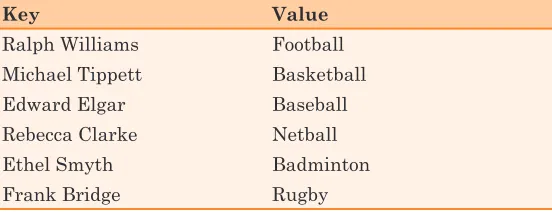
Now, if we store this same information in a map, with the person’s name as the key and their favorite sport as the value, the Python code would look like this:
>>> favorite_sports = {'Ralph Williams' : 'Football',
'Michael Tippett' : 'Basketball',
'Edward Elgar' : 'Baseball',
'Rebecca Clarke' : 'Netball',
'Ethel Smyth' : 'Badminton',
'Frank Bridge' : 'Rugby'}
We use colons to separate each key from its value, and each key and value is surrounded by single quotes. Notice, too, that the items in a map are enclosed in braces ({}), not parentheses or