PUBLISHED BY Microsoft Press
A Division of Microsoft Corporation One Microsoft Way
Redmond, Washington 98052-6399 Copyright © 2005 by Jerry Honeycutt
All rights reserved. No part of the contents of this book may be reproduced or transmitted in any form or by any means without the written permission of the publisher.
Library of Congress Control Number: 2005923733 Printed and bound in the United States of America.
1 2 3 4 5 6 7 8 9 QWT 9 8 7 6 5 4 3
Distributed in Canada by H.B. Fenn and Company Ltd. A CIP catalogue record for this book is available from the British Library.
Microsoft Press books are available through booksellers and distributors worldwide. For further information about international editions, contact your local Microsoft Corporation office or contact Microsoft Press Inter-national directly at fax (425) 936-7329. Visit our Web site at www.microsoft.com/learning/. Send comments to [email protected].
Microsoft, Active Directory, Authenticode, DirectX, FrontPage, Hotmail, InfoPath, IntelliMirror, JScript, Microsoft Press, MSDN, MS-DOS, MSN, NetMeeting, OneNote, Outlook, PhotoDraw, PowerPoint, Tahoma, Visio, Visual Basic, Visual InterDev, Win32, Windows, Windows Media, Windows NT, and Windows Server are either registered trademarks or trademarks of Microsoft Corporation in the United States and/or other countries. Other product and company names mentioned herein may be the trademarks of their respective owners.
The example companies, organizations, products, domain names, e-mail addresses, logos, people, places, and events depicted herein are fictitious. No association with any real company, organization, product, domain name, e-mail address, logo, person, place, or event is intended or should be inferred.
This book expresses the author’s views and opinions. The information contained in this book is provided with-out any express, statutory, or implied warranties. Neither the authors, Microsoft Corporation, nor its resellers, or distributors will be held liable for any damages caused or alleged to be caused either directly or indirectly by this book.
Acquisitions Editor: Martin DelRe Project Editor: Denise Bankaitis Technical Editor: Bob Hogan Copy Editor: Maria Gargiulo Production: Elizabeth Hansford Indexer: Julie Hatley
v
Contents at a Glance
Part I
Registry Overview
1
Learning the Basics . . . .3
2
Using Registry Editor. . . 33
3
Backing Up the Registry . . . 59
4
Hacking the Registry . . . 79
5
Mapping Tweak UI. . . 115
6
Configuring Servers . . . 143
Part II
Registry in Management
7
Using Registry-Based Policy . . . 159
8
Configuring Windows Security . . . 203
9
Troubleshooting Problems . . . 235
10
Finding Registry Settings . . . 255
11
Scripting Registry Changes. . . 269
Part III
Registry in Deployment
12
Deploying User Profiles. . . 305
13
Mapping Windows Installer . . . 333
14
Deploying with Answer Files . . . 345
15
Cloning Disks with Sysprep . . . 365
16
Configuring Windows PE . . . 383
17
Deploying Office 2003 Settings. . . 403
18
Fixing Common IT Problems . . . 425
Part IV
Appendixes
19
File Associations . . . 455
20
Network Settings . . . 467
21
Per-User Settings . . . 485
vii
What do you think of this book? We want to hear from you!
Microsoft is interested in hearing your feedback about this publication so we can continually improve our books and learning resources for you. To participate in a brief online survey, please visit: www.microsoft.com/learning/booksurvey/
Contents
Acknowledgments. . . xxi
Introduction . . . xxiii
Part I
Registry Overview
1
Learning the Basics . . . .3
Heart and Soul of Windows . . . 4
For Power Users . . . 5
For IT Professionals. . . 5
Registry Warnings and Myths. . . 7
Must-Know Concepts. . . 8
Security Identifiers . . . 8
Globally Unique Identifiers . . . 11
Hexadecimal Notation. . . 12
Bits and Bit Masks . . . 13
Little-Endian and Big-Endian . . . 14
ANSI and Unicode Encoding . . . 15
Null and Empty Strings . . . 16
Registry Structure . . . 16
Keys. . . . 17
Values . . . 19
Types. . . 20
Registry Organization . . . 23
HKEY_USERS . . . 24
HKEY_CURRENT_USER . . . 25
HKEY_LOCAL_MACHINE . . . 26
HKEY_CLASSES_ROOT . . . 27
HKEY_CURRENT_CONFIG . . . 28
Registry Management Tools . . . 28
Registry Hive Files. . . 29
Hives in HKLM. . . 30
2
Using Registry Editor. . . 33
Running Regedit . . . 34
Regedit . . . 35
Key Pane . . . 36
Value Pane . . . 38
Searching for Data . . . 38
Searching Incrementally . . . 40
Searching in Binary Values . . . 40
Bookmarking Favorite Keys . . . 41
Using Better Techniques . . . 42
Editing the Registry . . . 44
Changing Values . . . 44
Adding Keys or Values . . . 47
Deleting Keys or Values . . . 48
Renaming Keys or Values . . . 49
Printing the Registry . . . 49
Exporting Settings to Files . . . 51
Registration Files . . . 52
Win9x/NT4 Registration Files. . . 54
Hive Files . . . 54
Text Files . . . 55
Working with Hive Files . . . 56
Getting Beyond Basics. . . 57
3
Backing Up the Registry . . . 59
Editing the Registry Safely . . . 60
Copying Single Values. . . 60
Backing Up to REG Files . . . 61
Backing Up to Hive Files . . . 62
Using System Restore . . . 64
Taking Configuration Snapshots . . . 66
Looking Inside System Restore . . . 67
Managing System Restore . . . 69
Customizing System Restore . . . 69
Scripting System Restore . . . 70
Backing Up the Registry Regularly . . . 71
Planning a Backup Strategy . . . 72
Backing Up System State Data. . . 74
Restoring System State Data . . . 75
4
Hacking the Registry . . . 79
Redirecting Special Folders . . . 80
Customizing Shell Folders . . . 83
Renaming Desktop Icons. . . 85
Using Custom Icon Images . . . 86
Adding Desktop Icons . . . 86
Hiding Desktop Icons. . . 88
Reorganizing Control Panel . . . 89
Customizing File Associations. . . 90
Running Programs from My Computer . . . 91
Opening Command Prompts at Targeted Folders . . . 93
Rooting Windows Explorer at a Targeted Folder. . . 94
Adding InfoTips to Program Classes . . . 95
Adding File Templates . . . 98
Preventing Messenger from Running . . . 98
Personalizing the Start Menu . . . 99
Configuring the Menu’s Contents . . . 100
Trimming the Frequently Used Programs List . . . 102
Restoring the Sort Order . . . 103
Disabling Windows Tour . . . 104
Creating Program Aliases . . . 104
Customizing Internet Explorer . . . 105
Extending the Shortcut Menus. . . 105
Changing the Toolbar Background . . . 106
Customizing Search URLs . . . 107
Maximum Concurrent Downloads. . . 109
Clearing History Lists . . . 109
Running Programs at Startup . . . 110
Controlling Registry Editor . . . 111
Default Action for REG Files . . . 111
Storing Window Position and Size. . . 112
Logging On Automatically . . . 112
Changing User Information . . . 113
5
Mapping Tweak UI. . . 115
General . . . 116
Focus . . . 119
ALT+TAB . . . 119
Mouse . . . 119
Hover . . . 121
Wheel. . . 121
X-Mouse . . . 121
Explorer . . . 122
Shortcut. . . 124
Colors. . . 124
Thumbnails . . . 125
Command Keys . . . 125
Customizations. . . 126
Slide Show. . . 126
Common Dialog Boxes . . . 127
Places Bar . . . 127
Taskbar and Start Menu . . . 128
Grouping . . . 129
Start Menu . . . 129
Desktop . . . 130
First Icon . . . 131
My Computer . . . 131
Drives . . . 132
Special Folders . . . 132
AutoPlay . . . 133
Drive Letters . . . 135
Control Panel . . . 135
Templates . . . 136
Internet Explorer . . . 137
Toolbar Background . . . 137
Search . . . 137
View Source . . . 139
Small Animation. . . 139
Large Animation . . . 140
Image Toolbar . . . 140
Logon . . . 141
Autologon . . . 141
Settings . . . 142
Screen Saver . . . 142
6
Configuring Servers . . . 143
Server Customizations . . . 143
Adding Comments to Server Announcements . . . 143
Optimizing the Server Service . . . 144
Authentication . . . 144
Configuring Kerberos. . . 144
Disabling Global Catalog Requirement. . . 148
Enabling Verbose Winlogon Messages . . . 149
Internet Information Services . . . 149
Configuring Http.sys . . . 150
Using Incremental Site ID Numbers . . . 152
Network Connections . . . 152
Enabling IP Forwarding . . . 152
Changing MTU Settings . . . 153
Shutdown Event Tracker . . . 153
Part II
Registry in Management
7
Using Registry-Based Policy . . . 159
Editing Local Policies . . . 160
Group Policy Extensions . . . 163
Registry-Based Policy. . . 163
Group Policy Storage . . . 166
Extending Registry-Based Policy . . . 167
Comments . . . 170
Strings. . . 170
CLASS. . . 171
CATEGORY. . . 172
KEYNAME. . . 173
POLICY. . . 173
EXPLAIN. . . 175
VALUENAME. . . 175
VALUEON and VALUEOFF . . . 176
ACTIONLIST . . . 176
CHECKBOX . . . 179
COMBOBOX . . . 181
DROPDOWNLIST. . . 183
EDITTEXT . . . 184
LISTBOX . . . 186
NUMERIC . . . 188
TEXT. . . 189
Deploying Registry-Based Policy . . . 190
Windows 2000 Server-Based Networks . . . 191
Windows NT–Based Networks and Other Networks . . . 192
Customizing Windows . . . 193
Using the Group Policy Tools . . . 196
Gpresult . . . 196
Gpupdate . . . 197
Help and Support Center . . . 198
Resultant Set of Policy. . . 199
Using DesktopStandard PolicyMaker . . . 200
Finding More Resources . . . 202
8
Configuring Windows Security . . . 203
Setting Permissions for Keys. . . 204
Adding Users to ACLs . . . 206
Removing Users from ACLs . . . 206
Assigning Special Permissions . . . 207
Mapping Default Permissions . . . 208
Taking Ownership of Keys. . . 215
Auditing Registry Access. . . 215
Preventing Local Registry Access. . . 217
Restricting Remote Registry Access. . . 217
Deploying Security Templates . . . 218
Creating a Security Management Console . . . 219
Choosing a Predefined Security Template . . . 220
Building a Custom Security Template. . . 222
Analyzing a Computer’s Configuration . . . 223
Modifying a Computer’s Configuration . . . 225
Deploying Security Templates on the Network . . . 226
Configuring New Security Features . . . 226
Security Center Alerts . . . 227
Internet Explorer Privacy Settings . . . 228
Internet Explorer Security Zones . . . 229
TemplatePolicies . . . 229
ZoneMap. . . 230
Zones. . . 231
9
Troubleshooting Problems . . . 235
Fixing Corrupt Settings . . . 235
Allowing Windows to Fix Errors . . . 236
Repairing an Application’s Settings . . . 237
Removing Programs from the Registry. . . 239
Using Another Computer’s Settings . . . 241
Recovering from Disasters. . . 241
Windows Advanced Options Menu. . . 242
Windows Recovery Console . . . 243
Automated System Recovery . . . 245
Diagnosing Registry Corruption. . . 247
Power Failure. . . 248
File Corruption and Faulty Hardware . . . 248
The Registry Is Written To at Shutdown . . . 249
Repairing a Corrupt Registry. . . 249
Step 1 . . . 250
Step 2 . . . 251
Step 3 . . . 253
Step 4 . . . 254
10
Finding Registry Settings . . . 255
Comparing REG Files . . . 255
Using WinDiff . . . 258
Using Word 2003 . . . 259
Comparing with Reg.exe . . . 261
Auditing the Registry . . . 262
Setting Audit Policy . . . 263
Auditing Registry Keys. . . 263
Analyzing the Results. . . 264
Monitoring the Registry . . . 265
Using Winternals Regmon . . . 265
11
Scripting Registry Changes. . . 269
Choosing a Technique . . . 270
Installing INF Files . . . 271
Starting with a Template. . . 272
Linking Sections Together . . . 275
Adding Keys and Values . . . 276
Deleting Keys and Values . . . 277
Setting and Clearing Bits . . . 278
Using Strings in INF Files . . . 280
Setting Values with REG Files . . . 281
Exporting Settings to REG Files . . . 283
Creating REG Files Manually . . . 284
Encoding Special Characters . . . 285
Deleting Keys Using a REG File . . . 285
Editing from the Command Prompt . . . 286
Adding Keys and Values . . . 287
Querying Values. . . 288
Deleting Keys and Values . . . 289
Comparing Keys and Values. . . 289
Copying Keys and Values . . . 290
Exporting Keys to REG Files . . . 291
Importing REG Files. . . 291
Saving Keys to Hive Files . . . 292
Restoring Hive Files to Keys . . . 292
Loading Hive Files . . . 293
Unloading Hive Files . . . 293
Scripting Using Windows Script Host . . . 293
Creating Script Files. . . 295
Running Script Files . . . 297
Formatting Key and Value Names . . . 299
Adding and Updating Values. . . 299
Removing Keys and Values. . . 300
Querying Registry Values . . . 300
Part III
Registry in Deployment
12
Deploying User Profiles. . . 305
Exploring User Profiles . . . 306
Profile Hives. . . 308
Profile Folders . . . 310
Special Profiles . . . 312
Getting User Profiles . . . 314
Local Profiles . . . 314
Roaming Profiles. . . 315
Using Roaming User Profiles. . . 316
Managing Roaming User Profiles . . . 319
Understanding Fast Network Logon . . . 321
Understanding the New Merge . . . 322
Deploying Default User Profiles . . . 323
Customizing User Settings . . . 324
Cleaning User Profiles . . . 326
Creating Default User Folders . . . 328
Deploying Default User Folders . . . 329
Coexisting with Earlier Versions of Windows . . . 330
Migrating User Settings to Windows. . . 330
Files And Settings Transfer Wizard. . . 331
User State Migration Tool . . . 331
13
Mapping Windows Installer . . . 333
Repairing Registry Settings . . . 334
Managing Windows Installer with Policies . . . 335
Installing with Elevated Privileges . . . 338
Caching Transforms in a Secure Location. . . 338
Locking Down Windows Installer. . . 339
Removing Windows Installer Data . . . 340
Msizap.exe . . . 341
Msicuu.exe. . . 342
14
Deploying with Answer Files . . . 345
Creating Distribution Folders . . . 346
Customizing Answer Files . . . 348
Setup Manager. . . 352
Notepad and Other Text Editors . . . 354
Adding Settings to Unattend.txt . . . 356
[GuiRunOnce] . . . 357
Cmdlines.txt . . . 358
Adding Multiple Settings with One Script . . . 359
Logging On Automatically After Installation. . . 363
15
Cloning Disks with Sysprep . . . 365
Cloning Windows. . . 366
Windows Tools . . . 368
Sysprep Limitations . . . 368
Building a Disk Image . . . 370
Customizing Mini-Setup. . . 371
Preparing for Duplication. . . 373
Cloning the Disk Image . . . 374
Reducing Image Count . . . 377
Filling SysprepMassStorage Manually . . . 377
Filling SysprepMassStorage Automatically . . . 378
Cleaning Up After Sysprep . . . 379
Removing the Paging File. . . 379
Mapping Sysprep Settings . . . 380
Keeping Perspective . . . 382
16
Configuring Windows PE . . . 383
Exploring Windows PE . . . 383
Capabilities . . . 384
Limitations . . . 386
Using Windows PE as an Installation Platform . . . 387
Starting the Computer . . . 389
Configuring the Hard Disks . . . 390
Installing Windows . . . 391
Customizing Windows PE . . . 392
Command-Line Tools . . . 394
Optional Components . . . 395
Mass-Storage Drivers . . . 397
Languages . . . 398
Starting Windows PE . . . 398
CD-Based Installation . . . 399
RIS-Based Installation . . . 400
Disk-Based Installation. . . 401
Automating Installations . . . 401
17
Deploying Office 2003 Settings. . . 403
Profile Wizard . . . 404
Customizing the Wizard . . . 406
Capturing Settings . . . 414
Deploying Settings . . . 416
Custom Installation Wizard . . . 416
Adding and Removing Registry Entries . . . 417
Customizing Default Application Settings . . . 419
Changing Office User Settings . . . 420
Adding Installations and Running Programs . . . 421
Custom Maintenance Wizard . . . 422
Group and System Policy. . . 423
18
Fixing Common IT Problems . . . 425
Controlling Just-in-Time Setup. . . 426
Outlook Express . . . 427
Windows Media Player . . . 428
Desktop Themes . . . 428
Other Shortcuts . . . 429
Removing Components . . . 431
Answer File [Components]Section . . . 431
Extending Windows Components Wizard . . . 437
Hiding Non-Removable Components. . . 439
Removing Policy Tattoos . . . 441
Elevating Privileges of Processes . . . 443
Group Policy . . . 443
Secondary Logon . . . 444
Scheduled Tasks . . . 445
AutoLogon. . . 446
Severing File Associations . . . 448
Enabling Remote Desktop Remotely . . . 450
Customizing the Windows Logon . . . 451
Restoring Administrative Shares . . . 451
Changing Source Location . . . 452
Part IV
Appendixes
A
File Associations . . . 455
Merge Algorithm . . . 455
File Extension Keys. . . 456
OpenWithList . . . 457
PerceivedType. . . 458
ShellNew . . . 458
Program Class Keys . . . 458
DefaultIcon . . . 460
EditFlags . . . 460
Shell . . . 461
Specialized Keys . . . 463
Applications . . . 464
SystemFileAssociations. . . 464
Unknown. . . 465
COM Class Keys . . . 465
B
Network Settings . . . 467
HKCU\Network . . . 467
HKLM\SYSTEM\CurrentControlSet\Services. . . 468
LanmanServer. . . 468
LanmanWorkstation . . . 472
Tcpip\Parameters . . . 474
Tcpip\Interfaces . . . 482
C
Per-User Settings . . . 485
AppEvents. . . 486
Console. . . 487
Control Panel. . . 488
Desktop . . . 490
Desktop\WindowMetrics. . . 494
Environment . . . 497
Keyboard Layout. . . 497
Network. . . 498
Printers. . . . 498
SessionInformation. . . 499
Software. . . . 499
Classes. . . 500
Microsoft\Command Processor . . . 500
Microsoft\Internet Connection Wizard. . . 501
Microsoft\Internet Explorer . . . 501
Microsoft\Internet Explorer\MenuExt . . . 503
Microsoft\Internet Explorer\SearchURL. . . 504
Microsoft\MessengerService . . . 505
Microsoft\Office. . . 506
Microsoft\Search Assistant . . . 507
Microsoft\VBA\Trusted. . . 508
Policies. . . 509
Software\Microsoft\Windows\CurrentVersion. . . 510
Explorer\Advanced . . . 511
Explorer\AutoComplete. . . 514
Explorer\ComDlg32 . . . 515
Explorer\HideDesktopIcons . . . 515
Explorer\HideMyComputerIcons. . . 515
Explorer\MenuOrder . . . 515
Explorer\RecentDocs . . . 516
Explorer\RunMRU. . . 516
Explorer\User Shell Folders . . . 516
D
Per-Computer Settings . . . 519
HARDWARE . . . 520
DESCRIPTION . . . 521
DEVICEMAP . . . 521
SAM. . . 522
SOFTWARE. . . 523
Classes. . . 523
Clients. . . 524
Microsoft\Active Setup. . . 525
Microsoft\Command Processor . . . 525
Microsoft\Driver Signing . . . 527
Microsoft\DrWatson. . . 527
Microsoft\Internet Explorer . . . 530
Microsoft\Sysprep . . . 530
Microsoft\Windows NT\CurrentVersion . . . 530
Microsoft\Windows NT\CurrentVersion\Winlogon. . . 531
Policies. . . 534
SOFTWARE\Microsoft\Windows\CurrentVersion. . . 535
App Paths. . . 536
Applets. . . 536
Explorer. . . 536
Explorer\AutoplayHandlers . . . 536
Explorer\Desktop\NameSpace . . . 538
Explorer\FindExtensions. . . 538
Explorer\HideDesktopIcons . . . 538
Explorer\HideMyComputerIcons . . . 538
Explorer\MyComputer. . . 539
Explorer\NetworkNeighborhood\NameSpace . . . 539
Explorer\RemoteComputer\NameSpace. . . 539
Explorer\StartMenu. . . 540
Explorer\User Shell Folders . . . 540
Explorer\VisualEffects. . . 540
Policies. . . 541
Run . . . 541
RunOnce. . . 541
Uninstall. . . 541
SYSTEM . . . 542
CurrentControlSet\Control . . . 542
CurrentControlSet\Enum. . . 544
CurrentControlSet\Hardware Profiles . . . 544
CurrentControlSet\Services . . . 545
Index. . . 547
What do you think of this book? We want to hear from you!
xxi
Acknowledgments
Never let authors tell you that they wrote their books all by themselves. Creating a book out of an author’s gibberish takes a lot of work from a lot of people with a lot of different skills. Some crack the whip, and others are artisans. They all deserve credit.
I’d like to thank my acquisitions editor, Martin DelRe, who gave me the opportunity to update this book for the second edition. Next, I’m indebted to my project editors Maureen Zimmerman and Denise Bankaitis. Maureen got this edition started, and Denise saw it through to the finish line. They had the responsibility for managing the overall process. If only I could have a manager like Denise working on every book I write….
A number of other people have my admiration as well. The copy editor, Maria Gargiulo, had the unenviable job of correcting my disregard for the rules of grammar. The technical editor, Bob Hogan, reviewed the facts contained in this book. To every-one else involved in the production of this book, I thank you for all your hard work.
xxiii
Introduction
The registry is the heart and soul of Microsoft Windows XP and Microsoft Windows Server 2003. In my other registry books, I said the same thing about the registry in every version of Windows since Windows 95, and by the time you’re finished reading this book, I hope you’ll agree. The registry contains the configuration data that makes the operating system work; enables developers to organize configuration data in ways that are impossible using other mechanisms, such as INI files; and is behind just about every feature that you think is great in Windows. More importantly, it enables you to customize Windows in ways that you can’t through the user interface.
Windows and every application that runs on Microsoft’s latest desktop operating sys-tems do absolutely nothing without consulting the registry first. When you double-click a file, Windows consults the registry to figure out what to do with that file. When you install a device, Windows assigns resources to the device based on information in the registry and then stores the device’s configuration in the registry. When you run an application such as Microsoft Office Word 2003, the application looks up your preferences in the registry. If you were to monitor the registry during a normal ses-sion, you’d see that it serves up thousands of values within minutes.
In this book, you will learn how to customize the registry, but you must also learn how to maintain it. You must learn how to back up the registry so you can restore it if things go awry. You must also learn the best practices for editing the registry safely.
xxiv Introduction
This Book Is Different—Really
This book contains information that you’re not going to find in any other book about the Windows registry. You’ll learn how to find the places where Windows and other programs store settings in the registry. You’ll learn how to write scripts to edit the reg-istry. You’ll discover registry hacks that are both unique and useful. And you’ll read about my personal experiences with the registry and what I consider best practices. For example, in Chapter 2, “Using Registry Editor,” you’ll learn how I quickly docu-ment my changes to the registry—right inside the registry itself.
That’s all information for power users, but more than half of this book is for IT profes-sionals. Whether you’re a desktop engineer, a deployment engineer, or a support tech-nician, you’ll learn techniques that will make your job easier. A lot of this book focuses on how the registry affects Windows and Office deployment. You’ll learn about creat-ing and deploycreat-ing effective default user profiles. You’ll learn how to deploy settcreat-ings with Windows and Office. You’ll even learn how to build your own Windows Installer package files expressly for managing settings in the registry. The best part is that just about every tool that I suggest in this book is either free or very inexpensive.
Power Users First, Then IT Professionals
Even the most focused IT professional is a power user at heart, so this book presents information for power users first. Here are the first six chapters, which make up Part I, “Registry Overview”:
■ Chapter 1, “Learning the Basics.” This chapter gives an overview of the registry. It includes common terminology and an explanation of how Windows orga-nizes the registry. You’ll learn important concepts, such as the different types of data that you can store in the registry and the difference between little-endian and big-endian storage of double-word values. What exactly is a GUID, anyway? You’ll find out here.
■ Chapter 2, “Using Registry Editor.” Registry Editor is your window into the reg-istry, so this chapter teaches you how to use it effectively.
■ Chapter 3, “Backing Up the Registry.” Backing up the registry protects your set-tings. This chapter shows quick and easy ways to back up settings, as well as ways to back up the entire registry.
Introduction xxv
■ Chapter 5, “Mapping Tweak UI.” Microsoft now has an updated version of Tweak UI, and this chapter describes it in detail. You not only learn how to use Tweak UI—you’ll learn exactly where in the registry Tweak UI stores each setting so that you can use your own scripts to apply these settings.
■ Chapter 6, “Configuring Servers.” This chapter describes some common regis-try customizations for Windows Server 2003.
Part II, “Registry in Management,” contains information useful to both power users and IT professionals. In this section, you’ll learn how to manage the registry and how to use the registry as a management tool.
■ Chapter 7, “Using Registry-Based Policy.” This chapter focuses on Group Policy and system policies. You’ll learn the differences between them and how each policy can be used to manage computers and users. Also—and this is important— you’ll learn how to build your own policy templates for Group Policy.
■ Chapter 8, “Configuring Windows Security.” Windows secures settings in the registry. This chapter shows you how to manage the registry’s security. It also shows you how to selectively poke holes in the registry’s security so that you can deploy and run legacy applications on Windows. Last, this chapter describes how to customize new security features in Windows XP Service Pack 2 (SP2).
■ Chapter 9, “Troubleshooting Problems.” Things sometimes go wrong. This chapter shows you how to recover if they do.
■ Chapter 10, “Finding Registry Settings.” Finding the location where Windows stores a setting in the registry is easy, as long as you know which tools to use. I’ll give you a hint: Word 2003 is the second-best registry tool. You’ll also learn about tools that you can use to remotely monitor the registry.
■ Chapter 11, “Scripting Registry Changes.” A plethora of methods for customiz-ing registry edits are available to you. This chapter teaches the best of them, including REG files, INF files, and Microsoft Windows Installer (MSI) package files. It also describes tools such as Console Registry Tool for Windows, which comes free with Windows. This is useful for editing the registry from batch files.
Part III, “Registry in Deployment,” is primarily for IT professionals. This part of the book helps you use the registry to deploy Windows and Office more effectively. It includes the following chapters:
xxvi Introduction
■ Chapter 13, “Mapping Windows Installer.” Windows Installer is a relatively new service that provides a better way to install applications. This chapter describes how Windows Installer interacts with the registry. It will also help you clean up the registry when things go wrong with Windows Installer–based applications.
■ Chapter 14, “Deploying with Answer Files.” This chapter shows you how to script a Windows installation and how to add registry settings.
■ Chapter 15, “Cloning Disks with Sysprep.” Many companies that previously maintained up to 50 Windows 2000 disk images now can use a single Windows XP disk image. They do this by generalizing their disk images so that they work on the widest possible variety of hardware. That’s the topic of this chapter. This chapter also shows how Sysprep interacts with the registry.
■ Chapter 16, “Configuring Windows PE.” This chapter describes how to create and customize Windows Preinstallation Environment (Windows PE) CD images.
■ Chapter 17, “Deploying Office 2003 Settings.” A big part of an Office 2003 Edi-tions deployment project is deploying user settings. This chapter describes a variety of ways to do just that. You’ll learn about tools that come with the
Microsoft Office 2003 Editions Resource Kit, for example, as well as techniques for using them.
■ Chapter 18, “Fixing Common IT Problems.” This is a special chapter that addresses the comments and questions that I frequently receive from IT professionals. How should you handle coexistence issues between Microsoft Access 97 and Access 2003? That’s just one of many IT issues that you can address by using the registry.
Part IV, “Appendixes,” is a reference that describes the contents of the registry. In the few pages available in this book, I can’t possibly describe every registry value. But Part IV describes some of the most interesting settings. These appendixes describe the relationships between different portions of the registry, including how a variety of reg-istry keys and values interact.
Some Terminology
Most of the terminology that I use in this book is fairly standard by now, but to avoid confusion, I’ll take a moment to describe how I use some of it.
Introduction xxvii
exist: C:\Documents and Settings or C:\Winnt\Profiles. Additionally, on your com-puter, the folder that contains the Windows system files might be in a different loca-tion depending on whether you upgraded to Windows, installed a clean copy of the operating system, or customized the installation path in an answer file. Thus, I use the following environment variables throughout this book. (You can see these environ-ment variables by typing set in a command prompt window.)
■ %UserProfile% represents the current user profile folder. Thus, if you log on to the computer as Jerry and your profile folders are in C:\Documents and Set-tings, you’d translate %UserProfile% to C:\Documents and Settings\Jerry. ■ %SystemDrive% is the drive that contains the Windows system files. That’s
usu-ally drive C, but if you installed Windows on a different drive, perhaps in a dual-boot configuration, it could be drive D, E, and so on.
■ %SystemRoot% is the folder containing Windows. In a clean installation, this is usually C:\Windows, but if you upgraded from Windows NT or Windows 2000, it’s probably C:\Winnt.
In addition to environment variables, I also use abbreviations for the various root keys in the registry. HKEY_CLASSES_ROOT and HKEY_LOCAL_MACHINE are unwieldy, for exam-ple, and cause lines of text to wrap in odd places. To make the book more readable, I use the following abbreviations:
Why I Love Windows XP
Before we move on to the rest of the book, I thought I’d share with you why I love Win-dows XP so much. WinWin-dows XP makes all my tasks much easier; it even made it easier to write this book than it was to write any other book I’ve ever written.
For example, one of my favorite features in Windows XP is Remote Desktop. Before I got Windows XP, I either had to have several computers sitting on my desk for testing instructions, digging around in the registry, taking screen shots, and so on, or I had to walk back and forth between my lab and my office, which was a major productivity drain. For this book, I configured Remote Desktop on each Windows XP–based com-puter in my lab so that I could connect to them from my production comcom-puter. That way, I could have two or three Remote Desktop connections open, each with a differ-ent test scenario running. Remote Desktop reduced by a huge amount the time it took
HKCR HKEY_CLASSES_ROOT
HKCU HKEY_CURRENT_USER
HKLM HKEY_LOCAL_MACHINE
HKU HKEY_USERS
xxviii Introduction
to write this book. It also reduced the number of times that I was tempted to experi-ment on my production computer (which could result in a day of lost work if I cor-rupted the computer’s configuration). Remote Desktop alone was worth the cost of Windows XP.
And did I mention wireless networking? Windows XP enables me to get out of my office—in which I have 10 or so computers running, with the fan and hard drive noise that that entails. Thanks to wireless networking, which Windows XP makes very easy to configure, I could find a quiet place in my house to work while I was writing this book. No fans. No noise. And even when I was working in the bedroom, I could still connect to the computers in my lab.
Regarding the registry itself, there are a few changes that struck me right away. First, Microsoft got rid of the dueling registry editors. Windows 2000 had two editors: Rege-dit and Regedt32. Both had strengths and weakness, and you had no choice but to flip back and forth between the two. Windows XP and Windows Server 2003 combine both editors into a single registry editor. Another new feature is Console Registry Tool for Windows (Reg). Windows XP and Windows Server 2003 include this tool by default, whereas in Windows 2000, you had to install it from the support tools. This makes it a more viable tool for scripting registry edits using batch files. And it’s free!
Sample Files and Scripts
This book describes a large number of settings. It also includes numerous scripts. To make it easier to use these settings, I’ve provided on the companion CD the REG files that implement them. You also find sample scripts from this book on the companion CD in the RegistryGuideTools folder.
Note The tools on the CD are designed to be used on Windows Server 2003 or Windows XP (or as specified in the documentation of the tool).
Resource Kit Support Policy
Introduction xxix
Microsoft Press also provides corrections for books and companion CDs through the World Wide Web at http://www.microsoft.com/learning/support/. To connect directly to the Microsoft Knowledge Base and enter a query regarding a question or issue you have, go to http://support.microsoft.com. For issues related to the Microsoft Win-dows family of operating systems, refer to the support information included with your product.
Final Note
I hope that this book makes your Windows XP and Windows Server 2003 experience even better. I also hope that it will make you more productive and more effective.
If you have any comments or questions, please feel free to send them my way at
[email protected]. I answer my e-mail. You can also visit my Web site, http:// www.honeycutt.com, to download the samples that you see in this book. You’ll also find mailing lists that you can join as well as additional articles that I’ve written about Win-dows, the registry, and various deployment topics.
System Requirements
The system requirements for using this book and the files on the companion CD are simple: these files work on any computer running Windows XP or Windows Server 2003. For more detailed information about whether any individual file works on Windows XP, Windows Server 2003, or both, see the help file on this book’s companion CD.
The following system configuration is recommended for the best viewing experience with Microsoft Press eBooks:
■ Microsoft Windows Server 2003, Windows 2000, or Windows XP
■ Pentium II (or similar) with 266-megahertz (MHz) or higher processor
■ 64 megabytes (MB) of RAM
■ 800 x 600 display settings with high-color (16-bit)
■ Microsoft Internet Explorer 5.5 or later
Part I
Registry Overview
In this part:
Chapter 1: Learning the Basics . . . 3
Chapter 2: Using Registry Editor . . . .33
Chapter 3: Backing Up the Registry . . . .59
Chapter 4: Hacking the Registry. . . .79
Chapter 5: Mapping Tweak UI . . . .115
Chapter 6: Configuring Servers. . . .143
Working with the registry is daunting if you know little about it. Thus, in Part I, you master the basic information you need to successfully leverage the registry. For example, you learn about the contents of the registry and the types of data that you find in it. You also learn how to back up and restore the registry and how to edit the registry using Registry Editor.
Part I is for information technology (IT) professionals and power users. Aside from teaching the basics, such as how to back up the registry, it describes how to configure settings in the registry to customize Microsoft Windows XP and Microsoft Windows Server 2003. Many of the settings you learn about in this part aren’t available through the user interface. This part also describes one of the most popular downloads on the Internet: Tweak UI. Instead of showing you how to use this simple program, however, it describes where the program stores each of its settings in the registry.
3
Chapter 1
Learning the Basics
In this chapter:
Heart and Soul of Windows . . . 4 Registry Warnings and Myths. . . 7 Must-Know Concepts. . . 8 Registry Structure . . . 16 Registry Organization . . . 23 Registry Management Tools . . . 28 Registry Hive Files . . . 29
The registry has a subtle but important role in Microsoft Windows XP and Microsoft Windows Server 2003 (both referred to throughout this book as Windows). On one hand, the registry is passive—it’s just a big collection of settings sitting on your hard disk, and you probably don’t think much about it while you’re editing a document, browsing the Internet, or searching for a file. On the other hand, it plays a key role in all those activities. The registry settings determine how Windows appears and behaves. They even control applications running on your computer. This gives the registry great potential as a tool for power users or IT professionals, enabling them to customize settings that aren’t available in the user interface.
This chapter introduces the registry. First you learn about the registry’s role and how it fits into your computing world. Then some important terminology is explained, and you learn how Windows organizes the registry. Next you learn about the tools used to edit the registry. And finally, you see how Windows stores the registry on the hard disk. Throughout this chapter, you’ll find information that is useful even outside of a discussion of the registry. For example, you learn about the two different architectures for storing numbers in memory; IT professionals run into these architectures outside the registry as much as they do inside it.
Heart and Soul of Windows
Windows stores configuration data in the registry. The registry is a hierarchical data-base, which can be described as a central repository for configuration data
(Microsoft’s terminology) or as a configuration database (my terminology). A hierar-chical database’s characteristics make it ideally suited for storing configuration data. If you lay out the database in a diagram, like the one shown in Figure 1-1, it looks like an outline or an organization chart. This allows settings to be referenced using paths, similar to file paths in Windows. For example, in Figure 1-1, the path A\G\M references the shaded box. Each setting is an ordered pair that associates a value’s name with its data. The registry’s hierarchical organization makes all settings easy to reference.
Figure 1-1 The registry is a hierarchical database that contains most Windows settings.
You can do nothing in Windows that doesn’t access the registry. I use a tool to moni-tor registry access and often leave it running while clicking around the operating sys-tem’s user interface. I almost never see this monitor idle. With every click, Windows consults the registry. Every time I launch a program, the operating system consults the registry. Every application that I use looks for its settings in the registry. The reg-istry is certainly the center of attention.
I’ve written other books about the registry, and in them, I call the registry the operating system’s heart and soul. Aside from being a central place to store settings, the registry by its very nature allows complex relationships among different parts of Windows, appli-cations, and the user interface. For example, when you right-click different types of files, you see different shortcut menus. Settings in the registry make this type of con-text-sensitive user interface possible. The settings for each user who logs on to Win-dows are separate from those of other users—again, because of the registry. The ability of Windows to use different configurations for laptop computers depending on whether they’re docked or undocked is due in large part to the registry. Even Plug and Play depends on the registry.
M S J
D
A
For Power Users
So the registry is important, but what good does it do power users to learn about it? First, being a technology enthusiast implies that you like to dabble in technology to learn more about it. What better way to learn more about Windows than to figure out how and where it stores settings? This is analogous to tearing apart your VCR to learn how it works. If you’ve ever wondered why the operating system behaves in a certain way, the answer can often be found by consulting the registry.
Mastering the registry has concrete advantages for power users, too. Because it is the operating system’s configuration database, backing up your settings is a bit easier than it would be without the registry. And unlike in the old days when settings were stored in initialization (INI) files, you always know where to begin looking when you need to find a value. But the biggest advantage of mastering the registry is more excit-ing and very real: you can customize Windows and the applications that run on it in ways that aren’t otherwise possible. Windows has thousands of settings that you’ll never see in any dialog box, but that you might want to customize. For example, you can redirect your Favorites folder to a different location, improve your Internet con-nection’s performance, and add commands to any type of file’s shortcut menu. Chap-ter 4, “Hacking the Registry,” details many different customization possibilities.
For IT Professionals
IT professionals rely on the registry because it enables most of the management fea-tures they use. Large portions of this book focus on those feafea-tures and how they use the registry.
Policy management is one such feature. IT professionals use policies to configure com-puter and user settings to a standard, and users can’t change those settings. For exam-ple, I use policies to configure users’ screen savers to lock the desktop after 15 minutes of idle time. This secures the computers if users walk away from their desks without logging off of Windows. Policy management is a great boon to every IT orga-nization because it can lower costs and boost user productivity.
IT professionals can also manage the registry’s security so that users can run legacy applications in their restricted accounts instead of logging on to their computers as the administrator (a bad idea in any enterprise environment). You can manage the reg-istry’s security directly or by using a tool such as the Security Configuration And Anal-ysis console to automate the process. (For more information on configuring security, see Chapter 8, “Configuring Windows Security.”)
An indirect but important benefit of the registry for IT professionals is application compatibility. Microsoft defines standards for the locations in which different types of settings belong in the registry. The company has standards for file associations, Plug and Play configuration data, printer settings, application settings, and much more. Applications that follow these standards are more likely to work well with the operat-ing system, as well as other applications, because they’re all lookoperat-ing for the same set-tings in the same places. In fact, most applications that work well in Windows 2000 will also work well in Windows XP and Windows Server 2003, given that the overall structure of the registry doesn’t change much between the operating systems.
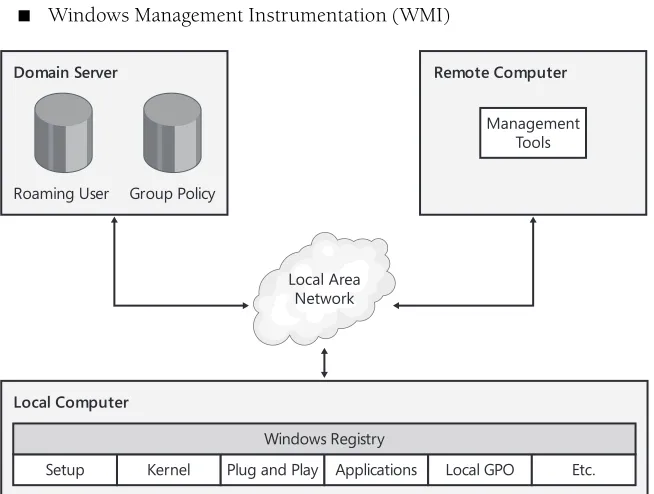
The registry enables too many other management features for IT professionals to neglect mastering it. (See Figure 1-2.) Some of those features include the following:
■ Deployment customization
■ Folder redirection
■ Hardware profiles
■ Offline files
■ Performance monitoring
■ Roaming user profiles
[image:36.531.123.450.308.555.2]■ Windows Management Instrumentation (WMI)
Figure 1-2 The registry enables local and remote administration. Local Computer
Kernel
Setup Plug and Play Applications Local GPO Etc. Windows Registry
Local Area Network Domain Server
Roaming User Group Policy
Remote Computer
Brief History of the Registry
MS-DOS got its configuration data from Config.sys and Autoexec.bat. The pri-mary purpose of Config.sys was to load device drivers, and the pripri-mary purpose of Autoexec.bat was to run programs, set environment variables, and more, to prepare MS-DOS for use. Every application that ran on MS-DOS was responsible for managing its own settings. Neither of these configuration files is useful in Windows.
Windows 3.0 somewhat alleviated the limitations of Autoexec.bat and Con-fig.sys by providing INI files for storing settings. INI files, which you’ve probably seen, are text files that contain one or more sections with one or more settings in each section. The main problems with INI files are that they provide no hierar-chy, storing binary values in them is cumbersome (although not impossible), and they provide no standard for storing similar types of settings. INI files also cause other subtle problems, all related to the configuration file’s inability to build complex relationships between applications and the operating system. One big problem for early versions of Windows was the sheer number of INI files that floated around on the average computer. Every application had its own INI files.
Windows 3.1 introduced the registry as a tool for storing OLE (object linking and embedding) settings, and Windows 95 and Microsoft Windows NT 3.5 expanded the registry into the configuration database that Windows XP and Windows Server 2003 use now. Even though INI files are no longer necessary because applications now have a far better way to store settings, you’ll always find a handful of INI files, including Win.ini, on any computer.
A few years ago, people were more interested in the history of the registry than they are now. The registry has been around since before 1995, and everyone pretty much takes it for granted these days, so I won’t waste any more book pages on its lineage. The history lesson is over; now you’re living in the present.
Registry Warnings and Myths
The registry’s keystone role is one of the reasons for its mythic stature. Microsoft doesn’t say much about it. You don’t find Registry Editor on the Start menu. You find very little information about the registry in Help. Microsoft doesn’t provide white papers that help users unlock its secrets. And why should they? Do you really want the average user tam-pering with the registry? The dearth of information coming from Microsoft led to home-grown registry Web sites and FAQs, which are still somewhat popular. These factors have contributed to the myth of the registry as a magical configuration tool.
I want to debunk that myth. Don’t get me wrong: there is a lot of power packed into the registry. But there is no magic, and there’s nothing to fear. Simply put, the registry is nothing more than your computer’s settings. After you’re used to working in the reg-istry, doing so no longer gives you chills of excitement; it barely gets a yawn.
The warnings you see in most documents that contain instructions for editing the reg-istry are definitely overblown, particularly for readers of this book, who are either power users or IT professionals. (I wouldn’t say that if the book were for novice or intermediate users.) You can do very little damage to the registry that you can’t undo, assuming you take the straightforward precautions of backing up settings before you change them and backing up your computer on a regular basis. Failing those steps, you can fix problems by using one of the many troubleshooting tools you learn about in this book. Chapter 9, “Troubleshooting Problems,” contains a lot of troubleshoot-ing help. Use a bit of common sense, and you’ll do just fine.
Must-Know Concepts
Learning the concepts in the following sections is important to your satisfaction with this book. These are the things you must know to work efficiently with the registry. For example, the registry is filled with hexadecimal numbers, and if you don’t under-stand hexadecimal, they’re not going to make sense to you. If you’re a programmer, you can probably skip these sections; otherwise, don’t.
The following sections walk you through the most important of these concepts, begin-ning with security and globally unique identifiers (GUIDs). You learn how to read hexadecimal numbers, convert them to binary and decimal notation, and use them as bit masks. You learn the difference between Unicode and ANSI character encoding. You even learn how Intel-based computers store numbers in memory. All these topics are significant to your ability to use the registry as a tool.
Security Identifiers
and then stores them in the local security database. The Domain Security Authority generates SIDs for domain security principles and then stores them in Active Direc-tory. SIDs are unique within their scope. Every local security principle’s SID is unique on the computer, and every domain security principle’s SID is unique within any domain in the enterprise. What’s more, Windows and Active Directory never reuse a SID, even if they delete the security principle to which that SID belonged. Thus, if you delete an account and then add it back, the account gets a new SID.
The important thing to remember is that every account has a SID. It’s like having a passport number that uniquely identifies you to immigration. You can refer to an account by its name or by its SID, but in practice you seldom use the SID because its format is cumbersome. You frequently see accounts’ SIDs in the registry, though, and that’s why you’re learning about them here.
An example of a SID is S-1-5-21-2857422465-1465058494-1690550294-500. A SID always begins with S-. The next number identifies the SID’s version—in this case, ver-sion 1. The next number indicates the identifier authority and is usually 5, which is NT Authority. The string of numbers up to 500 is the domain identifier, and the rest of the SID is a relative identifier, which is the account or group. This is a very rough over-view of the SID format, which is much more complex than this brief example charac-terizes. If you want to learn more about SIDs, see http://msdn.microsoft.com/library/ default.asp?url=/library/en-us/secauthz/security/security_identifiers.asp.
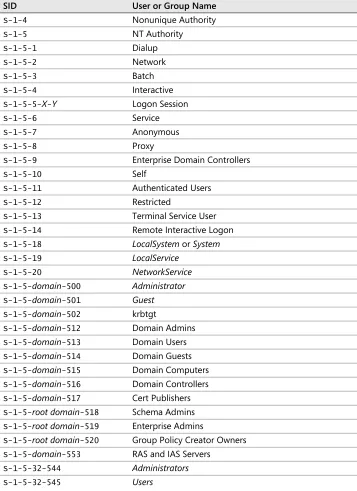
Some SIDs, such as S-1-5-18, are shorter than the one in the previous example. These are well-known SIDs, and they are the same on every computer and in every domain. They are interesting because they pop up over and over again in the registry and in other places. Table 1-1 describes the SIDs well known by Windows. I’ve itali-cized the names of SIDs that are of particular relevance to you while you’re reading this book. The placeholder domain is the SID’s domain identifier.
Table 1-1 Well-Known SIDs
SID User or Group Name
S-1-0 Null Authority
S-1-0-0 Nobody
S-1-1 World Authority
S-1-1-0 Everyone
S-1-2 Local Authority
S-1-2-0 Local
S-1-3 Creator
S-1-3-0 Creator Owner
S-1-3-1 Creator Group
S-1-3-2 Creator Owner Server
S-1-4 Nonunique Authority
S-1-5 NT Authority
S-1-5-1 Dialup
S-1-5-2 Network
S-1-5-3 Batch
S-1-5-4 Interactive
S-1-5-5-X-Y Logon Session
S-1-5-6 Service
S-1-5-7 Anonymous
S-1-5-8 Proxy
S-1-5-9 Enterprise Domain Controllers
S-1-5-10 Self
S-1-5-11 Authenticated Users
S-1-5-12 Restricted
S-1-5-13 Terminal Service User
S-1-5-14 Remote Interactive Logon
S-1-5-18 LocalSystem or System
S-1-5-19 LocalService
S-1-5-20 NetworkService
S-1-5-domain-500 Administrator
S-1-5-domain-501 Guest
S-1-5-domain-502 krbtgt
S-1-5-domain-512 Domain Admins
S-1-5-domain-513 Domain Users
S-1-5-domain-514 Domain Guests
S-1-5-domain-515 Domain Computers
S-1-5-domain-516 Domain Controllers
S-1-5-domain-517 Cert Publishers
S-1-5-root domain-518 Schema Admins
S-1-5-root domain-519 Enterprise Admins
S-1-5-root domain-520 Group Policy Creator Owners
S-1-5-domain-553 RAS and IAS Servers
S-1-5-32-544 Administrators
[image:40.531.123.480.59.550.2]S-1-5-32-545 Users
Table 1-1 Well-Known SIDs
Globally Unique Identifiers
Globally unique identifiers are better known as GUIDs (pronounced goo ids). They are numbers that uniquely identify objects such as computers, program components, and devices. These objects often have names, but their GUIDs remain unique even if two of the objects have the same name or if their names change. In other words, an object’s GUID is similar to a security principle’s SID. You will see GUIDs scattered all over the registry, so you should become familiar with them.
All GUIDs have the same interesting format. They’re 16-byte hexadecimal numbers in groups of 8, 4, 4, 4, and 12 digits (0 through 9 and A through F). A dash divides each group of digits, and curly brackets enclose the whole number. An example of a real GUID is {645FF040-5081-101B-9F08-00AA002F954E}, which represents the Recycle Bin object that you see on the desktop. The GUID {127A89AD-C4E3-D411-BDC8-001083FDCE08} belongs to one of the computers in my lab.
Programmers often use the Microsoft tool Guidgen.exe to create GUIDs, but Win-dows generates them, too. Regardless of the source, Microsoft guarantees that GUIDs are globally unique—hence their name. No matter how many times Guidgen.exe or Windows generates a GUID, the result is always unique. That’s what makes GUIDs perfect for identifying objects like computers and devices.
S-1-5-32-546 Guests
S-1-5-32-547 Power Users
S-1-5-32-548 Account Operators
S-1-5-32-549 Server Operators
S-1-5-32-550 Print Operators
S-1-5-32-551 Backup Operators
S-1-5-32-552 Replicator
S-1-5-32-554 Pre-Windows 2000 Compatible Access
S-1-5-32-555 Remote Desktop Users
S-1-5-32-556 Network Configuration Operators
S-1-6 Site Server Authority
S-1-7 Internet Site Authority
S-1-8 Exchange Authority
[image:41.531.137.498.56.269.2]S-1-9 Resource Manager Authority
Table 1-1 Well-Known SIDs
Hexadecimal Notation
Ninety-nine percent of the data you see in the registry is in hexadecimal notation. Computers use hexadecimal rather than decimal notation for a good reason, which you’ll learn in a bit. You must learn how to read and convert hexadecimal numbers in order to use the registry as an effective tool. And that’s the focus of this section.
Binary and decimal notations don’t interchange well. You probably learned decimal notation as a child. In this notation, 734 is 7 x 10² + 3 x 101 + 4 x 100, which is 7 x 100 + 3 x 10 + 4 x 1. Easy enough, right? The digits are 0 through 9, and because you mul-tiply each digit right to left by increasing powers of 10 (100, 101, 102, and so on), this notation is called base 10. The problem is that decimal notation doesn’t translate well into the computer’s system of ones and zeros. Binary notation does. In this notation, 1011 is 1 x 23 + 0 x 22 + 1 x 21 + 1 x 20 or 1 x 8 + 0 x 4 + 1 x 2 + 1 x 1 or 11. The digits are 0 and 1, and because you multiply each digit right to left by increasing powers of 2 (20, 21, 22, and so on), this notation is called base 2. Converting a binary number to a decimal number is a lot of work, and binary numbers are too cumbersome for peo-ple to read and write.
That brings us to hexadecimal notation. Hexadecimal notation is base 16, and because you can evenly divide 16 by 2, converting between binary and hexadecimal is straight-forward. The digits are 0 through 9 and A through F. Table 1-2 shows the decimal equivalent of each digit. In hexadecimal, A09C is 10 x 163 + 0 x 162 + 9 x 161 + 12 x 160 or 10 x 4096 + 0 x 256 + 9 x 16 + 12 x 1, or 41,116 in decimal notation. As in the other examples, you multiply each hexadecimal digit right to left by increasing powers of 16 (160, 161, 162, and so on).
Table 1-2 Hexadecimal Digits
Binary Hexadecimal Decimal
0000 0 0
0001 1 1
0010 2 2
0011 3 3
0100 4 4
0101 5 5
0110 6 6
0111 7 7
1000 8 8
1001 9 9
1010 A 10
1011 B 11
Converting between binary and hexadecimal notations might be straightforward, but it is also time consuming, so Table 1-2 offers a solution. When converting from binary to hexadecimal, use Table 1-2 to look up each group of four digits from left to right, and jot down its hexadecimal equivalent. For example, to convert 01101010 to hexa-decimal, look up 0110 to get 6, and then look up 1010 to get A, so that you end up with the hexadecimal number 6A. If the number of digits in the binary number isn’t evenly divisible by 4, just pad the left side with zeros. To convert hexadecimal numbers to binary, use Table 1-2 to look up each hexadecimal digit from left to right, and jot down its binary equivalent. For example, to convert 1F from hexadecimal to binary, look up 1 to get 0001, look up F to get 1111, and string them together to get 00011111.
One last problem: Is 12 a decimal number or a hexadecimal number? You don’t have enough information to know for sure. The solution is to always use the prefix 0x at the beginning of hexadecimal numbers. Then 0x12 is a hexadecimal number, whereas 12 is a decimal number. This is the standard format for hexadecimal numbers, and it’s the format that Microsoft uses in its documentation and in all the tools you’ll use in this book.
Tip If converting binary, hexadecimal, and decimal numbers is too much work for you, as it certainly is for me, use the Windows Calculator. Click Start, All Programs, Accessories, and Calculator. Make sure you change to scientific view by clicking Scien-tific on the View menu. In the top left part of Calculator’s window, you see four but-tons: Hex, Dec, Oct, and Bin. Click the button corresponding to the notation in which you want to input a number, type the number, and then click the button correspond-ing to the notation to which you want to convert the number. You can also use Regis-try Editor to toggle between decimal and hexadecimal notations when editing certain types of values.
Bits and Bit Masks
You now understand binary and hexadecimal notations, and now you need to know about bit masks. In the registry, Windows sometimes groups settings together in one number. Each bit within that number is a different setting. Thus, you can store eight settings in a byte, 16 settings in a word, and so on. In this book and elsewhere, you’ll see instructions that tell you that a setting’s bit mask is 0x20, which simply means that you turn on that setting by enabling the bits that 0x20 represents. This will make more sense as you read on.
1101 D 13
1110 E 14
1111 F 15
Table 1-2 Hexadecimal Digits
You count a binary number’s bits from right to left, starting with 0. The number in Fig-ure 1-3 is 0x26. The top part shows the binary equivalent, and the second part shows each bit’s number. The bit on the far right is bit 0. In this example, bits 1, 2, and 5 are 1, whereas the remaining bits are 0. If you saw instructions that told you to turn on bit 7, you’d change the number to 10100110. When dealing with bits, a binary 1 is the same thing as “yes” or “true,” and a binary 0 is the same thing as “no” or “false.” In other words, they are Boolean values.
Many times, instructions you read won’t give you an exact bit number, so you have to do some math. Often, all you’ll see is a bit mask, and you’ll have to figure out which bits the mask actually represents. For example, to turn on bit 0x40 in the number 0x43, convert both numbers to binary, figure out which bits the mask represents, change those bits to ones in the number, and then convert the number back to hexa-decimal. Using Calculator in scientific view is the easiest way to perform these steps. You’d follow the same steps to turn off the setting, except that you’d change the target bits to 0. After a while, you get pretty good at figuring out which bits a mask repre-sents. Moving from right to left, each bit’s mask is 0x01, 0x02, 0x04, 0x08, 0x10, 0x20, 0x40, and 0x80. The bottom part of Figure 1-3 illustrates this.
Figure 1-3 You count bits moving from right to left.
Note Turning bit masks on and off is even easier if you use bitwise math. To turn on a bit mask in a number, OR the two numbers together. To turn a bit mask off in a number, reverse the bits in the mask, and then AND it together with the number: number AND NOT mask. Using Calculator in scientific view supports all these opera-tions. AND, OR, and NOT are Boolean logic operaopera-tions. To learn more about these operations, visit the following Web site. http://www.techweb.com/encyclopedia /defineterm.jhtml?term=boolean+logic&x=47&y=11
Little-Endian and Big-Endian
In a hexadecimal number such as 0x0102, the 0x01 is the most significant byte, and the 0x02 is the least significant. The leftmost bytes are more significant because you multiply these digits by a higher power of 16. The rightmost digits are less significant, so the digits become more significant as you move from right to left.
Programs store numbers in memory in two ways: big-endian or little-endian. When a program stores a number using big-endian (big end first) storage, it stores the most sig-nificant bytes in memory first, followed by the less sigsig-nificant bytes. When stored in
7 6 5 4 3 2 1 0
0x80 Bit Mask
Bit Mask 0x40 0x20 0x10 0x08 0x04 0x02 0x01
memory using big-endian storage, the number 0x01020304 is 0x01 0x02 0x03 0x04. It makes sense, doesn’t it? However, Intel-based processors use the little-endian (little end first) architecture, which means they store the least significant bytes first, followed by the more significant bytes. Thus, the number 0x01020304 is 0x04 0x03 0x02 0x01 in memory.
Although most of the tools you’ll use display all numbers—little-endian or big-endian— correctly, you’ll have to pay careful attention when you’re looking at numbers in binary values, because the tools won’t automatically reverse the order of the bytes for you. Thus, if you see the number 0x34 0x77 in a binary value, you’ll have to remem-ber to reverse the order of bytes to get the result 0x7734.
ANSI and Unicode Encoding
The first prominent character-encoding scheme (how a computer represents text) was ASCII, and it’s still in use today. In ASCII character encoding, each character is eight bits, or a single byte. Because ASCII was for western languages, its use was limited in European countries and regions whose languages contained characters that weren’t included in the 256 characters that ASCII supported. To get around this limitation, the International Standards Organization (ISO) created a new character-encoding standard called Latin-1, which included European characters left out of the ASCII set. Microsoft enhanced Latin-1 and called this new standard ANSI. But ANSI is still an 8-bit character encoding that can represent only 256 unique characters. Many languages have thou-sands of symbols, particularly Asian languages such as Chinese, Korean, and Japanese.
To overcome the limitations of an 8-bit character-encoding standard, Microsoft, part-nering with companies such as Apple Computer, Inc., and IBM, created the non-profit consortium Unicode, Inc., to define a new character-encoding standard for interna-tional character sets. The work done at Unicode merged with work already in progress at ISO, and the result was the Unicode standard for character encoding. Unicode is a 16-bit encoding standard, which provides for 65,536 unique characters—more than enough to represent all of the world’s languages. It even supports arcane languages, such as Sanskrit and Egyptian hieroglyphs, and includes punctuation marks, mathe-matical symbols, and graphical symbols.
Unicode is the character encoding that is native to Windows, but Windows also sup-ports ANSI. Internally, the operating system represents object names, paths, and file names as 16-bit Unicode characters. It also usually stores data in the registry using Unicode. If a program stores the text Jerry using ANSI, it looks like 0x4A 0x65 0x72 0x72 0x79 in memory. However, if the program stores the same string using Unicode, it looks like 0x4A 0x00 0x65 0x00 0x72 0x00 0x72 0x00 0x79 0x00 in memory. Why? Because Unicode text is 16-bit numbers, which Windows stores in little-endian format. (See “Little-Endian and Big-Endian” earlier in this chapter.) Thus, it writes the