Text Design & Composition:Wiley Composition Services Copyright 2004 by Wiley Publishing, Inc. All rights reserved.
Published by Wiley Publishing, Inc., Indianapolis, Indiana
Published simultaneously in Canada
No part of this publication may be reproduced, stored in a retrieval system, or transmitted in any form or by any means, electronic, mechanical, photocopying, recording, scanning, or otherwise, except as permitted under Section 107 or 108 of the 1976 United States Copyright Act, without either the prior written permission of the Publisher, or authorization through payment of the appropriate per-copy fee to the Copyright Clearance Center, Inc., 222 Rose-wood Drive, Danvers, MA 01923, (978) 750-8400, fax (978) 646-8700. Requests to the Pub-lisher for permission should be addressed to the Legal Department, Wiley Publishing, Inc., 10475 Crosspoint Blvd., Indianapolis, IN 46256, (317) 572-3447, fax (317) 572-4447, E-mail: [email protected].
Limit of Liability/Disclaimer of Warranty: While the publisher and author have used their best efforts in preparing this book, they make no representations or warranties with respect to the accuracy or completeness of the contents of this book and specifically disclaim any implied warranties of merchantability or fitness for a particular purpose. No warranty may be created or extended by sales representatives or written sales materials. The advice and strategies contained herein may not be suitable for your situation. You should consult with a professional where appropriate. Neither the publisher nor author shall be liable for any loss of profit or any other commercial damages, including but not limited to special, inci-dental, consequential, or other damages.
For general information on our other products and services please contact our Customer Care Department within the United States at (800) 762-2974, outside the United States at (317) 572-3993 or fax (317) 572-4002.
Trademarks:Wiley, the Wiley Publishing logo, and related trade dress are trademarks or registered trademarks of John Wiley & Sons, Inc. and/or its affiliates in the United States and other countries, and may not be used without written permission. All other trade-marks are the property of their respective owners. Wiley Publishing, Inc. is not associated with any product or vendor mentioned in this book.
Wiley also publishes its books in a variety of electronic formats. Some content that appears in print may not be available in electronic books.
Library of Congress Control Number available from publisher.
ISBN: 0-471-45880-5
Printed in the United States of America
I would like to especially thank my parents, Chandradhar and Prabha Dwivedi. Without their guidance, support, and inspiration, I would not be where I am today. Lastly, I would like to thank my brother and sister, Sudhan-shu and Neeraja Dwivedi, from whom I have learned every important lesson in life. Without their influence and experiences, I could not have learned so much.
I thank you and love you all very much.
About the Author xvii
Introduction xix
Part 1 SSH Basics 1
Chapter 1 Overview of SSH 3
Differences between SSH1 and SSH2 4
Various Uses of SSH 5
Security 5
Remote Command Line Execution 7
Remote File Transfer 8
Remote Network Access 10
Secure Management 10
Proxy Services 11
Client/Server Architecture for SSH 12 SSH’s Encryption Architecture 13
Basic Miscues with SSH 14
Types of SSH Clients/Servers 14
Basic Setup of SSH 15
OpenSSH 16
Red Hat Linux 8.0 16
OpenBSD 3.1 18
Windows 2000 Server 19
Commercial SSH 23
OpenBSD 3.1 and Red Hat Linux 8.0 23
Windows 2000 24
VShell SSH Server 27
Optimal Uses of SSH 29
Summary 30
Users 43
User Public Key Authentication 44
Tunneling 46 Authentication 46
Host Restrictions 47
Users Restrictions 48
SSH1 Compatibility 49
Chrooted Environment 50
Subsystem Definitions 50
SSH Communications’ SSH server: Windows 51
General Settings 52
Network Settings 54
Crypto Settings 56
Users Settings 57
Server Public Key Configuration 60
Server Certificate Configurations 61
Tunneling Configurations 62
Authentication Methods 63
Host Restrictions 64
User Restrictions 65
Subsystem Definitions 67
VanDyke Software’s VShell SSH Server 69
General Settings 69
General–Host Key 70
General–Key Exchanges 71
General–Cipher 72 General–MAC 73 General–Compression 74
Authentication 75
Access Control 77
SFTP Section 78 Triggers 79
Connection Filters 80
Port-Forward Filters 81
SSH1 Compatibility 97 Authentication 98
GUI SSH Clients 98
Windows Installation 98
SSH Communications 99
Profile Settings 100
Global Settings 101
VanDyke Software’s SecureCRT 104
PuTTY 110
WinSCP 112
MindTerm 113 MacSSH 116 Summary 116
Chapter 4 Authentication 117
General Options 118
SSH Communications’ SSH Server (Windows) 118
SSH Communications’ SSH Server (Unix) 120
VShell SSH Server 121
OpenSSH (Unix and Windows) 122
Passwords 123
Host-Based Authentication 127
Server Authentication 129
Public Keys 131
Creating Keys with OpehSSH 134
How to Use an OpenSSH Key on an OpenSSH Server 135
How to Use an OpenSSH Key on SSH Communications’
SSH Server 136
How to Use an OpenSSH Key on a VShell SSH Server 137
Creating Keys with SSH Communications’ SSH Client
(Unix and Windows Command Line) 138
How to Use SSH Client Keys with SSH Communications’
SSH Server 139
How to Use SSH Client Keys with an OpenSSH Server 140
Creating Keys with VanDyke SecureCRT 148
VShell SSH Server 149
OpenSSH 150
SSH Communications’ SSH Server 151
SSH Agents 152
Summary 153
Chapter 5 SSH Management 155
Network Devices 156
Cisco Routers 157
Cisco Switches 160
Cisco VPN Concentrator 160
Cisco PIX Firewalls 162
Network Appliance Filers 163
Secure Management 164
Management Servers 165
Two-Factor Authentication 167
SOCKS Management 169
SSH: User Restrictions 172
Chroot 172
User Access Controls 173
SSH User Restrictions 175
SSH: Network Access Controls 177
SSH TCP wrappers 177
SSH Connection Filters 179
SSH Host Restrictions 181
Summary 183
Part 2 Remote Access Solutions 185
Chapter 6 SSH Port Forwarding 187
Networking Basics of Port Forwarding for Clients 193 Networking Basics of Port Forwarding for Servers 200
SSH Port Forwarding 201
Local Port Forwarding for SSH Clients 205
Configuration for Command-Line Clients 205
Configuration for SSH Communications’ GUI SSH Client 207
Configuration for VanDyke Software’s Secure CRT 209
Configuration for PuTTY 211
Remote Port Forwarding for SSH Clients 213
Configuration for OpenSSH Client (Unix and Windows) 213
Configuration for SSH Communications’
Chapter 7 Secure Remote Access 229
Secure E-mail with SSH 230
Setting Up the SSH Server 232
Setting Up the SSH Client 232
Setting Up the E-mail Client 234
Executing Secure E-mail 237
Secure File Transfer (SMB and NFS) with SSH 238
Setting Up the SSH Server 241
Setting Up the SSH Client 241
Setting Up the File Server Clients 243
Executing Secure File Transfer 243
Secure File Sharing with SMB and SSH 244
Secure File Sharing with NFS and SSH 245
Secure Management with SSH 246
Setting Up the SSH Server 248
Setting Up the SSH Client 249
Setting Up the Management Clients 252
Executing Secure Management 252
Secure Management with Windows Terminal
Services and SSH 253
Secure Management with VNC and SSH 255
Secure Management with pcAnywhere and SSH 257
Secure VPN with SSH (PPP over SSH) 259
PPP Daemon on the Server 260
VPN User and Sudo 261
Client Script 261
Summary 264
Part 3 Protocol Replacement 267
Chapter 8 SSH Versatility 269
Terminal Access 270
Compromising a System with Remote Shell (RSH) 271
Compromising a System with Remote Login (Rlogin) 272
Compromising a System with Remote Execution (Rexec) 273
Using VShell for Management Purposes 281
Using VShell for File Sharing 282
Authorizing Users with VShell 287
SFTP with SSH Communications’ SSH Server 287
Using SSH Communications’ SSH Server for
Management Purposes 288
Using SSH Communications’ SSH Server for File Sharing 289
Authorizing Users with SSH Communications’ SSH Server 292
Comparison of the Three SFTP Solutions 292
Secure Chat 293
Secure Backups 297
Summary 299
Chapter 9 Proxy Technologies in a Secure Web Environment 301
SSH and SOCKS 302
Dynamic Port Forwarding and SOCKS 310 Secure Web Browsing with SSH 314
SSH via HTTP Proxies 321
Securing Wireless Networks with SSH 323
Securing Wireless with SSH and HTTP Proxies 324
Securing Wireless with SSH and Dynamic Port Forwarding 325
Summary 326
Chapter 10 SSH Case Studies 329
Case Study #1: Secure Remote Access 330
The Problem Situation 330
Business Requirements 330
Configuration 334
SSH Client Configuration 334
SSH Server Configuration 339
Results Checklist 343
Case Study #2: Secure Wireless Connectivity 344
The Problem 344
Business Requirements 344
Configuration 347
SSH Client Configuration 347
SSH Server Configuration 350
ways that have made me a better professional. To these people, I want to say thank you: Andy Hubbard, Ronnie Dinfotan, Amy Bergstrom, Tim Gartin, Troy Cardinal, Anthony Barkley, Jason Chan, Kevin Rich, Paul Nash, Nitra Lagrander, Sumit Kalra, Glen Joes, Joel Wallenstrom, Ted Barlow, Allen Daw-son, Rob Helt, Larry Harvey, and jum4nj1. Also, special thanks to Mike Schiff-man, Carol Long, and Scott AmerSchiff-man, who were integral in getting this book established.
ence in information security, with several years of technical security experi-ence at Electronic Data Systems (EDS), Deloitte and Touche, and @stake. He holds a wide spectrum of security skills, specializing in the telecommunica-tions industry. Also, he has worked with major organizatelecommunica-tions in the U.S., Europe, South America, and Asia, including some of the major software, man-ufacturing, and financial-based entities. Furthermore, Himanshu has various skills across multiple facets, including operating systems (Microsoft NT/2000, Linux RedHat/Caldera, OpenBSD); firewalls (Checkpoint Firewall-1, ipfilter, ipchains); Intrusion Detection Systems (ISS, Tripwire, Snort, and so on); Main-frame (OS/3900-RACF); protocols (SSH, SSL, and IPSEC); Storage Area Net-works (EMC, Network Appliance, Brocade, Qlogic); storage protocols (Fibre Channel, iSCSI, Gigabit IP, and so on); network devices (Cisco, Nortel, Netscreen, and so on); and various other products and technologies. Himan-shu is the leading instructor of several security-training classes offered throughout the U.S., including Cyber Attacks and Counter Measures, Storage Security, and Windows 2000 Security.
At @stake, Himanshu leads the Storage Center of Excellence (CoE), which focuses research and training around storage technology, including Network Attached Storage (NAS) and Storage Area Networks (SAN). He is considered an industry expert in the area of SAN security, specifically Fibre Channel Secu-rity. He has given numerous presentations and workshops regarding the secu-rity in SANs, including the BlackHat Secusecu-rity Conference, SNIA Secusecu-rity Summit, Storage Networking World, TechTarget’s Storage Management Con-ference, StorageWorld, the Fibre Channel ConCon-ference, West, and SAN-East.
also published two papers. His first paper is “Securing Intellectual Property” (www.vsi.org/resources/specs/ippwp310.pdf), which provides recommen-dations on how to protect an organization’s network from the inside out. His second paper is “Storage Security” (www.atstake.com/research/reports/ index.html), which provides the best practices and recommendations for securing a SAN or a NAS storage network.
Author Accomplishments
Patents
■■ U.S. Patent Serial No. 10/198,728: Patent Pending for Design Architec-ture and Methods for Enterprise Storage Devices
Published Books
■■ The Complete Storage Reference, McGraw-Hill/Osborne (Chapter 25, “Security Considerations”)
■■ Storage Security Handbook, NeoScale Publishing
Papers
■■ Storage Security
(http://www.atstake.com/research/reports/index.html)
■■ Securing Intellectual Property
or a command interface. Along with its various descriptions, SSH provides various functions with a single package. SSH’s diverse set of services and the ability to provide those services in a secure manner have allowed it to become a staple in many enterprise networks.
Most security professionals probably discovered SSH very early in their careers and have fallen in love with it ever since. SSH to the security profes-sional is like a donut to Homer Simpson: a godsend. Profesprofes-sionals continually ask themselves if there is anything SSH can’t do. For the security professional, SSH provides everything one could ask for, including a free car wash on week-ends (well, that is what it seems like sometimes). One of the great things about SSH is that not only do security professionals use and love the utility, but non-security technical professionals and nontechnical professionals love it as well. Furthermore, SSH is compared with other security utilities in the industry, such as RSA SecureID tokens, it is evident that security professionals are the predominant end-users of these other utilities. SecureID tokens are not widely used by nontechnical personnel and are not deployed often in environments that are not closely affiliated with corporate security. On the other hand, SSH is deployed in many Unix workstations/servers, Windows workstations, and a variety of network devices such as Cisco routers and switches.
Some books on the market today cover SSH. Unlike most of them, this book does not cover the ins and outs of SSH as a protocol, the encryption modules used in SSH1 and SSH2, or the supported algorithms. Instead, it covers the ins and outs of implementing and optimizing SSH. Think of this book as a tactical guide to SSH: Now that I understand SSH, how can I use it? This book covers the
What is Secure Shell? For the purposes of this book, Secure Shell is a solution, period! Most readers should have some knowledge of Secure Shell, having used it in a given capacity, read about it, or even deployed it in some manner. I do not explore the theoretical foundations of Secure Shell but rather its prac-tical definition, simply stated as follows:
Secure Shell: A well-balanced and flexible solution that can solve a vari-ety of security and functionality issues within an organization
To expand the preceding definition, the following elements of SSH are explored during the course of this book, as are the following solutions SSH provides:
■■ Secure Management Solution ■■ Secure Proxy Solution
■■ Secure Telnet Solution
■■ Secure Remote Access Solution ■■ Secure “R” services Solution ■■ Secure File Transfer Solution ■■ Secure VPN Solution
■■ Secure Wireless (802.11) Solution ■■ Secure Backup Solution
■■ Secure Web Browsing Solution
Implementing and Optimizing SSH
SSH, this book discusses ways to optimize current implementations of SSH. Also, this book can be used by organizations that already have deployed SSH but are interested in learning additional ways to optimize the utility.
To add to the focus of implementation (and to avoid any confusion about this book being a primer on SSH), various chapters throughout the book offer several architectural examples that illustrate the methods for optimizing SSH. For example, the chapter concerning port forwarding has two to three real net-work architectures where there are problems in a given environment, concern-ing both security and functionality. The solutions that SSH can offer are discussed in detail in each example. Also, the methods for optimizing SSH, according to the issue discussed in each example, are described in detail in order to satisfy technical and business requirements.
Why More Secure Shell?
One of the many reasons why I wanted to write this book was to explain SSH usage. Despite the flexibility, advantages, features, and, most of all, security of SSH, few implementations of SSH take advantage of all its capabilities. Even the savviest Unix administrators, who have been exposed to SSH a lot longer than many Windows or Macintosh users have, may not know that there is a whole world to SSH besides encrypted Telnet. Features such as port-forward-ing, secure e-mail, proxy, dynamic port forwardport-forward-ing, VPN, and so on are minor when it comes to deploying SSH; however, these features can significantly add to the value of an organization.
Telnet enabled for command line execution). SSH not only can do both; it can do both with one daemon or service, eliminating the need to have two separate services running on a single machine.
This book provides a detailed guide, with screen shots and steps, for using SSH in a variety of ways. The goal of this book is to be an accessible reference used in data centers to deploy a range of services (from secure FTP to secure e-mail with Microsoft Exchange).
Best Practice Benefits for Security
What are the benefits of using SSH in any type of environment, and why is there a need for utilities like SSH? SSH offers many best practices in terms of security. Best practices are prerequisites in order to deploy an acceptable amount of security in a given entity. Four of the best practices that SSH offers are:
■■ Authentication:Two-factor authentication
■■ Encryption:Secure (encrypted) communication with 3DES or equivalent
■■ Integrity:MD5 and SHA1 hashing ■■ Authorization:IP/DNS filtering
types of security attacks against which SSH is quite effective. (Be aware that while SSH cannot prevent all of these attacks, it has safeguards in place that make it extremely difficult, if not well-nigh impossible, to execute them.) The three major types of security attacks are:
Man-in-the-Middle (MITM) attacks. Man-in-the-Middle attacks occur against ARP in IPv4 networks. Such attacks allow an unauthorized entity to sniff the network even on a switched environment by capturing the communication between two trusted entities. SSH version 2 prevents attackers from gaining access to communication by fully encrypting it. The chances that an attacker can capture the communication between two entities are minimized, as the communication is in a form that is unreadable to the attacker.
Session hijacking. Session-hijacking attacks occur against the ISN in the TCP header of a TCP/IP packet. An attacker can take advantage of the poor sequence numbers used by the ISN and hijack a session between two trusted entities. SSH can make it virtually impossible for an attacker to view, capture, or attempt to hijack the ISN altogether, although it can-not always make the ISN in a TCP header less predictable.
Sniffing. Sniffing is the simple act of viewing the communication (pack-ets) in a network. SSH provides a strong level of encryption that can pro-tect weak protocols such as Telnet, RSH, Rlogin, FTP, POP3, IMAP, LDAP, and HTTP either by replacing them altogether (for Telnet, RSH, and Rlogin, for example) or by wrapping them within a tunnel (for POP3). This encryption prevents most, if not all, unauthorized users from sniffing the network.
How This Book Is Organized
ways, depending on which client or server is used; therefore, these two chap-ters show the similarities and differences, and positives and negatives of some of the major SSH vendors in the market.
Chapter 4 delves into authentication, a process that covers everything from username and password to key-based authentication with digital certificates. To round out Part One, Chapter 5 explores how SSH can be used on network devices such as routers, switches, firewalls, and other devices that are tradi-tionally managed by Telnet. In addition, Chapter 5 covers management meth-ods to be used with SSH.
Part Two shifts to the different remote access solutions available with SSH. Chapter 6 examines the basics of port forwarding, from theory and setup to configuration, and Chapter 7 discusses port forwarding in greater detail, explaining specifically how it functions as an enterprise-wide remote access solution.
Part Three provides a detailed discussion of protocol replacement with SSH. Chapter 8 describes the versatility of SSH. This chapter not only investigates how SSH can be used to replace insecure protocols such as RSH, Rlogin, and FTP but also shows how to use SSH as a secure file transfer solution, a secure chat server, and a server backup solution. Chapter 9 describes methods for using SSH with SOCKS proxies and dynamic port forwarding, plus ways in which SSH can be used as a secure Web and a secure wireless solution.
Chapter 10 presents three case studies involving remote access, secure wire-less connectivity, and secure file transfer in mixed operating environments. Each case study describes a problem situation, presents several business requirements, and provides a solution involving SSH.
Who Should Read This Book
■■ Anyone interested in expanding his or her existing knowledge of SSH ■■ Anyone looking for new strategies in optimizing her or his current
usage of SSH
Platforms
The platforms used in this book are OpenBSD 3.1, Linux RedHat 8.0, and Win-dows 2000 (Server or Professional), except where noted. Also, it is safe to assume that most flavors of Windows (NT4.0 to 2003 Server) and Unix (Linux, Solaris, HP-UX, and so on) will obtain similar results, if not the same results, as the platforms used in this book.
About the Web Site
To access the companion Web site for this book, please go to: www.wiley.com/compbooks/dwivedi
The site will link you to the three primary vendors discussed throughout the book — OpenSSH, SSH Communications, and VanDyke Software — where you can download freeware or licensed commercial versions of SSH, as the case may be.
Also to be found on the site are links where you can find information on open source and commercial implementations for servers and clients dis-cussed throughout the book.
mentations of SSH:
■■ OpenSSH (www.openssh.org)
■■ OpenSSH—Win32 (http://lexa.mckenna.edu/sshwindows/) ■■ SSH Communications Commercial (www.ssh.com)
■■ VShell and Secure CRT (www.vandyke.com) ■■ Putty (www.putty.com)
■■ F-Secure (www.fsecure.com)
■■ Mindterm—SSH over Java with Web browsers (www.appgate.com/mindterm)
3
Secure Shell (SSH) is a program used to secure communication between two entities. SSH uses a client/server architecture, where SSH clients, available on all versions of Windows, different flavors of Unix, and various Macintosh operating systems, connect to SSH servers, which can be operating systems such as Sun Solaris or Microsoft Windows or devices such as a Cisco router. In its simplest sense, SSH is used to execute remote commands securely on another entity, often used as a replacement for Telnet and the Berkeley “R” protocols such as remote shell (RSH) and remote login (Rlogin), discussed fur-ther in Chapter 8. In addition to executing remote commands, SSH is used as a secure remote copy utility, replacing traditional protocols such as the File Transfer Protocol (FTP) and Remote Copy Protocol (RCP).
Despite the name Secure Shell, SSH is not a shell at all. Unlike other tradi-tional shells found in different flavors of Unix, such as BASH, KORN, and C, SSH provides encryption between entities, not a shell interface between enti-ties. The encryption methods and algorithms used for SSH are all based on industry standards such as 3DES, Blowfish, Twofish, and AES.
■■ SSH’s Encryption Architecture ■■ Basic miscues with SSH ■■ Types of SSH clients/servers ■■ Basic setup of SSH
■■ Summary of SSH’s optimal uses
Differences between SSH1 and SSH2
SSH version 1 (SSH1) was the first iteration of SSH; however, SSH1 had several limitations, including the use of port forwarding, which led to the second iter-ation of SSH: SSH version 2 (SSH2). In addition to its limititer-ations, SSH1 had several security issues associated with its cryptography, which also led to the establishment of SSH2.
The differences between SSH1 and SSH2 may seem minor to most end-users; however, the differences are quite significant. SSH1 and SSH2 are two different protocols. SSH2 was completely rewritten from scratch, giving it more security, performance, and flexibility than SSH1. Also, SSH1 and SSH2 encrypt communication differently, which mitigated several of the docu-mented issues with SSH1’s encryption methods. SSH1 is not being developed now, whereas SSH2 is becoming the standard when referring to SSH. There are still many implementations of SSH1, but the implementations are becoming fewer and more in favor of SSH2. For the purposes of this book, I do not refer to, use, or demonstrate the use of SSH1. I concentrate solely on the usage and optimization of SSH2. The following is a short list of the advantages of using SSH2 instead of SSH1:
■■ Significant improvements with security and speed
■■ Considerably greater flexibility with Secure File Transfer Protocol (SFTP)
■■ Interoperability with several different public key algorithms, including Diffie-Hellman (see http://www.rsasecurity.com/rsalabs/faq/3-6-1. html for more information on Diffie-Hellman)
I explore the various uses of SSH; however, I take the better half of this chap-ter to describe the different uses of SSH to illustrate its full capabilities:
■■ Security
■■ Remote command execution ■■ Remote file transfer
■■ Remote network access ■■ Secure management ■■ Proxy services
Security
The implementation of SSH in a trusted or nontrusted environment can pro-tect against many of the security issues with Internet Protocol version 4 (IPv4). IPv4 has been plagued with security issues ranging from poor initial sequence numbers (ISN) in TCP header packets, which leads to session hijacking, to unauthenticated address resolution packets (ARPs) being distributed to the network. The use of SSH not only protects against the common LAN attacks described previously; it guards against the following types of attacks as well:
Spoofing of IP addresses. A remote device, usually an operating system, can change its IP address and pretend to be a different source, usually a trusted source.
Data modification. As data is passed through corporate networks and the Internet, any intermediary can modify the data while it is in transit. ARP pollution. This occurs when incorrect ARP packets to redirect and
capture sensitive data are distributed.
Session hijacking. This occurs when individuals guess or predict the ISN in TCP headers, gaining control of Telnet and RSH sessions.
Figure 1.1 shows a Telnet packet between two entities in clear-text:
Notice in Figure 1.1 that the username is in the clear-text, “kusum,” and the password is also in the clear-text, “password.” The session can be captured by any type of network sniffer, as long as the session is in clear-text. Some of the most common and vulnerable connections that often get targeted for sensitive information such as passwords are Telnet, FTP, POP3, SMTP, IMAP, SNMP, and HTTP. Figure 1.2 shows an SSH packet between the same two entities used in Figure 1.1.
Notice in Figure 1.2 that none of the information is in clear-text or compre-hendible, thus being encrypted. This connection mirrors the Telnet connection (remote command line execution), but with significantly greater security over the password and the username “kusum.”
SSH provides the following three key security features:
Encryption. SSH encrypts all communication with a variety of cipher algorithms to choose from.
Two-factor authentication. SSH can require a username/password or public key for authentication. In addition, these two options can be used together for two-factor authentication
Integrity. SSH can create a digital signature of the data transferred from one entity to another, ensuring that the data has not been modified or tampered with in any way.
Figure 1.2 Contents of SSH packet.
Remote Command Line Execution
SSH offers the ability to execute commands on a remote entity, which can be an operating system or a network device. In the Unix world, SSH gives the remote user the shell listed in the passwd file of the /etc directory; however, the communication is still encrypted over the wire. For example, based on the following Unix passwd file:
root:x:0:0:root:/root:/bin/bash
kusum:x:4:101:kusum:/home/kusum:/bin/bash shreya:x:4:102:shreya:/home/shreya:/bin/bash
sudhanshu:x:4:103:sudhanshu:/home/sudhanshu:/bin/csh sangeeta:x:4:104:sangeeta:/home/sangeeta:/bin/ksh jignesh:x:4:105:jignesh:/home/jignesh:/bin/csh kanchan:x:4:106:kanchan:/home/kanchan:/bin/bash katie:x:4:107:katie:/home/katie:/bin/csh amit:x:4:108:amit:/home/amit:/bin/bash rohan:x:4:109:rohan:/home/rohan:/bin/sh anand:x:4:110:anand:/home/anand:/bin/bash amiee:x:4:111:amiee:/home/amiee:/bin/sh neeraja:x:4:112:neeraja:/home/neeraja:/bin/sh jum4nj1:x:4:113:jum4nj1:/home/jum4nj1:/sbin/nologin
passwd file would be authenticated and given the correct shell, while being encrypted with SSH.
The process works a bit differently in the Windows world, but the result is still the same. Since Windows does not have different shell options, all SSH users would be given a command prompt (cmd.exe) or some form of the com-mand prompt itself. Similar to the Unix world, SSH services in Windows use the existing password database (the SAM or ntds.dit files) for authentication.
Remote File Transfer
Remote file transfer is similar to remote command line execution. SSH offers the ability to retrieve and send files to and from a remote entity. Remote file transfer actually comes in two forms in the Unix world. SSH offers Secure Copy Protocol (SCP) in some installations of SSH1 and SSH2, or Secure File Transfer Protocol (SFTP), in most installations of SSH2. In the Windows world, only SFTP exists. Both SCP and SFTP provide similar, if not the same, function, which is to put and get files from a remote entity in a secure fashion. SFTP uses the existing SSH daemon on Unix and the existing SSH service on Windows. There is no extra step required to enable secure file transfer; it is automatically enabled on most versions of SSH2. Many SSH clients also come packaged with SCP or SFTP clients; therefore, the use and execution of the additional func-tionality is very straightforward. Furthermore, there are SCP/SFTP clients only, such as PuTTY, which are discussed in Chapter 3. But several installa-tions of SSH clients have some type of file transfer utility included.
Similar to the Telnet session described previously, most SCP or SFTP instal-lations are able to protect against the weaknesses of their counterpart: clear-text communication of FTP. Figure 1.3 shows an FTP packet between two entities in clear text.
Figure 1.4 Contents of an SFTP packet.
Notice in Figure 1.3 that the FTP username (kusum) and password (dwivedi) is in clear-text, similar to the Telnet session described previously. Furthermore, since FTP provides remote file service, SCP and SFTP provide the same service with a significant amount of security. Also, with a single service, remote com-mand line execution and secure file transfer can be provided, instead of enabling two different services such as Telnet and FTP. Figure 1.4 shows the same two entities but uses SFTP instead.
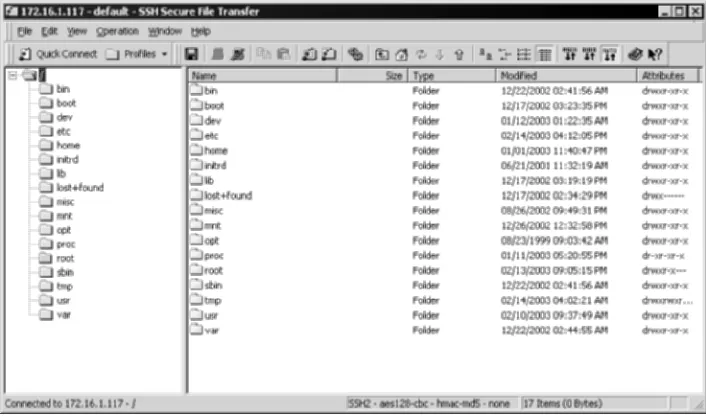
Notice in Figure 1.4 that none of the information is in clear-text and readable to anyone; thus, it is encrypted. In addition, Figure 1.5 shows the SFTP client interface, which is similar to many FTP interfaces.
[image:39.531.96.449.381.591.2]protocol such as SFTP, both Unix and Windows clients can access the same server, since both can communicate and use SSH but cannot necessarily com-municate with SMB or NFS. Note that SSH can make the file-transfer process longer than FTP, NFS, or SMB; however, in many cases, the delay is minor.
Remote Network Access
In addition to providing remote command line and remote file transfer utili-ties, SSH can provide access to remote networks, creating something similar to a virtual private network (VPN). SSH can not only provide VPN functionally in the typical sense of the word (PPP over SSH), but can also provide services that many VPN users require, such as e-mail, file transfer, and Intranet services with port forwarding. Also, using SSH as a VPN solution is far less expensive than using a typical VPN solution. When considering any SOHO VPN appli-ance, a VPN card in a current network device, or any full-scale VPN server/ device, the cost of any such device is not any different from the cost of most other network devices, but far exceeds the cost of SSH server implementations. SSH as a VPN solution not only provides access to services such as e-mail, internal file servers, and Intranet services, but with the use of advanced tun-neling, it provides access to X11 services, remote applications, and remote tunneling.
Secure Management
SSH provide secure communication for remote command line management, which is the most popular management method on most Unix systems; it pro-vides secure communication of graphic user interfaces (GUIs) with less secure applications such as VNC. In addition, SSH can provide two-factor authenti-cation for all management methods by requiring a public key and password for management access. As best practice, two-factor authentication should be used for all management methods, as it reduces the number of brute-force attacks, password-guessing attacks, and dependencies on passwords for secu-rity. SSH can enforce two-factor authentication quite easily, which supports a critical best practice in management security. Lastly, SSH can eliminate the need for an out-of-band management network, removing a significant amount of cost and adding administrative simplicity in managing the systems and devices. The following list describes the advantages of using SSH for management:
■■ Encrypted management
■■ Encrypted GUI management with port forwarding (discussed further in Chapter 6)
■■ Significant cost savings
■■ Elimination of separate out-of-band management networks ■■ Added simplicity
■■ Two-factor authentication
Proxy Services
Unlike the use of Secure Sockets Layer (SSL) in encrypted Web traffic (denoted by the HTTPS (Hyper-text Transfer Protocol over SSL) prefix in URLS), SSH proxies can be used in a couple of ways to secure Web traffic over hostile networks, such as the Internet or wireless networks. SSH proxies can be used to connect to remote Web servers running on internal networks, by using HTTP tunneling over SSH, over the Internet. This function adds application security and Web security when internal systems are accessed from remote sites.
Client/Server Architecture for SSH
SSH uses client/server architecture in its implementation. An SSH server can be deployed and allow several SSH clients to connect to it. The architecture is not unlike any other client/server architecture, where the server portion of the program is running a daemon or service that usually listens on port 22. SSH does provide the ability for the daemon/service to listen on any port; however, it must be listening on a TCP connection. SSH has a configuration file, where the different options can be configured, such as password/public key authen-tication, port options, and home directories. SSH clients just need to know the IP address of the SSH server (or hostname) and the port on which it is listen-ing, such as port 22. Based on the configuration of the SSH server, such as login requirements, the client just needs to authenticate to the server with the pre-defined requirements and get access to the session, whether it is SSH or the built-in SFTP functionality. Figure 1.6 shows a very simple example of the SSH architecture.
Figure 1.6 SSH Communication from an SSH client to an SSH server.
SSH client authentication request
SSH server grants/denies access based on authentication credentials
SSH session begins if authenticated appropriately
■■ The SSH server determines if the client is authorized to connect to the SSH service by verifying the username/password or public key that the client has presented for authentication. This process is completely encrypted.
■■ If the SSH server authenticates the client and the client is authorized, the SSH session begins between the two entities. All communication is completely encrypted.
The client/server architecture for SSH provides the ability for clients to have a single source for authentication and/or authorization. The single source for authentication/authorization allows access only to the SSH service, while access to various other services such as e-mail, intranets, extranets, and IRC requires further authentication. Also, with the use of SSH proxies described previously, a single source of authentication can provide access to applications without the need for more usernames and passwords.
SSH’s Encryption Architecture
One of the many benefits of SSH is that it provides a fully encrypted protocol for transferring information, but what is the encryption architecture that SSH uses, and how is it deployed? This book does not explore in detail the encryp-tion algorithms used or how they are implemented in SSH (since optimizaencryp-tion and implementation are the focuses of this book), but I do briefly examine the architecture in order to provide some background knowledge of its deployment.
SSH’s implementation architecture is just as flexible as the protocol itself. SSH is compatible with the major encryption algorithms used today, including the following:
■■ 3DES ■■ Blowfish
Any of the preceding encryption algorithms can be used for the ciphers for the SSH connection. Most of the ciphers are well supported, but the use of DES is strongly discouraged for the more secure 3DES option.
In addition to the preceding cipher algorithms, SSH offers Message Authen-tication Code (MAC) algorithm hashes. Two of the choices supported in most SSH implementations are MD5 and SHA1. MAC algorithm hashes are used for data integrity. Data transferred from one entity to another is hashed with a unique cryptographic signature, differentiating it from other data. The crypto-graphic signature, generated with MD5 or SHA1 hashes, does not change under any circumstances from one entity to the next. This ensures that the entity receiving the data has obtained it without any modification, tampering, or general abuse by unauthorized entities.
Basic Miscues with SSH
Many protocols used in enterprise networks have several security issues. SSH is no different. SSH offers a wide variety of solutions, but it is important to mention that SSH has had security issues, including severe issues that may result in remote access to unauthorized users. I do not discuss all the security issues associated with OpenSSH or other variants of SSH. I do, however, encourage awareness that SSH, like any program or service, needs to be patched on a regular basis. Inform your internal patch management process and network operations personnel to patch and monitor SSH services on a reg-ular basis.
Some of the security issues identified with SSH involve buffer overflows, incorrect X11 forwarding, weak Challenge/Responses handling, remote infor-mation leakage, and privilege escalation. For more inforinfor-mation, visit the fol-lowing URL for OpenSSH security problems: www.openssh.com/security.html.
Types of SSH Clients/Servers
SSH2 (www.ssh.com)
■■ SSH2 is a commercial version of SSH, with required license fees for commercial use (noncommercial use is free). Commercial SSH clients/servers are available for both Windows and Unix systems.
VanDyke Software (www.vandyke.com)
■■ VanDyke Software makes a commercial version of SSH, with required license fees for usage. Commercial SSH servers (VShell) and clients (SecureCRT) are available for the Windows operating system.
SSH Clients ■■ Commerical SSH ■■ OpenSSH
■■ PuTTY ■■ Secure-CRT
■■ MindTerm—SSH over Java with Web browsers ■■ WinSCP
Basic Setup of SSH
This section focuses on setting up an SSH server in both a Unix and Windows environment. The setup creates a base SSH server install, based on the operat-ing system of your choice, which enables the discussion of various SSH fea-tures that appear throughout this book. The following lists the types of implementations demonstrated:
been pre-loaded with any type of an SSH server. If you have a machine that already has the SSH service/daemon listening, feel free to skip this section.
OpenSSH
The following paragraphs describe the prevalent servers using OpenSSH.
Red Hat Linux 8.0
The following is a step-by-step procedure to install SSH on Red Hat 8.0.
RPM-Based Implementation
After the full installation of a Red Hat 8.0 server, use your favorite FTP client, such as the command line client or built-in Web browser FTP functionality, to download the latest RPM (Red Hat Package Manager) from ftp://ftp5.usa .openbsd.org/pub/OpenBSD/OpenSSH/portable/rpm/RH80. I will be using version 3.5 (openssh-3.5p1-1.i386.rpm). Download the RPM to the directory of your choice; I recommend /usr/local/src. Once the file has been downloaded, follow these directions:
1. From a shell, change directories to the location where the OpenSSH RPM was downloaded:
# cd /usr/local/src
2. Install the OpenSSH RPM:
# rpm –i openssh-3.5p1-1.i386.rpm
To start the daemon, change to the installation directory and start the service:
# cd /usr/sbin # ./sshd –p 22
Package-Based Implementation
After the full installation of a Red Hat 8.0 server, use your favorite FTP client, such as the command line clients or built-in Web browser FTP functionality, to download the latest package from ftp://ftp3.usa.openbsd.org/pub/OpenBSD/ OpenSSH/portable/openssh03.5p1.tar.gz. I will be using version 3.5 (openssh-3.5p1.tar.gz). Download the package to the directory of your choice; I recom-mend /usr/local/src. Once the file has been downloaded, implement the fol-lowing directions:
1. From a shell, change directories to the location where the OpenSSH package was downloaded:
# cd /usr/local/src
2. Unzip the tarball using gunzip:
# gunzip –c openssh-3.5p1.tar.gz | tar xvf –
3. Change directories to SSH:
# cd openssh-3.5p1
4. Configure the object file and the dependencies:
# ./configure
5. Make the binary:
# make
# make install
You’re done!
To start the daemon, change to the installation directory and start the service:
# cd /usr/local/src/ssh # ./sshd –p 22
[image:47.531.96.453.57.131.2]After the full installation of an OpenBSD 3.1 server, use your favorite FTP client, such as the command line clients or the built-in Web browser FTP func-tionality, to download the latest tarball from ftp://ftp.openbsd.org/pub/ OpenBSD/OpenSSH/. I will be using version 3.5 (openssh-3.5.tgz). Download the tarball to the directory of your choice; I recommend /usr/local/src. Once the file has been downloaded, follow the subsequent directions.
1. From a shell, change directories to the location where the OpenSSH package was downloaded:
# cd /usr/local/src
2. Unzip the tarball using gunzip:
# gunzip –c openssh-3.5.tgz | tar xvf –
3. Change directories to SSH:
# cd ssh
4. Make the object file and the dependencies:
# make obj # make cleandir # make depend
5. Make the binary:
# make# make install
To start the daemon, change to the installation directory and start the service:
# cd /usr/local/src/ssh # ./sshd –p 22
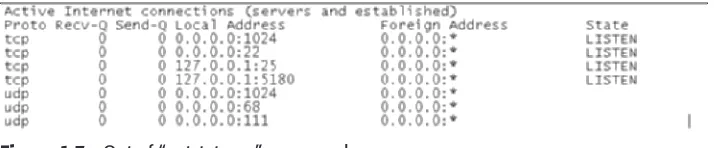
Note, the –p option is not needed if you are using the default port (22). You should now have the SSH server running on port 22 on your OpenBSD 3.1 machine. To confirm this, type netstat –an and you should see the same results as in Figure 1.7.
tory. The two files should include the executable (setupssh35.exe) and the signature file.
2. After extracting setupssh35.exe to the c:\temp folder, double-click setupssh3.5.
3. A welcome screen should appear (see Figure 1.8). Select Next to go to the next screen.
4. Fully read the License Agreement (see Figure 1.9). If you agree, select I agree. If you don’t agree, hit Cancel, and send this book to deprived engineers in Silicon Valley.
Figure 1.9 License Agreement of OpenSSH.
5. At this point, you have the option to install the client and server por-tions of SSH, as well as some shared tools and menu shortcuts (see Fig-ure 1.10). Select Next.
6. Choose the installation location; I recommend keeping the default loca-tion (see Figure 1.11). Select Next.
Figure 1.11 Install Location screen for OpenSSH.
7. Choose the shortcut location; I recommend keeping the default (see Fig-ure 1.12). Click Install to begin installing the program:
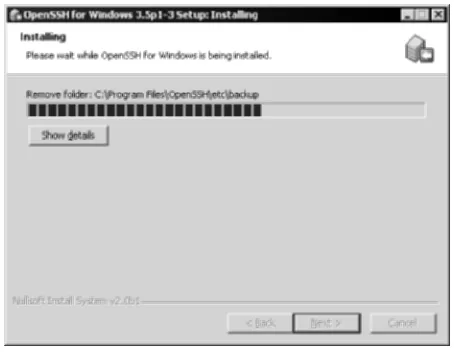
8. You should see the installation in progress (see Figure 1.13).
9. During the installation process, you should see a text box, telling you that you MUST edit the password file (passwd) in order for SSH to work properly (see Figure 1.14). This is a very important step to follow after the installation has been completed. Hit OK.
Figure 1.13 Installing screen for OpenSSH.
10. Once installation is complete, select Finish and leave the Show Quick-start guide checked.
11. The Quickstart guide should now appear in Notepad. 12. Read the guide specifications under configuration.
13. From the command prompt, change the directory to the OpenSSH bin directory.
c:\cd “Program Files”\OpenSSH\bin
14. To grant local users access to the SSH daemon, type:
c:\Program Files\OpenSSH\bin\mkpasswd –l –u username >> ..\etc\passwd
You’re done!
Change to the installation directory and start the service: \Program Files\ OpenSSH\bin\net start opensshd.
To confirm the service has started, type netstat –an and you should see the screen shown in Figure 1.15:
Figure 1.15 Result of the netstat –an command.
Notice that all the interfaces, denoted by 0.0.0.0, are listening on port 22, which is SSH.
Commercial SSH
The following paragraphs describe the prevalent servers using the commercial version of SSH.
OpenBSD 3.1 and Red Hat Linux 8.0
After the full installation of an OpenBSD 3.1 or Red Hat 8.0 server, use your favorite FTP client, such as the command line client or the built FTP function-ality in Web browsers, to download the latest tarball from ftp://ftp.ssh.com/ pub/ssh/. I use the noncommercial version of SSH, specifically 3.2.3 (ssh-3.2.3.tar.gz). Download the tarball to the directory of your choice; I recommend /usr/local/src. Once the file has been downloaded, follow the subsequent directions.
1. From a shell, change directories to the location where the Commercial SSH package was downloaded:
# cd /usr/local/src
2. Unzip the tarball using gunzip:
# gunzip –c ssh-3.2.3.tar.gz | tar xvf –
3. Change directories to SSH:
# cd ssh-3.2.3
4. Compile the source:
Note, the –p option is not needed if you are using the default port (22). To confirm the service has started, type netstat –an and you should see the same results as Figure 1.15. Notice that all the interfaces, denoted by 0.0.0.0, are listening on port 22, which is SSH.
Windows 2000
After the full installation of a Windows 2000 server, use your favorite FTP client, such as ftp.exe or Internet Explorer, to download the latest version of Com-mercial SSH for Windows platforms (evaluation version unless you have pur-chased the license) from www.ssh.com/support/downloads/secureshellserver/ evaluation.mpl. I use version 3.2.3 (SSHSecureShellSever-3.2.3.exe). After you have filled out the appropriate evaluation form, download the executable to the directory of your choice; I recommend c:\temp. Once the file has been downloaded, follow the subsequent directions.
1. Double-click on the exe file.
2. A welcome screen should appear (see Figure 1.16). Select Next to go to the next screen.
Figure 1.17 License Agreement for Commercial SSH.
3. Fully read the License Agreement (see Figure 1.17). If you agree, select Yes. If you don’t agree, hit Cancel and send this book to deprived engi-neers in Brookings, South Dakota.
4. Choose the installation location. I recommend keeping the default. (See Figure 1.18.) Click Next.
5. Choose the program folder, we recommend keeping the default (see Figure 1.19). Click Next.
Figure 1.19 Program Folder location for Commercial SSH.
6. Let the system create a host keypair; click Next.
7. Once installation is complete, select Finish and leave the View the ReadMe File checked.
8. Read the ReadMe file; then close the file.
To start the service, select Start ➪ Programs ➪ SSH Secure Shell Server ➪
Tools ➪Start Server. The screen shown in Figure 1.20 should appear.
To confirm the service has started, type netstat –an and you should see the screen as in Figure 1.15. Notice that all the interfaces, denoted by 0.0.0.0, are listening on port 22, which is SSH.
Figure 1.21 License screen for Vshell.
VShell SSH Server
After the full installation of a Windows 2000 server, use your favorite FTP client, such as ftp.exe or Internet Explorer, to download the latest version of VanDyke’s Software’s VShell SSH for Windows platforms (30-day evaluation version unless you have purchased the license) from www.vandyke.com/ download/vshell/. I use version 2.14 (vshell214.exe). Download the exe-cutable to the directory of your choice; I recommend c:\temp. Once the file has been downloaded, follow the subsequent directions.
1. Double-click the exe file.
2. The VShell License Agreement should appear (see Figure 1.21). Read the agreement. If you agree, select I Agree to go to the next screen. If you do not agree, send this book to deprived engineers in Nashville, Tennessee.
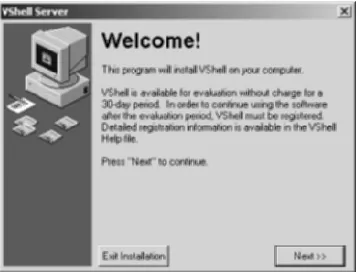
3. The Welcome screen appears next (see Figure 1.22). Select Next to continue.
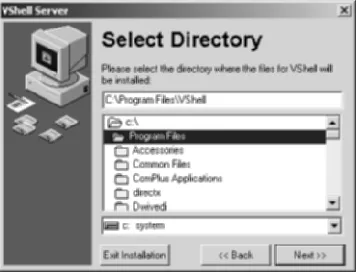
[image:57.531.97.277.474.610.2]Figure 1.23 Destination location folder for the installation of VShell.
4. Choose the installation location; I recommend keeping the default (see Figure 1.23). Click Next.
5. The next screen asks about the location of the program’s icons. Choose your preferred location and select Next (see Figure 1.24).
6. The next screen discusses the authentication options with VShell (described more in Chapter 4). In order to use public-key authentica-tion, an LSA module must be created. Ensure that the checkbox to install the public key LSA module is selected and choose Next (see Figure 1.25).
7. Once all the options are selected, choose Finish.
[image:58.531.75.257.410.547.2]8. Once the installation is complete and successful, choose OK.
Figure 1.25 Authentication and LSA module screen.
9. In order to complete the installation, the system must be restarted. Select OK to restart the system or Cancel to restart the system at another time (be sure to restart the system before attempting to use VShell).
Once the system has been rebooted, the VShell SSH server should be started automatically. It will be installed as a service called VanDyke Software: VShell. To confirm that the service has started, type netstat –an and you should see the same results as in Figure 1.20.
Optimal Uses of SSH
SSH can be optimized in a variety of ways, both for security purposes and functionality purposes. One of the great things about SSH is that it can be opti-mized for so many different things, usually with a single installation. Follow-ing is a list of issues that SSH can help solve. This list presents different options that can be addressed by SSH:
■■ Secure Remote Access solution (VPN) via the Internet
■■ Remote access to internal applications, such as Road Warrior applica-tions (Time and Expense)
■■ Secure file sharing (replacing NFS, CIFS, and SMB) ■■ Secure command line execution
SSH server and to port forward other applications, such as Windows Terminal Server’s 3389 port, to internal hosts.
On the other hand, there could be a security requirement that all manage-ment traffic should not only be encrypted but should enforce two-factor authentication. By setting up an SSH proxy that requires two-factor authenti-cation, all clients are required to use a username/password and public key for authentication, while all information is encrypted. These uses fulfill the secu-rity requirements of the network without the extra costs and complexities of a separate solution.
The benefits of using and optimizing SSH will continue to grow. As this book unfolds, I will explore the different methods for using SSH on both Unix and Windows environments for security and functionality. I will also demon-strate many examples of using SSH with the greatest amount of flexibility to meet the needs of complex and convoluted networks.
Summary
In this chapter, some of the basics of SSH are discussed. Discussions about the differences between SSH1 and SSH2 and the different uses of SSH itself estab-lish an understanding of the protocol. The chapter also addresses the architec-ture of SSH, both client/server and encryption architecarchitec-ture, with a brief description of the types of SSH servers and clients. The chapter concludes with a detailed, step-by-step guide to installing SSH. This provides a basic under-standing of the protocol as well as basic setup of the application. In the next two chapters, I discuss the basic implementation and setup of several different SSH servers and clients, allowing you to proceed with optimal usages for SSH in Chapter 4 and the rest of the book.
31
There are three main SSH servers that provide different types of functionality and usage: OpenSSH, SSH Communications’ SSH server, and VanDyke Soft-ware’s VShell SSH server. In chapter one, we install all three of these servers; however, we do not discuss the configuration, the uses, and the different fea-tures of these servers. While the three main SSH servers offer similar SSH ser-vices, they provide different levels of functionality, several of which may be better for your environment than others. The type of SSH server you use can significantly affect the type of SSH experience you have. For example, several SSH servers offer both command line access and secure file transfer; however, if SSH is being deployed for port forwarding only (discussed in Chapters 6 and 7) or for file transfer, giving the user command line access may not be acceptable.
■■ VanDyke’s Software VShell SSH server ■■ Windows
OpenSSH
OpenSSH servers are available on both Windows and Unix environments. The Windows version is actually a port of OpenSSH’s Unix version using the pop-ular Cygwin utility (see www.cygwin.com for more details). While the Win-dows port of OpenSSH uses Cygwin, note that the port is not a full installation of Cygwin and does not require additional Cygwin utilities, which is ideal since Cygwin requires a separate installation procedure. Since both the Unix and Windows versions of OpenSSH use the same configuration file for the SSH server, the sshd_config file, I discuss the file itself in detail. It can apply to both Windows and Unix platforms. To view the configuration file, enter the following commands.
On Unix:
#cd /etc/ssh #more sshd_config
On Windows:
C:\cd “Program Files”\OpenSSH\bin
C:\Programe Files\OpenSSH\bin\type sshd_config
N OT E All lines in the sshd_config file that are changed must be uncommented (the # must be deleted from the beginning of the line).
The first section I present is the simple network configuration:
#Port 22 #Protocol 2,1
connections on port 22, but since port 80 or 443 are usually available. To listen on multiple ports, add the following lines:
Port 22 Port 80 Port 443 Port 8080
Protocol Allows the usage of only SSH version 1, SSH version 2, or both. Since SSH version 1 is more insecure, it may be a good option to only use version 2; however, several devices do not support SSH version 2 yet. To use only SSH version two, add the following line:
Protocol 2
ListenAddress Sets the IP address to have the SSH daemon listen on. The default, which is 0.0.0.0, enables the SSH services on all interfaces. If there are interfaces where SSH should not be listening, such as the external interface of a firewall, remove 0.0.0.0 and add the appropriate IP addresses. To listen on only select interfaces, addl the following lines:
ListenAddress 172.16.1.1 ListenAddress 192.168.0.1
The next section discusses the host-key section. The host-key section dis-cusses parameters around the SSH server’s host key, which is the fingerprint used to identify the SSH server.
# HostKey for protocol version 1 # HostKey /etc/ssh/ssh_host_key # HostKeys for protocol version 2 # HostKey /etc/ssh/ssh_host_rsa_key # HostKey /etc/ssh/ssh_host_dsa_key
This section sets specifics on the server key. The KeyRegenerationInterval is the time, in seconds, to regenerate the server key; the ServerKeyBits is the number of bits to be used.
The next section addresses logging:
# Logging
#obsoletes QuietMode and FascistLogging #SyslogFacility AUTH
#LogLevel INFO
This section sets the logging option for the SSH service. The differentiation between QuiteMode and FascistLogging is that QuiteMode logs only fatal errors, whereas FascistLogging enables verbose logging. SyslogFacility speci-fies the syslog code to use when logging messages from SSH, such as Daemon and Auth. Loglevel specifies the level used when logging messages from SSH, such as only informational messages (INFO).
The next section addresses authentication options with SSH:
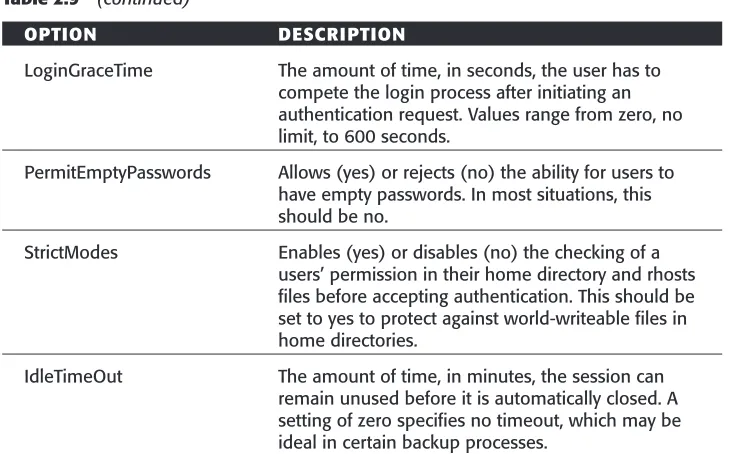
#Authentication #LoginGraceTime 120 #PermitRootLogin yes #StrictModes yes
#RSAAuthentication yes #PubkeyAuthentication yes
#AuthorizedKeysFile .ssh/authorized_keys
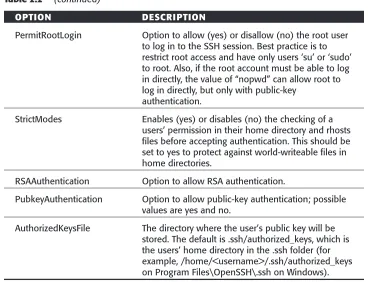
Table 2.2 describes the authentication options available for the SSH server.
Table 2.2 Authentication Options
OPTION DESCRIPTION
users’ permission in their home directory and rhosts files before accepting authentication. This should be set to yes to protect against world-writeable files in home directories.
RSAAuthentication Option to allow RSA authentication.
PubkeyAuthentication Option to allow public-key authentication; possible values are yes and no.
AuthorizedKeysFile The directory where the user’s public key will be stored. The default is .ssh/authorized_keys, which is the users’ home directory in the .ssh folder (for example, /home/<username>/.ssh/authorized_keys on Program Files\OpenSSH\.ssh on Windows).
Under the authentication section in the ssh_config file is an authentication option for using rhosts with RSH. While rhosts usage is not recommended due to its poor security standards, the following lines address rhost configuration options:
# rhosts authentication should not be used #RhostsAuthentication no
# Don’t read the user’s ~/.rhosts and ~/.shosts files #IgnoreRhosts yes
# For this to work you will also need host keys in /etc/ssh/ssh_known_hosts
#RhostsRSAAuthentication no # similar for protocol version 2 #HostbasedAuthentication no
# Change to yes if you don’t trust ~/.ssh/known_hosts for # RhostsRSAAuthentication and HostbasedAuthentication #IgnoreUserKnownHosts no
[image:65.531.92.460.63.345.2]RhostsRSAAuthenication To attempt rhosts authentication from RSA host keys
HostbasedAuthenication Enable (yes) or disable (no) host-based authentication under SSH version 2
IgnoreUserKnownHosts Ignore (no) or read (yes) the known hosts file in the users’ home directory
The last authentication section for the sshd_config file addresses more pass-word options, including Kerberos usage:
# To disable tunneled clear text passwords, change to no here! #PasswordAuthentication yes
#PermitEmptyPasswords no
# Change to no to disable s/key passwords #ChallengeResponseAuthentication yes
# Kerberos options
#KerberosAuthentication no #KerberosOrLocalPasswd yes #KerberosTicketCleanup yes
#AFSTokenPassing no
# Kerberos TGT Passing only works with the AFS kaserver #KerberosTgtPassing no
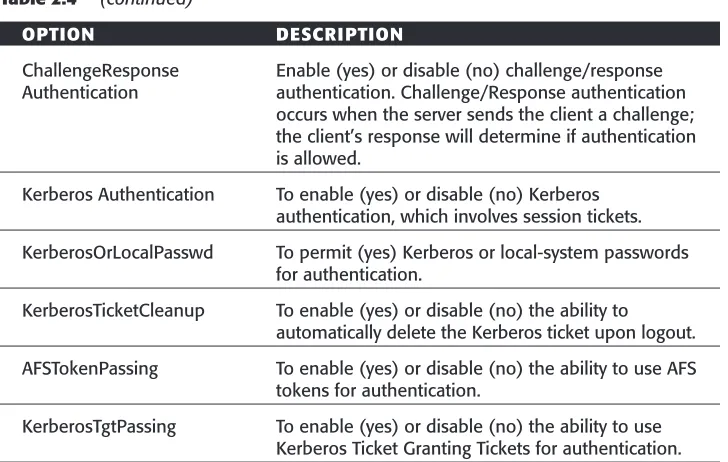
Table 2.4 describes the password and Kerberos authentication options avail-able for the SSH server.
Table 2.4 Password and Kerberos Options
OPTION DESCRIPTION
PasswordAuthentication To enable (yes) or disable (no) password authentication.
KerberosOrLocalPasswd To permit (yes) Kerberos or local-system passwords for authentication.
KerberosTicketCleanup To enable (yes) or disable (no) the ability to
automatically delete the Kerberos ticket upon logout.
AFSTokenPassing To enable (yes) or disable (no) the ability to use AFS tokens for authentication.
KerberosTgtPassing To enable (yes) or disable (no) the ability to use Kerberos Ticket Granting Tickets for authentication.
The next section of the sshd_config file addresses X11 options that can be used with forwarding:
#X11Forwarding no #X11DisplayOffset 10 #X11UseLocalhost yes
X11 forwarding can be enabled or disabled in this section of the sshd_config file. If X11 forwarding is enabled, the offset can be set, where 10 is the default, and the option to use the localhost can be enabled, which is the most typical installation of X11 forwarding. Using the localhost to forward X11 connections allows all X11 traffic to prorogate from the local machine.
The last section of the sshd_config file addresses a variety of options that can be set with the service, such as printing, banner information, and subsystems:
#PrintMotd yes #PrintLastLog yes #KeepAlive yes #UseLogin no
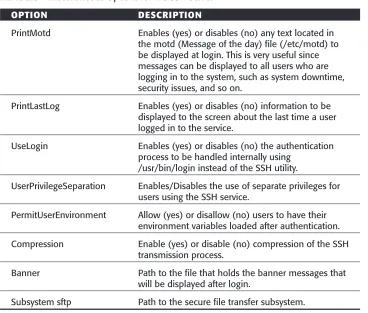
[image:67.531.96.460.63.294.2]Table 2.5 describes the various miscellaneous options that are available for the SSH server.
Table 2.5 Miscellaneous Options for the SSH Server
OPTION DESCRIPTION
PrintMotd Enables (yes) or disables (no) any text located in the motd (Message of the day) file (/etc/motd) to be displayed at login. This is very useful since messages can be displayed to all users who are logging in to the system, such as system downtime, security issues, and so on.
PrintLastLog Enables (yes) or disables (no) information to be displayed to the screen about the last time a user logged in to the service.
UseLogin Enables (yes) or disables (no) the authentication process to be handled internally using
/usr/bin/login instead of the SSH utility.
UserPrivilegeSeparation Enables/Disables the use of separate privileges for users using the SSH service.
PermitUserEnvironment Allow (yes) or disallow (no) users to have their environment variables loaded after authentication.
Compression Enable (yes) or disable (no) compression of the SSH transmission process.
Banner Path to the file that holds the banner messages that will be displayed after login.
Subsystem sftp Path to the secure file transfer subsystem.
[image:68.531.75.443.197.510.2]RSAAuthentication no
Subsystem sftp /ssh/sftp-server
Despite the abbreviated portion of the sshd_config file, all the entries have the same definition described in the previous file portion.
SSH Communications’ SSH server
SSH Communications’ SSH servers are also available on both Windows and Unix environments. The sshd2_config file is used by SSH Communications’ SSH server for all configuration management for the service. The Windows version has a different configuration utility, which uses a graphical user inter-face (GUI) to display and report changes to the sshd2_config configuration file. On the other hand, the Unix version provides only the sshd2_config file for configuration management without any extra configuration tools. Since the Unix and Windows versions provide different configuration utilities, I address the sshd2_config file first, since both platforms either rely (Unix) or refer (Win-dows) to this file for configuration; then I address the Windows GUI for con-figuration management.
SSH Communications’ SSH Server: Unix
To view the configuration file, enter the following commands:
#cd /etc/ssh2 #more sshd2_config
# SyslogFacility AUTH # SyslogFacility LOCAL7
Table 2.6 describes the general options available for the SSH server.
Table 2.6 Options in the General Section of the ssch2_config File (Unix)
OPTION DESCRIPTION
VerberosMode Enables (yes) or disables (no) the SSH session’s debugging and connection related information to be displayed to standard output
QuietMode Enables (yes) or disables (no) the SSH session’s warning and error messages to be displayed to standard output
ForcePTTYAllocation Enables (yes) or disables (no) the ability to force allocation of PTTY sessions
SyslogFacility Identifies the Syslog code to use when logging a message from SSH, such as Daemon, Auth, and Local
Network
The network section of the sshd2_config file should look like the following:
Port 22 # ListenAddress any # RequireReverseMapping no # MaxBroadcastsPerSecond 0 # MaxBroadcastsPerSecond 1 # NoDelay yes # KeepAlive yes # MaxConnections 50 # MaxConnections 0
Port 80 Port 443 Port 8080
ListenAddress Sets the IP address to have the SSH daemon listen on. The default, which is 0.0.0.0, enables the SSH services on all interfaces. If there are interfaces where SSH should not be listening, such as the external interface of a firewall, remove 0.0.0.0 and add the appropriate IP addresses. To listen on only select interfaces, add the following lines:
ListenAddress 172.16.1.1 ListenAddress 192.168.0.1
RequireReverseMapping Enables (yes) or disables (no) the requirement of DNS lookups to succeed, in order to work with AllowHost and DenyHost entries. If enabled and the DNS lookup fails, the request is denied. If disabled and the DNS lookup fails, the IP address in AllowHosts and DenyHosts is checked.
MaxBroadcastPerSecond Identifies the number of UDP broadcasts the server should handle per second. The default value, which is zero, has no broadcast handled.
NoDelay Enables (yes) or disables (no) the socket option for TCP_NODELAY.
KeepAlive Enables (yes) or disables (no) whether the SSH server should send KeepAlive packets to the SSH clients. This value helps prevent hanging sessions by determining if the client on the other side is still running and hasn’t crashed or blue-screened.