Survey of Collaborative Tools and Systems
Geoffrey Fox and Ahmet UyarFlorida State University
Department of Computer Science and
CSIT (School of Computational Science and Information Technology) 400 Dirac Science Library
Tallahassee Florida 32306-4120
May 9 2001
Sections of this paper written by:Harun Altay, Ozgur Balsoy, Hasan Bulut, Geoffrey Fox, Gurhan Gunduz, Jake Kim, Sung-Hoon Ko, Sangmi Lee, Sangyoon Oh, Marlon Pierce, Xiaohong Qiu, Ahmet Uyar
Table of Contents
1 Overview ... 5
1.1 Introduction... 5
1.2 Technology Backdrop... 6
1.3 Nature of Collaboration ... 9
1.4 Authoring Models for Web Pages... 11
1.5 Audio-Video Conferencing... 12
1.6 Learning Objects and their Management... 13
1.7 Hand Held Devices ... 15
1.8 Collaborative Portals... 16
2 Web Conferencing Tools ... 19
2.1 Introduction... 19
2.2 Centra... 21
2.3 Centra Symposium 4.0... 25
2.4 WebEx... 28
2.5 WebEx... 32
2.6 PlaceWare ... 34
2.7 Latitude ... 39
2.8 Polling and Question Answer Systems... 42
2.9 Summary Comparison of WebEx, Centra, PlaceWare and Latitude ... 46
2.10 Microsoft NetMeeting... 49
2.11 Glossary ... 52
3 Learning Management Systems... 53
3.1 Blackboard 5 ... 53
3.1.1 Capabilities ... 53
3.1.2 Cost and Licencing ... 54
3.1.3 Requirements/Limitations... 55
3.1.4 Experience in Using It ... 55
3.2 WebCT 3.0... 58
3.2.1 Tools ... 58
3.2.3 Requirements/Limitations... 59
3.2.4 Technical Support ... 60
3.2.5 Experience in Using It ... 60
4 HearMe voice over IP system... 61
4.1 Introduction... 61
4.2 Services... 61
4.3 Architecture... 61
4.4 Protocols ... 62
4.5 Bandwidth requirements ... 63
4.6 Client side System requirements... 63
4.7 Server side System requirements ... 63
4.8 Cost ... 63
4.9 Conclusion ... 64
5 Access Grid ... 65
5.1 Introduction... 65
5.2 Video... 66
5.3 Audio... 66
5.4 Projectors ... 66
5.5 Computers ... 66
5.6 Software ... 66
5.7 Network... 67
5.8 Protocols ... 67
5.9 Recording/Playback ... 67
5.10 Required Equipments... 67
5.11 Cost ... 68
5.12 Conclusion ... 68
6 Shared Display in WebEx and VNC ... 70
6.1 Introduction... 70
6.2 The Key Features ... 70
6.2.1 WebEx... 70
6.2.2 VNC ... 71
6.3 The Shared Display... 71
6.3.1 WebEx... 71
6.3.2 VNC ... 72
7 Instant Messengers... 73
7.1 How Instant Messenger Works... 73
7.2 Capabilities ... 73
7.3 Cost ... 74
7.4 System Requirements... 74
7.4.1 System Requirement of MSN and Yahoo messenger... 74
7.4.2 System Requirement of PalmOS version Yahoo Messenger... 74
7.4.3 System Requirement of Jabber Server and Client ... 75
7.5 Assessment... 75
7.5.1 Yahoo Messenger Service... 75
7.5.2 Java Style Instant Messenger Service on Palm... 75
7.6 Comparison... 76
8 Calendars ... 77
8.1 Calendar Standards ... 77
8.1.1 vCalendar/iCalendar ... 77
8.1.2 iTIP/iMIP/iRIP... 77
8.1.3 CAP... 78
8.2 Products... 78
8.2.1 Corporate Time Server 5.1... 78
8.2.2 iPlanet Calendar Server... 79
8.2.3 Netscape Communicator 4, Professional Edition ... 79
8.3 Comparison of Netscape Calendar and Corporate Time ... 80
9 Training Management Database (TMD) ... 83
9.1 Introduction... 83
9.2 Technology ... 83
9.3 System requirements... 83
9.4 User and Administrator Functions... 84
10 Portals for Education and Computing... 88
10.1 Gateway ... 88
10.2 Cactus Code ... 89
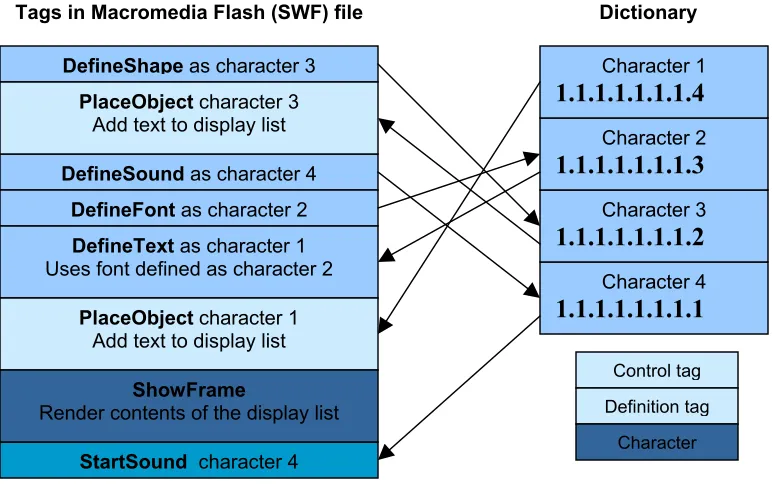
11 Macromedia Flash 5.0 and Generator 2.0 ... 91
11.1 Introduction... 91
11.2 Flash... 91
11.3 Features of Flash 5... 92
11.4 Key technologies of Flash 5... 95
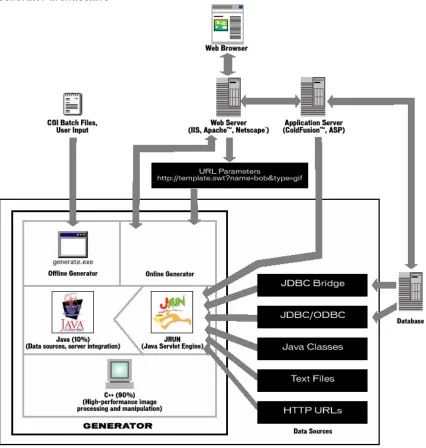
11.5 Generator... 97
11.6 Summary ... 100
11.7 Future ... 100
11.8 Appendix... 101
11.9 Reference ... 107
12 H.323 Conferencing Standard ... 107
12.1 Introduction... 107
12.2 Audio... 107
12.3 Video... 107
12.4 Data and T.120 Standards ... 107
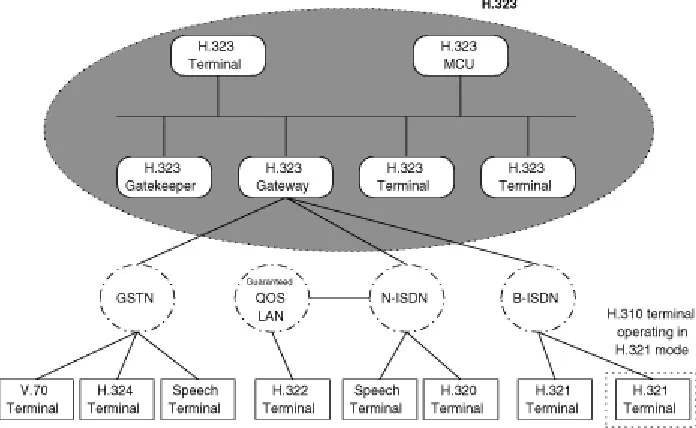
12.5 Components of H.323 Deployment ... 108
12.6 Gateways... 110
12.7 Gatekeepers... 110
12.8 Types of Multipoint conferences ... 111
12.9 IP Networking and Multicast ... 112
12.10 Recording & Playback ... 112
12.11 Firewalls... 112
12.12 Who supports H.323?... 112
12.13 Who doesn’t support H.323? ... 113
12.14 Competing Protocols... 113
12.15 Conclusion ... 114
1 Overview
1.1 IntroductionThis review describes some of the technologies and tools available to support web-based collaboration. The focus is on systems available today and largely discusses commercial offerings. It does not give a detailed requirements analysis or discuss future and (many) research systems. A white paper produced for ARL --
http://new-npac.csit.fsu.edu/users/fox/documents/arlcollabwhitepapermay00/ -- gives a better discussion of requirements for ARL and has some brief description of research issues. These can also be found at the web page for this tutorial
http://aspen.csit.fsu.edu/collabtools/ and at a report written for ERDC http://new-npac.csit.fsu.edu/users/fox/documents/generalportalmay00/. The first web page has not just this report but also a set of PowerPoint presentations containing both the overview and detailed description of individual technologies. Published papers on this subject can be found at http://new-npac.csit.fsu.edu/users/fox/documents/pajavaapril00/ (Proceedings of the Second International Conference on the Practical Application of Java, Editor Omer Rana, Manchester England April 12-14 2000) and
http://www.new-npac.org/users/fox/documents/gempapermarch00 (Physics of Earthquakes" edited by John Rundle, Donald Turcotte and William Klein and published by AGU in 2000, pp 219-245).
This work has benefited substantially from our own PET and NSF funded activities with the systems called Tango (synchronous collaboration) and the WebWisdom content manager and Virtual Classroom Manager in asynchronous collaboration. Recently several commercial synchronous tools -- WebEx Centra Placeware VNC and others (see sections 2 and 6) have become popular with more or less identical collaboration models, which are very similar to that in Tango. In the asynchronous area, we can learn from the commodity information portals like Yahoo, Excite, NetCenter while WebCT and Blackboard are asynchronous education portals described in section 3. there is perhaps more diversity here with different management and authoring styles producing a variety of tools.
We wish to build web-based support for people to interact with each other and with other resources: computers, documents, and instruments. This was originally called a
incompletely a set of tools. We suggest that there are some pretty good solutions and that now is a reasonable time for groups to invest in learning and using some of the tools. Clearly capability, performance and robustness will improve but there seems to be consensus in several areas. We see time and money invested now will give groups a useful knowledge basis for using future systems. The original ARL white paper discussed the differences and similarities between support of training, administration and research. Any use of collaborative systems should take this into account in choosing what to do. For instance today, most commercial education systems emphasize asynchronous collaboration where the dominant business use (even in training) are the synchronous systems WebEx and Centra.
We will not discuss application areas here tending to focus somewhat on web-based (distance) education and training. Important areas that will drive the collaboratory area include:
1) Distance Education including advanced seminars and training 2) Help desks including
• Microsoft helping a user debug problem on their home PC (connected to Internet) • MSRC consulting staff interacting over distance in real time with a user with a
program bug
• Yahoo staff answering in depth questions from users browsing either Yahoo’s knowledge or shopping sites
3) Scientists brainstorming difficult research issues in distributed locations 4) Virtual communities around the world from children chatting to each other or
integration of distributed organizations (such as nearly all large laboratories) 5) The members of the Indian Nation remaining in their homeland but participating
electronically in modern economy (“digital.indigineousworld.org”) 6) Support of HPCMO through a distributed PET team.
7) Crisis Management and Command and Control for Military
8) For a single user, “collaboration” between different input devices. This includes case where a scientist controls a specialized display with a PDA controller or a wheelchair shopper accessing the mall kiosk from a hand-held keyboard. See section 1.7 for further comments in this area.
In the following subsection 1.2, we discuss some key base technology trends and approaches. We believe that the Object Web should be the basis of any modern system; typically one programs in Java as it has best software engineering properties and defines interfaces and data structures in XML using a multi-tier architecture. There are some important Internet trends, which suggest where systems will go – these include the increasing bandwidth and latency of networks (Gilder’s law) and the growing use of Palmtop devices.
1.2 Technology Backdrop
Any electronic artifact is by definition an (distributed) Object whether it be an instrument delivering data, a computer, an online user, a computer program or even the most
XML Interfaces
Object 2
Object 1
The basic approach is the same whatever the object model: COM, CORBA, Jini/RMI, SOAP, or even DMSO’s HLA. In each case, systems are built in multi-tier fashion so the front end rendering and back end functionality are disassociated
In the picture below, we show an example of a software object being defined in XML.
As shown above, a multi-tier architecture separates objects (on right) from the middle-tier where brokers and collaboration servers lie and on the left clients. Note collaboration servers provide the illusion of the popular peer-to-peer architecture. Objects on one client appear to be reflected in the display of other clients; nearly always this is “just” done through the mediation of a server. Many application areas are currently setting XML based coarse grain object standards. One example is the work of IMS and ADL in the area of education and training (http://www.adlnet.org). We will not discuss these standards here in detail although the tutorial web site does have separate link
(http://aspen.csit.fsu.edu/collabtools/imsadlieeejan01.html) discussing this and we briefly summarize the issues in section 1.6. This is definitely an important area but for instance the lack of agreement as to how to collaborate implies that the requirements of this capability are not included in the current IMS/ADL standards. Note using object
technology is essential to allow powerful approaches to managing and providing services in a sustainable fashion that leverages the best available commercial infrastructure.
1.3 Nature of Collaboration
As already mentioned collaboration just means sharing and we identify three classes of capability
1) Share the participants: Audio/Video Conferencing
2) Basic Tools: email, Instant Messenger, Bulletin Boards, White board
3) Shared resources i.e. shared objects, which can be documents, computer programs, data streams or visualizations. The basic tools correspond to the special case where the shared object is a text message or simple drawing.
The objects can be shared in several ways, which trade off ease of use versus flexibility versus ease of implementation. There are three object-sharing styles, which we will discuss in this review.
1) “True” shared event: actually all these methods are shared event but differ in the events being shared. This initial case corresponds to sharing the events defining state of object being shared.
2) Shared display: Events contain updates to frame buffer
3) Shared export: Convert (rendering of) object to some standard form that is more flexible than bitmap of shared display. Build a custom sharing for this exported form. The commercial WebEx system uses “a patented sharing of virtual printer” which is roughly equivalent to sharing export to PDF.
The area of collaborative visualization shown below can illustrate these choices.
We have a master user B sharing with other users A and C. there is a visualization pipeline formed by the computer program (object on the left above) where its output and input wend their way through multiple filters (tiers) until they are finally rendered on the particular client device which could be different for each user. As shown above by vertical arrows, one can share “object” at any stage in pipeline. The simplest case (user C) is shared display when the final frame buffer is shared. The basic shared event
B’s visualization state change. In particular A has no need to use the same display device as B; B could be a high end CAVE, A on a PDA. Shared export corresponds to one of the intermediate arrows where one is inside the pipeline at a stage where the format is some standard such as HTML, PDF, Java2D or 3D, SVG (Scalable Vector Graphics). Then one can build a generally useable collaborative viewer for this intermediate form and produce a powerful environment in a re-usable fashion. The above figure illustrates why building collaboration systems is difficult. Even if we agree on what needs to be done i.e. in this build a shared visualization, there are many ways to do it and we can only find out what to do by building experimental systems and seeing how they are used.
Finally if we share objects and we have a lot of them, then we must have management capabilities so we can store catalog and retrieve them. This management capability needs to be linked with the collaboration system and in some applications has special
requirements like those to store grades and homework in learning systems.
Receive
events
Subscribe Subscribing Object II Subscribing Object IPost
Events
(Exported) Object Pub/Sub ServerNow we discuss a critical distinction between synchronous (real-time) and asynchronous collaboration. Note that the Web is full of objects – Web pages sitting on Web servers – and these support asynchronous collaboration gotten when somebody posts a web page and later somebody else looks at it in their own time. One of the attractions of web-based collaboration is this incredibly simple but powerful asynchronous model. Note that by replacing a web document by a “CGI script” or servlet (web interface to program, database etc.) implies that the web supports general multi-tier object sharing. We can abstract this capability as the Publish/Subscribe mechanism shown above and make it more useful by adding some mechanism (automatic email, instant messenger or word of mouth) to tell the collaborating client when new information is posted. Adding
synchronous collaboration to this model “just” involves providing “real-time”
notification and automatic update for changed objects. Of course this is not easy to do reliably and conveniently.
In sections 2 and 6, we give a detailed and reasonably complete survey of the major synchronous collaboration tools. Sections 1.6 and 3 highlights the two major
popular component of collaboration, which are similar in function to text chat rooms. Section 8 covers an asynchronous module of importance – namely calendars and scheduling systems. Note that in both messengers and calendars there are emerging standards which will enable the interoperability of these capabilities between different systems.
1.4 Authoring Models for Web Pages
We have discussed how collaborative services depend on the nature of the object being shared. For a shared Web page, the object is authored in some fashion or other. This can be Word, PowerPoint, a native HTML editor or a high end possibly multimedia page produced with Macromedia or Adobe tools. We expect that sophisticated web pages will grow in importance especially in areas like education where collaboration technology can increase competition and the potential audience. Market pressures will demand that providers provide the best possible learning environments. In section 11, we review Macromedia technologies where Flash and Shockwave are perhaps the most popular high-end authoring systems. The current tools are not well tuned for education where one needs to make a lot of similar pages, which can be easily updated to take account of changing curricula in rapidly evolving fields like computer science. We expect that the situation will improve as powerful XML based systems using XSLT style sheets become available; here it is interesting that Macromedia has acquired Allaire and its leading database driven template system Cold Fusion.
Authoring style is important for collaboration systems as good sharing is obviously harder for the more complex web pages produced using Flash and other such
technologies – for instance one needs not just to share the page but also the interactive controls. Here there are several important developments in the Web Consortium W3C standards community (http://www.w3c.org). The W3C Document Object Model or DOM defines precisely the object structure of W3C compliant Web pages. The DOM definition is only just being completed with the key (for collaboration) event characteristics coming out in the level 2 and 3 W3C DOM specifications. This should alleviate the well-known difficulties coming from the very different DOM implementations in Microsoft and Netscape browsers. Unfortunately at the moment, no browsers support the latest
standards and with an 87% market share, Internet Explorer is not tracking these changes actively. The Netscape 6 browser was recently released but it still too immature for serious work although it does have excellent W3C standards compliance – even here it only supports level 1 of the DOM at this stage. Section 11.7 notes the possible
There are several other important standards that affect authoring. MathML is the new standard for mathematics; SMIL is a complete syntax for incorporating multimedia into web pages; OpenOffice (http://www.openoffice.org) is Sun’s effort (through their StarOffice product) to define standards for productivity tools; WML is potentially important for content aimed at wireless devices. The W3C also has a major effort in universal access that should be tracked. We are in a transition time with many important developments that will eventually enable sophisticated pages to be manipulated and shared in standard fashion. We see that now is a reasonable time to explore use of technologies like Flash as it is now clear how they will escape their current proprietary base and so investment in such material will have a long-term future.
1.5 Audio-Video Conferencing
In our experience with the use of Tango in distance training, audio-video conferencing was always problematical and the area most likely to lower the quality of the session. The essential problem is audio for this requires negligible bandwidth (a few kilobits per second) but high quality of service as the human ear is very sensitive to audio distortion. The current Internet does not support quality of service – one must “buy it” with
bandwidth and hope that the packets get through. In the case of video, there is less of a problem for although the bandwidth needed is higher than for audio, the eye is much more forgiving of broken images especially if these are “just postage stamp talking heads”. Quality of service is less critical for video. Remember that we transmit the curricula material separately from the multi-media and this will always be high quality. In section 4 we describe the HearMe approach to desktop audio. This is a low-end solution that enables an arbitrary mix of conventional phones and Internet audio streams to participate in a conference. All sources are digitized for later replay. It is ironic that conventional telephones have both quality of service and handsets with echo cancellation; they tend to outperform Internet solutions. This audio supports the G.723 (modem) and higher quality G.711 standard codecs. In section 5, we describe the radically different approach of Argonne/NCSA’s Access-Grid technology aimed at large rooms linked by high quality networks. This system supports multiple high-quality audio and video streams and each client needs 20 megabits per second network bandwidth. We see this as the premier high-end system aimed at a rather different model than HearMe; the Access Grid supports interacting communities whereas HearMe is aimed at the classic
collaborating desktop scenario.
We note that in the desktop case, the value of postage stamp video is not clear. The much richer Access Grid video has clear value but is only possible on high speed networks and with significant technical support. We need to review available desktop video solutions and we have not completed this task yet.
We note that the multi-media codecs used in conferencing are different from those optimized for Webcasts and streaming multi-media. The latter need not support
H.323 and SIP described in section 12. Currently the Access Grid does not support these standards, which is in our opinion a weakness although there are ad-hoc methods to tie non Access Grid (AG) clients into an AG session.
1.6 Learning Objects and their Management
Learning Management Systems are designed to act as document repositories and provide other services such as support of student registration, quizzes, glossaries, group email, homework submission and grading. A typical architecture is shown below
to the “Web Page” as the basic unit and so provide specification that can help decide what material to share but does not address the nature of the sharing. The W3C DOM can take over and used to define the collaboration of Web Pages and their internal document fragments. We consider object standards critical for collaboration as you can only effectively share information if you enough to specify its access and internal structure.
? description ~
? description ~
title ~ title ~ course course ? objectives ? objectives
* objectiveRef ~
* objectiveRef ~
location ~ location ~ model ~ model ~ source ~ source ~
+ externalMetadata
+ externalMetadata
identification identification location ~ location ~ model ~ model ~ source ~ source ~ value ~ value ~ name ~ name ~ + property + property
? curricular ~
? curricular ~
? developer ~
? developer ~
? labels
? labels
* extensions
* extensions
? prerequisites ~
? prerequisites ~
? completionReq ~
? completionReq ~
? globalProperties
? globalProperties
+
+
* block ~
* block ~
* au ~
* au ~
block ~
block ~
blockAlias ~
blockAlias ~
IMS has a major effort to define tests and quizzes but it seems that this may be too much detail in an area still being developed. For instance the clever CAPA system for
personalized questions (http://capa4.lite.msu.edu/capa-bin/class.html) is not currently supported. Nevertheless the issues raised in these test and quiz standards will always be important and used in future work. IMS also includes enterprise properties (such as standards for personal information), which must be important.
It is interesting that WebCT and Blackboard are popular with educational institutions given their limitations in terms of authoring model and collaboration capabilities. One reason is that they provide a model suitable for the less experienced user with limited online authoring skills. We doubt if this can be a long-term rationale as we believe that there will be growing pressure for the highest quality learning environments and more emphasis on high end authoring. In many areas one needs laboratories – both say in physics but more relevantly for DoD computer science needs programming laboratories. In our distances classes with Jackson State we used the rather old Virtual Programming Laboratory VPL (http://old-npac.csit.fsu.edu/projects/VPL/vpl-publications.html) which was quite effective. This area deserves more attention.
One concern with the systems of section 3 is the realism of their goal of providing a “complete solution”. With rapidly changing technology and even requirements as users experiment with new systems, a modular approach could be more sustainable. For instance Balsoy and Sen (http://aspen.csit.fsu.edu/collabtools/senthesisdraft.html)
produced an effective system to support registration, grading and homework submission. We do not review this here as we don’t see these capabilities as critical in training applications. Rather in section 9, we describe a module produced for ASC to aid registration. One can find a discussion of the larger system online
(http://aspen.csit.fsu.edu/collabtools/gradingjan01.html).
1.7 Hand Held Devices
Some detailed discussion of the potentially important issues with personal digital assistants and hand held devices can be found online
(http://aspen.csit.fsu.edu/collabtools/extras/PalmtopFuture.html,
http://aspen.csit.fsu.edu/collabtools/extras/MobileDevices.html,
http://aspen.csit.fsu.edu/collabtools/extras/Java3d_waba.html) Important issues here include:
1) What will be the connectivity of PDA's to the "wireless web". Here both hardware and software issues are unclear.
2) One can expect lowish modem speeds for pervasive access (14.4 kbaud is current digital cell phone access speed). However existing 802.11 and the emerging Bluetooth protocols will enable much faster access in selected areas like research laboratories.
4) What are the important PDA applications? These include job submission in the computing arena and note taking, quizzes etc. in education.
One area we have investigated is the use of PDA’s to control large screen displays and we see this as quite promising with a typical scenario shown below. Here three linked
PDA’s show the 2D slices while the researchers look at the large 3D stereo display controlled by movement of the PDA. As discussed earlier, such systems are naturally built on top of collaboration infrastructure.
In section 10, we include brief discussions of two computing portals. The Grid Forum in which we are participating is producing a more substantial survey.
(http://www.computingportals.org). Sites like Yahoo first popularized portals but recently they are being applied to Enterprise information systems as discussed in a report by Merrill Lynch. This forecast a growth in this software area up to some $15B per year in 2002 as shown in the first figure of this subsection.
As shown above, we see computing and education portals being built on top of infrastructure designed for commodity and information portals. As these commercial activities are still developing rapidly one must expect a significant amount of
experimentation needed until “we get it right”.
The goal of a computing portal is to provide a web interface that can maximize the productivity of a (super)computer center user. One provides in a single web interface "myComputer", all the resources needed for HPCMO and DoD Research and Computing. This includes:
1) Display Sensor results
2) Initiate and visualize simulations
3) Necessary information -- from program documentation to latest technical reports 4) Contact colleagues in real-time (audio/video conferencing) or asynchronously (email
etc.). So collaboration is viewed as a portal service as detailed below. This requires we look at computing specific objects (visualization, job submission forms) and build collaborative support for them. The science base also requires we support MathML and other technologies specific to the field.
6) Allow customization of choice and arrangement of material
We show below the resultant view one gets – here for an earthquake science computing portal.
Important capabilities (services) of a computing portal include. 1) Security
2) Fault Tolerance
3) Object Lookup and Registration
4) Object Persistence and Database support (as in Enterprise Information Portals) 5) Event and Transaction Services
6) Collaboration among scientists around world
7) Job Status as in HotPage (NPACI http://hotpage.npaci.edu/)
8) File Services (as in NPACI Storage Resource Broker http://www.npaci.edu/dice/) 9) Support (XML based) computational science specific metadata like MathML, and
XSIL (http://www.cacr.caltech.edu/SDA/xsil/) 10) Visualization
11) Programming
12) Application Integration (chaining services viewed as backend compute filters) 13) "Seamless Access" and integration of resources between different users/application
domains
14) Parameter Specification Service (get data from Web form into Fortran program wrapped as backend object)
2 Web
Conferencing
Tools
2.1 IntroductionWeb conferencing tools are trying to create a virtual meeting environment similar to real world seminar rooms. In this case, attendees are at their desktops with an Internet
connection during meetings, instead of being at the same room. The presenter can do a power point slide show, ask some questions through chat and get the answers from audience, annotate on the slides, write and draw pictures on a blackboard, and demo an application during a virtual meeting. Audience can either ask questions by talking when given the permission or through the chat. The voice is transmitted either through Internet or using teleconferencing. Some conferencing tools also provide video streaming.
There are a lot of web conferencing tools on the market today with varying capabilities. In this paper we evaluated some of the most important ones. We have two independent evaluations of WebEx. The pictures below show the rather similar interfaces that have evolved in the leading systems: Centra, WebEx and Placeware.
Centra:
Placeware:
The commercial viability of this field can be illustrated by the October 2000 (before the current recession (!)) press releases from WebEx and Centra describing their quarterly results. WebEx writes:
• October 19 2000: WebEx Communications, Inc. the leader in communications infrastructure for Web meetings today announced record results for its third quarter, ending September 2000. WebEx added more than 700 new customers this quarter, bringing the total number of customers to more than 1800.
• During the third quarter, AT&T and Global Crossing announced the integration of WebEx services into their communications solutions, and Commerce One announced that WebEx services have been integrated into their next generation Commerce One.netTM. WebEx's list of new customers this quarter contains industry leaders in aerospace, automotive, computer software, computer hardware, consulting services, financial services, healthcare, real estate and legal services. New customers include 3-M, Aberdeen Group, Ace Hardware, Altera, Associated General Contractors (ACG), BancTec Inc., Blue Martini, Briggs & Stratton, Brown Brothers Harriman & Co., CheckFree Corp., Cosine Communications, Emory University, Enron Energy Info Solutions, Fiserve, Inc., FleetBoston Financial, Forrester Research, Grubb & Ellis, Hewlett-Packard, Keystone Solutions, Kyocera Wireless Corp., Medtronic, Motorola, NEC America, Nexprise, Proxicom, Razorfish, Sunguard, Toyota Motors, Wilson Sonsini Goodrich & Rosati, ZDNet and Ziff-Davis among others.
While Centra is proud to announce:
• Oct. 12, 2000-- Centra the world's leading provider of software infrastructure and ASP services for live eLearning and Internet business collaboration, today announced results for the third quarter and nine months ended September 30, 2000.
• Centra added 73 new customers in the third quarter, bringing the total customer base to 350 accounts. Some highlights include:
• The selection of Centra by Andersen Consulting, one of the world's largest professional services firms, as the company's standard infrastructure for the delivery of live eLearning to the company's 65,000 employees.
• A significant initial deployment at Coca-Cola Company, the world's largest soft drink provider with over 35,000 employees, to provide eLearning delivery infrastructure for global SAP end user training and ongoing change management initiatives.
• Siemens AG selected Centra as the corporate eLearning and collaboration standard to support communications and planning among the company's top 1,500 global operations executives. In addition, Siemens, which operates in over 190 countries, will use Centra to support their extensive SAP rollout through hands-on end user training over the Internet.
Synchronous Virtual Environments are offered by WebEx Centra Placeware Latitude and NetMeeting featuring shared display and shared export (for PowerPoint). These systems have limited but nontrivial functionality in the areas of archiving, export models,
management and PDA support. In the descriptions below, some of the capabilities have not been examined deeply – sometimes because they were not available in “free service” we used. VNC offers a public domain shared display capability described in section 6 in comparison with that of WebEx. Note that VNC was designed for a “different problem” – a systems czar doing administration on multiple remote machines i.e. the master
computer viewing display of (single) client. It has not been optimized for one master display being shared with many clients as needed in distance training. Note customer help desk support (including remote consulting for the MSRC’s) needs the first model where the master computer views the client display. Further this case typically one only has a few session members – perhaps even just two.
In both shared export and shared display capabilities of the reviewed systems, there is built in support for annotation. Note the importance here of sharing objects with scalable displays. Then one can place the annotation in the correct place on each client display whether or not they are each viewing at the same magnification. PDF and SVG are scalable in this sense as is a fixed format like a shared frame-buffer or a GIF/JPEG export. HTML is not scalable as different browsers can lay out the same page in different ways that do not preserve relative positioning. All systems have some sort of chat and whiteboard tools and Audio/Video conferencing. Centra has a built in Windows audio with a Java front end. WebEx currently uses a product from Lipstream, which has similar structure to the HearMe system described in section 4.
2.2 Centra By
Hasan Bulut
Collaboration Tool:Centra URL:http://www.centra.com
Centra Symposium
Centra Conference
Centra eMeeting
CentraNow ASP Service
1. Capabilities: The Centra 99 server supports the Symposium client--a Java application that works with a Web browser--and the browser-based Conference client. Symposium is designed for collaborative, hands-on training via application sharing, while Conference is for presenting information with limited interaction.
Conference participants can only view applications shared by a Conference leader, whereas Symposium provides control for both session leaders and participants.
PowerPoint Presentation: Centra's web safari tool allows the session leader to take the participants on a synchronized Web tour. Participants can see the leader's "pointer" and will automatically scroll when the leader scrolls up and down on a Web page.
Using Conference, PowerPoint presentations can be uploaded to the server for display and slides can be annotated with drawings and highlights. Participants can send questions to the presenter using text chat. A session leader can choose an area of a screen to
broadcast to participants. Rather than sending a continuous stream, Conference's screen broadcasting tool refreshes a participant's screen at a user-selectable interval.
Symposium combines embedded PowerPoint presentations, integrated audio, whiteboards, application sharing and collaborative Web surfing. All of them are
controlled by instructors. The instructors determine which students can present to the rest of the class.
CentraNow does not preserve PowerPoint transitions or animation effects, supply a whiteboard, conduct Web tours, or offer robust annotation tools. Polling consists of simple yes/no voting. Presenters have access to a window that can simultaneously capture and broadcast their screens, but true collaboration isn't possible. The presenter must have PowerPoint installed, because the conversion from the PPT format to GIF images is done locally.
Since CentraNow does not cache slides, images can take long to download over a dial-up connection.
Centra's Agenda Builder: Content for Symposium or Conference can be built ahead using Centra's Agenda Builder, which supports multimedia files. Multimedia files can be pre-recorded video clips, audio clips, animated GIFs and other multimedia content.
Instructors can build Web-based evaluation forms and assemble event content into a structured, customized format. Files with the following file extensions can be inserted : .txt, .html,.htm, .gif, .jpg, .jpeg, .avi, .mov, .qt, .mpg, .mp2, .wav, .au, .rpm,.ram, .ra, .rm, .asf, .ppt. Centra Conference supports .ppt, .gif, and .jpg files.
2. Audio/Video Conferencing: High-quality audio.
Video Conferencing is real-time, multi-point video conferencing. An adaptive video bandwidth feature ensures the highest possible performance over connections as low as 28.8 kbps.
Centra Conference/eMeeting/CentraNow: Integrated voice over IP. Each user has a built-in audio wizard to ensure high-quality audio optimization.
3. Shared Export: Power point slides are shared with the audience. The presenter has the control on the slide but if a listener gets the permission to ask the question he can
highlight, draw or put some balls on the slide. Co-presenters can upload their own PowerPoint presentations on the fly, even after the session has begun.
4. Shared Display: Leaders and participants can share any Windows application,
including their entire desktop or even a remote server. It can deliver applications in three different ways to participant desktops - group interactive, individual hands-on labs, and broadcast - from any PC over low-bandwidth network connections.
5. Archive: Centra has recording feature. Live sessions can be recorded. Recordings can be editted frame-by-frame, over-dub the audio track and also transition effects can be added. Also events can be configured to allow enrolled participants access to event content before and after the live session.
6. Whiteboard: Centra supports whiteboards
7. Chat Room/Instant Messenger: Attendees can send instant messages publicly or privately. Text Chat can be used before, during and after a session. Also Text Chat can be used during a Breakout session and while using other tools such as the Whiteboard or the AppShare tool. Public Text Chat cannot be used during a Symposium Auditorium Event.
8. Quiz /Polling (Conference/eMeeting/CentraNow) yes/no polling is available.
9. Cost (Centra Symposium)
$25,000 for the software, $200/seat; annual maintenance fee of 18% of original cost and additional fees for hosted Web service.
10. Number of participants: A maximum of 250 simultaneous users can be handled, but for full interactivity 25 users is the maximum.
11. Requirements
Minimum Client Requirements
- Windows 95, 98, NT 4.0, 2000
- Internet Explorer 4.01+, Netscape 4.06+ - 28.8 kbps or faster network connection - Pentium 133 MHz, 32 MB memory
Video Conferencing/Application Sharing Requirements
- Same as Minimum Client Requirements except Pentium 200 MHz and 64 MB RAM
Recommended Server Requirements
- Windows NT 4.0, Server 2000 Server/Advanced Server- Microsoft IIS 4.0 or 5.0 - Pentium 300 MHz, 256 MB RAM
- 250 MB free disk space
2.3 Centra Symposium 4.0 by Ahmet Uyar
Oct 20th, 2000
Name of Collaboration Tool: Centra Symposium 4.0 URL's to find out about it: www.centra.com
1. Capabilities: Centra Symposium is basically designed to do presentations over the Internet. It is one of the four products Centra Software, Inc provides for conferencing over the Internet. It is the latest released and most capable one. The other products are Centra Conference 3.0, Centra eMeeting 3.0, and CentraNow. There are two types of people in a conference room in Centra conferencing products. One is the presenter and the rest is the audience. But it is possible to assign some people from the audience as presenters, and they get the same privileges as the presenter except the right to assign co-presenters as listeners. Presenter sets up a meeting and a meeting ID is generated, then presenter invites the listeners to the meeting by email. Listeners can attend the meeting with the meeting ID. The presenter has full control over the presentation. Normally presenter talks and the audience listen, when a listener wants to ask a question, s/he raise her/his hand and when the presenter gives permission, s/he get the microphone. On the other hand it is always possible to ask questions through sending a text message. A user can send a text message to everyone anytime s/he wants. Any time the presenter can import a power point file to show others.
Both the presenter and listeners have an applet running in their machine. The presenter can import a power point file into the presentation and has full control over the
presentation. Listeners listen the talk and they can raise a hand when they want to ask a question, they can also send a text message to anyone anytime. They can also answer some questions with yes or no. They can respond to a poll with choosing from a multiple-choice question.
2. Audio-Video Conferencing: Centra Symposium 4.0 provides multi-way, full-duplex IP audio conferencing. It also provides video conferencing.
3. Shared export: Only Power point files are supported. Power point slides are converted to gif images (640*480 pixels). No resizing and zooming are allowed. Audience can annotate on slides when they get the microphone to speak. Since the size of slides is fixed, annotations work quite well, no pointer problems.
No annotation is allowed while sharing an application.
There is no fixed size for applications being shared, Presenter can resize the window on his own will. Participants see the shared application in its original size if they choose expand view option. No resizing of shared application by participants is allowed.
Remote Control: CentraNow does not provide a mechanism to pass the control of a shared application to a remote participant. But any participant can share an application provided that he is assigned as co-presenter.
5. Shared Web Browsers: Centra does not support Shared Web Browsers. Web page sharing is achieved by shared display.
6. Archive: Centra has developed a recording engine, Centra Recorder, and an editing engine, Centra Producer, to record and edit conferences. But I did not have any chance of testing it.
7. Whiteboard: A whiteboard is provided.
8. Chat Room/Instant Messenger: An instant messenger is provided. In addition, the presenter can divide the listeners into subgroups and they can communicate with each other privately.
9. Quiz/Polling: Presenter can design a multiple choice or yes/no question on the fly and get the answers instantly.
10. Cost:
Server software: $25,000
One named seat: $200 (only the registered person can use it)
One concurrent seat: $2,000 (anyone can use it)
18% of net start up annually for all upgrades maintenance and support.
11. Number of participants: Up to 250 simultaneous users.
12. Requirements: Clients do need to have a web browser and a microphone and speakers. Servers need to have Windows NT 4.0 with SP4+.
On the presenter machine it requires Microsoft Power Point to import the power point slides. The Microsoft Power Point is not required on the client machines. They only need to have a java capable web browser with a microphone and speakers.
13. Need for further development of Tool to be useful: It seems that it is a complete product for web conferencing. On the other hand, it lacks some important features. It is not possible to resize the client window, no zoom in or zoom out.
We successfully used CentraNow, which is a less capable and less expensive product, to do a web conferencing to Mississippi from Florida.
2.4 WebEx By
Hasan Bulut & Ahmet Uyar
Collaboration Tool: WebEx URL: http://www.webex.com
1. Capabilities: WebEx is an online meeting system with a meeting host and presenters. WebEx allows parties to share or present any application, including presentations, webpages, documents, whiteboards, or entire computer desktops. It integrates live audio and video into the meeting, in addition to text chat and polling features.
WebEx has launched four services -- WebEx Meeting Center, WebEx Business Exchange, WebEx On-Call and WebEx Shopping Together.
1.WebEx Meeting Center
2.WebEx Business Exchange
3.WebEx On-Call
4.WebEx Shopping-Together
WebEx's services enable end-users to spontaneously share content and applications in a seamless environment with integrated audio and video. End-users access the interactive services through the co-branded websites of WebEx customers and partners as well as the WebEx website. End-users can participate in meetings from anywhere on the Internet using a standard web browser.
Annotations: The host and presenter always have annotation privileges. All attendees who have annotation privileges can annotate documents using the tools in the toolbar. Everyone's annotations appear on all attendee's monitors.
1. Pointer Icon: changes the pointer to a pointing hand. The Pointer includes the name of the person pointing.
2. Text Tool Icon: the pointer changes to an I-beam, allowing you to annotate a presentation or document with text.
3. High Light Icon: the Draw palette appears, with the highlighter tool selected by default. The pointer changes to a highlighter, allowing you to highlight specific areas of a presentation or document.
4. Drawing Icon: in the Draw palette, the pointer changes to a pencil. Other drawing tools are straight line, an ellipse, a rectangle, a line that terminates with an arrow, a line that begins and terminates with arrows, a checkmark, and an X-mark.
5. Cut Annotation Icon: the pointer changes to a pair of scissors. Then click an annotation to remove it.
7. Thumbnail Icon: display thumbnail representations of all the pages of a presentation or document.
8. Full Screen Icon: displays a full-screen view of a presentation or document
9. Synchronize Icon: synchronizes the page view for all attendees and ensures that all attendees are viewing the same page.
10. Previous Page Icon go to previous page.
11. Next Page Icon: go to next page.
2. Audio-Video Conferencing: WebEx provides a set of APIs that enable
telecommunication providers to integrate WebEx online services into their offerings to provide integrated scheduling of audio and data conferencing. All WebEx Services accessed via APIs are co-branded for the telecommunication provider.
During a meeting, there are two options for conducting a conference; internet voice or teleconference. Internet voice utilizes IP connection and is available in free WebEx meetings. Teleconferencing utilizes the phone system and is available in Pay-Per-Use meetings.
There two calling options in WebEx teleconferencing; Call-out and Call-in. The Call-out
option enables the WebEx server to call each attendee. When an attendee joins a call-out enabled meeting, he enters his phone number. The server dials this number and connects the attendee to the conference call. The Call-in option indicates that attendees call in. After scheduling the meeting, each invited attendee receives an e-mail notification that includes the number they are to dial. After joining the meeting, the attendee dials the specified number and joins the conference call.
3. Shared Export: WebEx uses vector based imaging to share documents. The
documents shared by WebEx is not limited to power point slides, any printable document can be shared including CAD drawings, blueprints, network diagrams etc.
WebEx also enables resizing of shared documents while preserving the image quality. So participants can zoom in or out their documents on their own will while the presenter is using another size.
Annotations work perfectly well in all cases. I did not observe any pointer problem in different sizes.
4. Shared Display: Presenter or anyone from audience if given the permission can share any application with others. The images of shared application are sent to audience regularly. But only those portions of the screen that have changed are transmitted to participants.
Presenter or someone from audience, if given the permission, can annotate (only draw curves, no other annotations supported) on shared applications. This is unique to WebEx, they hold the patent of this technology. Although in general it works quite well, once when I tested it, it did not work well. I drawn some curves on the application on presenter side, but no curves appeared on the participant window.
Sometimes I have experienced a color disorder problem when using WebEx shared display. Some part of the shared application was not updated correctly at the participant views. Background color is shown as the color of some part of the application.
Remote Control: Presenter can pass the control of shared application to anyone from audience. One person can control the application at a time, either the presenter or the selected person from the audience. When there is the color mapping problems on shared application, the person has the control cannot see the menu items and other control tools properly resulting in a very bad situation.
5. Shared Web Browsers: WebEx does not provide Shared Web Browsers capability; instead it uses shared display to achieve the same result.
5. Archive: WebEx Record & Playback captures any application, including
presentations, software demos, and even WebEx meetings, with synchronized voice recording (in order to capture the audio portion, an additional telephone / soundcard adapter is required). These recordings are saved as a local file and can be placed on your LAN or on your website. All annotations, shared display and whiteboard discussions are recorded and replayed during the playback in the order they occurred.
6. Whiteboard: WebEx supports whiteboards.
7. Chat Room/Instant Messenger: An online chat session can be conducted with everyone in the meeting, or one-on-one in a private chat. WebEx provides instant messages.
8. Quiz/Polling: It is possible to design questions on the fly and get the answers from the attendees.
9. Cost: The free meetings offered at WebEx.com are limited to 4 people per meeting. The application-sharing feature is limited to 10 minutes.
Pay-Per-Use meetings are priced on a per participant, per minute basis. The current rate is $0.35/minute per user with additional charges for teleconferencing.
Prices for Integrated Teleconferencing are:
1. Voice over IP Internet Teleconferencing*: 2¢ per minute per participant 2. Call-in Teleconferencing: 5¢ per minute per participant.
3. Call-out Teleconferencing: 15¢ per minute per participant.
11. Requirements: There are basically two versions of WebEx - the Native client, and the Java client. The Native client provides full/faster access to WebEx features (including host and presenter capabilities, zoom, video and call-out teleconferencing).
The Native Client currently only applies to computers with the following characteristics: · Intel Pentium processor with Windows 95, 98, or NT
· MS Internet Explorer 4.x or Netscape Communicator 4.x
· 56kbps Internet connection or better; however, to get any decent speeds, a T1 or other high-speed Internet connection is best
· JavaScript and Cookies enabled
2.5 WebEx
By Sangyoon Oh ([email protected]) Collobration Tool: WebEx
URL’s:www.webex.com
1. Capabilities: WebEx provides web-meeting tool using simple web browser. Not like most of sophisticate collaboration tools, meeting attendee does not have to install
application before participating meeting. Meeting participants will get everything needed, when they connect to WebEx meeting site using ActiveX technology. Desktop /
Presentation / Application / Web Sharing helps presentation or education. WebEx can be easy solution for small distance learning.
2. Audio/ Video Conferencing: It provides Voice Over IP and Call-In / Call-Out teleconferencing for voice. Presenter can use the Video camera and has a control on it
3. Shared Export: Most of Microsoft Office files, pdf files, and Image files.
4. Shared Display: It has a very impressive application sharing capability, it is stable and fast. It is possible to share any windows application. It is also possible to share entire desktop. In addition, it provides file transfer facility.
5. Archive: It allows recording of meetings for later playback.
6. Whiteboard: A whiteboard is provided. Annotations are always available. 7. Chat Room/Instant Messenger: It is possible to send instant messages to the presenter or other listeners at any time.
8. Quiz / Polling: Presenter can design a question and get answer on the fly. 9. Cost: $.35 minute / per User + additional charge for Teleconferencing 10. Number of participants: No limit.
11. Requirements
Minimal system requirements:
Windows 95/98/NT with Pentium (all features) Mac OS and UNIX (limited features)
Netscape 4.x or Internet Explorer 4.x 56k Internet connection and over.
privilege. One good thing is that during application sharing the contents of the window are dynamic. WebEx Meeting Center (which is host service) incrementally updates only those portions of the screen that have changed. Furthermore the updates are transmitted as vector graphics commands and not as bit maps. One more thing to help traffic control, even it uses HTTP protocols, is that it first checks whether TCP protocol is available. If it is, it uses TCP, since it lower the traffic. The price is the problem. Assume you have an hour class of five students, the whole cost per class will be $126 (6 person * 60 minutes * $.35). It is not expensive class but not a cheap one too.
2.6 PlaceWare By
Hasan Bulut & Ahmet Uyar
Collaboration Tool:PlaceWare URL: http://www.placeware.com
1. Capabilities: PlaceWare Conference Center 2000 is a real-time web conferencing tool with up to 2500 live connections. It allows full audience polling, Q&A sessions, chat, panel presentations with multiple presenters. It requires telephone lines for the voice. At a designated time, participants call into a central location, logon to a password-protected area in the PlaceWare site, and wait for the moderator to begin.
PlaceWare Meeting Center 2000 is a web meeting solution for a department or an entire corporation of departments. It designates an individual virtual office for everyone in the department in order to stay in touch more effectively with customers, clients, vendors and key partners.
Other Services are:
• Event Management Services • PlaceWare Forum
• MyPlaceWare Professional
• MyPlaceWare limits the number of attendees to five but has nearly all the functions of PlaceWare Conference Center.
The presenter can:
• Select a slide set and present individual slides.
• Maintain slide sets. Such as renaming a set, saving a set, deleting a slide set, and so on.
• Generate new slides “on the fly.” i.e.,White Board, Editable Text Slide, and so on.
• Present a live product demonstration. Demonstrate a new software application, show the real-time manipulation of data in a spreadsheet, or lead the audience through a new process.
• Record a presentation.
• Share presenter controls.
Audience members can submit a question or comment from the Audience Consol. The presenter can monitor and respond to questions. The presenter can keep track of which questions reviewed by marking the question with a check mark. He can choose to display all questions or only marked ones. If a question or comment is inappropriate, he can immediately dismiss it.
1. Drawing tools: Draw straight lines and scribbles on the displayed image slide. i.e., to circle text or to point to a significant feature on a slide.
2. Stamp tools: Add a stamp, such as an X or check mark. i.e., to check off each bulleted item as it is discussed.
3. Text tool: Type text on a slide. 4. Eraser: Erase annotations.
5. A pointer: Used to lead the audience from one part of the slide to the other. 2. Audio/Video conferencing: No video streaming is supported. No voice over IP is supported. Teleconferencing must be used for voice communication.
3. Shared export: Only power point files are shared. Power point slides are converted to an image format and scaled to either 704*528 or 480*360 pixels. But, participants do not have an option to choose either size. Once the size is set, no resizing or zooming is allowed.
A snapshot of a rectangular area (704*528 pixels) on the screen can be inserted into the slide set. Annotation tools can be used to add annotations to a Snapshot slide.
Since PlaceWare has fixed size images, annotations work quite well. When given the permission attendee can also annotate on the slides.
GIF or JPEG images are best shown as a Web Page slide. A Web Page slide supports any size image without rescaling or color remapping. However, unlike a PowerPoint image slide, annotations cannot be added to a Web Page slide.
(Optional) Before uploading a slide set, a .ppt file can be manually exported to generate a .pwp file. So the resultant .pwp file can be uploaded instead of .ppt file and this saves time. Since during uploading .ppt files are automatically exported to .pwp files. Also this saves time if a large slide set is to be uploaded to many different places in the Conference Center.
The PlaceWare Add-in for PowerPoint was programmed in VBA (Visual Basic for Applications). VBA programs run within PowerPoint and are tightly coupled to it. PowerPoint also has a COM (Complex Object Model) Automation interface. So PowerPoint can be automated from external programs, mainly Visual Basic, C++, and Java (using the Microsoft JVM).
4. Shared display: Shared display is achieved by using the live demo facility of
PlaceWare. The person who is doing live demo (it can be the presenter or someone from audience if given the permission) can broadcast a selected rectangular region of his screen (size is not fixed). There can be anything on that selected area. The images of the selected area are transmitted to clients regularly.
Annotations are not allowed with live demo slides.
5. Shared Web Browsers: PlaceWare has a web slide. But it is nothing much useful. It does not provide a synchronized web tour. It only allows inserting a web page as a slide into the presentation. When web slide is shown to audience, a browser is started in every client machine with the provided URL. And that’s it. Nothing more is supported. If the presenter scrolls down, no one sees what he is doing, or if the presenter clicks to a link, nothing happens at client machines.
Annotation is not allowed on web slides.
6. Archive: The Recording option is only available to those users who selected Recording as part of their Conference Center features. By selecting the Record Presentation feature, a part of a presentation or all of a presentation can be recorded. When this feature is selected, all slides, and any typed information added during the presentation, such as questions, comments, presenter notes, and text typed on Editable Text slides, is included in the saved presentation. In addition to that the audio from a teleconferencing call that occurs during the presentation can be recorded. A recorded presentation can be published as an HTML file containing nonstreaming audio with links to audio files, RealAudio, or Microsoft Netshow.
The voice is replayed by real audio player or windows media player and the slides are shown on a web browser as .gif files synchronously. No annotation is replayed. The questions & answers are provided at the bottom of gif slides. On the other hand, if the presenter inserts a whiteboard and saves it during the presentation, then it can be archived. But the events are not archived, only static images can be shown during the play back. Poll results can be saved and showed during play back.
7. White Board: PlaceWare suppoorts White Board slides. They can be generated ahead of time by inserting a blank PowerPoint slide, or during the presentation using the White Board (Draw) Create New Slide button.
8. Chat room/ Instant Messenger: Placeware auditorium enables members seated in a row talk among themselves through text or live-audio chat. He can also join an audience row and interact with audience members. He can have a private conversation with a person in his row. Somebody may have multiple private conversations occurring at the same time with different individuals. If he doesn’t want to see a person’s row chat or participate in 1-1 chats with someone, he can mute the person.
Using setup tools audience and presenter chat can be allowed or prevented. i.e.
preventing chat in order to make the audience pay attention to the presentation and not talk among themselves. Also if the presenter disallows the audience chat, the audience cannot chat and they will not see audience seating information, such as who is seated in a row or the number of attendees at an event.
9.Quiz/Polling: A Polling slide is a slide to let audience vote. After displaying a slide, the audience votes and the results can be displayed immediately. There may be a list of multiple choices on the slide. Polling slides can be generated ahead of time or during your presentation.
Conference Center 2000
The annual hosted service price is $600 per seat (U.S.). There is also a one-time setup & branding fee of $3,000
Meeting Center 2000
One office is 10 person capacity
3 Offices Meeting Center: $3,600 per year
One-time setup & branding fee: $3,000
Additional 10-person offices: $1,200 per office per year.
11. Number of Participants:
Conference Center 2000 Minimum purchase:15 seats
Maximum capacity: 2500seats/server
Meeting Center 2000
Minimum purchase: 3 offices (10 seats per office) Maximum capacity: 30000 offices
12. Requirements Conference Center 2000
Pentium-based PC with Windows 95, 98, NT, or 2000 / Sun SPARCstation with Solaris 2.x or later
32 MB of RAM (64 MB recommended) A monitor set to 800 x 600 pixels or greater (Optional) Sound card, microphone, speakers
Netscape Navigator 4.06 - 4.7x / Microsoft Internet Explorer 4.0 or later (Optional) Telephone conference call phone number and PIN
2.7 Latitude By
Hasan Bulut
Collaboration Tool: Latitude
URL: http://www.latitude.com/
1. Capabilities: MeetingPlace is an enterprise communication application for voice and Web-based data conferencing.
Users can easily schedule and attend meetings, share and edit documents, and record and access meetings through phones, Web browsers or groupware products such as Microsoft Outlook and Lotus Notes. It integrates with collaborative applications, such as Microsoft NetMeeting and Lotus Sametime and takes advantage of corporate Web, groupware, e-mail, and fax servers.
MeetingPlace allows meeting participants to share applications and interact with live documents such as a PowerPoint presentation or an Excel spreadsheet.
The data-conferencing is broken down into four components: whiteboard, collaborate, chat, and share.
Here are the optional features for MeetingPlace 2000 suite. These features are optional.
MeetingPlace Data Conference Option: integrated data conference for Microsoft NetMeeting and other T.120-compliant endpoints
MeetingPlace Web: Web interface for scheduling, sharing meeting materials, and access to recordings
MeetingTime: Windows or Macintosh graphical user interface console.
MeetingNotes: integrated recording, file attachment, and voice comment capabilities
MeetingPlace Notification Option: server software agent that proactively queues messages for delivery via support gateway products
MeetingPlace E-mail Gateway: scheduling and meeting notification via cc:Mail, Lotus Notes, Microsoft Mail, Microsoft Exchange, and MAPI-compliant and standard SMTP -based messaging systems
MeetingPlace Fax Gateway: notification and distribution of meeting materials via fax
MeetingPlace FlexMenu Option: customizable top-level menus for telephone interface
MeetingPlace SNMP Option: remote monitoring from any SNMP management station
MeetingPlace Mobile: provides wireless Internet access to MeetingPlace, allowing users to schedule and attend meetings from wireless devices.
MeetingPlace IP: extends e-conferencing capabilities to networks for IP base voice and date conferencing.
2. Audio-Video Conferencing: Provides voice and data conferencing with full duplex conference bridging per conference server. There can be 60 simultaneous conferences per conference server. Maximum number of concurrent users in a networked
configuration is 960. It supports for IP telephony configurations.
3. Shared Documents of various types: Attachments can be sent to participants via e-mail or fax prior to the meeting. Attachments can be documents, URLs, or voice comments. Documents, comments, or URLs can be posted to participants, who retrieve them via browser or MeetingTime client software It provides on-demand access to documents via fax or e-mail from any phone. Members can share documents in real time with the MeetingPlace Data Conference Option. It broadcasts computer screen content, collaborates on documents and works with Microsoft NetMeeting or other data
collaboration software.
4. Application Sharing: Latitude uses NetMeeting to support application sharing. Microsoft is providing tools and enabling technologies, and using third party developers to provide end-user applications.
5. Archive: Conferences can be recorded and be posted on the intranet along with meeting information and documents Members can access recordings via phone, Web browser, or sound-enabled client software.
6. Whiteboard/Chat Room/Instant Messenger: Integration with standards-based T.120 applications, such as Microsoft NetMeeting, lets users to share and collaborate on
documents, whiteboard and chat.
8. Quiz/Polling:There is not enough information about polling.
9. Cost: A typical MeetingPlace system starts at around $100,000 for the software licenses, with the cost of hardware.
10. Number of participants: From 8 to 120 users (more possible) or 60 simultaneous meetings (with up to 960 ports in 8 networked servers).
11. Requirements:( The MeetingPlace Data Conference ) Other services have different requirements.
Windows NT Server Requirements
• Hardware requirements (for a typical 120 license system):
— 200MHz Pentium
— 4GB free disk space
• Software requirements:
— Microsoft Windows NT Server version 4.0 (SP4 or later)
— Web server capable of running CGI programs (Microsoft IIS 3.0 or later, recommended)
End User PC Requirements
• One of the following T.120 applications (for hosts only):
— NetMeeting
— SunForum
— HP Visualize
— SGImeeting
2.8 Polling and Question Answer Systems
Here we briefly comment on this capability in Placeware, Centra and WebEx. We follow our remarks with some screen dumps from the three systems. Placeware Conference Center has a question/answer system; it has also a polling system. However the
Placeware Meeting Center has only the polling system. They use polling slides to let the audience vote. Those questions asked with polling slides can be YES/NO questions or multiple-choice questions. But in the Conference Center anybody, if allowed, can type the question and the presenter types the answer.
WebEx and Centra implement polling. Multiple-choice questions are available. In WebEx and Centra, we couldn't find any tool to type the question and send it to the presenter.
Placeware: