fm.indd i
DEMYSTIFIED
fm.indd i
fm.indd ii
DEMYSTIFIED
JIM KEOGH
McGraw-Hill/
Osborne
New York Chicago San Francisco Lisbon London Madrid Mexico City Milan New Delhi San Juan Seoul Singapore Sydney Torontofm.indd iii
stored in a database or retrieval system, without the prior written permission of the publisher.
The material in this eBook also appears in the print version of this title: 0-07-226134-X.
All trademarks are trademarks of their respective owners. Rather than put a trademark symbol after every occurrence of a trademarked name, we use names in an editorial fashion only, and to the benefit of the trademark owner, with no intention of infringement of the trademark. Where such designations appear in this book, they have been printed with initial caps. McGraw-Hill eBooks are available at special quantity discounts to use as premiums and sales promotions, or for use in corporate training programs. For more information, please contact George Hoare, Special Sales, at [email protected] or (212) 904-4069.
TERMS OF USE
This is a copyrighted work and The McGraw-Hill Companies, Inc. (“McGraw-Hill”) and its licensors reserve all rights in and to the work. Use of this work is subject to these terms. Except as permitted under the Copyright Act of 1976 and the right to store and retrieve one copy of the work, you may not decompile, disassemble, reverse engineer, reproduce, modify, create derivative works based upon, transmit, distribute, disseminate, sell, publish or sublicense the work or any part of it without McGraw- Hill’s prior consent. You may use the work for your own noncommercial and personal use; any other use of the work is strictly prohibited. Your right to use the work may be terminated if you fail to comply with these terms.
THE WORK IS PROVIDED “AS IS.” McGRAW-HILL AND ITS LICENSORS MAKE NO GUARANTEES OR WARRANTIES AS TO THE ACCURACY, ADEQUACY OR COMPLETENESS OF OR RESULTS TO BE OBTAINED FROM USING THE WORK, INCLUDING ANY INFORMATION THAT CAN BE ACCESSED THROUGH THE WORK VIA HYPERLINK OR OTHERWISE, AND EXPRESSLY DISCLAIM ANY WARRANTY, EXPRESS OR IMPLIED, INCLUDING BUT NOT LIMITED TO IMPLIED WARRANTIES OF MERCHANTABILITY OR FITNESS FOR A PARTICULAR PURPOSE. McGraw-Hill and its licensors do not warrant or guarantee that the functions contained in the work will meet your requirements or that its operation will be uninterrupted or error free. Neither McGraw-Hill nor its licensors shall be liable to you or anyone else for any inaccuracy, error or omission, regardless of cause, in the work or for any damages resulting therefrom. McGraw-Hill has no responsibility for the content of any information accessed through the work. Under no circumstances shall McGraw-Hill and/or its licensors be liable for any indirect, incidental, special, punitive, consequential or similar damages that result from the use of or inability to use the work, even if any of them has been advised of the possibility of such damages. This limitation of liability shall apply to any claim or cause whatsoever whether such claim or cause arises in contract, tort or otherwise.
been written.
fm.indd v
Jim Keogh is on the faculty of Columbia University and Saint Peter’s College in Jersey City, New Jersey. He developed the e-commerce track at Columbia Univer-sity. Keogh has spent decades developing applications for major Wall Street corpo-rations and is the author of more than 60 books, including J2EE: The Complete Reference, Java Demystifi ed, ASP.NET Demystifi ed, Data Structures Demystifi ed, XML Demystifi ed, and others in the Demystifi ed series.
fm.indd vi
vii
CONTENTS
Introduction xv
CHAPTER 1 An Inside Look at JavaScript 1
Answers to Common Questions About JavaScript 2 JavaScript: A Limited-Featured
Programming Language 3
Getting Down to JavaScript 4
Object Name 4
Property 5
Methods 5
The Dot Syntax 6
The Main Event 6
Writing Your First JavaScript 7 “Old Timers” Don’t Like JavaScript 10 Spicing Up Your JavaScript 11
Looking Ahead 12
Quiz 12
CHAPTER 2 Variables, Operators, and Expressions 15
Values and Variables 16
Values 16
Variables 17
fm.indd vii
Operators and Expressions
24
Parts of an Expression
24
Multiple Operations
24
Types of Operators
25
Looking Ahead
40
Quiz
40
CHAPTER 3
Condition Statements
43
if Statement
45
The if Statement in Action
45
The if...else Statement
46
The if...else if Statement
48
Other Variations of the if Statement
52
Nested if Statement
53
Identifying a Browser
55
switch...case Statement
58
Loop Statement
62
The for Loop
62
The for in Loop
66
The while Loop
68
The do...while Loop
70
continue
71
Looking Ahead
72
Quiz
73
CHAPTER 4
Arrays
75
What Is an Array?
75
Declaring an Array
76
Initializing an Array
77
Defi ning Array Elements
78
How Many Elements Are in the Array?
79
Looping the Array
80
Adding an Array Element
82
Sorting Array Elements
83
fm.indd viii
Making a New Array from an Existing Array
84
Combining Array Elements into a String
87
Changing Elements of the Array
90
Looking Ahead
91
Quiz
92
CHAPTER 5
Functions
95
What Is a Function?
96
Defi ning a Function
96
Writing a Function Defi nition
98
Adding Arguments
99
The Scope of Variables and Arguments
100
Calling a Function
101
Calling a Function Without an Argument
102
Calling a Function with an Argument
103
Calling a Function from HTML
104
Functions Calling Another Function
108
Returning Values from a Function
109
Looking Ahead
113
Quiz
114
CHAPTER 6
Strings
117
Why Manipulate a String?
117
Joining Strings
118
Finding Your Way Around a String
120
Dividing Text
123
Copying a Substring
125
Converting Numbers and Strings
129
Numbers to Strings
130
Changing the Case of the String
131
Strings and Unicode
132
Looking Ahead
132
Quiz
133
fm.indd ix
CHAPTER 7
Forms and Event Handling
135
Building Blocks of a Form 136
Elements and JavaScript 136
Responding to Form Events 137
Form Objects and Elements 141
Time-Saving Shortcut 143
Changing Attribute Values Dynamically 144
Changing Elements Based on a Value
Selected by the User 146
Changing an Option List Dynamically 148
Evaluating Check Box Selections 151
Manipulating Elements Before the Form
Is Submitted 153
Using Intrinsic JavaScript Functions 155
Changing Labels Dynamically 156
Disabling Elements 159
Read-Only Elements 161
Looking Ahead
162
Quiz
163
CHAPTER 8
Cookies
165
Cookie Basics
166
Creating a Cookie
167
Reading a Cookie
169
Setting the Expiration Date 171
Deleting a Cookie
172
Personalizing an Experience Using a Cookie 174
Looking Ahead
176
Quiz
176
CHAPTER 9
Browser Windows
179
Open the Window, Please! 180
Giving the New Window Focus 182
Placing the Window into Position on the Screen 184
fm.indd x
Changing the Contents of a Window
186
Closing the Window
187
”Magically” Scrolling a Web Page
190
Opening Multiple Windows at Once
191
Creating a Web Page in a New Window
192
Looking Ahead
195
Quiz
196
CHAPTER 10
Regular Expressions
199
What Is a Regular Expression?
200
The Language of a Regular Expression
201
Finding Nonmatching Characters
204
Entering a Range of Characters
205
Matching Digits and Nondigits
205
Matching Punctuation and Symbols
206
Matching Words
206
Replace Text Using a Regular Expression
207
Replacing Like Values
208
Return the Matched Characters
209
The Telephone Number Match
210
Regular Expression Object Properties
213
Looking Ahead
214
Quiz
215
CHAPTER 11
JavaScript and Frames
217
You’ve Been Framed!
218
Invisible Borders
220
Calling a Child Window’s JavaScript Function
222
Changing the Content of a Child Window
223
Changing the Focus of a Child Window
226
Writing to a Child Window from a JavaScript
226
Accessing Elements of Another Child Window
228
Looking Ahead
228
Quiz
229
fm.indd xi
CHAPTER 12
Rollovers
231
Setting the Stage
232
Creating a Rollover
234
Text Rollovers
237
Multiple Actions for a Rollover
239
More Effi cient Rollovers
243
Looking Ahead
245
Quiz
245
CHAPTER 13
Getting Your Message Across: The Status Bar,
Banners, and Slideshows
249
Making Magic Using the Status Bar
250
Building a Static Message
250
Changing the Message Using Rollovers
253
Moving the Message Along the Status Bar
256
Banner Advertisements
268
Loading and Displaying Banner
Advertisements
268
Linking Banner Advertisements to URLs
271
Creating a Slideshow
273
Looking Ahead
275
Quiz
276
CHAPTER 14
Protecting Your Web Page
279
Hiding Your Code
280
Disabling the Right Mouse Button
280
Hiding Your JavaScript
283
Concealing Your E-mail Address
286
Looking Ahead
288
Quiz
288
CHAPTER 15
Menus
291
Creating a Pull-Down Menu
292
Dynamically Changing a Menu
294
Validating Menu Selections
296
fm.indd xii
Creating DHTML Menus 298
Floating Menu 299
Chain Select Menu 299
Tab Menu 300
Popup Menu 300
Highlighted Menu 301
Folding Tree Menu 301
Microsoft Outlook Bar Style Menu 302
Context Menu 303
Scrollable Menu 303
Side Bar Menu
304
Slide-In Menu
304
Looking Ahead
305
Quiz
306
CHAPTER 16
DHTML
309
What Is DHTML?
310
Learning DHTML
310
Cascading Style Sheets
311
Using DHTML Code
313
Generic Drag
313
LCD Clock All
316
Watermark Background Image
319
Tabbed Document Viewer Using iframe
319
Daily iframe Content
323
Cross-Browser Marquee
325
Popup Calendar
325
Drop-In Content Box
325
Ad Box
326
Quiz
327
Appendix
329
Final Exam
333
Answers to Quizzes and Final Exam
349
Index
361
fm.indd xiii
fm.indd xiv
xv
Every web surfer knows a classy web site when he sees one, because it has eye-catching features that make the site outstanding among other sites on the web. Developers of these sites leave web surfers in awe not by using fancy animation or provocative pictures, but by using subtle tricks such as fl oating menus and move-able objects, and by giving the web site the smarts to help a web surfer enter ap-propriate information and perform tasks correctly.Classy web sites attract developers, too, who are like magicians watching a top-notch magic act, more puzzled than amazed, since what is seen is trickery, not magic. The question is, how is it done?
No doubt, you’ve raised this same question when visiting a great web site, and you’ve probably tried to re-create those fancy features using HTML but fell short of your goal, leaving you wondering what you missed. Now you’ll learn the secret that master developers use to give web sites the wow factor.
That secret is JavaScript.
JavaScript is a limited-featured programming language used by web developers to do things that HTML cannot do, such as build dynamic web pages, respond to events such as a mouse cursor rollover, create interactive forms, validate informa-tion that the visitor enters into a form, control the browser, and much more.
JavaScript is not Java, which confuses many developers who are unfamiliar with JavaScript. Both are object-oriented programming languages and have Java in their names, but that’s about as close as they come. You’ll learn the difference in the fi rst chapter of this book.
Yes, JavaScript is different from HTML, but it’s not so different that you won’t be able to write JavaScript code. All you need is a working knowledge of HTML— and JavaScript Demystifi ed—to become profi cient in JavaScript.
JavaScript is a critical component of DHTML, which the pros use to create Flash-like dramatic effects without having to use a plug-in. JavaScript Demystifi ed
fm.indd xv
fm.indd xv 5/3/2005 3:46:16 PM5/3/2005 3:46:16 PM
introduces you to DHTML and shows you how to enhance your web site with effects that you wouldn’t think could be done on a web page.
You might be a little apprehensive learning JavaScript, especially if you are a web developer and not a computer programmer. JavaScript can be mystifying; how-ever, as you read JavaScript Demystifi ed you’ll quickly untangle the mystery, because your knowledge of HTML is used as the foundation for learning to write JavaScripts.
As you’ll see when you write your fi rst JavaScript in Chapter 1, each element of JavaScript is introduced by combining just the JavaScript element with a working web page written in HTML. You already know 95 percent of the code that creates the web page because it is written in HTML. The remaining 5 percent of the code is written in JavaScript, which is clearly explained in the chapter.
Like many developers, you probably learn by doing. You’ll like reading Java- Script Demystifi ed because we use a hands-on approach to learning JavaScript. You can copy examples illustrated in this book from our web site (www.osborne.com) and experiment with each JavaScript concept presented in this book. Load the web page and see the affect of the JavaScript. Comment out the JavaScript and reload the web page and see how the page reacts without the JavaScript. Once you’ve mastered the JavaScript technique, you can incorporate it into your own web page and then move on to the next topic.
By the end of this book, you’ll be able to make your own classy web site that will leave even the sophisticated web surfer in awe, and web developers scratching their heads, asking, “how does that work?”
A Look Inside
JavaScript can be challenging to learn unless you follow the step-by-step approach used in JavaScript Demystifi ed. Topics are presented in an order in which many developers like to learn them—starting with basic components and then gradually moving on to those features found on advanced web sites.
Each chapter follows a time-tested formula that fi rst explains the topic in an easy-to-read style and then shows how it is used in a working web page that you can copy and load yourself. You can then compare your web page with the image of the web page shown in the chapter to be assured that you’ve coded the web page correctly. There is little chance you’ll go wrong.
fm.indd xvi
Chapter 1: An Inside Look at JavaScript
Chapter 1 sets the stage for the rest of the book by presenting the bare facts of Java- Script. You’ll explore the basic concepts of JavaScript and learn what JavaScript can do and what it cannot do.
Most importantly, you’ll create your fi rst working JavaScript. It won’t wow any-one but yourself, but your fi rst JavaScript breaks through the unknown and lets you prove to yourself that you can create a working JavaScript.
Chapter 2: Variables, Operators, and Expressions
You’ll roll up your sleeves and delve head fi rst into JavaScript by learning the nitty-gritty of how to store information in computer memory and then how to manipulate this information using JavaScript. This may not sound exciting, but techniques that you learn in this chapter are used in nearly every eye-catching web page that you’ve seen when surfi ng the web.
In this chapter, you’ll learn that information such as dates, numbers, and text that are entered into a form can be stored in computer memory using something called a variable. Variables and operators are then assembled into an expression that tells the browser to do something exciting. You’ll have the browser at your beck and call once you get the skills covered in Chapter 2 under your belt.
Chapter 3: Condition Statements
Chapter 3 shows you how to give your web page the smarts needed to make deci-sions by using a condition statement. A condition statement is an expression that tells the browser to compare two things, and to do something if they are the same, or do something else if they are different.
A condition statement is a key ingredient of nearly every classy web site that customizes its content for a visitor. Once you’ve mastered topics in this chapter, you’ll be able to write a JavaScript that validates and processes information that a visitor enters into a form on your web site.
Chapter 4: Arrays
You’ve seen web pages that display a seemingly endless number of banner ads that keep rotating while you scan the page. You probably noticed that each banner ad
fm.indd xvii
popped into place without any delay. The secret to how this is done is by grouping them together in an array.
As you’ll learn in Chapter 4, an array is a group of similar information that the browser can access effi ciently by accessing each member of the group, similar to how a teacher goes up and down rows of students when collecting homework.
Chapter 5: Functions
You simply say “one pepperoni pie” when you order a pizza. You don’t need to tell the chef how to make the pizza, because the chef follows the recipe that contains those step-by-step instructions.
You might be wondering what ordering a pizza has to do with JavaScript. Order-ing a pizza is similar to callOrder-ing a function in JavaScript. Think of a function as a group of instructions that are followed each time the function is called. In this case, the function is called by saying “one pepperoni pie.” The chef follows instructions defi ned in the recipe for making a pepperoni pizza.
In Chapter 5, you’ll learn how to defi ne your own functions that can be called from a JavaScript or straight from HTML to have the browser perform a group of instructions. This gives you the power to build your own JavaScript commands.
Chapter 6: Strings
You might have had a web page automatically create an e-mail address for you based on your name. Somehow, the web page ripped your name into pieces and then reassembled it into an e-mail address, just like a magician rips a newspaper into pieces and then magically puts them back together to form a newspaper.
Read Chapter 6 if you want to learn how to slice and dice your name or any series of characters into pieces and then reassemble those pieces into different words. Professional web developers do this when they validate information provided by visitors to their web sites.
Chapter 7: Forms and Event Handling
Forms are nothing new to you, since they are built using HTML. However, not all forms are the same, especially when a JavaScript developer creates the form. Java- Script can make a form come alive, letting it interact dynamically with form ele-ments while information is being entered into the form.
You experience this whenever the browser automatically changes settings on the form based on your selection from a drop-down list. Behind the scenes, the
fm.indd xviii
browser calls a JavaScript when the drop-down list selection changes. The Java- Script reads the selection and determines the settings for the other form elements. You’ll learn how to perform this and other feats of JavaScript magic in this chapter.
Chapter 8: Cookies
What does a baker, Cookie Monster, and JavaScript have in common? Cookies! A baker and JavaScript make cookies. Cookie Monster and JavaScript eat cookies. (That is, JavaScript kind of eats cookies—it actually reads cookies.)
A cookie is a small piece of information copied to the visitor’s computer by a web page—something you probably already know. In Chapter 8, you’ll learn how to make your own cookies and how to read your cookies to personalize your web page for each visitor to your site.
Chapter 9: Browser Windows
Popup and pop-back ads annoy many web surfers. So do web sites that open a seemingly endless number of windows when the surfer enters a home page. The secret to this madness is using JavaScript to control the browser window. You’ll see how this is done in Chapter 9.
When used tastefully, controlling the browser window using a JavaScript can transform a dull web site into one that sizzles. As you’ll learn in this chapter, you can control how web pages are displayed in a browser window and the size and style of the browser window.
Chapter 10: Regular Expressions
It would be nice if you could write one sentence and have the browser update para-graphs of text. You can do this by writing a regular expression. A regular expression is a powerful tool that you can use to search and replace text, validate information, and manipulate information in amazing ways.
In Chapter 10, you’ll learn everything you need to know to make a regular expression a regular part of your JavaScript toolbox.
Chapter 11: JavaScript and Frames
No doubt you learned how to divide a web page into sections called frames when you learned HTML. A frame is like a picture frame that can display its own web
fm.indd xix
page and can be scrolled without affecting the content of other frames on the screen.
In Chapter 11, you’ll learn how to interact and manipulate frames using Java- Script. You’ll learn how to use JavaScript to load web pages and to change the con-tent of a frame dynamically.
Chapter 12: Rollovers
Rollovers transform the mouse cursor into a magic wand, letting the visitor perform all sorts of magic by passing the mouse cursor over objects on the web page. They can replace one image with another, make text appear and disappear, and do any other task the developer can imagine.
Each time a rollover is detected, the browser calls the JavaScript function that tells the browser what to do next. Chapter 12 shows you how to perform this magic on your web page using JavaScript.
Chapter 13: Getting Your Message Across:
The Status Bar, Banners, and Slideshows
Professional JavaScript developers use all kinds of tricks to grab the visitor’s atten-tion while scanning a web page—they use rotating banners, slideshows, and the browser’s status bar to get their message across to the visitor.
You’ll learn the secrets behind these tricks in Chapter 13 when you learn how to build your own attention-grabbers using JavaScript.
Chapter 14: Protecting Your Web Page
Your JavaScript secrets are not safe unless you take steps to secure your web page. It is all too common for a curious visitor to click the right mouse button and select View Source to pop up the source code of a web page on the screen. Any JavaScripts used by the web page also become visible.
You cannot entirely conceal your JavaScripts from prying eyes, but you can stop all but computer wizards from gaining access to your JavaScript. You’ll see how this is done in Chapter 14.
fm.indd xx
Chapter 15: Menus
When meeting someone face to face, you get one chance to make a fi rst impression, and the same is true of your web site. Web surfers tend to judge a web site by how easy it is for them to navigate the site. You can streamline their navigation by clev-erly designing eye-catching menus that create a lasting memory of your site.
In Chapter 15, you’ll learn how to create dramatic menus using JavaScript and DHTML. You’ve seen many of these used in popular commercial web sites.
Chapter 16: DHTML
Commercial web sites use exciting special effects such as balloons fl ying across the web page or eyes that follow the mouse cursor to capture and hold visitors. They create these effects by using Dynamic HTML (DHTML).
As you’ll learn in Chapter 16, DHTML is a combination of HTML, Cascading Style Sheets, and JavaScript blended together to give web pages the same look and feel as a desktop multimedia application. The chapter begins with a short review of Cascading Style Sheets and then follows with handy DHTML examples provided by dynamicdrive.com that can be used on your next project.
fm.indd xxi
fm.indd xxii
1
CHAPTER
An Inside Look
at JavaScript
Anyone who has built a web page has quickly realized the limitations of Hypertext Markup Language (HTML). It doesn’t offer the control that you need to create so-phisticated web pages, and you can’t use it to create interactive web pages. Using the JavaScript scripting language, however, you can build interactive web pages and features that are found on many professional web sites.
You probably already know how to put together a web page using HTML. Java- Script is still new to you—otherwise you wouldn’t be reading this book. In this book, you’ll learn JavaScript from the ground up to gain the skills you need to build classy interactive web pages. If you’re anxious to get started writing your fi rst JavaScript, hold on; you’ll do this a little later in the chapter. Before jumping in over your head, let’s take a moment and explore the basic concepts of JavaScript.
ch01.indd 1
ch01.indd 1 4/26/2005 8:49:54 AM4/26/2005 8:49:54 AM
Answers to Common Questions
About JavaScript
Many developers who are new to JavaScript are puzzled by the name because of confusing information they’ve read about scripting languages, programming lan-guages, JavaScript, Java, VBScript, and JScript. Let’s answer three of the most frequently asked questions about JavaScript before getting down to the nuts and bolts of using it.
Is JavaScript a scripting language or a programming language?
This is the fi rst question many web developers ask when learning JavaScript. Fact is, JavaScript is both a scripting and a programming language, since a scripting language and a programming language fundamentally do the same things—that is, they enable developers to instruct a browser to perform some action, such as vali-dating information a user enters into a form. However, they differ in one important aspect: a scripting language usually doesn’t care about data types, while a program-ming language does care about data types. A data type is a defi nition of the type of data values that can be used in a program and the type of operations that can be performed on those values, and it specifi es the size and kind of information that can be placed into a specifi c location in computer memory.
Is JavaScript the same as Java?
Typically the second question asked by web developers, the simple answer is no. Originally, Netscape developed a scripting language called LiveScript to enhance the abilities of Netscape Navigator. The buzz in the industry was that Sun Micro-systems’ new programming language, Java, was going to revolutionize the computer industry, because, among other things, Java could be used to create small programs called applets that could run inside Java-enabled web browsers. Netscape soon released a version of Navigator called Navigator 2 that was Java-enabled. Live- Script was renamed JavaScript, with hopes that developers would adopt JavaScript along with Java.
Java is a full-featured programming language (like C++) that is used to build cli-ent-side and server-side applications. A client-side application is a program that you interact with directly on your computer—for example, Microsoft Internet Ex-plorer. A server-side application is a program that your client-side application interacts with, typically on a distant computer or server—for example, a Java applet or Perl script.
For example, your browser is a client-side application that you use to request web pages from the web server. The web server is a server-side application that “talks” to your browser.
ch01.indd 2
A Java application can run on different kinds of computers without having to be modifi ed. This is called cross-platform compatibility. Simply said, a Java program that runs on Windows will also run on a Mac and Sun computers without your hav-ing to modify the program.
You might be familiar with a Java applet if you’ve built web pages. A Java applet
is a Java program that resides on a web server and is run by using the <applet>
or <object> HTML tag in a web page. The browser downloads the Java applet from the web server and then runs the applet in its own window. Java applets can do nearly everything that can be done with a Java application, except for certain secu-rity restrictions, such as accessing your computer’s hard disk.
In contrast to Java, JavaScript is a limited-featured programming language. (See the next section, “JavaScript: A Limited-Featured Programming Language.”) Java Script programs called scripts are included in a web page within the <script>
HTML tag. The browser downloads a JavaScript when the web page is downloaded. A JavaScript can run quietly without anything being displayed, such as while per-forming calculations, or it can take over the entire browser window when displaying a JavaScript form. A JavaScript program cannot access your computer’s hard disk.
Is JavaScript the same as VBScript and JScript?
The simple answer is no. VBScript and JScript were developed by Microsoft to cre-ate interactive web pages. JavaScript is a Netscape creation.
JavaScript: A Limited-Featured
Programming Language
You can do many things using JavaScript that you can’t do by simply using HTML. Here are a few of them:
• Build dynamic web pages
• Display alert boxes
• Write messages to the browser status bar
• Control features of the browser
• Open new browser windows
• Customize reactions to mouse actions and keystrokes
• Validate information in forms
• Perform calculations
ch01.indd Sec1:3
• Display messages when the cursor rolls over an object on the screen
• Create interactive forms
• Set date and time
• Identify browsers and browser plug-ins such as Flash
Although JavaScript is more powerful than HTML, JavaScript can’t do every-thing. Here are some common things that JavaScript can’t do:
• Write fi les to your hard disk
• Read fi les from your hard disk—except for cookies
• Close windows other than those the JavaScript application opened
• Write server-side applications, called Common Gateway Interface (CGI)
applications, which must be written using languages such as Java, ASP, Perl, and PHP.
• Read information from a web page that resides on a domain different from the domain where the JavaScript resides
Getting Down to JavaScript
Now that the preliminaries are out of the way, let’s get started learning the nuts and bolts of JavaScript, beginning with an introduction to JavaScript objects. You might have heard the term object-oriented programming language and wondered what this means in plain English. An object-oriented programming language is a pro-gramming language that is used to build programs using objects.
An object, of course, is a thing, such as a document, a computer, a pencil, or a car. Nearly everything around us is an object. JavaScript is an object-oriented program-ming language that is used to build programs using objects. In programprogram-ming, the objects most commonly used by JavaScript are documents, forms, fi elds, radio but-tons, and other elements that you fi nd on a form or user interface. A window is also an object used by a JavaScript program. You’ll become very familiar with objects as you begin writing JavaScript programs. Let’s explore objects in greater detail.
Object Name
A typical web page contains many objects, some of which are the same kind of object. For example, a web page might contain two forms. But even though the
ch01.indd Sec1:4
forms are the same kind of object, they can be uniquely different based on the fi elds, buttons, and other interface elements that appear in the forms.
Each object must be uniquely identifi ed by a name or ID that you assign to the object to reference it from your JavaScript. Forms, for example, could be named form1 and form2. Alternatively, you could assign forms names that identify the purpose of each form, such as OrderEntryForm and OrderDisplayForm, which more clearly identify each form in your JavaScript.
Sometimes your JavaScript needs to access many objects quickly, such as when displaying multiple pictures in a slideshow. In this case, you use an array to name each object. You’ll learn about arrays in the next chapter. For now, think of an array as a list of objects. The fi rst object on the list is called object 0, the next is object 1, and so on. You access each object by using its number. You’ll see how this is done in Chapter 4.
Let’s move on to the next part of an object, which is an object’s property.
Property
A property is a value that is associated with an object. Objects can have many val-ues, depending on the type of object used. For example, a form object has a title, a width, and a height—to mention a few properties. A window has a background color, a width, and height. These are all properties of an object. Each kind of object has its own set of properties. You’ll learn about these properties throughout this book as you are introduced to each object.
Methods
A method is a process performed by an object when it receives a message. Some JavaScript developers like to think of a method as a verb, because it is basically an action. (On the other hand, an object is like a noun.) For example, a Submit button on a form is an object. Its Submit label and the dimensions of the button are proper-ties of the button object. If you click the Submit button, the form is submitted to the server-side application. In other words, clicking the Submit button causes the but-ton to process a method.
The kinds of methods that are used differ, depending on the type of object to which they’re attached. You’ll learn more about methods when you learn how to use JavaScript objects in your JavaScript application.
ch01.indd Sec1:5
The Dot Syntax
You can think of an object as being associated with certain kinds of information (prop-erties) and certain kinds of behaviors (methods). For example, a document is an object that has a certain background color (property) and that can be written to (method).
You access an object’s properties and methods by using the dot syntax along with the object name and its property or method. So, for example, here’s how you would identify the background color of a document and the write method for a document:
document.bgColor document.write()
This is pretty straightforward to understand once you understand how the dot syn-tax works. Each line has two parts: The fi rst part is the name of the object, which is
document. The second part is either a property (bgColor) or method (write) of the object. A dot separates the name of the object from the property or method. In this example, the fi rst line says, “I want to access the background color of the document object.” The second line says, “I want to write something to the docu-ment object.” Write what, you might be asking?
In this example, nothing is being written to the document. To tell JavaScript what information to write to the document, you would type in the information between the parentheses of the write() method. Later in this chapter, you’ll use the
write() method to write “Hello, world!” text in your fi rst JavaScript.
The Main Event
Another basic concept that you need to understand is event handling. An event
causes your JavaScript to start executing the code—such as when you click the mouse button on a form that your JavaScript displays on the screen. Your JavaScript is told of every event that occurs while your JavaScript is running. Some events are particularly important to your JavaScript, such as when someone clicks a Submit or Cancel button on a form. Other events may not be so important, such as when the mouse is moved onto an area of the form that contains no information. The nature of your application determines whether or not an event is important.
Your job is to make sure that your JavaScript reacts to important events. This is referred to as event handling. You do this by creating an event handler, which is a part of your JavaScript that reacts to important events. For example, the event han-dler for a Submit button click event will likely contain JavaScript instructions that process information the user entered on the form, and the process instructions will make sure that the user entered all the required information on the form.
ch01.indd Sec1:6
That’s all you need to know about events and event handling for now. Later on you’ll learn everything you need to know to have your JavaScript react to important events.
Writing Your First JavaScript
It is time to write your fi rst JavaScript. In keeping with a long programming tradition, the objective of your fi rst script is to write “Hello, world!” to a document object. Grant-ed this JavaScript isn’t the most exciting to write, but the more exciting JavaScripts are yet to come. For now, it is important that you learn how to write a basic JavaScript.
A JavaScript consists of JavaScript statements that are placed within the
<script> HTML tags in a web page. This means that you don’t need any special tools to write a JavaScript. You can use the same tools to write a JavaScript that you use to write your web page.
You place the <script> tag containing your JavaScript in one of two places within the web page—either within the <head> tags or within the <body> tags. Developers call scripts within the <head> tag header scripts and scripts placed within the <body> tag body scripts. You’ll learn more about the differences be-tween header and body scripts later in this book.
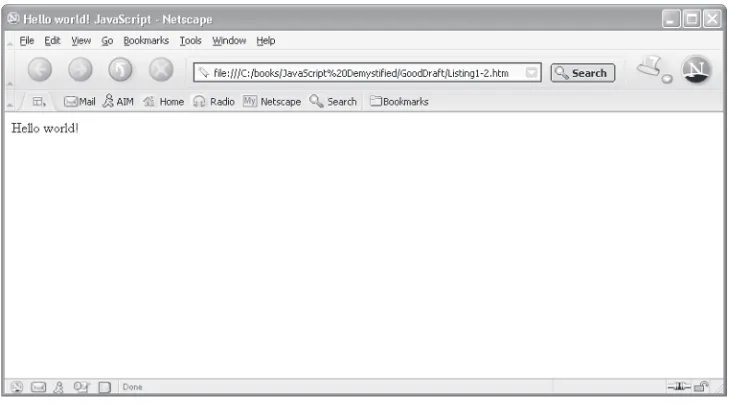
Now for the moment that you’ve been waiting for. You’ll create the web page shown in Figure 1-1.
<!DOCTYPE html PUBLIC
"-//W3C//DTD XHTML 1.0 Transitional//EN"> <html xmlns="http://www.w3.org/1999/xhtml"> <head>
<title>Hello world! JavaScript</title> </head>
<body>
<script language="Javascript" type="text/javascript"> document.write('Hello, world!')
</script> </body> </html>
No doubt most of this code looks familiar, since you’ve probably written some-thing similar to it many times before. The fi rst two lines are standard in every web page. Next is the <head> tag that contains the title of the web page. This is fol-lowed by the <body> tag.
ch01.indd Sec1:7
Within the <body> tag is the <script> tag that contains the one-line Java- Script. The <script> tag is very similar to other HTML tags in that it has an opening (<script>) tag and ending (</script>) tag. The <script> tag also has two HTML attributes: language and type.
The <script> tag signals the browser that a script is coming—not HTML. The browser processes scripts differently than HTML. The language attribute is as-signed the value "Javascript", which informs the browser that the scripting language is JavaScript. The type attribute tells the browser that the script is in plain text and that the text is organized in the format of a JavaScript. This simply gives the browser information on how to read the JavaScript code.
Everything between the opening <script> and ending </script> tags is the script and must be written using JavaScript. This example is a one-line script. First, the line is a JavaScript statement. A statement is like a sentence that tells the browser to do something. Next, you notice the dot syntax. This is a clue telling you that the JavaScript statement contains an object, which in this case is named document.
You also notice something on the right side of the dot. Knowing that the left side of the dot is the name of an object, you probably fi gure that the right side of the dot must be either a property or method of the object. In this example, it’s a method. The clue that gives this away are the parentheses—and you read about the write()
method previously in this chapter.
[image:31.504.97.462.60.262.2]NOTE
Figure 1-1 Your fi rst JavaScript displays “Hello, world!” in a web page.
ch01.indd Sec1:8
The name of the method is write(), which describes what the method does—it writes something to the document. The text'Hello, world!' appears between the parentheses. This is the information that is written to the document. You must enclose the information within quotation marks; otherwise, the browser will think you are referring to a JavaScript instruction. JavaScript can use single or double quo-tations.
Save this web page to your hard disk, and then open it in your browser. You’ve now successfully written your fi rst JavaScript program. If you don’t see this mes-sage displayed on the web page, one or two things are likely to be the problem: First, make sure that the entire HTML and JavaScript code is written exactly the way that you see it in the preceding listing. Sometimes a typographical error slips into the code and confuses the browser. Second, make sure that the JavaScript op-tion on your browser isn’t turned off. If it is, turn it on and reload the web page. Usually, JavaScript is enabled as the default for Microsoft Internet Explorer and Netscape Navigator. You can determine whether JavaScript is enabled and how to enable it if it is disabled.
For Microsoft Internet Explorer, follow these steps:
1. Choose Tools | Internet Options.
2. Select the Security tab.
3. Click the Custom Level button.
4. In the Security Settings dialog box, scroll down to the Scripting area and fi nd Active Scripting.
5. Select Enable.
6. Click the OK button, and then click OK again.
For Netscape, follow these steps:
1. Choose Edit | Preferences.
2. Double-click Advanced Category.
3. Select Scripts & Plug-ins.
4. Select Enable JavaScript options.
5. Click OK.
NOTE
NOTE If you are using a different version of Netscape Navigator, keep in mind the
steps you take may differ somewhat.
ch01.indd Sec1:9
“Old Timers” Don’t Like JavaScript
Most browsers today have no problem running a JavaScript, assuming that the Ja-vaScript option is turned on. However, you never know if someone some place on the Internet hasn’t upgraded to a new browser or still uses a very old browser.
Microsoft Internet Explorer 3 and earlier versions, Netscape 1.x, and America Online versions 3 and earlier can’t run JavaScript because they don’t know how to interpret JavaScript code. Instead, these browsers display the JavaScript instead of running it. This means that your JavaScript is displayed for all to see.
You can hide your JavaScript from these “old timers” by placing your script in an HTML comment section of a web page. You’ll recall from when you learned HTML that a browser treats anything between <!-- and --> as a comment. Browsers that are JavaScript-enabled recognize and run a JavaScript that is con-tained within an HTML comment. Older browsers simply ignore the JavaScript, thinking that the script is a comment.
The following listing illustrates how to hide your JavaScript from older brows-ers. Notice that the HTML comment is placed inside the <script> and
</script> tags and around the JavaScript code. Some rookie JavaScript devel-opers place the HTML comment outside the <script> tags. If you do this, the browser assumes your JavaScript is an HTML comment and will ignore everything within the HTML comment. Simply said, your JavaScript won’t run.
<!DOCTYPE html PUBLIC
"-//W3C//DTD XHTML 1.0 Transitional//EN"> <html xmlns="http://www.w3.org/1999/xhtml"> <head>
<title>Hiding Hello world! JavaScript</title> </head>
<body>
<script language="Javascript" type="text/javascript">
document.write('Hello, world!') -->
</script> </body> </html>
ch01.indd Sec1:10
Spicing Up Your JavaScript
Figure 1-2 The alert dialog box remains on the screen until the OK button or the close box is clicked.
Admittedly, your fi rst JavaScript looks a little drab because the text lacks the pizzazz that you expect to see when you display text using a JavaScript. You’ll learn tech-niques the pros use to display text in later chapters. For now, let’s add a little polish to your simple Hello, world! JavaScript by displaying the text in an alert dialog box.
An alert dialog box pops on the screen to display a message and stays on the screen until someone clicks the OK button that appears in the dialog box. (You may have seen an alert dialog box displayed if you tried to print something but you for-got to turn on the printer. The alert dialog box gave you a polite reminder.)
You display an alert dialog box by calling the alert function and passing it the text that you want to be displayed. You’ll learn about functions in Chapter 5. You insert the following statement in your JavaScript whenever you want to display the alert dialog box.
alert("message")
Replace the word message with the text that you want displayed. The following is a revised Hello, world! JavaScript. Notice that the document.write() state-ment is replaced with the alert function. You’ll see the alert dialog box displayed (Figure 1-2) when you run this script.
<!DOCTYPE html PUBLIC
"-//W3C//DTD XHTML 1.0 Transitional//EN"> <html xmlns="http://www.w3.org/1999/xhtml"> <head>
<title>Hiding Hello world! JavaScript</title> </head>
<body>
<script language="Javascript" type="text/javascript">
alert('Hello, world!') -->
</script> </body> </html>
ch01.indd Sec1:11
Looking Ahead
Now you have a pretty good understanding of what JavaScript is and what it isn’t. JavaScript is a limited-featured programming language that is used to enhance HTML and give web pages the smarts to make decisions and perform sophisticated features found in professional web sites. JavaScript isn’t Java.
JavaScript is an object-oriented programming language that lets you build ap-plications by using objects. An object is a document, button, or another item, that appears on a form. Each object has properties—information about the object, such as size and color. Each object also has methods, which are actions performed by the object such as processing a form when the Submit button is clicked.
You access properties and methods of an object by using the name of the object followed by a dot and the name of the property or method that you want to use in your JavaScript. This is called dot syntax.
A JavaScript application reacts to events that occur while the application is running. An event is usually an action taken by the person who is using your application, such as someone clicking the Submit or Cancel button. You enable your JavaScript to react to events by defi ning event handlers. An event handler is a portion of your application that is called whenever a specifi c event occurs while your application is running.
A JavaScript is placed within the <script> tags of an HTML page. The
<script> tags can be placed within the <head> or <body> tags of the page. It is a good practice to place JavaScript code in an HTML comment within the
<script> tags so that older browsers that don’t understand JavaScript won’t dis-play your JavaScript code on the screen.
Now that you have a good general understanding of JavaScript and know how to write a simple JavaScript application, it is time to move on to more interesting as-pects of JavaScript. In the next chapter you’ll learn how to store and use information within a JavaScript.
Quiz
1. JavaScript is a version of
a. Java
b. LiveScript
c. C++
d. VBScript
ch01.indd Sec1:12
2. A JavaScript must reside within the
a. <object> tag b. <applet> tag c. <script> tag d. <cgi> tag
3. The Submit button is a type of
a. Object
b. Method
c. Property
d. Variable
4. The background color of a document is a type of
a. Object
b. Method
c. Property
d. Variable
5. write() is a type of a. Object
b. Method
c. Property
d. Variable
6. A dot is used to
a. Identify a JavaScript comment
b. Separate lines of a JavaScript
c. End a JavaScript statement
d. Separate an object name from either a property or a method
7. What is it called when a person clicks a button on a form displayed by your JavaScript?
a. Event
b. Reaction
c. Rollover
d. Mouse rollover
ch01.indd Sec1:13
8. What part of your JavaScript reacts to someone clicking a button on a form displayed by your JavaScript?
a. Main
b. Event handler
c. Subscript
d. Superscript
9. How do you prevent your JavaScript from being displayed by older browser?
a. Place the JavaScript within the <script> tag b. Place the JavaScript within the header
c. Place the JavaScript within a comment
d. Place the JavaScript within the body
10. JavaScript is
a. A full-featured programming language
b. A limited-featured programming language
c. A version of ASP
d. A version of ASP.NET
ch01.indd 14
15
CHAPTER
Variables,
Operators, and
Expressions
You’ve probably seen many sophisticated web pages while surfi ng the Net and have wondered how they were built. The secret to such sophistication lies with JavaScript’s ability to store and manipulate information and its ability to process information on the fl y. These are things you can’t do with HTML alone.
Before you can build an exciting web page, you’ll need to learn the nitty-gritty basics of how to use JavaScript to store and manipulate information. Once you get the basics under your belt, you’ll learn how to build those fancy features that you see in popular web sites.
In this chapter, we’ll explore the behind-the-scenes part of JavaScript that is the foundation of nearly every eye-catching web page on the Internet. These are values,
ch02.indd 15
ch02.indd 15 5/12/2005 10:46:13 AM5/12/2005 10:46:13 AM
variables, and expressions that tell your browser how to make decisions while your JavaScript runs. If you know how to add 1 + 1, you will breeze through the informa-tion in this chapter.
Values and Variables
Web pages contain a lot of information along with a few pictures sprinkled about to catch your attention. In HTML, you place information you want to display between varieties of HTML tags. You place “Hello, world!” between the open <h1> and close </h1> tags, which cause that message to be displayed on the web page. In-formation that you place in the code of a web page or JavaScript is called a value. For example, the “Hello, world!” script that you wrote in the JavaScript in Chapter 1 is a value. A variable is basically a placeholder that holds a spot for data that can be changed during the execution of a program.
Values
In HTML, all values are treated as text. That is, when you enter 10, HTML treats it not as a number that can be used in a calculation, but as a number that you might use in a street address, such as 10 Downing Street. JavaScript uses six kinds of val-ues: number, string, Boolean, null, object, and function.
Number
A number is a numeric value that can be used in a calculation.
String
A string is text that is enclosed within quotation marks. It is called a string because characters are strung together to form the text. A string can also contain numbers, but those numbers can’t be used in a calculation unless the developer performs some JavaScript magic to it, which you’ll learn about later in this book. So the number in 10 Downing Street is part of a string and cannot be directly used in a calculation.
Boolean
A Boolean is a value that is either false or true, which is represented as zero and/or non-zero. As you might surmise, a Boolean value is used to help a JavaScript make a decision, such as evaluating whether or not the user entered her e-mail address in an order form.
ch02.indd 16
Null
There is nothing to the null value. Really—I mean nothing. That’s what null means. Null is the absence of any value. You might wonder why you’d need to use such a value, but as you’ll see when you start writing sophisticated JavaScripts, there will be times when you need to use a variable (a placeholder for a value) to represent no value (null) until your JavaScript assigns a value to the variable. For example, you probably want to assign null to the variable used for a customer’s fi rst name until the customer enters his or her name on the form.
Objects
You learned about objects in Chapter 1. An object is a value. This means that a document is a value, and so are a window and a form. You’ll become very familiar with objects when you start using them in your JavaScript a bit later.
Functions
A function performs an action when you call the function in a JavaScript—such as when you called the alert() function to display a message on the screen in Chapter 1. Two kinds of functions are used in JavaScript: predefi ned functions and
custom functions. A predefi ned function is already created for you in JavaScript, such as the alert() function. A custom function is a function that you create. You’ll learn all about functions in Chapter 5, but let’s take a peek at what you’ll be learning.
Following is a custom function defi nition that displays “Hello, world!” on the screen. A function defi nition is part of a JavaScript that the browser executes when-ever the function is called somewhere else in the JavaScript. This example of a function defi nition contains one statement that you’ll remember from Chapter 1. In this example, the name of this function is DisplayHelloWorld(). This tells the browser to execute the statement found in the defi nition of the DisplayHel-loWorld() function.
function DisplayHelloWorld() {
alert('Hello, world!') }
Variables
Literal values are fi ne to use if you already know the value when you write your Ja-vaScript. However, sometimes the value isn’t known until your JavaScript is running.
ch02.indd 17
Let’s say that your JavaScript calculates the sales tax on the purchase price of an item. You probably know the percentage value of the sales tax when you write the Java- Script, so you can write the literal value of the percentage into your JavaScript. You don’t know the purchase price of the item until the customer selects the item while your JavaScript runs. This poses a dilemma. How can you write the sales tax calcula-tion into your JavaScript without knowing the purchase price of the item?
The solution is to use a variable in place of the purchase price. You can think of a variable as an empty cardboard box. You place a label on the box on which you write a name. You place a value inside the box. Each time you want to refer to the value, you simply refer to the name of the box.
Let’s return to our sales tax example to see how this works. First, we’ll need a box in which to store the purchase price. Let’s write PurchasePrice on the label of the box (Figure 2-1). We could write any name on the label, but it is less confusing if the name used represents the value stored inside the box.
Next, we’ll write the math expression to calculate the sales tax (the Purchase-Price times the sales tax percentage of 6 percent):
PurchasePrice * .06
Notice that the name on the label of the box (PurchasePrice, the variable) is used to refer to the purchase price in this calculation. We could have used the actual pur-chase price, but we don’t know the purpur-chase price until the user enters the purpur-chase price into our application. Until then, all we can do is refer to the variable where the browser will store the purchase price after it is entered into the application.
When the browser sees PurchasePrice in the JavaScript, the browser knows that PurchasePrice is a label for a variable that contains the value of the pur-chase price. The browser then copies the value entered by the user, replaces the
PurchasePrice variable with the value, and performs the calculation.
Figure 2-1 A variable is similar to a cardboard box that contains a value. You refer to the label on the box whenever you want to use the value inside the box.
ch02.indd 18
Declaring a Variable
Before you can use a variable, you must tell the browser to create a variable. You do this by declaring a variable. Any time you want the browser to do something, you need to write a statement within your JavaScript. Think of a statement as a sentence that issues a command to the browser.
A statement that tells the browser to create a variable requires two parts:
• The special word, called a keyword, tells the browser that you want it to create a variable. Think of a keyword as a word in the JavaScript language that is understood by the browser. JavaScript uses 25 keywords (see Table 2-1), which you’ll learn to use in this book. The word you need to use to declare a variable is var.
• The variable name can consist of any letter, digit, and an underscore, but it cannot begin with a digit. Some rookie JavaScript programmers use a letter such as X as a variable name. Although there is nothing wrong with
X since it is an acceptable variable name in JavaScript, the name X doesn’t tell us anything about the value that is stored in the variable. Professional JavaScript programmers make sure to use a variable name that gives a hint as to the type of value stored in the variable. A variable name cannot be a JavaScript keyword or a JavaScript reserved word. A JavaScript reserved word (see Table 2-2) has a special meaning to the browser, although it’s not necessarily an actual command, as is a JavaScript keyword. You’ll confuse the browser to no end if you either use a JavaScript keyword or a JavaScript reserved word as a name of a variable.
Now that you know the rules for declaring a variable, let’s declare a variable for the purchase price of an item. The following is a JavaScript statement that tells the browser to create a variable called PurchasePrice. Notice that the var part of the statement is written in lowercase.
var PurchasePrice
break do function null typeof
case else if return var
continue export import switch void
default false in this while
delete for new true with
Table 2-1 JavaScript Keywords
ch02.indd 19
Initializing a Variable
The PurchasePrice variable that we declared in the previous example doesn’t yet have a value. This isn’t a problem for the browser, because the browser assumes another statement will appear later in your JavaScript to tell the browser to place a value in the variable.
Professional JavaScript programmers normally place a value in a variable when they declare a variable. This is called initializing the variable because this is the fi rst (initial) value assigned to the variable. You initialize a variable by adding a third part to the statement used to declare the variable. The third part consists of an assignment operator (=) and the initial value. Let’s rewrite the statement that de-clares a variable to initialize the variable:
var PurchasePrice = 100
This statement tells the browser to do two things: First, create a variable called
PurchasePrice. Second, assign the value 100 to the PurchasePrice vari-able. From now on, any time the browser sees PurchasePrice in our JavaScript, the browser will immediately replace the variable name with the value 100. (There are some exceptions to this, but they’ll be covered in Chapter 5.)
Let’s return to our sales tax calculation. Notice that the fi rst line declares the vari-able PurchasePrice and initializes it with the value 100. The second line declares the SalesTax variable and initializes it with the calculated sales tax.
var PurchasePrice = 100
var SalesTax = PurchasePrice * .06
abstract debugger goto package synchronized
boolean double implement private throw
byte enum instanceof protected throws
catch extends int public transient
char fi nal interface short try
class fi nally long static
const fl oat native super
Table 2-2 JavaScript Reserved Words
ch02.indd 20
The browser replaces the variable name PurchasePrice with the value 100
and then performs the calculation as follows:
var PurchasePrice = 100 var SalesTax = 100 * .06
Assigning a Value to a Variable
Typically, the value of a variable changes while your JavaScript runs, and the initial value of the variable is replaced with another value. This is the case when using the
PurchasePrice variable in our example.
We used 100 as the initial value of the PurchasePrice variable to simulate receiving the purchase price from a customer who uses your JavaScript. If this were a real JavaScript application, we’d use 0 as the initial value since the customer hasn’t as yet purchased an item. Then we’d replace the 0 value with the purchase price of the item selected by the customer (as shown in the JavaScript a few para-graphs later).
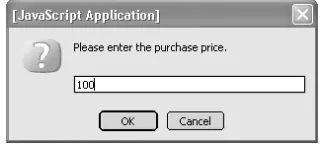
JavaScript has an easy way for you to ask the user of your application to enter in-formation into your JavaScript—by calling the prompt() function. The prompt()
function displays text within a prompt dialog box (see Figure 2-2) and then waits for the user to enter information and click the OK button. The information entered by the user is then returned to your JavaScript so your script can process it.
You can use the prompt() function to have the user enter the purchase price, and then we’ll assign the purchase price to the PurchasePrice variable before calculat-ing and displaycalculat-ing the sales tax. Here is the syntax for callcalculat-ing a prompt() function:
[image:44.504.144.304.422.494.2]prompt('message', 'default <F102>value')
Figure 2-2 The prompt() function displays a prompt dialog box, where the user enters the purchase price.
ch02.indd 21
Notice that the prompt() function is called similarly to how you called the
alert() function to display the alert dialog box in Chapter 1. You need to provide two pieces of information to the prompt() function: The fi rst is the message; this is the text that tells the user what they should enter into the prompt dialog box. The second piece is the default value, which is the value given to your JavaScript by the
prompt() function if the user doesn’t enter a value into the prompt dialog box. In some cases when a default value isn’t used, you can simply add empty quotation marks, as shown in the following example:
<!DOCTYPE html PUBLIC
"-//W3C//DTD XHTML 1.0 Transitional//EN"> <html xmlns="http://www.w3.org/1999/xhtml"> <head>
<title>Receiving a value from the user</title> </head>
<body>
<script language="Javascript" type="text/javascript">
var PurchasePrice = 0 PurchasePrice=
prompt('Please enter the purchase price.', ' ') var SalesTax = PurchasePrice * .06
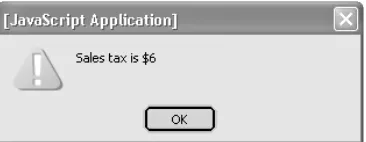
alert('Sales tax is $' + SalesTax) -->
</script> </body> </html>
After the comment characters (<!--), the fi rst line declares the Purchase-Price variable and initializes it to 0, because we don’t know the value of the purchase price when we’re writing the JavaScript.
The next line calls the prompt() function in an assignment statement that asks the user to enter the purchase price. An assignment statement tells the browser to replace the current value of a variable with a new value. There are three parts to an assignment statement: the name of the variable (PurchasePrice), the assign-ment operator (=), and the new value, which is the value entered by the person and returned by the prompt() function. Now the value of the PurchasePrice
variable is the value entered by the user.
The next line declares the SalesTax variable and initializes it with the sales tax calculated by multiplying the value entered by the user by .06, which is the decimal value of the sales tax.
TIP
ch02.indd 22